







Need a VPN for your device?
Get ExpressVPN Now
One ExpressVPN account. All devices.
Get Apps for FreeThis article will show you how to set up ExpressVPN on ASUSTOR, using the OpenVPN protocol.
You’ll need a fully set up ASUSTOR device and an ExpressVPN subscription. To begin:
Jump to section
Find your ExpressVPN account credentials
Set up your VPN profile
Connect to the VPN server
Disconnect from the VPN server
Find your ExpressVPN account credentials
- Go to the ExpressVPN manual configuration setup page.
- If prompted, log into your ExpressVPN account with your email and verification code or passkey.
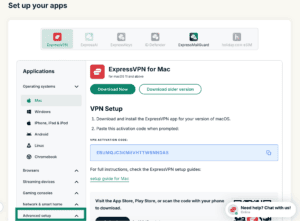
- Under Applications (or Show other devices), click Advanced setup.

- Click Manual configuration.


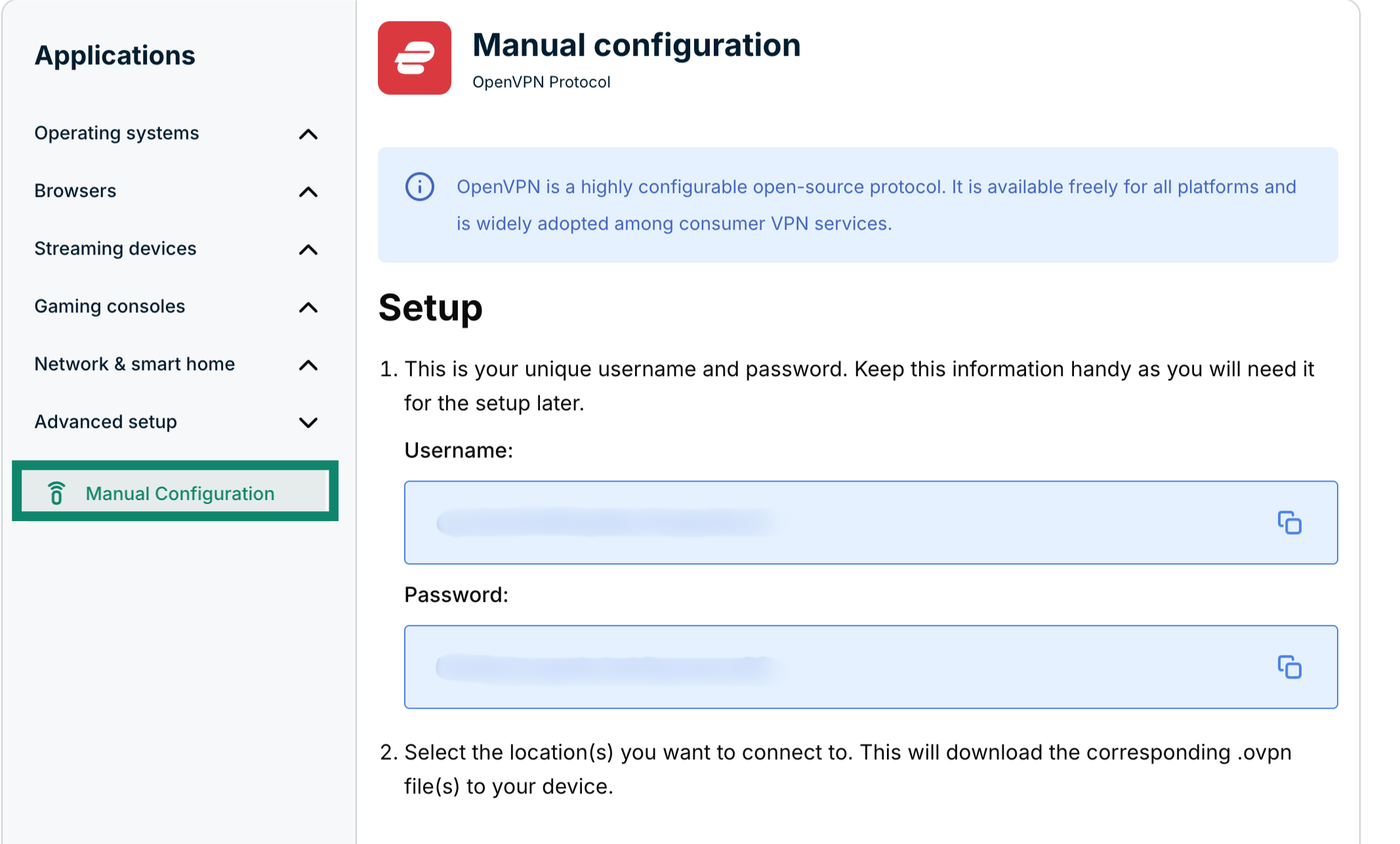
- You’ll see your username and password on the right side under Setup in step 1.

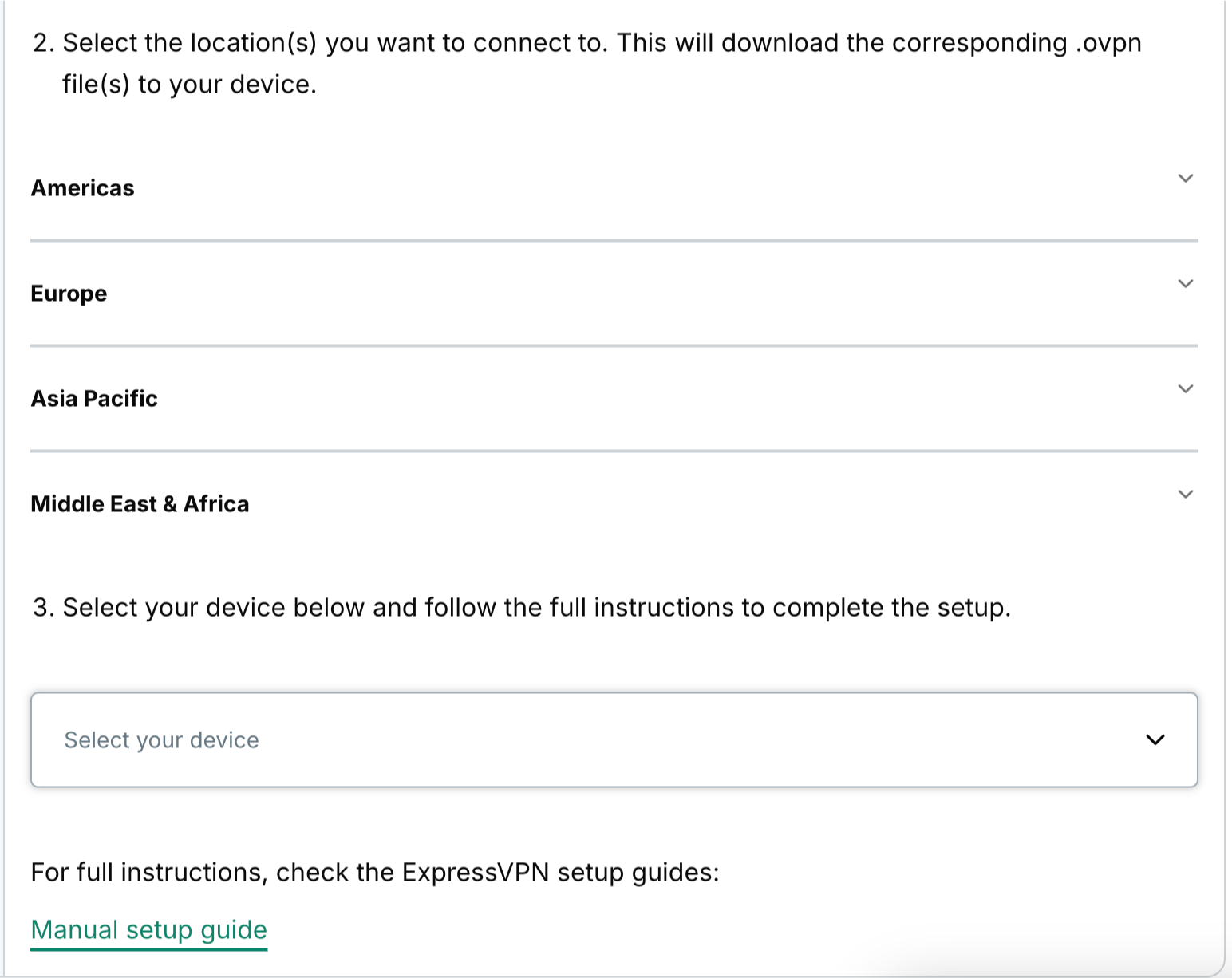
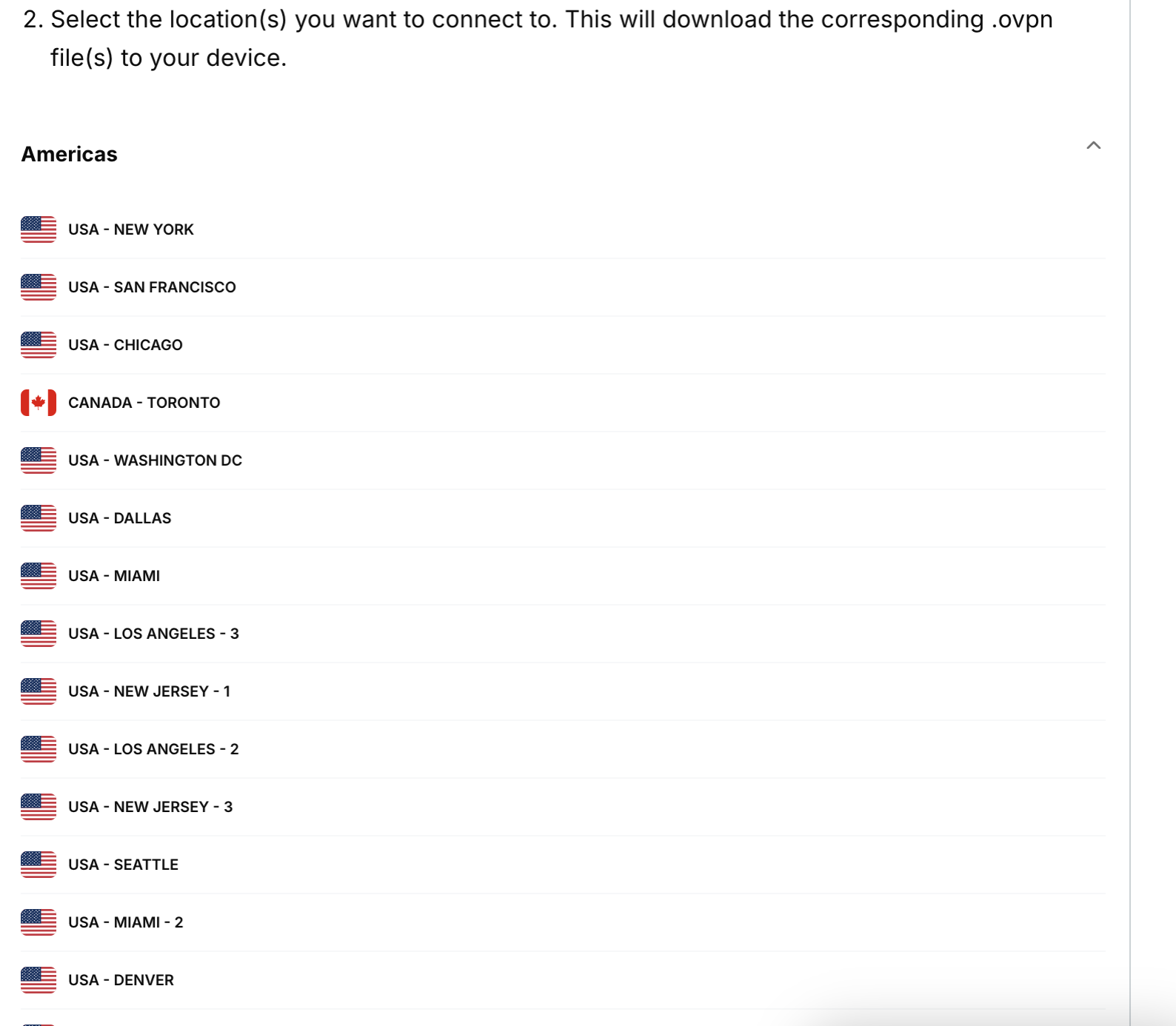
- Scroll down to step 2 to see the available regions. Click a region to open a dropdown menu and see the available locations.


- Click a location and the file will start downloading automatically.


Leave this tab open; you’ll need your ExpressVPN username and password later.
Need help? Contact the ExpressVPN Support Team for immediate assistance.
Set up your VPN profile
Now, on the ASUSTOR dashboard, go to Settings.

Under Network, click on the Network interface tab.

Click on Add and select Create VPN.

Select OpenVPN and click Next.

Select Import Configuration Files from OpenVPN Provider and click Next.

Fill in the fields as below:
- Name: a name for you to remember the connection
- Account: use the ExpressVPN username you obtained above
- Password: use the ExpressVPN password you obtained above
- Import file(s): click Browse and upload the configuration file(s) you previously downloaded
Click Finish.

Need help? Contact the ExpressVPN Support Team for immediate assistance.
Connect to the VPN server
Back in the main “Network interface” menu, select the OpenVPN connection you created and click Action > Connect.

Need help? Contact the ExpressVPN Support Team for immediate assistance.
Disconnect from the VPN server
To disconnect from the VPN, click Disconnect.

Need help? Contact the ExpressVPN Support Team for immediate assistance.