






Veel websites vragen om je locatie door je een verzoek te sturen om je locatie te delen. Om je privacy te beschermen, kun je het delen van je locatie uitschakelen in je browser.
Ga naar…
Google Chrome
Mozilla Firefox
Microsoft Edge
Safari
Opera
Brave
Google Chrome
- Open in Chrome het menu met de drie puntjes in de rechterbovenhoek en selecteer Settings (Instellingen).


- Klik in de linkerzijbalk op Privacy and security (Privacy en beveiliging) en vervolgens op Site settings (Site-instellingen).


- Klik onder Permissions (Machtigingen) op Location (Locatie).


- Selecteer onder Default behavior (Standaardgedrag) de optie Don’t allow sites to see your location (Sites niet toestaan je locatie te zien).


Toegang tot je locatie voor Chrome beheer je via de iOS-instellingen van je apparaat.
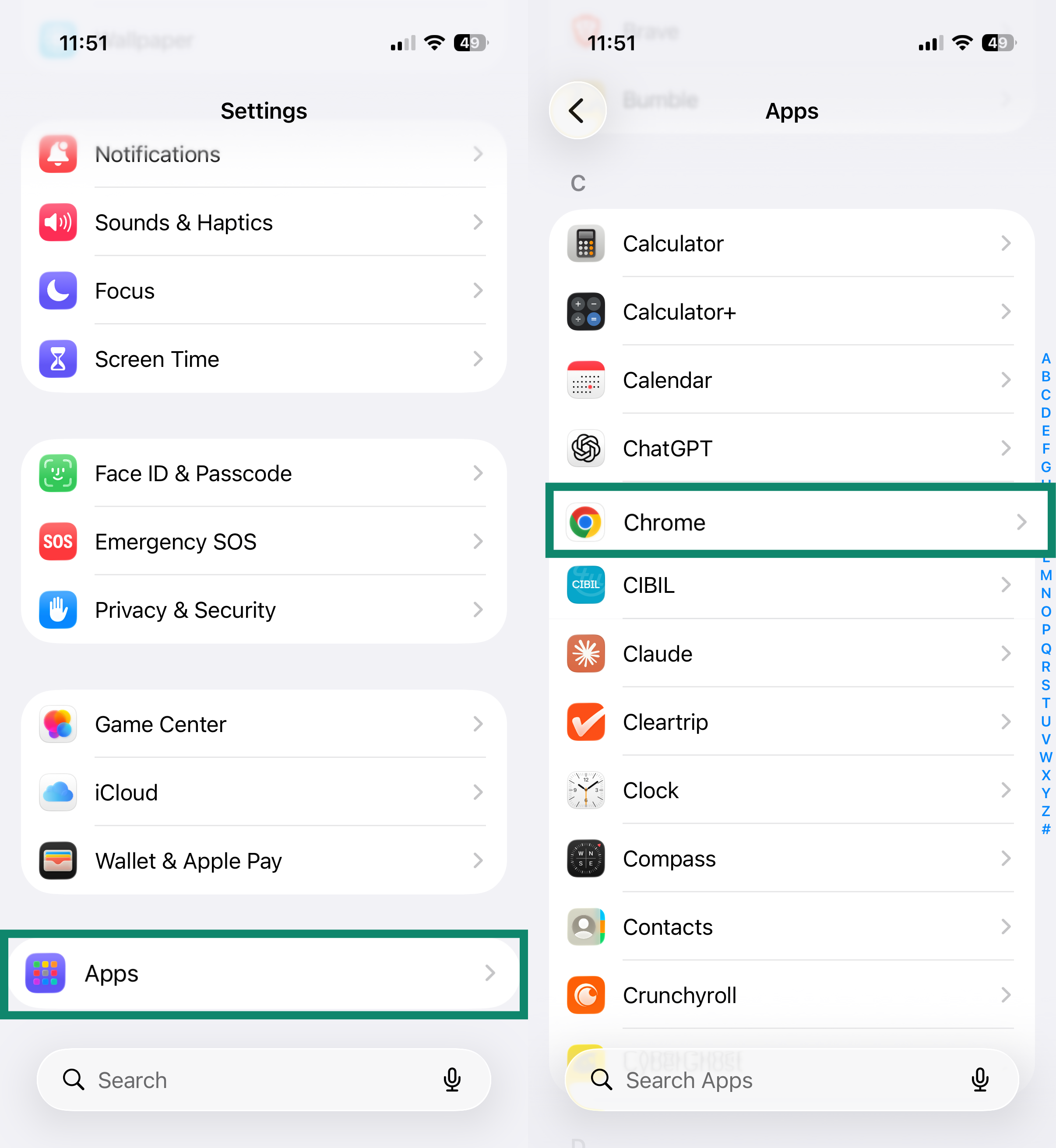
- Open de app Settings (Instellingen).
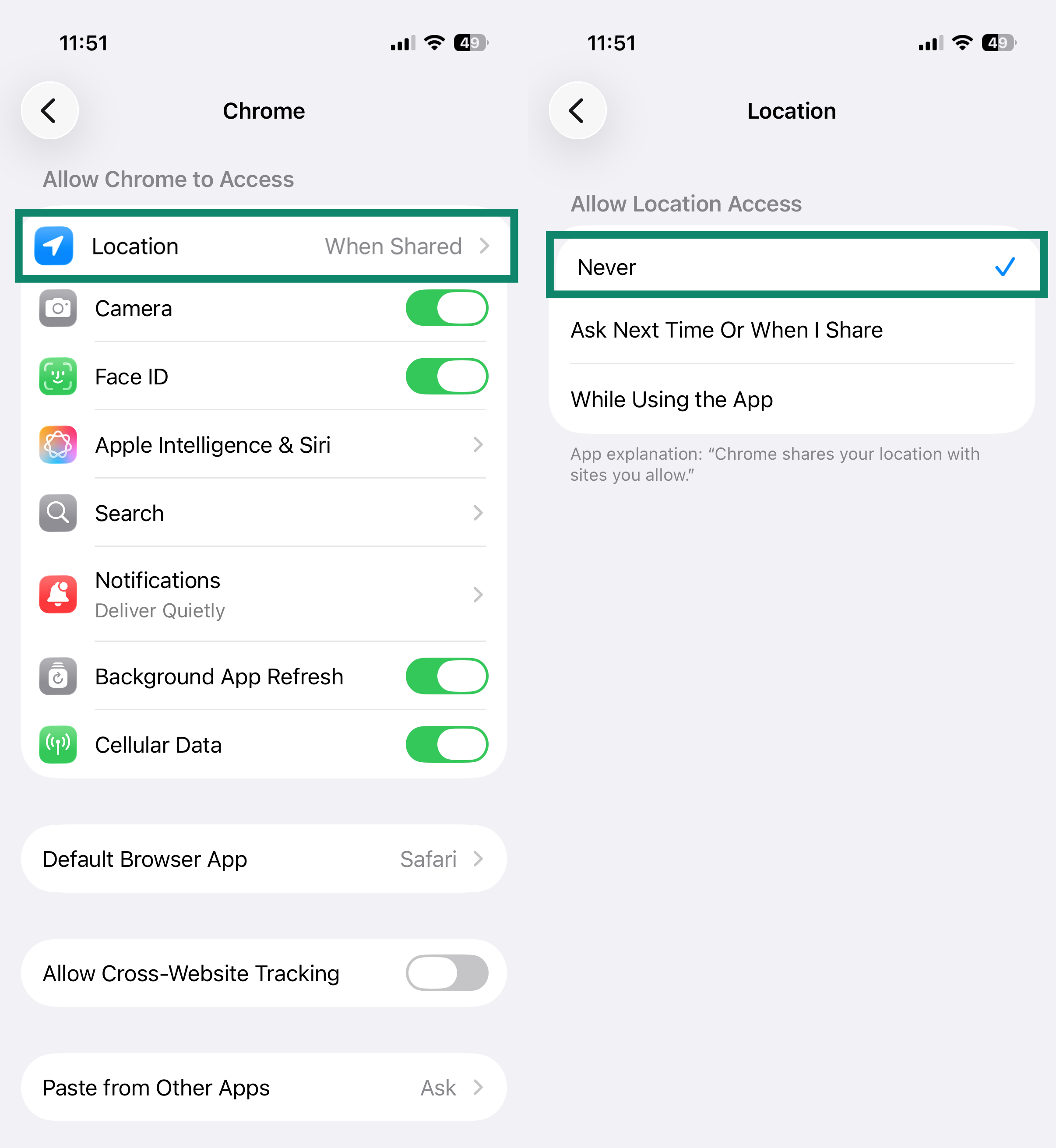
- Tik op Apps en vervolgens op Chrome.
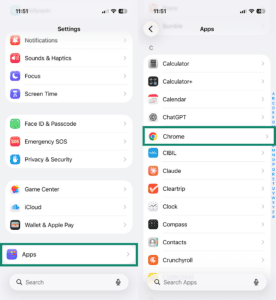

- Tik op Location (Locatie) en selecteer vervolgens Never (Nooit).

- Tik in de Chrome-app op het menu met de drie puntjes in de rechterbovenhoek.


- Tik op Settings (Instellingen).

- Tik onder Advanced (Geavanceerd) op Site settings (Site-instellingen).

- Tik op Location (Locatie) en selecteer Don’t allow sites to see your location (Sites niet toestaan je locatie te zien).


Mozilla Firefox
- Klik in Firefox op het menupictogram met drie horizontale streepjes

 .


- Selecteer Settings (Instellingen).


- Klik in de linkerzijbalk op Privacy & Security (Privacy en beveiliging). Scrol vervolgens omlaag naar Permissions (Machtigingen) en klik op Location (Locatie).

- Vink Block new requests asking to access your location (Nieuwe verzoeken om toegang tot je locatie blokkeren) aan en klik op Save Changes (Wijzigingen opslaan).


- Tik in de Firefox-app op het menu met de drie puntjes.

- Tik op Settings (Instellingen).

- Tik onder Privacy and security (Privacy en beveiliging) op Site settings (Site-instellingen).

- Tik op Location (Locatie).

- Tik op Blocked (Geblokkeerd).


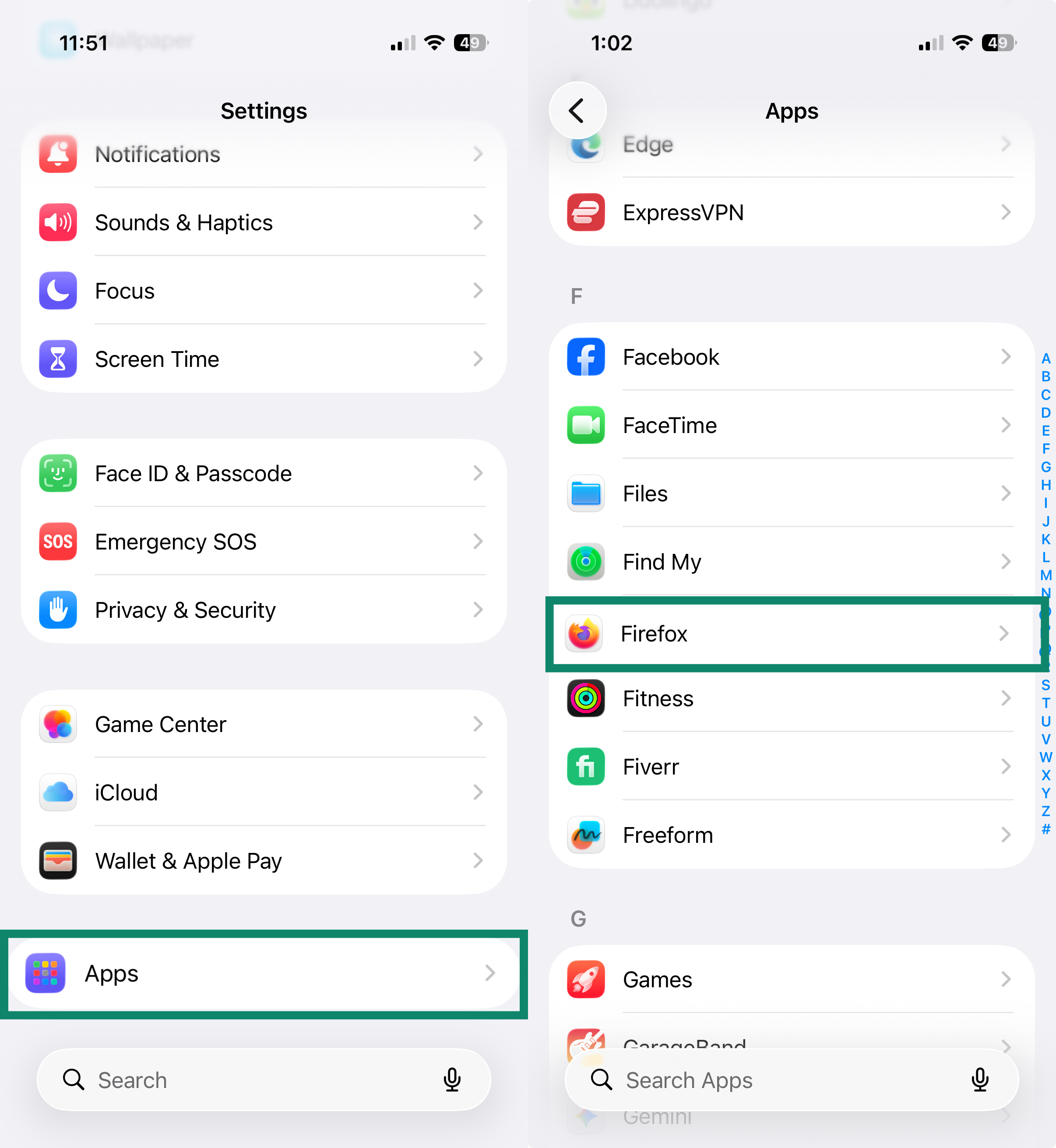
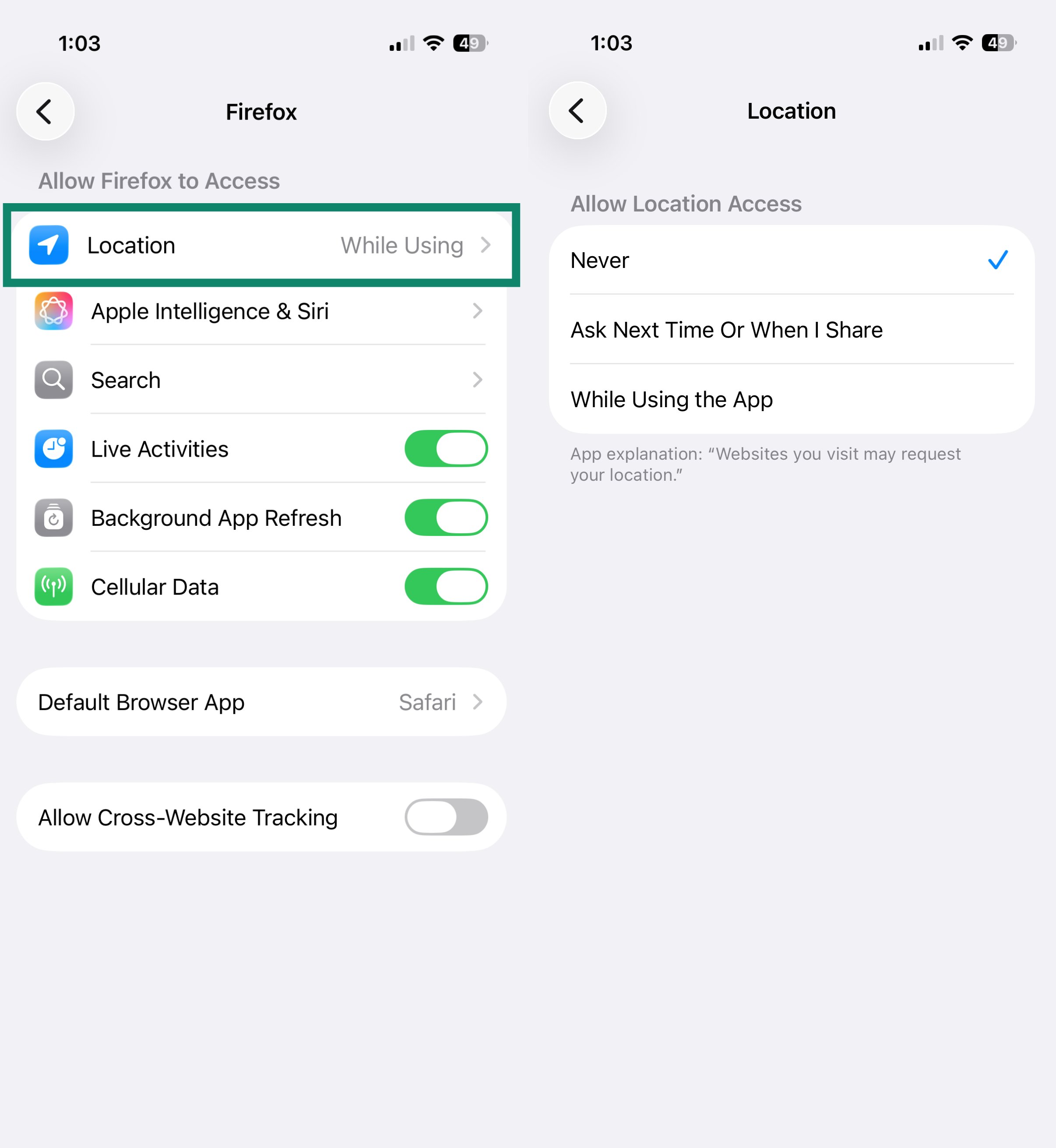
Firefox voor iOS heeft geen instelling waarmee je het delen van je locatie in de app kunt uitschakelen. Je kunt voorkomen dat Firefox toegang krijgt tot je locatie door deze machtiging aan te passen via de instellingen van je apparaat:
- Open pen de app Settings (Instellingen).
- Tik op Apps en vervolgens op Firefox.

- Tik op Location (Locatie) en selecteer Never (Nooit).

Microsoft Edge
- Klik in Edge op het menu met de drie puntjes in de rechterbovenhoek.


- Selecteer Settings (Instellingen).

- Klik in de linkerzijbalk op Privacy, search, and services (Privacy, zoeken en services) en vervolgens op Site permissions (Sitemachtigingen).

- Klik op All permissions (Alle machtigingen).


- Klik op Location (Locatie).


- Schakel Ask before accessing (recommended) (Vragen voordat toegang wordt verleend (aanbevolen)) uit.


Op Android
- Tik in de Edge-app op menupictogram met drie horizontale streepjes rechtsonder.

- Tik op Settings (Instellingen).

- Scrol omlaag en tik op Site settings (Site-instellingen) en vervolgens op Site permissions (Sitemachtigingen).

- Tik op Location (Locatie).

- Selecteer Don’t allow sites to see your location (Sites niet toestaan je locatie te zien).


Safari
- Open Safari.
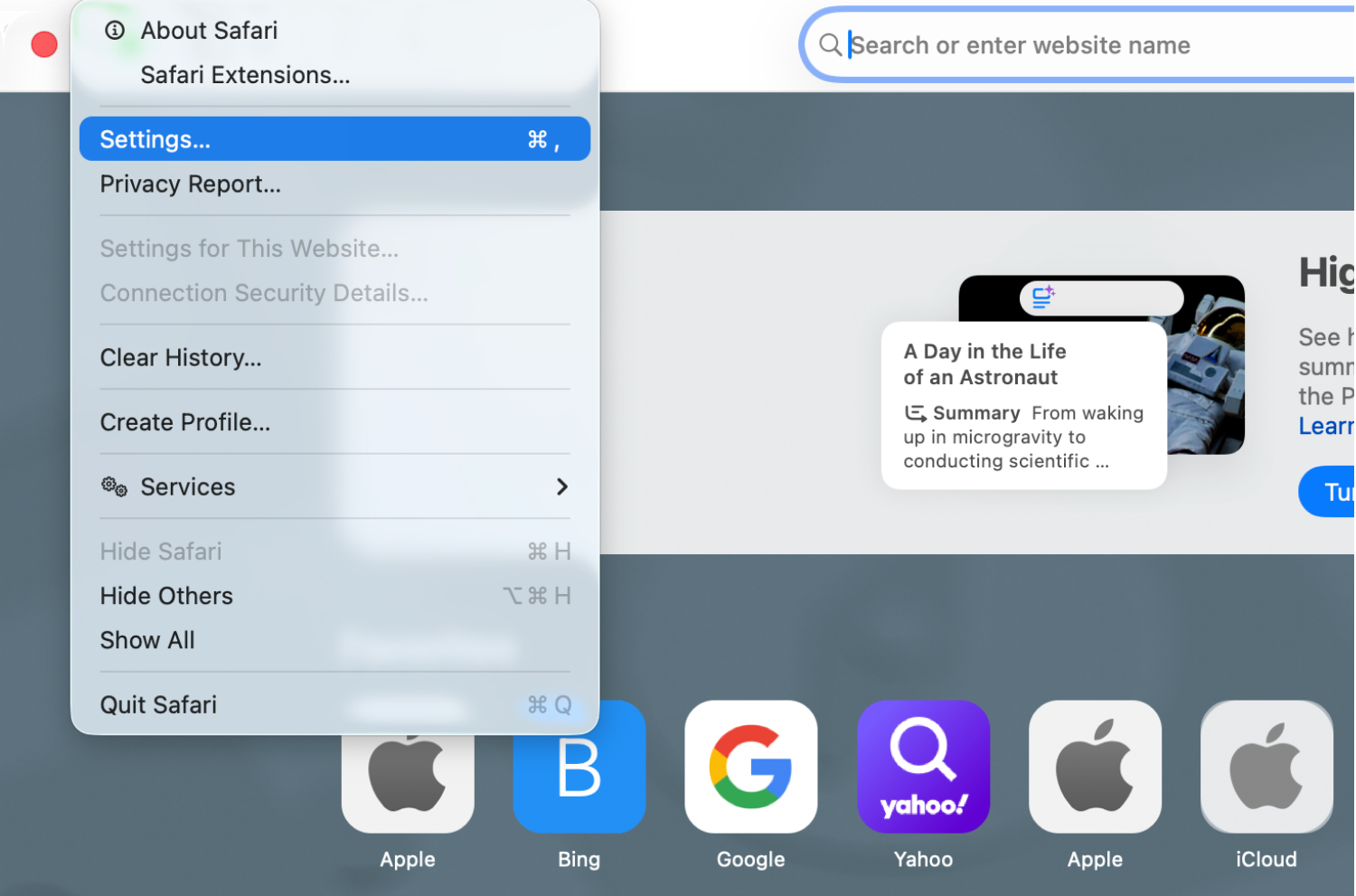
- Klik in de menubalk op Safari > Settings (Instellingen).


- Klik op het tabblad Websites. Klik in de linkerzijbalk op Location (Locatie). Selecteer naast When visiting other websites (Bij het bezoeken van andere websites) de optie Deny (Weigeren).


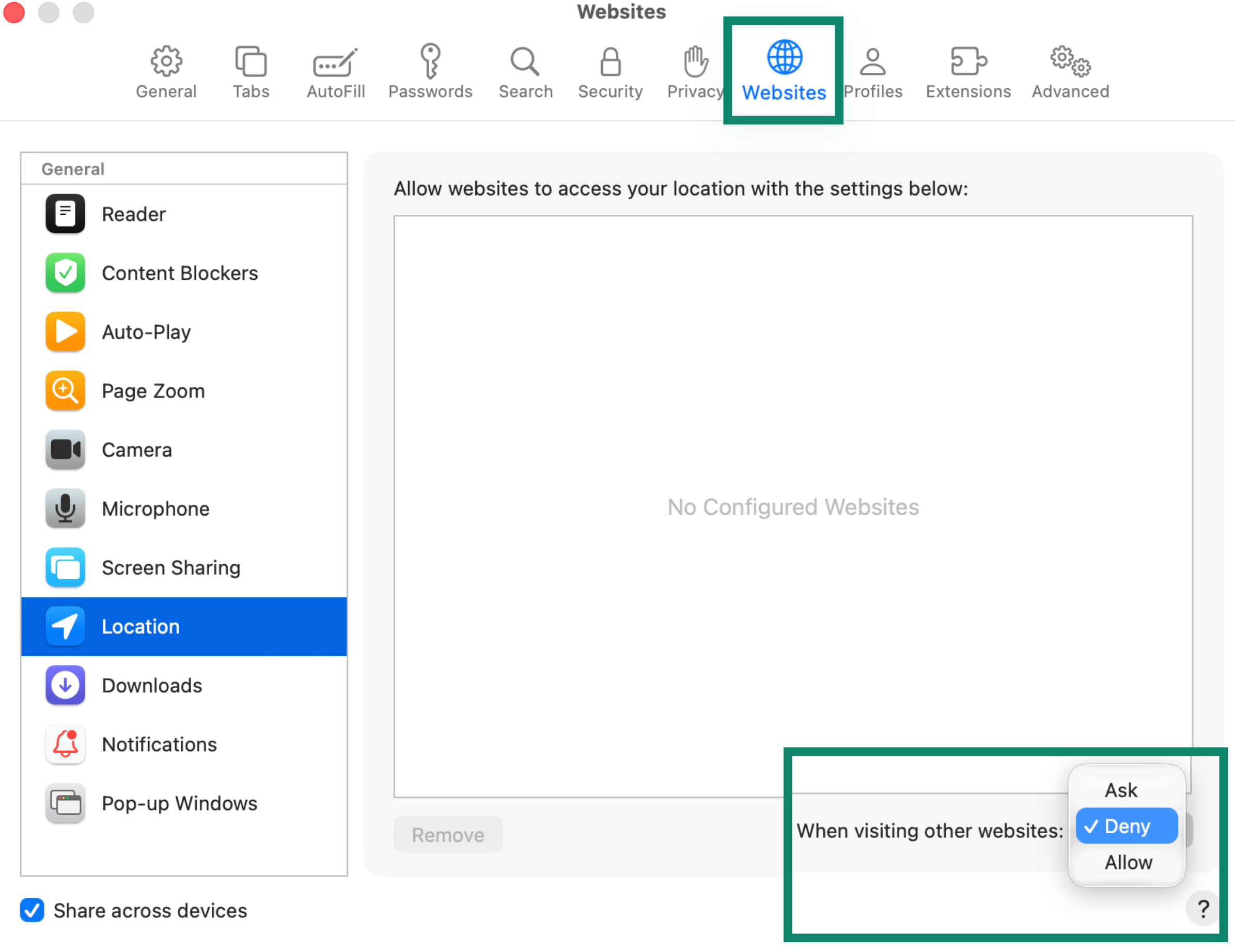
Wil je eerder verleende locatietoegang voor websites intrekken? Selecteer de website dan in de lijst en kies Deny (Weigeren) in het vervolgkeuzemenu.
- Open de app Settings (Instellingen).
- Tik op Apps en vervolgens op Safari.

- Scrol omlaag naar Settings for Websites (Instellingen voor websites) en tik op Location (Locatie).

- Tik op Deny (Weigeren).


Opera
- Klik in Opera op het menu met de drie puntjes linksonder in de zijbalk.


- Klik op Settings (Instellingen).


- Klik in de linkerzijbalk op Privacy & security (Privacy en beveiliging) en vervolgens op Site Settings (Site-instellingen).

- Klik onder Permissions (Machtigingen) op Location (Locatie).


- Selecteer onder Default behavior (Standaardgedrag) de optie Don’t allow sites to see your location (Sites niet toestaan je locatie te zien).


- Tik in de Opera-app op het profielpictogram rechtsonder.

- Tik op het tandwielpictogram.

- Scrol omlaag naar Privacy & security (Privacy en beveiliging) en tik erop. Tik vervolgens op Site settings (Site-instellingen).

- Tik op Location (Locatie).

- Tik nogmaals op Location (Locatie) en selecteer Denied (Geweigerd).


Brave
- Klik in Brave op het menupictogram met drie horizontale streepjes in de rechterbovenhoek en selecteer Settings (Instellingen).


- Klik in de linkerzijbalk op Privacy and security (Privacy en beveiliging) en vervolgens op Site and Shields Settings (Site- en Shields-instellingen).


- Klik onder Permissions (Machtigingen) op Location (Locatie).


- Selecteer onder Default behavior (Standaardgedrag) de optie Don’t allow sites to see your location (Sites niet toestaan je locatie te zien).


- Tik in de Brave-app op het menu met de drie puntjes.

- Tik op Settings (Instellingen).

- Tik onder General (Algemeen) op Site settings (Site-instellingen).

- Tik op Location (Locatie).

- Selecteer Don’t allow sites to see your location (Sites niet toestaan je locatie te zien).


Hulp nodig? Neem contact op met de helpdesk van ExpressVPN voor directe ondersteuning.