






Molti siti web ti chiedono la tua posizione inviandoti una richiesta di accesso ai dati di geolocalizzazione. Per mantenere la tua privacy, puoi disabilitare la condivisione della posizione nel tuo browser.
Vai direttamente a…
Google Chrome
Mozilla Firefox
Microsoft Edge
Safari
Opera
Brave
Google Chrome
- In Chrome, clicca sui tre puntini nell’angolo in alto a destra e seleziona Settings (Impostazioni).


- Nella barra laterale sinistra, clicca su Privacy and security (Privacy e sicurezza) e poi su Site settings (Impostazioni sito).


- Sotto Permissions (Autorizzazioni), clicca su Location (Posizione).


- Come Default behavior (Comportamento predefinito), seleziona Don’t allow sites to see your location (Non consentire ai siti di visualizzare la tua posizione).


L’accesso alla posizione per Chrome è gestito dalle impostazioni del dispositivo iOS.
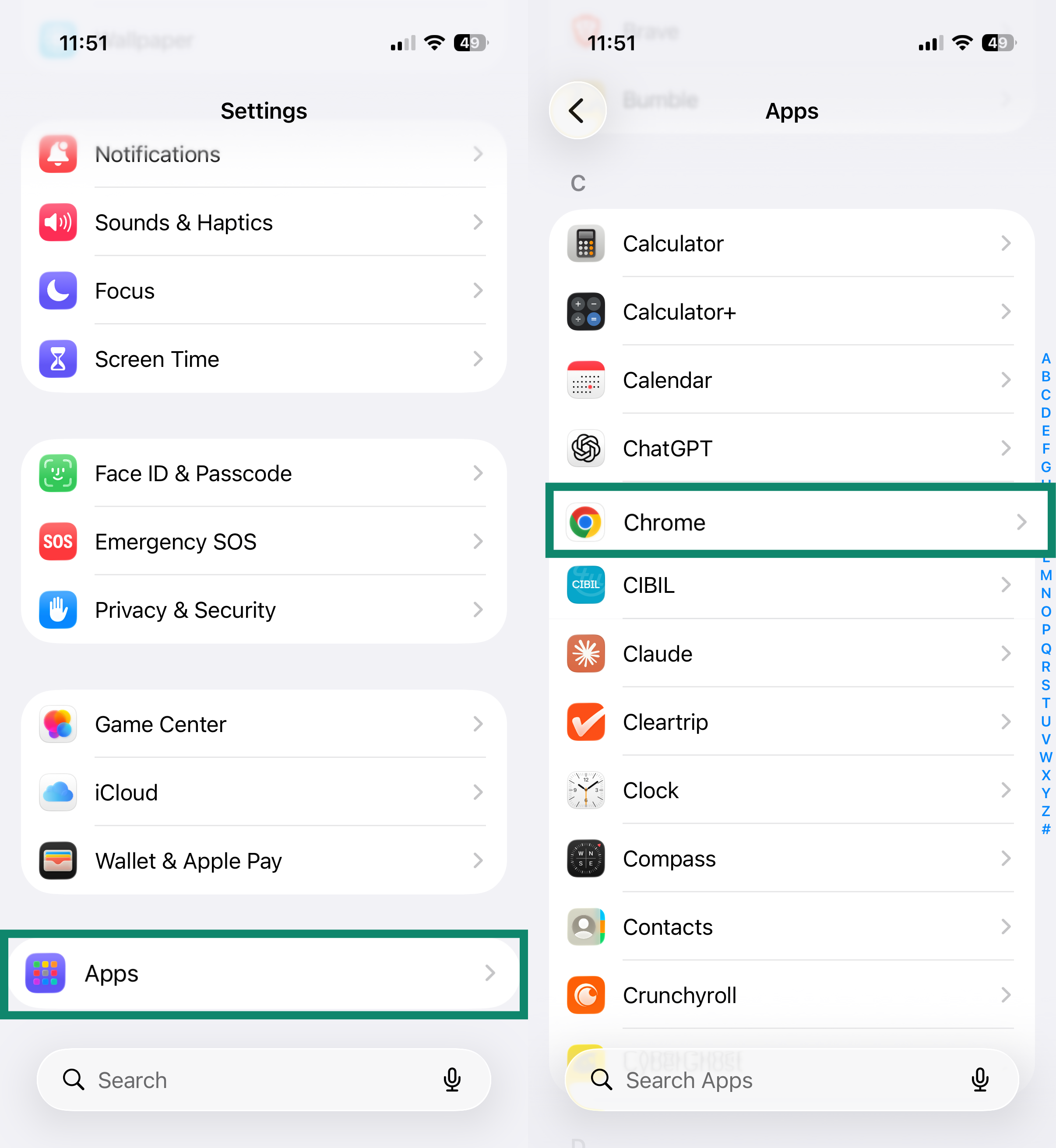
- Apri l’app Settings (Impostazioni).
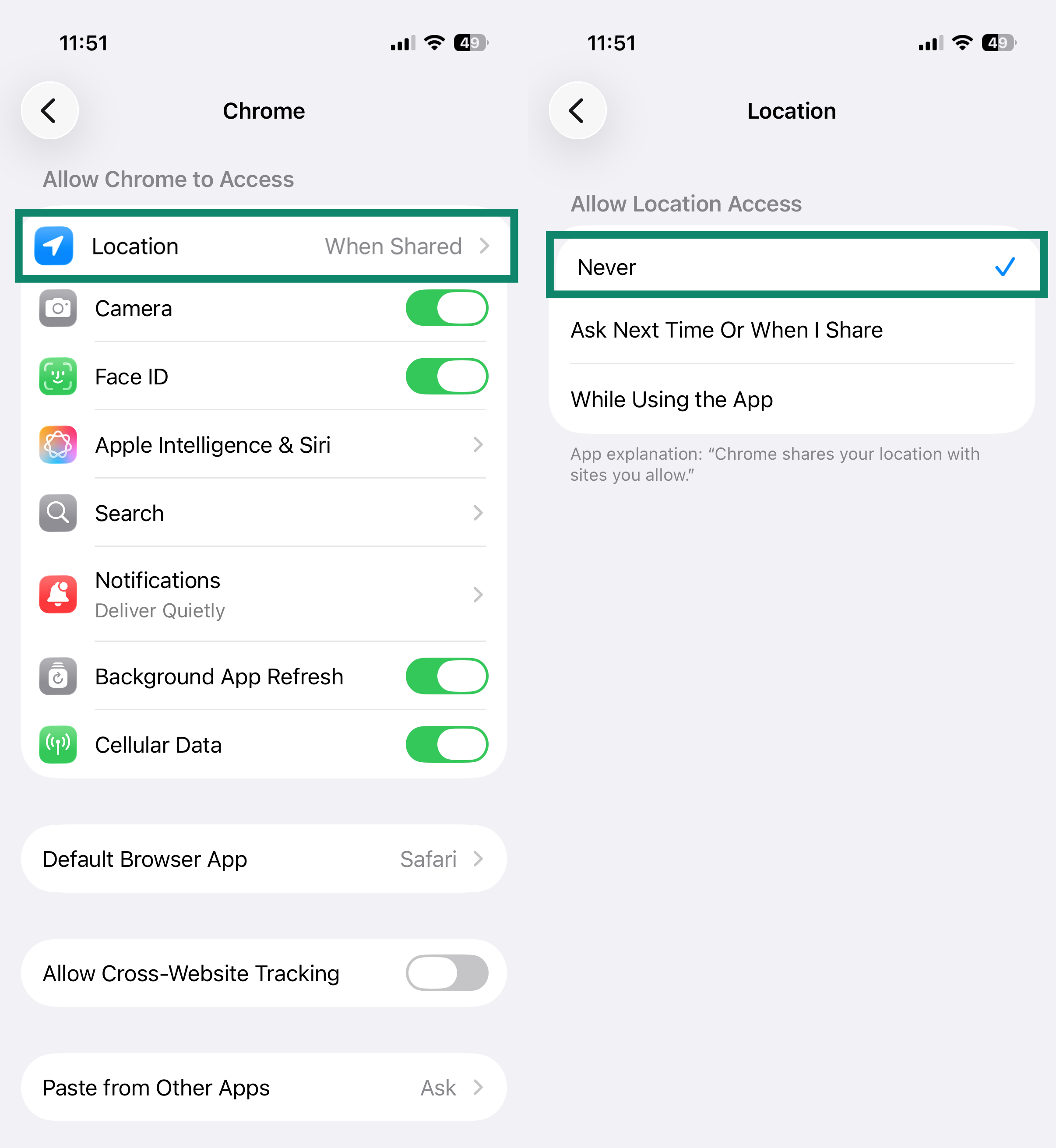
- Tocca App e poi seleziona Chrome.

- Tocca Location (Posizione), quindi seleziona Never (Mai).

- Nell’app di Chrome, tocca i tre puntini nell’angolo in alto a destra.


- Tocca Settings (Impostazioni).

- In Advanced (Avanzate), tocca Site settings (Impostazioni sito).

- Tocca Location (Posizione), quindi seleziona Don’t allow sites to see your location (Non consentire ai siti di visualizzare la tua posizione).


Mozilla Firefox
- In Firefox, clicca sull’icona del menu

 nell’angolo in alto a destra.


- Seleziona Settings (Impostazioni).


- Nella barra laterale sinistra, clicca Privacy & Security (Privacy e sicurezza), poi scorri in basso fino a Permissions (Permessi) e clicca su Location (Posizione).

- Seleziona la casella Block new requests asking to access your location (Blocca nuove richieste di accesso alla posizione corrente), quindi clicca su Save Changes (Salva modifiche).


- Nell’app di Firefox, tocca l’icona del menu con i tre puntini.

- Tocca Settings (Impostazioni).

- In Privacy and security (Privacy e sicurezza), tocca Site settings (Impostazioni dei siti web).

- Tocca Location (Posizione).

- Tocca Blocked (Bloccato).


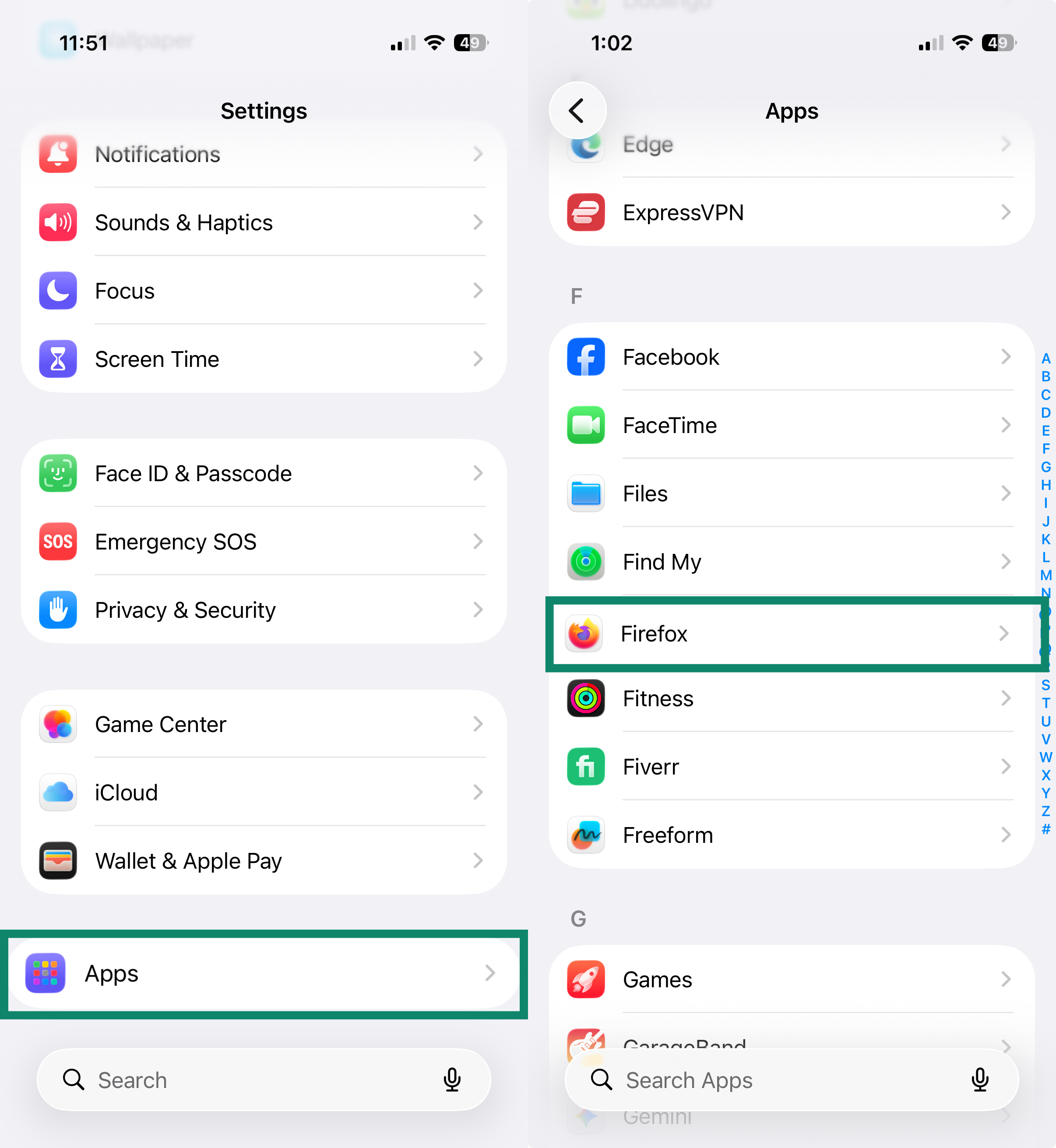
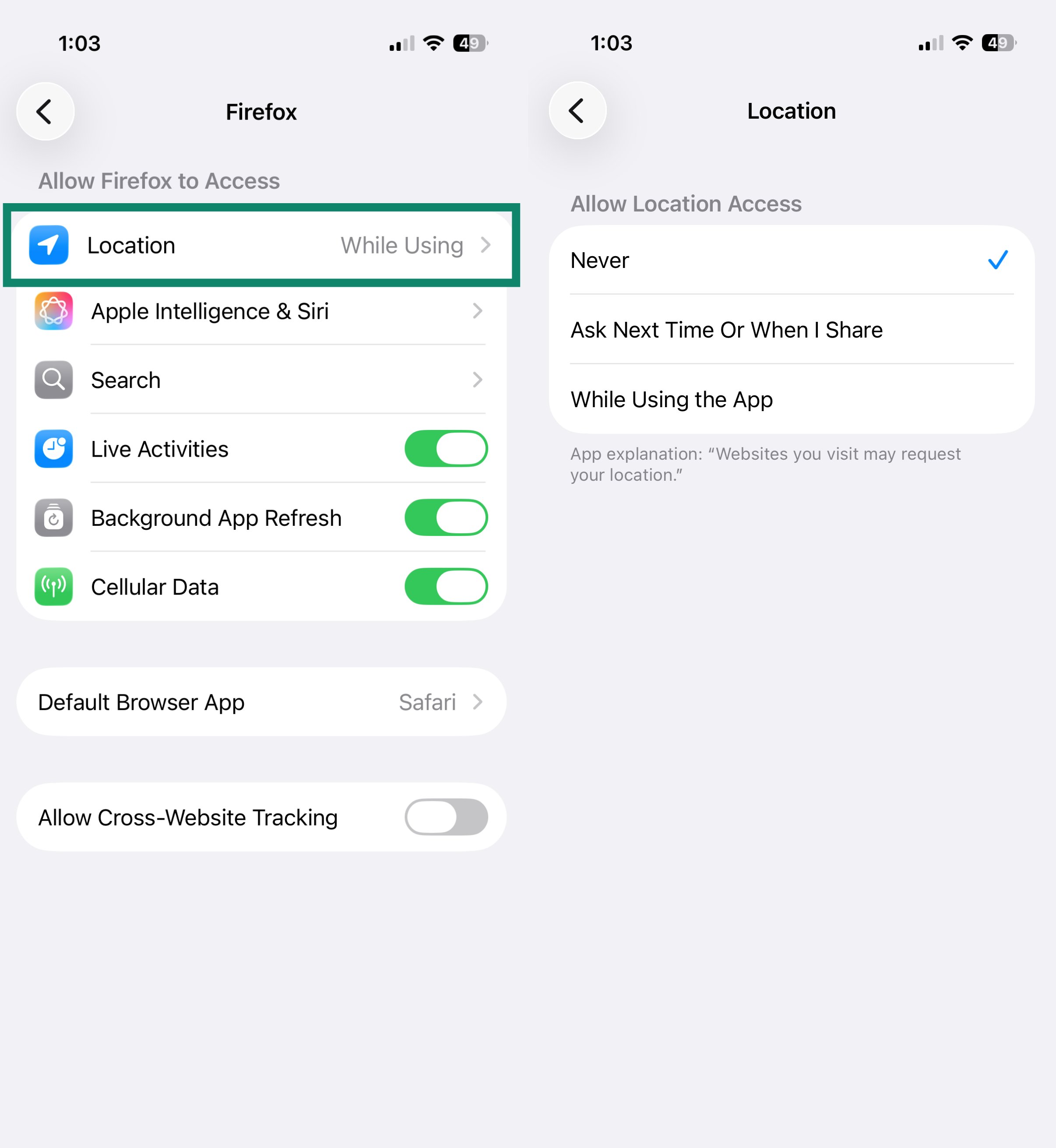
L’app di Firefox per iOS non ha un’impostazione per disabilitare la condivisione della posizione. Per impedire a Firefox di accedere alla tua posizione, gestisci l’autorizzazione dalle impostazioni del tuo dispositivo:
- Apri l’app Settings (Impostazioni).
- Tocca App e poi seleziona Firefox.

- Tocca Location (Posizione), quindi seleziona Never (Mai).

Microsoft Edge
- In Edge, clicca sui tre puntini nell’angolo in alto a destra.


- Seleziona Settings (Impostazioni).

- Nella barra laterale sinistra, clicca su Privacy, search, and services (Privacy, ricerca e servizi) e poi su Site permissions (Autorizzazioni sito).

- Clicca su All permissions (Tutte le autorizzazioni).


- Clicca su Location (Posizione).


- Disattiva l’interruttore per Ask before accessing (recommended) (Richiedi prima dell’accesso (scelta consigliata)).


Su Android
- Nell’app di Edge, tocca l’icona del menu nell’angolo in basso a destra.

- Tocca Settings (Impostazioni).

- Scorri verso il basso e tocca Site settings (Impostazioni sito), quindi tocca Site permissions (Autorizzazioni sito).

- Tocca Location (Posizione).

- Seleziona Don’t allow sites to see your location (Non consentire ai siti di visualizzare la tua posizione).


Safari
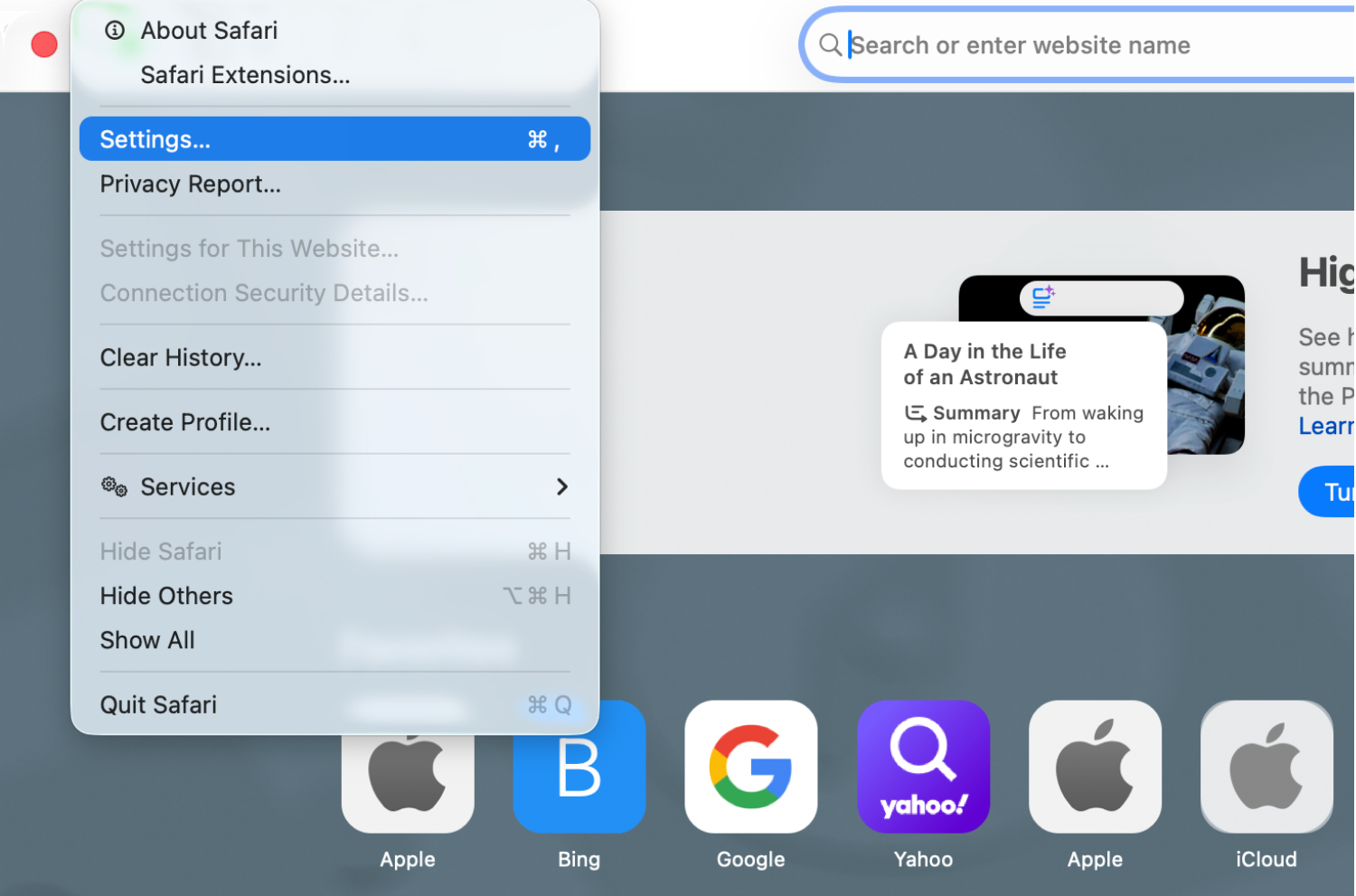
- Apri Safari.
- Dalla barra dei menu, clicca su Safari > Settings (Impostazioni).


- Clicca sulla scheda Websites (Siti web). Nella barra laterale sinistra, clicca su Location (Posizione). Accanto a When visiting other websites (Quando visiti altri siti web), seleziona Deny (Nega).


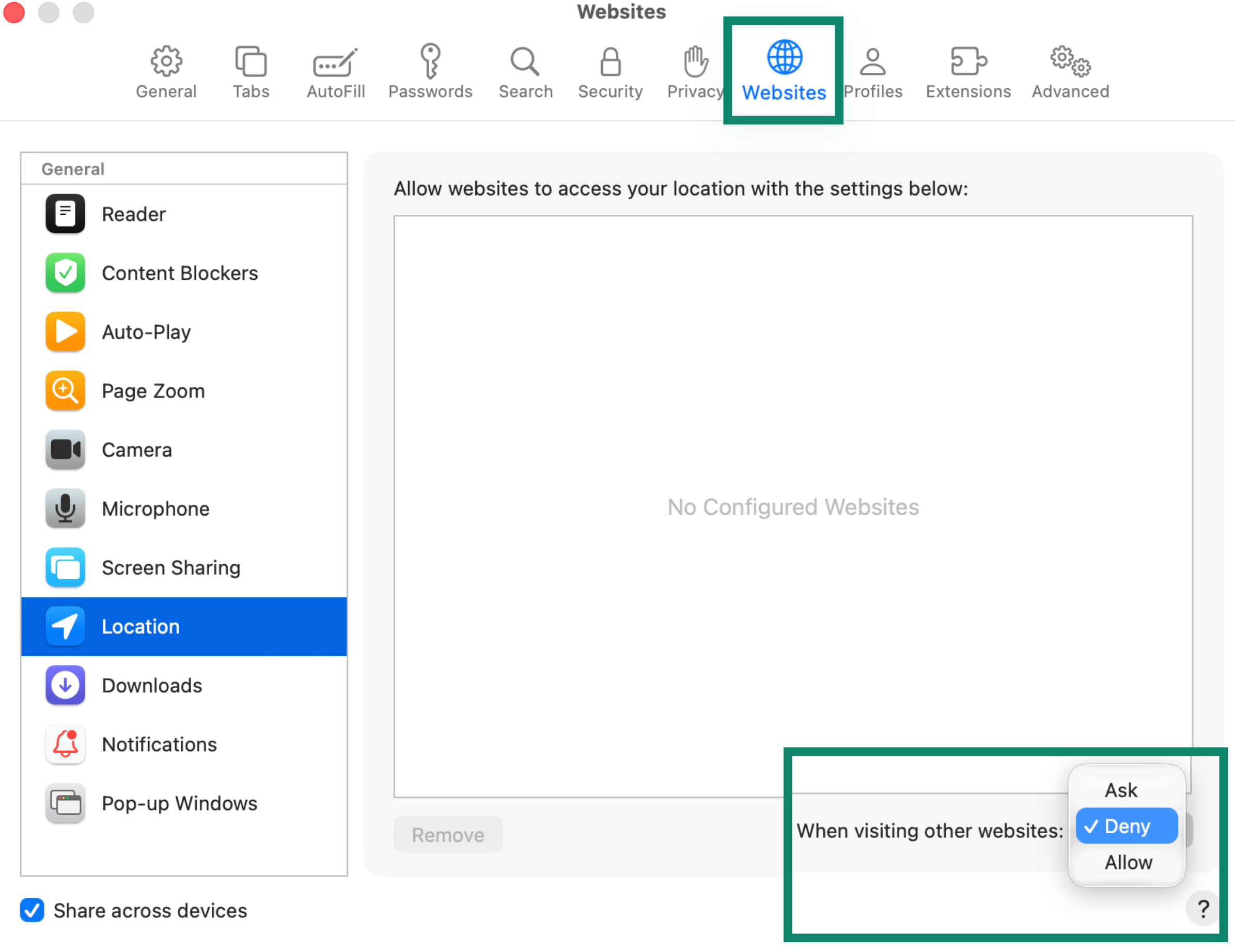
Per revocare l’accesso alla posizione per i siti che avevi consentito in precedenza, seleziona il sito nell’elenco e scegli Nega dal menu a tendina.
- Apri l’app Impostazioni.
- Tocca App e poi seleziona Safari.

- Scorri fino a Settings for Websites (Impostazioni per i siti web), quindi tocca Location (Posizione).

- Tocca Deny (Nega).


Opera
- In Opera, clicca sui tre puntini nell’angolo in basso a sinistra della barra laterale.


- Clicca su Settings (Impostazioni).


- Nella barra laterale sinistra, clicca su Privacy & security (Privacy e sicurezza) e poi su Site Settings (Impostazioni sito).

- Sotto Permissions (Autorizzazioni), clicca su Location (Posizione).


- Come Default behavior (Comportamento predefinito), seleziona Don’t allow sites to see your location (Non consentire ai siti di visualizzare la tua posizione).


- Nell’app di Opera, tocca l’icona del profilo nell’angolo in basso a destra.

- Tocca l’icona a forma di ingranaggio.

- Scorri in basso e tocca Privacy & security (Privacy e sicurezza), quindi seleziona Site settings (Impostazioni sito).

- Tocca Location (Posizione).

- Tocca nuovamente Location (Posizione) e seleziona Denied (Negato).


Brave
- In Brave, clicca sull’icona del menu nell’angolo in alto a destra e seleziona Settings (Impostazioni).


- Nella barra laterale sinistra, clicca su Privacy and security (Privacy e sicurezza) e poi su Site and Shields Settings (Impostazioni sito e protezioni).


- Sotto Permissions (Autorizzazioni), clicca su Location (Posizione).


- Come Default behavior (Comportamento predefinito), seleziona Don’t allow sites to see your location (Non consentire ai siti di visualizzare la tua posizione).


- Nell’app di Brave, tocca l’icona del menu con i tre puntini.

- Tocca Settings (Impostazioni).

- In General (Generale), tocca Site settings (Impostazioni sito).

- Tocca Location (Posizione).

- Seleziona Don’t allow sites to see your location (Non consentire ai siti di visualizzare la tua posizione).


Ti serve aiuto? Contatta il team di supporto ExpressVPN per ricevere assistenza immediata.