
多くのウェブサイトでは、ユーザーの現在地を知るために位置情報へのアクセスを求めます。プライバシーを保護するには、ブラウザーで 位置情報の共有を無効にする ことができます。

注: 位置情報の共有をオフにしていても、一部のウェブサイトはIPアドレスなどの情報からおおよその現在地を推定できます。IPアドレスを隠すには、VPNを使用してプライバシーを守りながら閲覧してください。

目次

Google Chrome
Mozilla Firefox
Microsoft Edge
Safari
Opera
Brave


Google Chrome

  1. Chromeで画面右上の 三点メニュー をクリックし、Settings(設定) を選択します。
    Chrome menu open on Mac with Settings option highlighted
  2. 左側のサイドバーで Privacy and security(プライバシーとセキュリティ) をクリックしてから、Site settings(サイトの設定) をクリックします。
    Chrome Privacy and security settings page with Site settings option highlighted
  3. Permissions(権限) の下にある Location(位置情報) をクリックします。
    Chrome Site settings Permissions section with Location option highlighted
  4. Default behavior(デフォルトの動作) で Don’t allow sites to see your location(サイトに位置情報の表示を許可しない) を選択します。
    Chrome Location settings page with Don't allow sites to see your location option selected

Chromeによる位置情報へのアクセスは、デバイスのiOS設定で管理します。

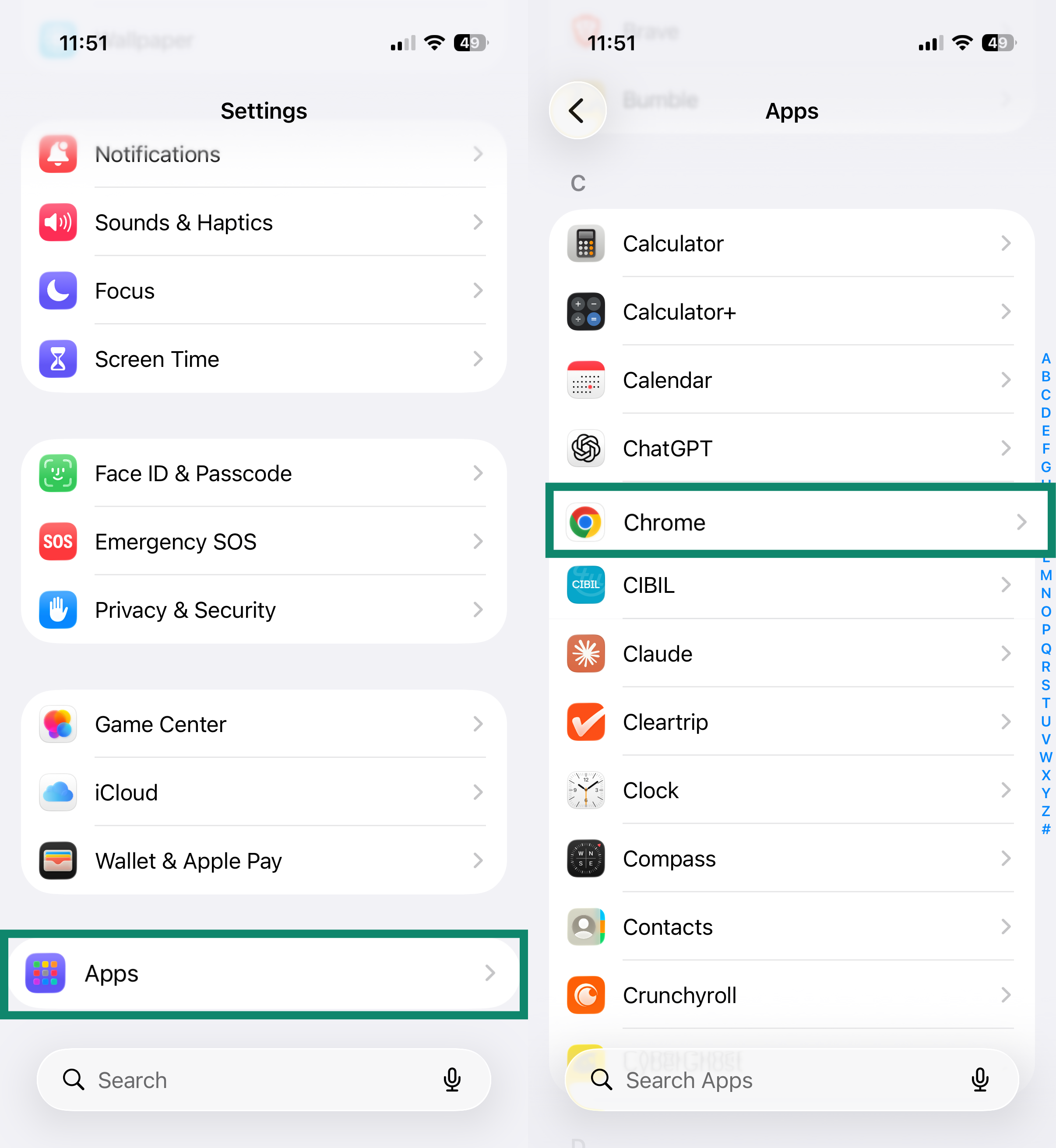
  1. Settings(設定) アプリを開きます。
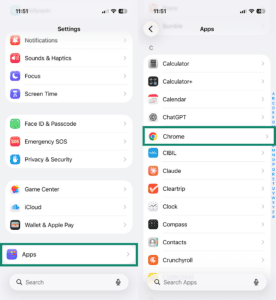
  2. Apps(アプリ) をタップし、Chrome をタップします。
    iPhone Settings menu with Apps highlighted, and Apps list showing Chrome highlighted
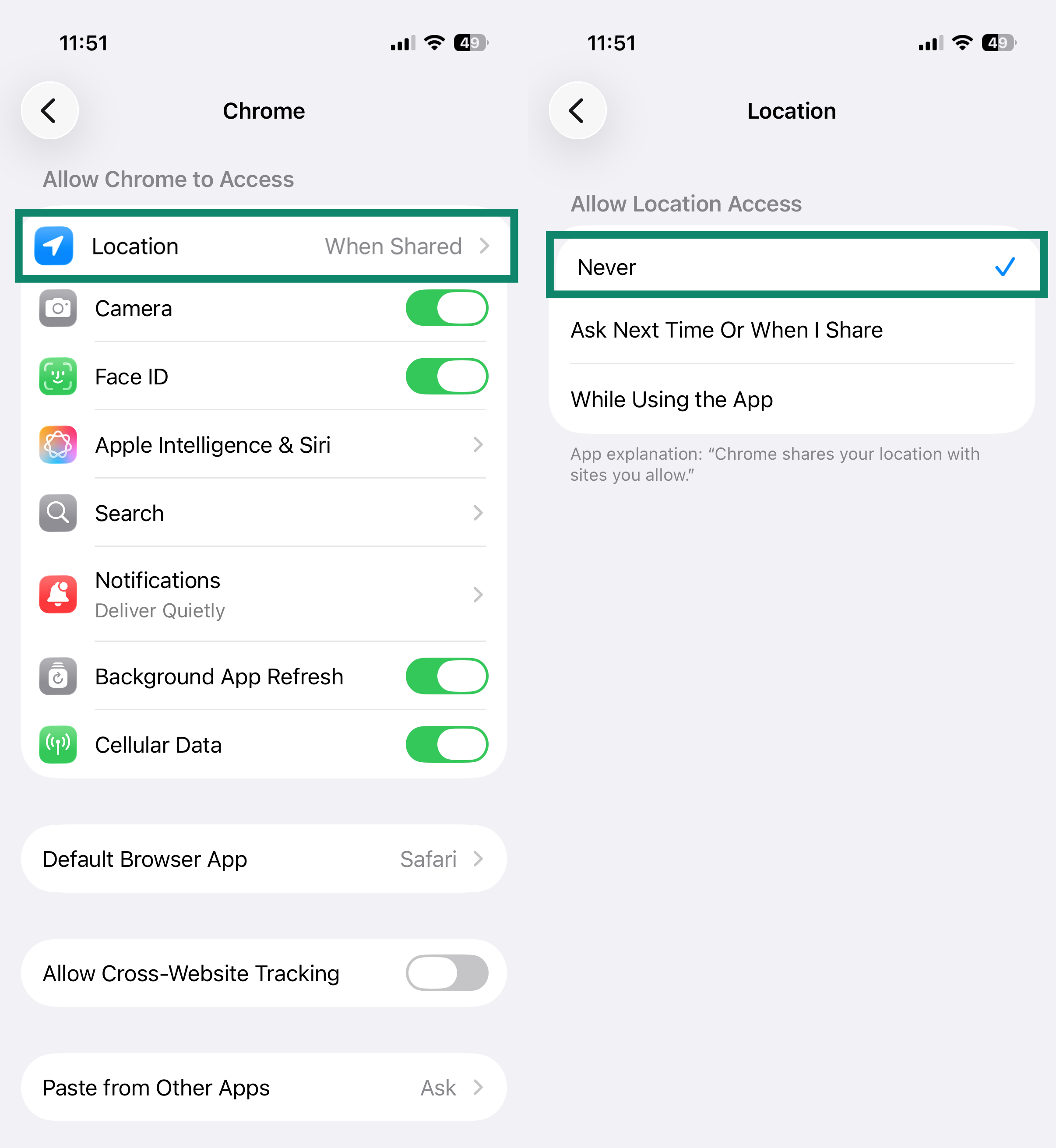
  3. Location(位置情報) をタップし、Never(許可しない) を選択します。
    iPhone Chrome app settings with Location row highlighted, and Location screen showing Never selected

  1. Chromeアプリで、画面右上の三点メニューをタップします。
    Chrome on Android dropdown menu with Settings option highlighted near the bottom
  2. Settings(設定) をタップします。
    Chrome on Android dropdown menu with Settings option highlighted near the bottom
  3. Advanced(詳細設定) の下にある Site settings(サイトの設定) をタップします。
    Android Chrome Settings page with Site settings highlighted
  4. Location(位置情報) をタップし、Don’t allow sites to see your location(サイトに位置情報の表示を許可しない) を選択します。
    Android Chrome Location settings with Don’t allow sites to see your location selected

トップへ戻る


Mozilla Firefox

  1. Firefoxで画面右上の 三本線のメニューアイコン をクリックします。
    Firefox on Mac with hamburger menu icon highlighted in the top right corner
  2. Settings(設定) を選択します。
    Firefox on Mac main menu with Settings option highlighted
  3. 左側のサイドバーで Privacy & Security(プライバシーとセキュリティ) をクリックし、下にスクロールして Permissions(権限) を表示し、Location(位置情報) をクリックします。
    Firefox Privacy & Security settings with Location option highlighted under Permissions
  4. Block new requests asking to access your location(位置情報へのアクセスを求める新しいリクエストをブロック) にチェックを入れ、Save Changes(変更を保存) をクリックします。
    Firefox Location Permissions dialog with Block new requests asking to access your location checked
注: 以前に許可したWebサイトの権限はそのまま有効です。すでに位置情報へのアクセスを許可したサイトの権限を取り消すには、一覧からそのサイトを選択し、保存する前に Remove Website(Webサイトを削除) をクリックします。

  1. Firefoxアプリで三点メニューアイコンをタップします。
    Firefox on Android homepage with three-dot menu icon highlighted
  2. Settings(設定) をタップします。
  3. Privacy and security(プライバシーとセキュリティ) の下にある Site settings(サイトの設定) をタップします。
    Firefox on Android Settings page with Site settings highlighted
  4. Location(位置情報) をタップします。
    Firefox on Android Site settings with Location highlighted under Permissions
  5. Blocked(ブロック) をタップします。
    Firefox on Android Location settings with Blocked option selected

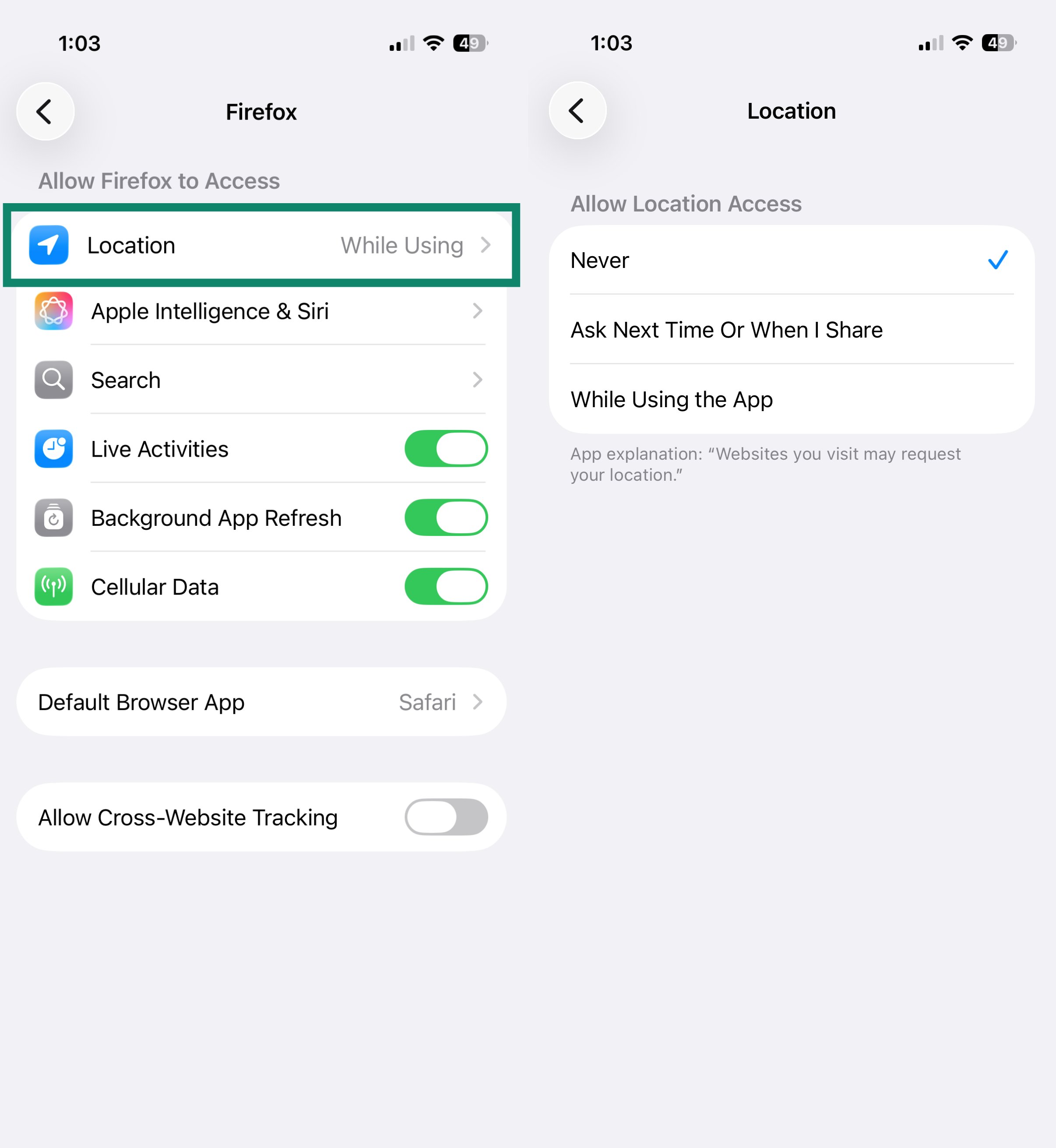
iOS版Firefoxには、アプリ内で位置情報の共有を無効にする設定がありません。Firefoxが位置情報にアクセスできないようにするには、デバイスの設定から権限を変更します。

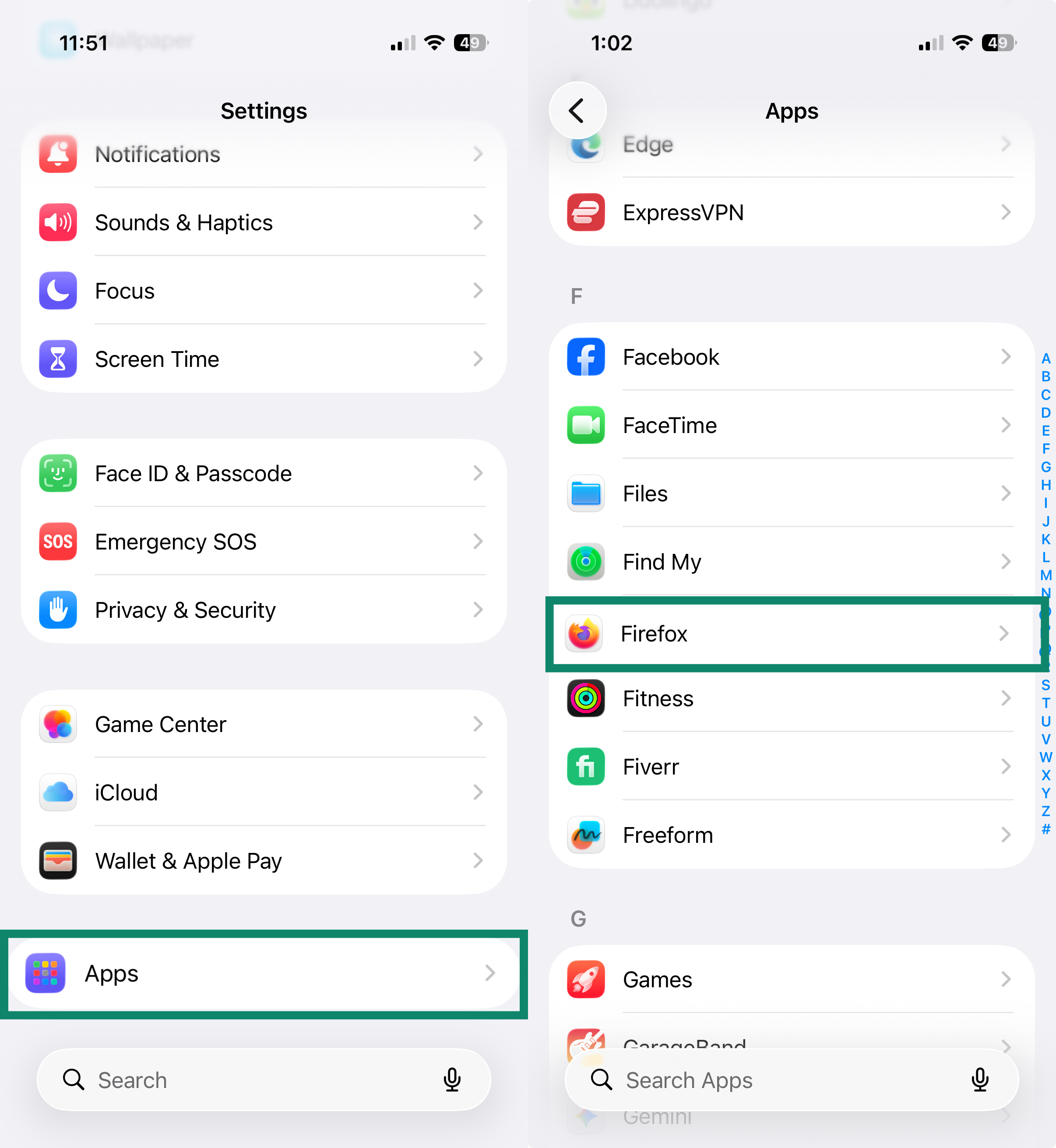
  1. Settings(設定) アプリを開き ます。
  2. Apps(アプリ) をタップしてから、Firefox をタップします。
    Apps list on iPhone settings with Firefox highlighted
  3. Location(位置情報) をタップし、Never(許可しない) を選択します。
    iPhone Firefox app settings with Location selected and Location screen showing Never enabled

トップへ戻る


Microsoft Edge

  1. Edgeで画面右上の 三点メニュー をクリックします。
    Edge on Mac with three-dot menu icon highlighted in the top right corner
  2. Settings(設定) を選択します。
    Edge on Mac main menu with Settings highlighted
  3. 左側のサイドバーで Privacy, search, and services(プライバシー、検索、サービス) をクリックし、Site permissions(サイトのアクセス許可) をクリックします。
    Edge Privacy, search, and services settings with Site permissions highlighted
  4. All permissions(すべてのアクセス許可) をクリックします。Edge Site permissions page with All permissions highlighted
  5. Location(位置情報) をクリックします。
    Edge All permissions page with Location highlighted
  6. Ask before accessing (recommended)(アクセスする前に確認する(推奨)) の切り替えスイッチをオフにします。
    Edge Location settings with Ask before accessing toggled off

Androidの場合

  1. Edgeアプリで、画面右下の 三本線のメニューアイコン をタップします。
    Edge on Android homepage with three-line menu icon highlighted
  2. Settings(設定) をタップします。
    Edge on Android menu with Settings highlighted
  3. 下にスクロールして Site settings(サイトの設定) をタップし、Site permissions(サイトのアクセス許可) をタップします。Edge on Android Settings page with Site settings selected and Site permissions highlighted
  4. Location(位置情報) をタップします。
    Edge on Android Site settings page with Location highlighted under Permissions
  5. Don’t allow sites to see your location(サイトに位置情報の表示を許可しない) を選択します。
    Edge on Android Location settings with Don't allow sites to see your location selected
注: iOS版Edgeには、位置情報の共有を無効にする設定がありません。

トップへ戻る


Safari

  1. Safariを開きます。
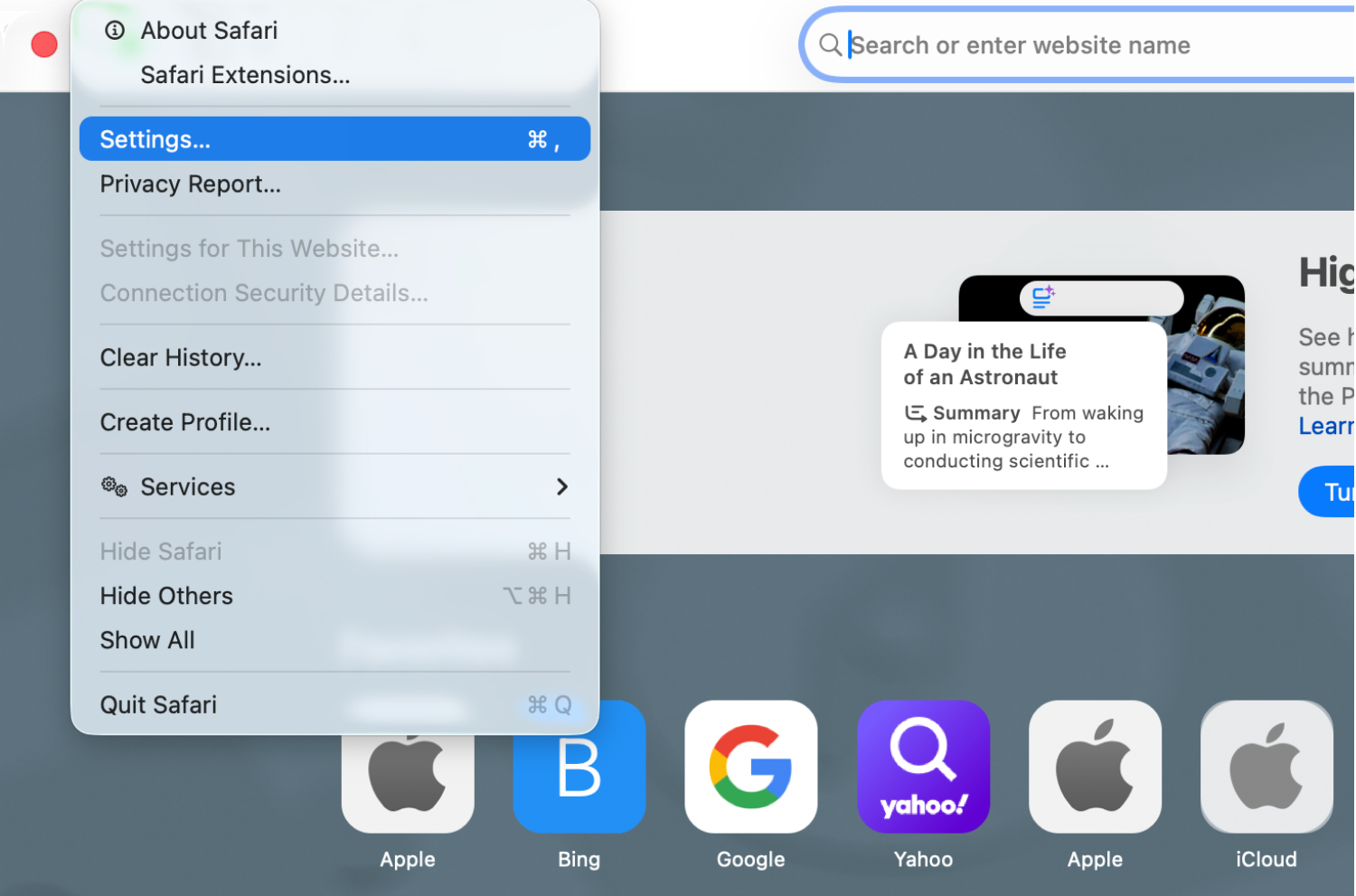
  2. メニューバーで Safari > Settings(設定) をクリックします。
    Safari on Mac top menu with Settings option highlighted
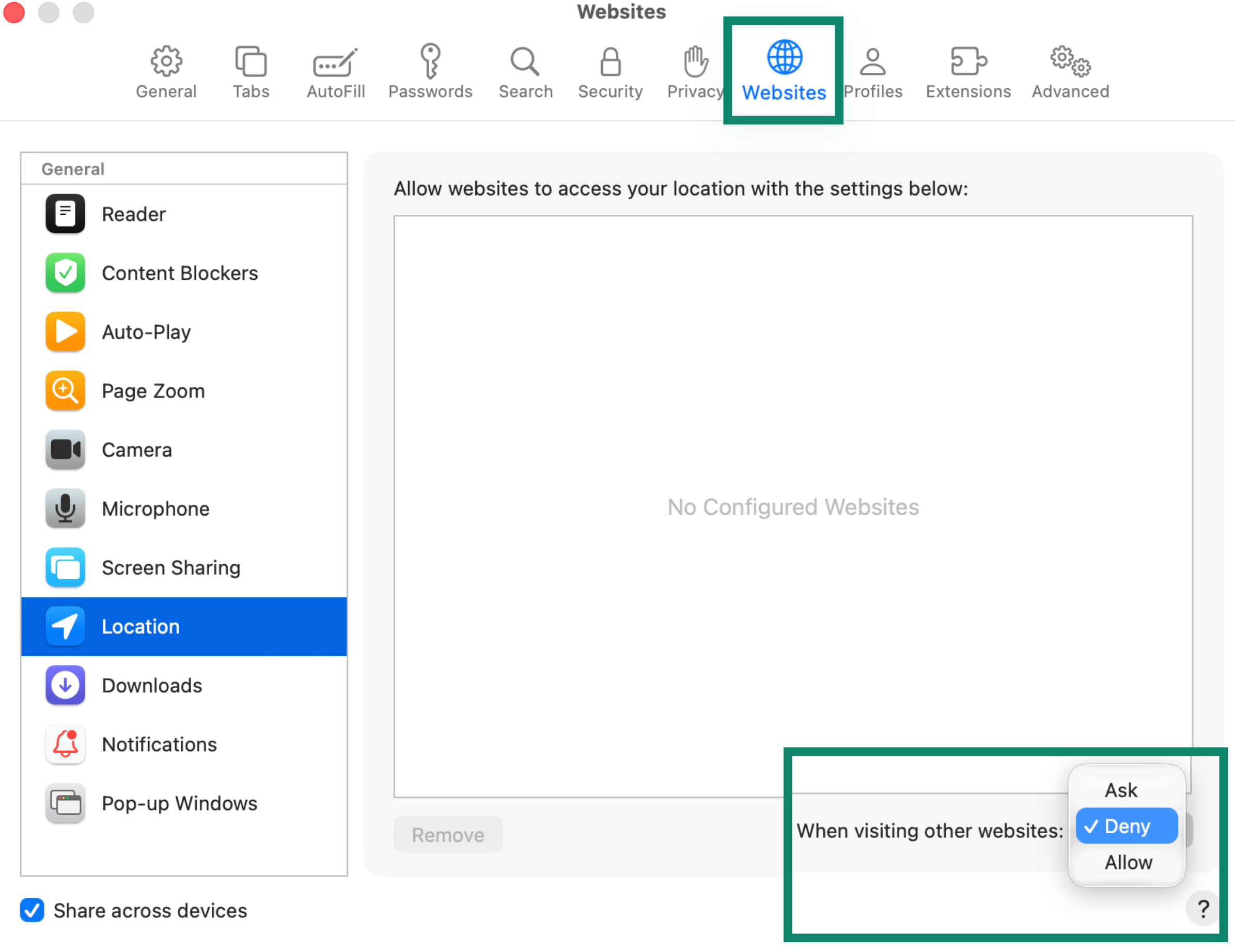
  3. Websites(Webサイト) タブをクリックします。左側のサイドバーで Location(位置情報) をクリックします。When visiting other websites(ほかのWebサイトにアクセスしたとき) の項目で Deny(拒否) を選択します。Safari Websites preferences with Location selected and When visiting other websites set to Deny

以前に位置情報の利用を許可したWebサイトの権限を取り消すには、一覧からそのサイトを選び、ドロップダウンメニューで Deny(拒否) を選択します。

  1. Settings(設定) アプリを開きます。
  2. Apps(アプリ) をタップし、Safari をタップします。
    iPhone Settings menu with Apps selected and Apps list showing Safari highlighted
  3. 下にスクロールして Settings for Websites(Webサイトの設定) を表示し、Location(位置情報) をタップします。
    iPhone Safari settings page with Location highlighted under Settings for Websites
  4. Deny(拒否) をタップします。
    iPhone Safari Location settings with Deny selected under Location Access On All Websites

トップへ戻る


Opera

  1. Operaで、サイドバー左下の三点メニューをクリックします。
    Opera on Mac sidebar with three-dot icon highlighted at the bottom left
  2. Settings(設定) をクリックします。
    Opera on Mac sidebar setup panel with Settings option highlighted
  3. 左側のサイドバーで Privacy & security(プライバシーとセキュリティ) をクリックしてから、Site Settings(サイトの設定) をクリックします。
    Opera Privacy & security settings with Site settings highlighted
  4. Permissions(権限) の下にある Location(位置情報) をクリックします。Opera Site settings page with Location highlighted under Permissions
  5. Default behavior(デフォルトの動作) で Don’t allow sites to see your location(サイトに位置情報の表示を許可しない) を選択します。
    Opera Location settings with Don't allow sites to see your location selected

  1. Operaアプリで画面右下の プロフィールアイコン をタップします。
    Opera on Android homepage with profile icon highlighted in the bottom right
  2. 歯車アイコン をタップします。
    Opera on Android profile panel with settings gear icon highlighted
  3. 下にスクロールして Privacy & security(プライバシーとセキュリティ) をタップし、Site settings(サイトの設定) をタップします。
    Opera on Android Settings page with Privacy & security selected and Site settings highlighted
  4. Location(位置情報) をタップします。
    Opera on Android Site settings page with Location highlighted under permissions list
  5. Location(位置情報) をもう一度タップし、Denied(拒否) を選択します。
    Opera on Android Location settings with Denied selected
注: iOS版Operaには、位置情報の共有を無効にする設定がありません。

トップへ戻る


Brave

  1. Braveで画面右上の 三本線のメニューアイコン  をクリックし、Settings(設定) を選択します。
    Brave on Mac main menu with Settings option highlighted
  2. 左側のサイドバーで Privacy and security(プライバシーとセキュリティ) をクリックし、Site and Shields Settings(サイトとShieldsの設定) をクリックします。
    Brave Privacy and security settings with Site and Shields Settings highlighted
  3. Permissions(権限) の下にある Location(位置情報) をクリックします。
    Brave Site and Shields Settings page with Location highlighted under Permissions
  4. Default behavior(デフォルトの動作) で Don’t allow sites to see your location(サイトに位置情報の表示を許可しない) を選択します。
    Brave Location settings with Don't allow sites to see your location selected

  1. Braveアプリで 三点メニュー をタップします。
    Brave on Android homepage with three-dot menu icon highlighted
  2. Settings(設定) をタップします。
    Brave on Android menu with Settings highlighted near the bottom
  3. General(一般) の下にある Site settings(サイトの設定) をタップします。
    Brave on Android Settings page with Site settings highlighted
  4. Location(位置情報) をタップします。
    Brave on Android Site settings page with Location highlighted under Permissions
  5. Don’t allow sites to see your location(サイトに位置情報の表示を許可しない) を選択します。
    Brave on Android Location settings with Don't allow sites to see your location selected
注:iOS版Braveには、位置情報の共有を無効にする設定がありません。

サポートが必要ですか? すぐにサポートを受けるには、ExpressVPNサポートチームまでお問い合わせください。

トップへ戻る