






You can add, update, or remove payment methods on file and choose a default payment method for your ExpressVPN account from the customer portal. This is only possible if you originally subscribed through the ExpressVPN website. Subscriptions purchased through the App Store or Google Play must be managed through the respective platform.
Note: A $1 pre-authorization hold is placed on your card whenever you add a payment method. This is a temporary verification hold and not a charge, and it will be released automatically (typically within a few business days).
Jump to…
Add a new payment method
Update your payment method
Remove a payment method
Add a new payment method
To add a new payment method:
- Go to Payment methods. If prompted, log into your ExpressVPN account.
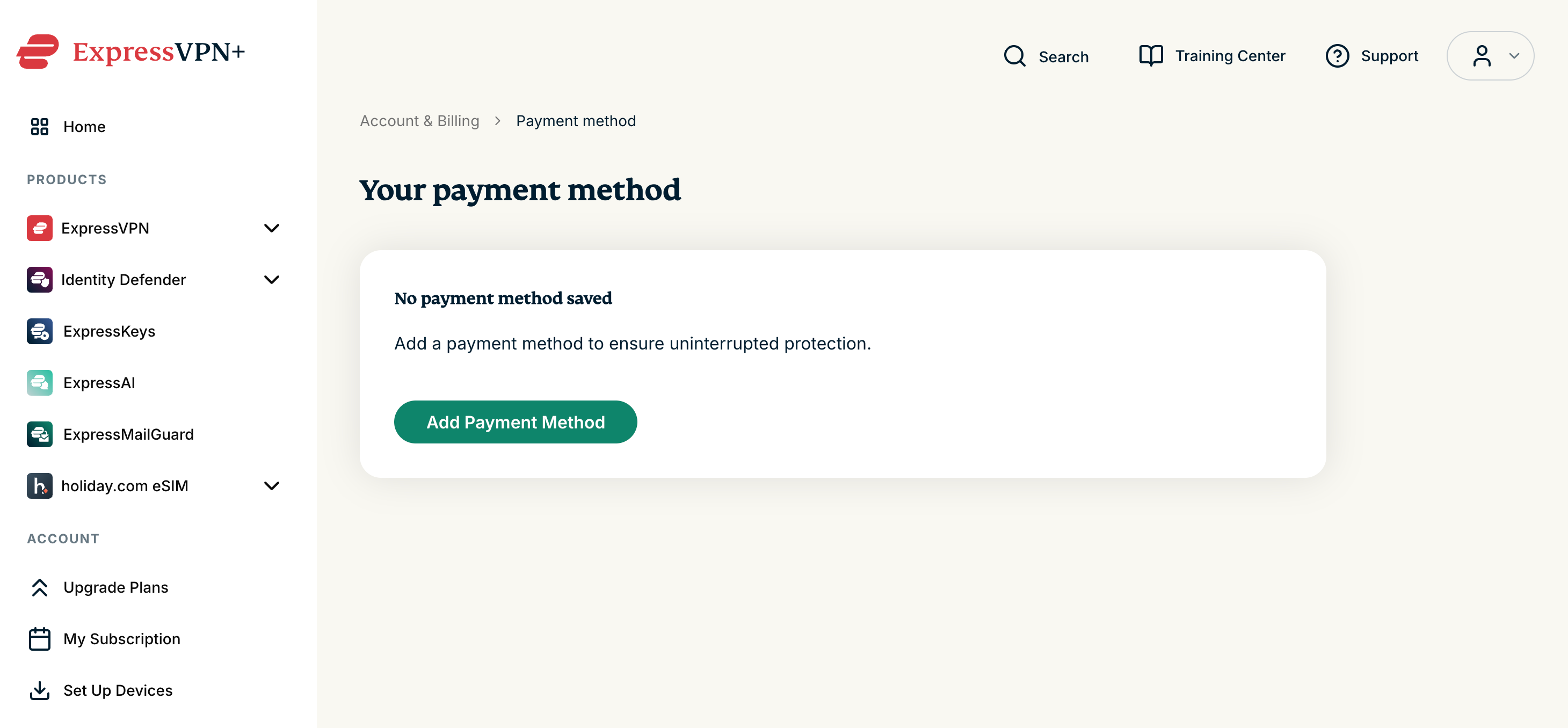
- Select Add Another Payment Method. If no payment method is currently saved, select Add Payment Method.

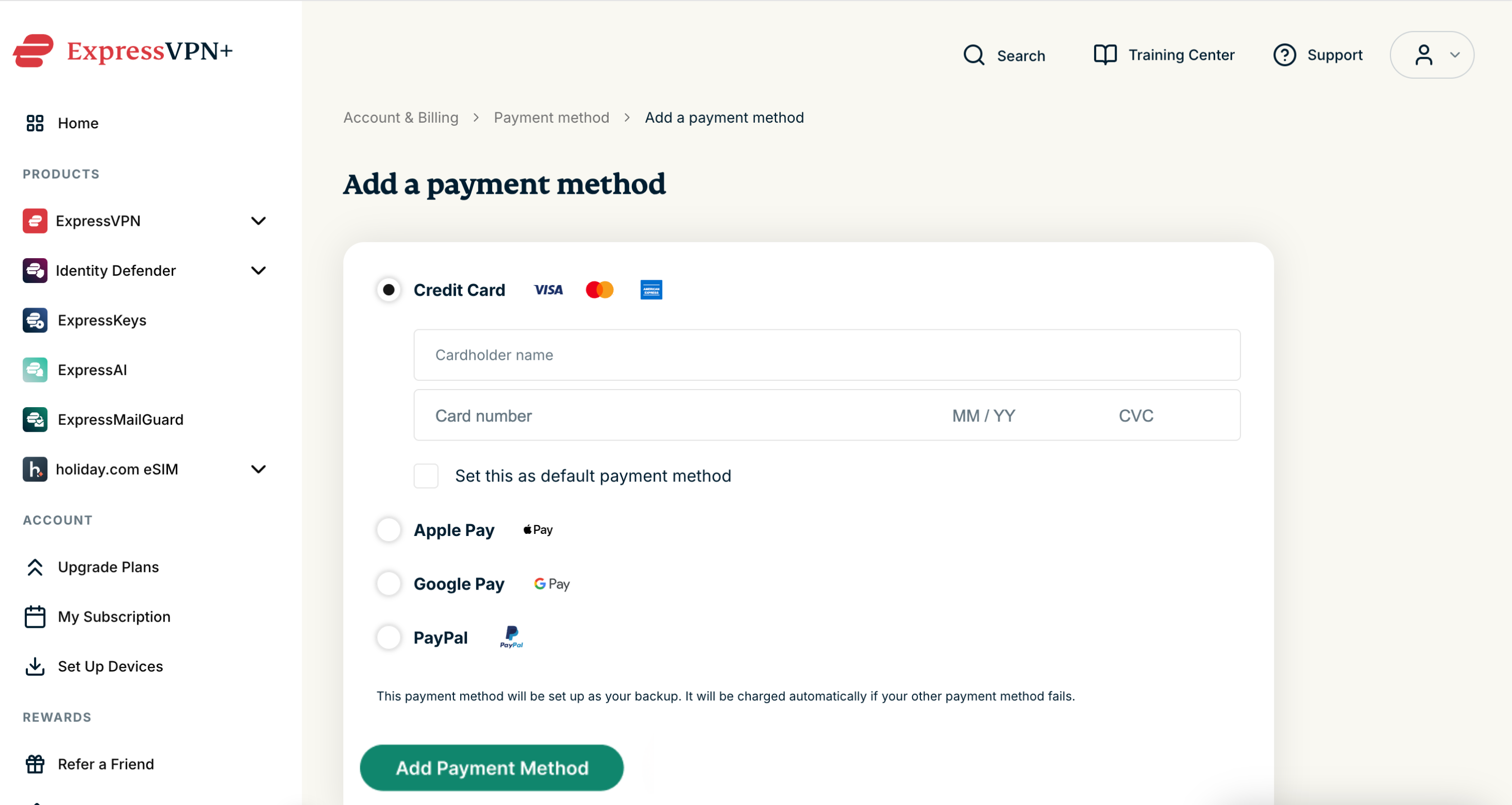
- Fill in your payment details and select Add Payment Method.

Need help? Contact the ExpressVPN Support Team for immediate assistance.
Update your payment method
You cannot edit an existing payment method. To update your payment details, you’ll need to:
1. Add a new payment method
Follow the steps here to add a new payment method in your ExpressVPN+ portal.
2. Set the new payment method as your default
ExpressVPN sets the first payment method you add to your account as the default. If the payment fails, it will use the backup payment options to continue your subscription.
To set a different payment method as default:
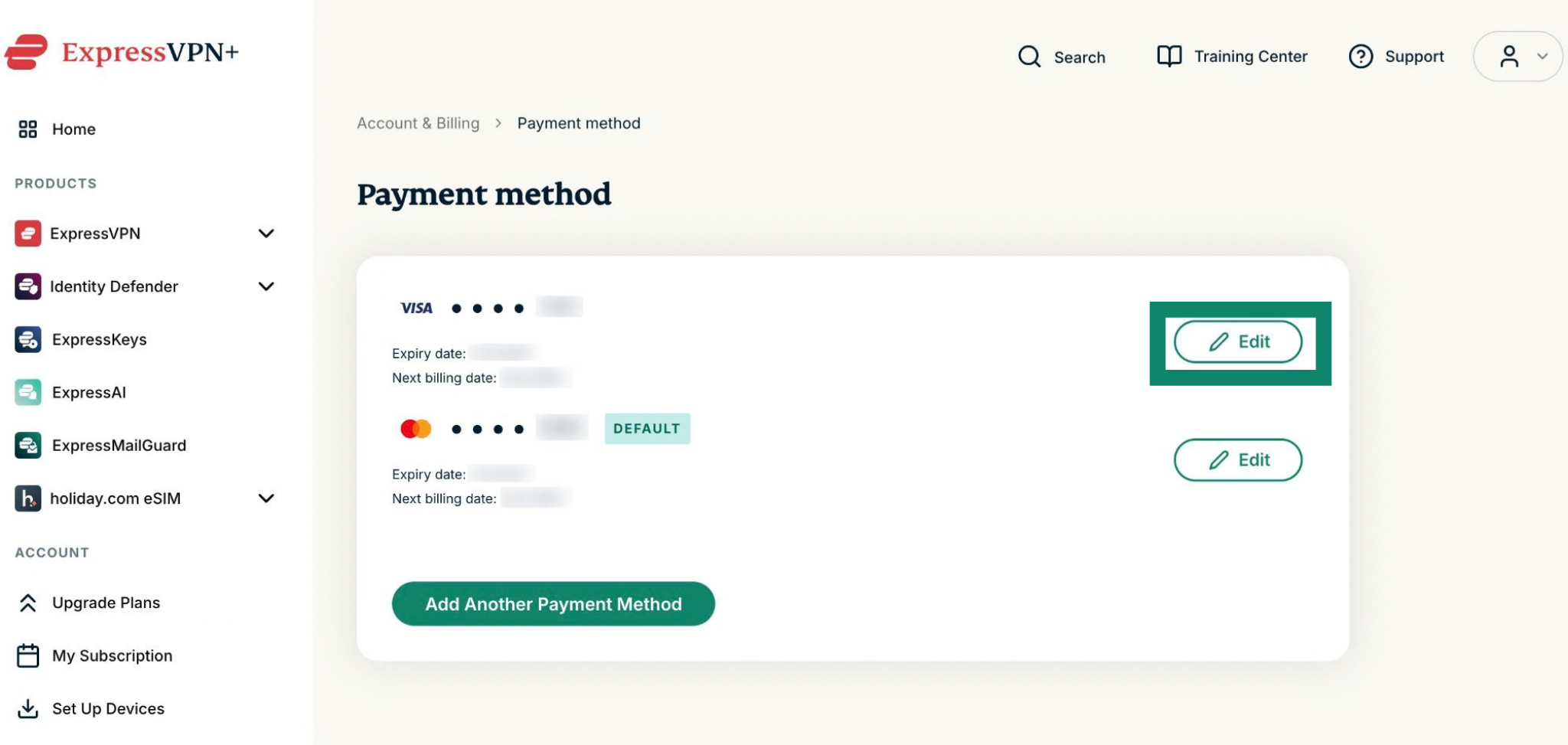
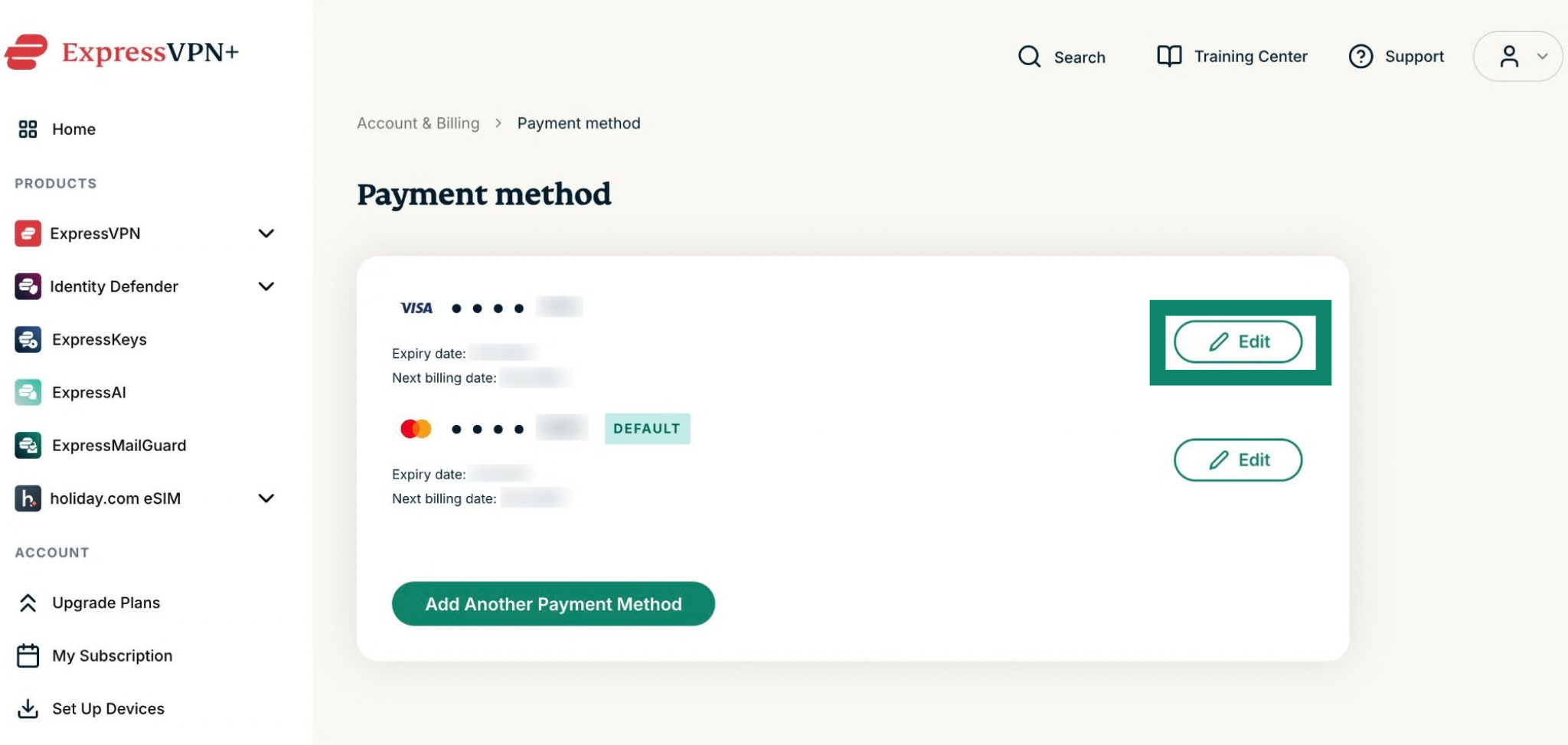
- Go to Payment methods and next to the payment method you want to set as default, select Edit.
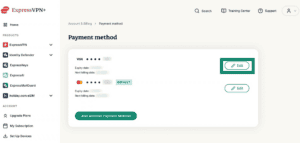

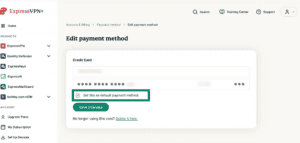
- Check the box next to Set this as default payment method and click Save Changes.
3. Delete the old payment method
If you don’t want to keep the previous payment method in your account, follow the steps here to delete the old payment method.
Need help? Contact the ExpressVPN Support Team for immediate assistance.
Remove a payment method
To remove a payment method:
- Go to Payment methods. If prompted, log into your ExpressVPN account.
- Next to the payment method you want to remove, select Edit.
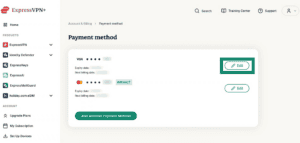
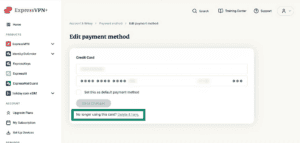
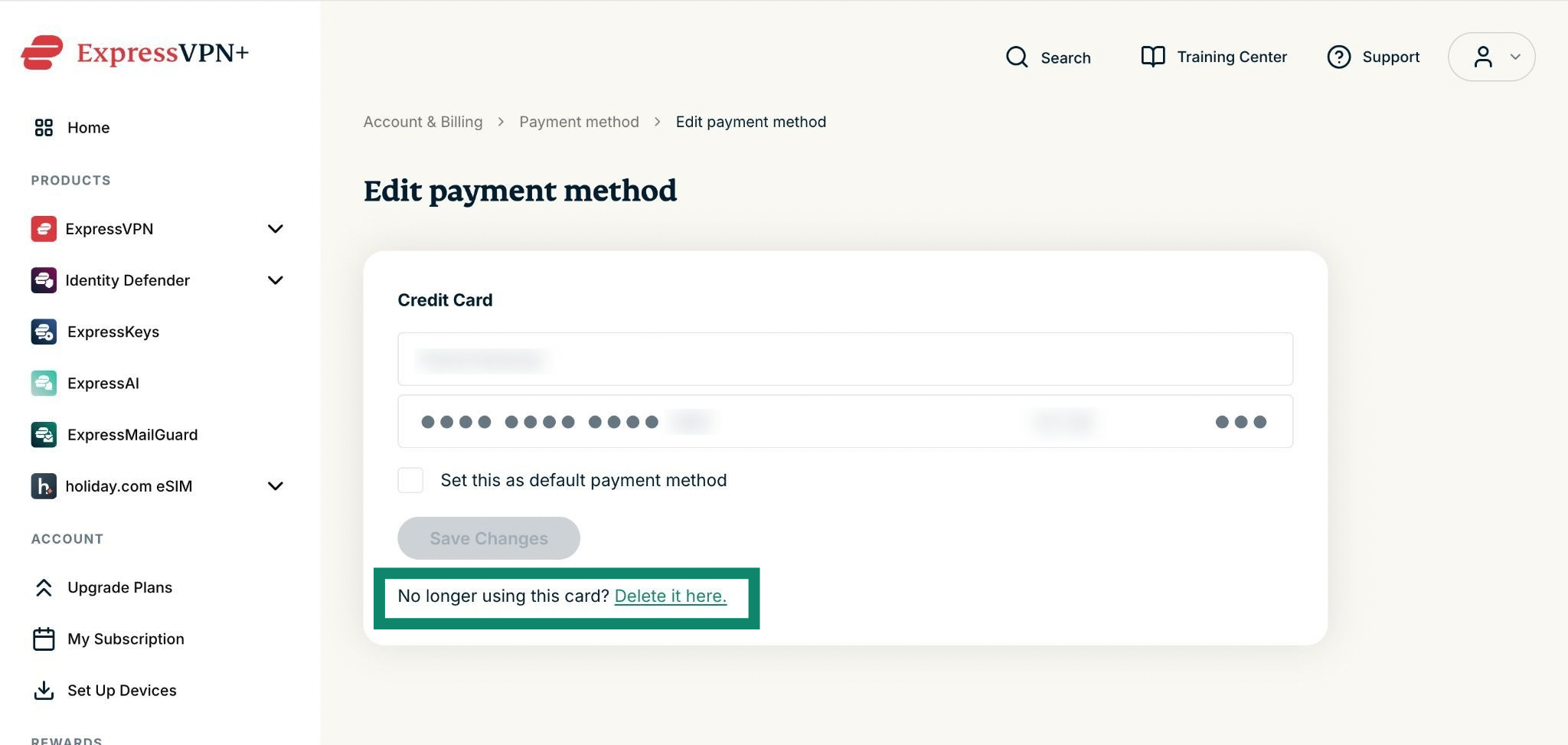
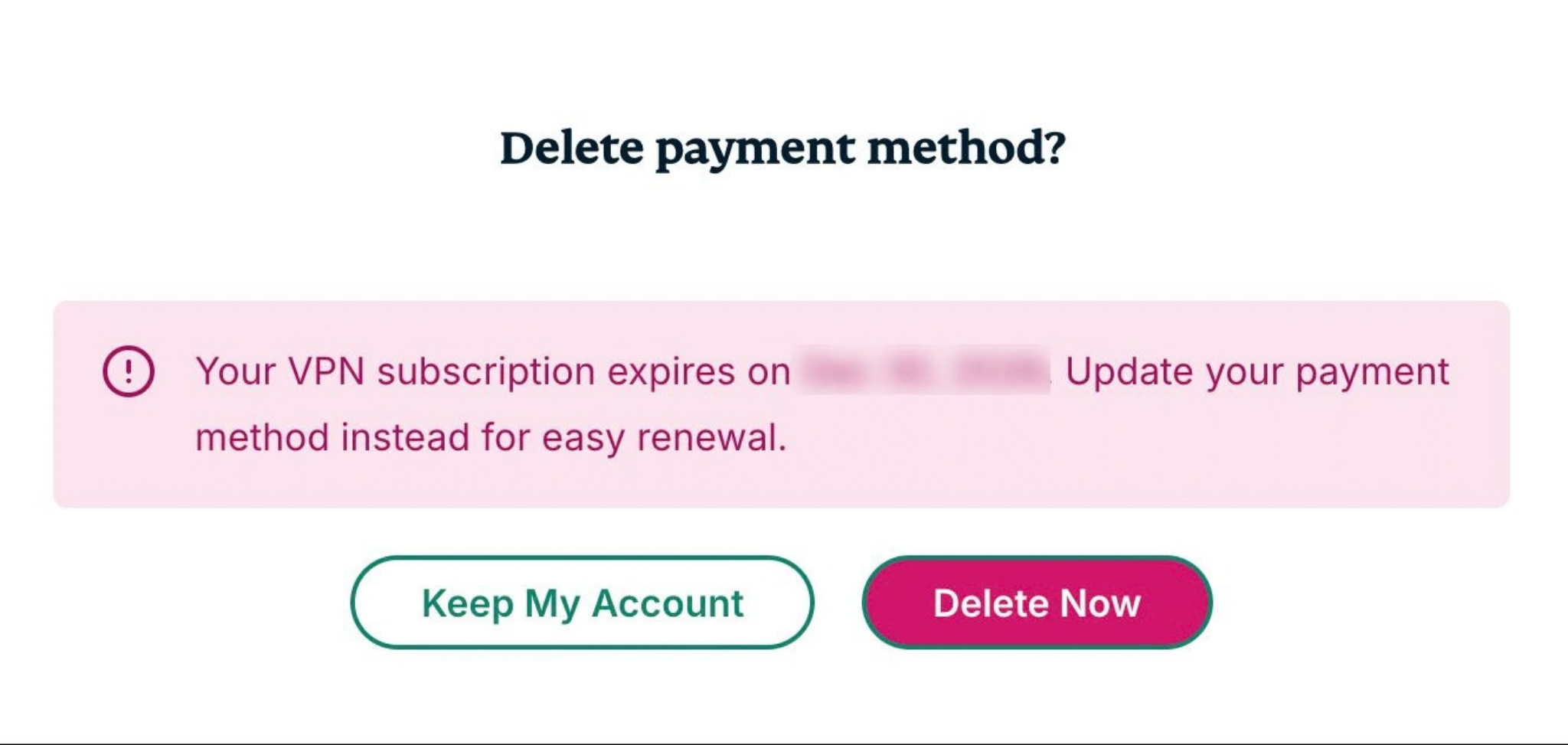
- Below the Save Changes button, select Delete it here.
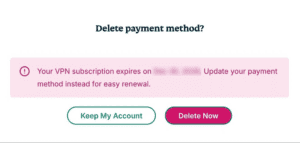
- In the confirmation dialog, select Delete Now to confirm removal.
Need help? Contact the ExpressVPN Support Team for immediate assistance.