




Need a VPN for Windows?
Get ExpressVPN Now
Love ExpressVPN? Want a free month?
Refer a Friend NowThis tutorial will show you how to set up ExpressVPN on Windows using the OpenVPN GUI (graphical user interface).
The OpenVPN GUI is a free graphical frontend for running the OpenVPN protocol on Windows 10 and above.
Note: The following steps were tested on Windows 11 and are applicable to other versions of Windows.
Not all ExpressVPN locations may be available for manually configured connections. To use the full list of VPN locations, use the app setup.
Jump to…
1. Find your ExpressVPN account credentials
2. Download and install the OpenVPN GUI
3. Set up the OpenVPN GUI and connect to a server
4. Set up DNS leak protection
5.Disconnect from a VPN server location
1. Find your ExpressVPN account credentials
Go to the ExpressVPN+ setup page. If prompted, log into your account.
In the left-hand Applications (or Show other devices) menu, select Advanced setup > Manual Configuration.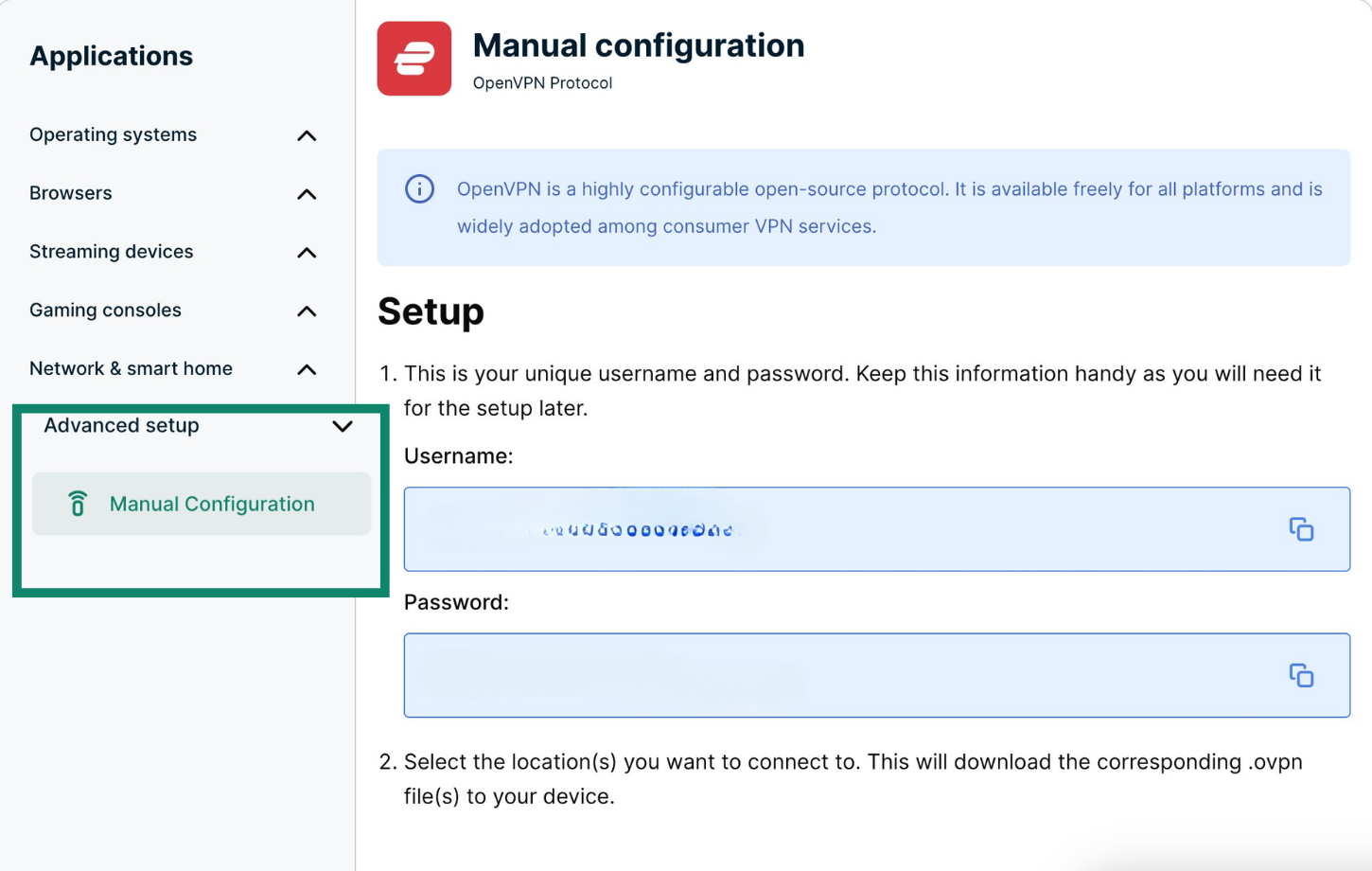
You will see your username, password, and a list of OpenVPN configuration files.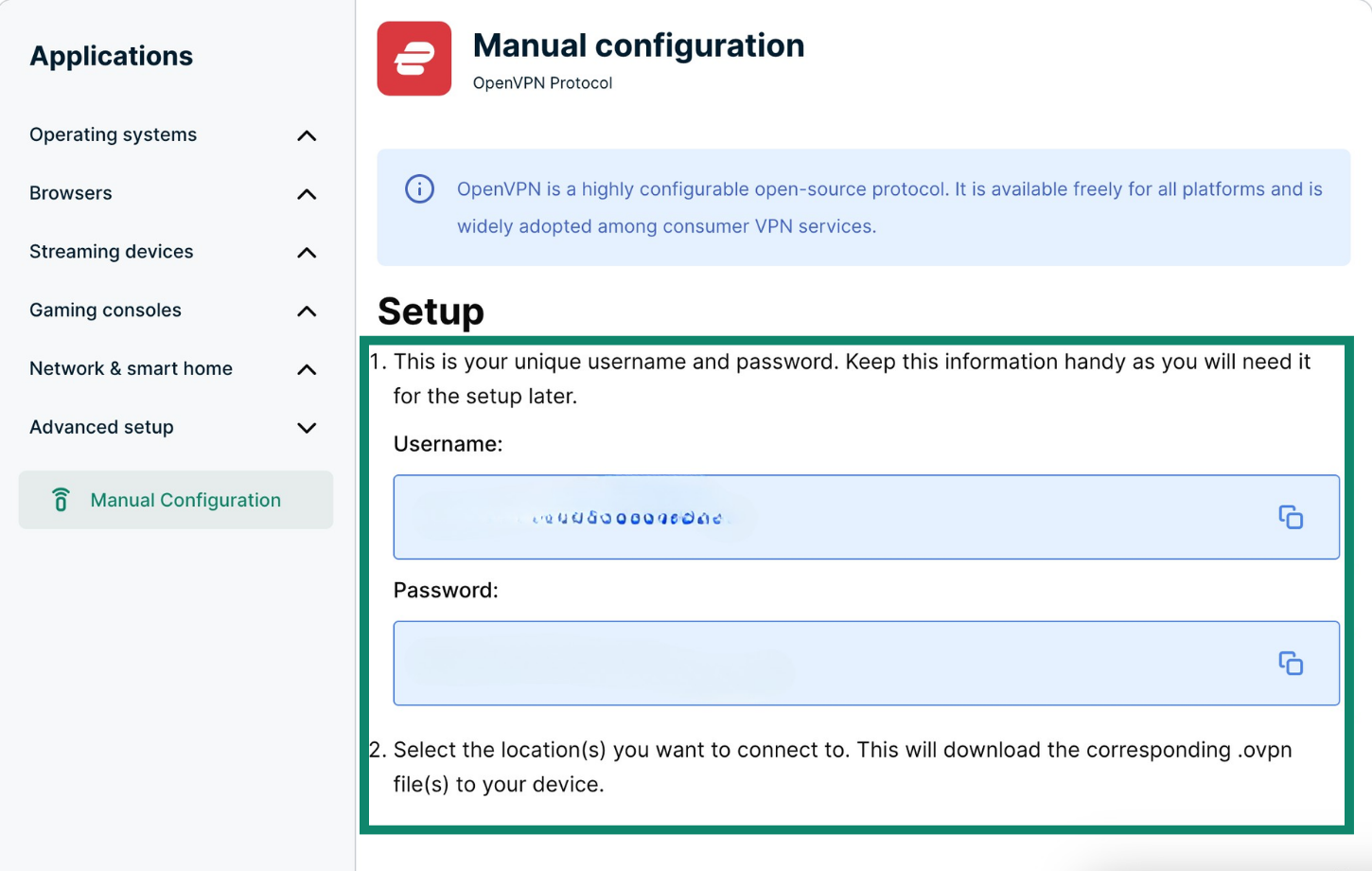
Click the location(s) you want in order to download the .ovpn file(s).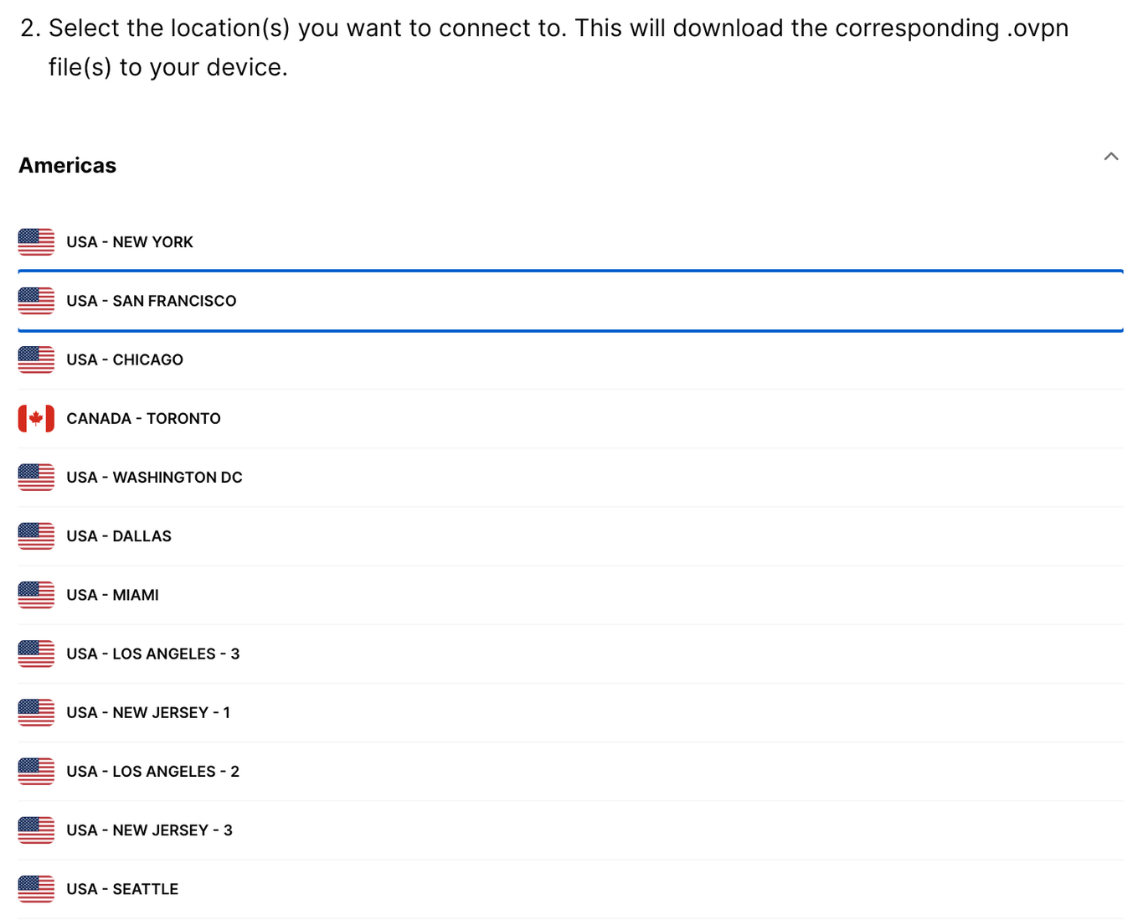
Keep this browser window open. You will need this information for the setup later.
Need help? Contact the ExpressVPN Support Team for immediate assistance.
2. Download and install the OpenVPN GUI
Go to the OpenVPN community downloads page. Click the download button to download the basic Windows installer.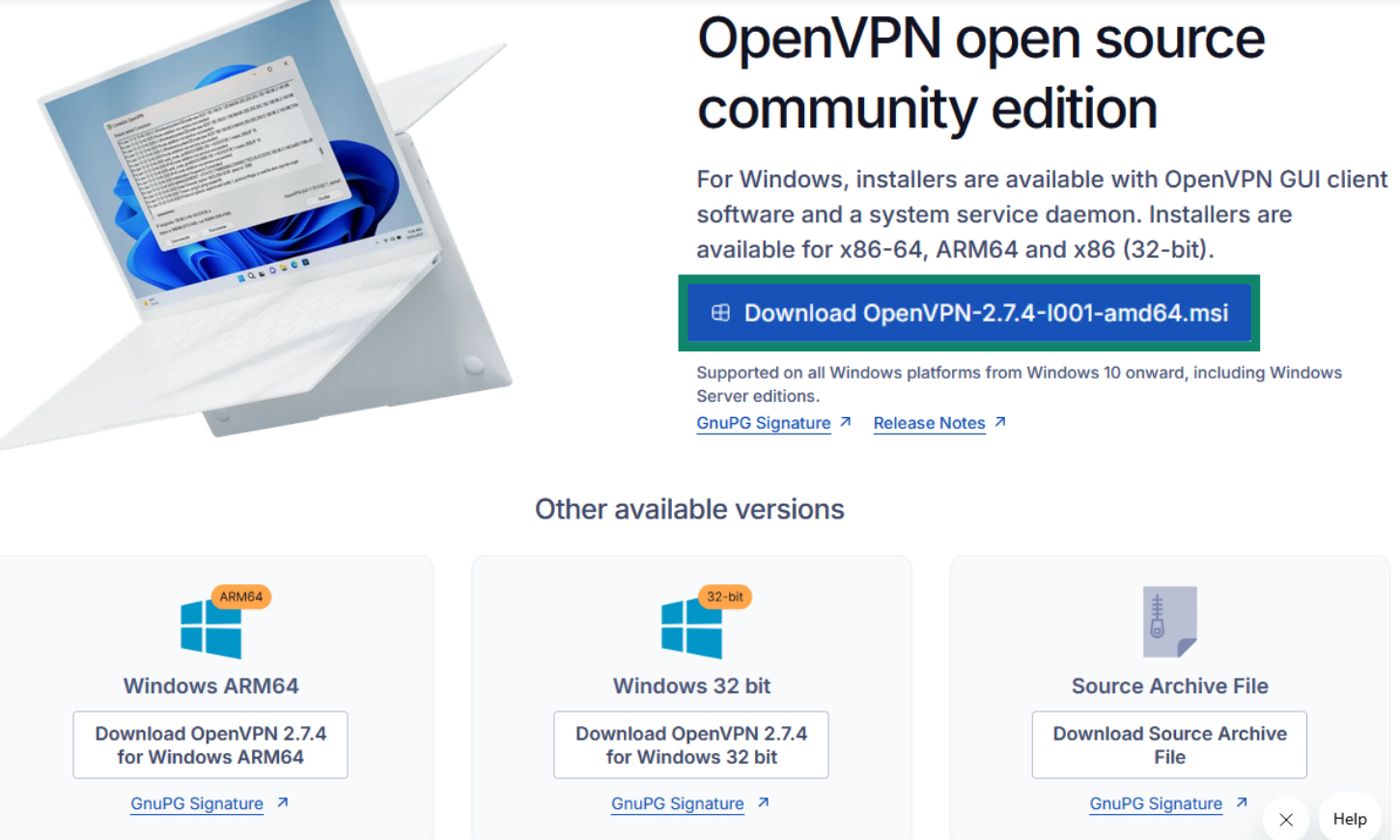
Select Install Now and agree to the prompt.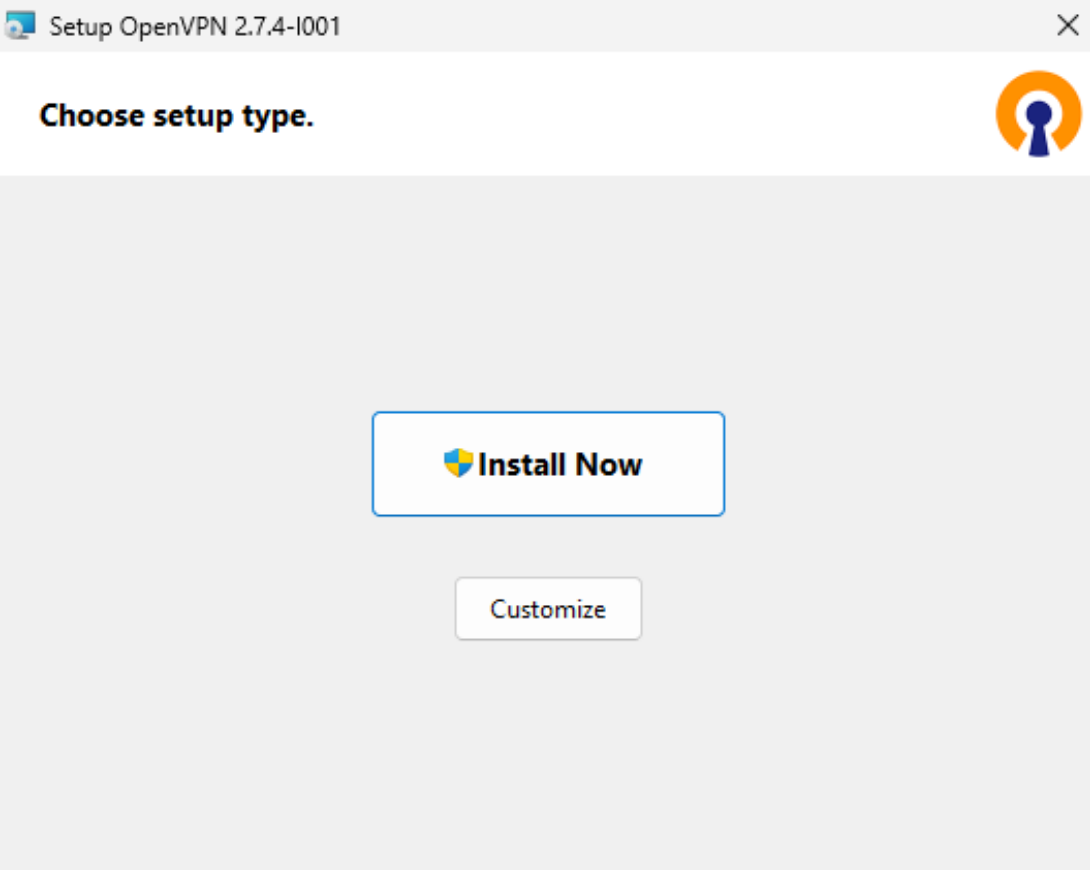
You will see a confirmation screen telling you the installation has completed.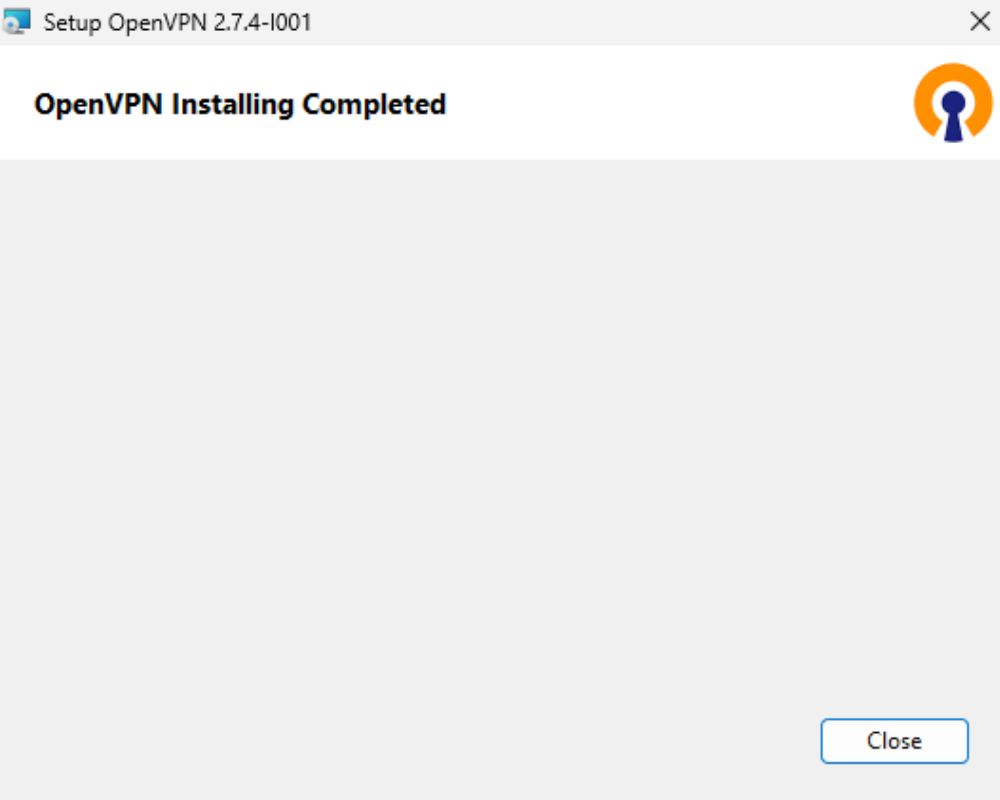
Need help? Contact the ExpressVPN Support Team for immediate assistance.
3. Set up the OpenVPN GUI and connect to a server
To open the OpenVPN app, go to your taskbar and click the small arrow to open the hidden icons. Right-click the OpenVPN icon and select Import file.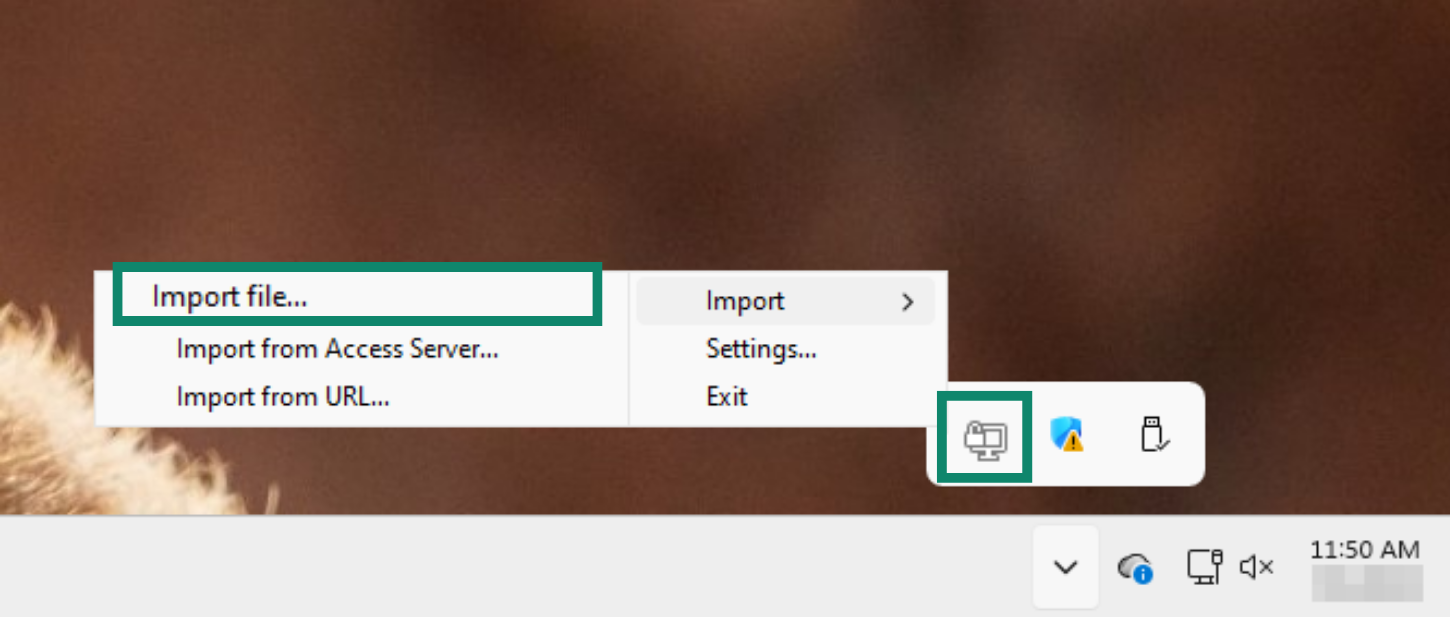
Navigate to where you downloaded the configuration file from the EVPN website. Select it and click Open.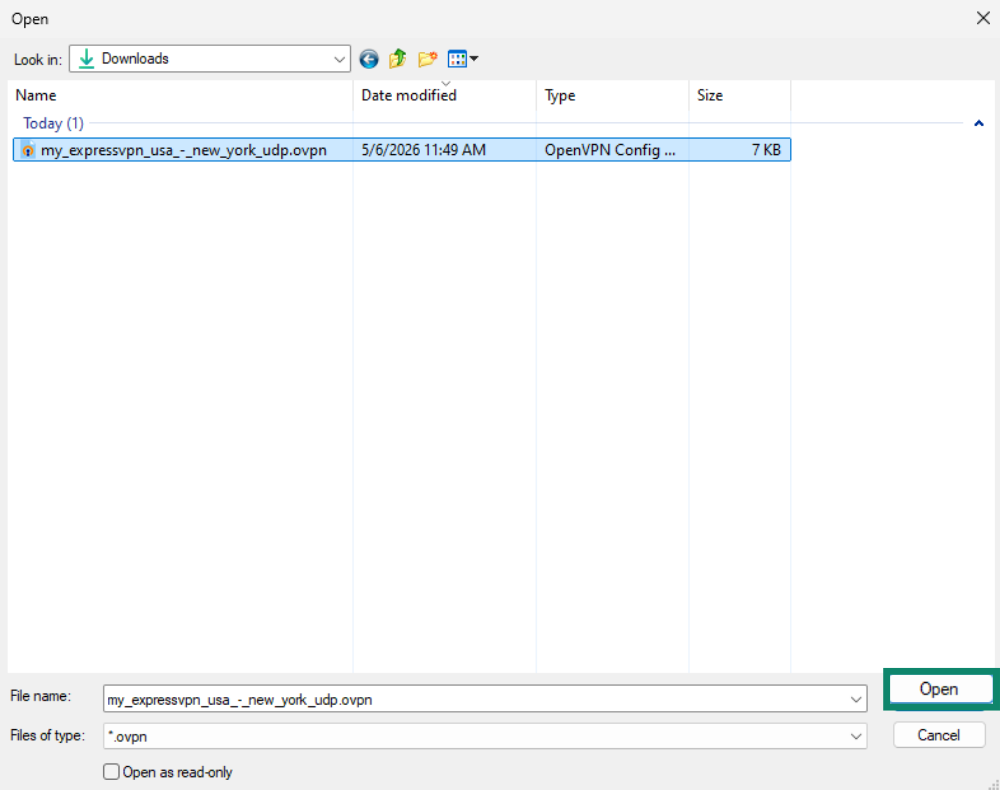
The OpenVPN window will open, asking you to enter your username and password. Enter the username and password you found in the ExpressVPN+ portal.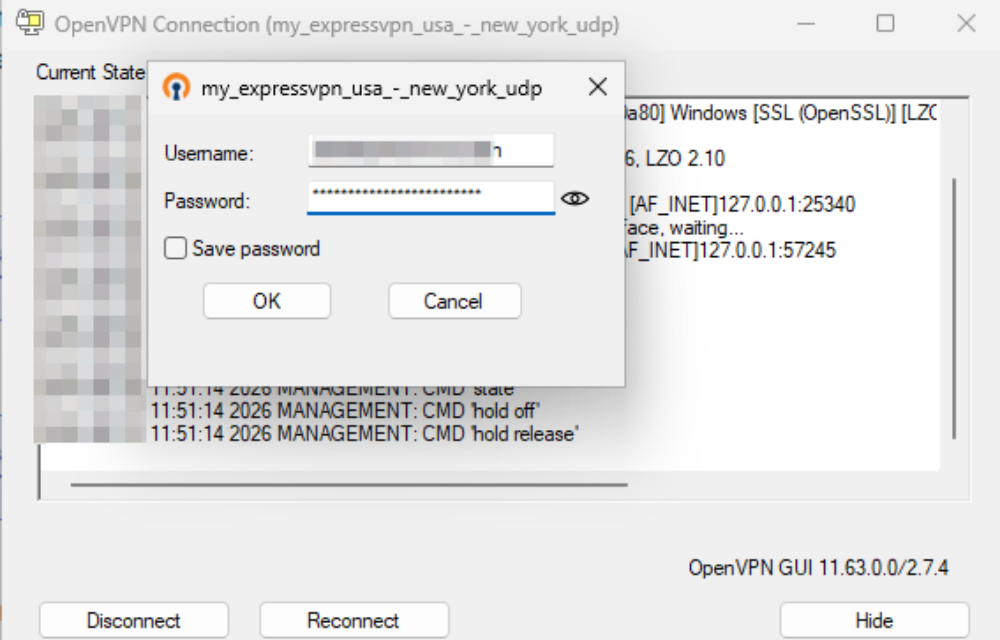
OpenVPN will automatically connect to the server based on your configuration file.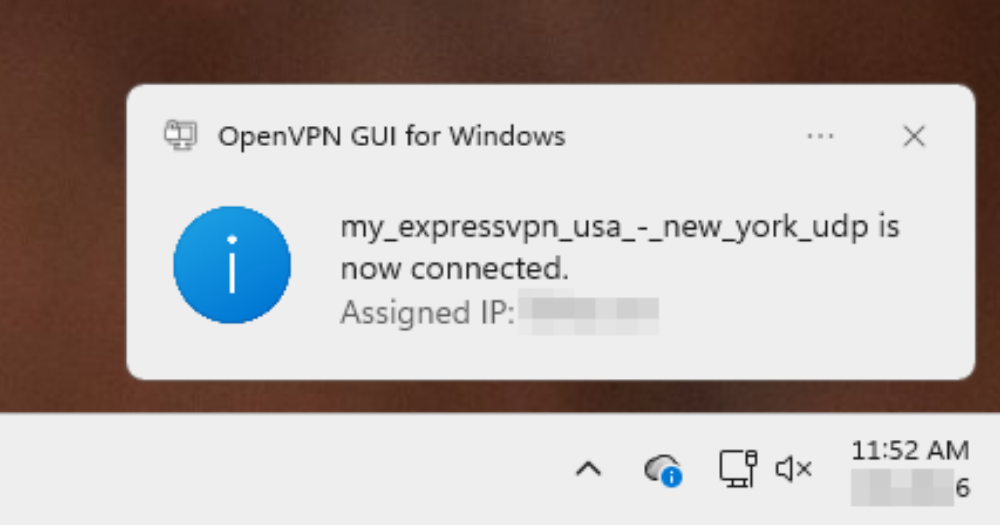
Need help? Contact the ExpressVPN Support Team for immediate assistance.
4. Set up DNS leak protection
To prevent your online activities from being exposed, you can edit your configuration files to prevent DNS leaks.
To do this, right-click the OpenVPN icon in the taskbar and select Edit Config.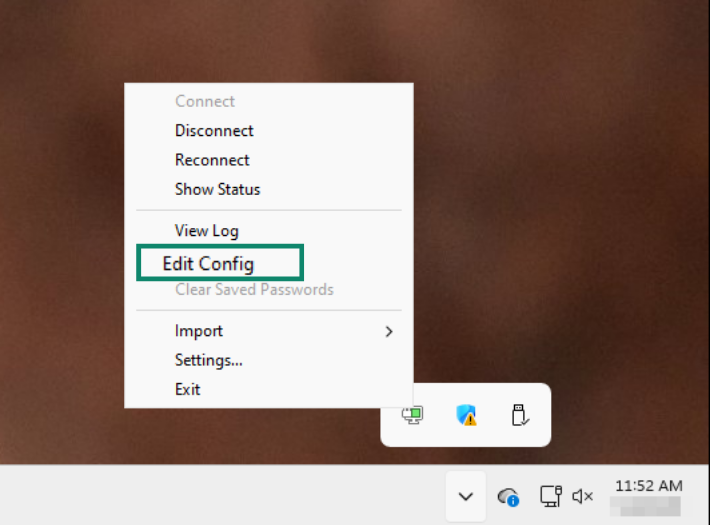
This will open the notepad where you can make the change. Don’t modify the existing text; scroll to the bottom, add a new row, and paste the following:
block-outside-dns
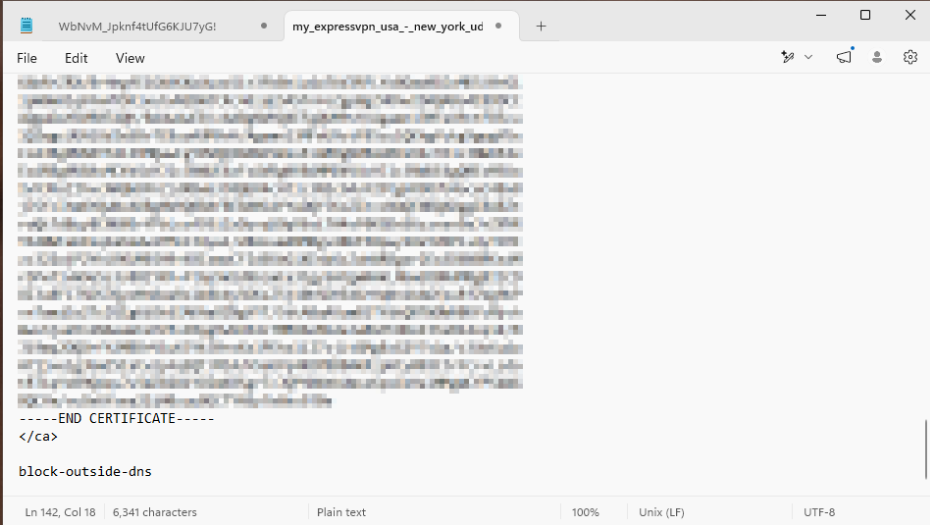 Save the file, then close the text editor.
Need help? Contact the ExpressVPN Support Team for immediate assistance.
5. Disconnect from a VPN server
To disconnect from a VPN server location, right-click the OpenVPN icon in the taskbar and select Disconnect.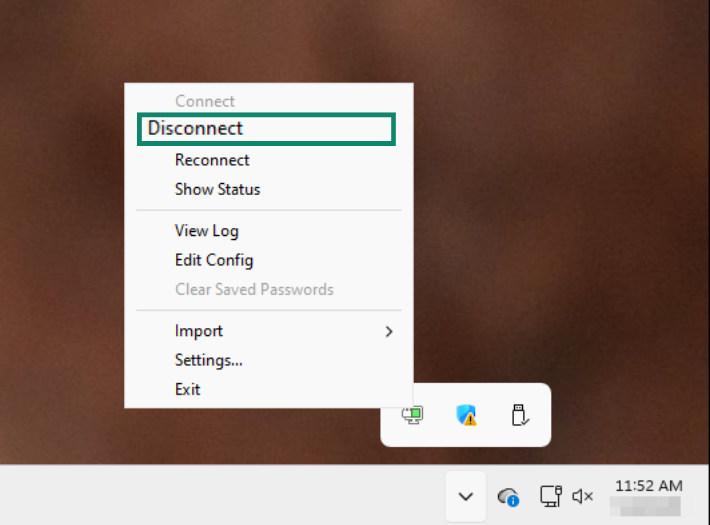
Need help? Contact the ExpressVPN Support Team for immediate assistance.