







Need a VPN for Android?
Get ExpressVPN Now
Love ExpressVPN? Want a free month?
Refer a Friend NowFollow the steps below to install and use the ExpressVPN app on Chromecast with Google TV.
Jump to…
Download the ExpressVPN app on your Chromecast with Google TV
Connect to a VPN server location
Disconnect from a VPN server location
Select a different VPN server location
Favorite a VPN server location
Use the split tunneling feature
Use advanced protection settings
Turn the kill switch on or off
Download the ExpressVPN app on your Chromecast with Google TV
To install ExpressVPN on your Chromecast:
- On the home screen, select the Apps tab.
- Select the search function, which is called Search for apps and games.
- Search for ExpressVPN.
- On the ExpressVPN Google Play page, select Install.
- After the app finishes installing, select Open.
Then, proceed to configuring the ExpressVPN app.
Alternative method: Sideload the ExpressVPN app
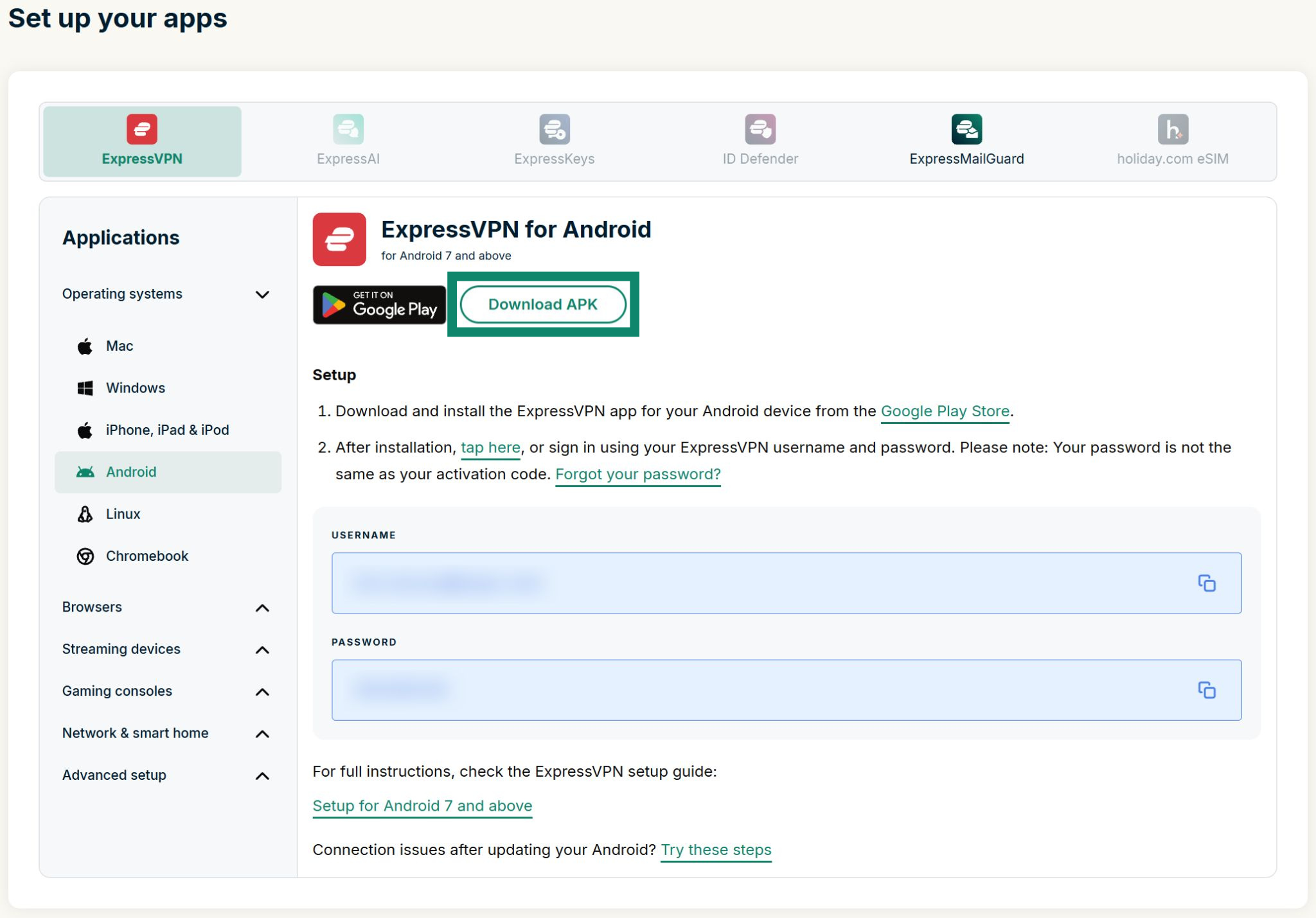
Step 1: Get the ExpressVPN APK file
- In a web browser, access the ExpressVPN setup page. If prompted, log into your account.
- Click Download APK and save the APK file on your device.


Before you install the APK app, you will need to turn on developer mode. This is necessary to enable certain system settings later on.To turn on developer mode on your Chromecast:
- On the home screen, select Settings.
- Navigate to System > About.
- Under About, locate Android TV OS build. Select it seven times until it says You are now a developer!
Step 3: Install the ExpressVPN APK app
To get the ExpressVPN APK app on your Chromecast, you will need to use a file management app. For this guide, we used File Manager +, which lets you share files from your computer to your Chromecast.
Note: If you experience issues when using File Manager +, you may need to try an alternative file sharing app. Transferring the APK file using a USB drive can also work, but it may require using a USB hub because Chromecast devices typically have only one USB port.
On your Chromecast, open the Google Play Store and install File Manager +, then follow these steps:
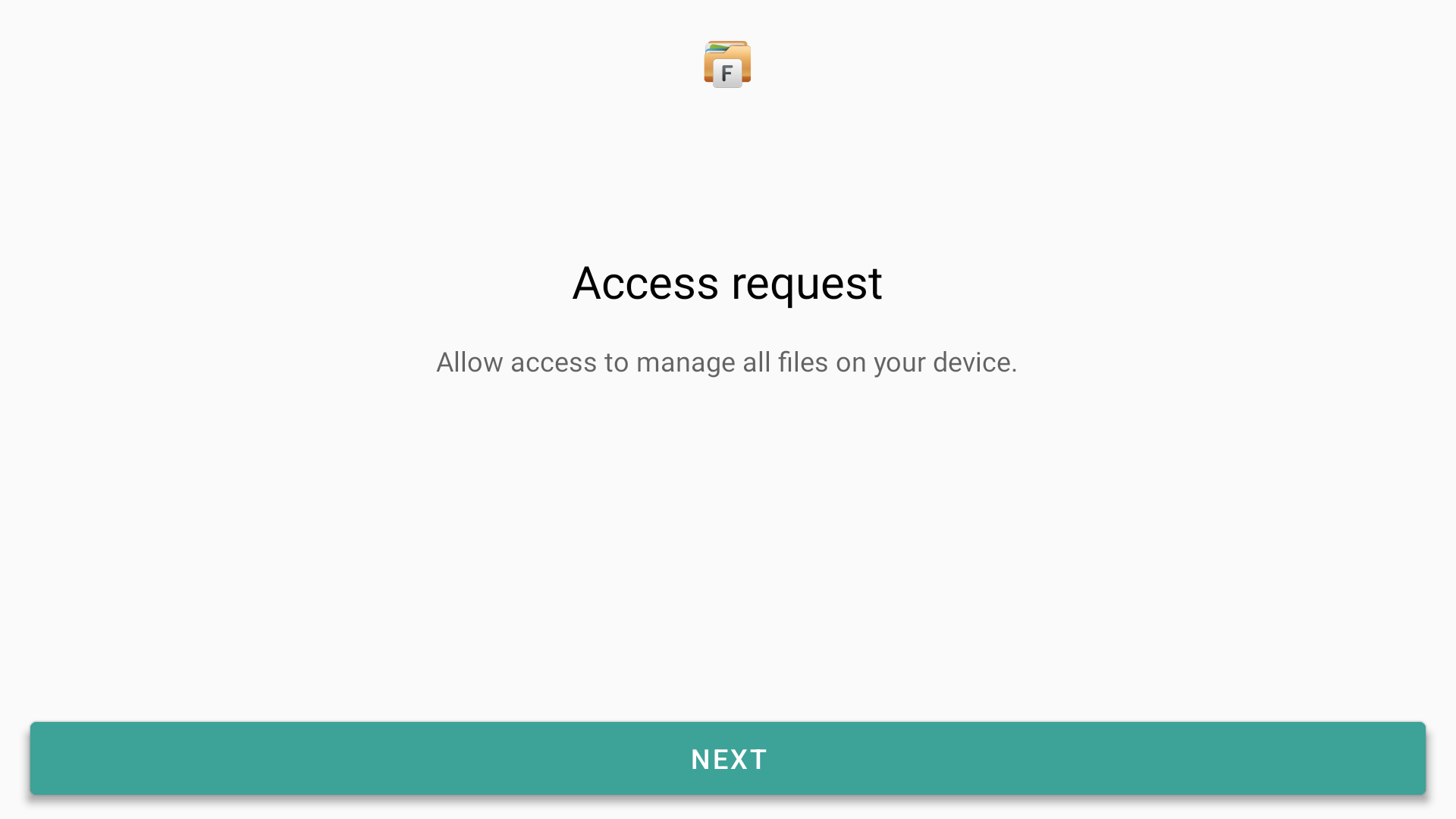
- Launch the app, then select NEXT.
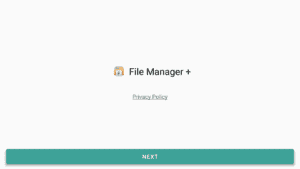

- File Manager + will require access to manage files and media on your device. Select NEXT and provide the required permission.

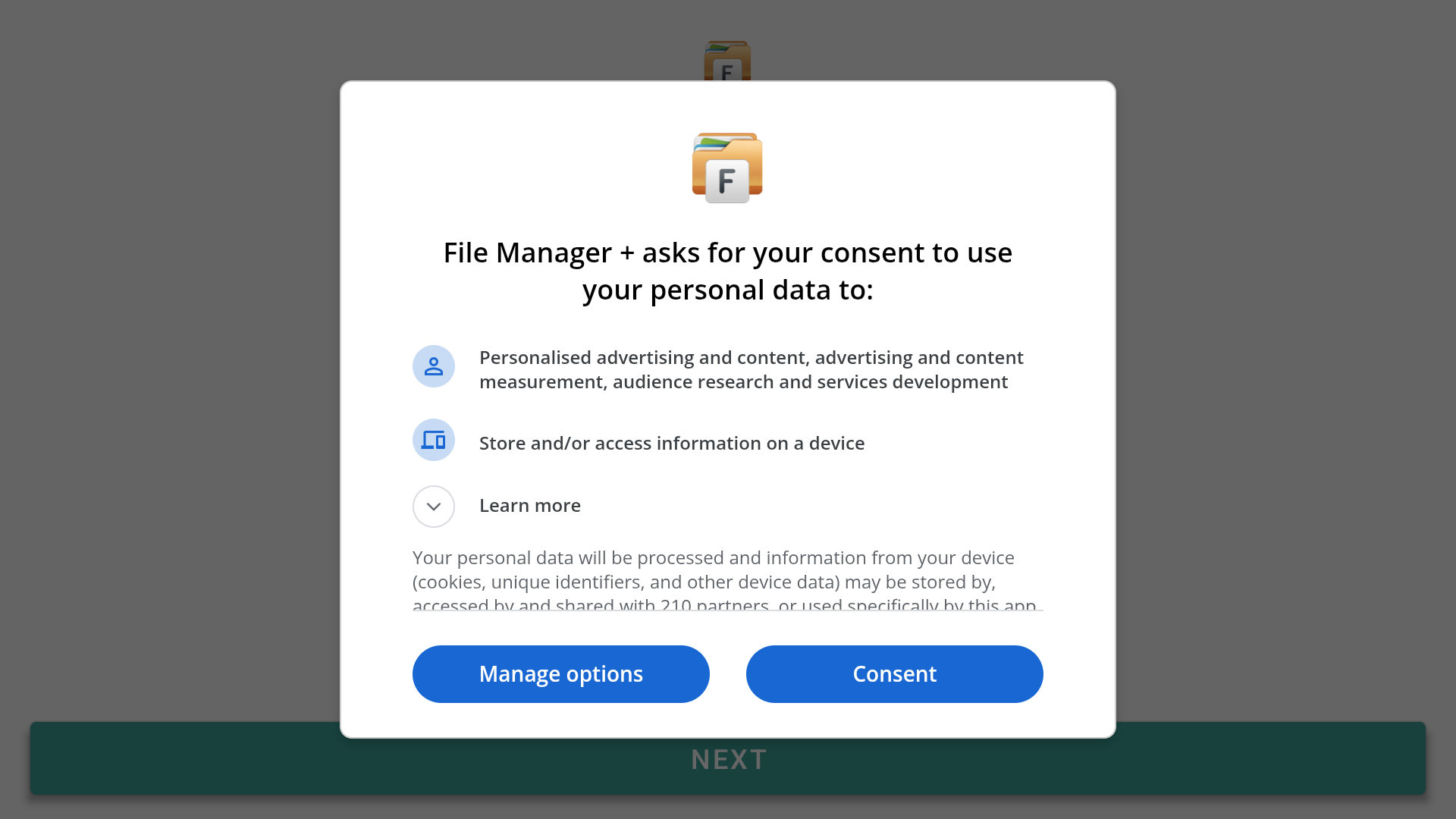
- Next, File Manager + will ask for your consent to process your data. If you agree, select Consent.

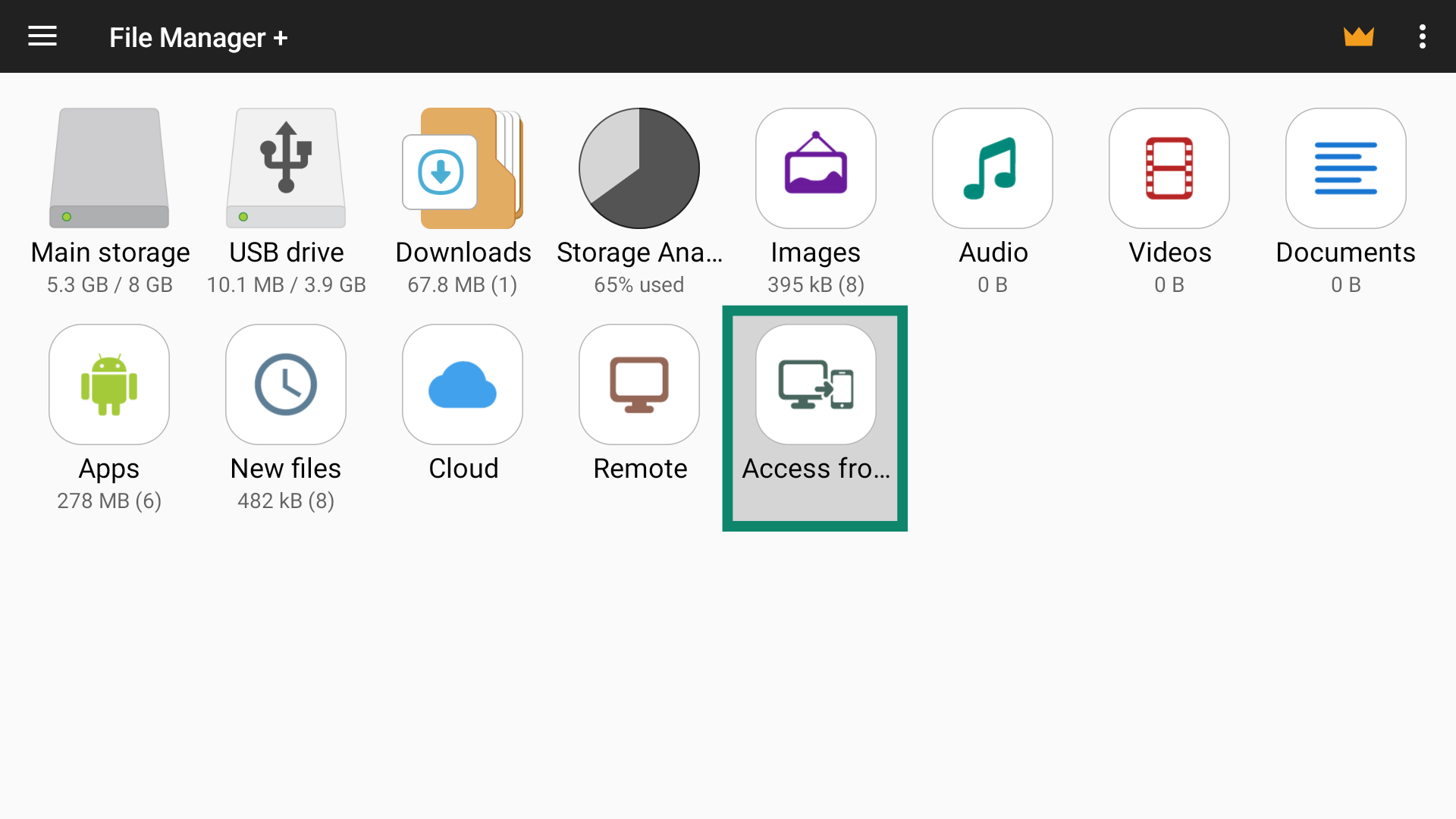
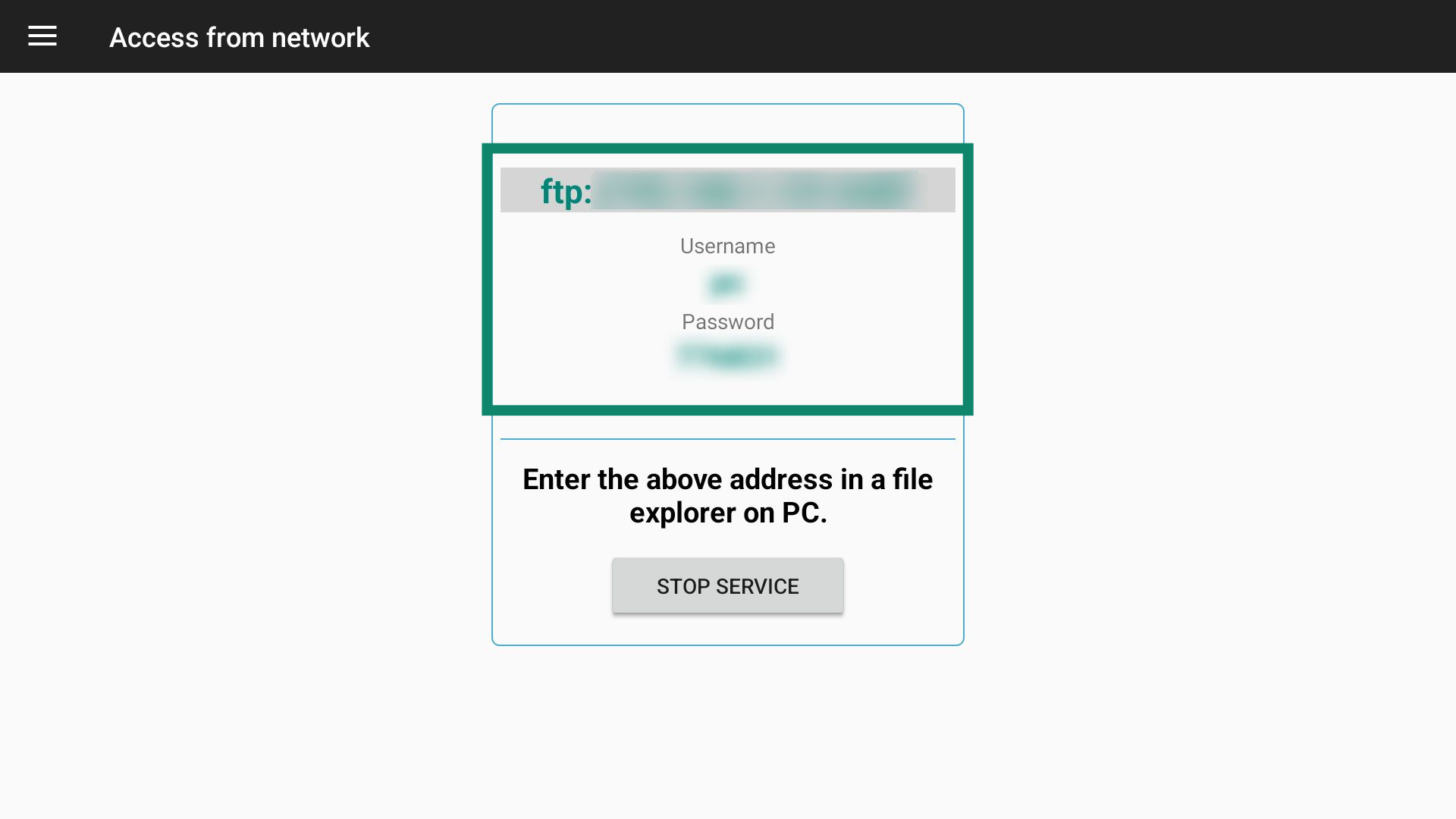
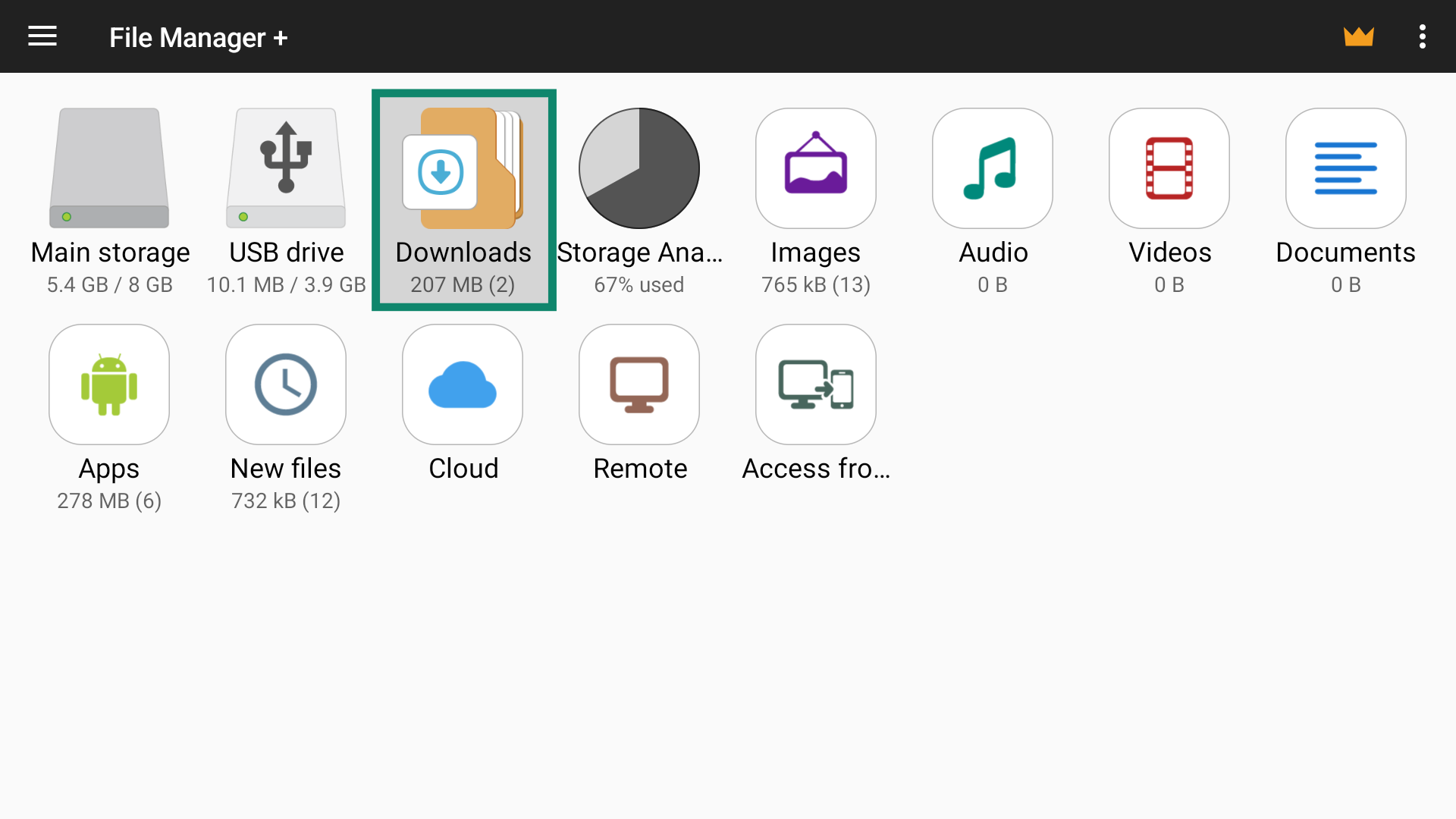
- The main File Manager + window will open. Select Access from network to start sharing files.

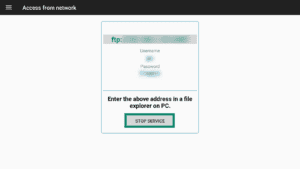
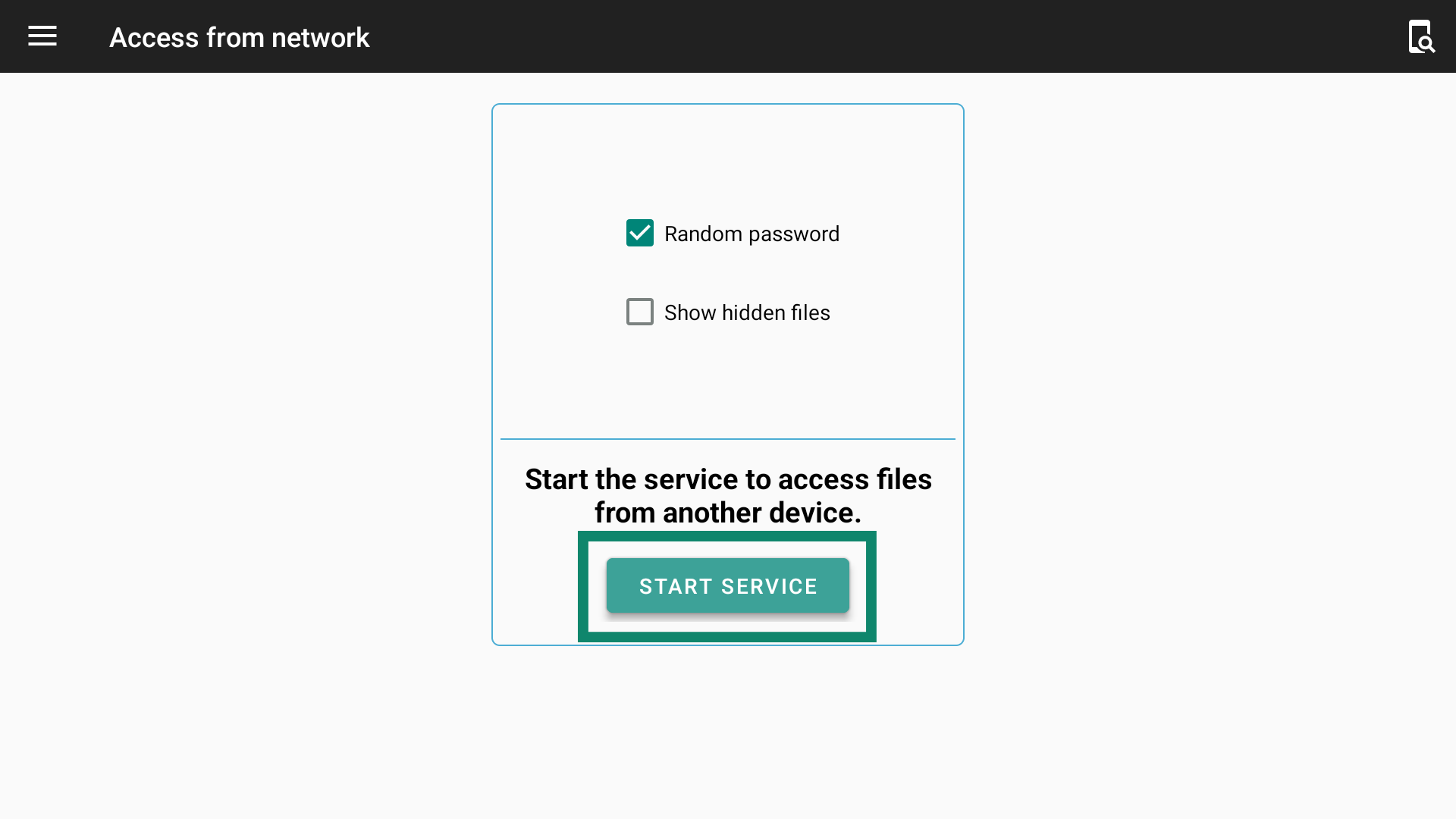
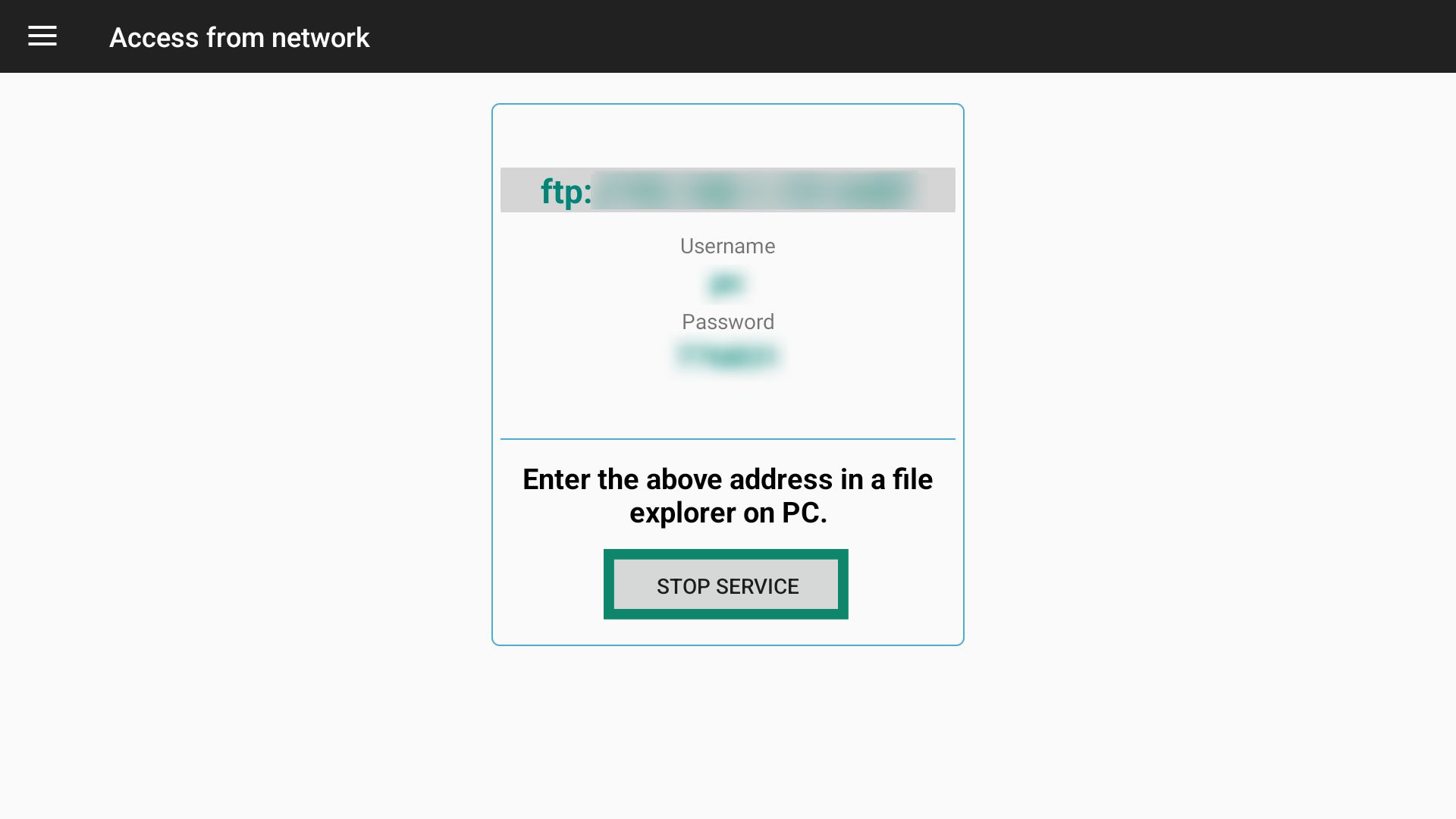
- Select START SERVICE.

- File Manager + will now display the address and login information you can use to share files from your computer to your Chromecast.

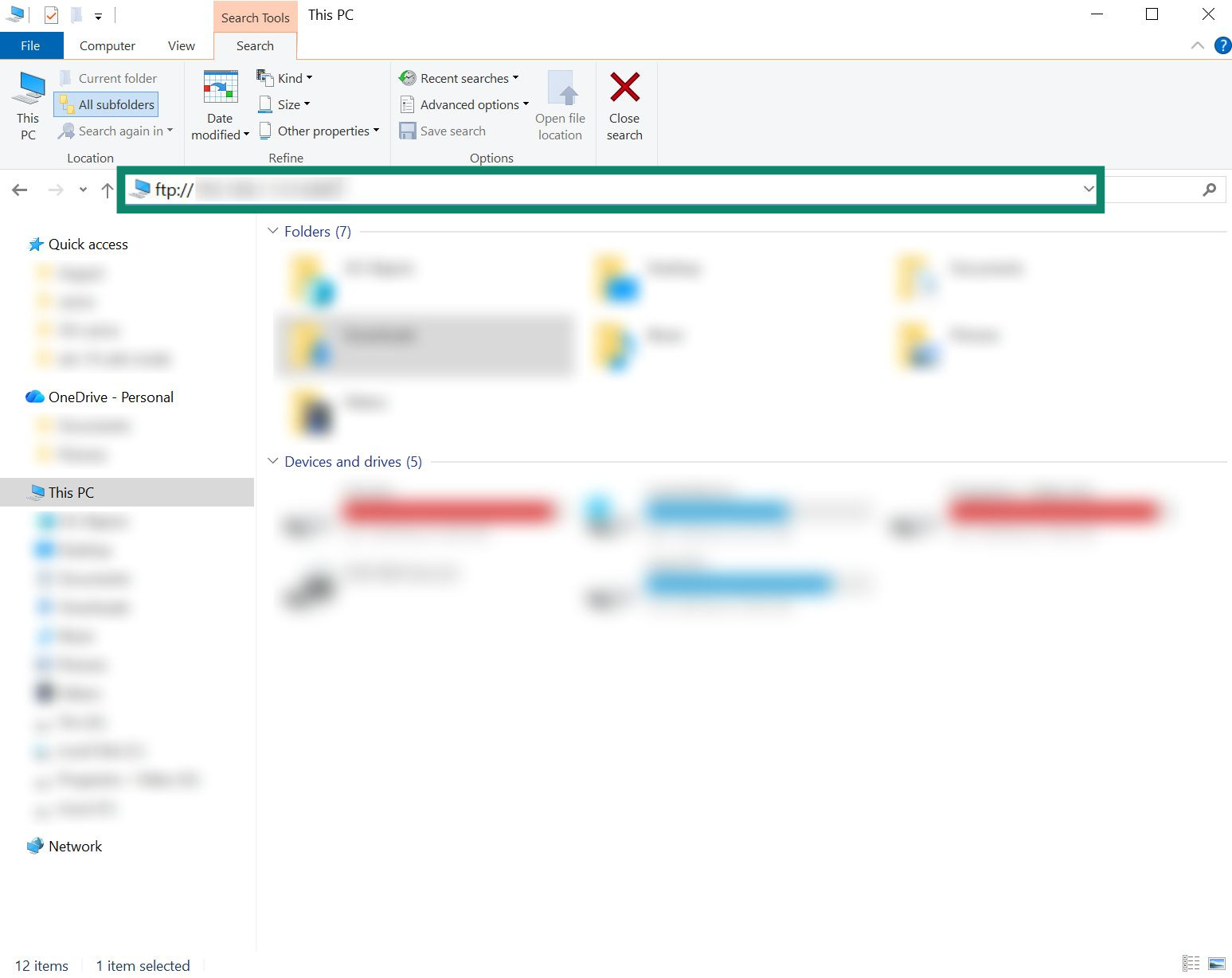
- Now, go to your computer and enter the provided address into a file explorer.
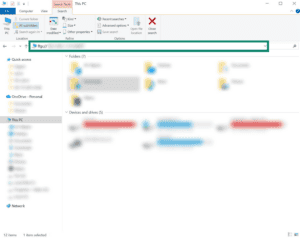

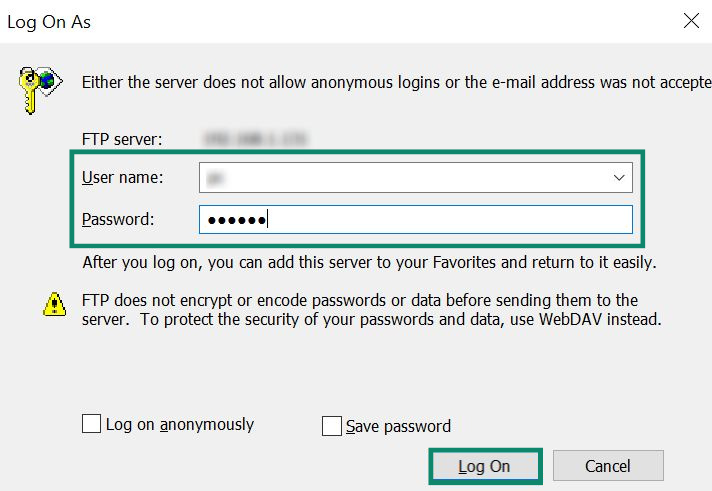
- Enter the username and password provided by File Manager +, then click Log On.


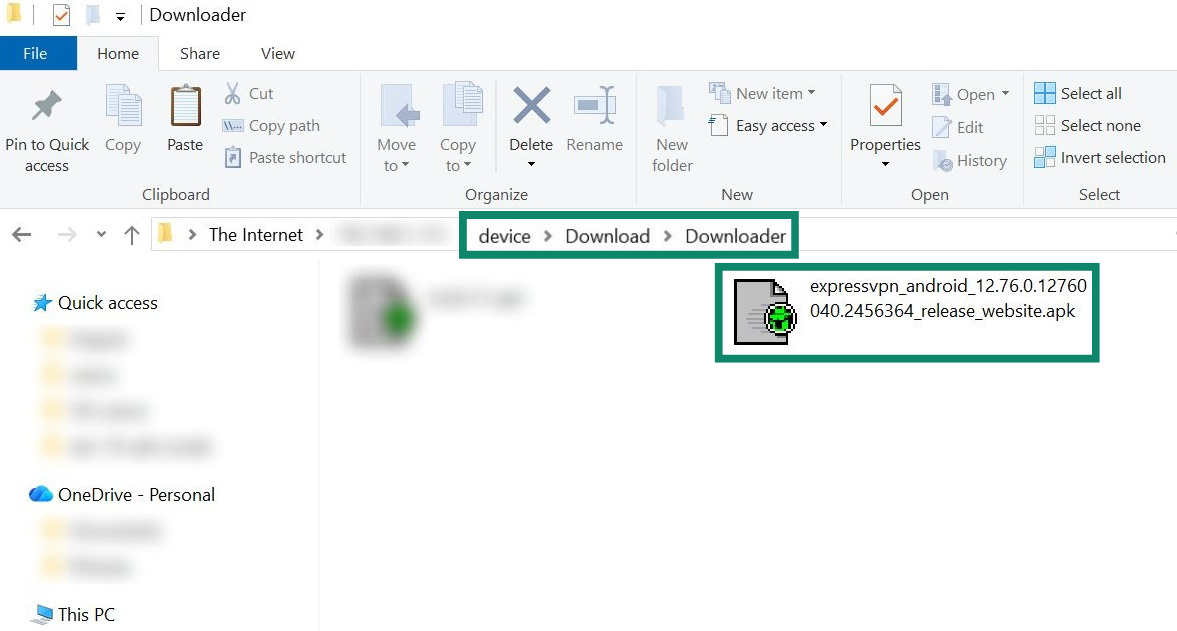
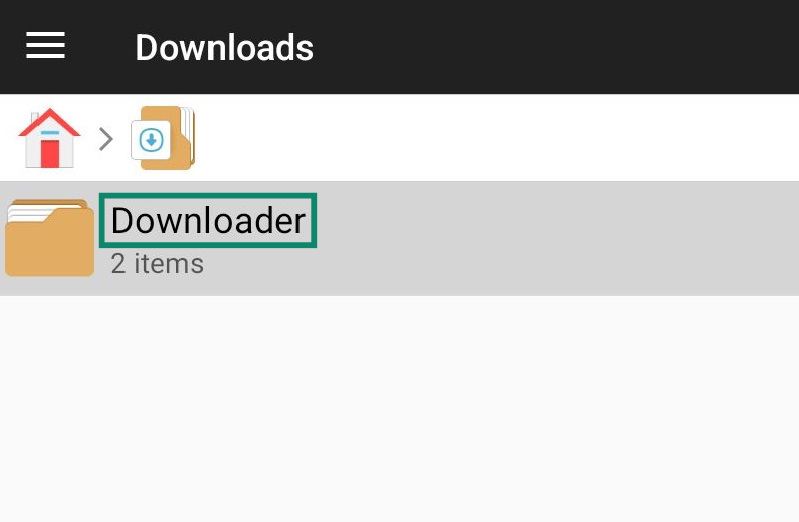
- A new window will open. Depending on your device, you may need to navigate to device > Download or device > Download > Downloader and copy-paste the ExpressVPN APK app in this location.


- When done, select STOP SERVICE inside File Manager + on your Chromecast.
- Go back to the main screen and select Downloads.
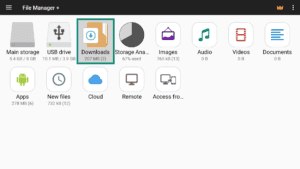
Note: Depending on your device, you may also need to select Downloader to reach the APK file.

- Select the ExpressVPN APK app.
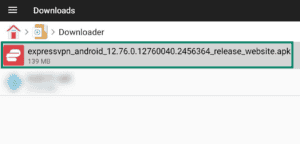

- Next, select INSTALL.
Note: If you see a pop-up message saying your device cannot install unknown apps from File Manager +, select Settings to open the Install unknown apps page. Then, toggle the permission for File Manager + on.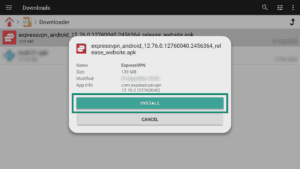
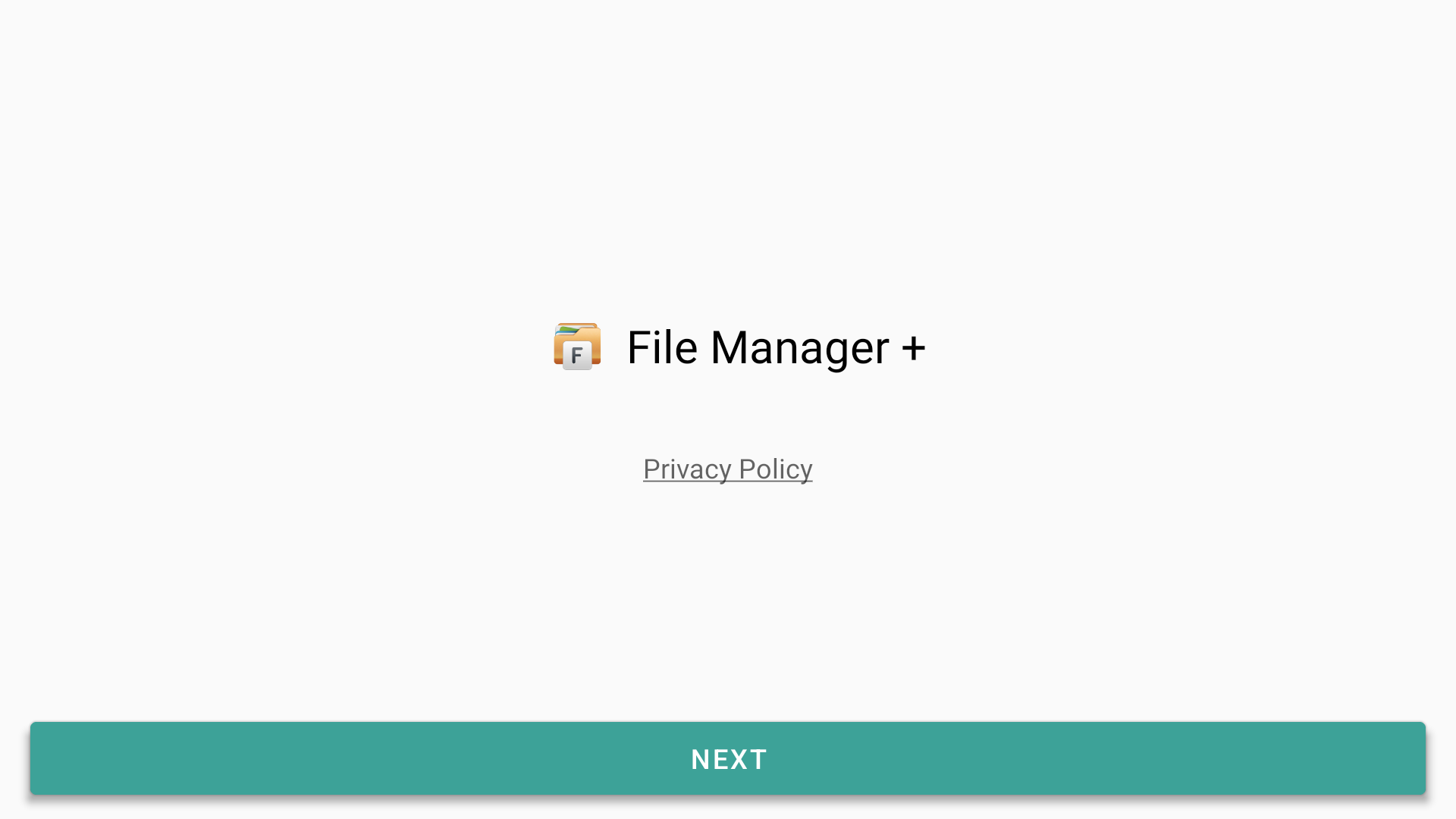
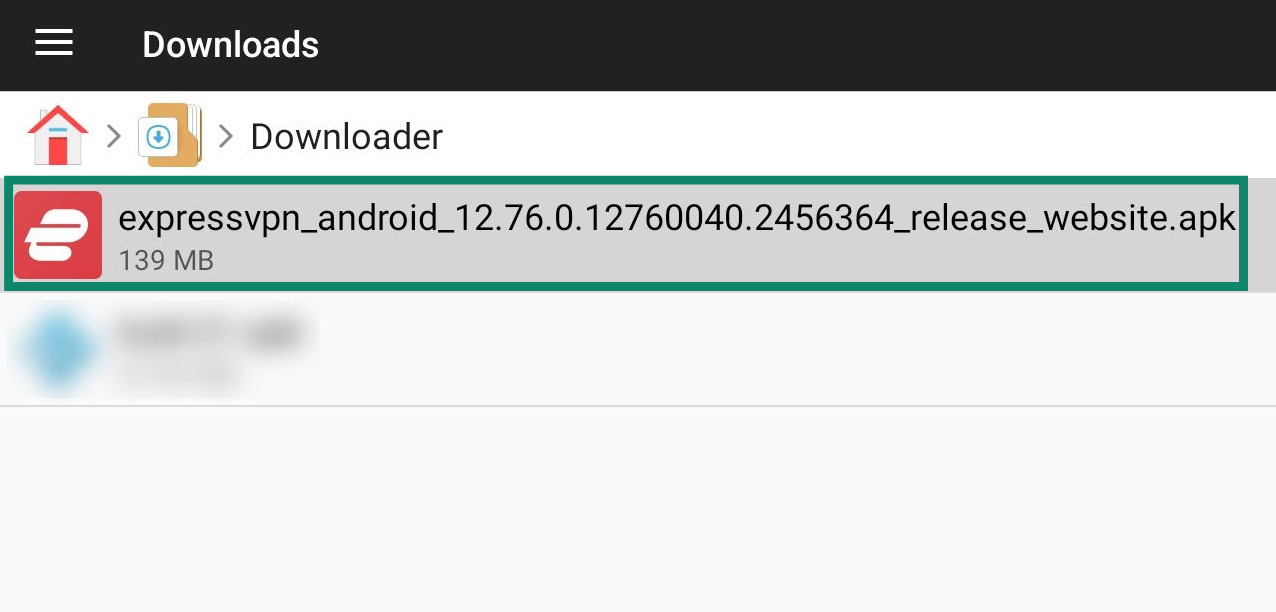
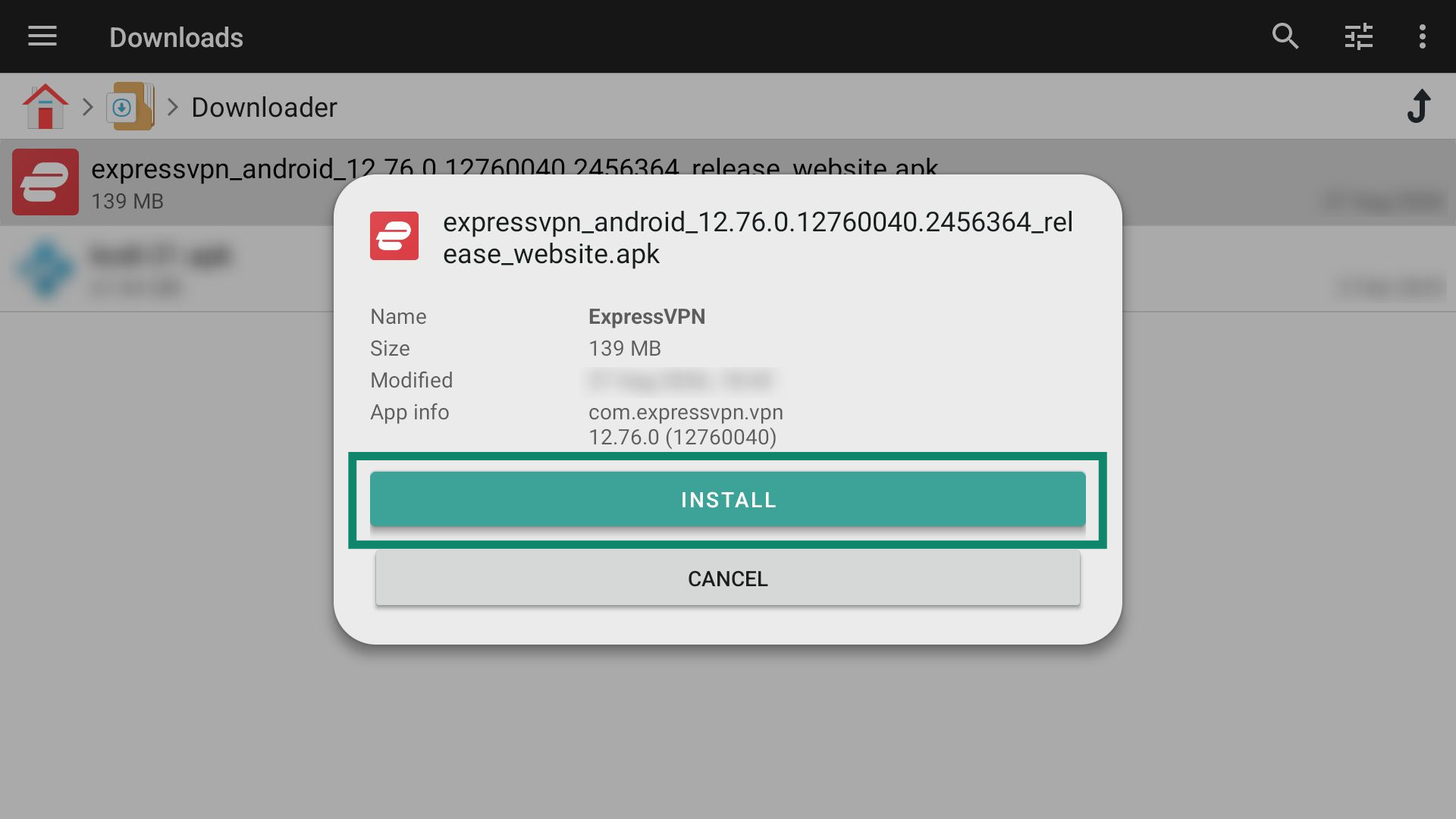
The app will now install.
Need help? Contact the ExpressVPN Support Team for immediate assistance.
Configure the ExpressVPN app
When you first launch the ExpressVPN app, you will see a list of privacy-related choices. To continue, select your preference.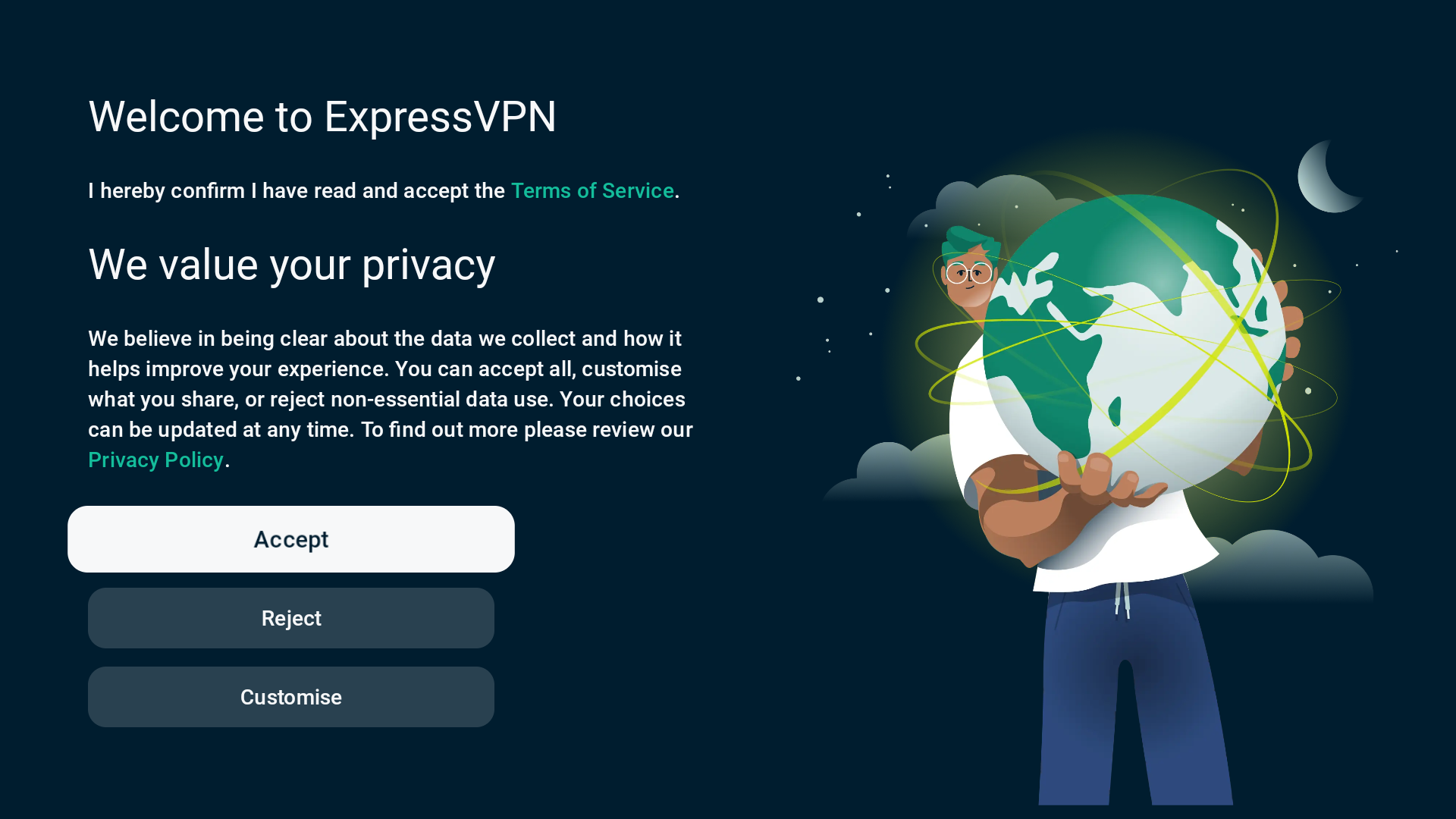
Next, select Sign In.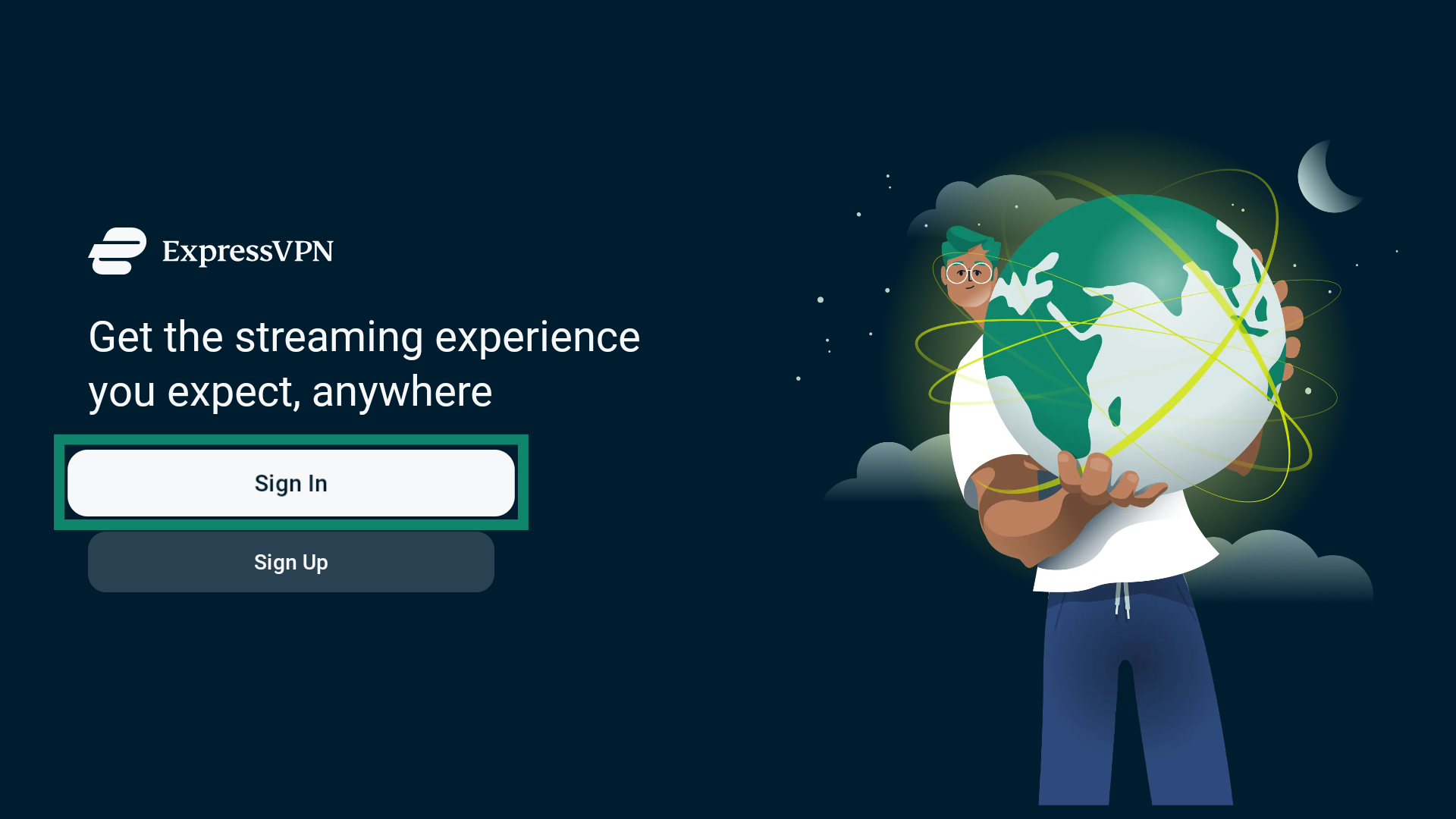
You have three methods you can use to sign in:
Scan the QR code on your TV screen with your mobile device. This will open an ExpressVPN sign-in page. When you are on the page, follow these steps:
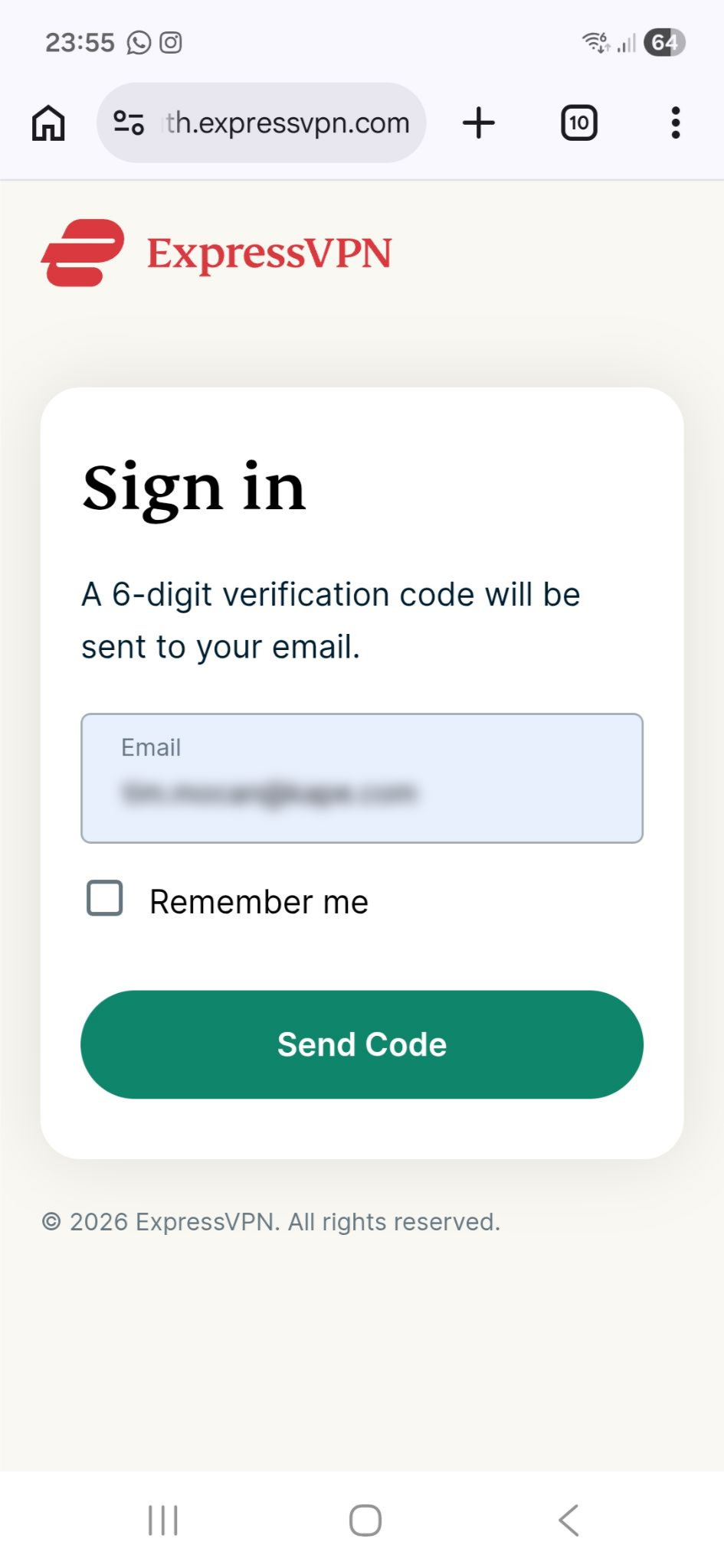
- Enter the email address linked to your ExpressVPN account and tap Send Code.
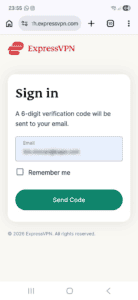

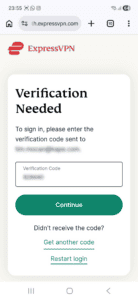
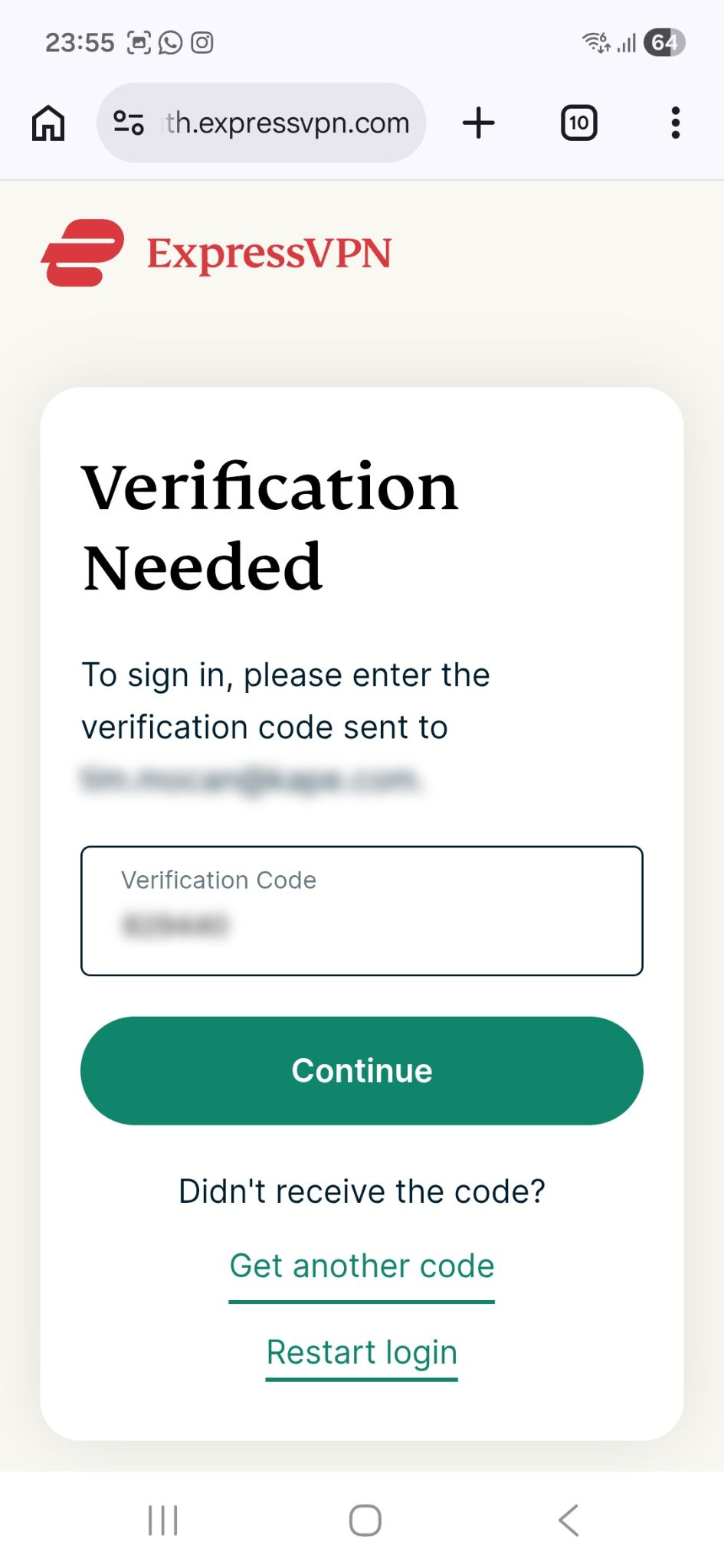
- A verification code will be sent to the provided email address. Enter the code and tap Continue.
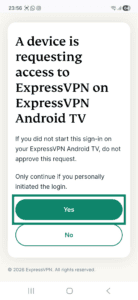
- To approve the sign-in on your Chromecast device, tap Yes.
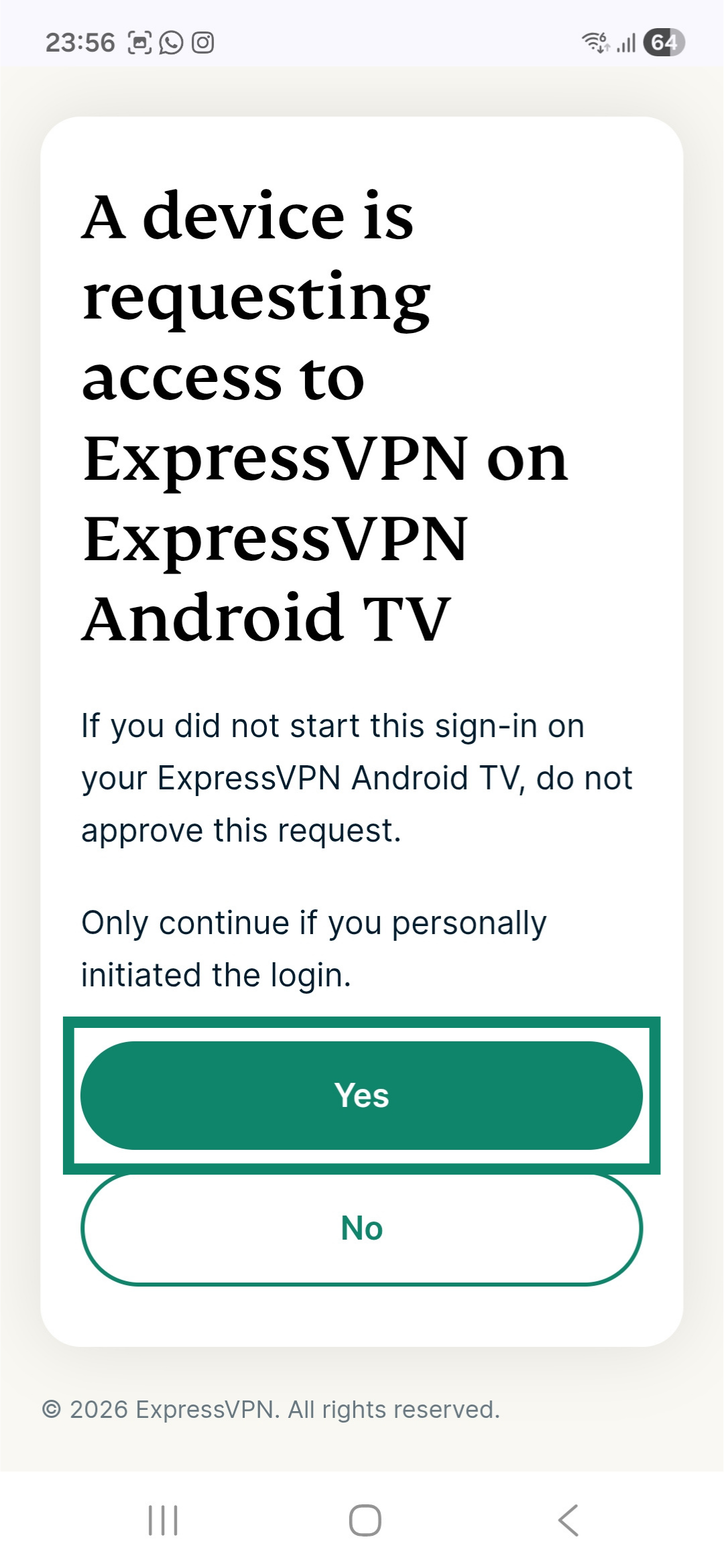
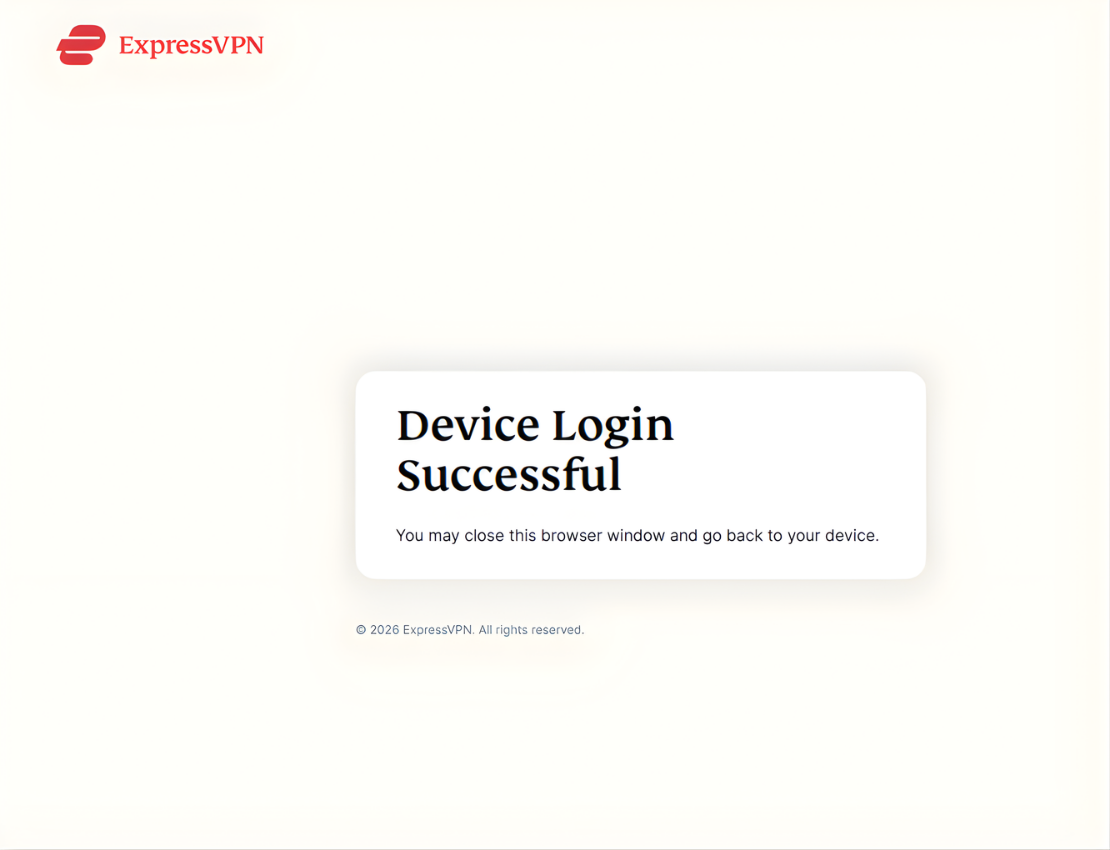
If successful, you will see a message that says Device Login Successful.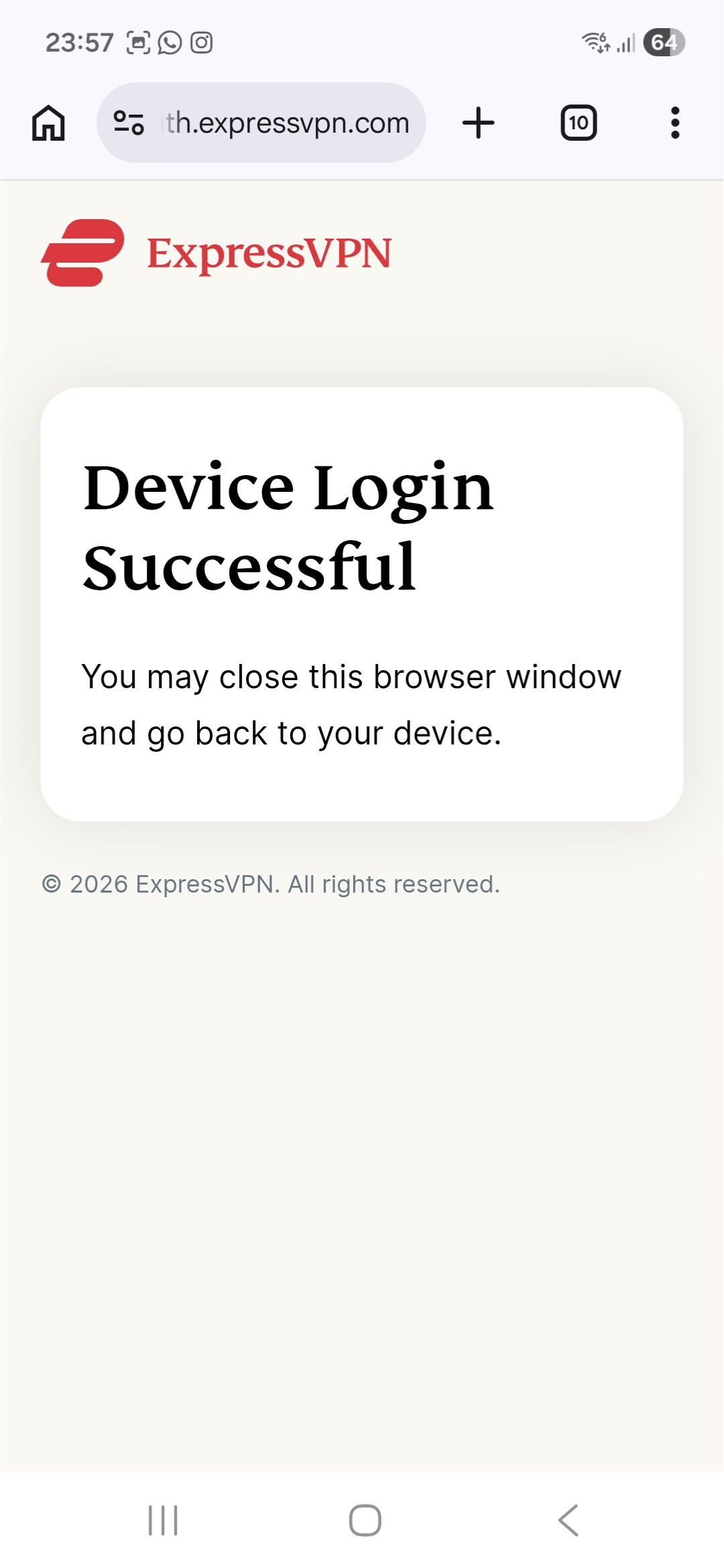
Note: If you do not receive a verification code, tap Get another code on the sign-in page.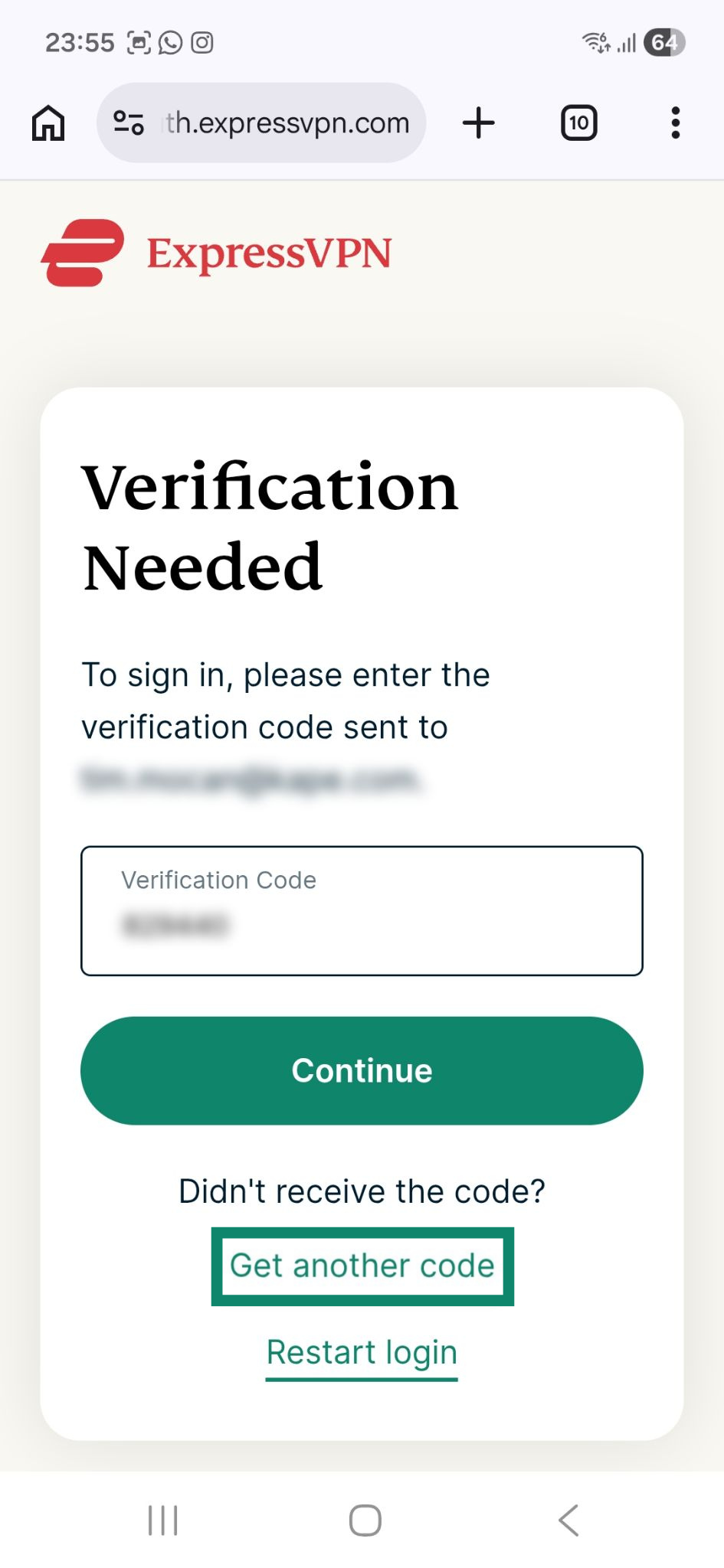
Sign in with an authentication link
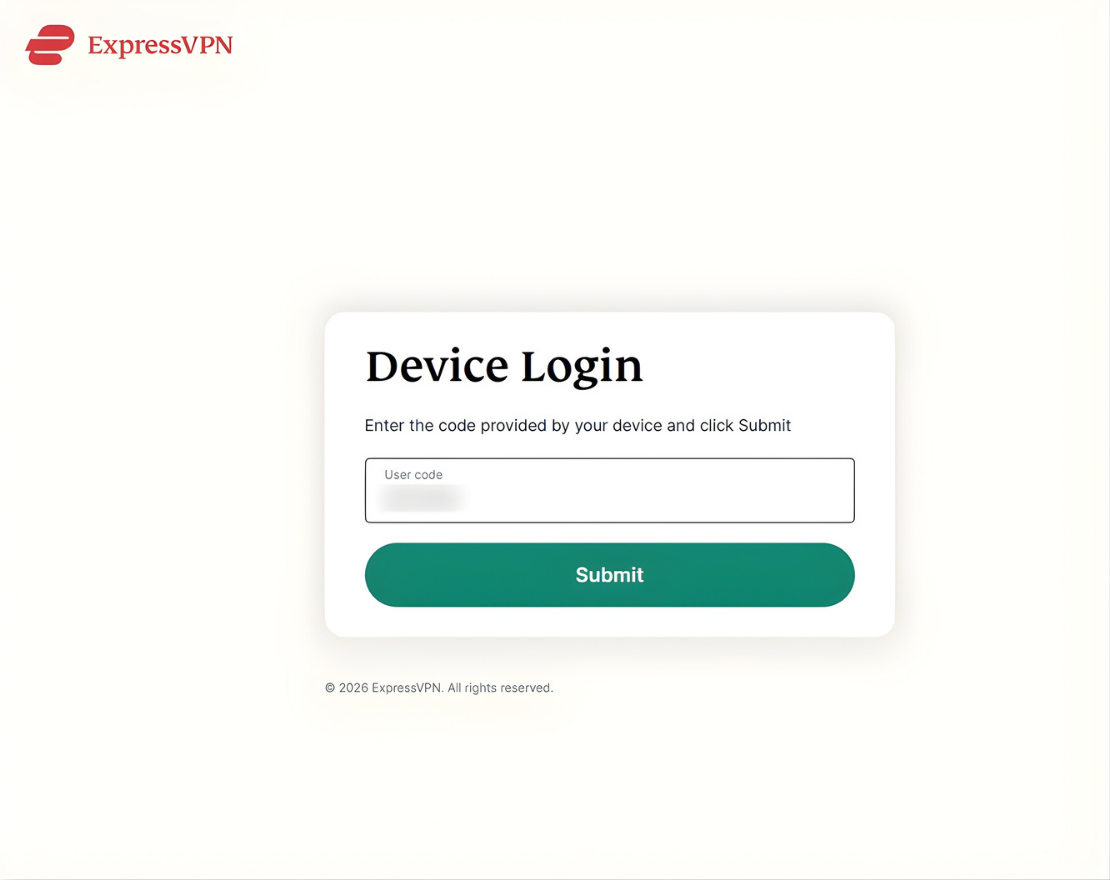
Type the link displayed on your Chromecast screen into a web browser on another device. In the webpage that opens:
- Enter the code shown on your Chromecast and click Submit.
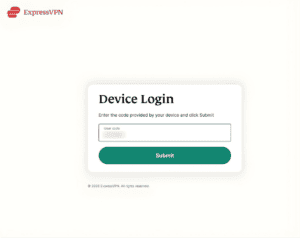

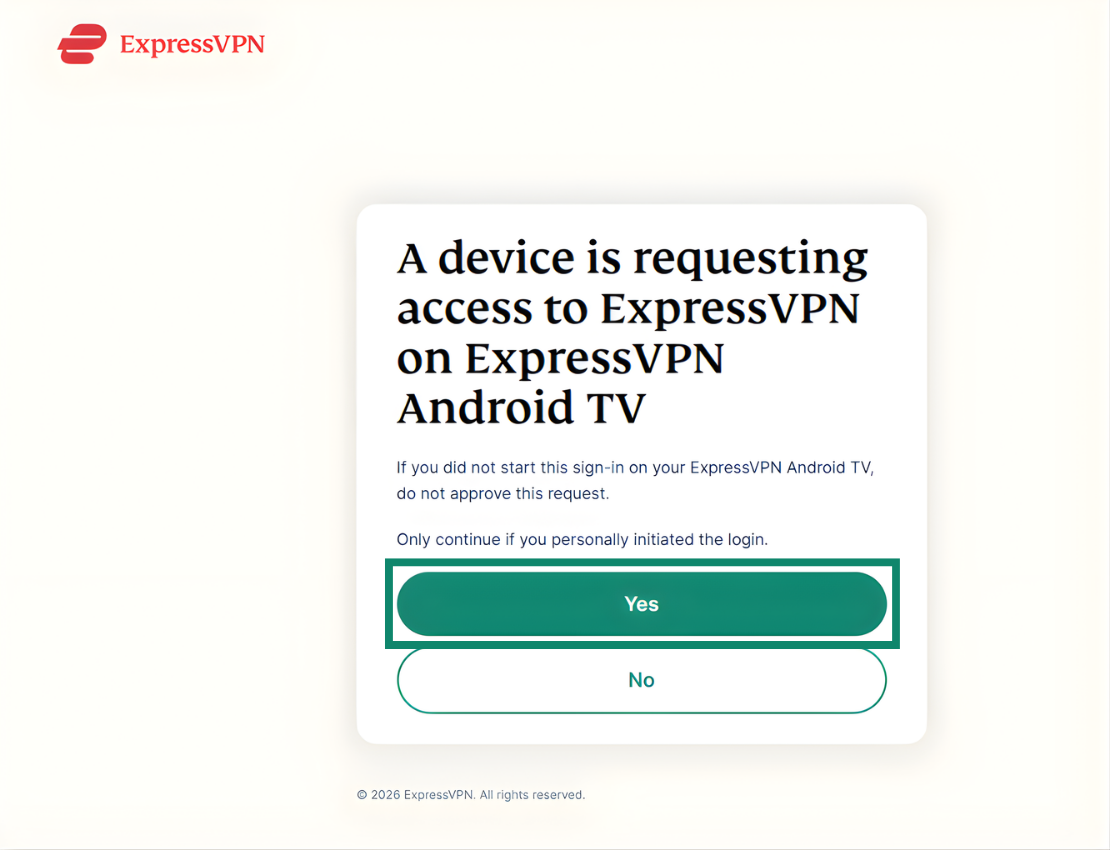
- Next, click Yes to approve the sign-in request on your Chromecast.

- If successful, you will see a message that says Device Login Successful.
Sign in using your password or activation code
- Type in your ExpressVPN email address and password or activation code.
- Select Sign In.
Note: If you purchased your ExpressVPN subscription from the Google Play Store, select Restore your Play Store subscription.
Once signed in, you will be prompted to configure the ExpressVPN app. Select OK to proceed.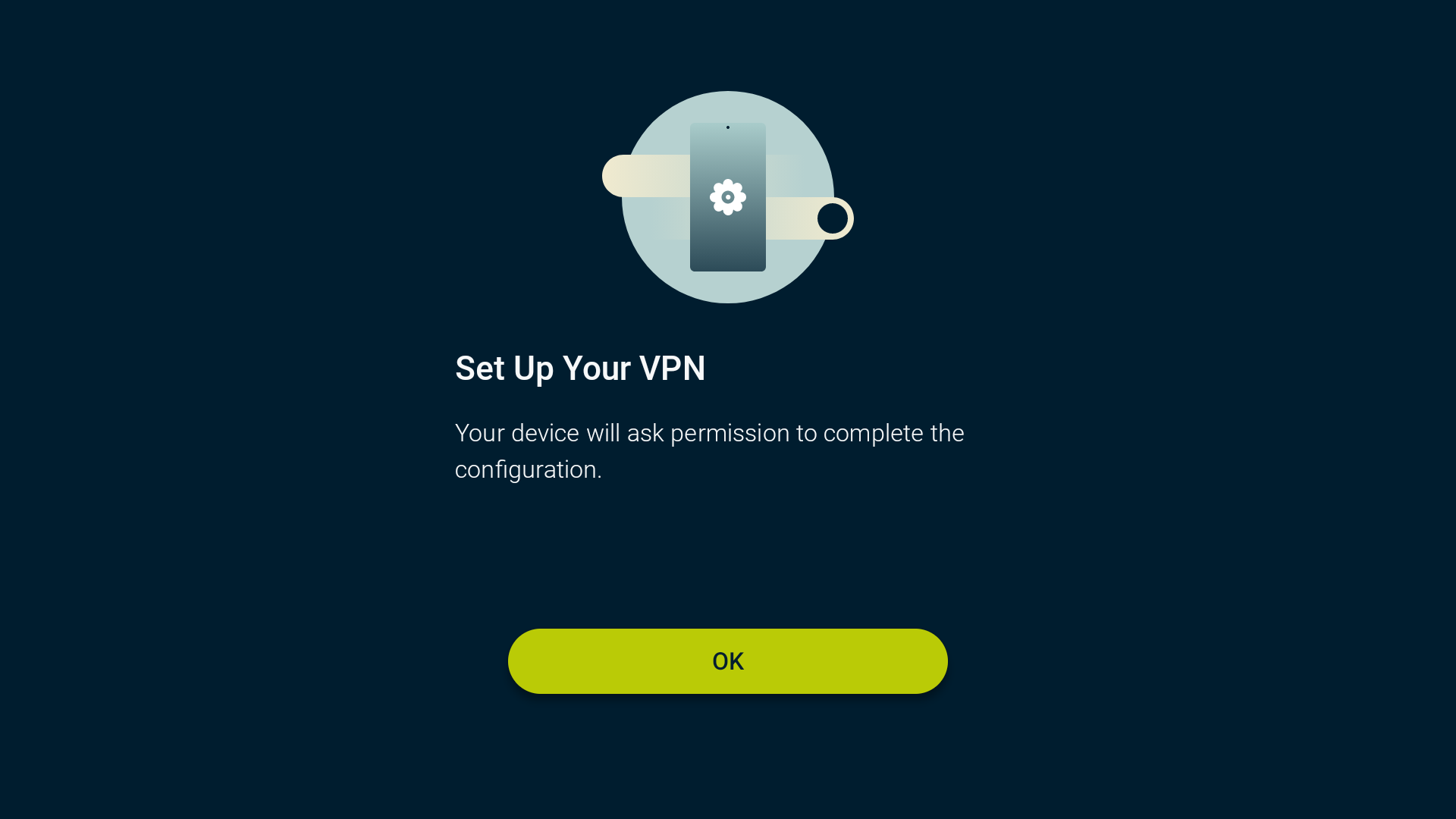
ExpressVPN will ask you for permission to set up VPN connections and monitor network traffic. This is a standard requirement on Android, and all VPN apps need this permission to work. Providing this permission does not mean that ExpressVPN will log or monitor your IP address or browsing data. To continue, click OK.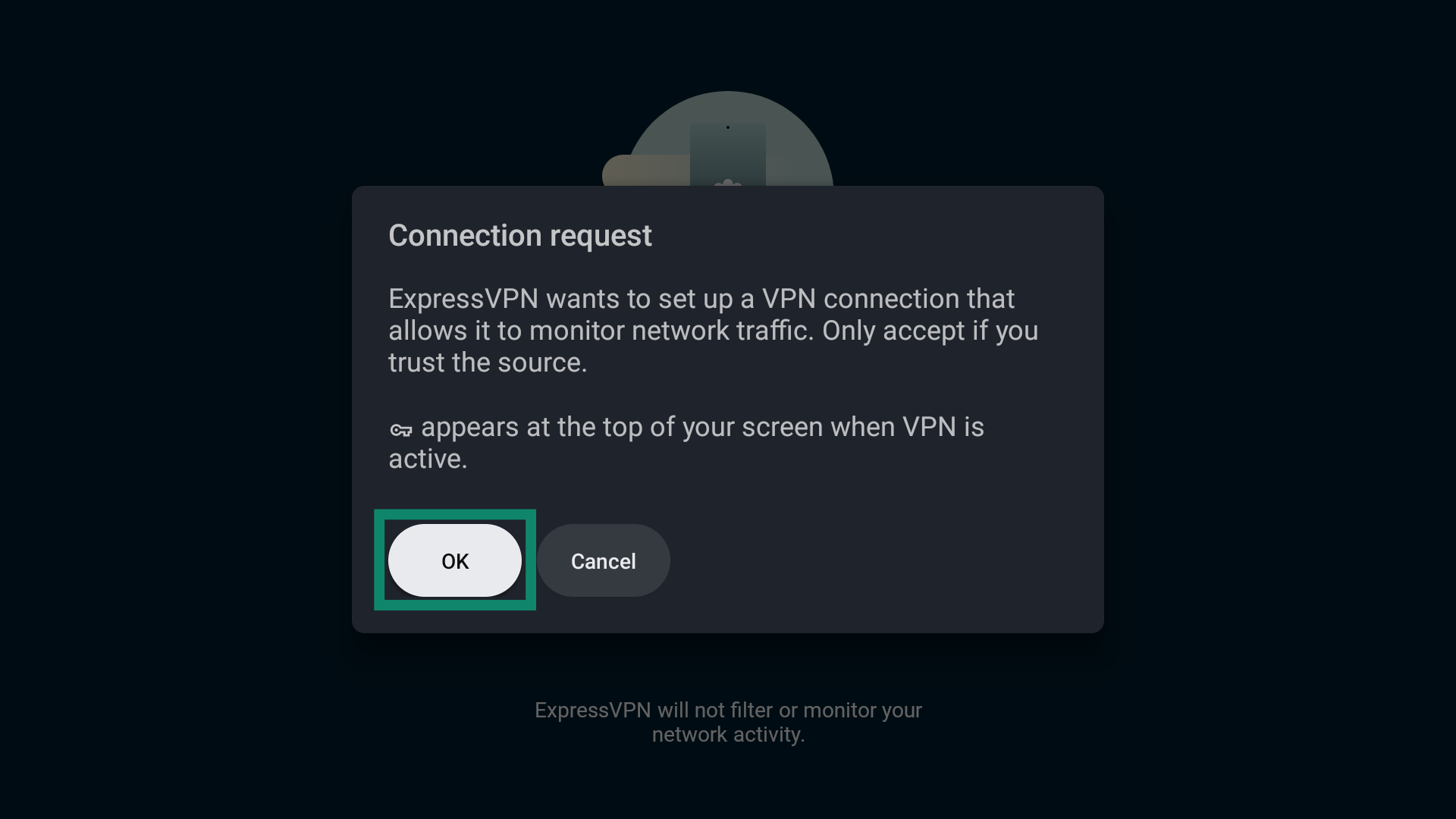
Need help? Contact the ExpressVPN Support Team for immediate assistance.
Connect to a VPN server location
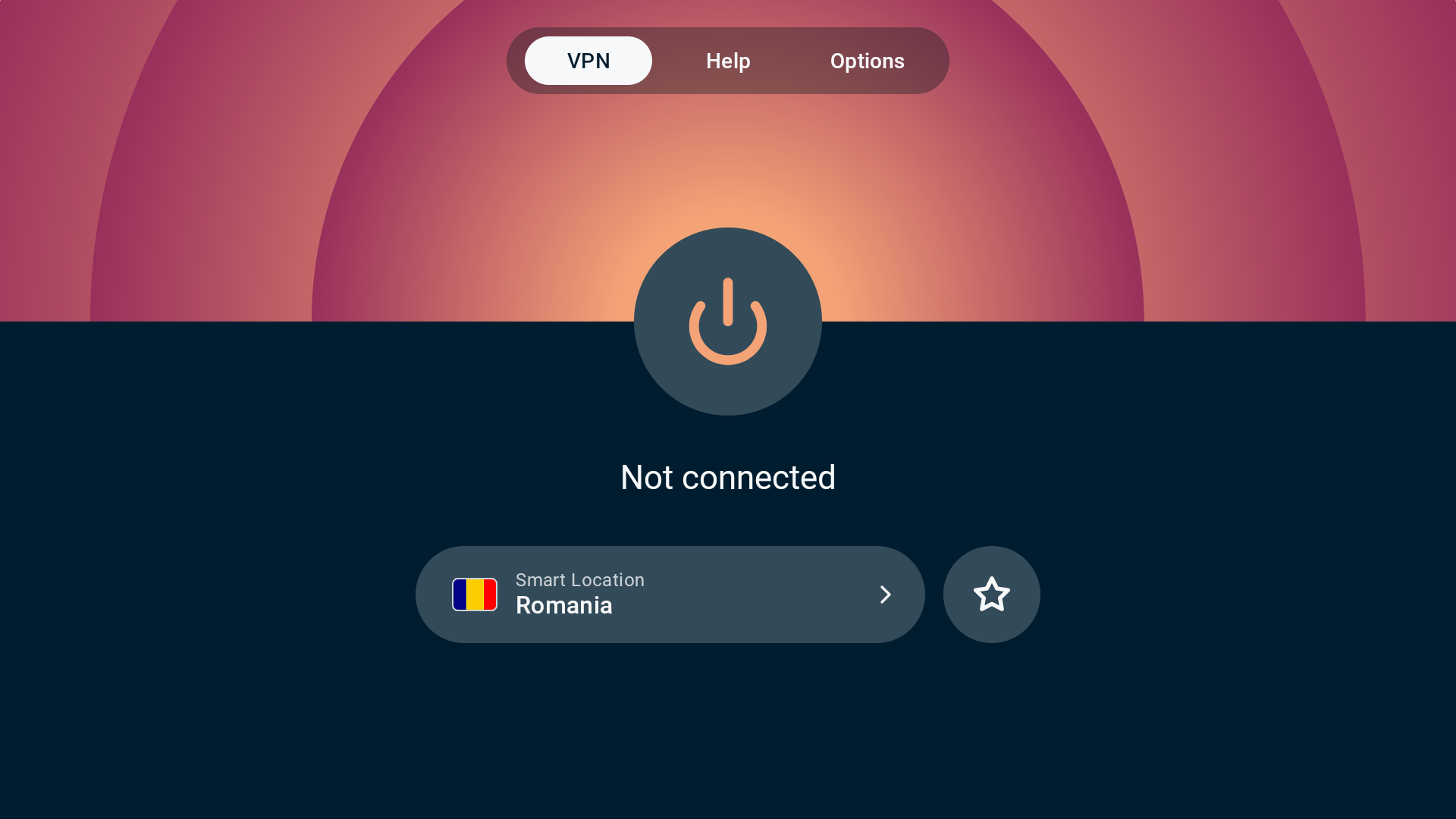
To connect to a VPN server:
- On the home screen, select the power button (

 ). By default, ExpressVPN will automatically connect you to the most optimal location, called Smart Location.
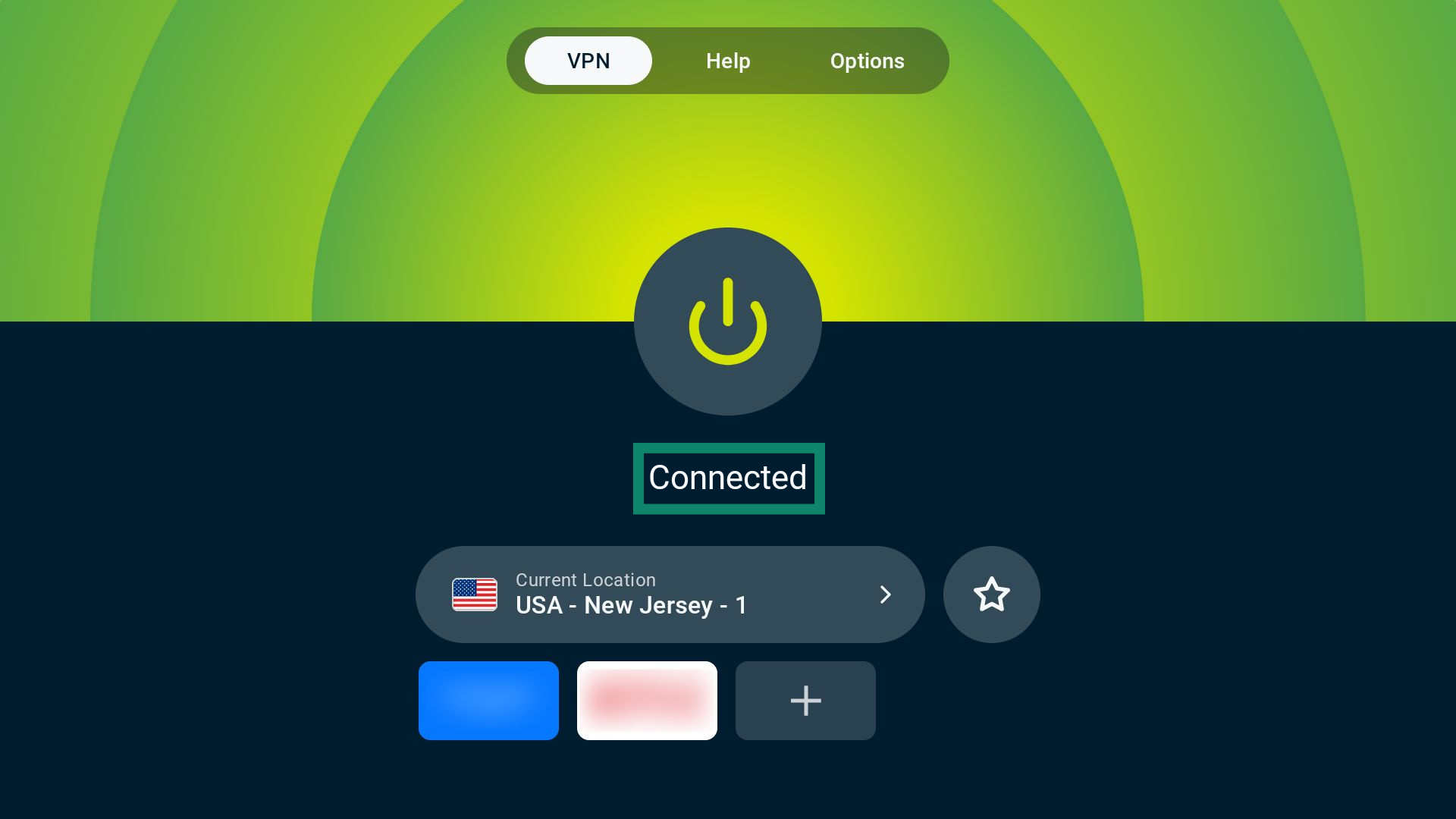
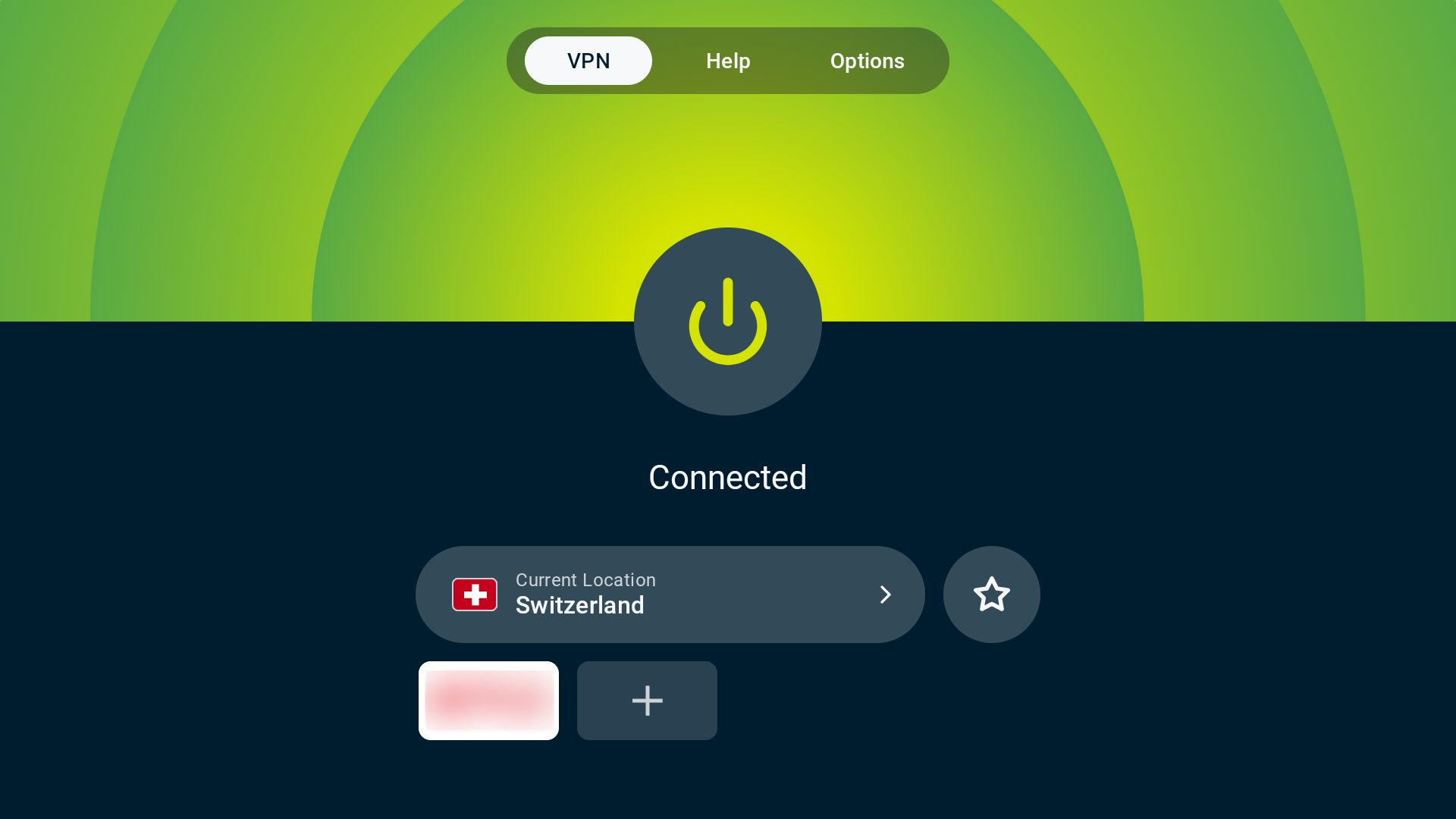
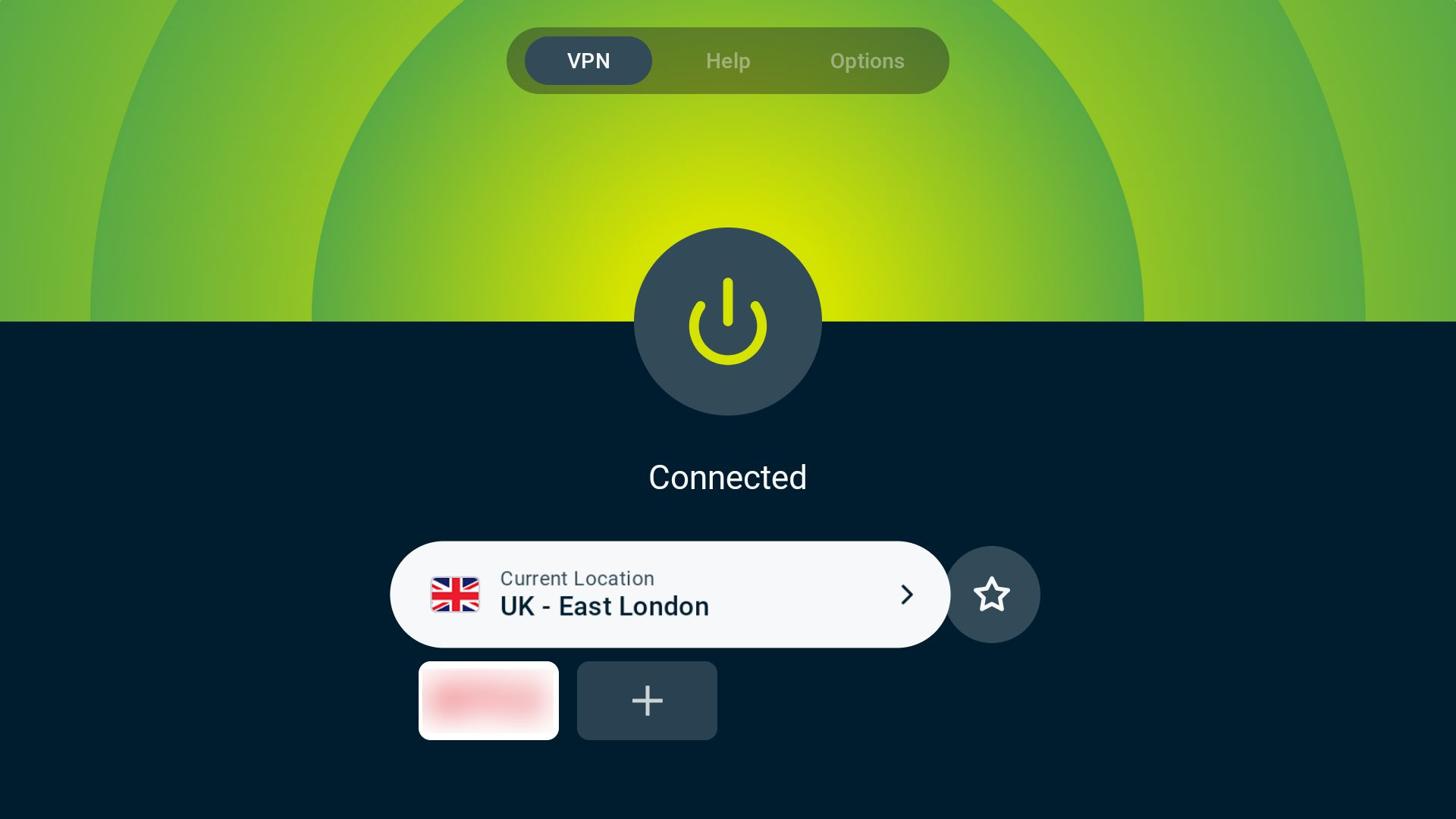
- If you successfully connect to a VPN server location, Connected will be shown under the button.

Note: The number of devices you can simultaneously connect to ExpressVPN depends on the subscription tier you chose at checkout:
- Basic: 10 devices at the same time.
- Advanced: 12 devices at the same time.
- Express Pro: 14 devices at the same time.
Need help? Contact the ExpressVPN Support Team for immediate assistance.
Disconnect from a VPN server location
To disconnect from a VPN server:
- Select the power button ().
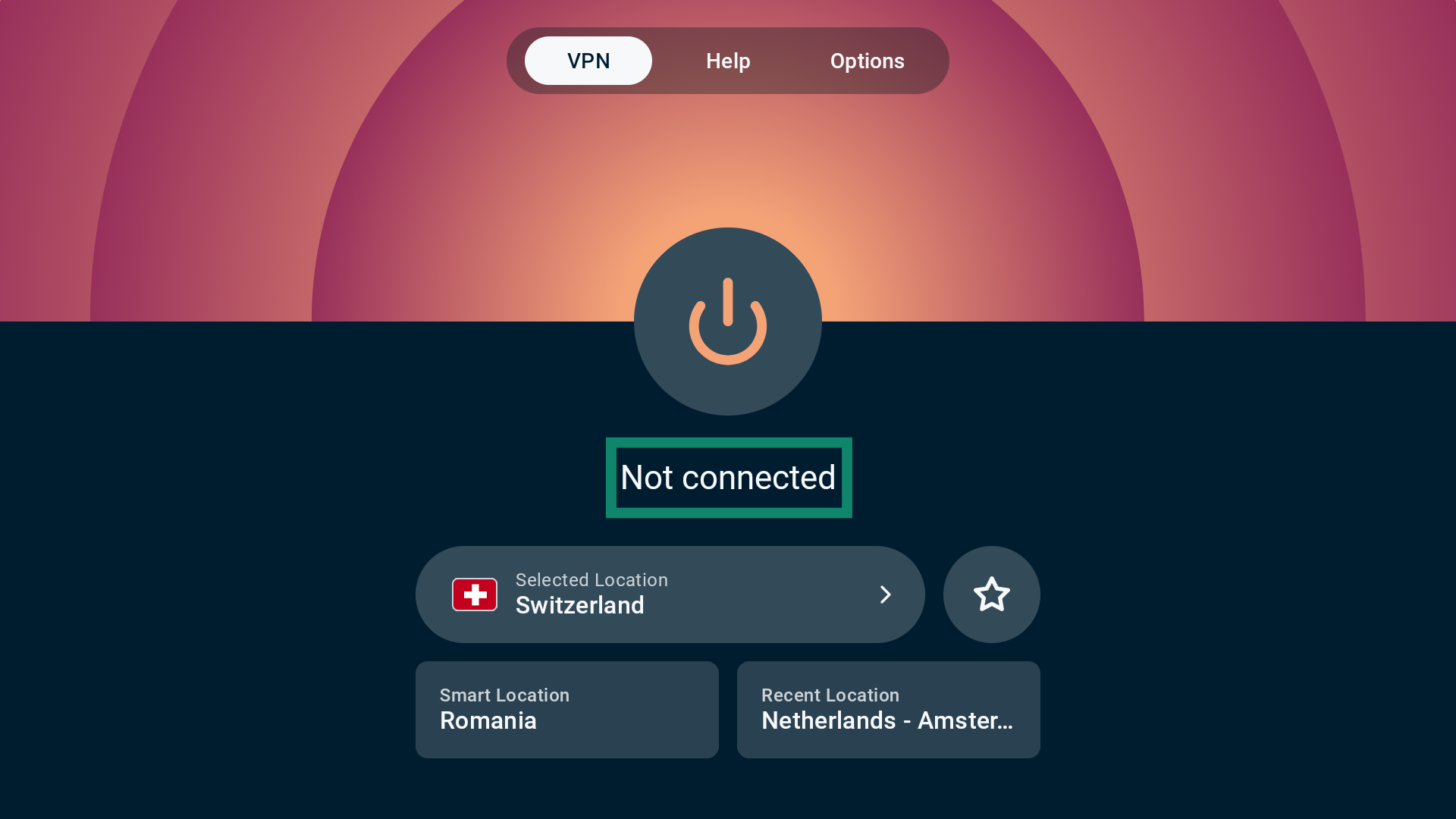
- When ExpressVPN disconnects, you will see Not connected under the button.
Need help? Contact the ExpressVPN Support Team for immediate assistance.
Select a different VPN server location
To choose a different VPN server location:
- On the VPN home screen, select the VPN server location widget.

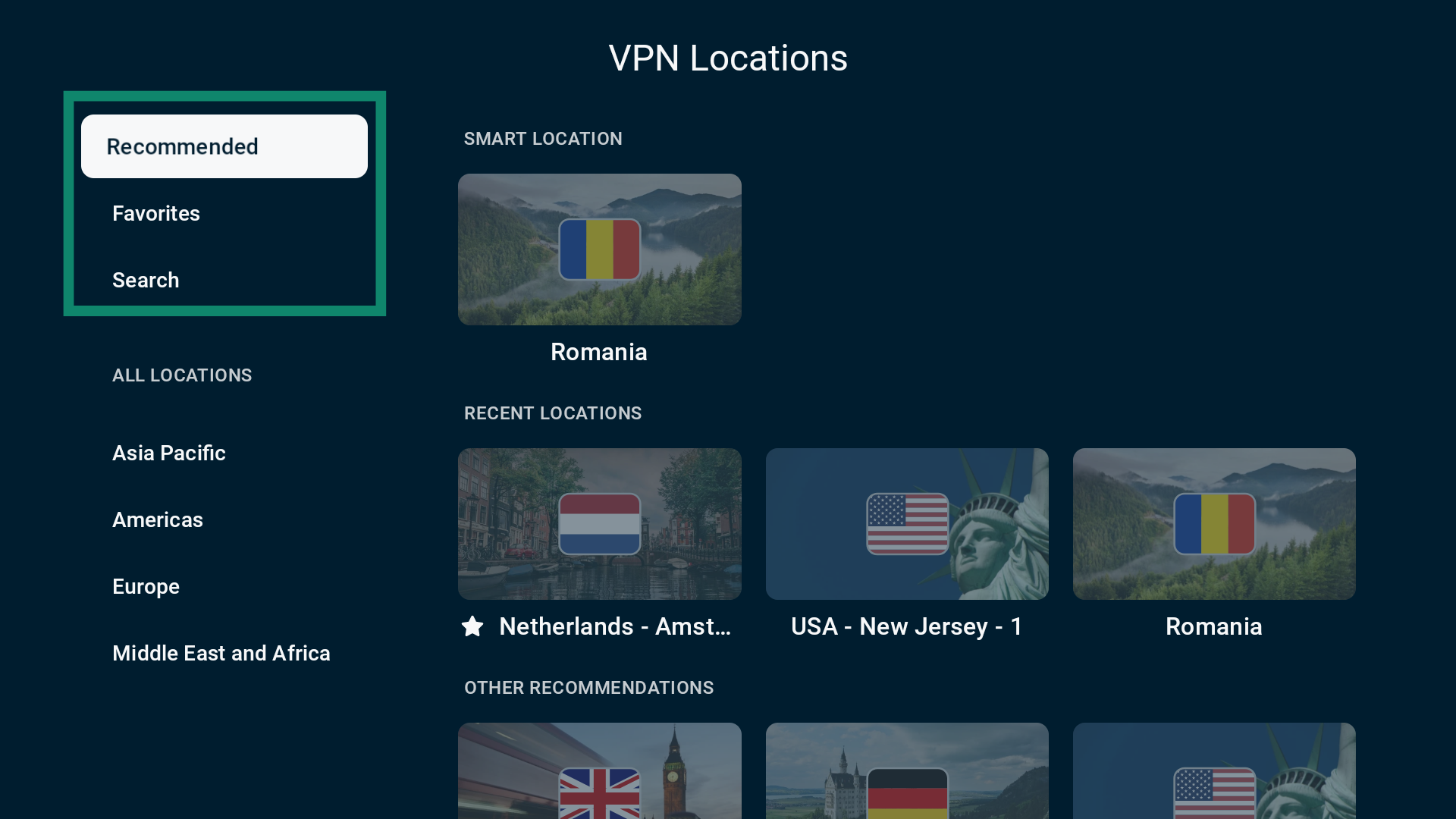
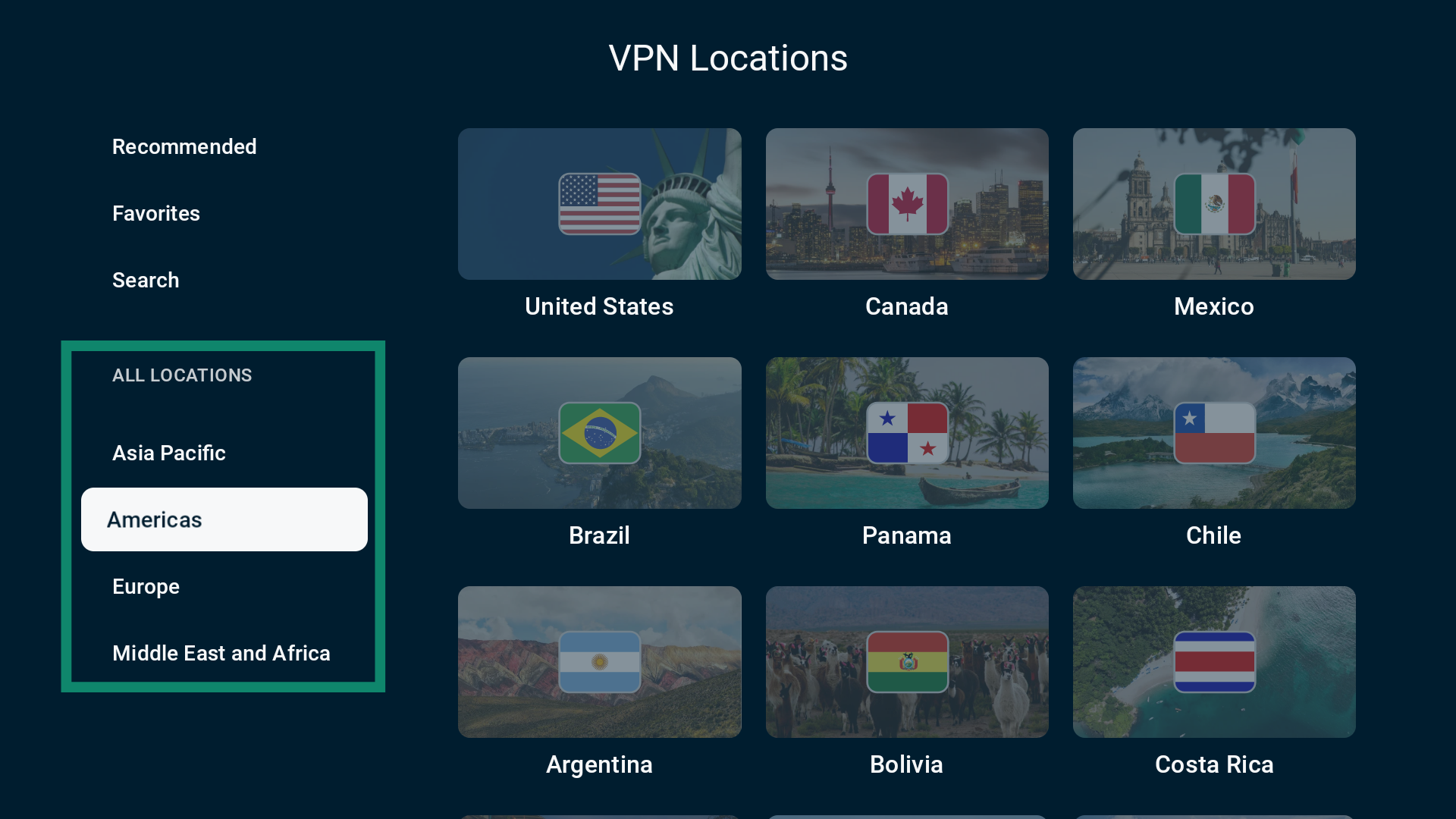
- You will now see a list of tabs. The first three options include:
- Recommended: Displays the Smart Location, three recent server locations, and up to 12 other VPN server recommendations.
- Favorites: Includes all VPN server locations you save as favorites.
- Search: Allows you to manually search for a country or city.
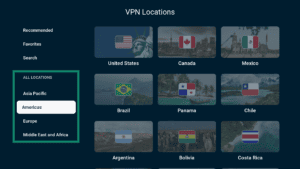
 The ALL LOCATIONS tab groups VPN server locations based on four geographic regions: Asia Pacific, Americas, Europe, and Middle East and Africa.
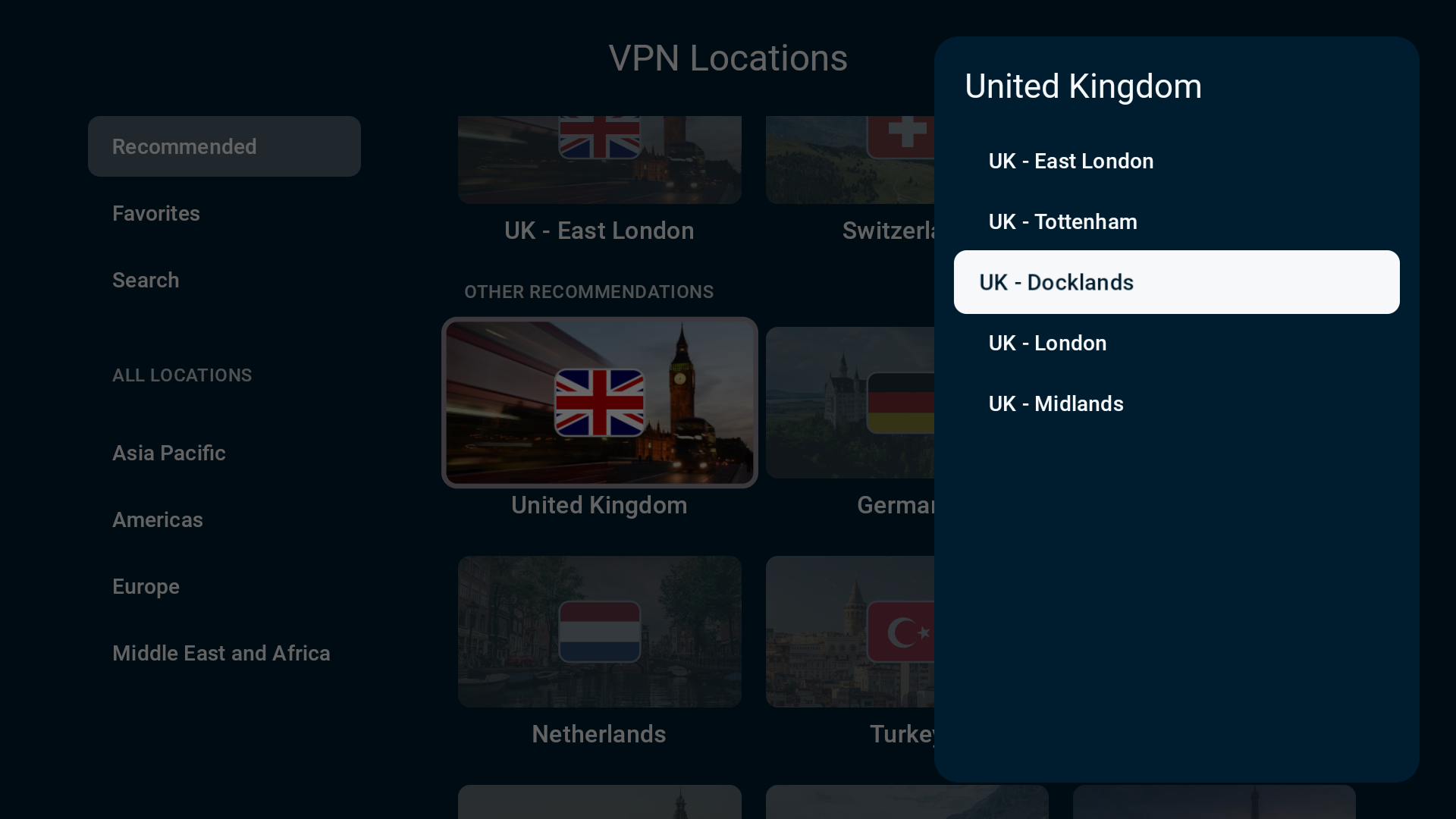
 Note: If the country you’ve chosen has multiple available locations, you’ll be asked to select a city to connect to.
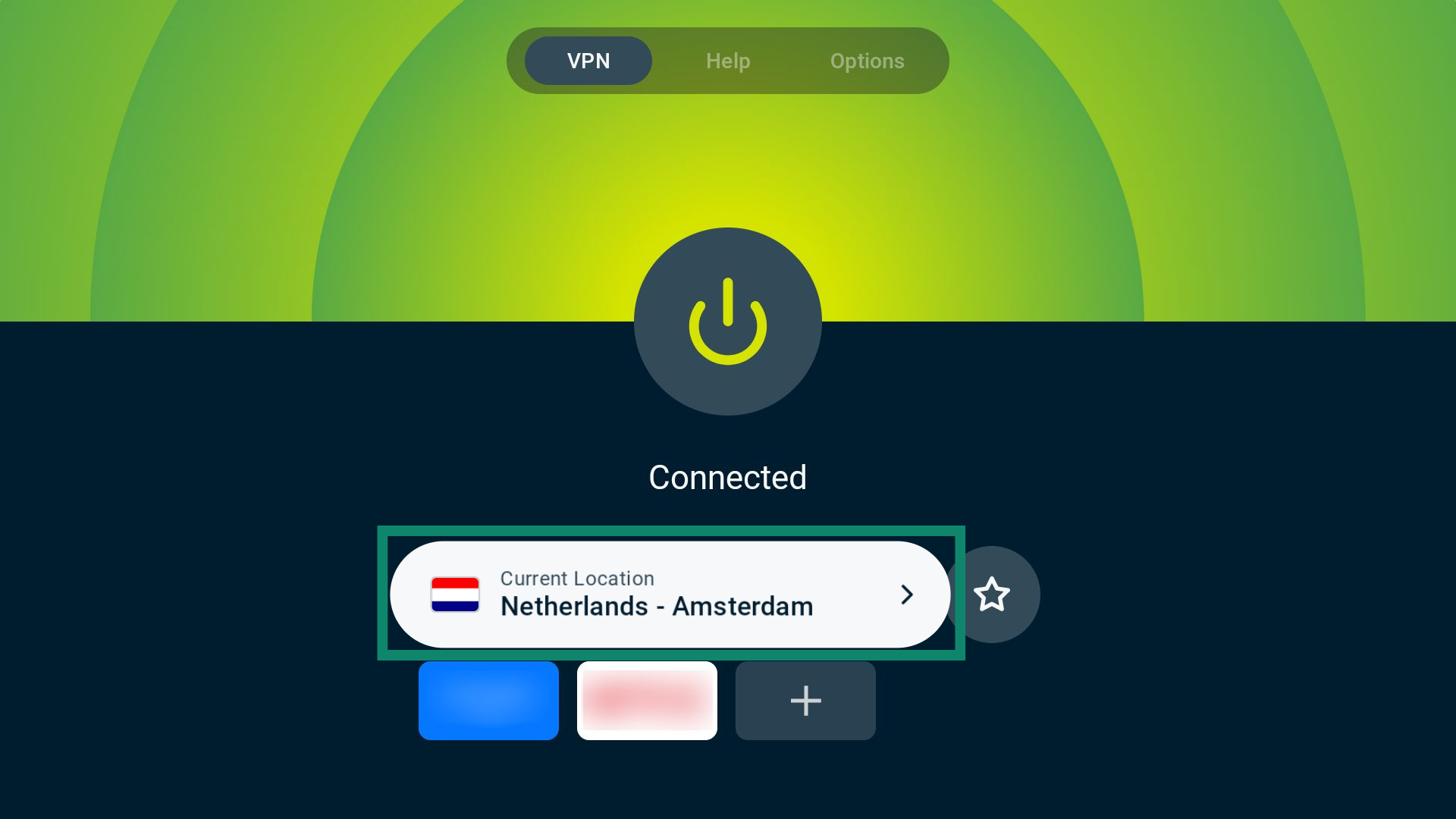
- When you select your desired location, ExpressVPN will automatically connect you to it and return you to the VPN tab.

Need help? Contact the ExpressVPN Support Team for immediate assistance.
Favorite a VPN server location
If you favorite a VPN server, it automatically gets added to the Favorites tab found in the list of available VPN server locations.
To favorite a VPN server, select the star icon to the right of the server location widget on the VPN tab.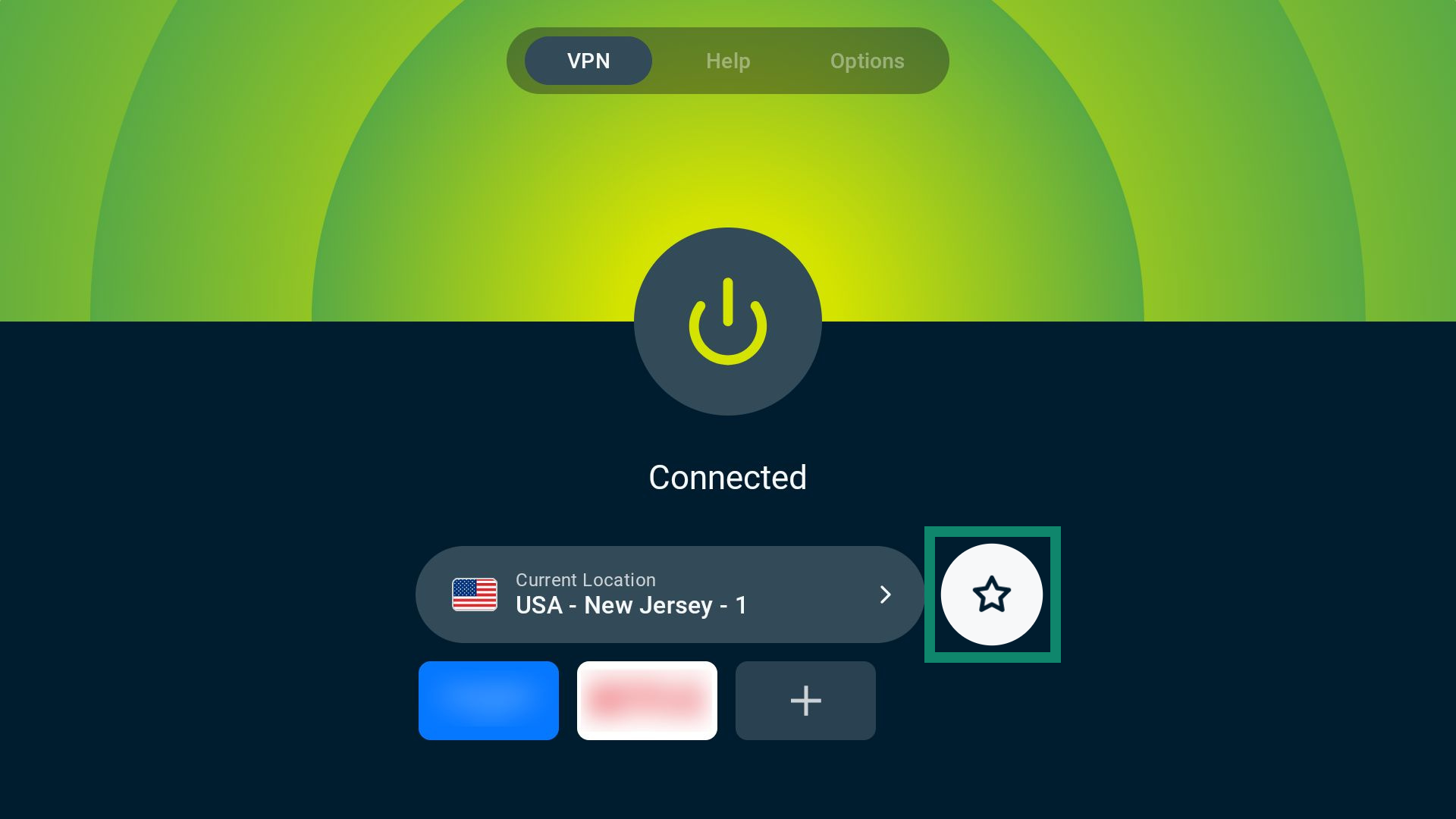
Need help? Contact the ExpressVPN Support Team for immediate assistance.
Use app and website shortcuts
When you are connected to ExpressVPN, you can add website and app shortcuts that show up on the VPN tab. This allows you to open the sites and apps directly from the connection screen, ensuring you always access them using a secured VPN connection.
By default, ExpressVPN includes relevant shortcuts for services installed on your Chromecast.
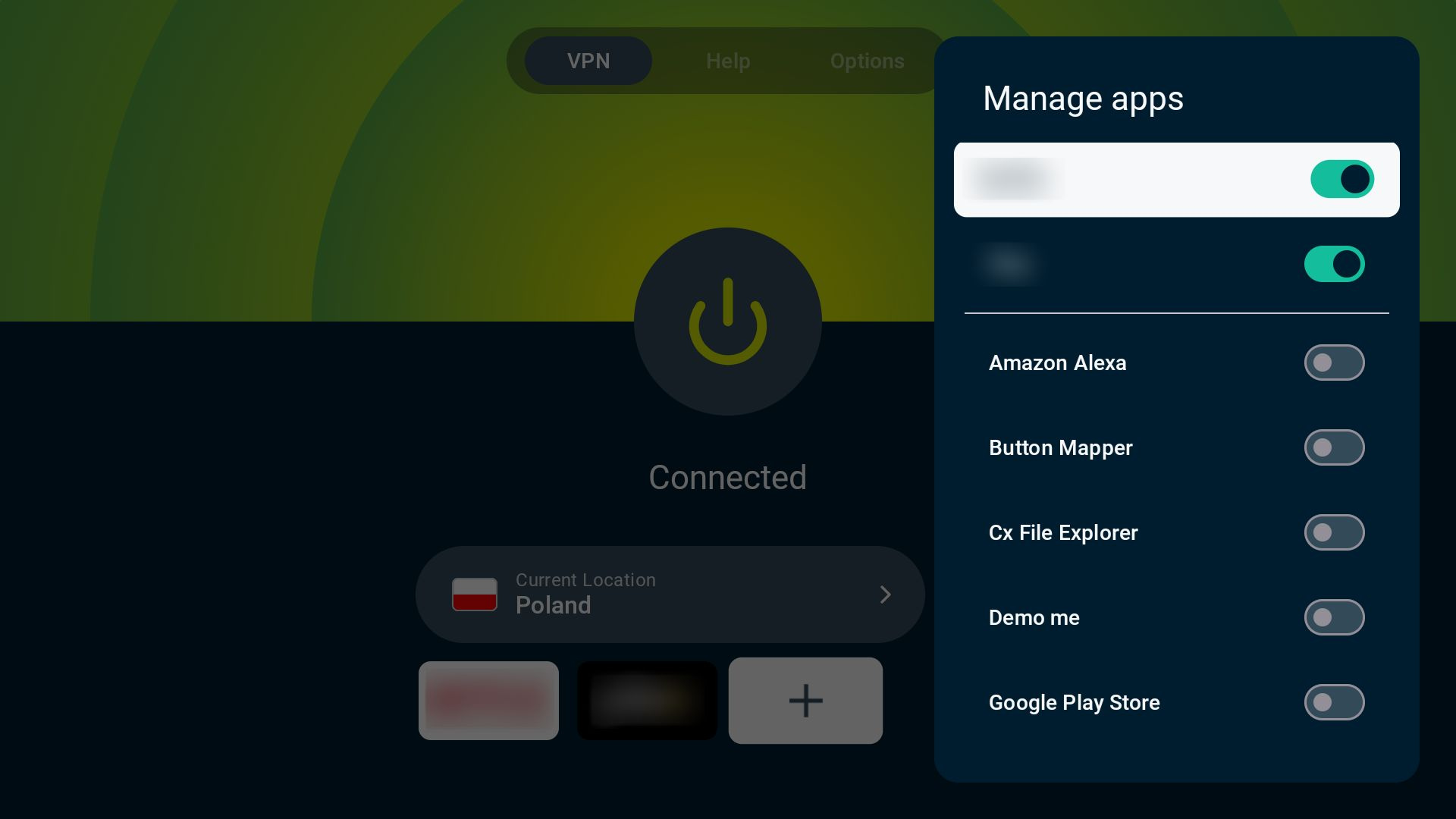
- Select the plus (+) icon.
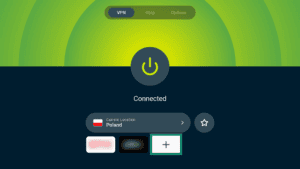
- Use the toggle next to the service you want to enable or disable. Scroll through the list to see more options.
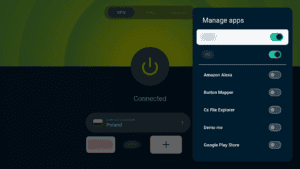
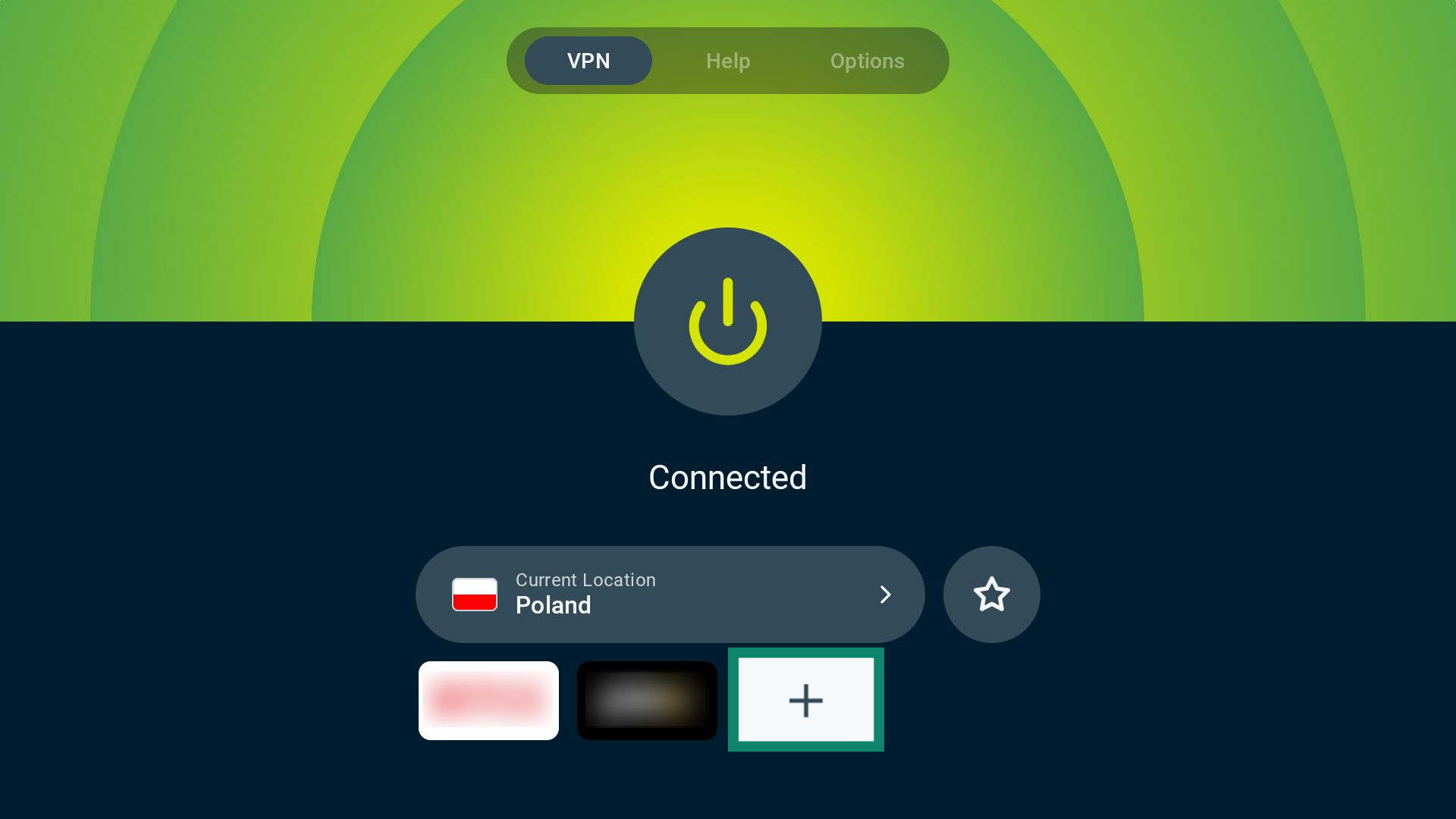
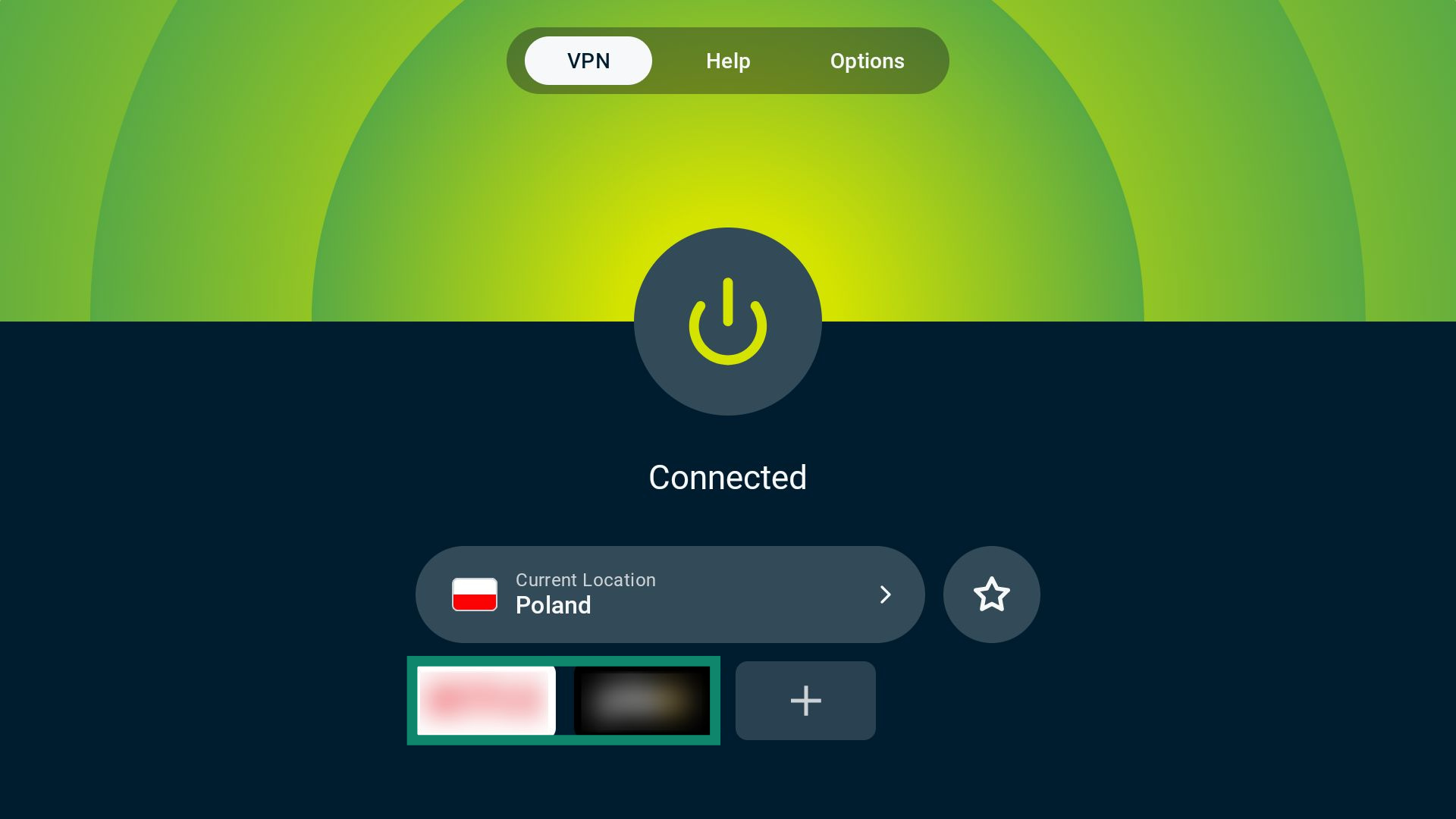
- Select the desired app or website icon when you are on the VPN tab. This automatically launches the services while you are connected to ExpressVPN.

To disable or enable shortcuts
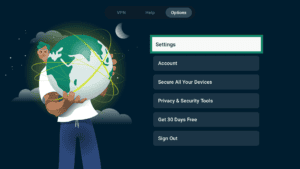
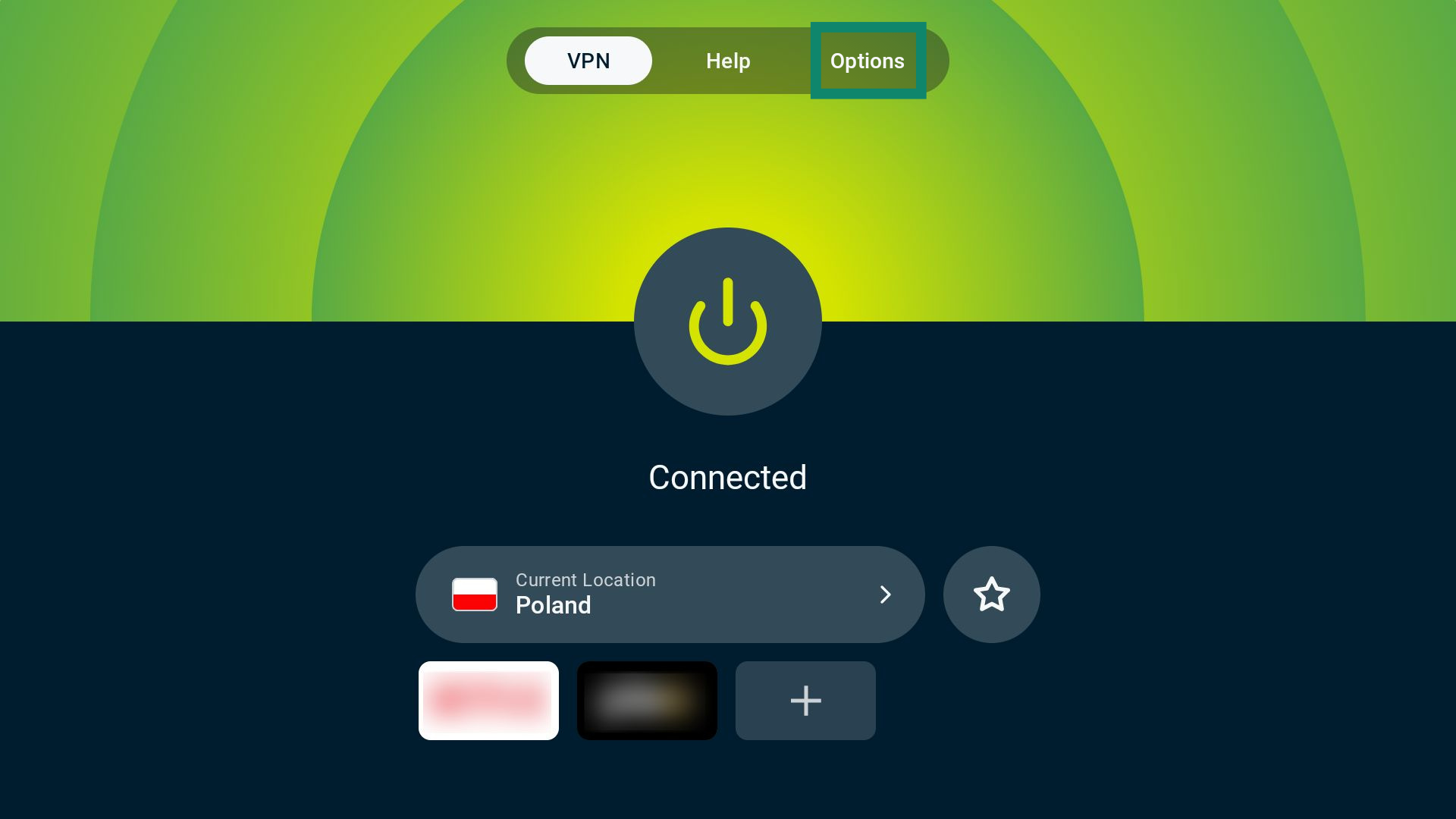
- Select Options on the VPN tab.

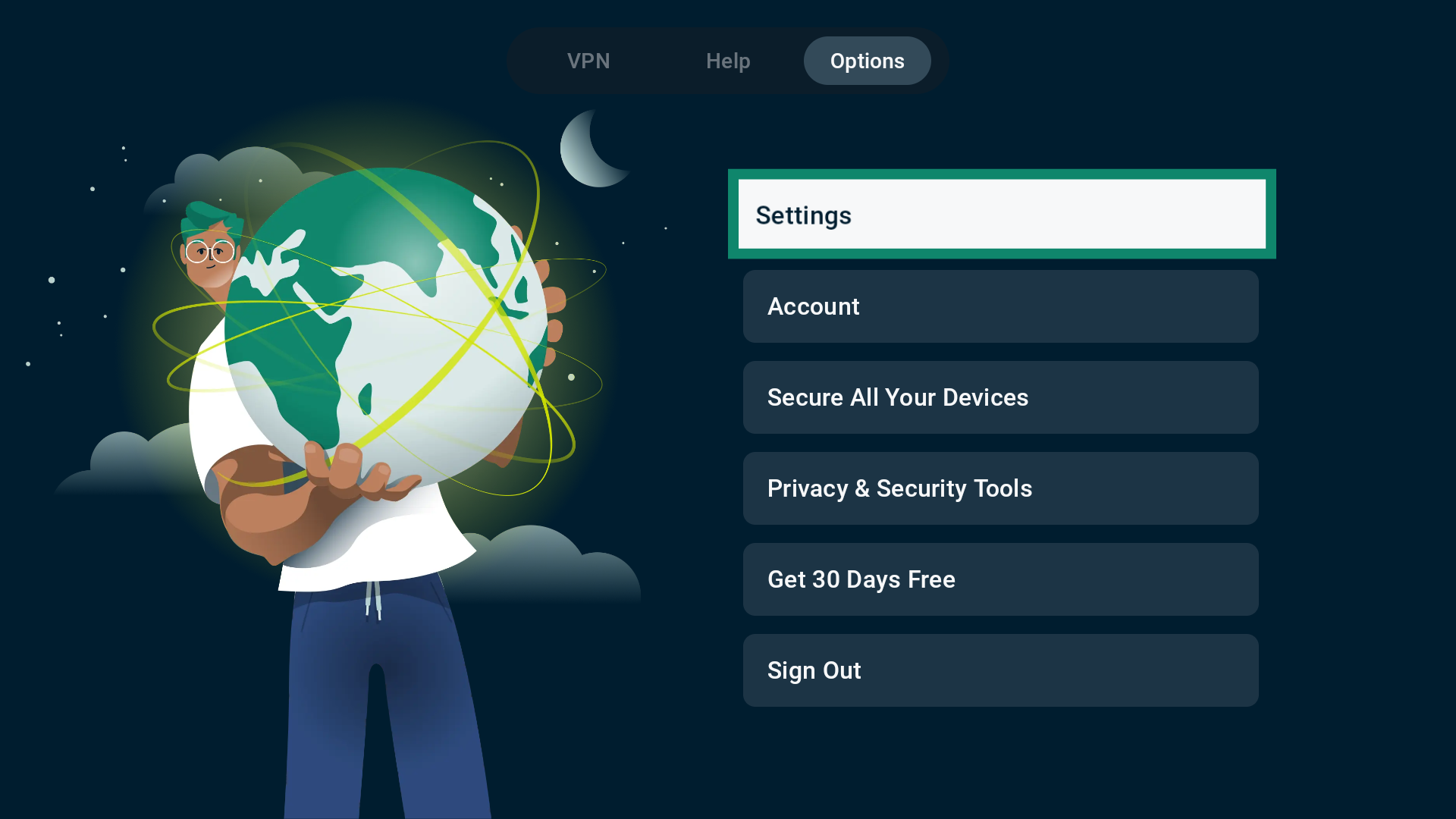
- Next, select Settings.
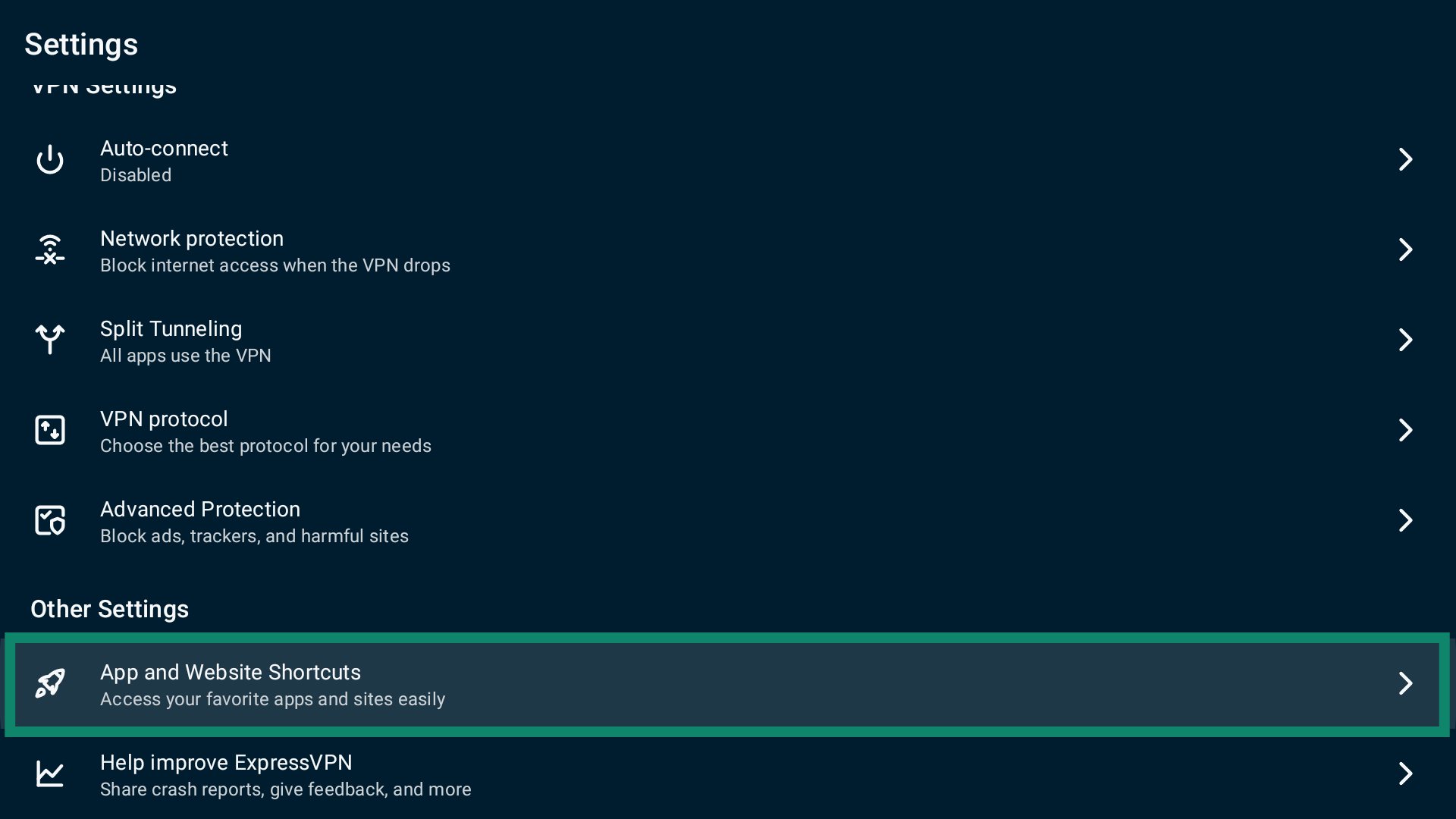
- Select App and Website Shortcuts.
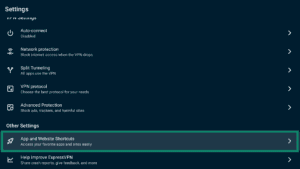
- Toggle Show shortcut after VPN connects on or off.
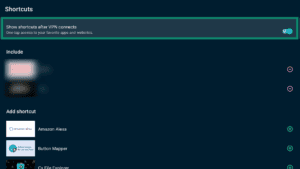
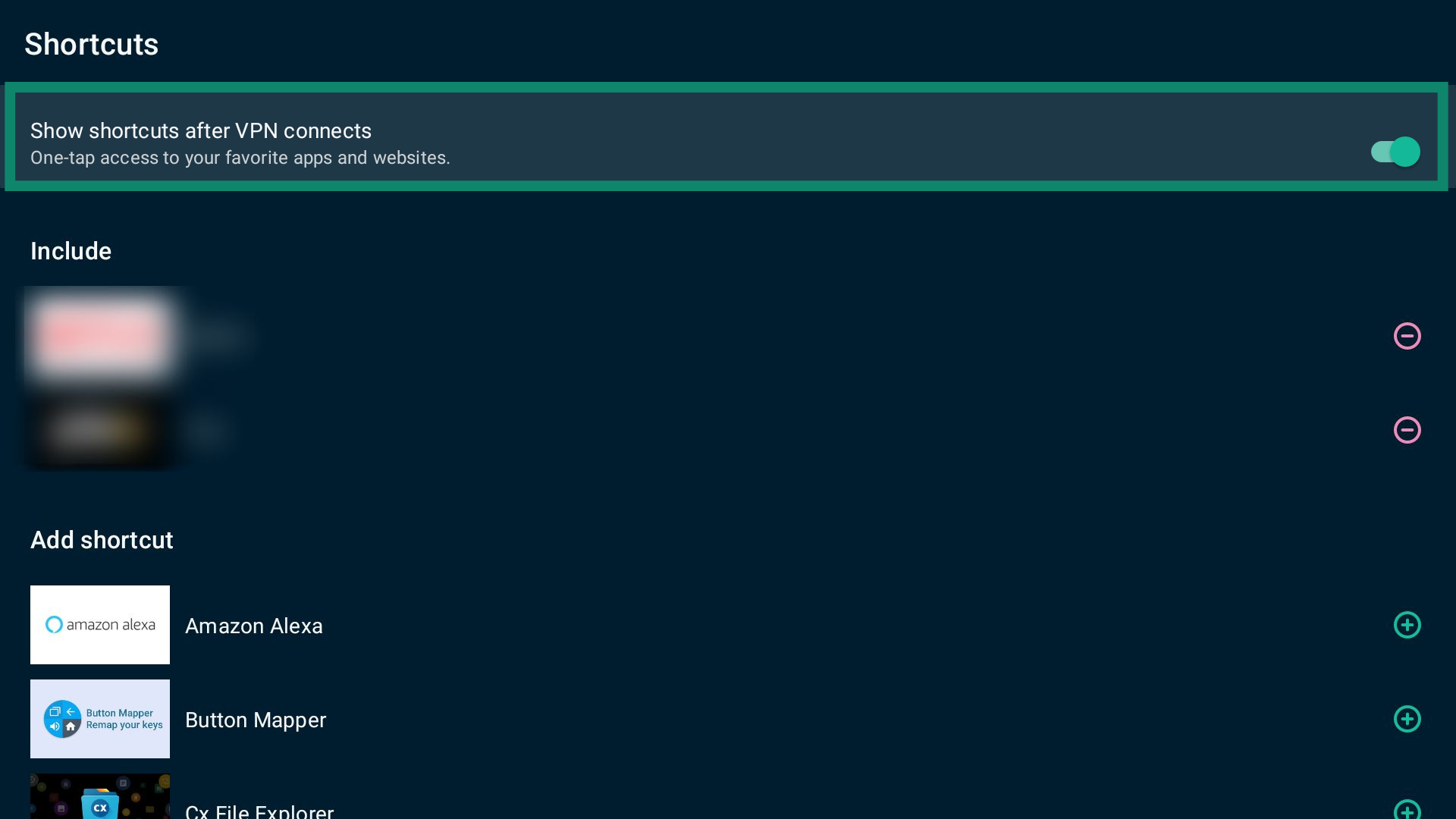
You can also add or remove shortcuts on this page by selecting the minus icon.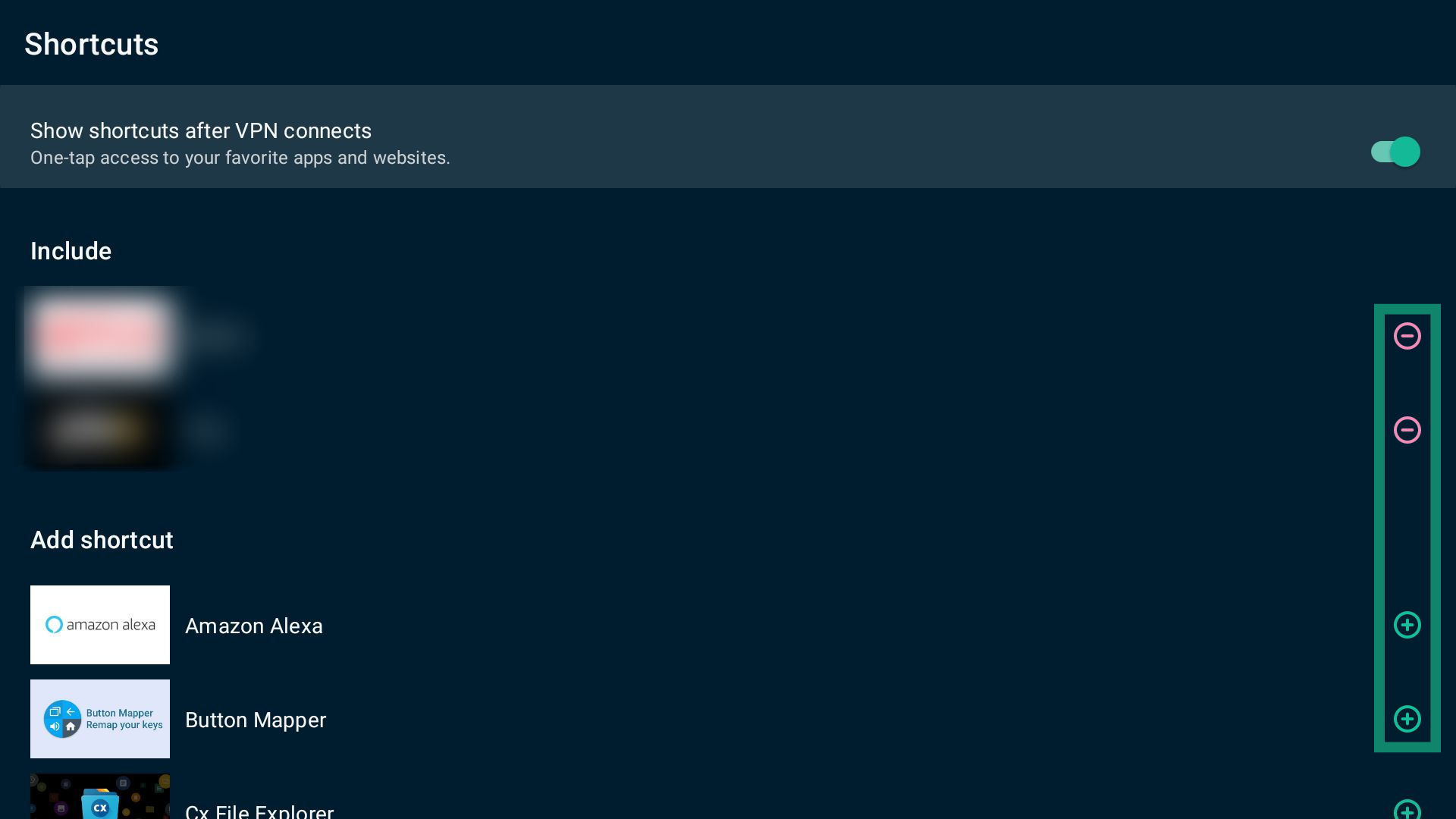
Need help? Contact the ExpressVPN Support Team for immediate assistance.
Switch VPN protocols
A VPN protocol is a set of rules that allows your device to connect to a VPN server. ExpressVPN uses the Automatic protocol option by default, which picks the most optimal VPN protocol for your network.
Switching to a different VPN protocol may sometimes help you resolve connectivity issues or improve connection speeds.
To change the VPN protocol:
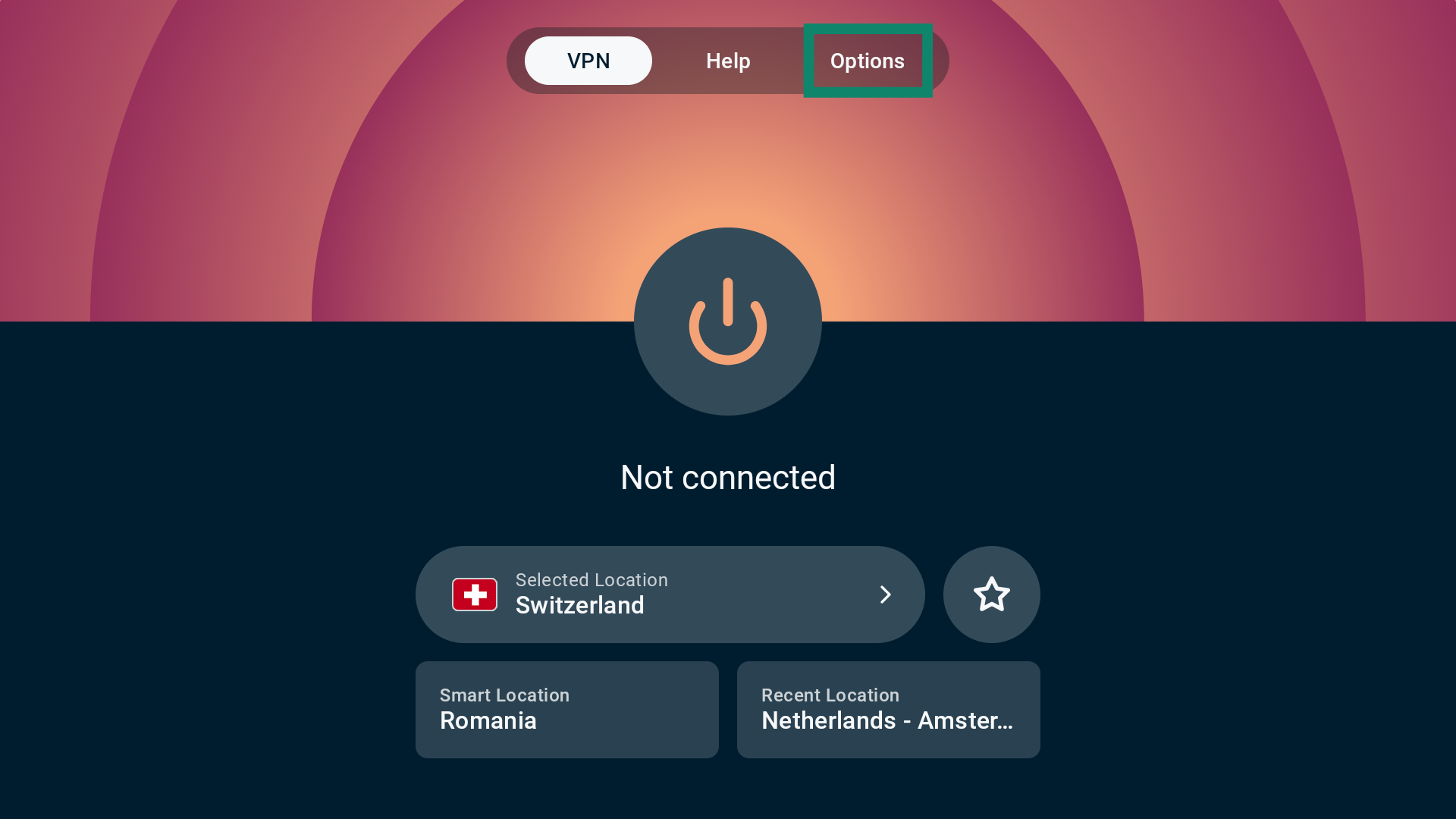
- Select Options from the top menu bar.

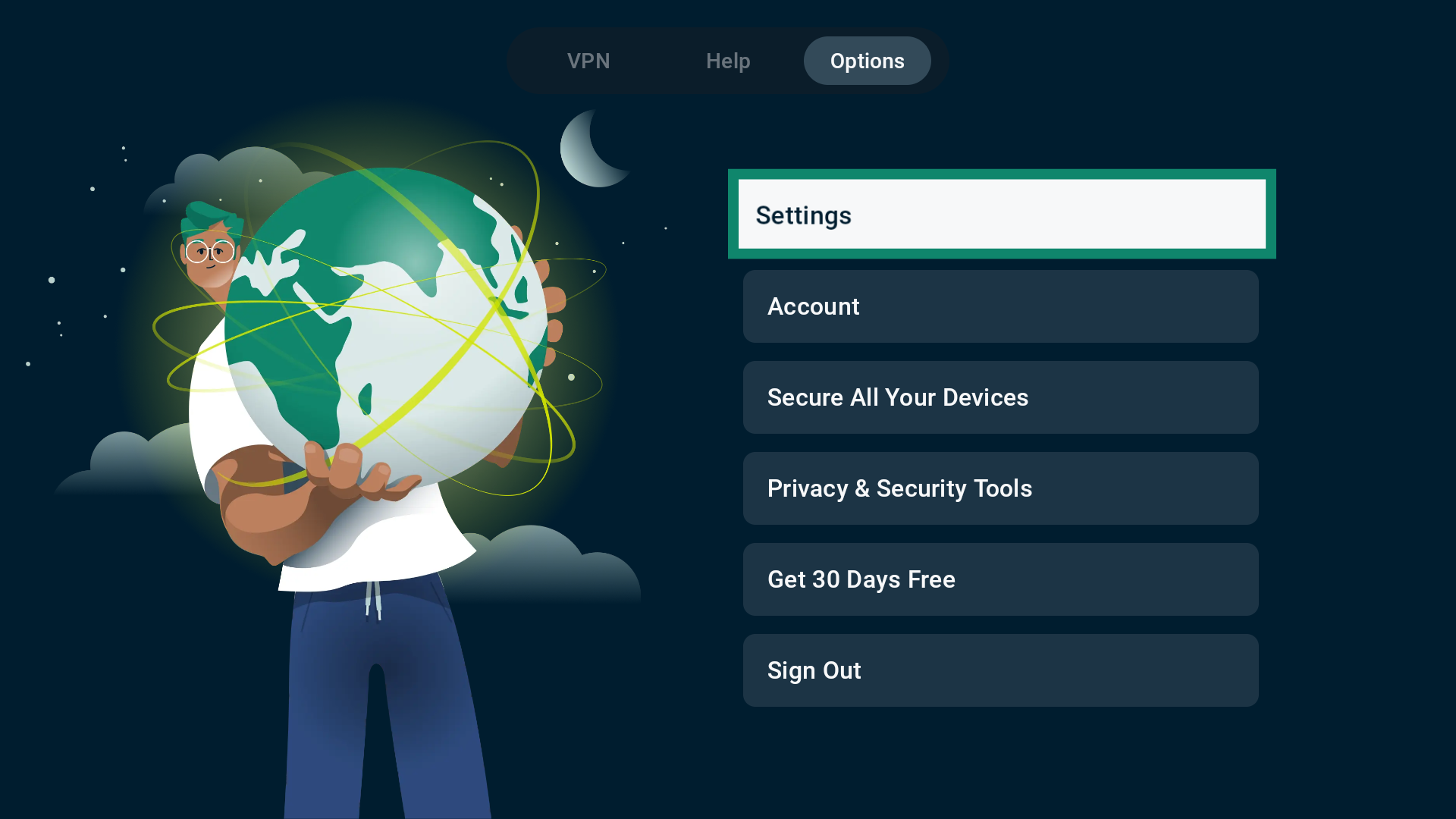
- Select Settings.
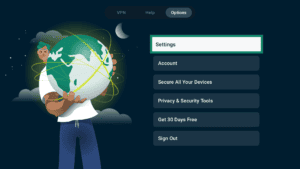
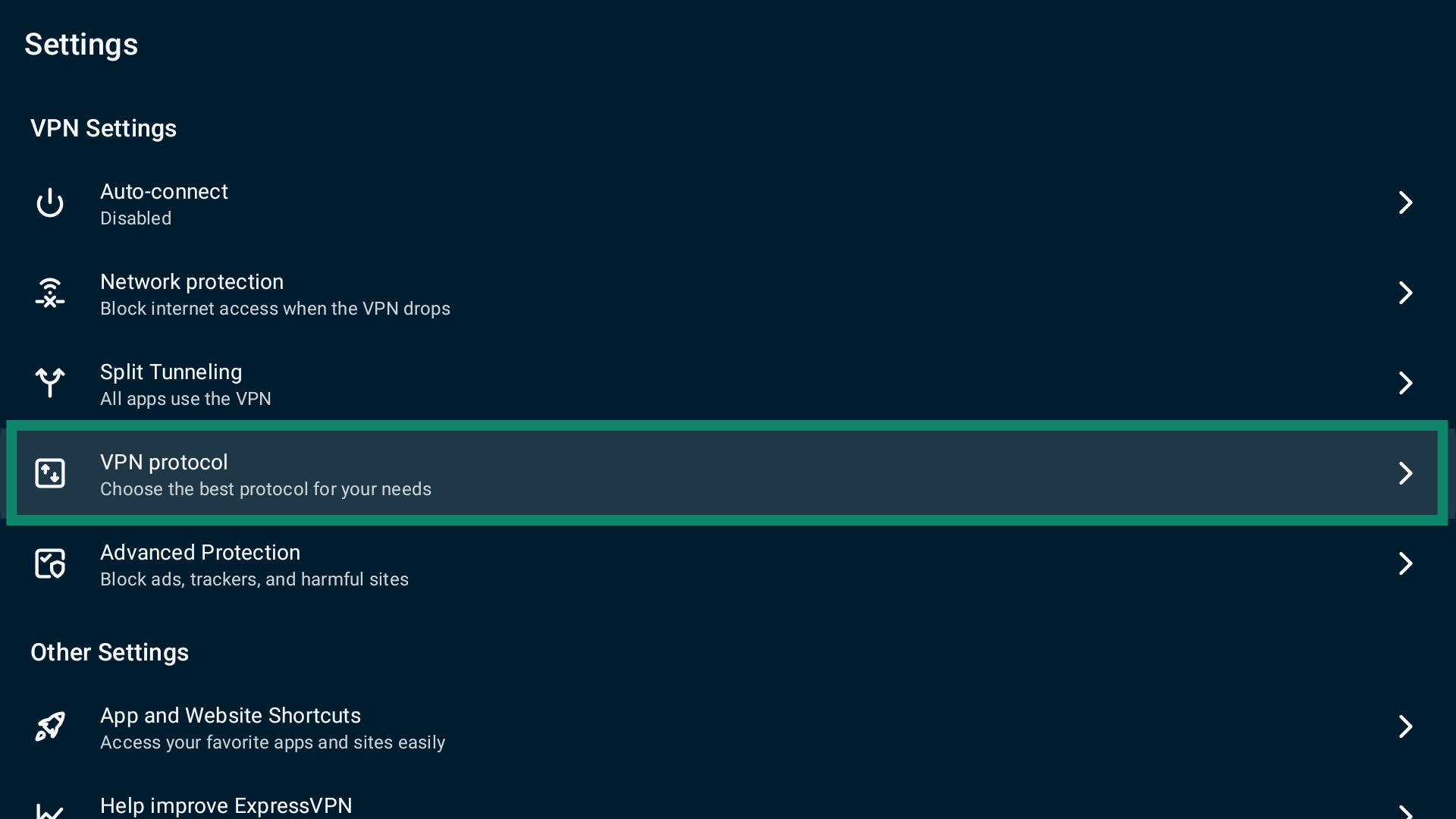
- Next, select VPN protocol.

- Pick your desired VPN protocol. ExpressVPN will automatically use it when you next connect.
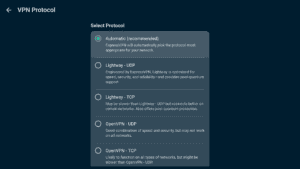
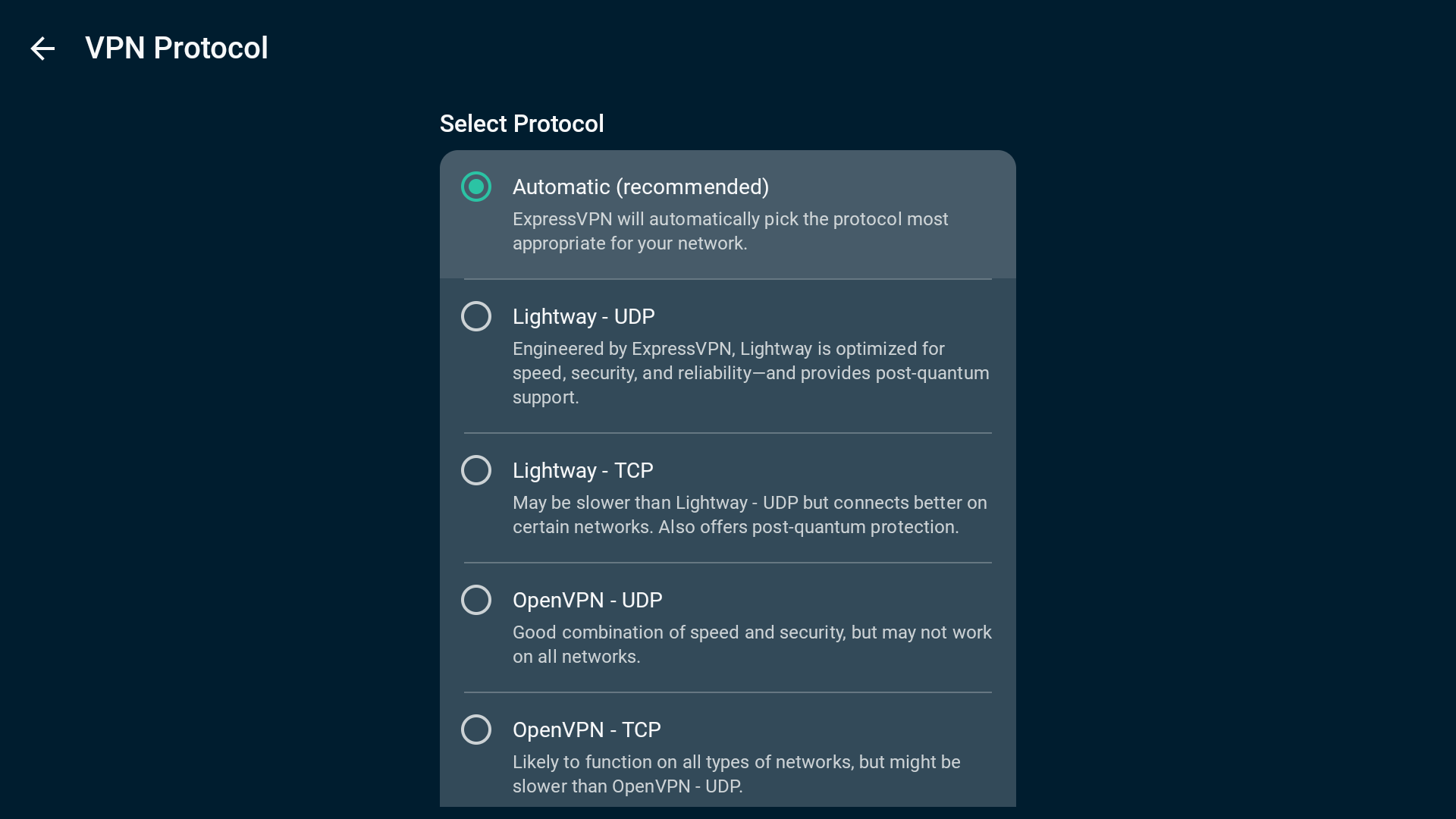
When you switch from the Automatic protocol option to WireGuard or OpenVPN, you will be asked to confirm your choice. To proceed, select CHANGE ANYWAY.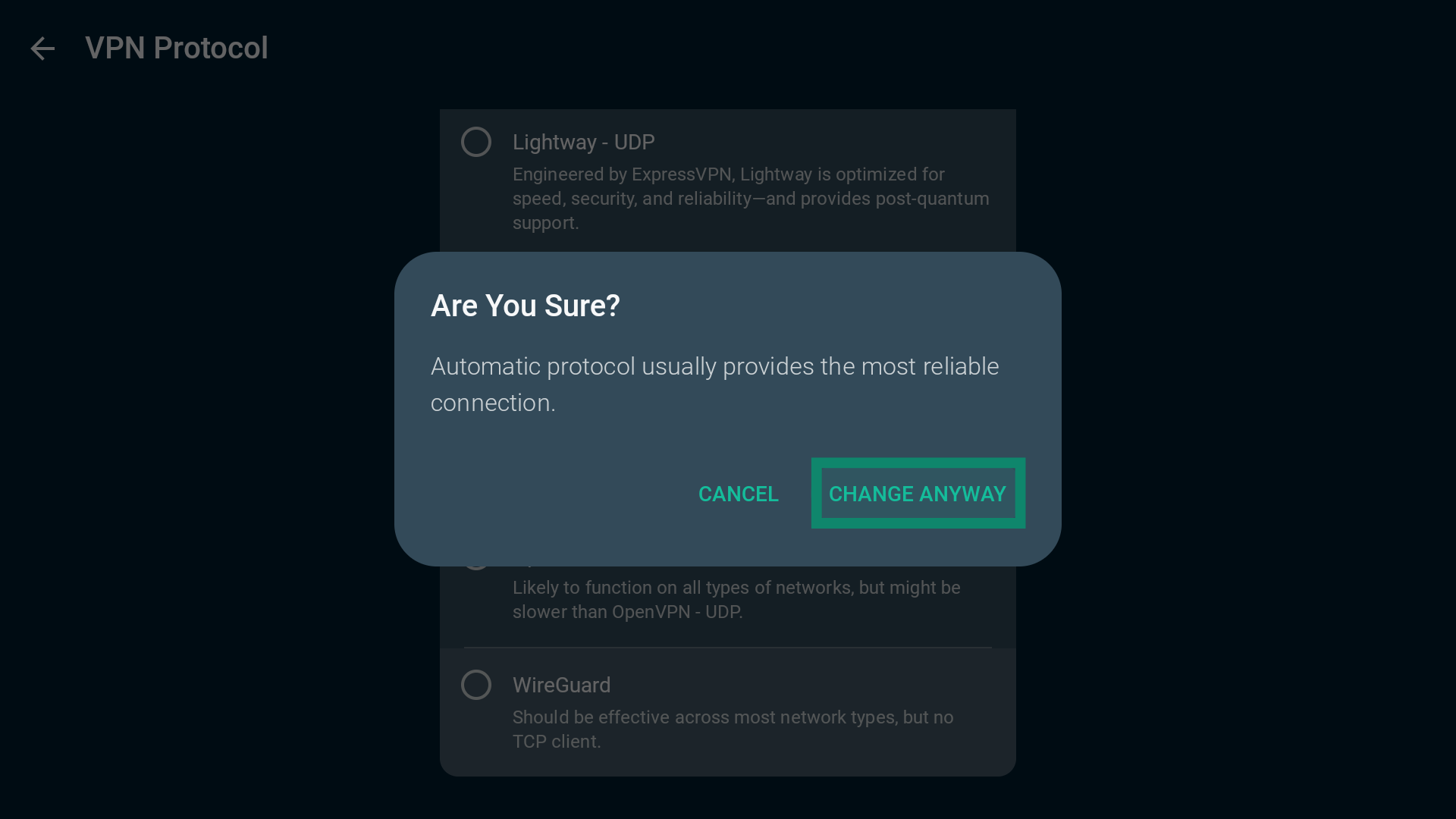
Need help? Contact the ExpressVPN Support Team for immediate assistance.
Use the split tunneling feature
Split tunneling is a feature that lets you choose which apps use or do not use the VPN connection when you are connected to ExpressVPN.
To access split tunneling settings:
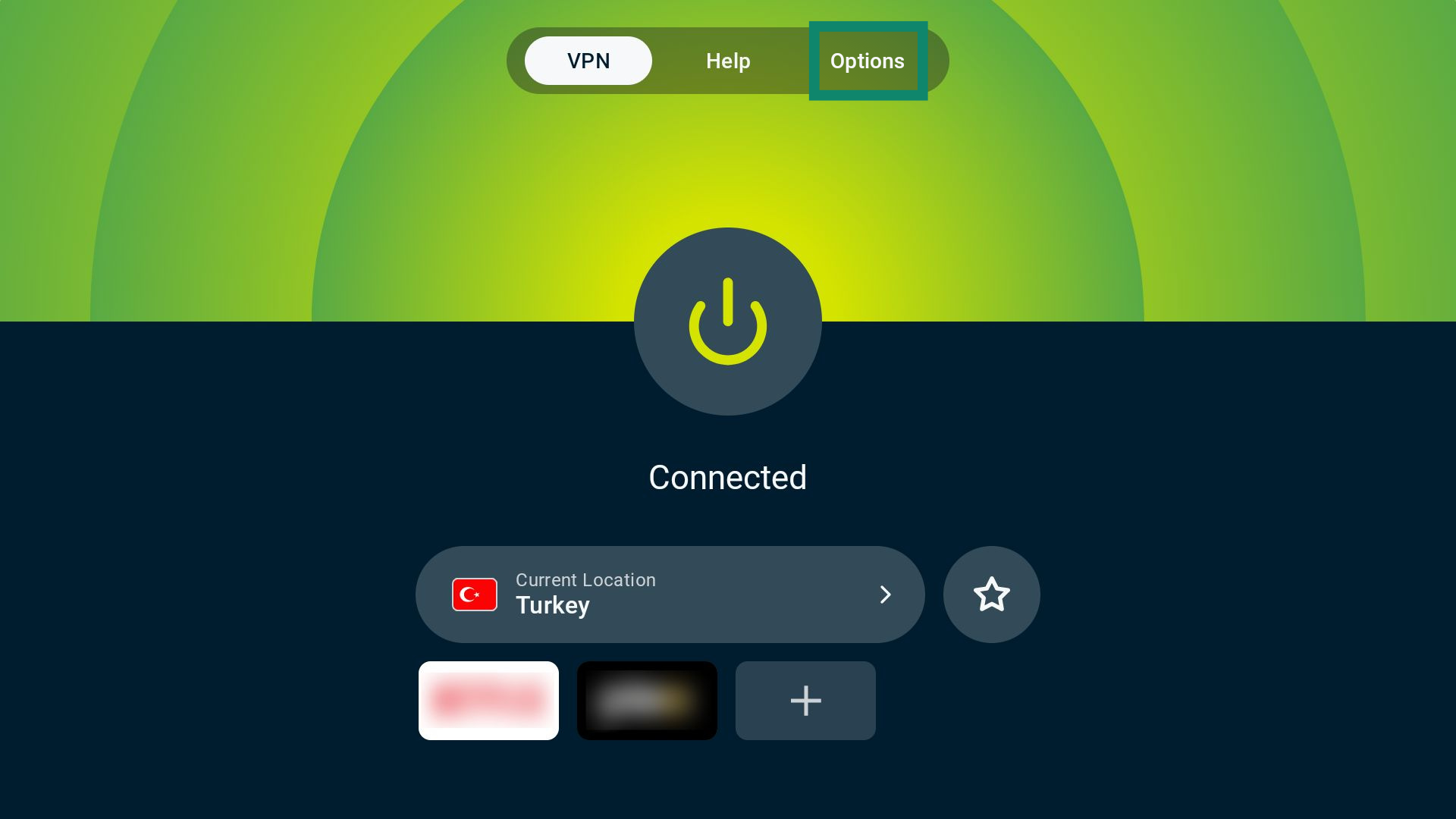
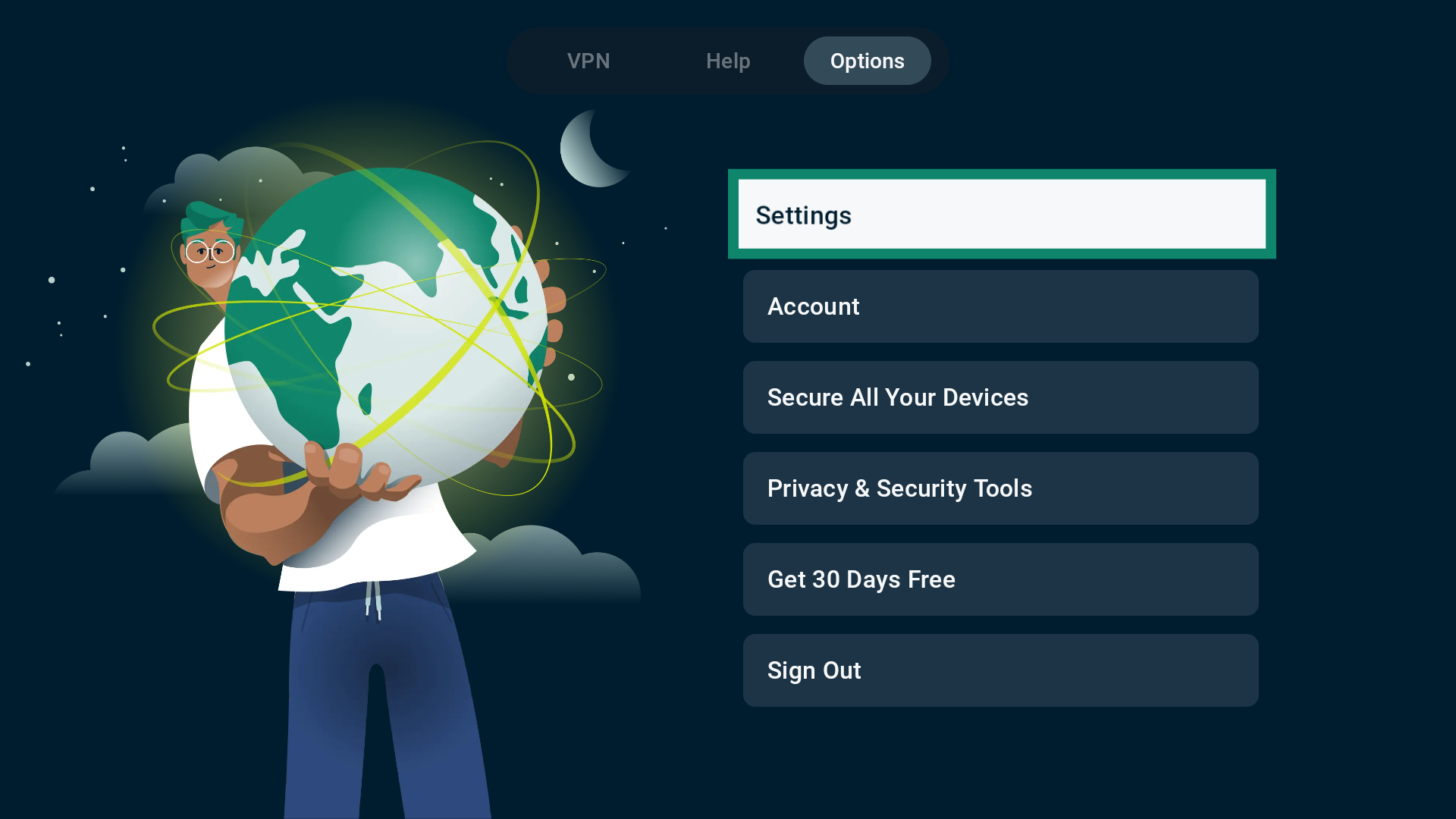
- From the top menu bar, select Options.
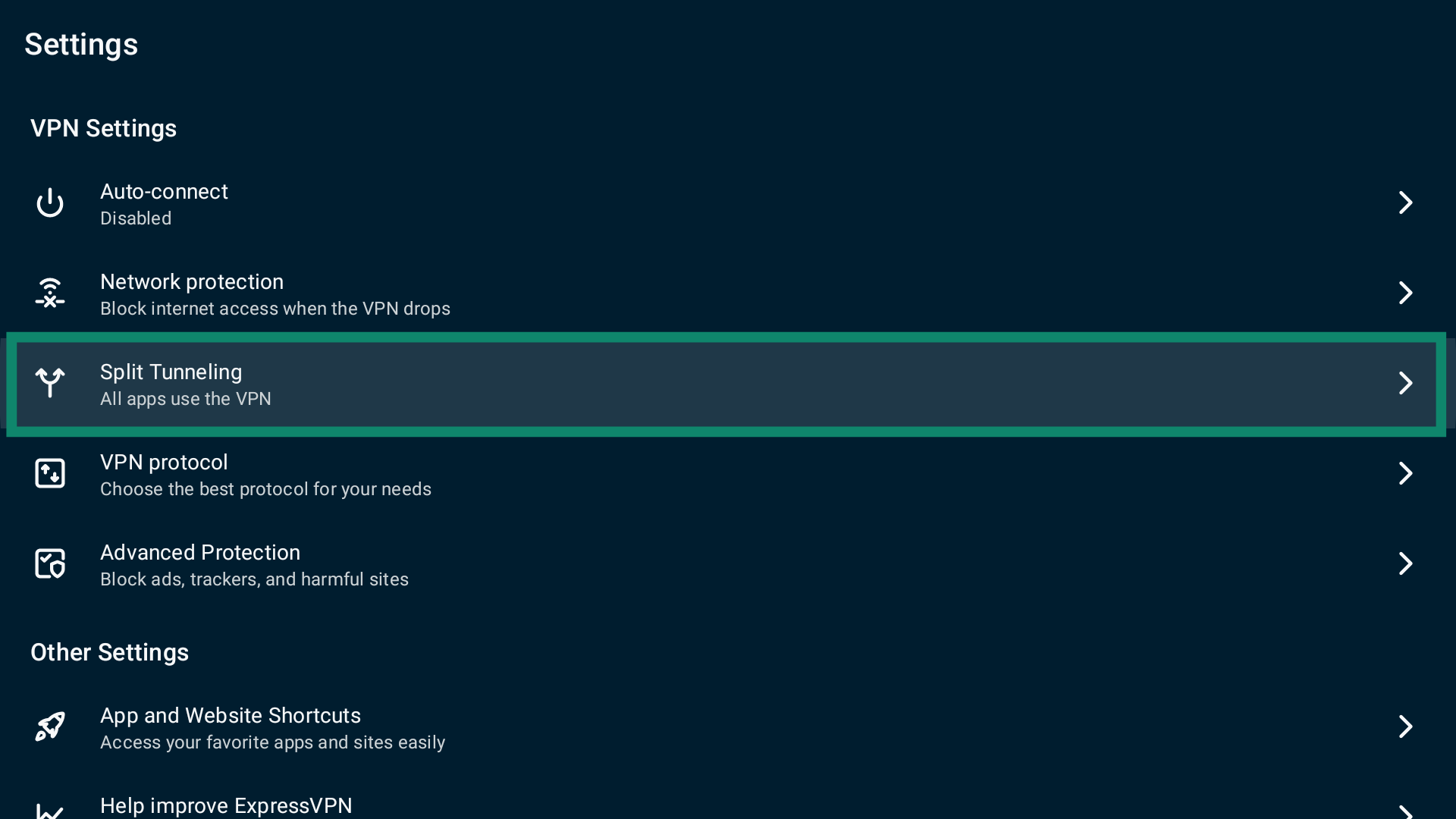
- Select Settings.

- Select Split Tunneling.
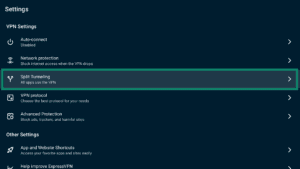
You will now see three options:
- All apps use the VPN.
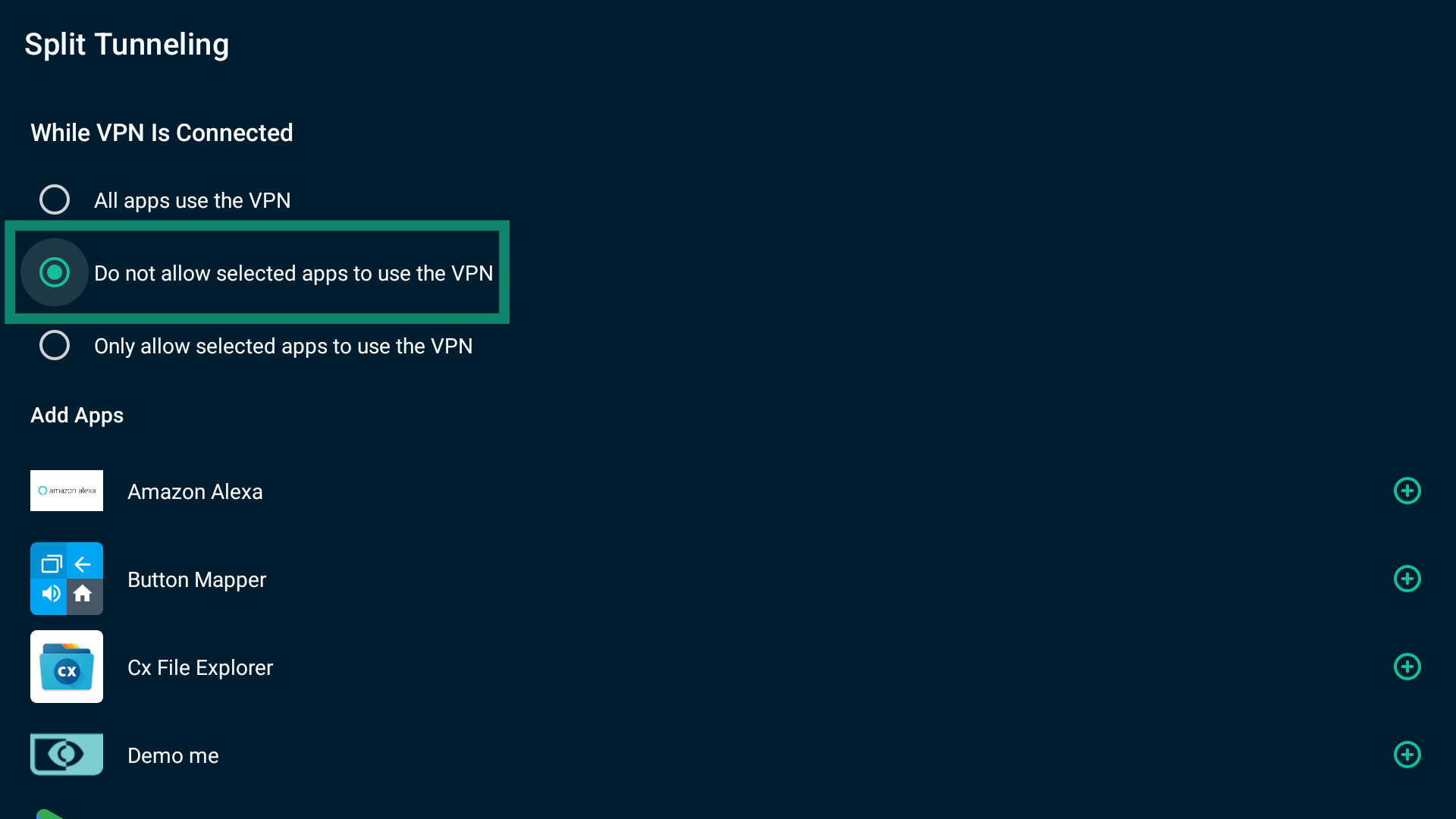
- Do not allow selected apps to use the VPN.
- Only allow selected apps to use the VPN.
ExpressVPN uses the All apps use the VPN option by default. This means that every app goes through the VPN connection when you are connected to ExpressVPN.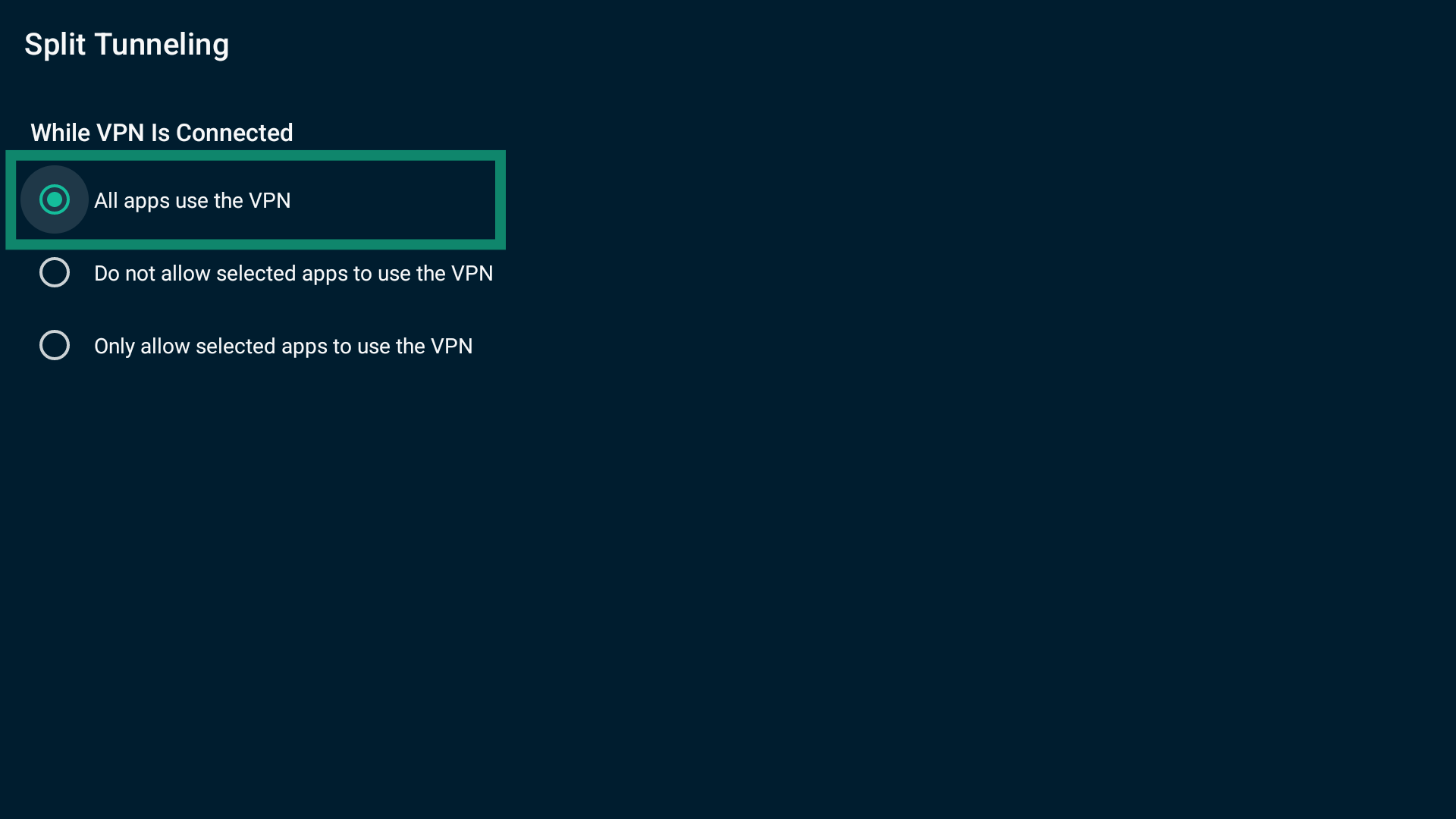
Exclude apps from the VPN tunnel
To exclude apps from the VPN connection:
- Select Do not allow selected apps to use the VPN.
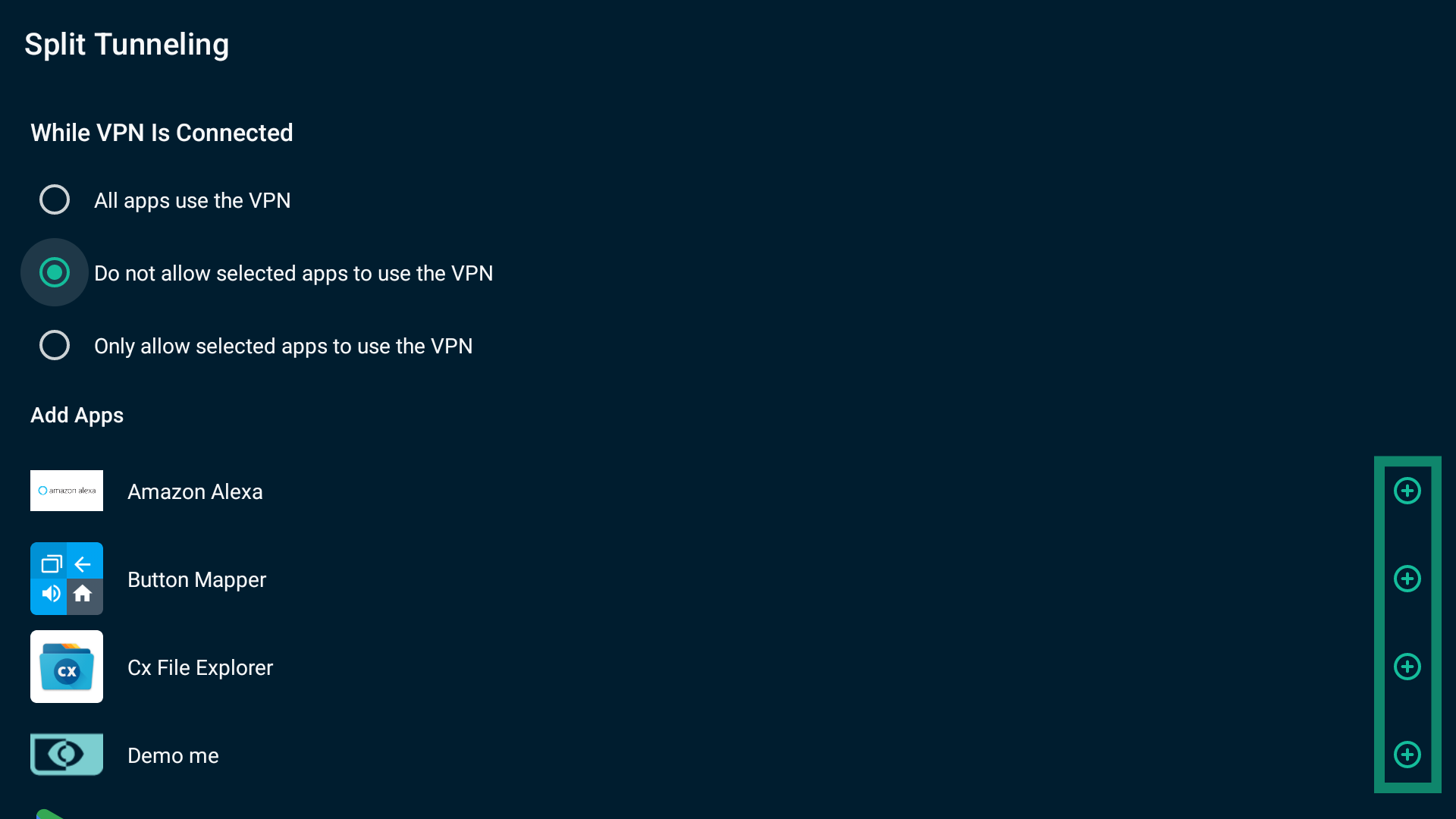
- You will now see a list of apps installed on your Chromecast. Select
 next to the services you want to exclude.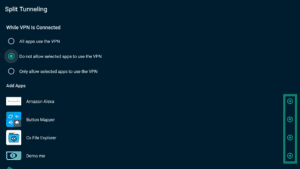
- The chosen apps will move to the Selected Apps list.
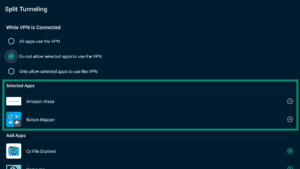
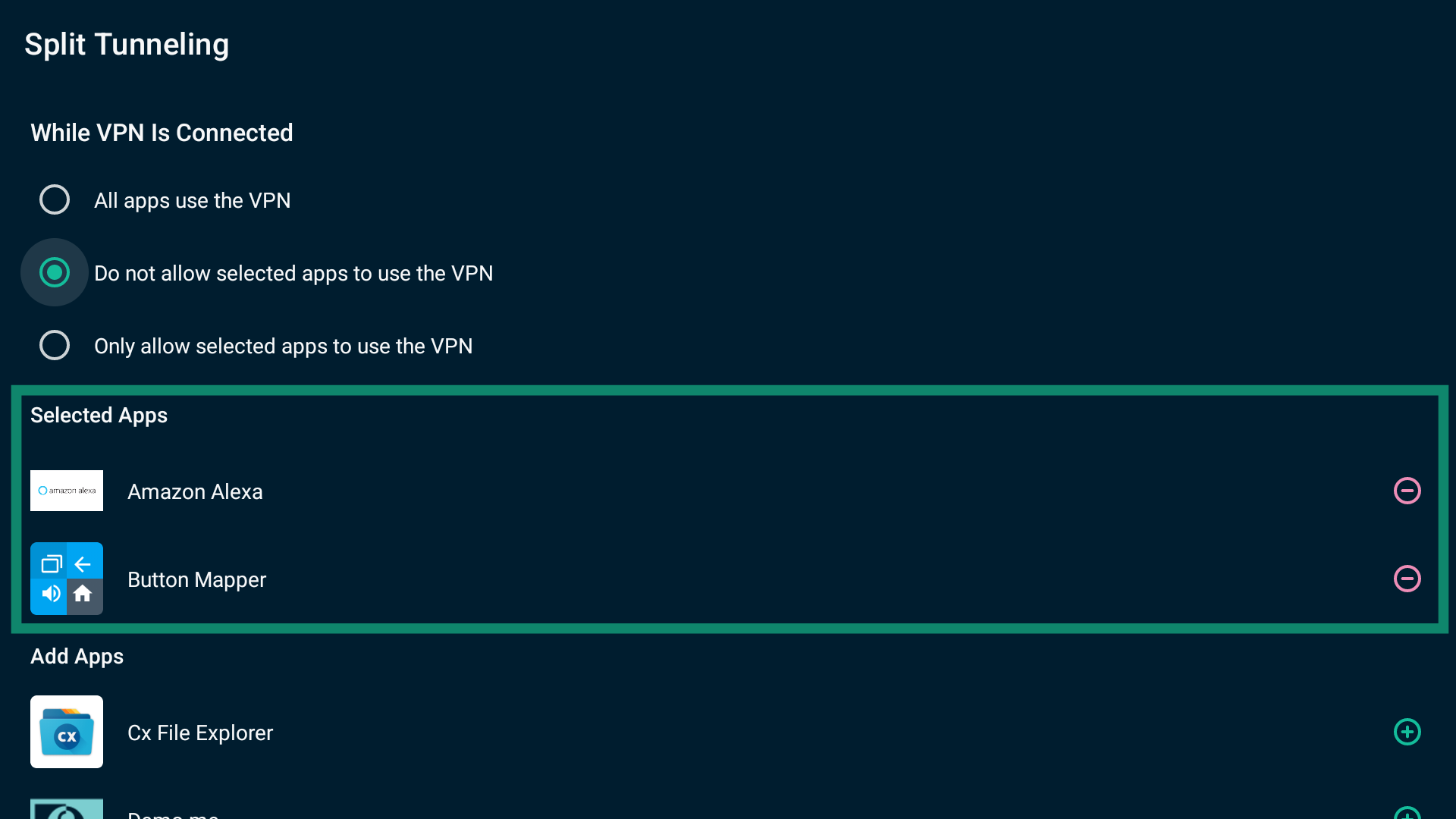
When you are done, exit the settings. When you next reconnect to the VPN, the apps you selected will not be routed through the VPN tunnel.
To remove an app from the Do not allow selected apps to use the VPN list:
Select the minus icon next to the desired service in the Selected Apps list.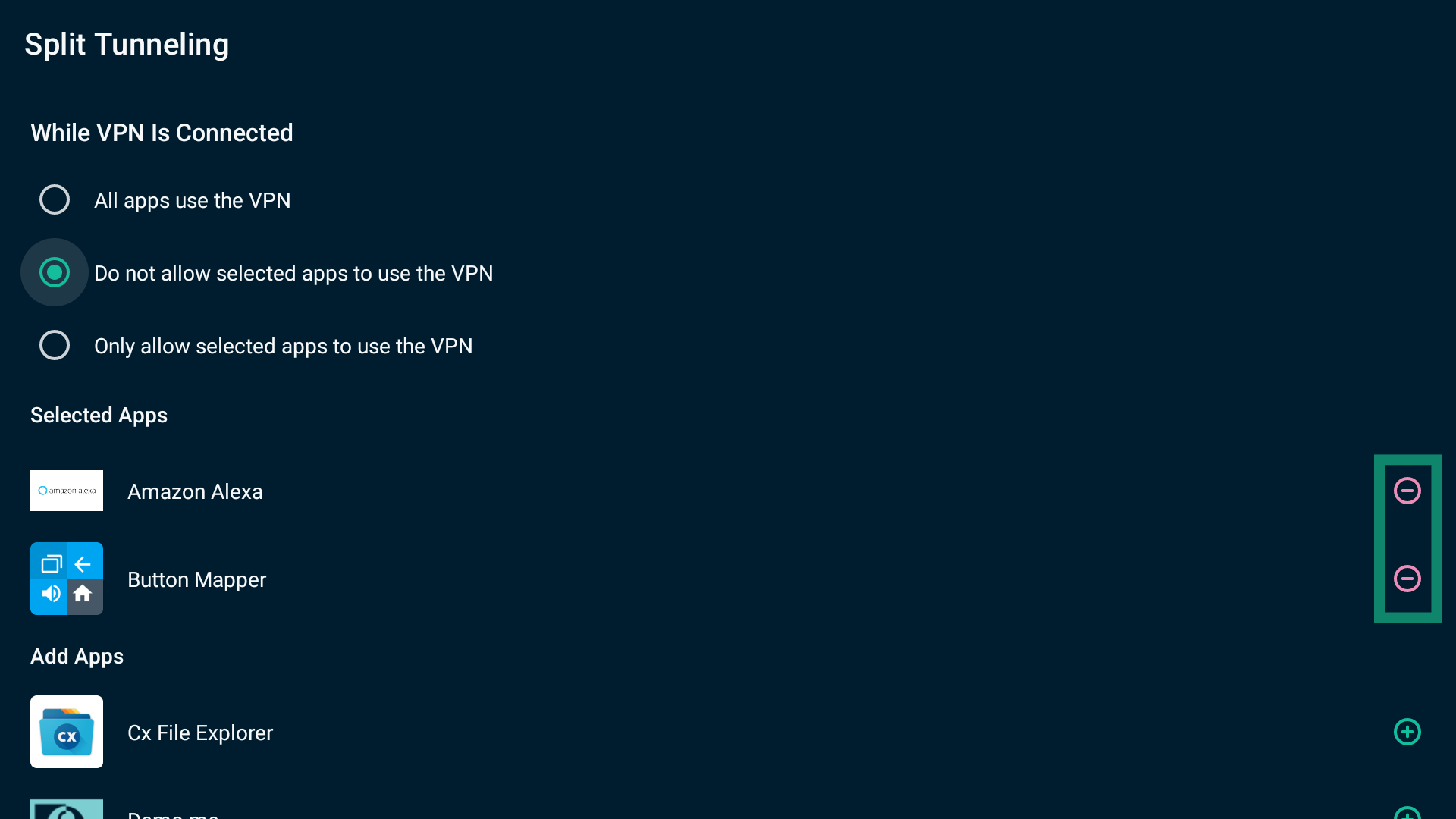
Route only selected apps through the VPN tunnel
To only allow specific apps to use the VPN:
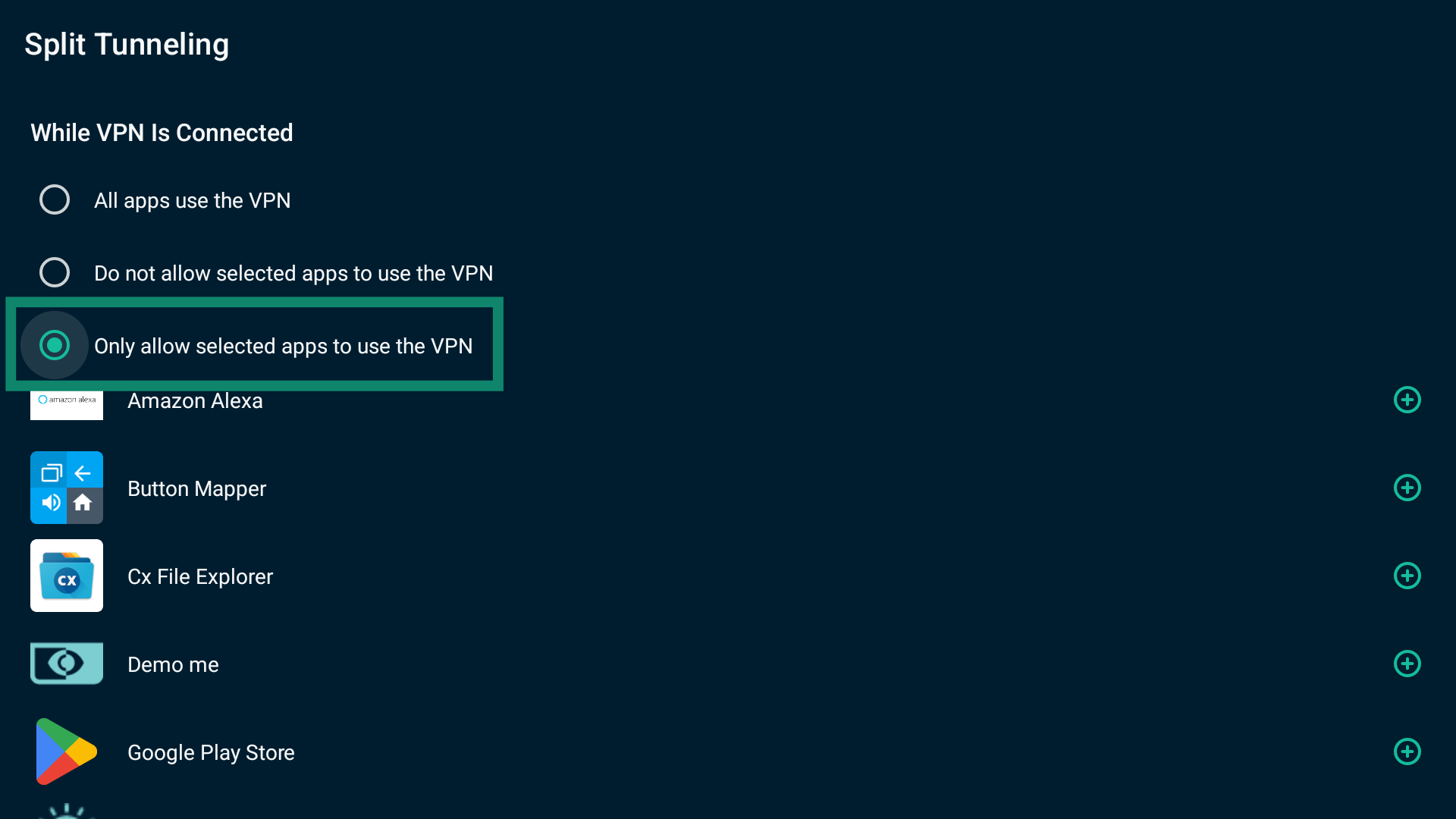
- Select Only allow selected apps to use the VPN.
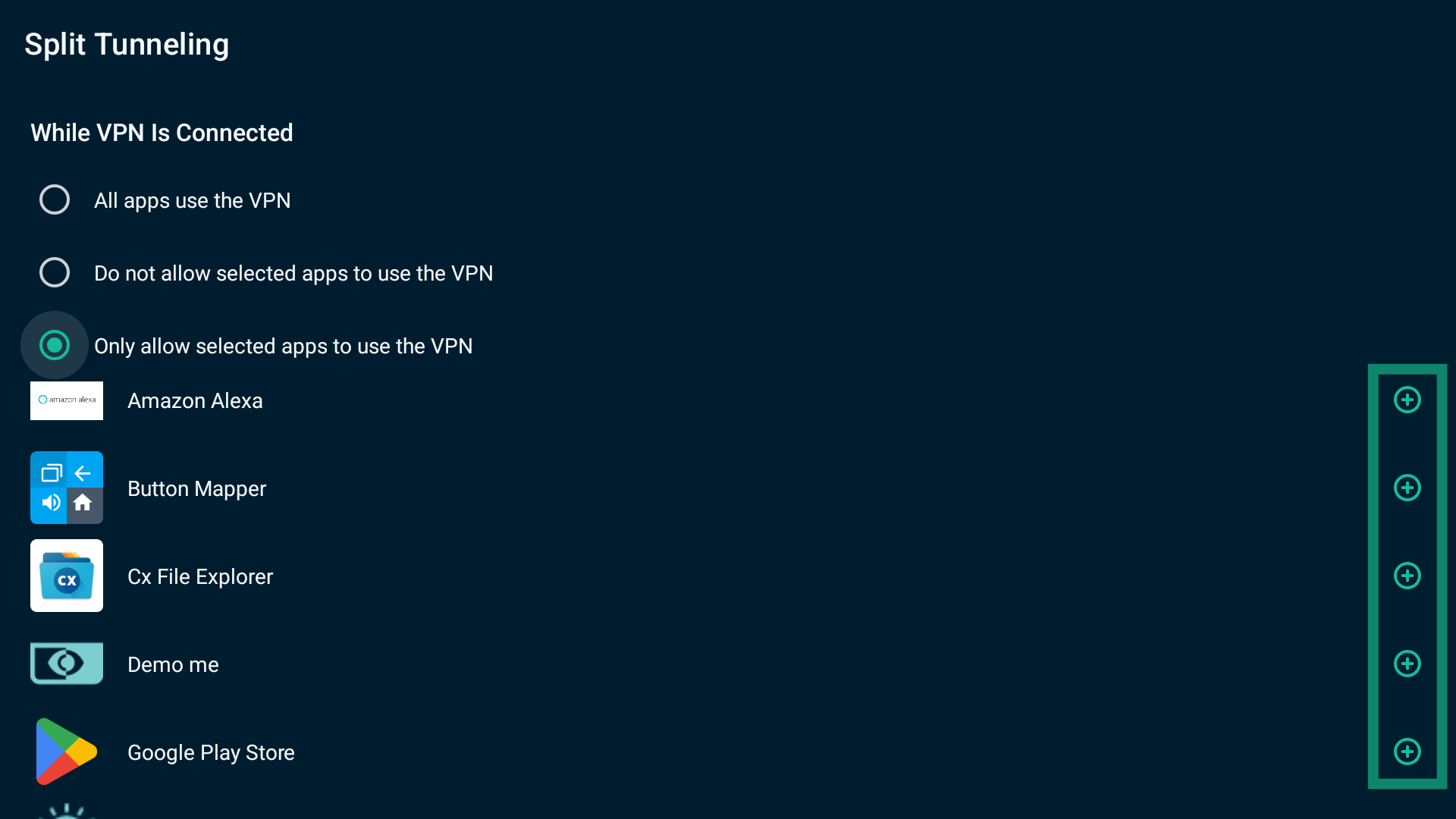
- A list of apps on your device will appear. Select next to the services you want to go through the VPN.
- The apps you choose will be moved to the Selected Apps list.
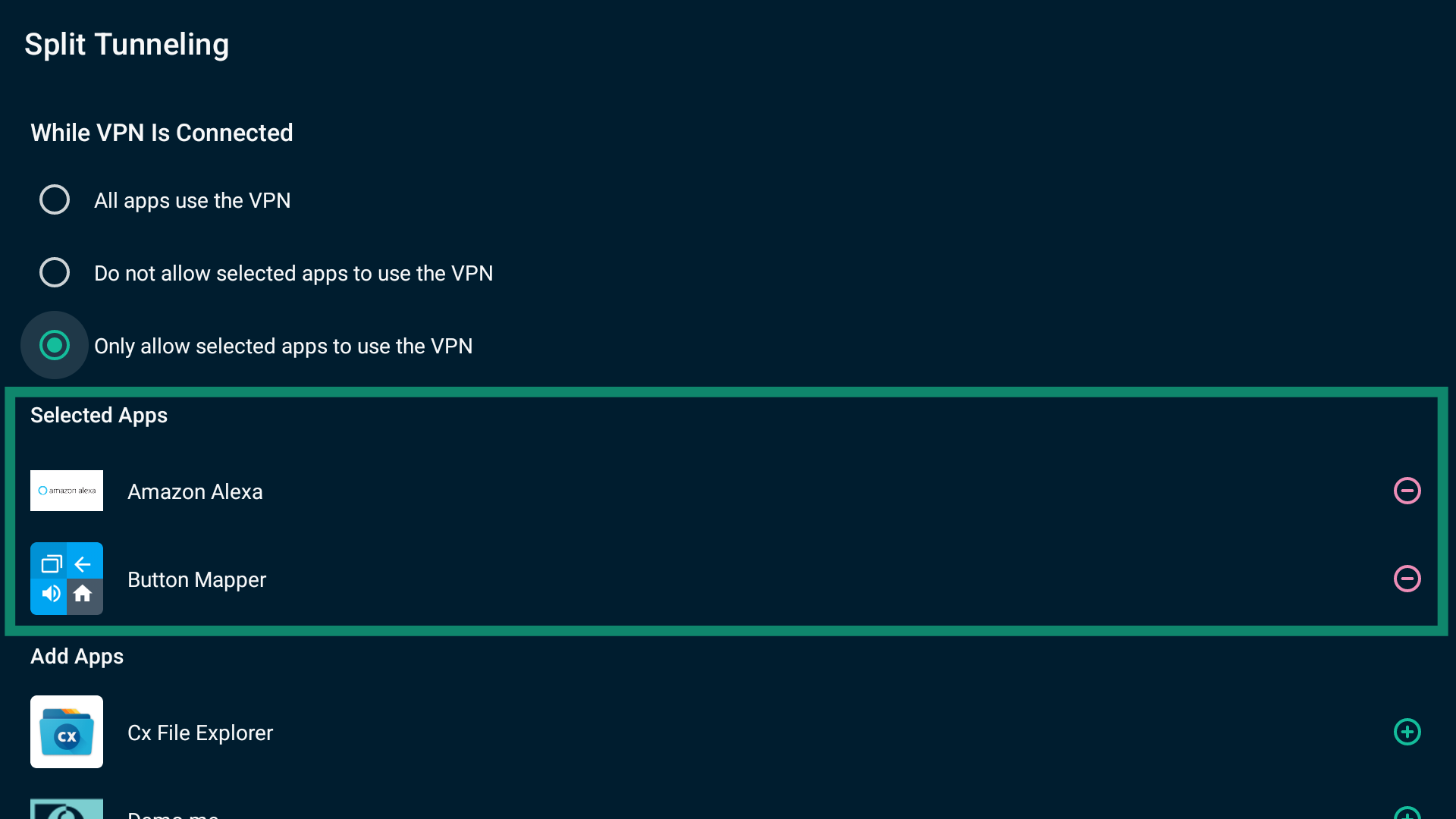
When finished, exit the settings. When you next connect to ExpressVPN, only the selected apps will use the VPN connection.
To remove an app from the Only allow selected apps to use the VPN list:
Select the minus icon next to the service you want to remove from the Selected Apps list.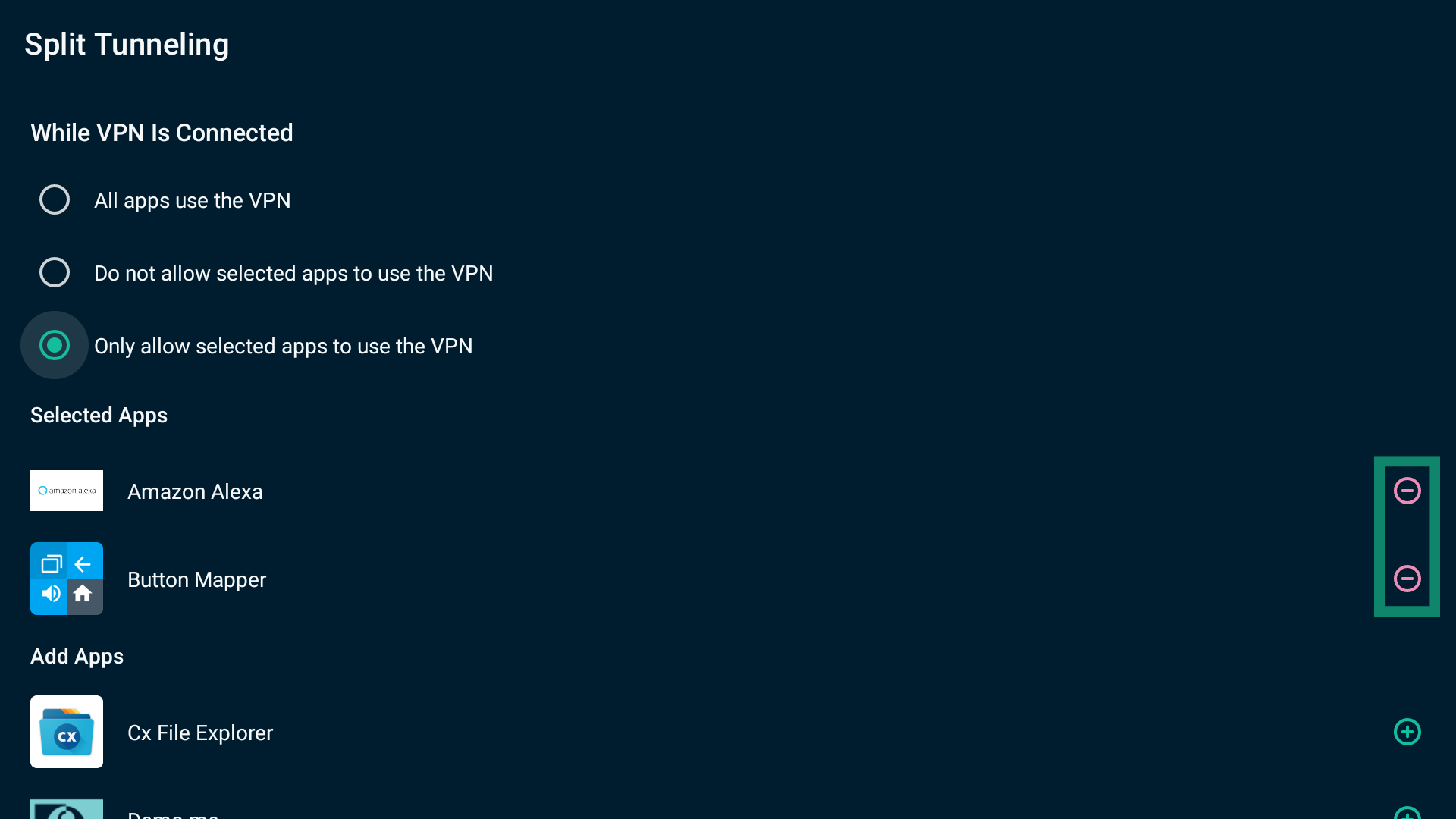
Need help? Contact the ExpressVPN Support Team for immediate assistance.
Use advanced protection settings
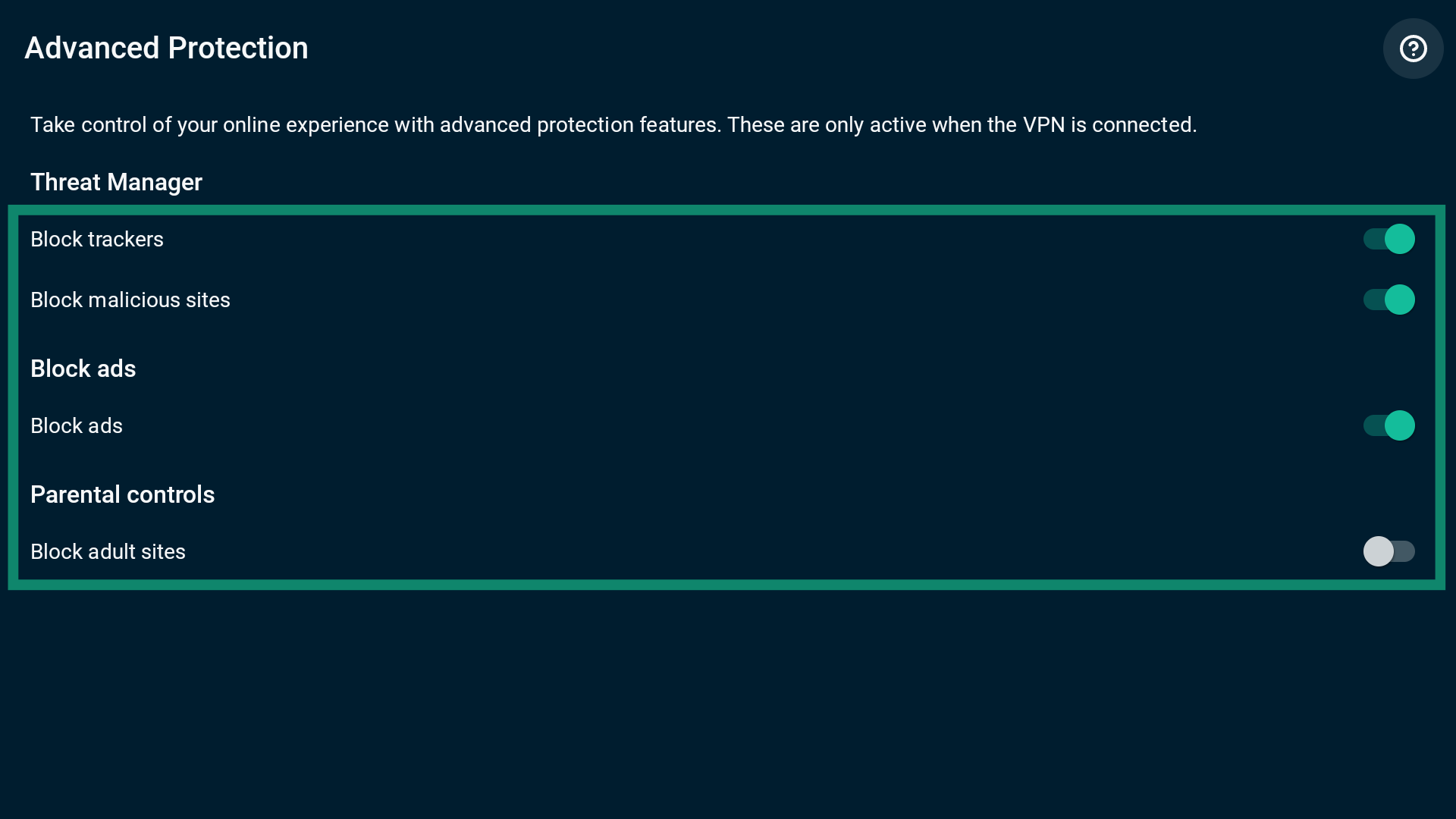
The ExpressVPN app includes advanced protection features, which provide additional online safety. When enabled, these settings stop apps or websites you access on your Chromecast from communicating with third parties listed on our open-source blocklists.
Advanced protection settings are turned off by default. To enable them:
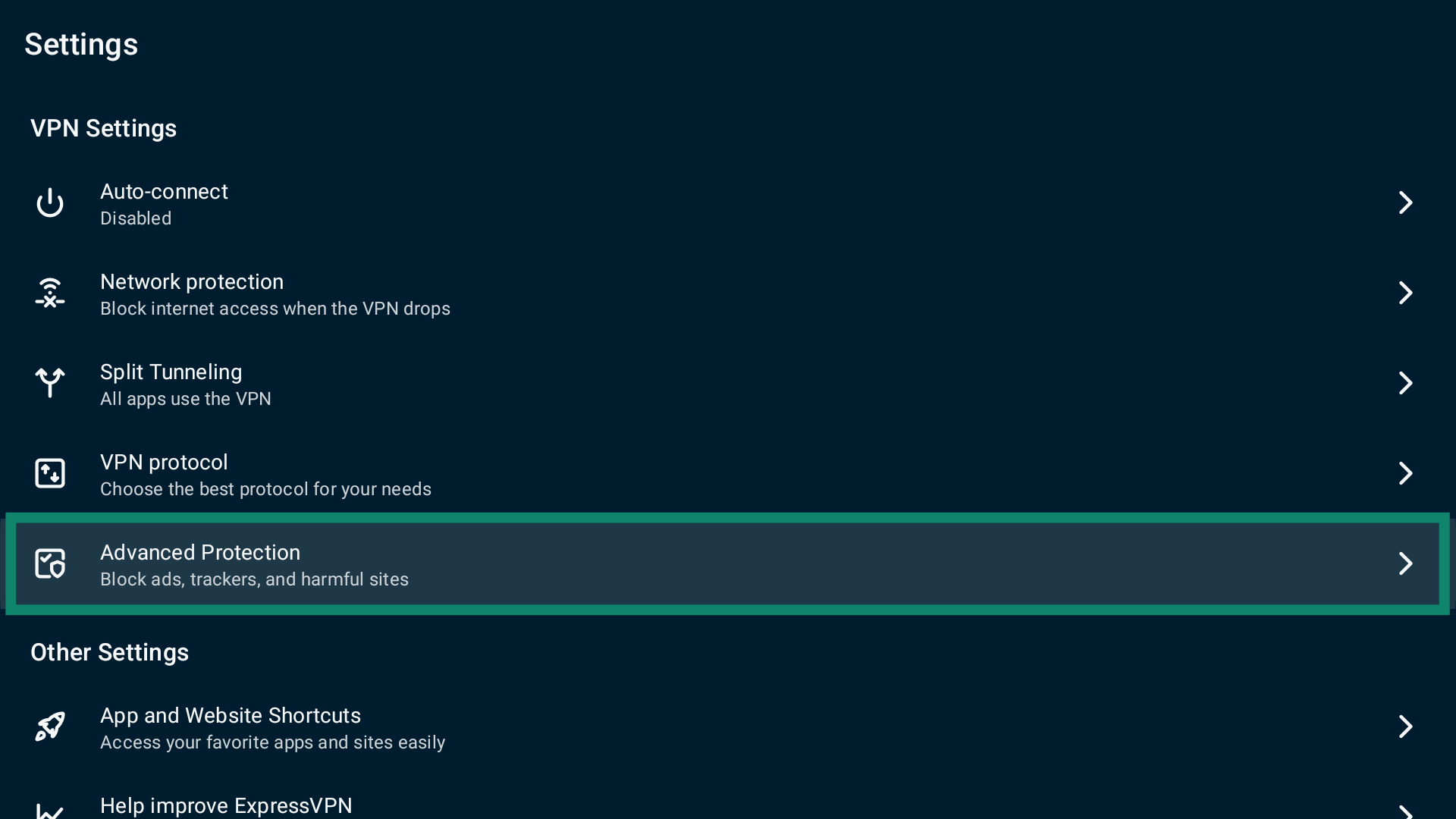
- From the top menu bar, select Options.

- Next, select Settings.

- Select Advanced Protection.

- Turn advanced protection features on or off as you like.
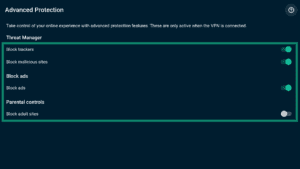
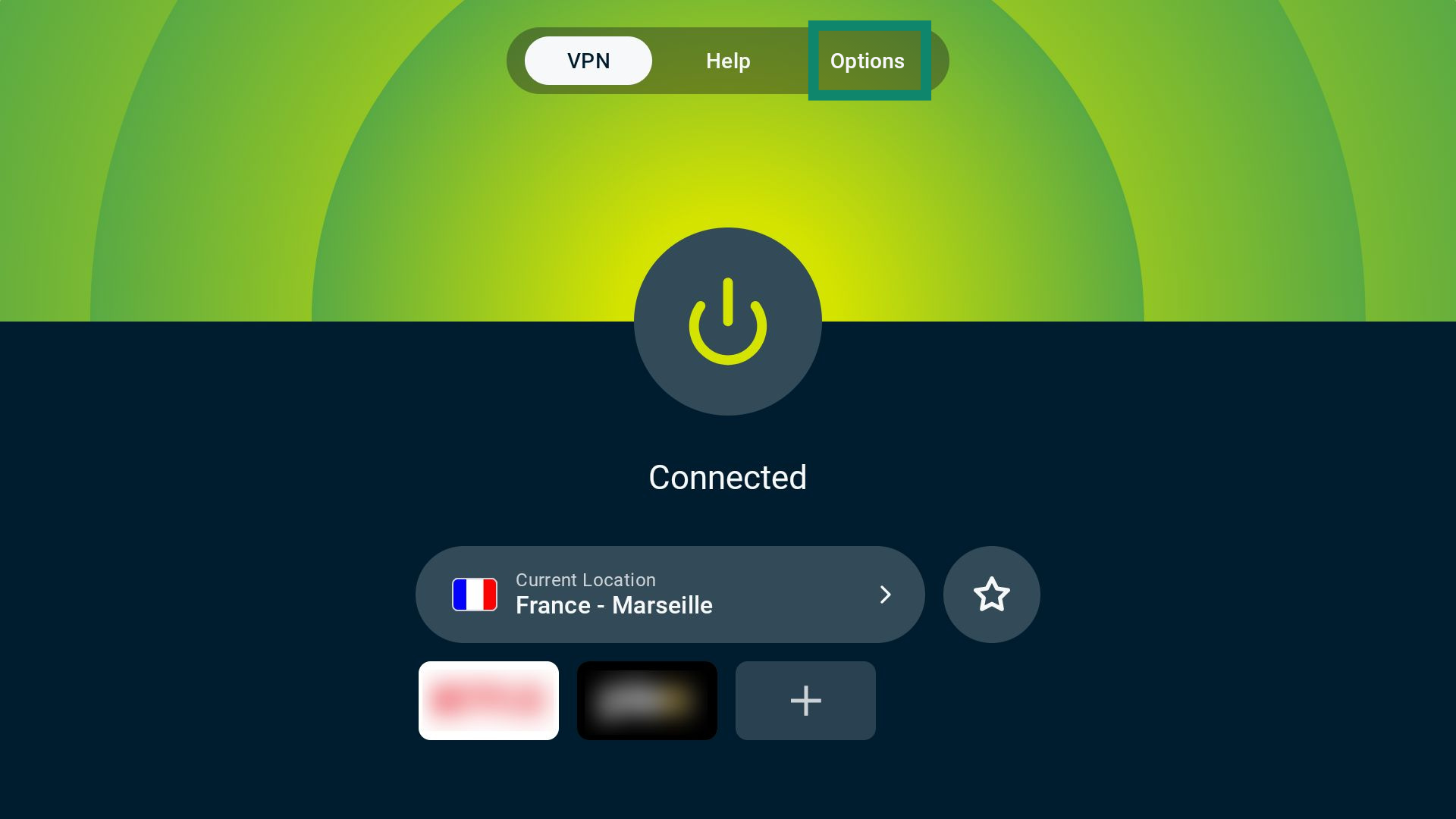
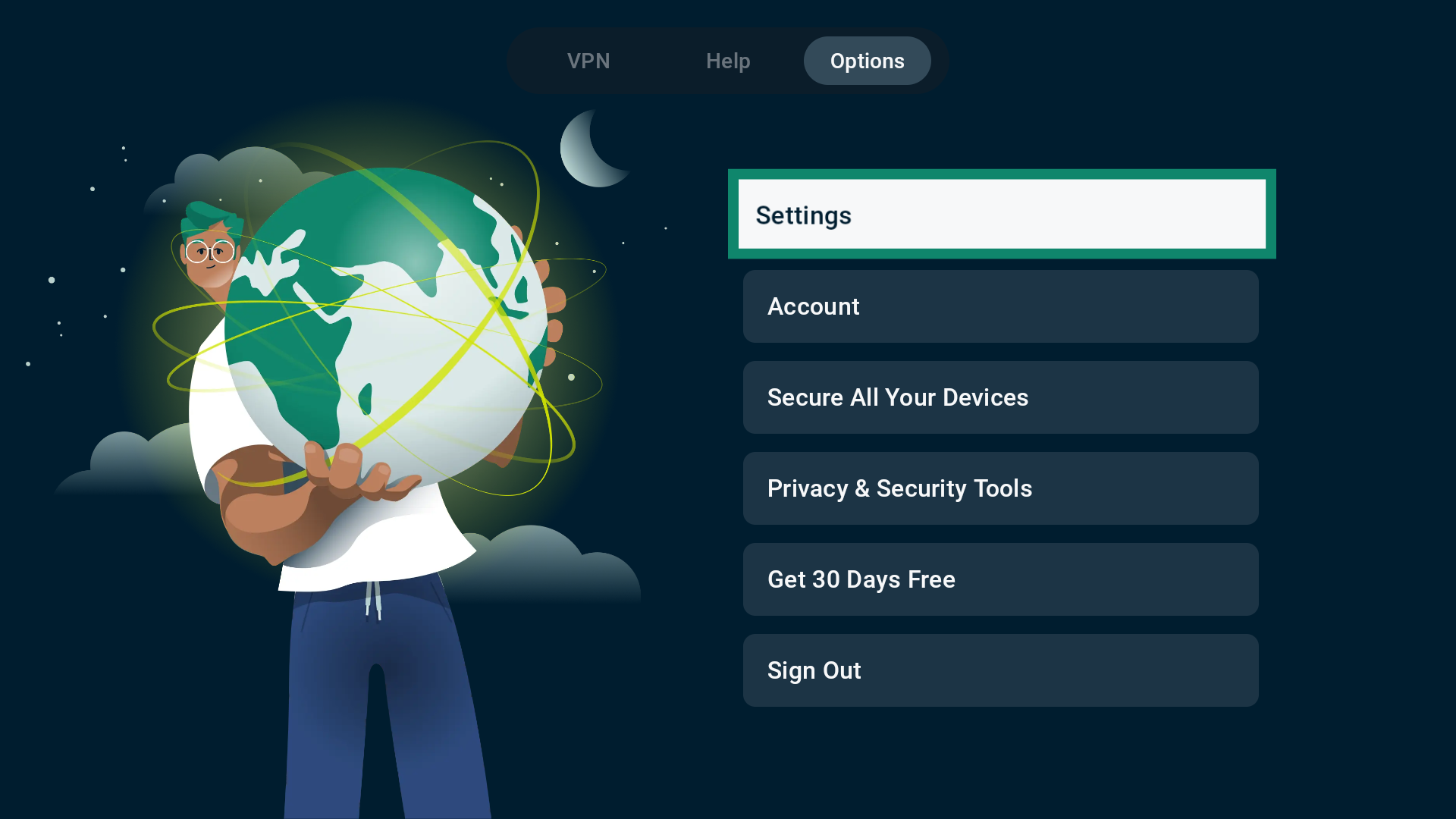
Note: If you enable advanced protection features while connected to ExpressVPN, you will see a popup message saying that the VPN needs to reconnect to apply the changes. Select CONTINUE to proceed.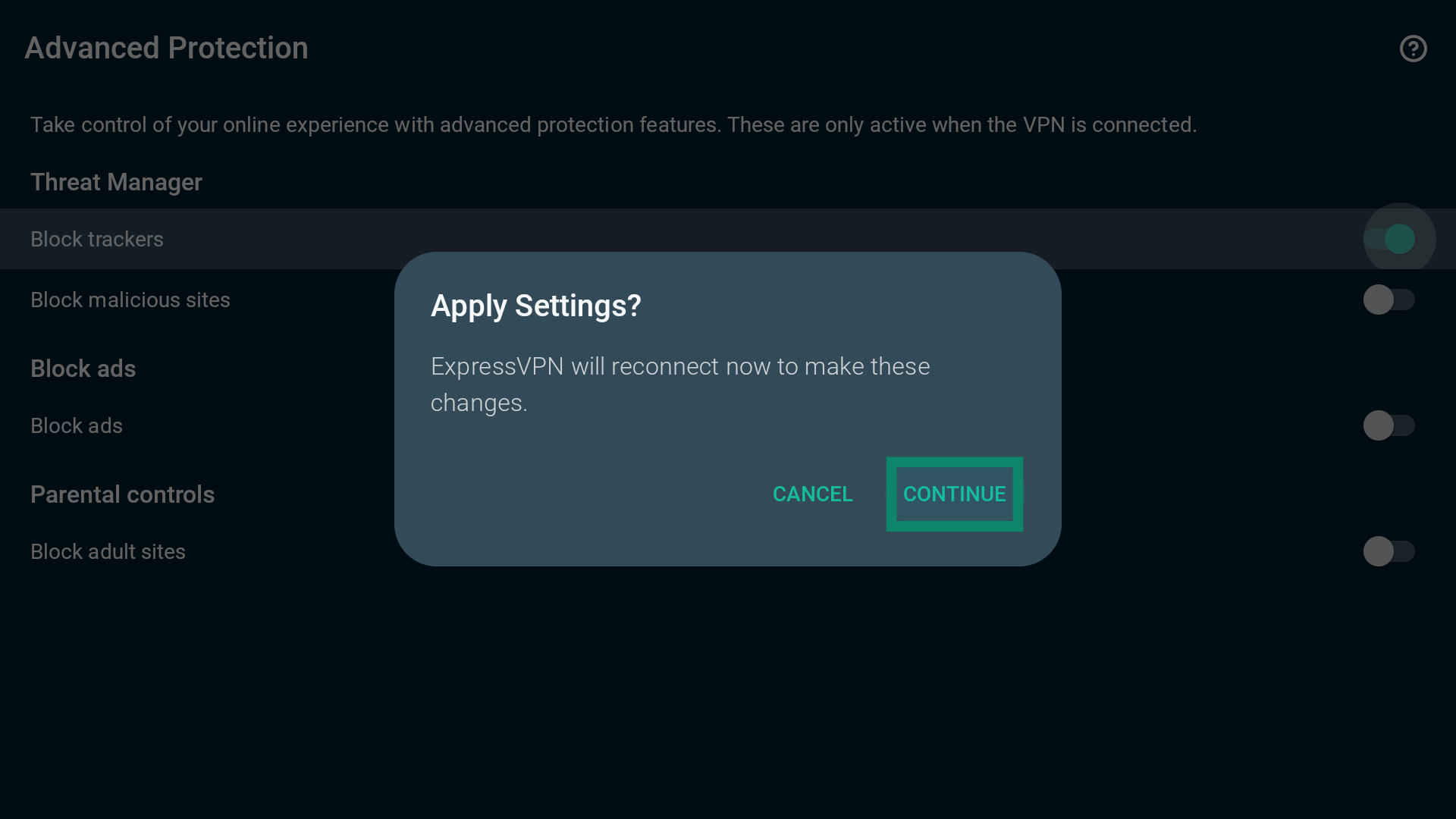
Need help? Contact the ExpressVPN Support Team for immediate assistance.
Turn the kill switch on or off
The ExpressVPN app comes with a kill switch, which is a security feature that disables internet access if the VPN connection drops to prevent data from leaking outside the encrypted tunnel. By default, the kill switch is turned off.
To enable or disable the kill switch:
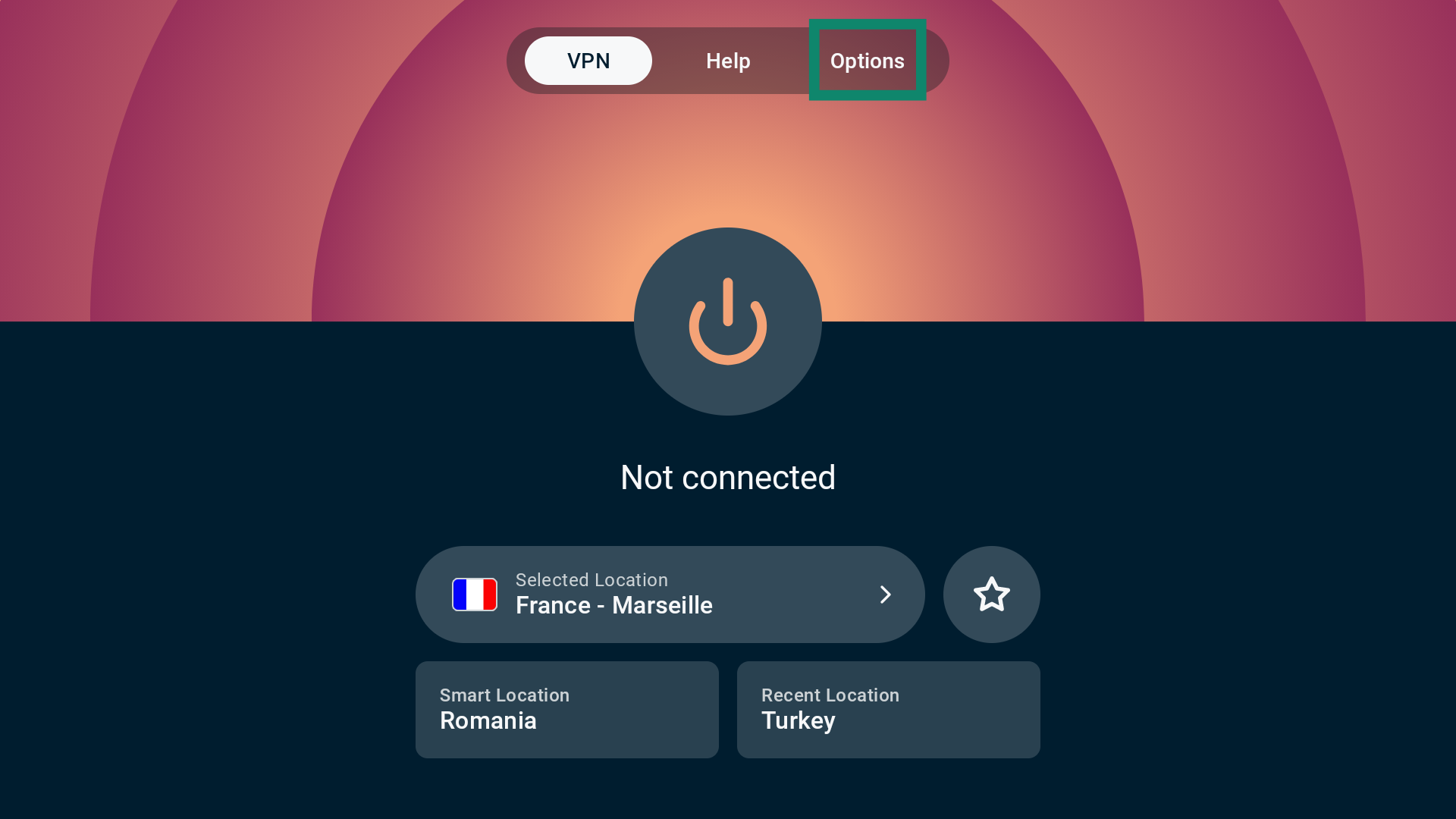
- From the top menu bar, select Options.

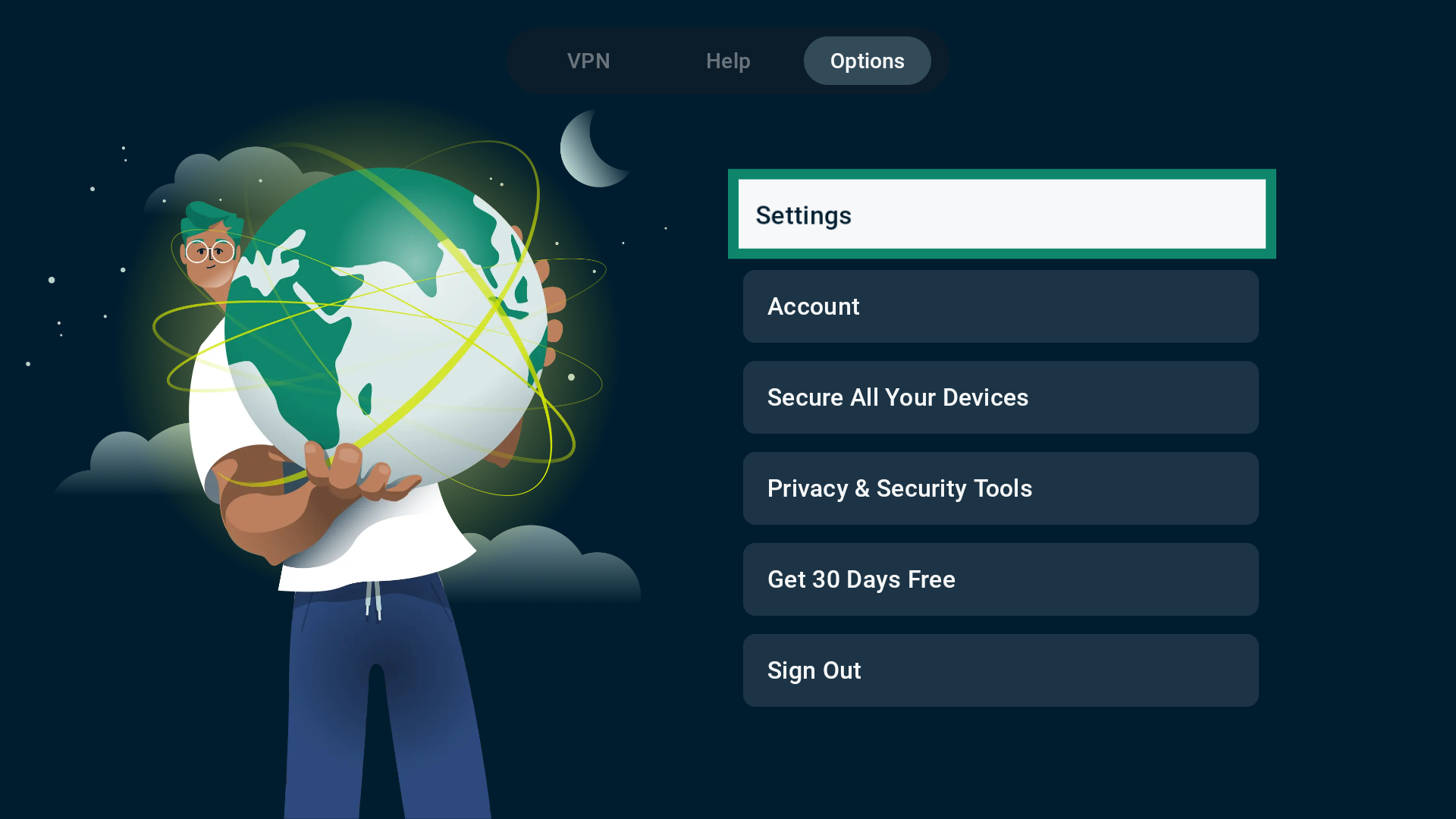
- Select Settings.
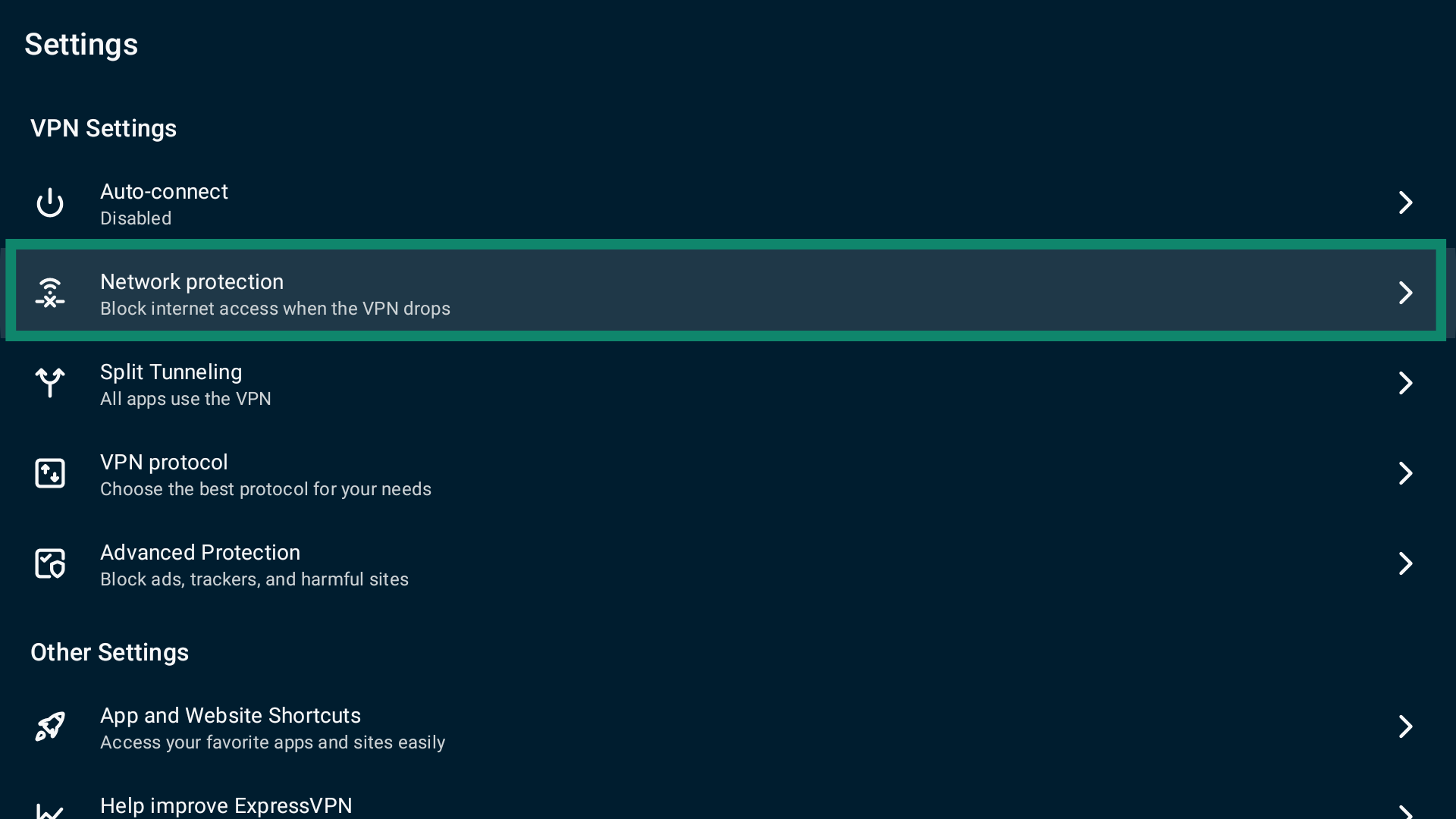
- Next, select Network protection.
- Enable or disable Block internet when unable to connect or reconnect to VPN.

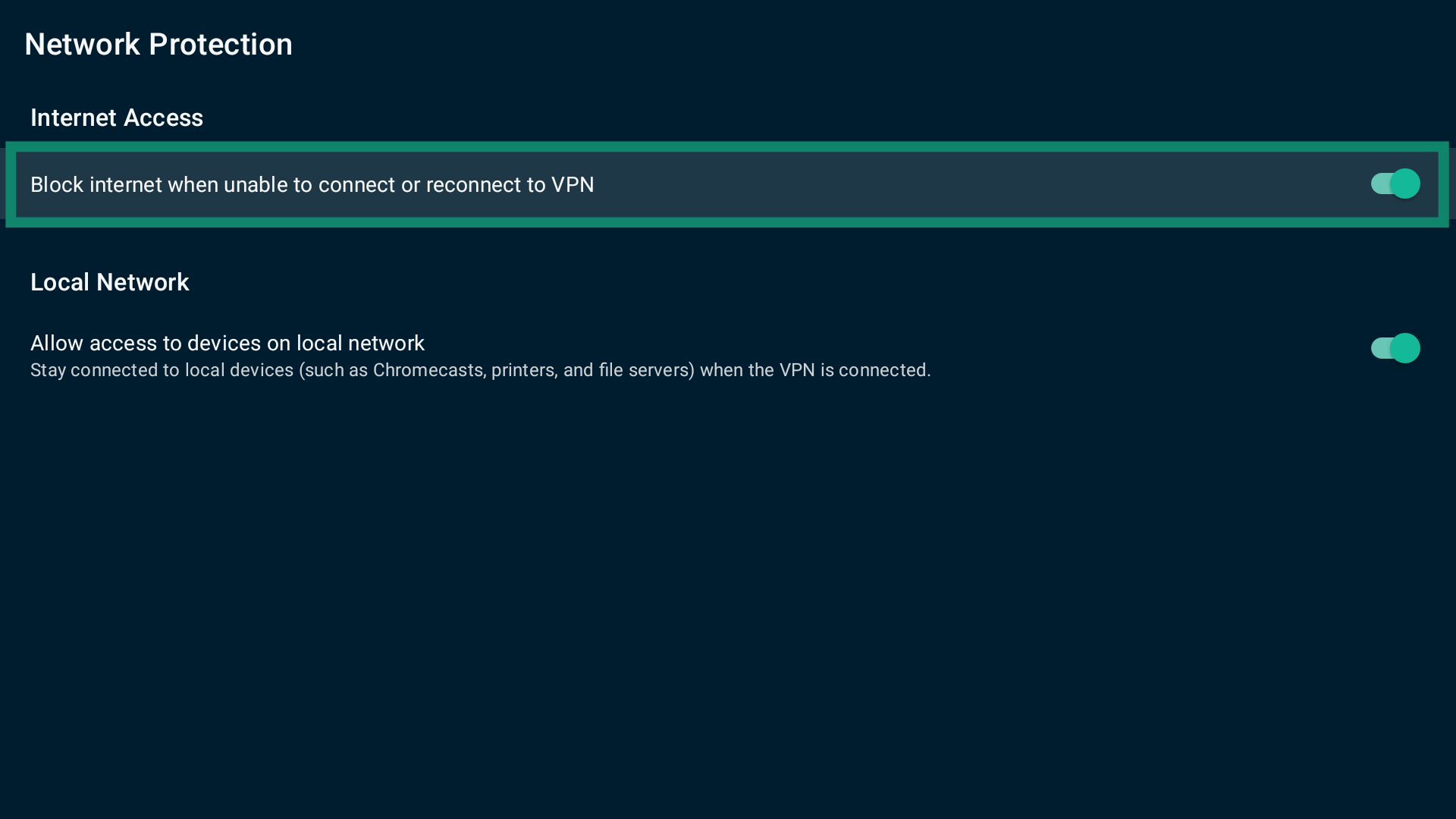
Note: You can turn the kill switch on or off while connected to or disconnected from ExpressVPN.
Need help? Contact the ExpressVPN Support Team for immediate assistance.
Configure auto-connect settings
The ExpressVPN app has built-in auto-connect settings that let you configure how the VPN behaves on startup or when you join trusted or unknown Wi-Fi networks.
To access auto-connect settings:
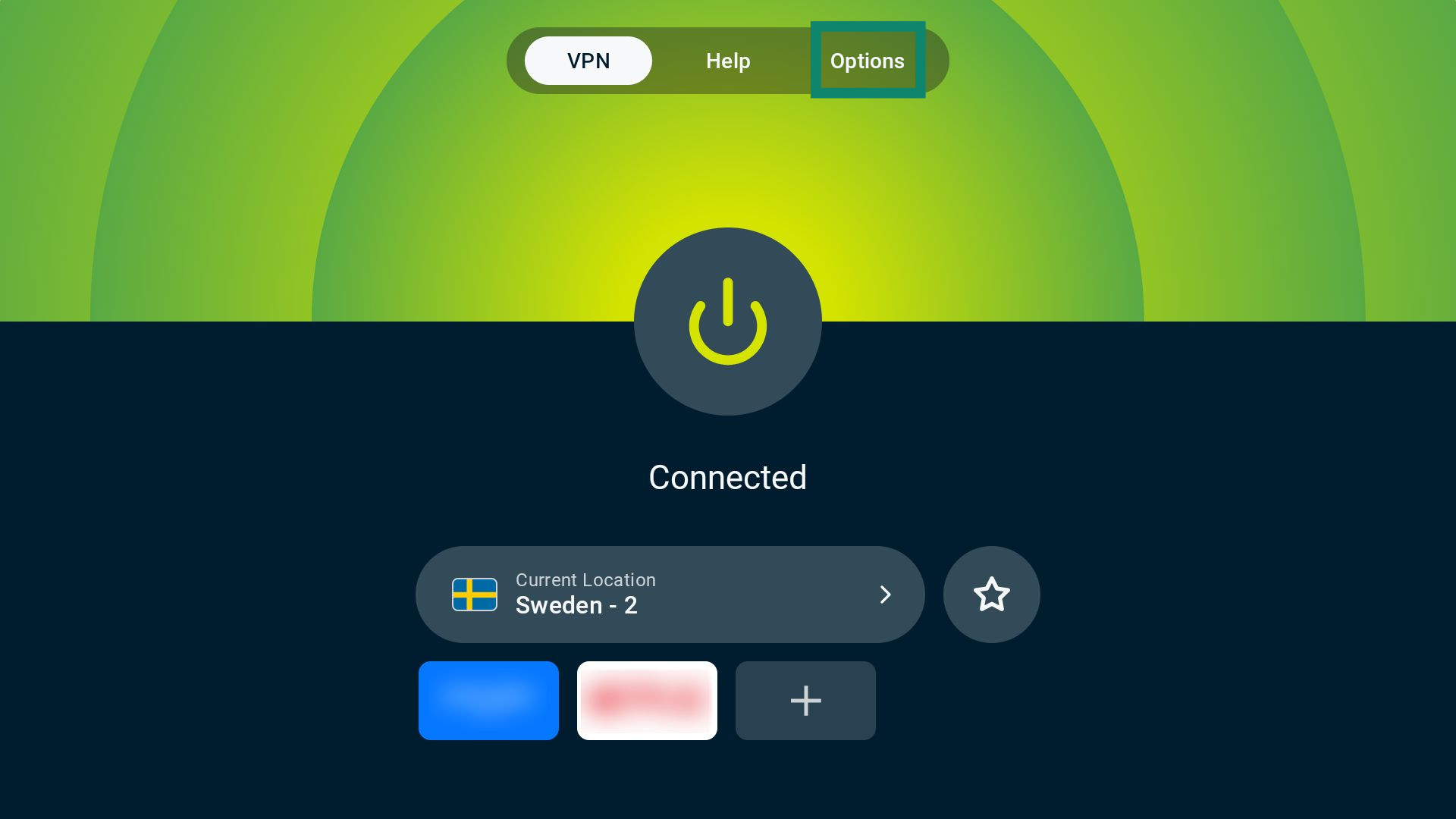
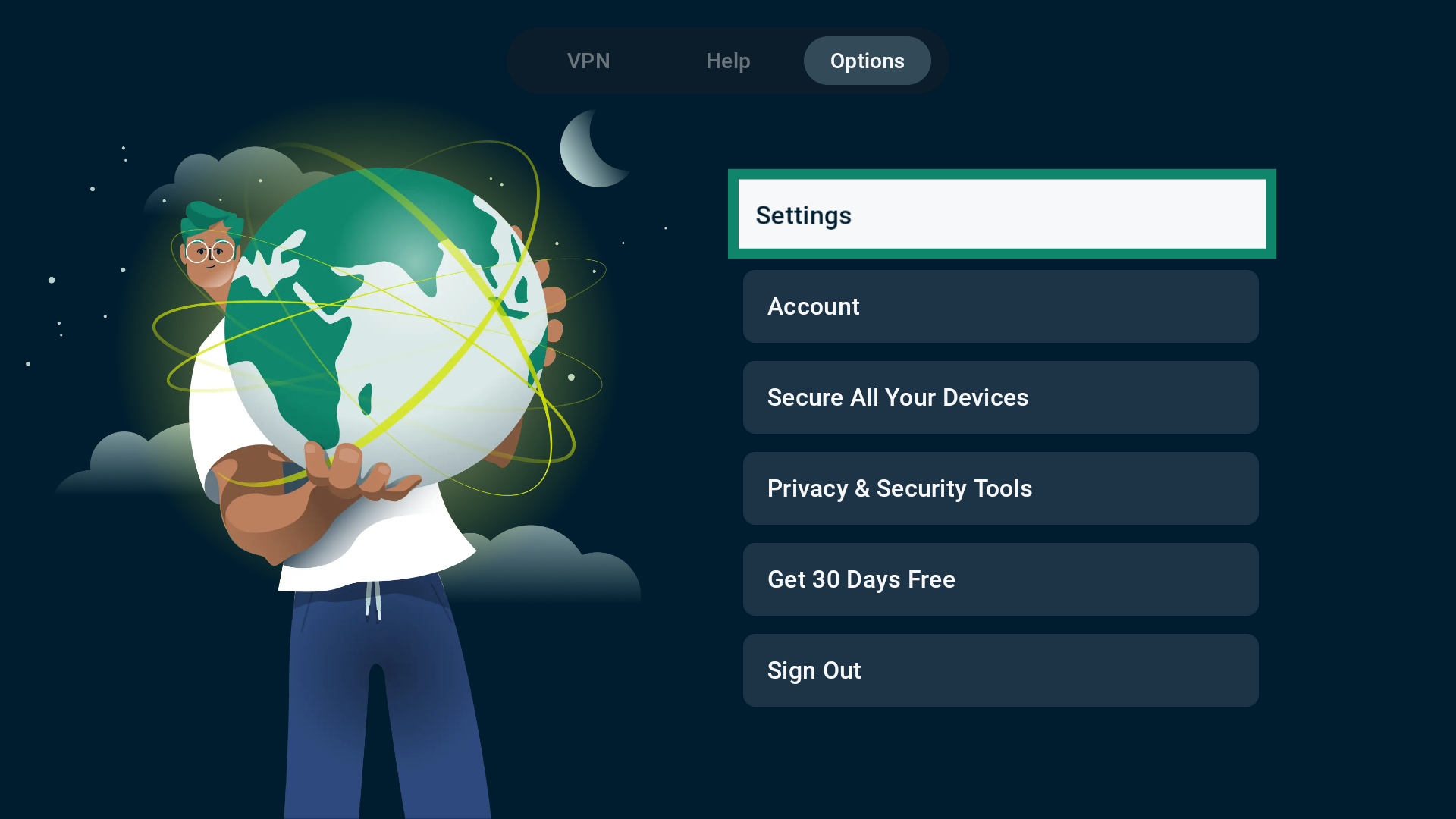
- Select Options from the top menu bar.

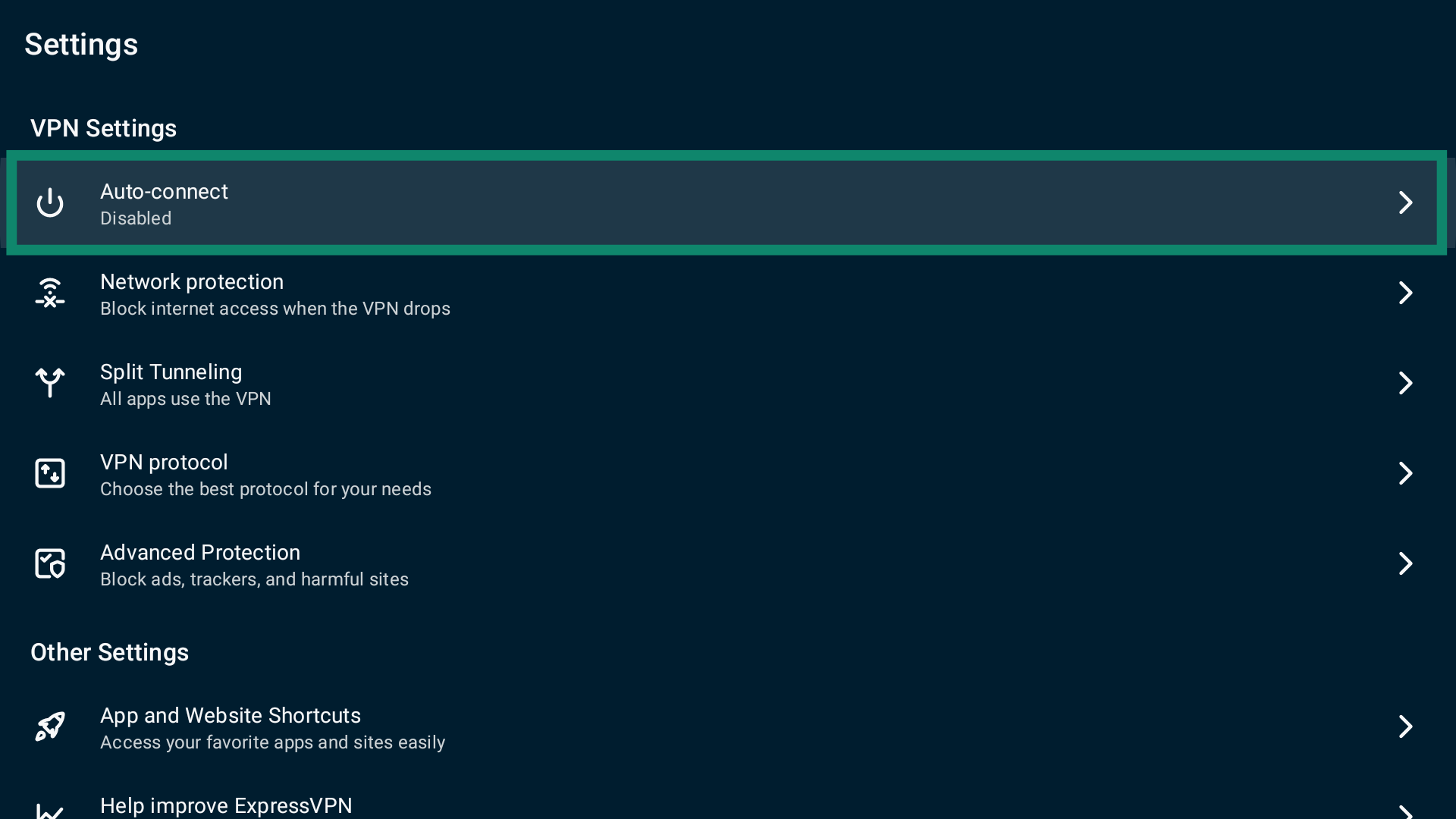
- Select Settings.
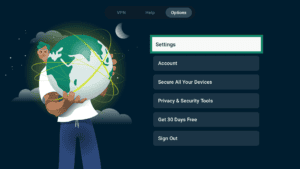
- Select Auto-connect.
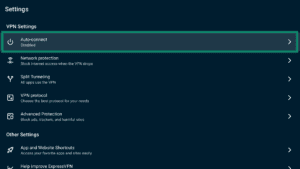
You will now see two options:
- When Android starts up.
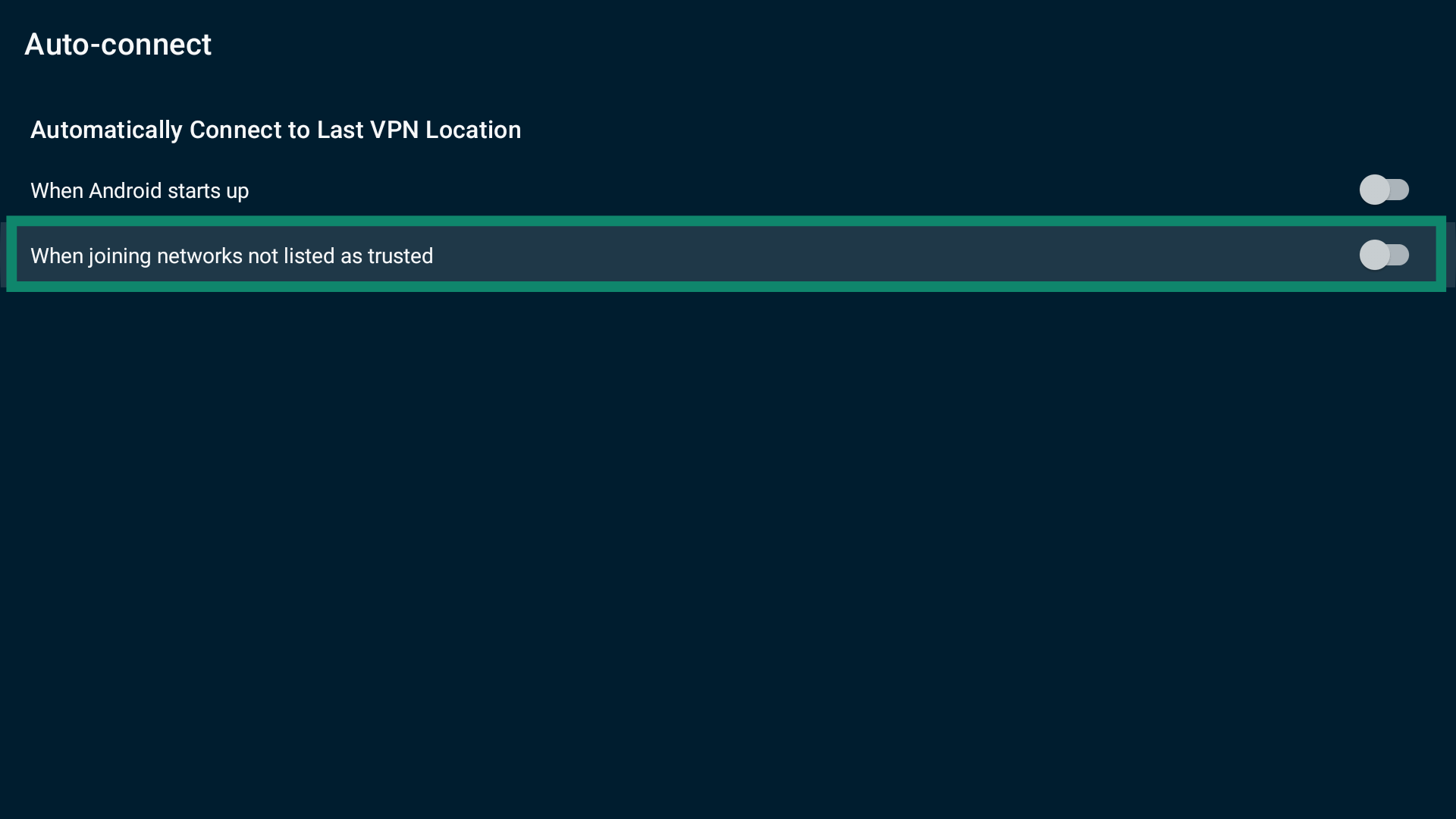
- When joining networks not listed as trusted.
When Android starts up
If you toggle When Android starts up on, ExpressVPN will automatically connect to the last VPN server locations when your Chromecast starts up.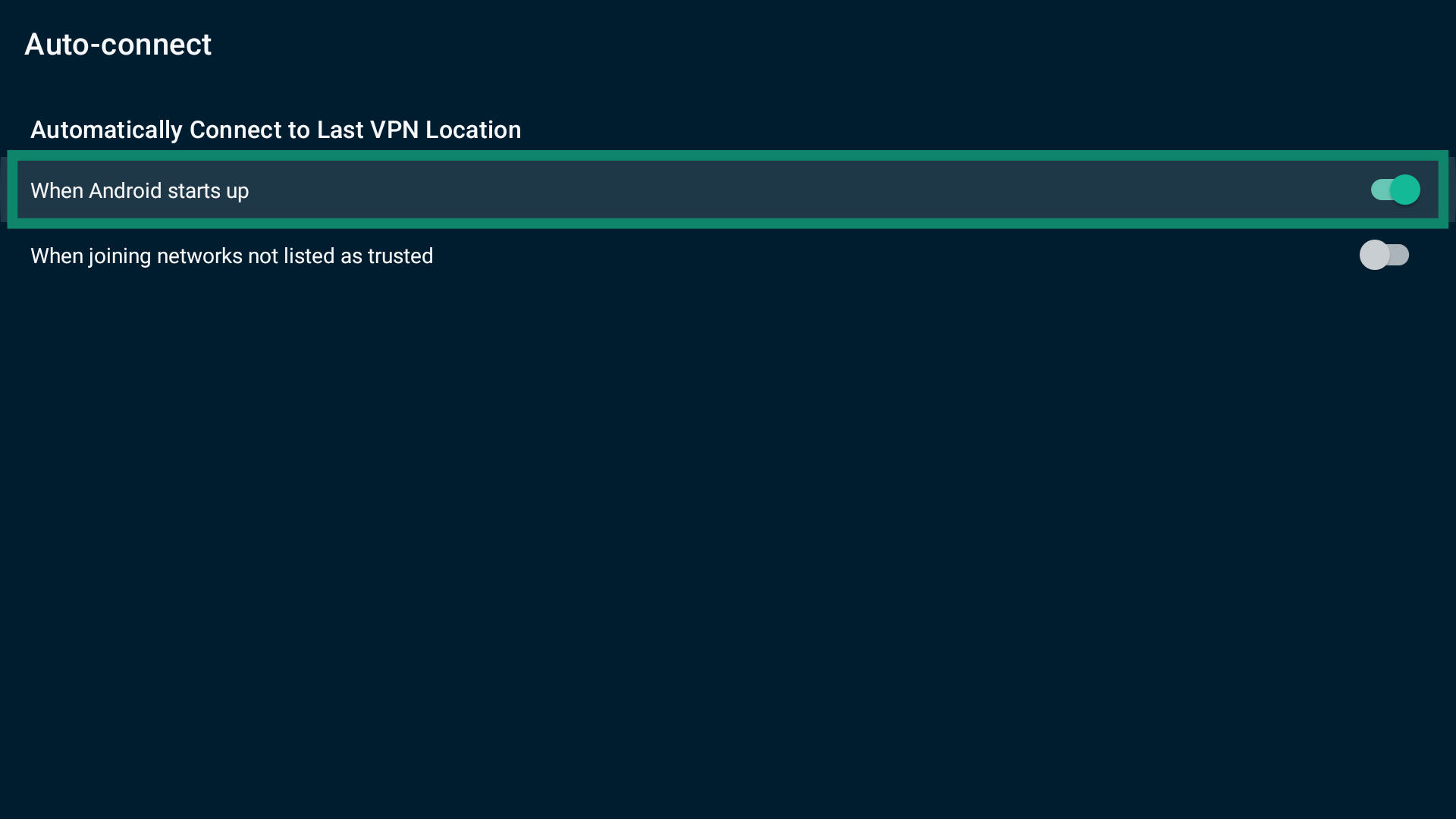
When joining networks not listed as trusted
To configure ExpressVPN to auto-connect when your device connects to untrusted networks:
- Turn When joining networks not listed as trusted on.

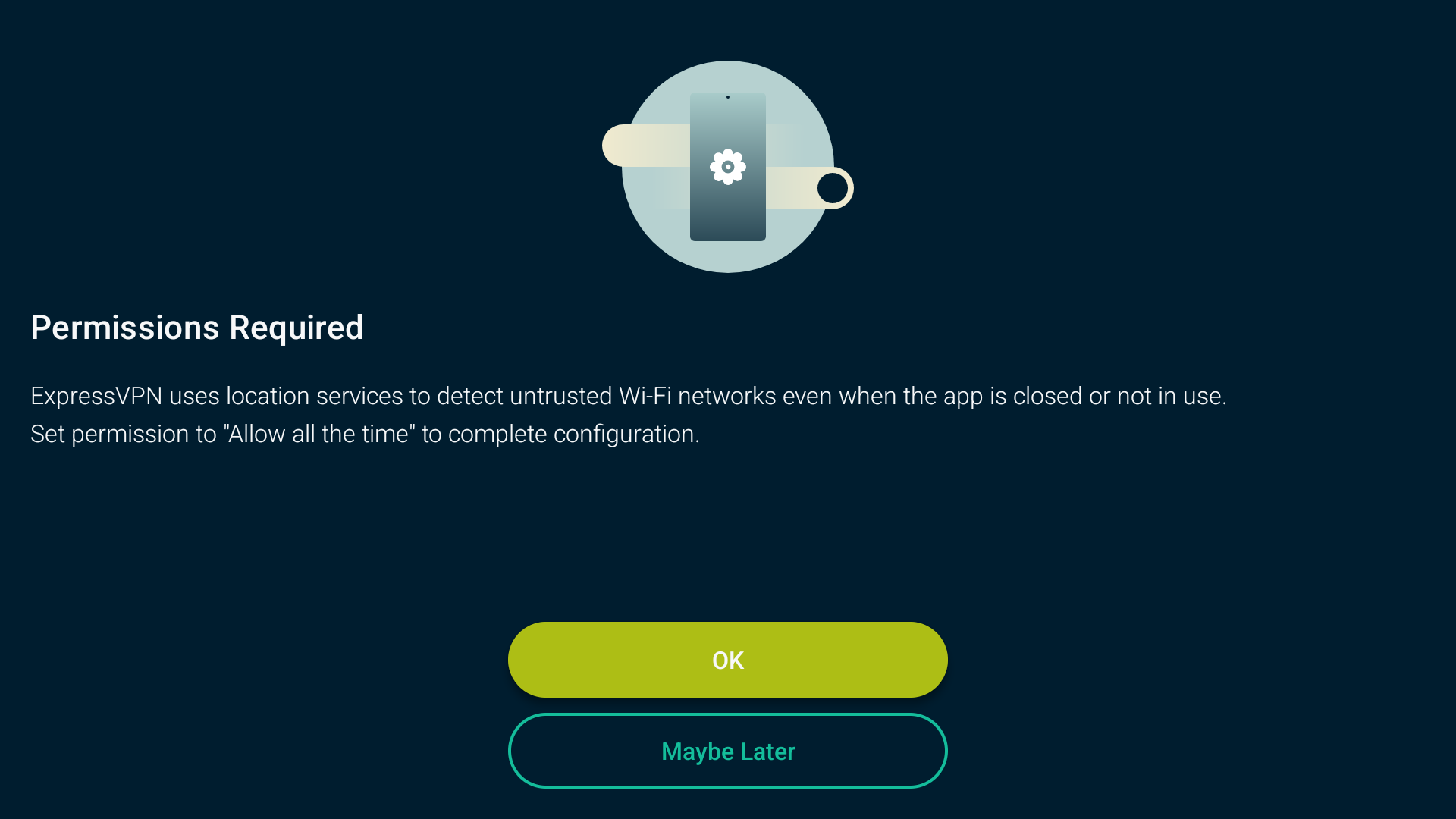
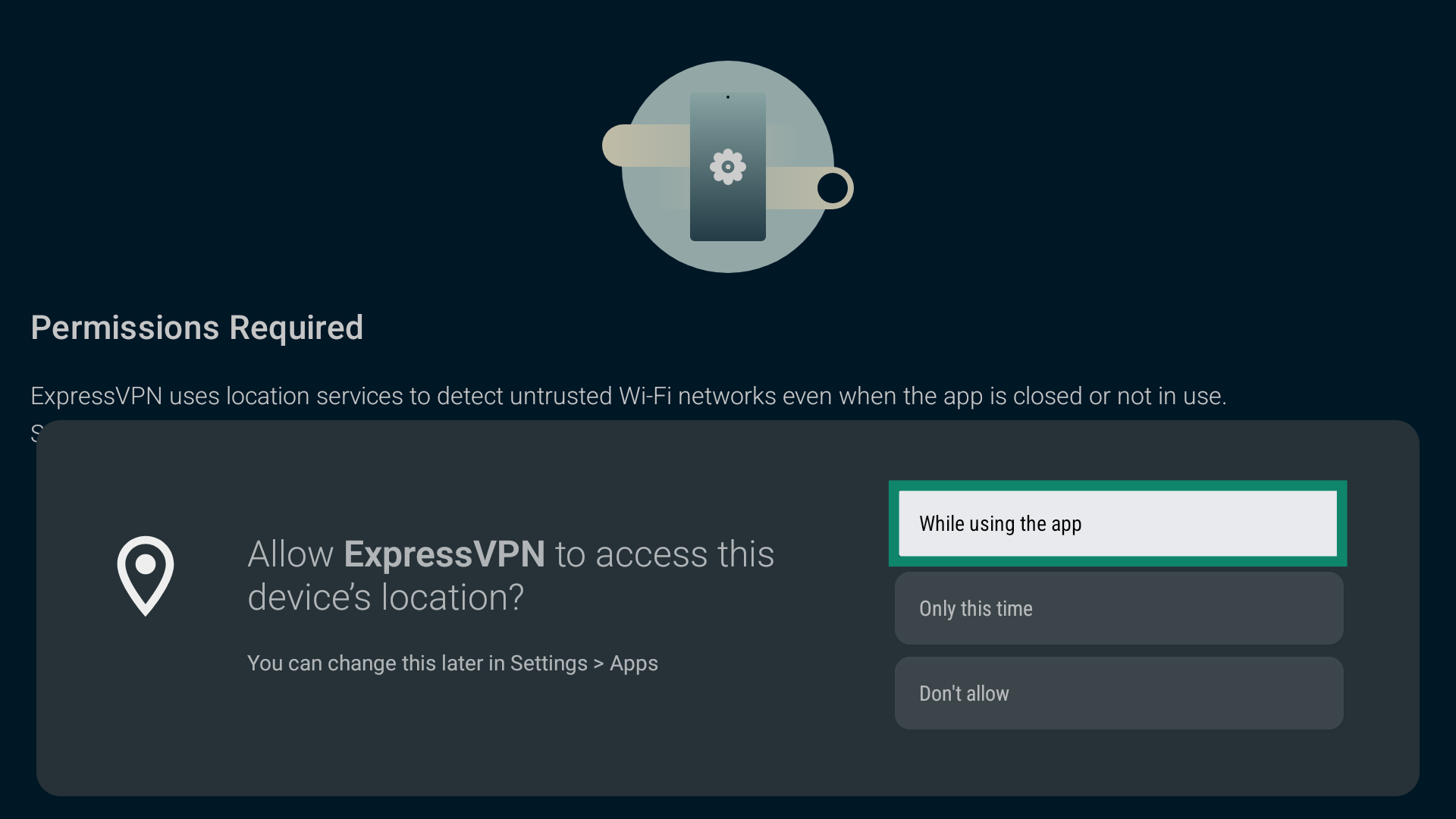
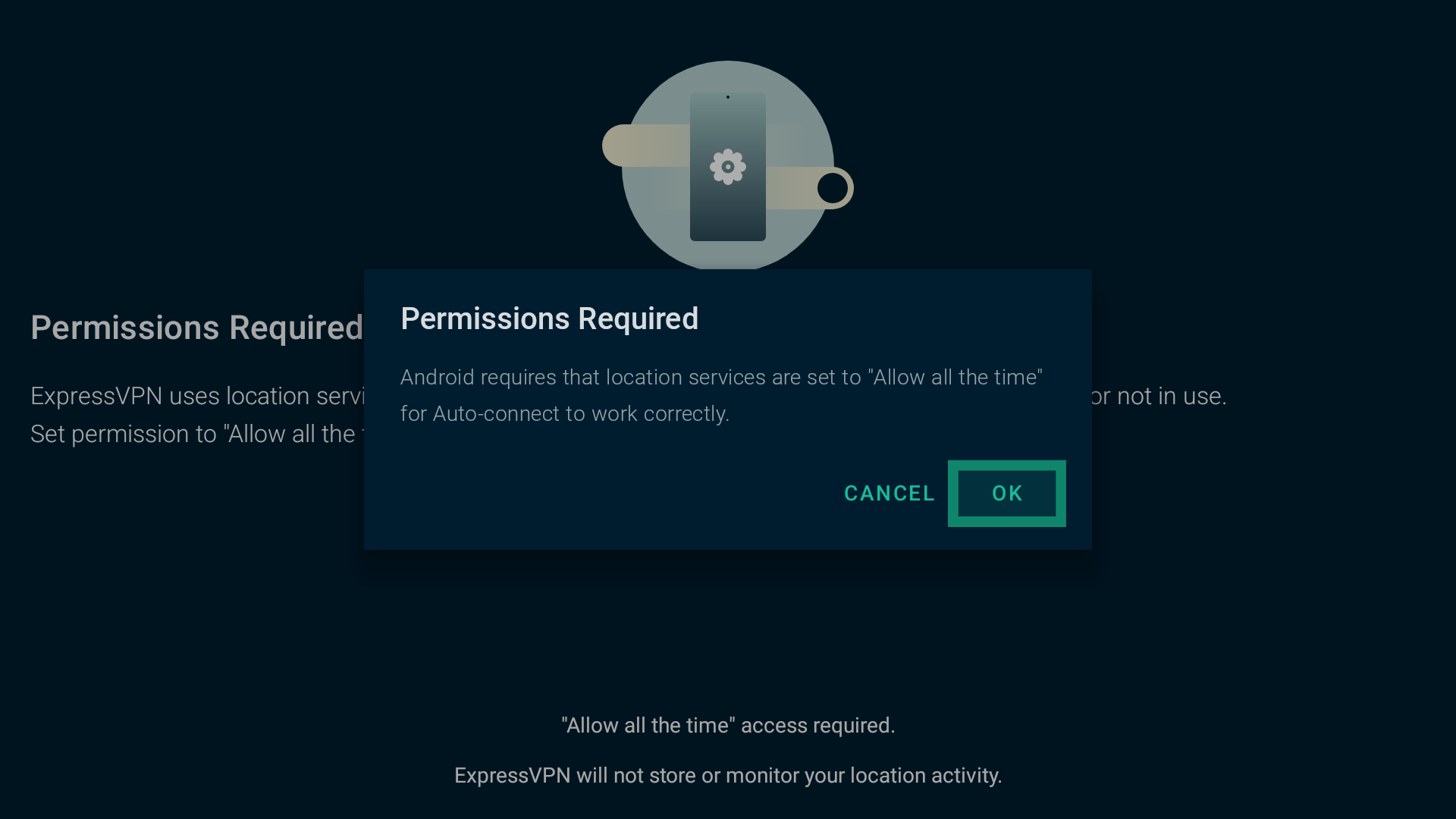
- You will need to provide ExpressVPN with permissions to detect untrusted networks. To proceed, select OK.

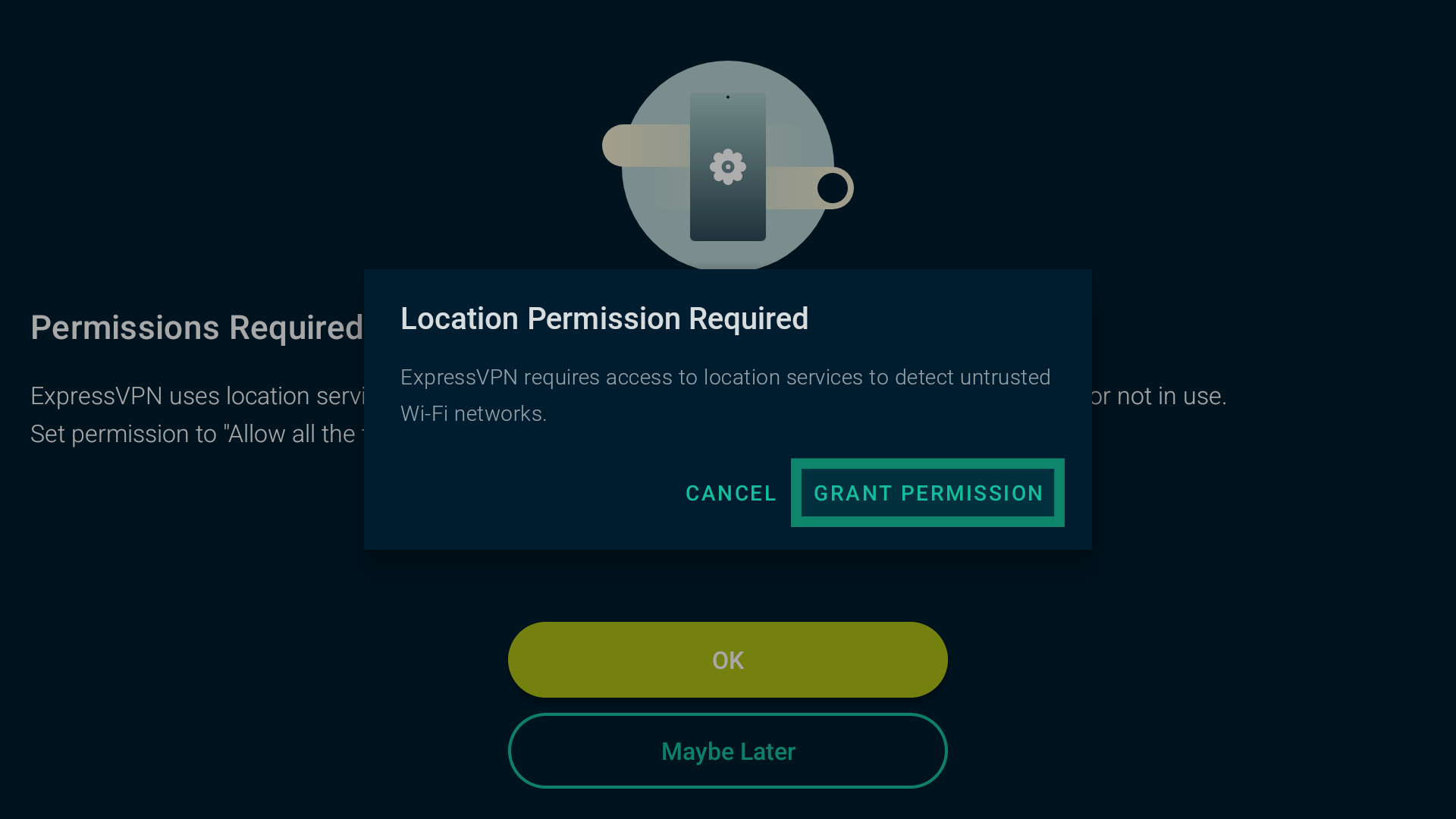
- Next, select GRANT PERMISSION.
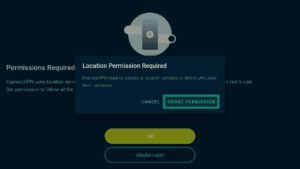
- Select While using the app.

- Select OK to continue.

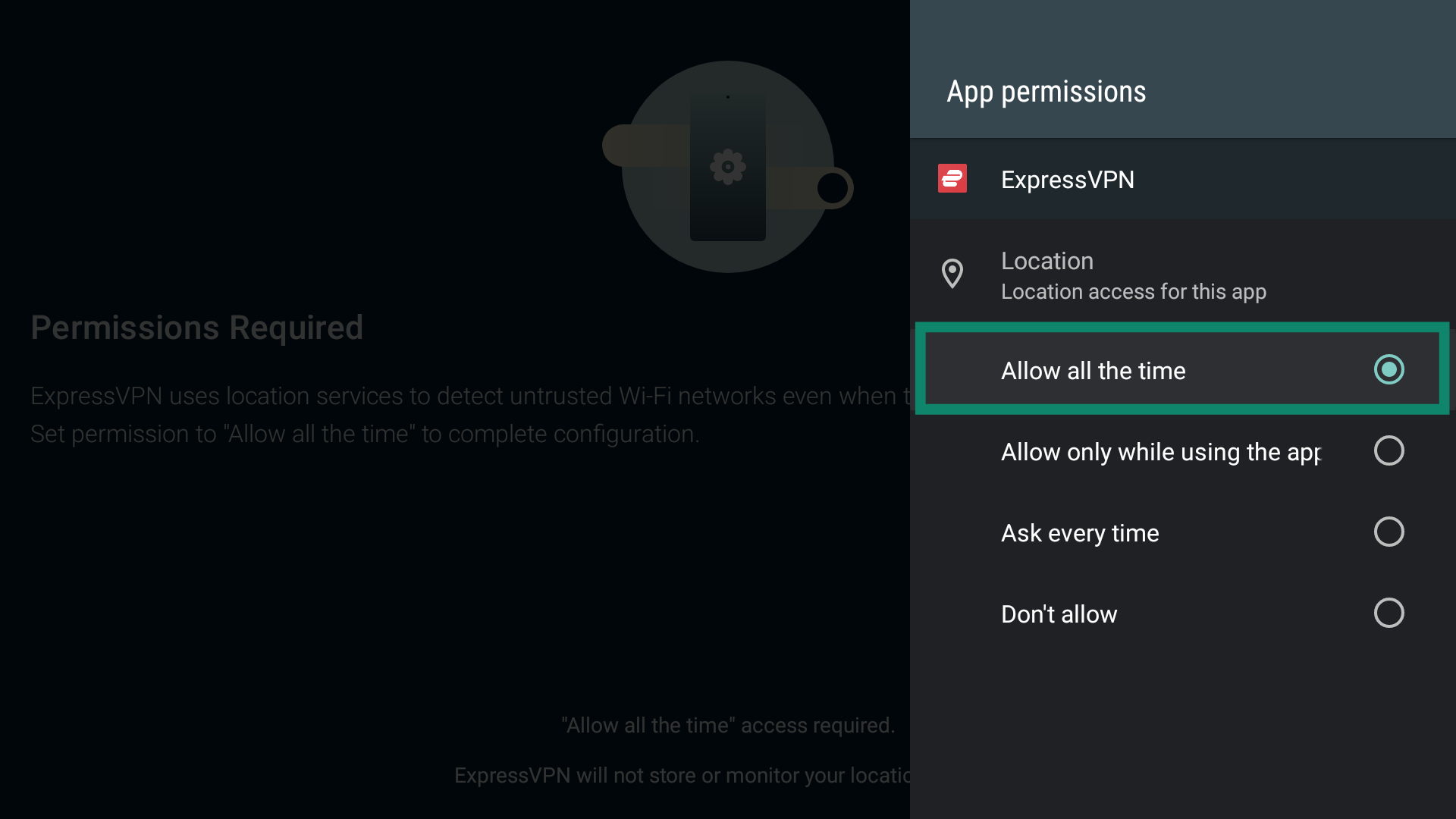
- An app permission menu will pop up. Select Allow all the time.
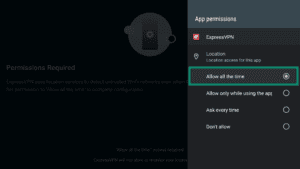
- When done, use the back button on your remote to return to the auto-connect settings page.
A list of Current Networks will now be displayed, which includes networks your Chromecast is currently connected to. By default, all networks are flagged as Untrusted.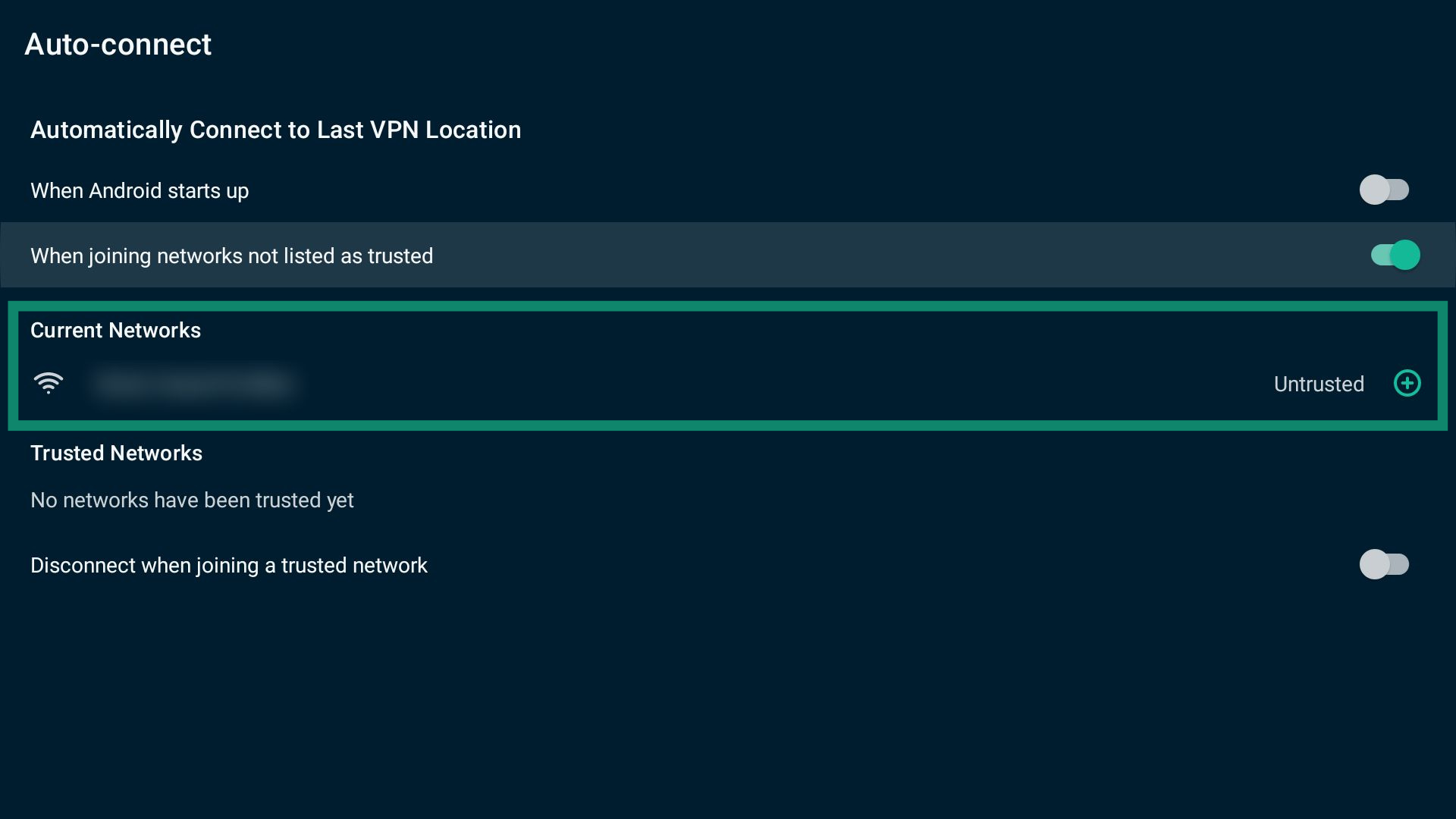
To add a network to the Trusted Networks list, select next to the network you want to list as trusted.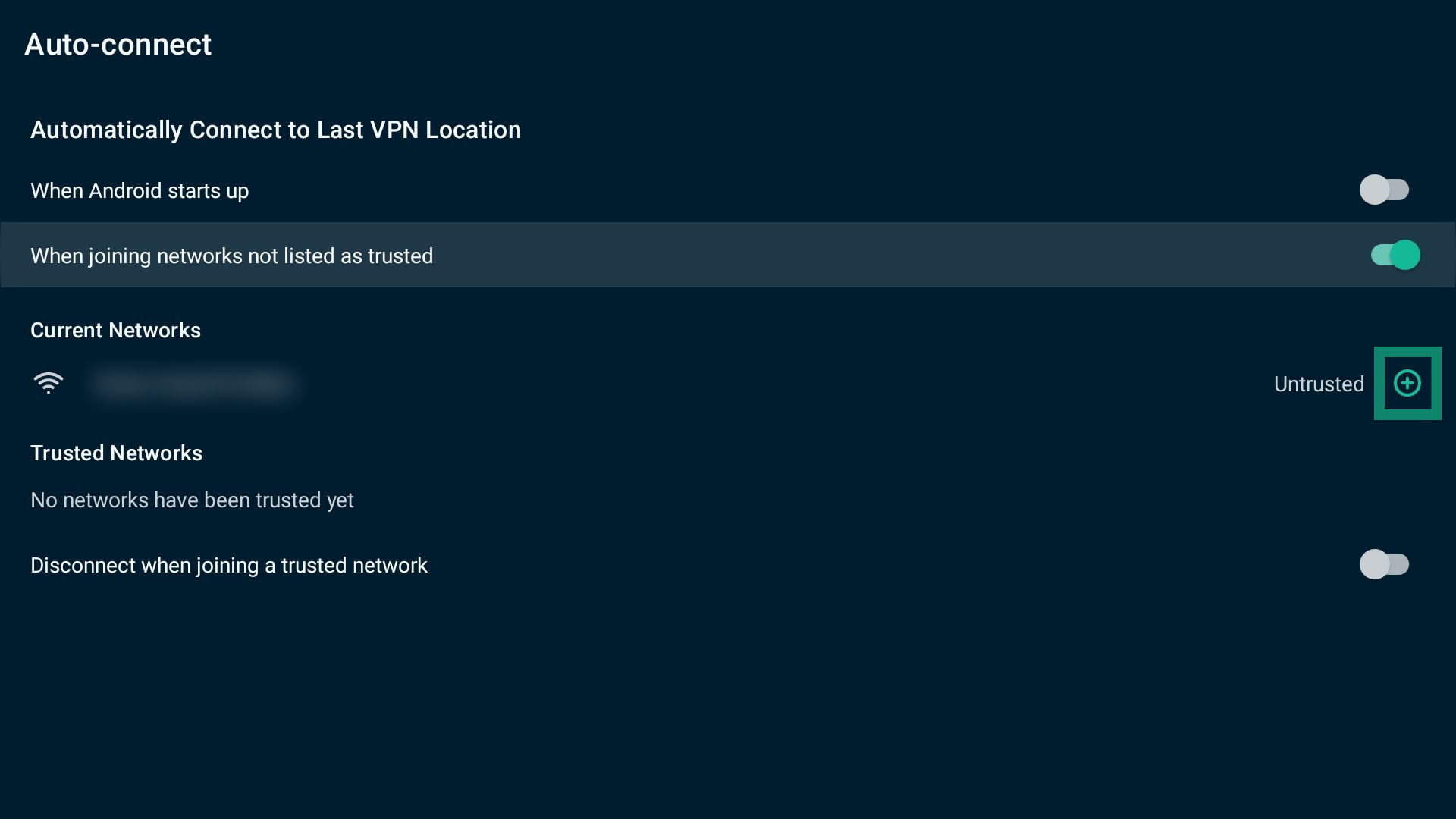
To remove a network from the Trusted Networks list, select  next to the network you want to remove.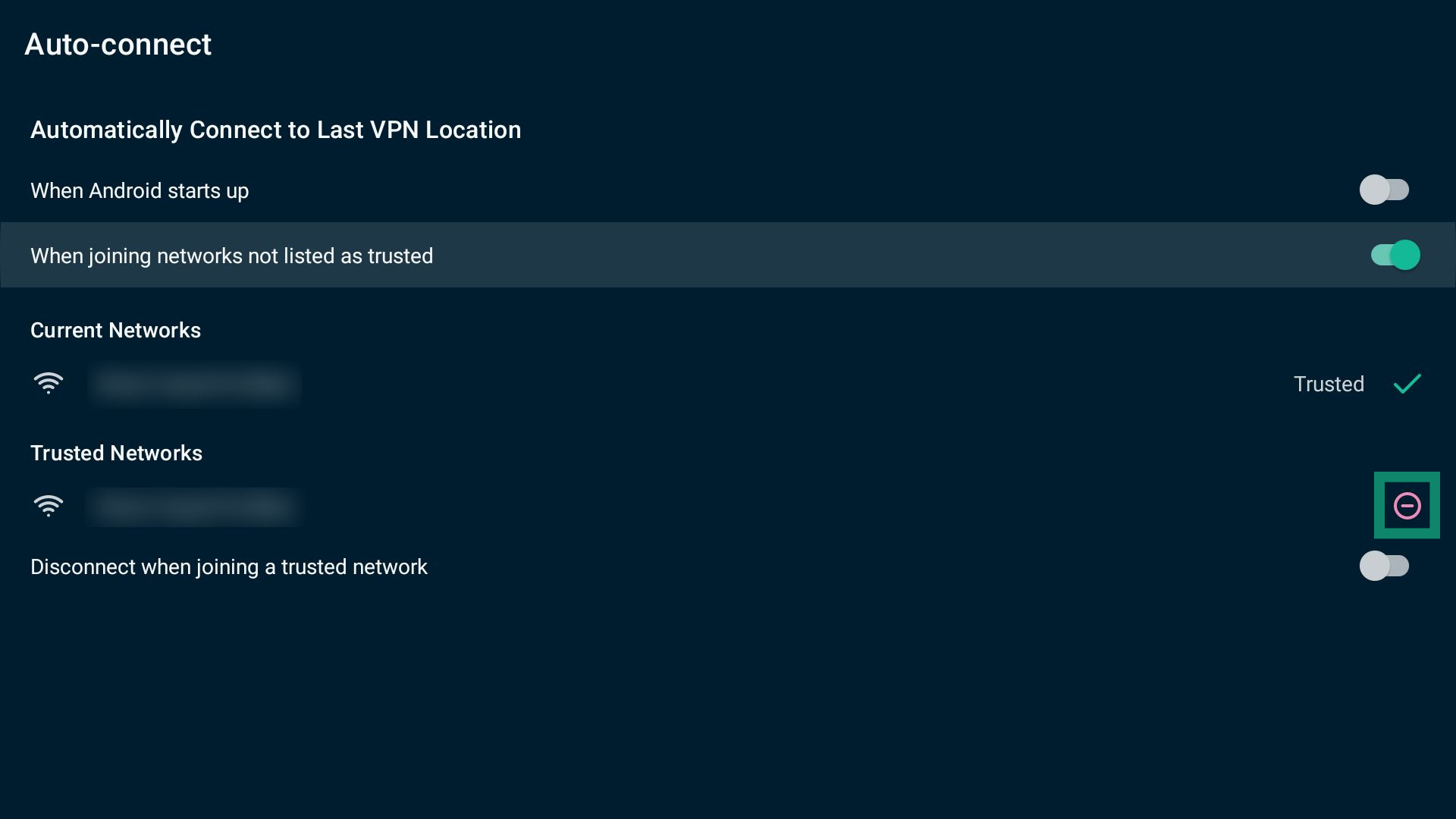
Note: If you turn on Disconnect when joining a trusted network, ExpressVPN will automatically disconnect when your device joins a trusted network.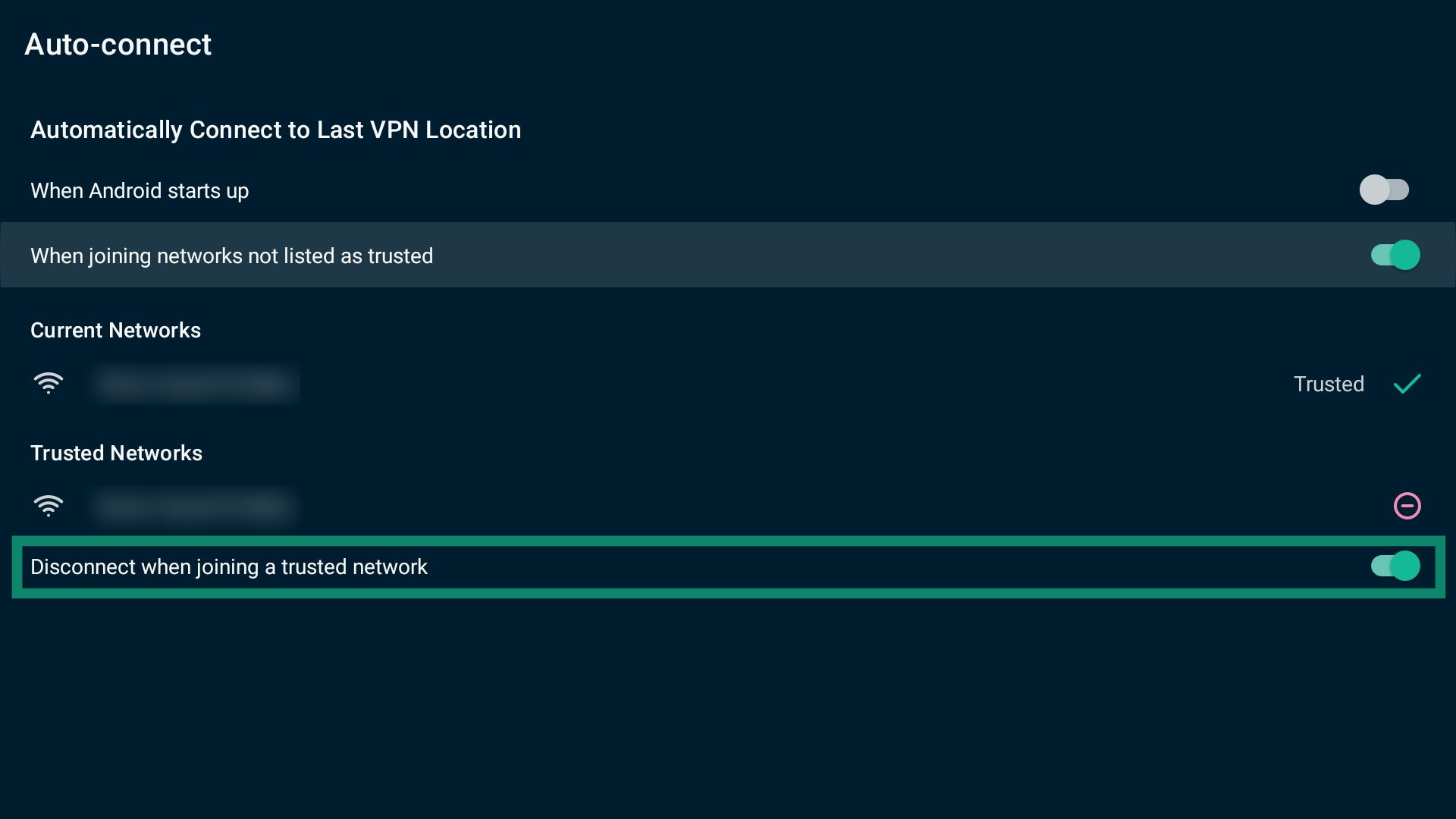
Need help? Contact the ExpressVPN Support Team for immediate assistance.
Contact Support
If you experience any issues while using ExpressVPN or have any questions, you can contact the support team using built-in settings.
To contact ExpressVPN Support:
- Select Help from the top menu bar.
- Select Contact Support.

- Type in your support request, then select Send.

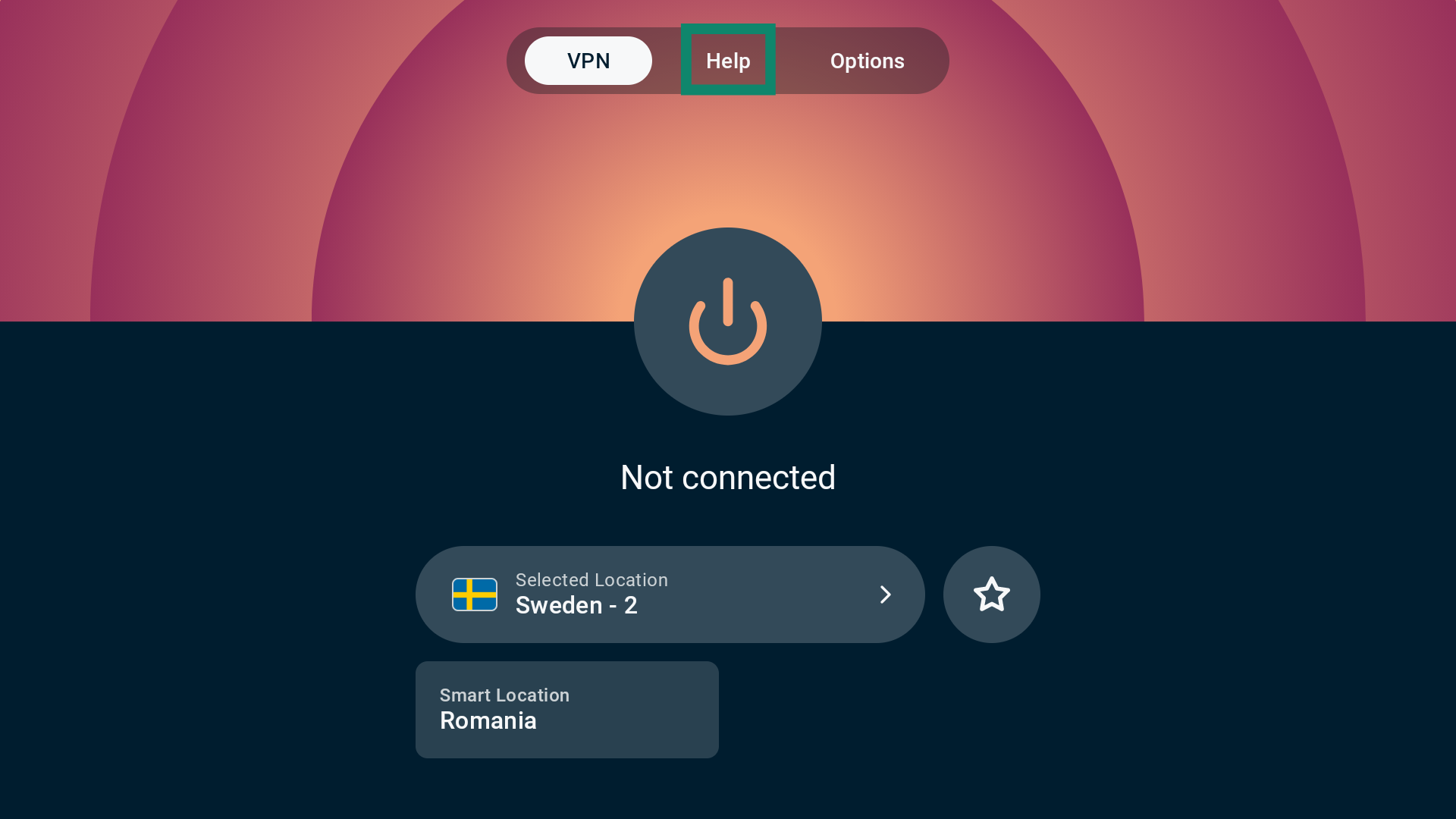
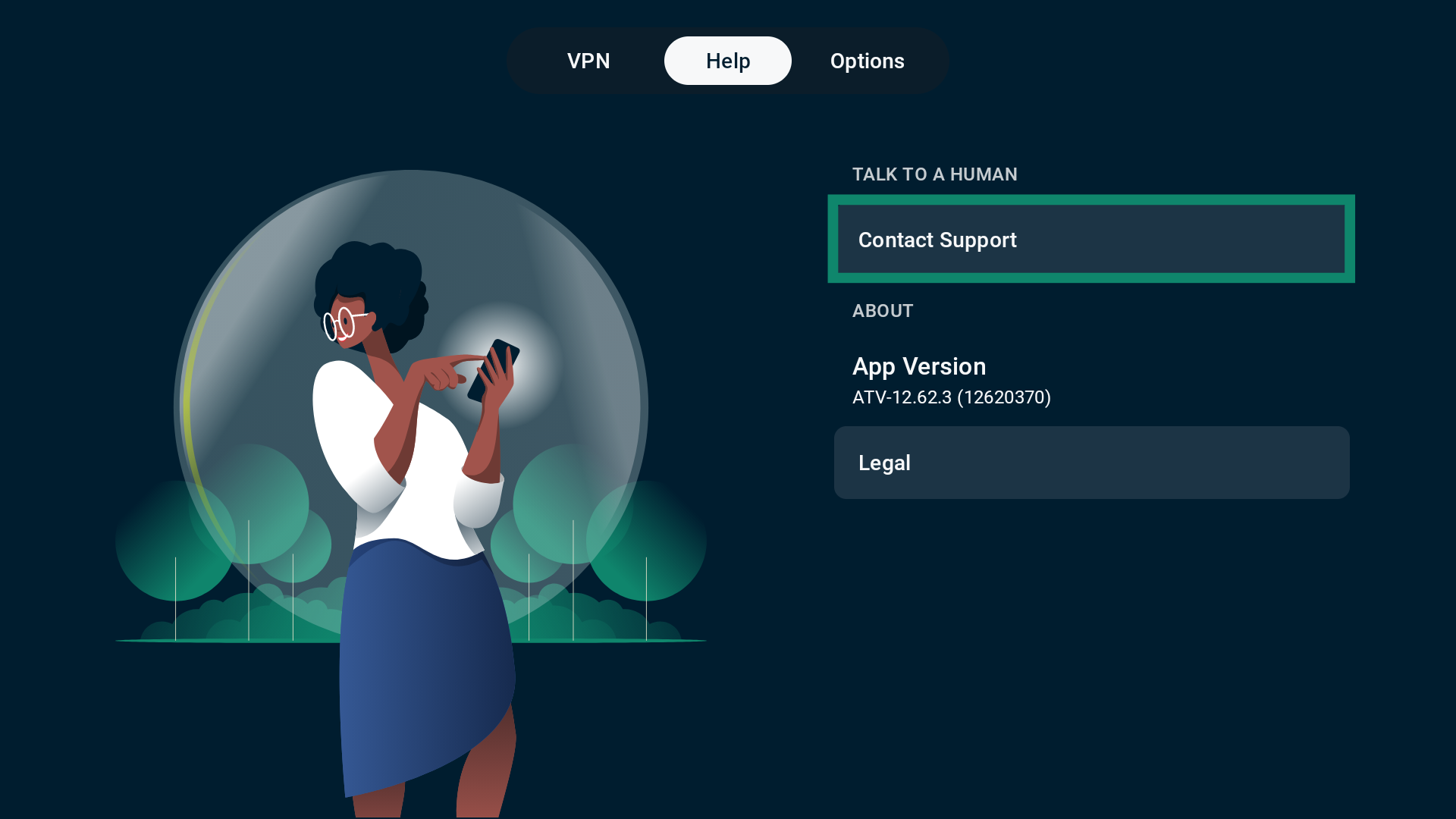
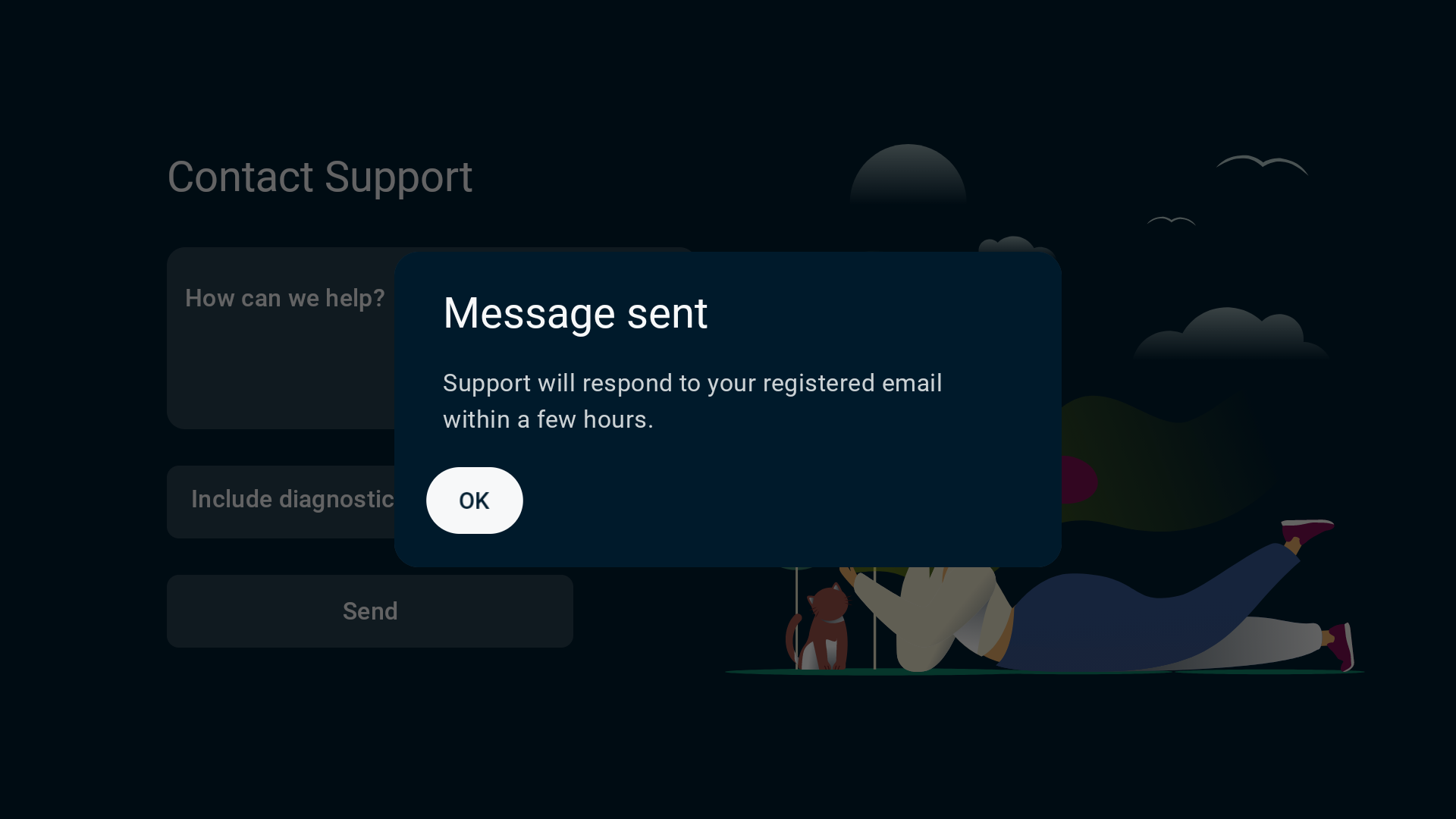
If successfully done, you will see a Message sent notification. The support team will reply to your registered email address.
Need help? Contact the ExpressVPN Support Team for immediate assistance.
Uninstall ExpressVPN from your Chromecast with Google TV
To uninstall the ExpressVPN app:
- On the home screen, scroll to the Your apps row.
- Find the ExpressVPN app and hold the Select button on your remote until a menu appears.
- Select Uninstall.
Need help? Contact the ExpressVPN Support Team for immediate assistance.