






This guide will show you how to fix an issue where Android Auto may show an error message while your Android device is connected to the ExpressVPN app for Android.
To fix the issue, you can use split tunneling to exclude Android Auto from the VPN connection:
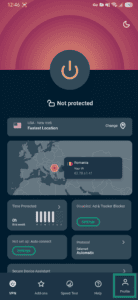
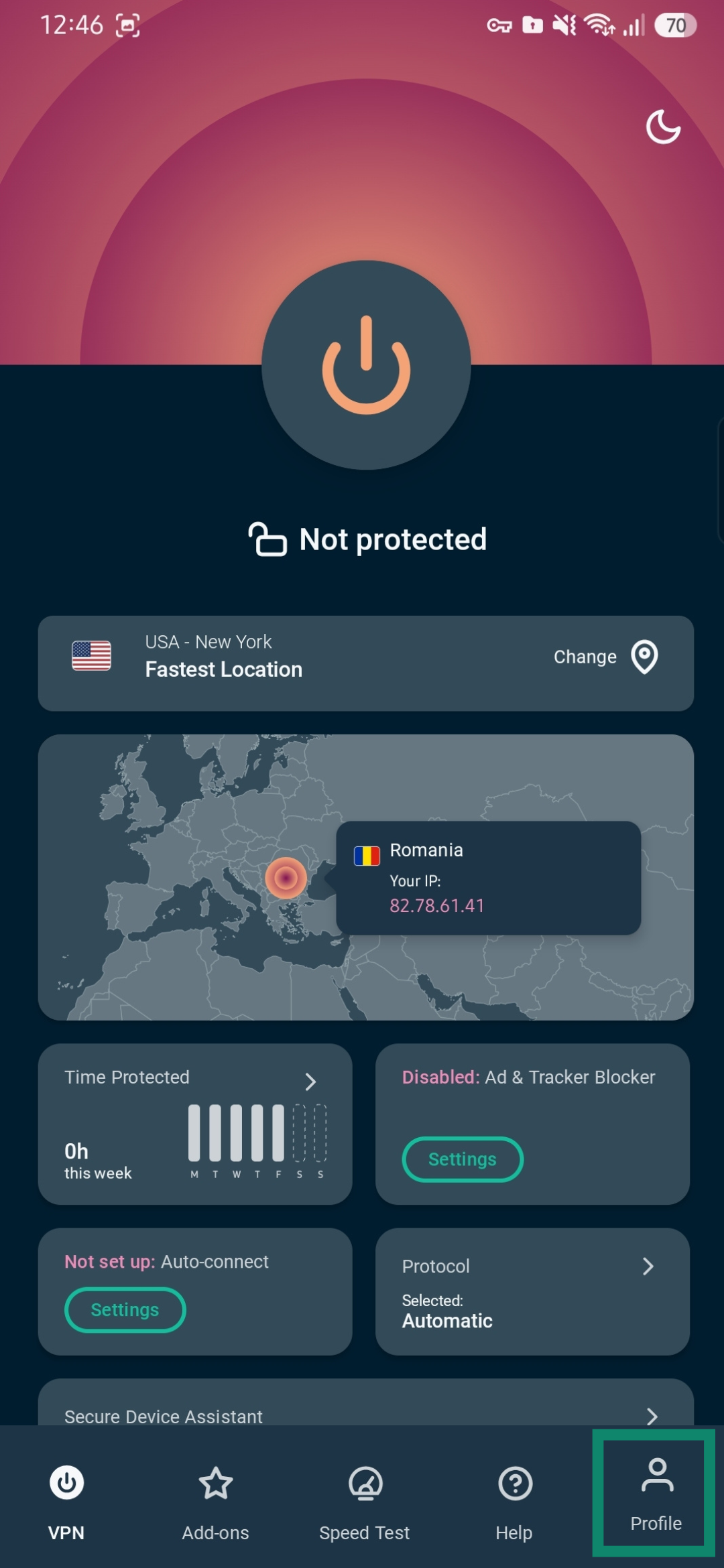
- Open the ExpressVPN for Android and tap Profile.

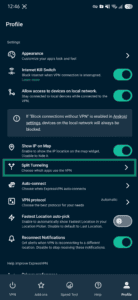
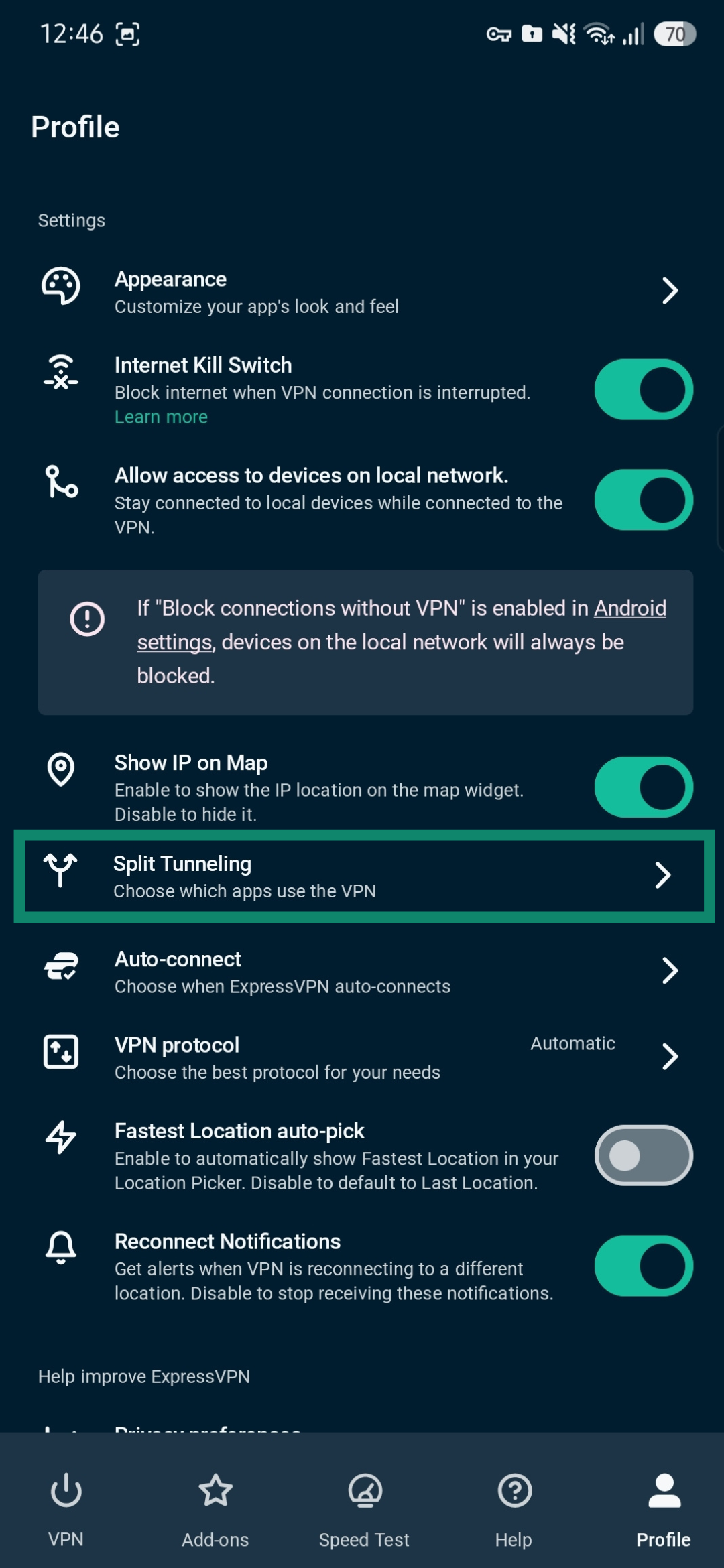
- Tap Split Tunneling.
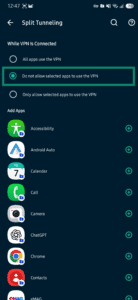
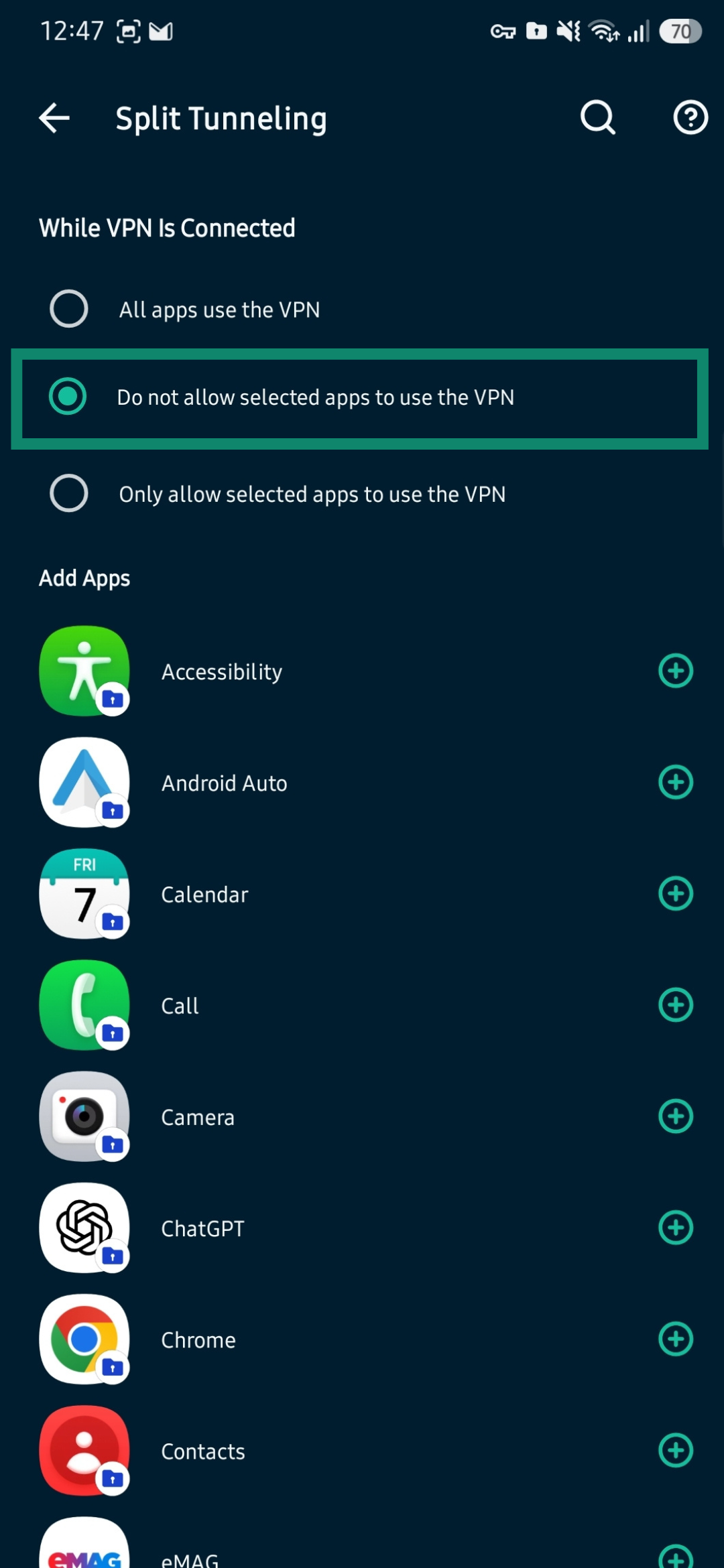
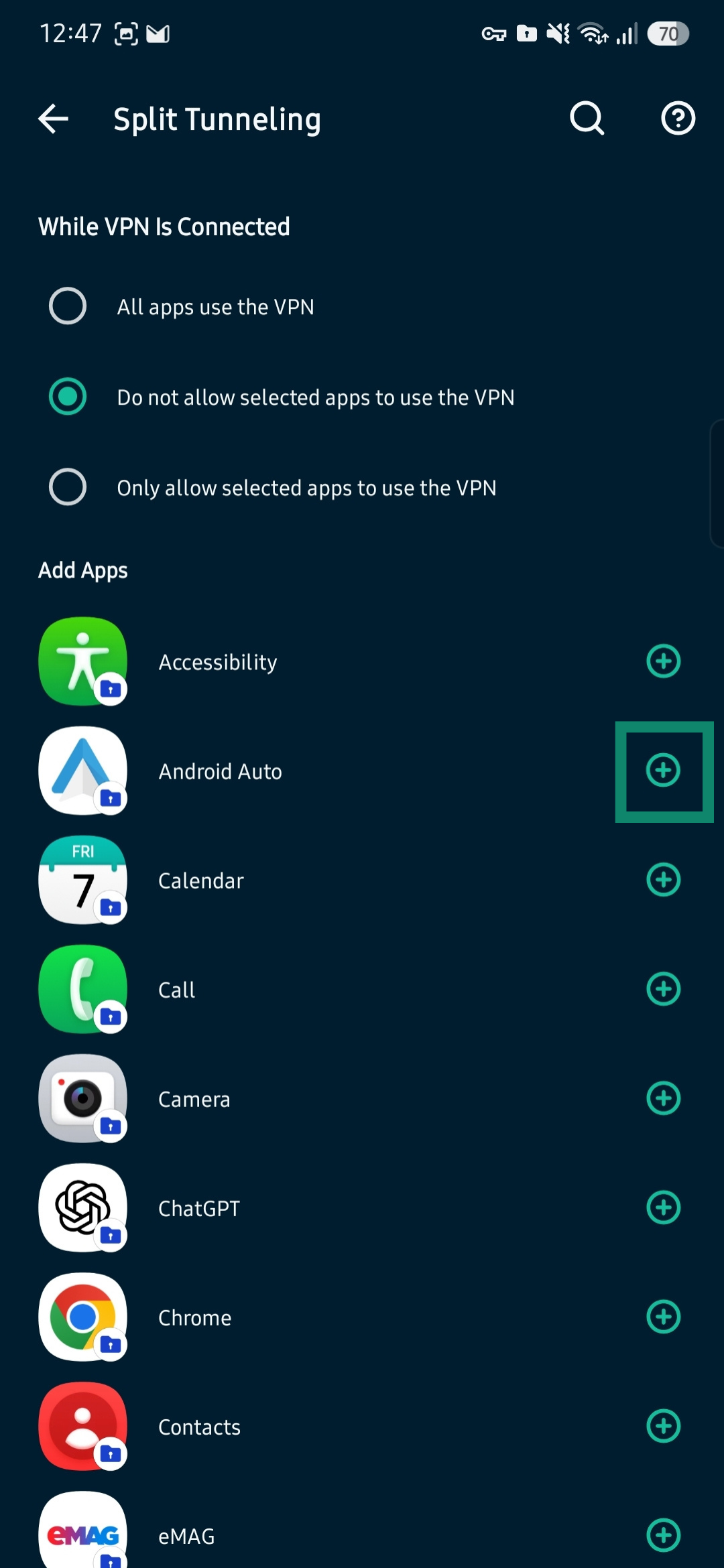
- Under While VPN Is Connected, tap Do not allow selected apps to use the VPN.
- Find Android Auto and tap the plus button next to it.
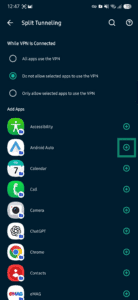
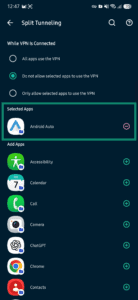
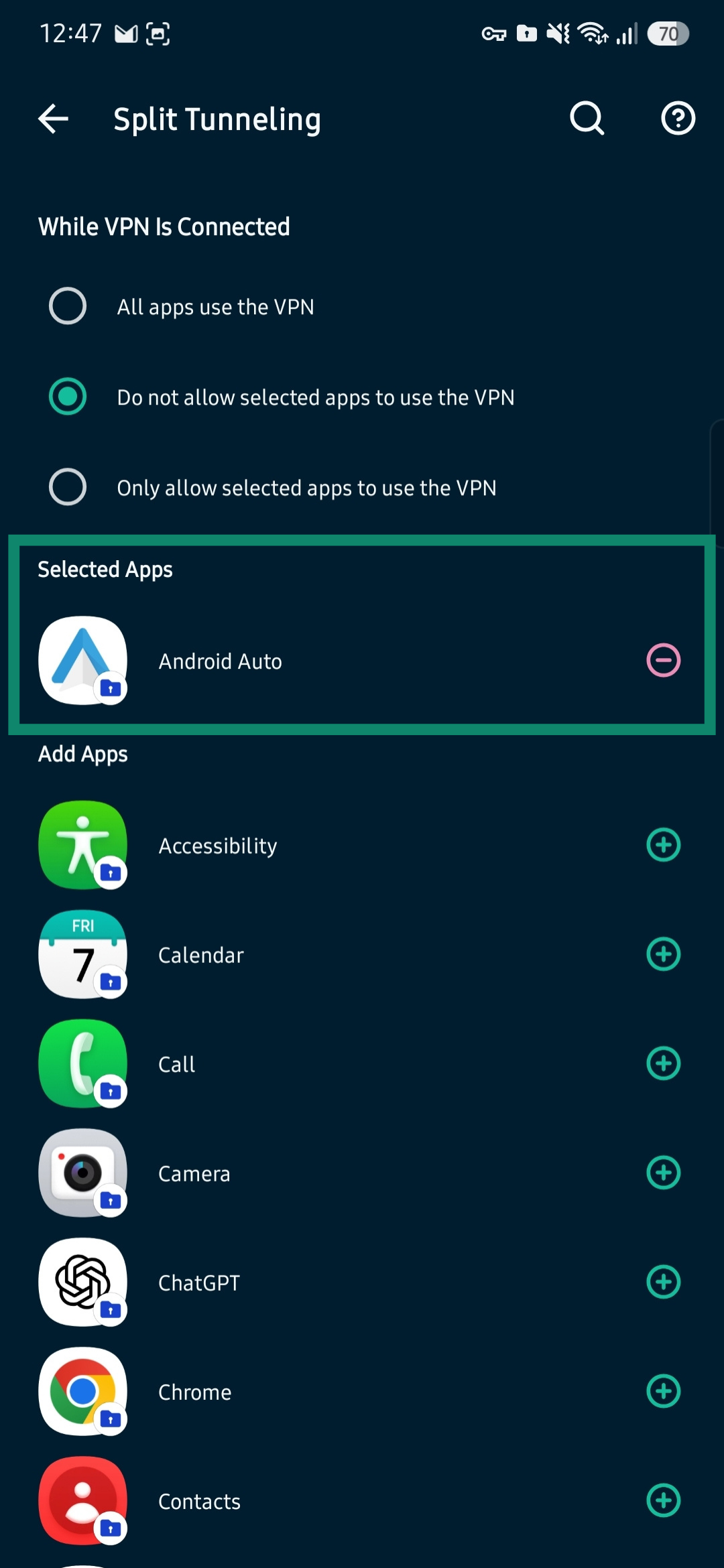
- Android Auto should appear in the Selected Apps segment with the minus sign on the right (using the minus button removes the app from the split tunneling rules).
If you are connected to the VPN, disconnect, and then reconnect to apply the changes.
If you are still seeing an error message when using Android Auto when connected to the VPN, contact the ExpressVPN Support Team for immediate assistance.