







Need a VPN or DNS for your device?
Get ExpressVPN NowOne ExpressVPN account. All devices.
Get Apps for FreeExpressVPN’s advanced protection offers additional safety and security features for you and your family. When enabled, it can block intrusive display ads, trackers, malicious sites, and adult content.
We run a DNS-based traffic blocker running on the user’s device to stop all apps and browsing sessions from communicating with third parties on our blocklists. This approach is simpler and safer than running the traffic blocker on the server side.
The full suite of advanced protection features includes an ad blocker, an adult site blocker, and a malicious sites blocker (available on all plans), as well as a tracker blocker (Advanced and Express Pro plans). It’s available on the ExpressVPN app for Android, iOS, Mac, Windows, and Linux, as well as ExpressVPN Aircove. The tracker blocker and ad blocker are also available on the ExpressVPN app for Apple TV.
Jump to…
What are the advanced protection features?
How to enable (or disable) advanced protection
What are the advanced protection features?
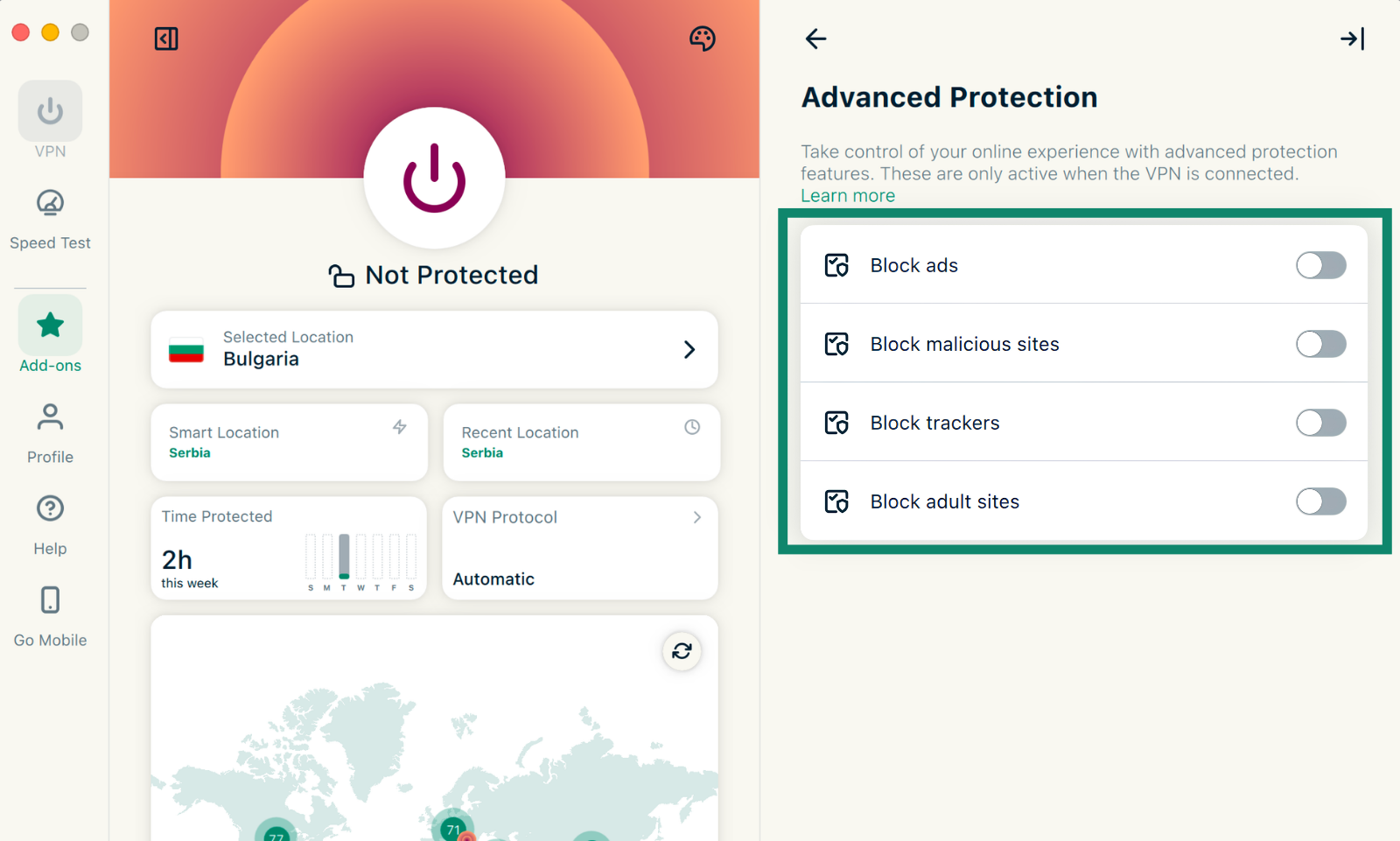
Advanced protection is a group of safety and security settings that includes a tracker and malicious site blocker, ad blocking, and parental controls.
Tracker blocker
Many of the apps and websites you visit keep records of your activity and share it with third-party companies, which may include trackers. The tracker blocker gives you more control over what companies know about you and what you do online. It prevents apps and websites you visit from tracking your online activities.
Currently, this feature is available within the ExpressVPN apps for Android, iOS, Windows, Mac, Apple TV, and Linux, as well as Aircove.
Malicious sites blocker
Some apps and websites may expose you to malware and phishing domains. The malicious site blocker protects you from spyware and phishing sites by blocking known malicious websites before they can load.
This feature is available within the ExpressVPN apps for Android, iOS, Windows, Mac, and Linux, as well as Aircove.
Ad blocker
Ad blocker prevents most display ads from being shown to you when browsing the web.
Currently, it’s available within the ExpressVPN apps for Android, iOS, Mac, Windows, Apple TV, and Linux, as well as Aircove.
Parental controls (adult site blocker)
With ExpressVPN’s parental controls, you can prevent anyone, including your children, from accessing most adult sites.
Our adult site blocklist is compiled from publicly available and open-source lists of known adult sites. We regularly review and update these blocklists so that you can stay protected against the latest threats.
Additionally, parental controls for Aircove enable you to block the internet at certain times. This is very helpful for reducing your child’s online time.
Parental controls are available within the ExpressVPN apps for Android, iOS, Mac, Windows, and Linux, as well as Aircove.
Need help? Contact the ExpressVPN Support Team for immediate assistance.
How to enable (or disable) advanced protection features
Advanced protection features are disabled by default. To enable them, follow the instructions corresponding to your device:
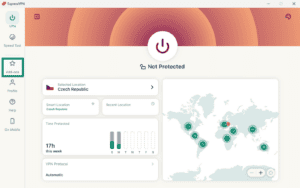
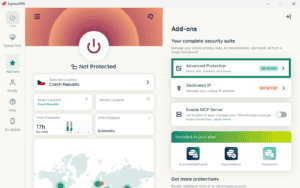
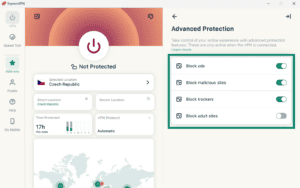
Advanced protection features are disabled by default. To enable advanced protection features:
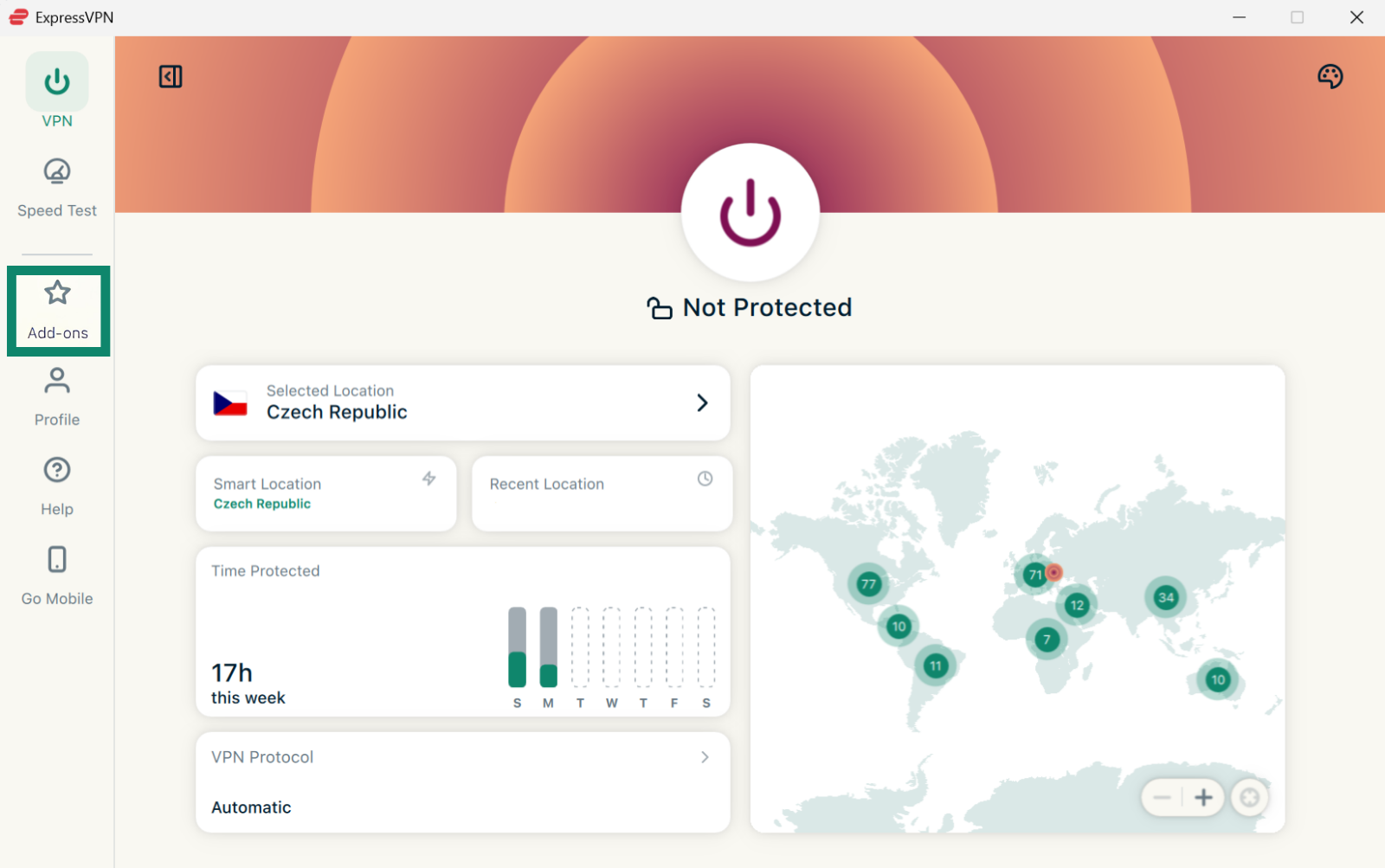
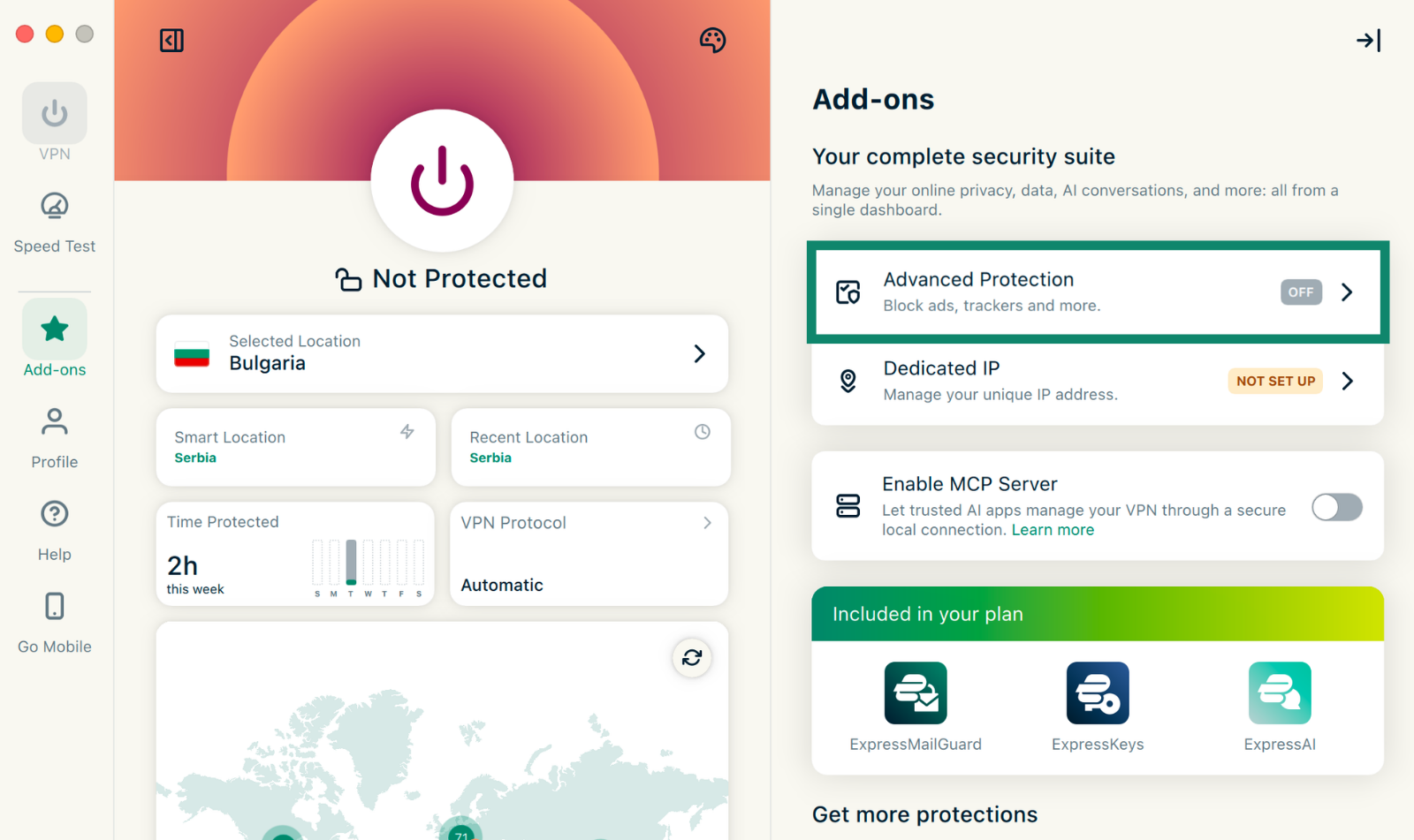
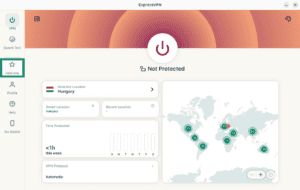
- Click Add-ons.

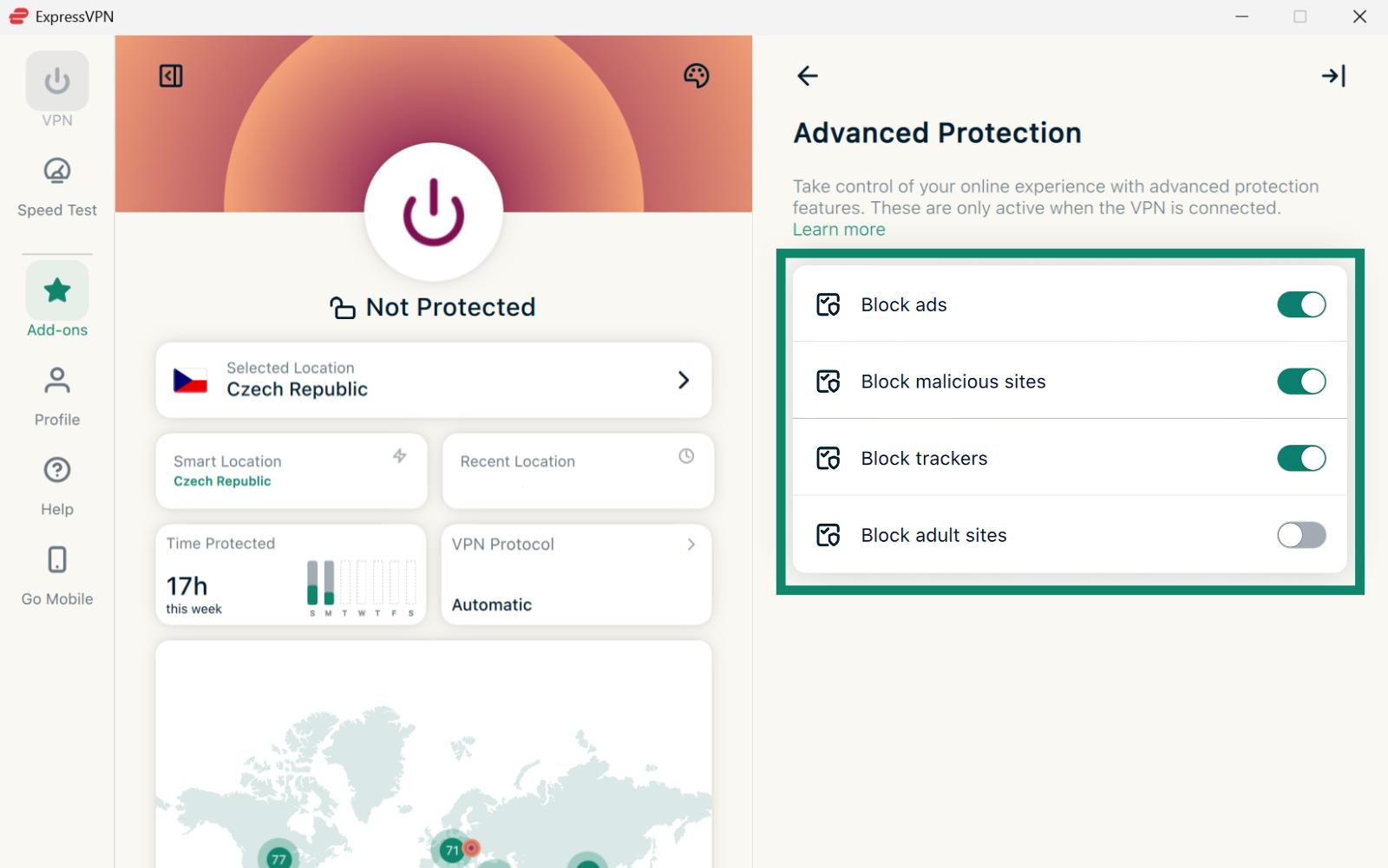
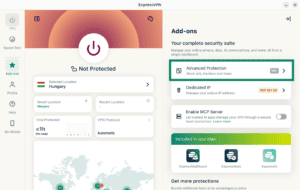
- Click Advanced Protection.

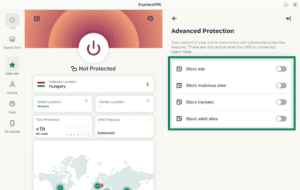
- Under Advanced Protection, toggle on/off the features to fit your needs.
- Reconnect to the VPN to apply the changes.
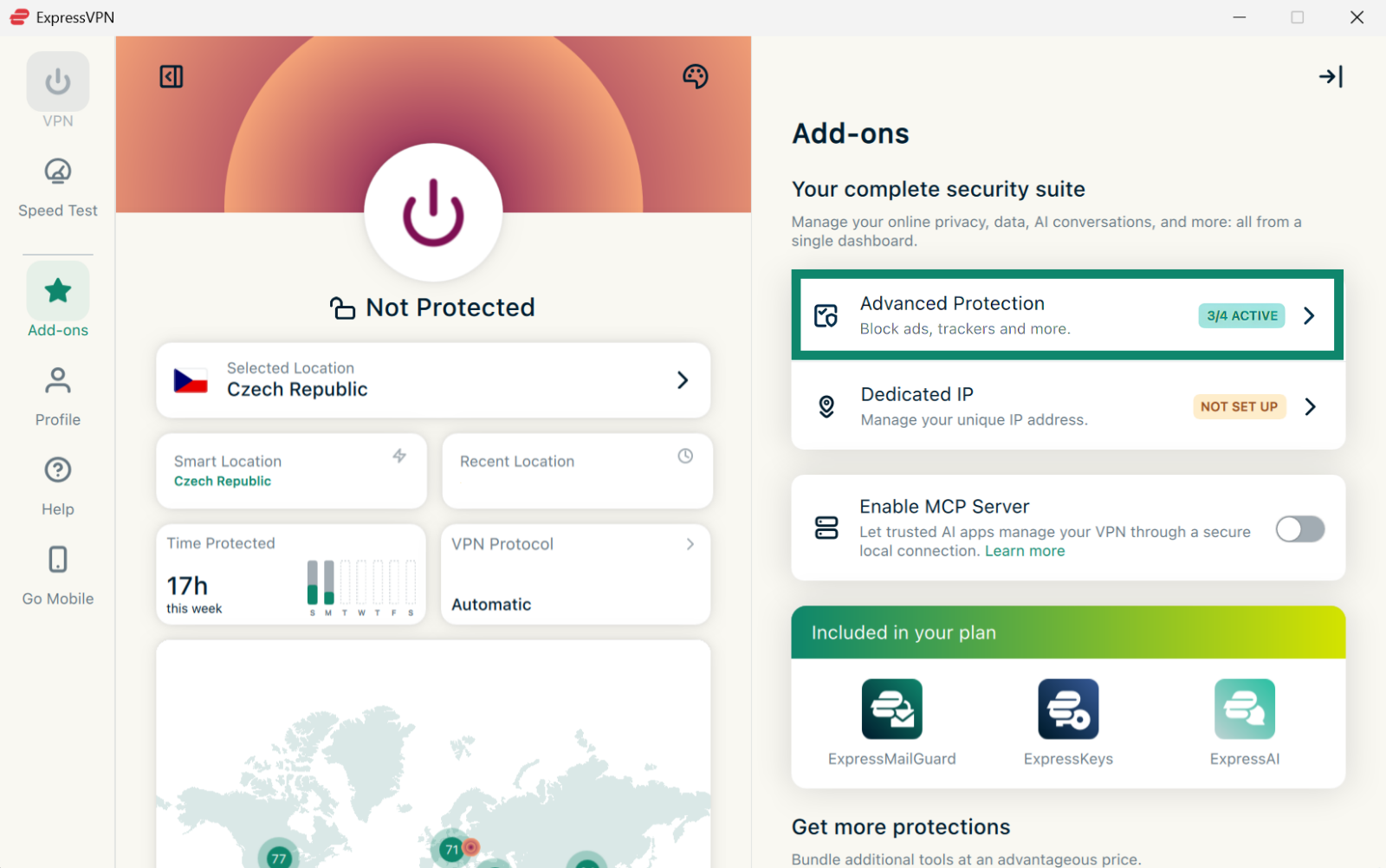
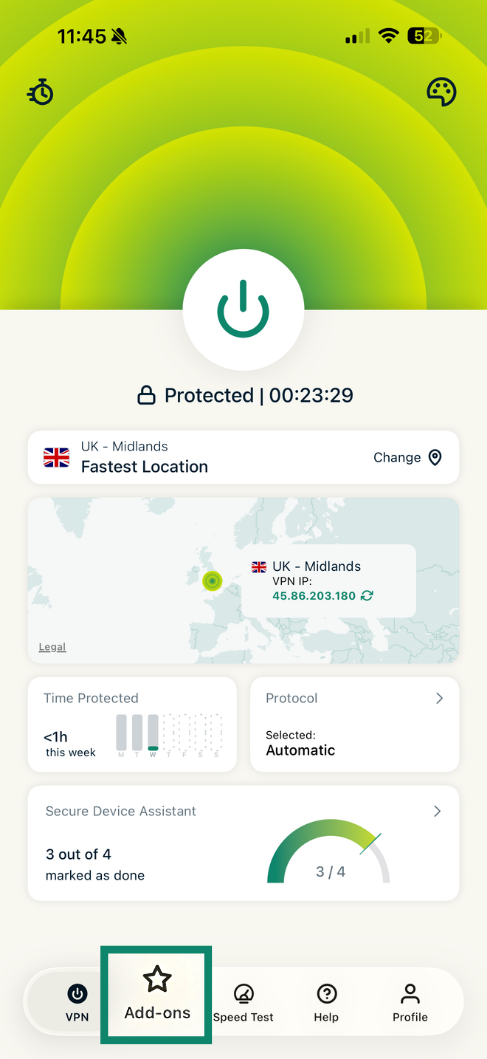
- Connect to the VPN.
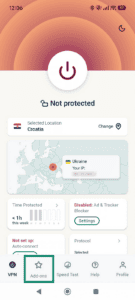
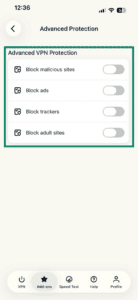
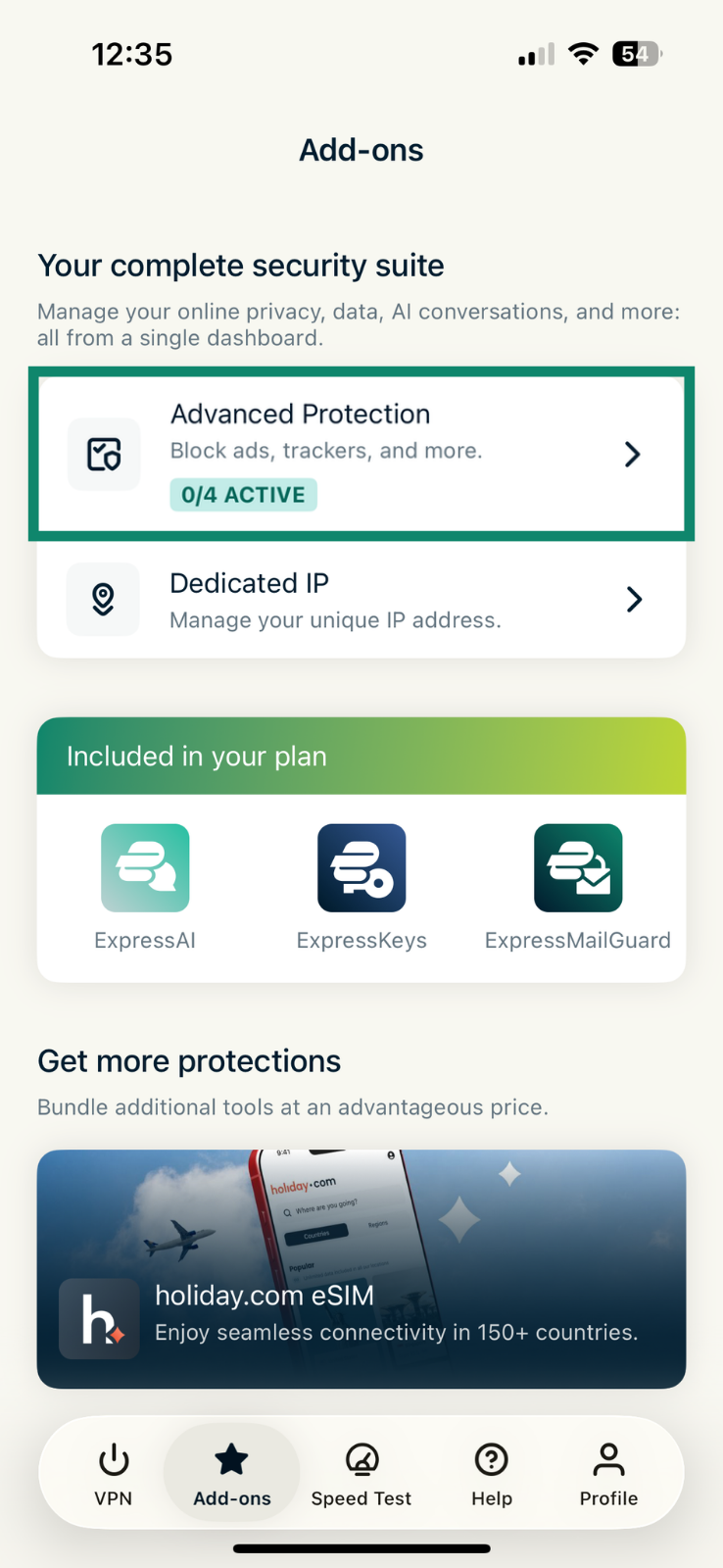
- Tap Add-ons.

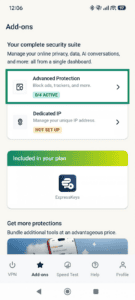
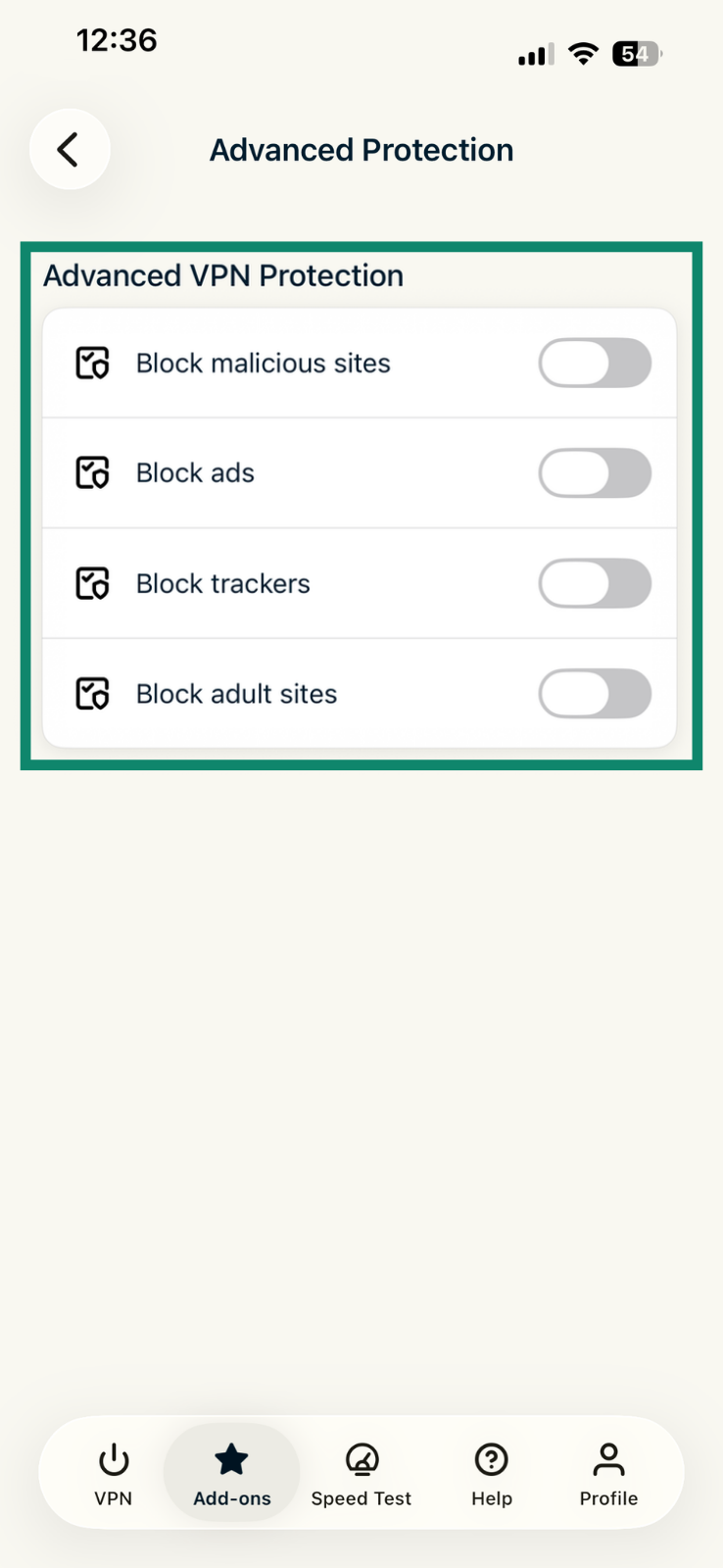
- Tap Advanced Protection.
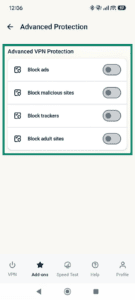
- Under Advanced Protection, toggle the settings on/off as you see fit.
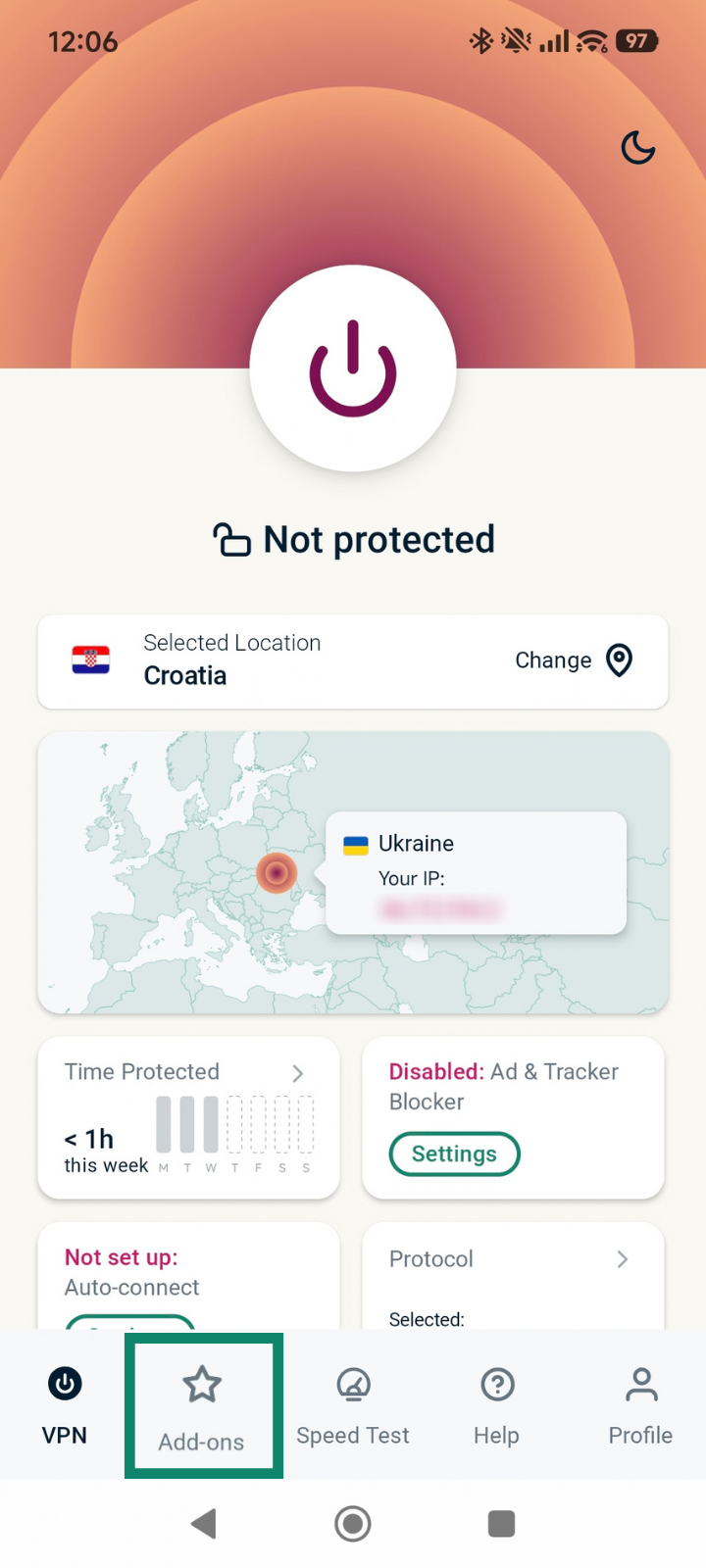
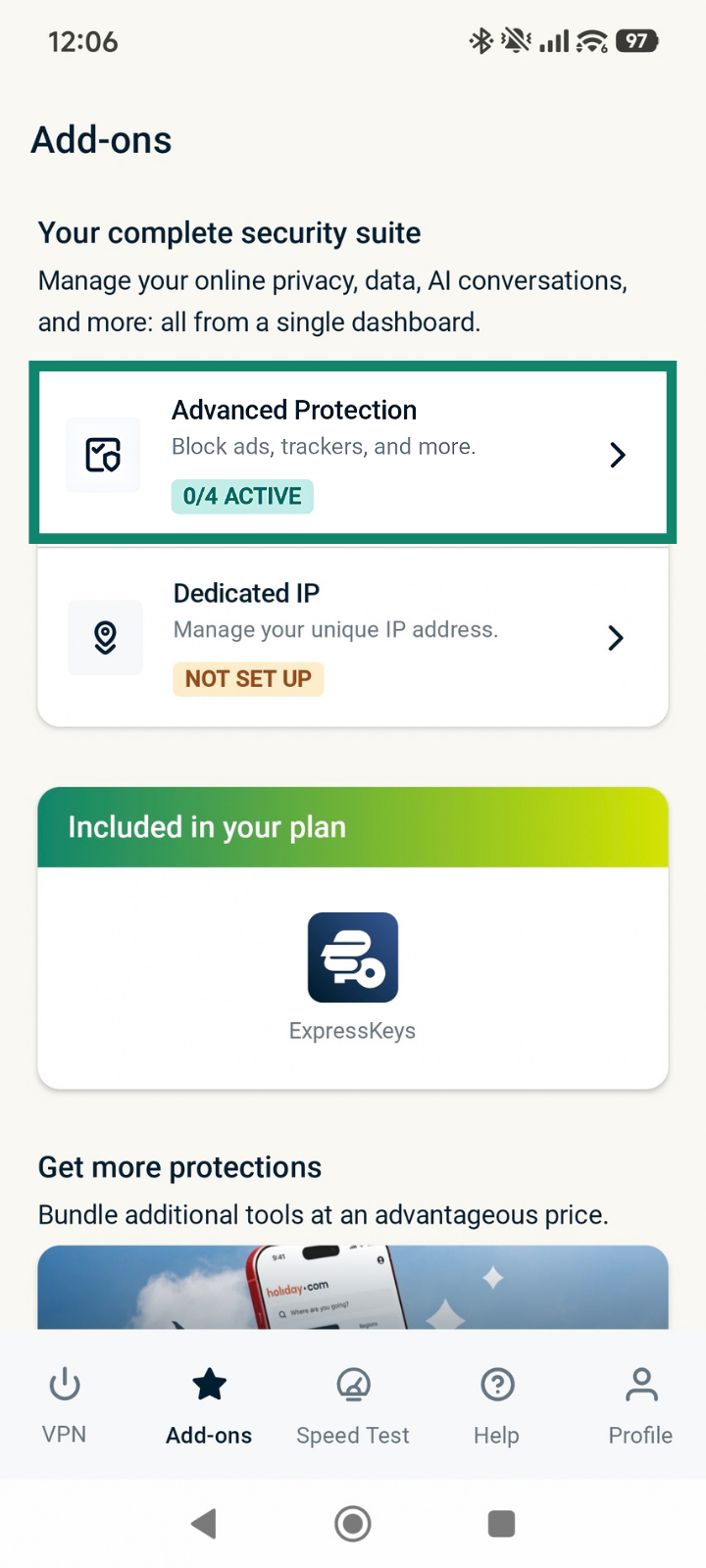
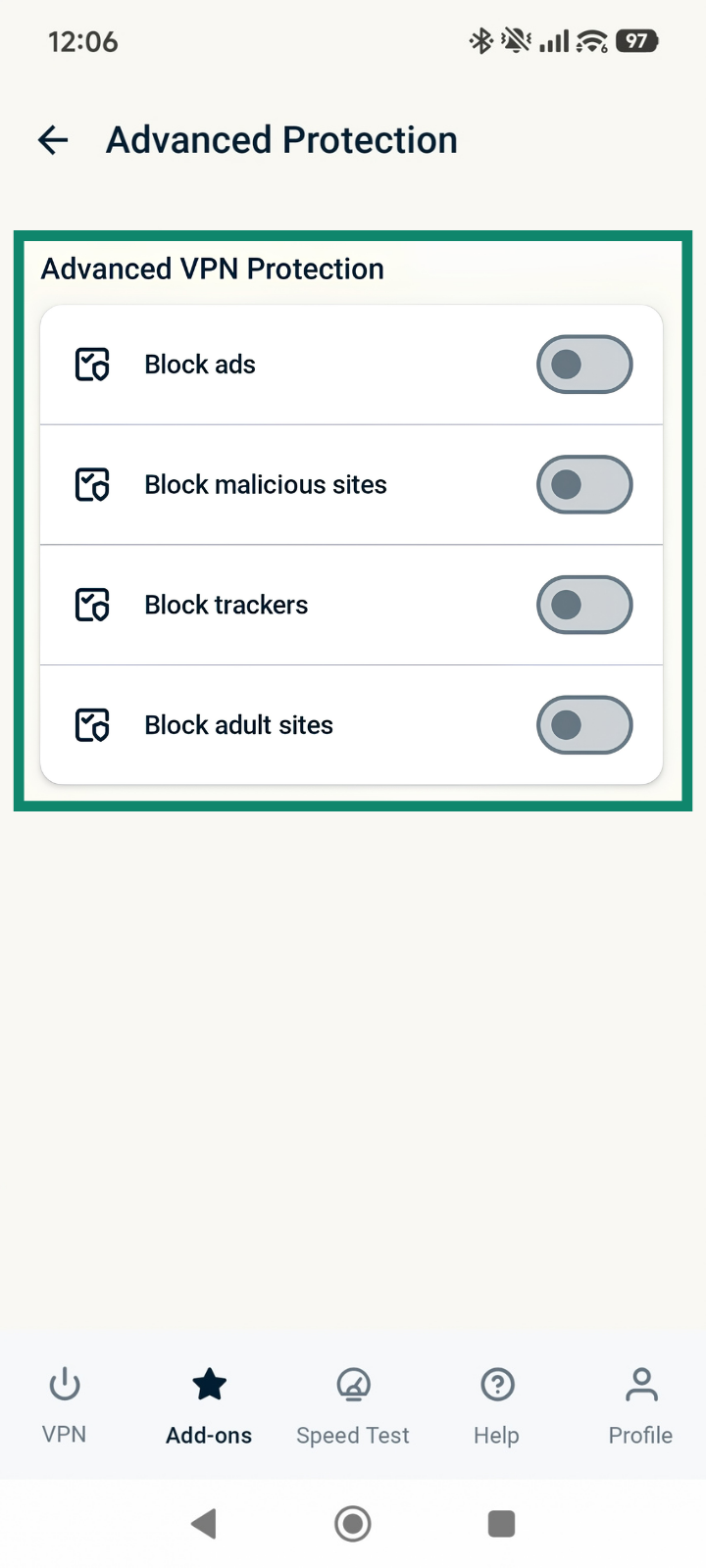
Advanced protection features are disabled by default. To enable advanced protection features:
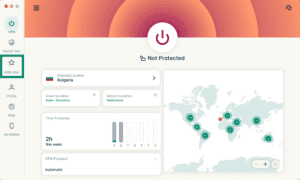
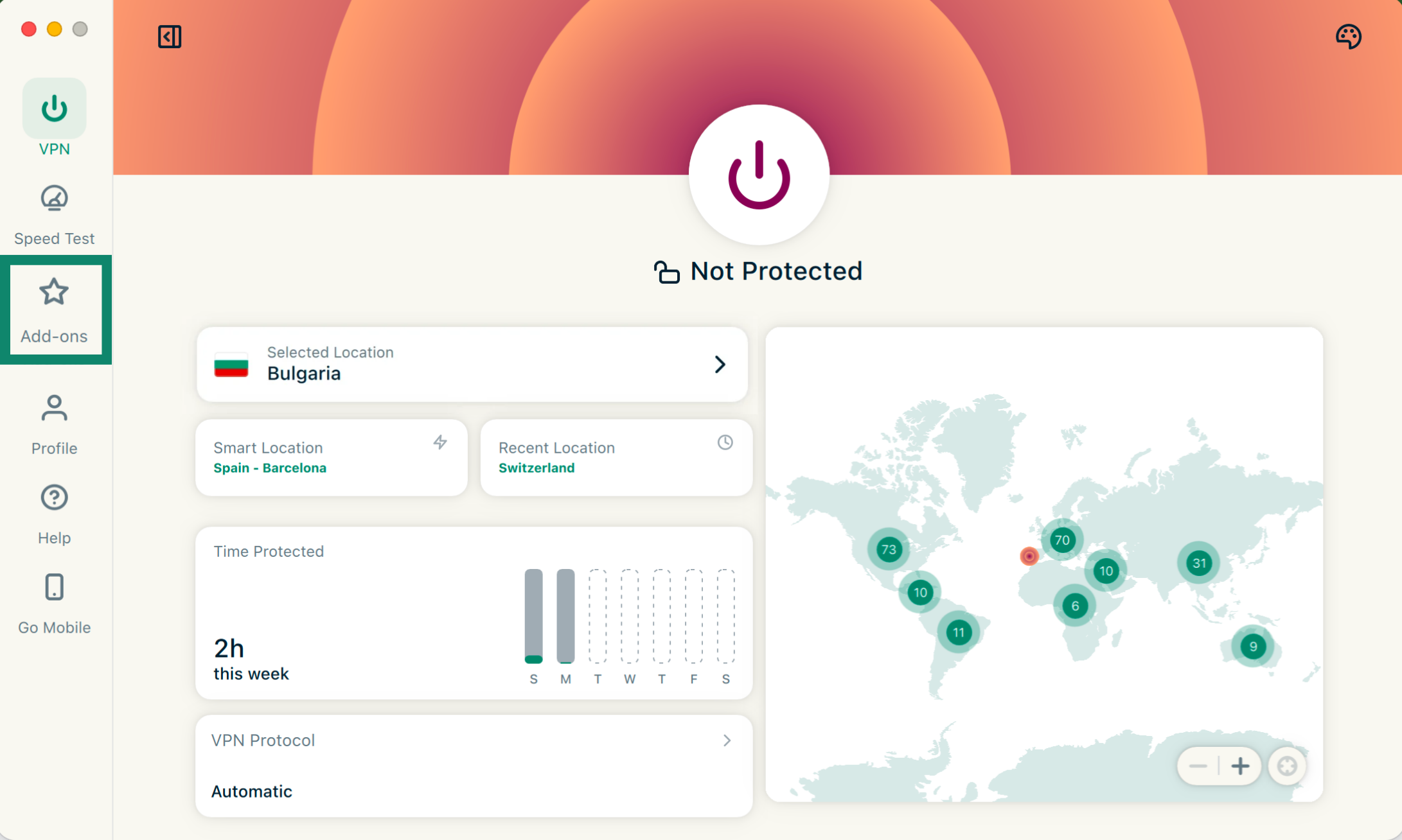
- Click Add-ons.

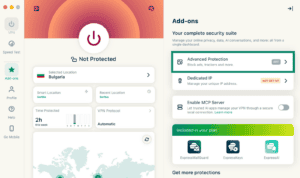
- Click Advanced Protection.

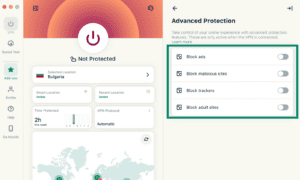
- Under Advanced Protection, toggle on/off the features to fit your needs.
- Reconnect to the VPN to apply the changes.
- Connect to the VPN using any protocol except IKEv2.
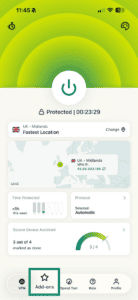
- Tap Add-ons.

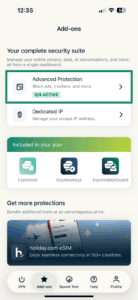
- Tap Advanced Protection.

- Under Advanced Protection, toggle the settings on/off as you see fit.
- In a device group, select

 .
. - Select Advanced Protection.
- Toggle the settings on or off.
- Select Save.
- Connect to the VPN using the Automatic or Lightway protocol.
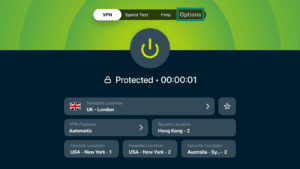
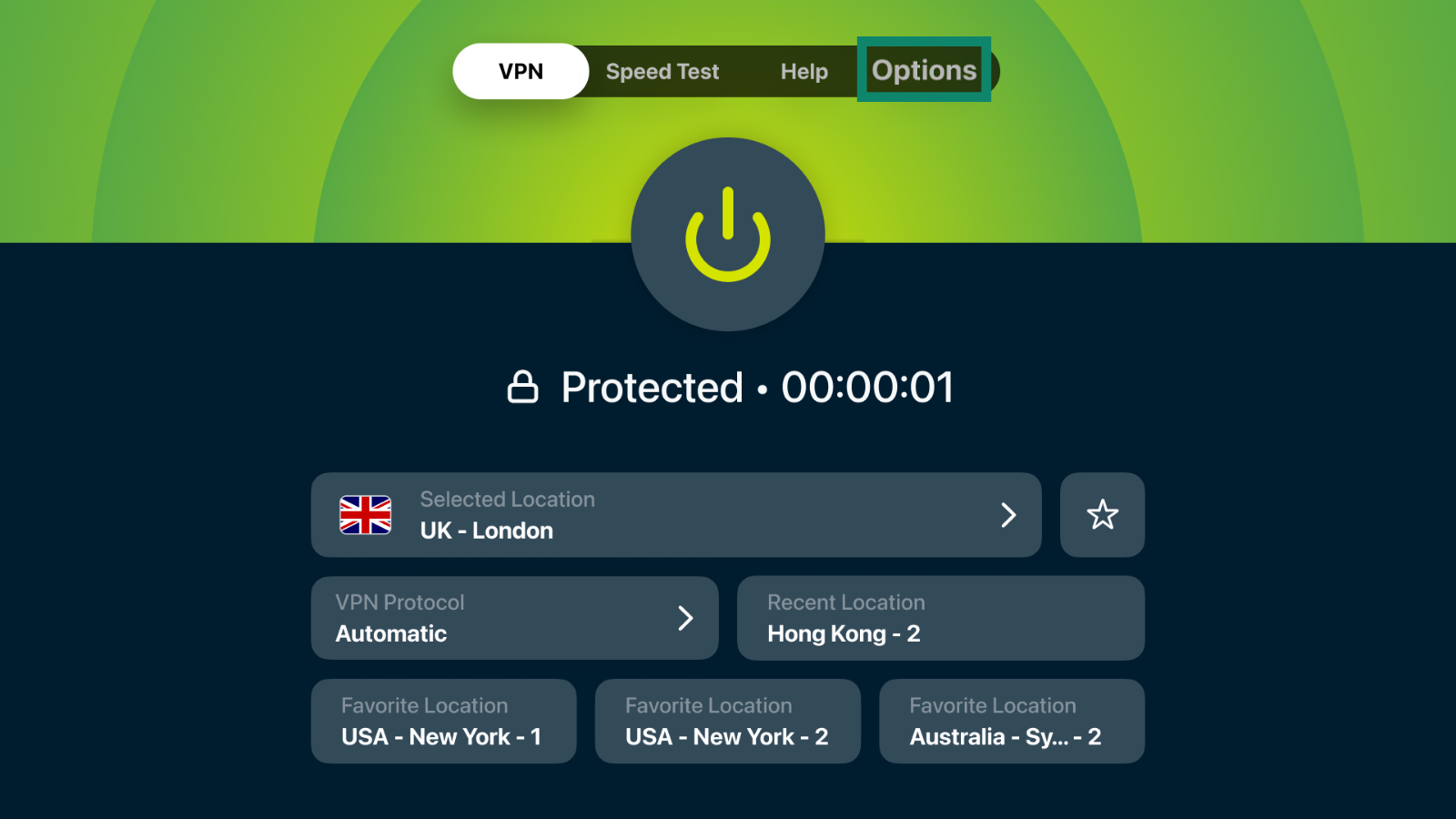
- Go to Options.

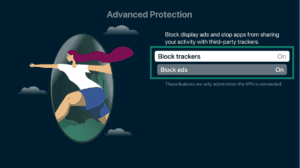
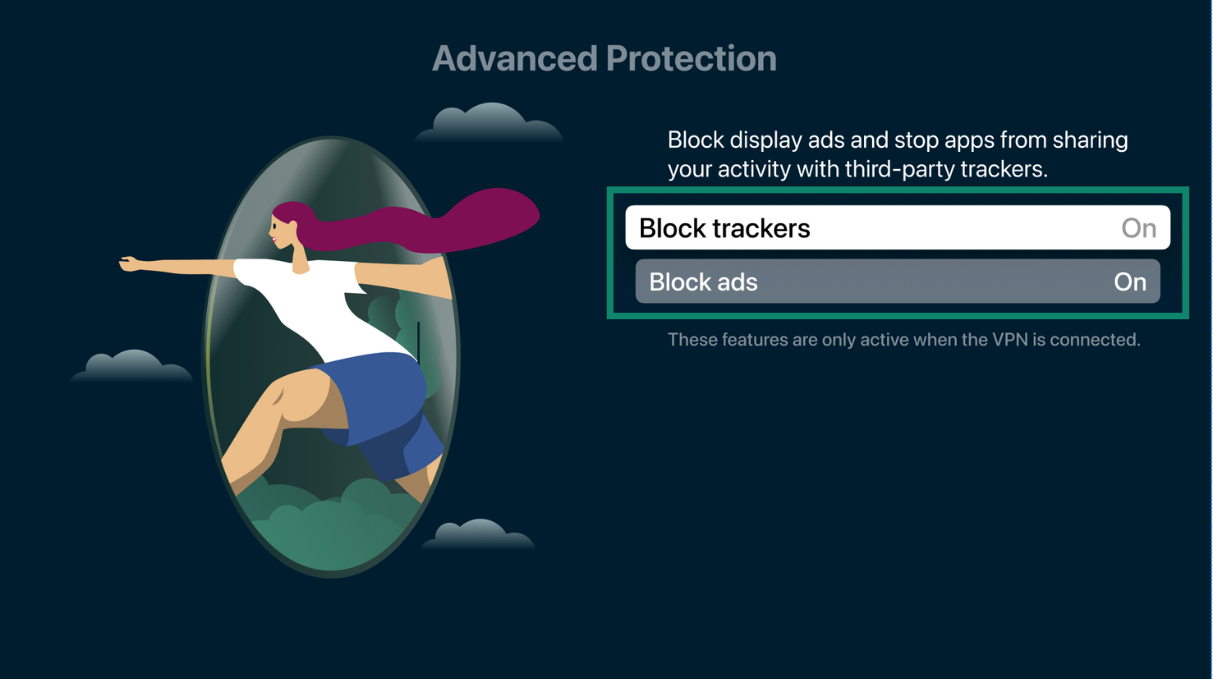
- Select Advanced Protection.


- Turn on the advanced protection features to suit your needs.


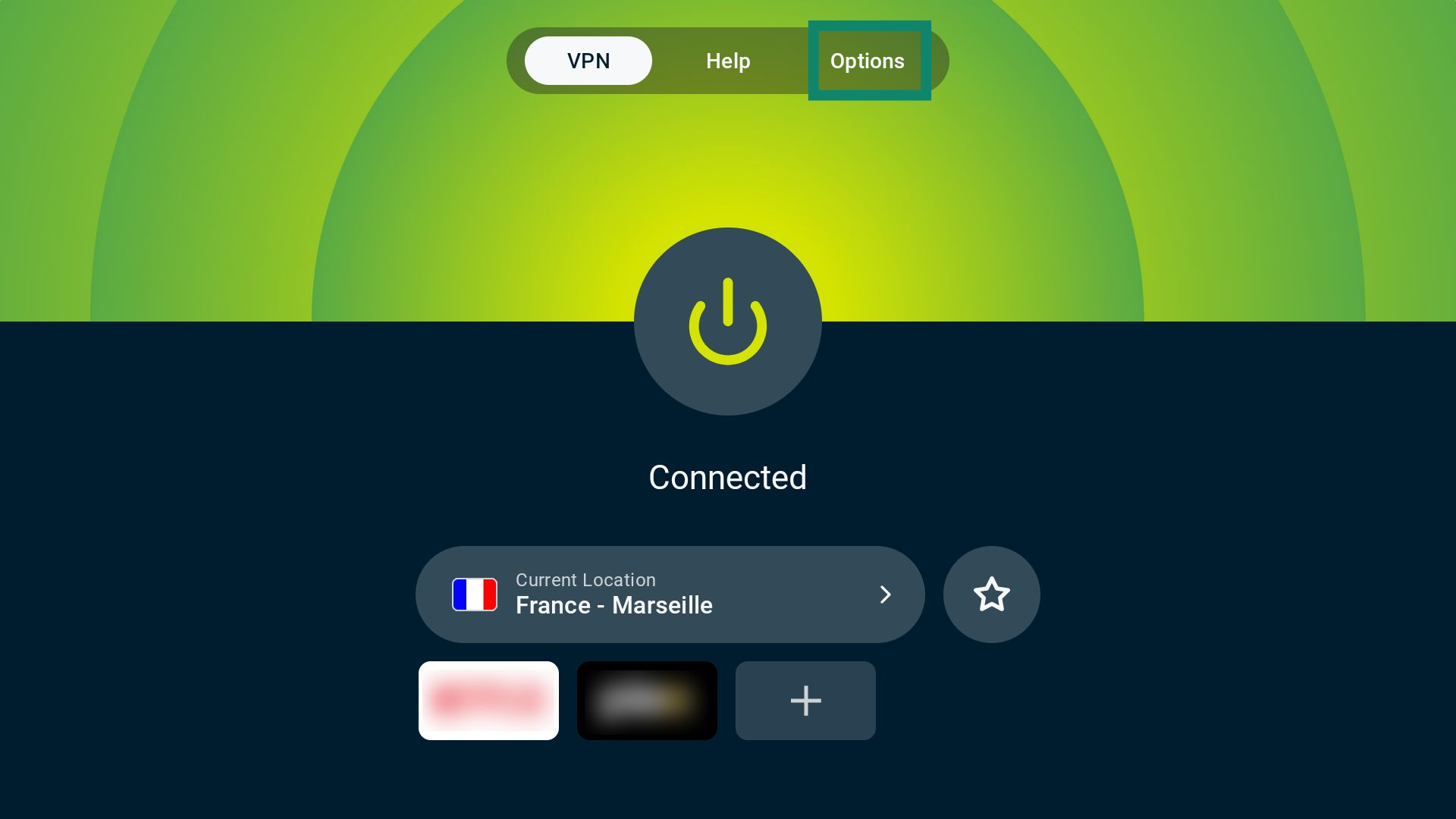
- Connect to the VPN.
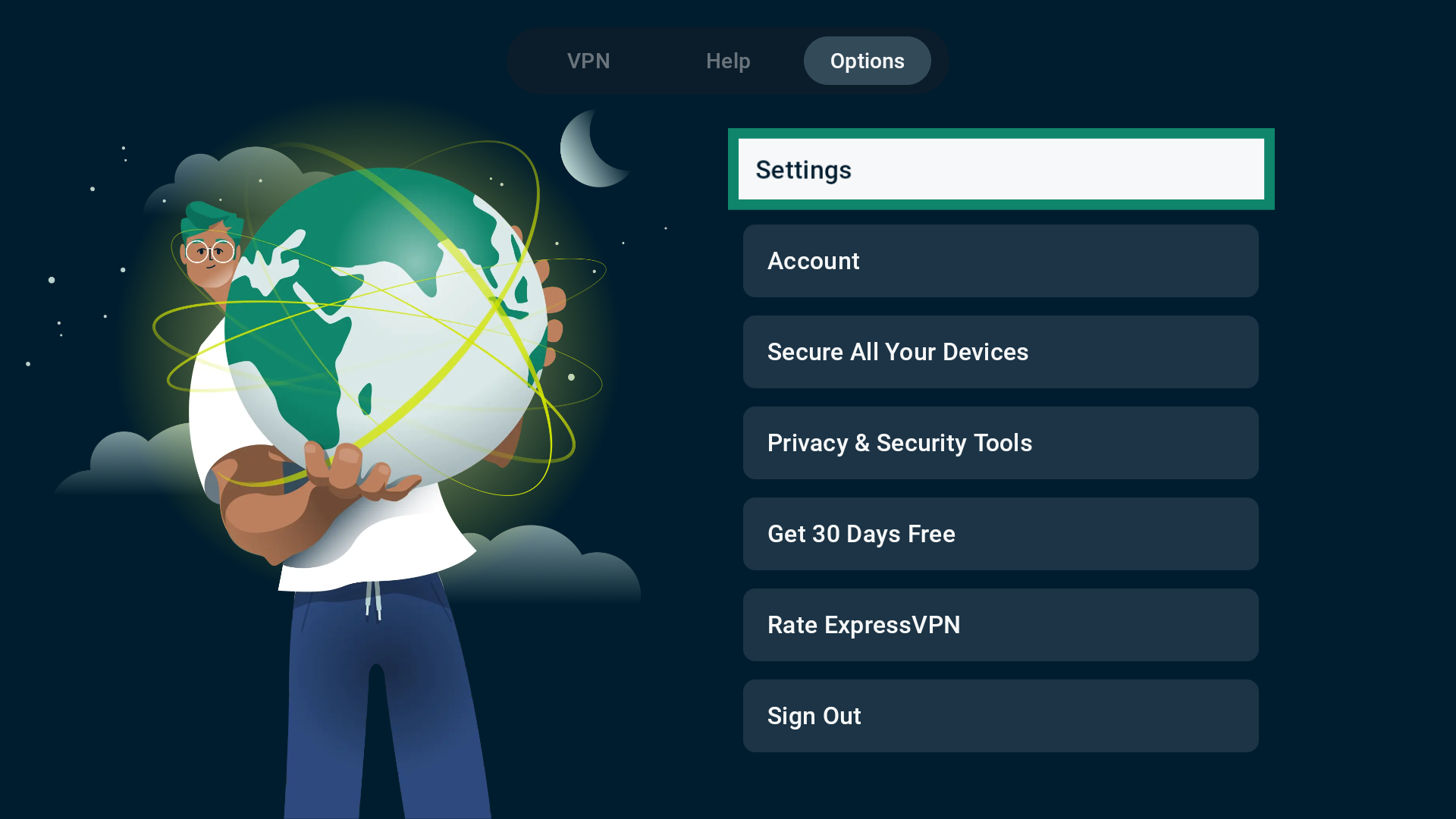
- Select Options on the main screen.
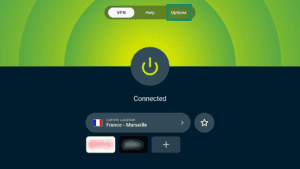
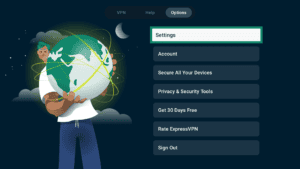
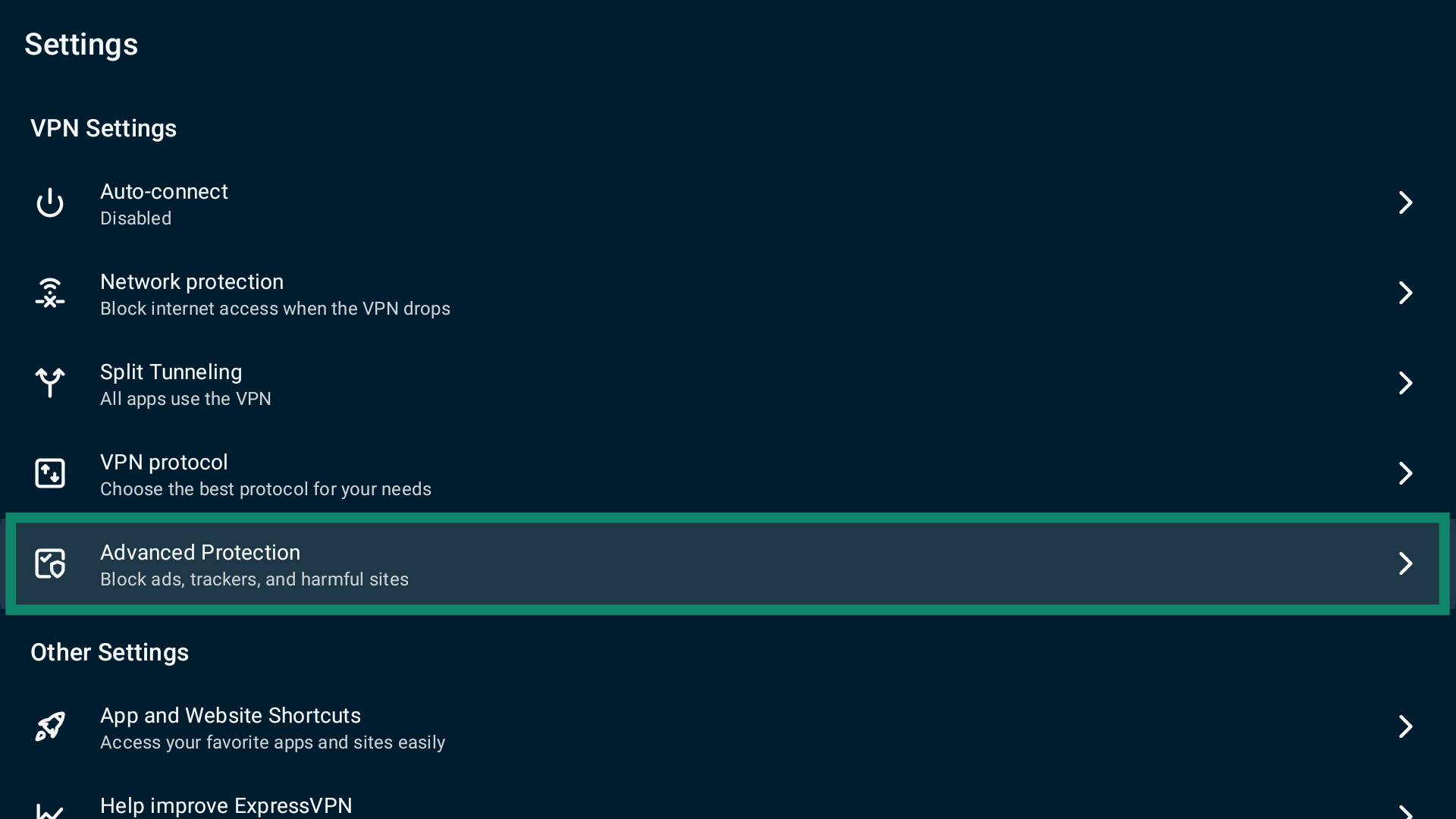
- Select Settings.
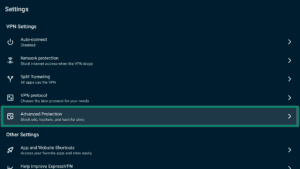
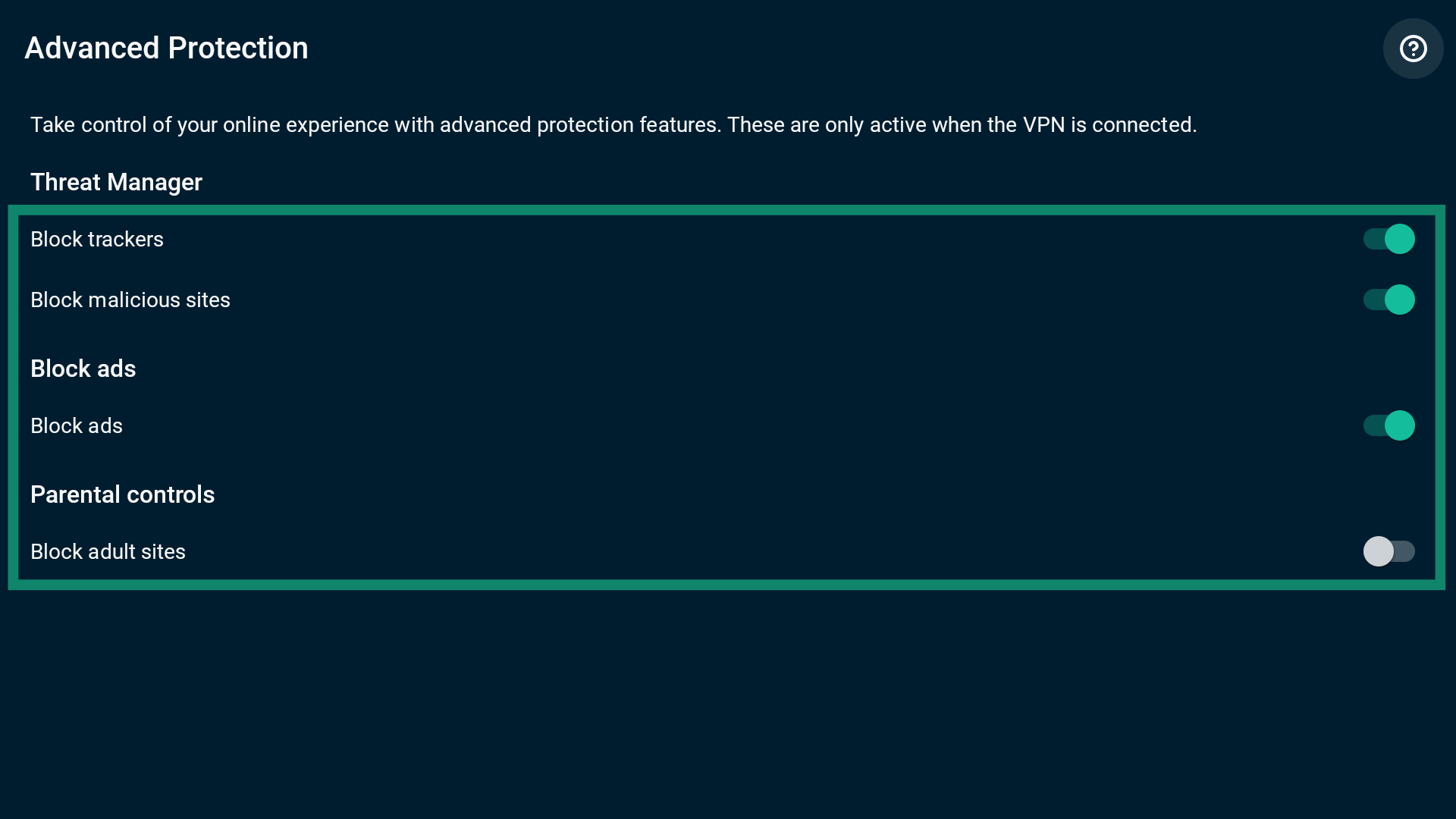
- Select Advanced Protection.
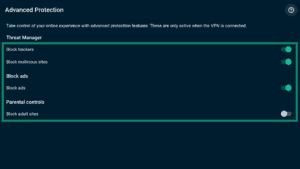
- Toggle advanced protection settings on and off as you see fit.
ExpressVPN GUI app for Linux
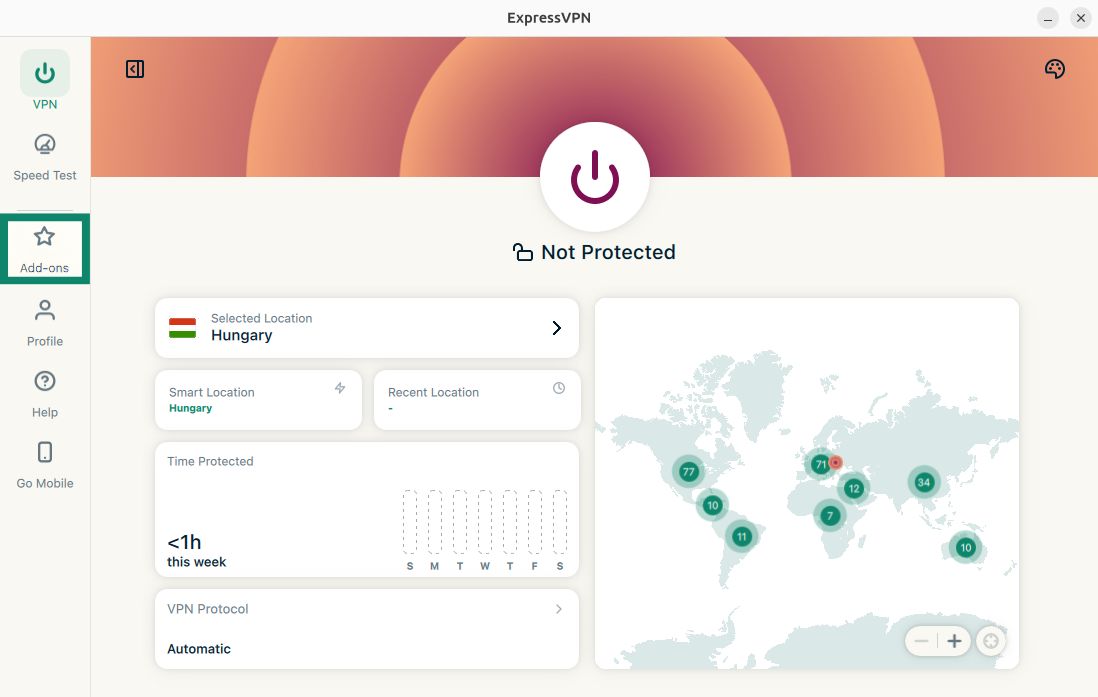
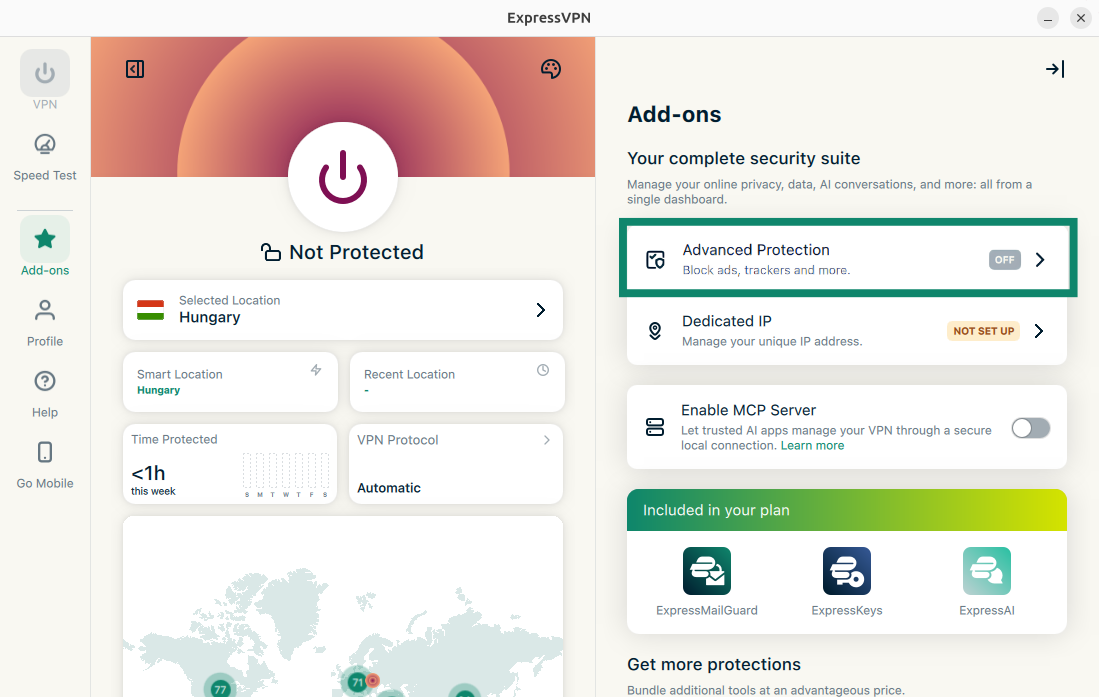
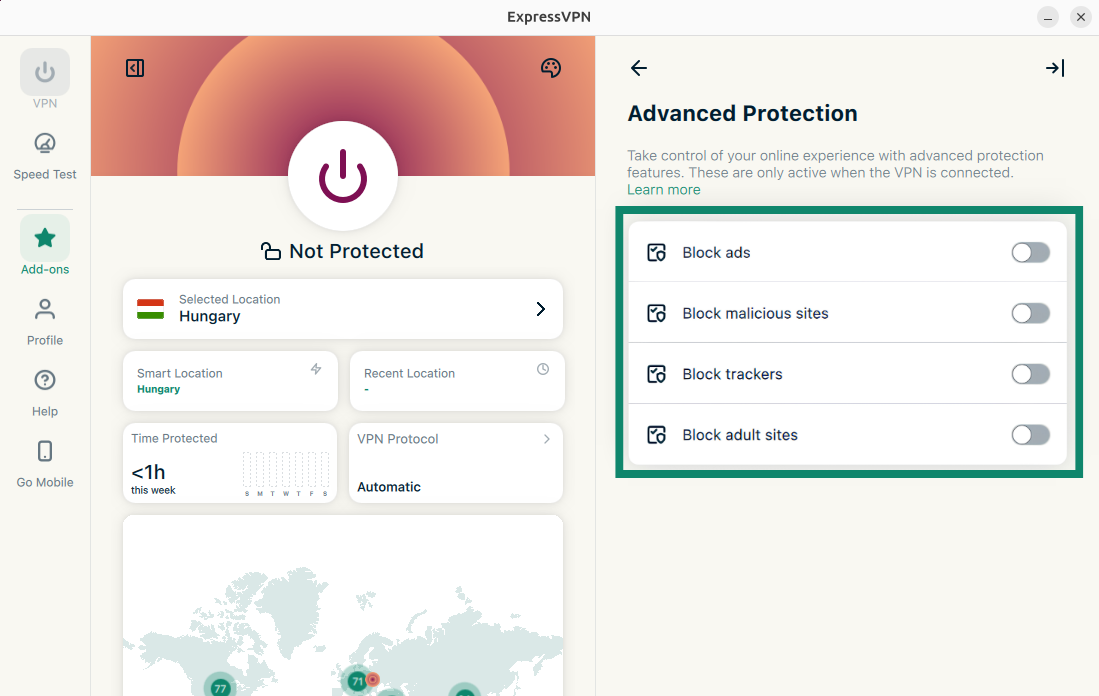
Advanced protection features are disabled by default. To enable advanced protection features:
- Click Add-ons.

- Click Advanced Protection.
- Under Advanced Protection, toggle on/off the features to fit your needs.

ExpressVPN CLI for Linux
Advanced protection features are disabled by default. To enable all advanced protection features at the same time:
- Open the Terminal window.
- Connect to the VPN.
- To enable all advanced protection features, enter the command:
expressvpnctl set blockAll trueTo disable all advanced protection features, enter the command:
expressvpnctl set blockAll false - Press Enter to confirm.
You can also enable and disable each advanced protection feature individually:
Block trackers
- Open the Terminal window.
- Make sure to connect to the VPN.
- To block trackers, enter the command:
expressvpnctl set blockTrackers true
To disable, enter the command:
expressvpnctl set blockTrackers false - Press Enter to confirm.
Block malicious sites
- Open the Terminal window.
- Make sure to connect to the VPN.
- To block malicious sites, enter the command:
expressvpnctl set blockMalicious trueTo disable, enter the command:
expressvpnctl set blockMalicious false - Press Enter to confirm.
Block ads
- Open the Terminal window.
- Make sure to connect to the VPN.
- To enable the ad blocker, enter the command:
expressvpnctl set blockAds trueTo disable, enter the command:
expressvpnctl set blockAds false - Press Enter to confirm.
Block adult sites
- Open the Terminal window.
- Make sure to connect to the VPN.
- To block adult sites, enter the command:
expressvpnctl set blockAdult trueTo disable, enter the command:
expressvpnctl set blockAdult false - Press Enter to confirm.
Legacy Linux app
To enable all advanced protection features at the same time:
- Open the Terminal window.
- Make sure to connect to the VPN and use the Automatic or Lightway protocol.
- To enable all advanced protection features, enter the command:
expressvpn preferences set block_all trueTo disable all advanced protection features, enter the command:
expressvpn preferences set block_all off - Press Enter to confirm.
You can also enable and disable each advanced protection feature individually:
Block trackers
- Open the Terminal window.
- Make sure to connect to the VPN and use the Automatic or Lightway protocol.
- To block trackers, enter the command:
expressvpn preferences set block_trackers true
To disable, enter the command:
expressvpn preferences set block_trackers off - Press Enter to confirm.
Block malicious sites
- Open the Terminal window.
- Make sure to connect to the VPN and use the Automatic or Lightway protocol.
- To block malicious sites, enter the command:
expressvpn preferences set block_malicious trueTo disable, enter the command:
expressvpn preferences set block_malicious off - Press Enter to confirm.
Block ads
- Open the Terminal window.
- Make sure to connect to the VPN and use the Automatic or Lightway protocol.
- To enable the ad blocker, enter the command:
expressvpn preferences set block_ads trueTo disable, enter the command:
expressvpn preferences set block_ads off - Press Enter to confirm.
Block adult sites
- Open the Terminal window.
- Make sure to connect to the VPN and use the Automatic or Lightway protocol.
- To block adult sites, enter the command:
expressvpn preferences set block_adult trueTo disable, enter the command:
expressvpn preferences set block_adult off - Press Enter to confirm.