




Need a VPN or DNS for your device?
Get ExpressVPN Now
One ExpressVPN account. All devices.
Get Apps for FreeThis tutorial will show you how to set up MediaStreamer on PlayStation 5.
MediaStreamer is a DNS service designed to improve your streaming experience. Since PlayStation 5 does not natively support a VPN, you can use MediaStreamer as an alternative for streaming.
Note: MediaStreamer is not a VPN and does not offer the privacy and security benefits of a VPN. MediaStreamer does not have a graphical user interface. You cannot change locations on MediaStreamer.
Before you start, you will need:
- An active ExpressVPN subscription
- The streaming service’s subscription
- The streaming app on your PlayStation 5 (Certain streaming apps are only available in certain regions. To download them, you will need to change the region of your PlayStation account.)
Jump to…
1. Register your IP address on the ExpressVPN website
2. Get your MediaStreamer IP addresses
3. Configure the DNS server on your PlayStation 5
Restore DNS settings
1. Register your IP address on the ExpressVPN website
- Log into the ExpressVPN+ portal.
- Select ExpressVPN > DNS Settings in the left-hand side menu.


- Under IP address registration, click Register my IP address. If it already reads “registered” next to your IP address, there is no need to select this option again.


- Toggle Automatically register my IP address on. This is recommended as it automatically tracks changes to your IP address.

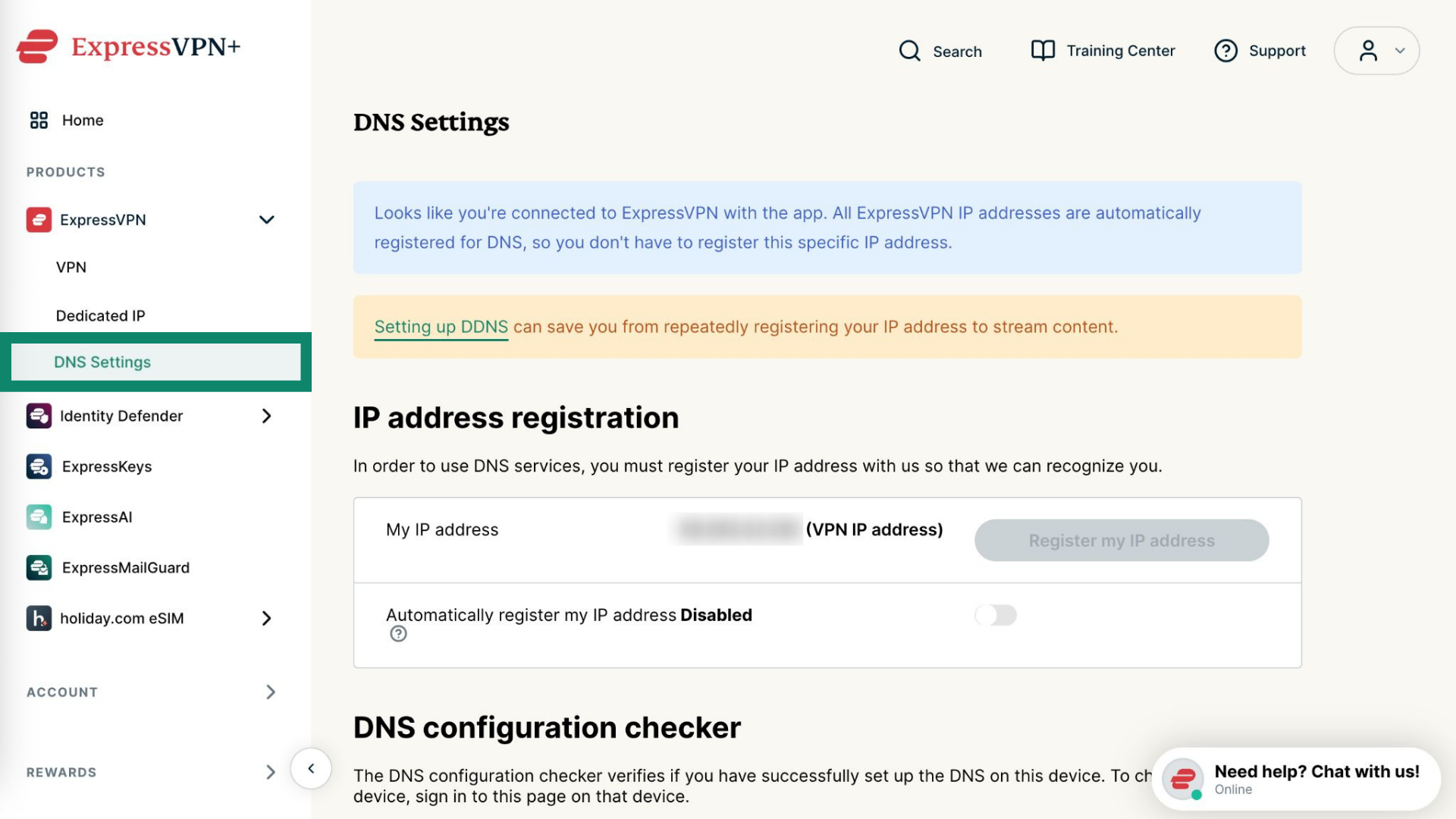
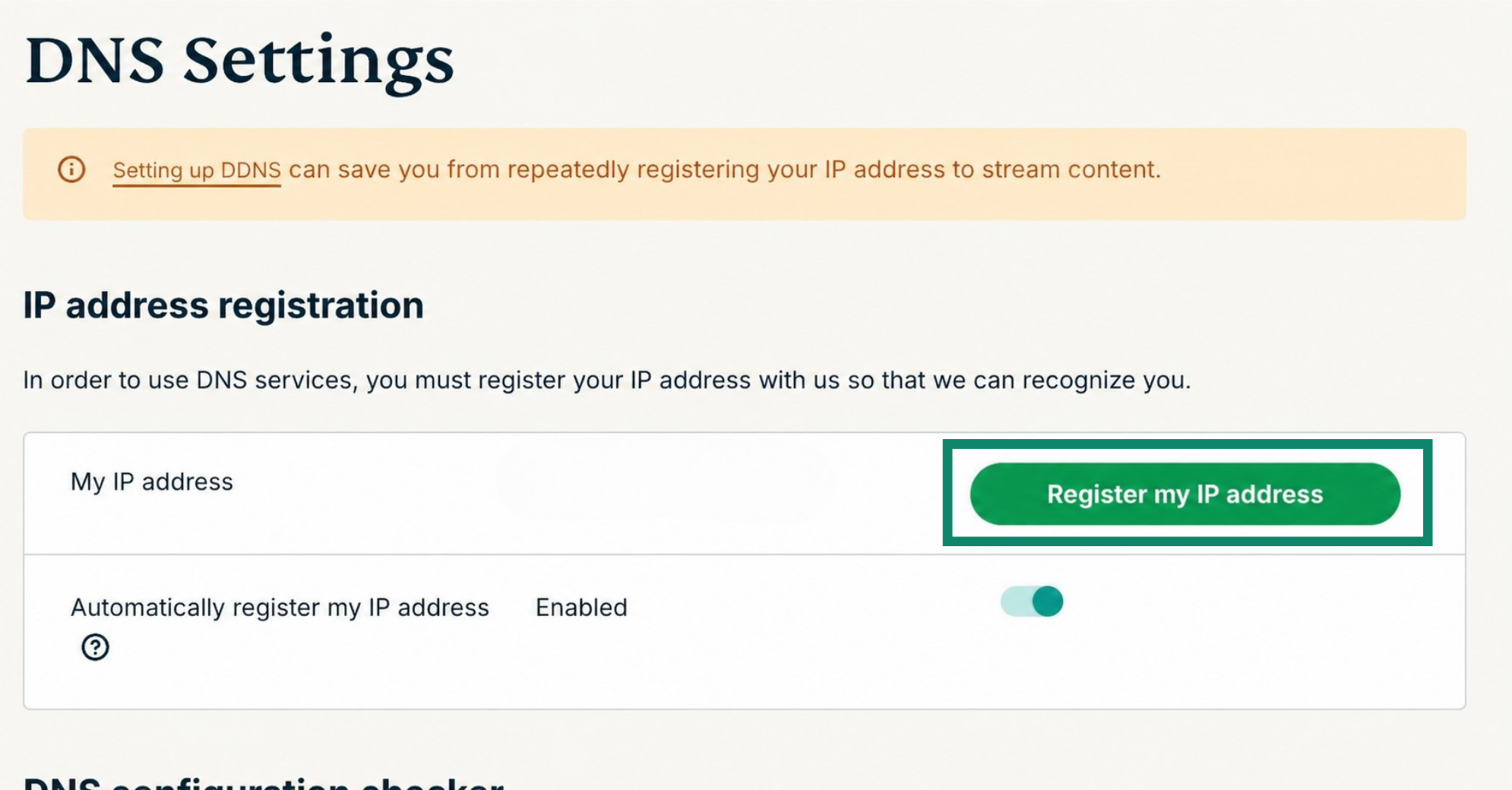
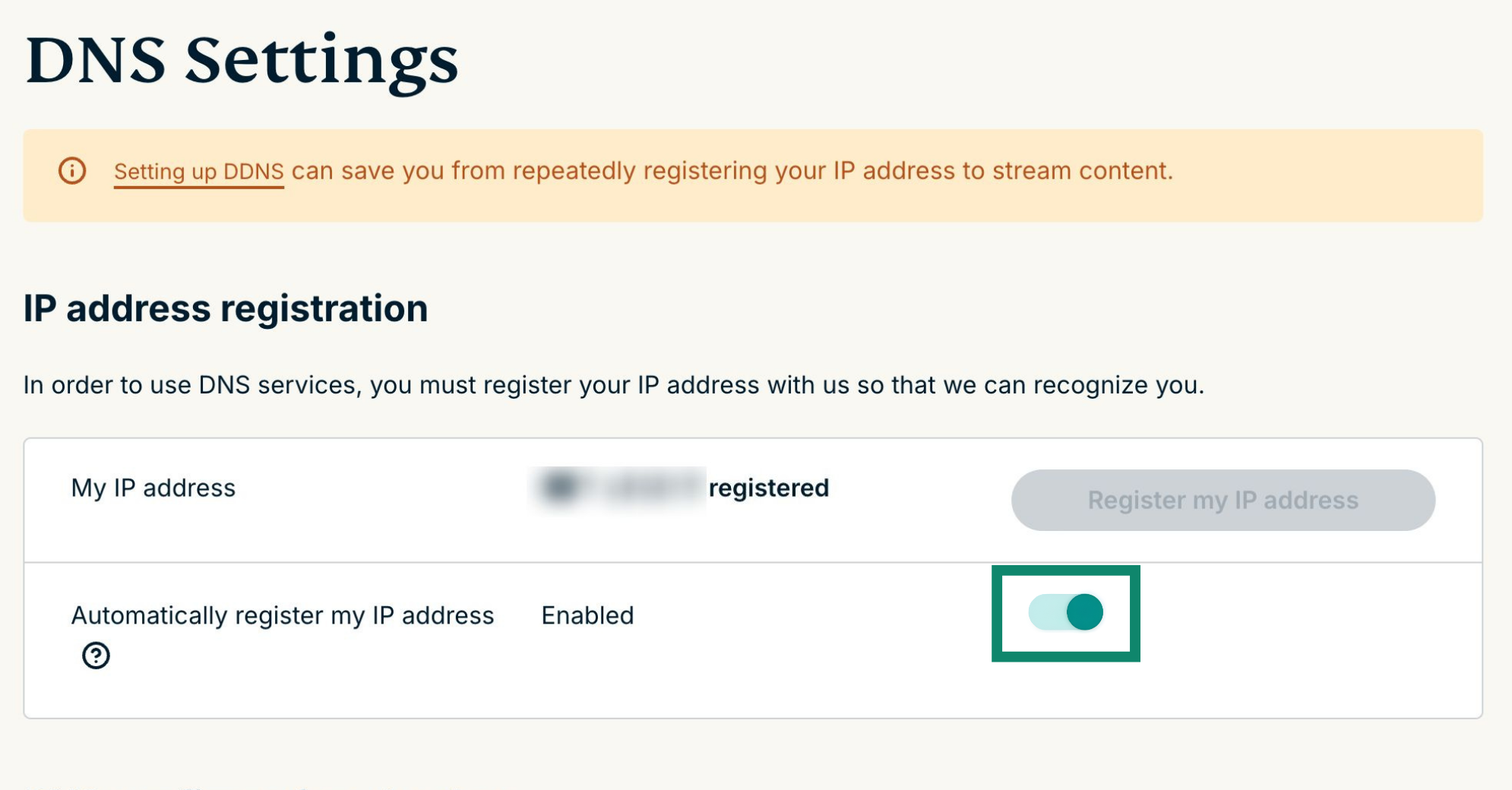
Once you have enabled Automatically register your IP address, be sure to keep your registered IP address updated by periodically signing in to your account on the ExpressVPN website. Alternatively, you can use the ExpressVPN app (on any device) while connected to the same network as your PlayStation 5. These actions grant the devices on your network continued access to MediaStreamer.
Need help? Contact the ExpressVPN Support Team for immediate assistance.
2. Get your MediaStreamer server IP address
- Go to the ExpressVPN setup page.
- Under Applications (or Show other devices), select Network & smart home to open the dropdown menu. From there, click MediaStreamer.


- You will find your DNS server IP addresses on the right side, under MediaStreamer IP#1 and MediaStreamer IP #2.


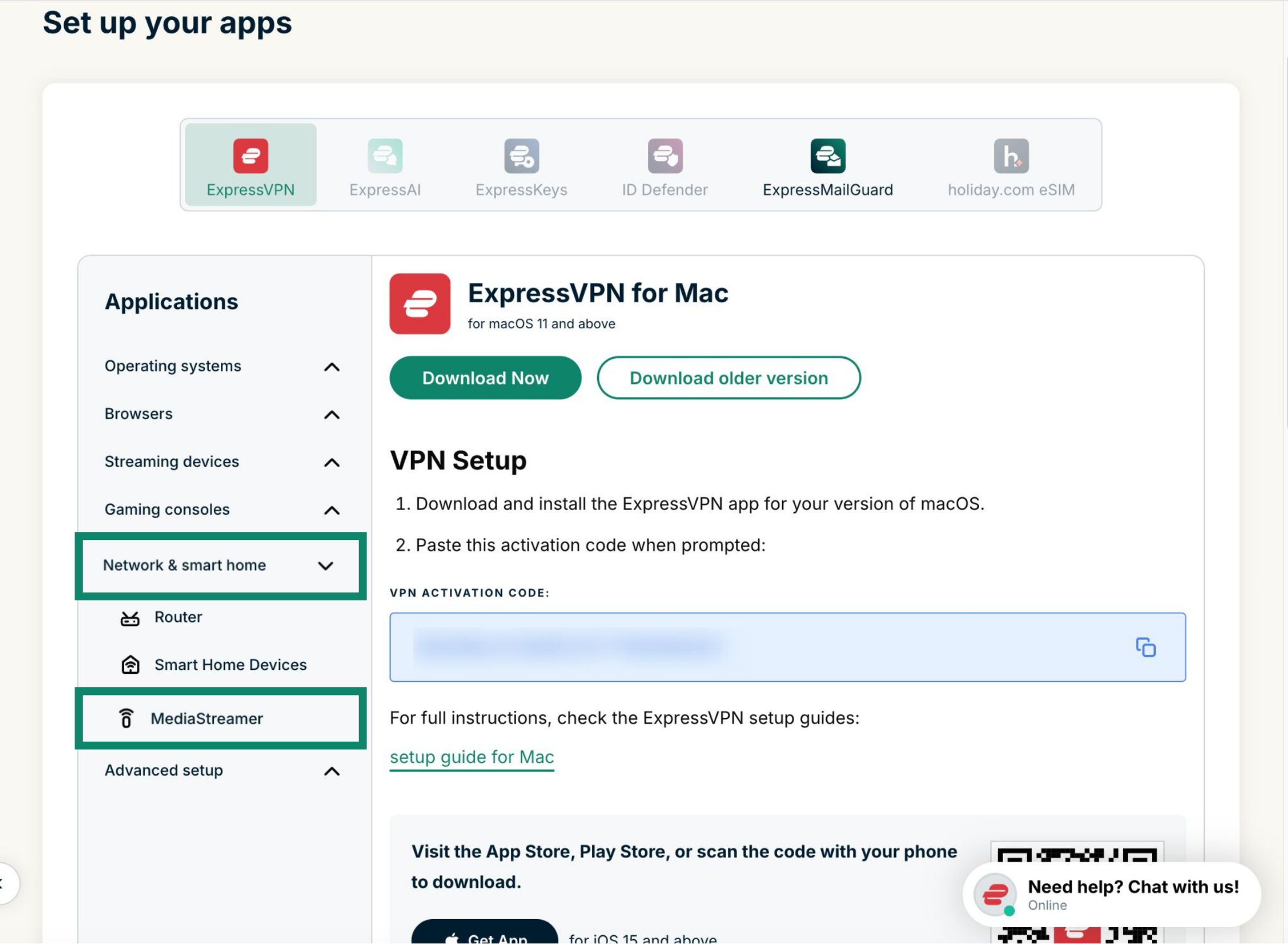
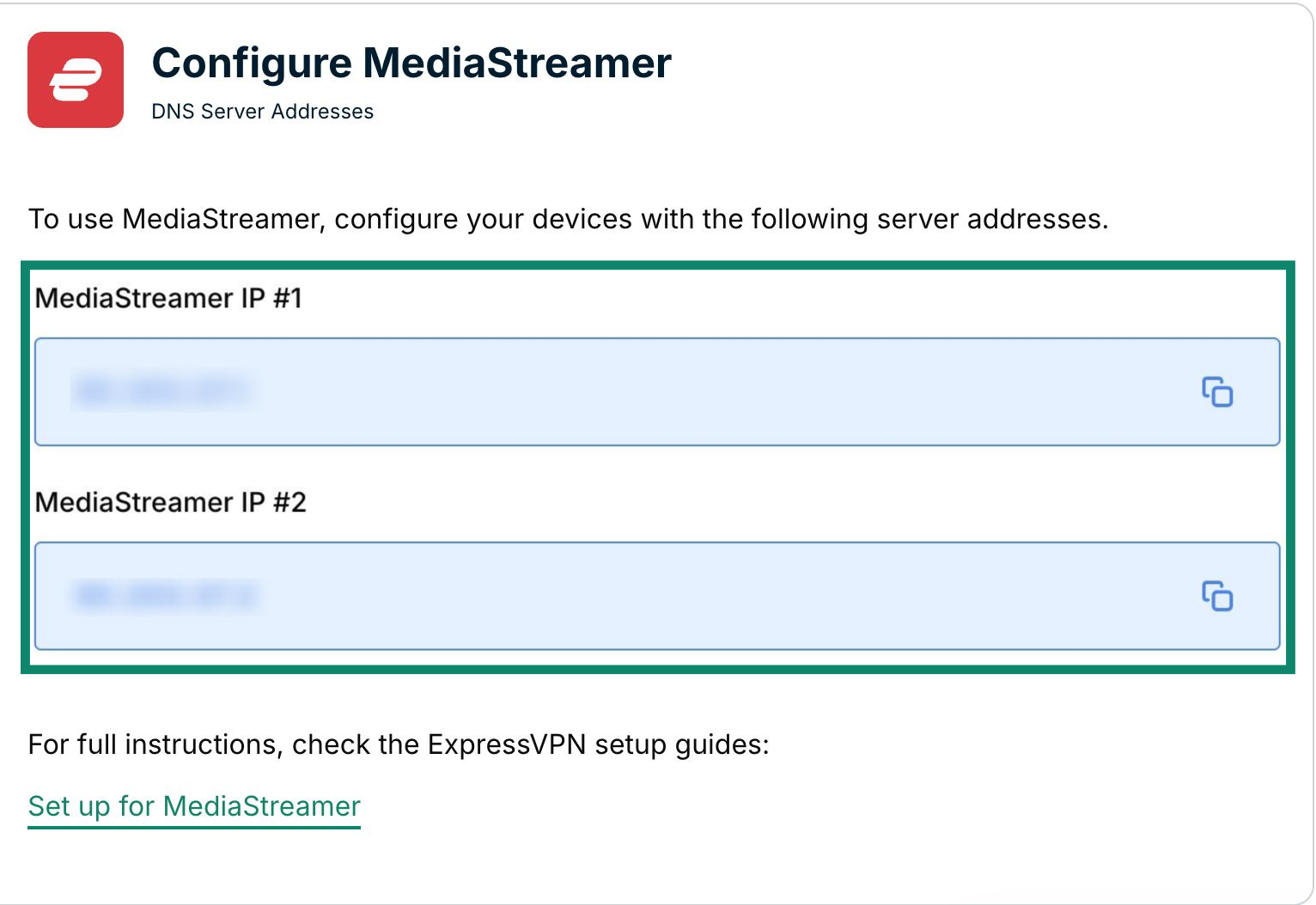
Keep this browser window open. You will need this information for the setup later.
Need help? Contact the ExpressVPN Support Team for immediate assistance.
3. Configure the DNS server on your PlayStation 5
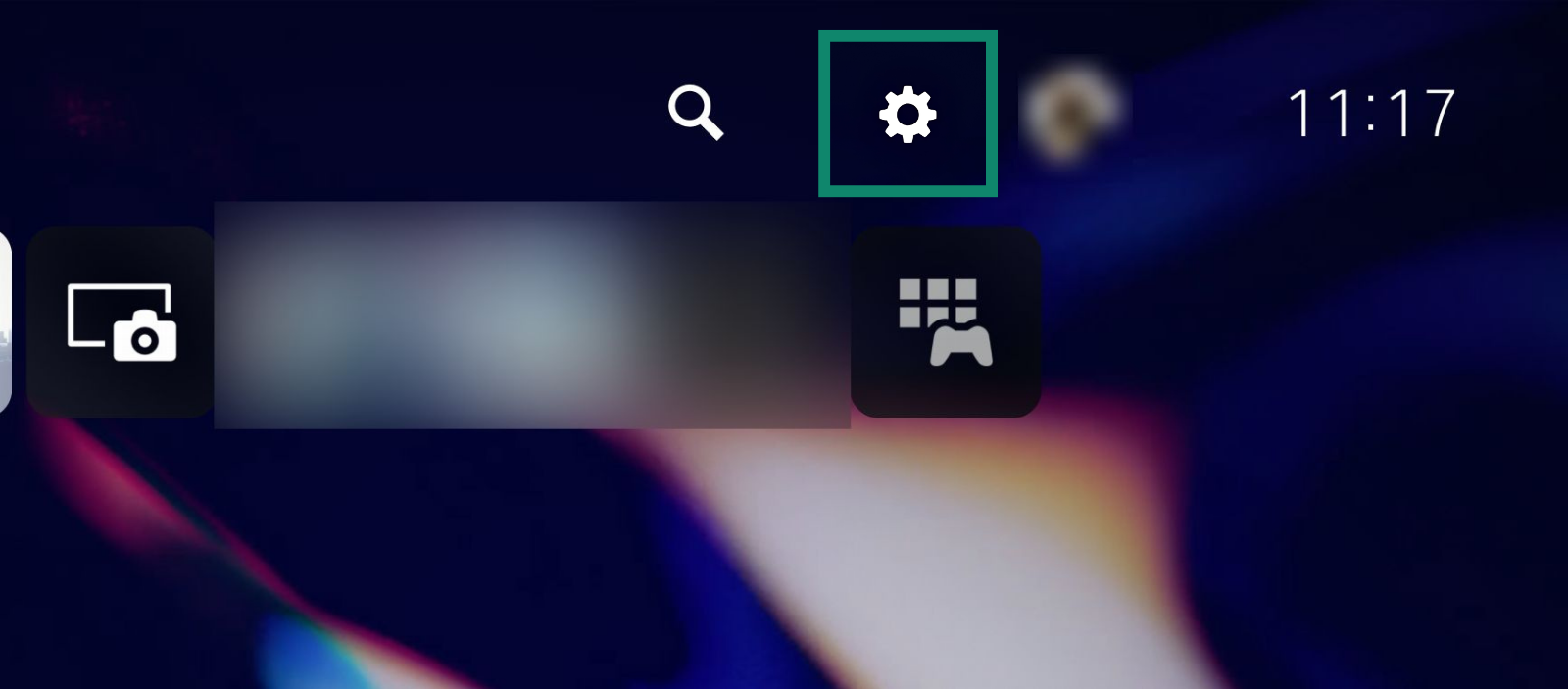
- On your PlayStation 5, select

 .
.

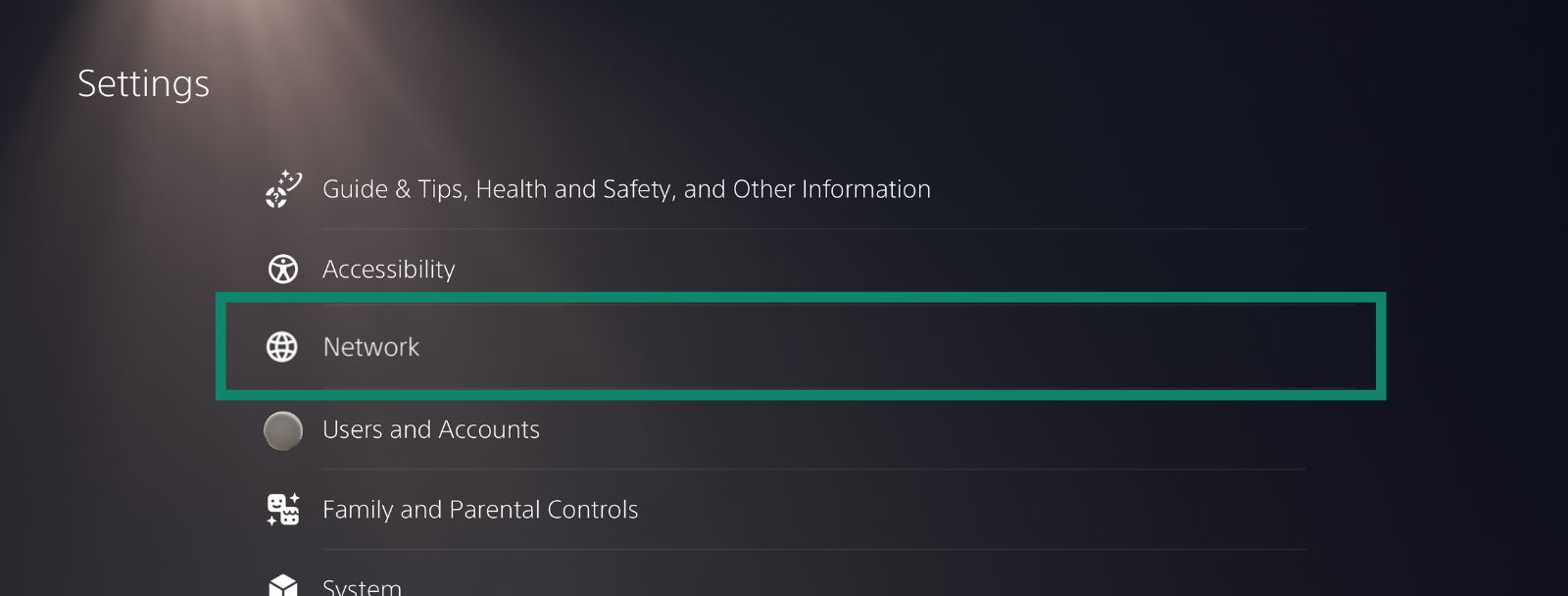
- Select Network.


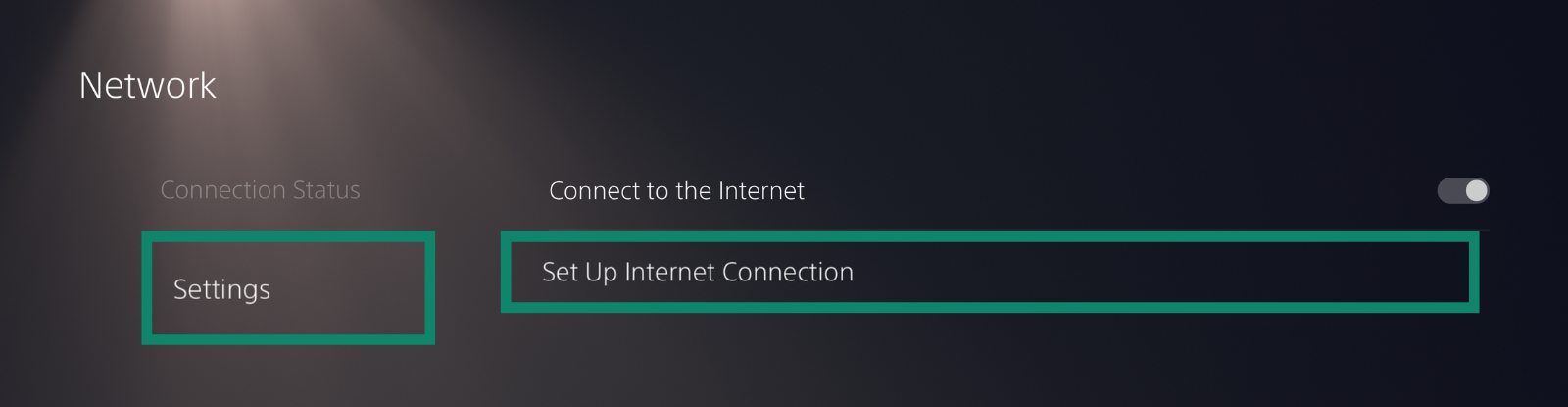
- Select Settings, then Set Up Internet Connection.


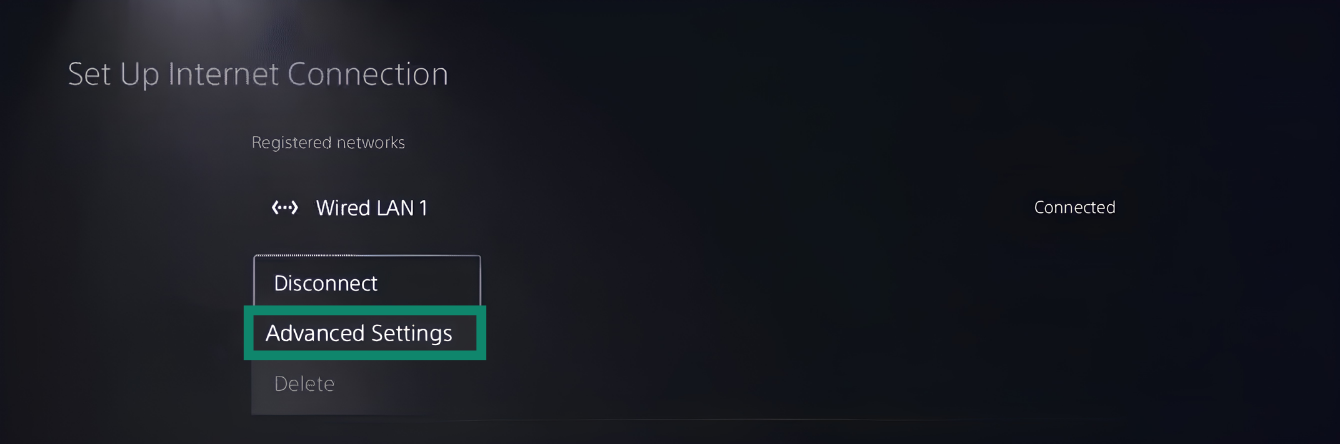
- Under Registered networks, press the Options button on the network your PlayStation 5 is connected to. Select Advanced Settings.


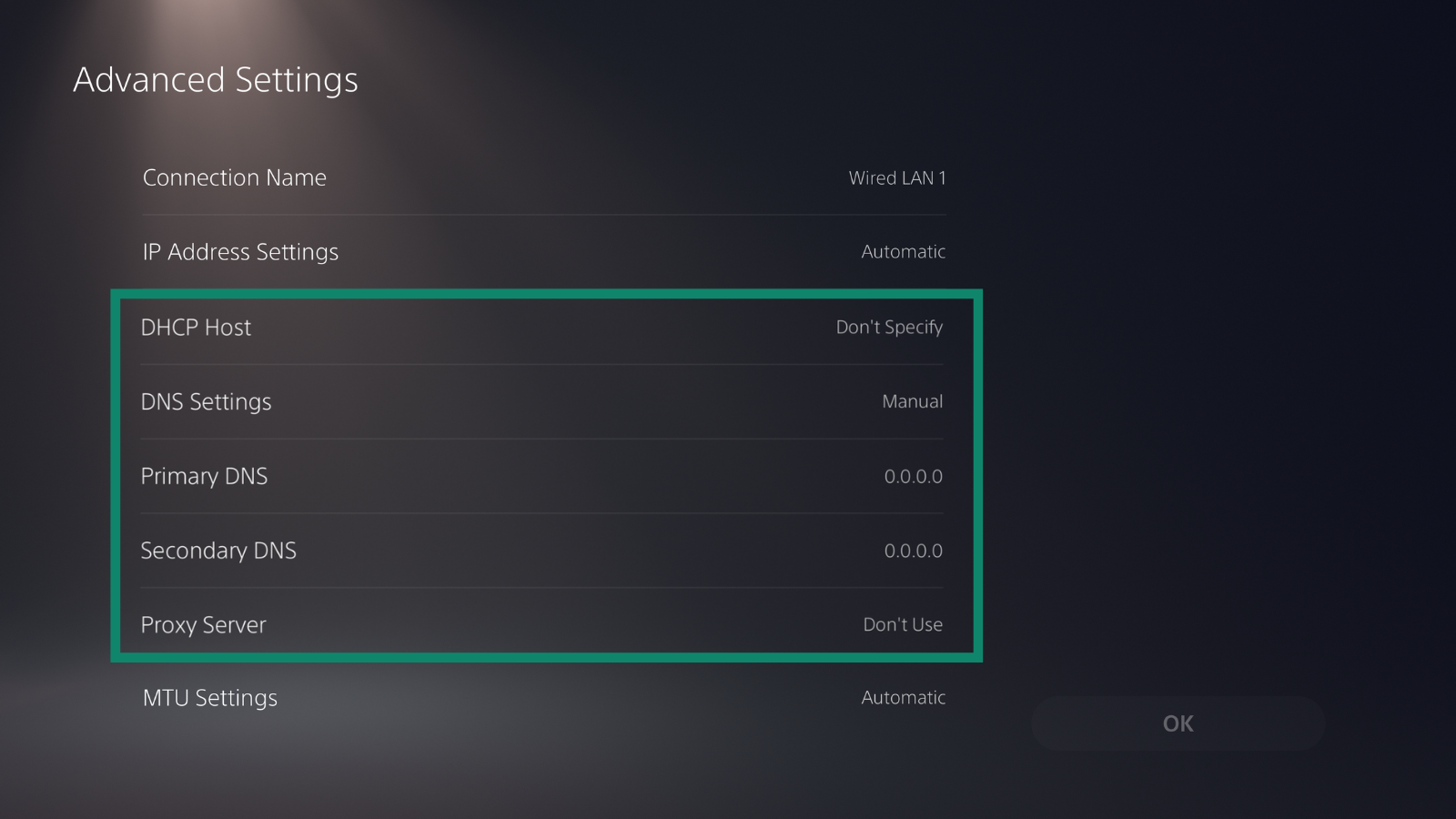
- In the Advanced Settings screen, select the following options:IP Address Settings: Select Automatic.

- DHCP Host: Select Don’t Specify.
- DNS Settings: Select Manual.
- Primary DNS: Enter the MediaStreamer DNS server IP address you found earlier. Select Done.
- Secondary DNS: Leave it as is.
- Proxy Server: Select Don’t Use.
- MTU Settings: Select Automatic.Select OK.
- Select OK.
- After you see the “Connecting to the network…” message, you will be taken to the Set Up Internet Connection screen.
After you see the “Connecting to the network…” message, you will be taken to the Set Up Internet Connection screen.
You have completed the MediaStreamer setup and can start using the streaming app on your PlayStation 5.
Need help? Contact the ExpressVPN Support Team for immediate assistance.
Restore DNS settings
- On your PlayStation 5, select > Network > Settings > Set Up Internet Connection.
- Hover over your internet connection method, press Options, then select Advanced Settings.
- Select the following options: IP Address Settings:
- Select Automatic.
- DHCP hostname: Select Don’t Specify.
- DNS Settings: Select Automatic.
- Proxy Server: Select Don’t Use.
- MTU Settings: Select Automatic.
- Select OK.
After you see the “Connecting to the network…” message, you will be taken back to the Set Up Internet Connection screen.
You have now restored your DNS settings.
Need help? Contact the ExpressVPN Support Team for immediate assistance.