



This guide will show you how to set up the ExpressKeys Chrome browser extension (ExpressVPN’s password manager). It’s available to download on the Chrome Web Store. It is fully compatible with Chrome as well as Opera, Edge, Vivaldi, and Brave.
To use the extension, you must have an ExpressVPN Advanced or Express Pro subscription or a standalone ExpressKeys subscription.
Jump to…
How to set up (new ExpressKeys users)
How to set up (existing ExpressKeys users)
How to use ExpressKeys
How to set up (new ExpressKeys users)
1. Download
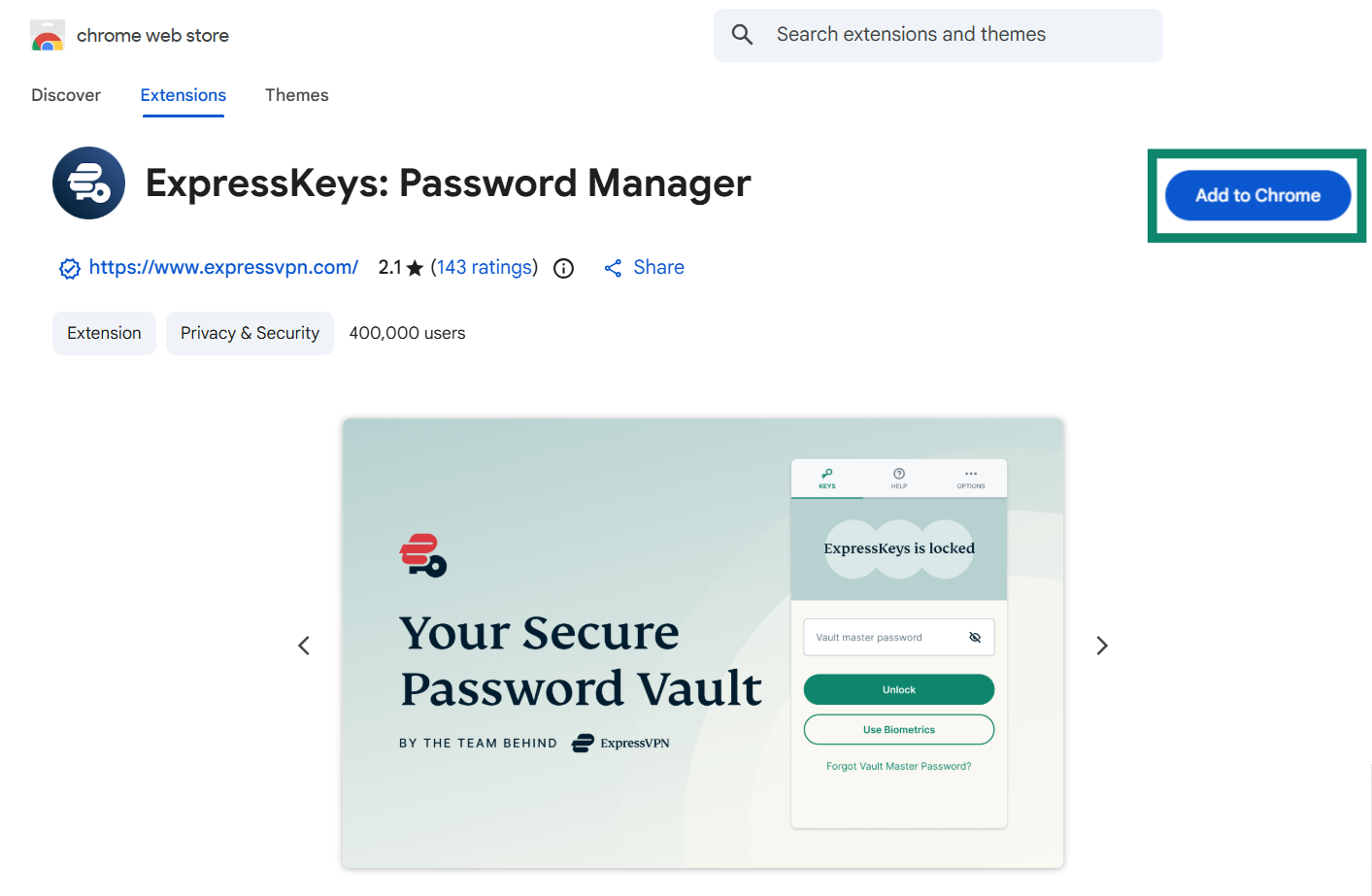
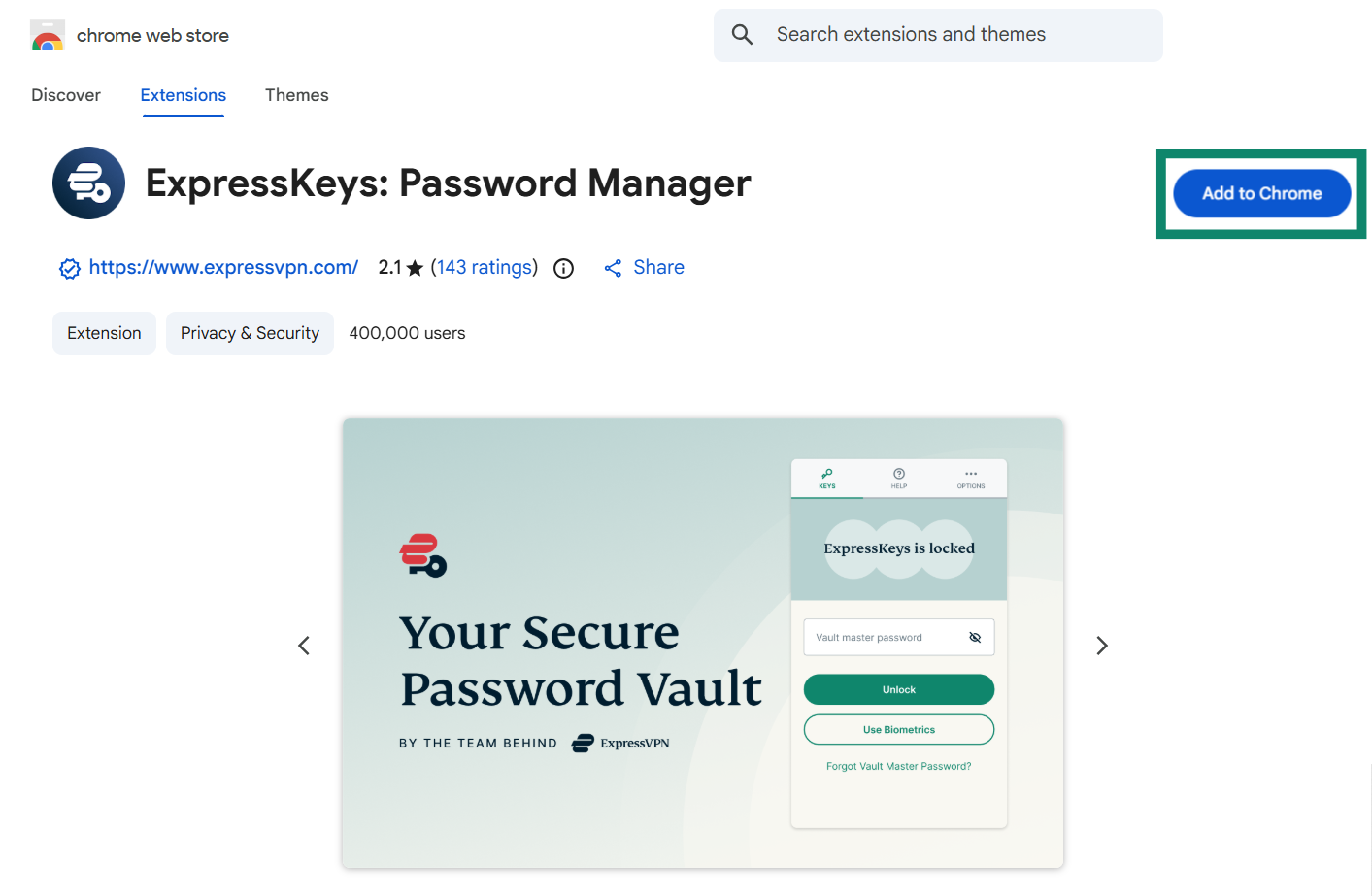
- On Chrome, Opera, Edge, Vivaldi, or Brave, visit the download page.
(If you are using Microsoft Edge, you may see Add extensions from other stores at the top. Click it, then click Allow.)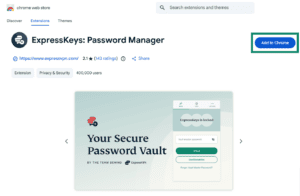

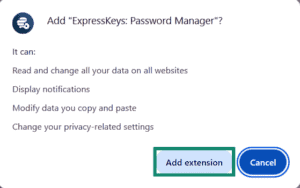
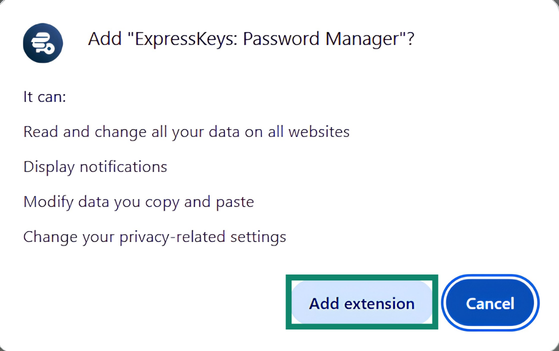
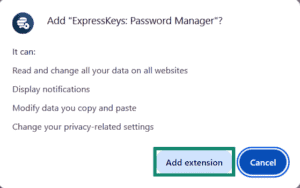
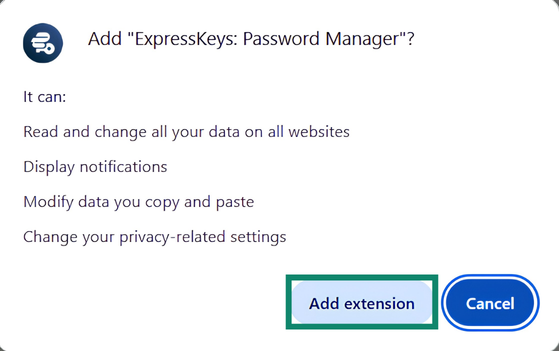
- Click Add to [browser] > Add extension.

2. Setup
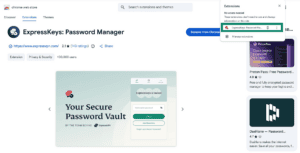
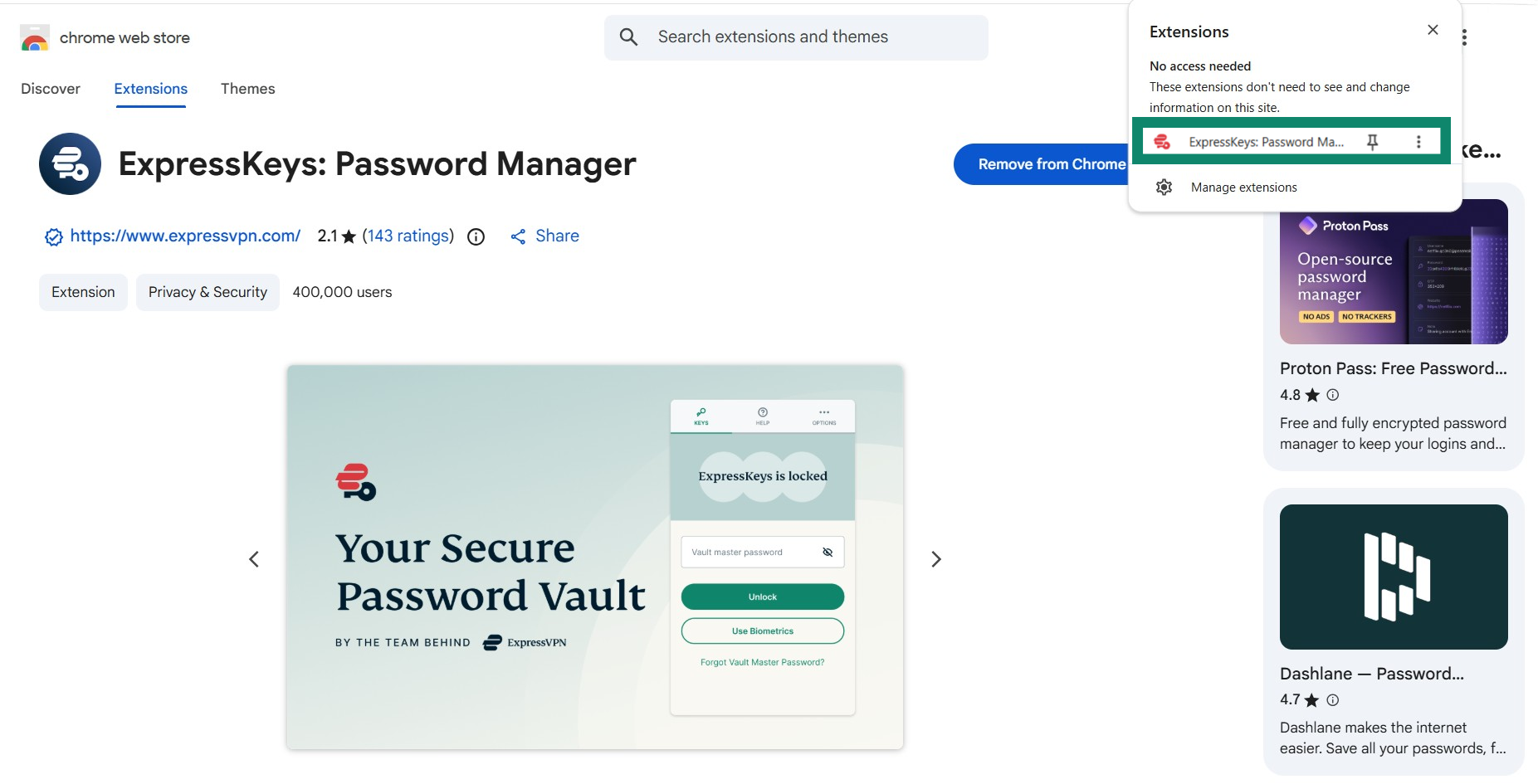
- Click the ExpressKeys browser extension.
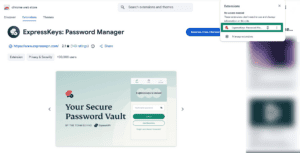

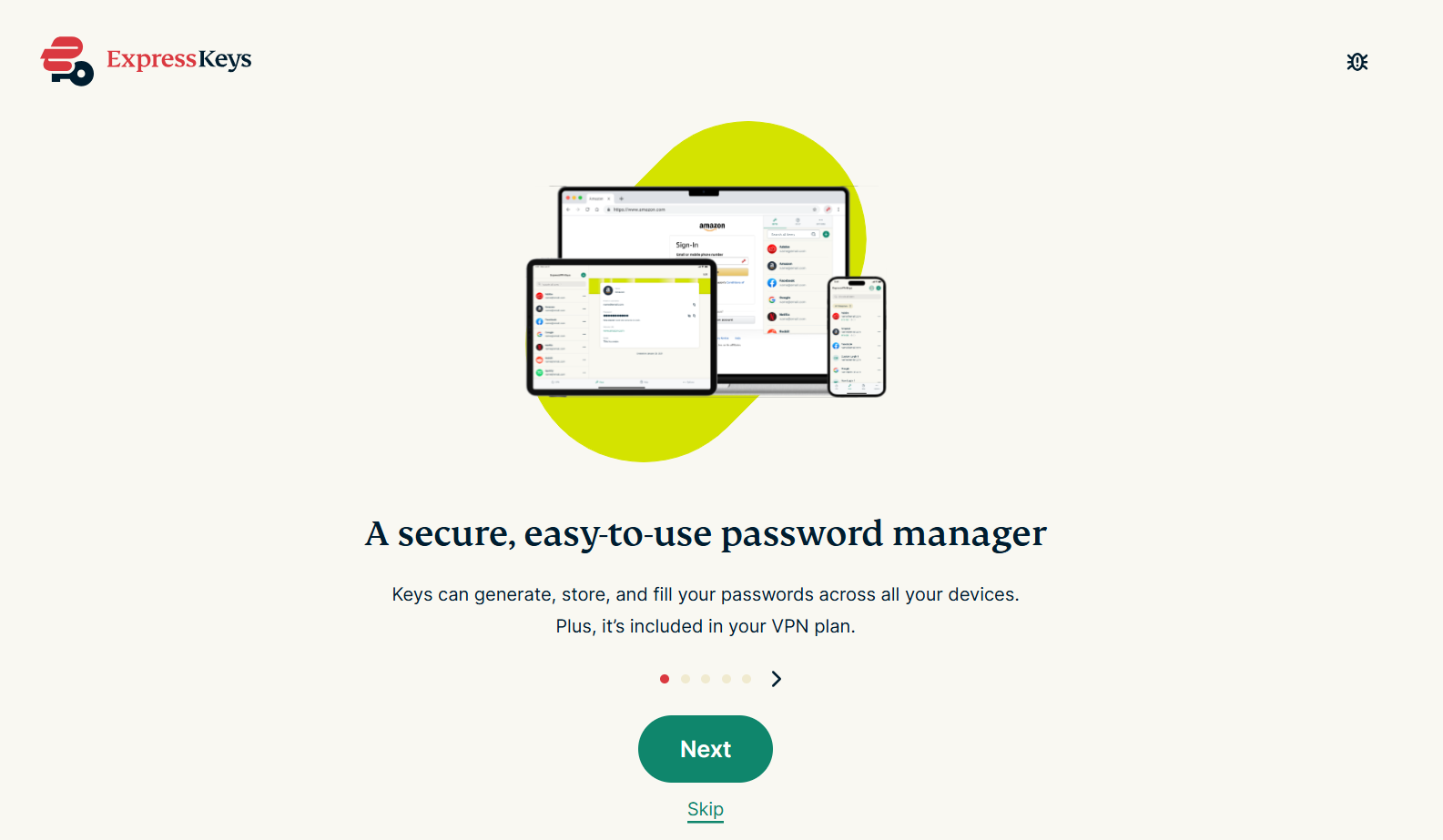
- A tab will open in your browser. You will be prompted to either create an account or log into your ExpressVPN account. Once done, keep clicking Next.
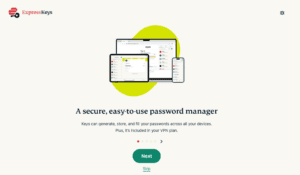

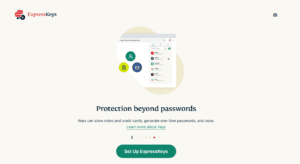
- Click Set Up ExpressKeys.

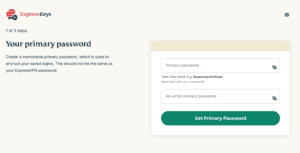
- Follow the on-screen instructions to create a primary password (known as a vault password on the ExpressKeys apps for Android and iOS). Once ready, click Set Primary Password. Learn how to create a strong primary/vault password.

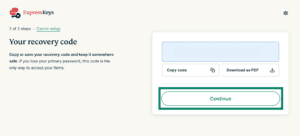
- Save the recovery code in a safe place. You will need it to access your password manager if you lose the primary/vault password. Click Continue.

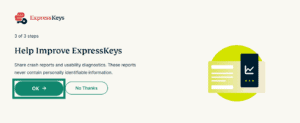
- You will be asked if you want to submit crash reports and usability diagnostics. Select your preference to continue.

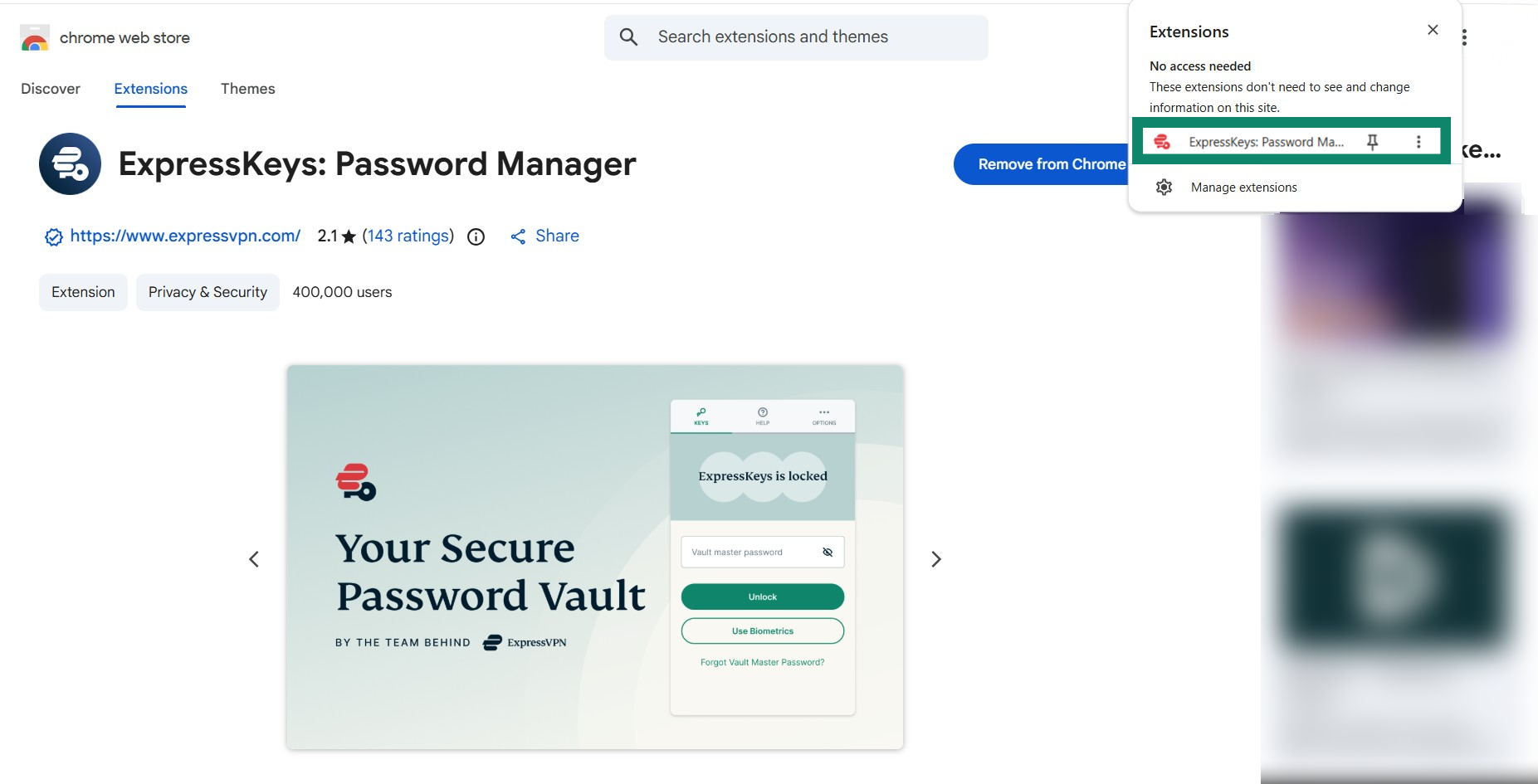
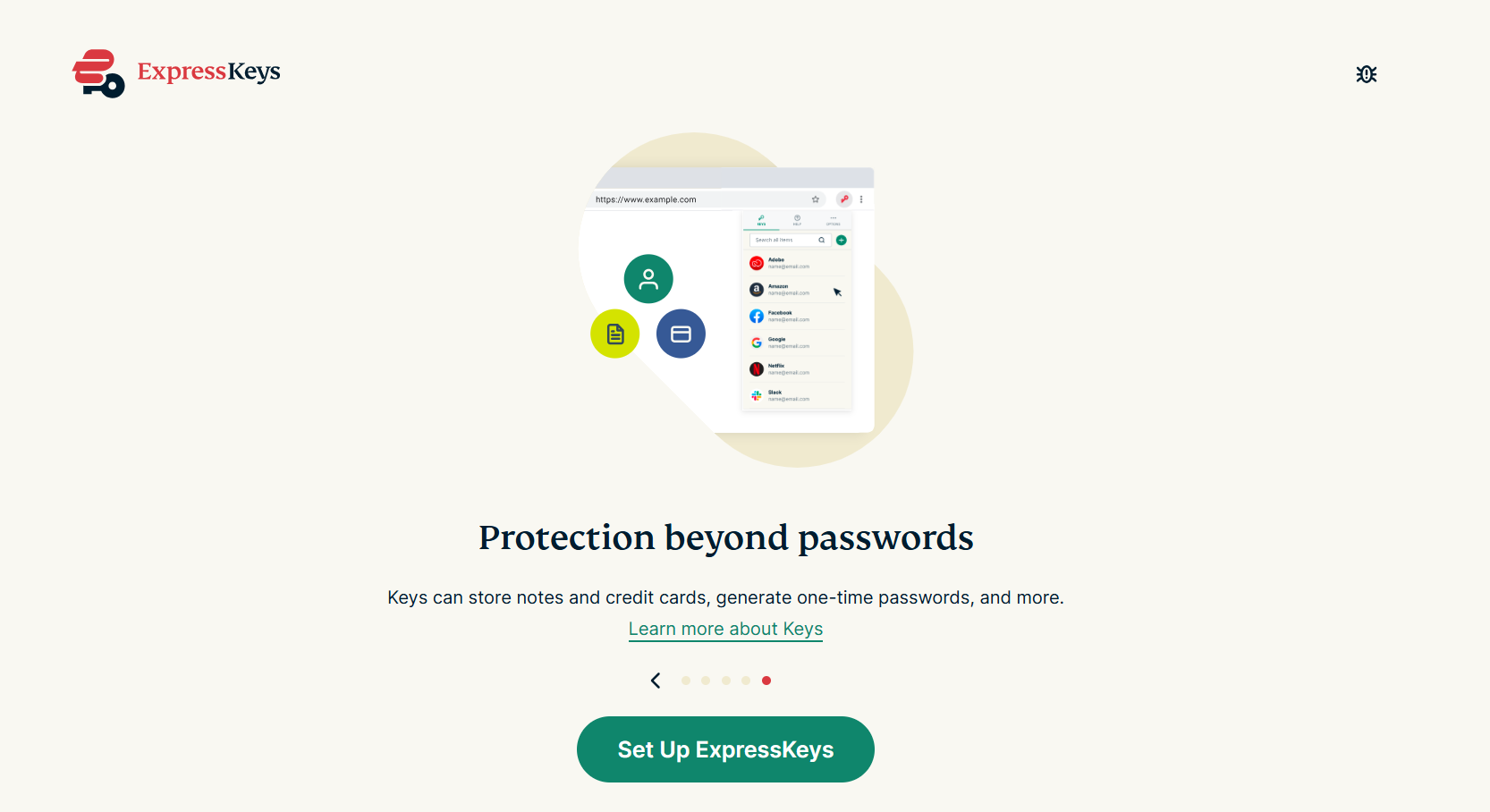
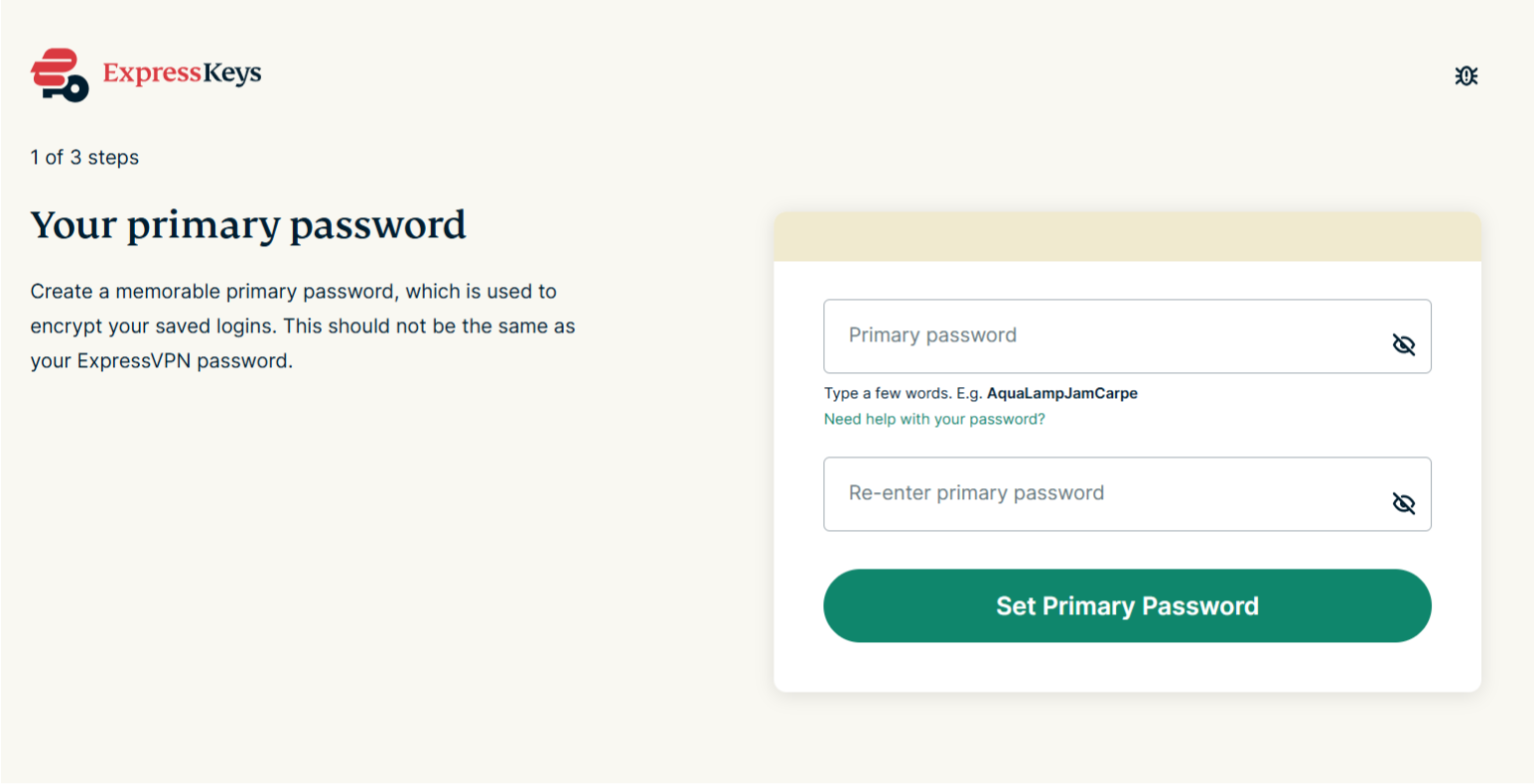
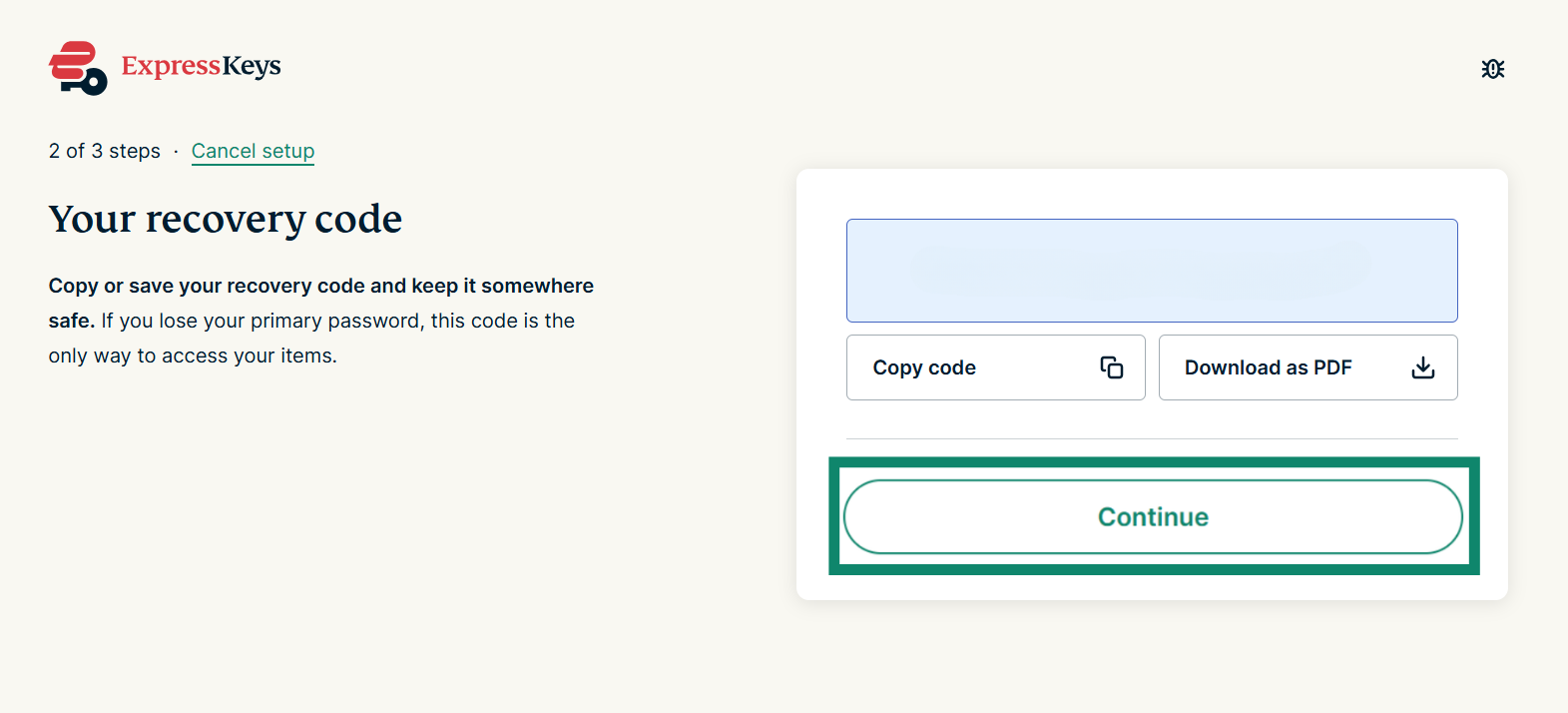
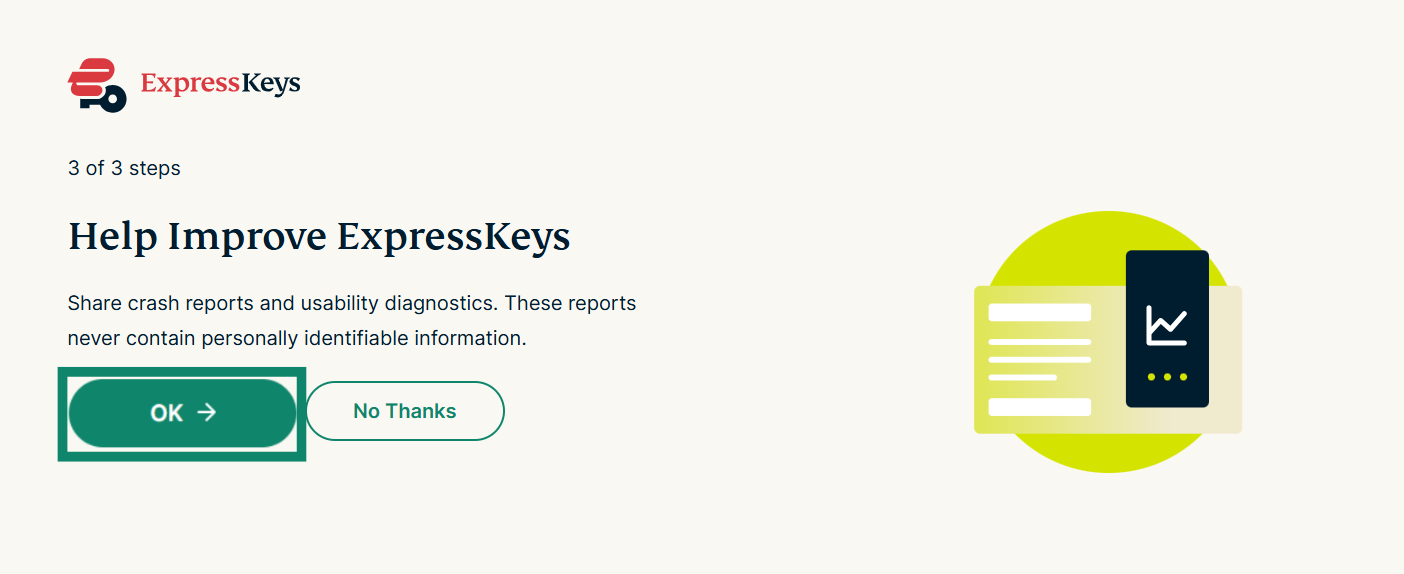
You are now all set to use ExpressKeys. Click the browser extension to add your first login, or start importing logins from other password managers.
Need help? Contact the ExpressVPN Support Team for immediate assistance.
How to set up (existing ExpressKeys users)
1. Download
- On Chrome, Opera, Edge, Vivaldi, or Brave, visit the download page.
(If you are using Microsoft Edge, you may see Add extensions from other stores at the top. Click it, then click Allow.)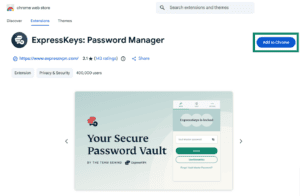
- Click Add to [browser] > Add extension.
2. Setup
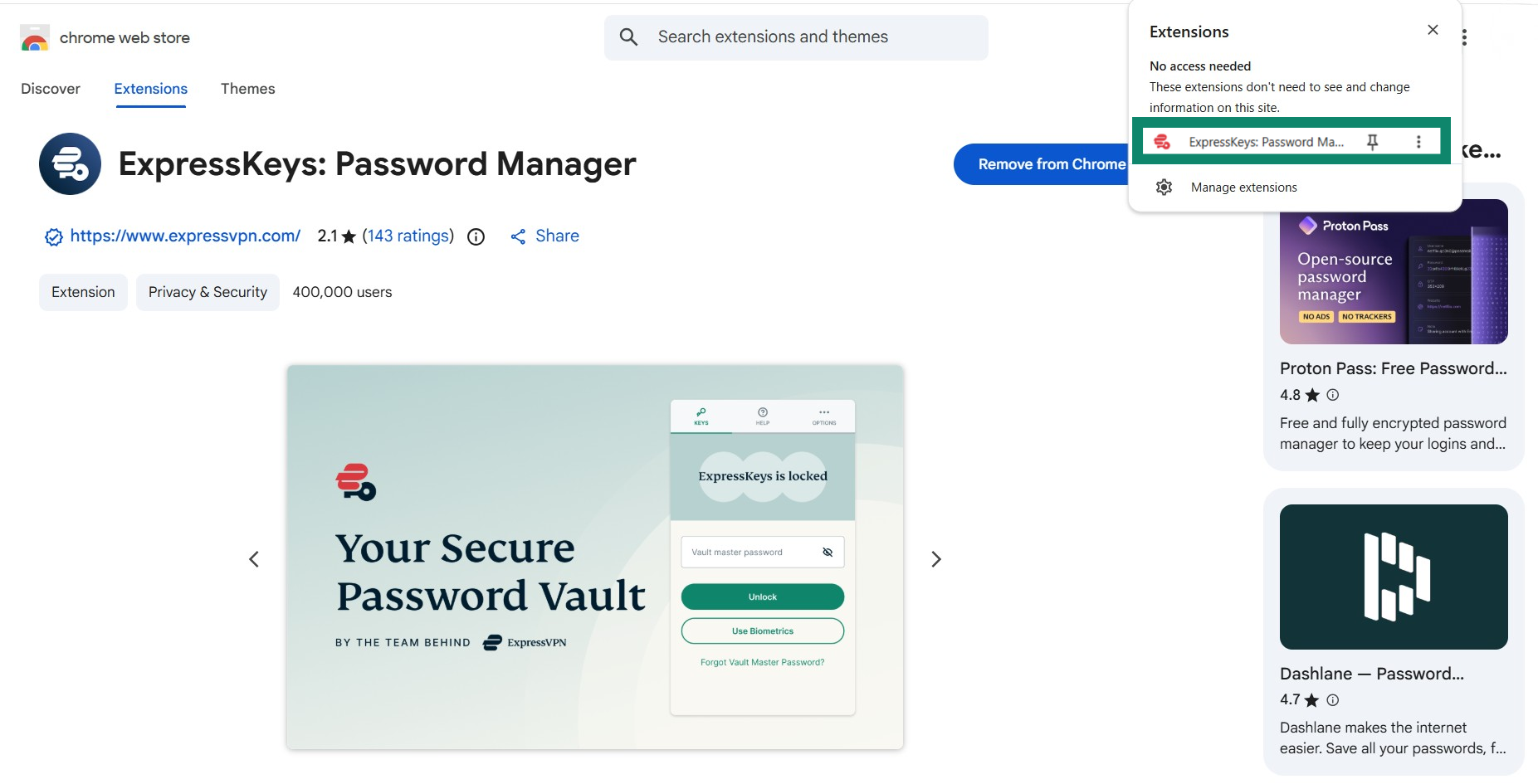
- Click the ExpressKeys browser extension.
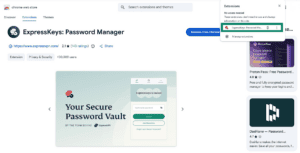
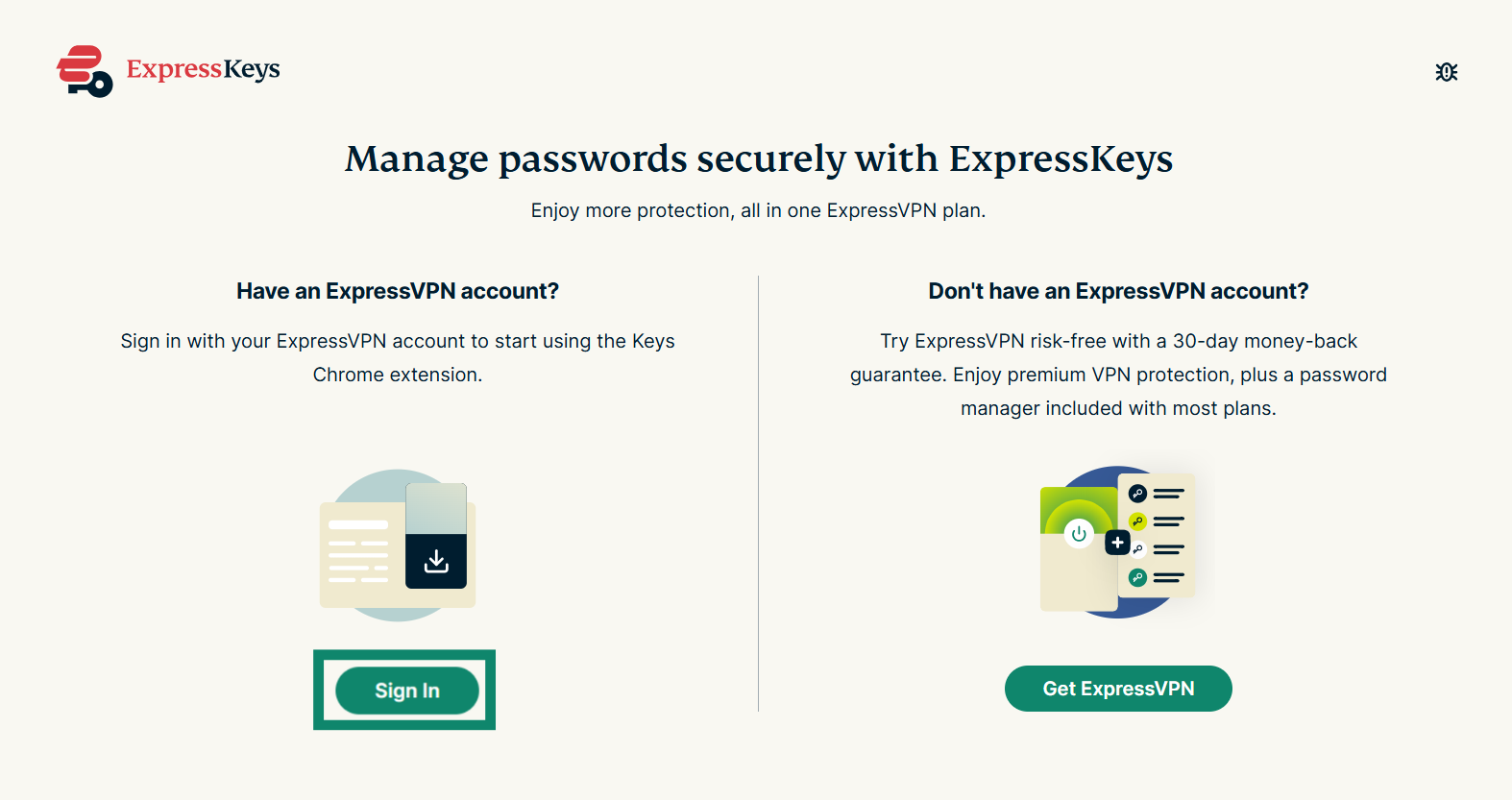
- A tab will open in your browser prompting you to verify your ExpressVPN account. Click Sign in and log into your account.
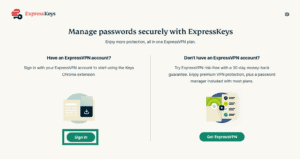

- You can then open the extension and start using it.
3. Unlock ExpressKeys
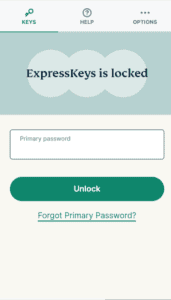
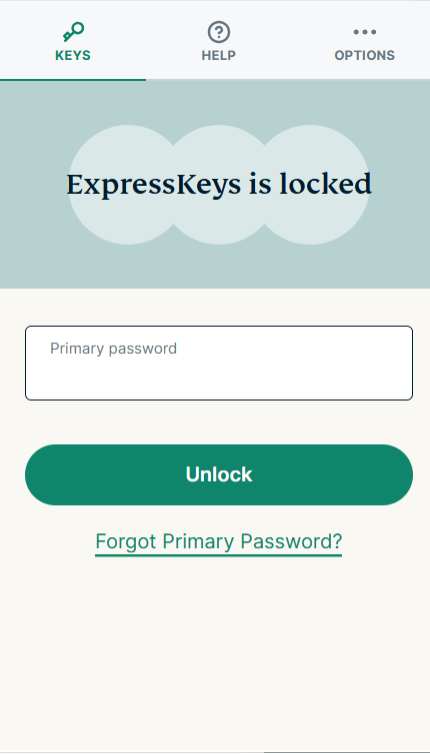
To view your logins or start browsing and autofill your logins, you need to unlock ExpressKeys using your primary password (known as a vault password on the ExpressKeys apps for Android and iOS):
- Click the ExpressKeys browser extension.
- On the KEYS tab, enter your primary password/vault password, then select Unlock.

Need help? Contact the ExpressVPN Support Team for immediate assistance.
How to use ExpressKeys
To learn how to use the ExpressKeys, refer to the corresponding instructions:
Need help? Contact the ExpressVPN Support Team for immediate assistance.