






With ExpressKeys, you can store your credit or debit card details alongside your logins and secure notes. It also lets you autofill them on websites for faster, more convenient payments.
Jump to…
Store and manage card details in the iOS/Android apps and the browser extensions
Store and manage card details in the macOS app
Import your credit or debit card details
Autofill your credit or debit card details
Store and manage card details in the iOS/ Android apps and the browser extensions
Add card details
On Android, iOS, and the browser extension, you can add credit card items in the ExpressKeys extension manually. In the iOS app, you also have the option to use your iPhone camera and scan your card to add credit card details instead.
Scan your card (iOS only)
You can use your iPhone camera to quickly add your card details. You need to allow camera access to do this.
- Open the ExpressKeys app and tap

 .
.

- Tap Credit Cards.

- Tap Scan Card.

- Tap Allow (if prompted).

- Scan your card.
- Review the details, then tap Save.

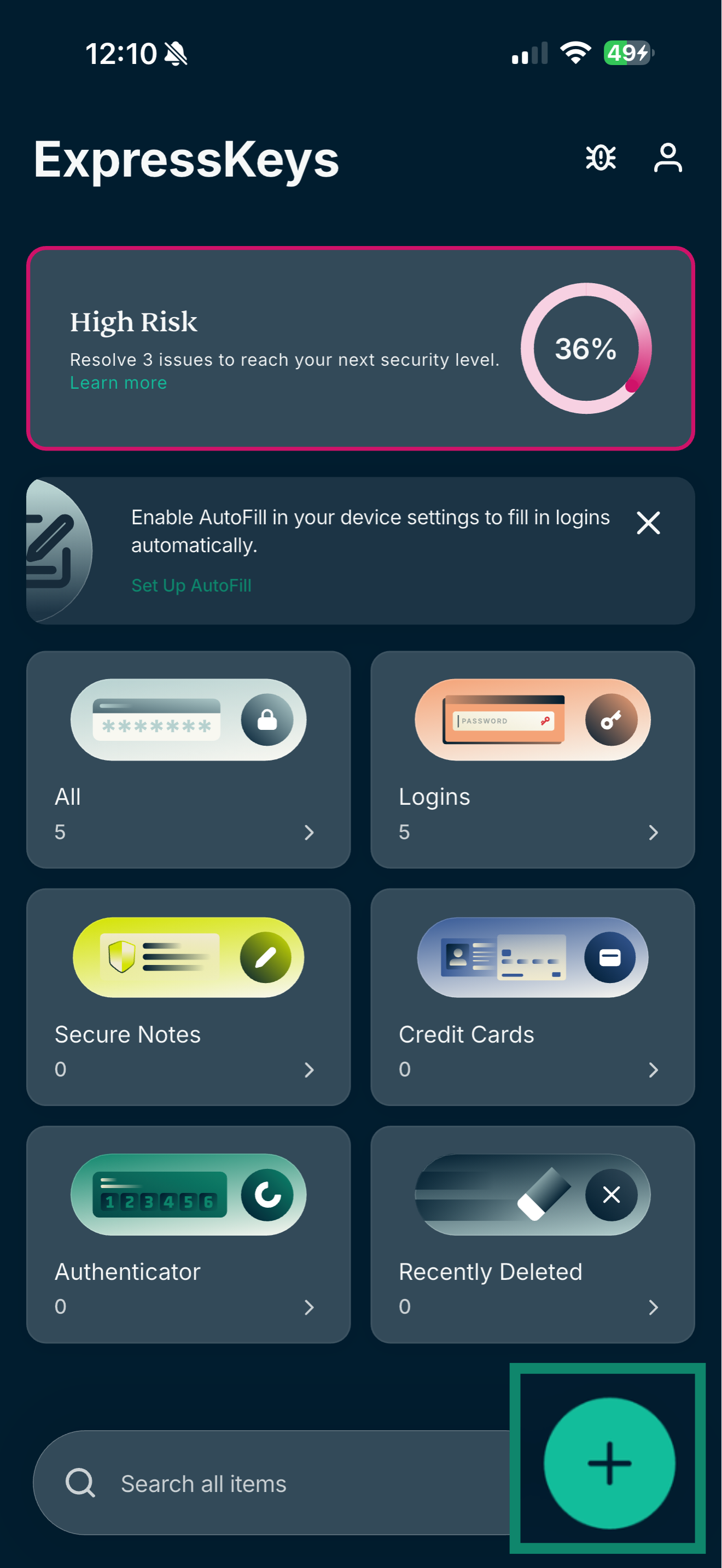
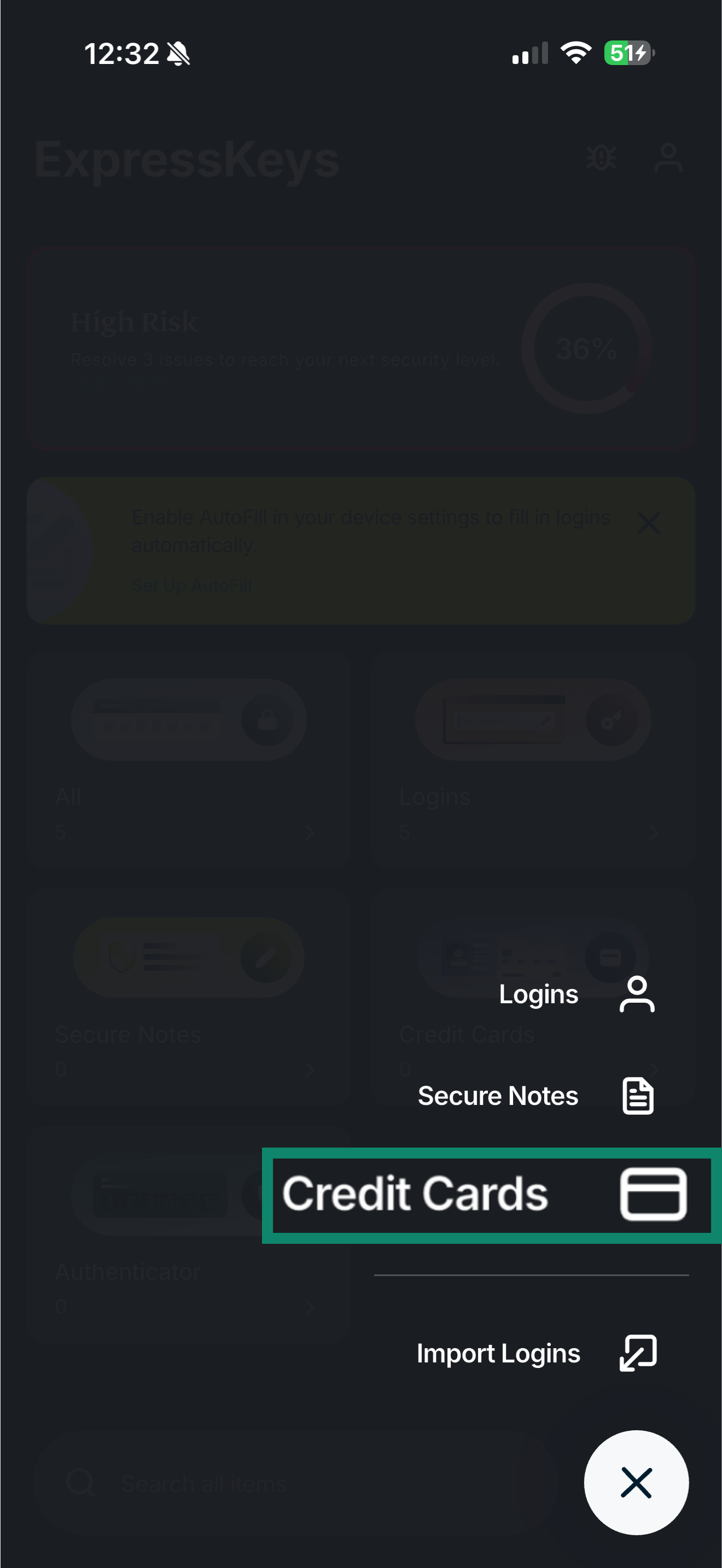
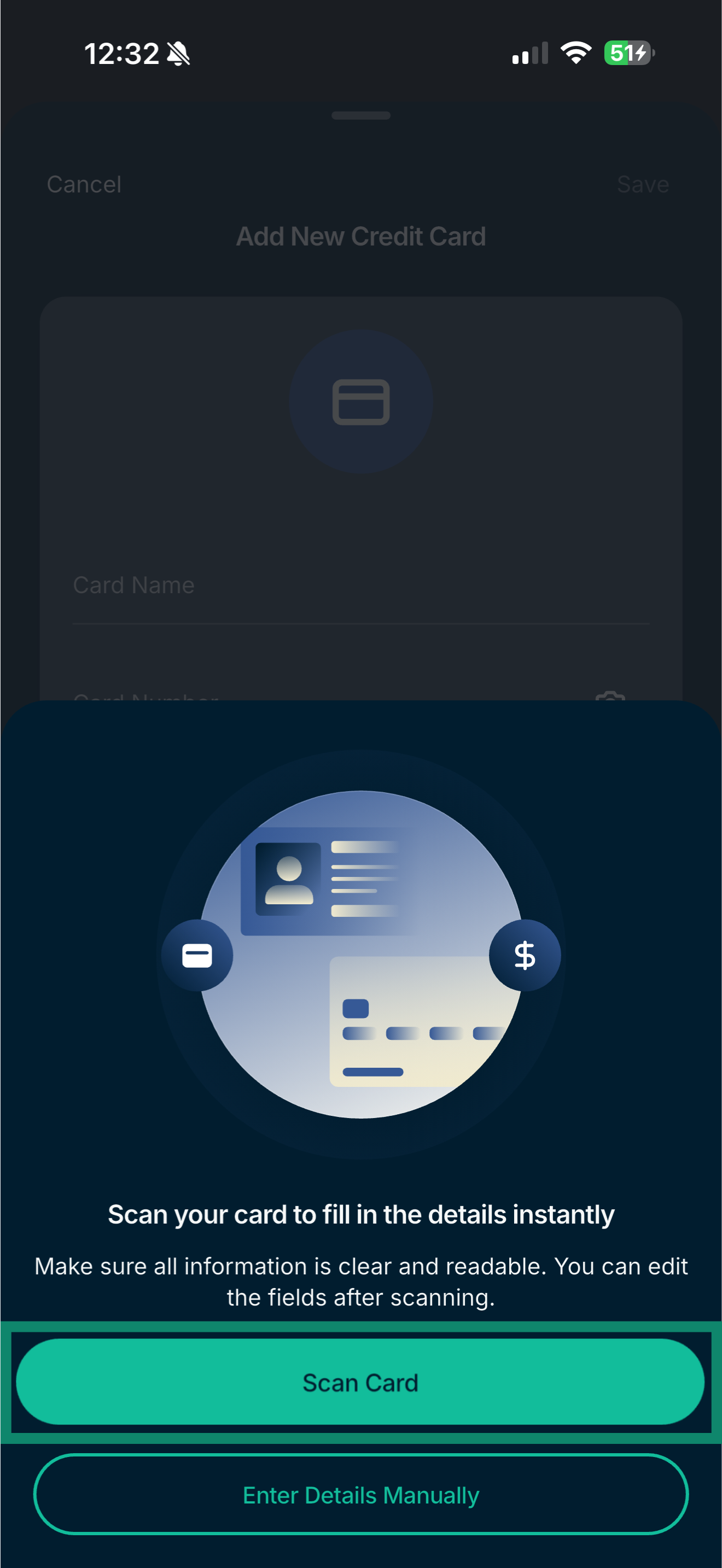
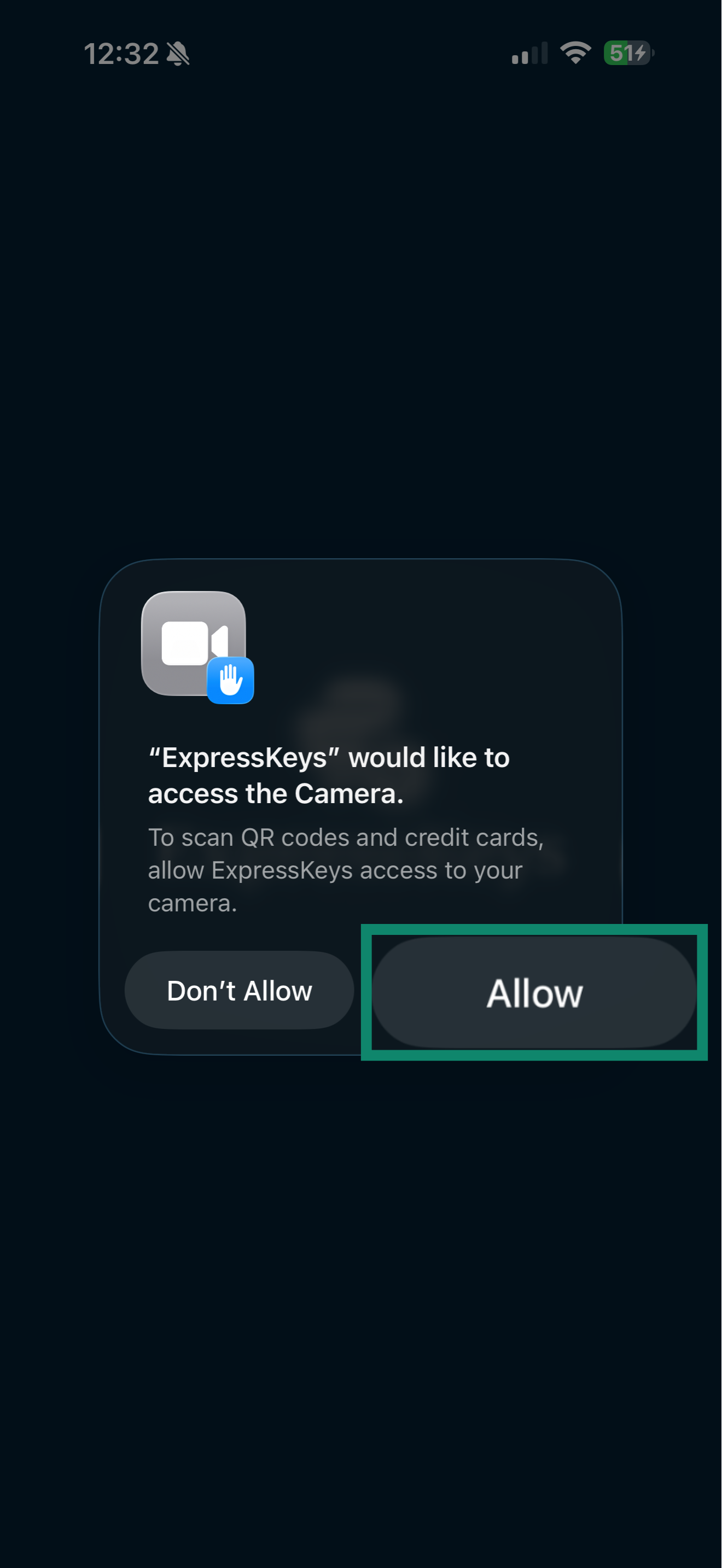
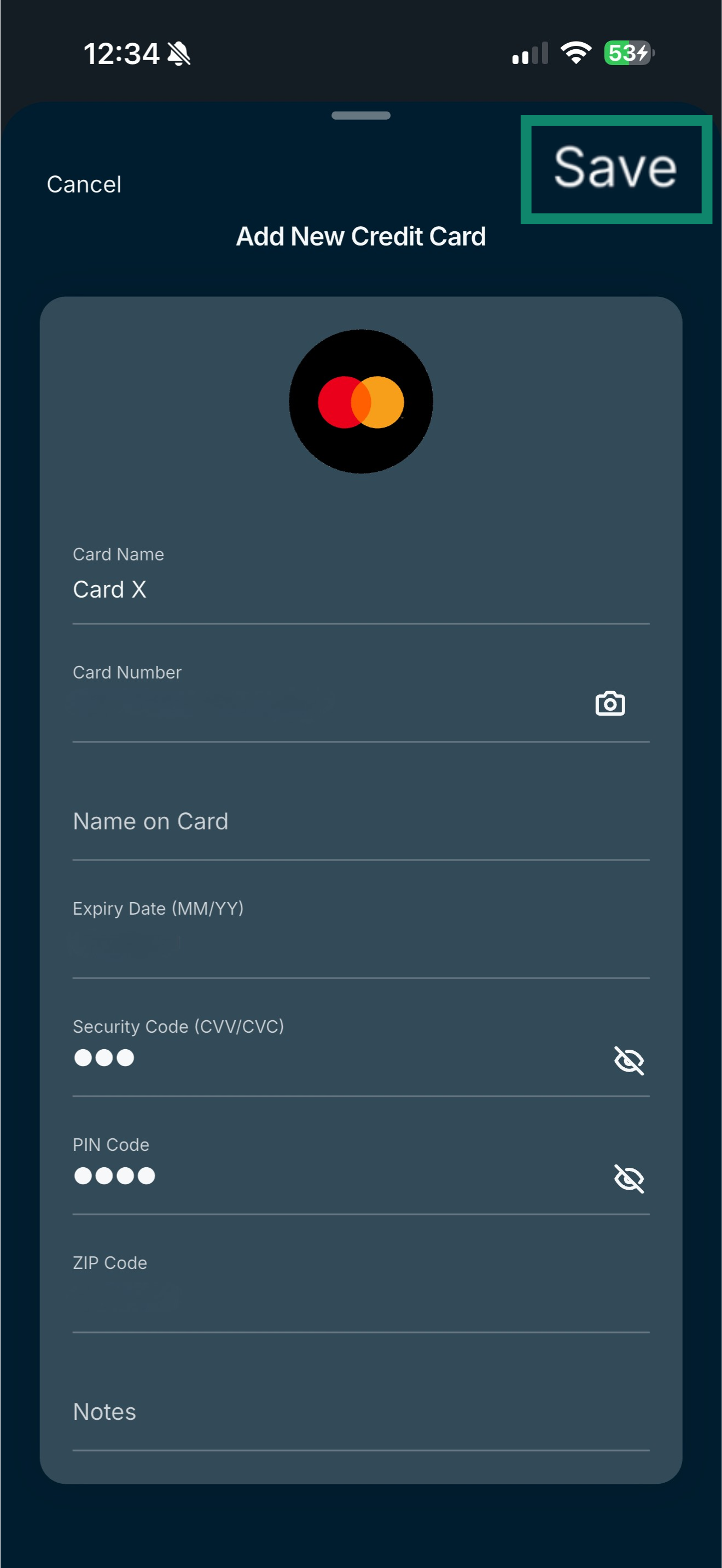 > Credit Cards. You can choose Scan Card or Enter Details Manually.
Add card details manually
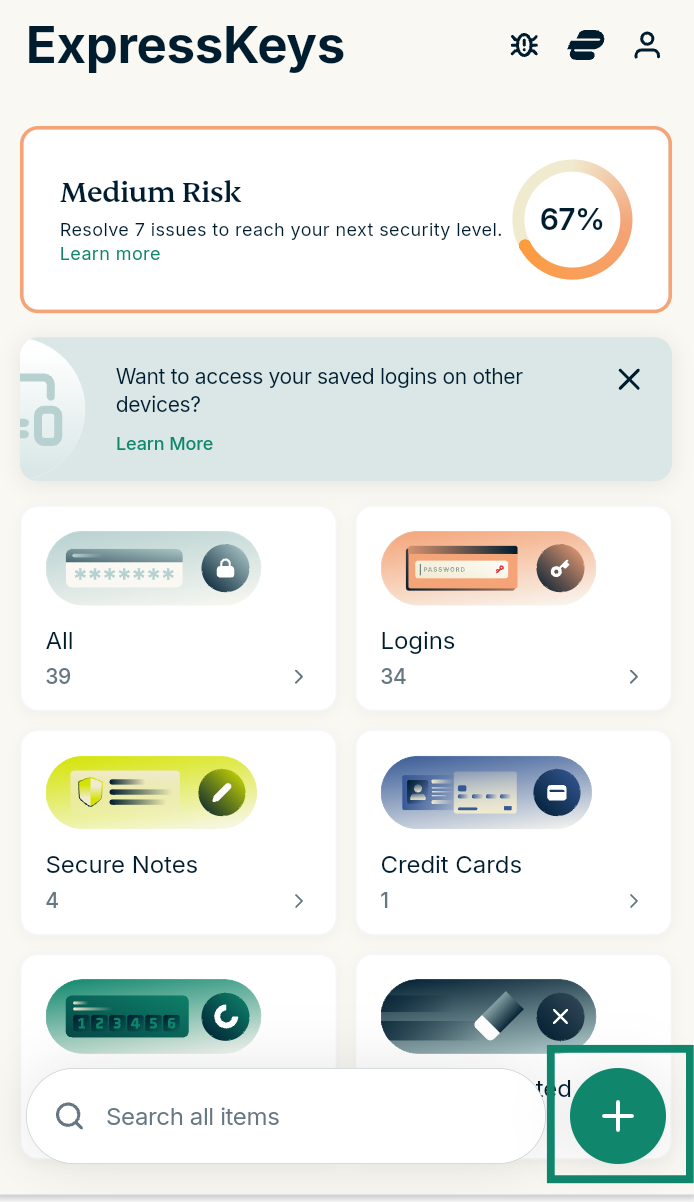
- In ExpressKeys, select the plus icon.


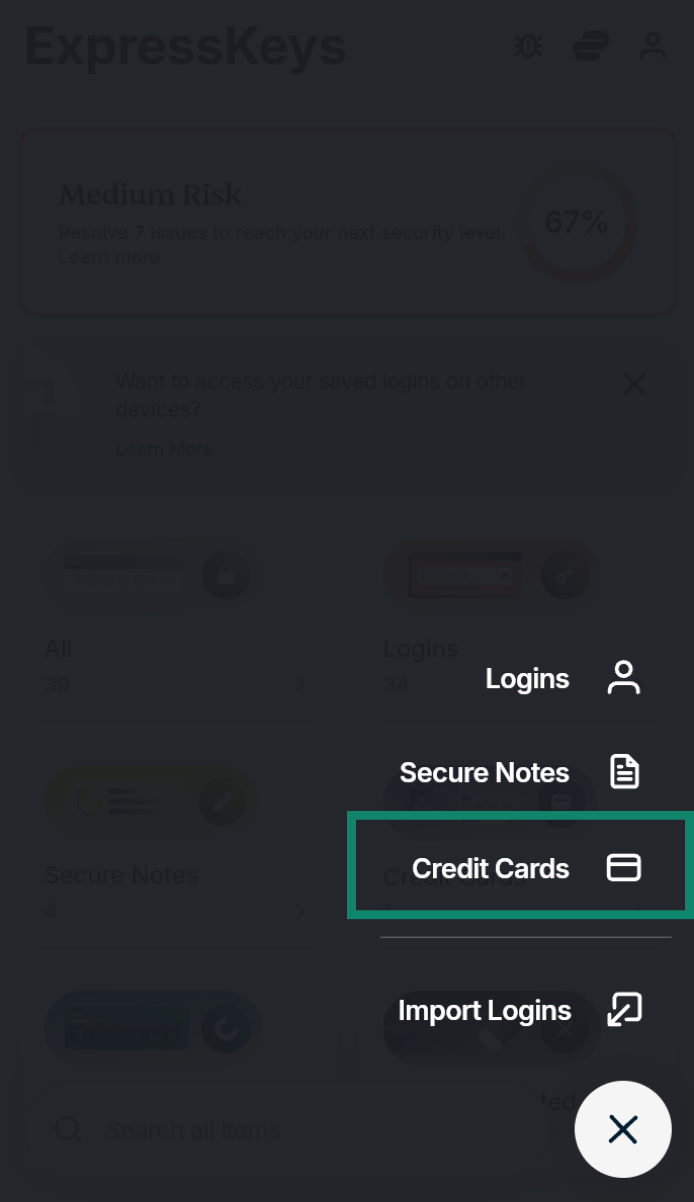
- Tap Credit Cards.

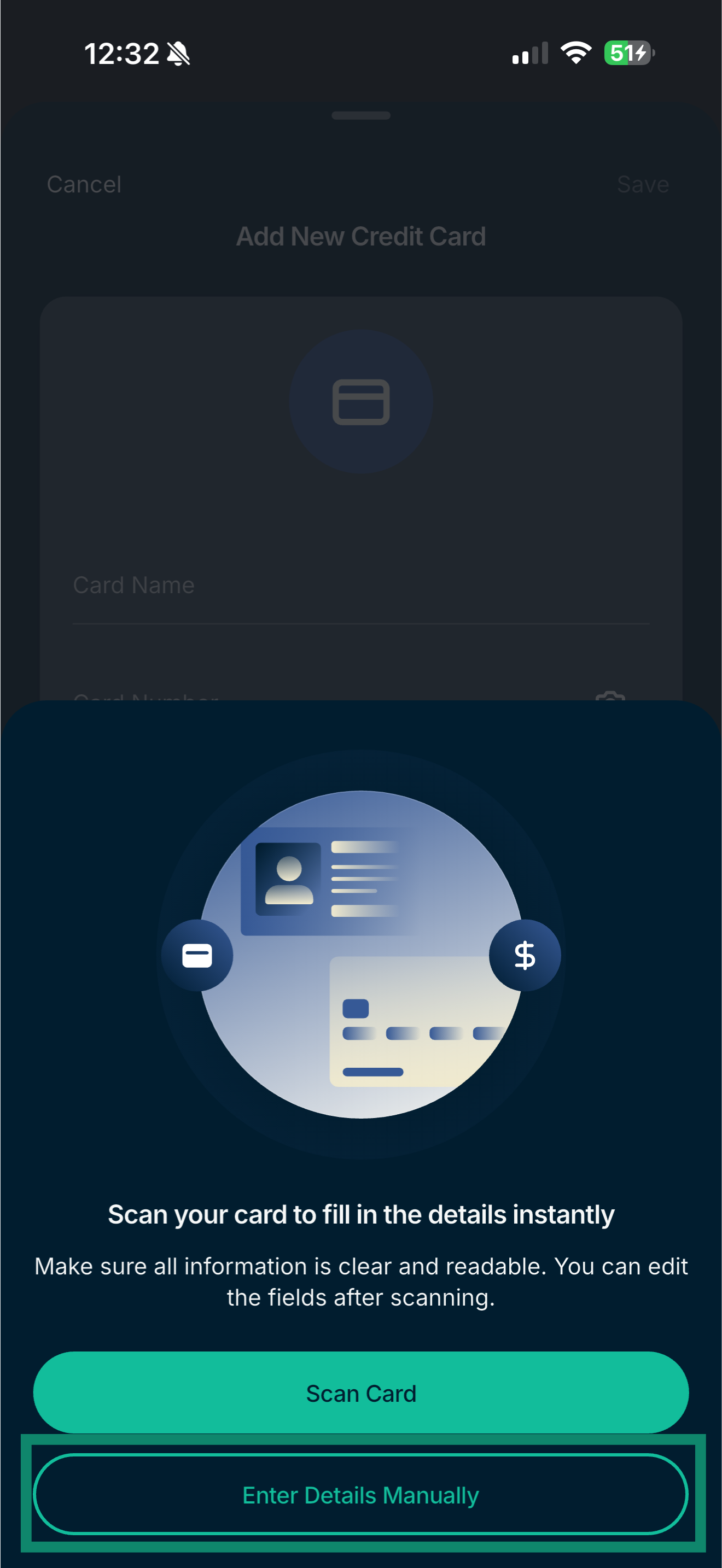
- On iOS only: Tap Enter Details Manually.

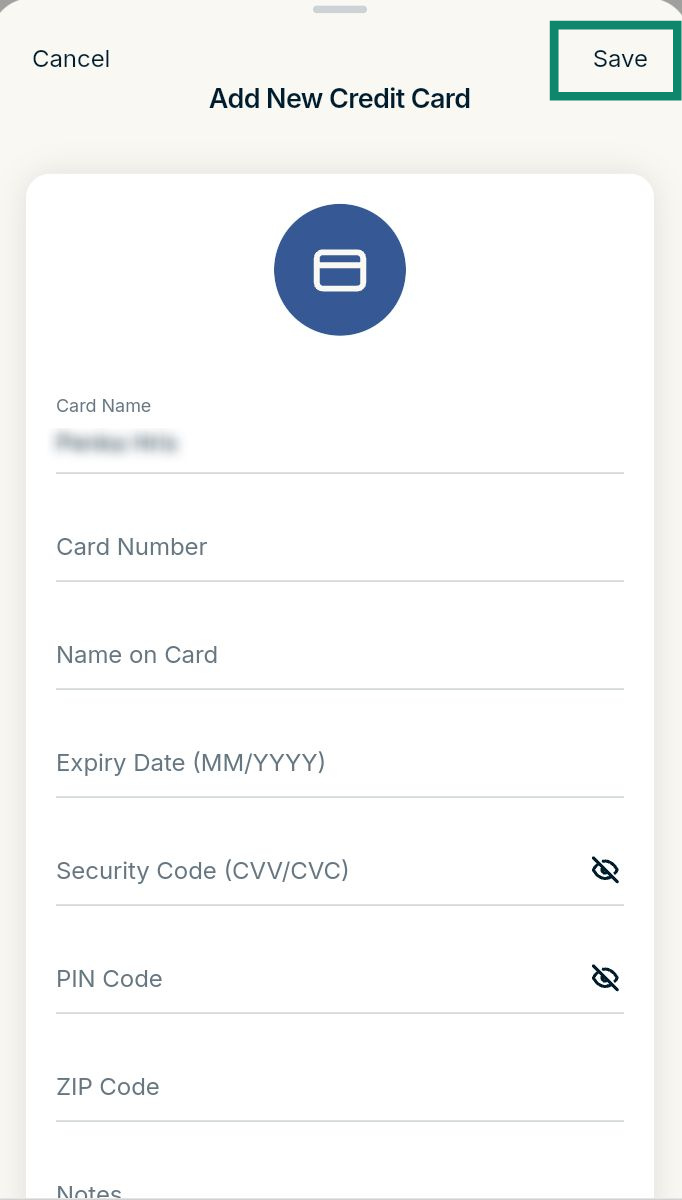
- Enter your card details and tap Save.


Need help? Contact the ExpressVPN Support Team for immediate assistance.
Edit or delete saved card details
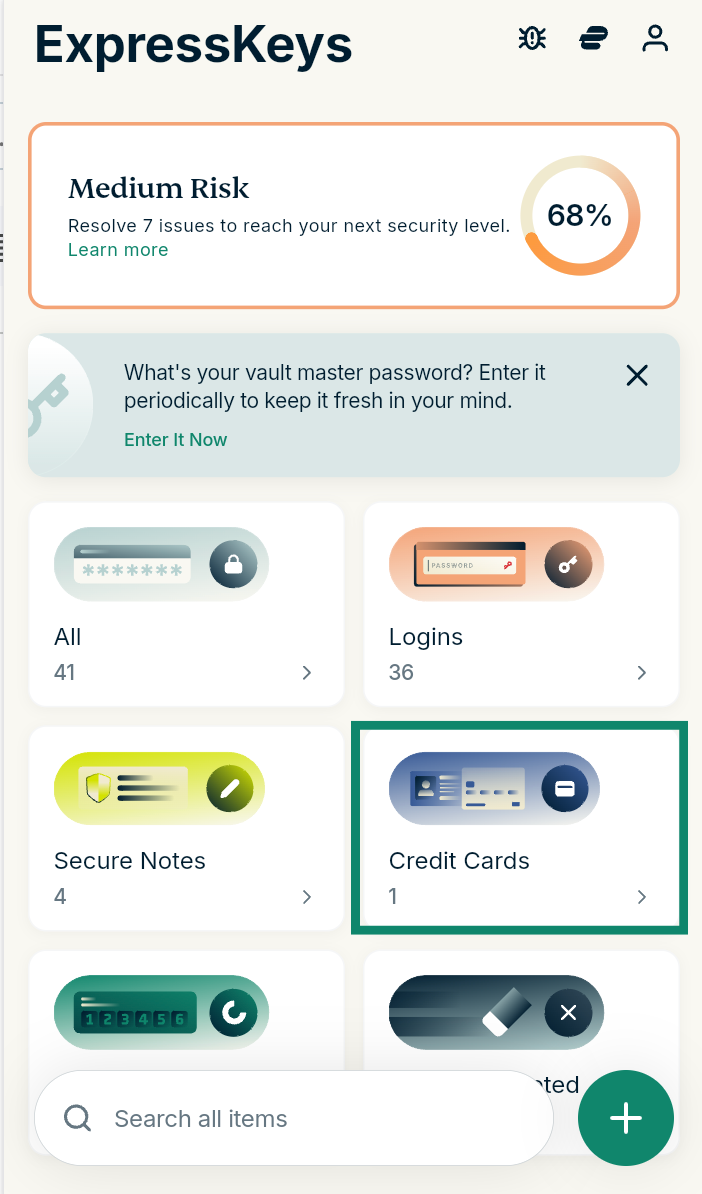
- In ExpressKeys, select Credit Cards.


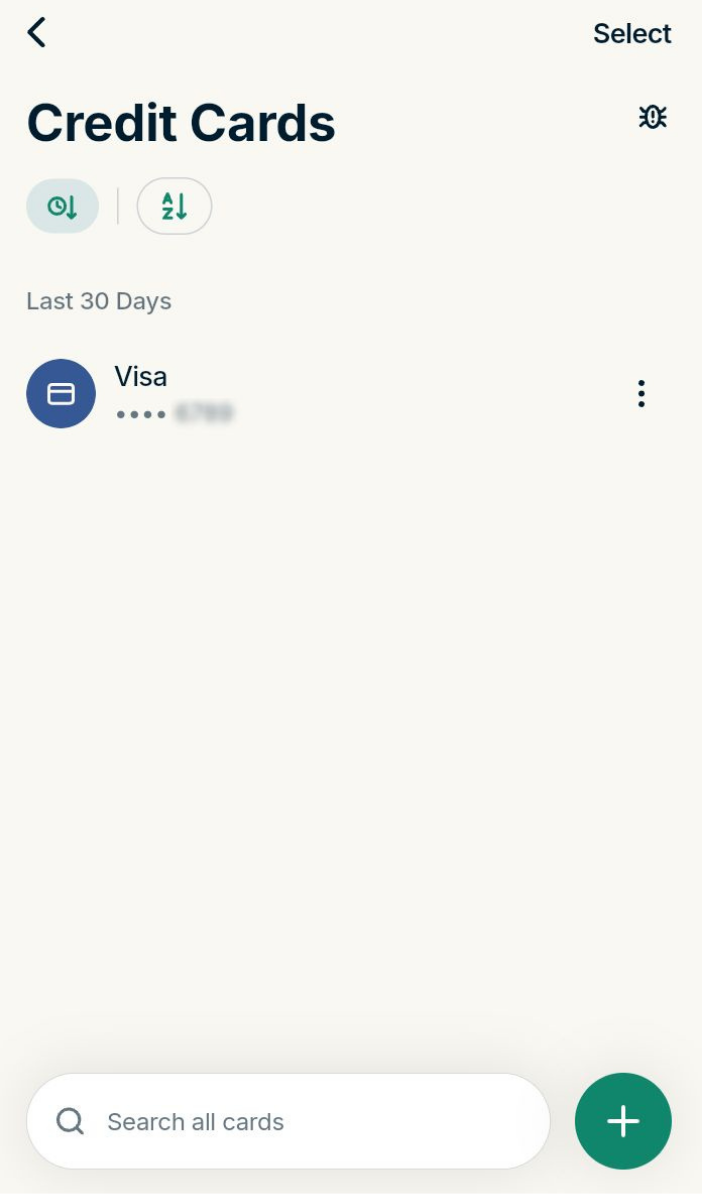
- Select the card you want to edit or delete.

To edit the card
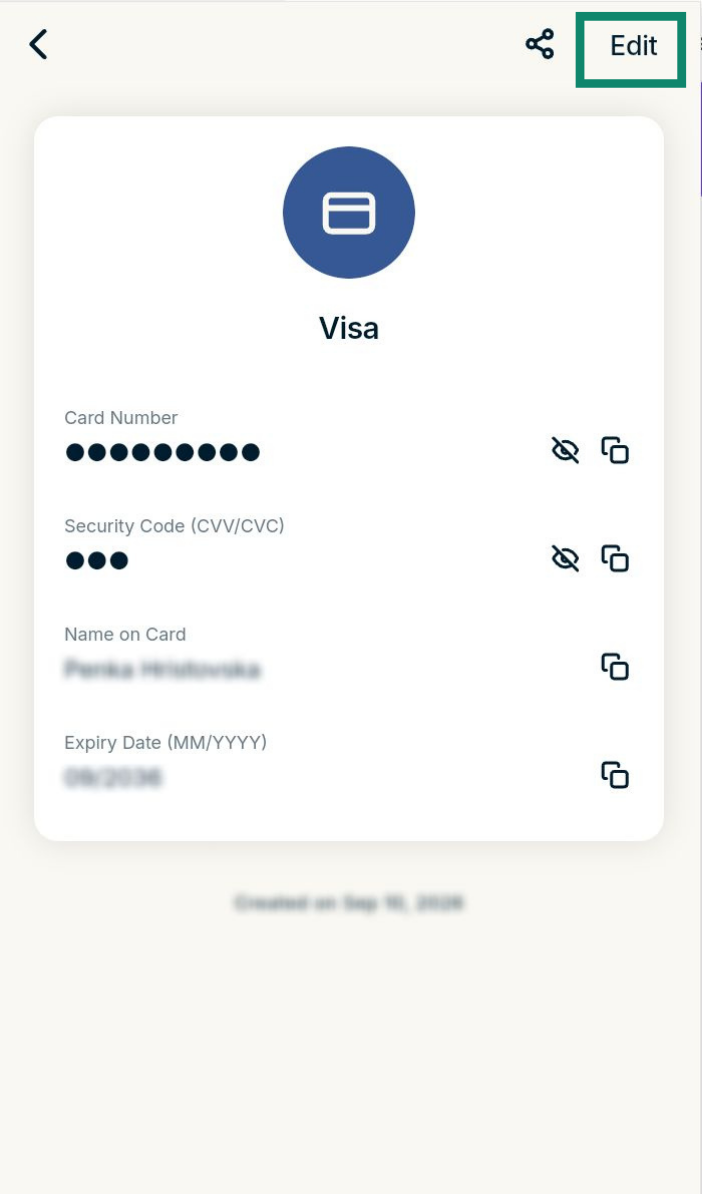
- Select Edit and update the details.

- Select Save.


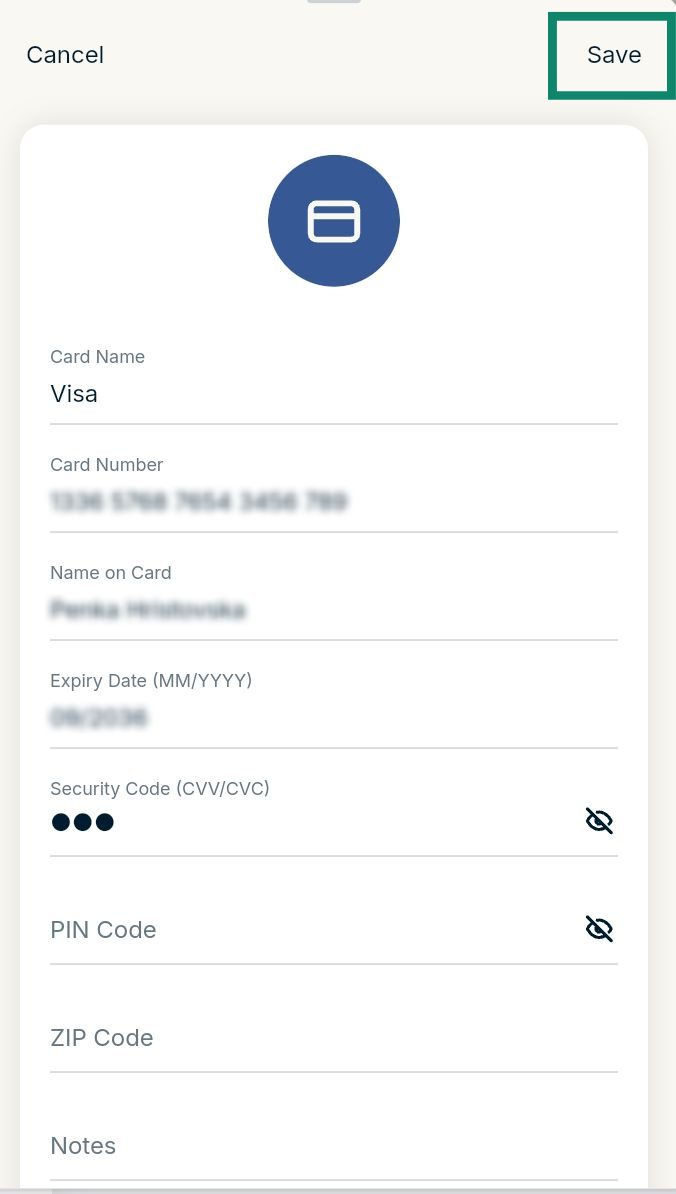
To delete the card
Scroll down and select Delete Credit Card.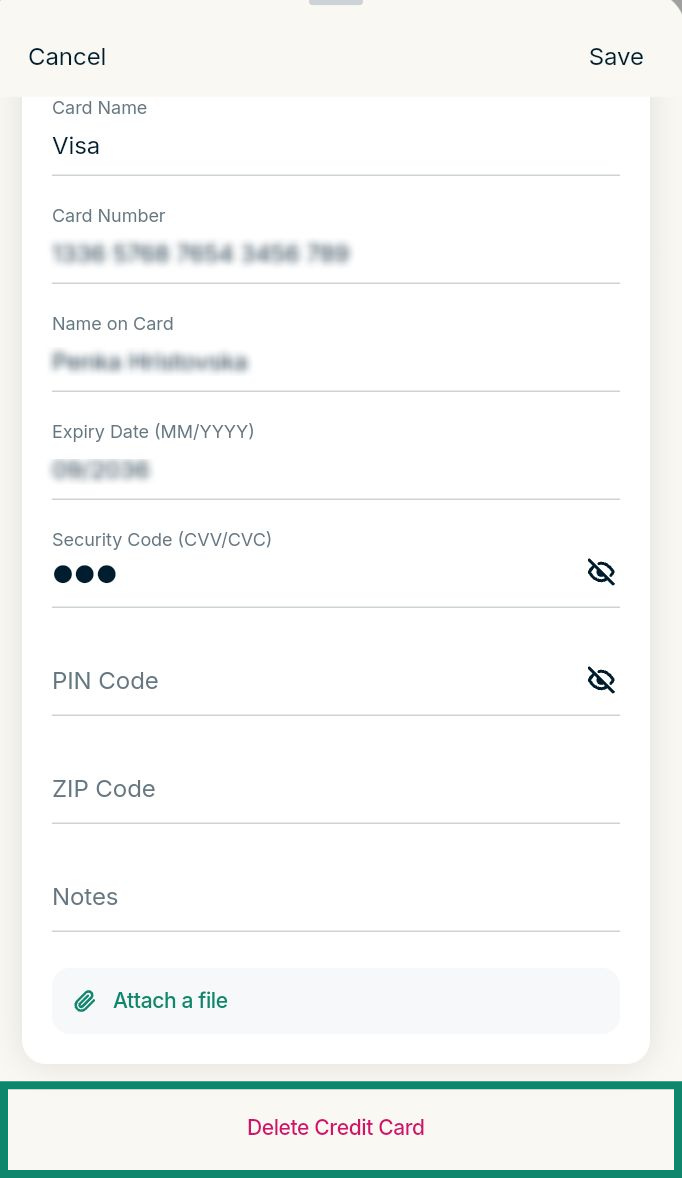
Need help? Contact the ExpressVPN Support Team for immediate assistance.
Store and manage card details in the ExpressKeys macOS app
Add credit details
- Launch the ExpressKeys app and log into your vault.
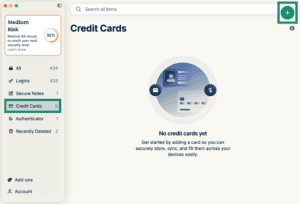
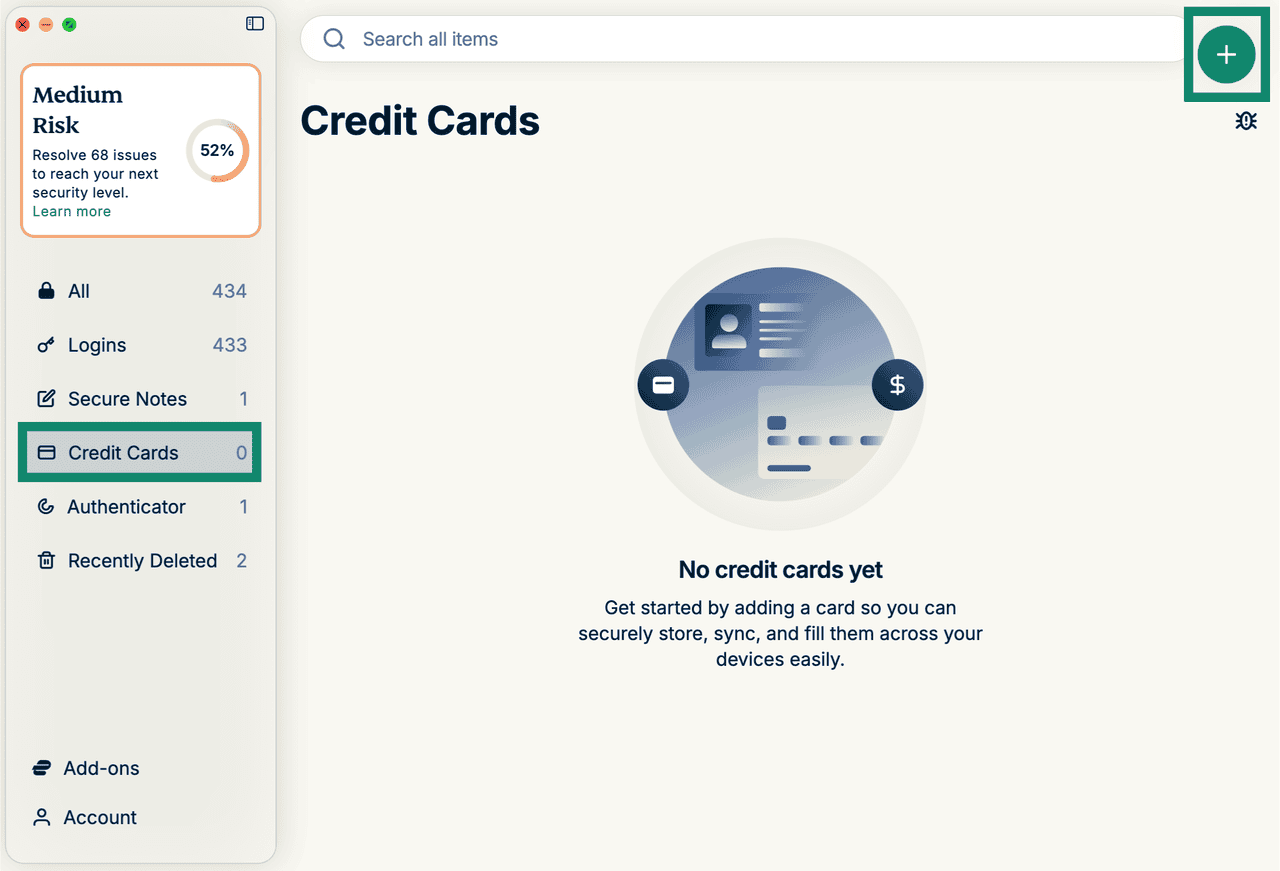
- Click the Credit Cards tab, then click the plus icon.

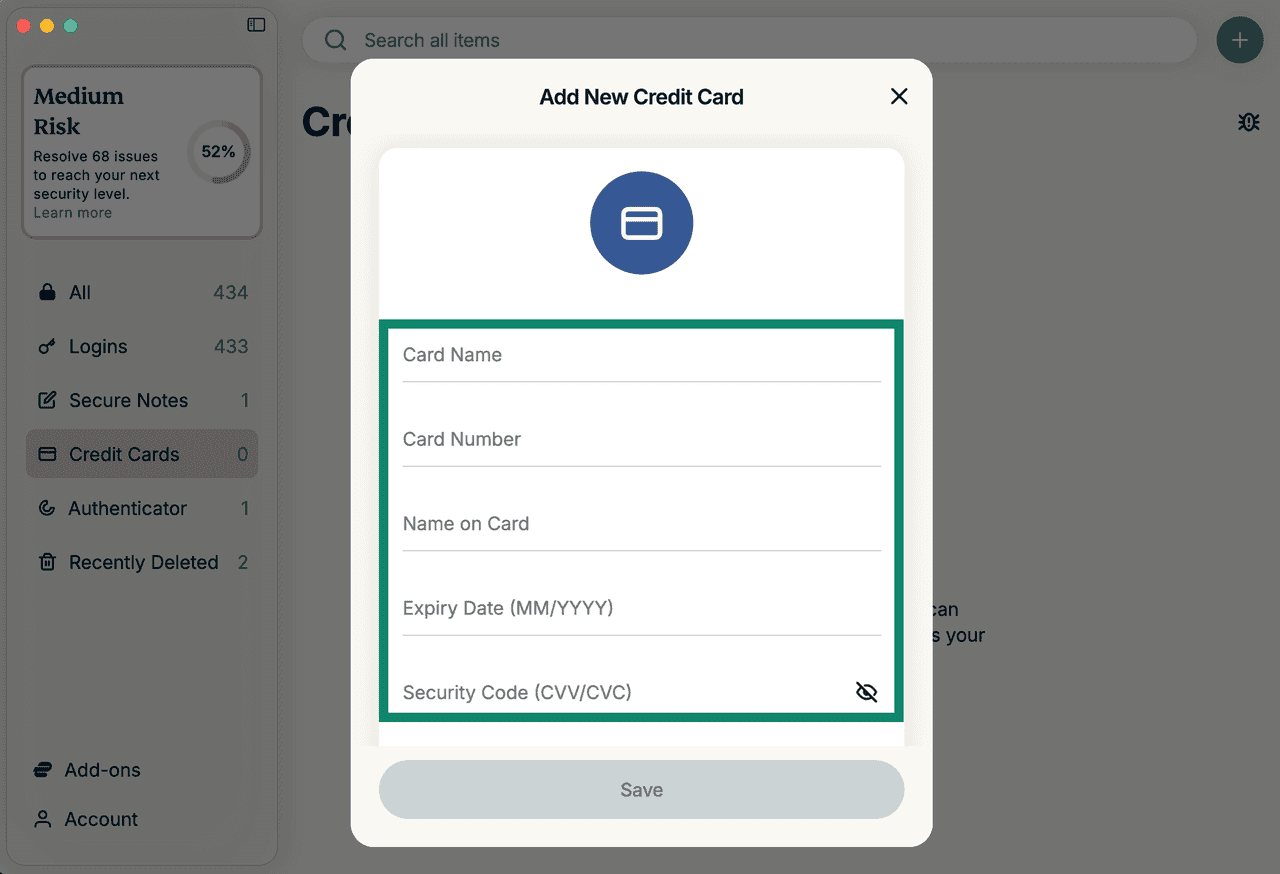
- Enter your card’s details.
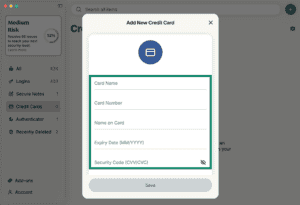

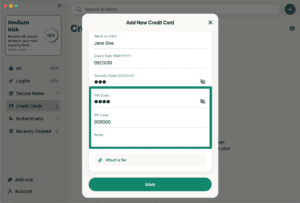
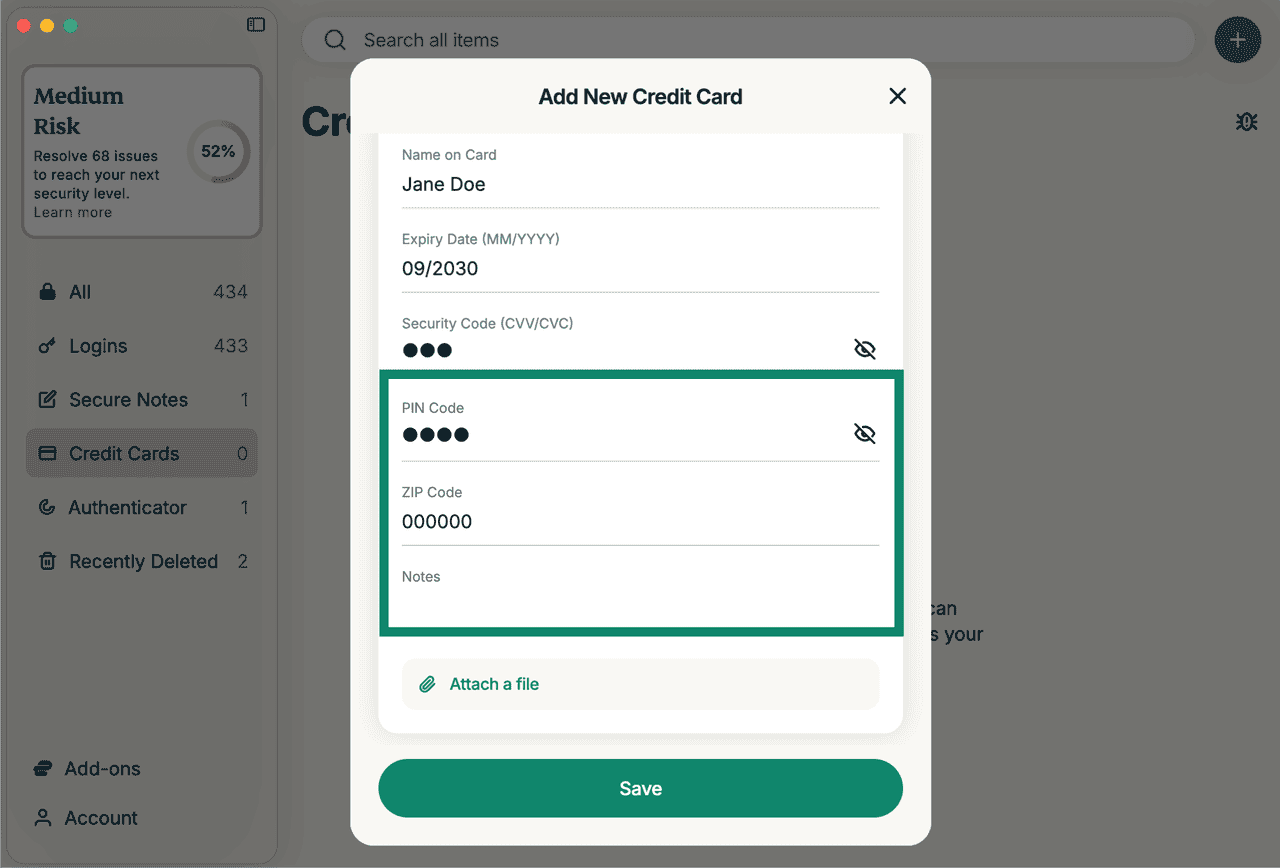
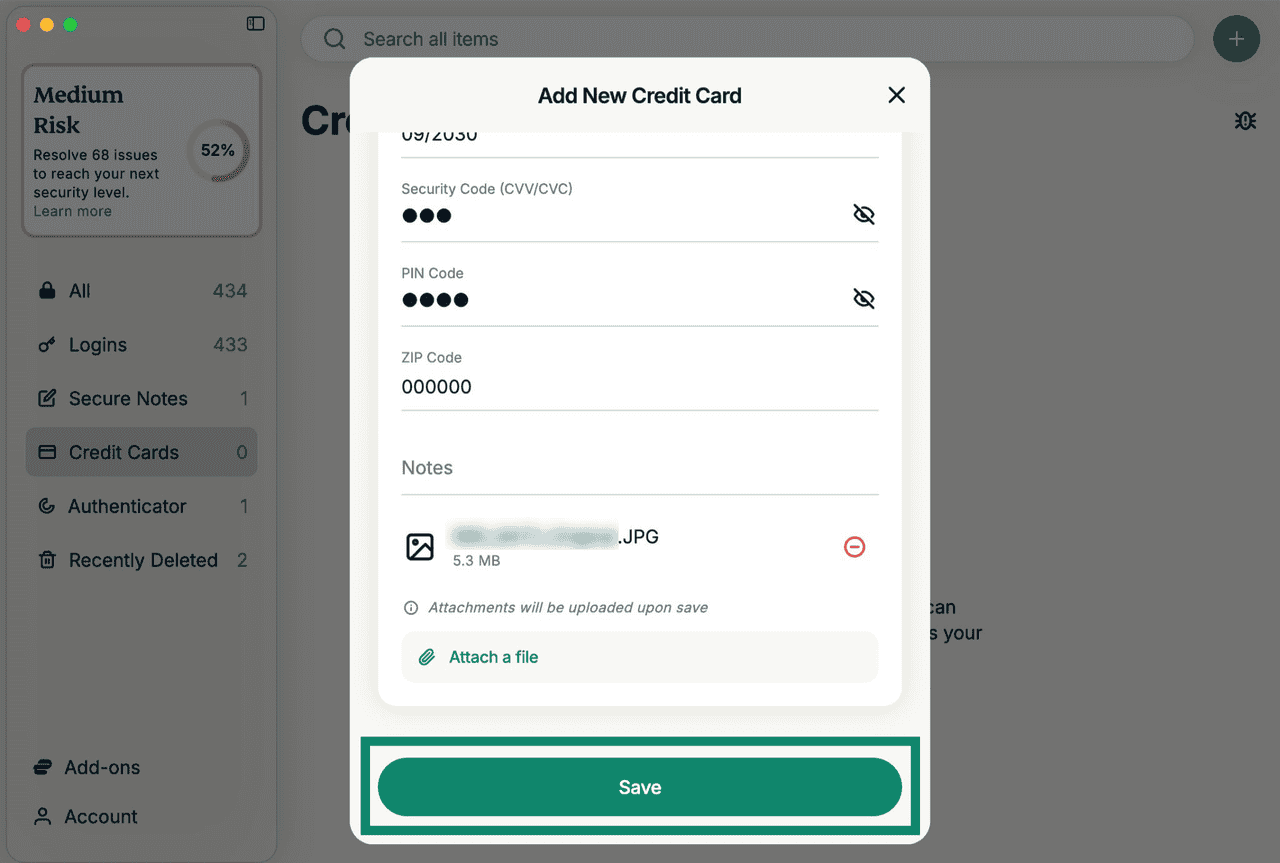
- Enter additional information about your card if you would like, such as a PIN Code, ZIP Code, and relevant Notes.

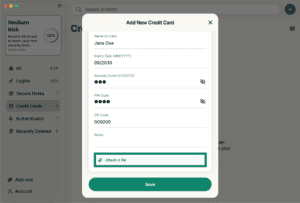
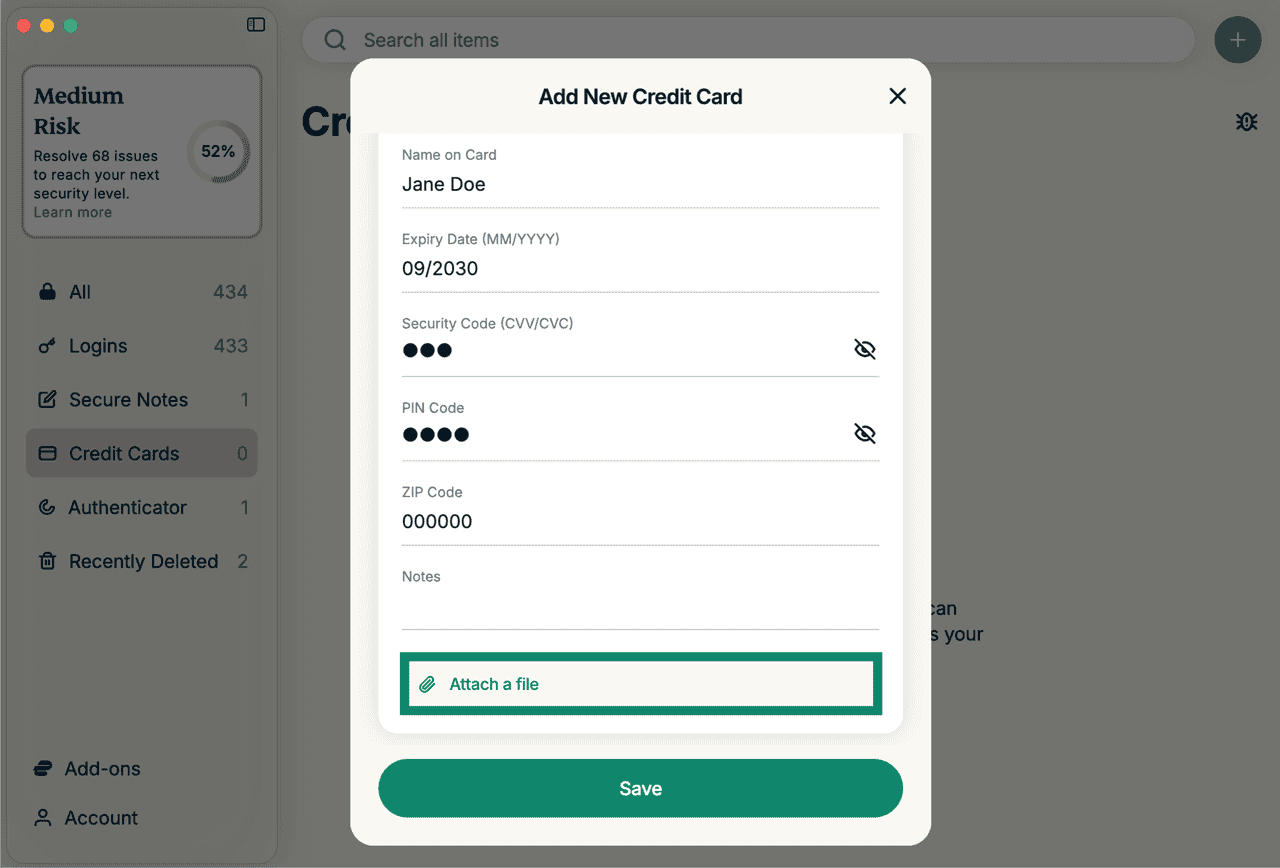
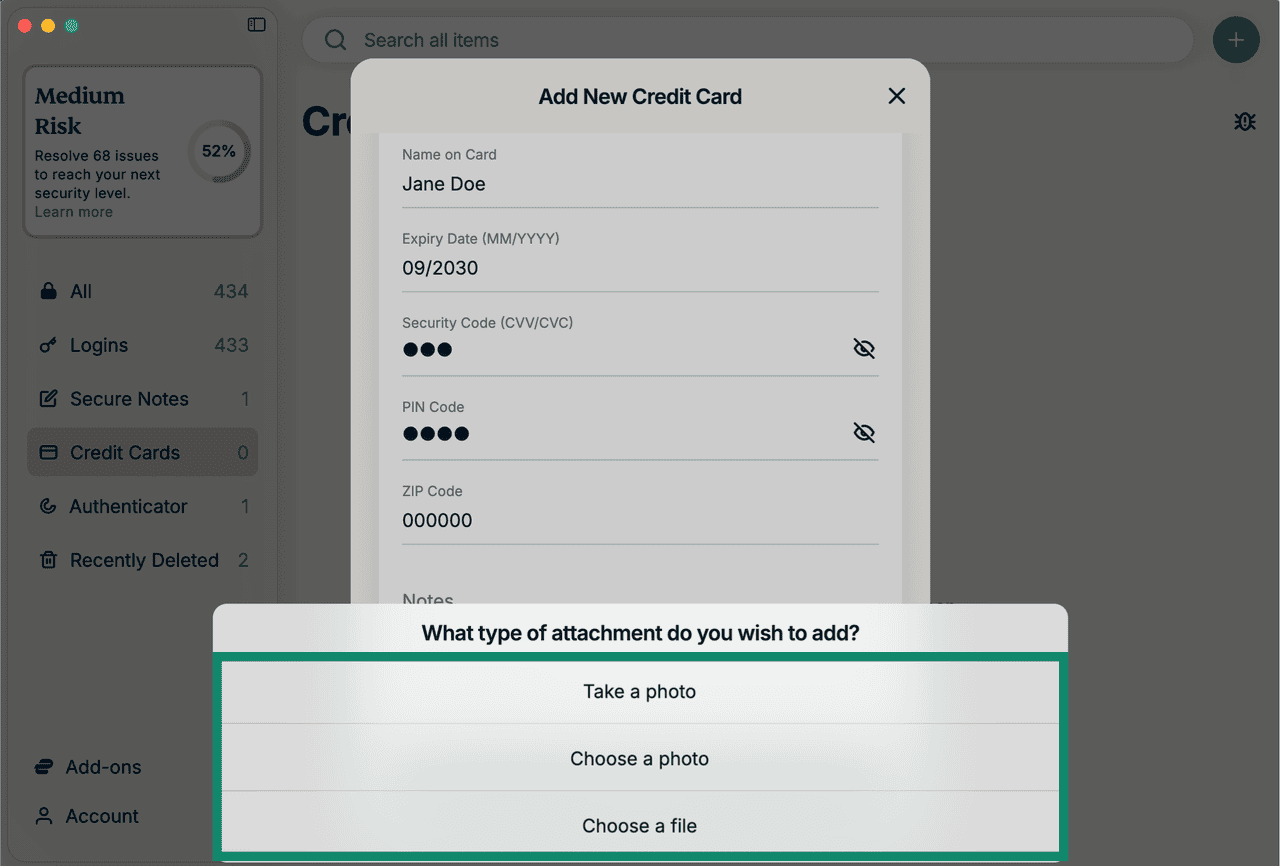
- To attach a relevant file, click Attach a file.
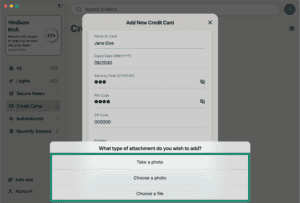
- Choose your desired option. You can take a photo or upload a photo or file from your computer.

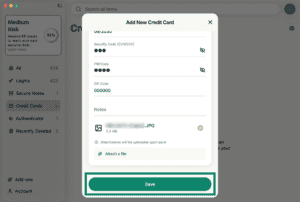
- When done, click Save.

Edit or delete saved card details
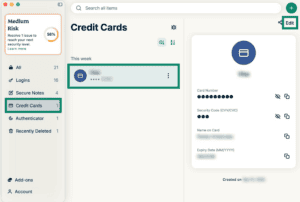
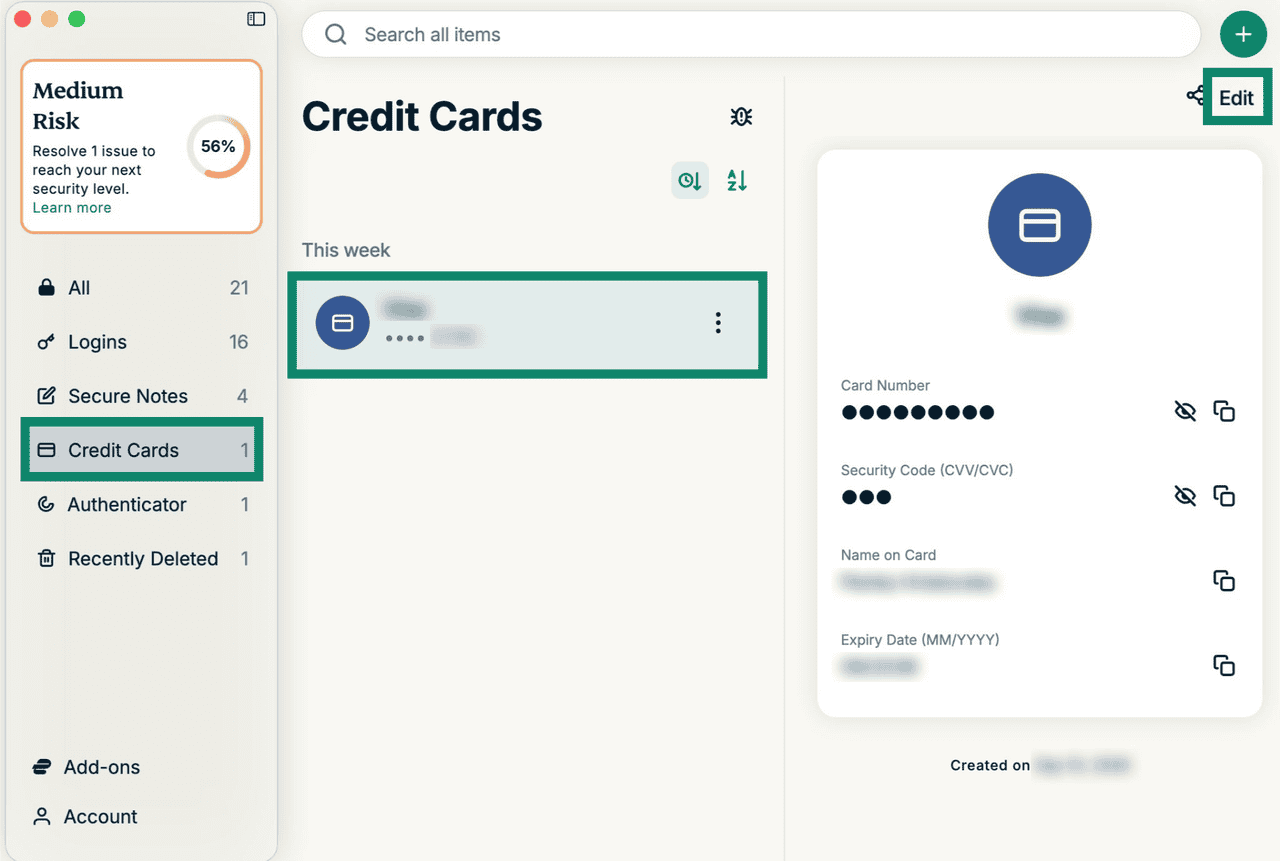
- Click the Credit Cards tab, select the desired card, then click Edit.

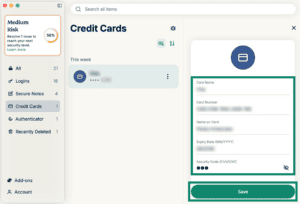
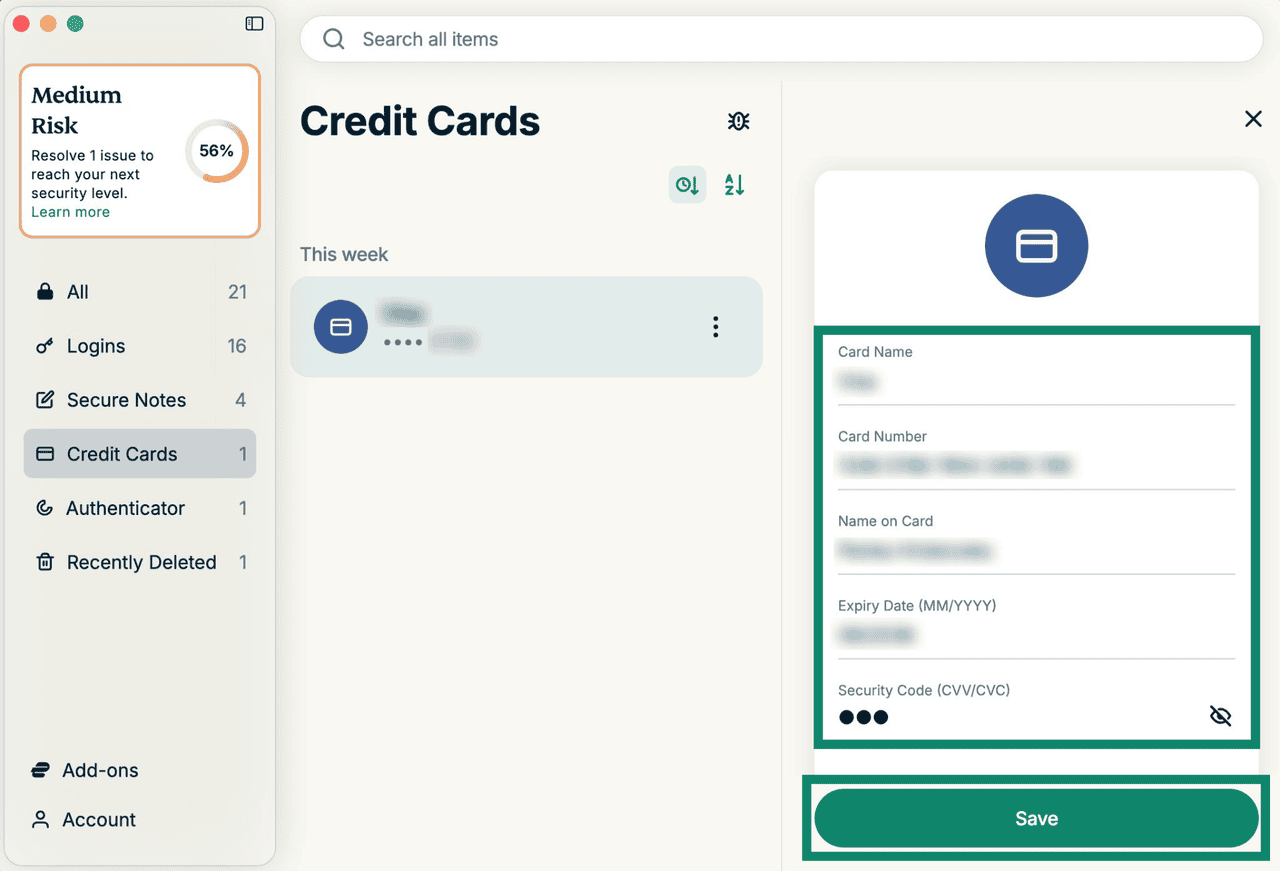
- To edit the card, modify the details and click Save.
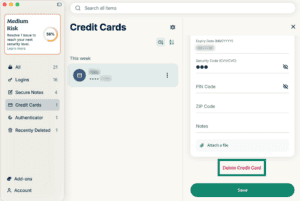
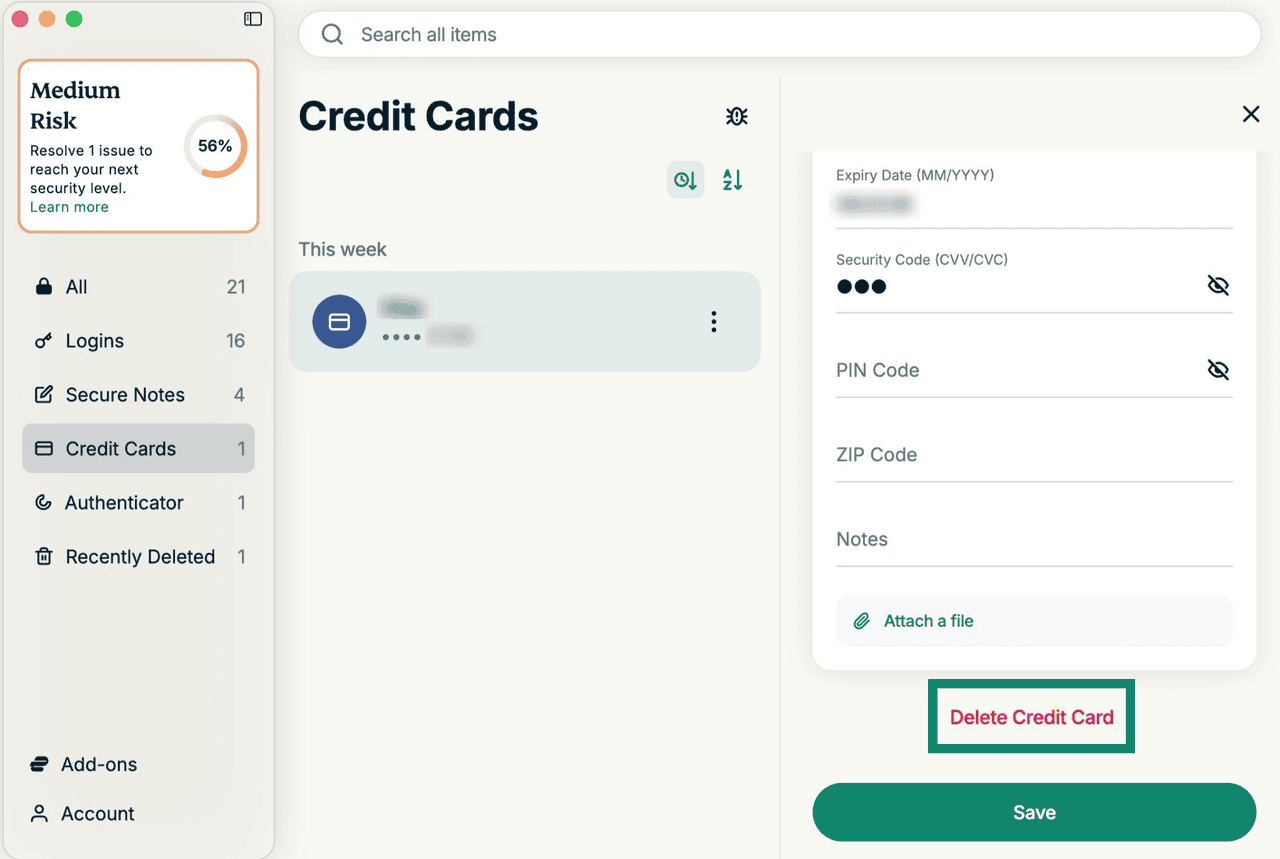
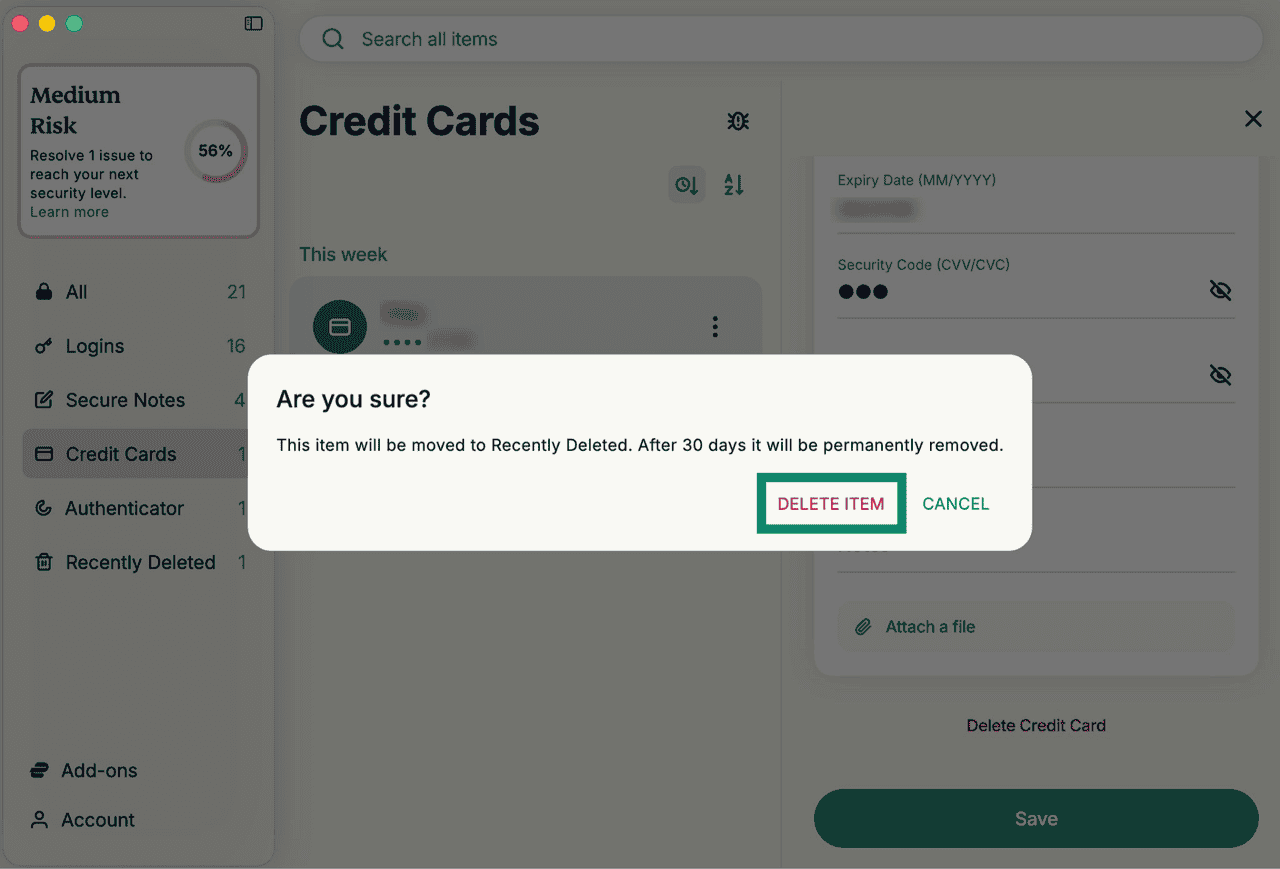
- To delete the card, scroll down and click Delete Credit Card.

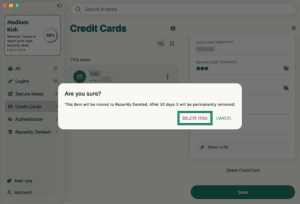
- Click DELETE ITEM when prompted.
Need help? Contact the ExpressVPN Support Team for immediate assistance.
Import your credit or debit card details
You can import your credit card details into ExpressKeys from several different apps, including 1Password, Dashlane, LastPass, and Bitwarden. Follow these instructions.
Need help? Contact the ExpressVPN Support Team for immediate assistance.
Autofill your credit or debit card details
ExpressKeys can autofill your credit or debit card details on websites, so you can complete payments quickly and securely. This option is available on the ExpressKeys app for Android and the browser extensions for Chrome and Firefox. To learn how to use autofill in ExpressKeys, follow these instructions.
Note: Autofill for credit and debit card details is unavailable with ExpressKeys for iOS. The ExpressKeys app for macOS does not currently support autofill in any capacity.
Need help? Contact the ExpressVPN Support Team for immediate assistance.