






You can import your logins, credit or debit cards, and secure notes from Bitwarden into ExpressKeys using the ExpressKeys app for iOS, Android, and macOS, or the browser extension.
Once your passwords are imported, you can use ExpressKeys to review your password health, identify weak or reused passwords, and update them to improve your security.
Jump to
Import your Bitwarden data on desktop (CSV method)
Import your Bitwarden data using your iOS device
Import your Bitwarden data using your Android device
Import your Bitwarden data using your computer
In the ExpressKeys app for macOS and the ExpressKeys browser extension, you can import your data from Bitwarden using a CSV file.
1. Export your Bitwarden data
- Log into your Bitwarden account.
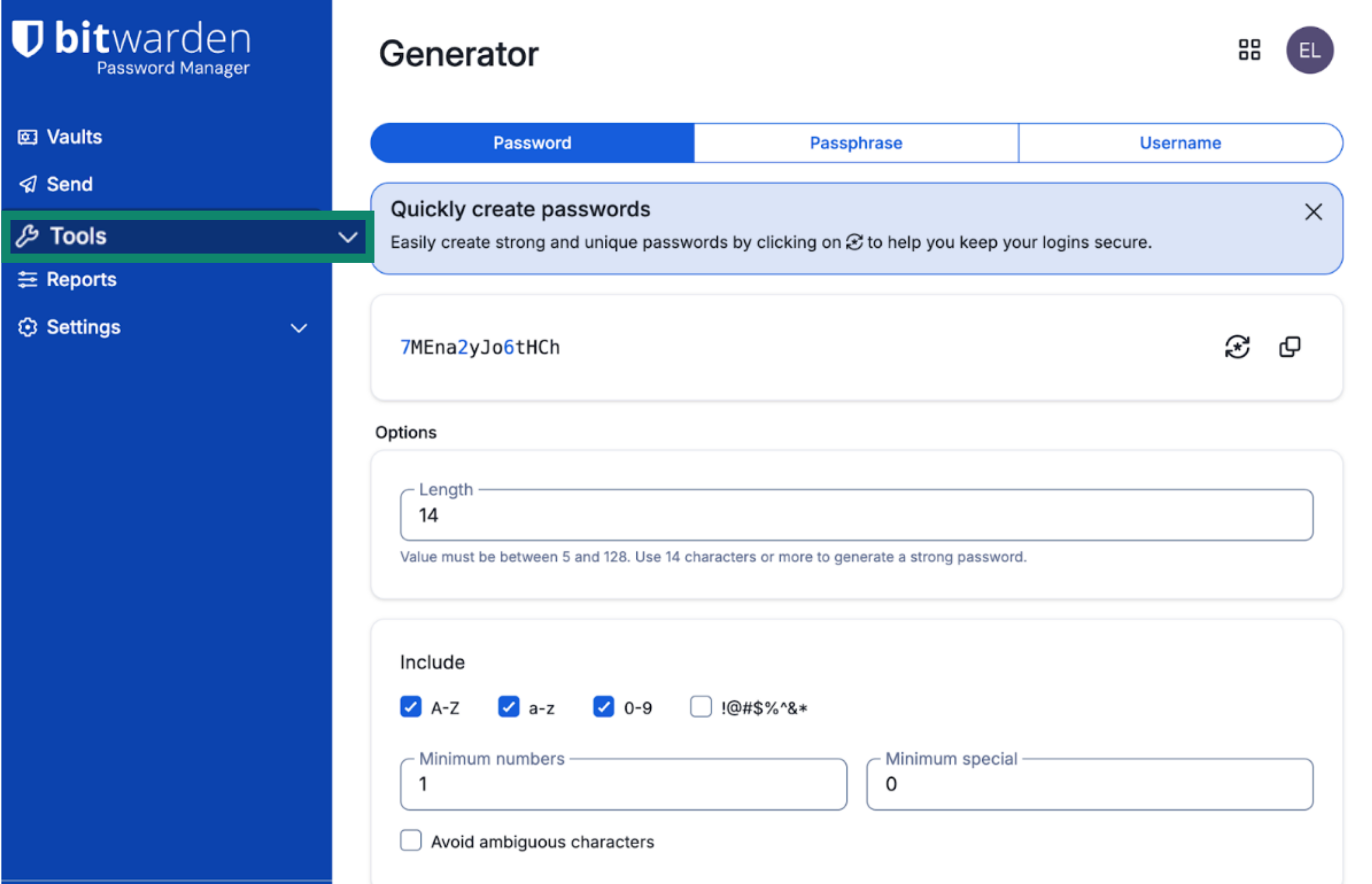
- In the left sidebar, click Tools.
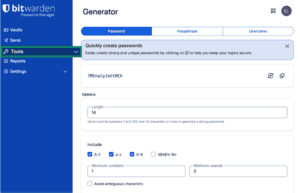

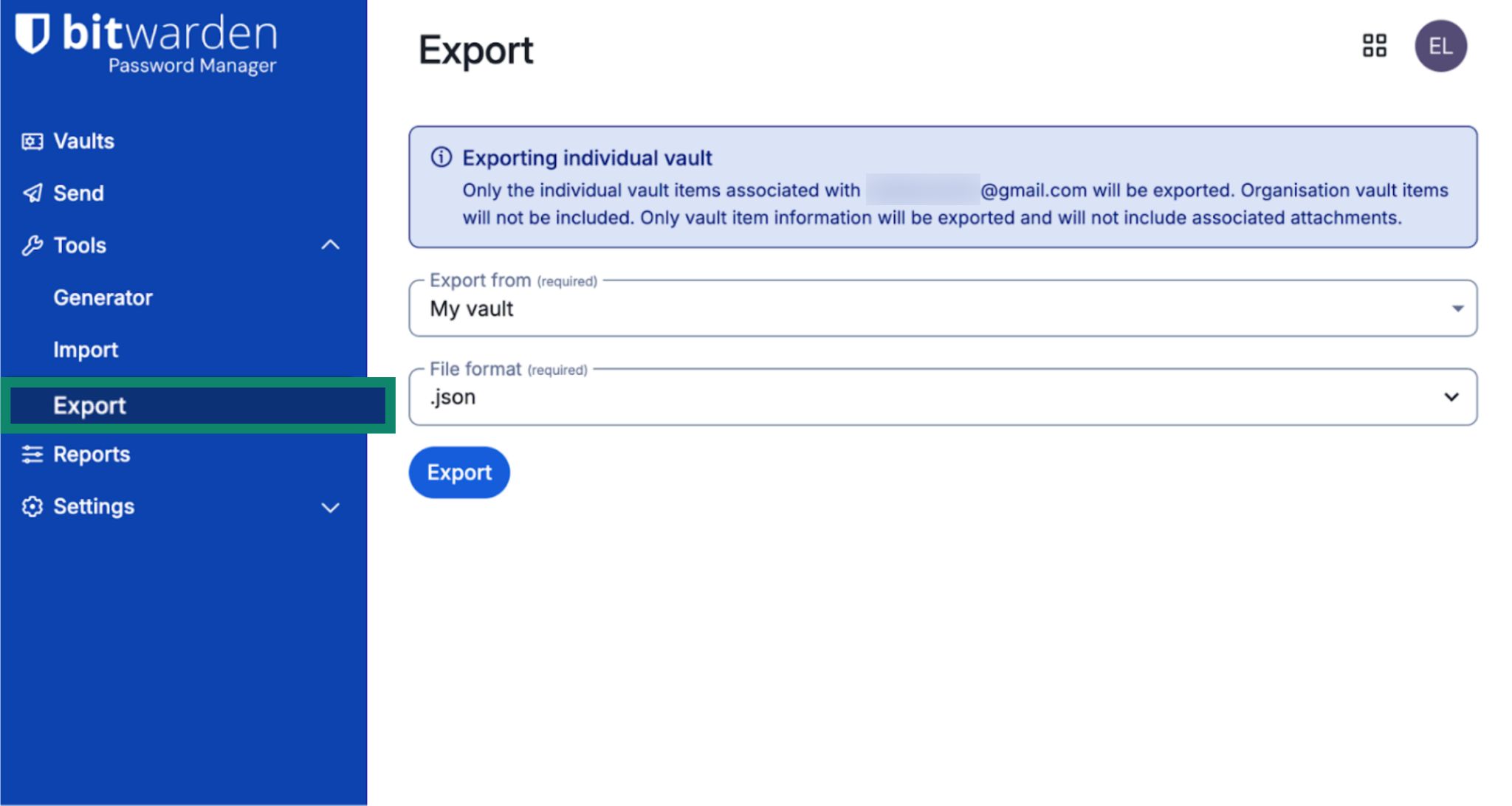
- From the dropdown, click Export.
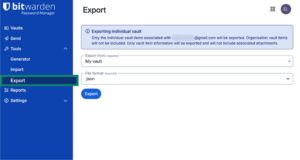

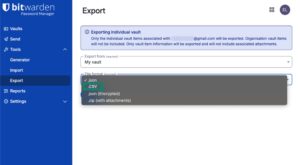
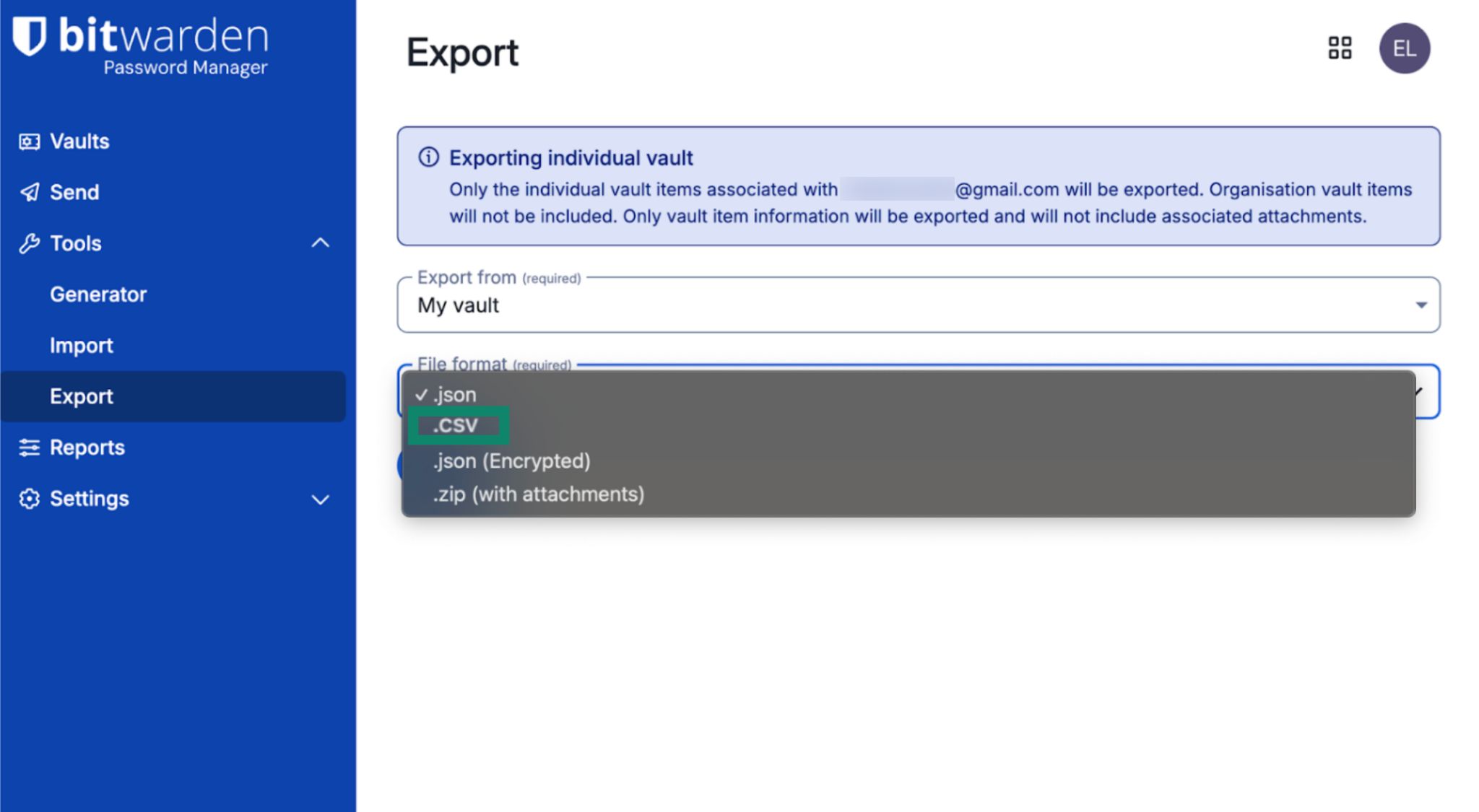
- For File Format, choose .csv.

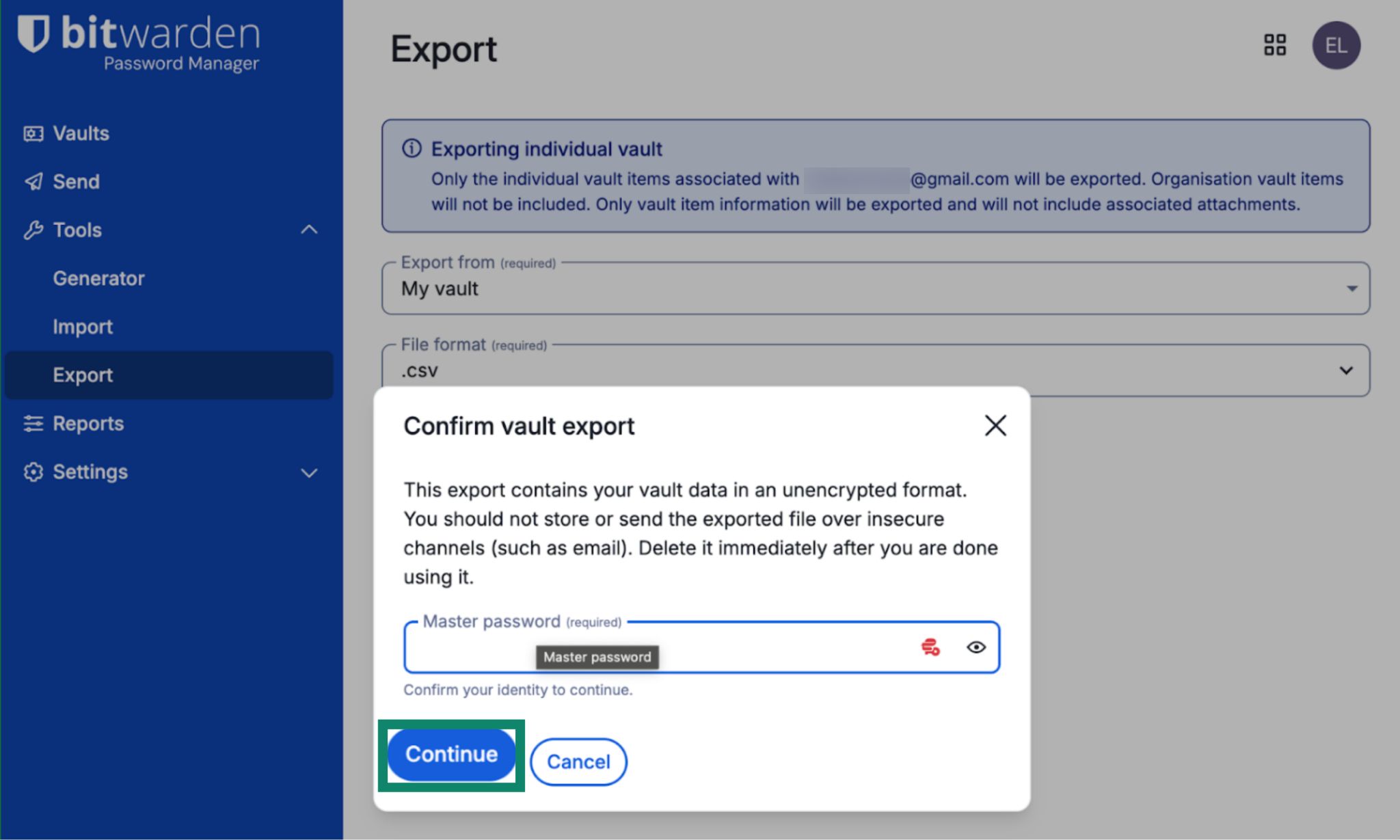
- Enter your master password and click Continue.
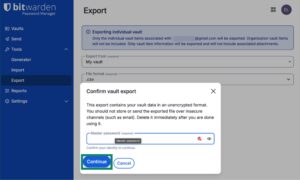

- A CSV file will be saved to your device automatically.
2. Import your Bitwarden data into ExpressKeys
Note: This guide is illustrated using the browser extension, but the steps are the same on macOS.
- Open the ExpressKeys app for macOS or the browser extension.
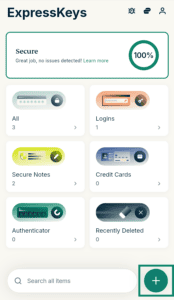
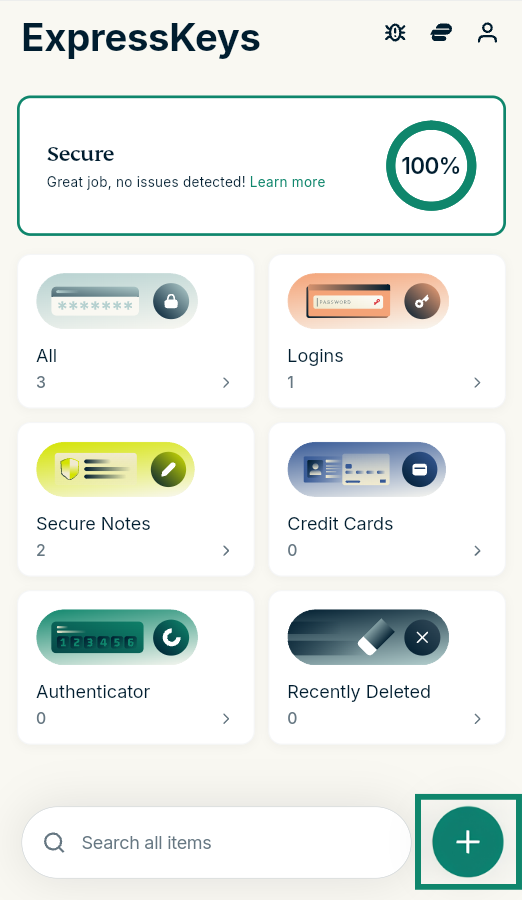
- Click the plus (+) icon.

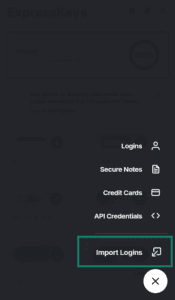
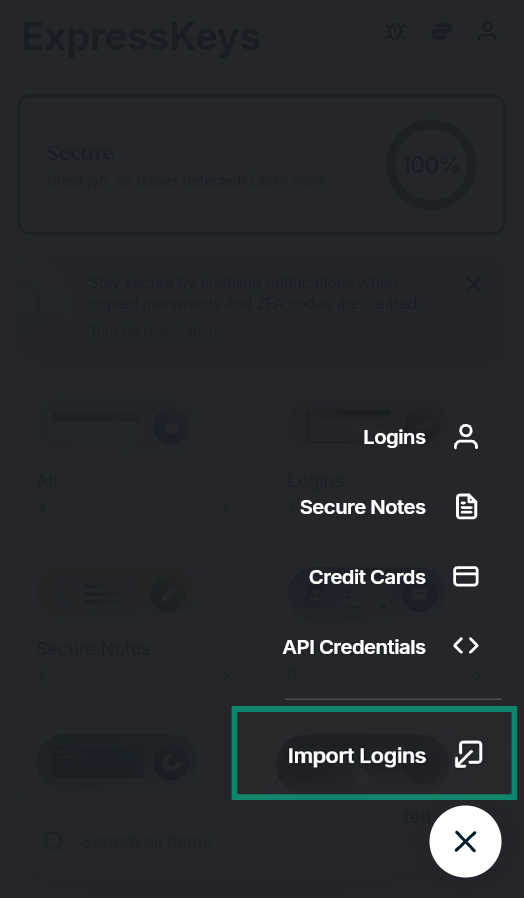
- Select Import Logins.

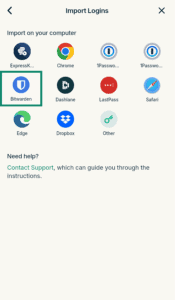
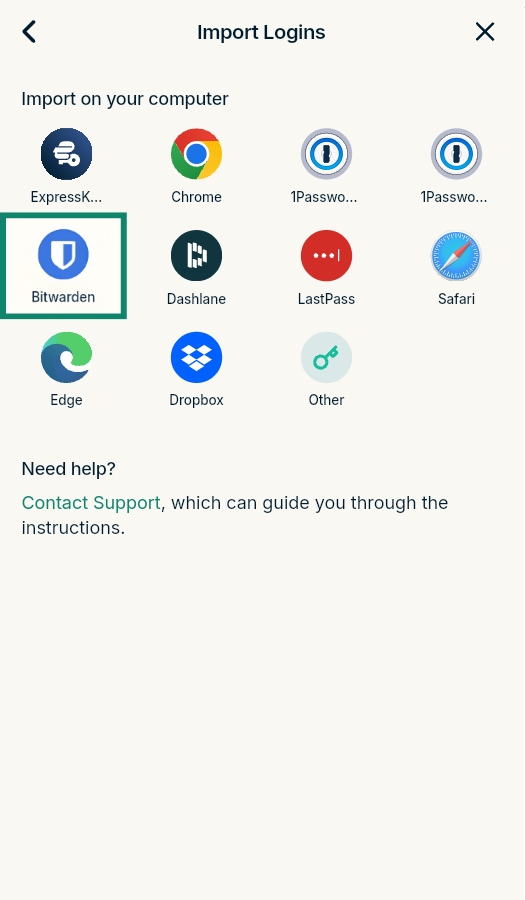
- Select Bitwarden.
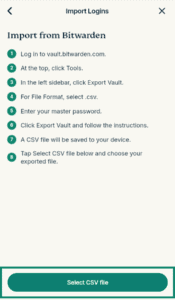
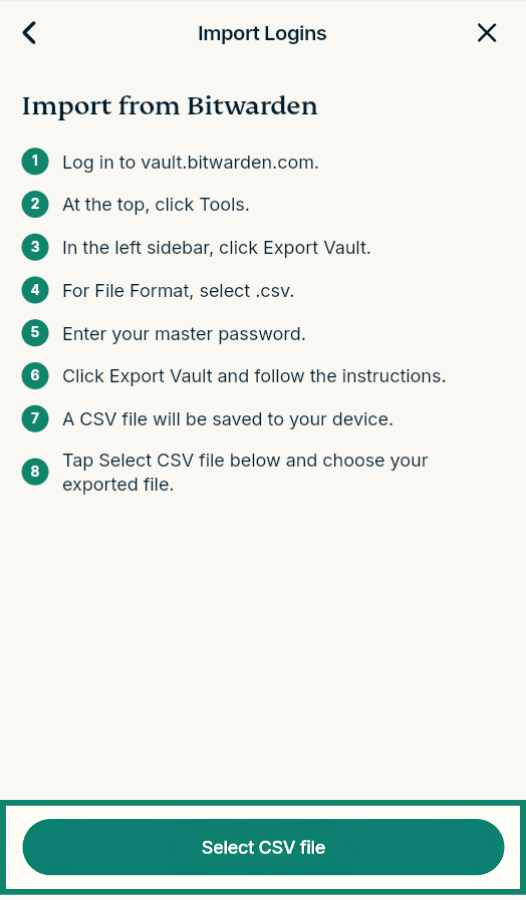
- Click Select CSV file and select the CSV file you exported from Bitwarden.

- Wait for the import to finish.
3. Remove the Bitwarden browser extension
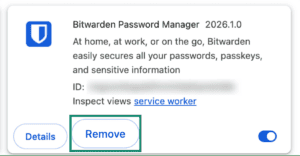
If you’re using the ExpressKeys extension, Bitwarden will continue to prompt you to fill in your logins for sites or services, interfering with ExpressKeys. To prevent this, remove the Bitwarden browser extension.
- Open the extensions menu by typing the below text into your search bar:
- Chrome: Enter chrome://extensions/ in the search bar.
- Edge: Enter edge://extensions/ in the search bar.
- Brave: Enter brave://extensions/ in the search bar.
- Opera: Enter opera://extensions in the search bar.
- Vivaldi: Enter vivaldi://extensions/ in the search bar.
- Firefox: Enter about:addons in the search bar.


- Find Bitwarden and:
- In a Chromium-based browser: Click Remove > Remove.
- In Firefox: Click the three-dot menu icon, then Remove.


Need help? Contact our Support Team for immediate assistance.
Import your Bitwarden data using your iOS device (iOS 26+)
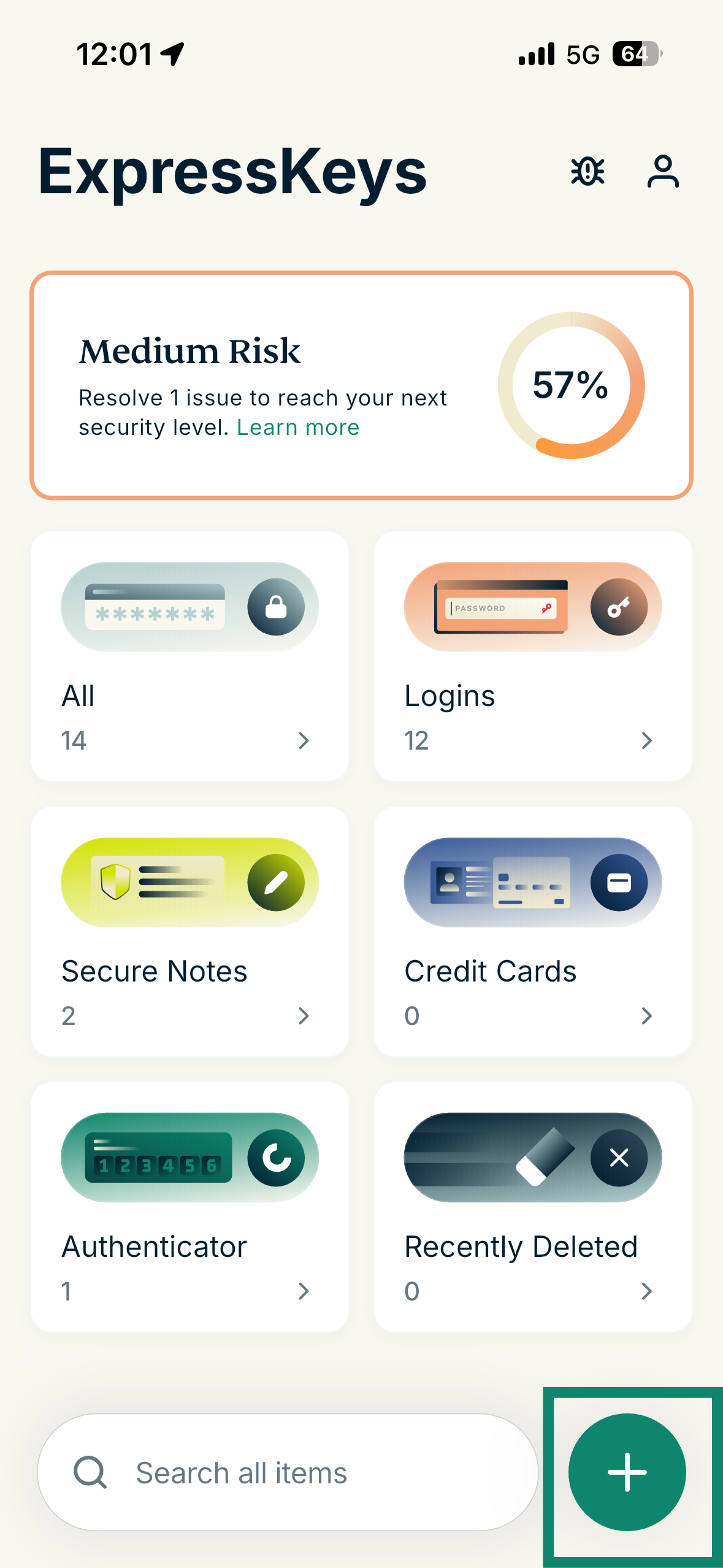
- Open the ExpressKeys app and tap the plus (+) icon.
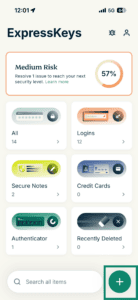

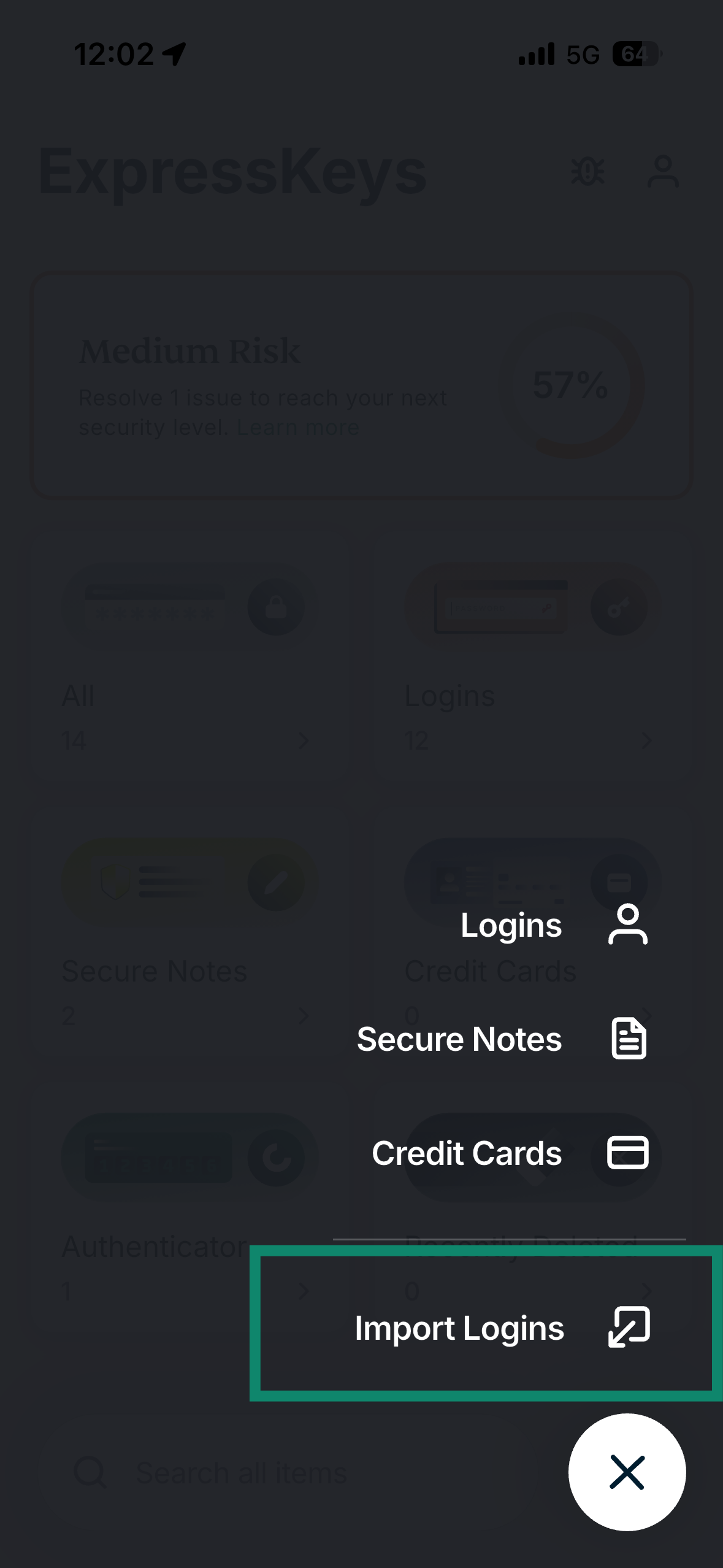
- Tap Import Logins.
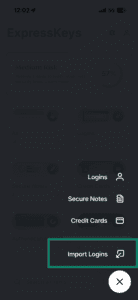
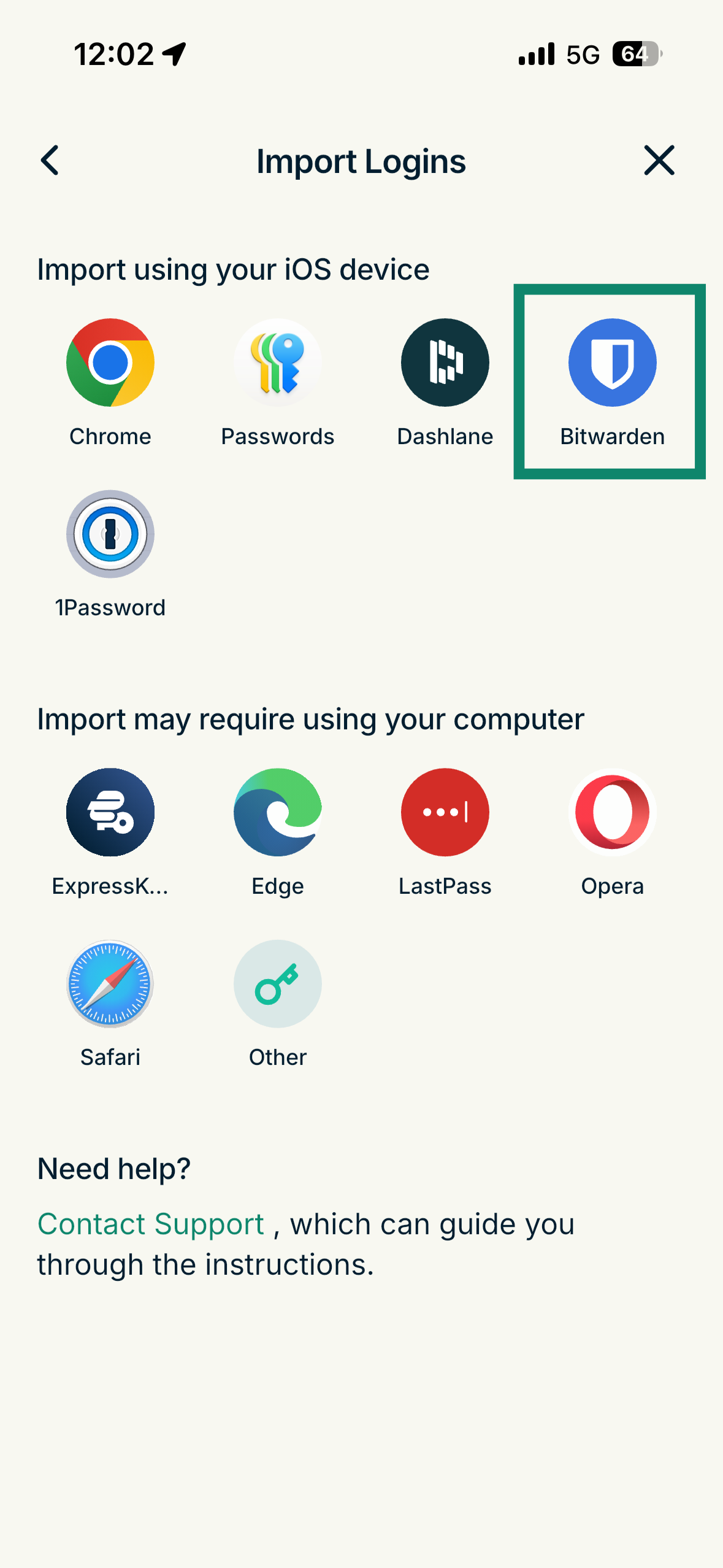
- Select Bitwarden.
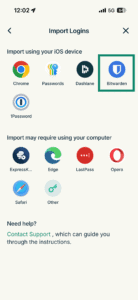
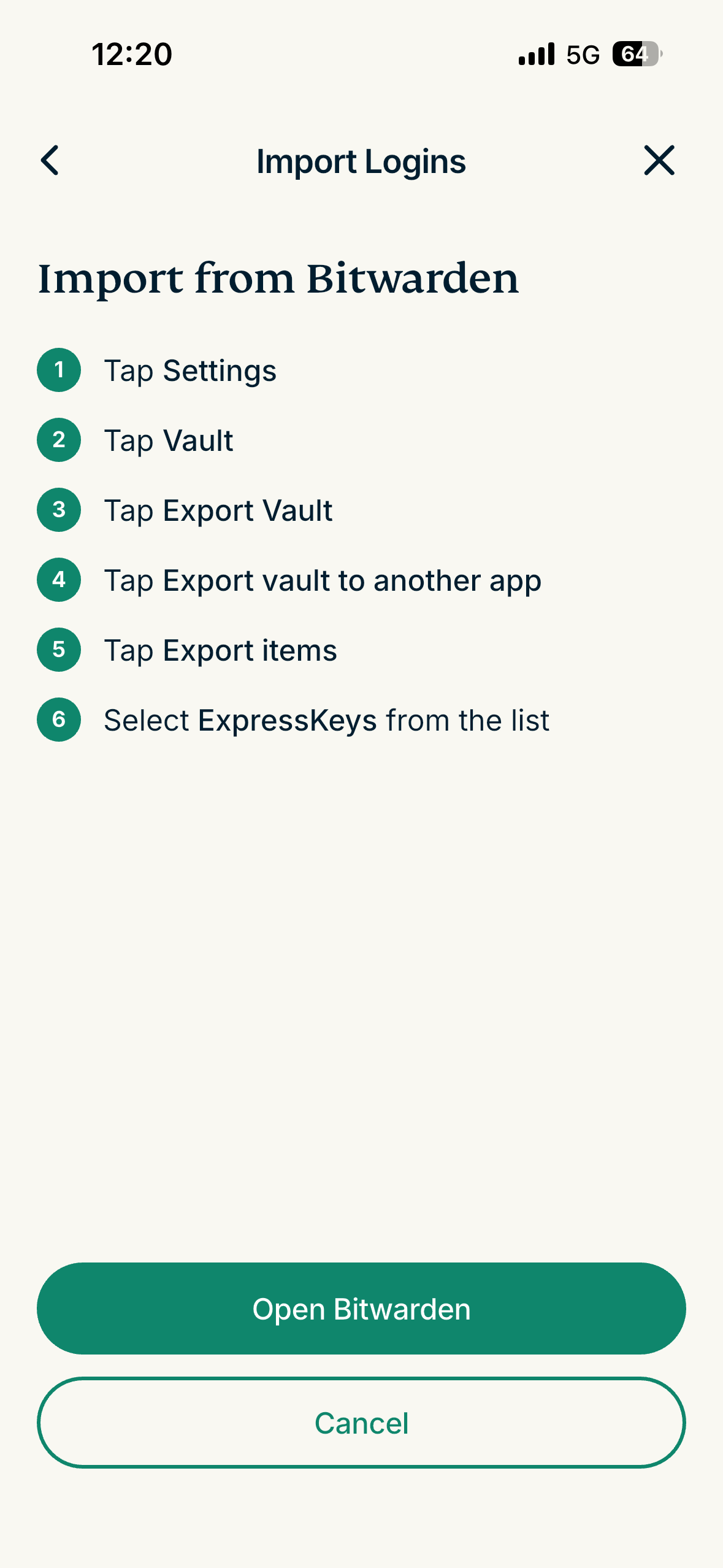
- Tap Open Bitwarden.
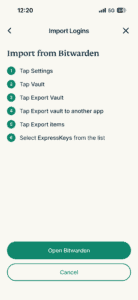
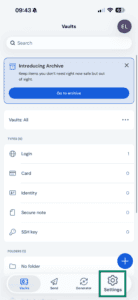
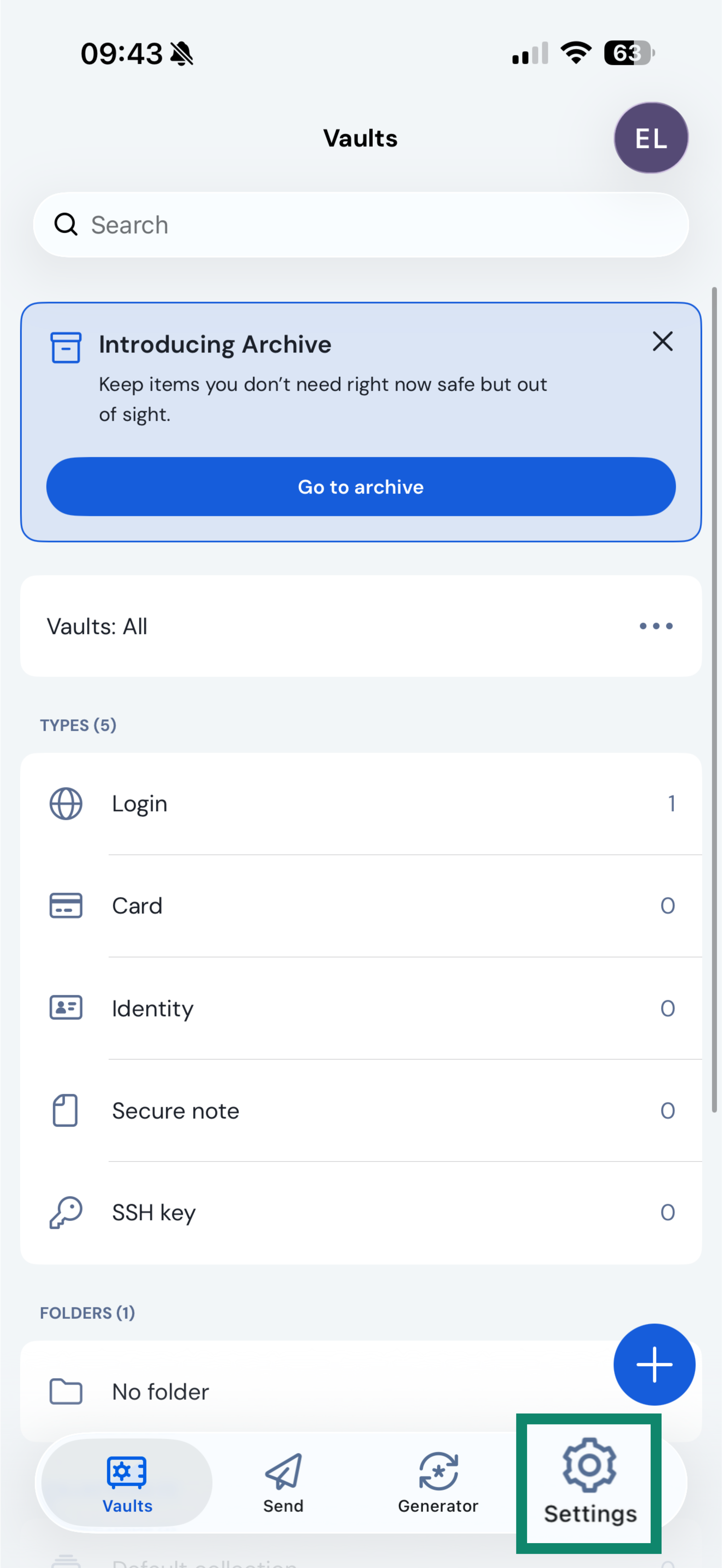
- In the Bitwarden app, tap Settings.

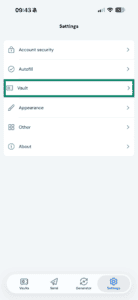
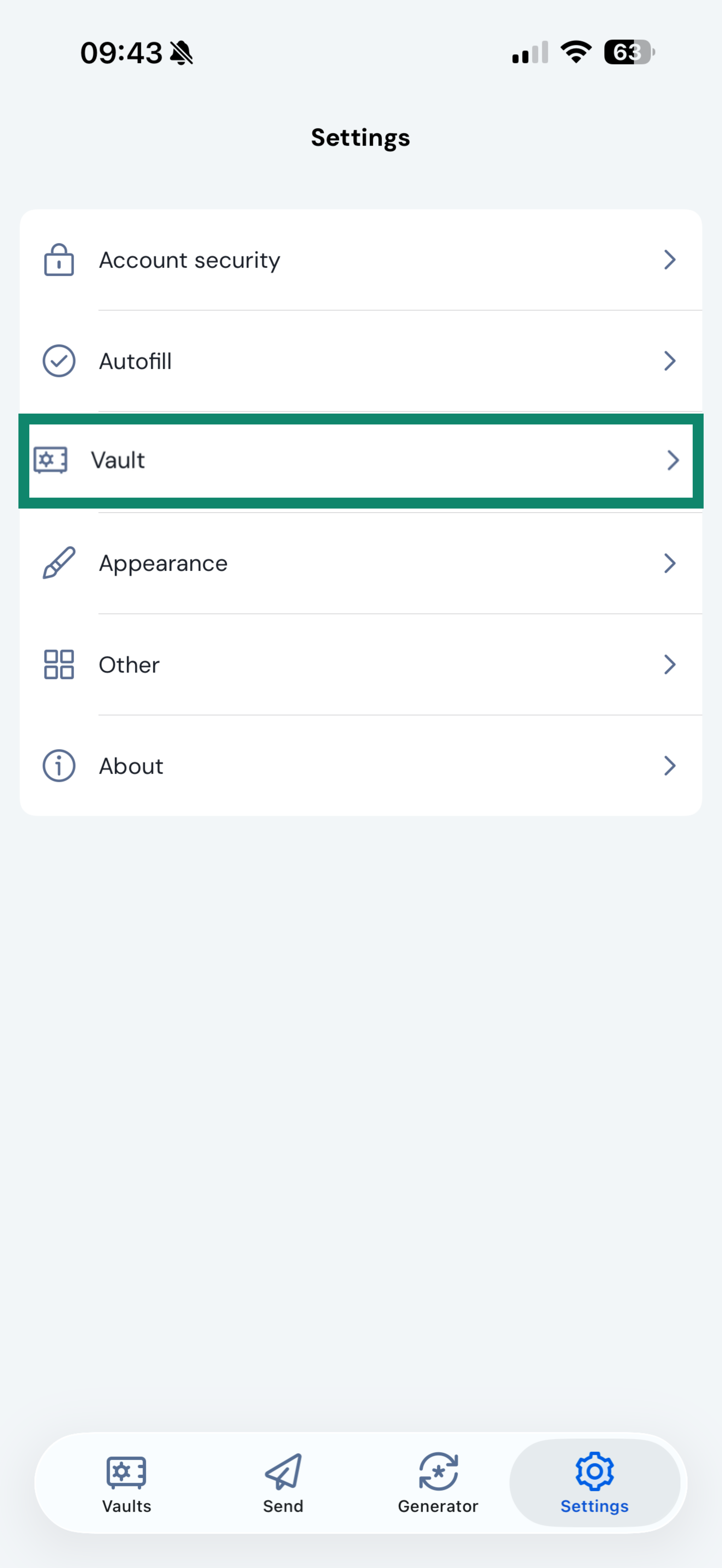
- Tap Vault.
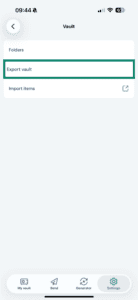
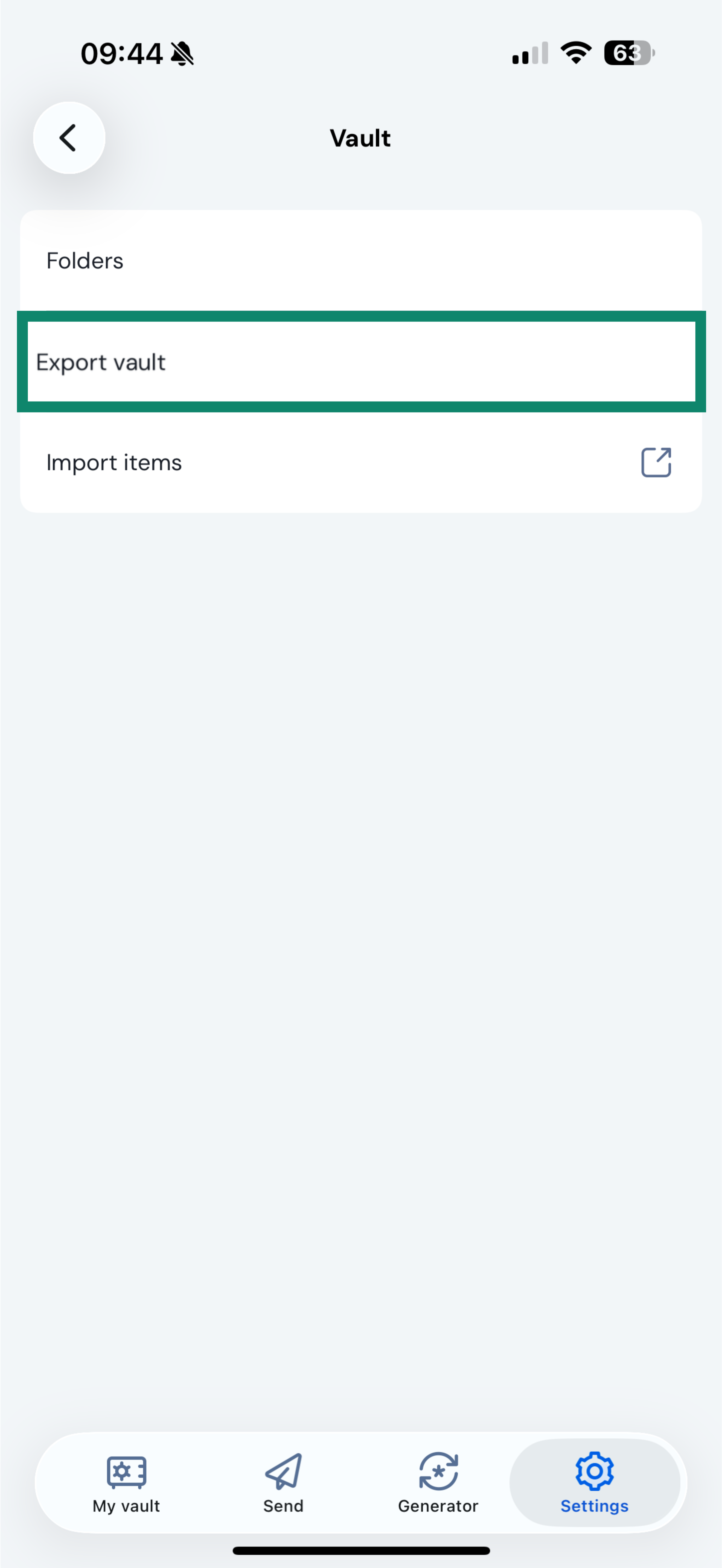
- Tap Export vault.
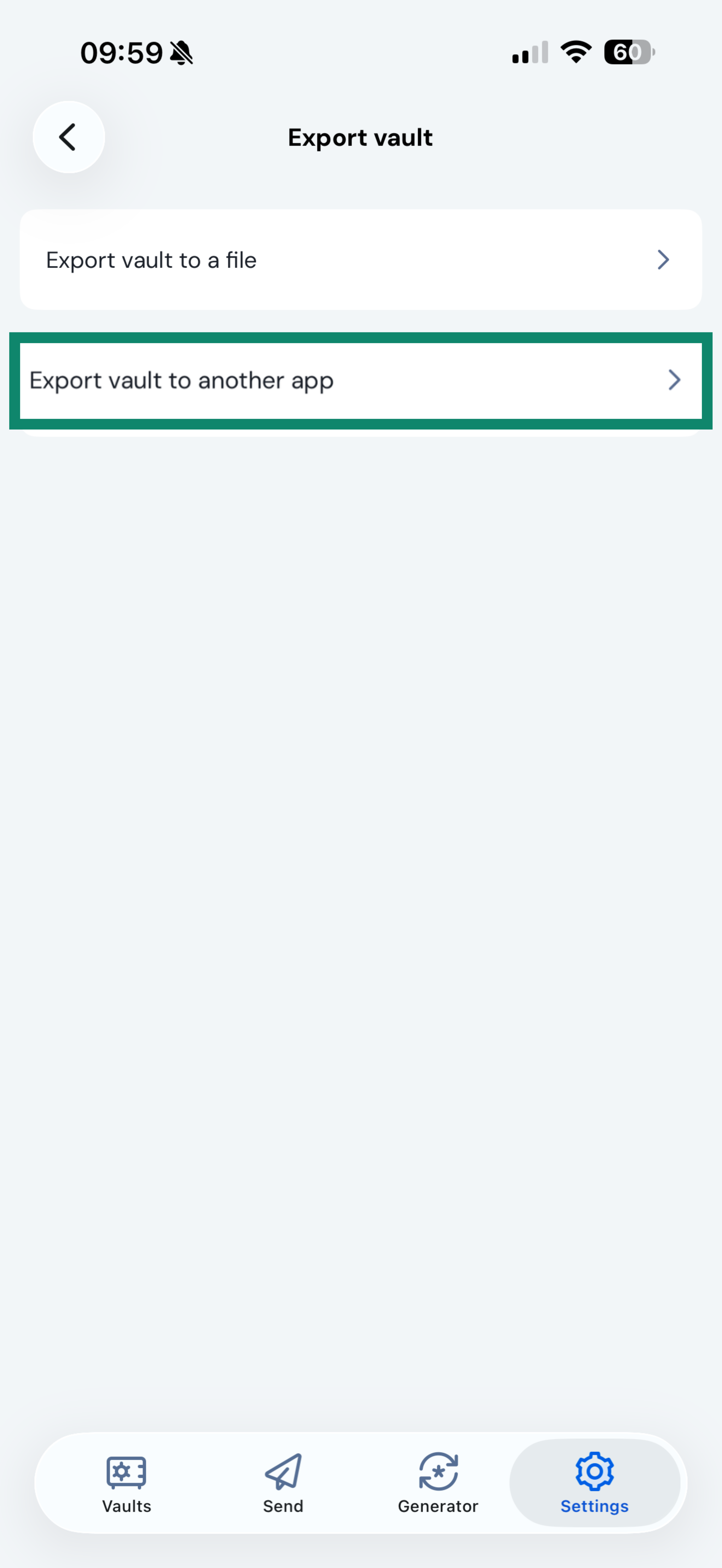
- Tap Export vault to another app.
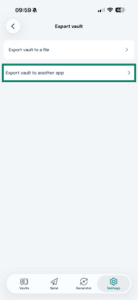
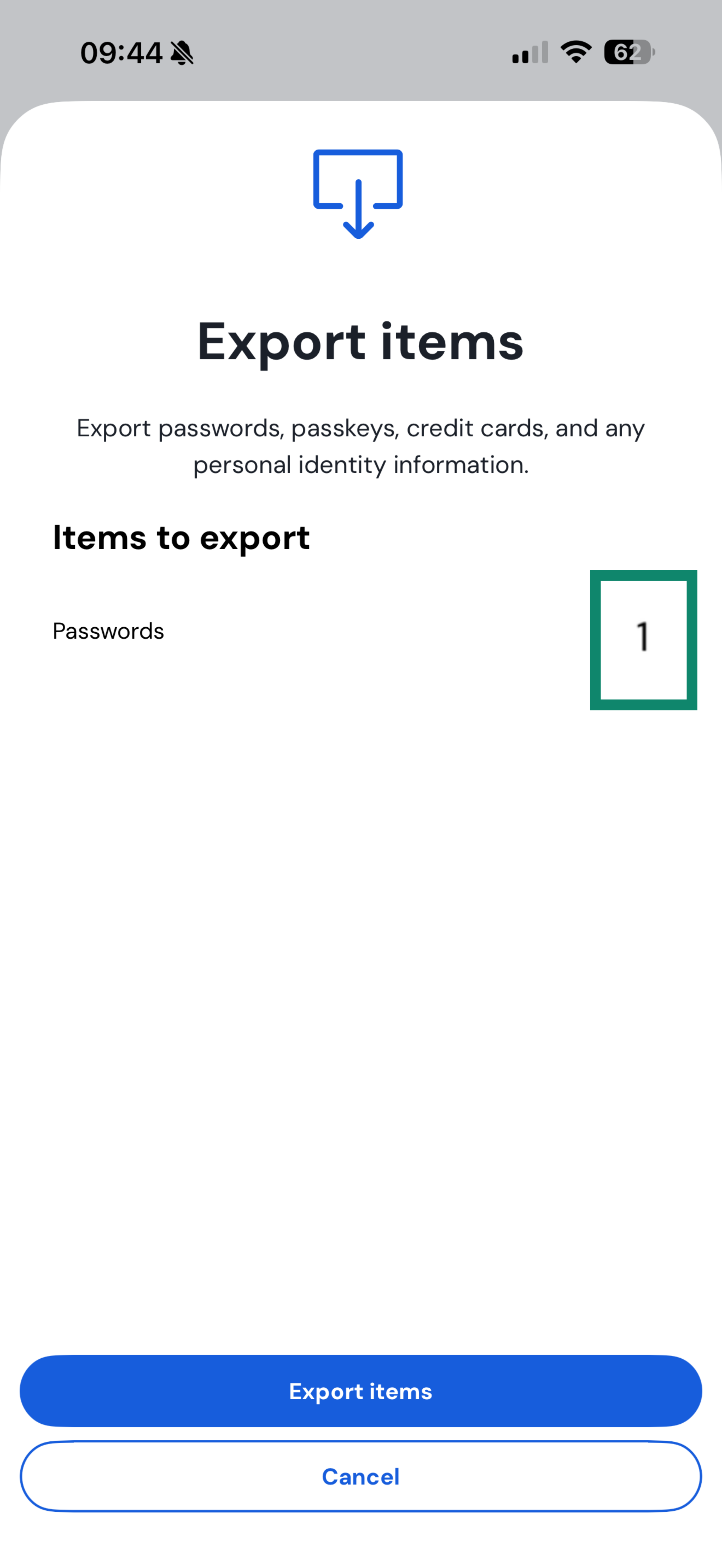
- Select the items you want to export, then tap Export items.
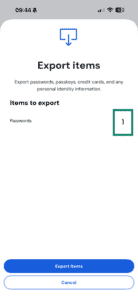
- Tap Continue.
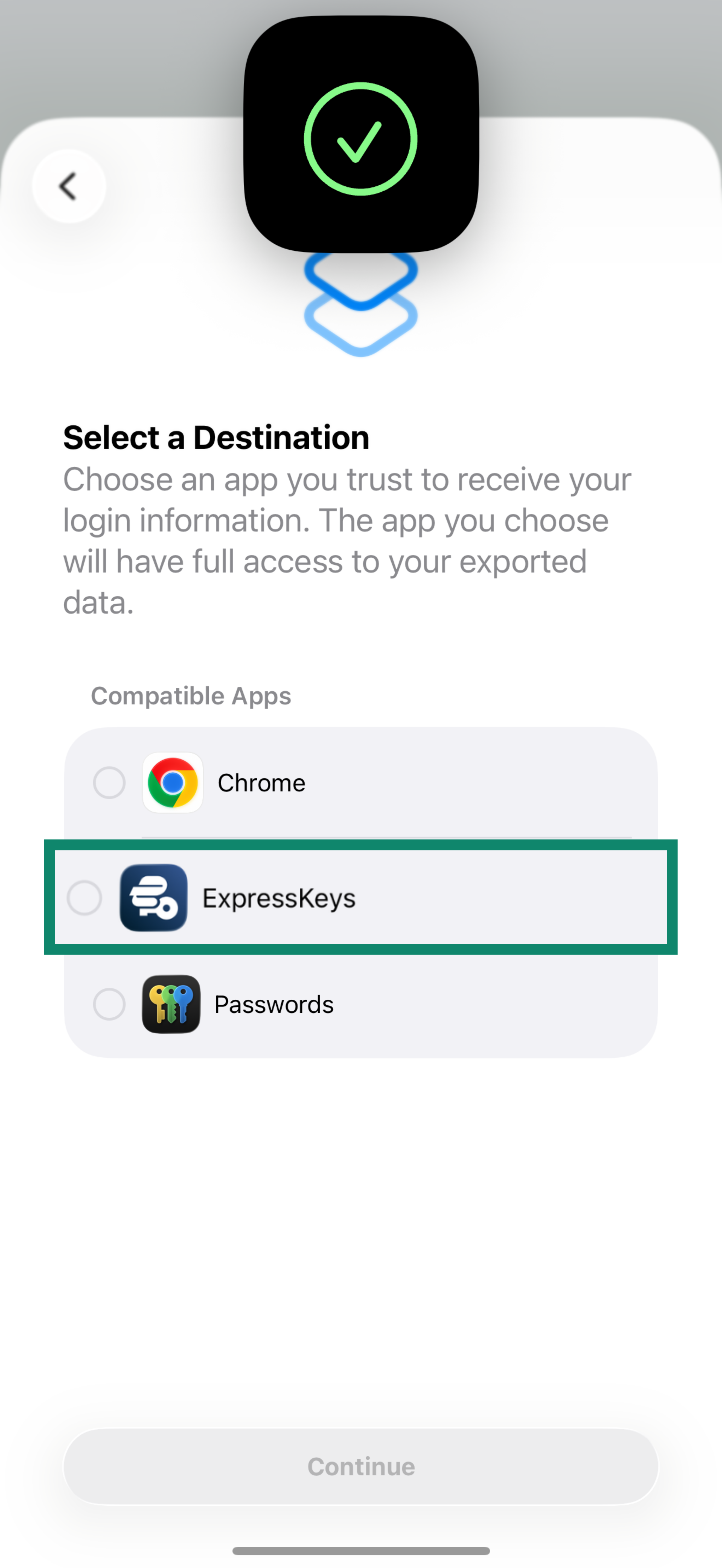
- Select ExpressKeys from the list, then tap Continue.
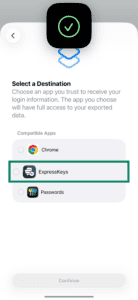
- Tap Continue in “ExpressKeys”.
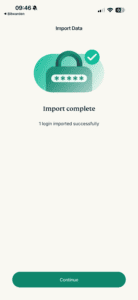
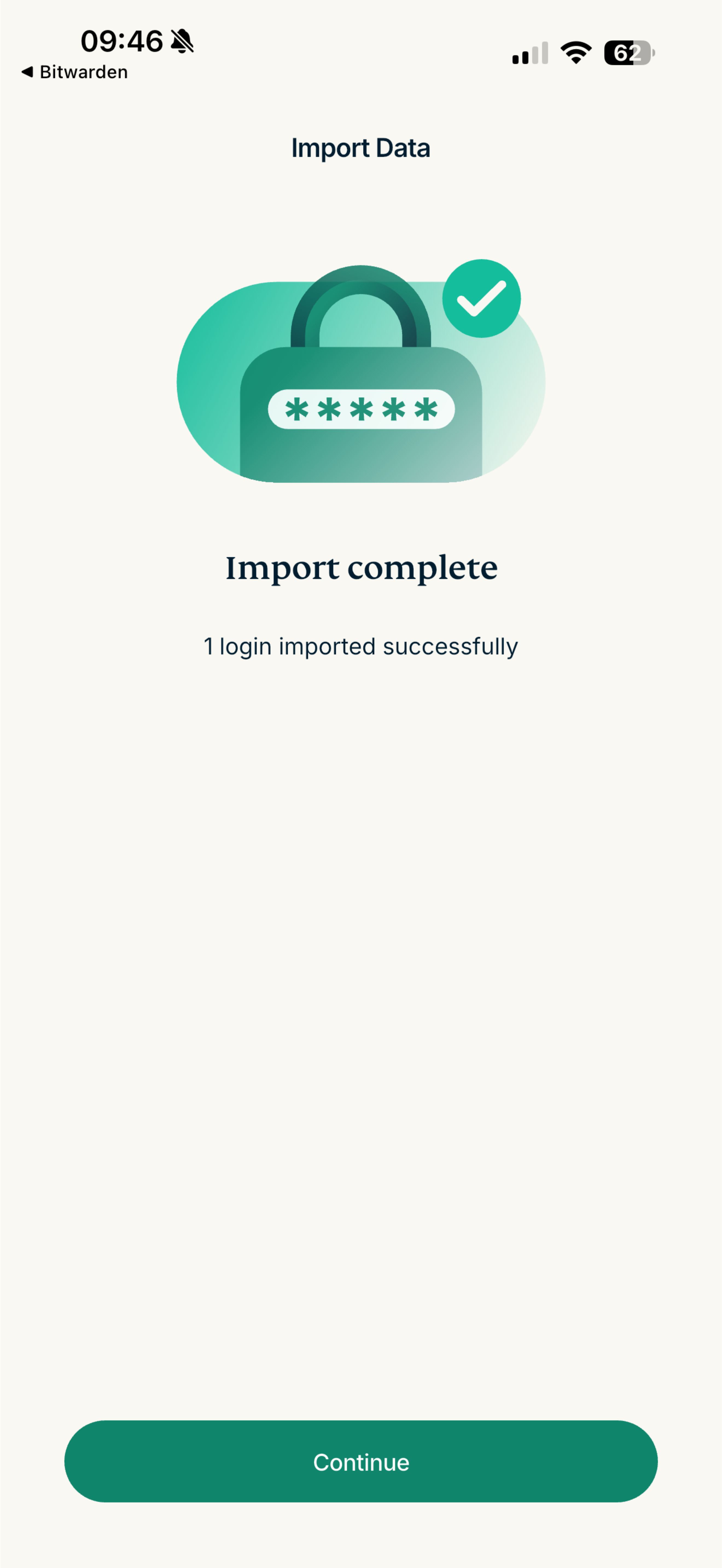
- Wait for the app to import your passwords, then tap Continue.
Need help? Contact our Support Team for immediate assistance.
Import your Bitwarden data using your Android device
Follow the steps below to import your Bitwarden data on your Android device:
- Open the Bitwarden app.
- In the Bitwarden app, tap Settings in the bottom-right corner.
- Select Vault.
- Tap Export Vault.
- Select .csv for the file format, enter your master password, and select Export vault. Select a location on your phone to save the file.
- Open the ExpressKeys app.
- Tap the + icon in the bottom-right corner.
- Select Import Logins.
- Tap Bitwarden.
- Tap Import CSV and select the .csv file you just downloaded.
- Wait for the app to finish importing your passwords, and then tap Continue.
Need help? Contact the ExpressVPN Support Team for immediate assistance.