






This guide explains how to create and manage passkeys in ExpressKeys. On Android and iOS, as well as the browser extensions for Chrome and Firefox, you can create, save, and use passkeys. On macOS, you can view saved passkeys and merge them with matching logins, but you cannot currently create them or use them to sign in.
Jump to…
What are passkeys?
Create a passkey using ExpressKeys
Merge a passkey with a login
Delete a passkey
What are passkeys?
Passkeys are a secure way to sign in to apps and websites without entering a password. Instead, you use your device authentication, such as Face ID or a PIN.
With ExpressKeys, you can create and manage passkeys for supported apps and websites. Your saved passkeys are stored in ExpressKeys so you can use them across supported devices to securely sign into your accounts.
Need help? Contact the ExpressVPN Support Team for immediate assistance.
Create and save a passkey
There are two ways you can add a passkey to a login: when creating an account on a supported platform or via your account settings on a supported platform.
When you create an account on a website or app that has passkey support, you’ll usually be prompted by the platform to create a passkey during the account creation process. For existing accounts, you can go to your account settings on that platform and find the option to add a passkey.
From here, your device should prompt you to create a passkey using ExpressKeys:
On Android and iOS
- Tap Add Passkey in the pop-up that appears.


- Enter your vault password or use Face ID or Touch ID to log into your ExpressKeys account.
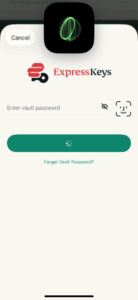
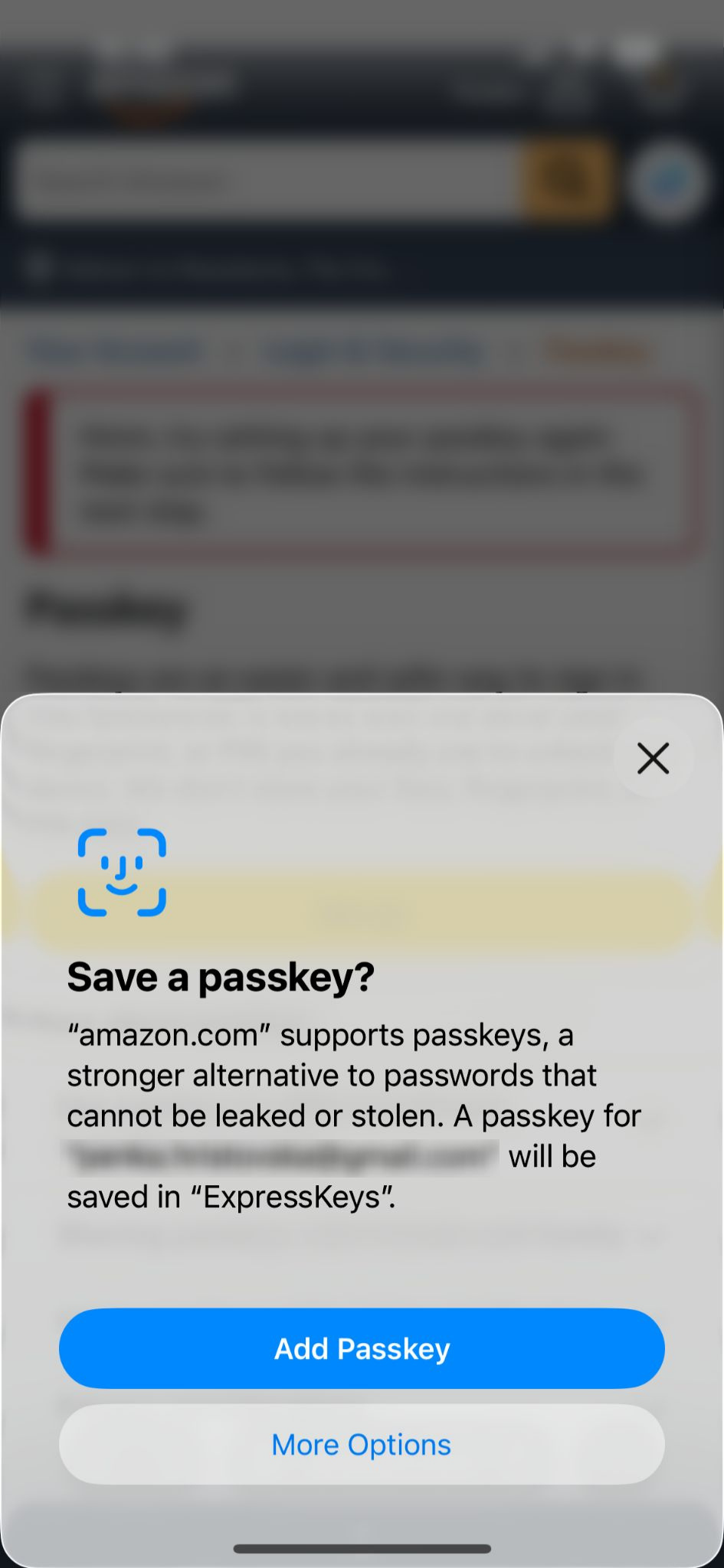
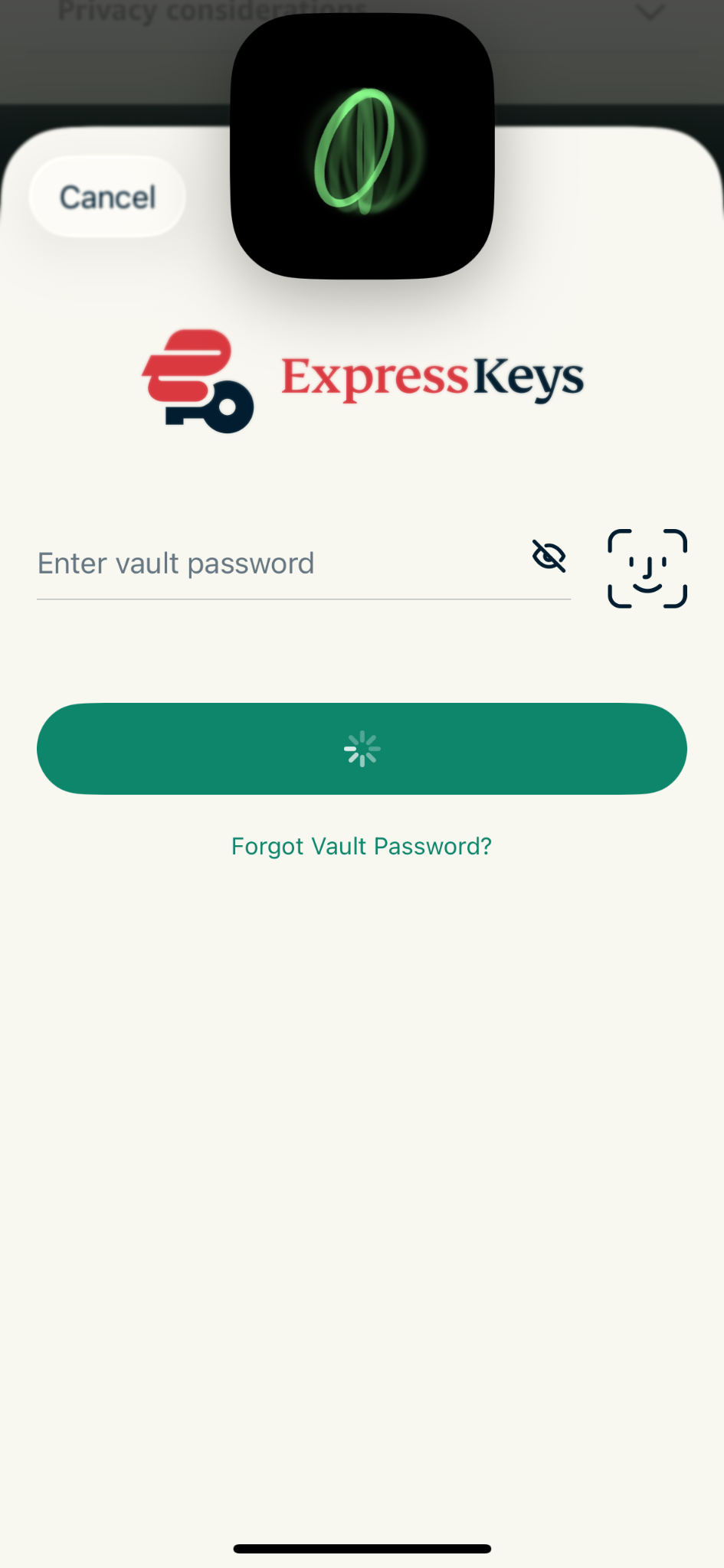
Your passkey is now created and saved in ExpressKeys and linked to your account.
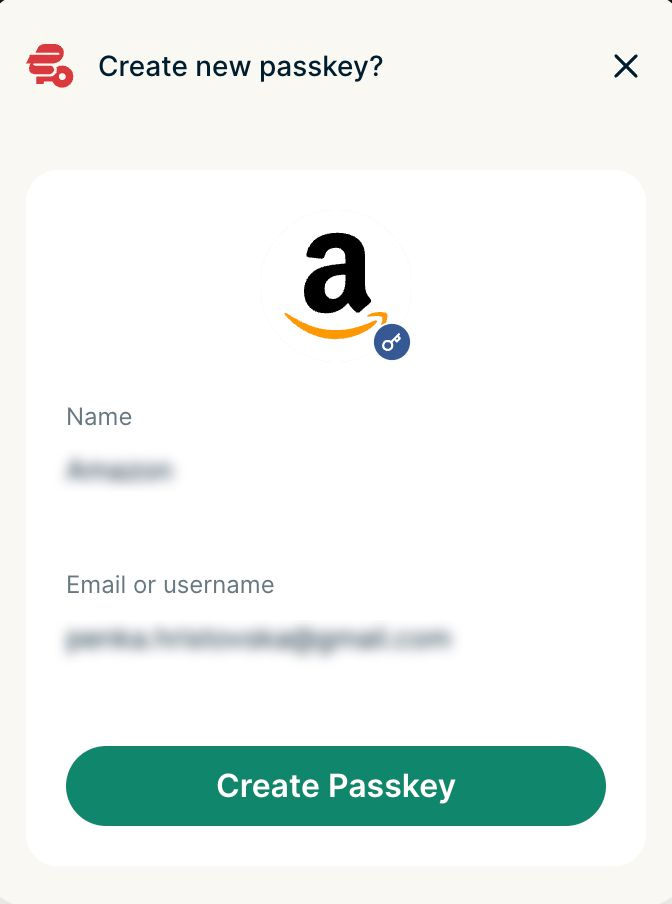
In the browser extension
- Select Create Passkey when prompted.
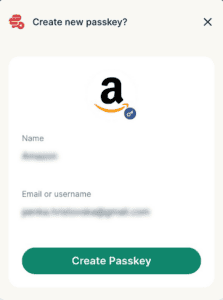

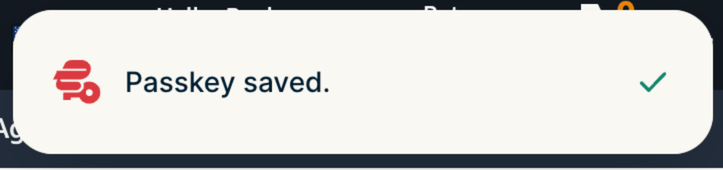
- You will see a confirmation pop-up that the passkey has been created.


Check if the passkey is saved
The steps for checking if the passkey was saved are the same on Android, iOS, and in the browser extensions:
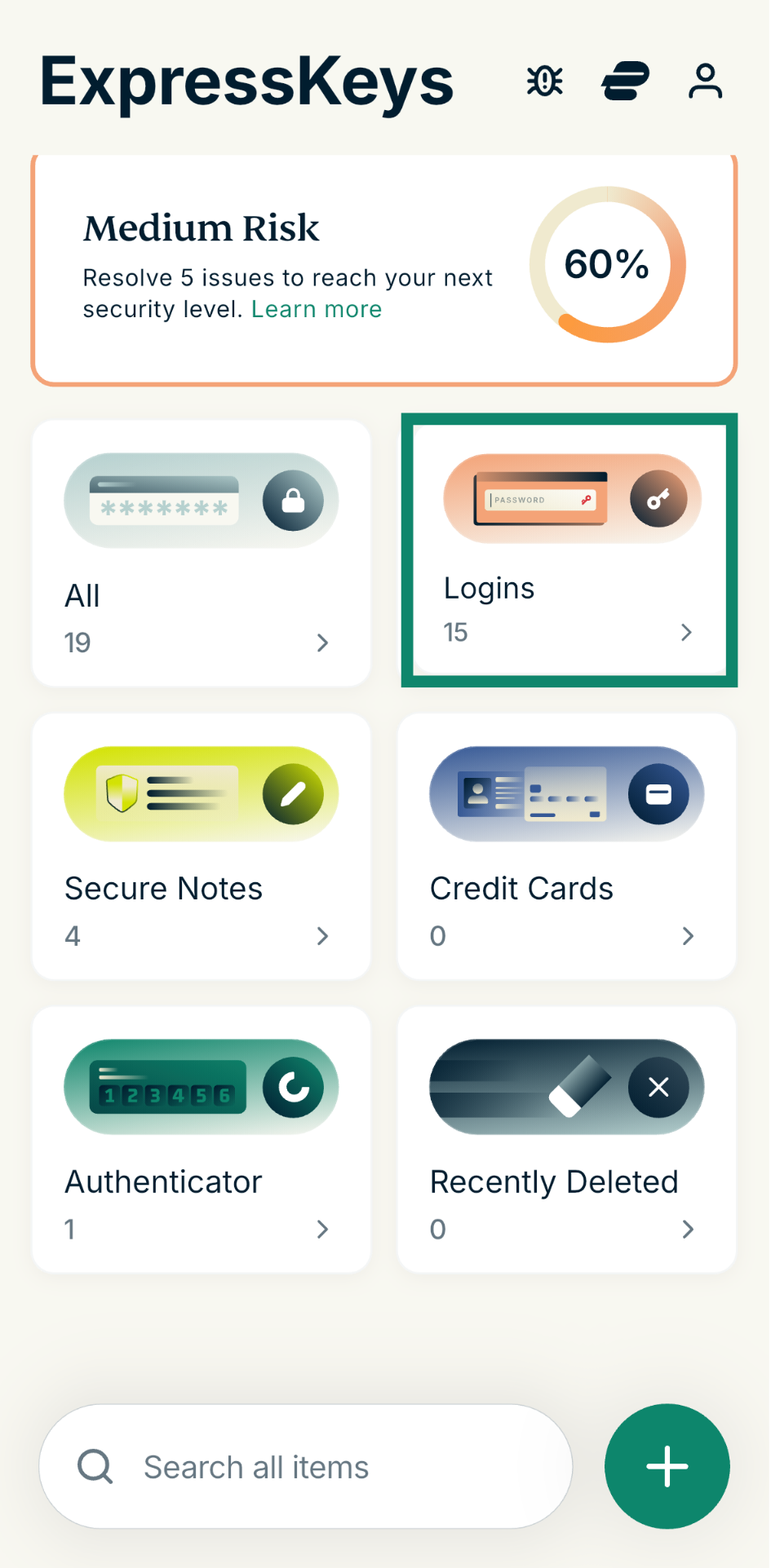
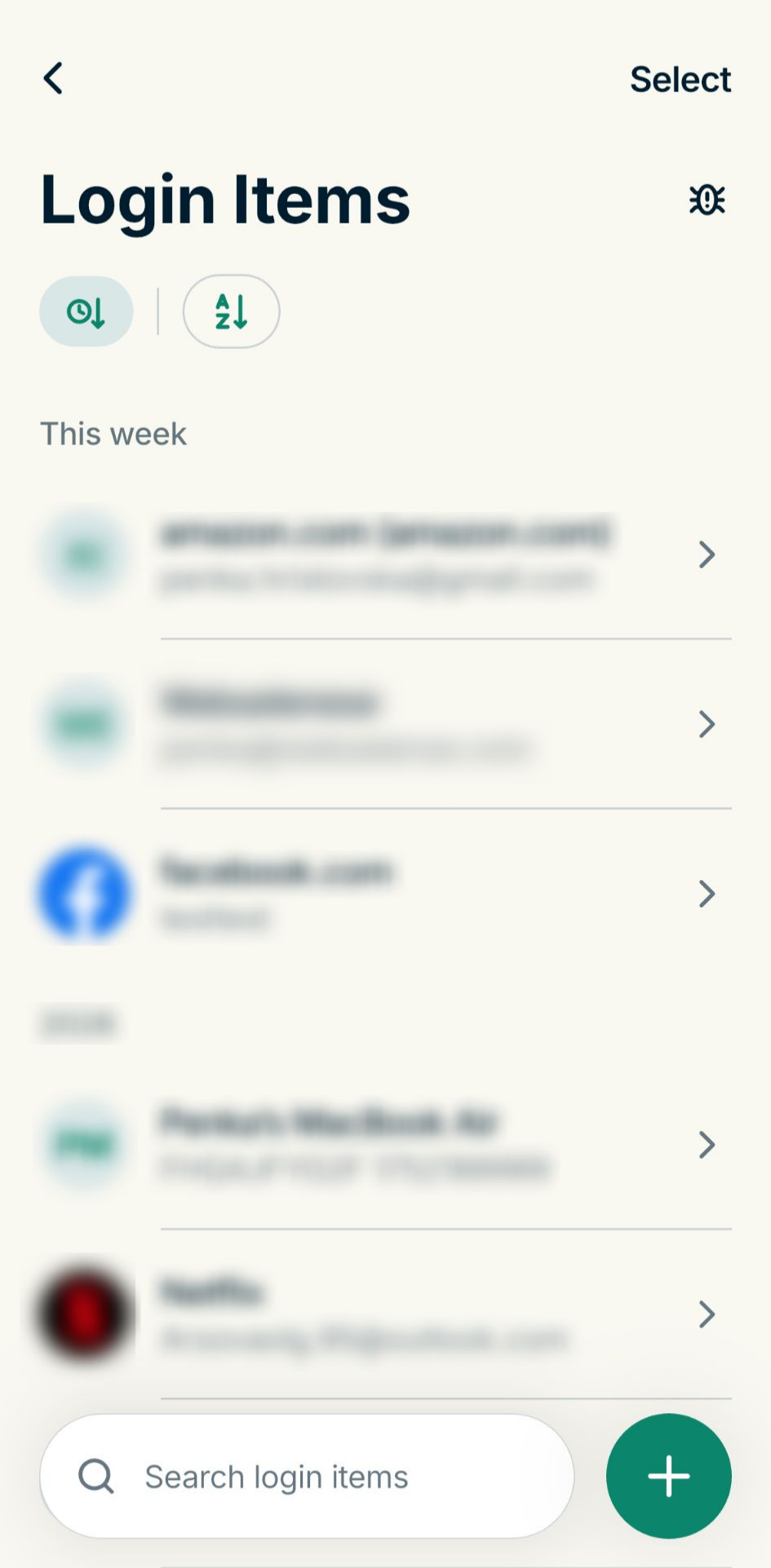
- In ExpressKeys, go to Logins.
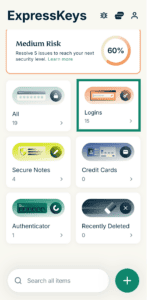

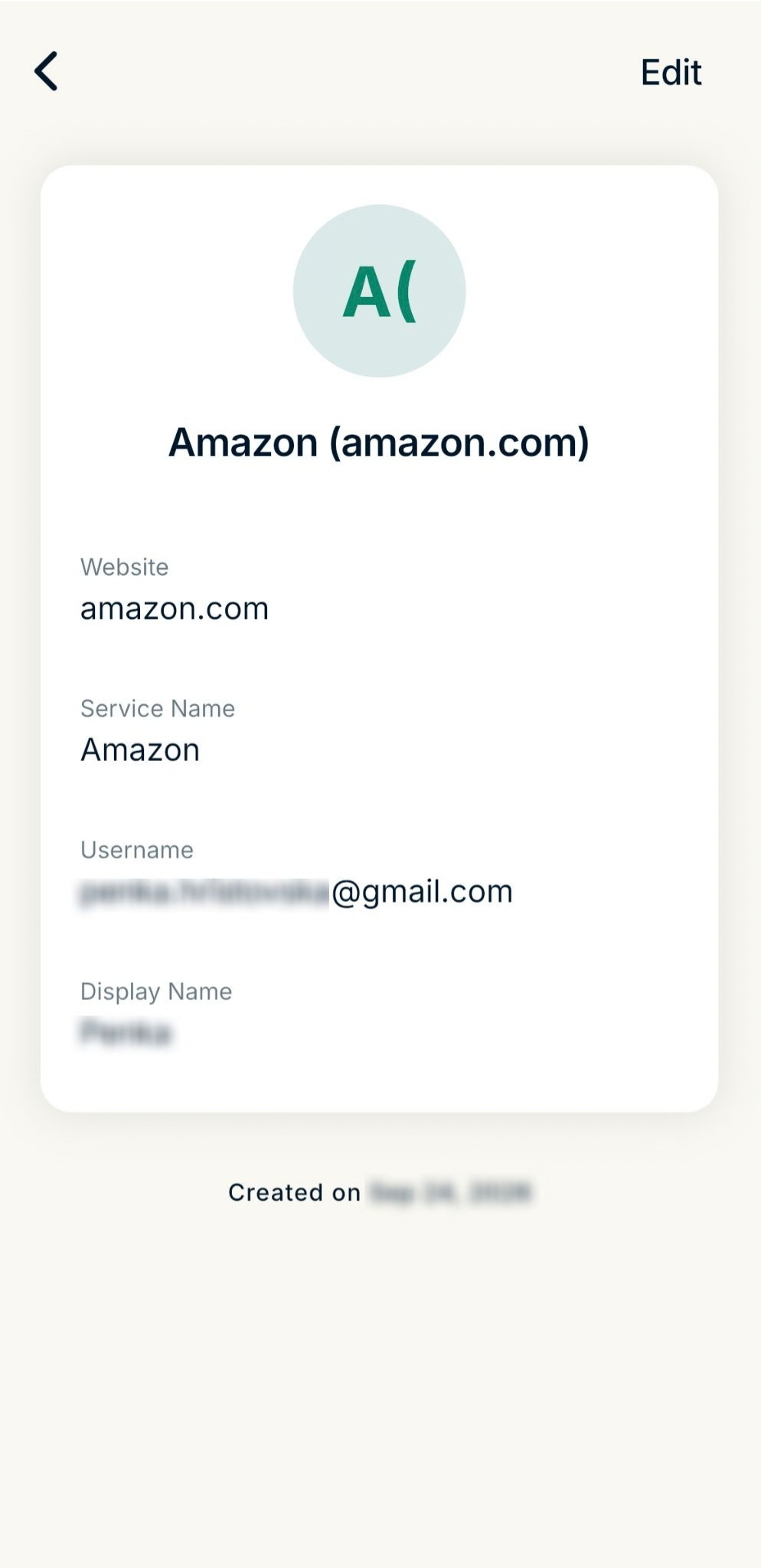
- Find the passkey in the list and select it. (Your most recent items will appear first by default, or you can use the search bar to find the item.)
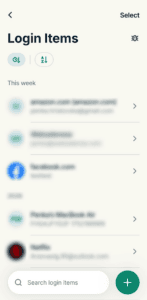
- The entry will look something like this:

Next time you sign into that account, ExpressKeys will offer to authenticate you automatically using your saved passkey.
Need help? Contact the ExpressVPN Support Team for immediate assistance.
Merge a passkey with a login
Android, iOS, and the browser extension
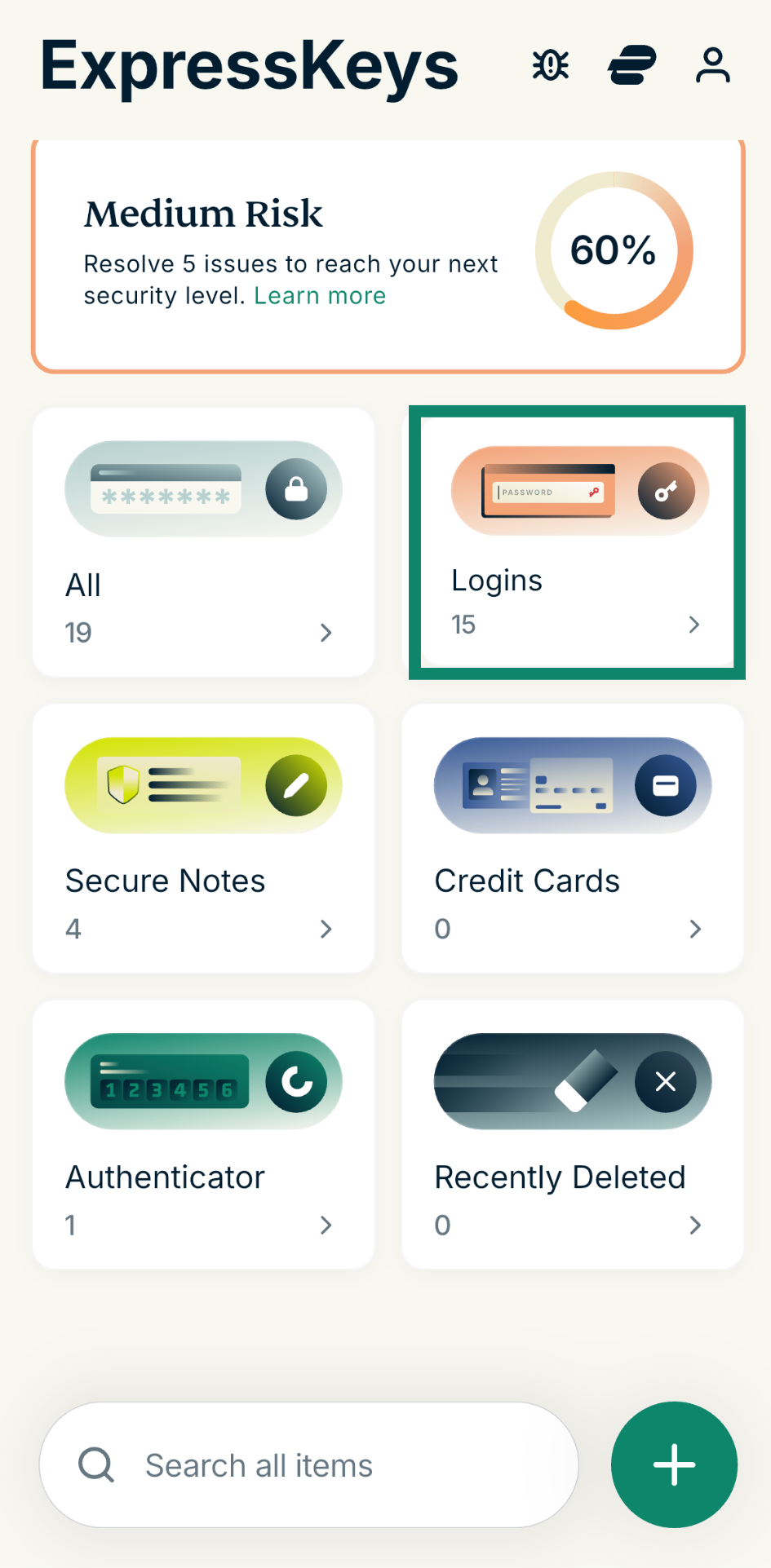
- Open ExpressKeys and tap Logins.
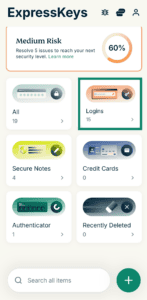
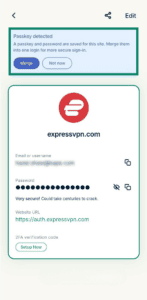
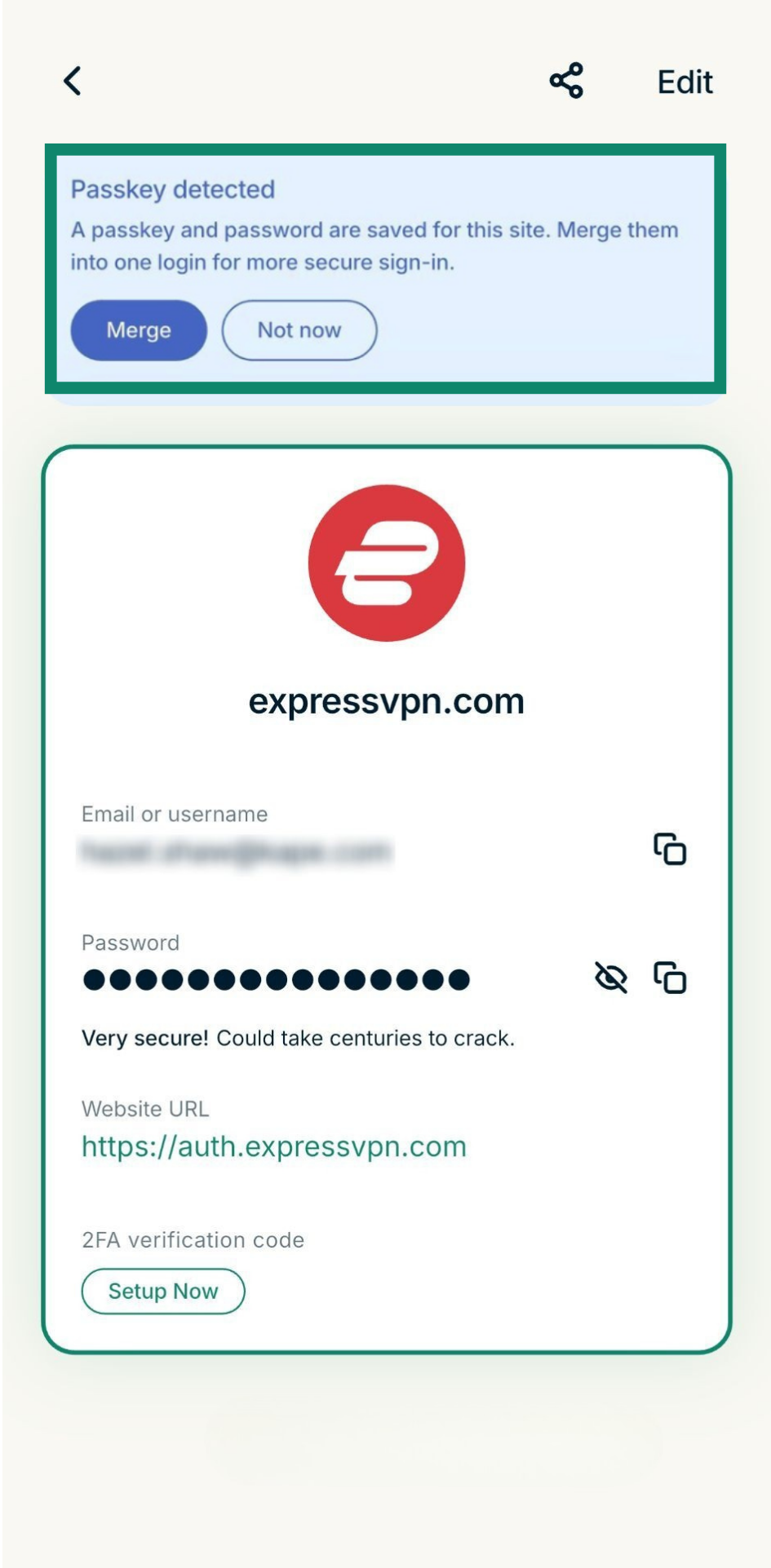
- Select the login you want to view, and you’ll see a notification if a merge is available. Select Merge.
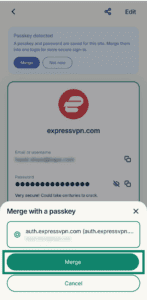
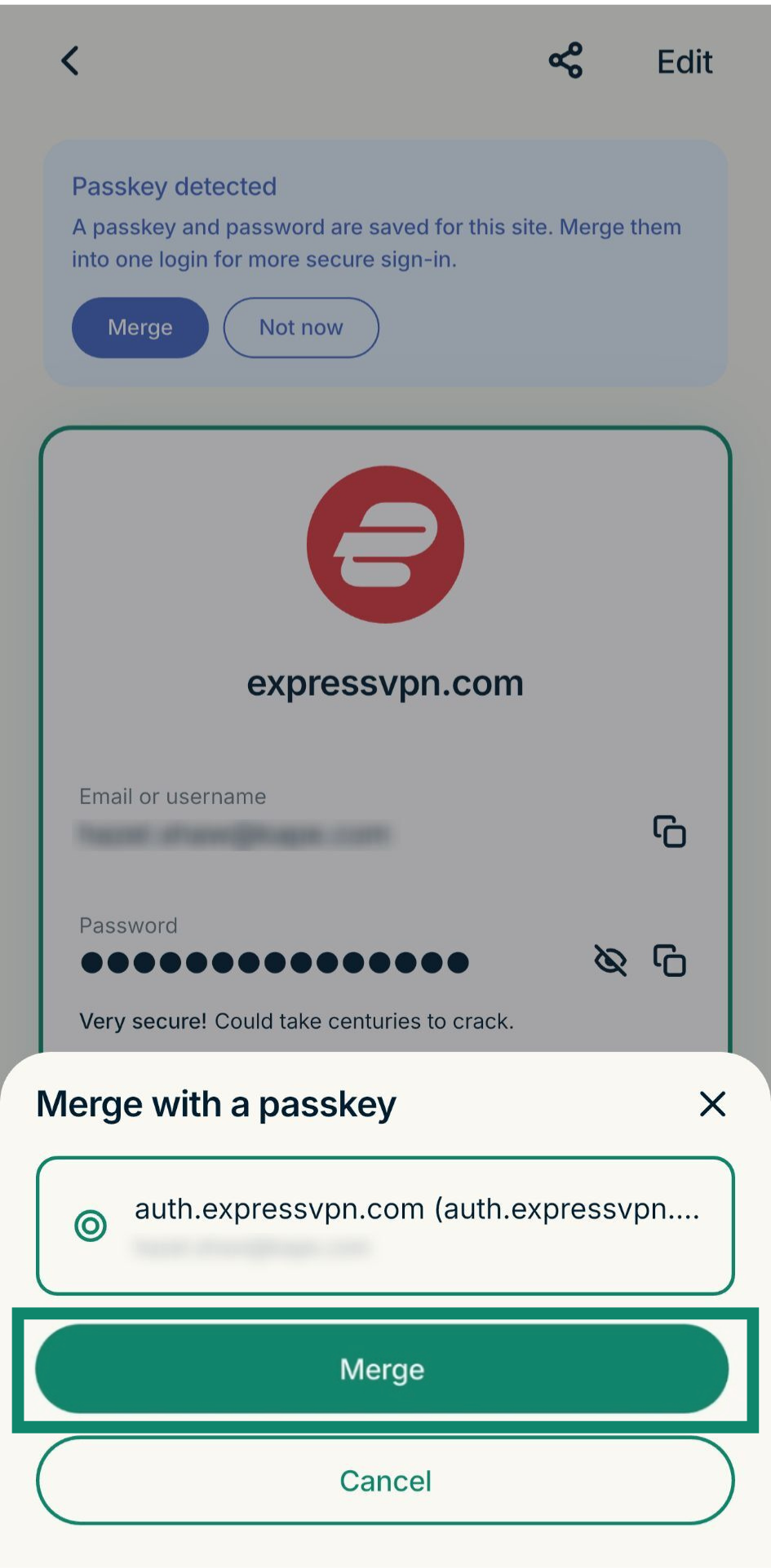
- In the pop-up, select Merge.
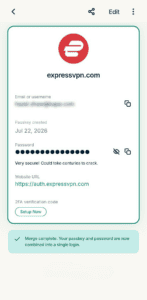
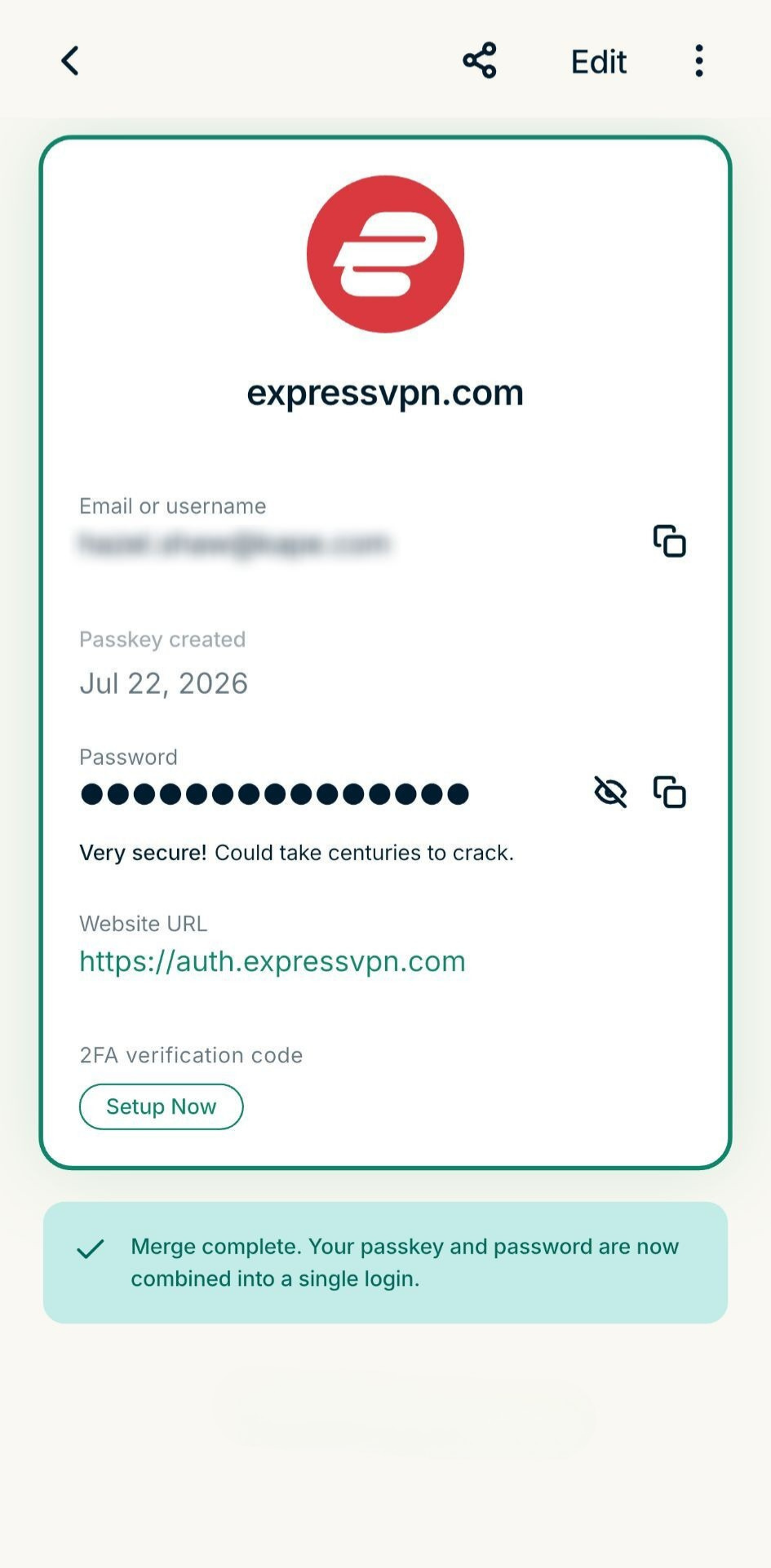
- You’ll see a confirmation screen once your passkey and login have been merged successfully.
macOS
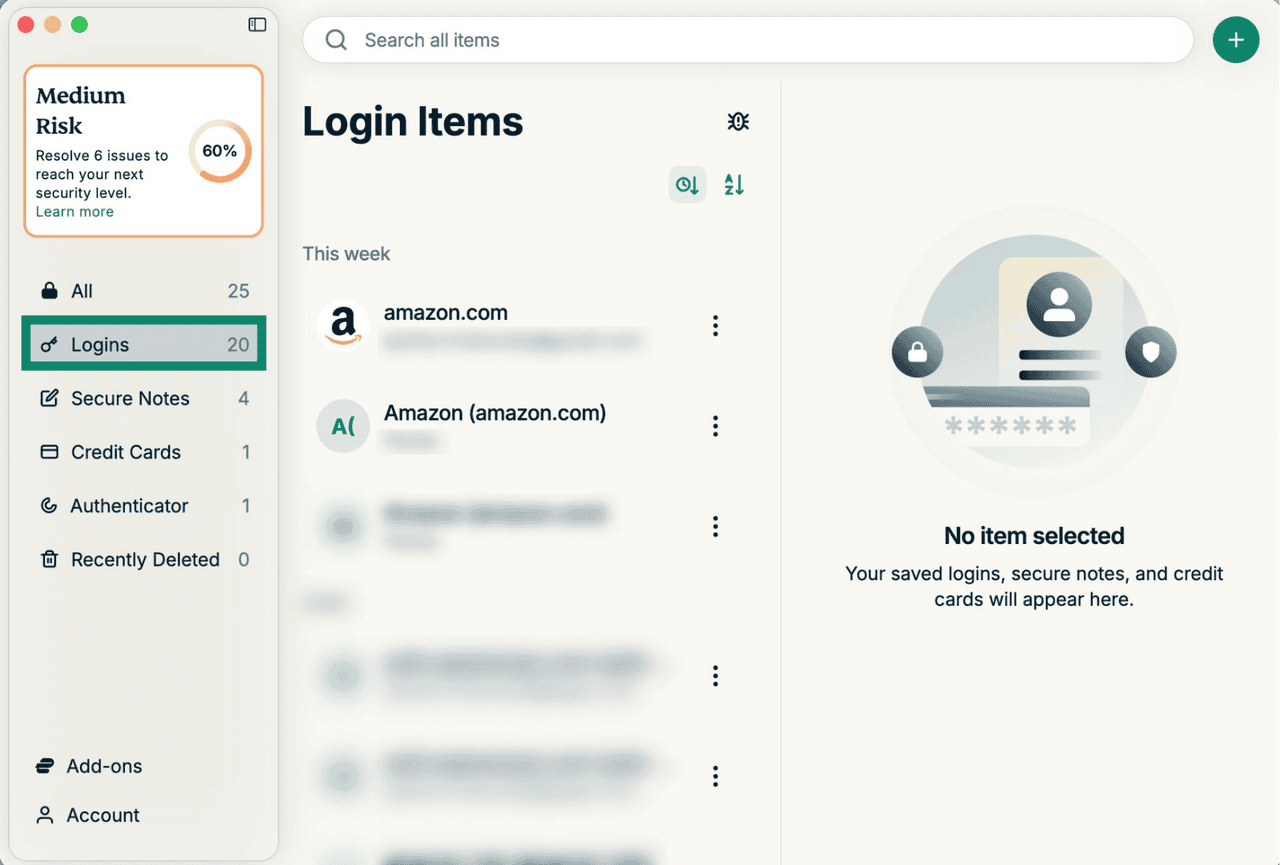
- In the app, select Logins.
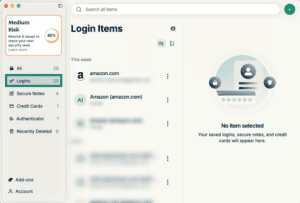

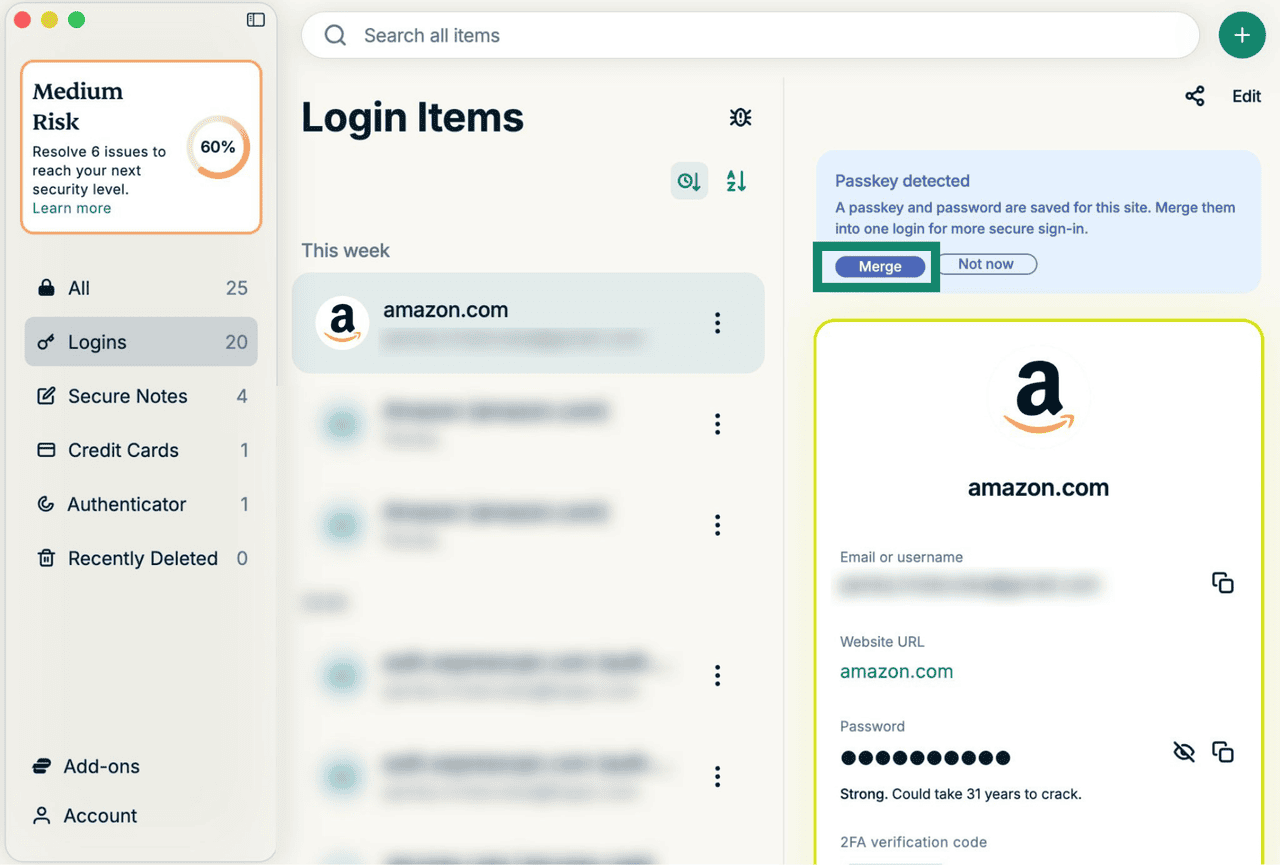
- Select a login, and you will see a notification if a merge is available. Select Merge.
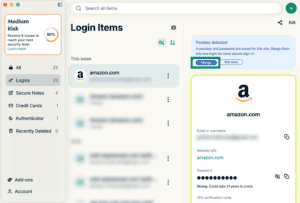
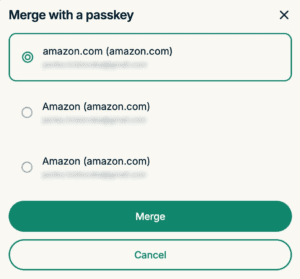
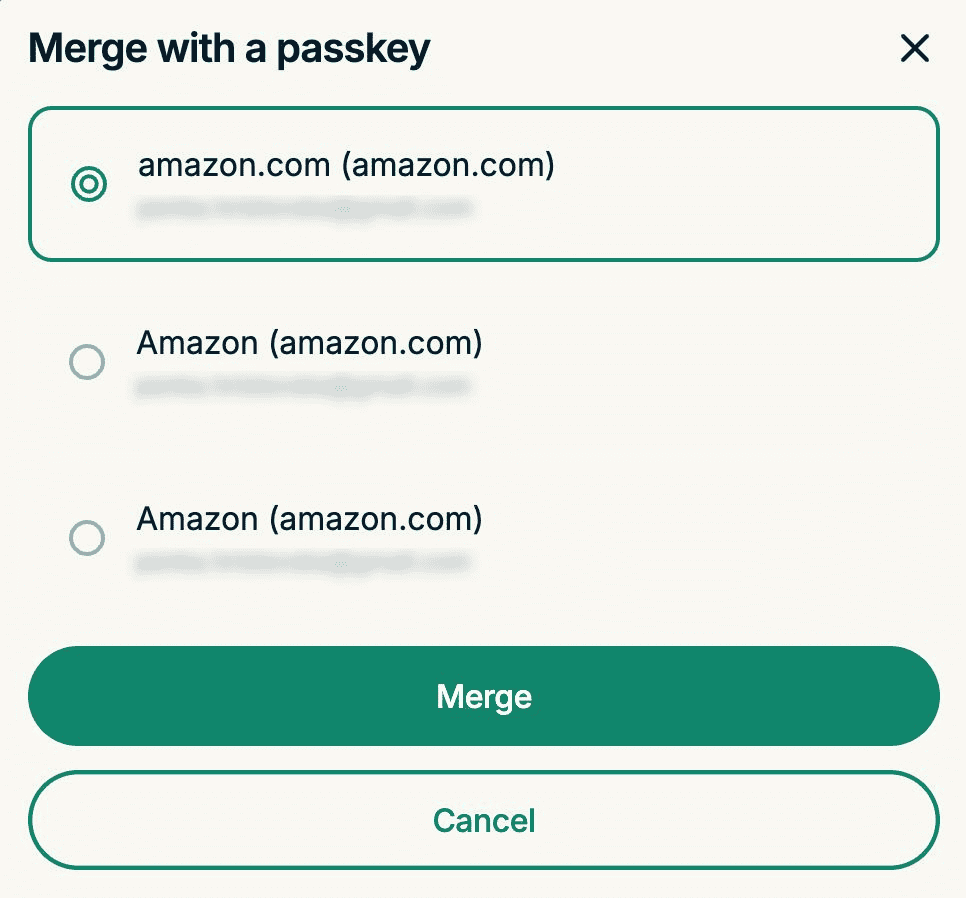
- In the pop-up, choose a passkey you want to merge the login with, and click Merge.

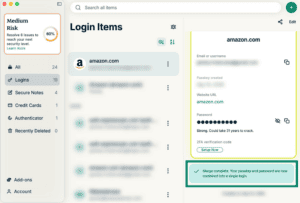
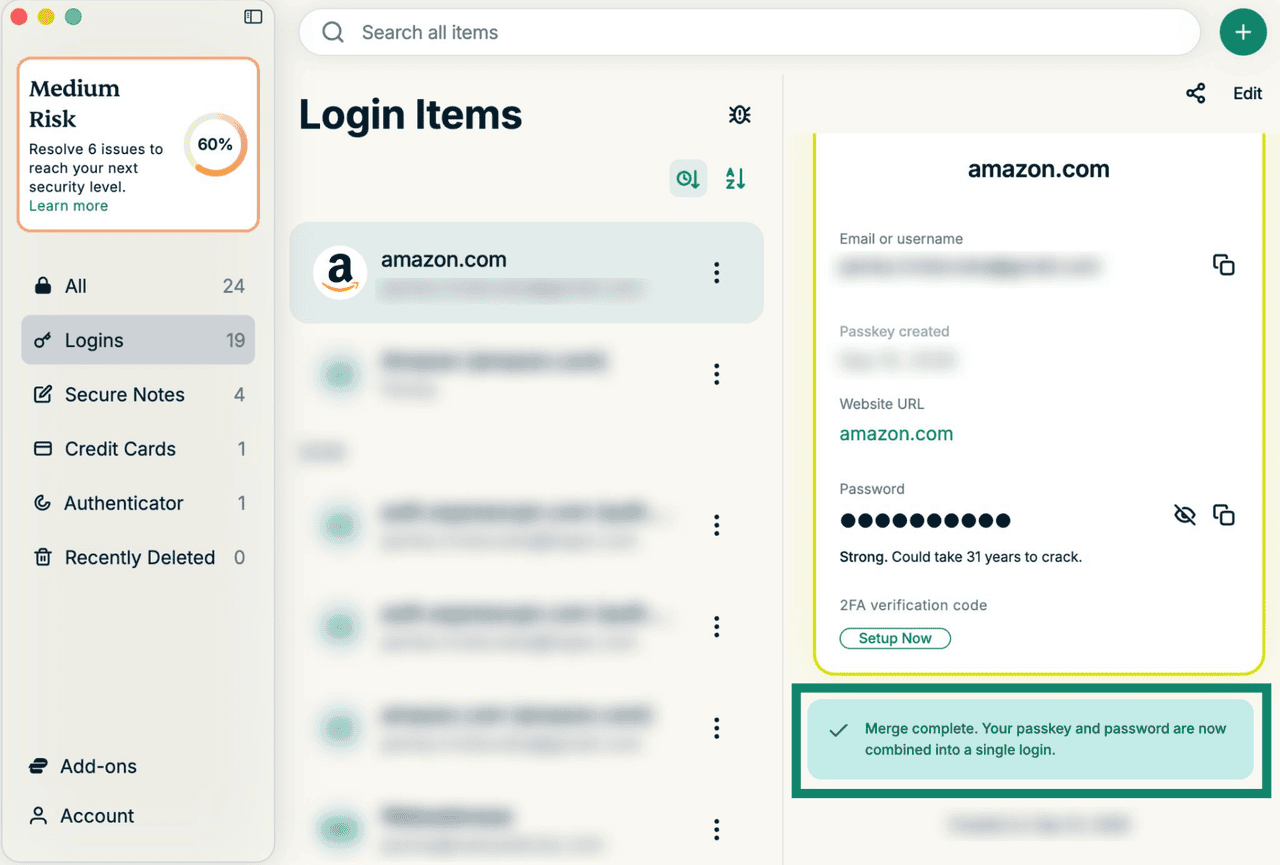
- Once done, you will see a confirmation screen that the passkey and login have been merged successfully.
Need help? Contact the ExpressVPN Support Team for immediate assistance.
Delete a passkey
Android, iOS, and the browser extension
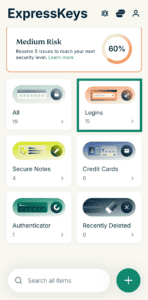
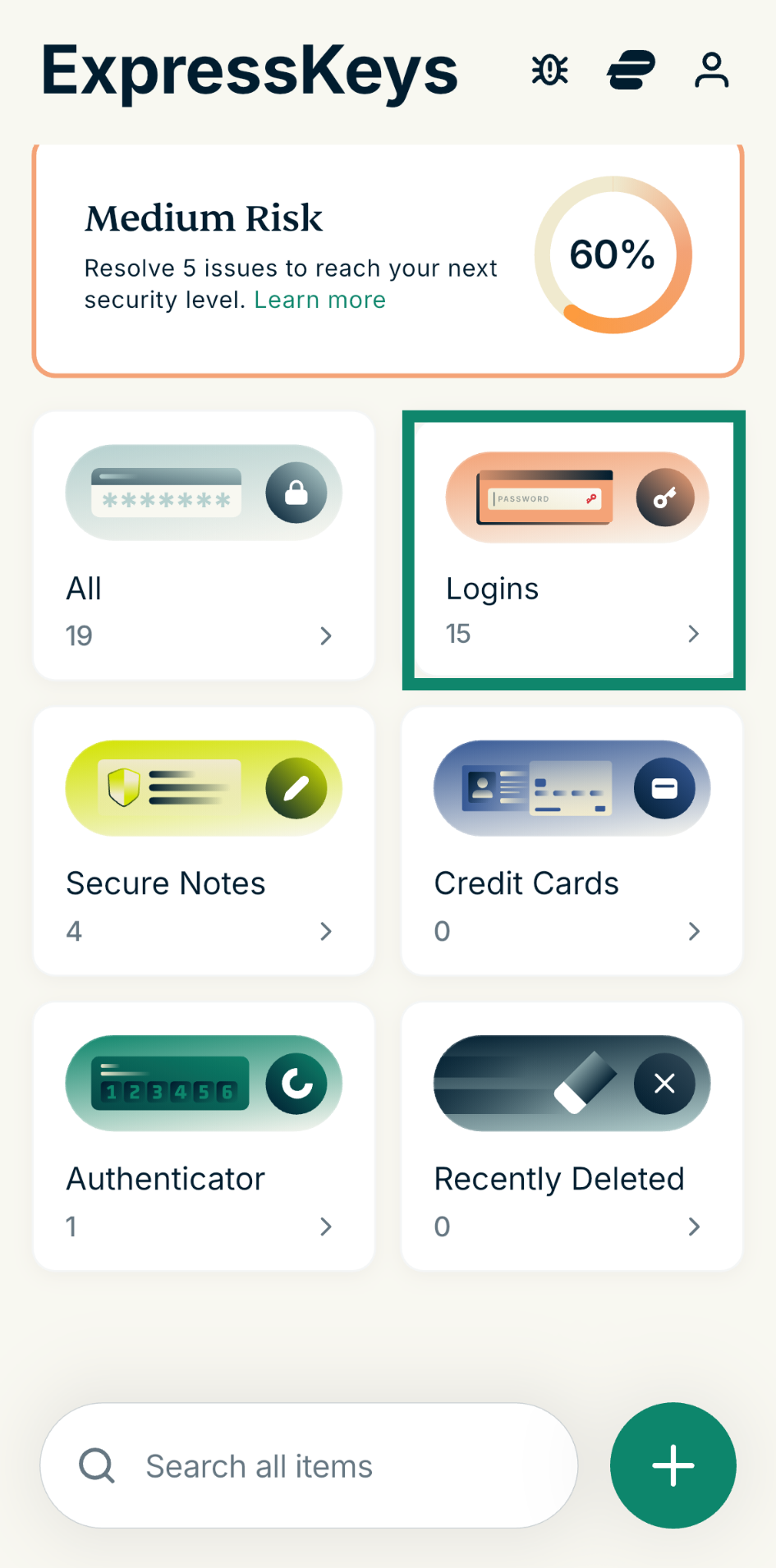
- Open ExpressKeys and select Logins.

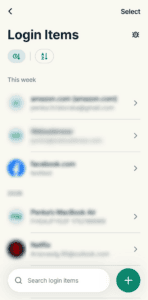
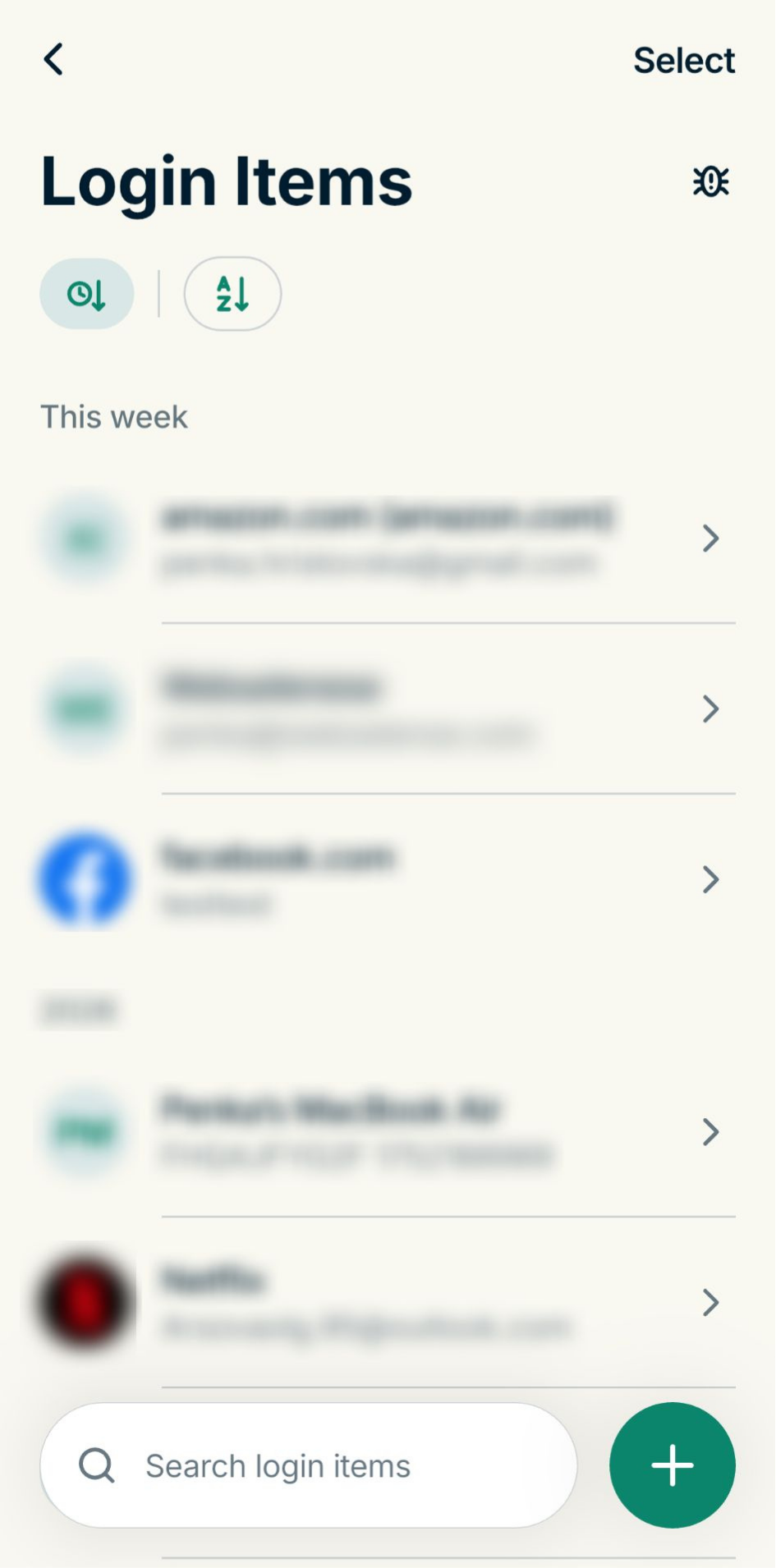
- Find the passkey in the list and select it. (Your most recent items will appear first by default, or you can use the search bar to find the item.)
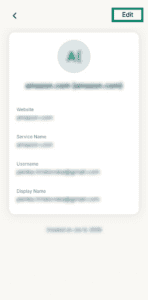
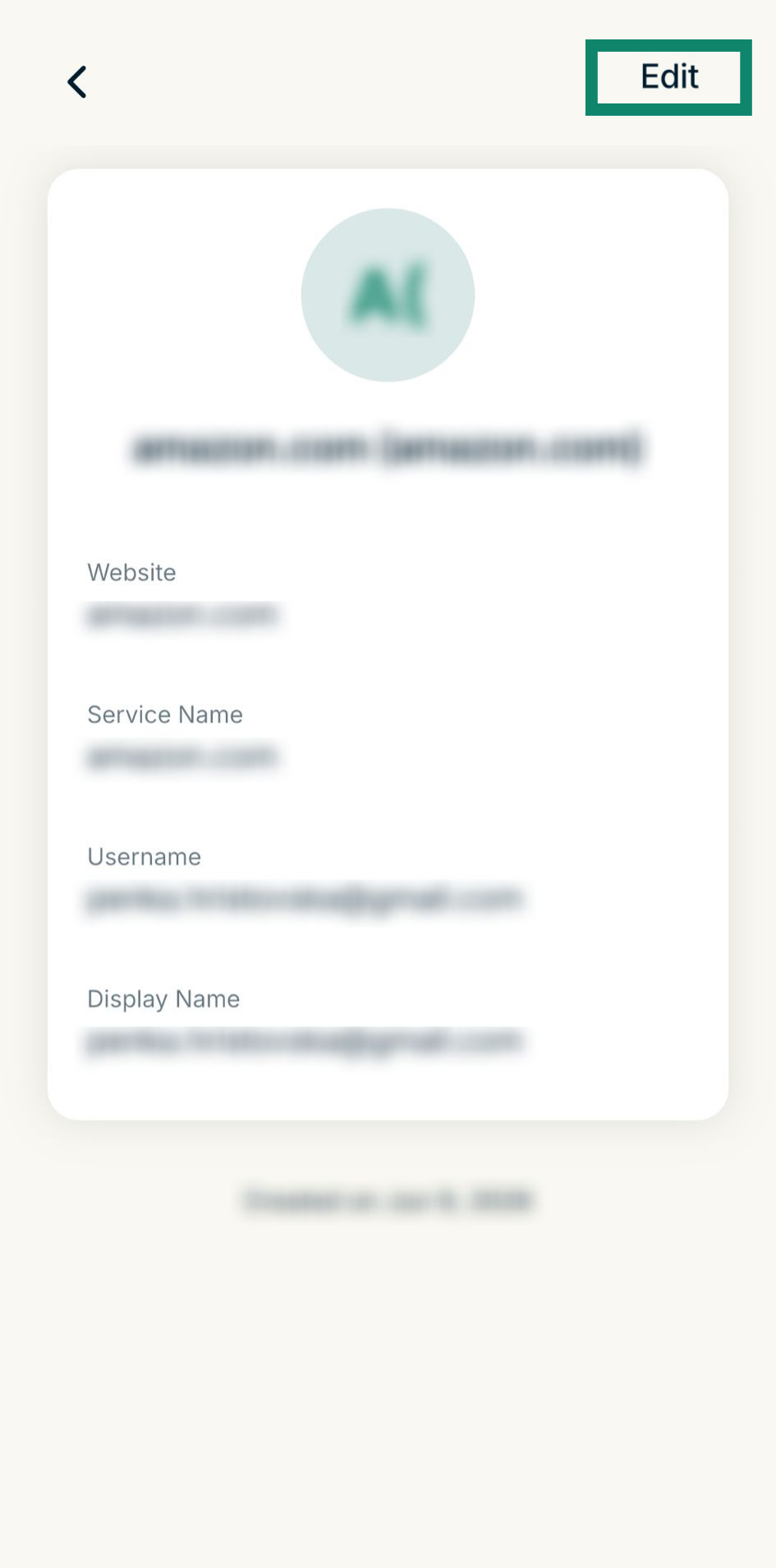
- Select Edit.
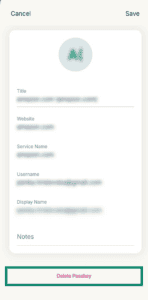
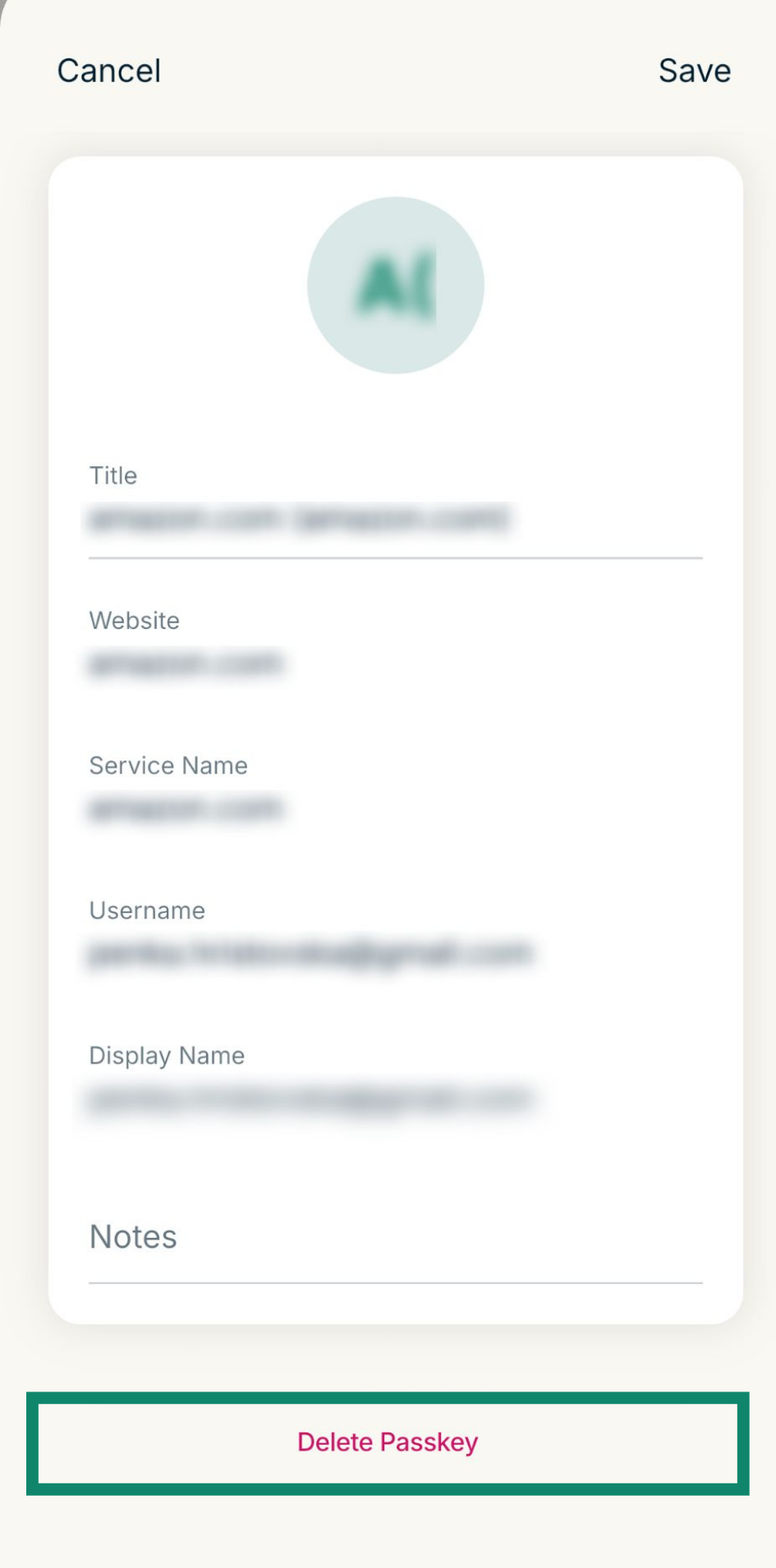
- Select Delete Passkey.
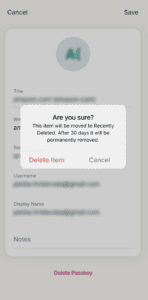
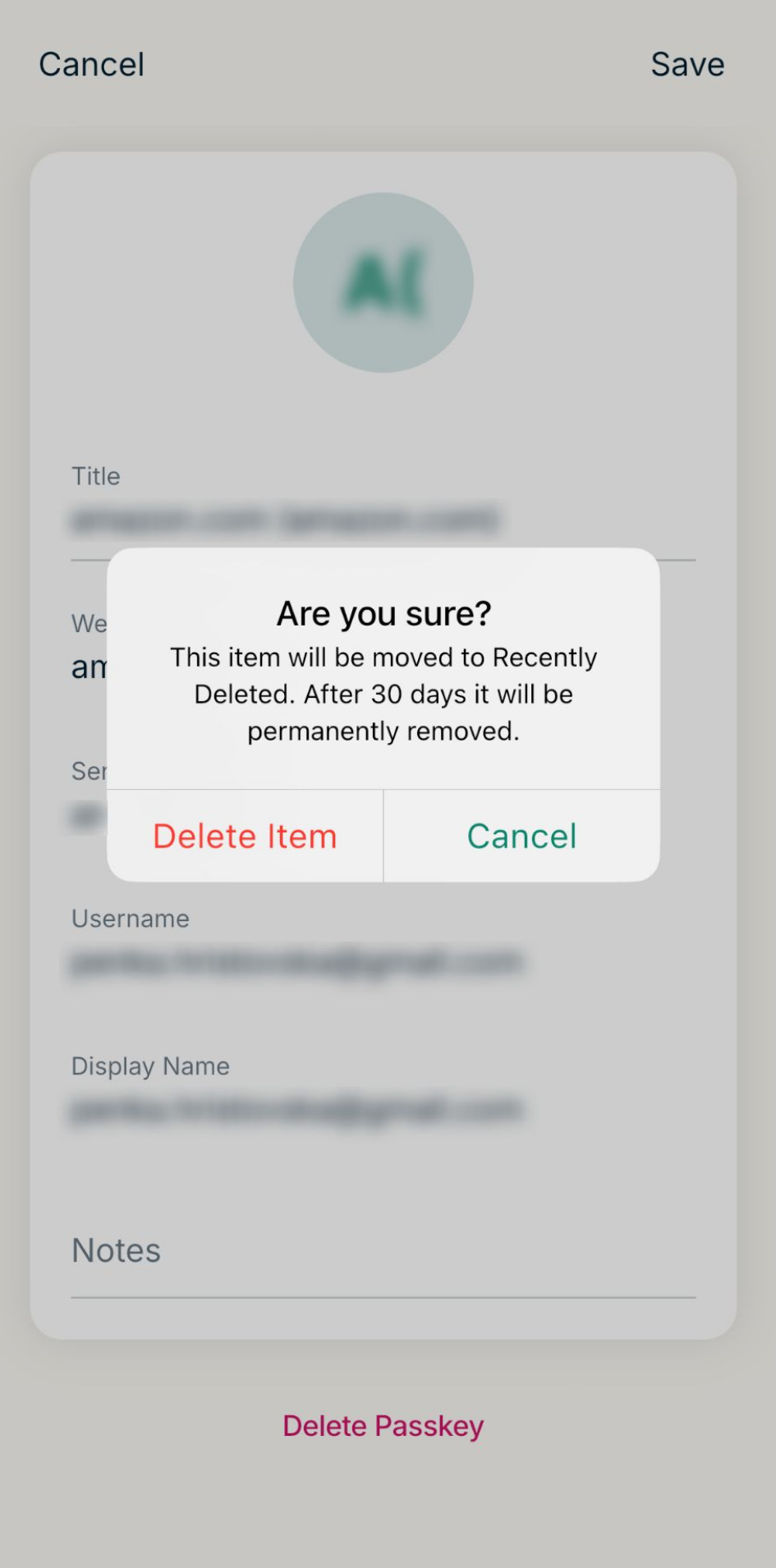
- Select Delete Item to confirm.
macOS
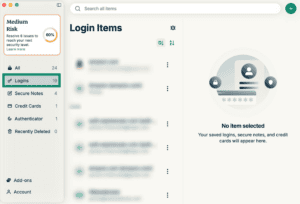
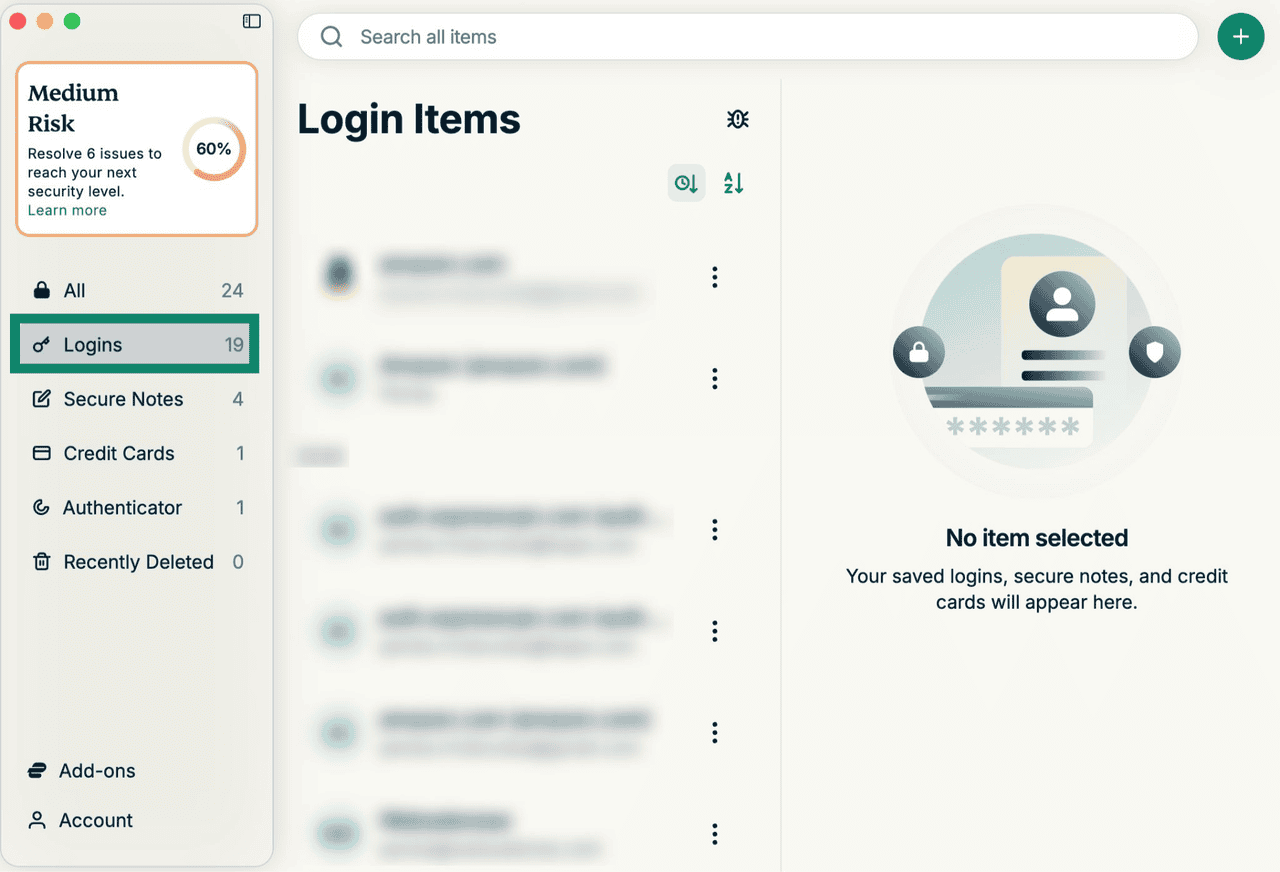
- Open the ExpressKeys app and go to the Logins tab.

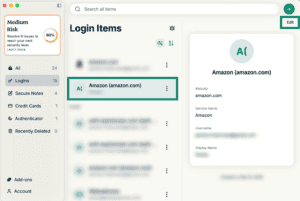
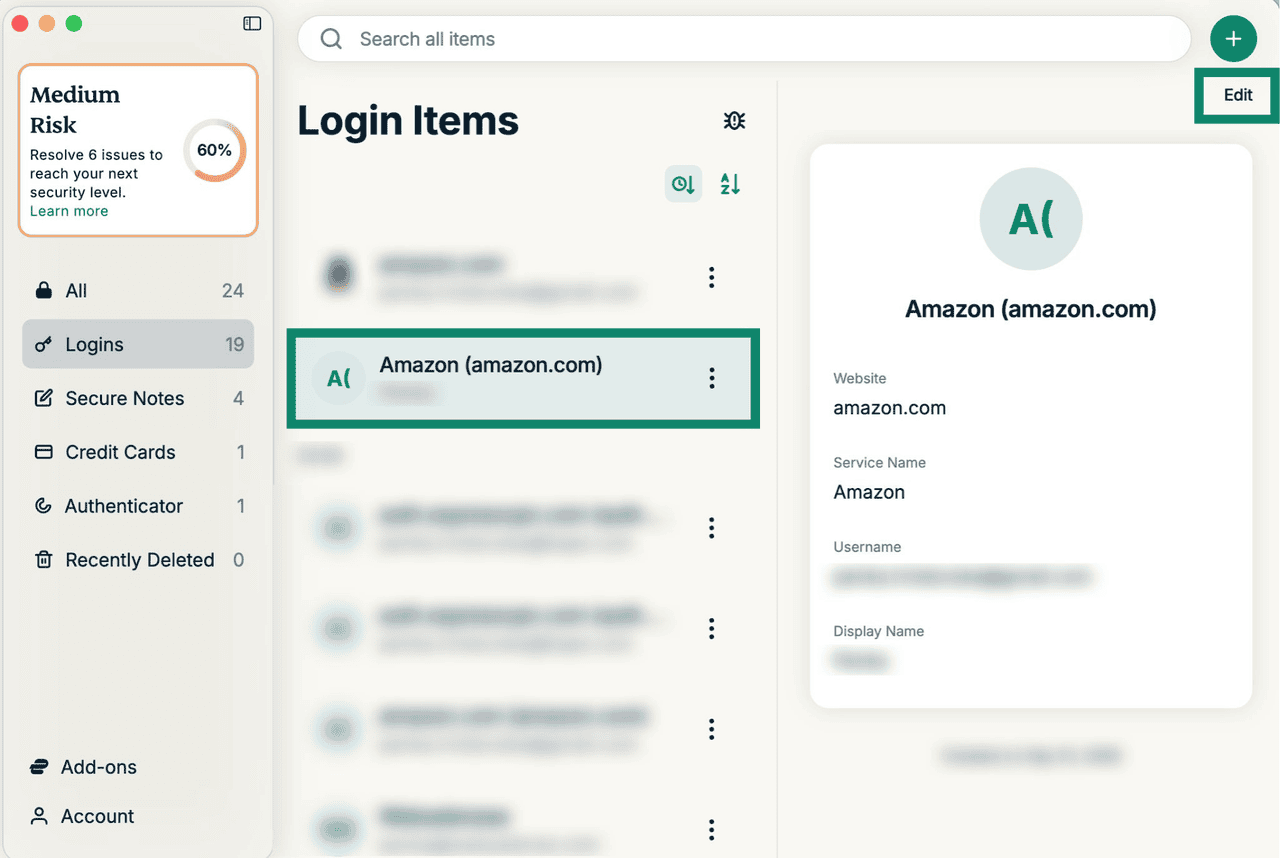
- Find the passkey in the list that you want to delete. Select it and click Edit.

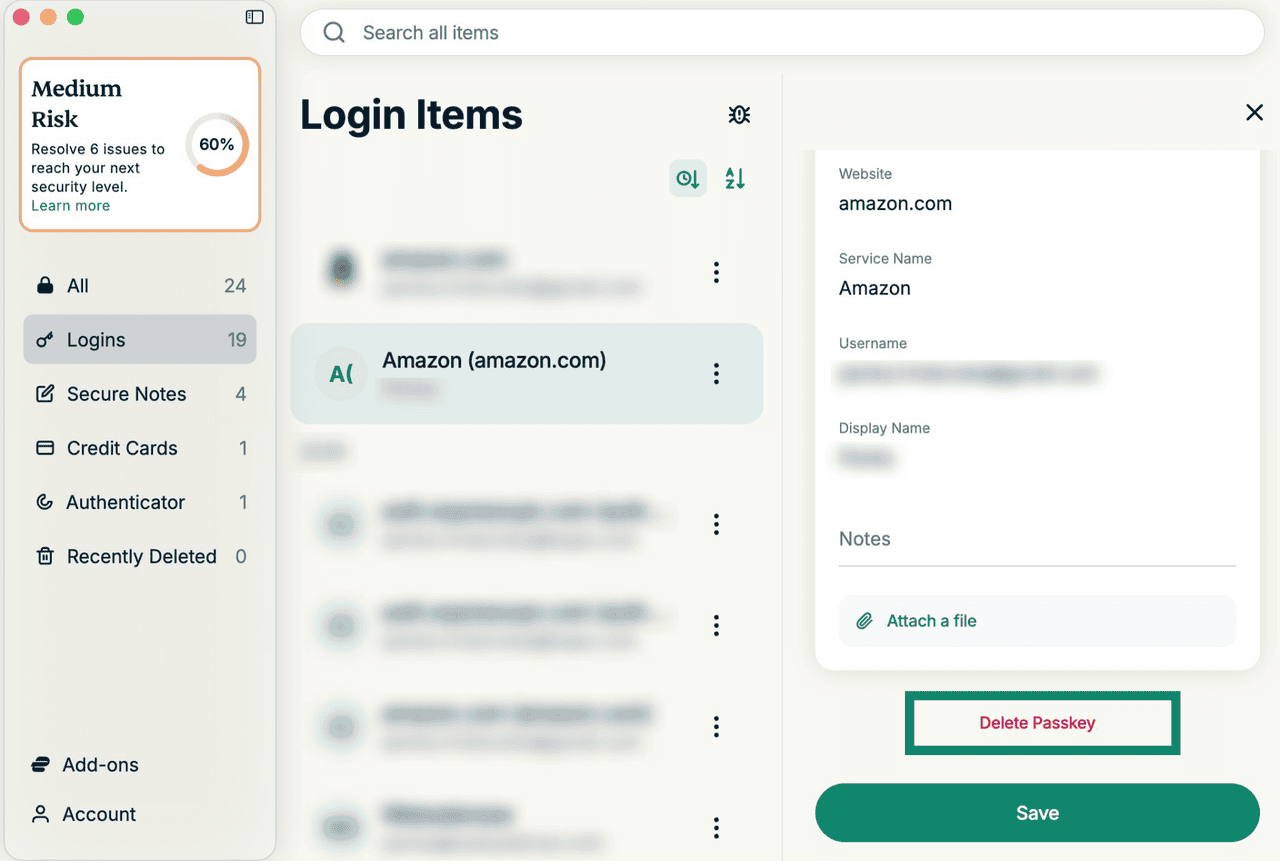
- Click Delete Passkey.

Need help? Contact the ExpressVPN Support Team for immediate assistance.