






The ExpressKeys apps and browser extensions let you attach files to the items in your vault, so you can keep important documents, photos, and videos protected and organized.
Jump to…
What files can you store in ExpressKeys?
How to store files
How to view and edit files
How to share files
How to check file storage
What files can you store in ExpressKeys?
You can attach a file to any item in your ExpressKeys vault, such as a login, payment card, or note. All file types are supported.
Your total file storage limit depends on your subscription:
- ExpressVPN Express Pro tier: 10GB
- ExpressVPN Advanced tier: 5GB
- ExpressKeys standalone subscription: 5GB
You can also preview supported text, PDF, image, and video files directly in the ExpressKeys apps. However, some file types need to be downloaded to your device before you can view them.
Need help? Contact the ExpressVPN Support Team for immediate assistance.
How to store files
You can attach files when you create a new vault item or edit an existing one. The tutorial below is illustrated with the mobile ExpressKeys app, but the steps are the same on the ExpressKeys macOS app, as well as the ExpressKeys extensions for Chrome and Firefox.
Add files to a new vault item
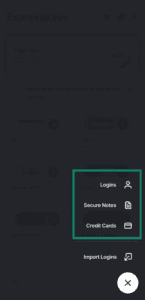
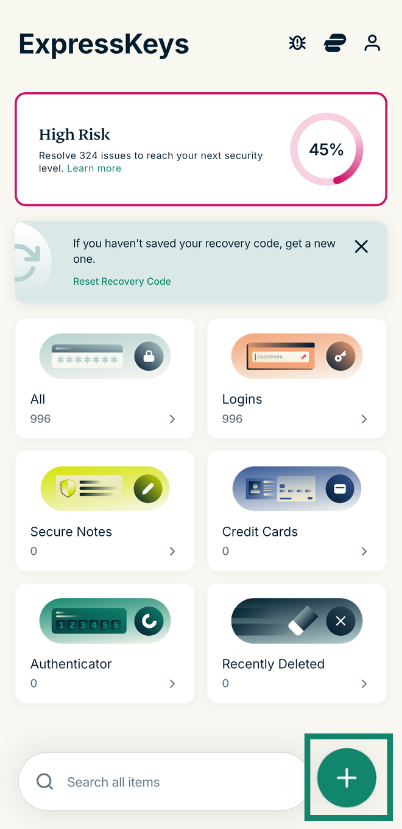
- Open ExpressKeys and select the plus (+) icon.


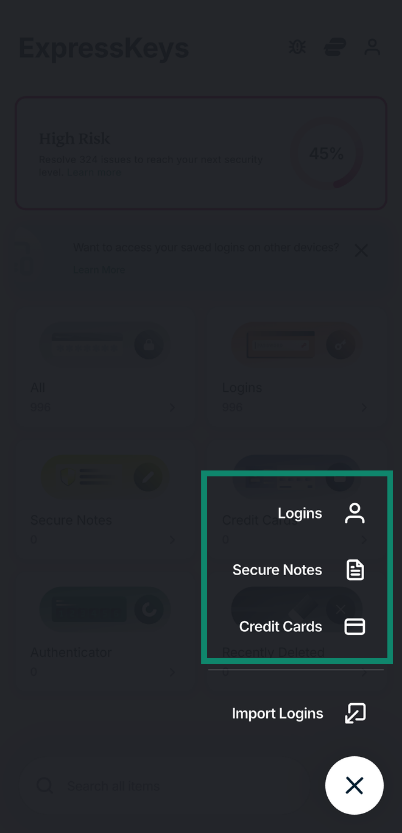
- Select the entry you’d like to create: Logins, Secure Notes, or Credit Cards.

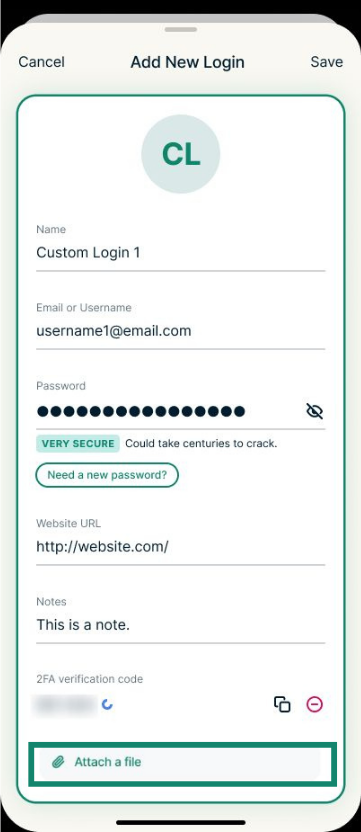
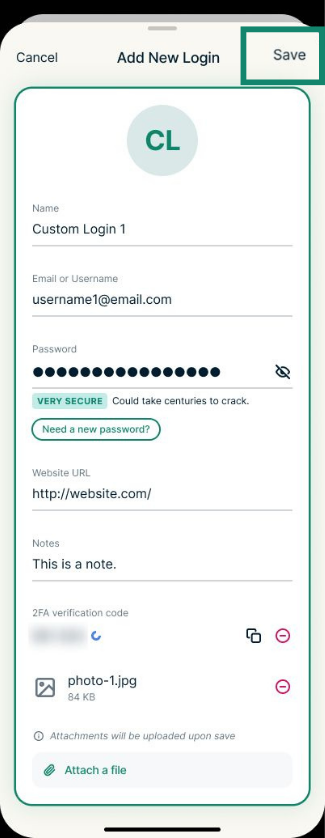
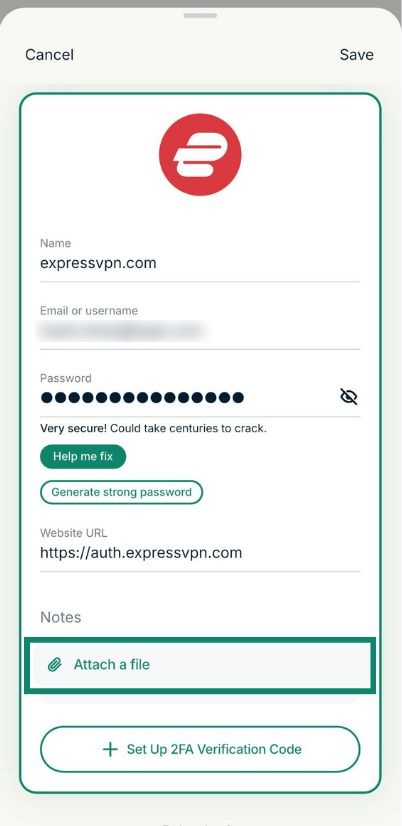
- Add the new vault item details, then scroll down and select Attach a file.


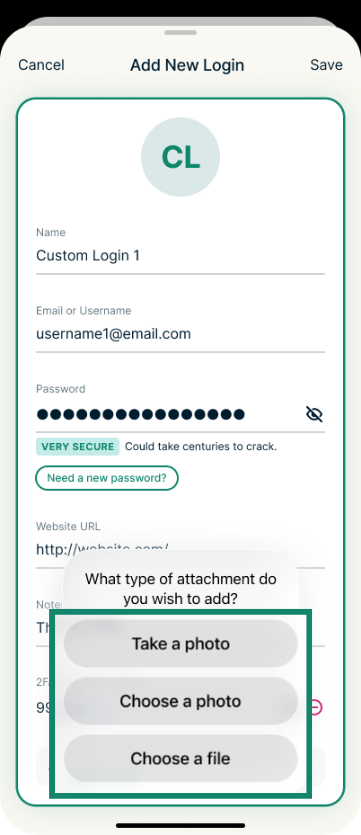
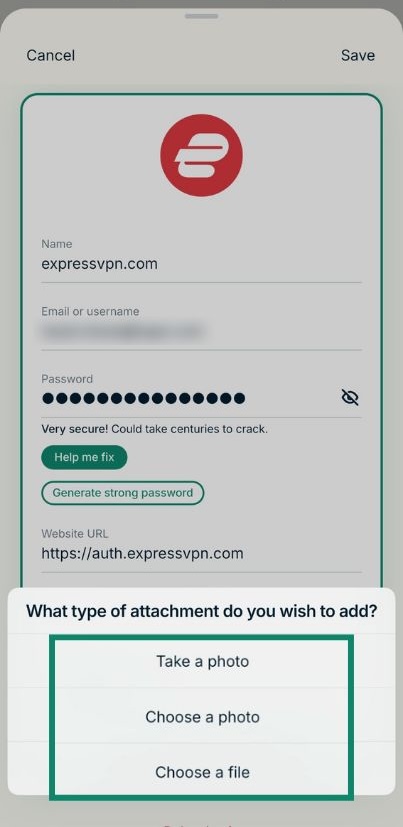
- Choose one of the following:
- Take a photo: Opens your device’s camera.
- Choose a photo: Lets you upload a photo from your device.
- Choose a file: Lets you upload a file from your device.


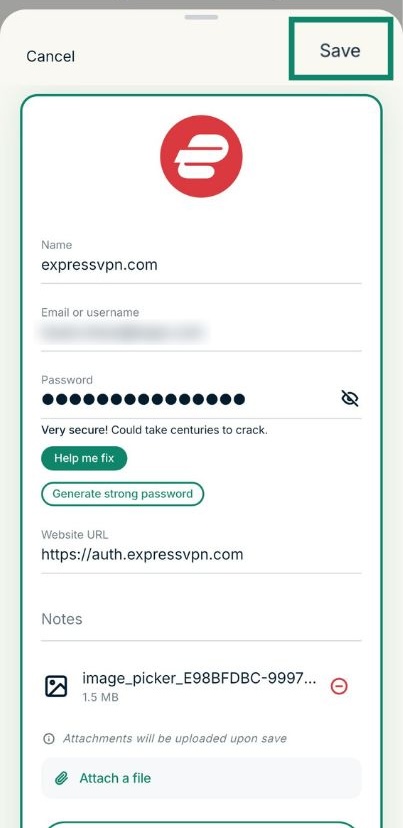
- When you’re finished, select Save. Note that if you do not select Save, your files will not be uploaded.


Add files to an existing vault item
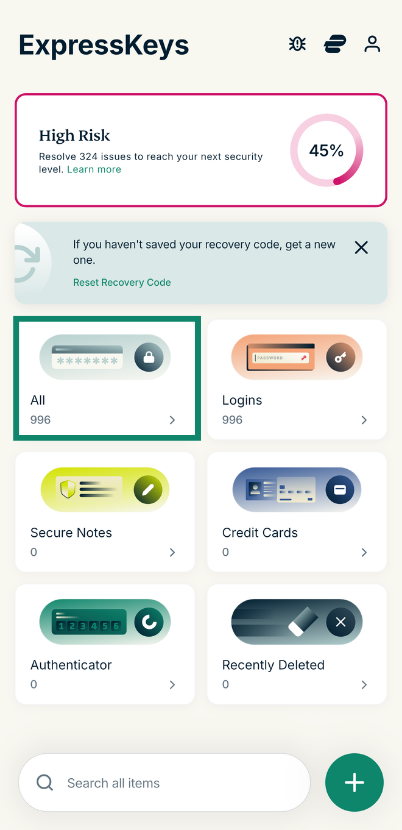
- Open ExpressKeys and select All.

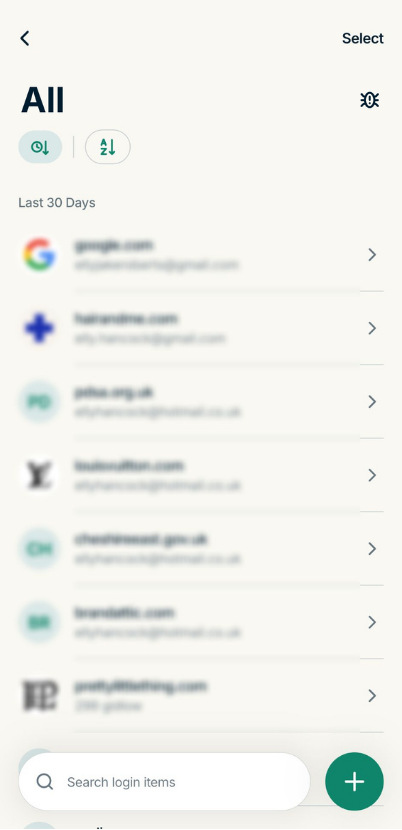
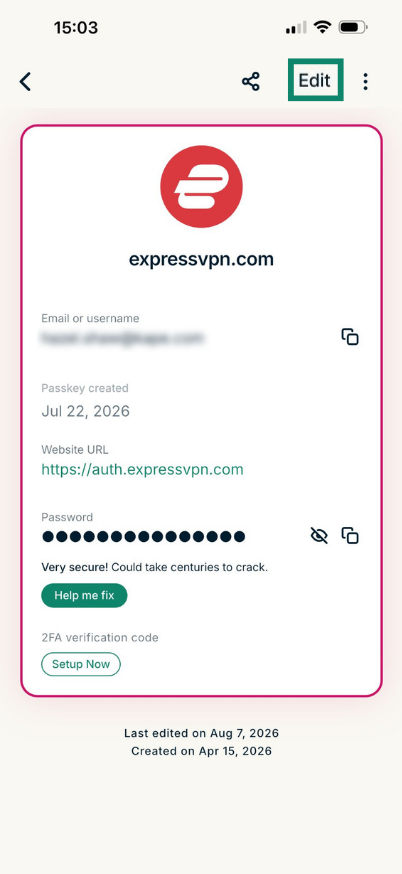
- Choose the item you want to add an attachment to.

- Select Edit.


- Scroll down and select Attach a file.


- Choose one of the following:
- Take a photo: Opens your device’s camera.
- Choose a photo: Lets you upload a photo from your device.
- Choose a file: Lets you upload a file from your device.

- When you’re finished, select Save. Keep in mind that if you do not select Save, your files will not be uploaded.

Need help? Contact the ExpressVPN Support Team for immediate assistance.
How to view and delete files
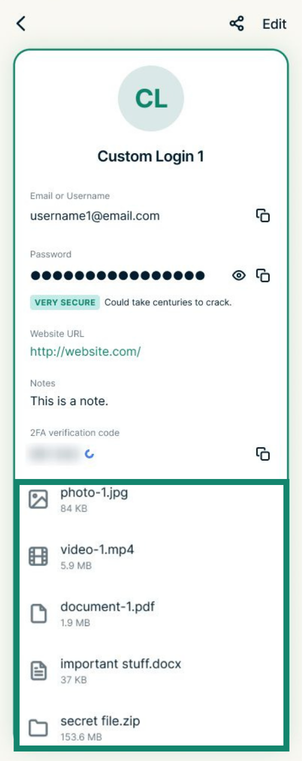
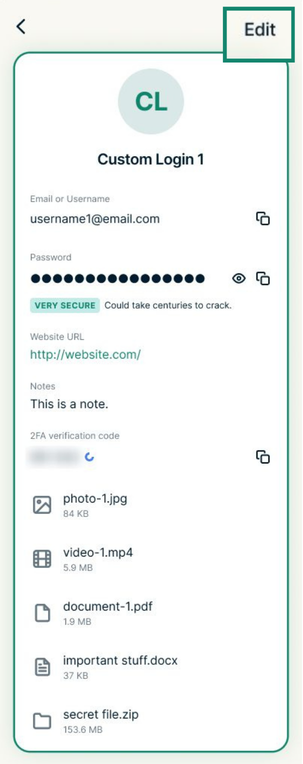
You can find files in the Attachments section when viewing a vault item.
Follow these steps to view or delete a file:
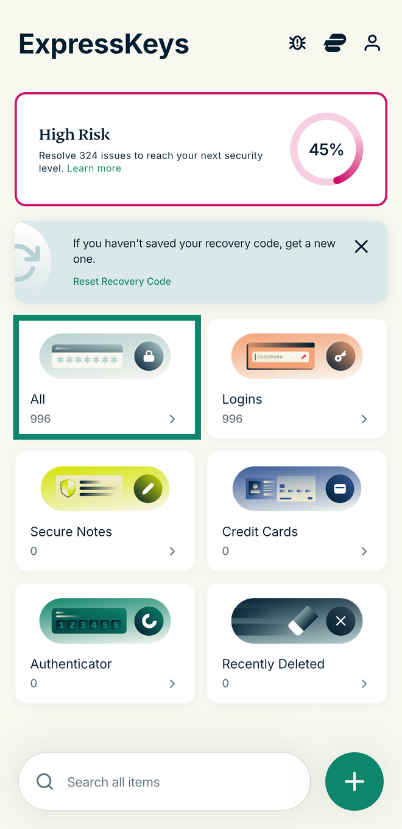
- Open ExpressKeys and select All.

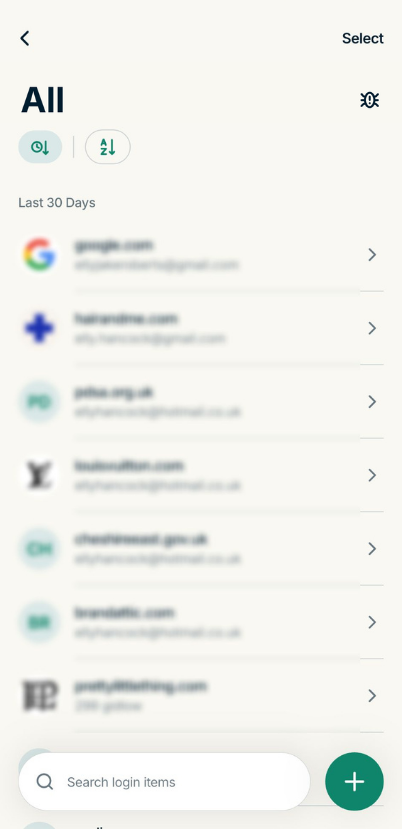
- Select the item you want to view.

- Scroll to Attachments and select the file you want to view.


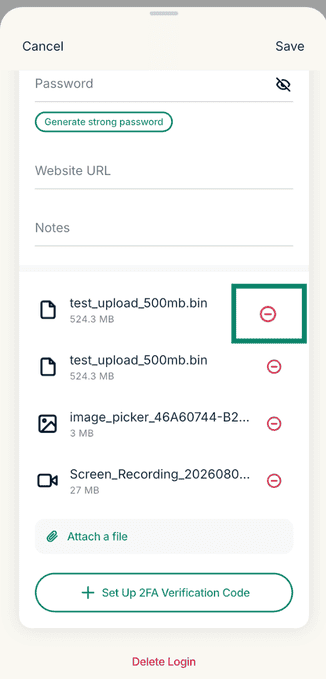
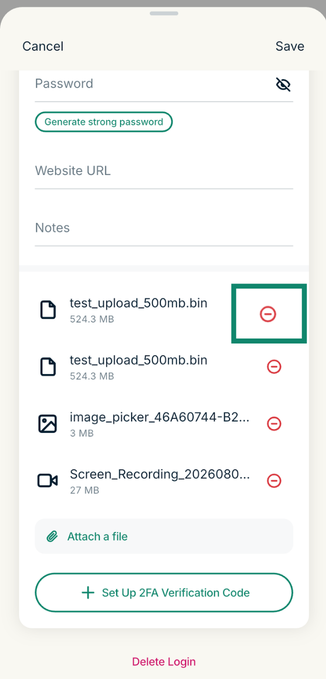
Note: If the file is a TXT, PDF, image, or video, you can view it directly in ExpressKeys. For all other file types, ExpressKeys downloads the file to your device so you can open it. - To remove an attachment, select Edit.


- Then, select the minus (–) icon next to the file you want to delete.

Need help? Contact the ExpressVPN Support Team for immediate assistance.
How to share files
You can securely share vault items with files and customize which attachments to include or exclude when sharing. Recipients do not need an ExpressVPN or ExpressKeys subscription or to have ExpressKeys installed on their devices to receive or open the files; they’ll just need to verify their email address to access them.
To share a vault entry, including file attachments:
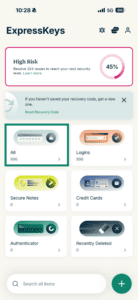
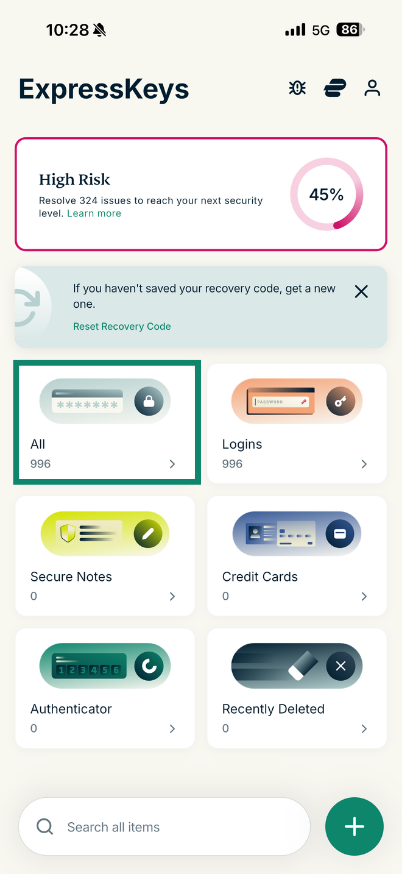
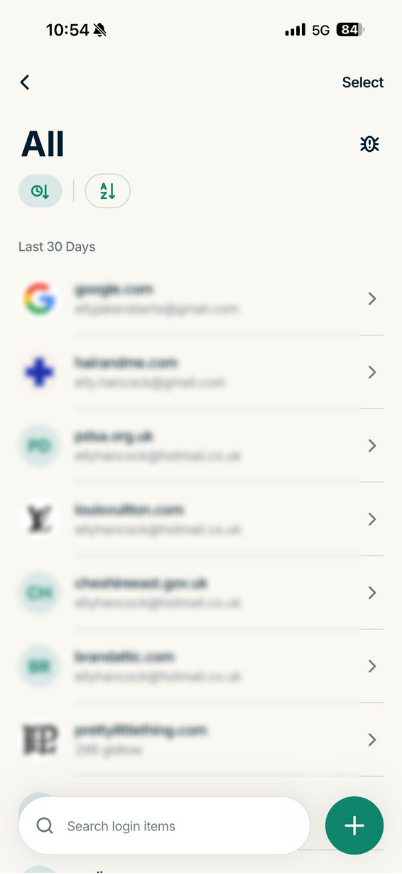
- Open ExpressKeys and select All.

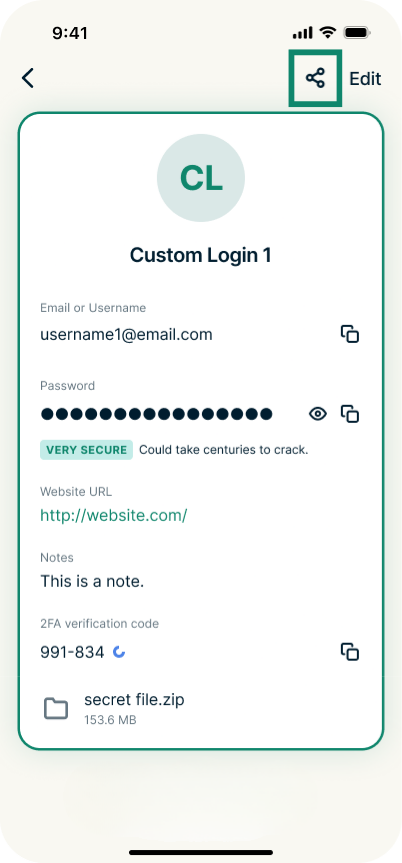
- Select the vault item you want to share.
- Select the Share icon.


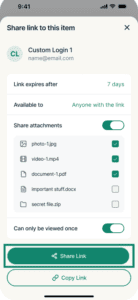
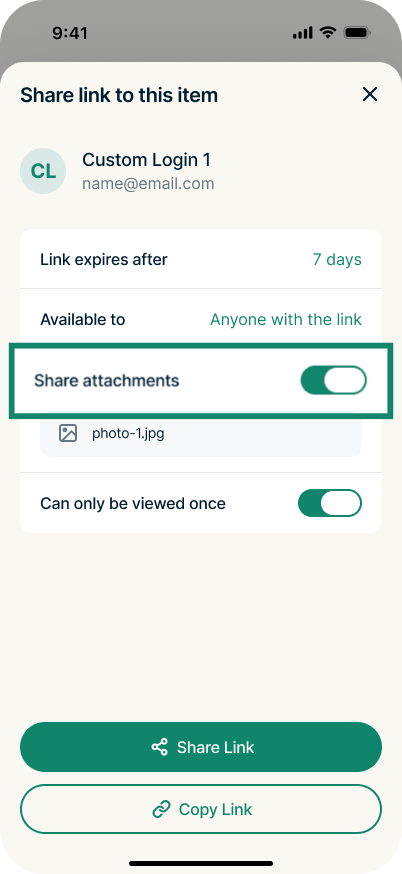
- Turn on the toggle for Share attachments.

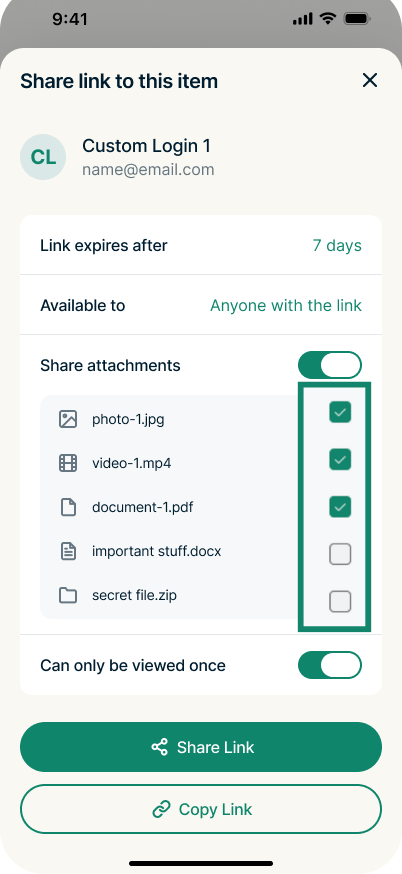
- Select the checkboxes next to the attachments you want to share.
 At this point, you can also customize other preferences before sharing the vault item, including setting when the link expires, choosing who the link is available to, and allowing the recipient to view the link only once. You can find more details in our guide to modifying item-sharing settings.
 - After setting your preferences, select Share Link.
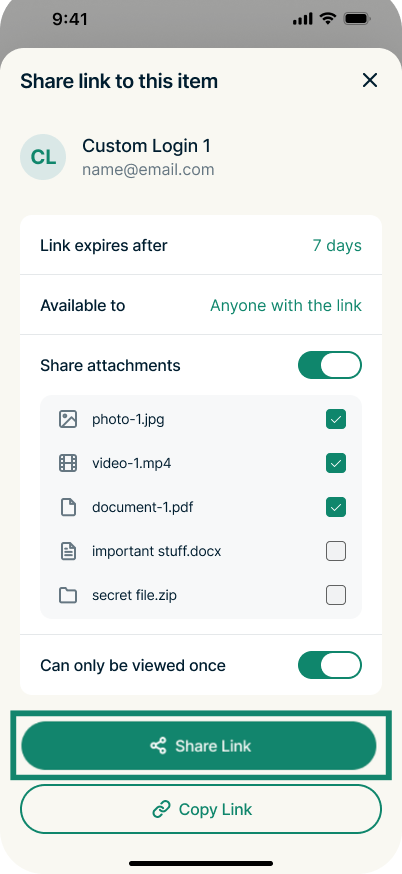
You can send to a contact, share via email, AirDrop to another device, or add to an app such as your notes.
Need help? Contact the ExpressVPN Support Team for immediate assistance.
How to check available file storage
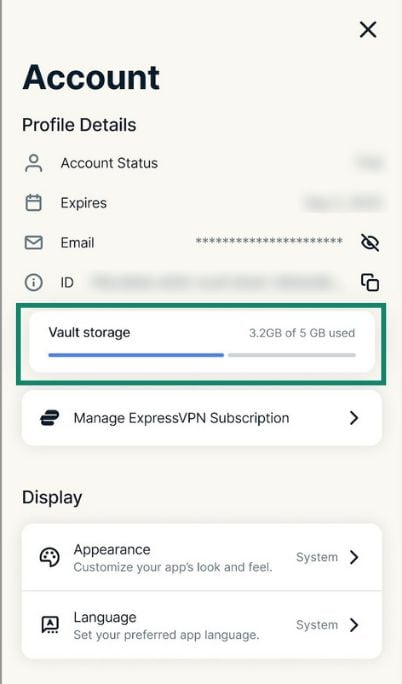
You can check how much file storage you’ve used and how much you have left from your ExpressKeys profile:
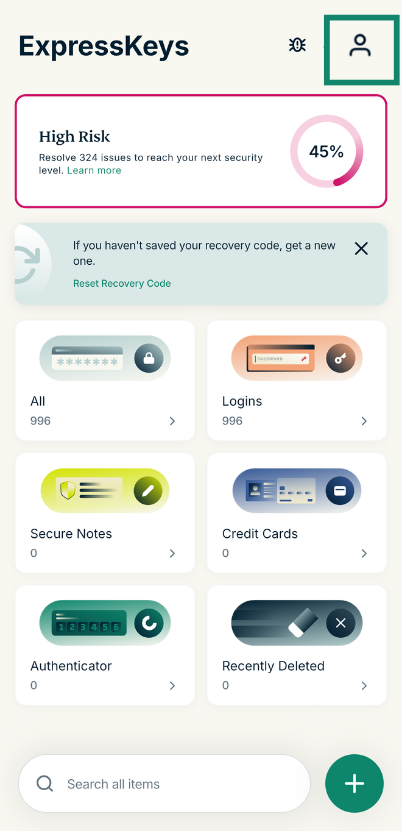
- Open ExpressKeys and select Account (profile icon

 ).
).
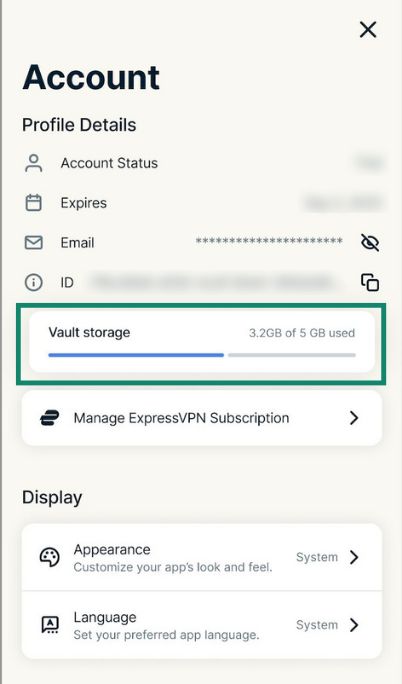
- Under ID, you’ll see Vault storage. This shows your file storage usage and remaining available storage.


You can also see how much file storage you have remaining when viewing a vault item that you’ve attached items to. This is shown underneath the Attach a file field.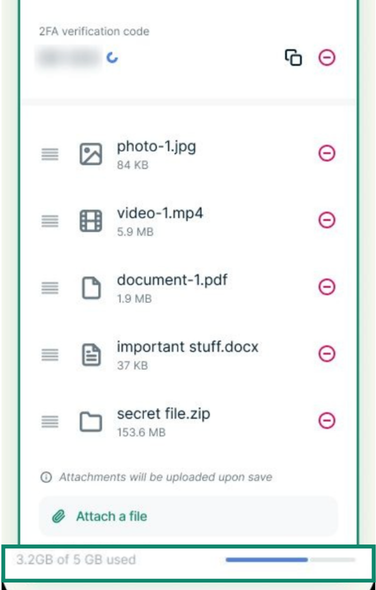
Need help? Contact the ExpressVPN Support Team for immediate assistance.