



ExpressVPN+ is a central dashboard where you can view and manage everything included in your subscription. This article explains how to check what’s included with your subscription, access your subscription details, upgrade, and manage add-ons, all in one place.
Jump to…
How to access the ExpressVPN+ portal
How to check what’s included in your subscription
Setting up your ExpressVPN services in ExpressVPN+
How to purchase and manage Add-Ons
How to access the ExpressVPN+ portal
To access the ExpressVPN+ portal:
- Visit portal.expressvpn.com.
- If prompted, log into your ExpressVPN account.
Once you’re logged in, the ExpressVPN+ portal will load.
Need help? Contact the ExpressVPN Support Team for immediate assistance.
How to check what’s included in your subscription
An ExpressVPN subscription can offer access to a range of cybersecurity tools, including ExpressVPN, ExpressKeys, ExpressMailGuard, ExpressAI, holiday.com eSIM, and, for U.S. customers only, Identity Defender.
To see what products you can use with your current subscription, check your subscription details:
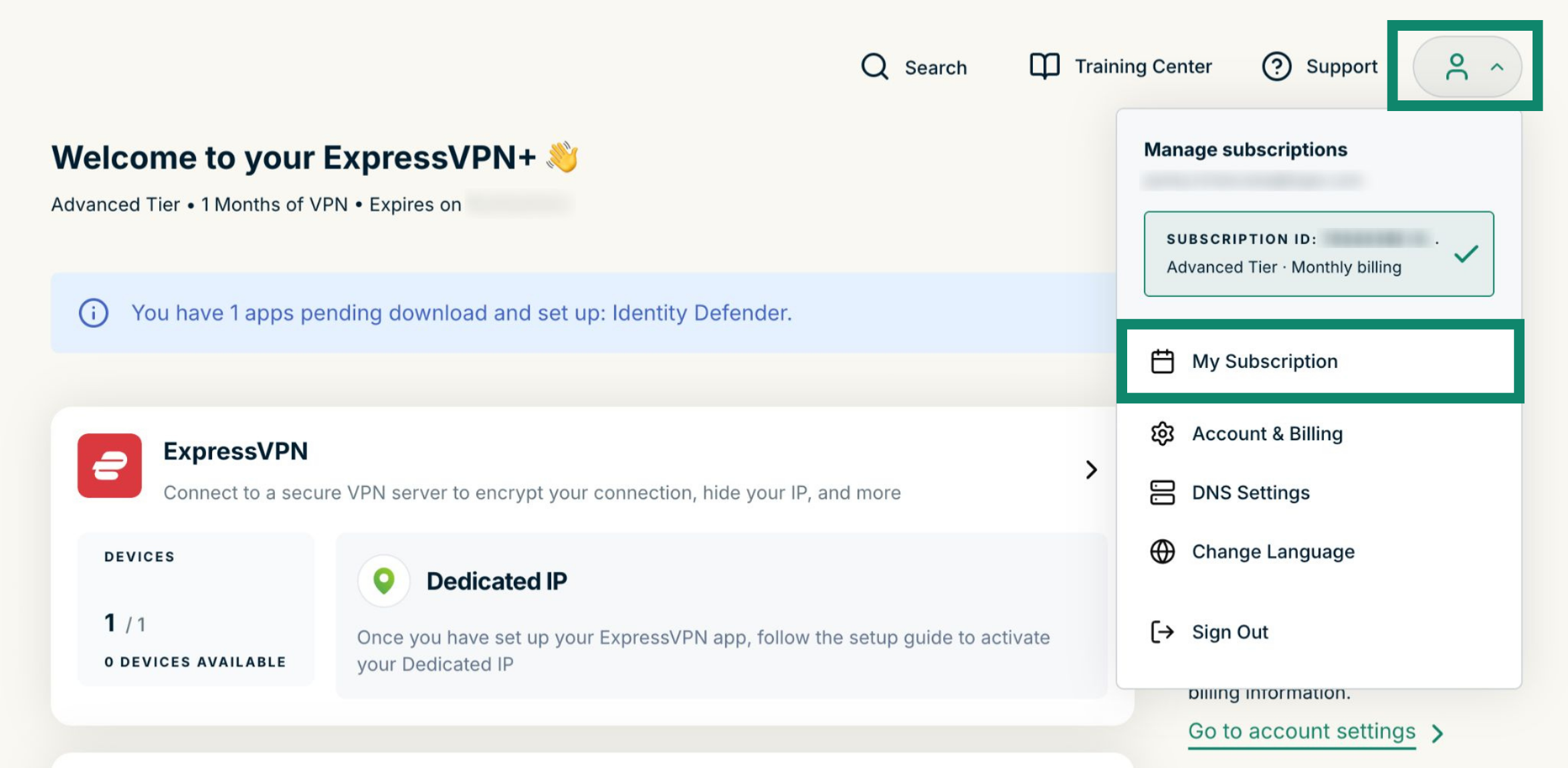
- Click the profile picture in the top-right corner and select My Subscription.


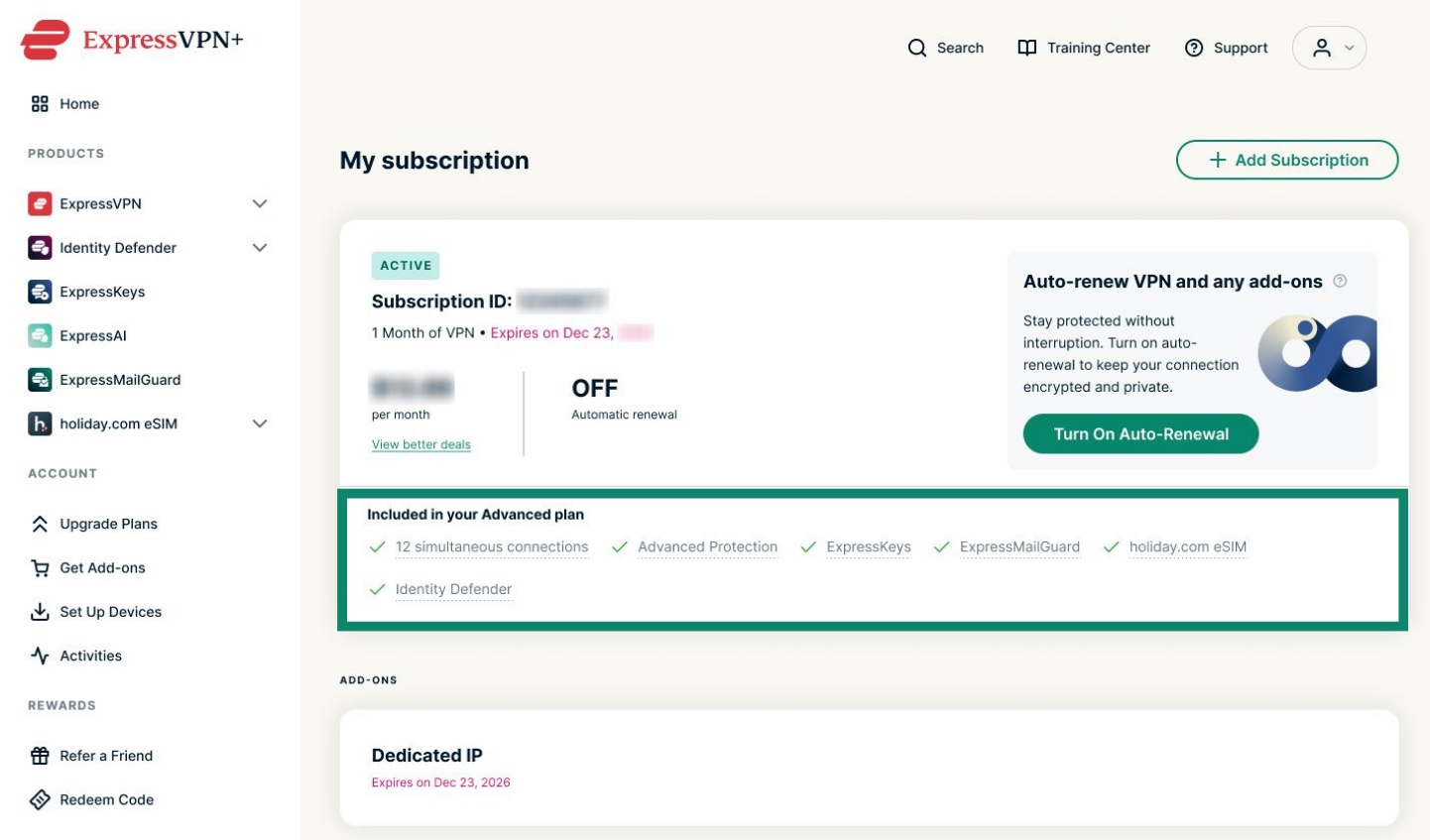
- Under Included in your [tier name] plan, you can see everything included in your subscription. If you have any add-ons available on your account, you’ll see them in the ADD-ONS section.


Need help? Contact the ExpressVPN Support Team for immediate assistance.
Setting up your ExpressVPN services in ExpressVPN+
On the homepage of the ExpressVPN+ portal, you can see a list of all ExpressVPN services in the left-hand menu under PRODUCTS.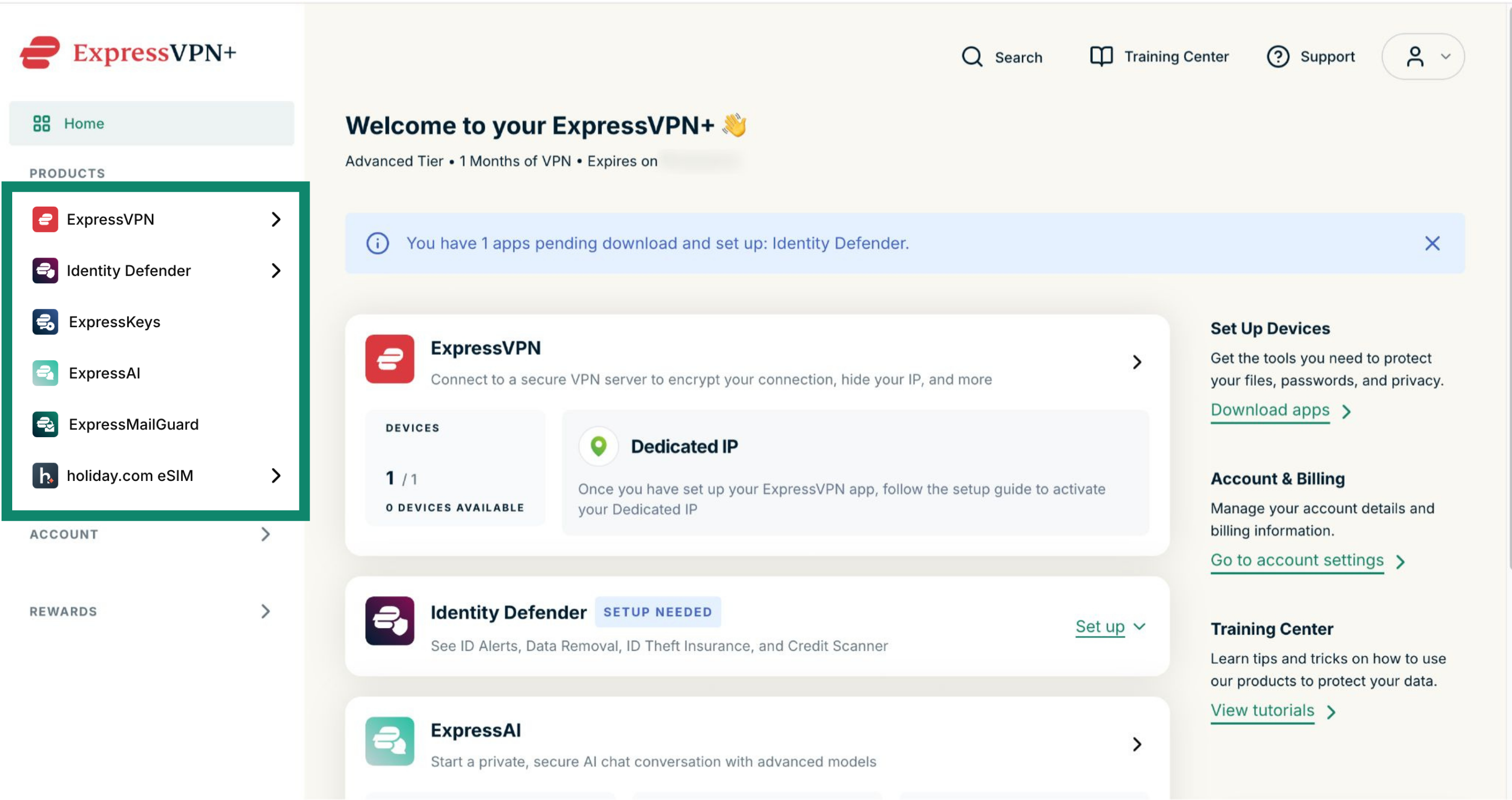
To set up each product, click on it and follow the on-screen instructions or refer to the relevant setup guide below for more information.
ExpressVPN:
- How to set up ExpressVPN on Android
- How to set up ExpressVPN on iOS
- How to set up ExpressVPN on macOS
- Set up ExpressVPN on Windows
- How to set up ExpressVPN on Linux
ExpressAI:
ExpressMailGuard:
ExpressKeys:
- How to set up the ExpressKeys app for Android
- How to set up the ExpressKeys app for iOS
- How to set up the ExpressKeys browser extension
Identity Defender:
holiday.com eSIM:
Need help? Contact the ExpressVPN Support Team for immediate assistance.
How to upgrade your subscription tier
If there’s a feature you’d like to use that isn’t included in your current subscription, you can upgrade at any time. To see what’s included in each tier, visit expressvpn.com/pricing.
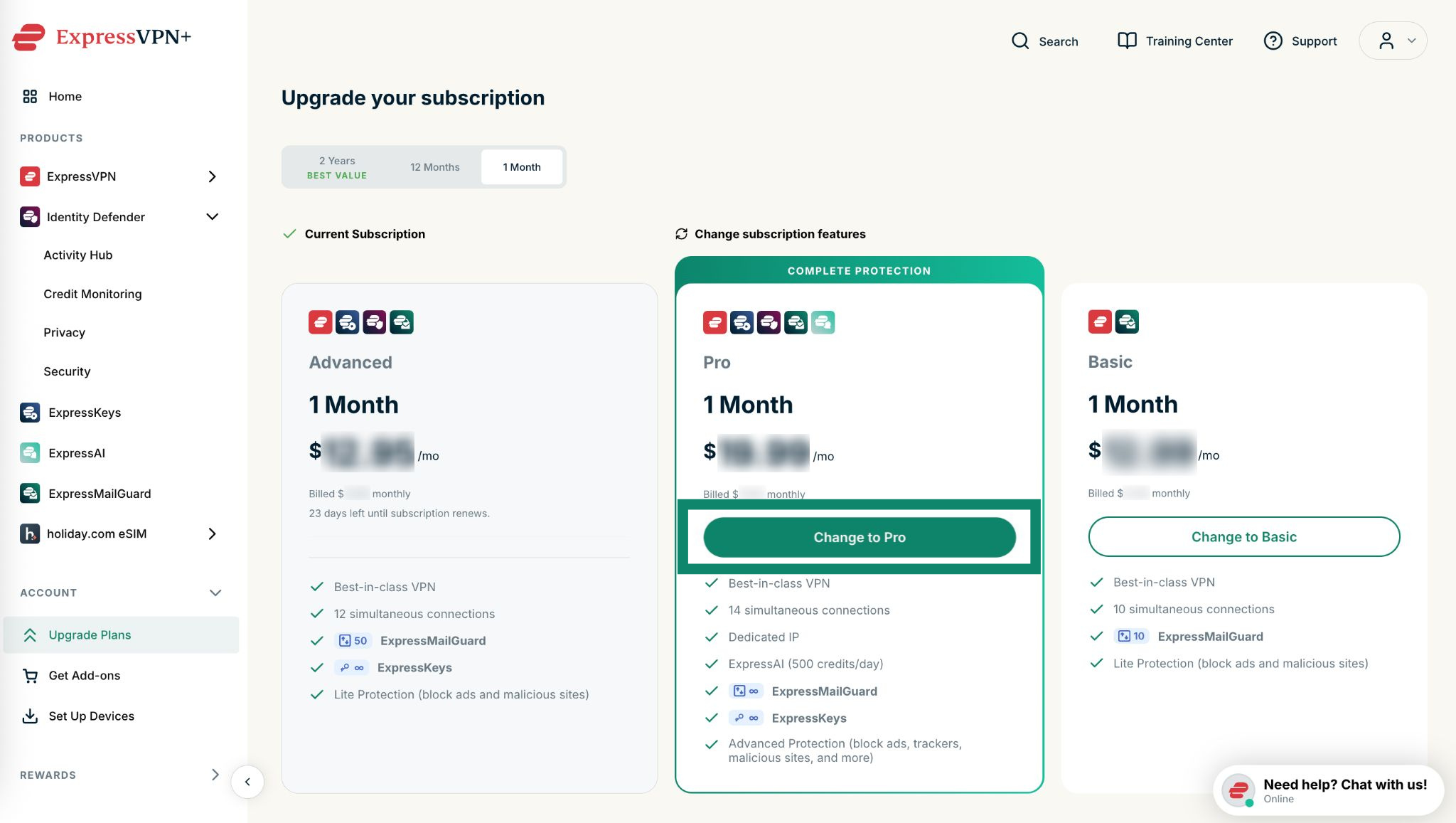
To upgrade your ExpressVPN subscription from the ExpressVPN+ portal:
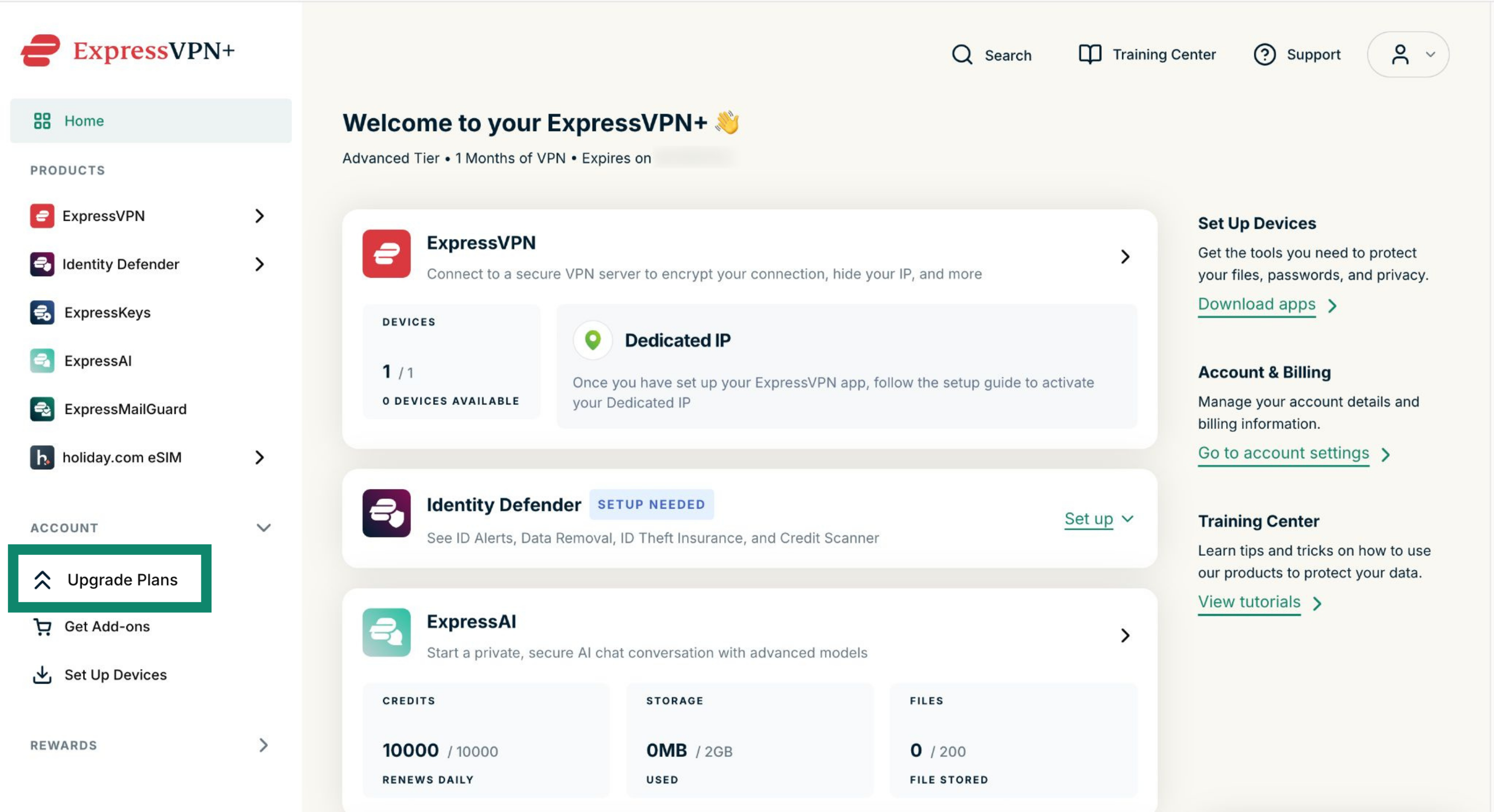
- Click the Account menu on the left-hand side and select Upgrade Plans.


- Choose from the available tiers and durations and select Change to [tier].


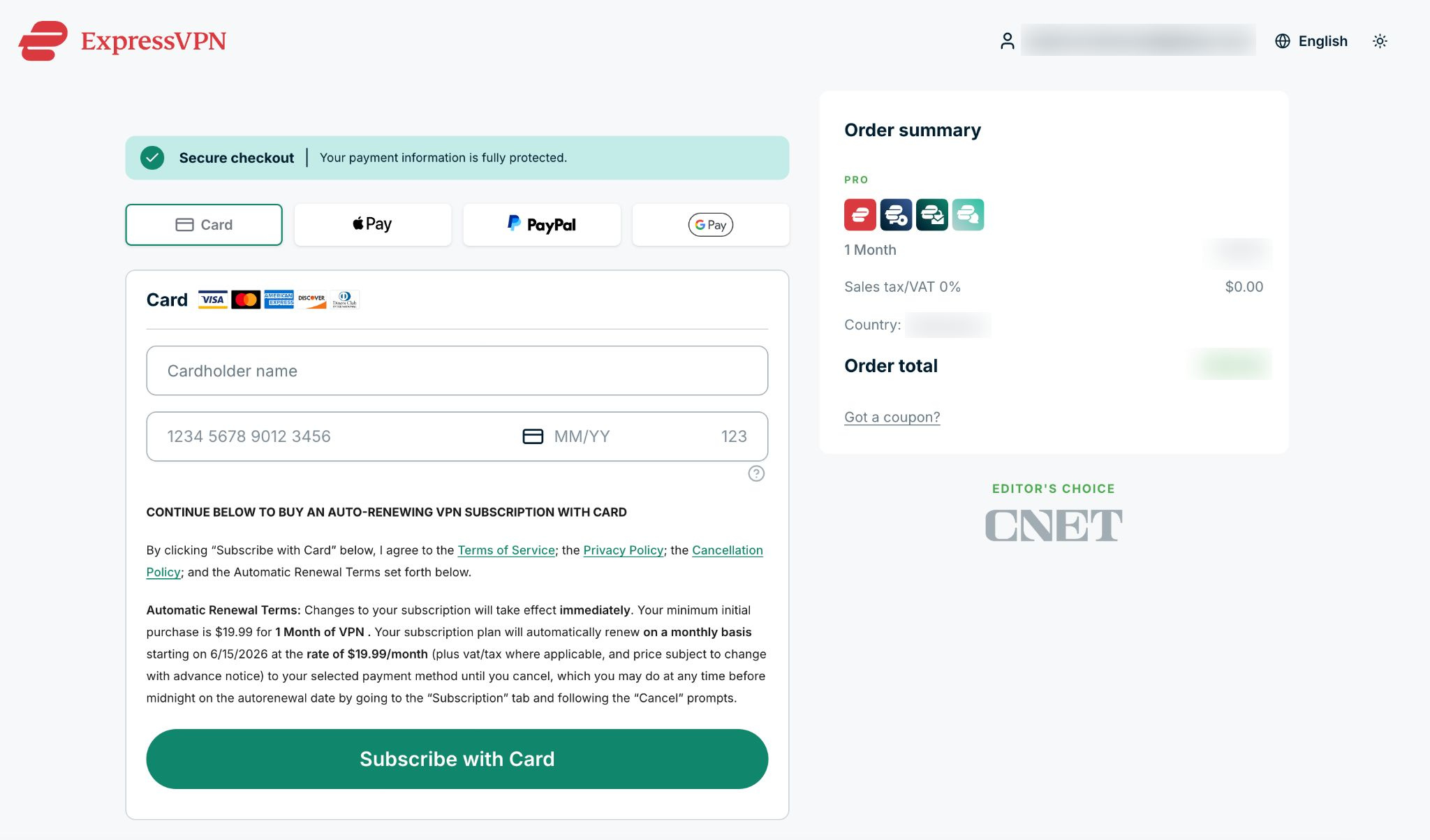
- Choose a payment method and confirm by clicking the Subscribe with [payment option of your choice].

Need help? Contact the ExpressVPN Support Team for immediate assistance.
How to purchase and manage Add-ons
Add-ons let you extend your subscription with features not included in your current subscription.
To see what add-ons are available in your account, select the Account menu on the left and then click Get Add-ons.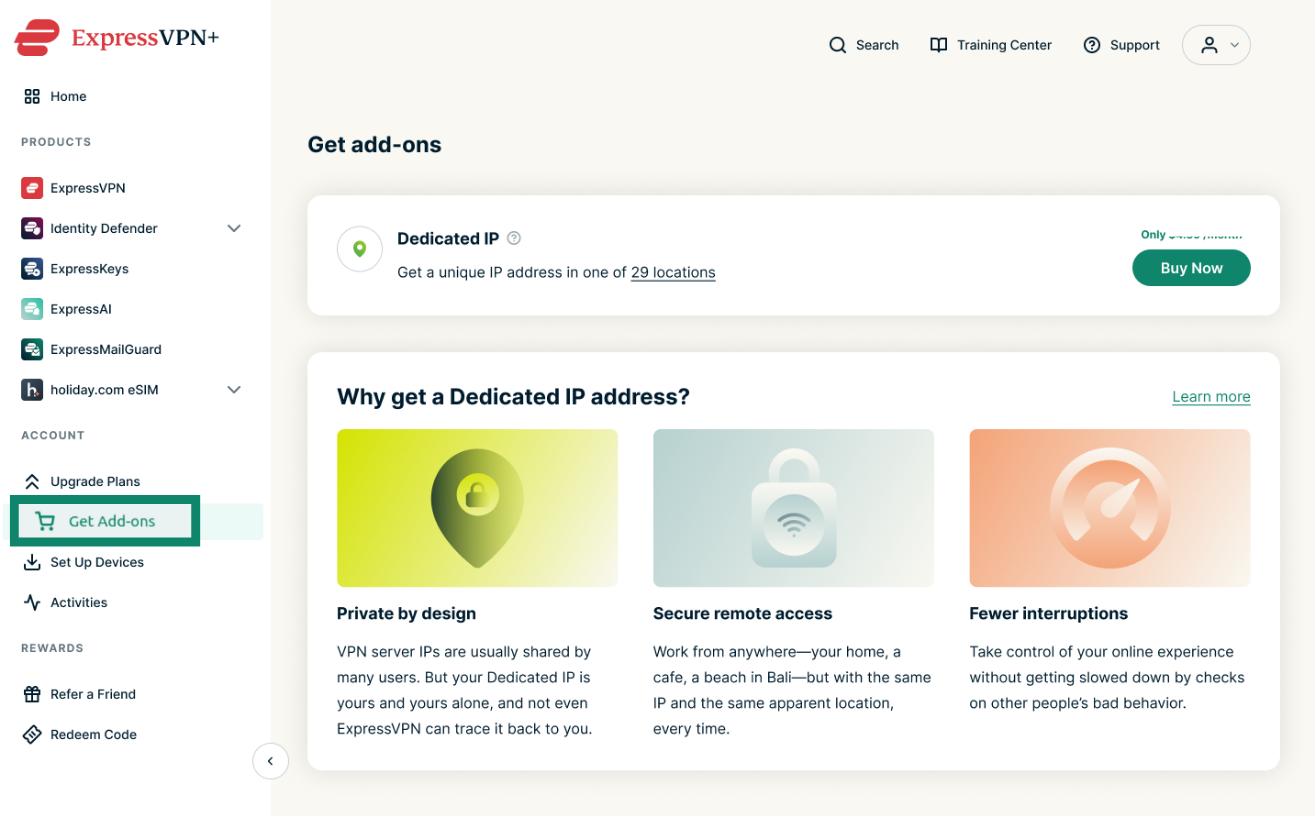
Currently, the only available add-on is a Dedicated IP. To add it to your subscription, click Buy Now and follow the instructions.
You can then refer to these guides to set up your dedicated IP on your devices:
Need help? Contact the ExpressVPN Support Team for immediate assistance.