



This guide explains how to view and copy the IP addresses assigned to your Dedicated IP for Teams locations in the ExpressVPN for Teams admin dashboard.
Jump to…
Find your Dedicated IP for Teams IP addresses
You can view the IP addresses assigned to each of your dedicated IP locations from the ExpressVPN Teams admin dashboard.
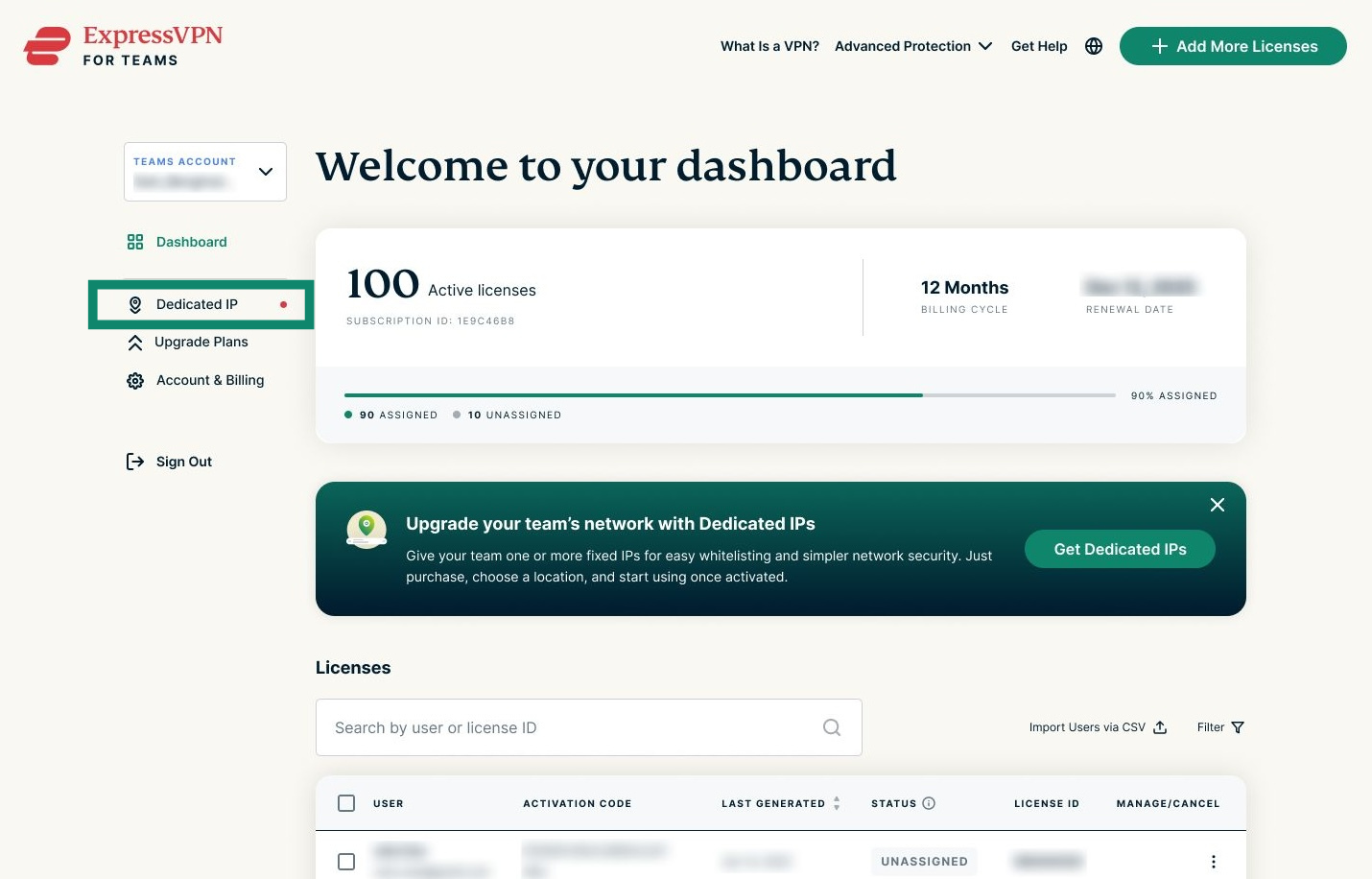
- In the dashboard, click Dedicated IP from the left-hand sidebar.


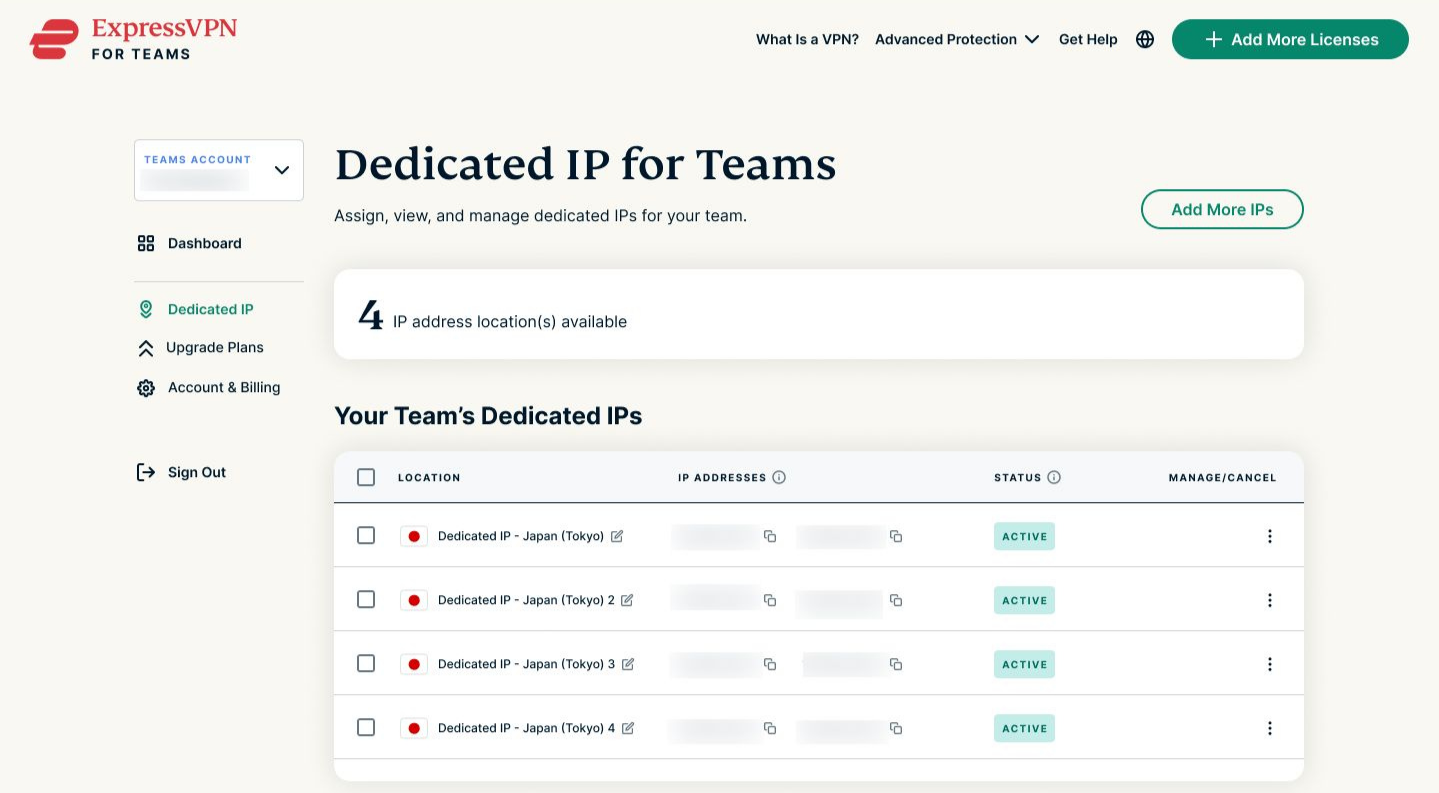
- Under Your Team’s Dedicated IPs, you’ll see a list of the dedicated IPs you’ve purchased.


- You can view the following information:
- Server name and location: The custom name and location assigned to your dedicated IP.
- Server IP address: The IP address assigned to your dedicated IP.
Note: You will notice two IP addresses per location, and this is by design. ExpressVPN provides two servers per location so that if one goes down, the connection can continue without any interruption. - Status: Whether your dedicated IP is active or still needs to be set up.
- Options: Manage or cancel your dedicated IP.
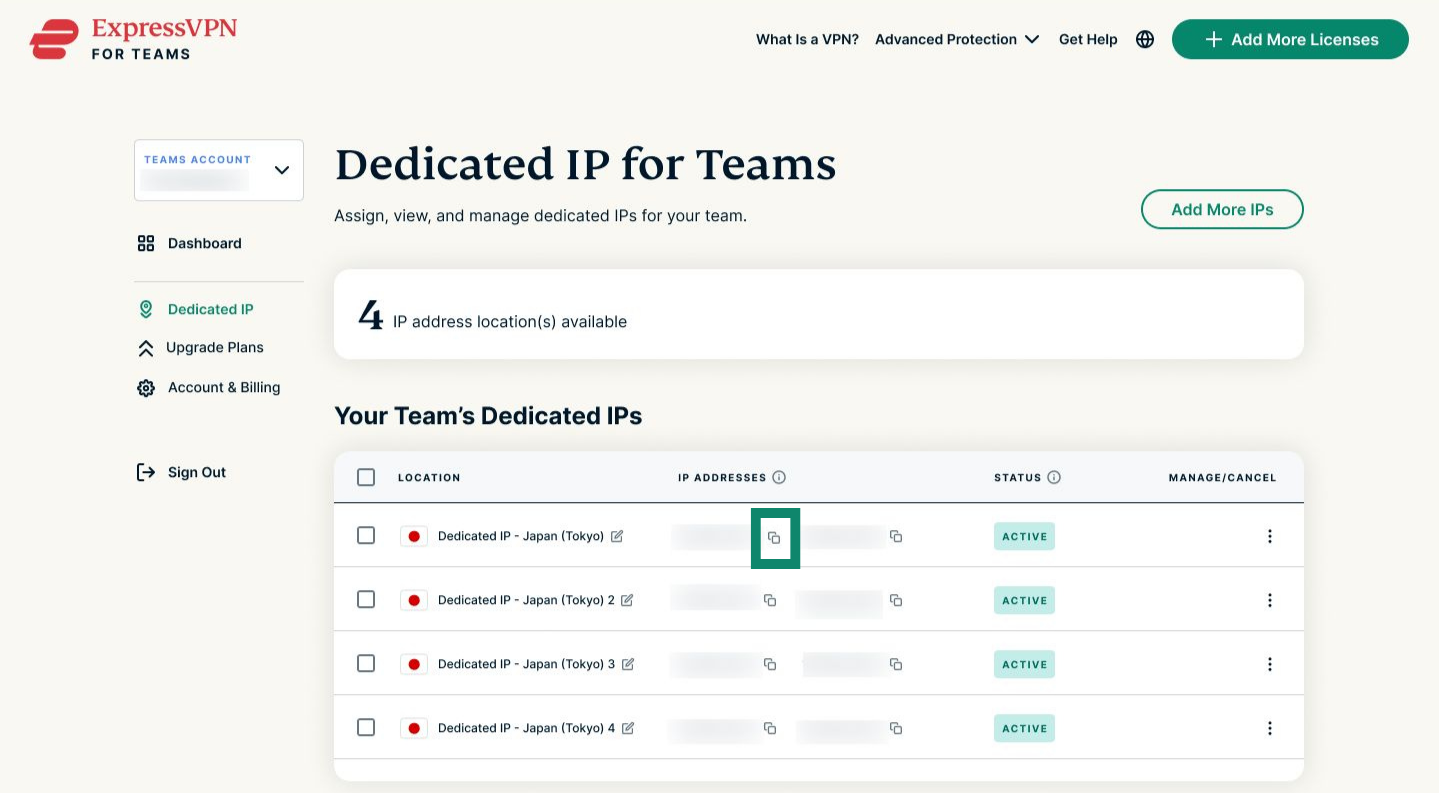
- To copy the IP address to your clipboard, click the copy icon.

If you haven’t set up your dedicated IPs yet
You’ll see a “Location not set” message under Location and a “SETUP NEEDED” message under Status. Read our guide to setting up and managing Dedicated IP for Teams locations for detailed instructions.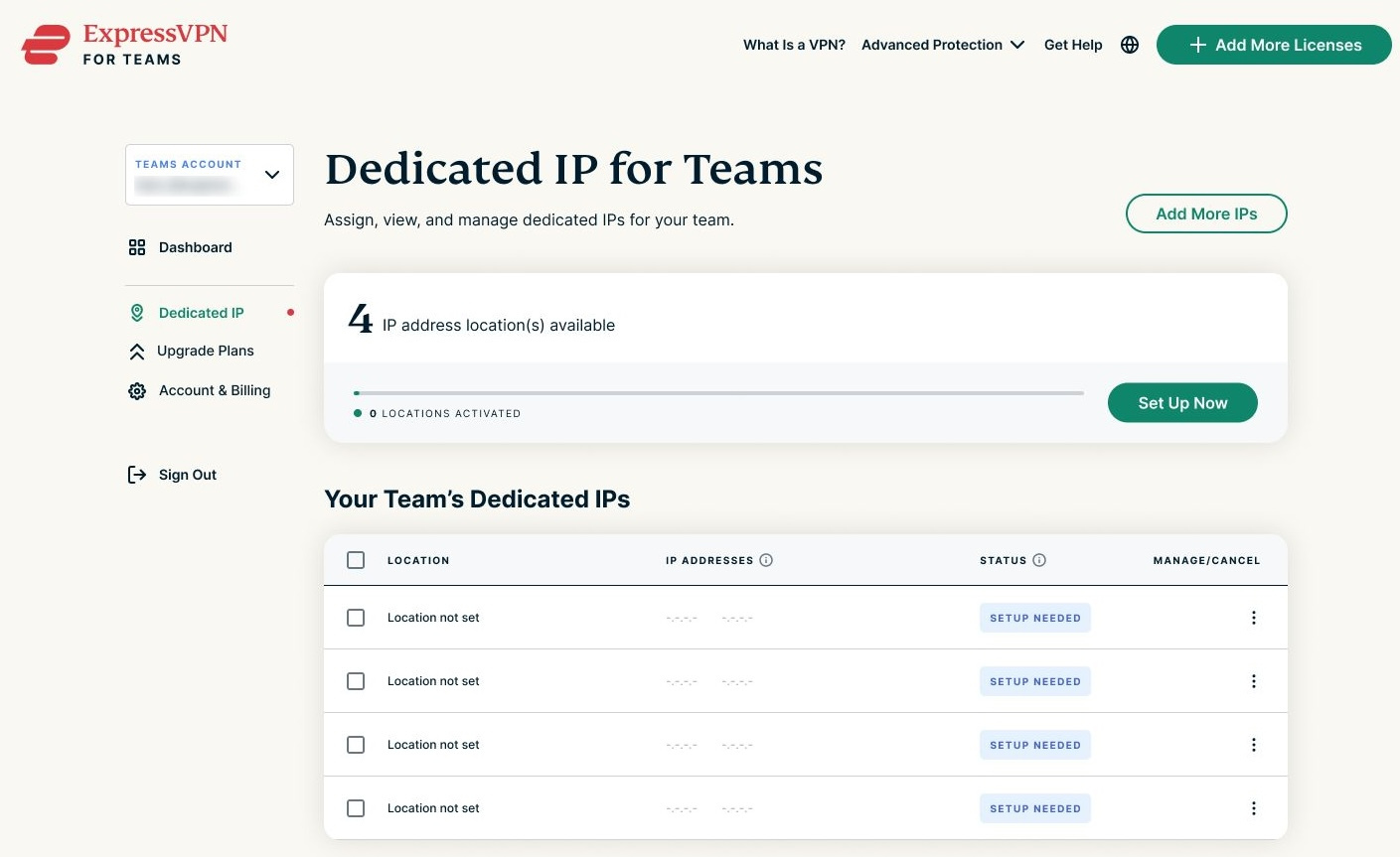
Need help? Contact the ExpressVPN Support Team for immediate assistance.
Using Dedicated IP for Teams
To help your team get started, you can refer your team members to our support guide on how to use Dedicated IP for Teams.
Need help? Contact the ExpressVPN Support Team for immediate assistance.