This guide will show you how to fix an issue preventing you from using ExpressVPN’s Live Chat on Firefox Private Browsing.

If you are unable to use ExpressVPN’s Live Chat on Firefox Private Browsing:

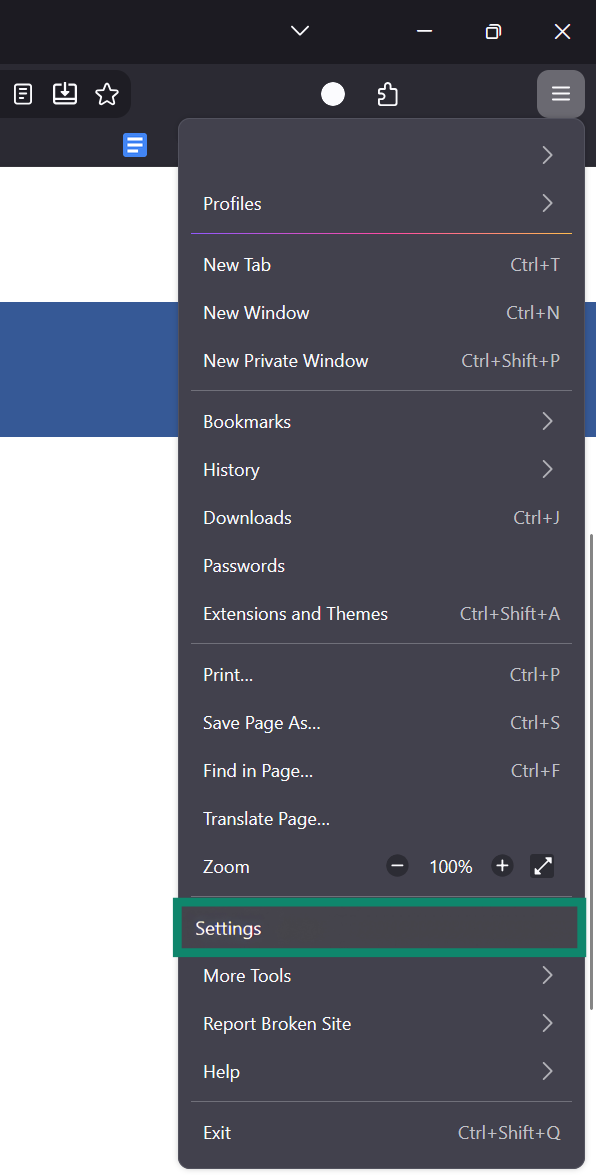
  1. On your Firebox browser, click Menu icon. > Settings.Firefox application window showing the main drop-down menu opened from the top-right corner, with the "Settings" option highlighted by a green box.
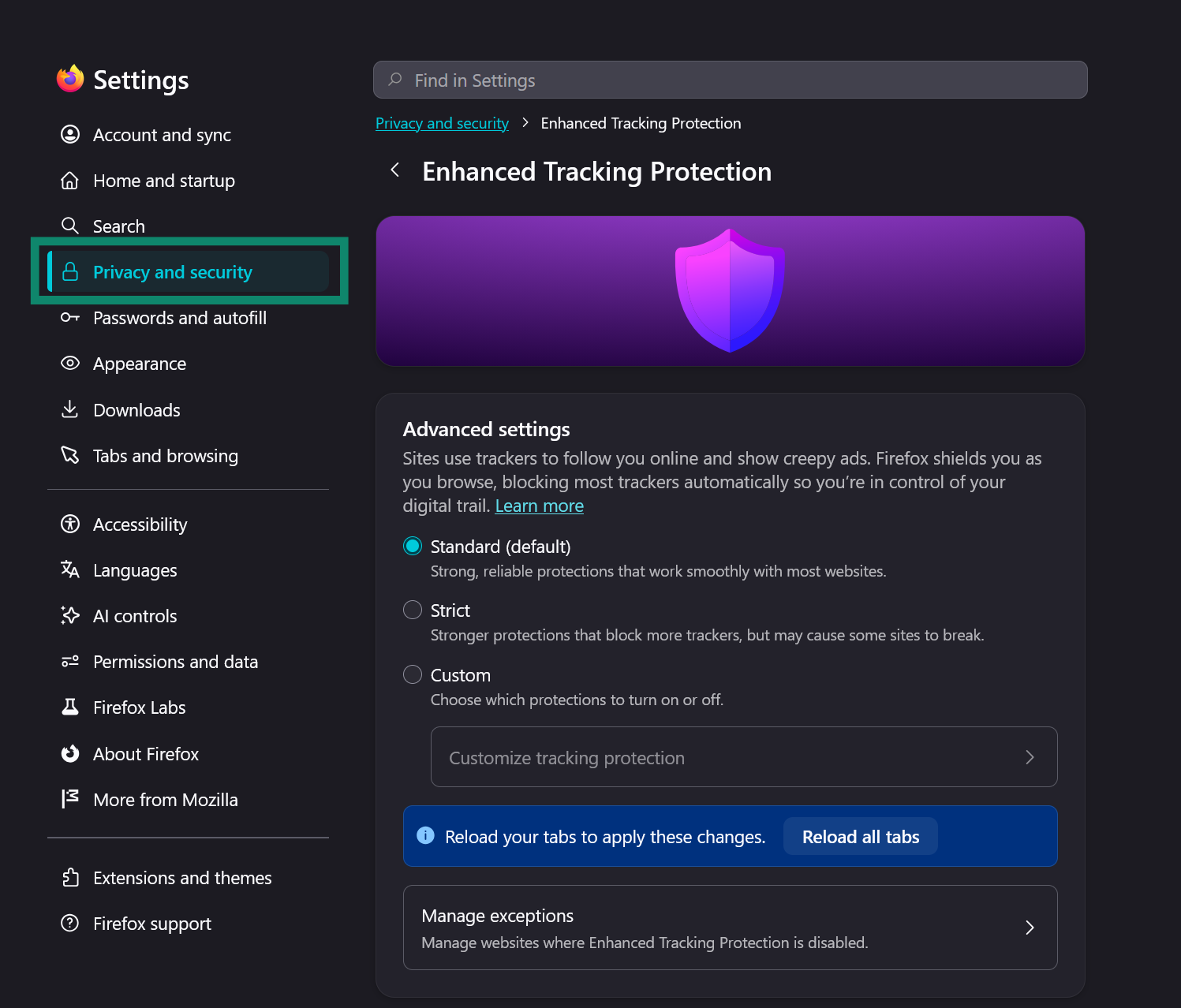
  2. Click Privacy & Security.Firefox Settings page with the left sidebar visible, highlighting the "Privacy and security" tab in a green box.
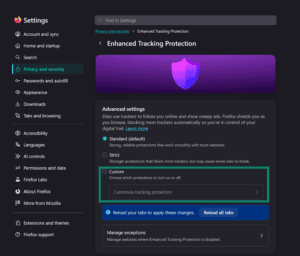
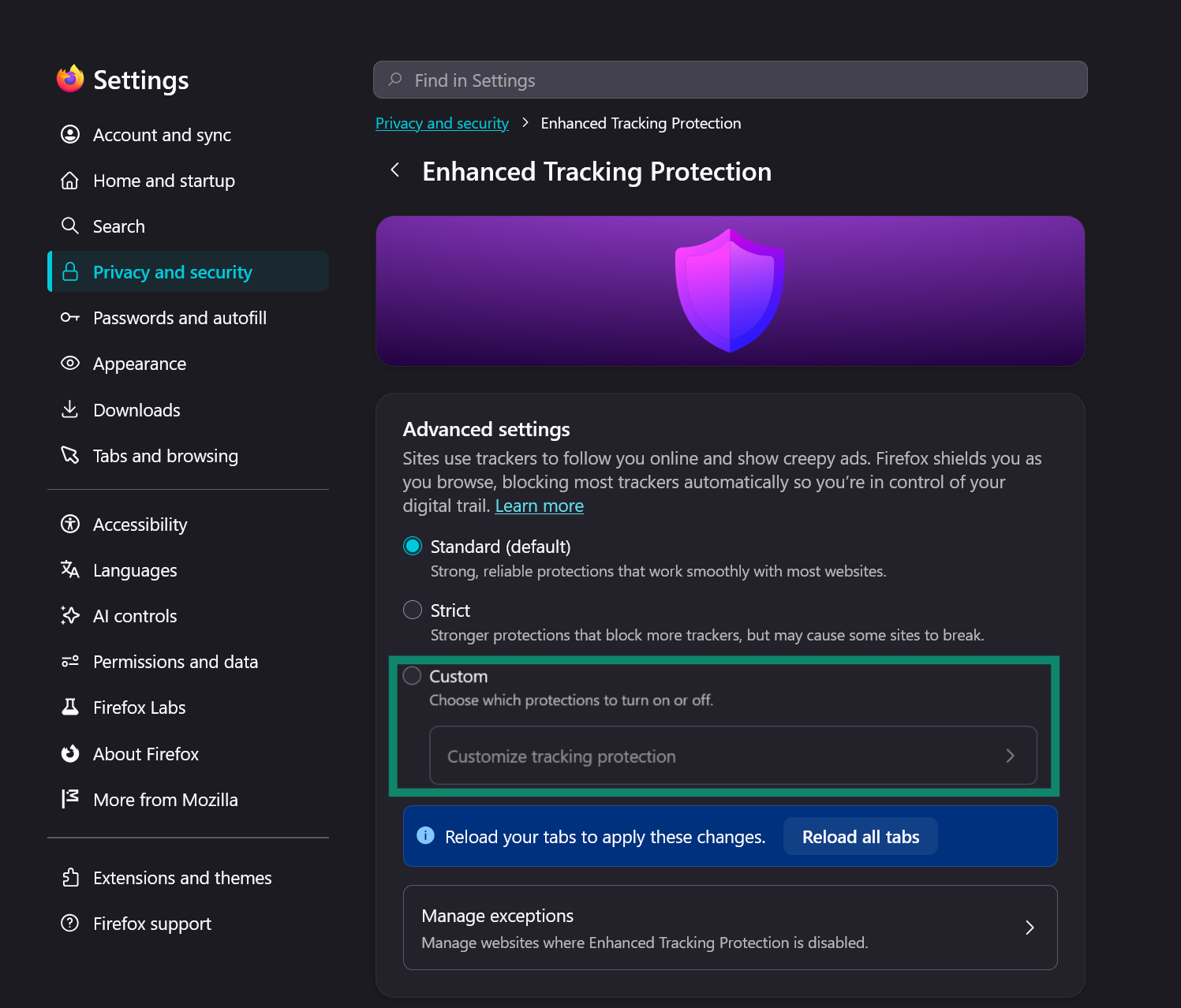
  3. Under Enhanced Tracking Protection, select Custom.Firefox Enhanced Tracking Protection settings page showing "Custom" and its "Customize tracking protection" button enclosed in a green box.
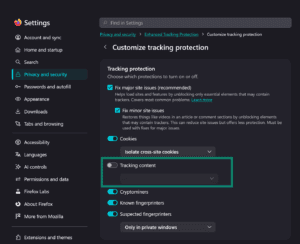
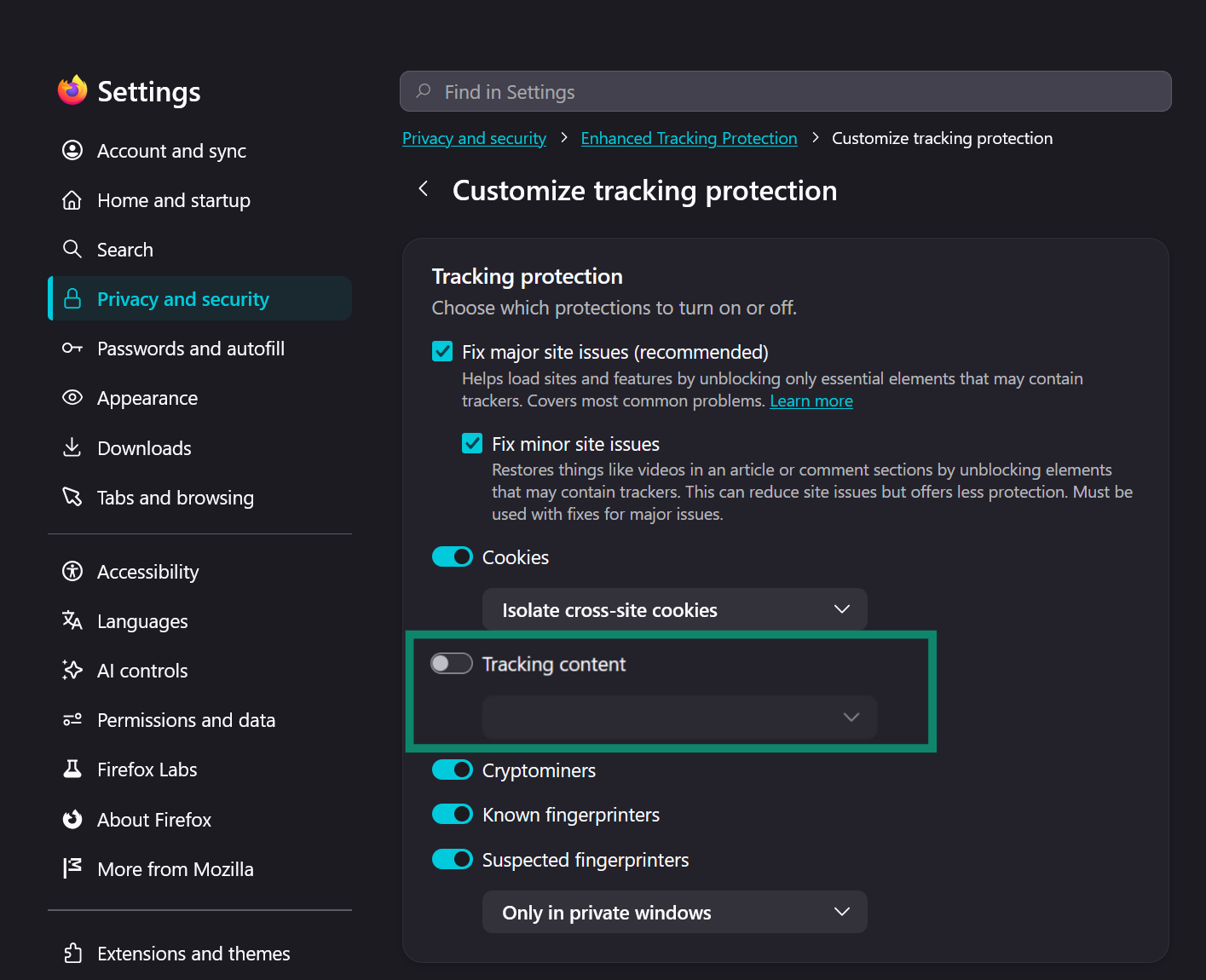
  4. Uncheck Tracking content. Then restart the browser to apply changes.Firefox "Customize tracking protection" sub-menu displaying individual toggles, with the "Tracking content" toggle switch highlighted inside a green box.

Live Chat should now work on Firefox Private Browsing.

Need help? Contact the ExpressVPN Support Team for immediate assistance.

Back to top

Was this article helpful?

We're sorry to hear that. Let us know how we can improve.

What device do you need help with?

Examples: Android, Windows, Linksys router

A member of our Support Team will follow up on your issue.