






ExpressVPN shouldn’t cause excessive battery usage under normal conditions. If you notice your device’s battery draining faster than usual while using ExpressVPN, follow the steps below to identify the cause and resolve the issue.
Jump to…
Check the device’s battery usage history
Before troubleshooting ExpressVPN, first check whether it’s responsible for the battery drain.
Follow the steps below to check ExpressVPN’s energy impact or battery consumption relative to other applications on your device. A higher number than most other apps indicates ExpressVPN is currently using more energy, which can cause faster battery drain.
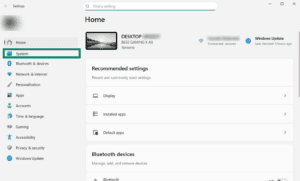
- From the Start menu, go to Settings and select System.

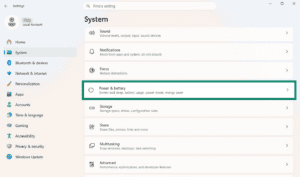
- Select Power & battery.

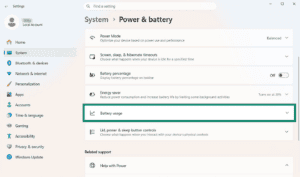
- Click Battery usage.
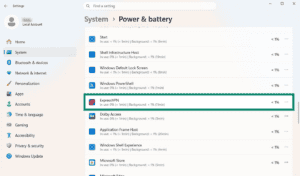
- Find ExpressVPN and check its app battery consumption.
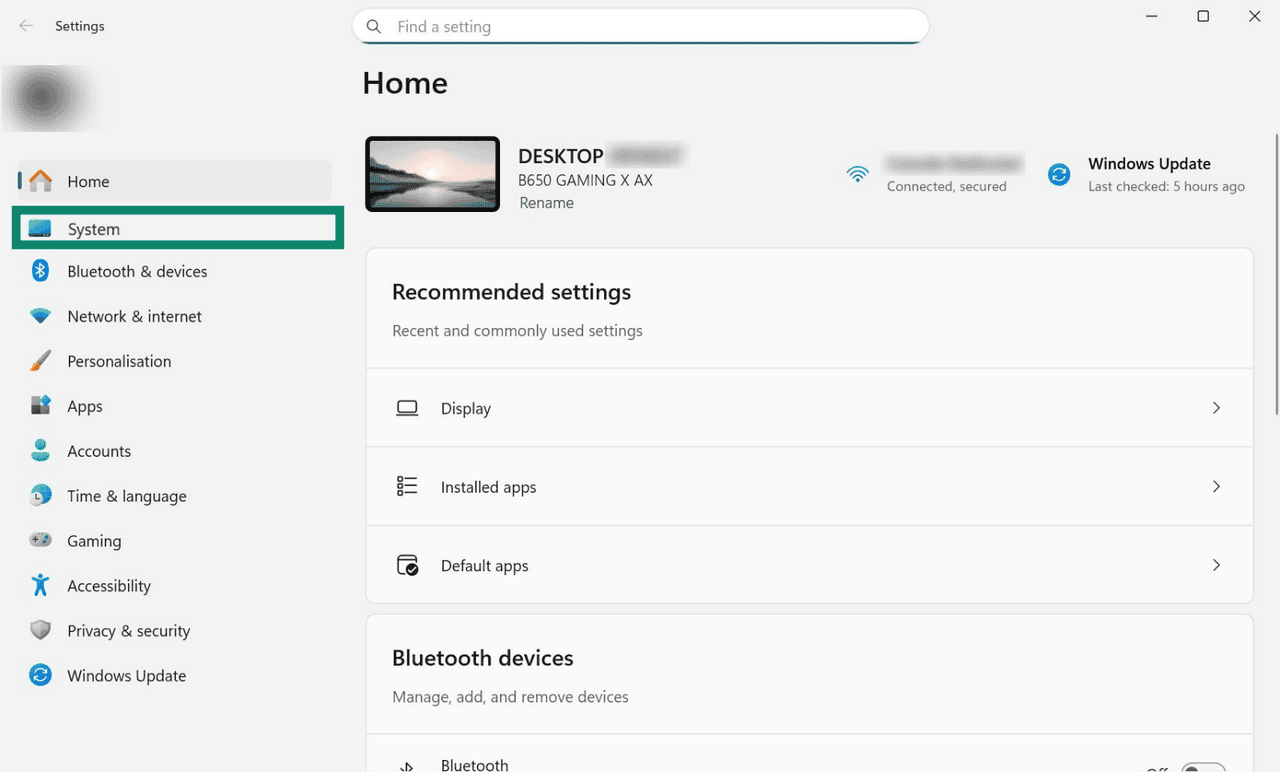
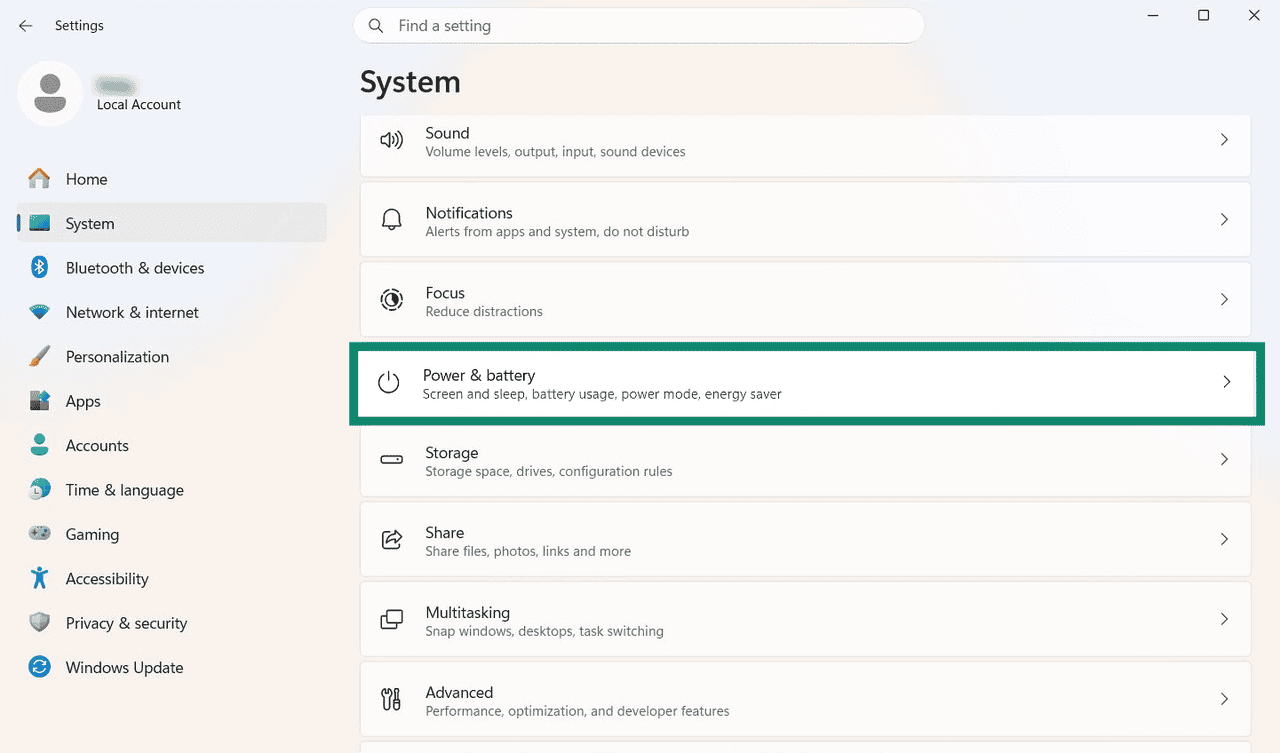
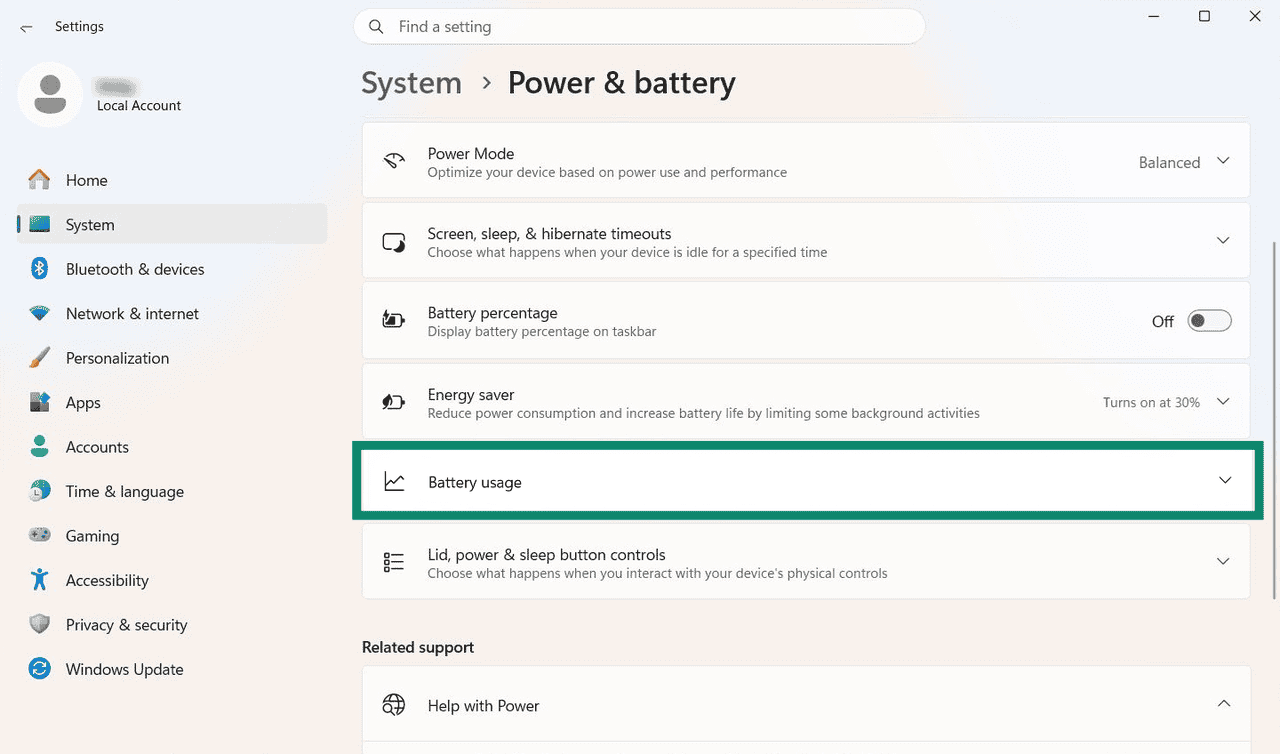
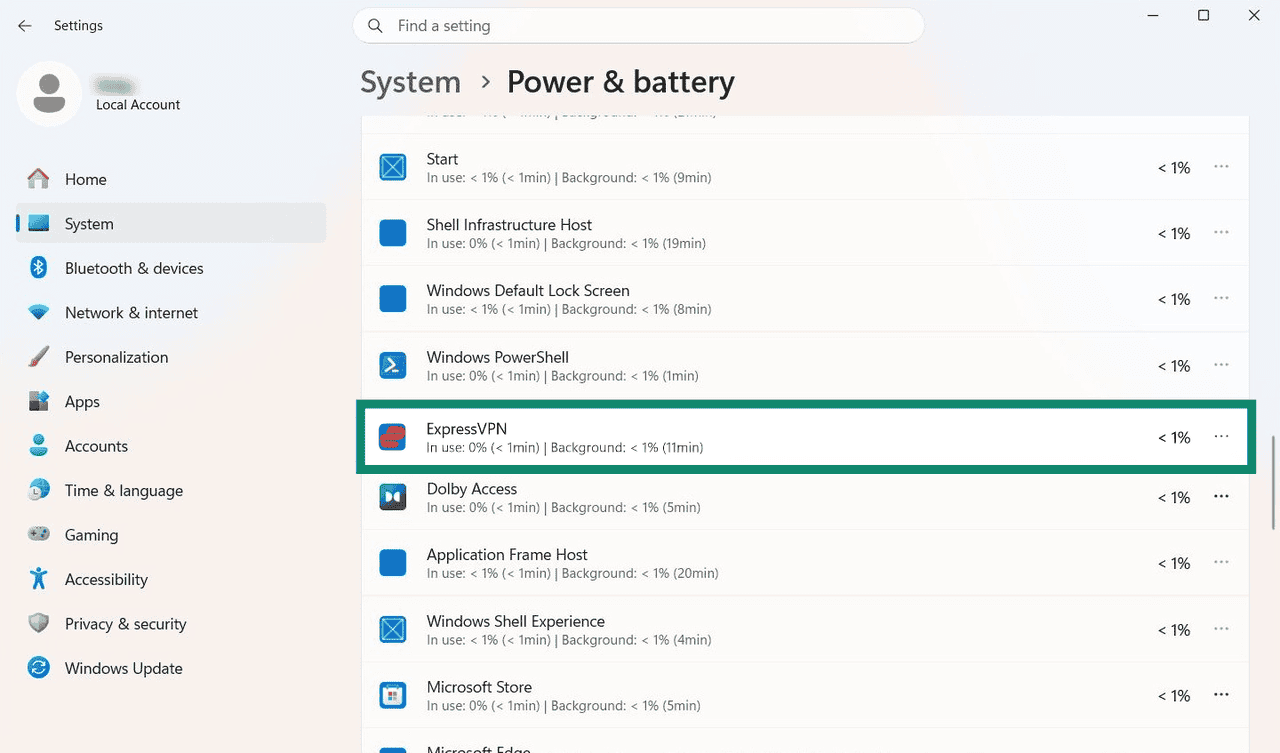
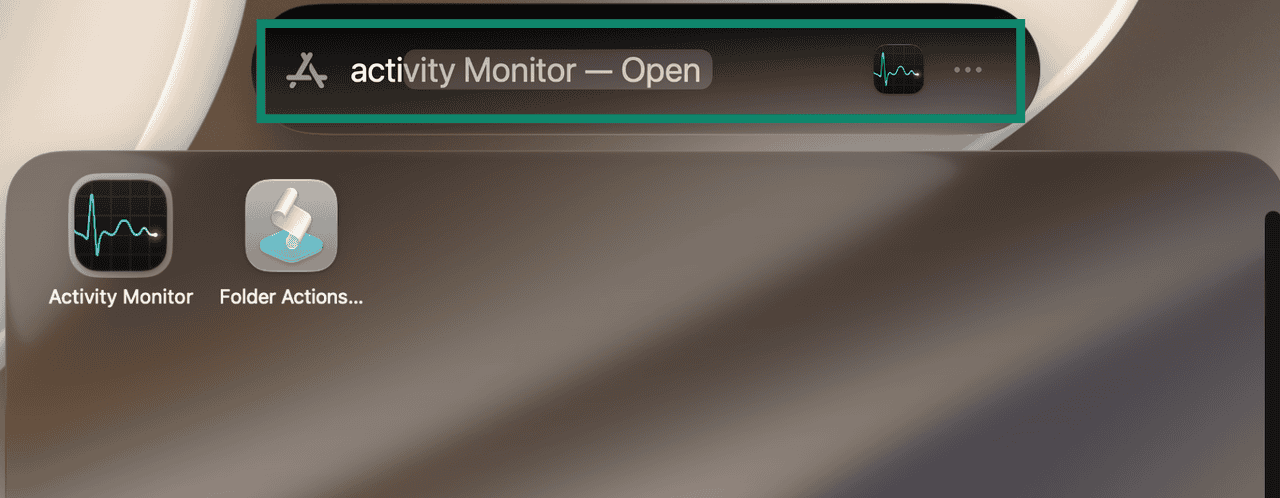
- Press Command + Space to open Spotlight.
- Type “Activity Monitor” then press Return.


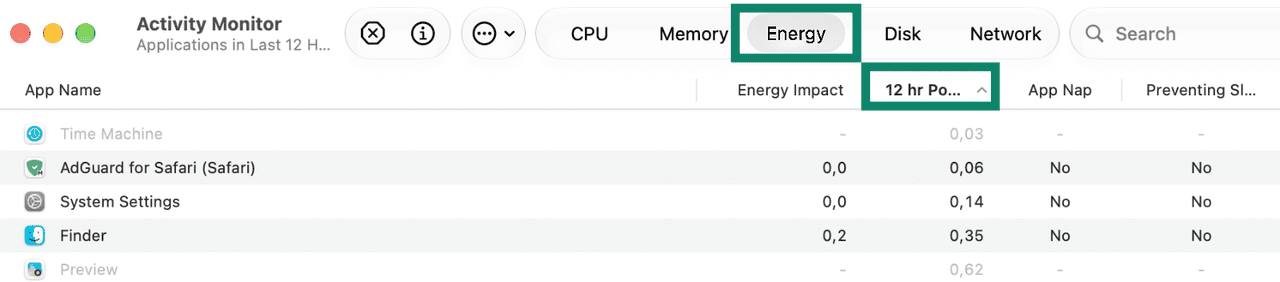
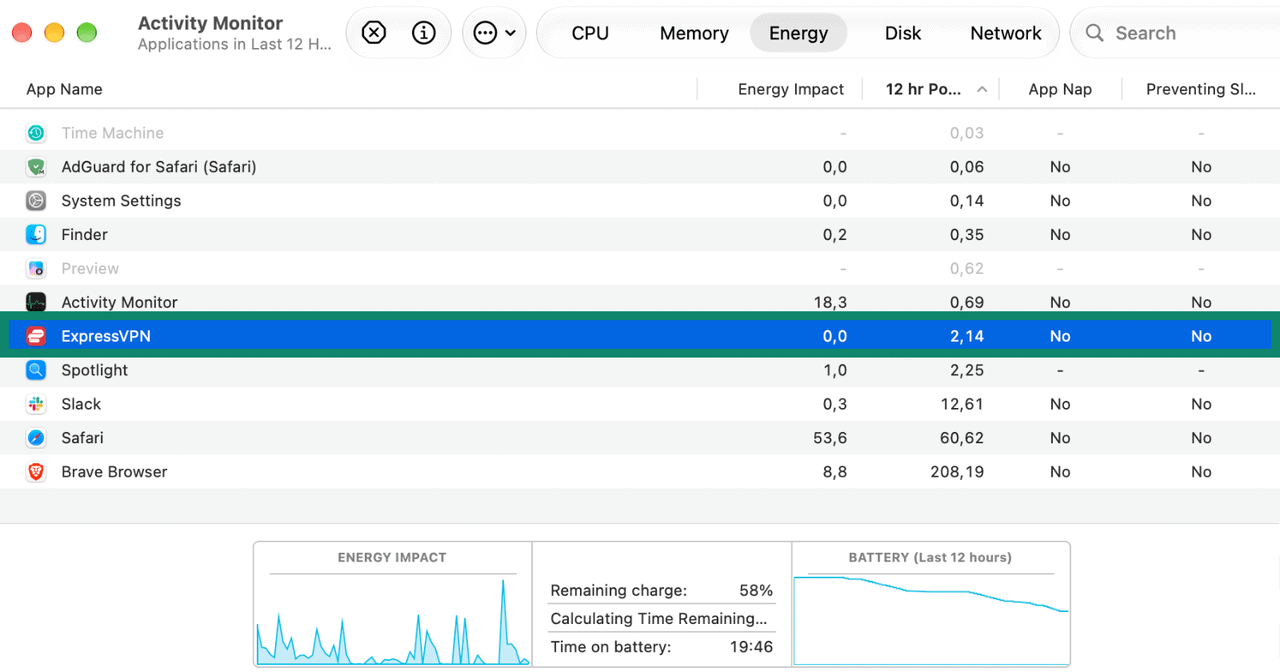
- Click the Energy tab at the top of the window and then the 12 hr Power column. This shows its average energy impact over the past 12 hours, or since your Mac started, if less than 12 hours ago.


- Find ExpressVPN and compare its value with other apps.

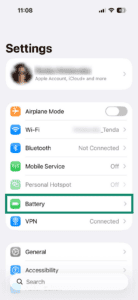
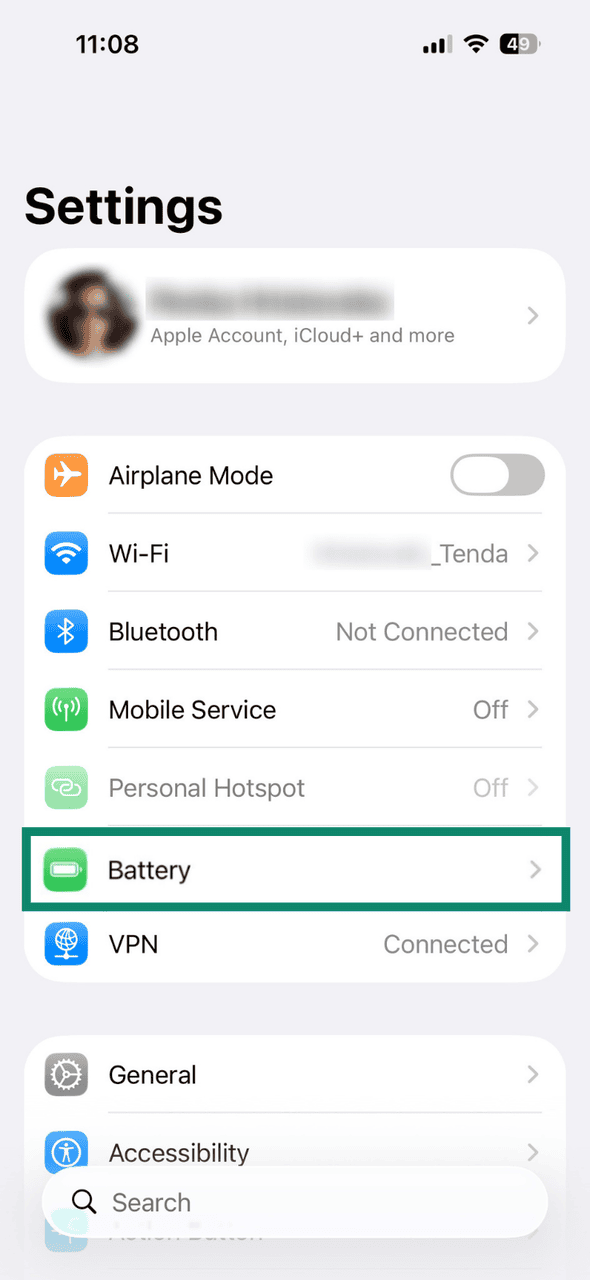
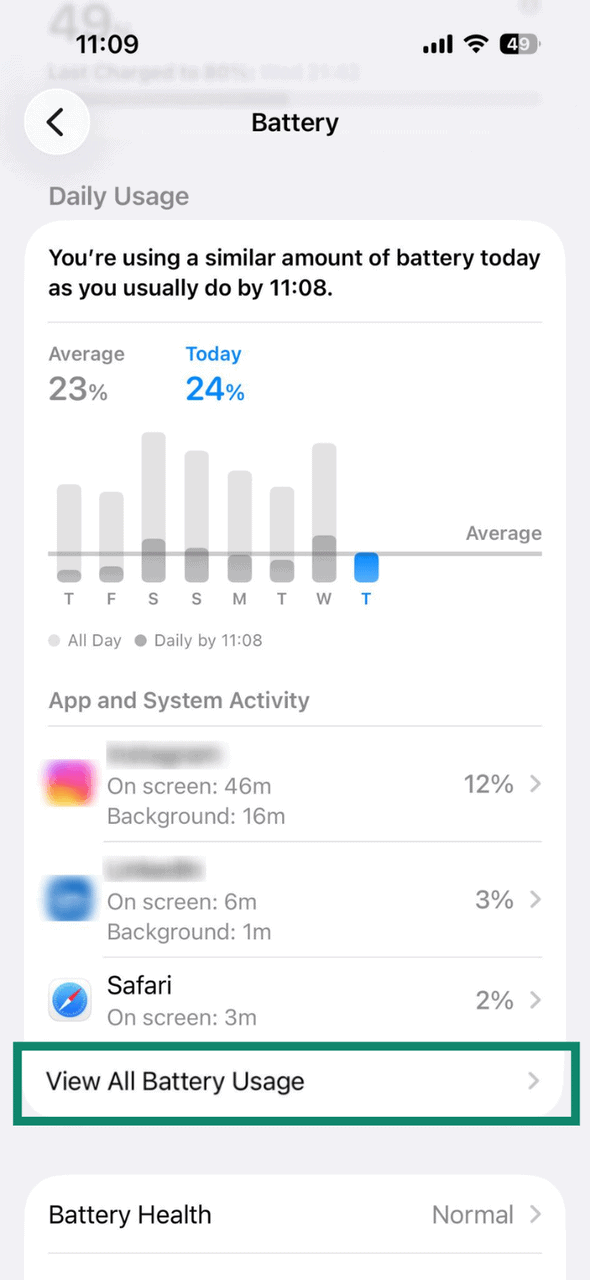
- Open Settings and tap Battery.

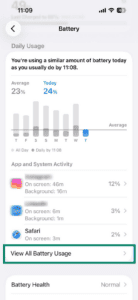
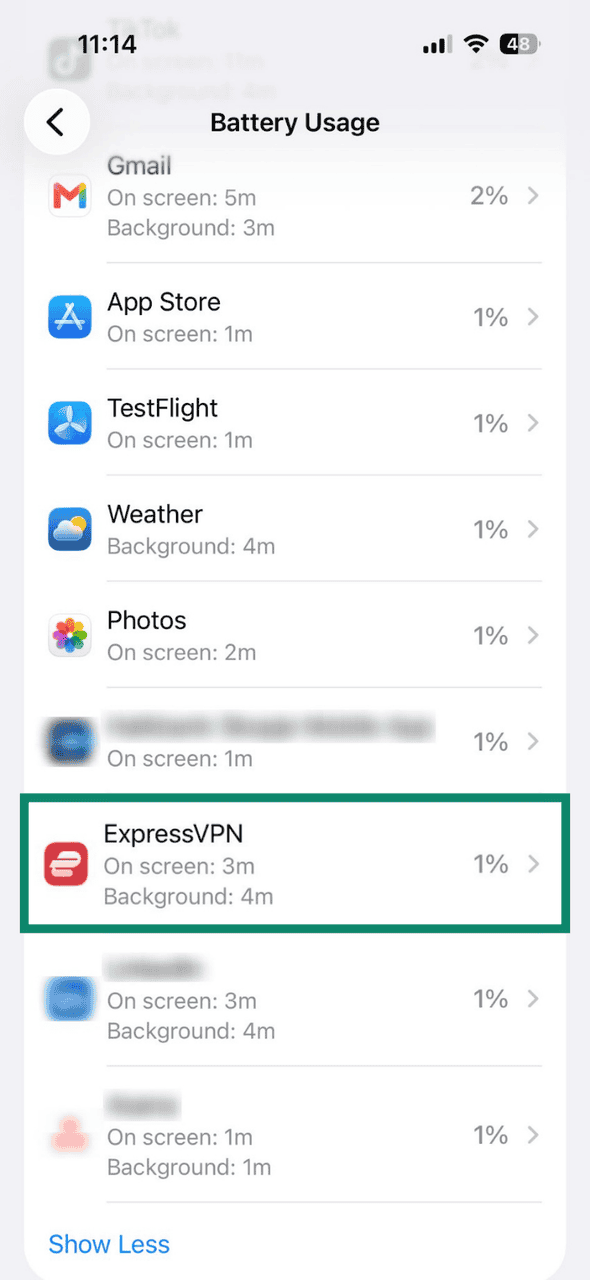
- Tap View All Battery Usage.
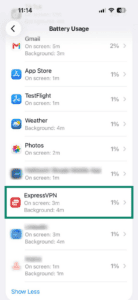
- Find and review ExpressVPN’s percentage.
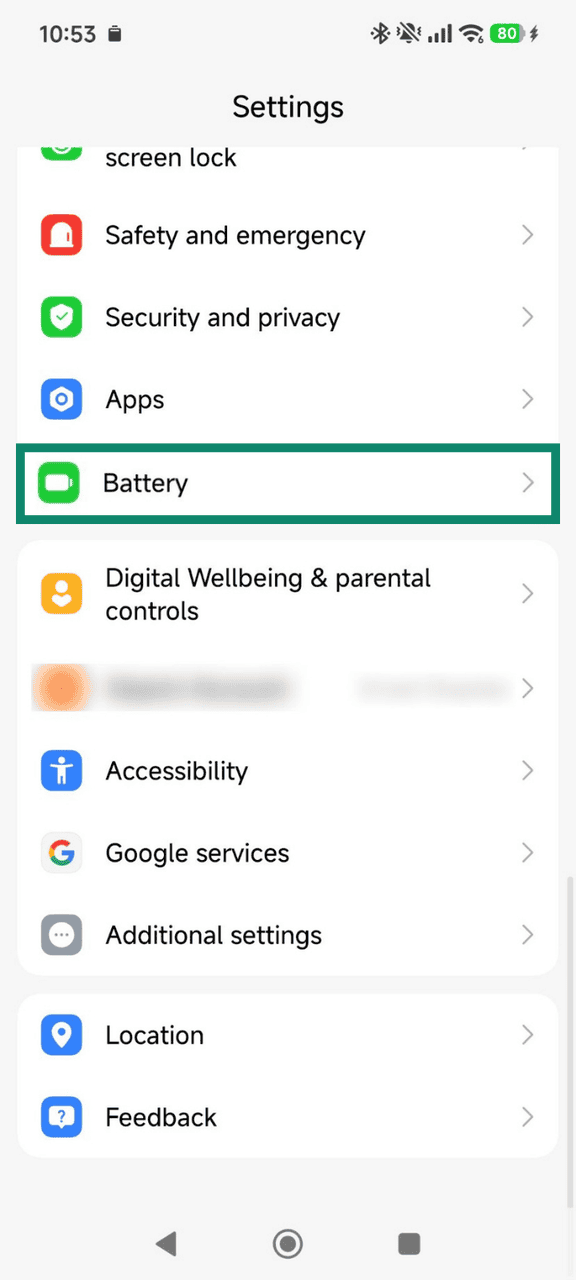
- Open Settings and tap Battery.
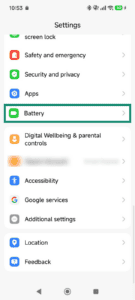

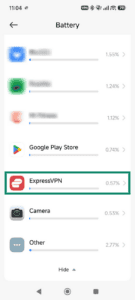
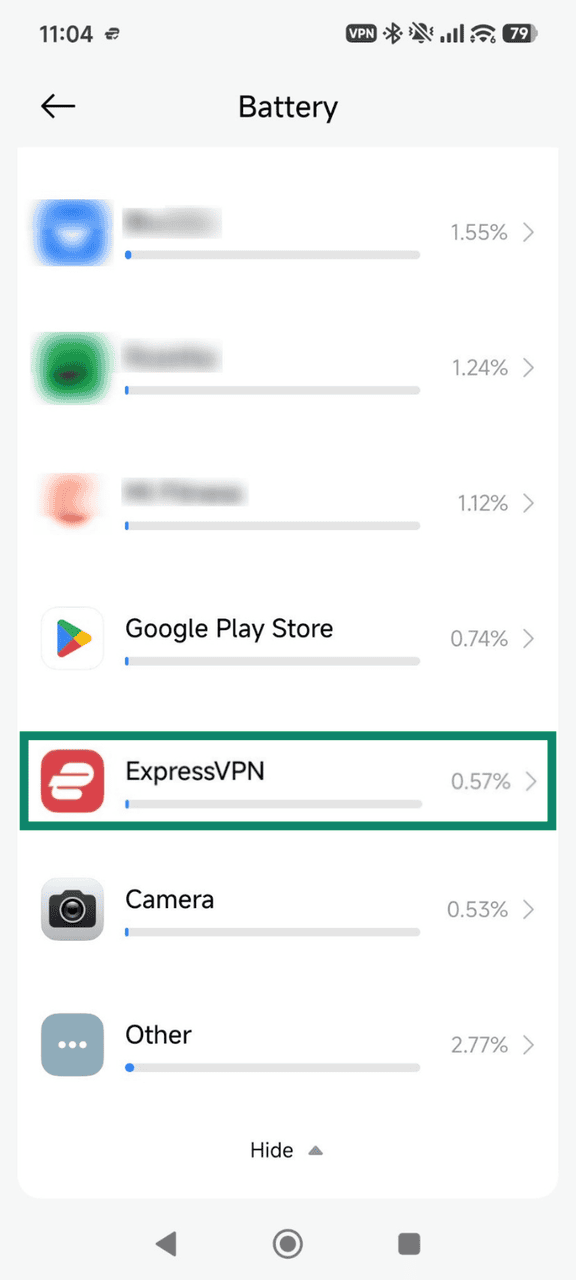
- Find ExpressVPN to see app energy consumption.
Check if the VPN connection is paused
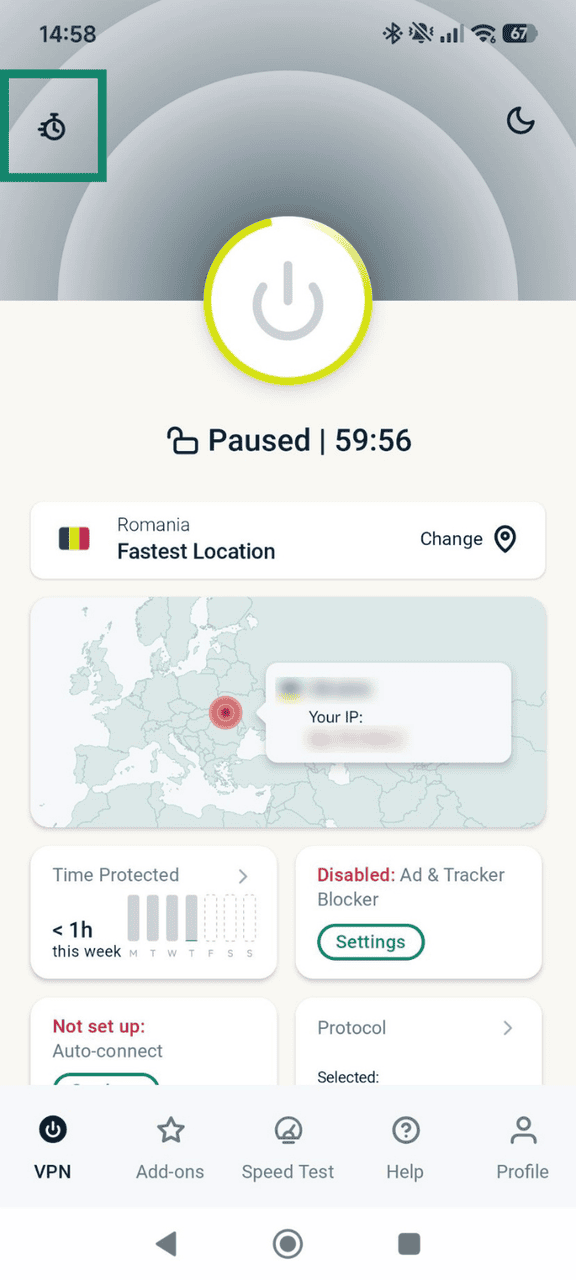
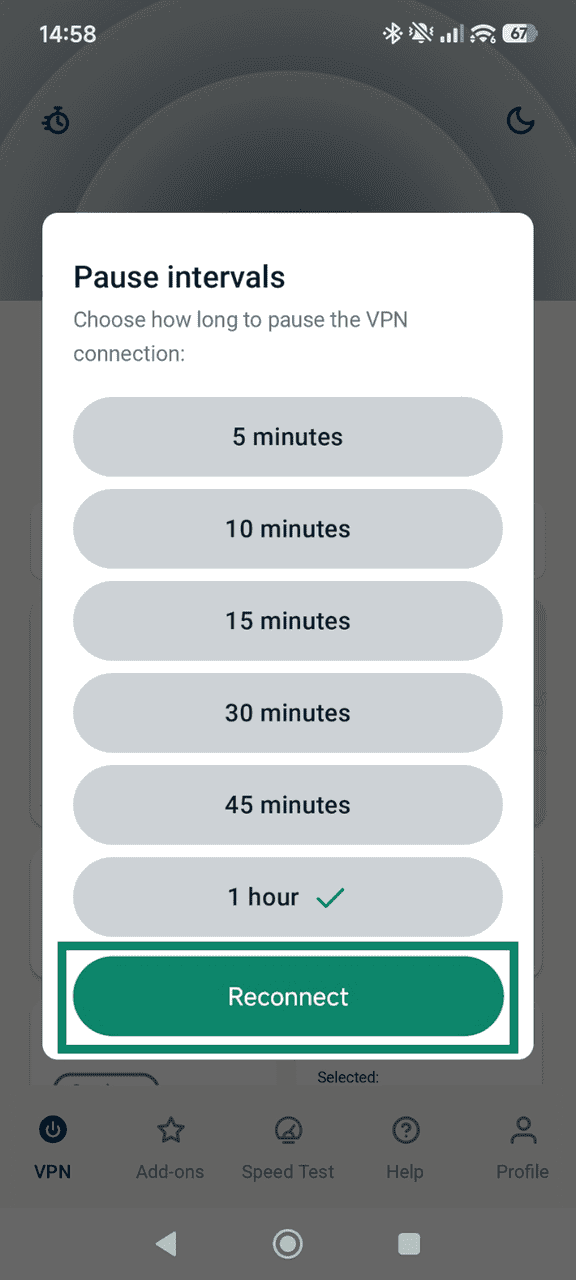
When you are using the Pause function in the ExpressVPN apps for iOS or Android, instead of disconnecting, the app continues to run active background tasks to maintain your session. This may explain a higher than expected battery usage.
To turn off the pause and restore your full connection, follow the steps below. The guide below uses screenshots from the ExpressVPN app for Android, but the steps are the same on iOS.
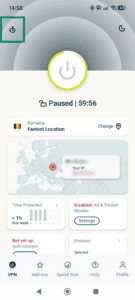
- Open the ExpressVPN app. Tap the stopwatch icon in the top-left corner.
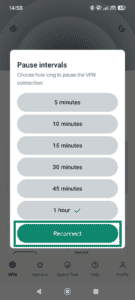
- Tap Reconnect.
Force quit the app
A temporary app error may cause ExpressVPN to repeat tasks unnecessarily and use more battery than usual. Force quitting can clear background loops and fully reset its processes.
If you’re connected to ExpressVPN, select the power button in the app to disconnect, then follow the steps for your device:
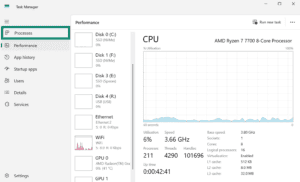
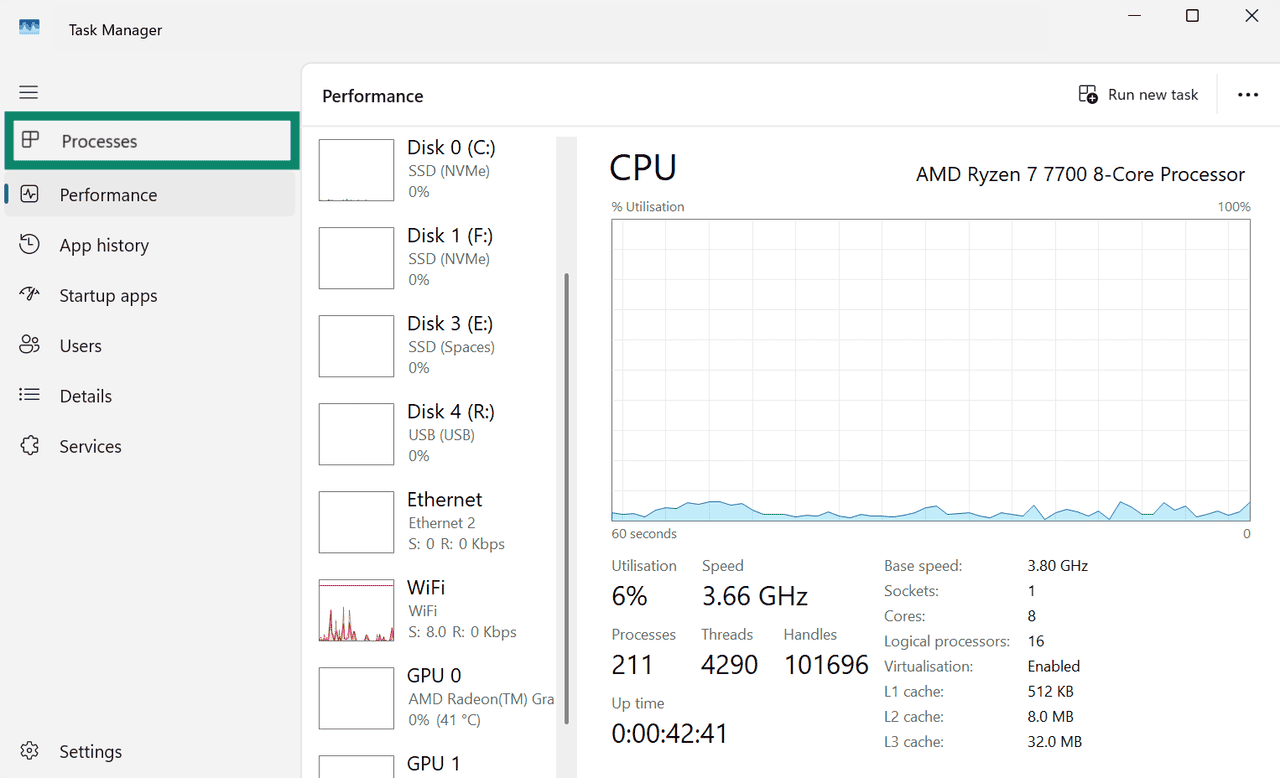
- Right-click the Taskbar and select Task Manager.


- Click the Processes tab.

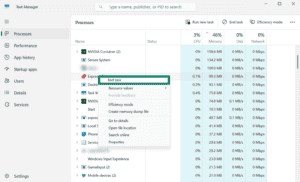
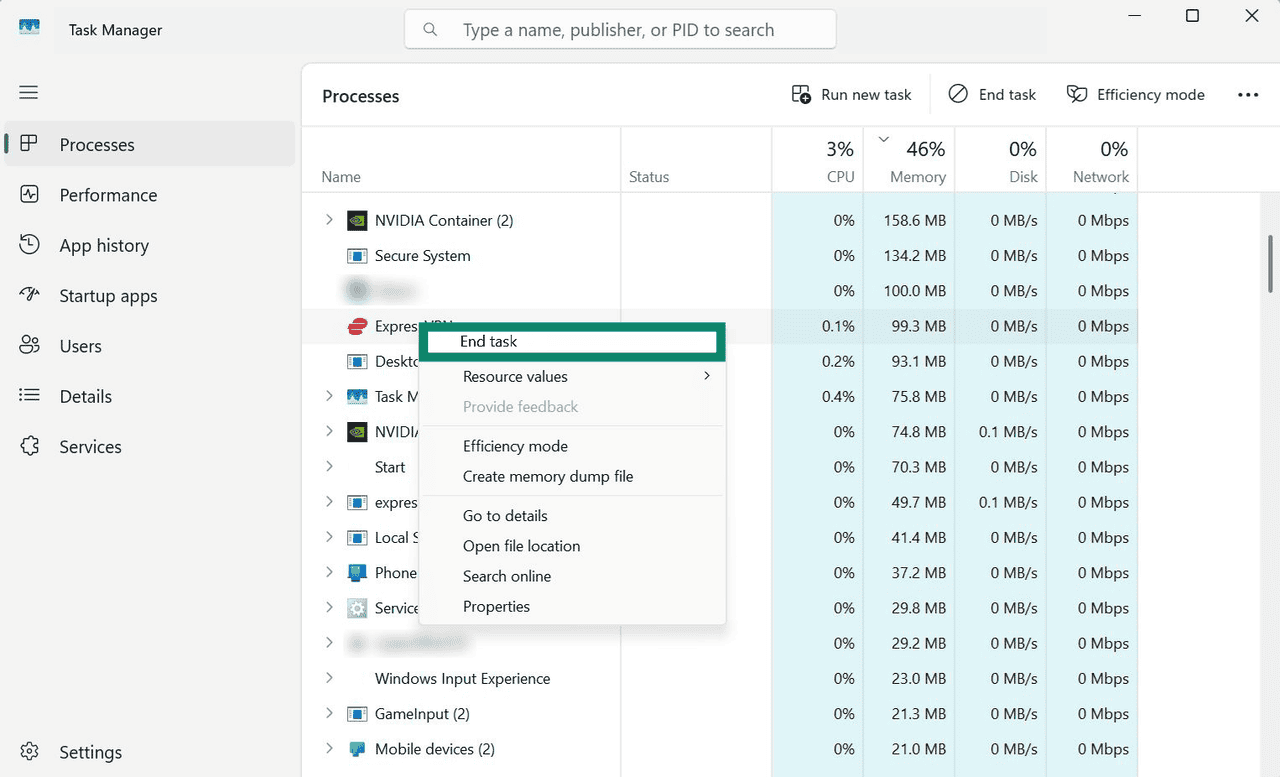
- Right-click ExpressVPN and select End task.


- Open ExpressVPN app.
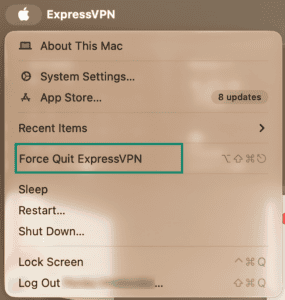
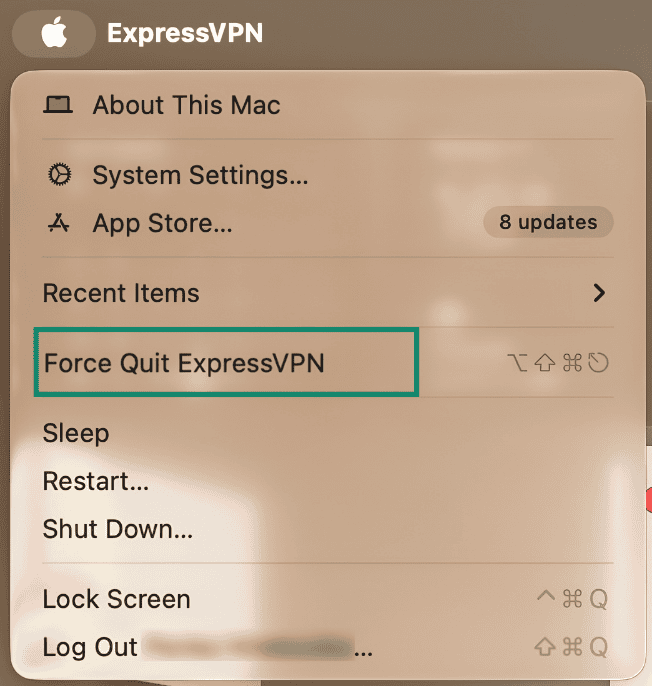
- Click the Apple menu in the top-left corner and select Force Quit.

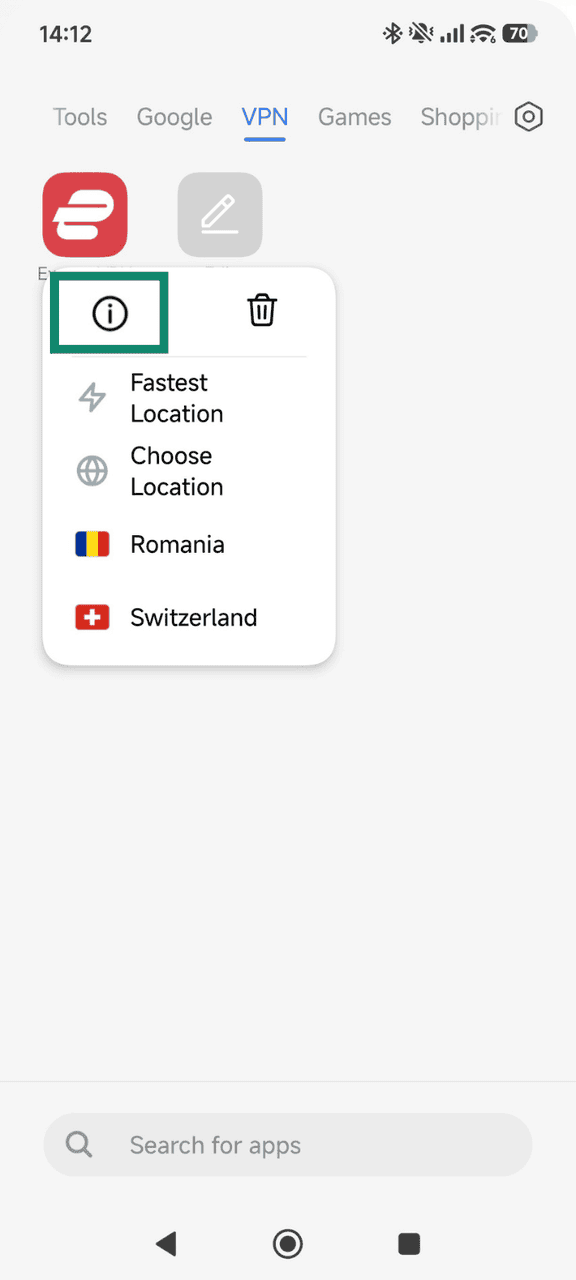
- Tap and hold the ExpressVPN app icon on your home screen or app drawer.
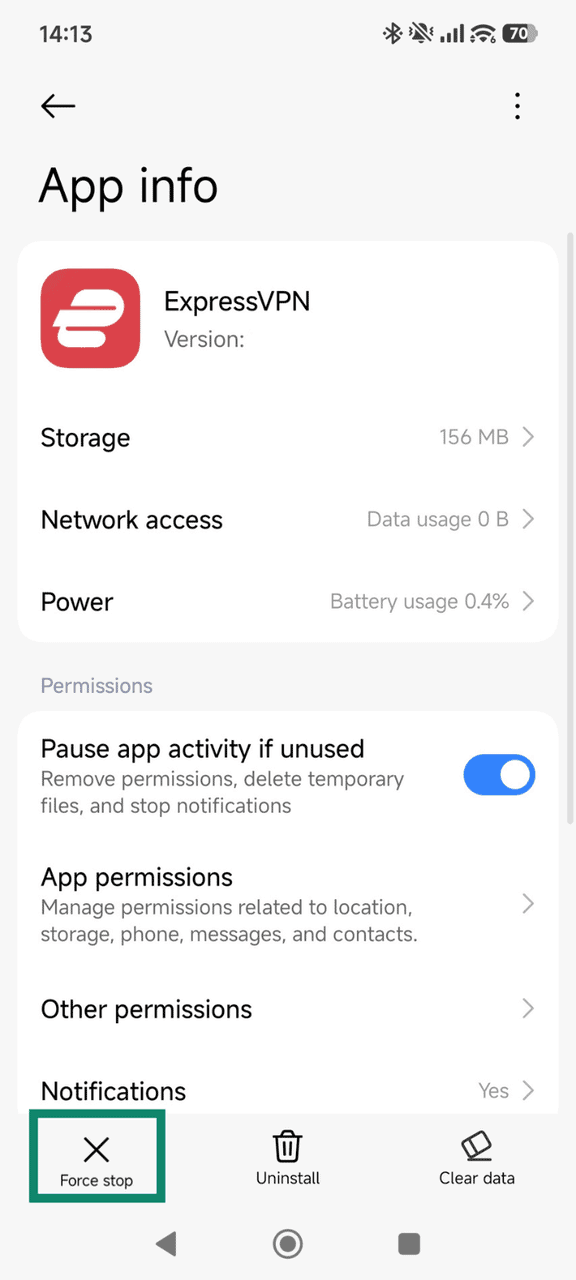
- Tap the i icon.

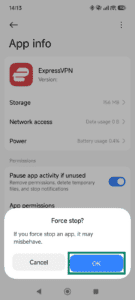
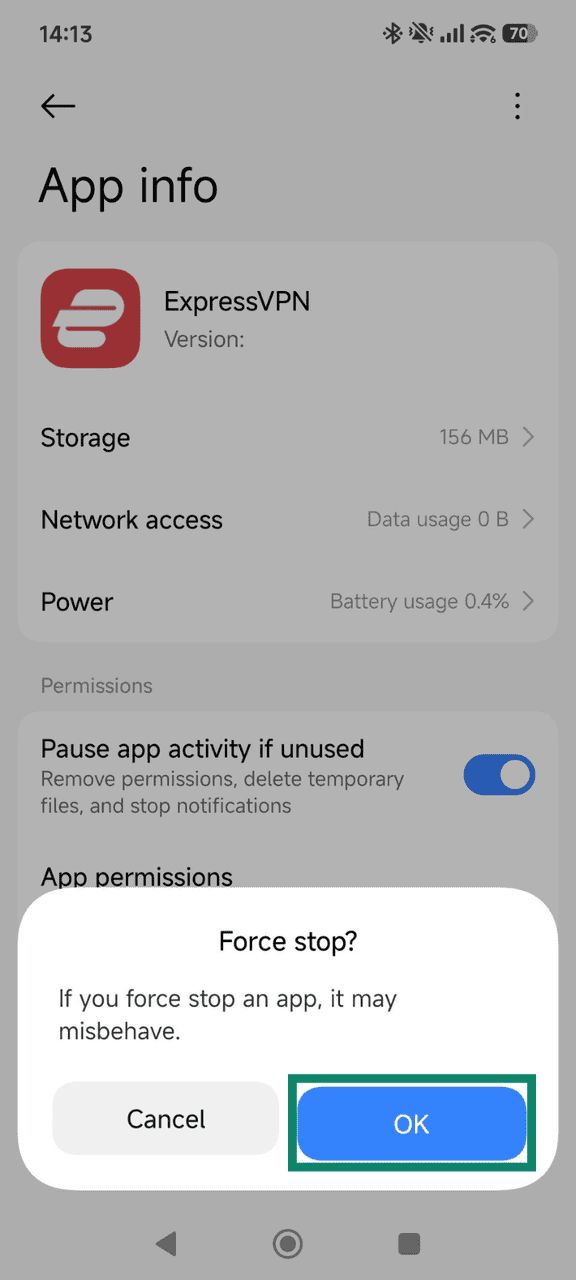
- Tap Force stop.
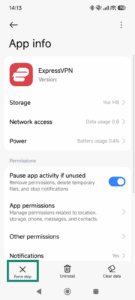
- Select OK to confirm.
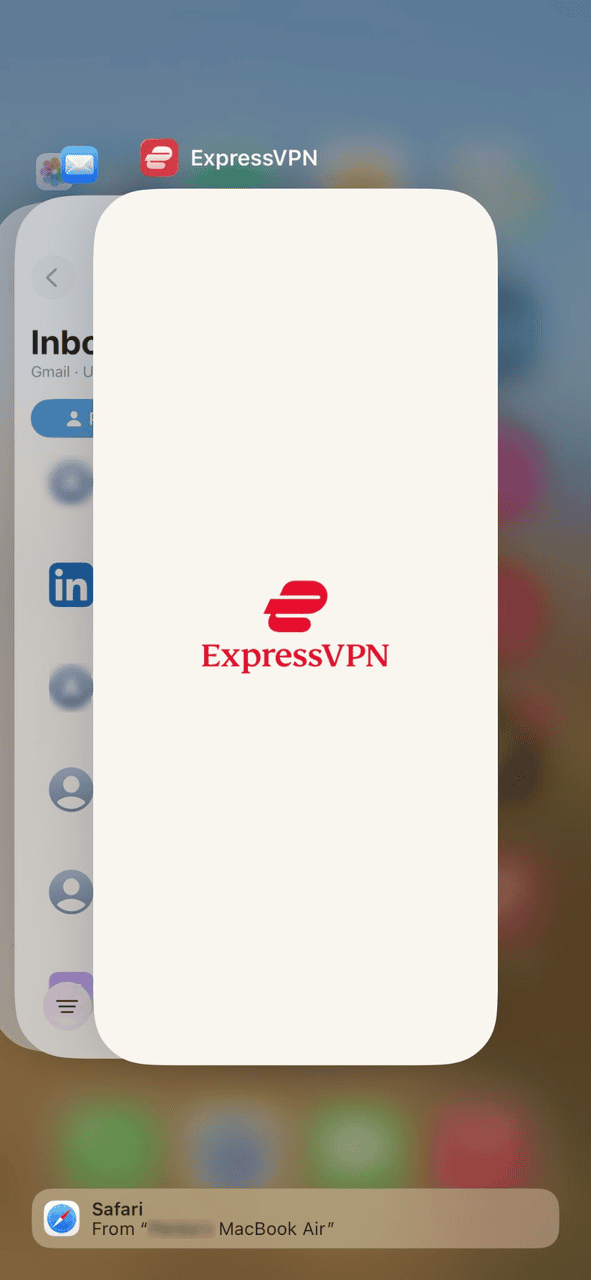
- Swipe up from the bottom of the home screen, pause in the middle, and release.
- Swipe left or right to locate the ExpressVPN preview card.

- Swipe up on the ExpressVPN preview card to force close the app.
Update the app
The latest version of the ExpressVPN app will include the latest performance improvements and bug fixes, which may include resolving issues related to battery drain. Follow the instructions for your device to ensure you are using the latest release:
Reinstall the app
Reinstalling ExpressVPN resolves underlying configuration errors or corrupted cache files that may cause background CPU usage.
To uninstall the ExpressVPN app, select your device below and follow the steps:
- Uninstall ExpressVPN on Windows
- Uninstall ExpressVPN on Mac
- Uninstall ExpressVPN on iOS
- Uninstall ExpressVPN on Android
Once done, follow the guide for your device below to reinstall the ExpressVPN app:
- Install ExpressVPN on Windows
- Install ExpressVPN on Mac
- Install ExpressVPN on iOS
- Install ExpressVPN on Android
Contact the ExpressVPN Support Team
If you continue to experience excessive battery drain after completing these steps, contact the ExpressVPN Support Team for assistance.