







Too frustrated to read this page?
Talk to a HumanIf your ExpressVPN app gets stuck on “Reconnecting” or “Disconnecting” after waking your device from sleep, or if the app shows as connected but there is no connection, follow the troubleshooting steps below.
Troubleshooting steps
After each step, check if the issue is fixed. If the issue is fixed, you can skip the rest of the steps.
1. Download the latest version of ExpressVPN
2. Force quit the ExpressVPN app
4. Contact the ExpressVPN Support Team
Preliminary check
Make sure your subscription is still active. An expired subscription can prevent the VPN from reconnecting.
To check, sign into your ExpressVPN account. If your subscription has expired, you will see an expiry message on the welcome screen. Then, you can follow these steps to renew your subscription.
1. Download the latest version of ExpressVPN
Make sure you are using the latest version of the ExpressVPN app,
Set up your ExpressVPN app:
2. Force quit the ExpressVPN app
Force quitting clears the app’s current state and gives it a fresh start. Follow the instructions below for your device.
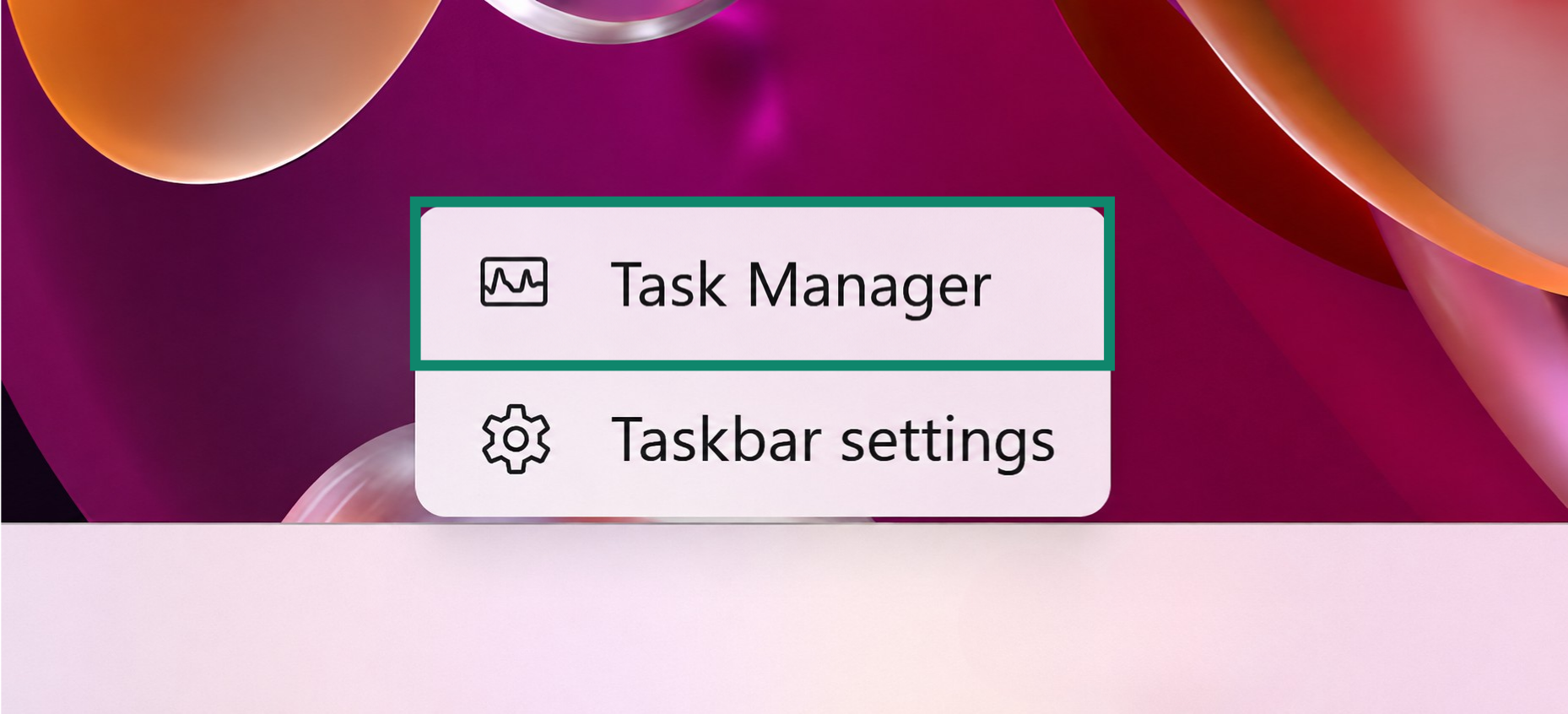
- Right-click the Windows taskbar and select Task Manager.

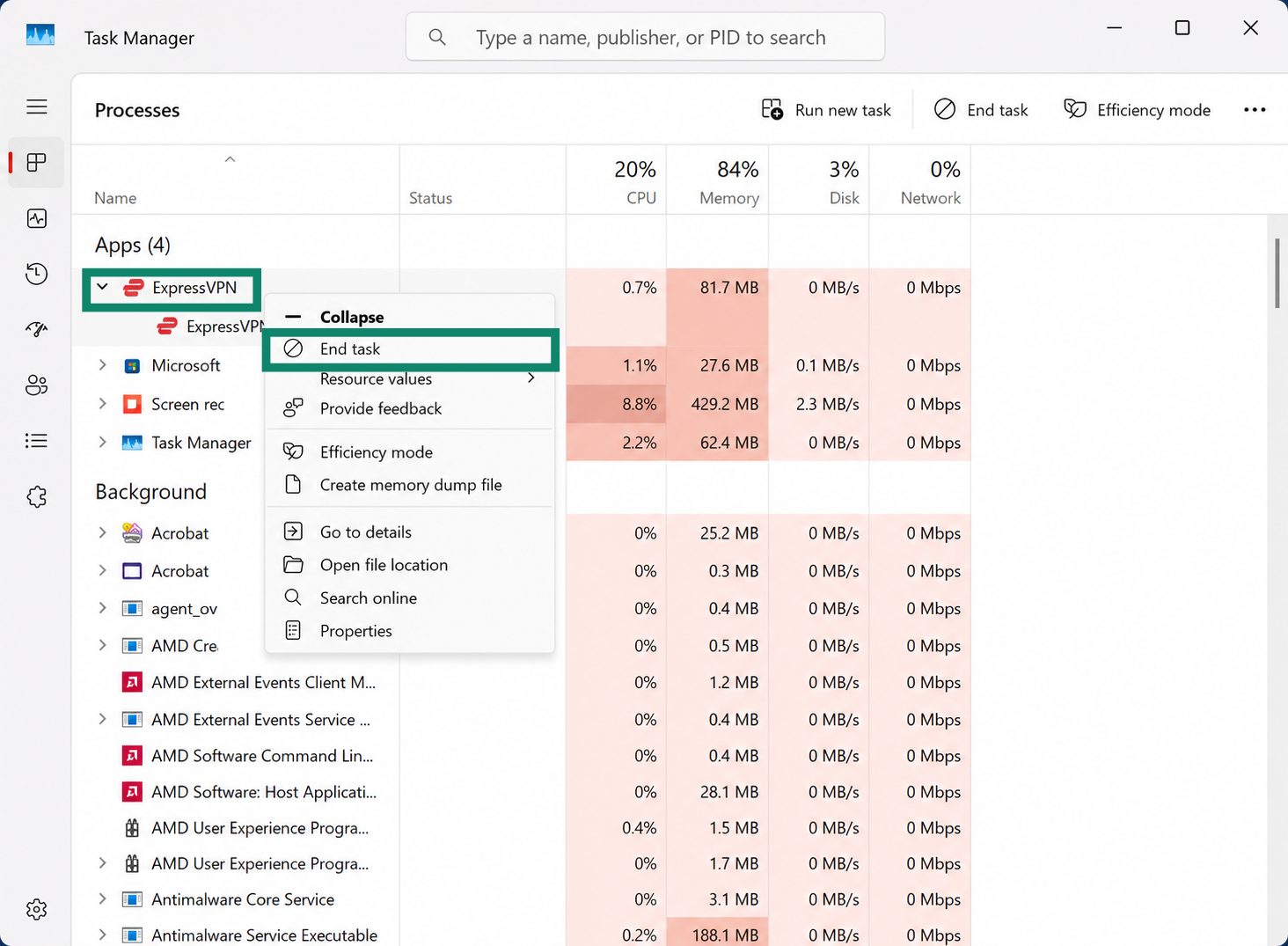
- Right-click ExpressVPN and select End Task.

- Relaunch the ExpressVPN app.
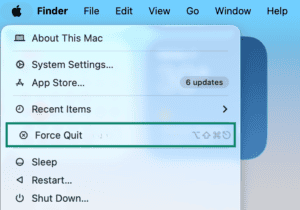
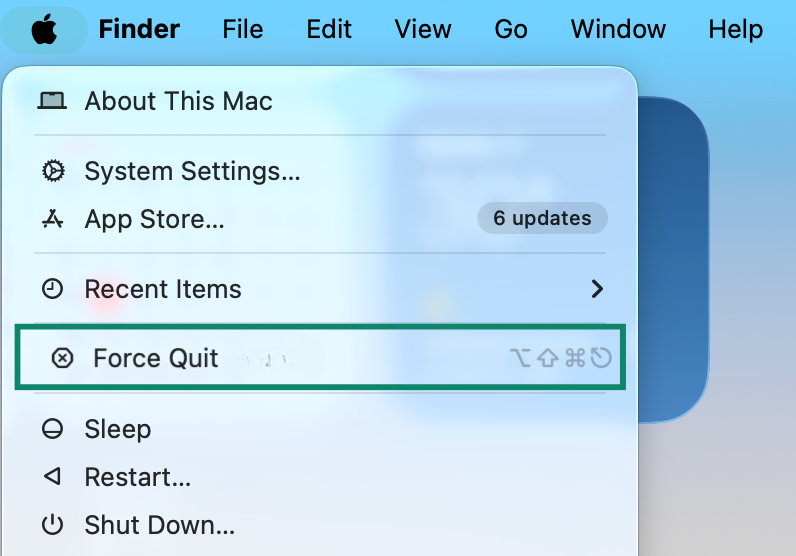
- Click the Apple menu in the upper-left corner and select Force Quit.

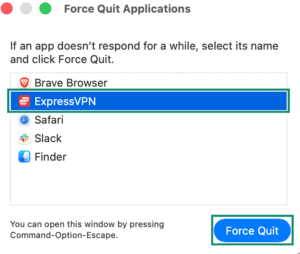
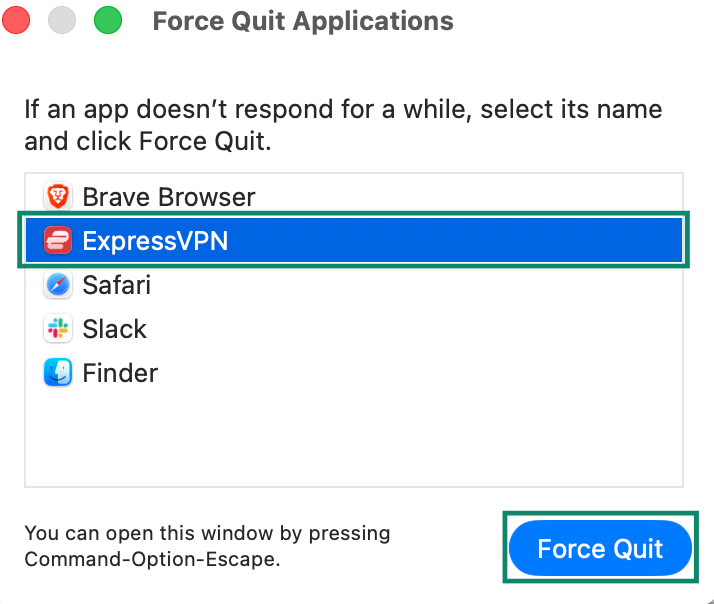
- Select ExpressVPN in the Force Quit Applications window and click Force Quit.

- Relaunch the ExpressVPN app.
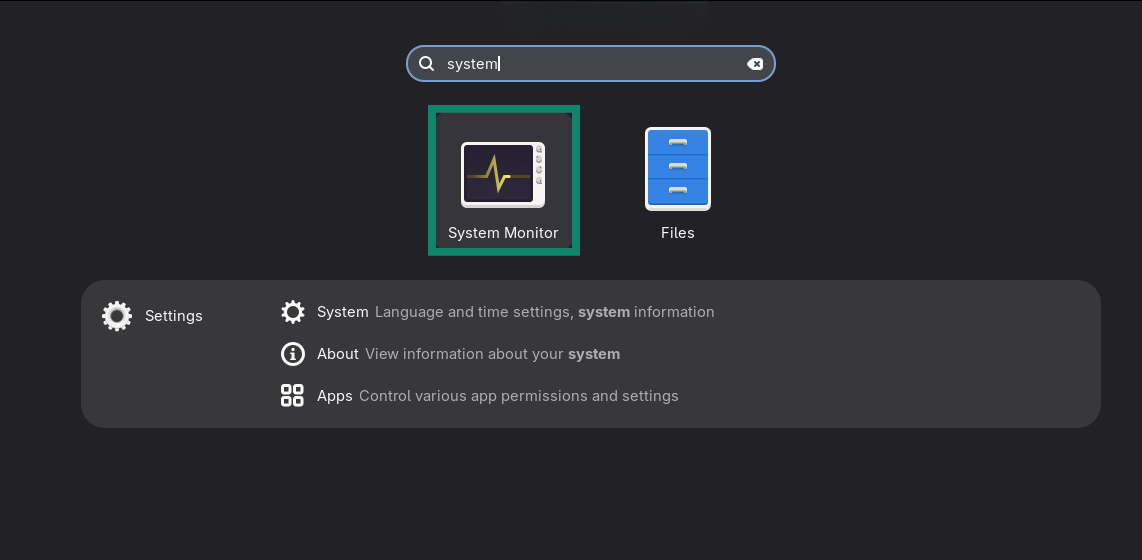
- Open System Monitor.

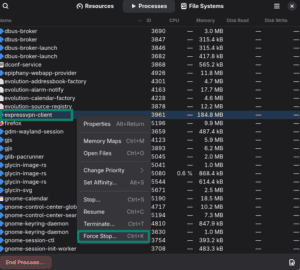
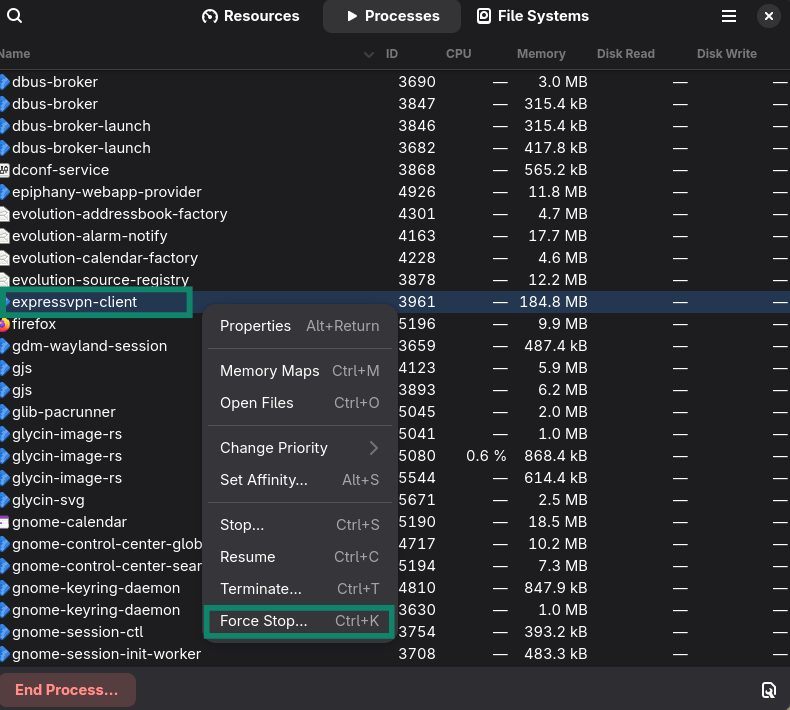
- Select ExpressVPN in the process list and click Force Stop.

- Reopen the ExpressVPN app and connect to a server.
3. Try downgrading the app
If the issue started after a recent update, the latest version may have introduced a bug affecting your device. Contact the ExpressVPN Support Team and ask for a link to the previous stable version of the app for your device.
4. Contact the ExpressVPN Support Team
If none of the above steps resolve the issue, you can send your diagnostic information to the ExpressVPN Support Team to help identify the cause of the issue.
- Click the Help tab.
- Click Contact Us.
- Click Issues with the VPN service.
- Click Connection issues.
- Complete the form, then click Submit.
The ExpressVPN Support Team will contact you after receiving your information.
Need help? Contact the ExpressVPN Support Team for immediate assistance.