






This guide explains how to add and edit your billing information in your ExpressVPN+ portal and download your payment invoices.
Jump to…
Add your billing information
Edit your billing information
Download your invoices
Add your billing information
- Visit the ExpressVPN+ portal and sign into your account if prompted.
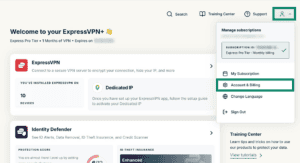
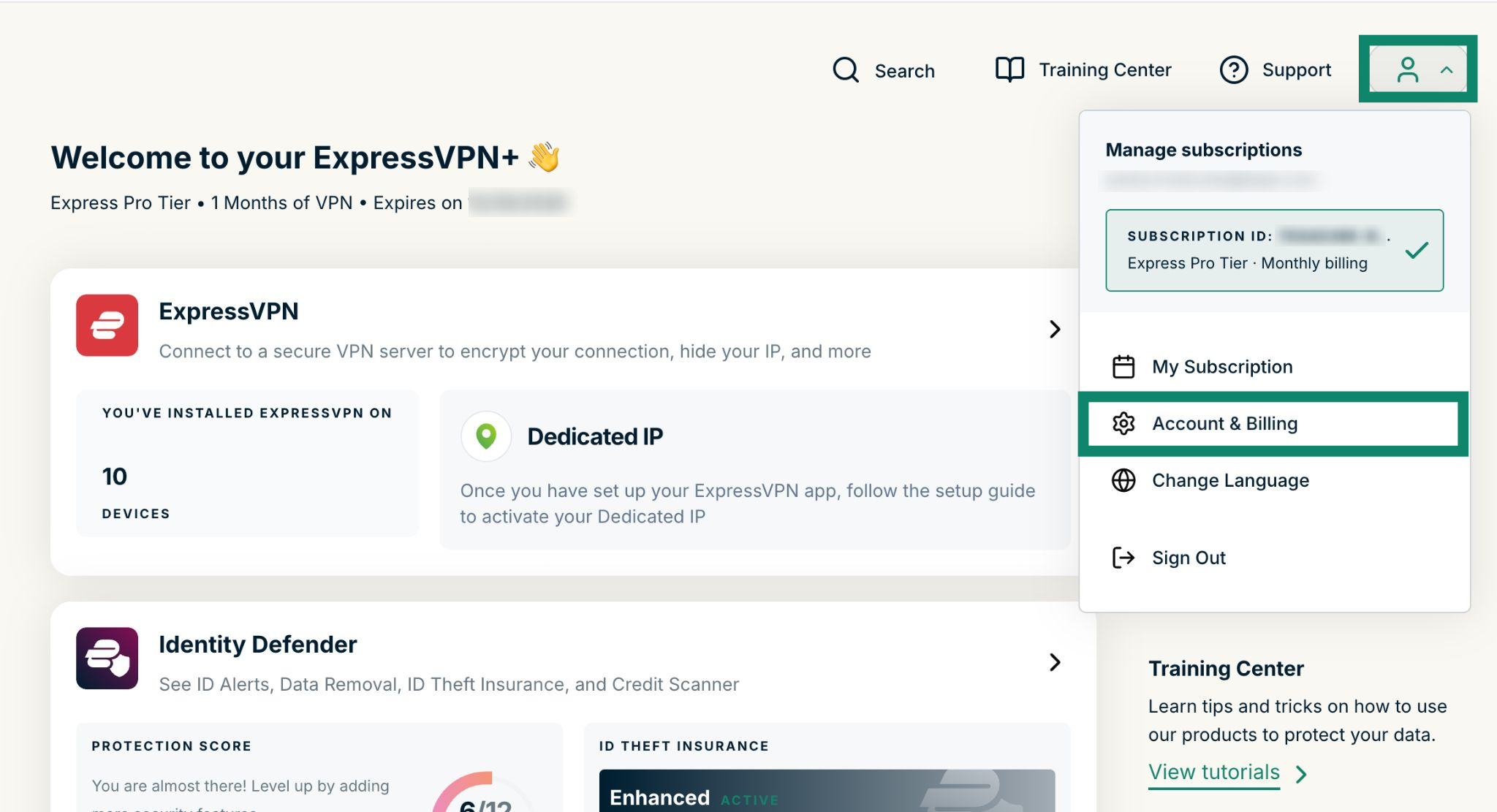
- Click the profile icon > Account & Billing.

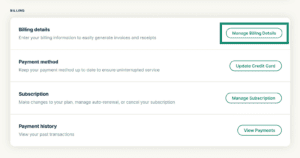
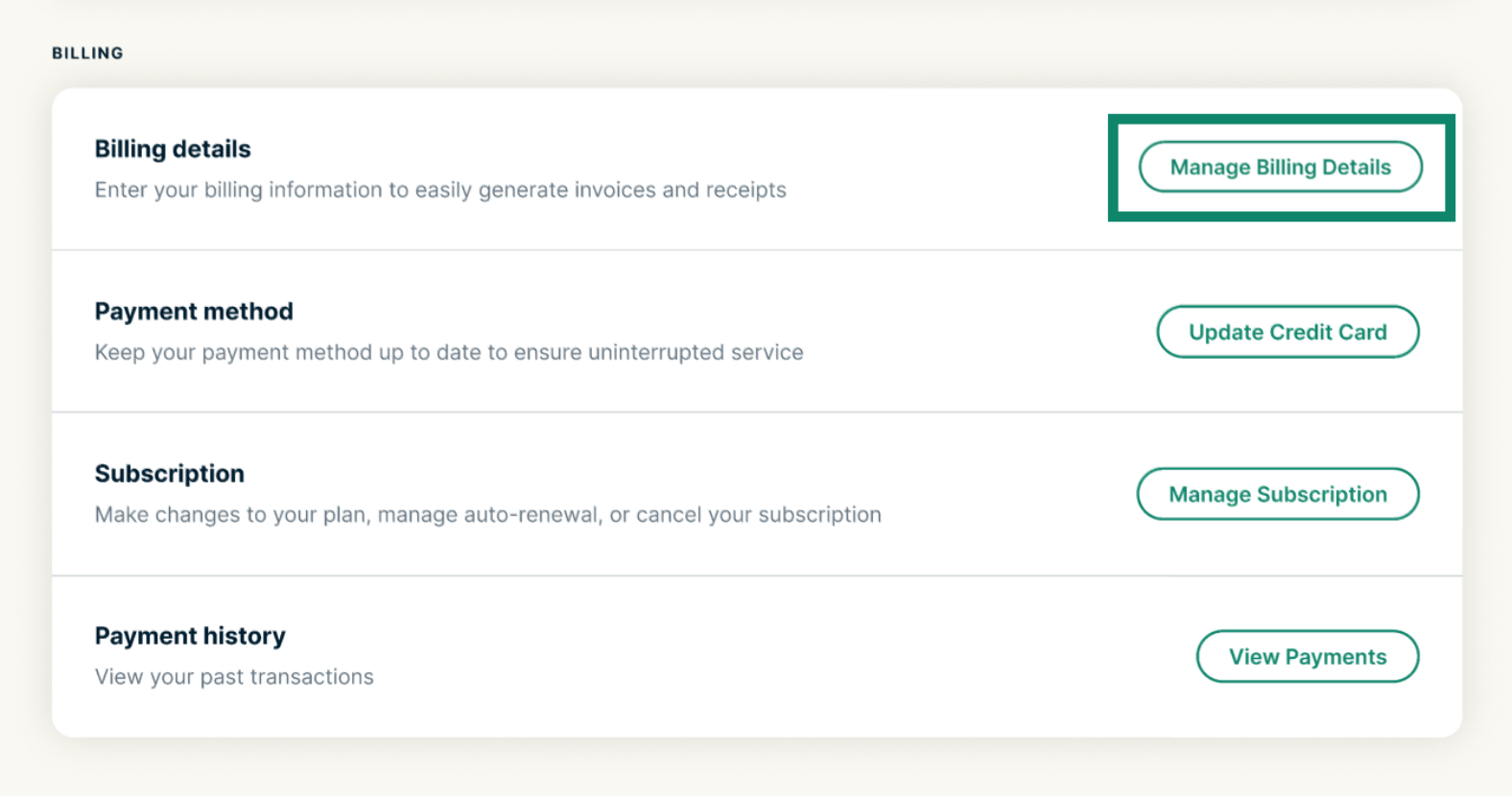
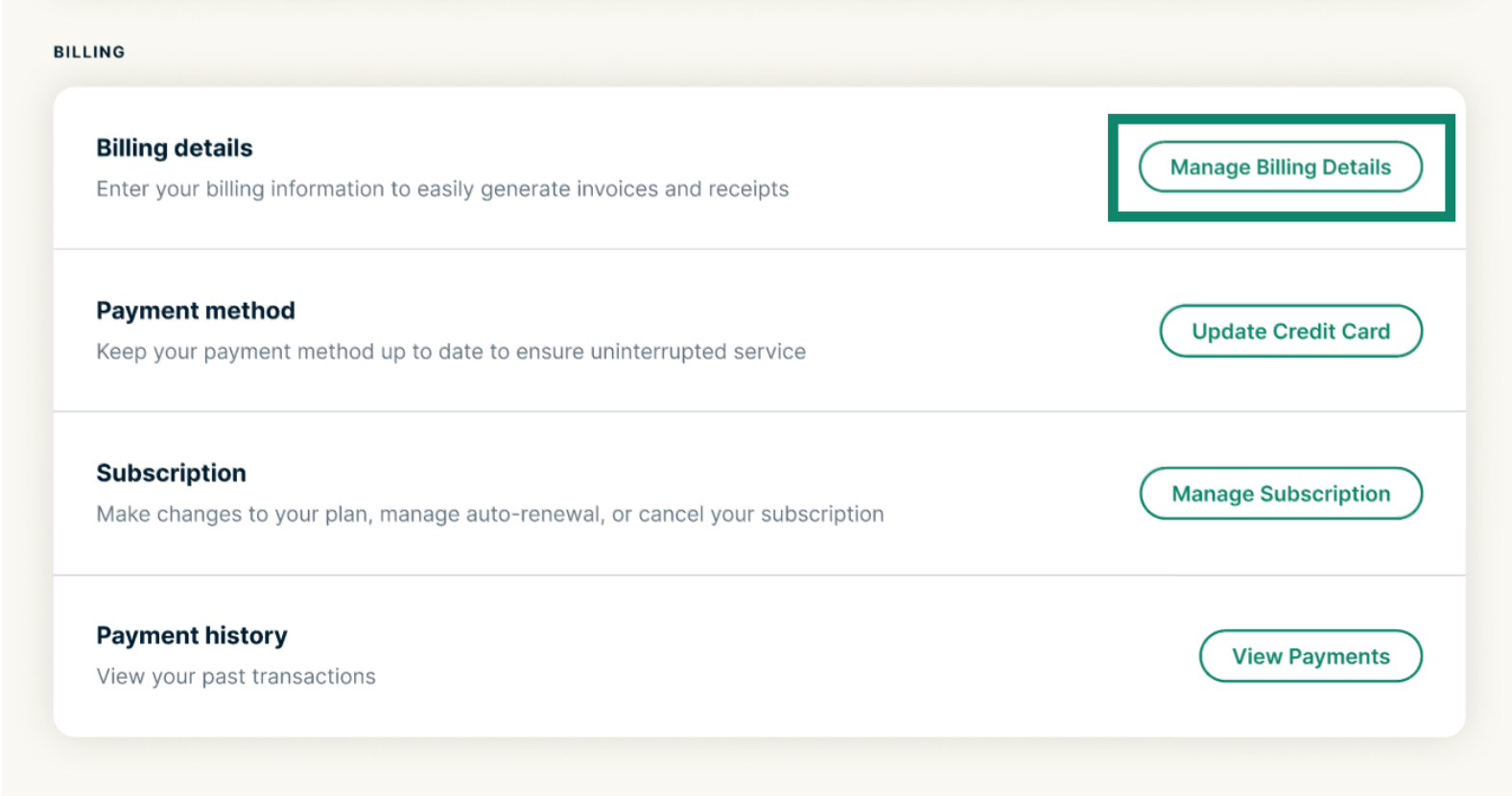
- Find Billing details and select Manage Billing Details next to it.

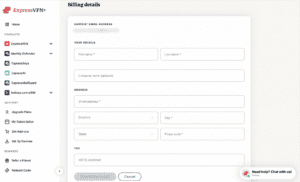
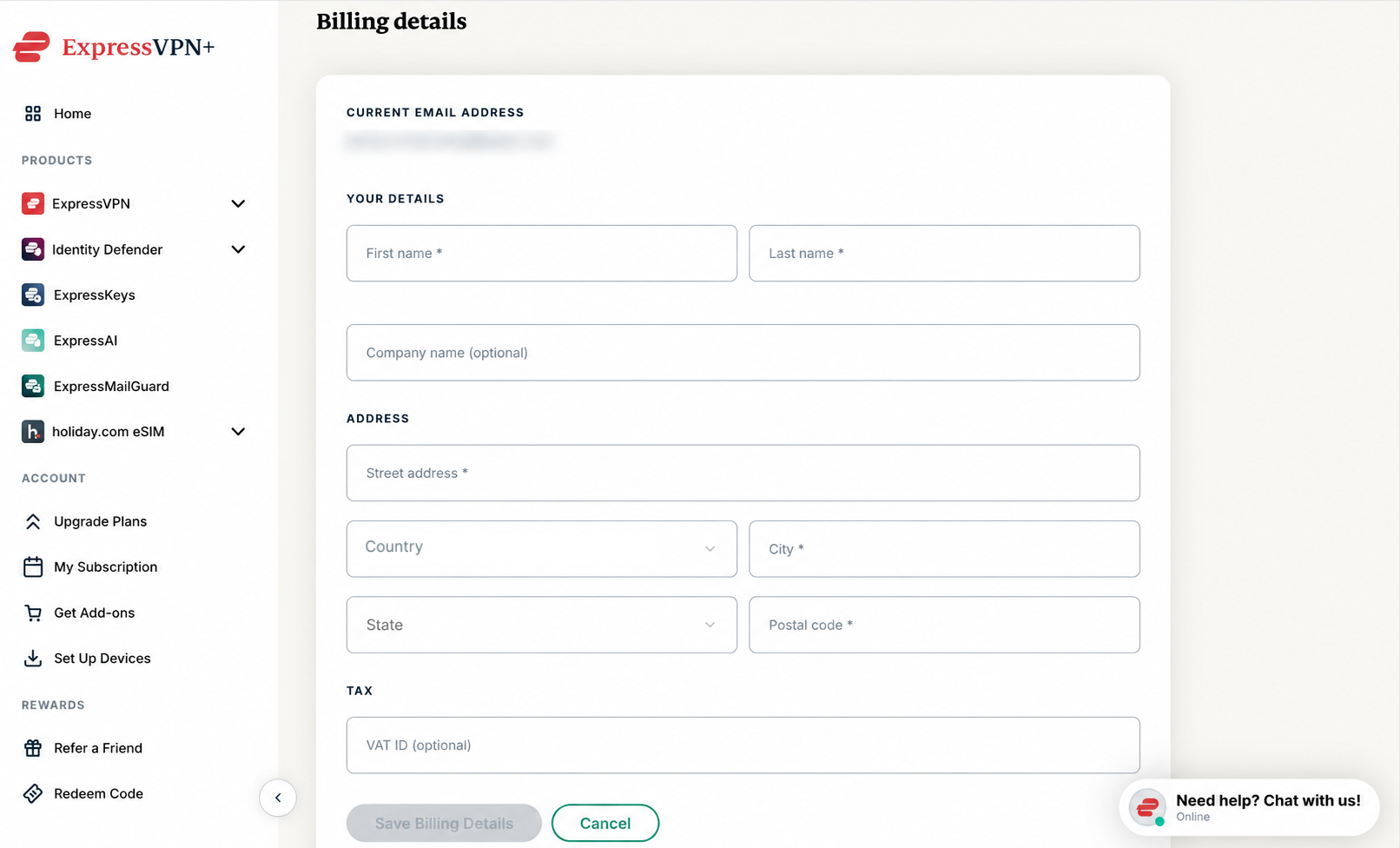
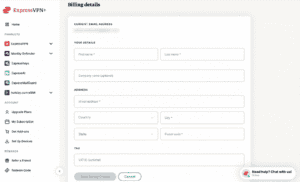
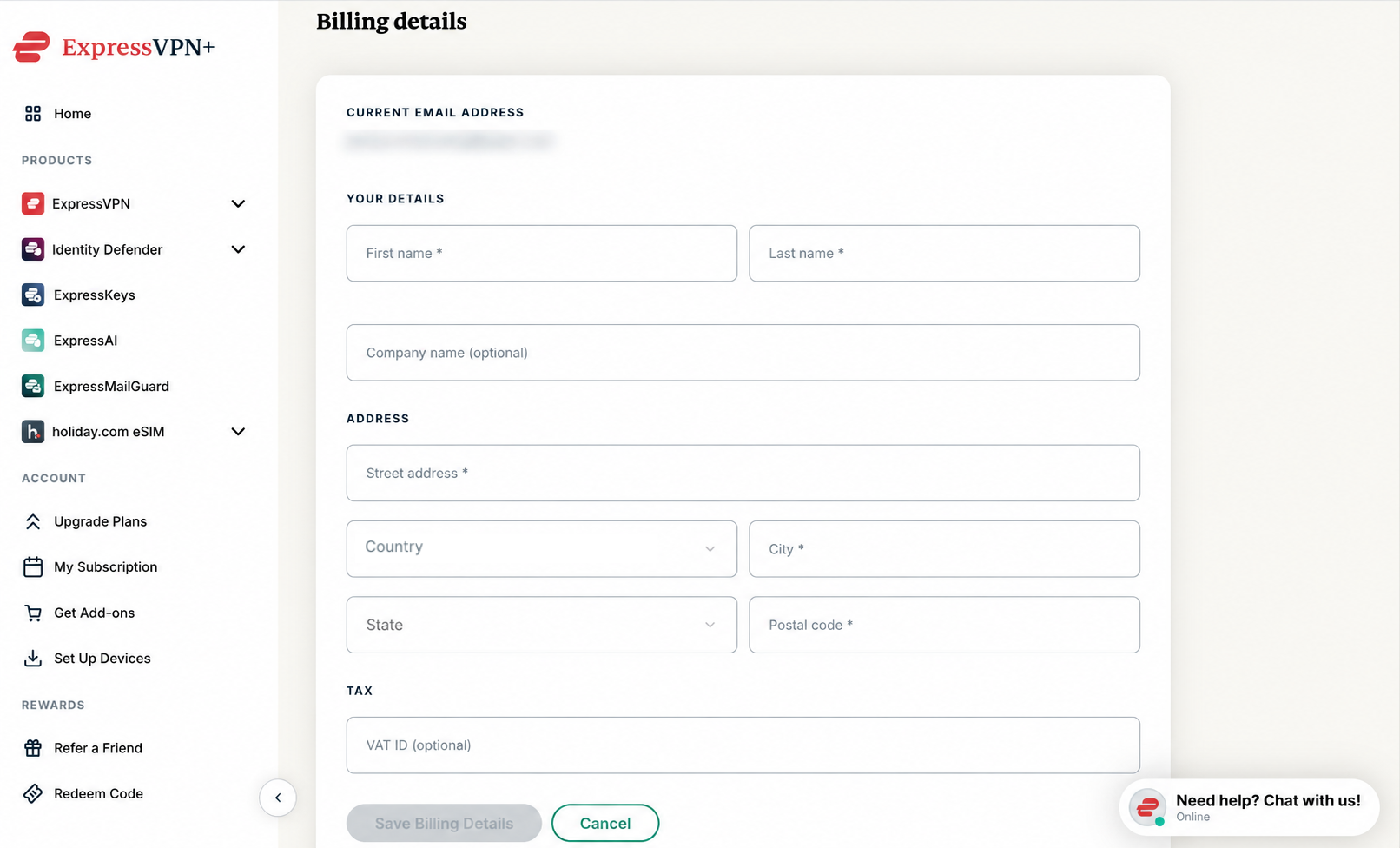
- Enter your details. You can add your:
- Name
- Company name
- Address
- Tax (VAT ID)
- When done, select Save Billing Details.

Need help? Contact the ExpressVPN Support Team for immediate assistance.
Edit your billing information
You can update your billing information at any time:
- Go to the ExpressVPN+ portal and sign into your account if prompted.
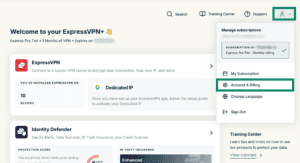
- Click the profile icon > Account & Billing.
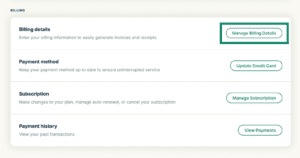
- Next to Billing details, select Manage Billing Details.
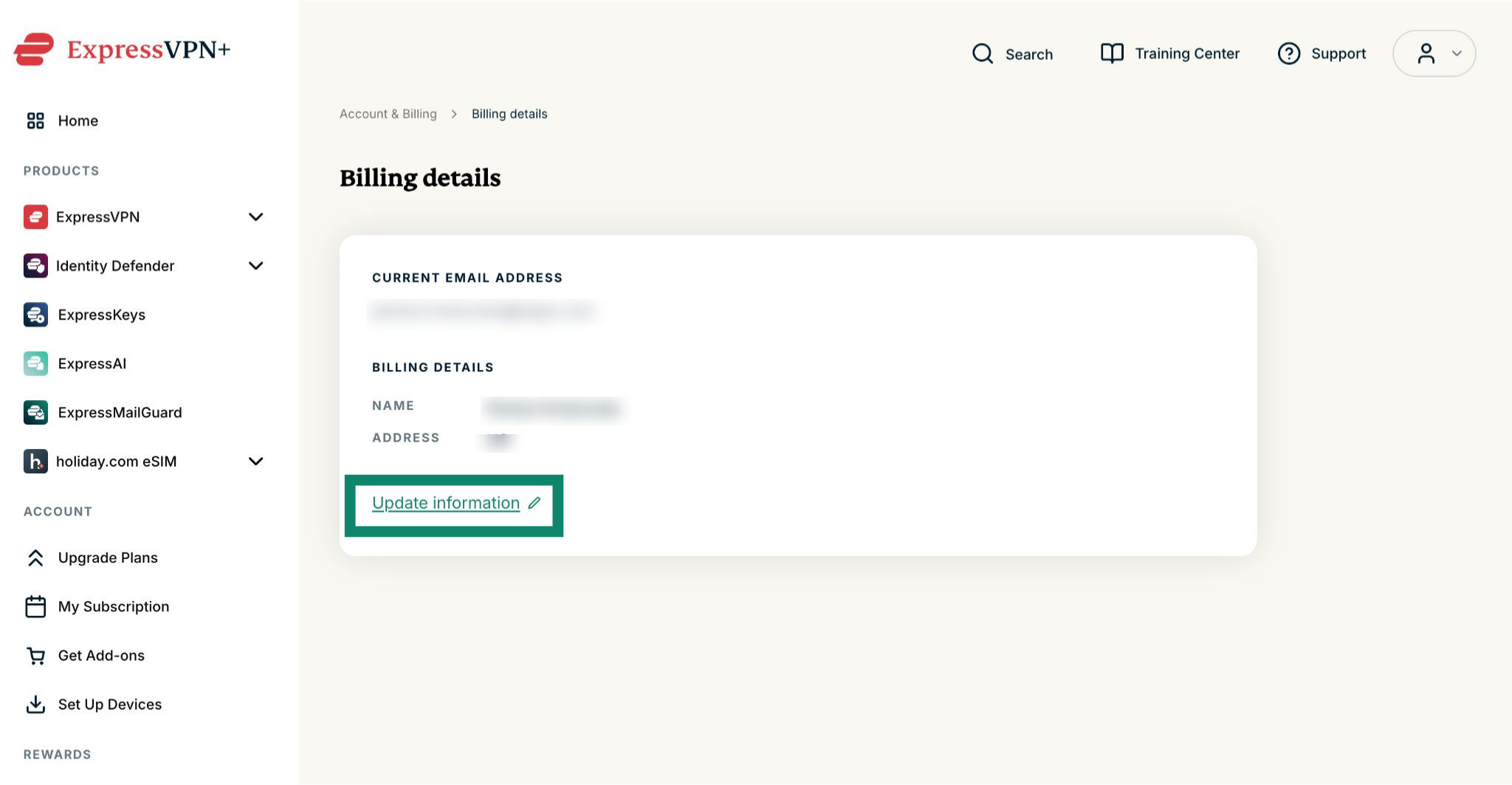
- Select Update information.
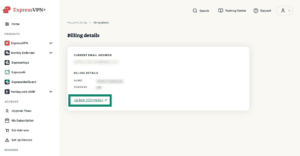

- Enter your new details, then select Save Billing Details.
Need help? Contact the ExpressVPN Support Team for immediate assistance.
Download your invoices
- Go to your Account & Billing page. Sign into your account if prompted.
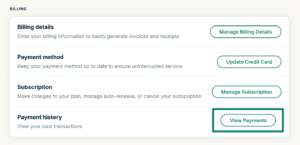
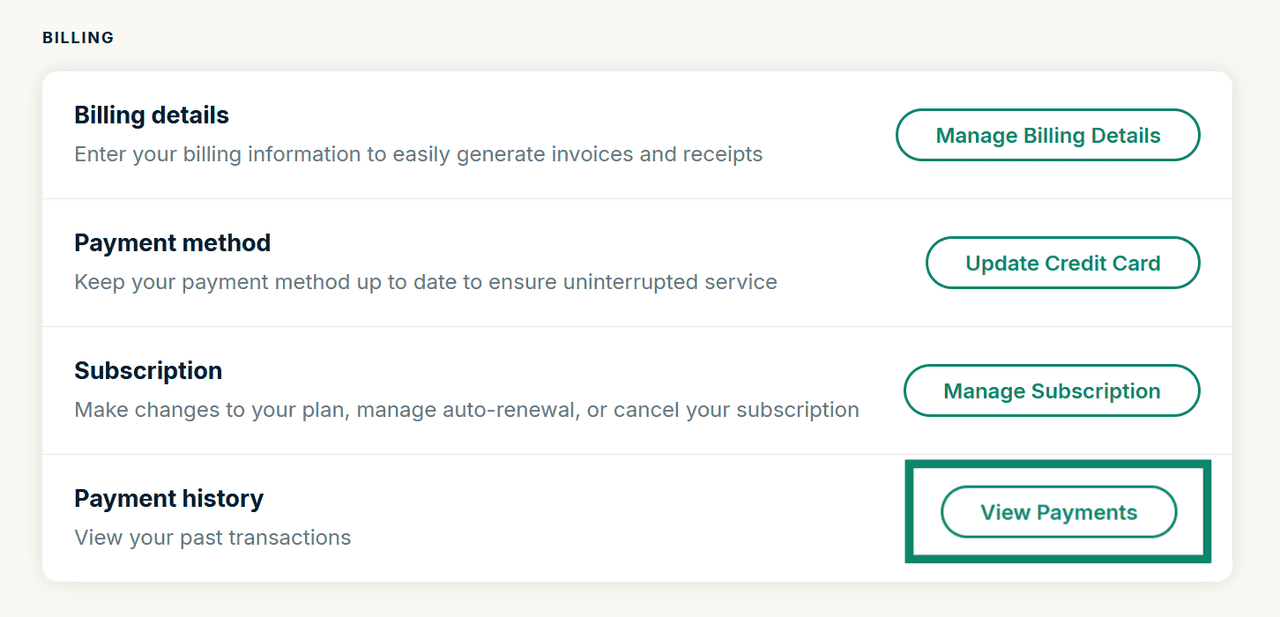
- Under BILLING, find Payment history and select View Payments.

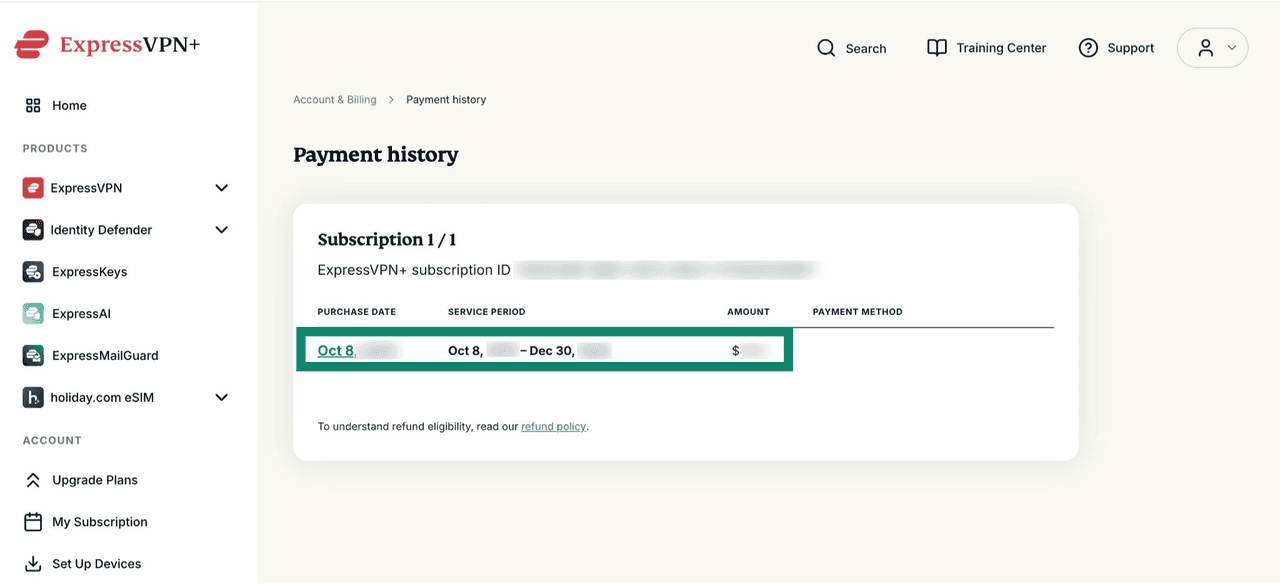
- Click the purchase date for the invoice.
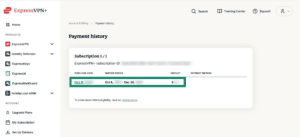

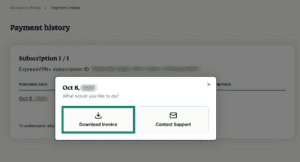
- Select Download invoice in the pop-up window.

Need help? Contact the ExpressVPN Support Team for immediate assistance.