






When you enable the biometric unlock feature, you can access your logins stored in ExpressKeys with your fingerprint or face instead of typing your vault password. This makes it even easier for you to take control of your password security.
Jump to…
Biometrics security in ExpressKeys
How to use biometrics in the ExpressKeys browser extension
How to use biometrics in ExpressKeys for Android
How to use biometrics in ExpressKeys for iOS
How to use biometrics in ExpressKeys for macOS
Biometrics security in ExpressKeys
When you enable the biometric unlock feature, you can unlock ExpressKeys without entering your vault password and access your logins faster with your face or fingerprint.
ExpressVPN does not store your biometric data. Even when the biometric feature is enabled, your data is always encrypted with your vault password and protected at all times by zero-knowledge encryption.
Learn more about ExpressKeys biometric security for Android and iOS/macOS.
Need help? Contact our Support Team for immediate assistance.
How to use biometrics in the ExpressKeys browser extension
Enable biometrics on your device
The ExpressKeys extension uses a passkey to let you unlock your ExpressKeys vault with your computer’s built-in sign-in method.
The method available depends on your device:
- Windows: If you’ve set up Windows Hello with a fingerprint reader or compatible camera, you can unlock with your fingerprint or face. To set it up, open Settings > Accounts > Sign-in options and select your preferred Windows Hello method. If your computer doesn’t have either, you can use a Windows Hello PIN to confirm the passkey. Note that a PIN works for passkey unlock, but it isn’t biometric unlock.
- macOS: On a Mac, you can unlock the extension with Touch ID, for which you need a MacBook with built-in Touch ID or a compatible Magic Keyboard with Touch ID and at least one fingerprint set up on your Mac. You can set up a fingerprint in System Settings > Touch ID & Password.
Enable biometrics in the ExpressKeys extension
If you have enabled biometrics on your device, the ExpressKeys extension will prompt you to enable the biometric unlock feature when setting up ExpressKeys for the first time. Select Enable Biometric Unlock and follow the on-screen instructions.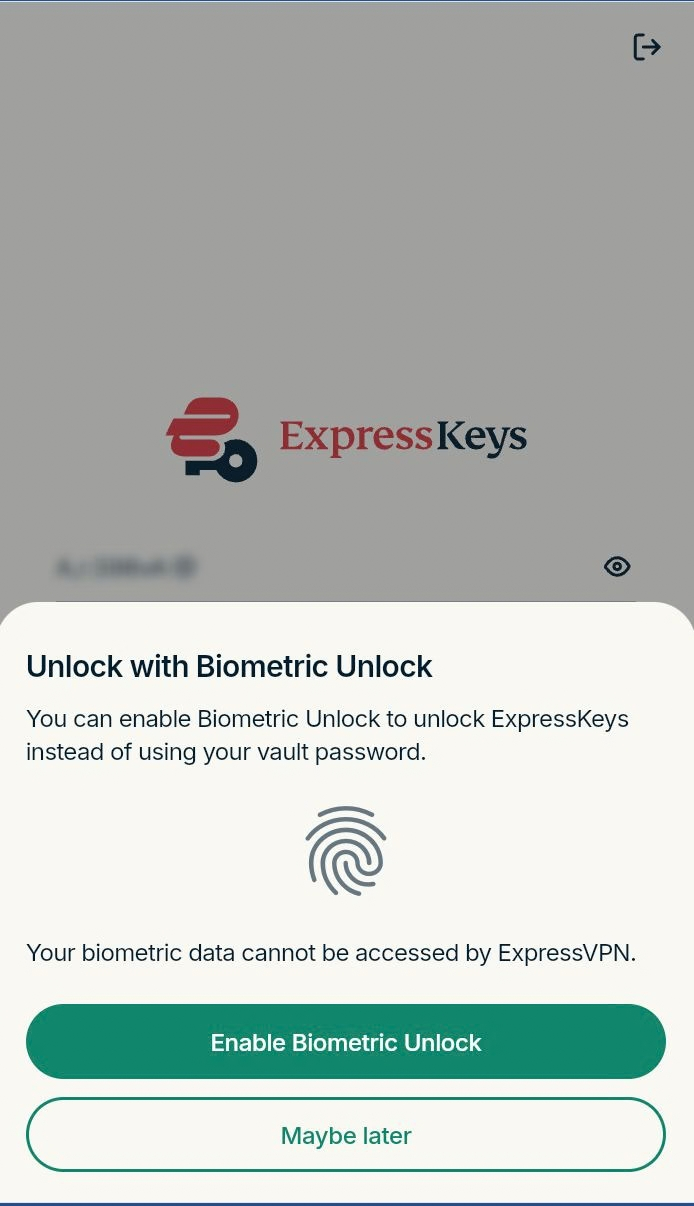
Note: If the passkey option is unavailable, check that your computer supports passkeys, its sign-in method is set up, and your browser and the extension are up to date.
If you dismissed the prompt, you can also enable it in the extension settings by following these steps:
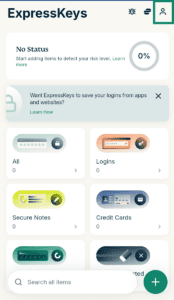
- Open the ExpressKeys extension and select the Profile icon (

 ).
).

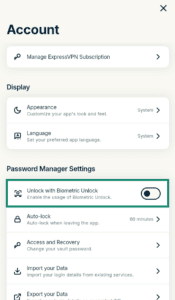
- Scroll down to Password Manager Settings and toggle Toggle Unlock with Biometric Unlock on.

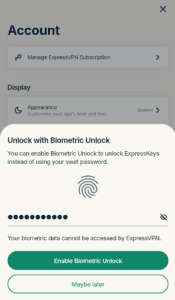
- Enter your vault password and click Enable Biometric Unlock.
- Follow the prompts to create a passkey for this computer and confirm using Windows Hello or your Mac’s authentication prompt.

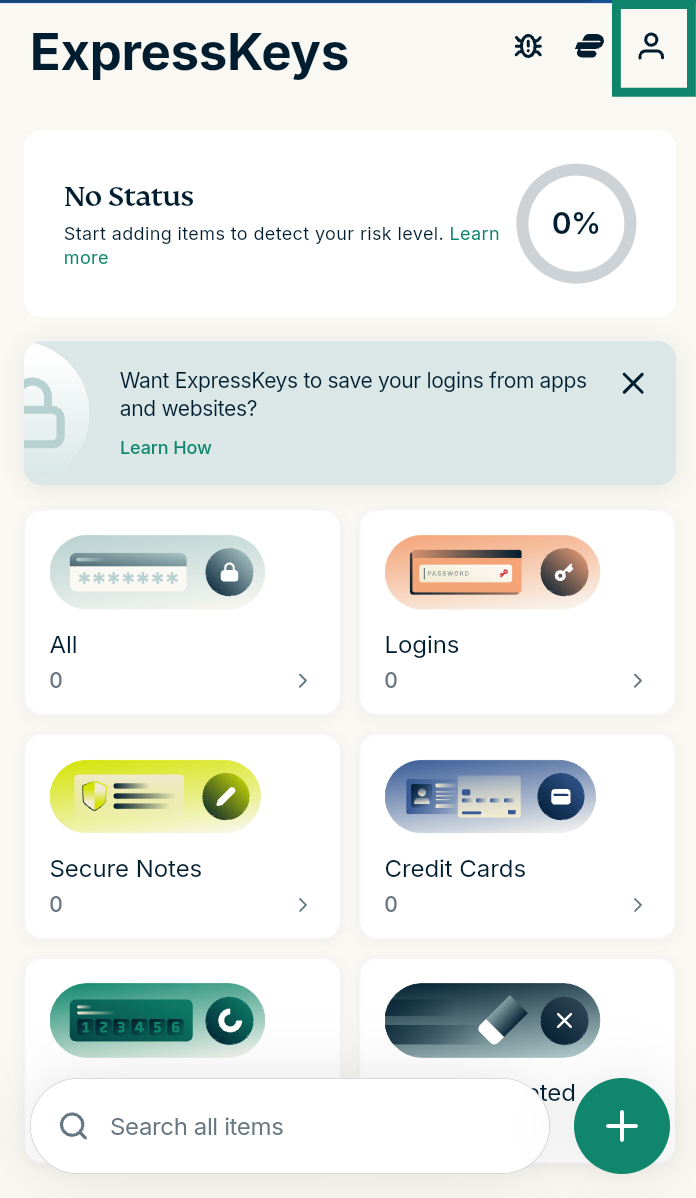
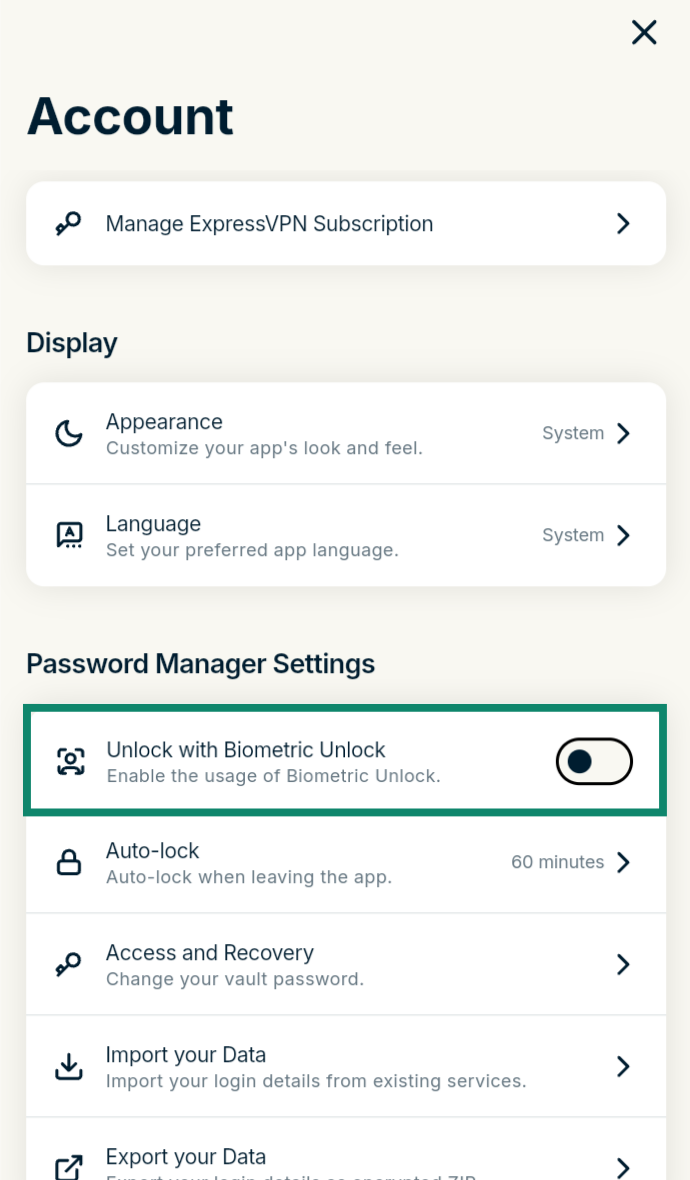
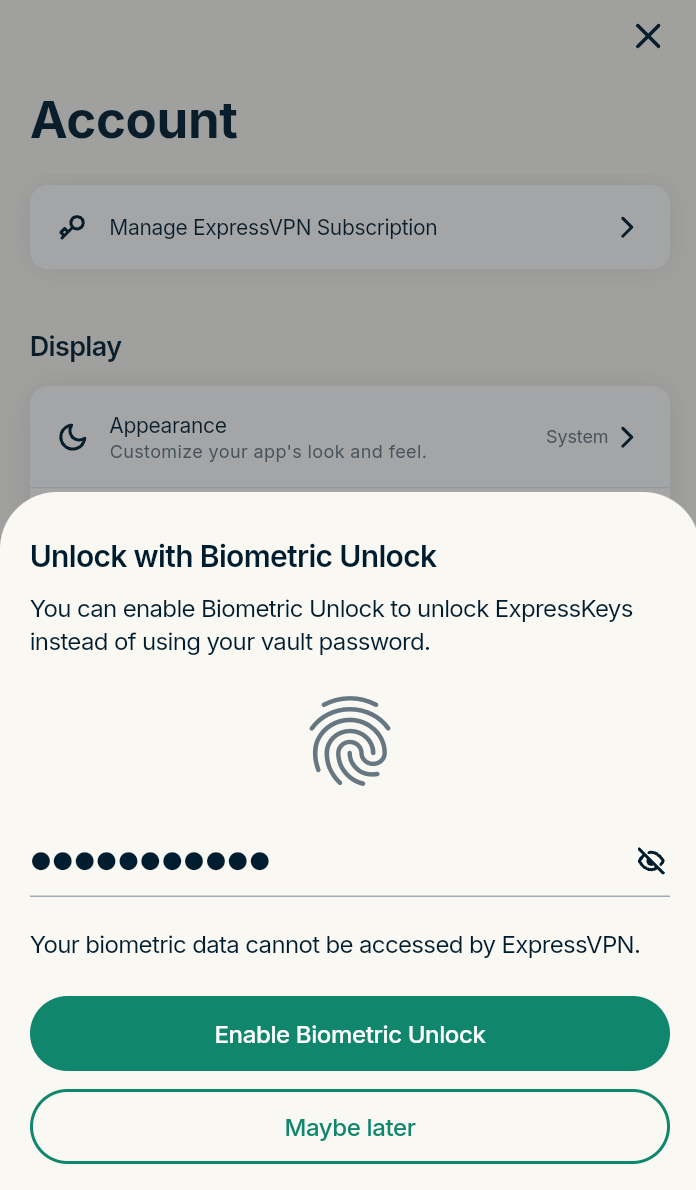
Use biometrics in the ExpressKeys extension
The next time your vault is locked, you will be prompted to the passkey option to unlock it.
If biometric authentication fails, you can try again. If you’re unable to use it, cancel the device prompt, then enter your vault password to unlock ExpressKeys.
Need help? Contact the ExpressVPN Support Team for immediate assistance.
How to use biometrics in ExpressKeys for Android
Enable biometrics
To enable the biometric unlock feature, your device must include the most secure kind of biometric sensor (Class 3). If multiple secure biometric methods are available, the system will decide which one to use.
In this case, you will be prompted to enable the biometric unlock feature when setting up ExpressKeys for the first time. You can also enable it in the app settings by following these steps:
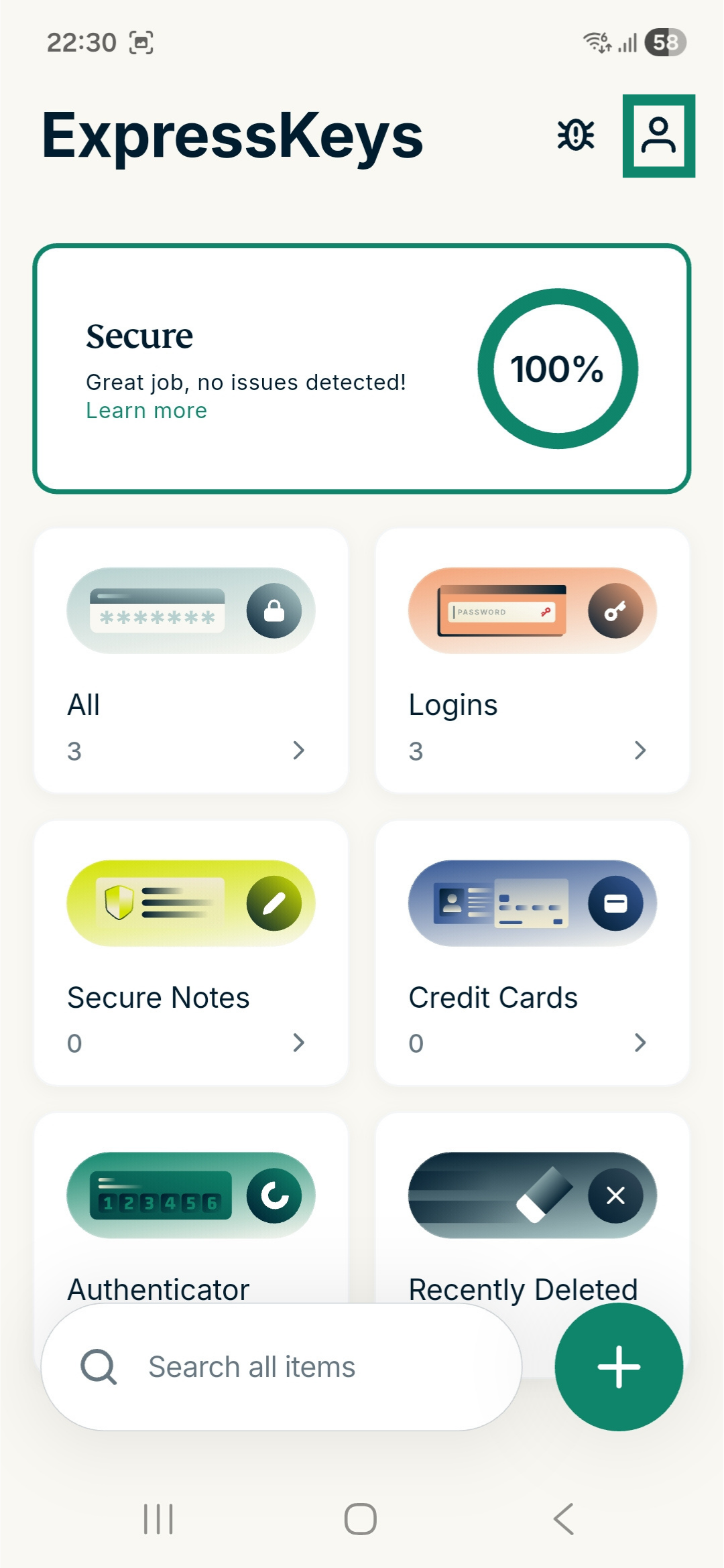
- In the app, tap .
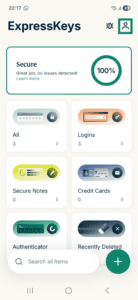

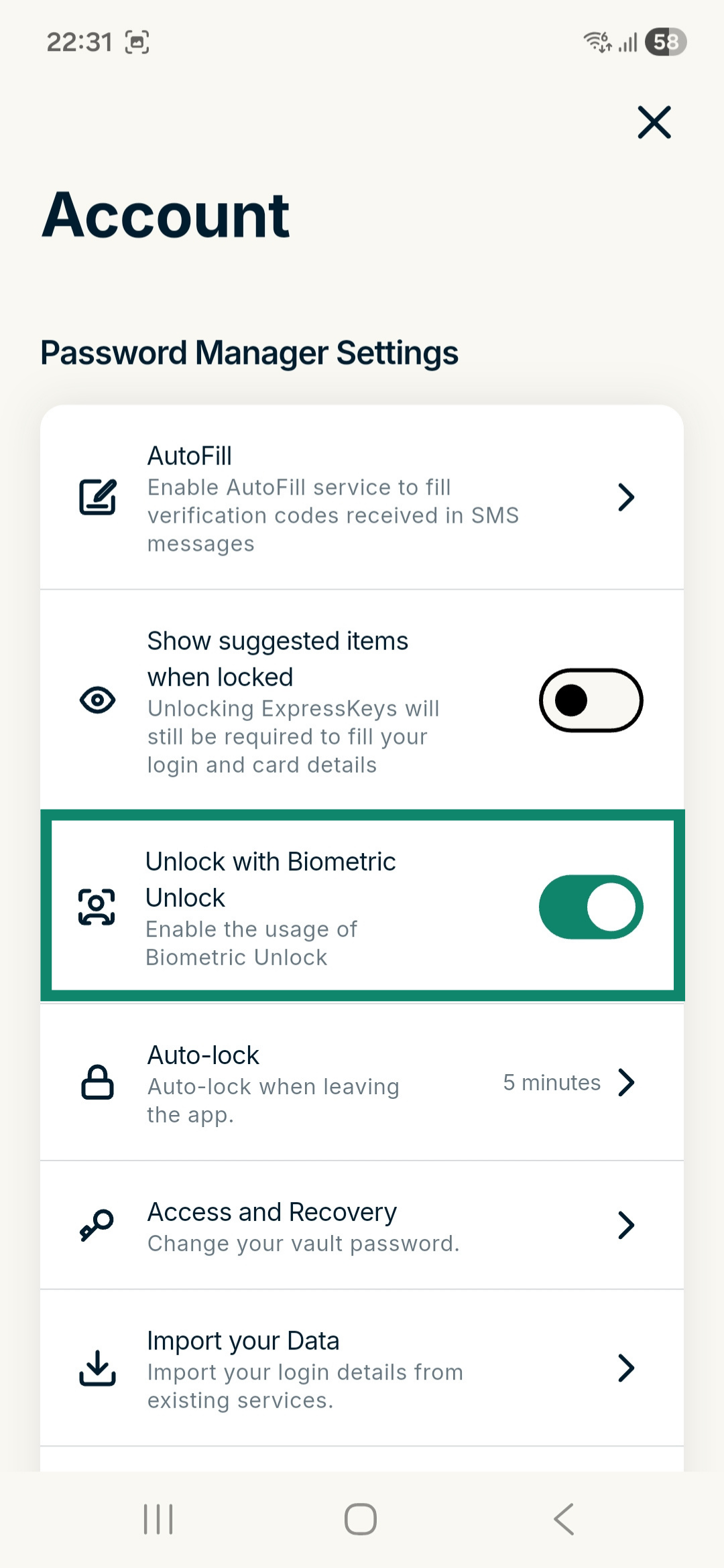
- Toggle Unlock with Biometric Unlock on.

- Enter your vault password and tap Enable Biometric Unlock.
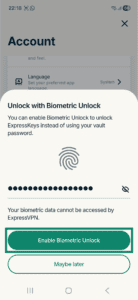
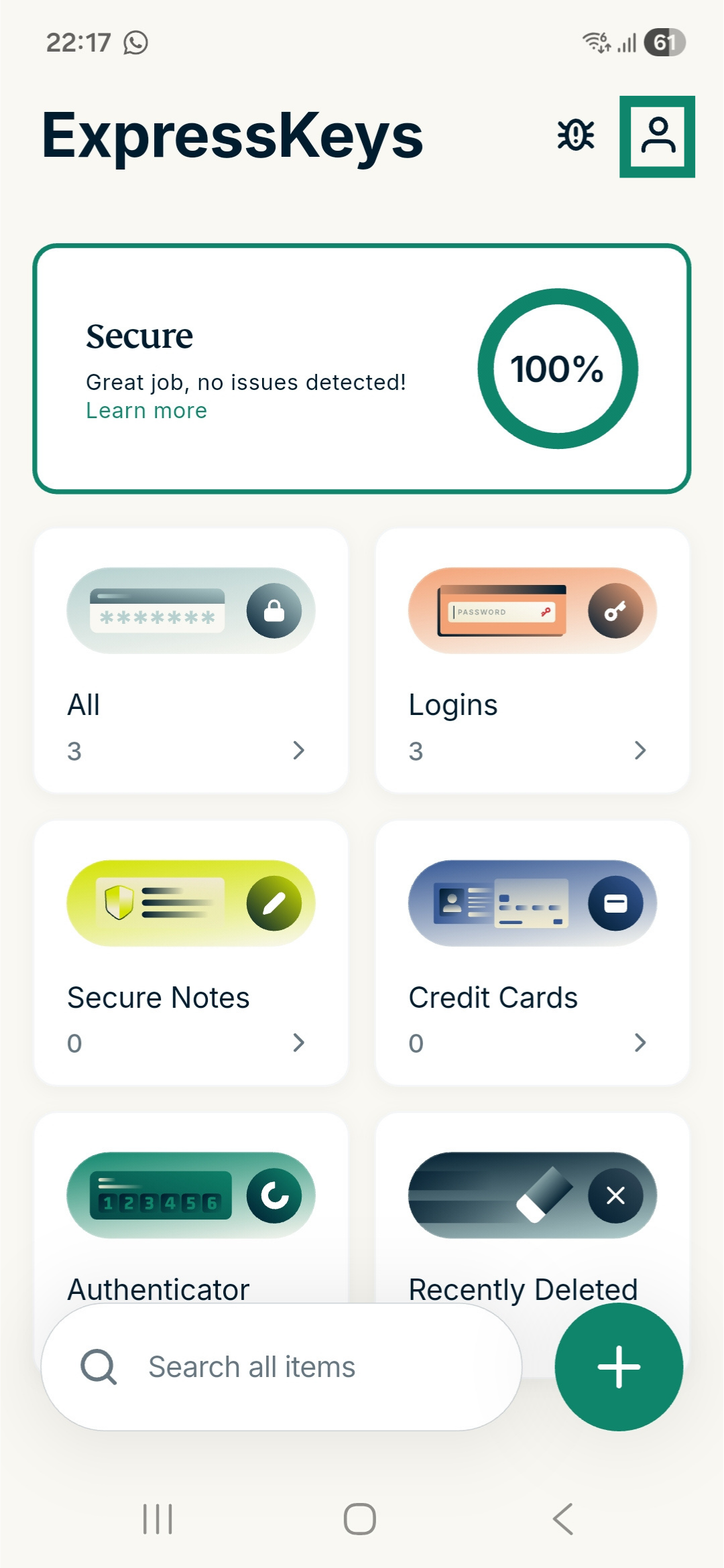
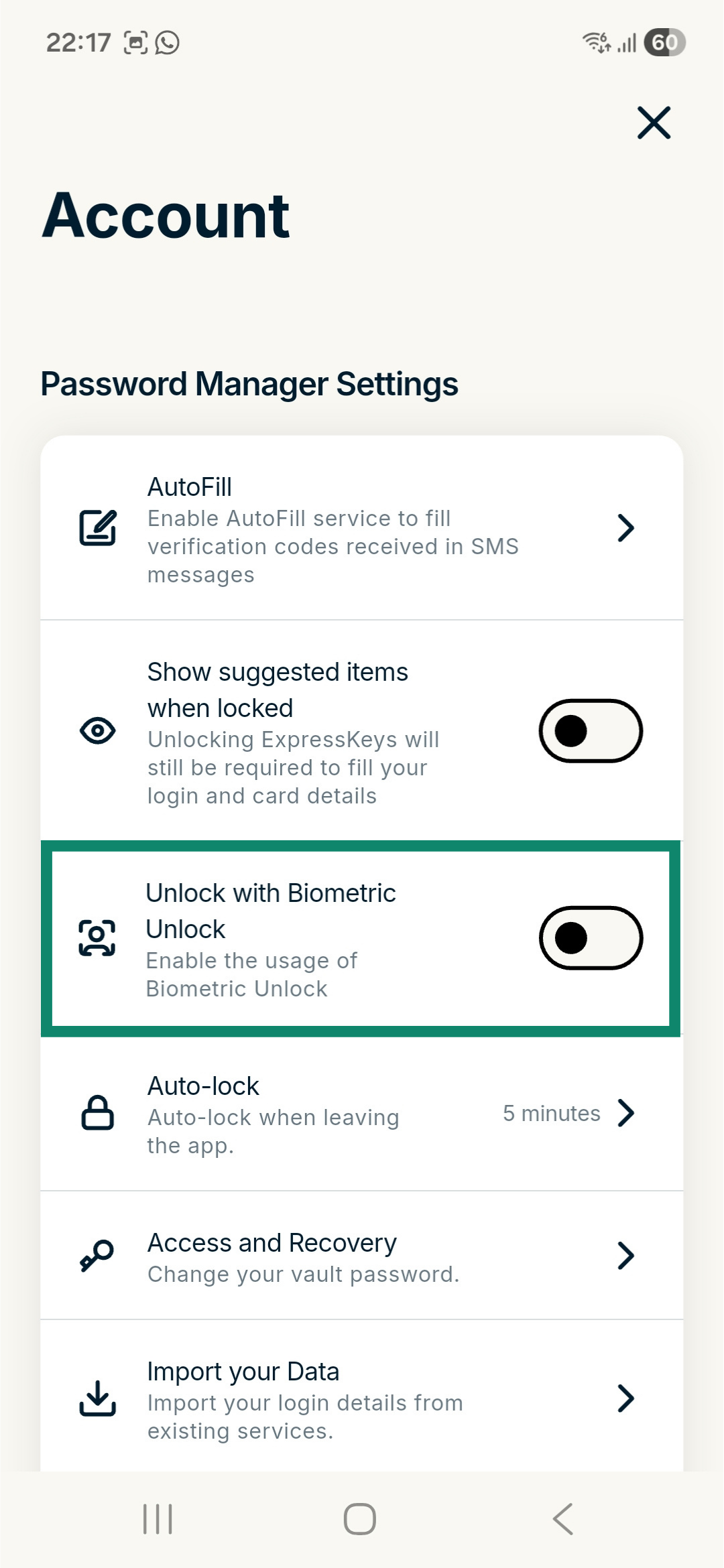
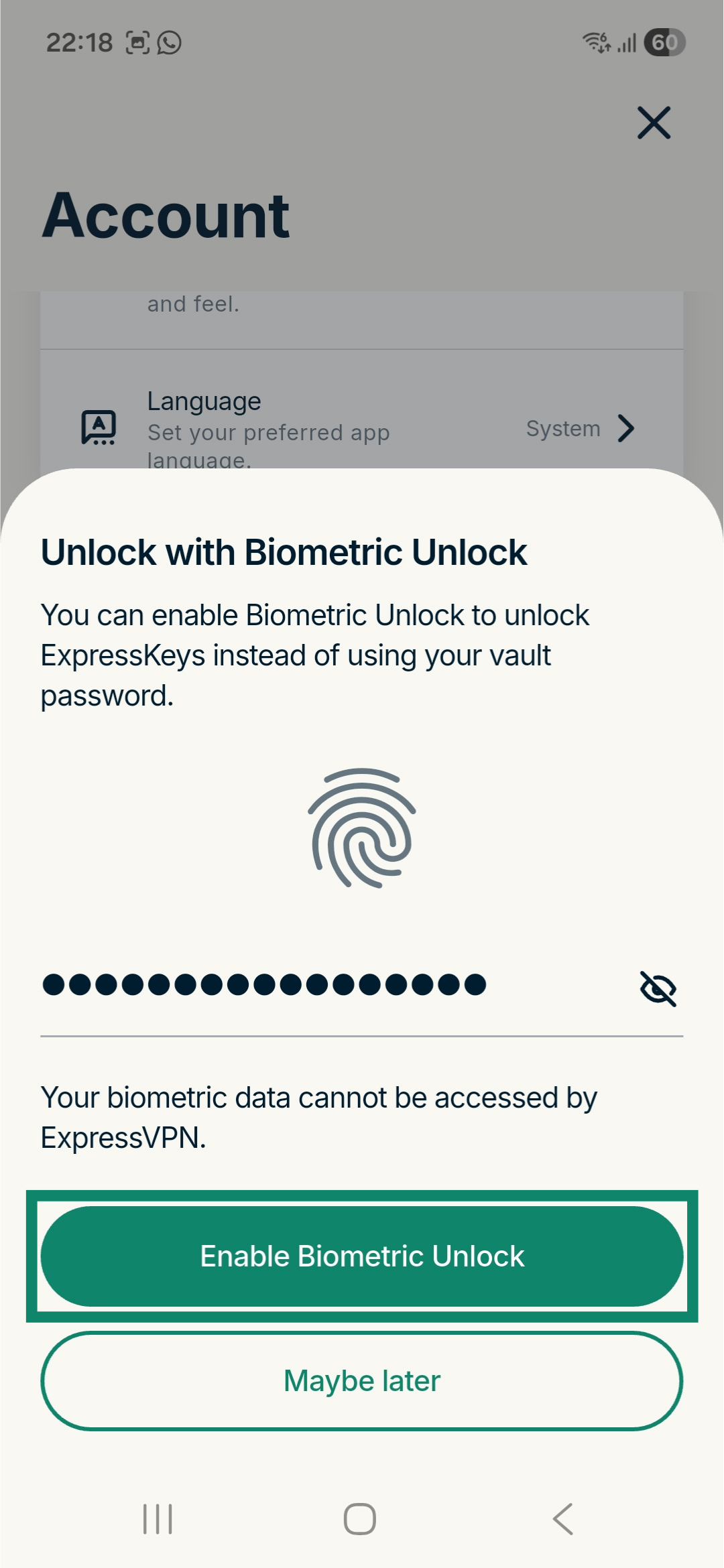
ExpressKeys will then require you to use biometrics to unlock the app to continue using it.
Use biometrics
Once biometrics are enabled within the ExpressKeys app, you will be prompted to use biometric authentication to unlock ExpressKeys when you launch the app.
Note: If you tap Cancel in the biometric authentication prompt, you will be returned to the ExpressKeys login screen. To restart biometric authentication, tap the biometric icon next to the vault password field.
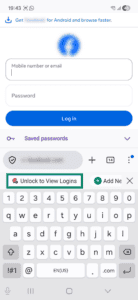
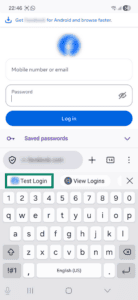
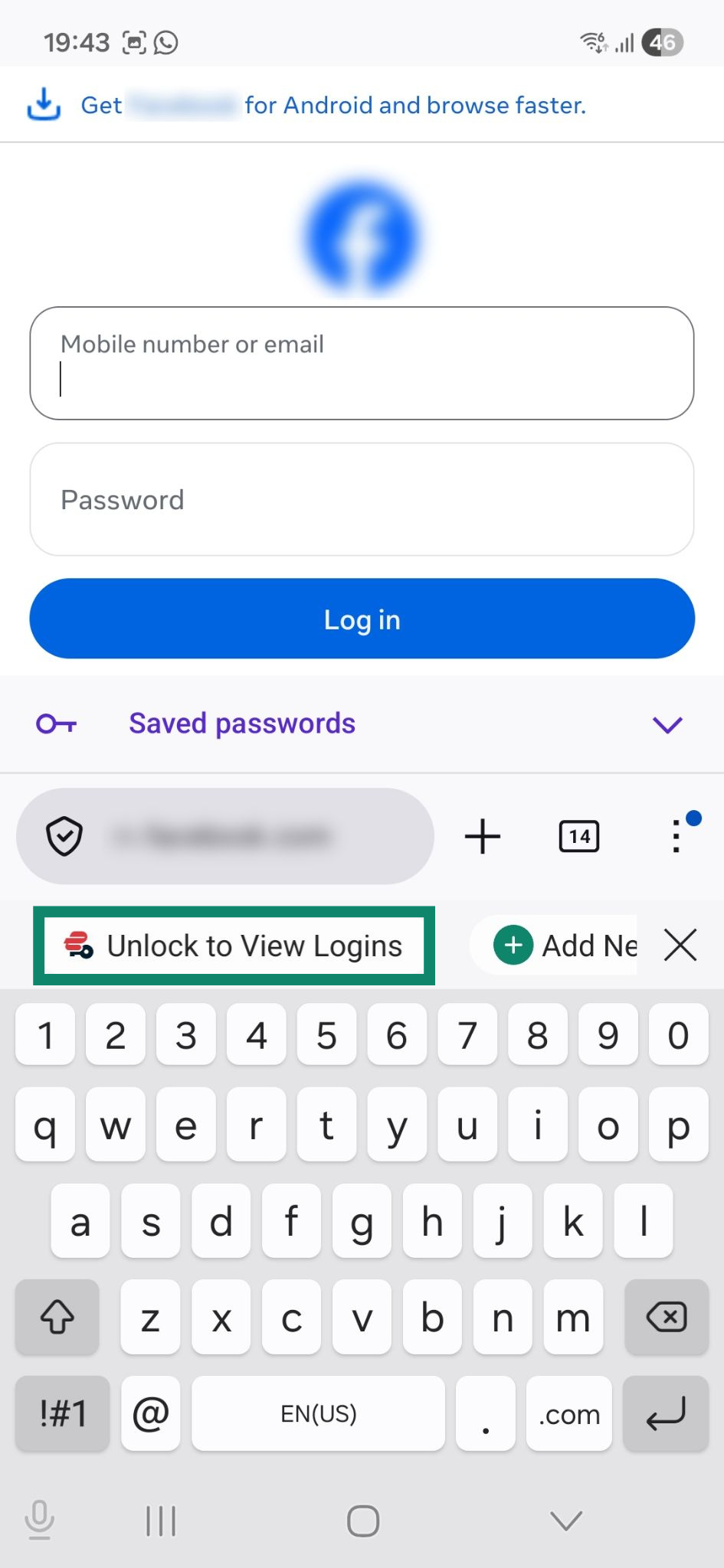
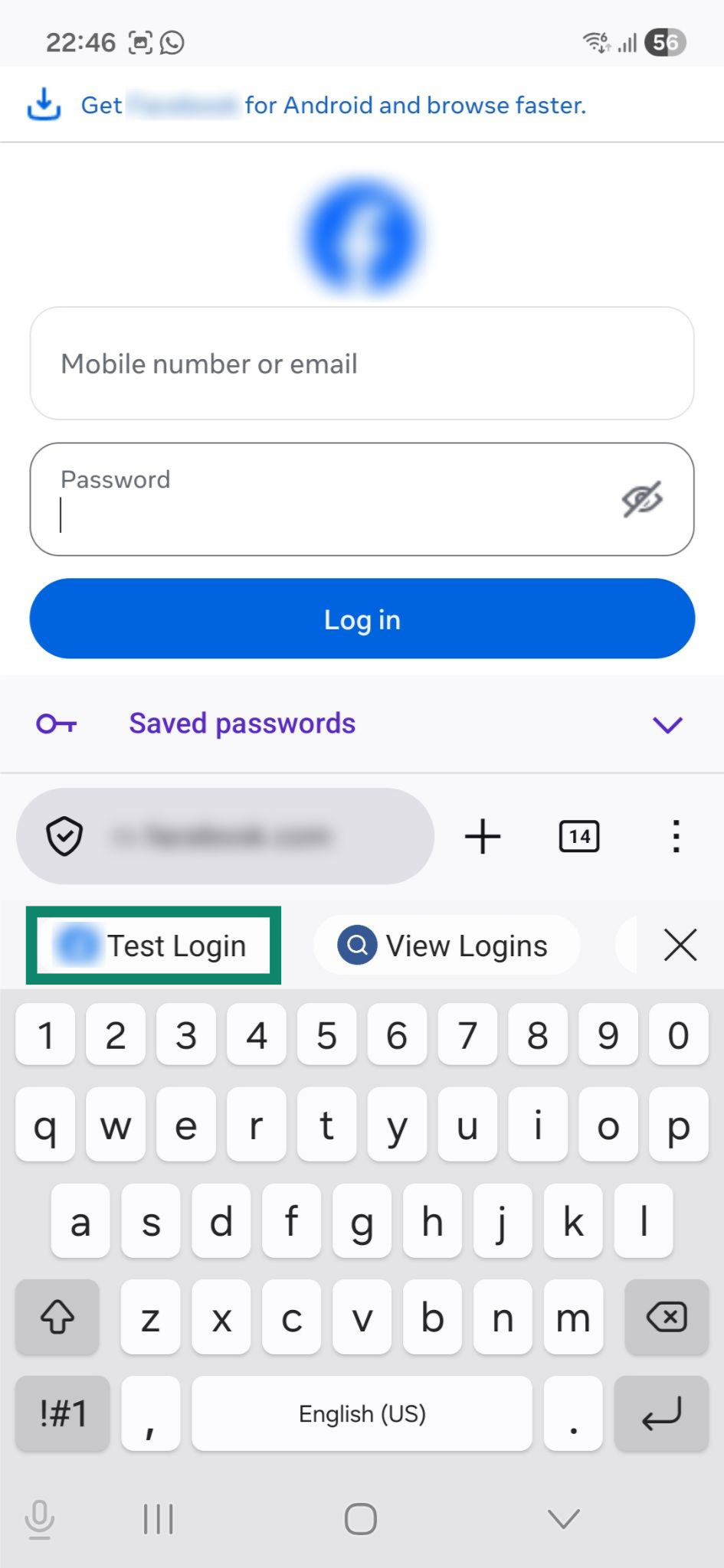
If autofill is enabled, you can also use biometrics to unlock ExpressKeys when filling out a login on an app or a website:
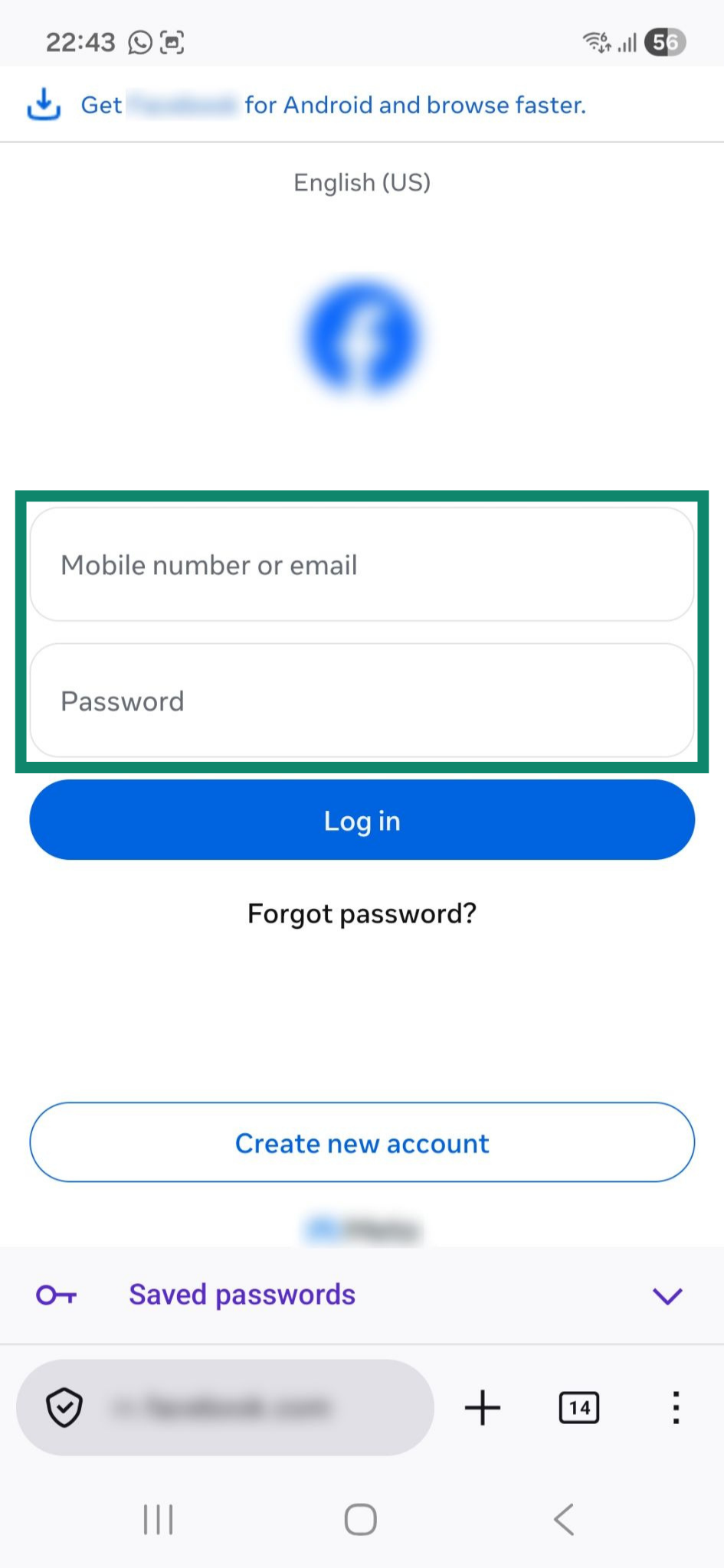
- Go to the login page.
- Tap the email, username, or password field.

- Use one of these methods:
- Tap Unlock to View Logins. Authenticate with biometrics, then tap the appropriate login. If you are already logged into ExpressKeys, tap View Logins instead.
- If Show suggested items when locked is enabled, tap the suggested login, then authenticate with biometrics.
- Tap Unlock to View Logins. Authenticate with biometrics, then tap the appropriate login. If you are already logged into ExpressKeys, tap View Logins instead.
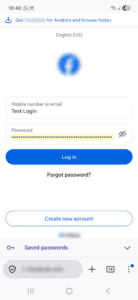
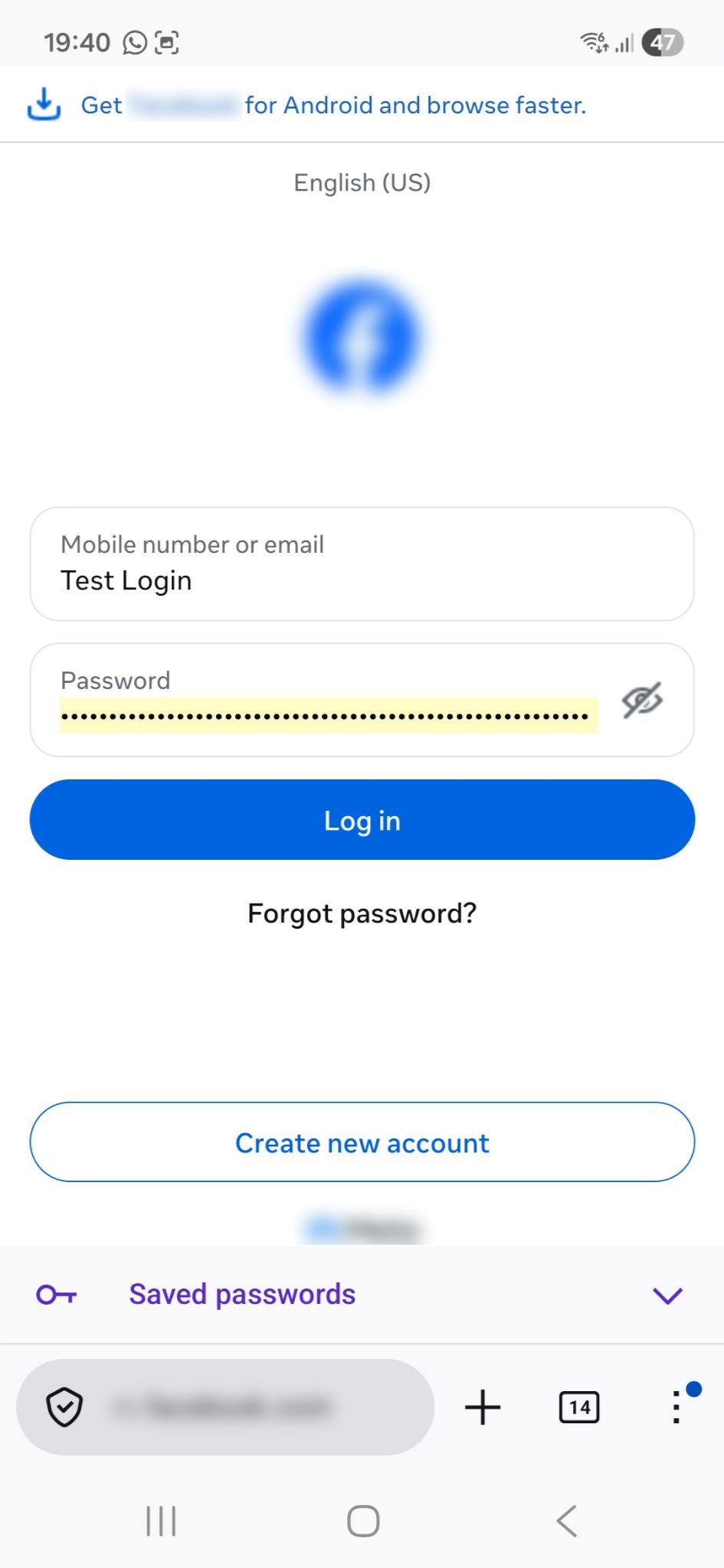
- ExpressKeys will automatically fill the relevant login fields.
Disable biometrics
- In the app, tap .
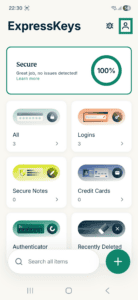
- Toggle Unlock with Biometric Unlock off.
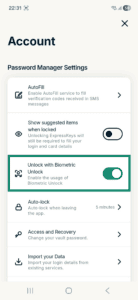
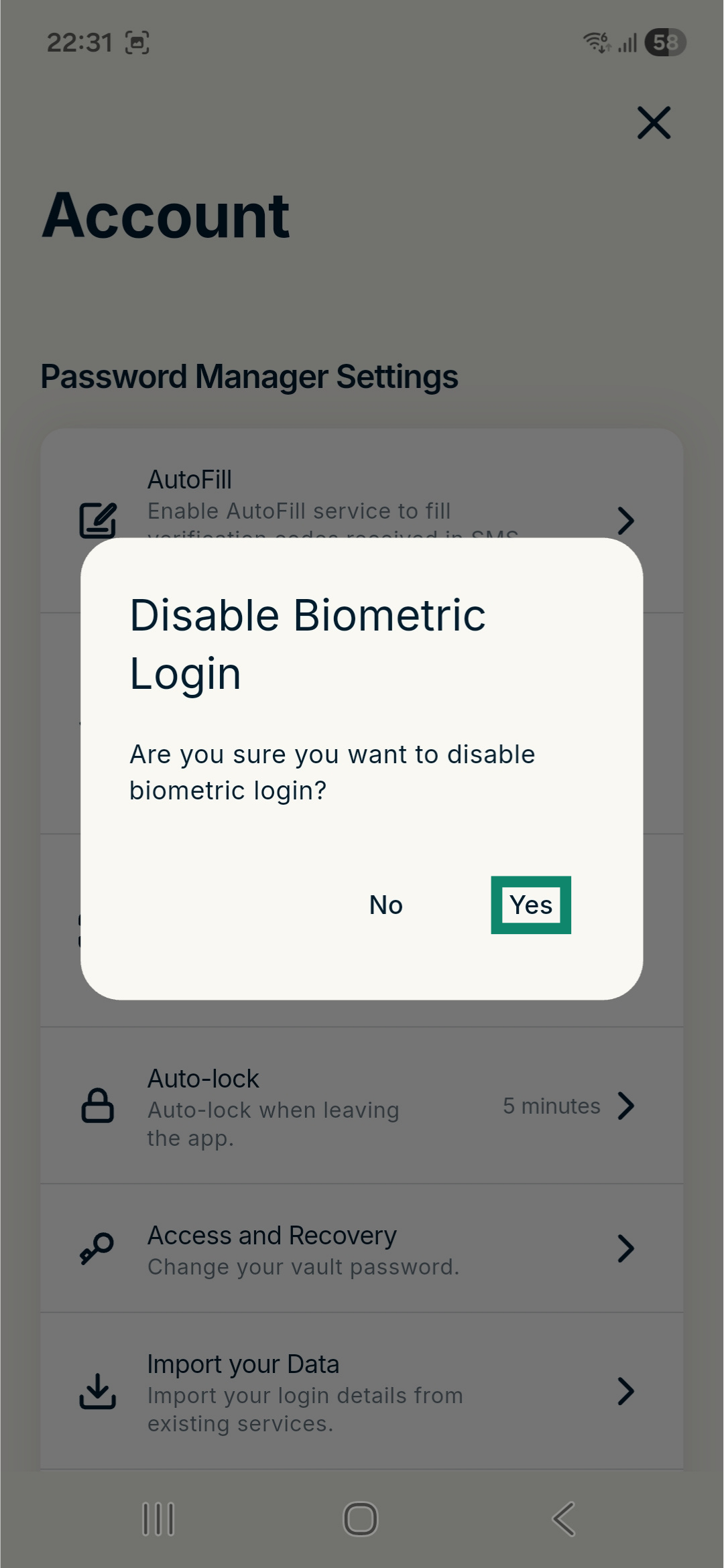
- Tap Yes to confirm. The biometric unlock feature will now be turned off.

Need help? Contact our Support Team for immediate assistance.
How to use biometrics in ExpressKeys for iOS
Enable biometrics
You will be prompted to enable the biometric unlock feature when setting up ExpressKeys for the first time.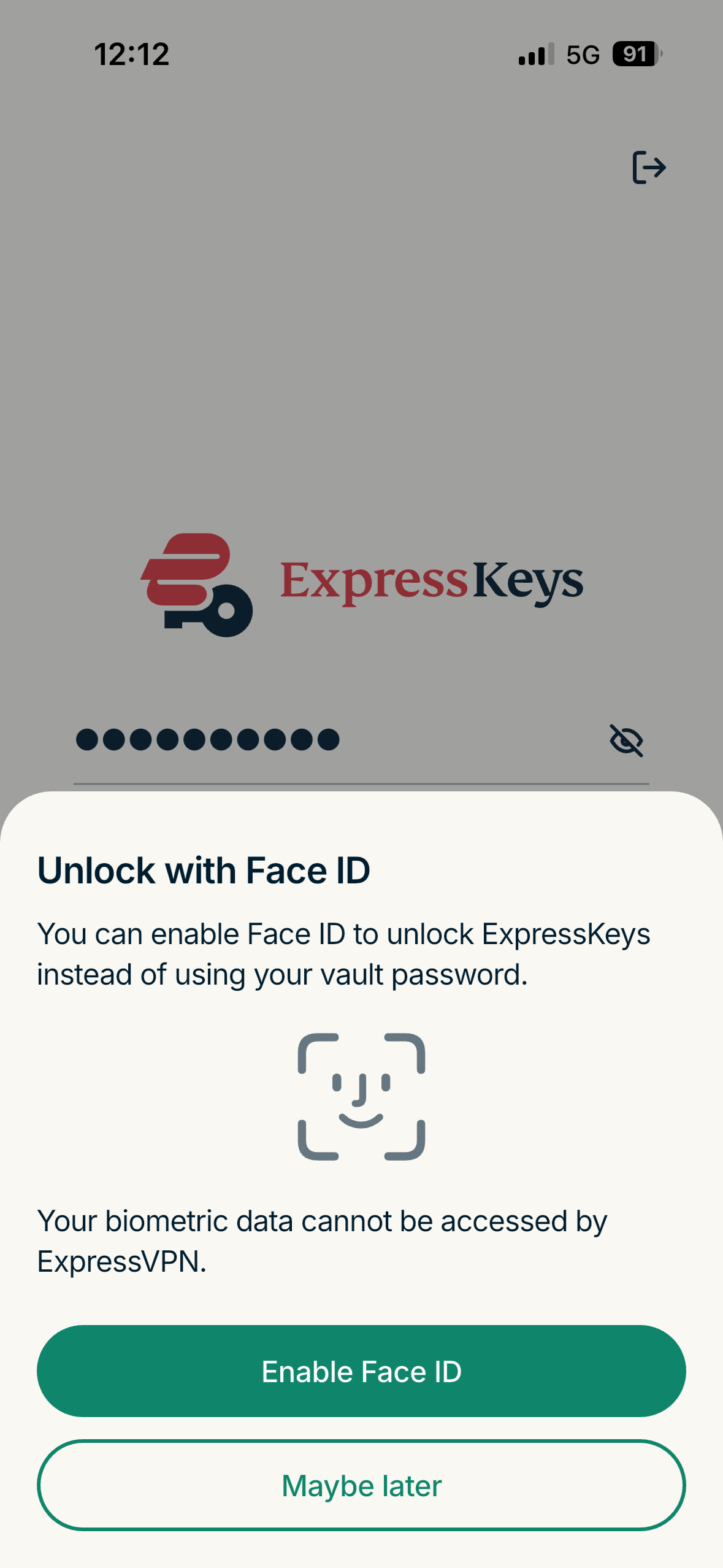
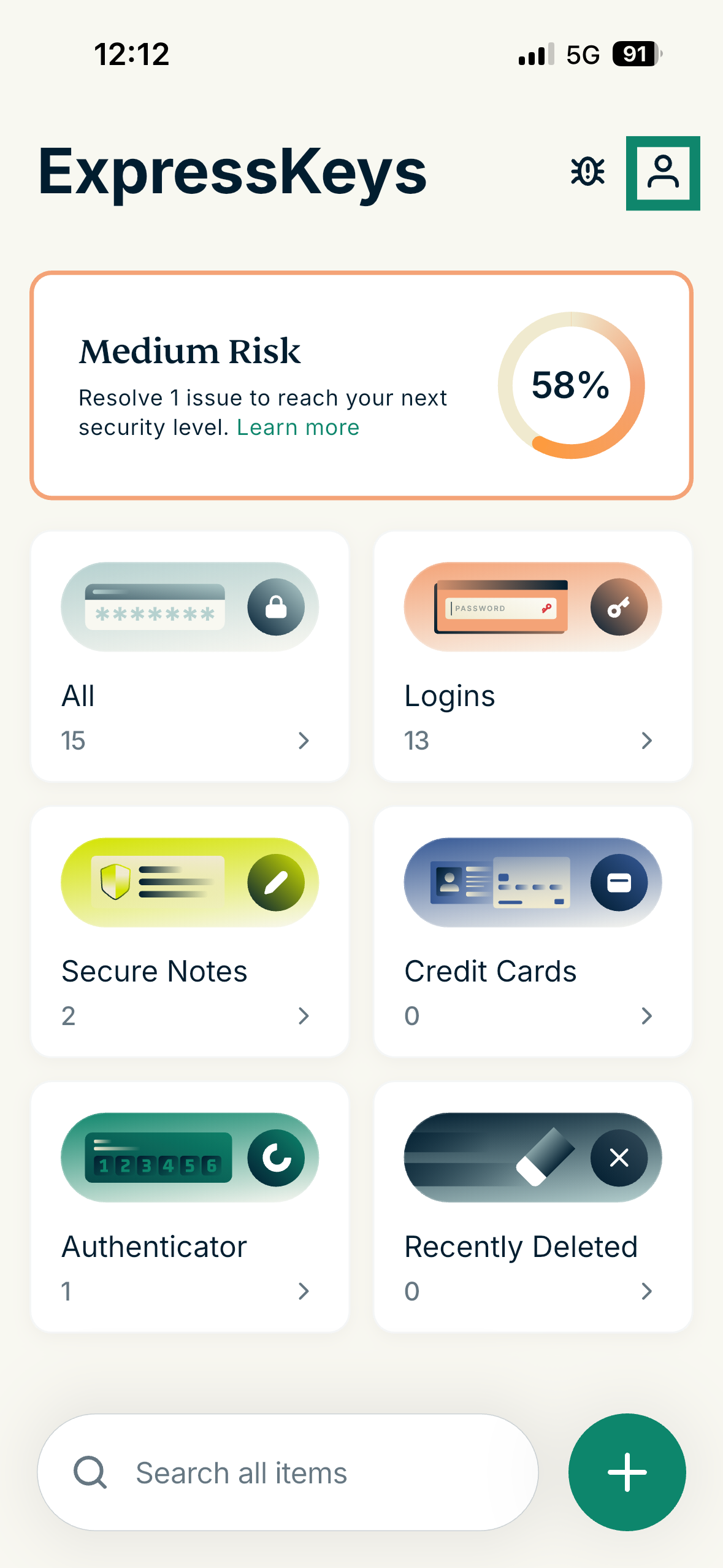
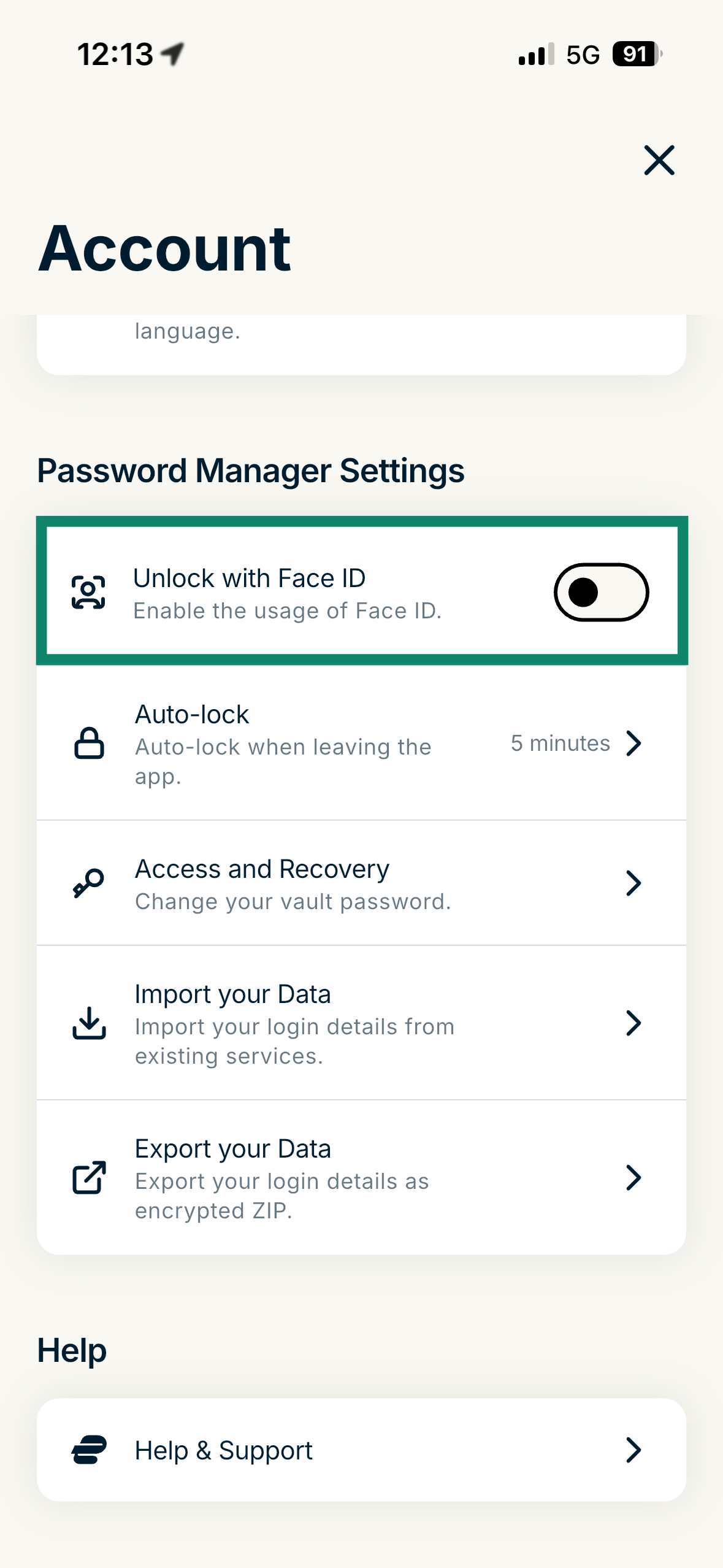
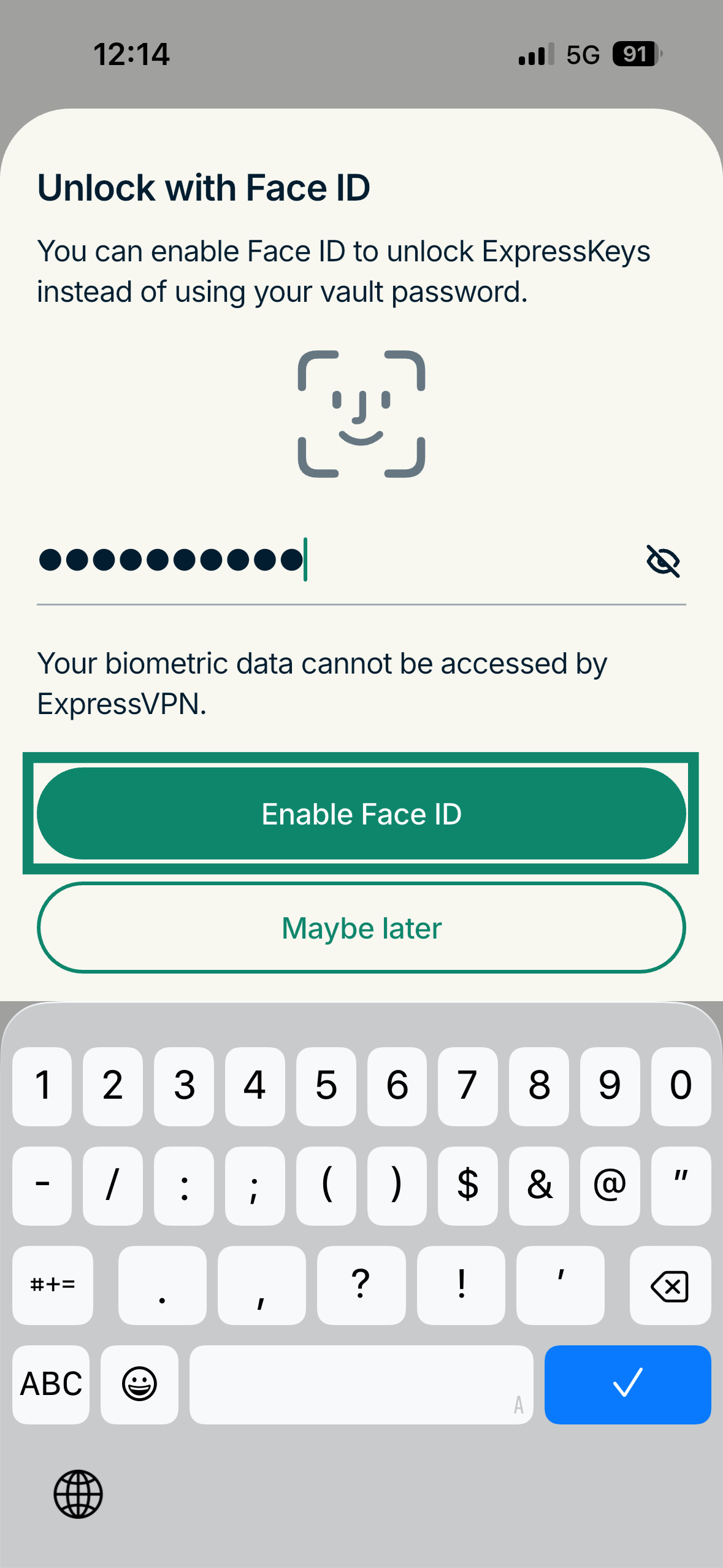
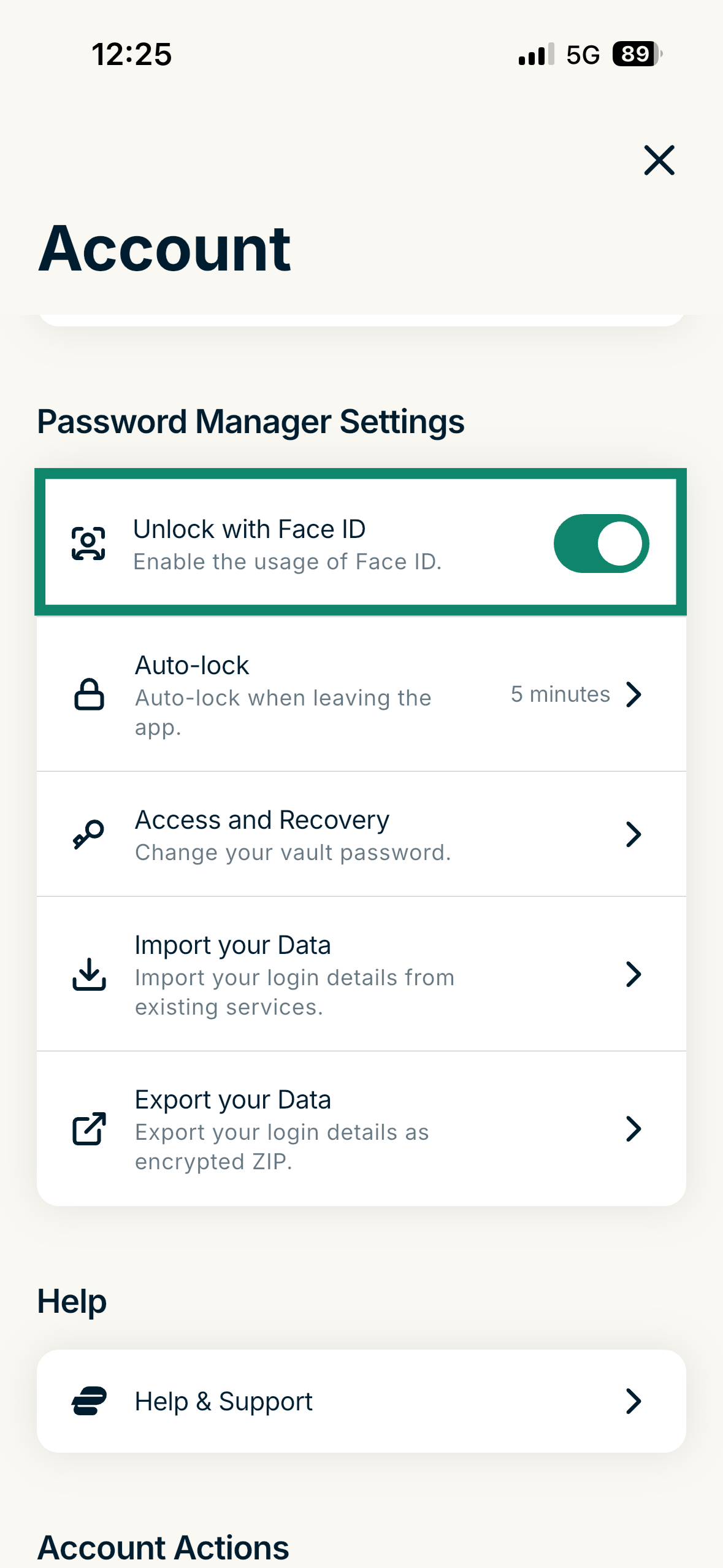
You can also enable biometric authentication in the app settings by following these steps:
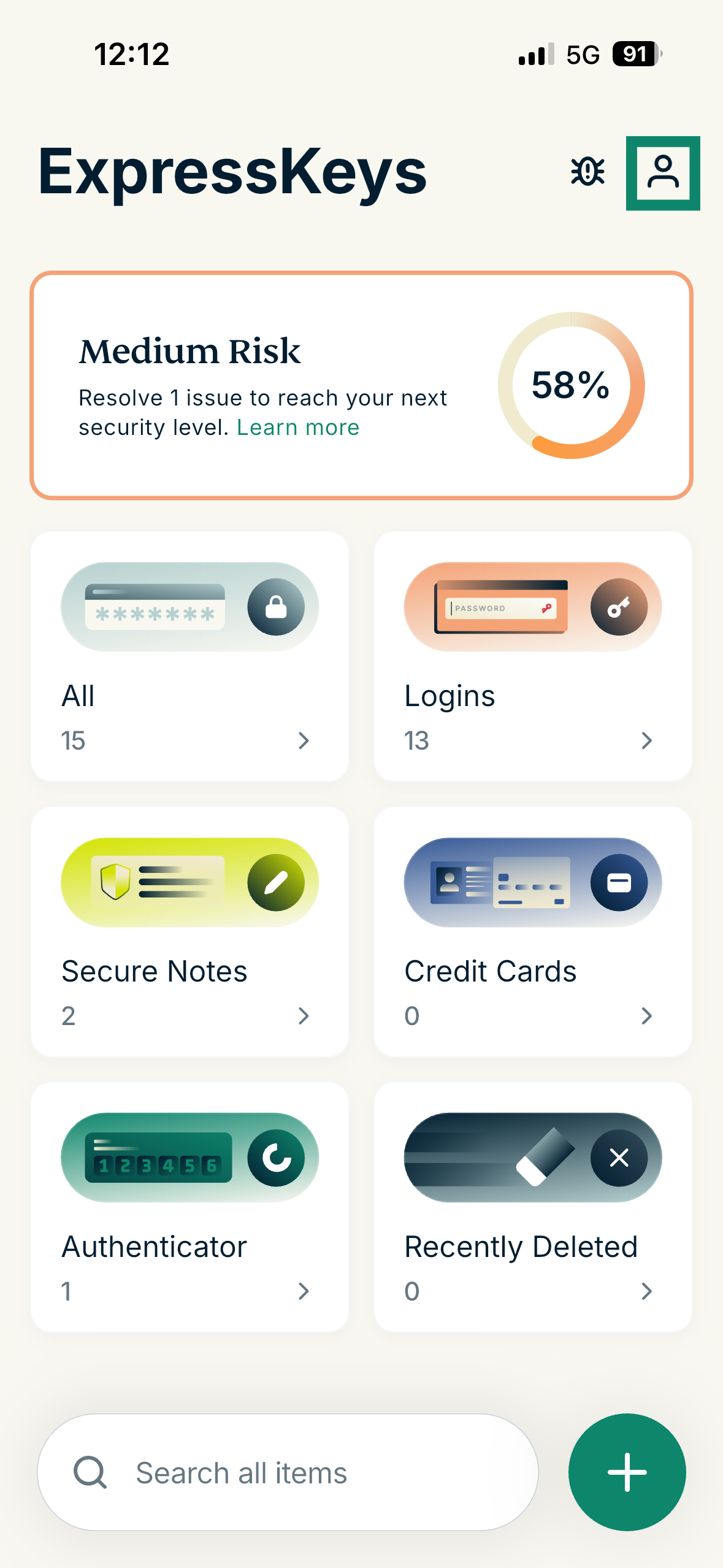
- In the app, tap .

- Toggle Unlock with Face ID or Unlock with Touch ID on.

- Enter your vault password and tap Enable Face ID or Enable Touch ID.

Use biometrics
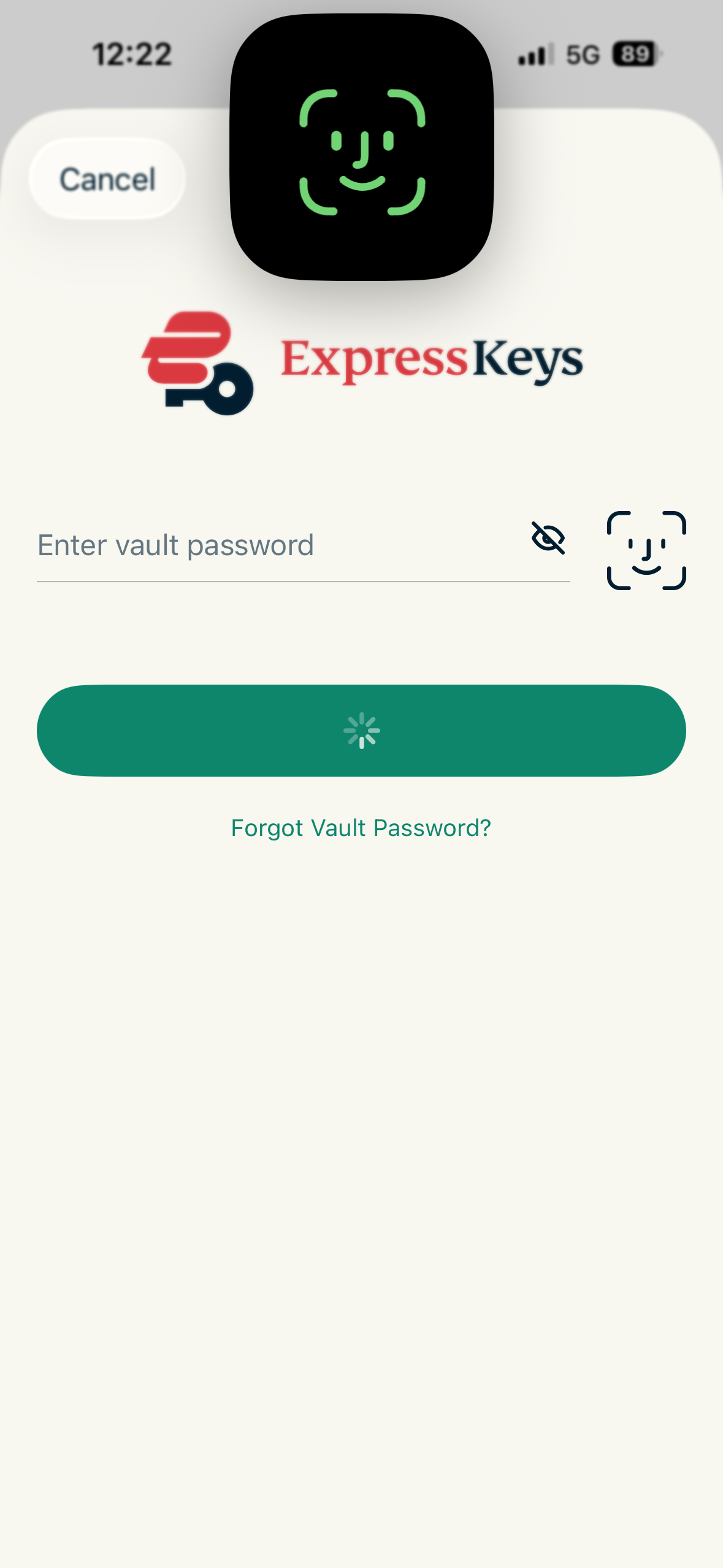
Once you enable biometrics in the ExpressKeys app, you will be prompted to use Face ID or Touch ID every time you need to unlock it.
If the biometric authentication fails, you will receive a pop-up giving you the option to retry biometric authentication or Cancel. if you choose to cancel, you will be asked to enter your vault password instead.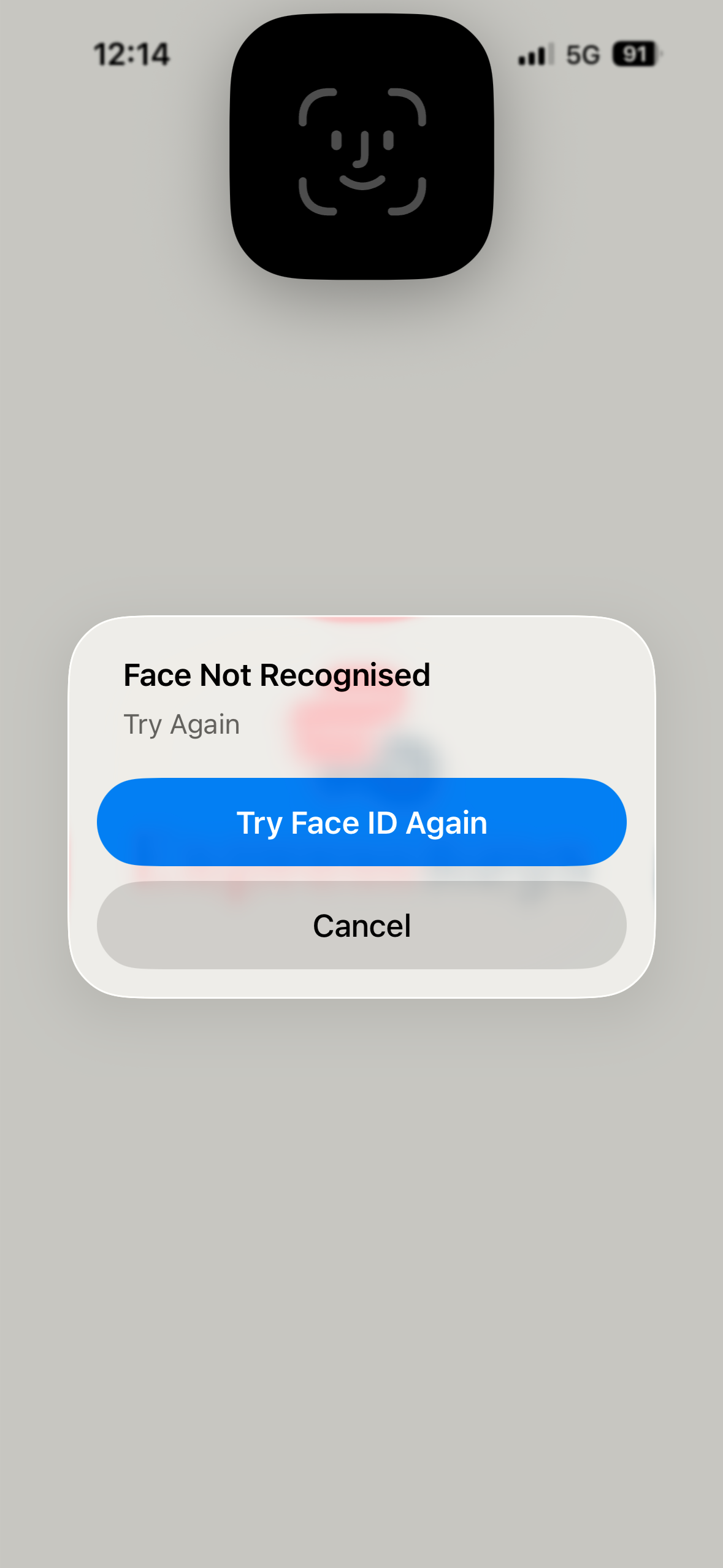
If you tap Cancel by mistake or biometric authentication does not start, you will see the screen to log into the app with your vault password. You can tap the biometric icon next to the vault password field to manually trigger biometric authentication.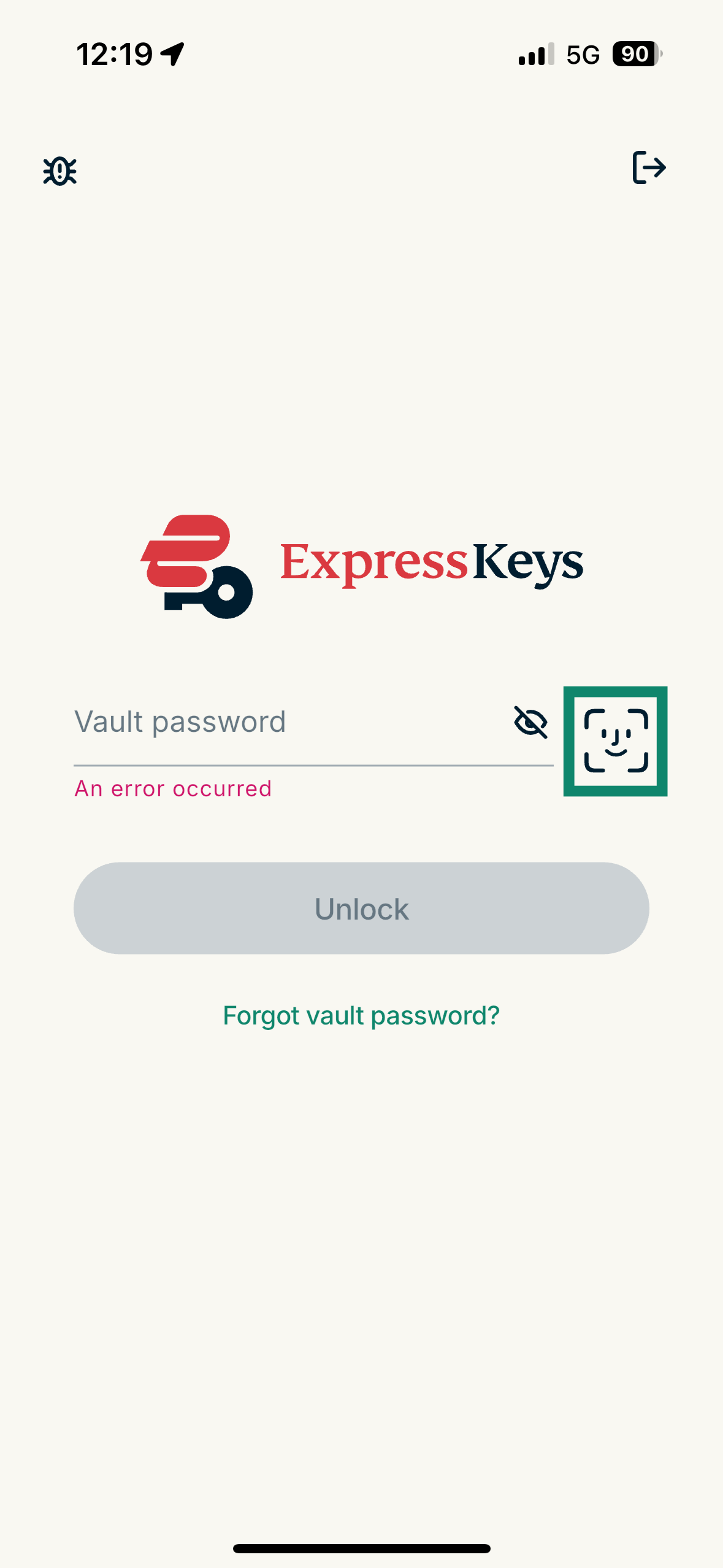
You can also use biometrics to unlock ExpressKeys when filling out a login on an app or a website:
- Go to the login screen or page.
- Tap the email, username, or password field.
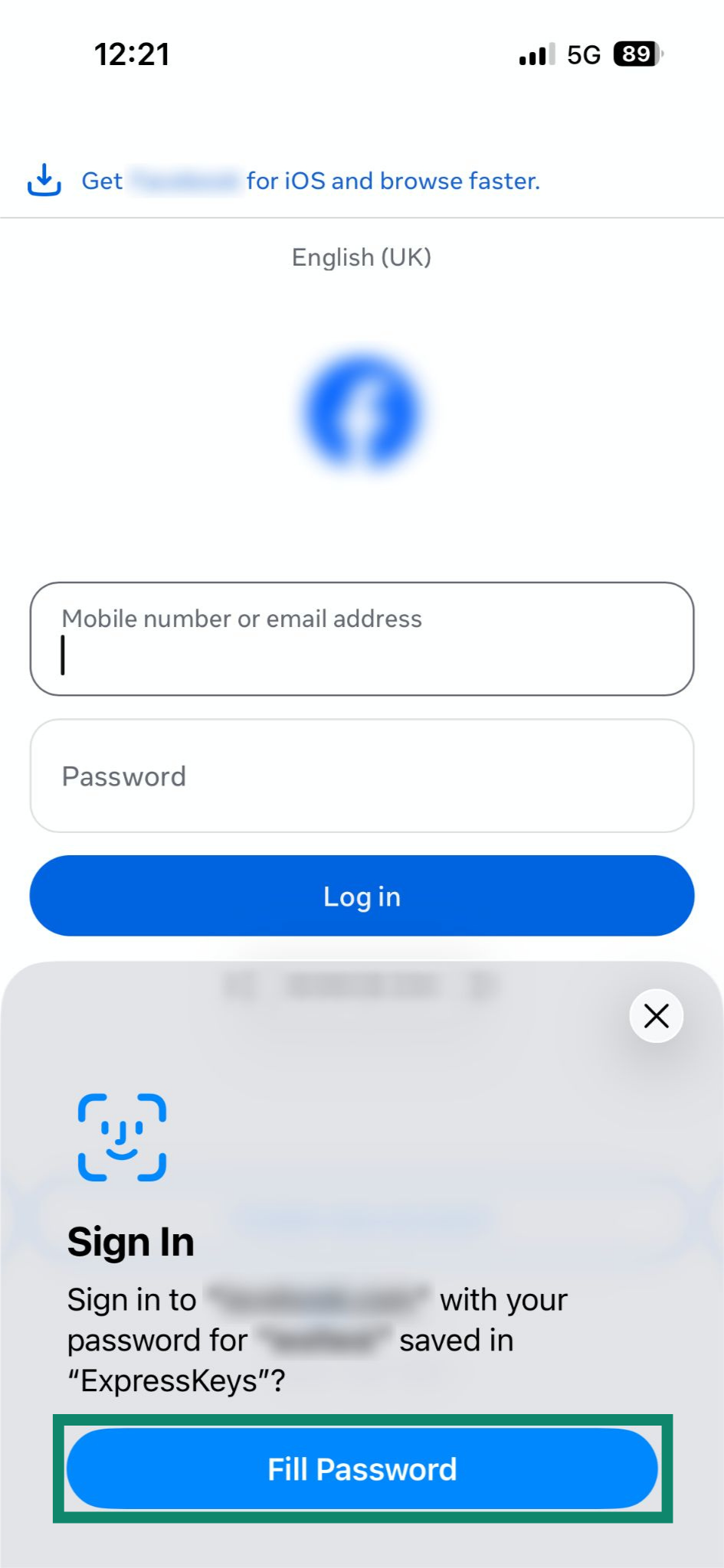
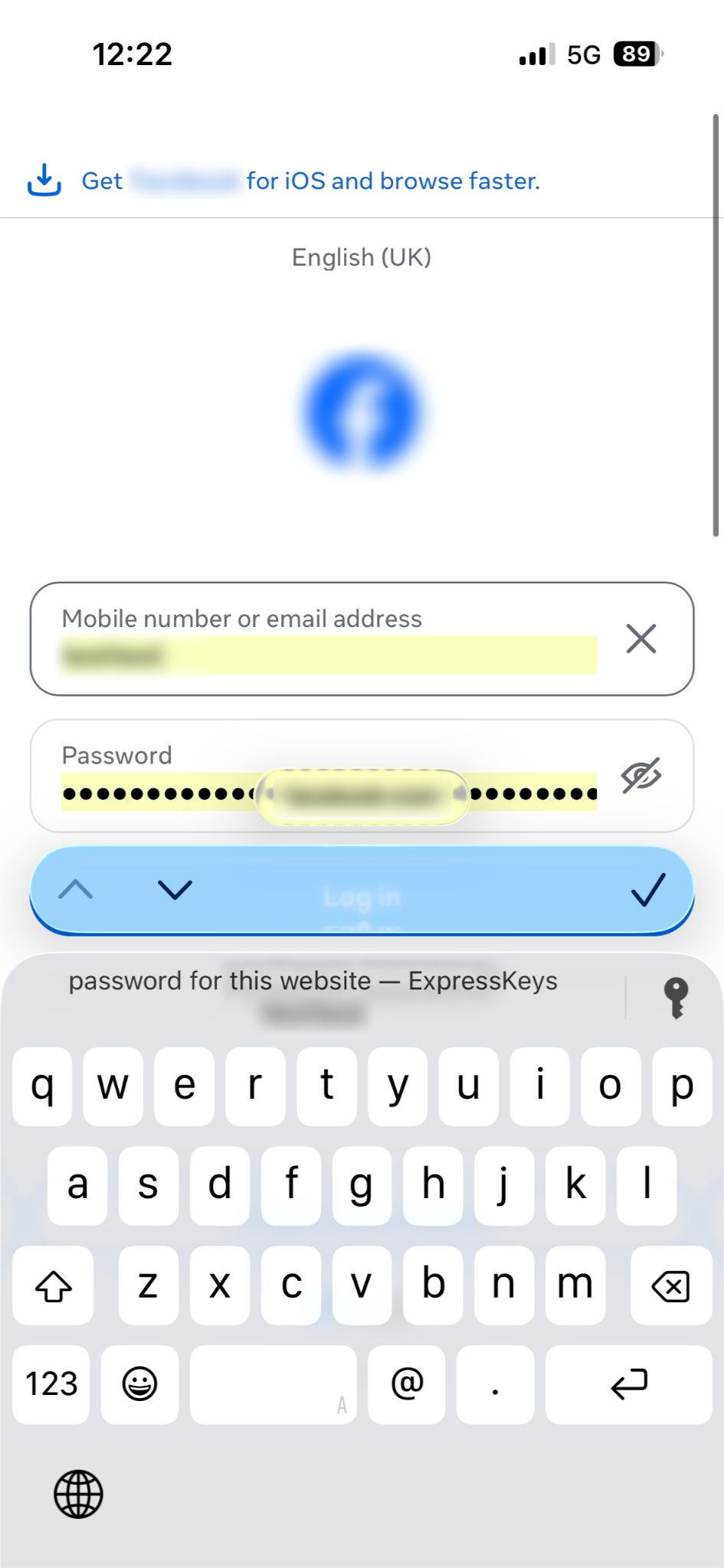
- A prompt will appear at the bottom of the screen asking if you would like to sign in using your password saved in ExpressKeys. Tap Fill Password.

- ExpressKeys will open and attempt to verify your identity using Face ID or Touch ID.

- Once verified, ExpressKeys will automatically fill in your username and password on the login page.
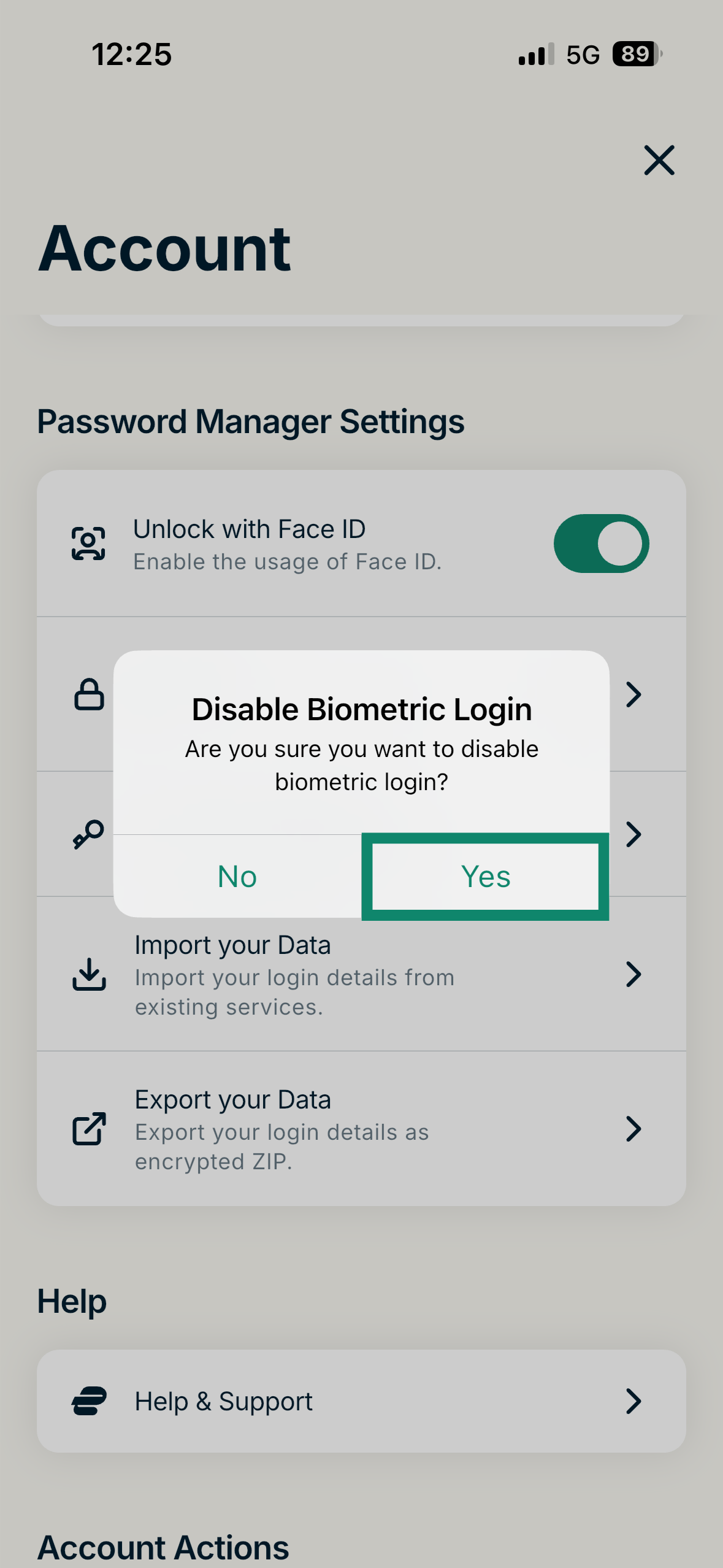
Disable biometrics
- On the app, tap .

- Toggle Unlock with Face ID or Unlock with Touch ID off.
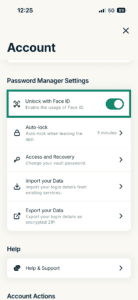
- In the pop-up, tap Yes to confirm.

Need help? Contact our Support Team for immediate assistance.
How to use biometrics in ExpressKeys for macOS
Enable biometrics
To enable biometric unlock, your Mac must have Touch ID built in or use a compatible Magic Keyboard with Touch ID. You must also have at least one fingerprint set up on your Mac so the device can authenticate you.
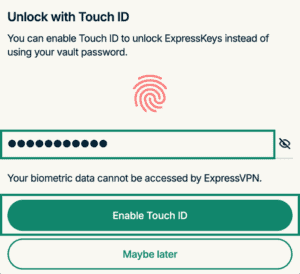
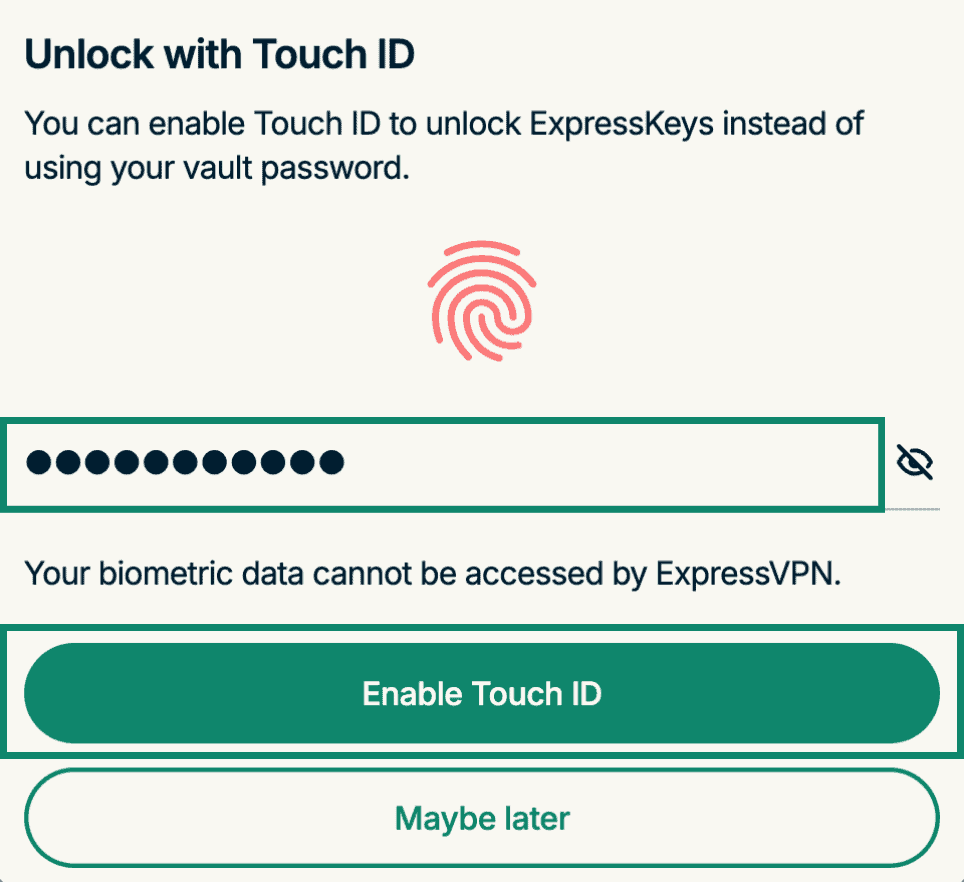
If you do, you will be prompted to enable the biometric unlock feature when setting up ExpressKeys for the first time. You can also enable it in the app settings by following these steps:
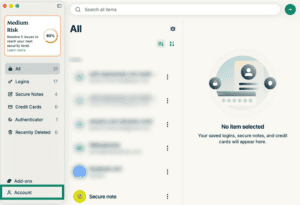
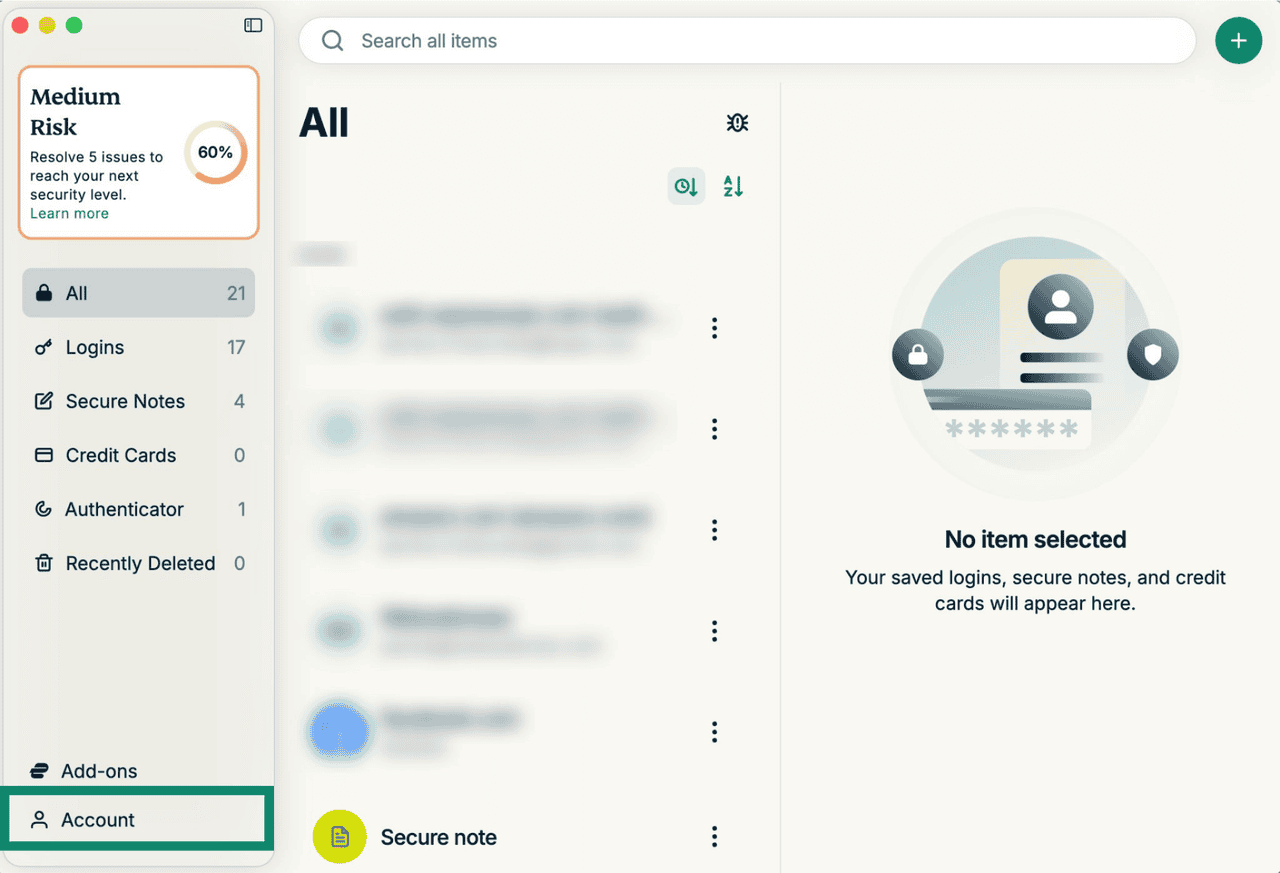
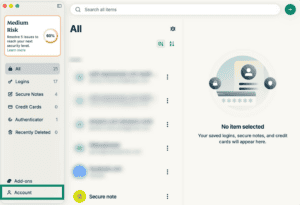
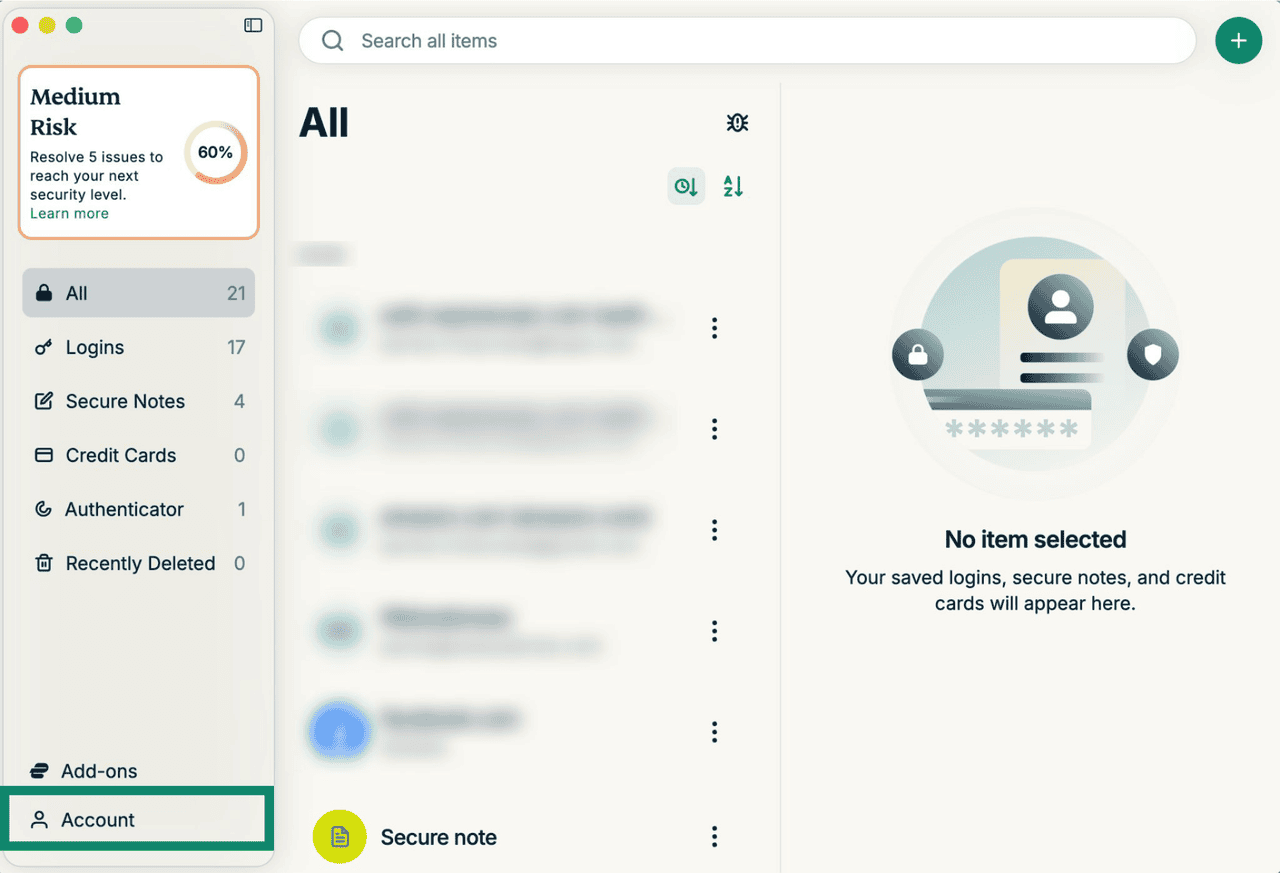
- In the app, select Account.

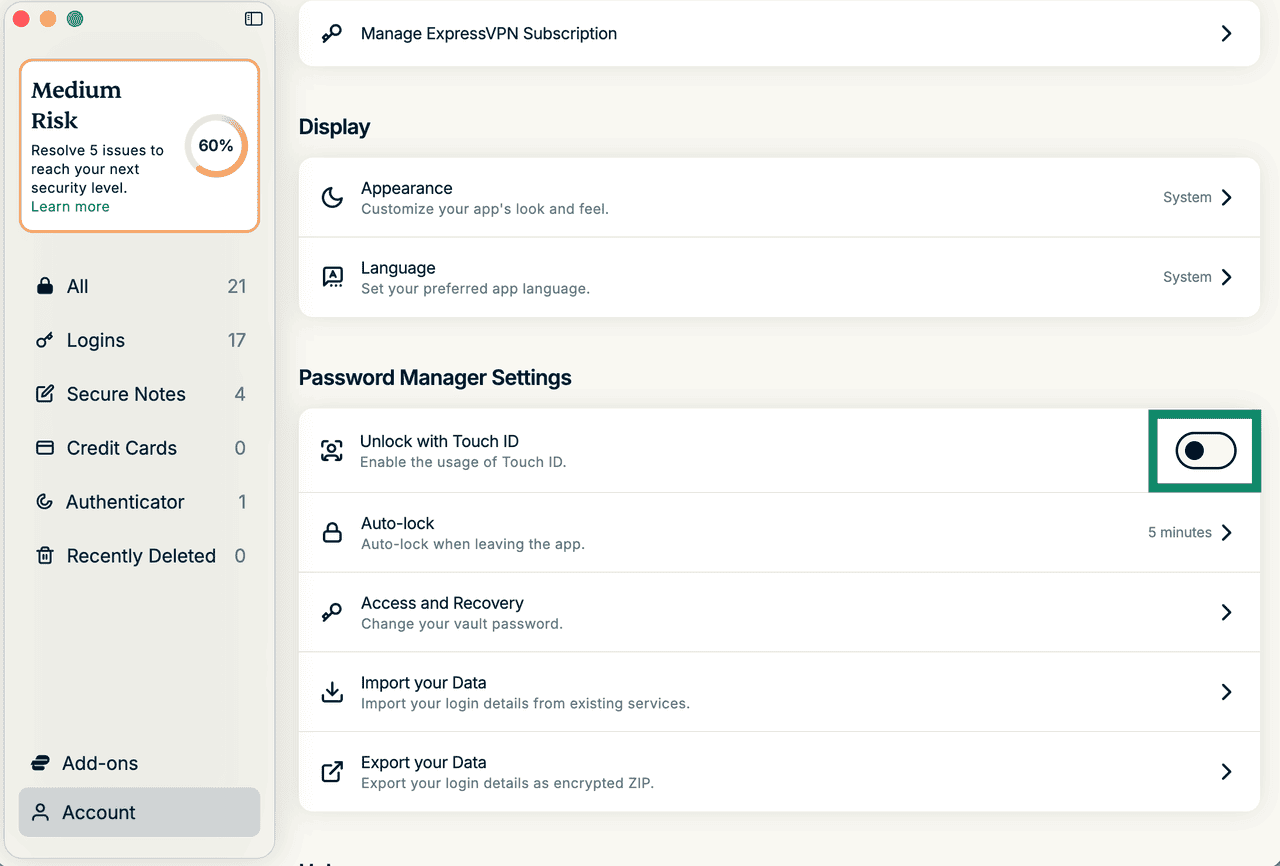
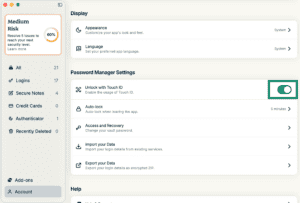
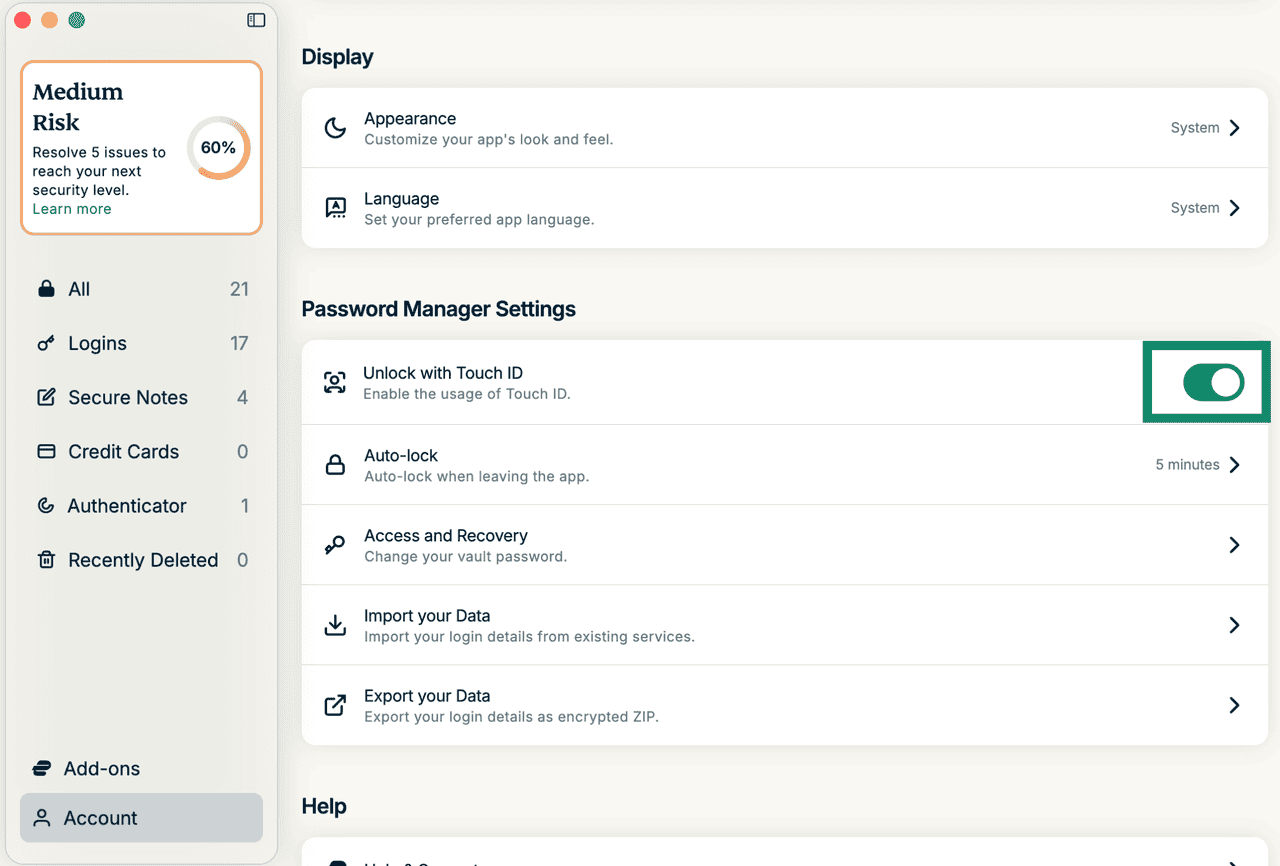
- Under Password Manager Settings, toggle the switch on next to Unlock with Touch ID.
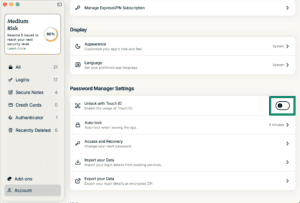

- Enter your vault password in the empty field and select Enable Touch ID.

Use biometrics
After you enable biometrics in the ExpressKeys app, it will prompt you to use Touch ID every time you need to unlock it.
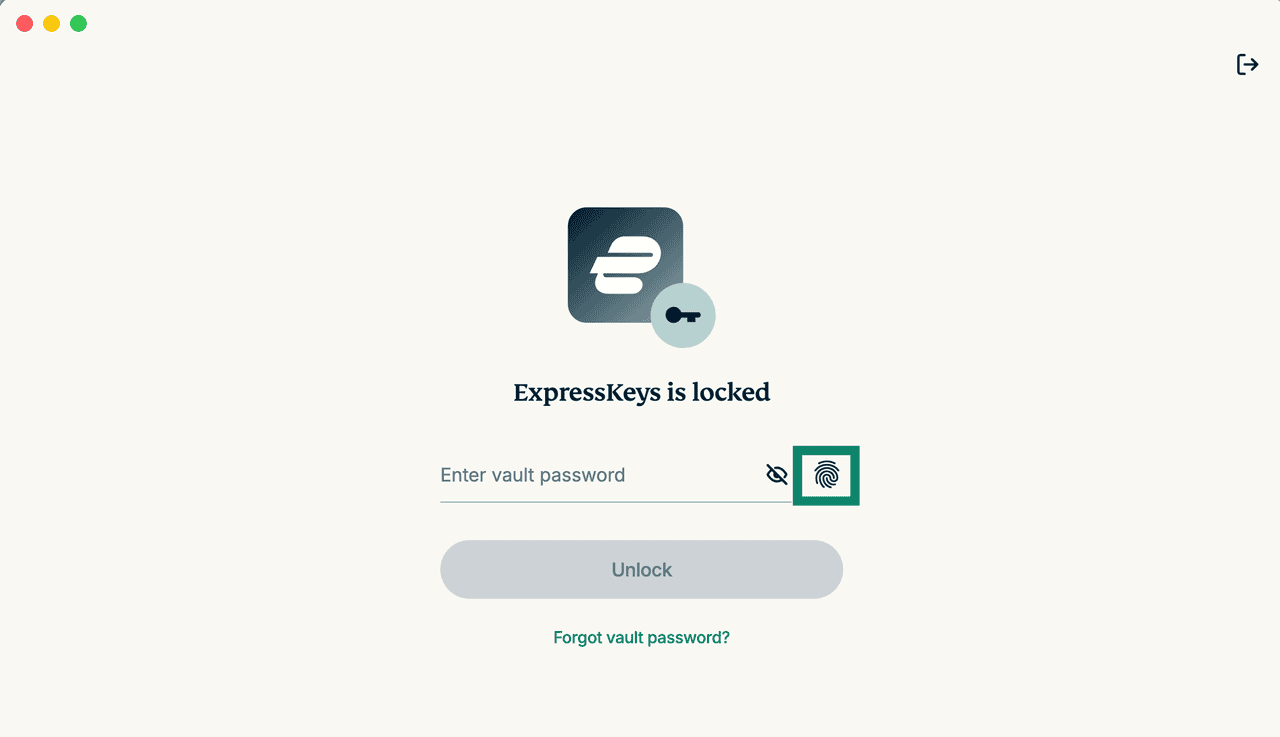
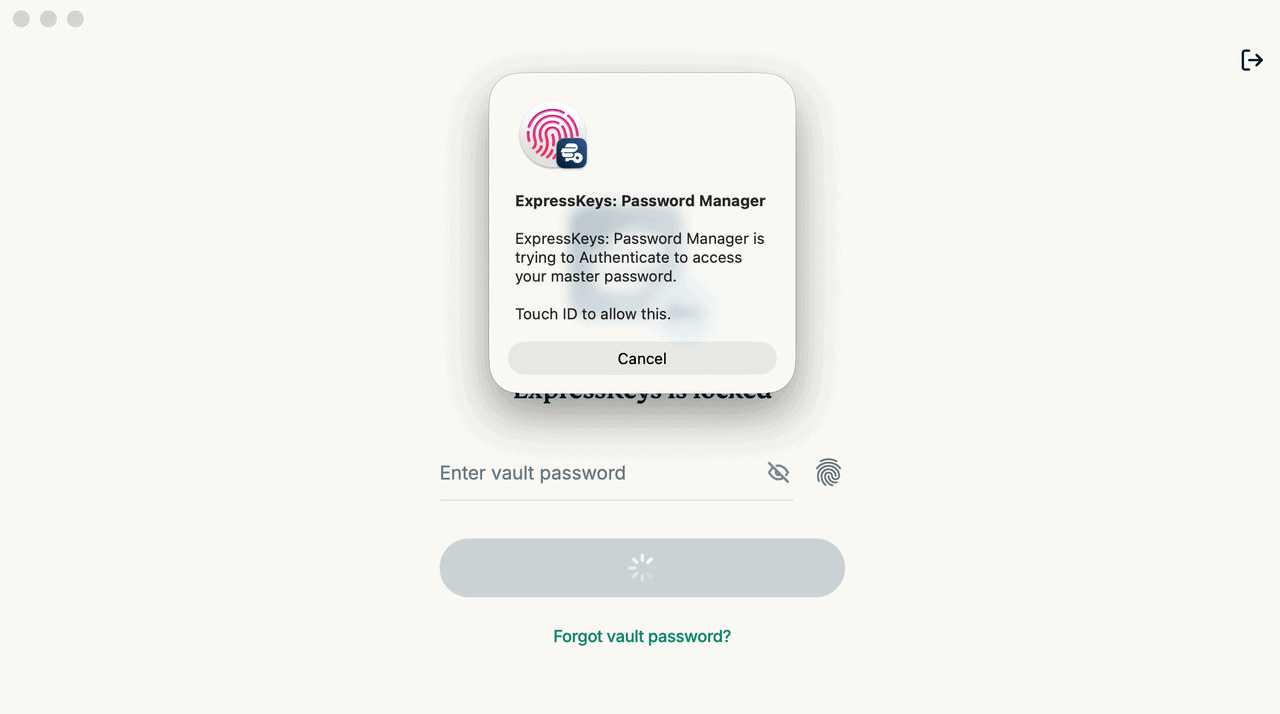 If you click Cancel by mistake or biometric authentication does not start, you will see the screen to log into the app with your vault password. You can tap the biometric icon next to the vault password field to manually trigger biometric authentication.
Note: The ExpressKeys app for macOS does not yet support autofill. To use autofill, you can install the ExpressKeys browser extension.
Disable biometrics
- In the app, select Account.
- Under Password Manager Settings, toggle the switch off next to Unlock with Touch ID.
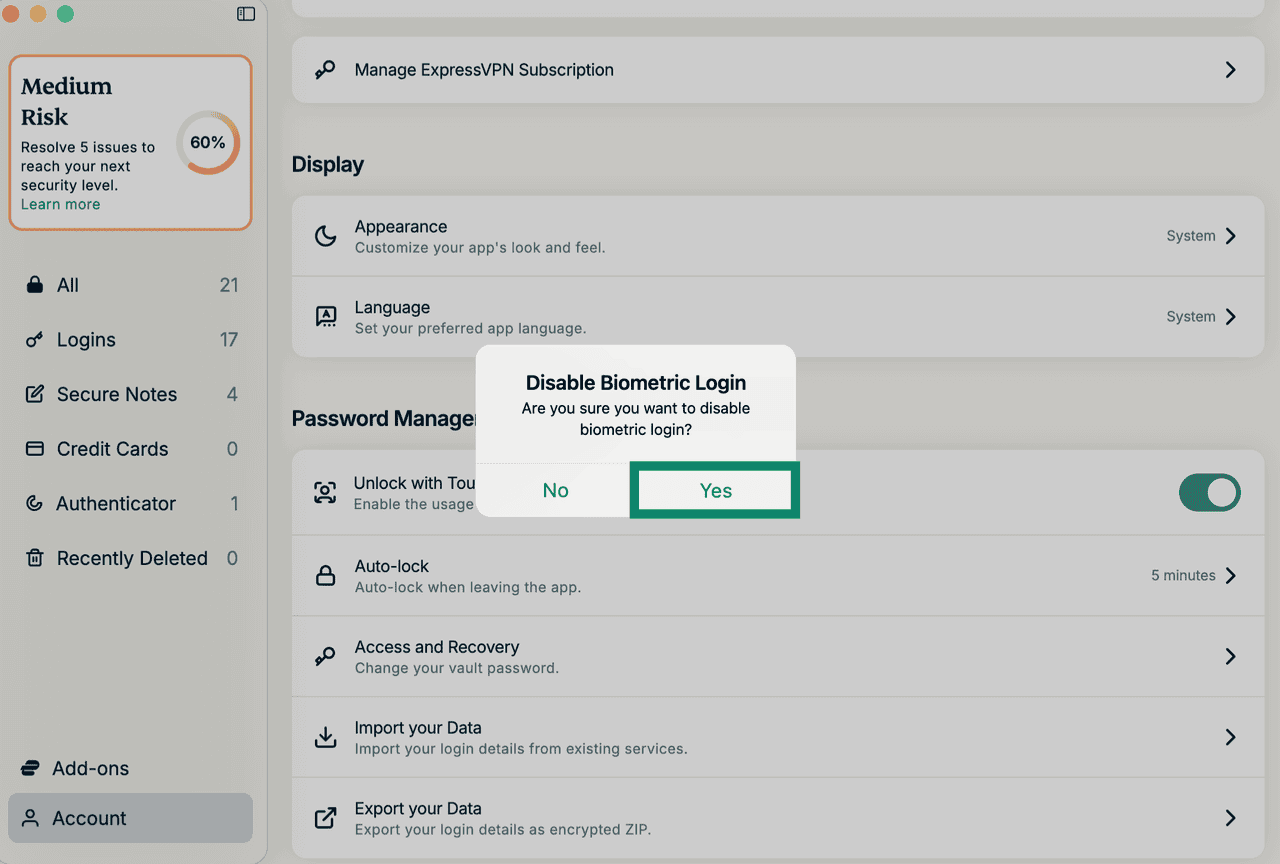
- Select Yes in the pop-up to confirm.

Need help? Contact the ExpressVPN Support Team for immediate assistance.