






You can share saved logins, credit or debit cards, secure notes, and file attachments with other people from your ExpressKeys vault. Recipients do not need an ExpressVPN subscription or to have ExpressKeys installed on their devices to receive these items. However, they will have to verify their email addresses to access shared items.
When you share ExpressKeys items, you can customize how long the item remains viewable, who can access it, and how many times it can be viewed.
Jump to…
How to share items in the ExpressKeys mobile app and extensions
How to share items in the ExpressKeys macOS app
How to view items shared from ExpressKeys
How to share items in the ExpressKeys mobile app and extensions
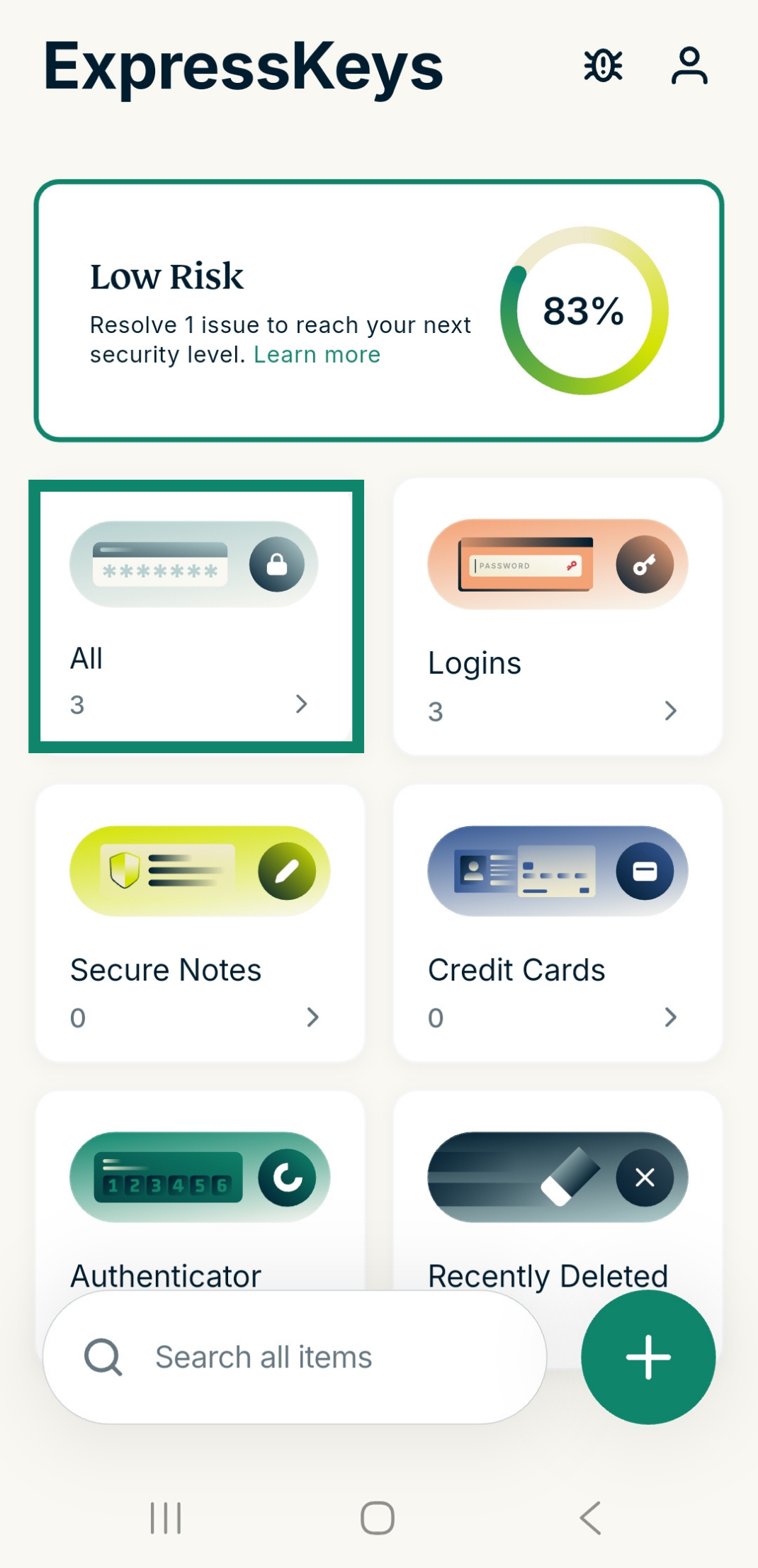
- Open and unlock ExpressKeys.
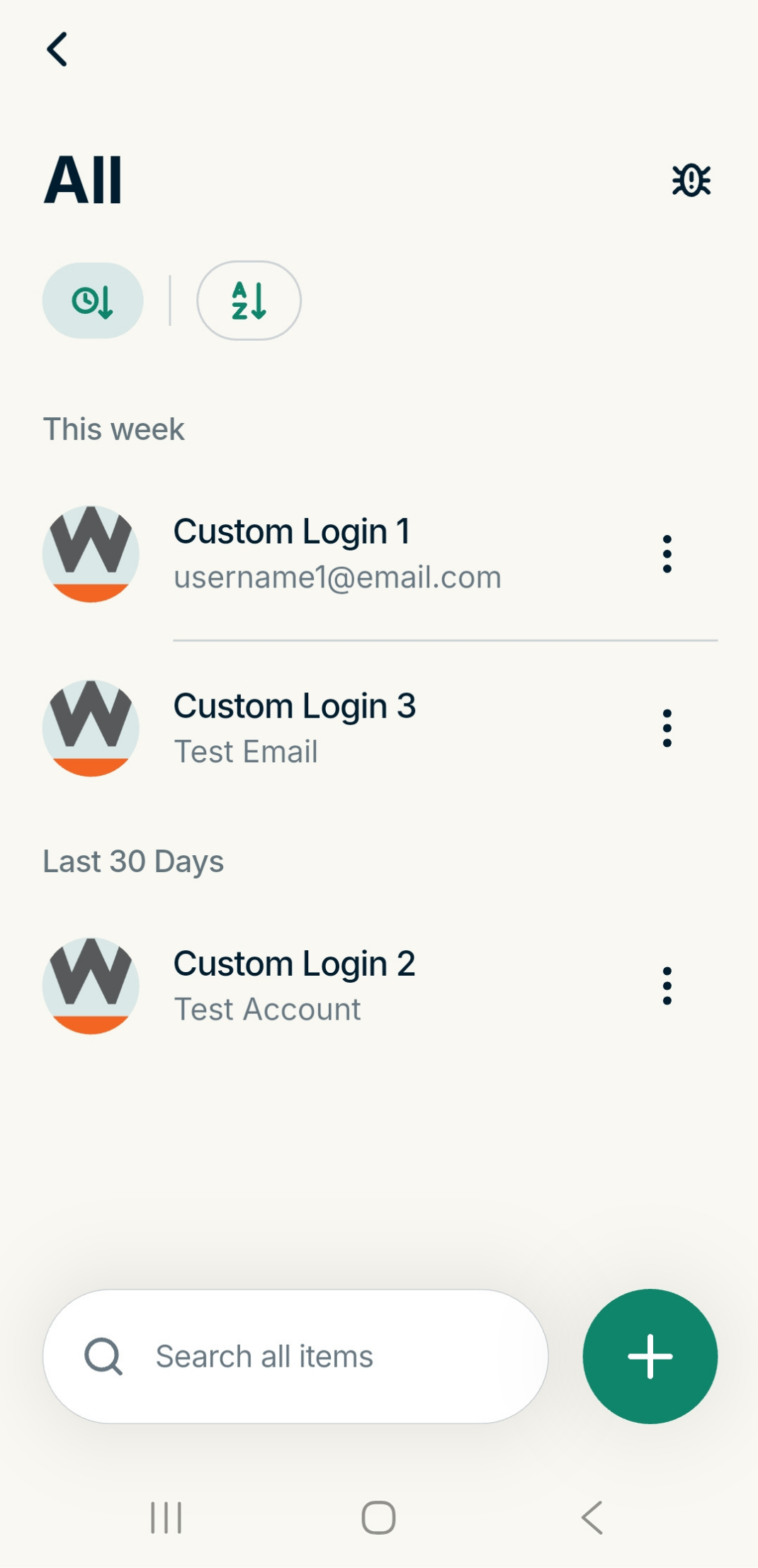
- Select the All widget.


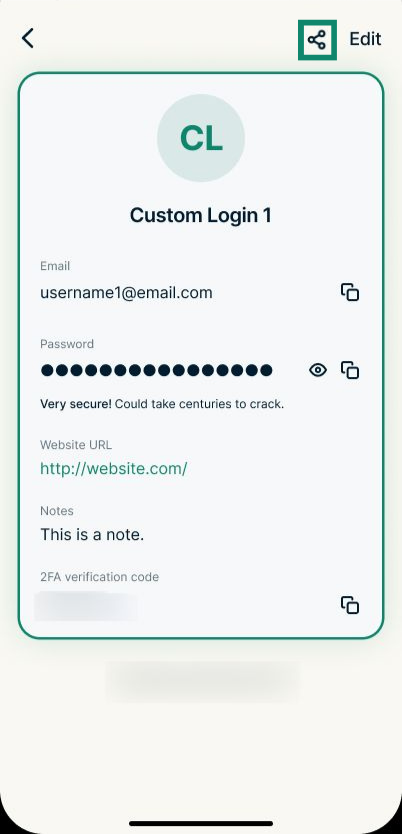
- Select the item you want to share.

- Select the share icon.


- You will now see the item-sharing window.


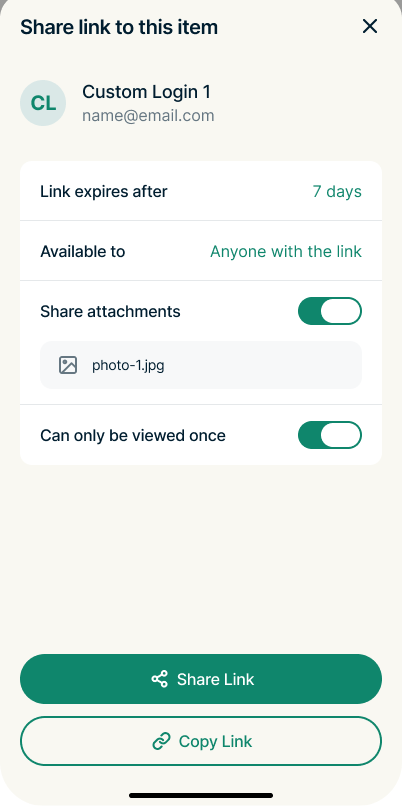
Before sharing an ExpressKeys item, you can customize the following options:
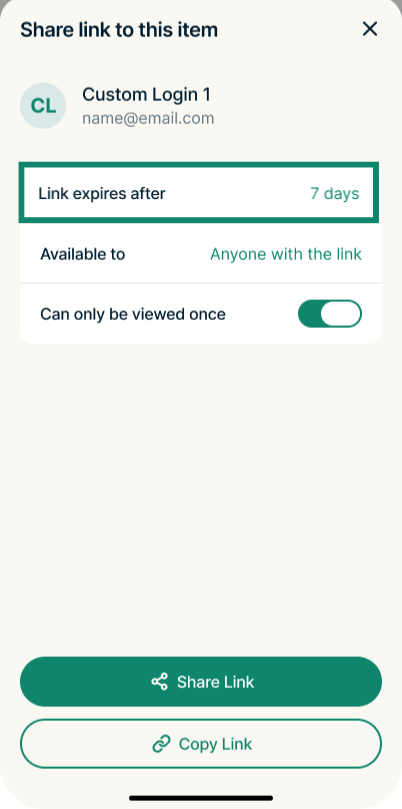
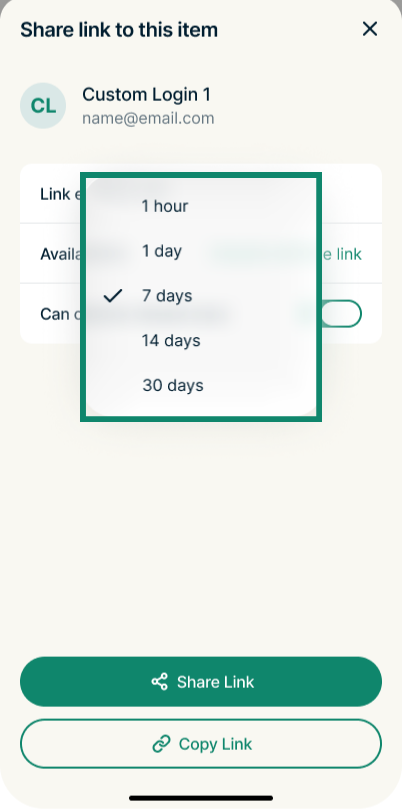
- Link expires after: Determines how long the item link is available for. Options include 1 hour, 1 day, 7 days, 14 days, and 30 days.
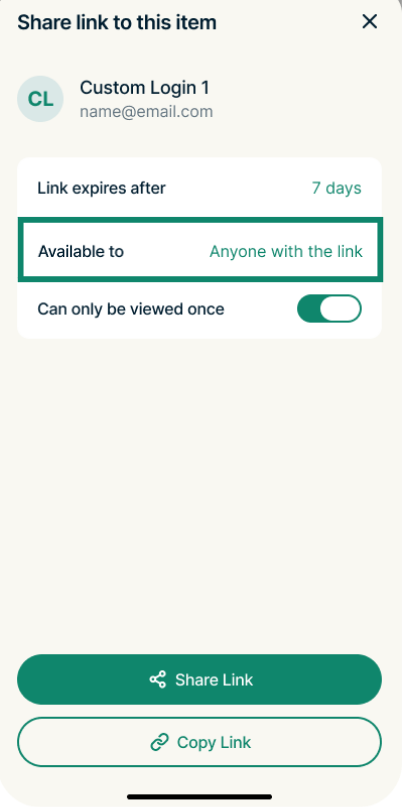
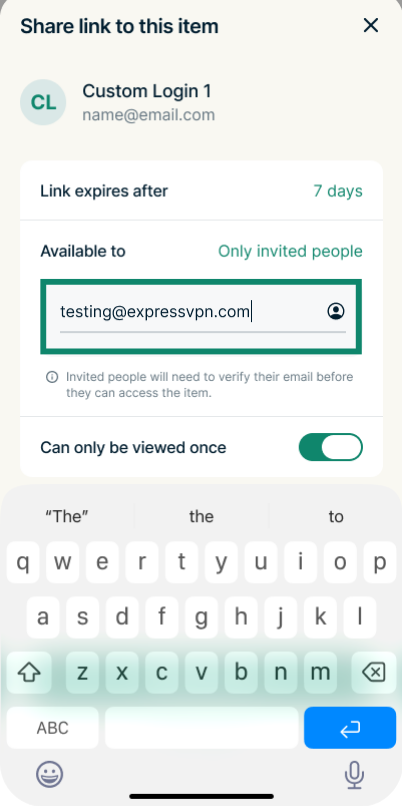
- Available to: Specifies if the ExpressKeys item is available to anyone with the link or only invited people.
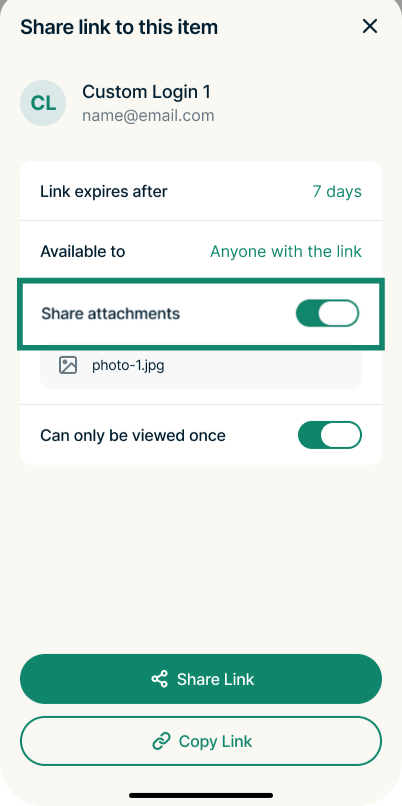
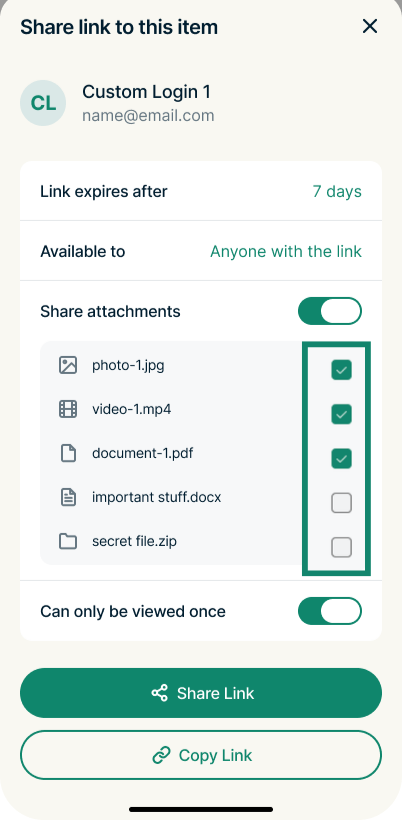
- Share attachments: Determines whether any files attached to the item are included in the shared link and lets you select exactly which files to share.
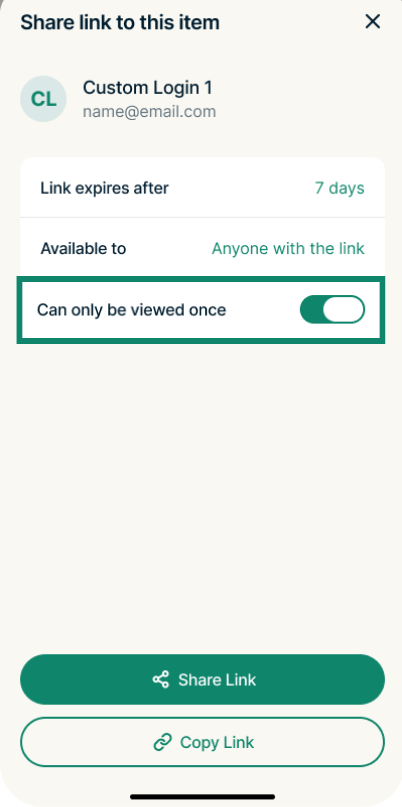
- Can only be viewed once: Determines if the shared item can be viewed once or multiple times.
To modify item-sharing settings
- Select Link expires after.


- Select the desired period. After it expires, the link becomes unavailable.

- Select Available to.

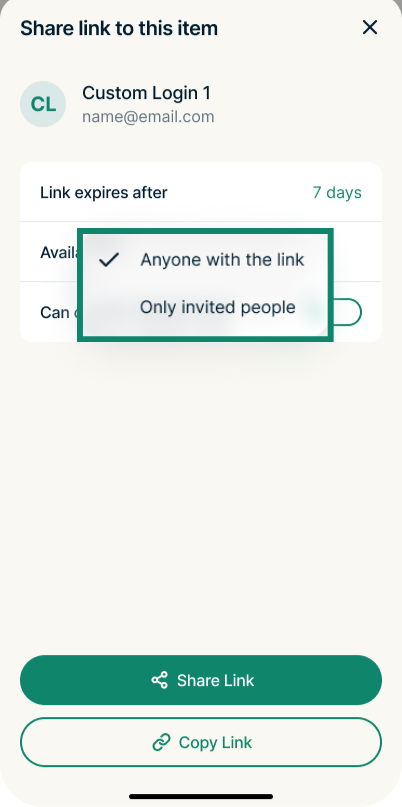
- Here you have two options:
- Anyone with the link: Anyone you share the link with can access the item.
- Only invited people: Only the people you manually add to the recipient list will have access to the item.

- If you choose Only invited people, you can add a recipient to the list by entering their email address.

You can share any attachments added to a vault item:
- Turn on the toggle for Share attachments.

- Select the checkboxes next to the attachments you want to share.


To share an ExpressKeys item
- Select Share Link and choose from the available contacts or services.

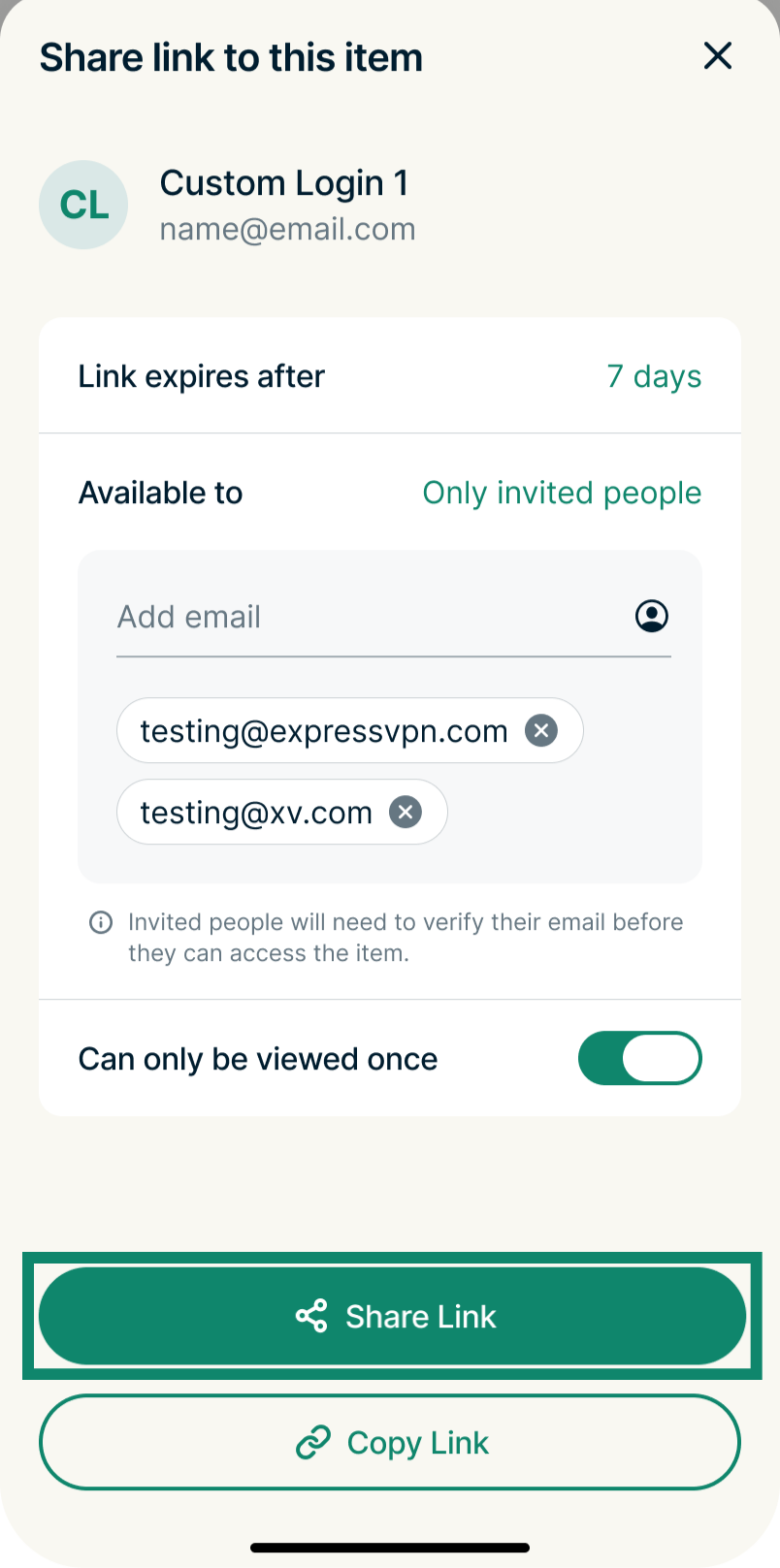
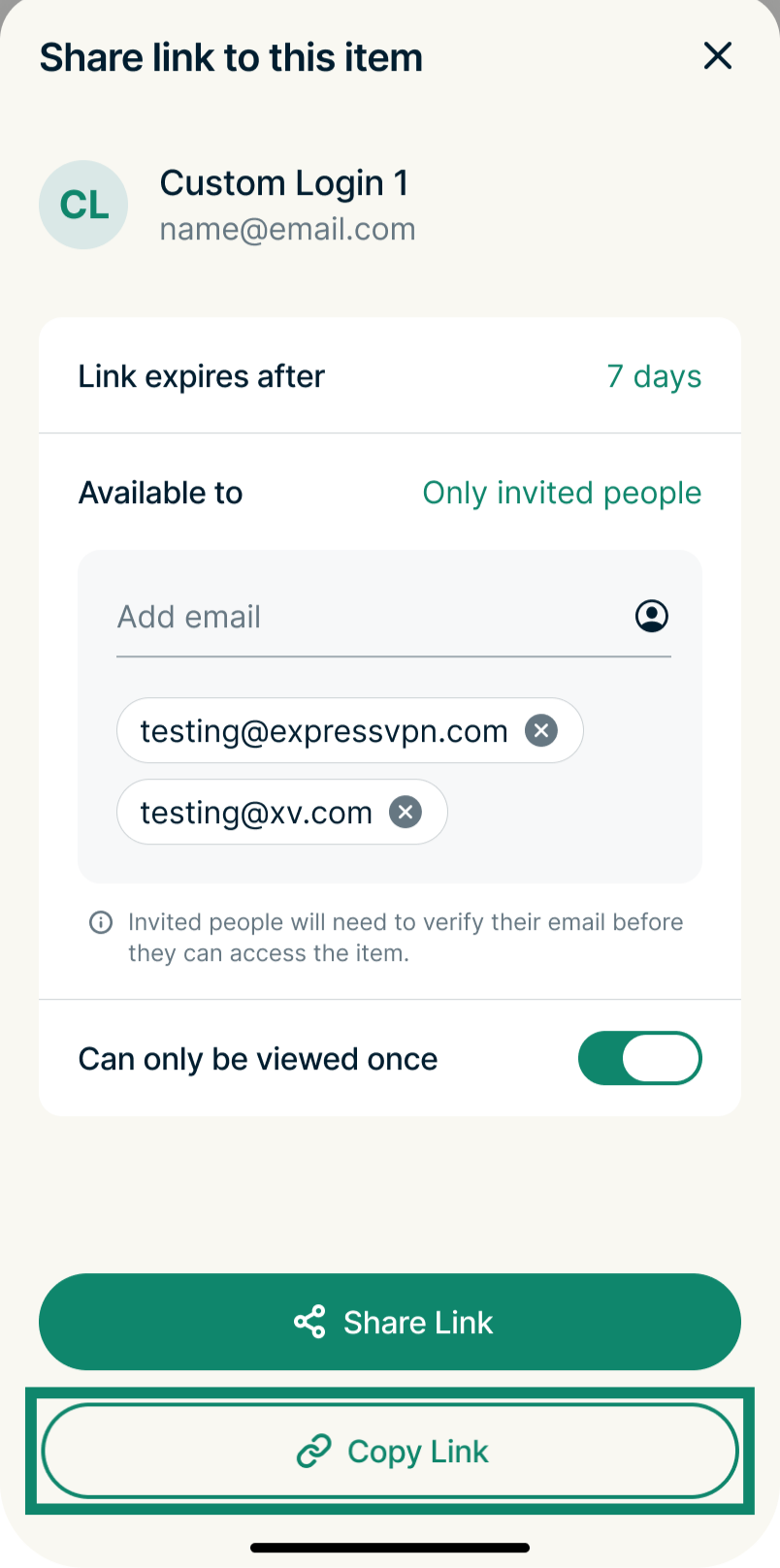
Alternatively, you can copy the link and manually paste it:
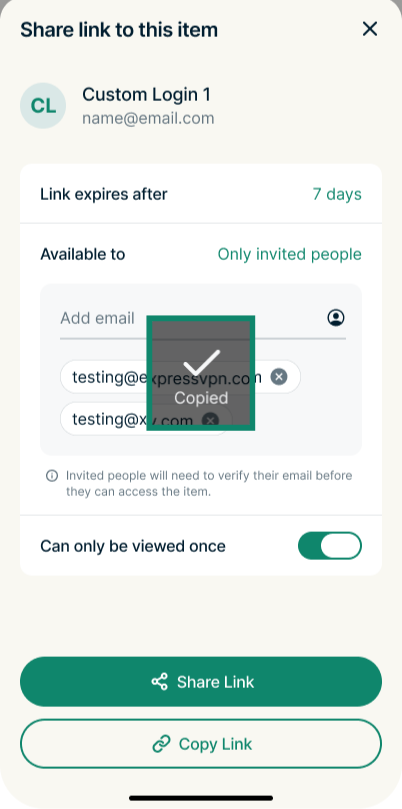
- Select Copy Link.

- You will see a popup message saying Copied. You can now paste the link in your desired app, service, or document.

Need help? Contact the ExpressVPN Support Team for immediate assistance.
How to share items in the ExpressKeys macOS app
To share an item:
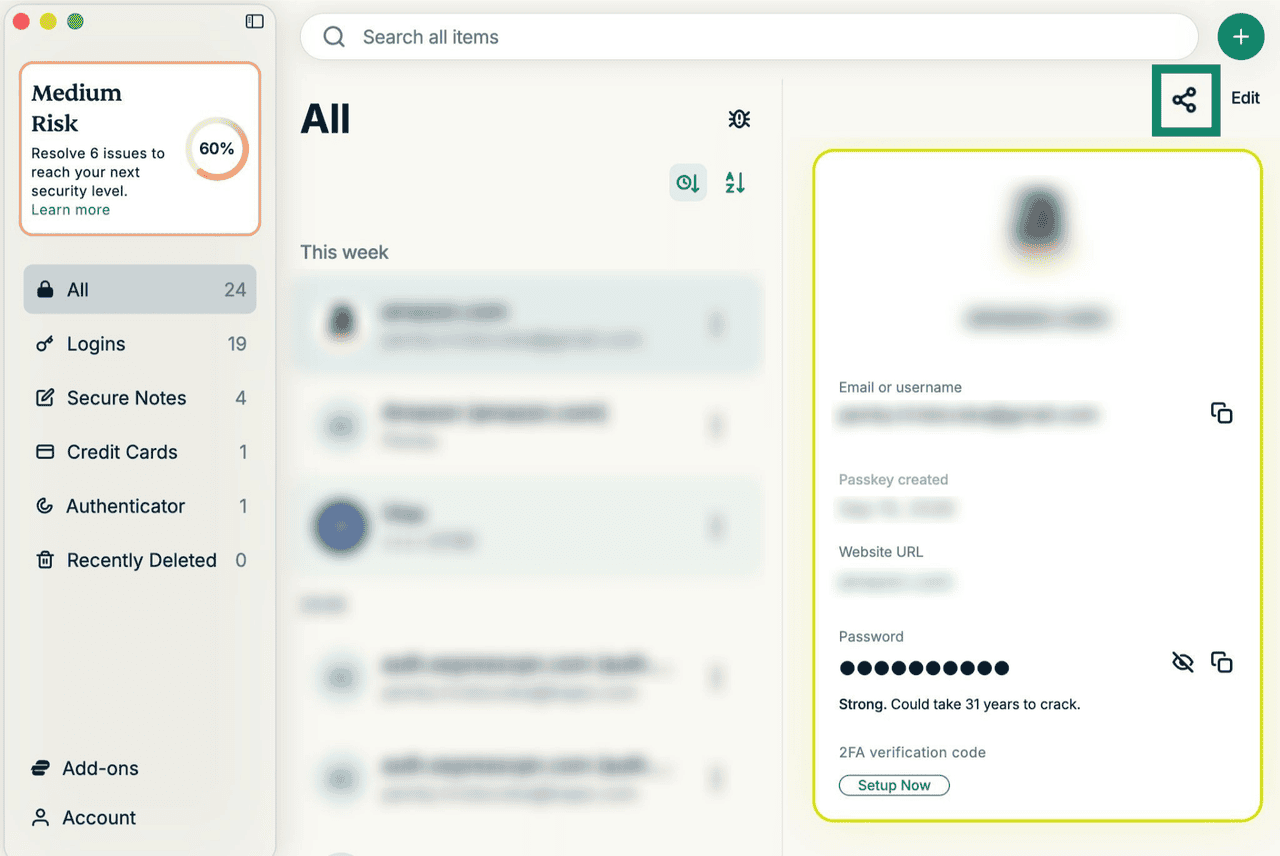
- In the All tab, select the item you want to share.


- Click the share icon.


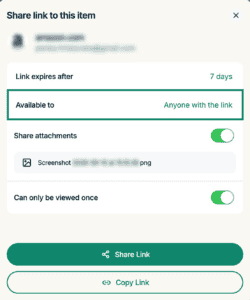
- You will now see the item-sharing window.


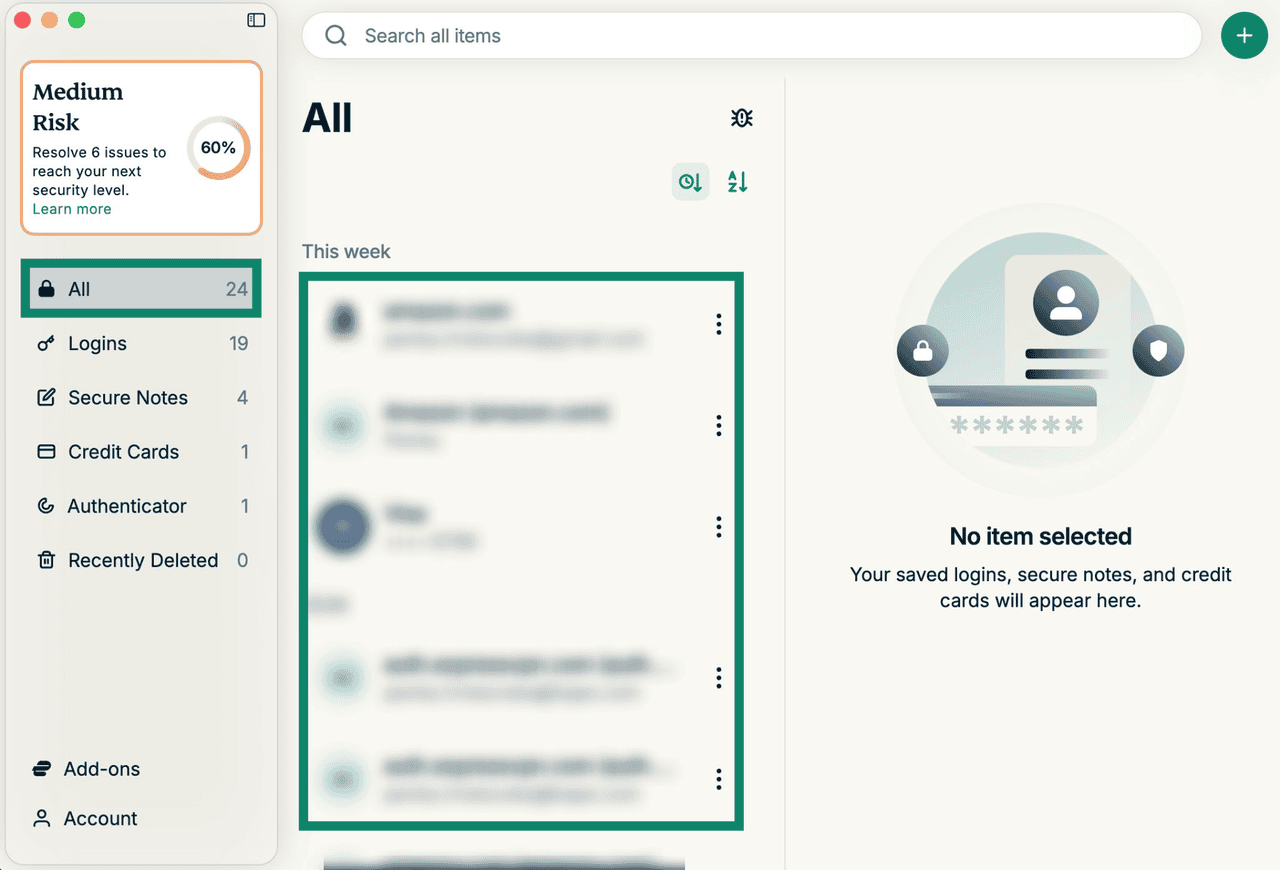
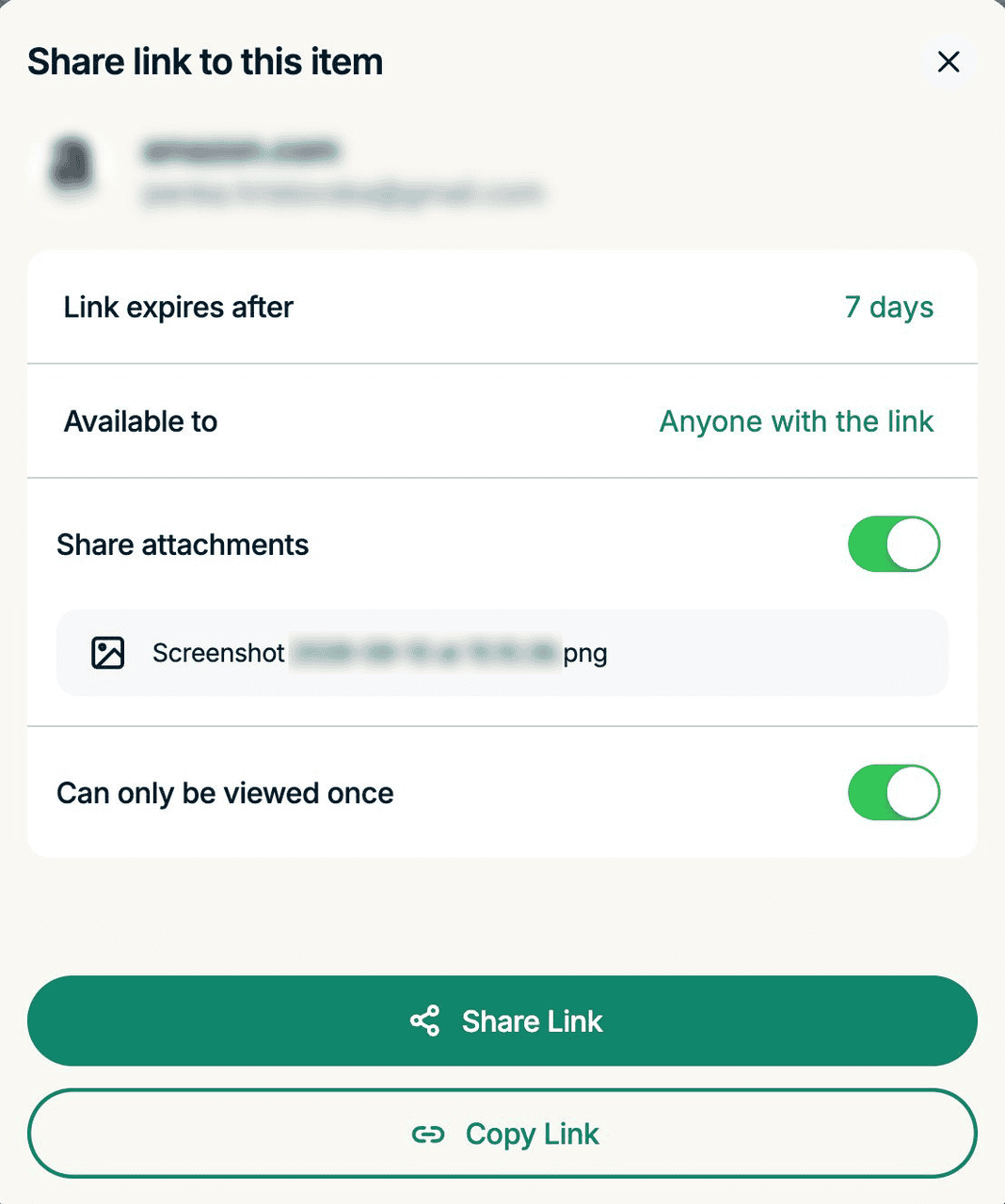
Before sharing an item, you can modify the following:
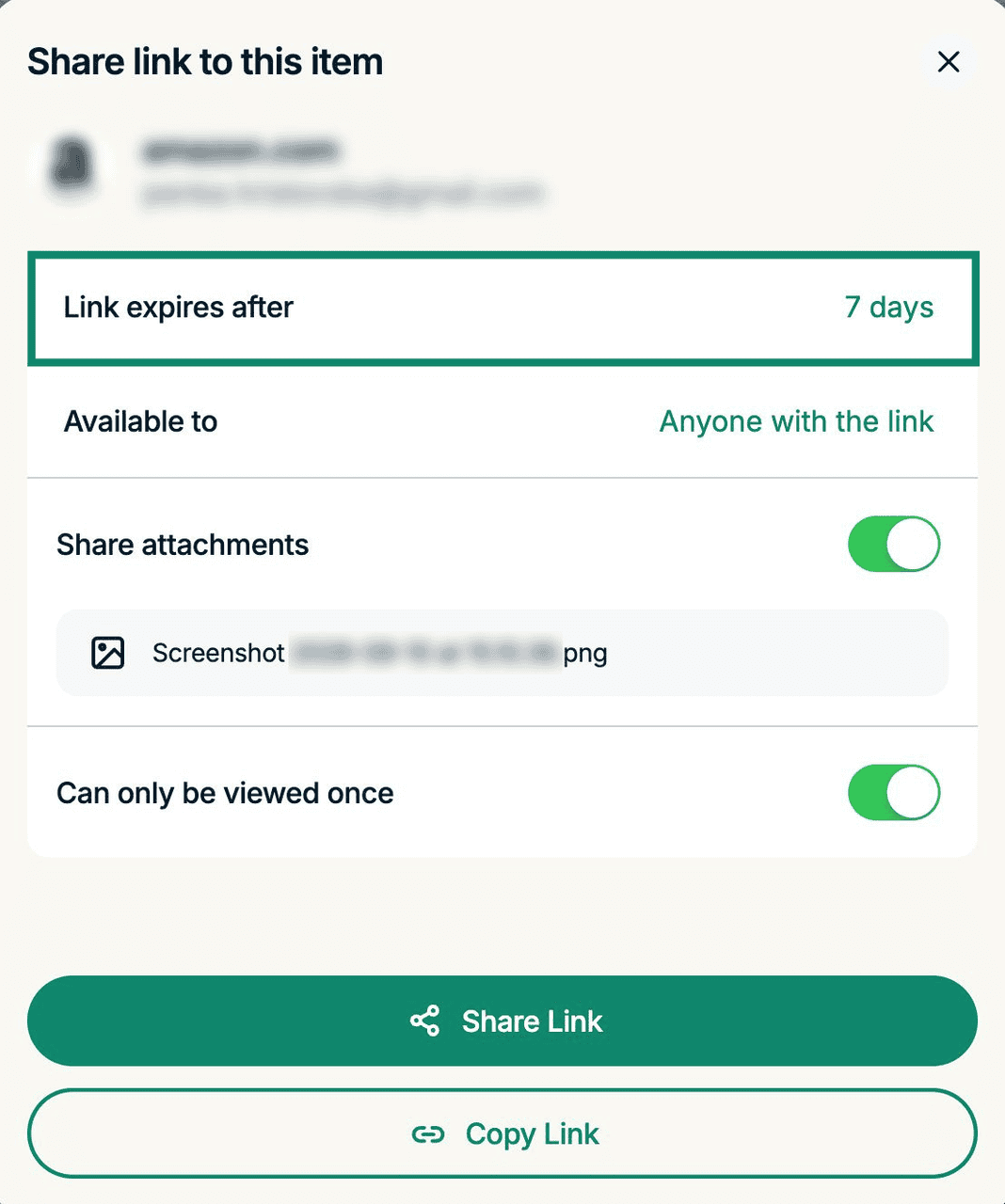
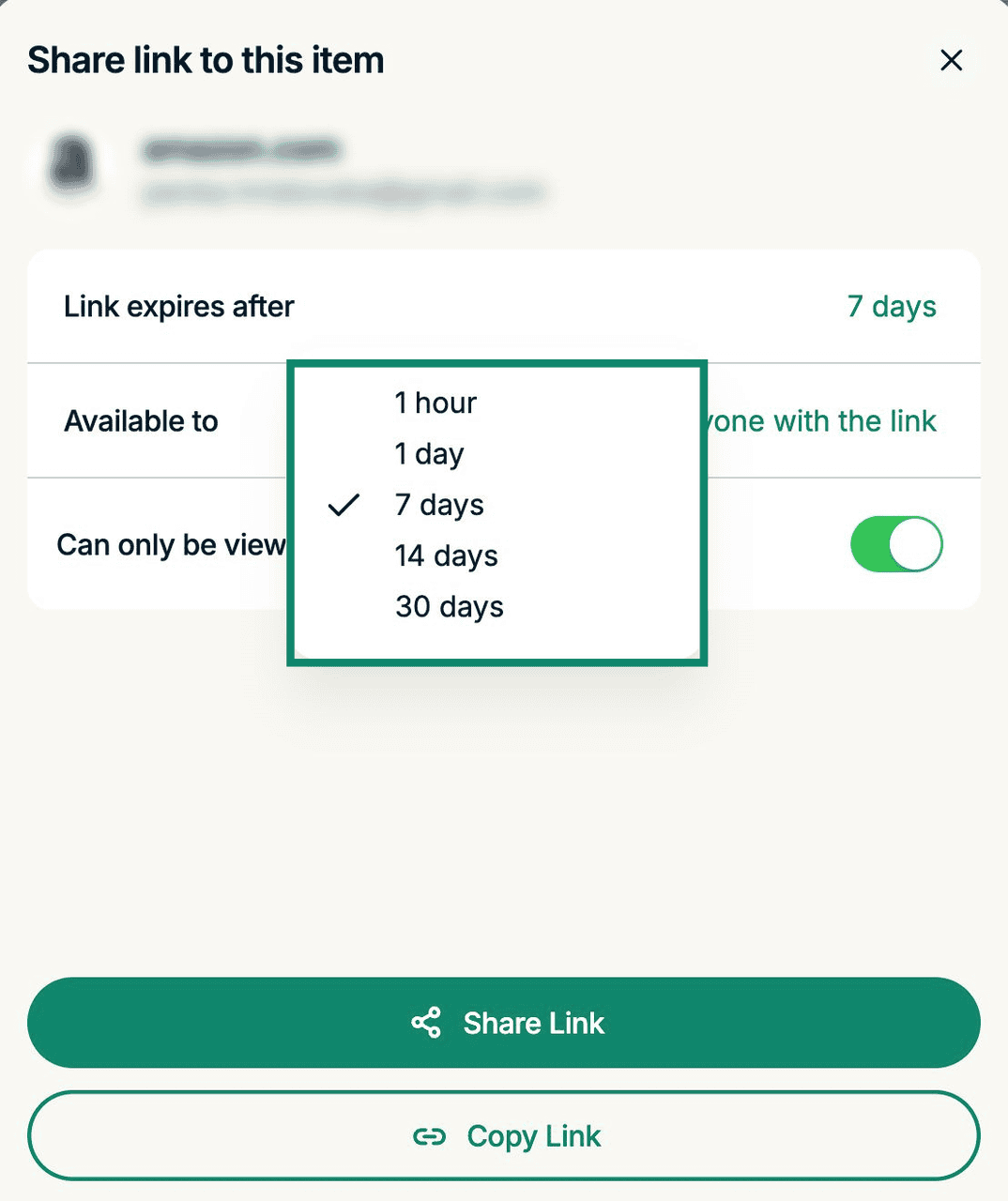
- Link expires after: Determines how long the item link is available for. Options include 1 hour, 1 day, 7 days, 14 days, and 30 days.
- Available to: Specifies if the item is available to anyone who has the link or only invited people.
- Share attachments: Specifies if an attachment linked to an item is accessible.
- Can only be viewed once: Determines if the shared item can be viewed once or multiple times.
To modify item sharing settings
- Click Link expires after.

- Select the desired period from the dropdown menu.


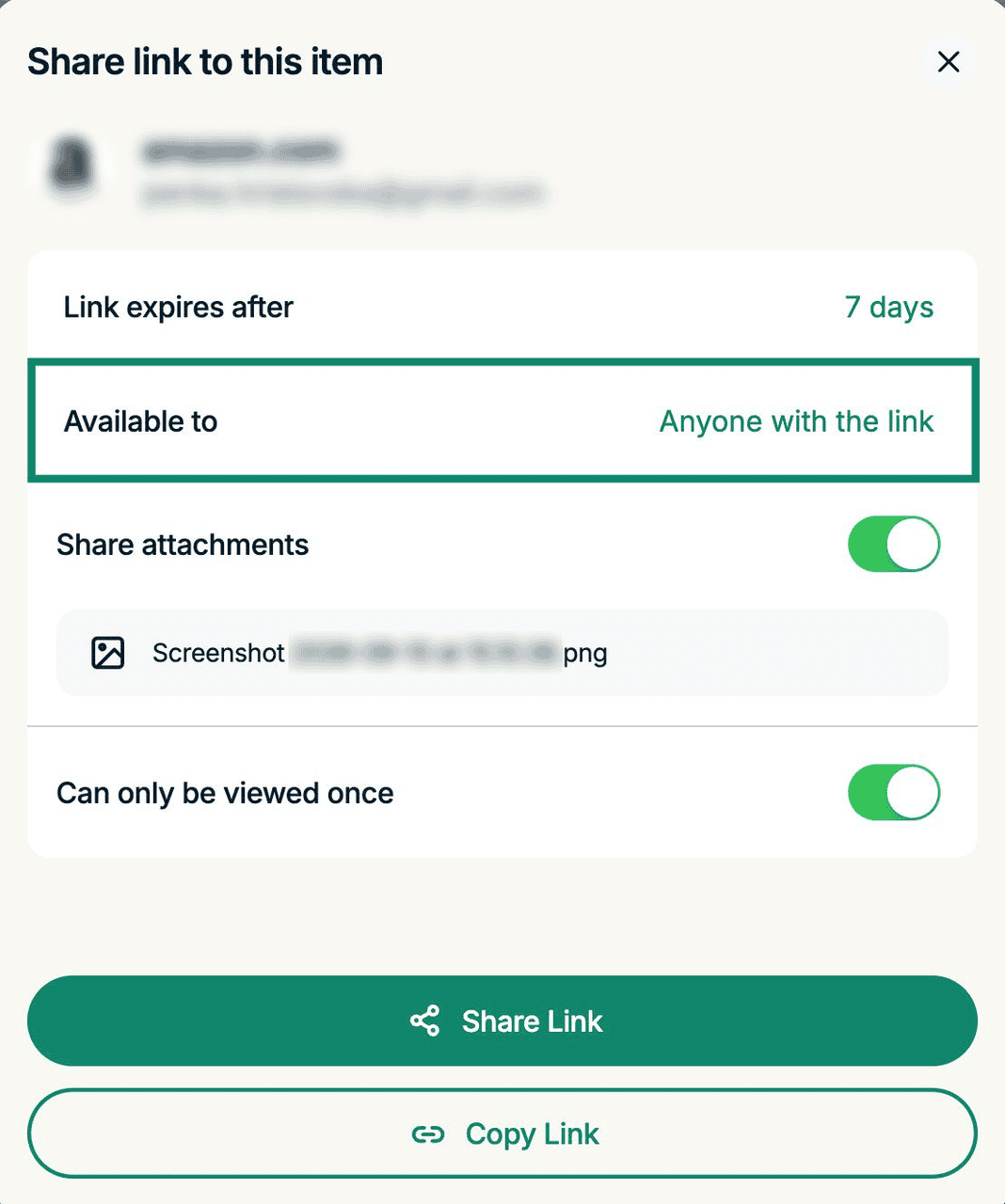
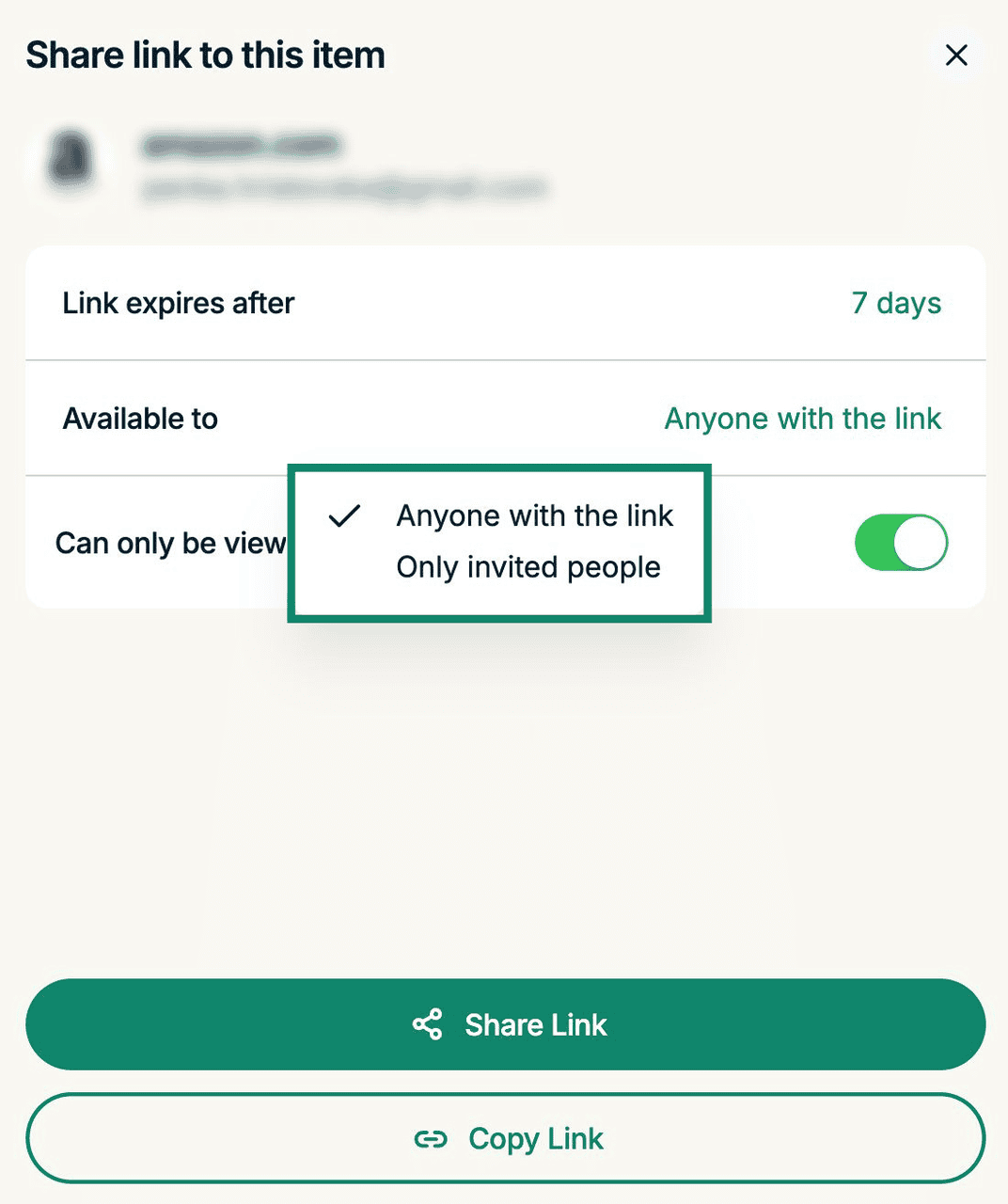
- Click Available to.
- Choose the desired option:
- Anyone with the link: Anyone you share the link with can access the shared item.
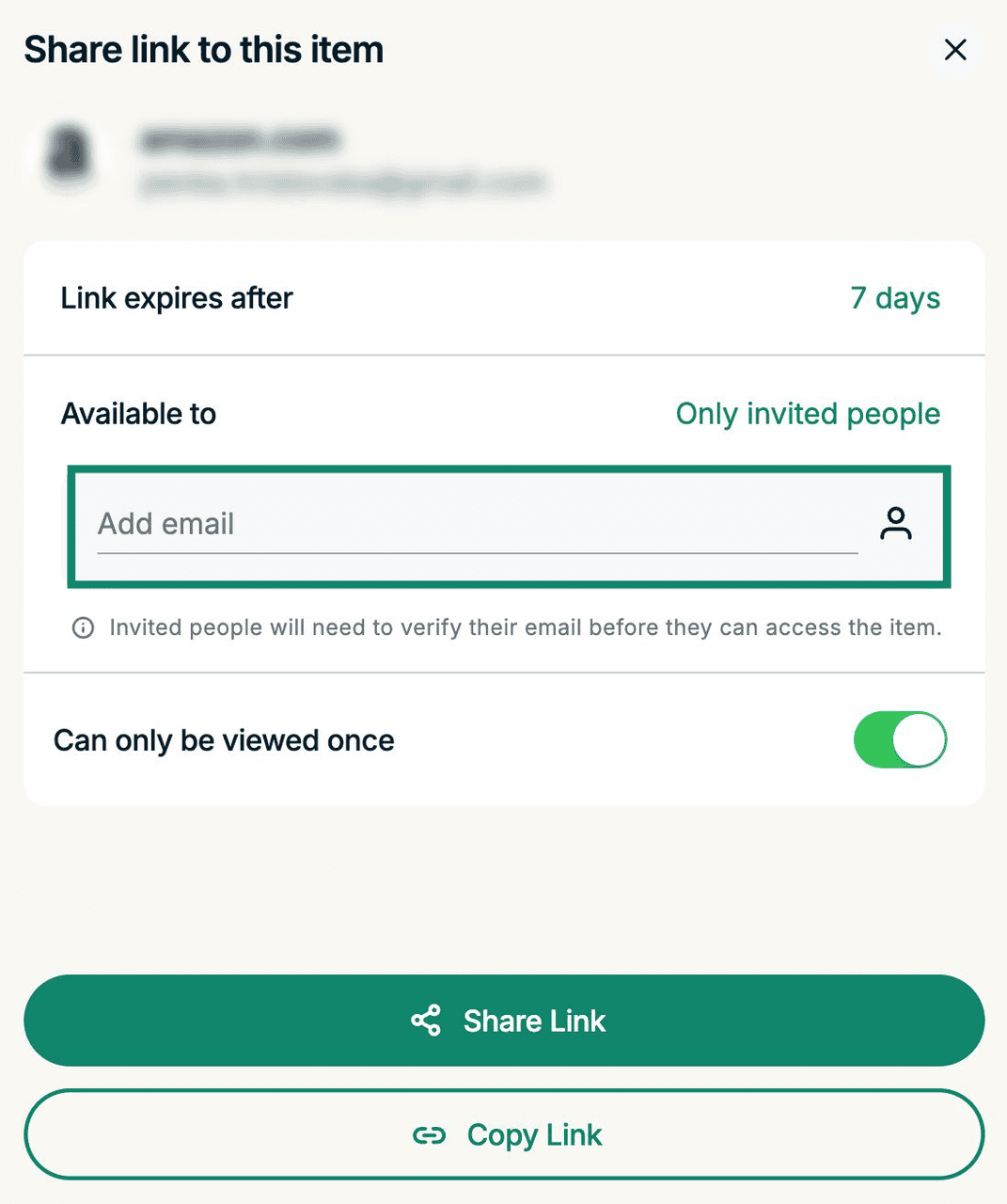
- Only invited people: Only people you manually add to the recipient list will have access to the shared item.


- If you choose Only invited people, you will have to enter a recipient’s email address to add them to the list.

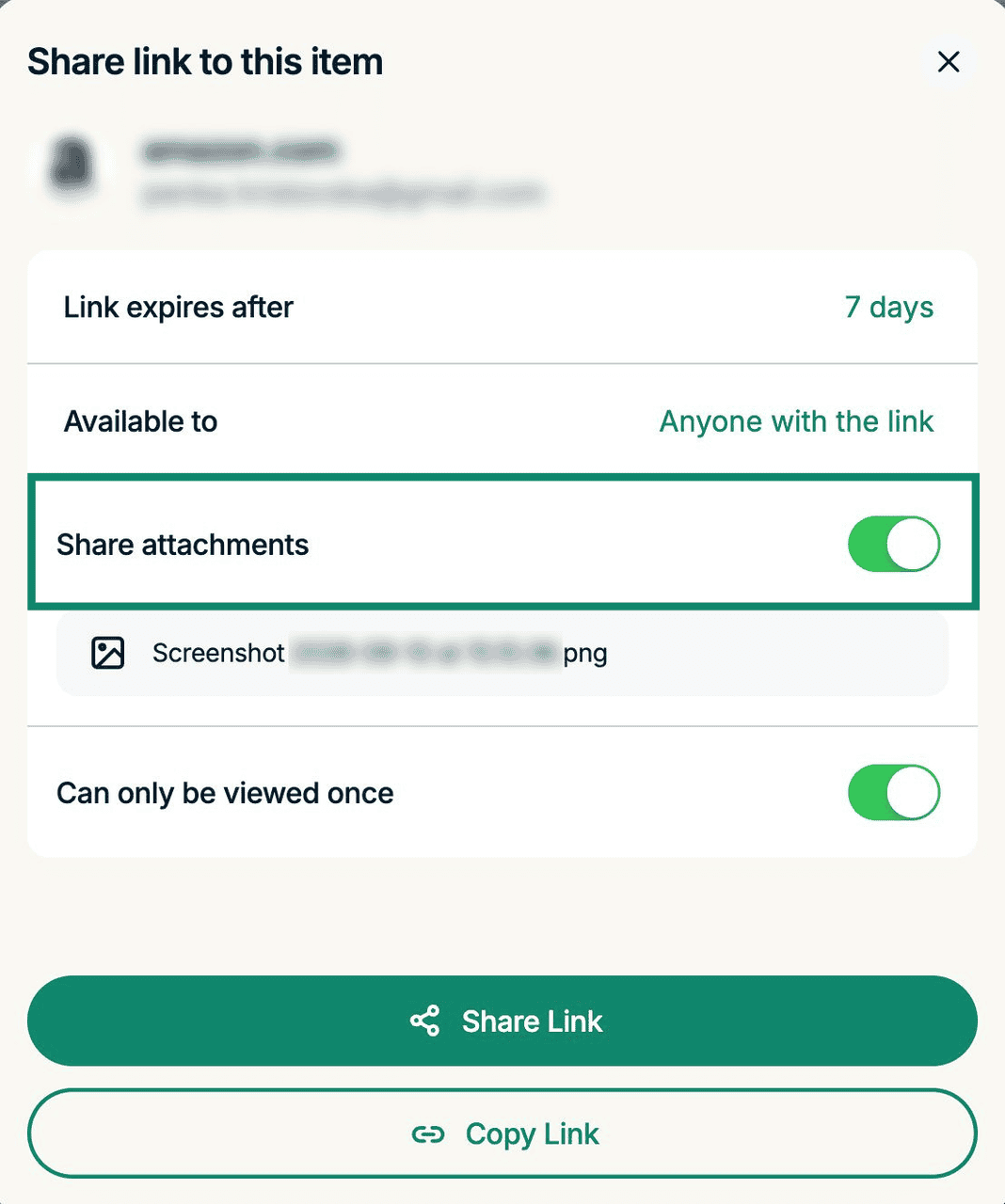
By default, ExpressKeys items you share can only be viewed once. To disable this and allow recipients to view shared items multiple times, toggle Can only be viewed once off.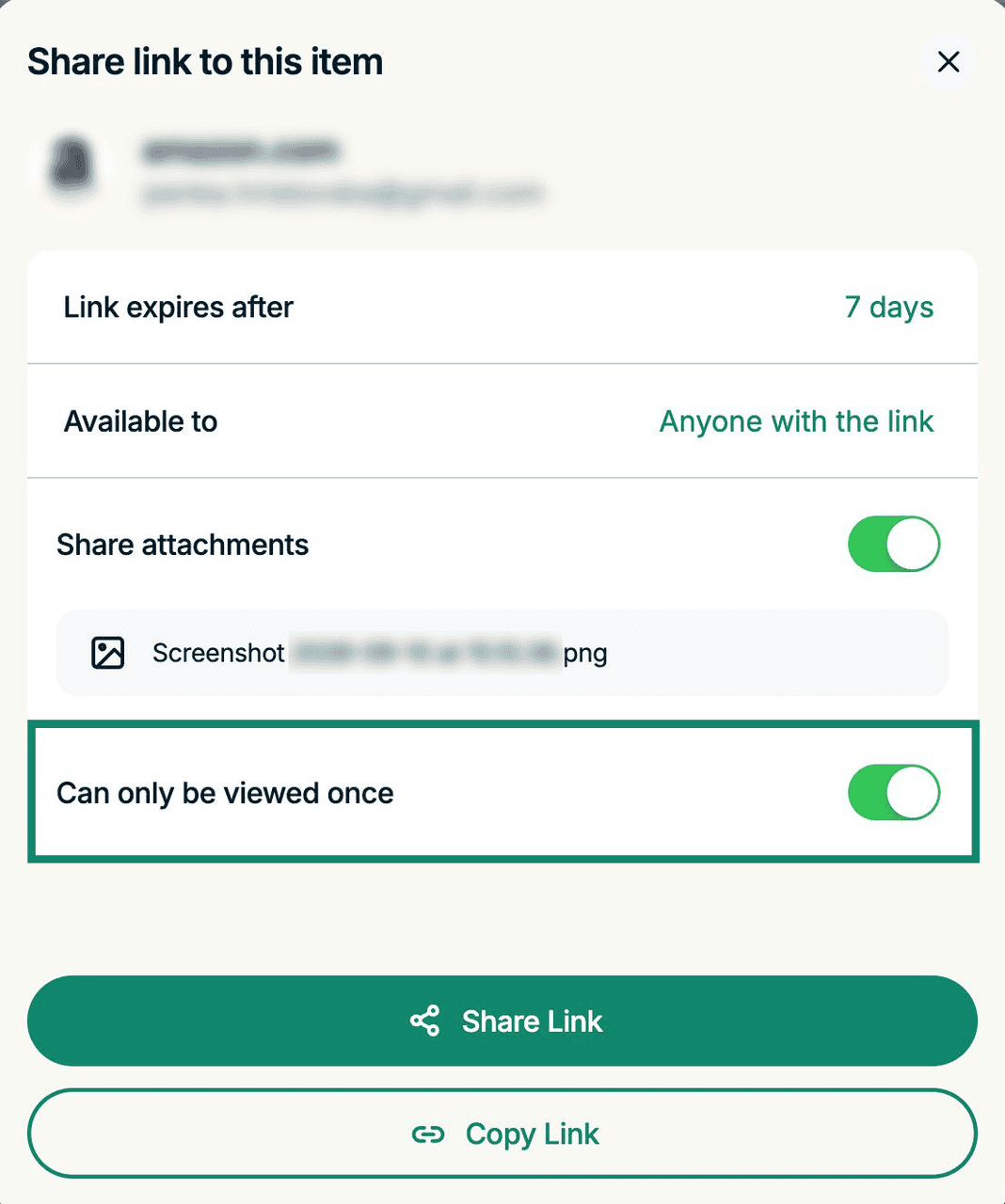
Choose how you share
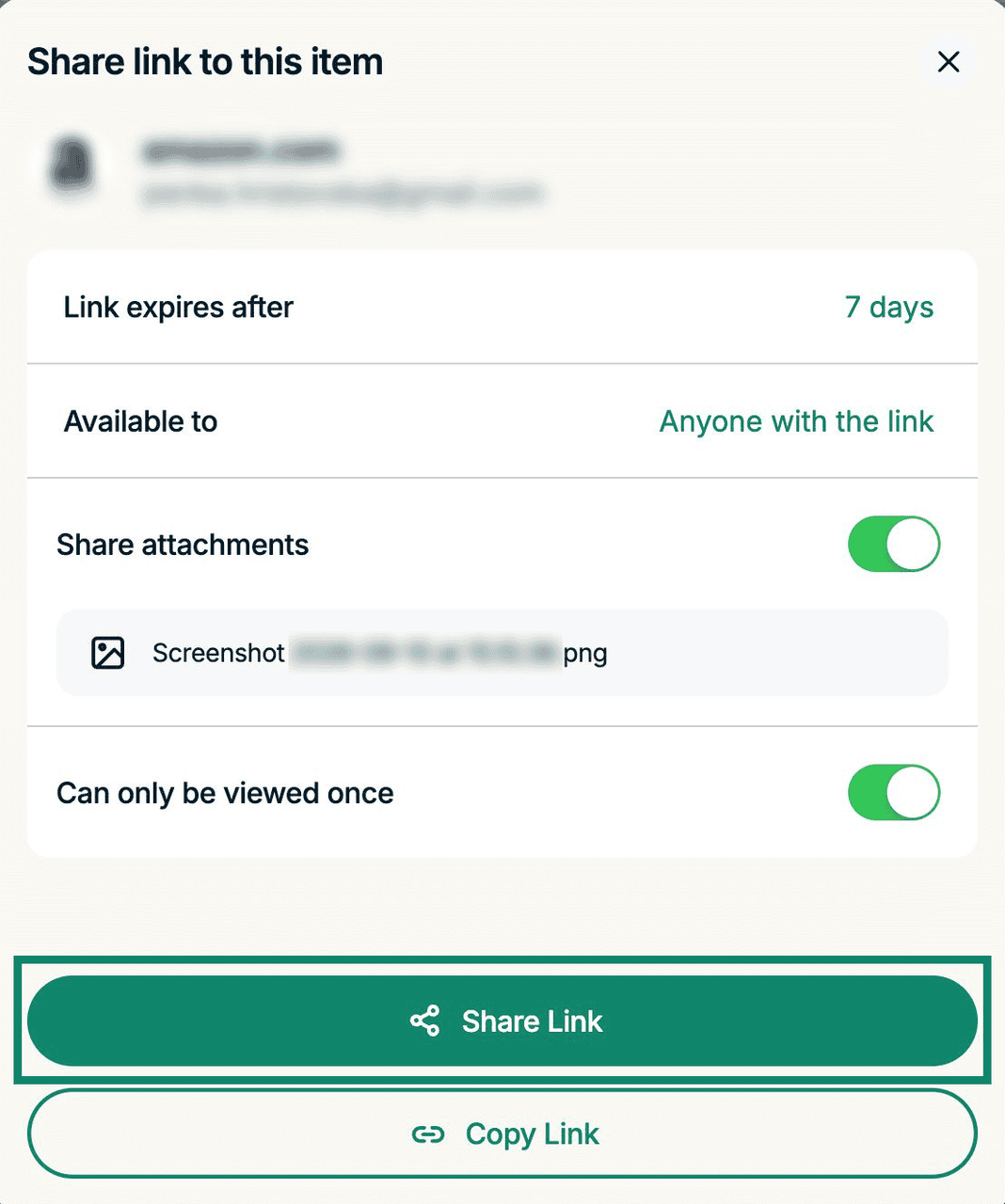
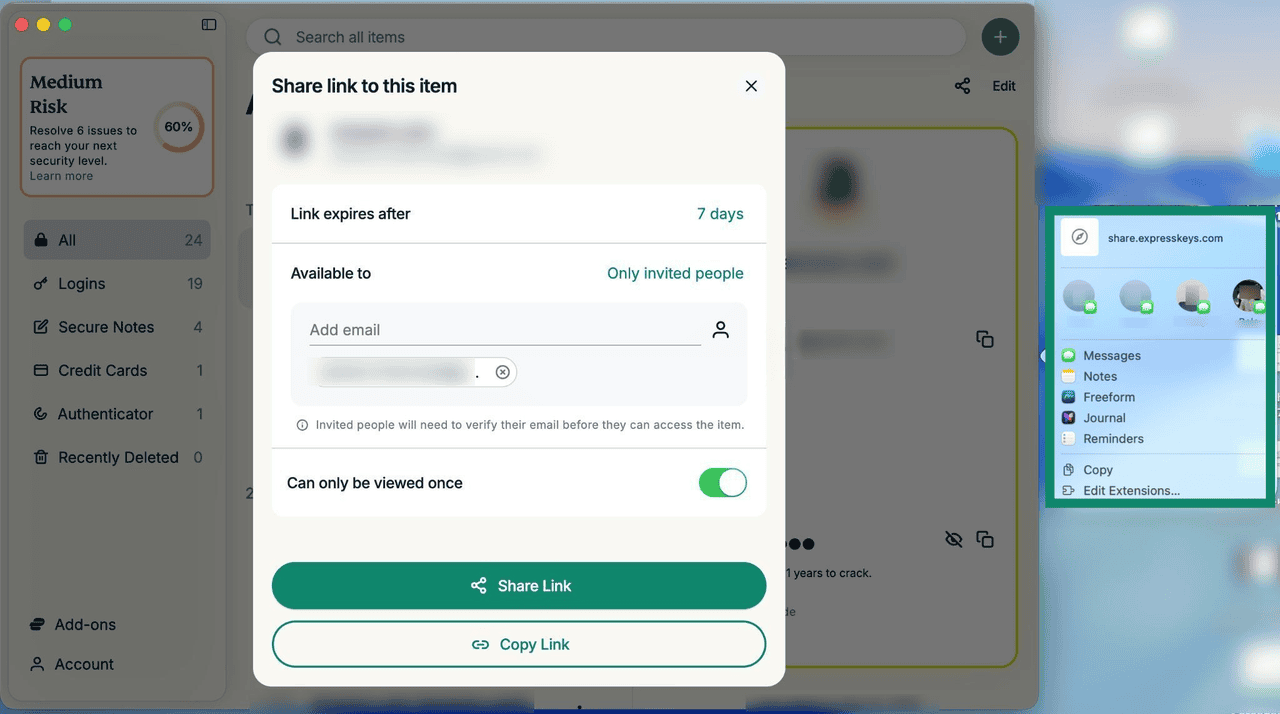
You can share an item using macOS services (like directly attaching the item to a Message or Note), or copy the link to paste manually in any platform you like.
To share using your Mac’s services:
- Click Share Link.
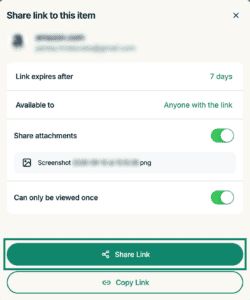
- Choose from the available services.
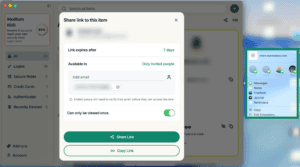

To copy the link and manually share it, click Copy Link and paste the item link in the desired app, service, or document.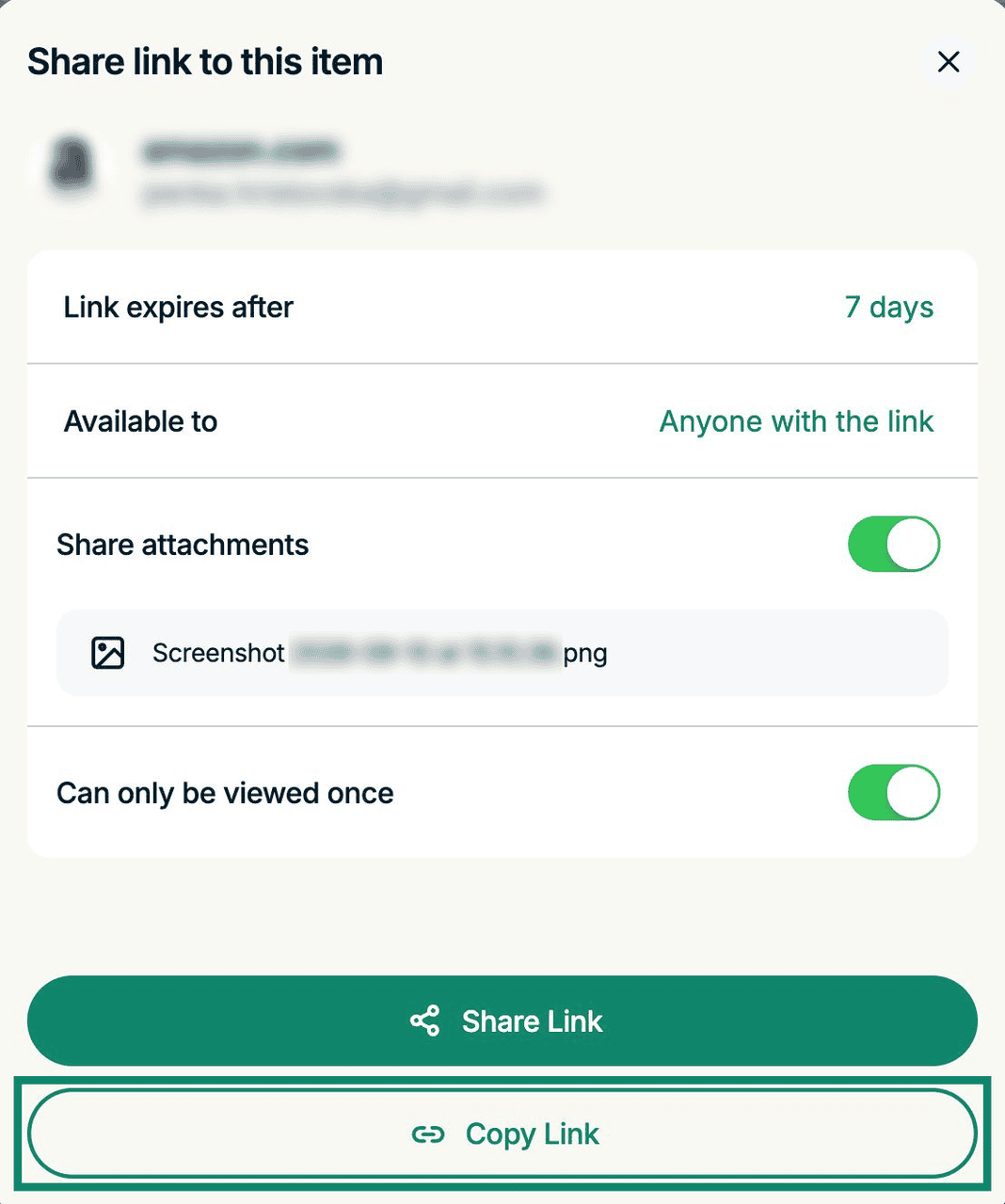
Need help? Contact the ExpressVPN Support Team for immediate assistance.
How to view items shared from ExpressKeys
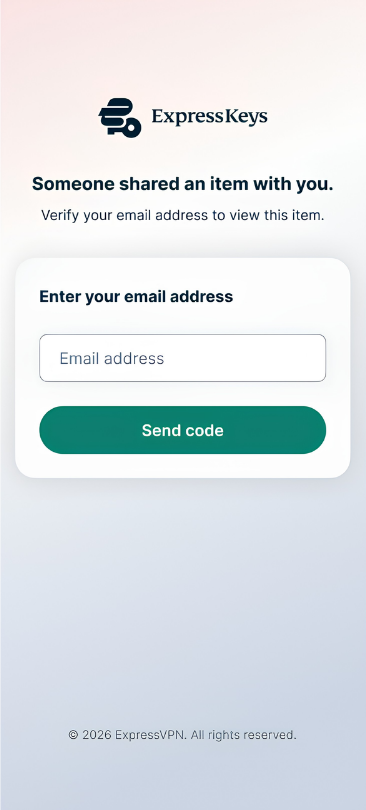
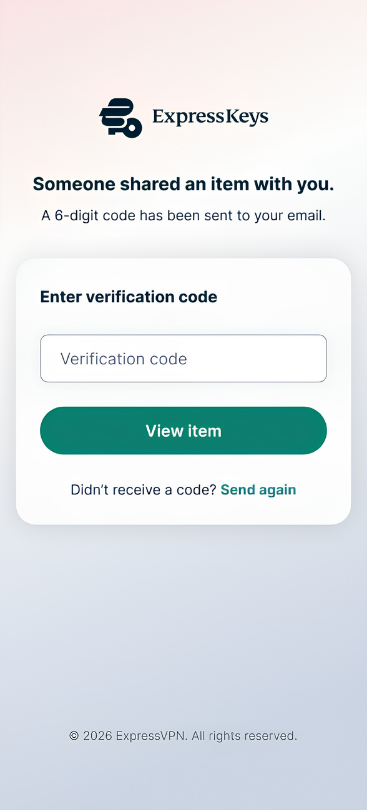
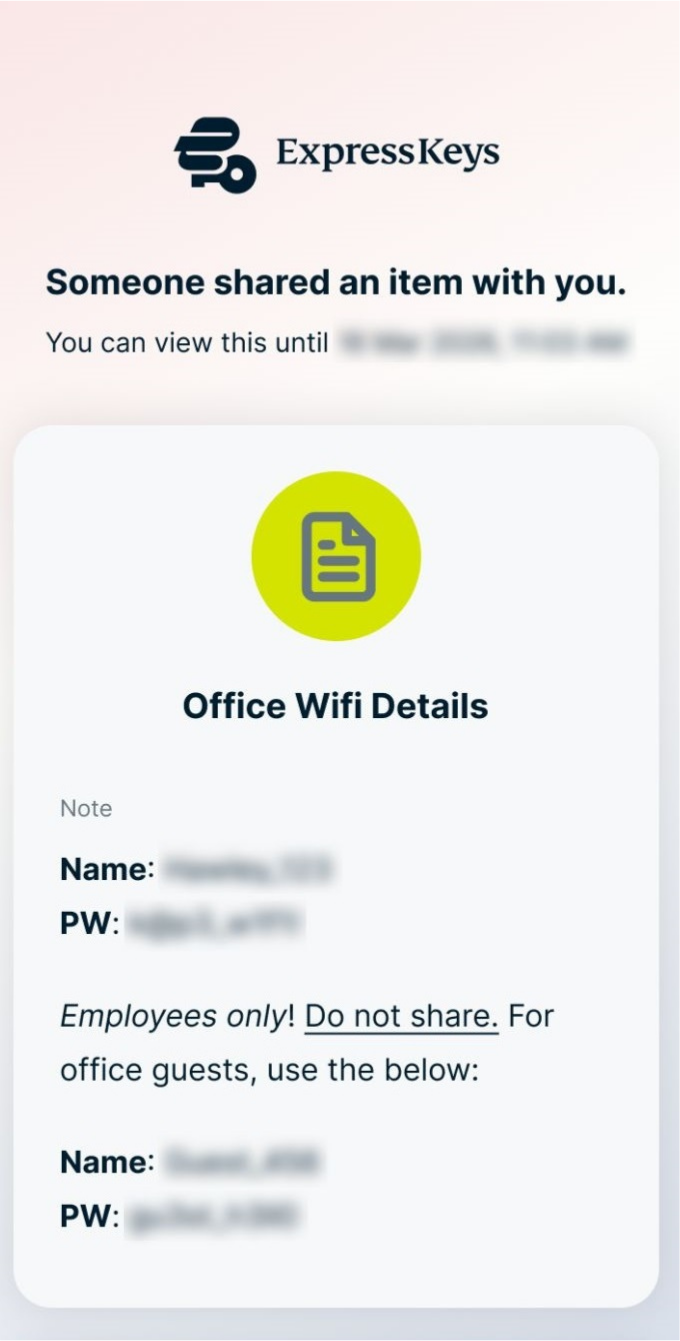
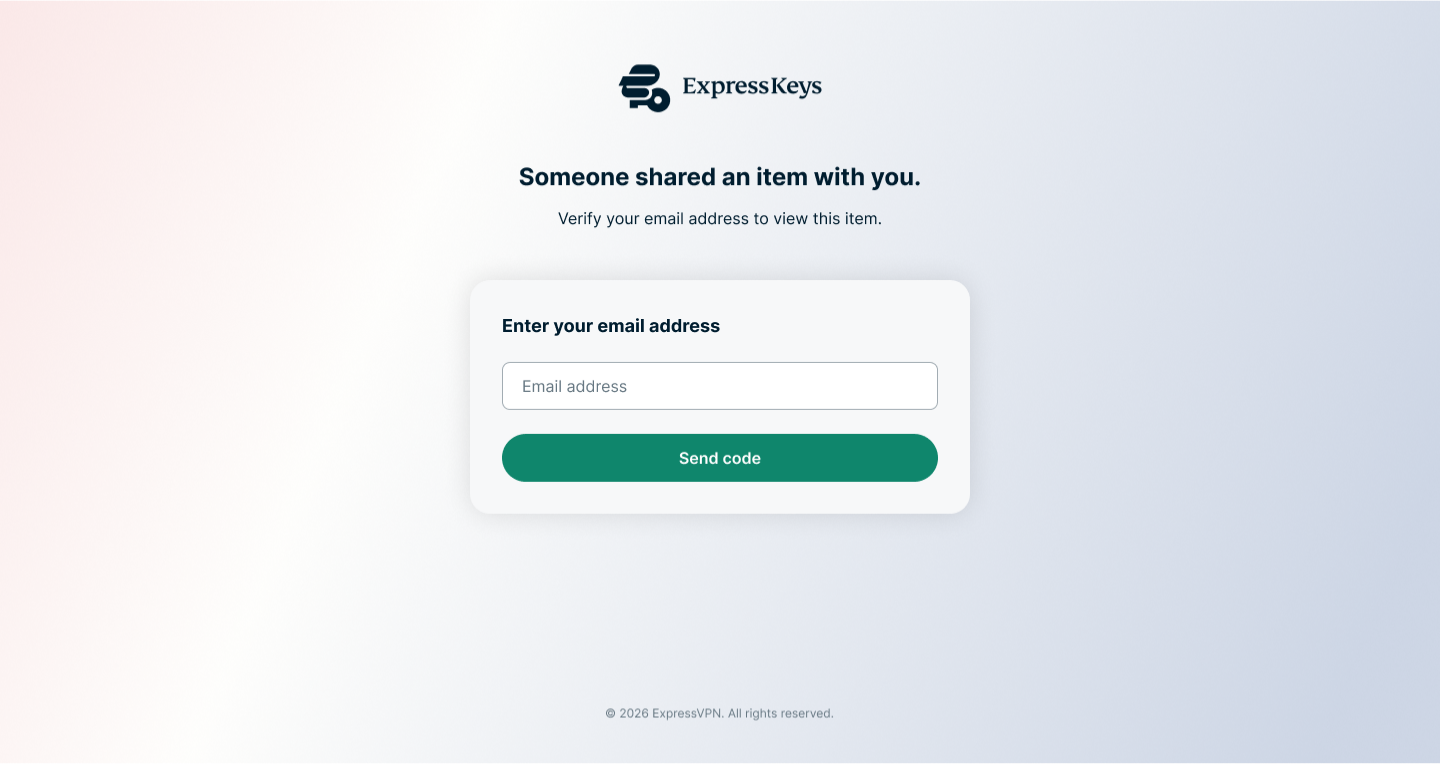
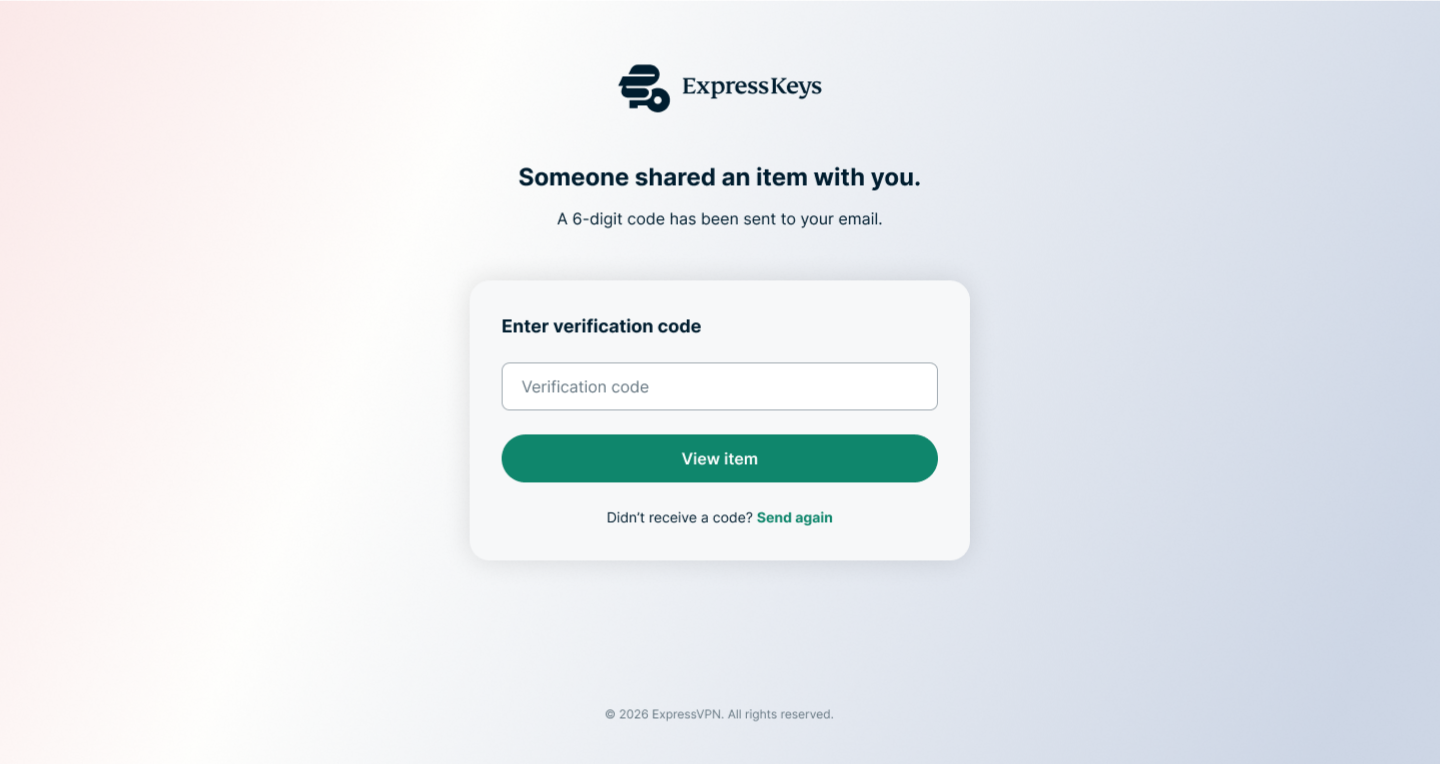
You do not need an ExpressVPN subscription or to have ExpressKeys installed on your device to view an item shared from ExpressKeys; you can simply open the link in your browser. However, you will need to enter your email address and verify it by using a verification code sent by ExpressKeys.
On mobile
- Tap the shared item link.
- Enter your email address and tap Send code.


- Enter the verification code sent to your email and tap View item.


- You can now view the shared ExpressKeys item.


If you are unable to view the item
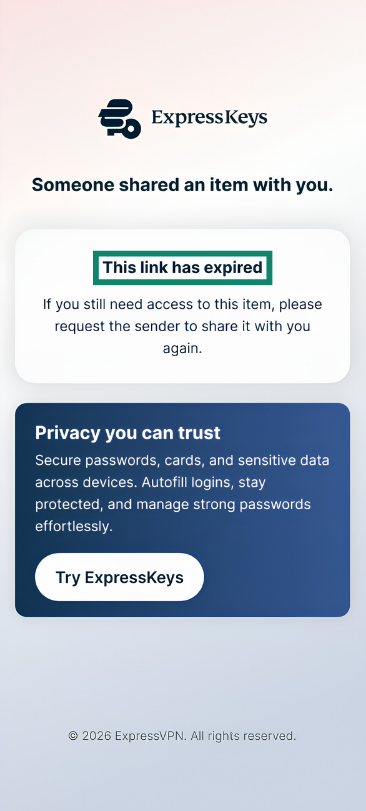
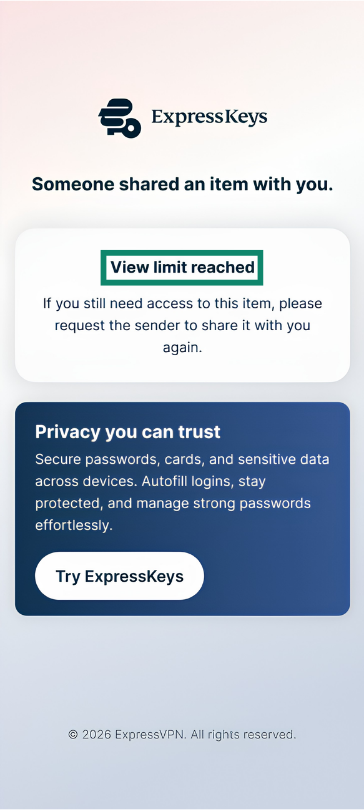
If you cannot view the shared item, it may be due to an expired link or exceeded view limit.
- This link has expired: The sender has restricted how long the item is available to view, and you have passed the cutoff period. You will need to contact the sender and ask them to share it again.

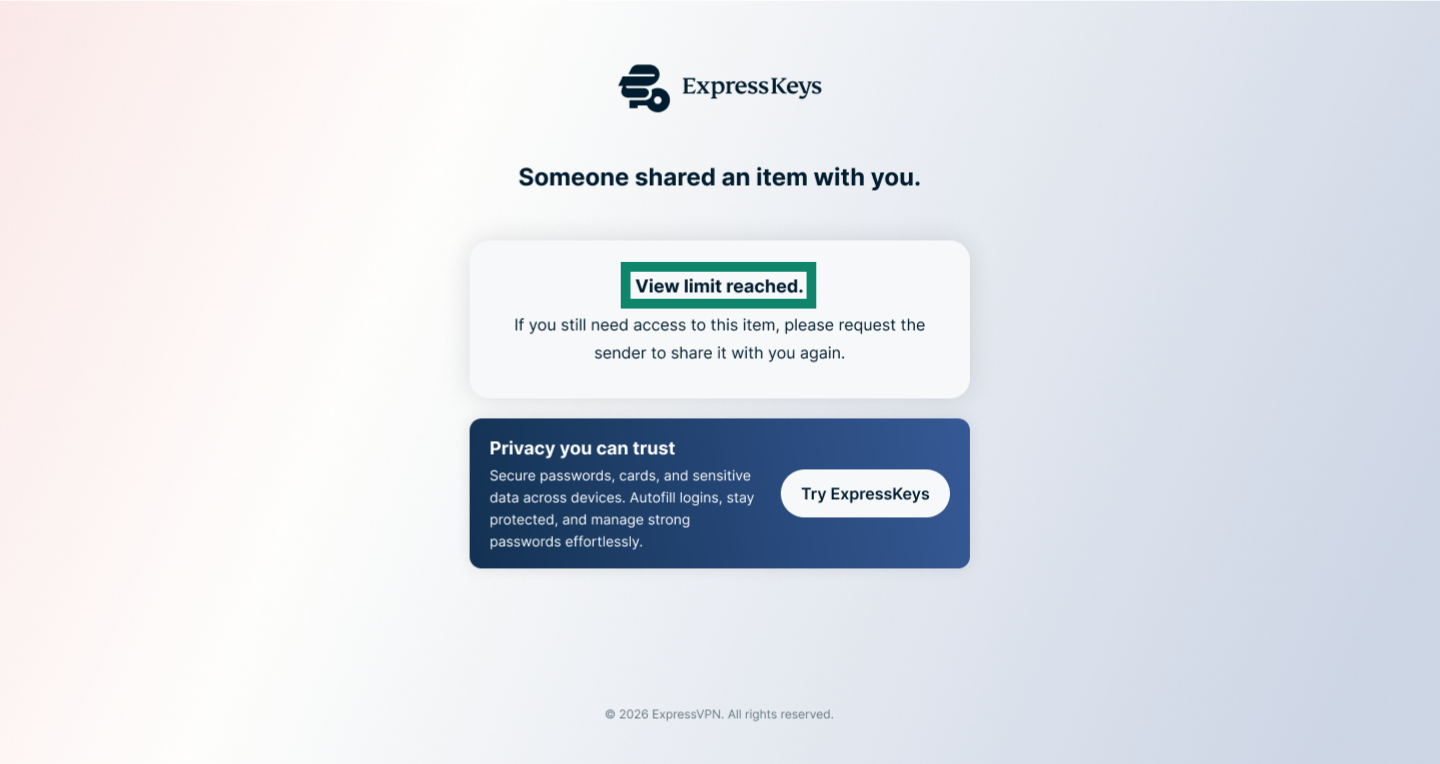
- View limit reached: You have already viewed the item and the sender has restricted how many times you can view it. Contact the sender and ask them to share the item with you again.


On desktop
- Click the shared item link.
- Enter your email address and click Send code.


- Enter the verification code received in your email and click View item.

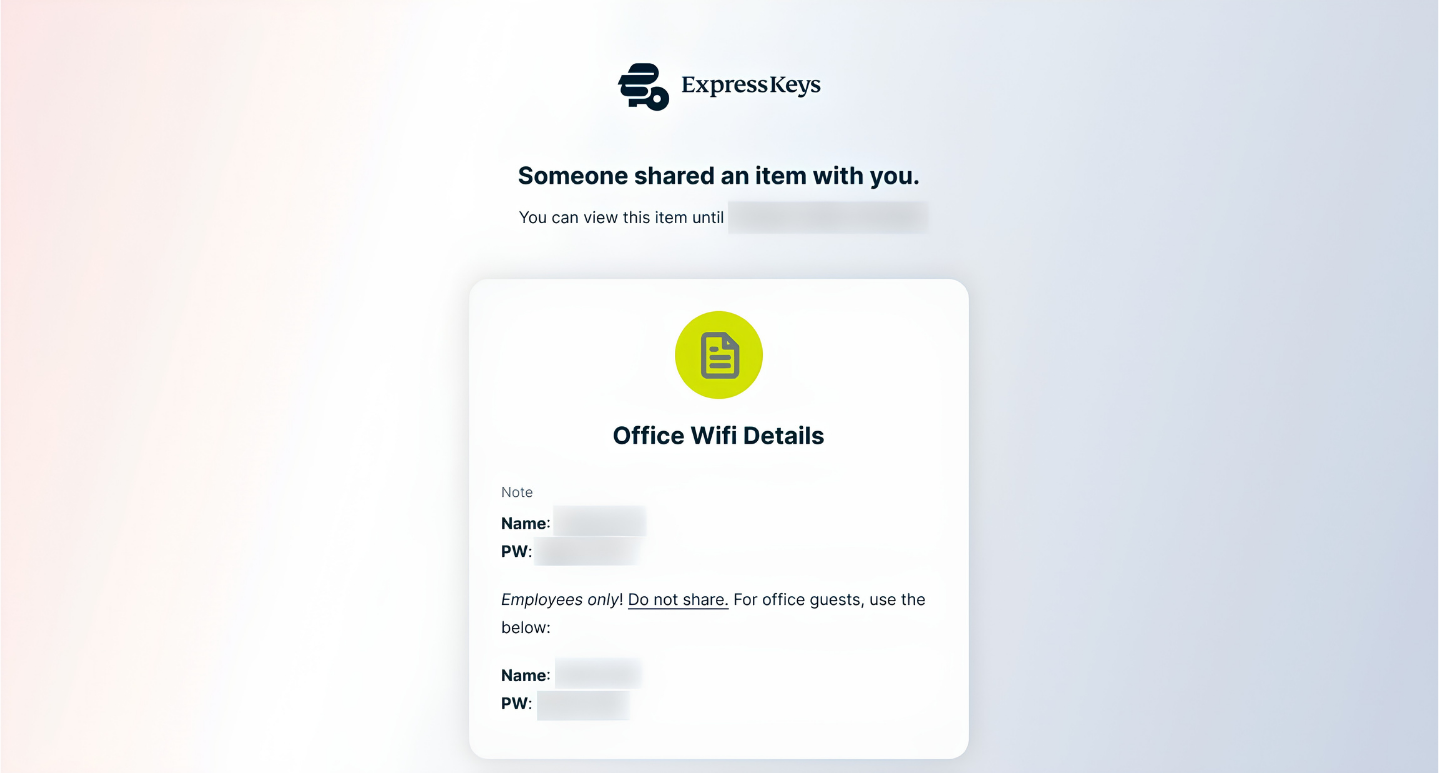
- You can now view the shared ExpressKeys item.


If you are unable to view the item
If you cannot view the shared item, it may be due to an expired link or exceeded view limit.
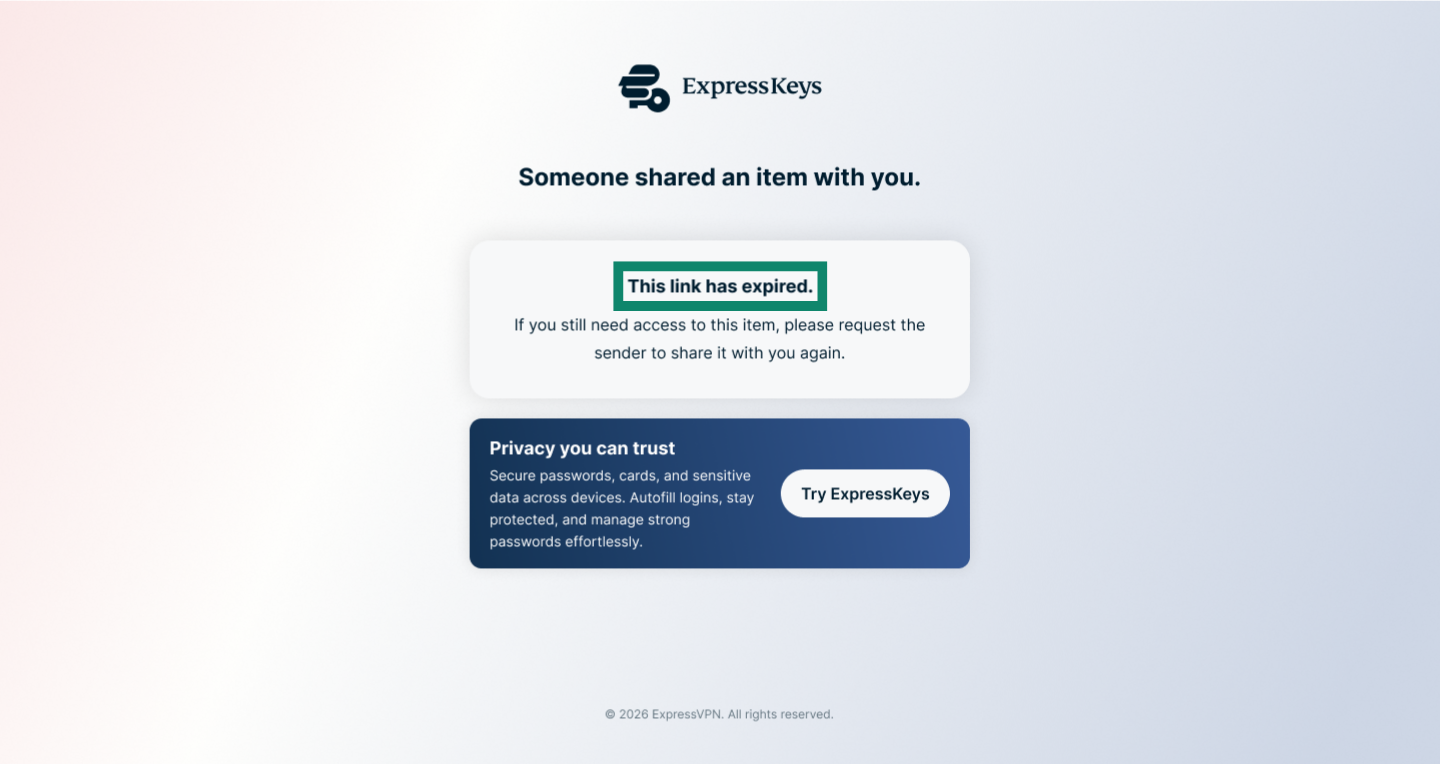
- This link has expired: The sender has restricted how long the item is available to view, and you have passed the cutoff period. You will need to contact the sender and ask them to share it again.

- View limit reached: You have already viewed the item and the sender has restricted how many times you can view it. Contact the sender and ask them to share the item with you again.

Need help? Contact the ExpressVPN Support Team for immediate assistance.