






You can import your logins from Opera into ExpressKeys using your computer.
Once your passwords are imported, you can use ExpressKeys to review your password health, identify weak or reused passwords, and update them to improve your security.
Jump to…
Import your Opera logins on desktop (CSV method)
Import your Opera logins using your Android device
Import your Opera logins using your iOS device
Import your Opera logins on desktop (CSV method)
In the ExpressKeys app for macOS and the ExpressKeys browser extension, you can import your data from Opera using a CSV file.
1. Export your logins from Opera
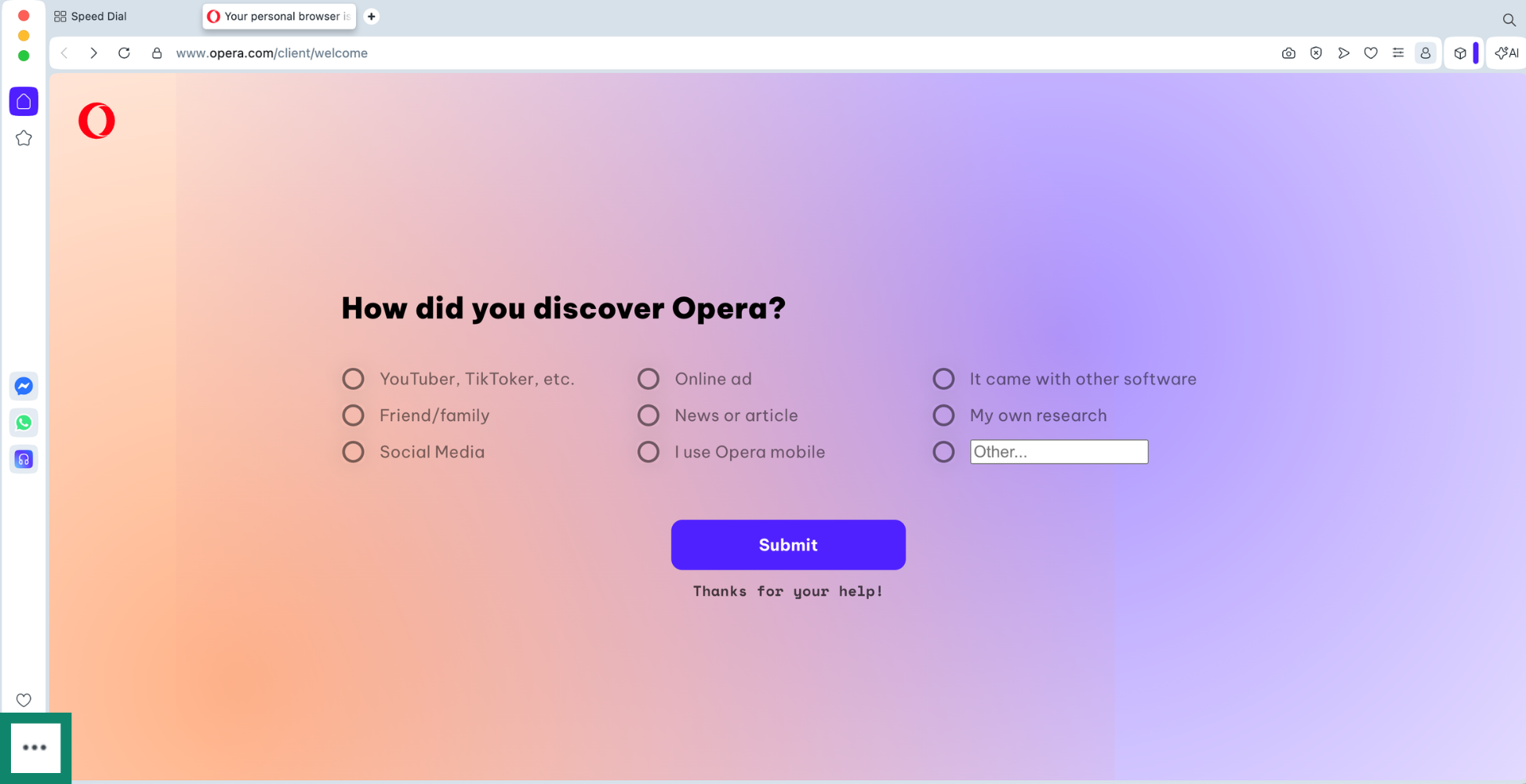
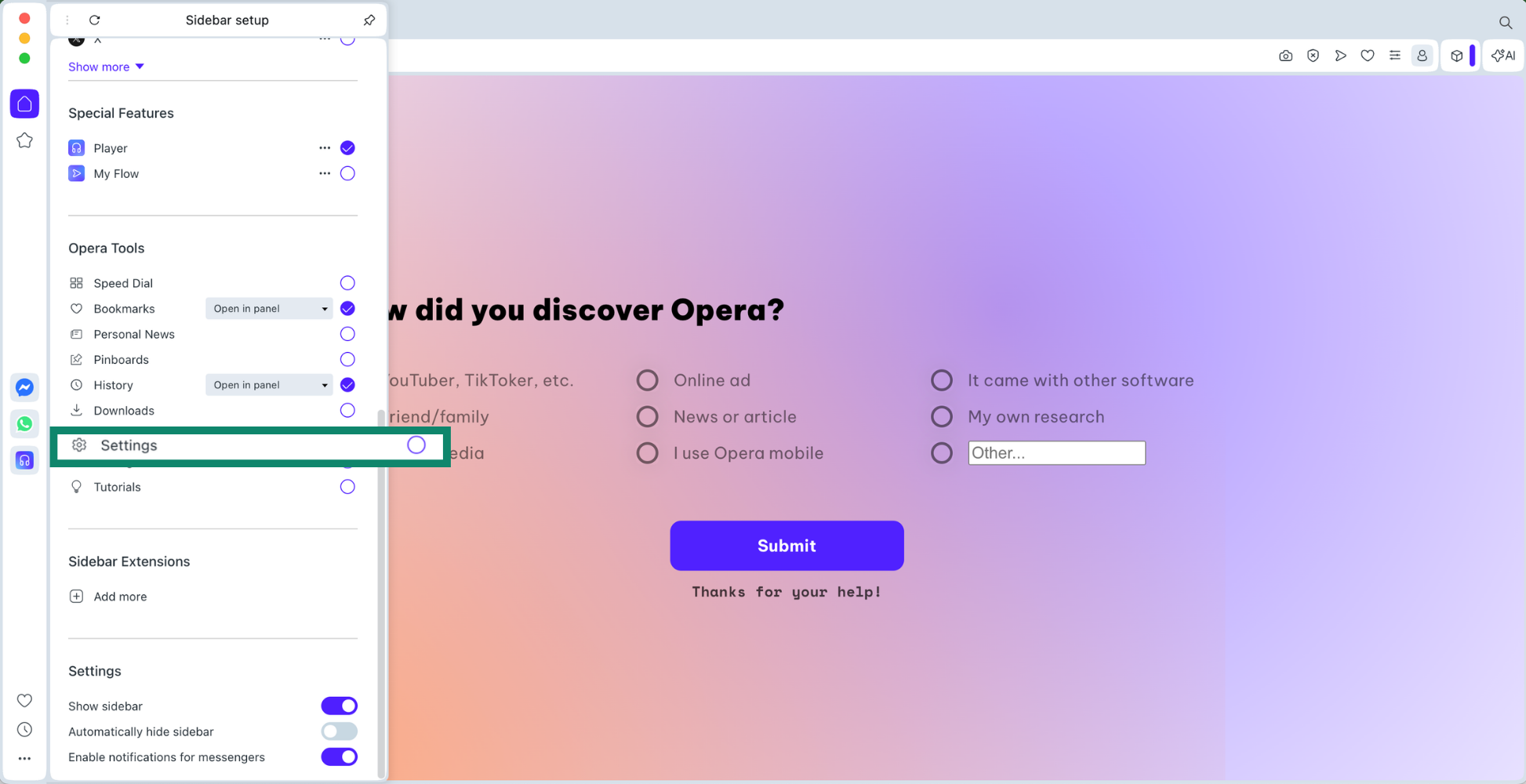
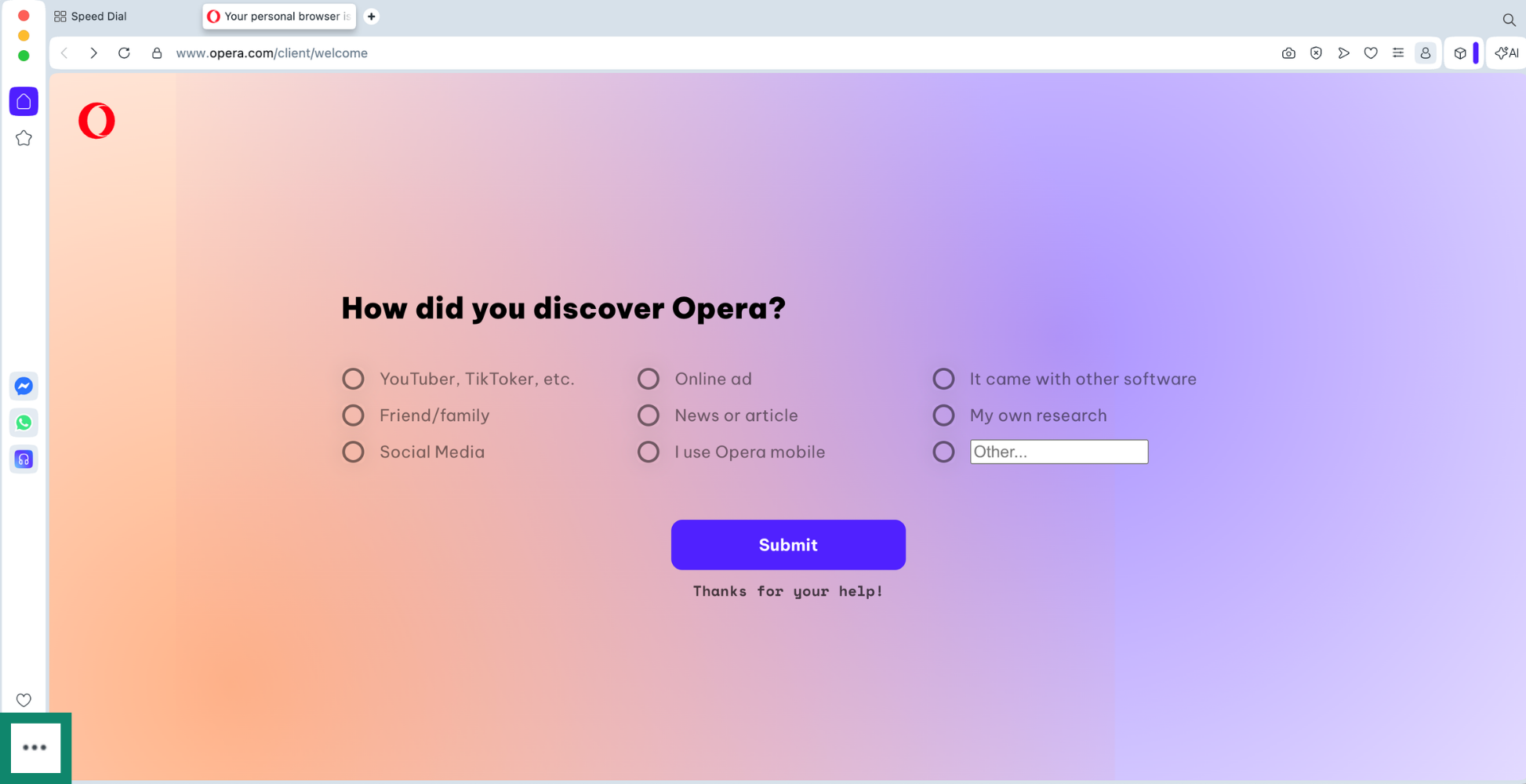
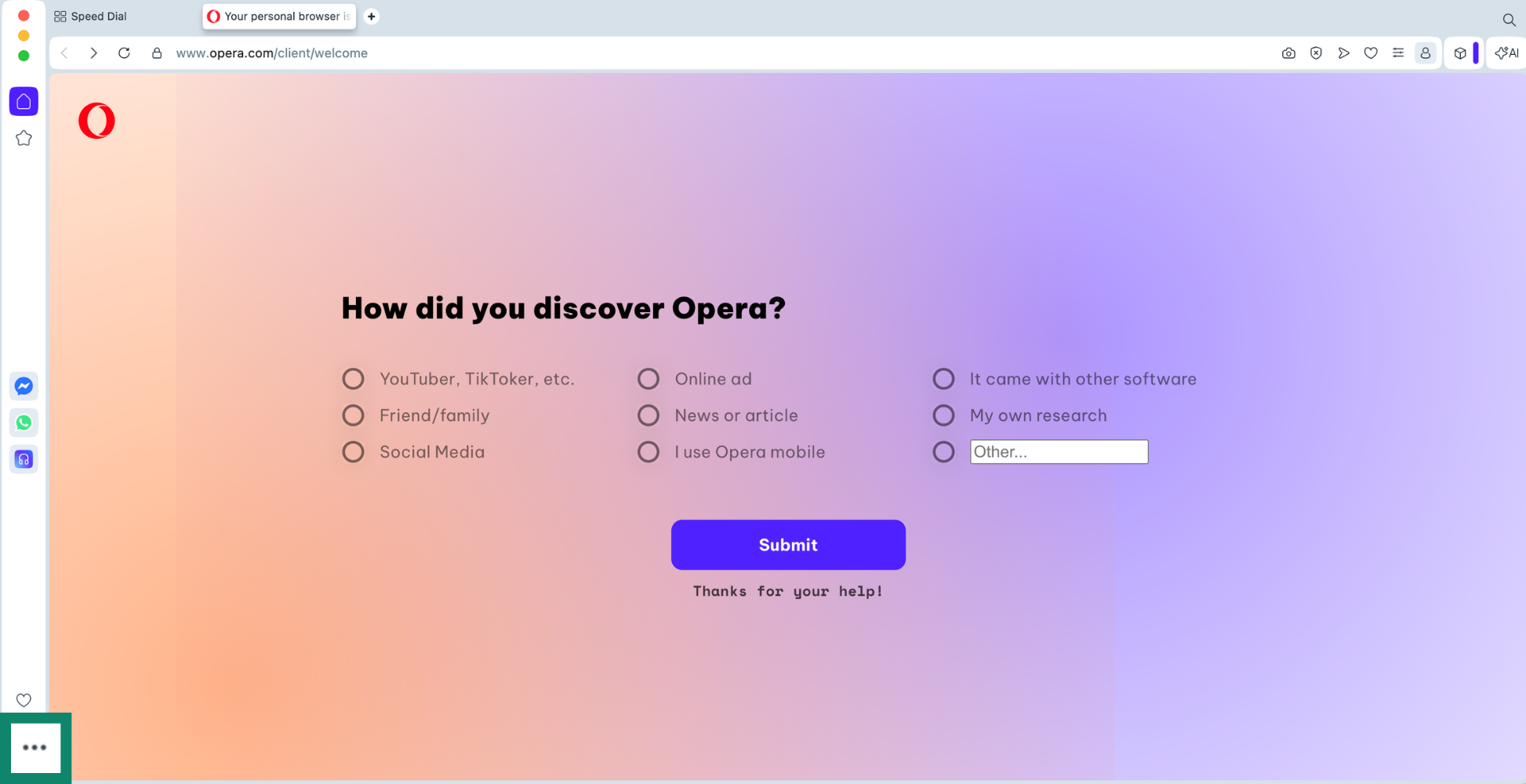
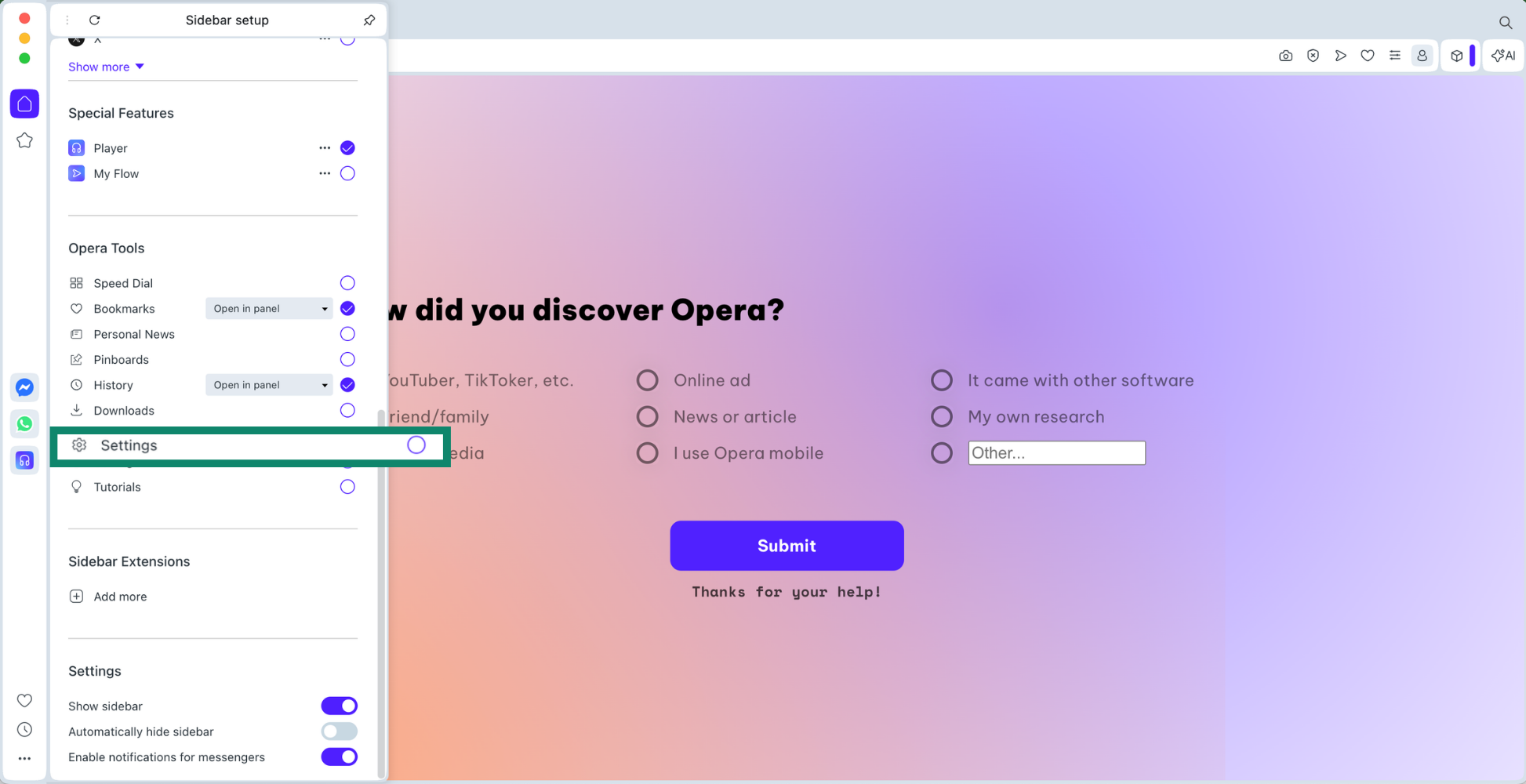
- Open Opera and click the three dots (

 ) in the bottom left corner.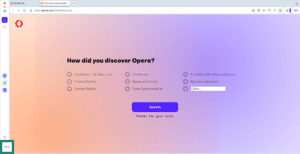

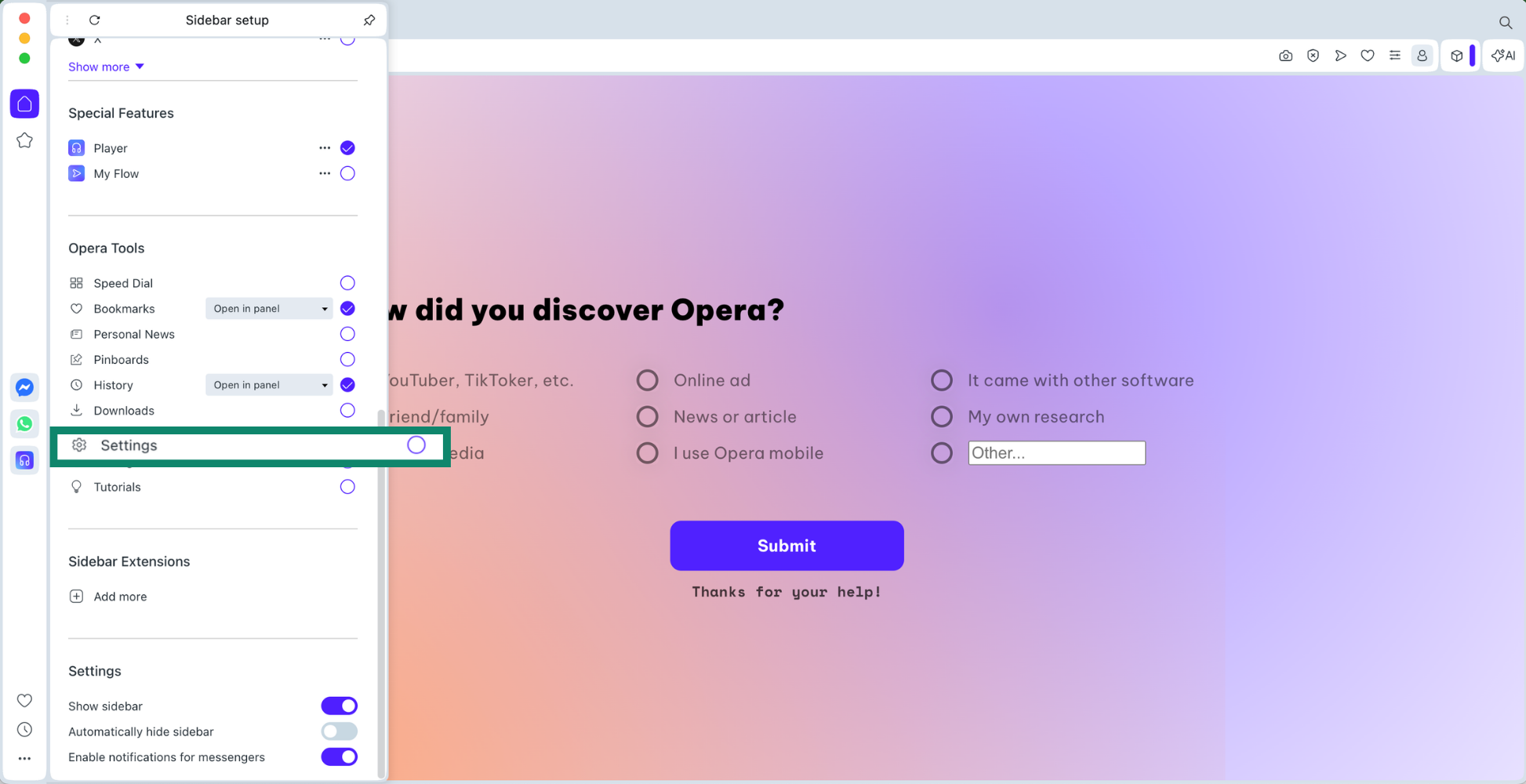
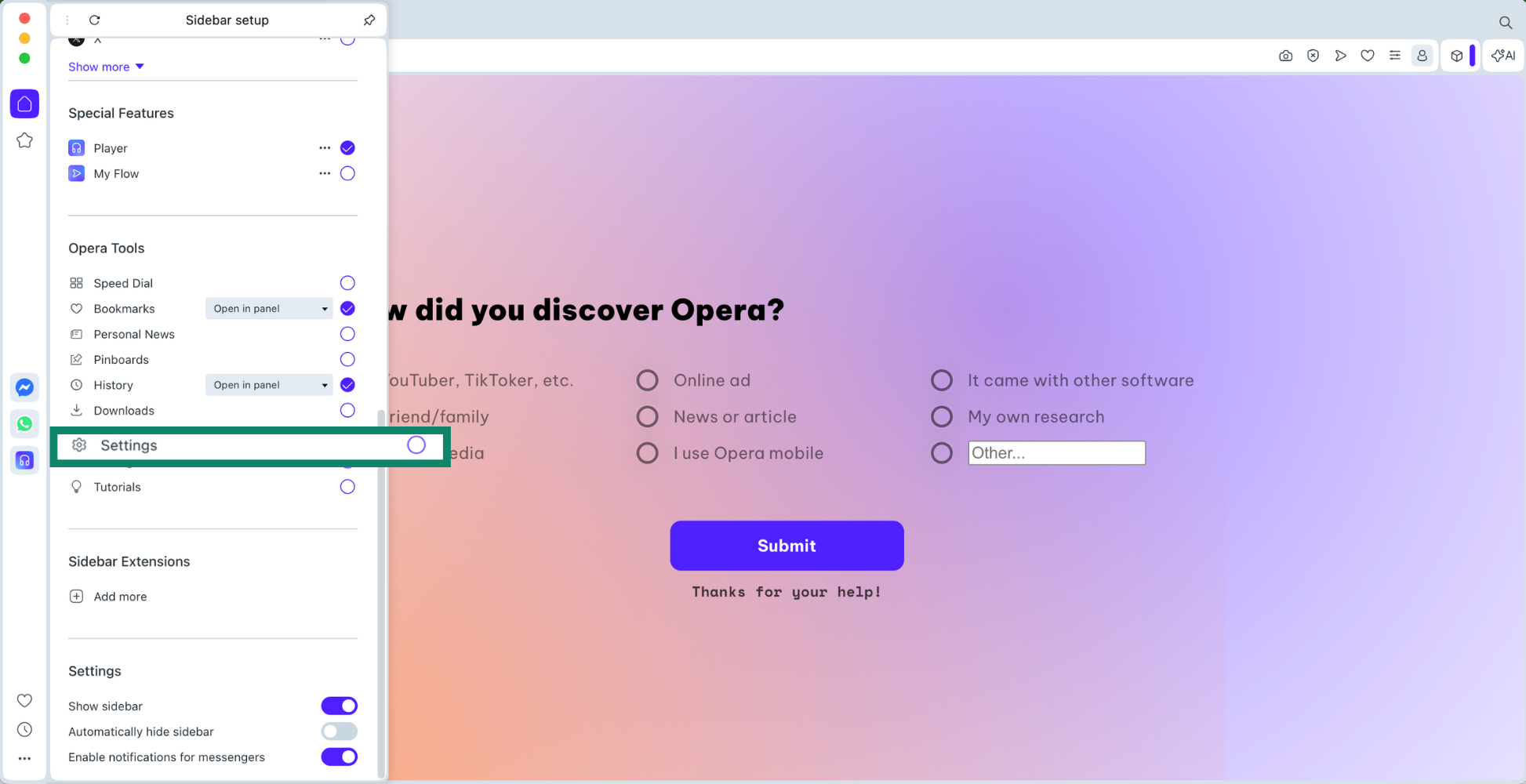
- Scroll down and click Settings.
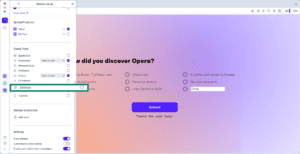
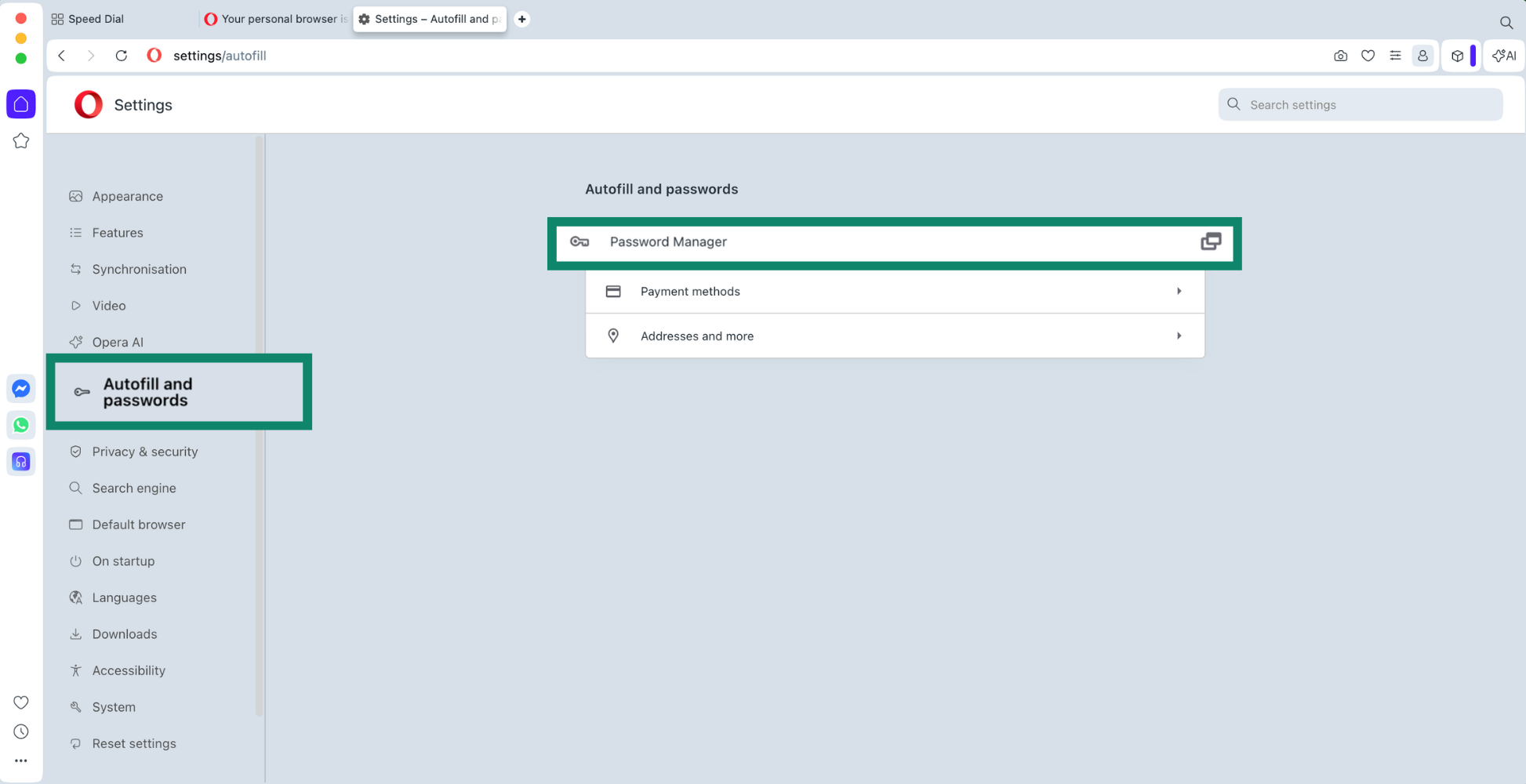
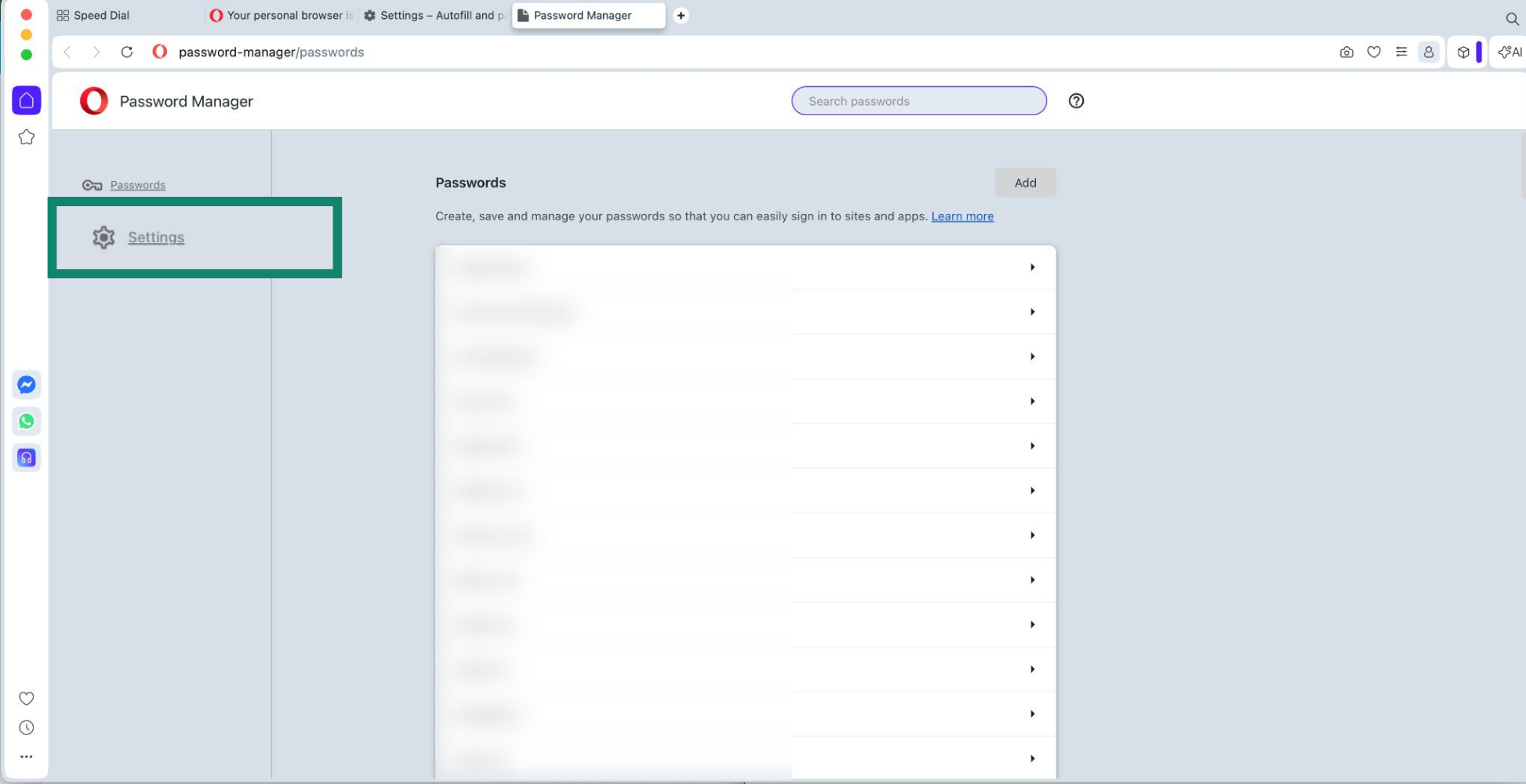
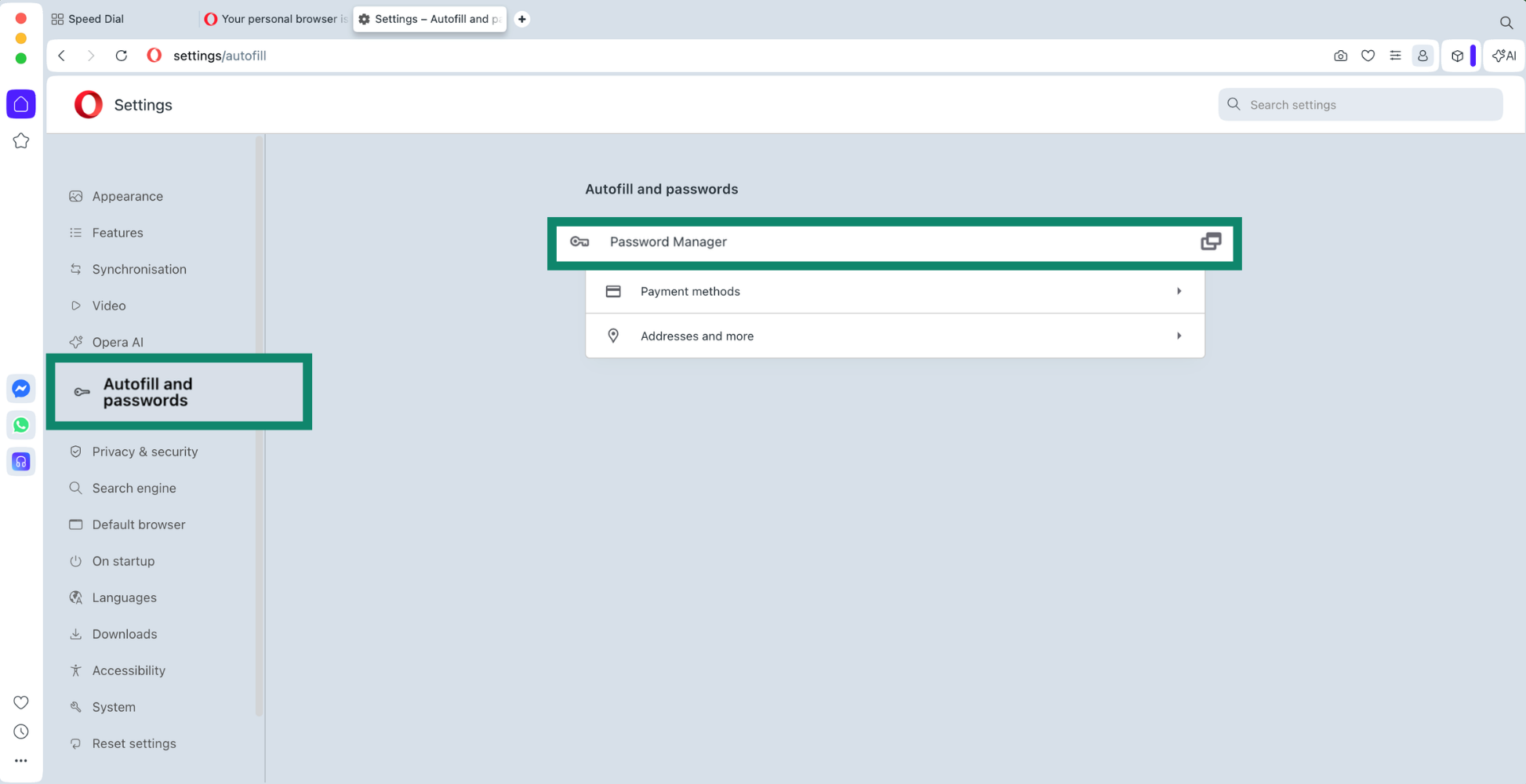
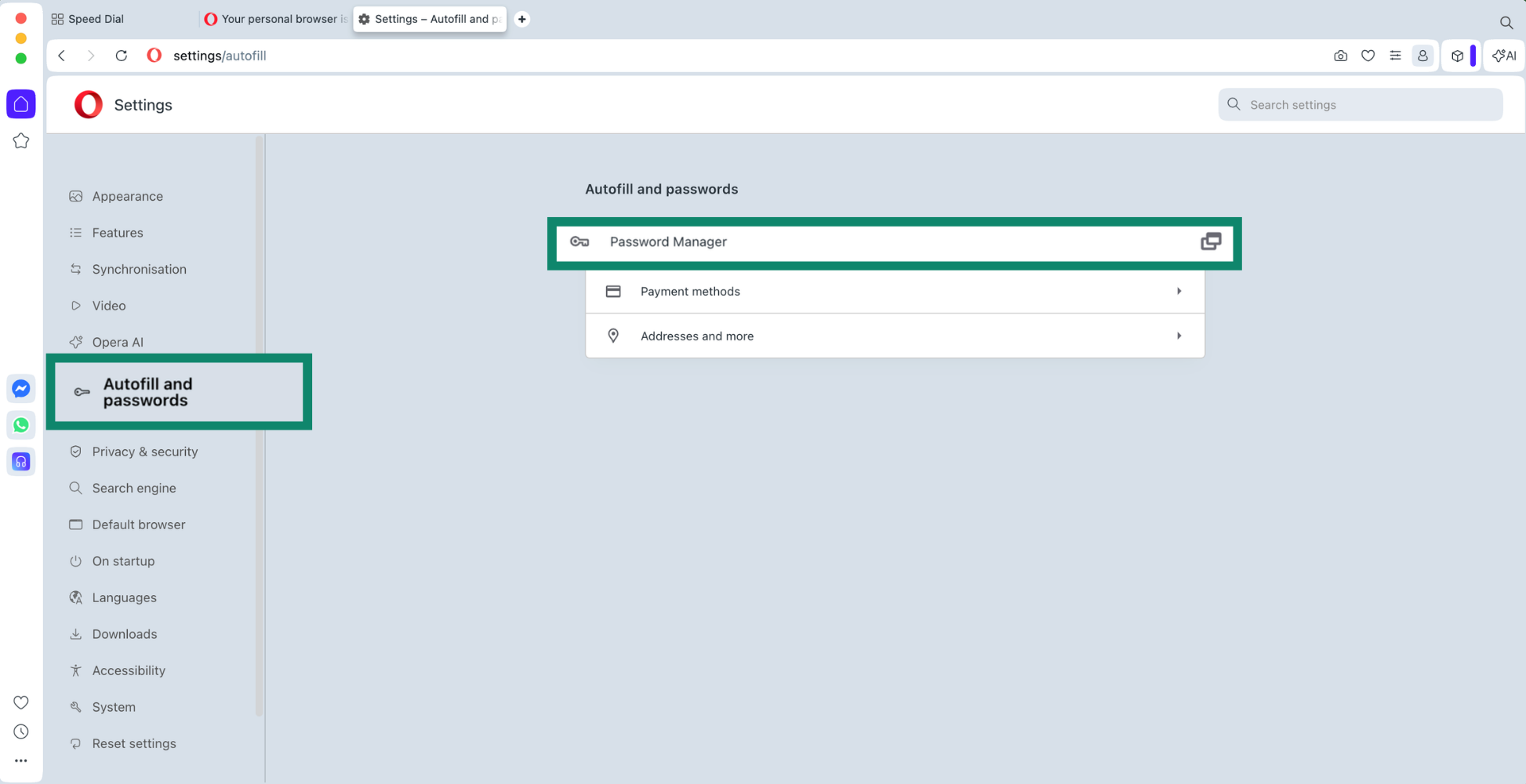
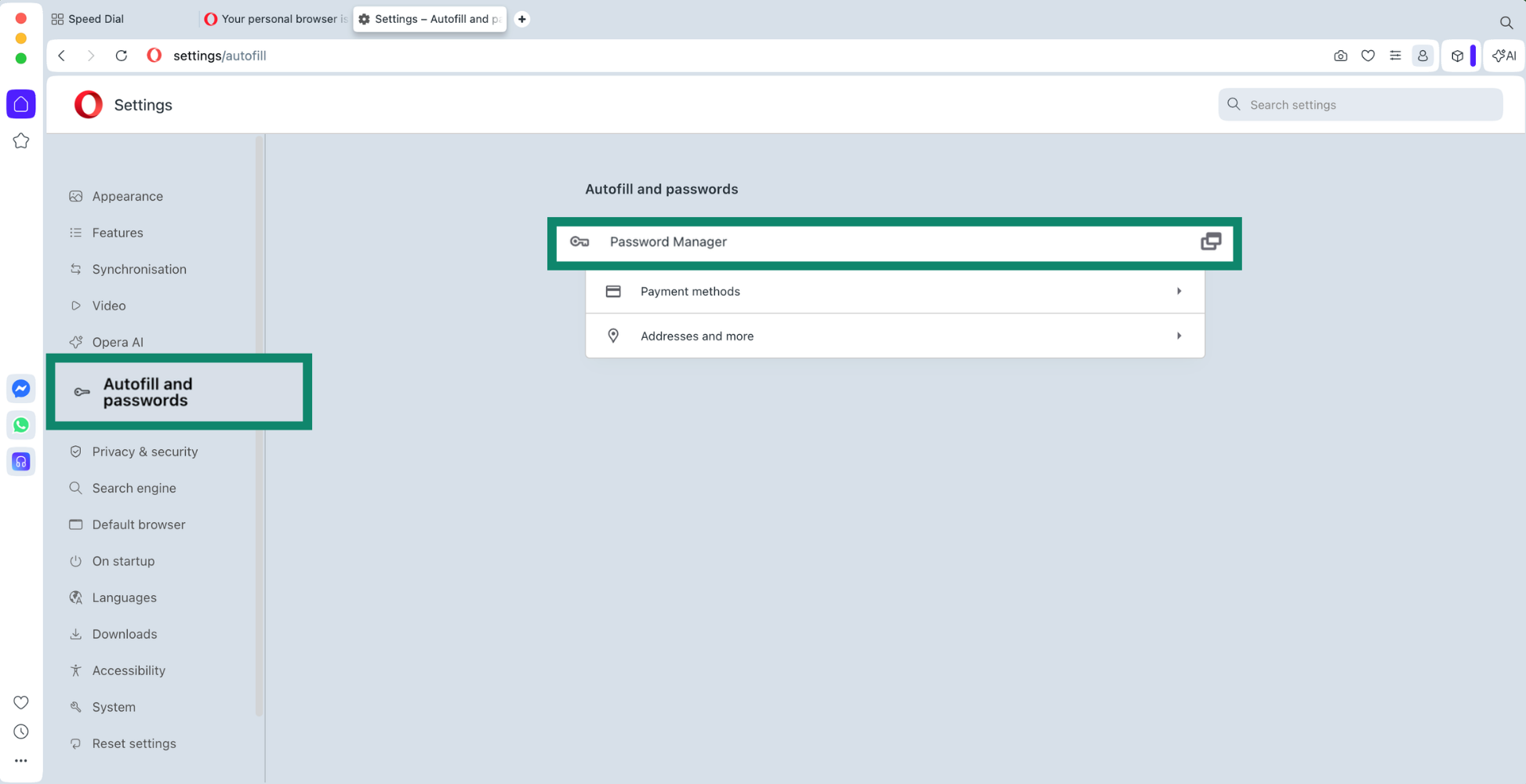
- Click Autofill and passwords > Password Manager.
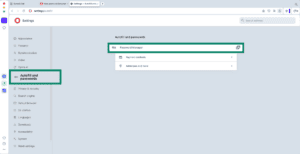
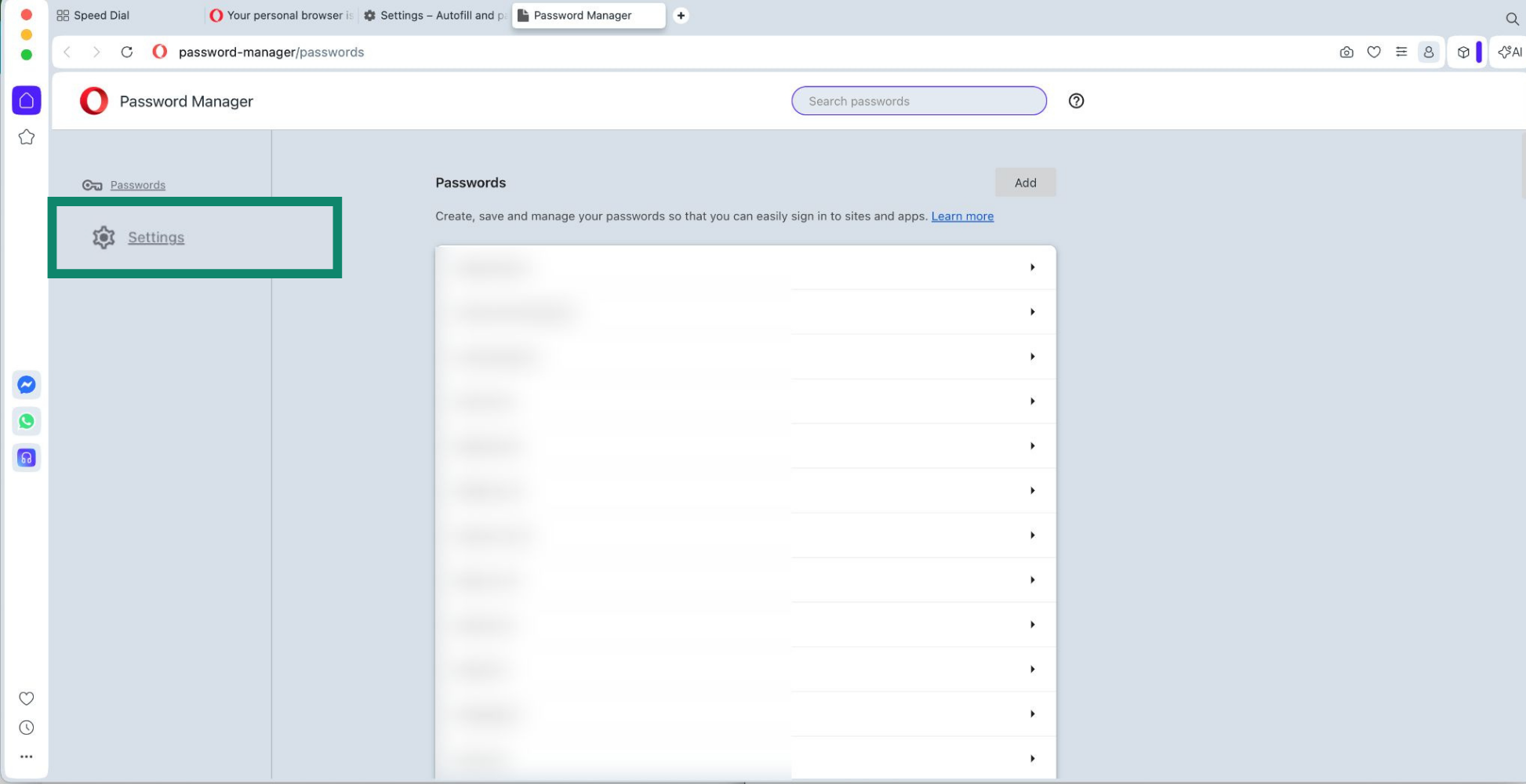
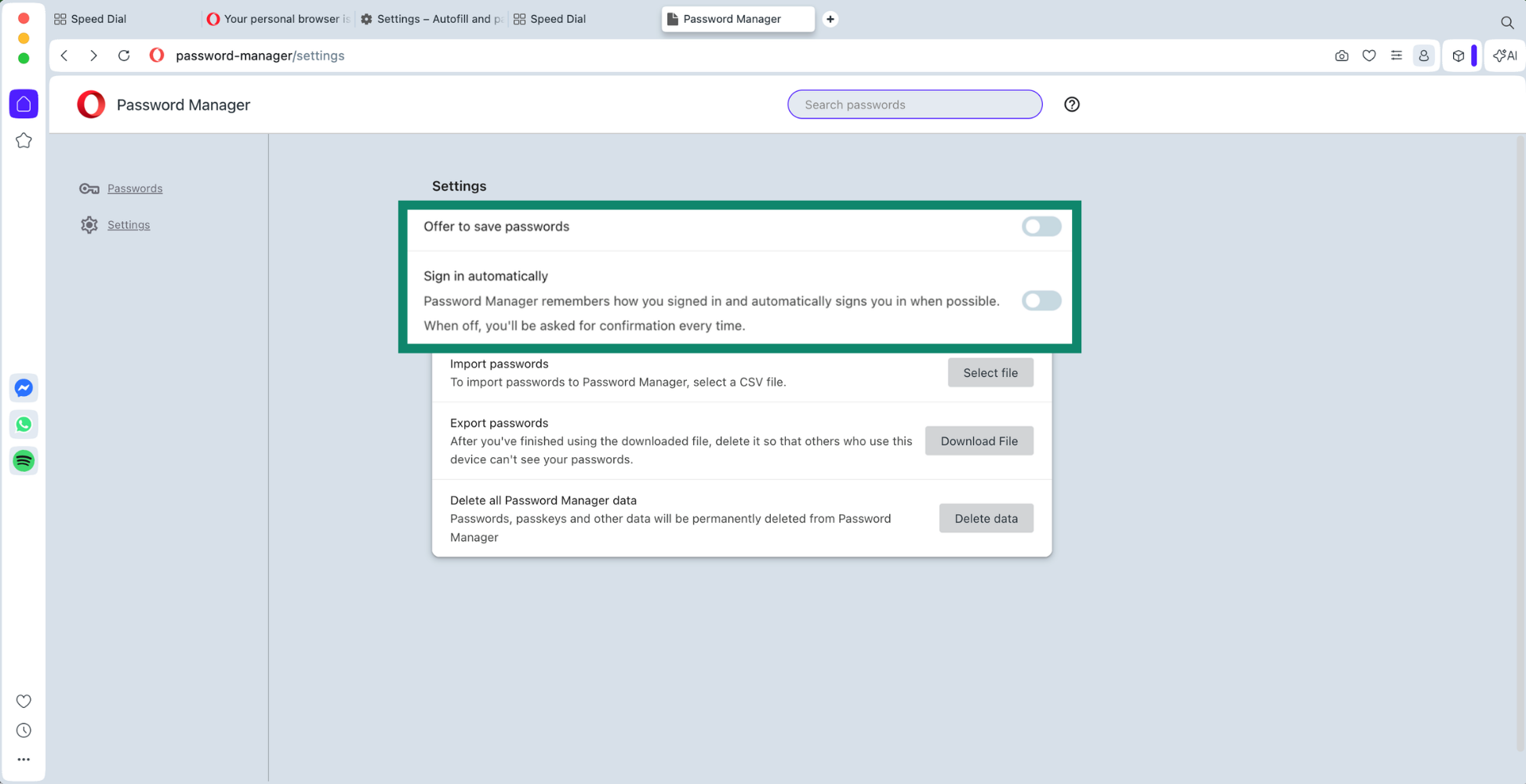
- Click Settings.
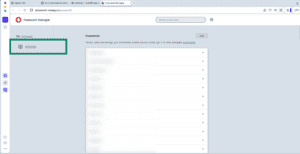
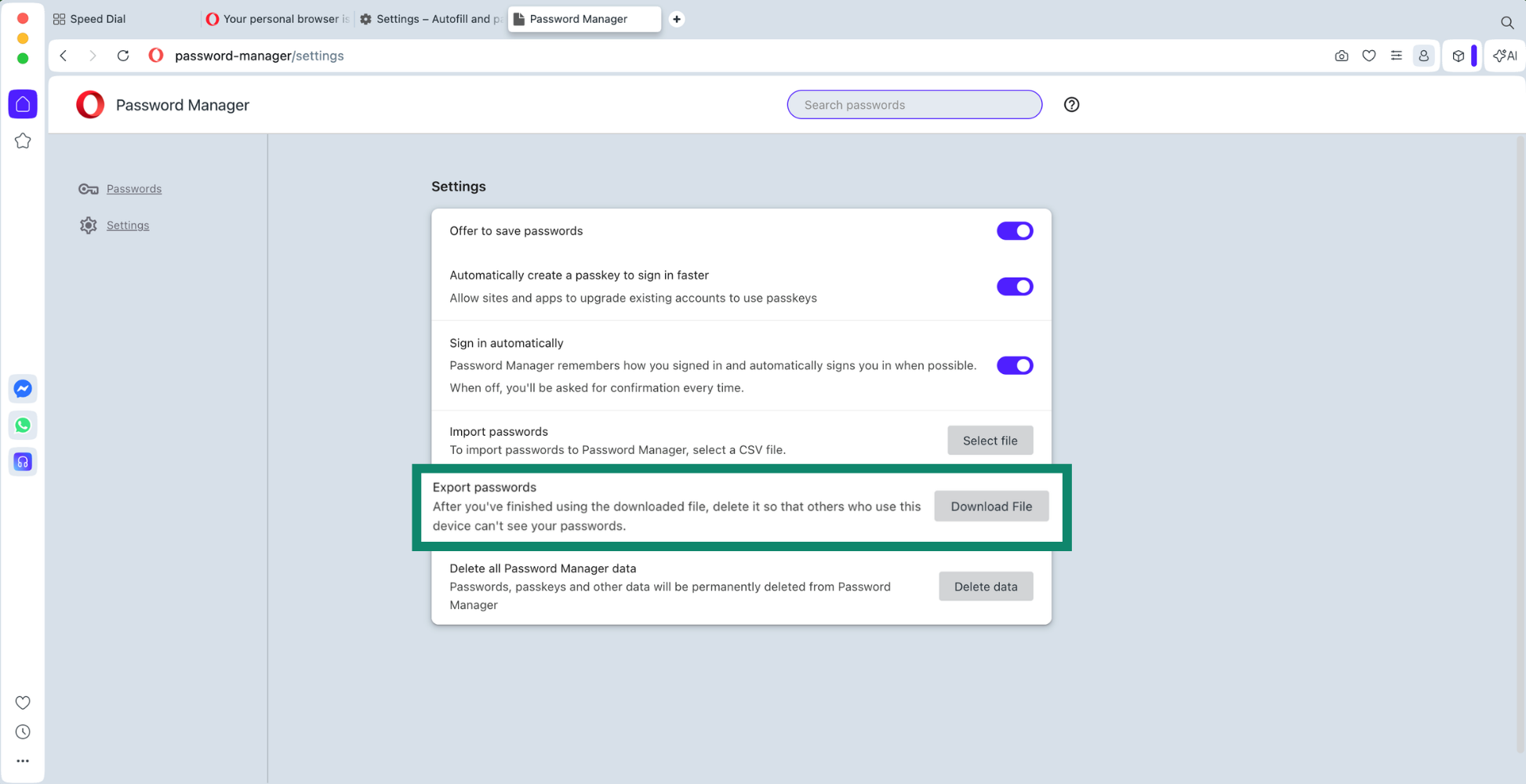
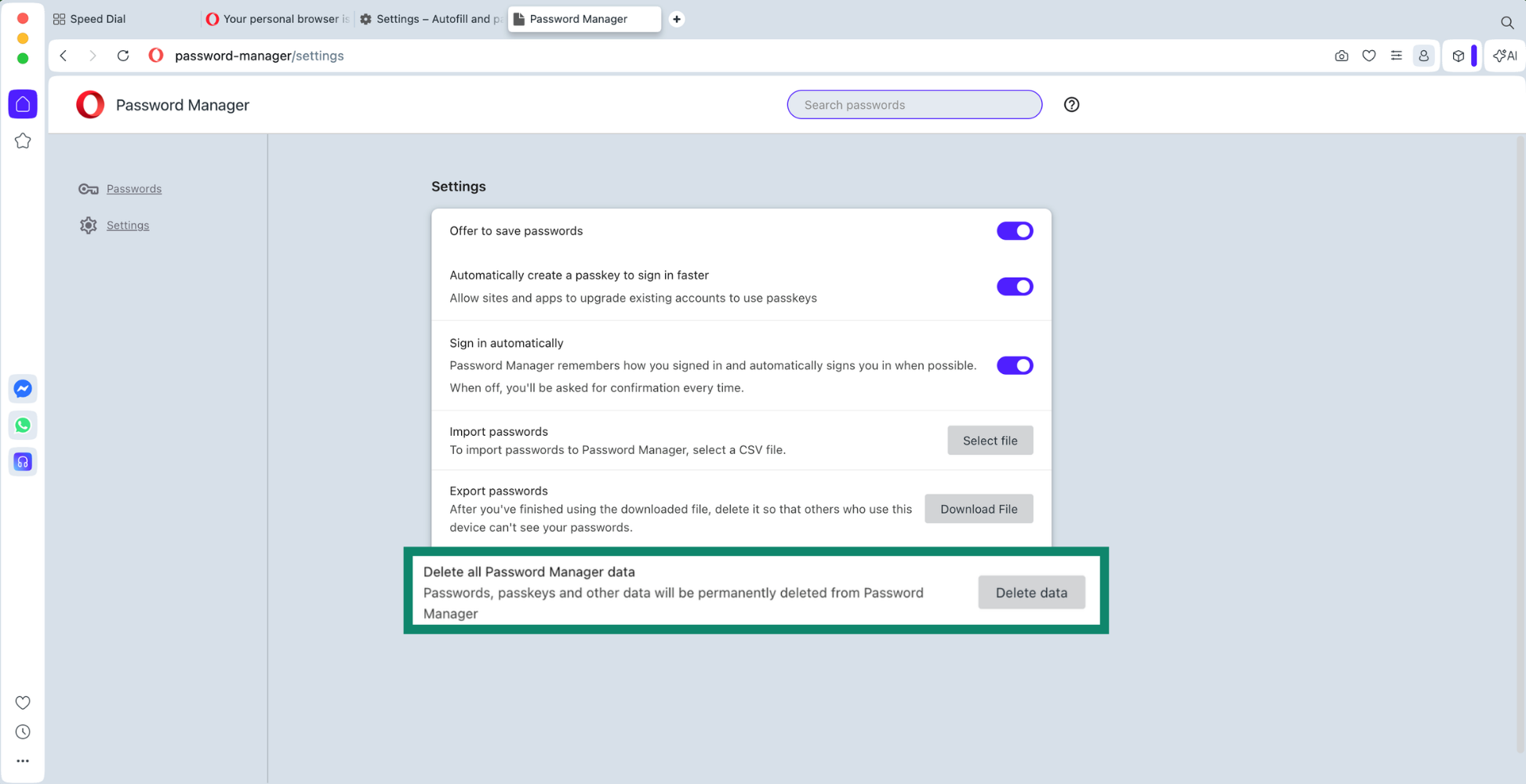
- Next to Export passwords, click Download file.
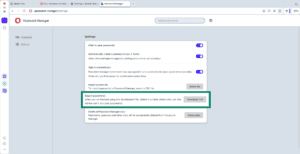
- Enter your device password and save the CSV file to your computer.
2. Import your logins into ExpressKeys
- Open the ExpressKeys browser extension or the macOS app.
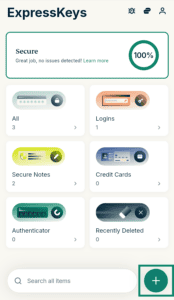
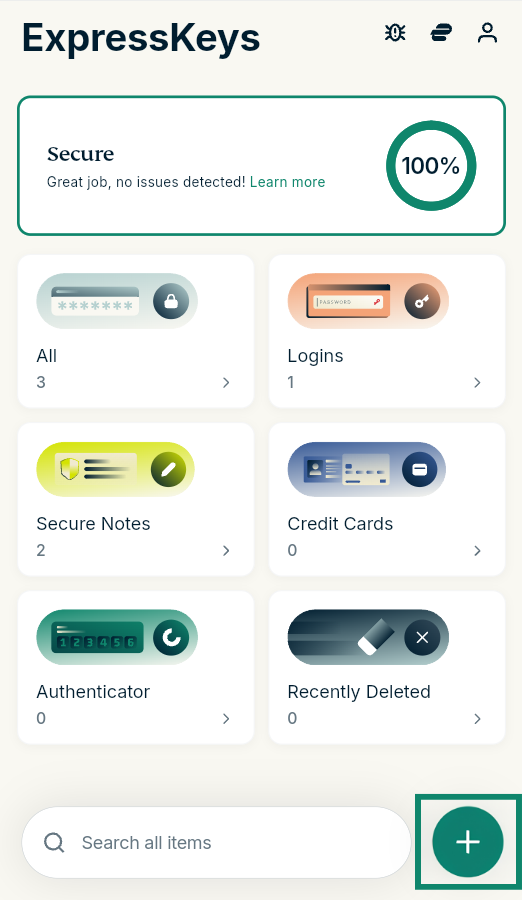
- Click the plus (+) icon.

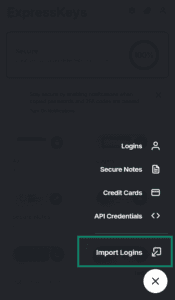
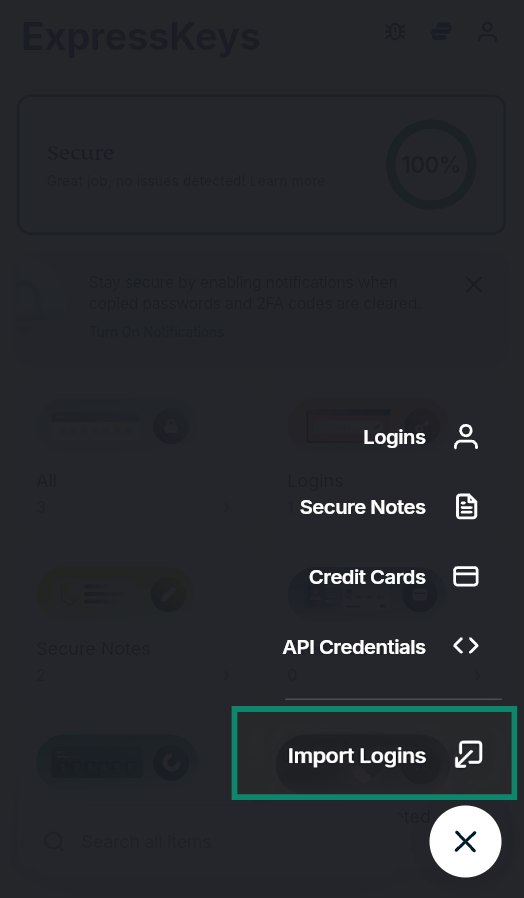
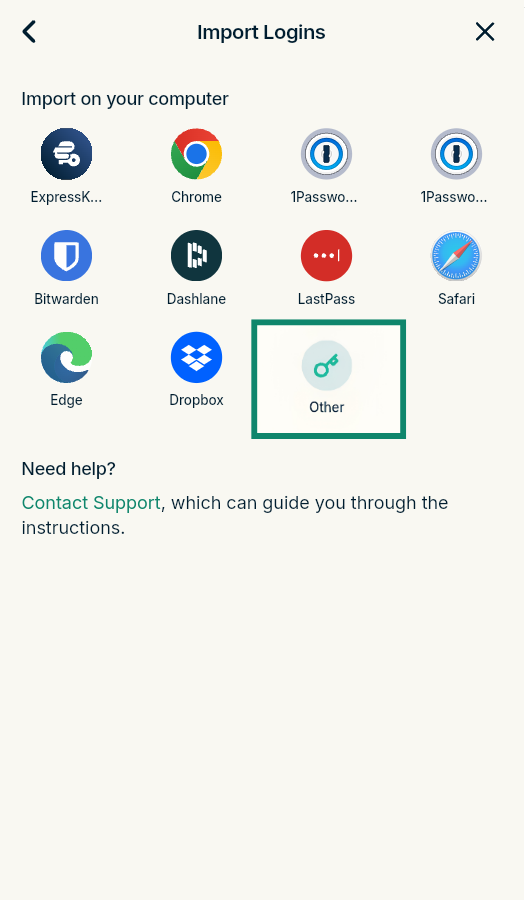
- Select Import Logins.

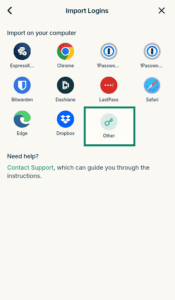
- Select Other.
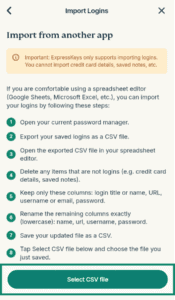
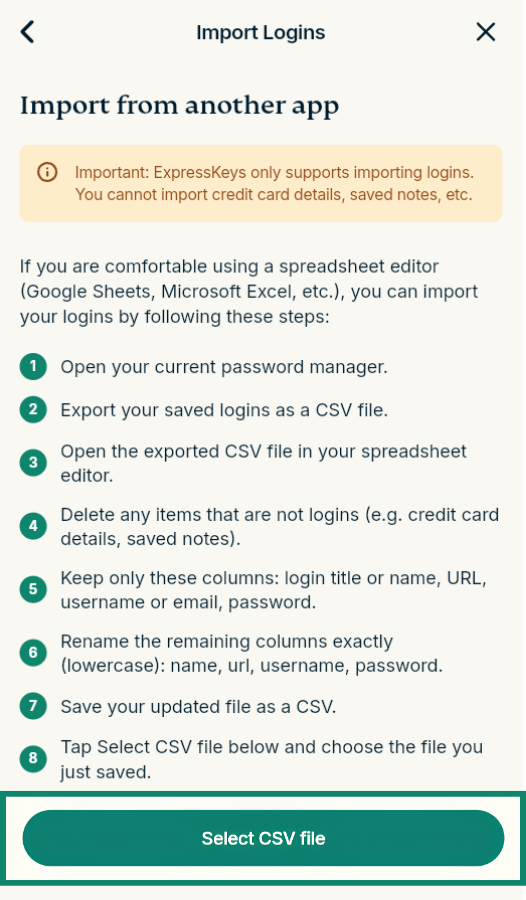
- Click Select CSV file and select the CSV file you exported from Opera.

- Wait for the import to finish.
3. Delete your logins from Opera
Opera will continue to prompt you to fill your logins for sites or services, interfering with ExpressKeys. To prevent this, delete your logins from Opera.
Important: After you delete your logins from Opera, you cannot recover them. Make sure to import all your logins from Opera into ExpressKeys before you delete them.
To delete all your logins at once, follow these steps:
- Open Opera and click the three dots () in the bottom left corner.
- Scroll down and click Settings.
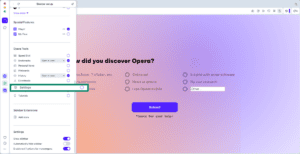
- Click Autofill and passwords > Password Manager.
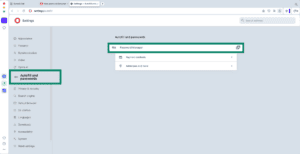
- Click Settings.
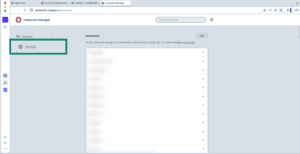
- Next to Delete all Password Manager data, select Delete.
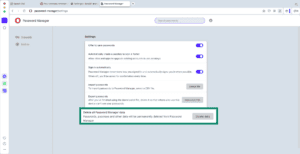
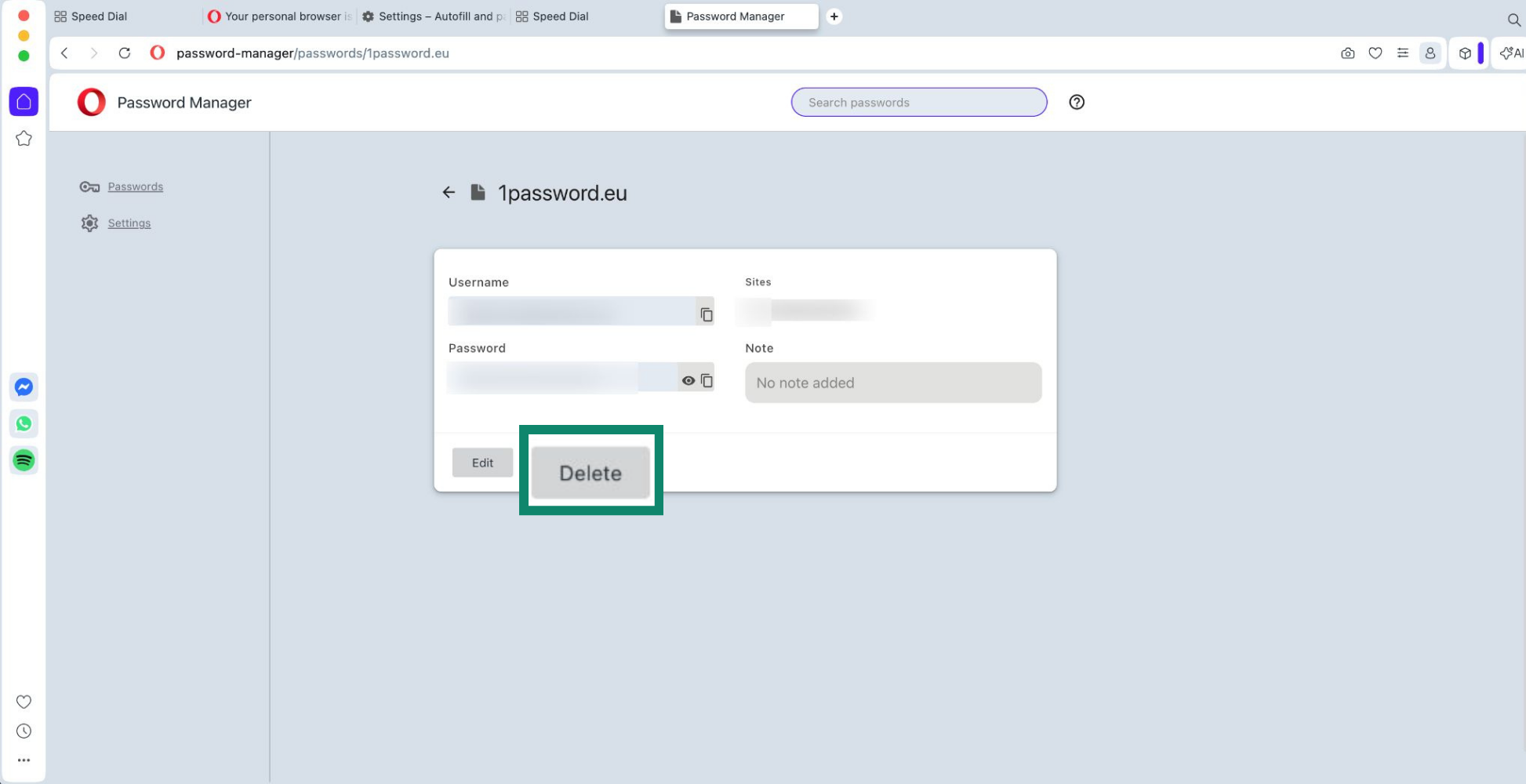
To delete your logins individually, follow these steps:
- Open Opera and click the three dots () in the bottom left corner.
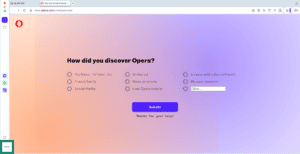
- Scroll down and click Settings.
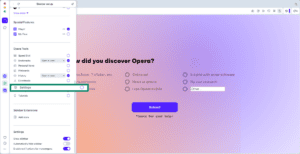
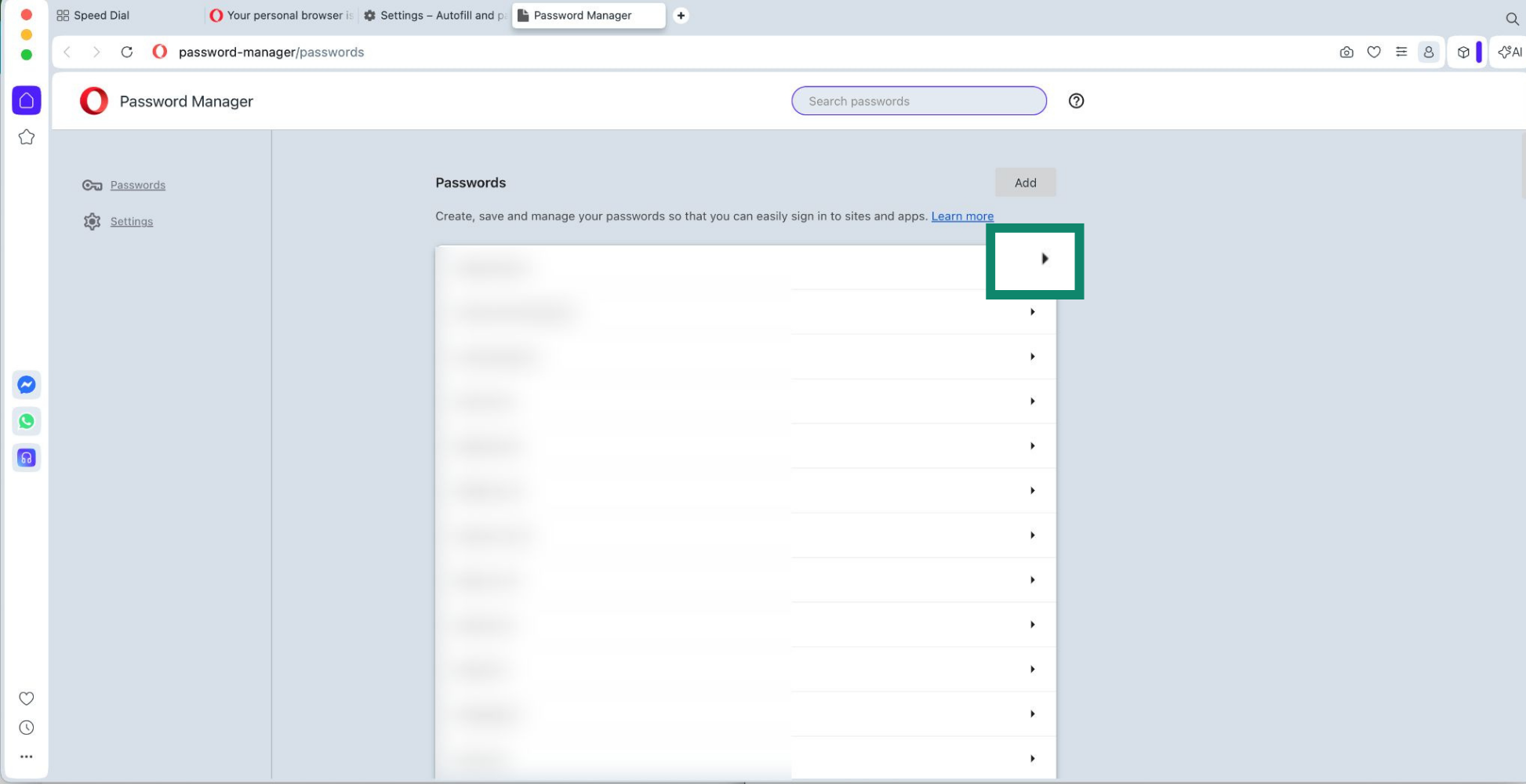
- Click Autofill and passwords > Password Manager.
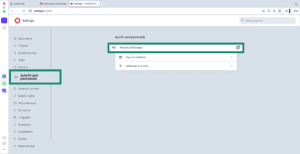
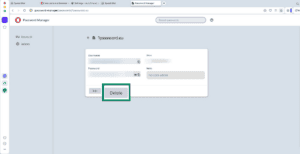
- Click the arrow (
 ) next to the login you want to delete.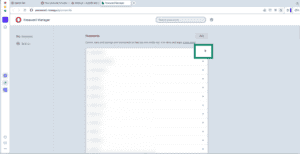
- Click Delete.
To prevent Opera from autofilling names, emails, and addresses, follow these steps:
- Open Opera and click the three dots () in the bottom left corner.
- Scroll down and click Settings.
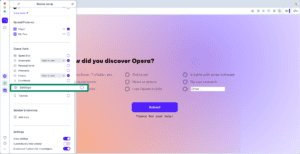
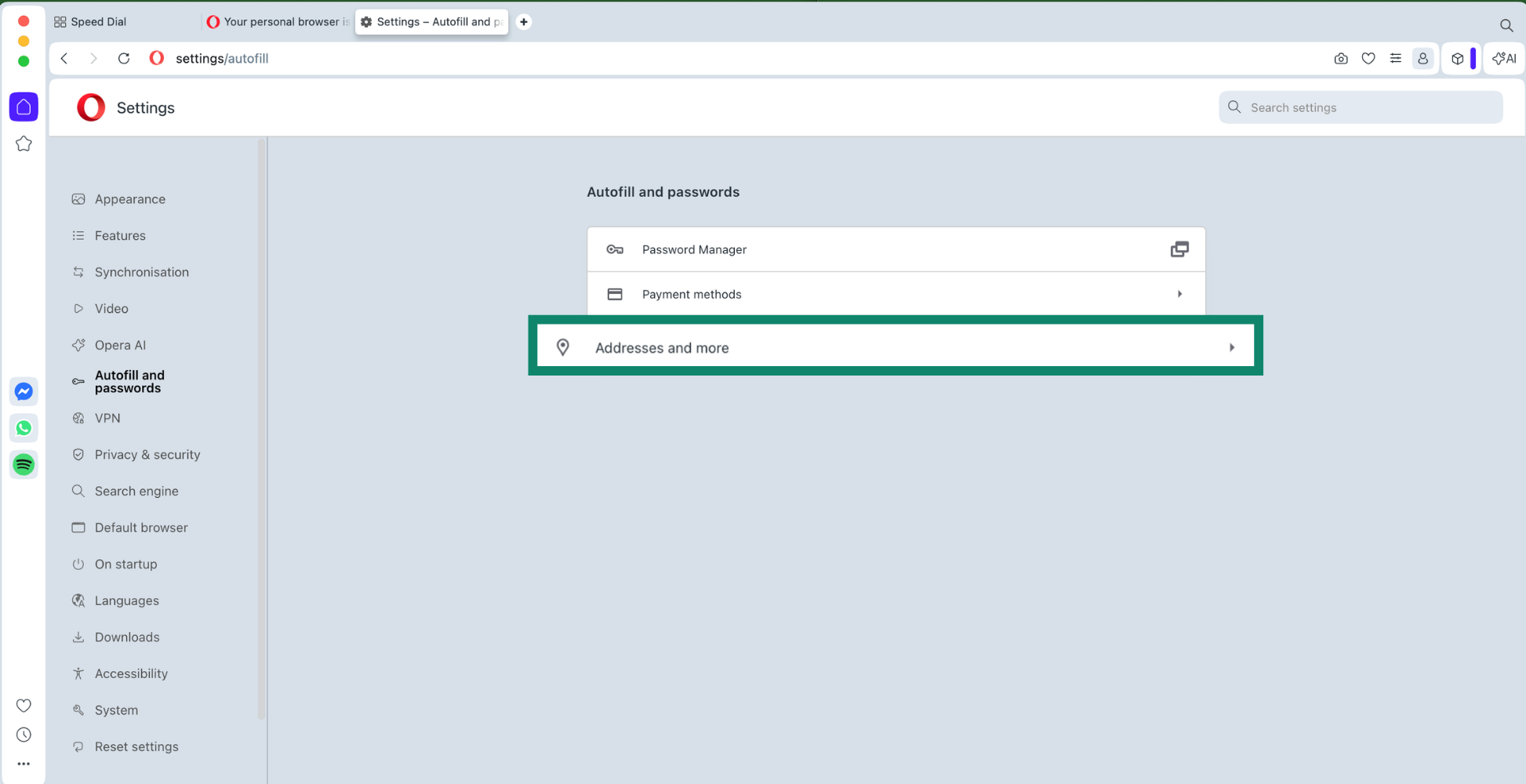
- Click Autofill and passwords, then Password manager.
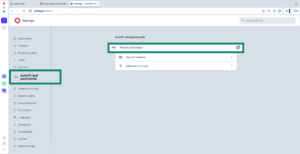
- Turn off the toggles next to Offer to save passwords and Sign in automatically.
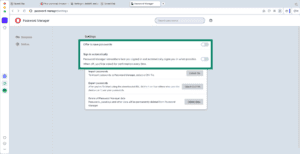
- Click the arrow (
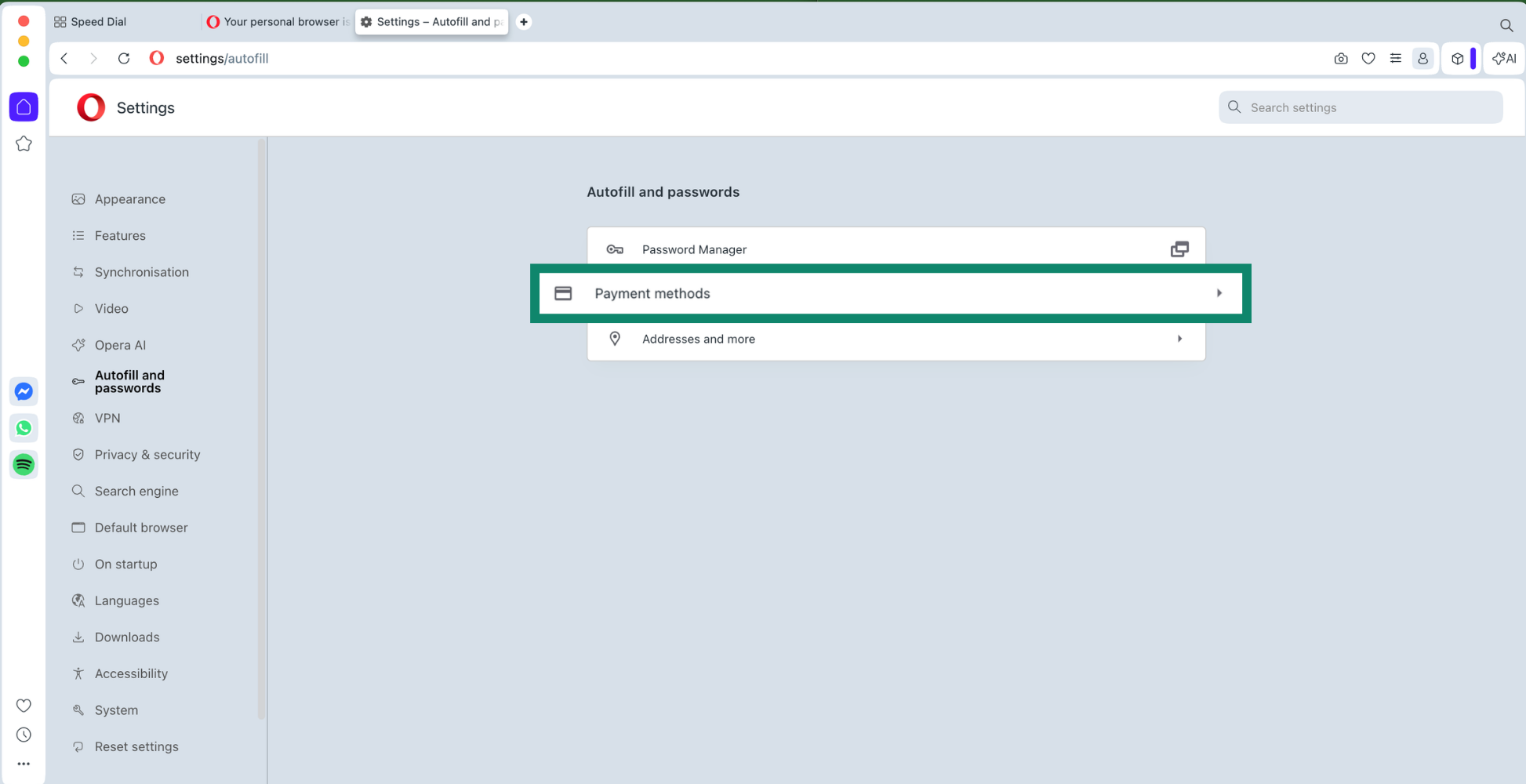
 ) to go back, then click Payment methods.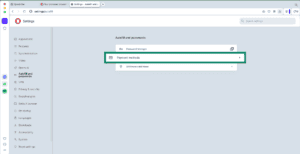
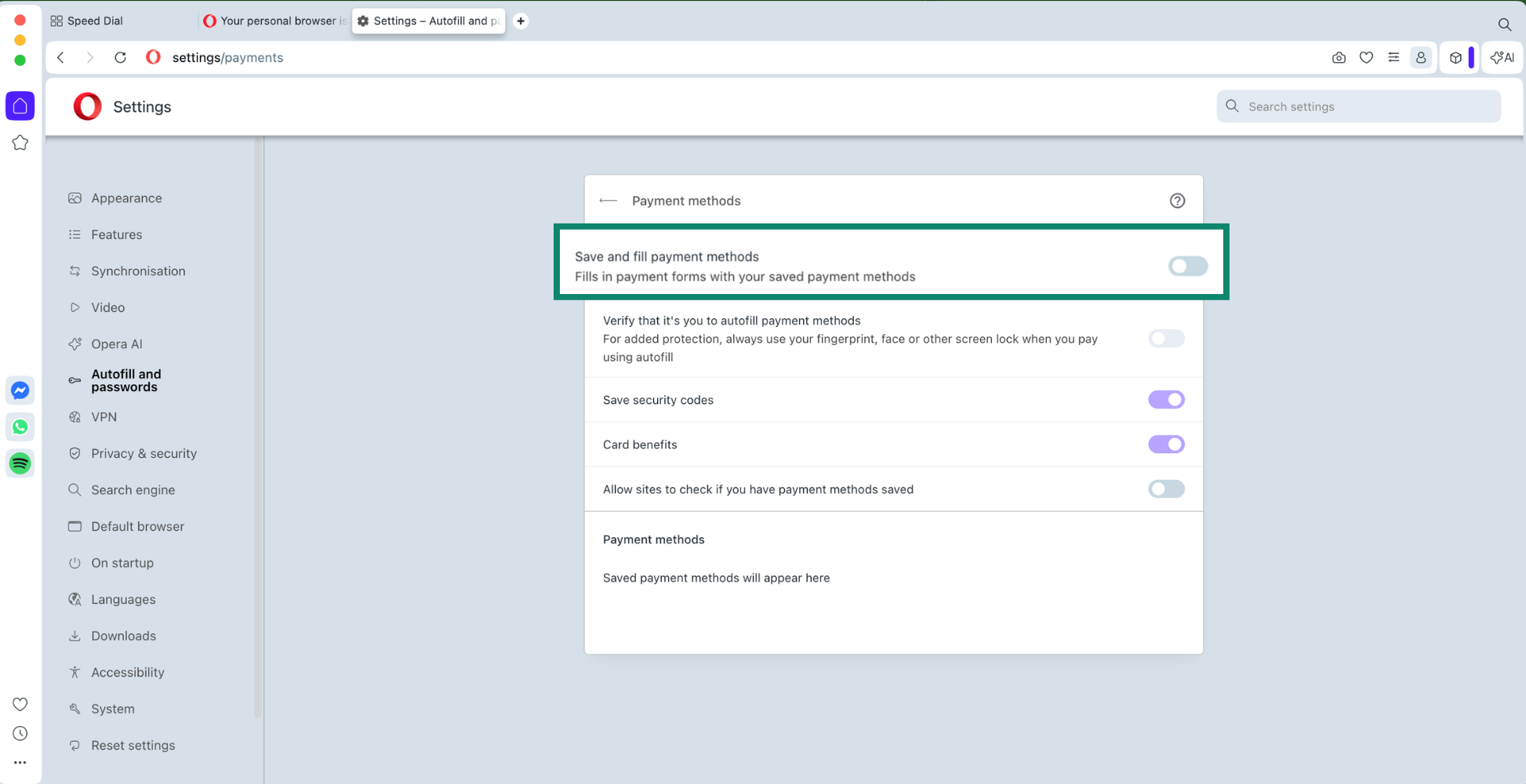
- Turn off the toggle next to Save and fill payment methods.
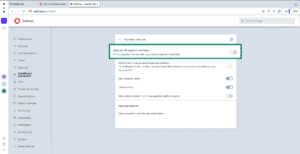
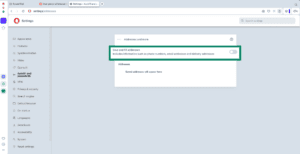
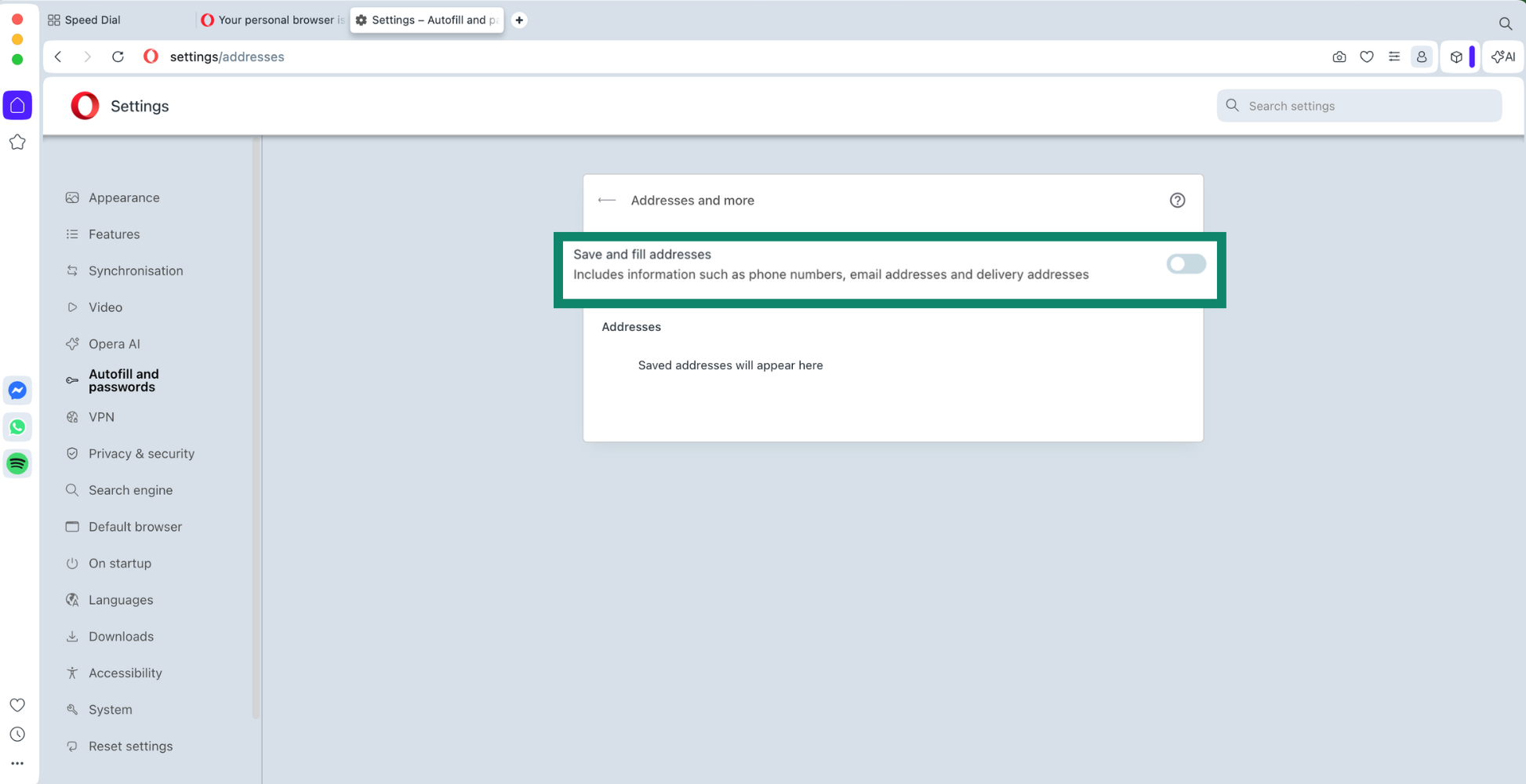
- Click the arrow () to go back, then click Addresses and more.
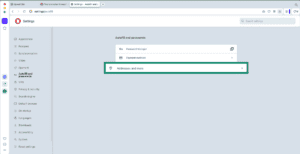
- Turn off the toggle next to Save and fill addresses.
Need help? Contact Support Team for immediate assistance.
Import your Opera logins using your Android device
Opera does not allow exporting logins on Android. Follow the steps above to import your logins using your computer.
Need help? Contact the ExpressVPN Support Team for immediate assistance.
Import your Opera logins using your iOS device
Opera does not allow exporting logins on iOS. Follow the steps above to import your logins using your computer.
Need help? Contact the ExpressVPN Support Team for immediate assistance.