






This guide will show you how to export data stored in ExpressKeys.
You can export your data stored in ExpressKeys (and import it into another ExpressVPN account or password manager service) using the ExpressKeys app for Android, iOS, or macOS, or the ExpressKeys extensions for Chrome and Firefox.
Jump to…
Android and iOS
On Android and iOS, your login items are exported as a CSV file inside an encrypted ZIP file. The ZIP is protected with a password that you create, meaning no one can open it or access your data without that password. This keeps your passwords and logins secure during the export process.
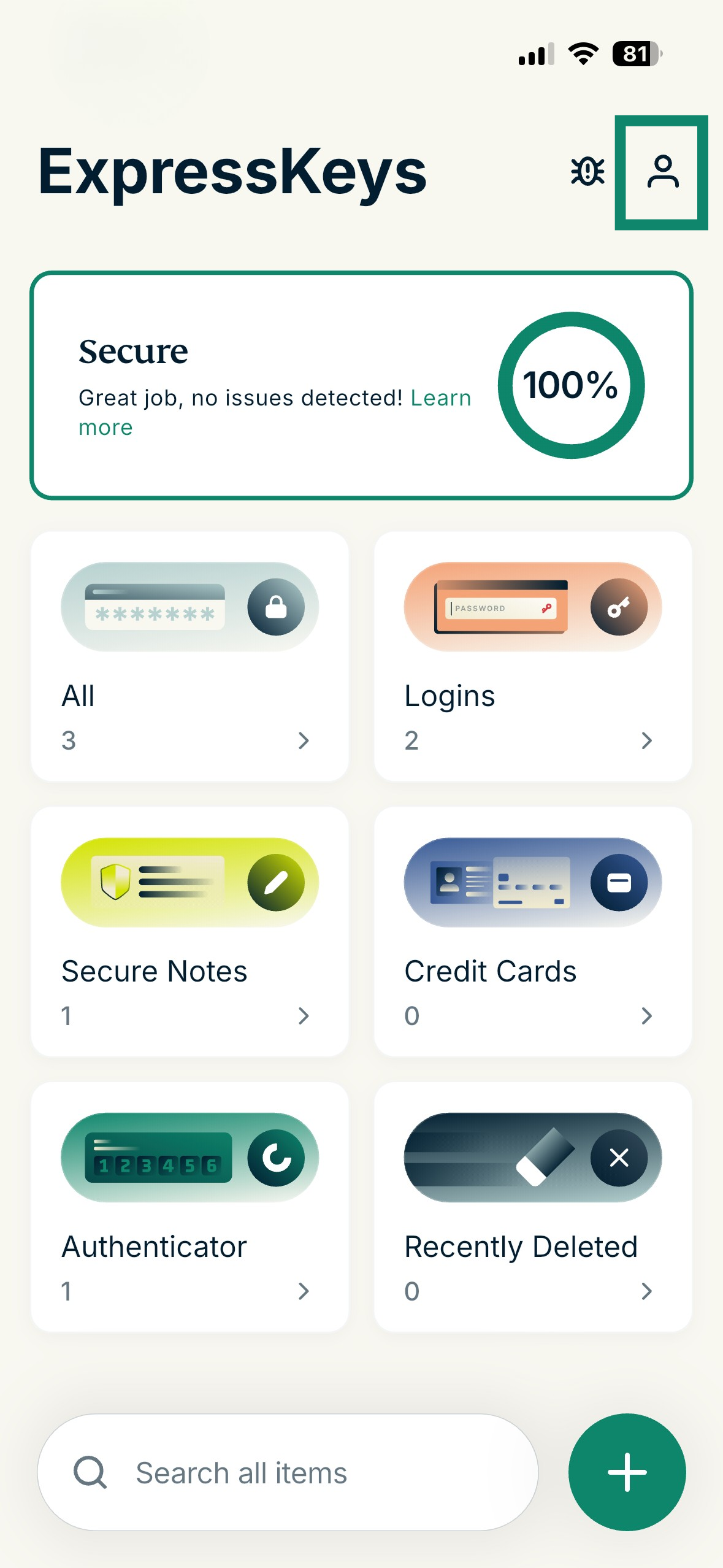
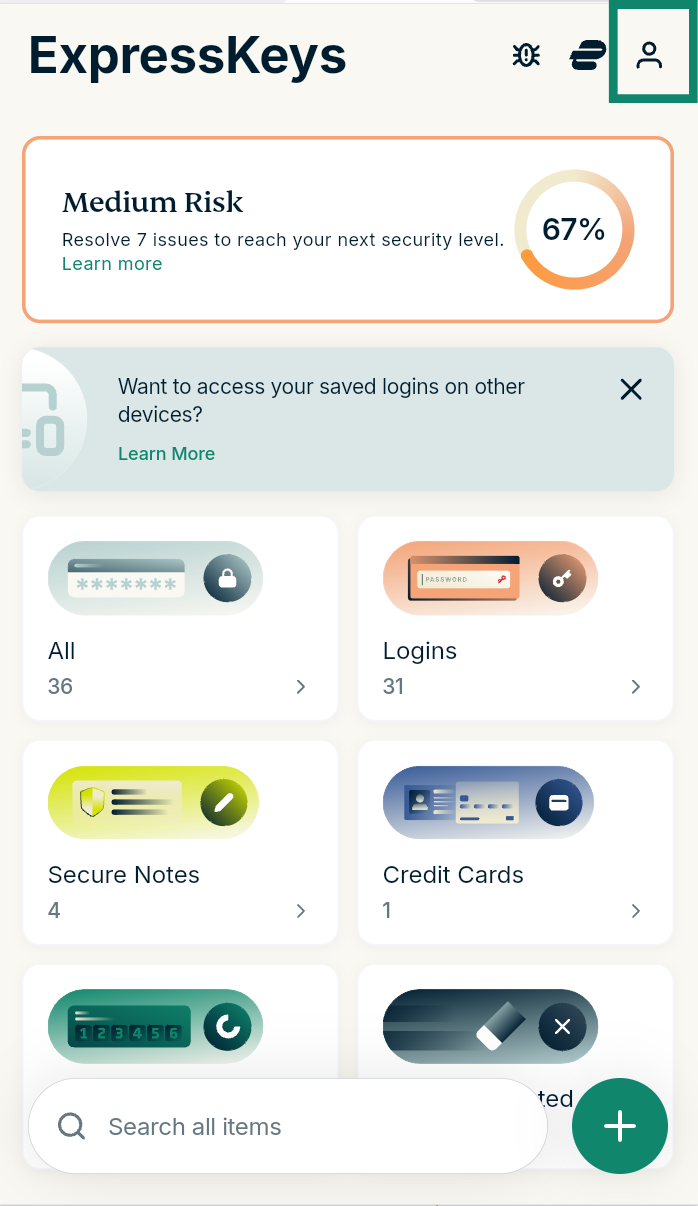
- Open the ExpressKeys app for Android or iOS, and tap

 in the top-right.

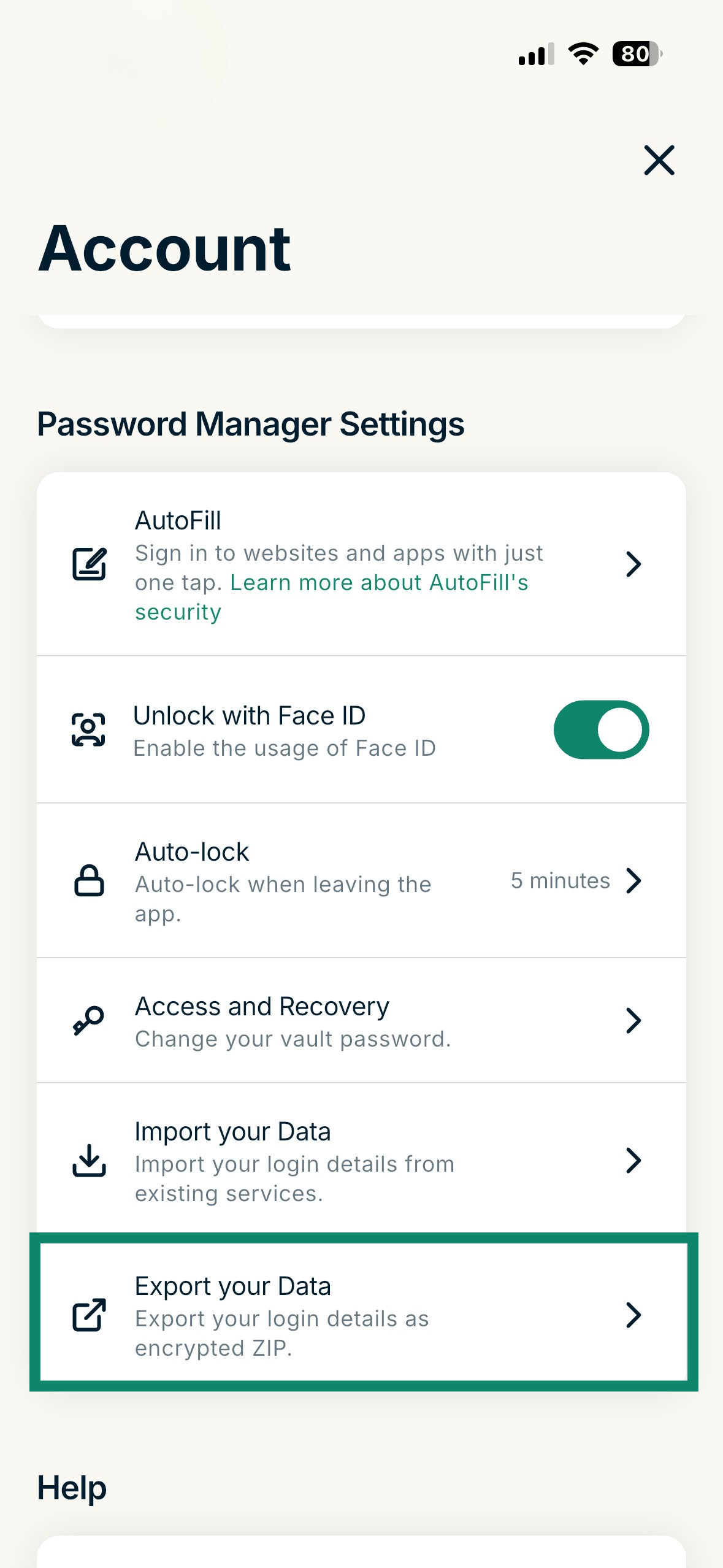
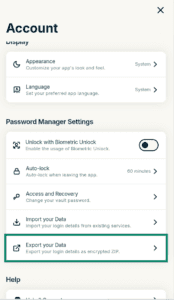
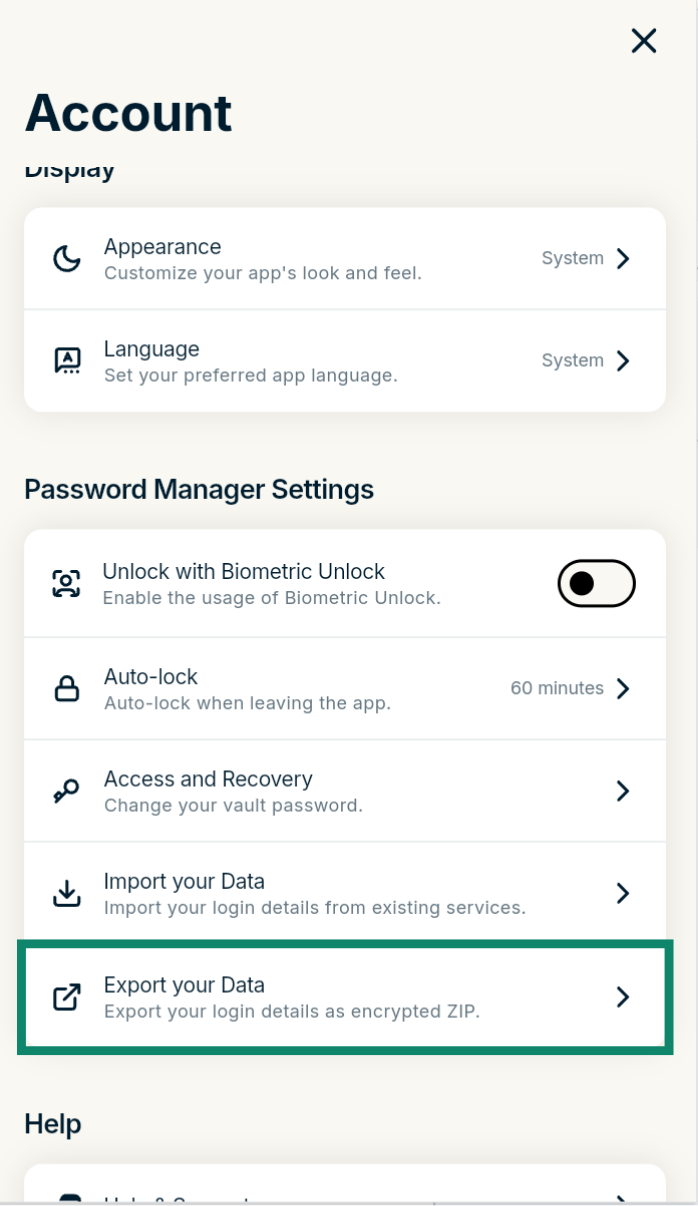
- Scroll down to Password Manager Settings and tap Export Your Data.

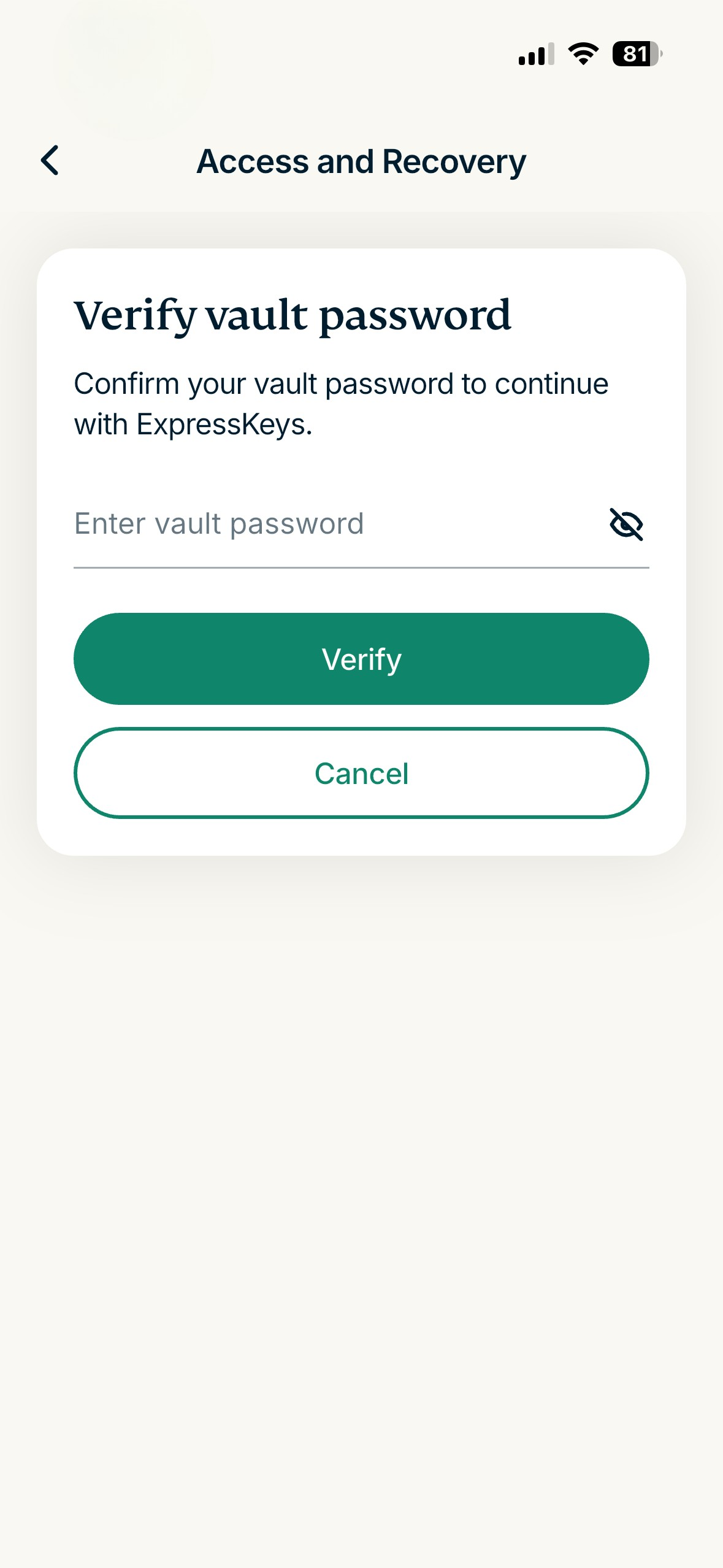
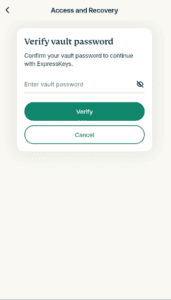
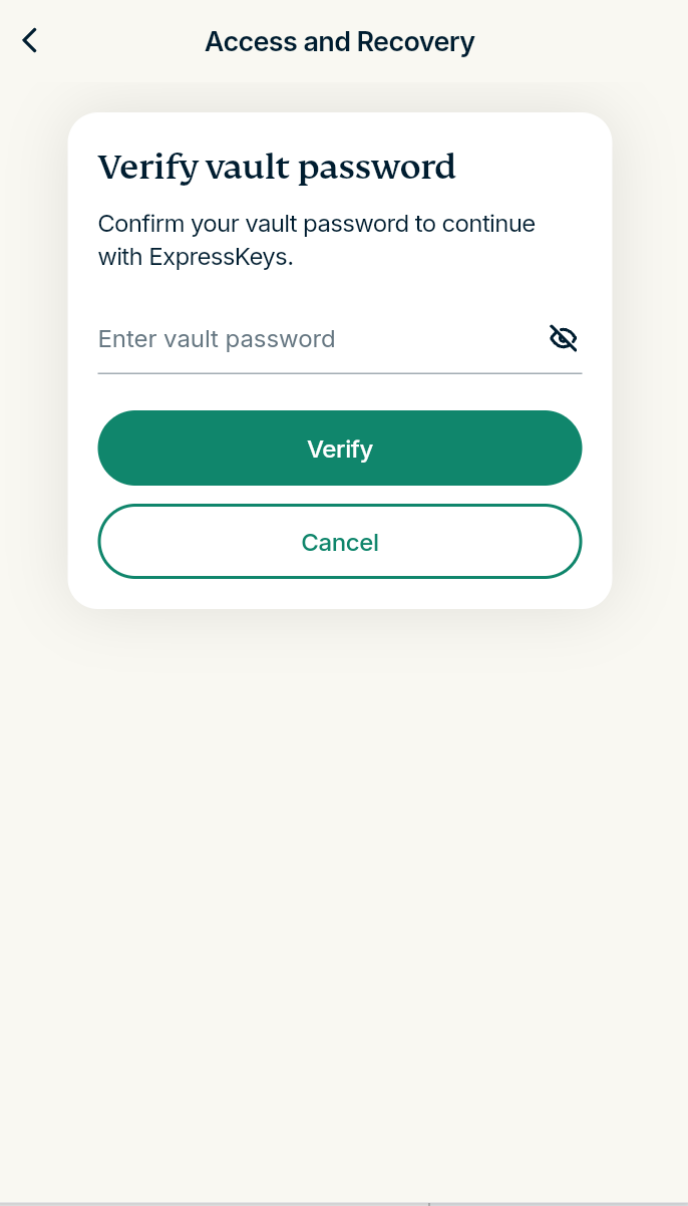
- Enter your vault password and tap Verify.

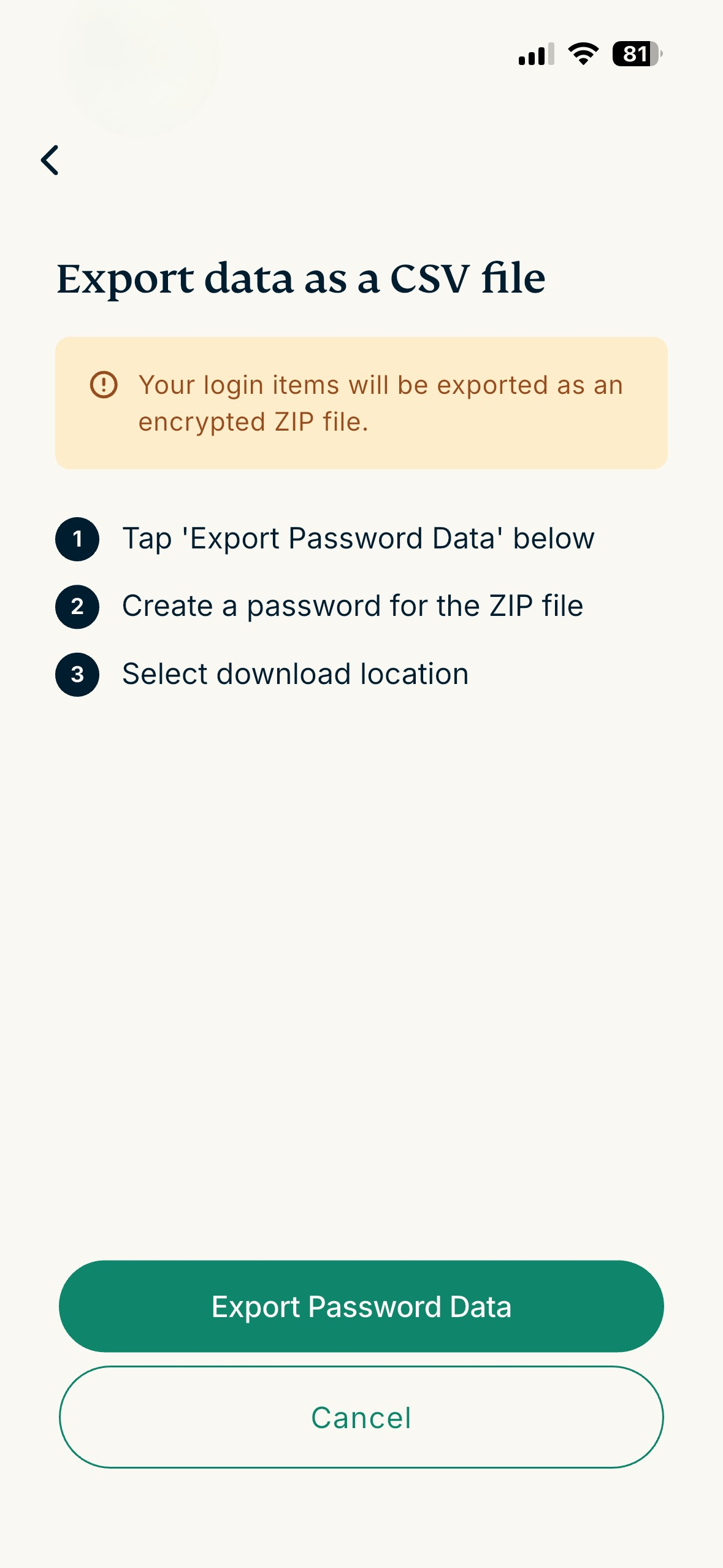
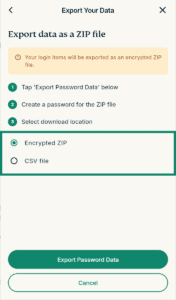
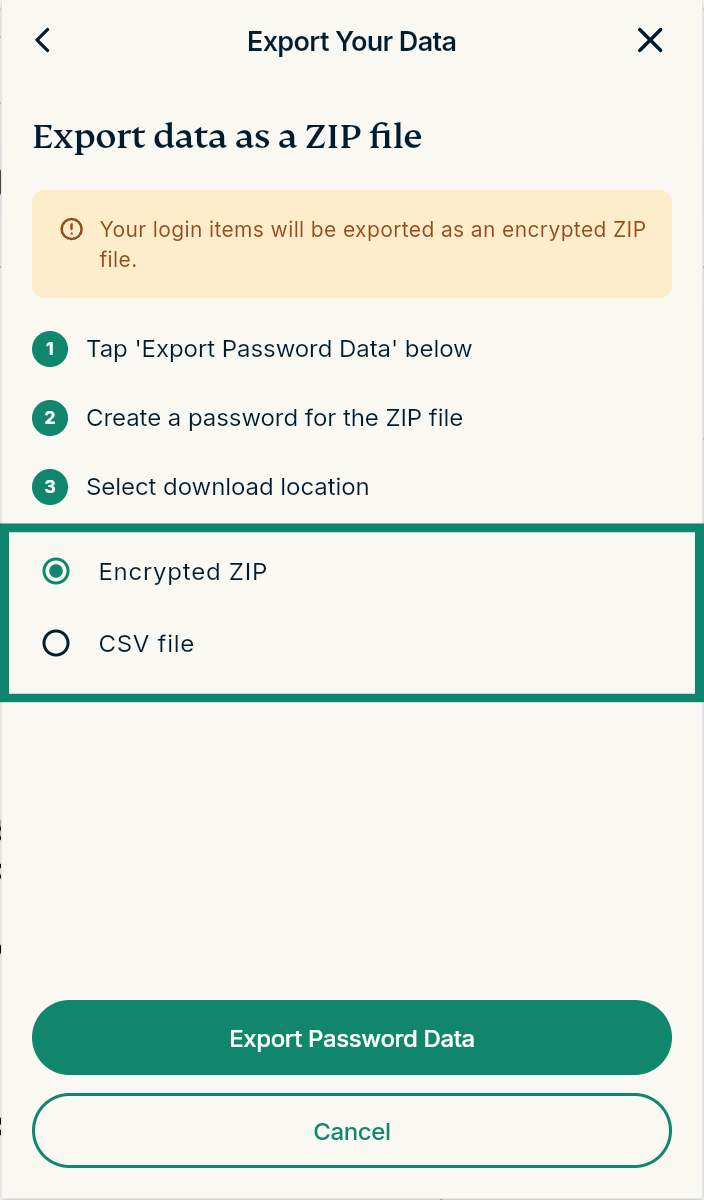
- Tap Export Password Data.

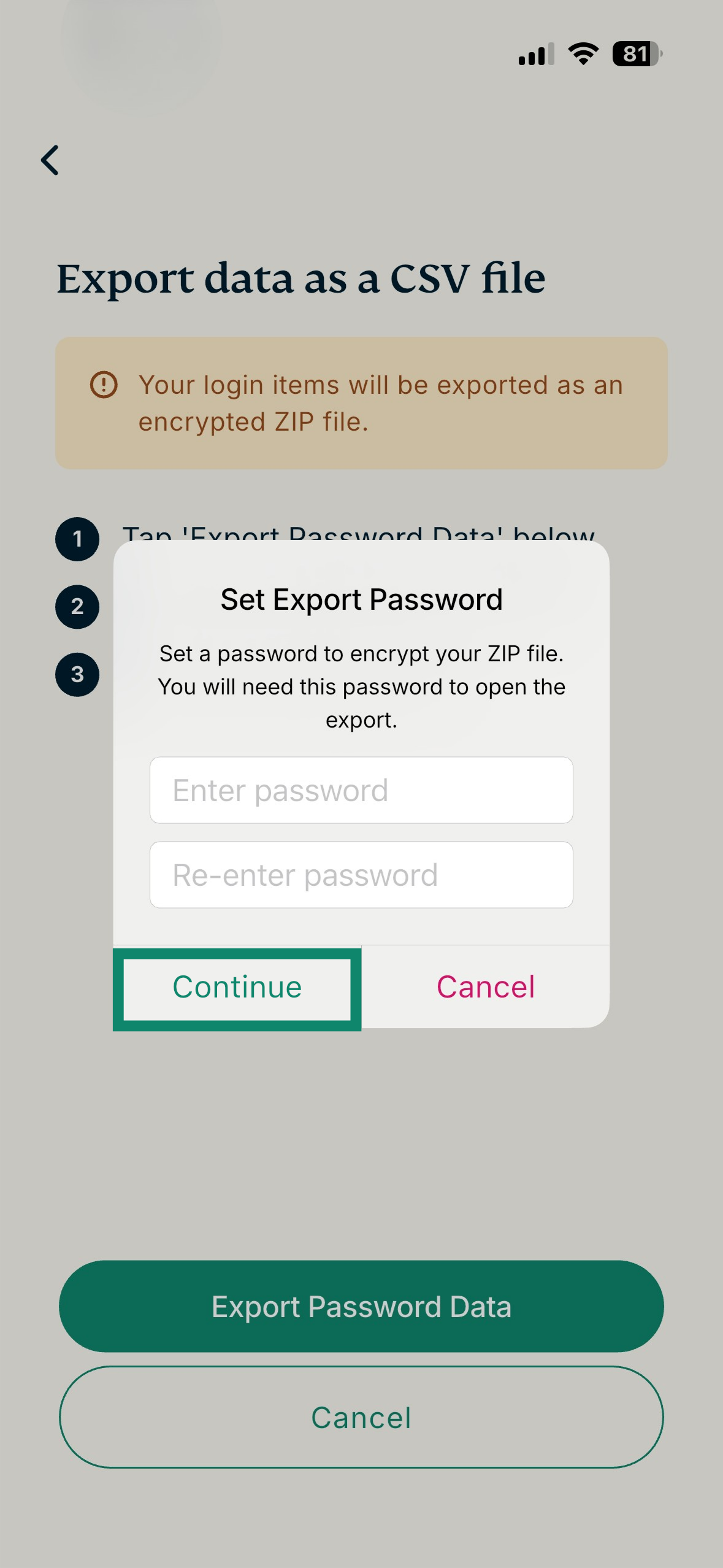
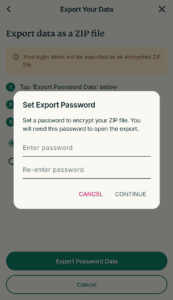
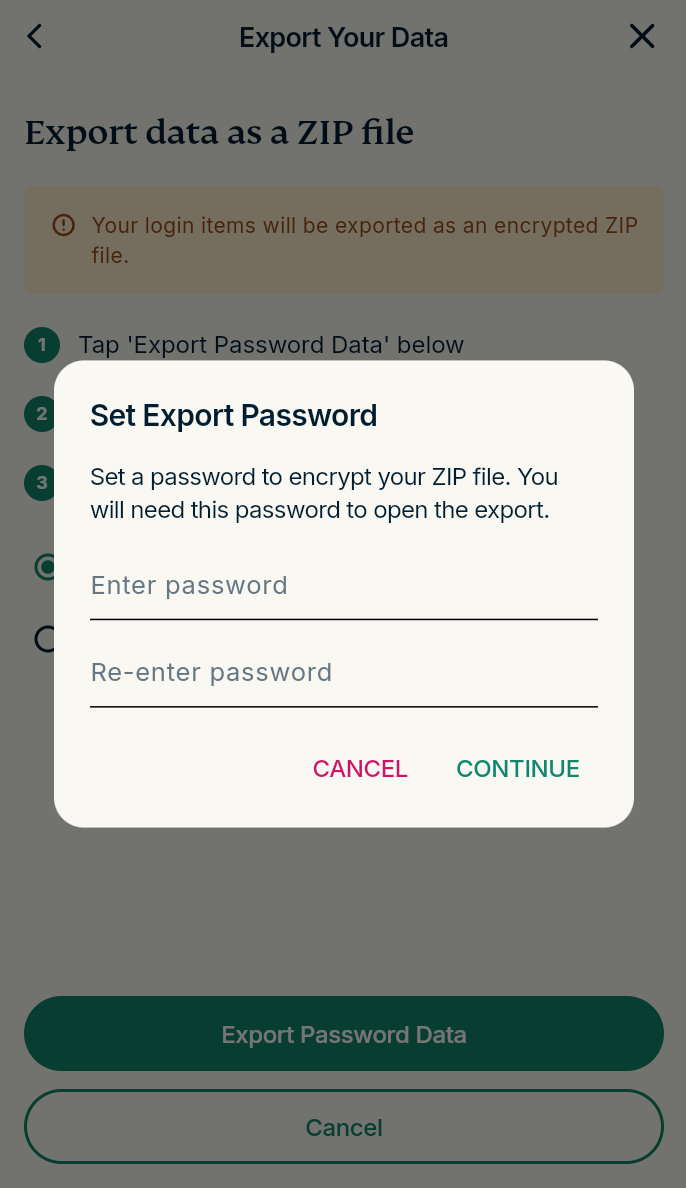
- Set a password for the encrypted ZIP file and tap Continue.

- Select where you want to save the export.
Need help? Contact our Support Team for immediate assistance.
macOS
Just like on Android and iOS, when you export login items from the macOS app, you export them as a CSV file inside an encrypted ZIP file. The ZIP is protected with a password that you create, which keeps your passwords and logins secure during the export process.
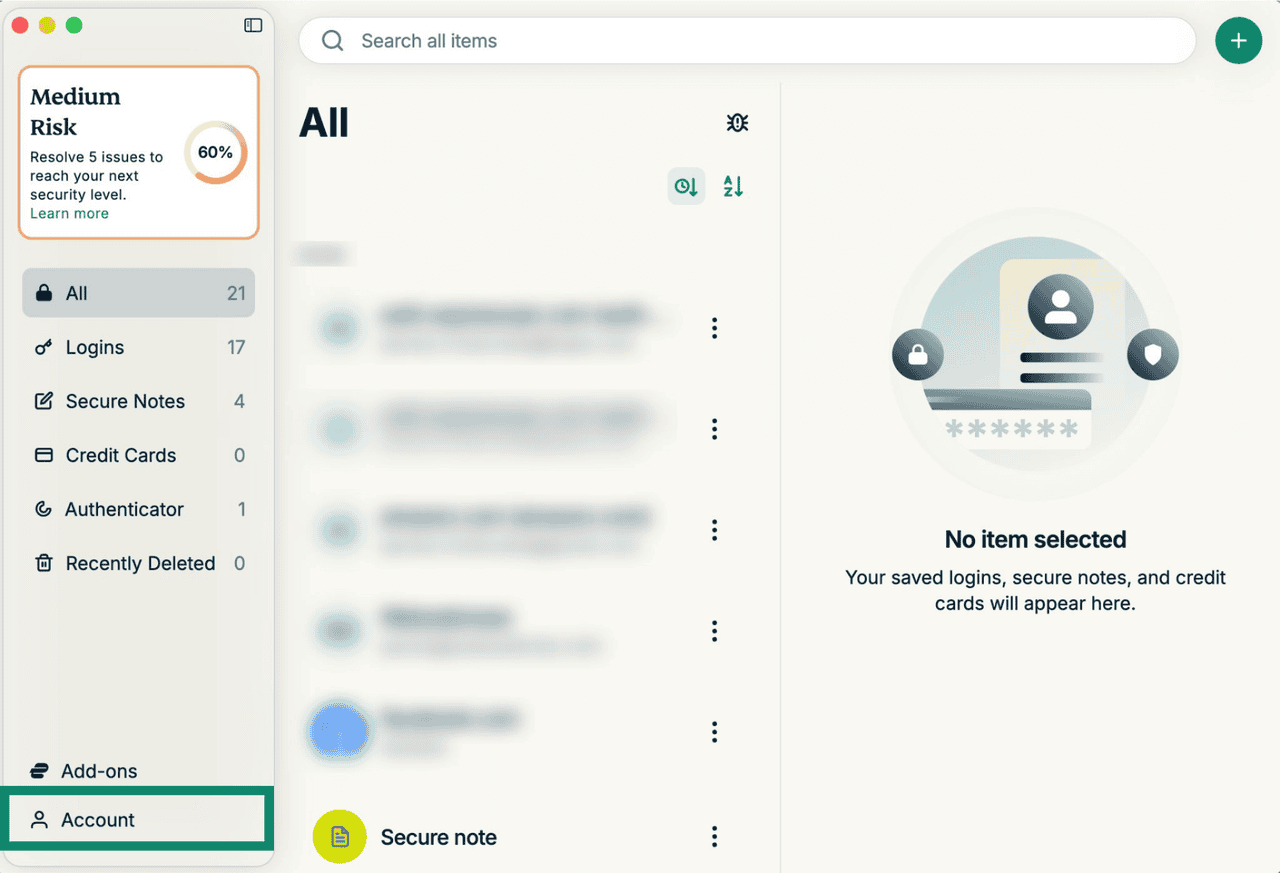
- Select Account to open the settings menu.


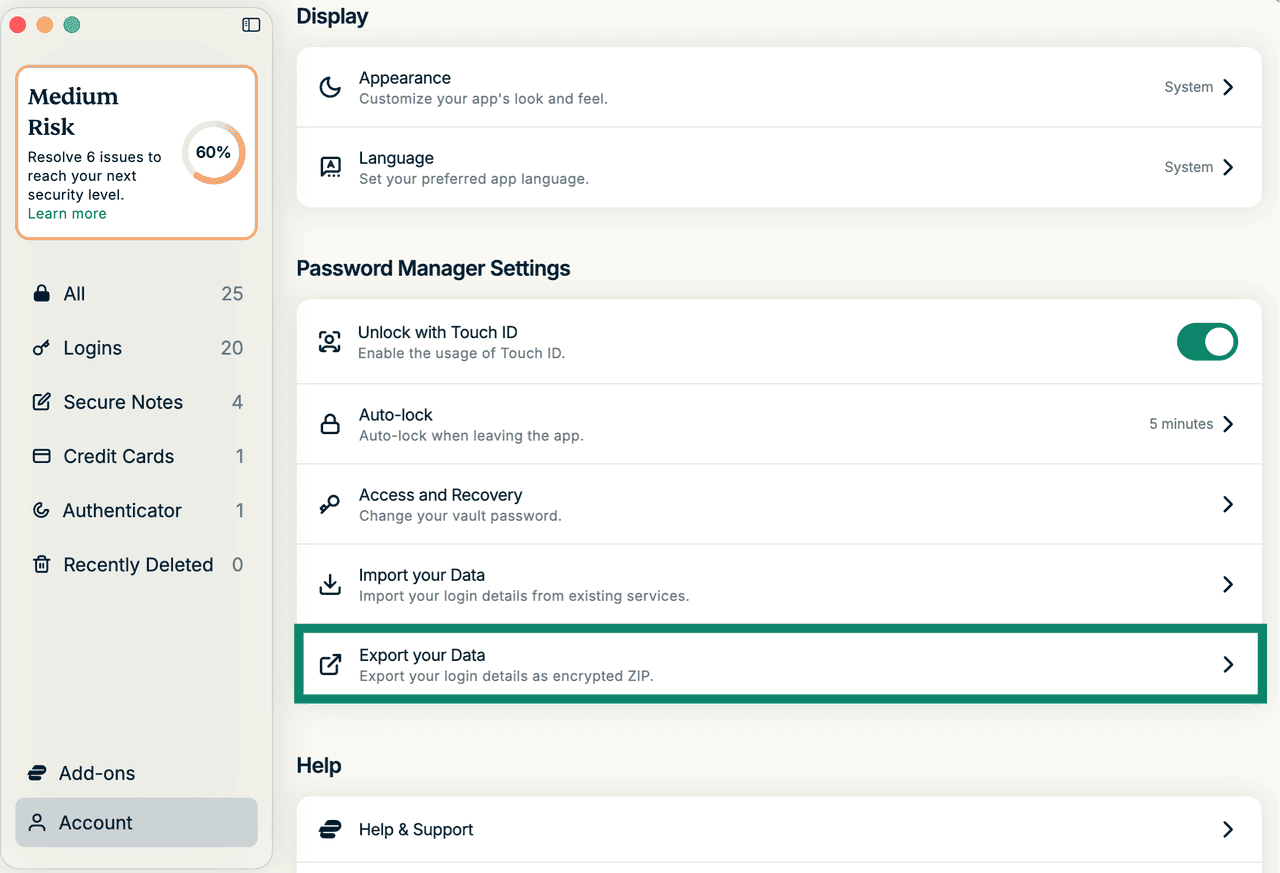
- Scroll down and under Password Manager Settings, select Export your Data.


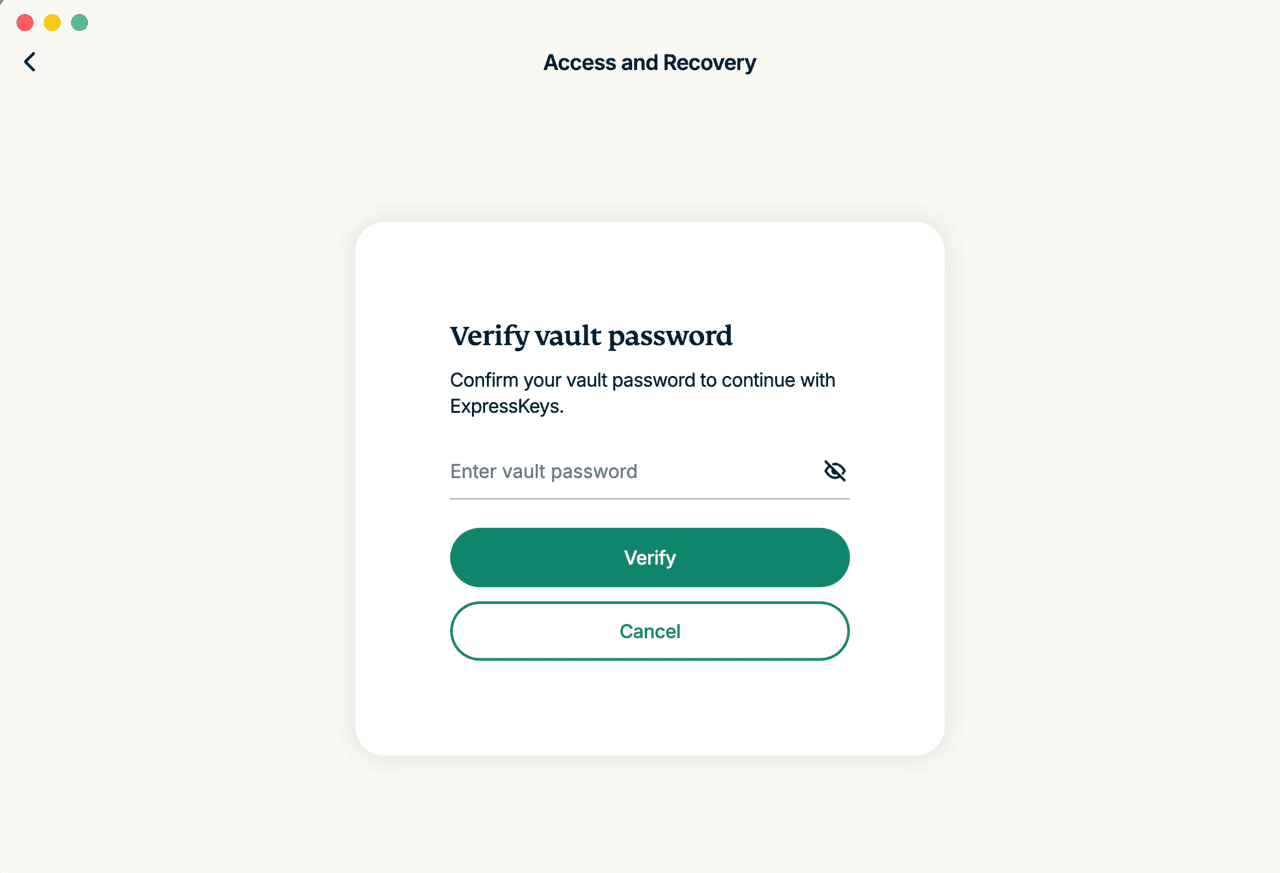
- Enter your vault password and click Verify.

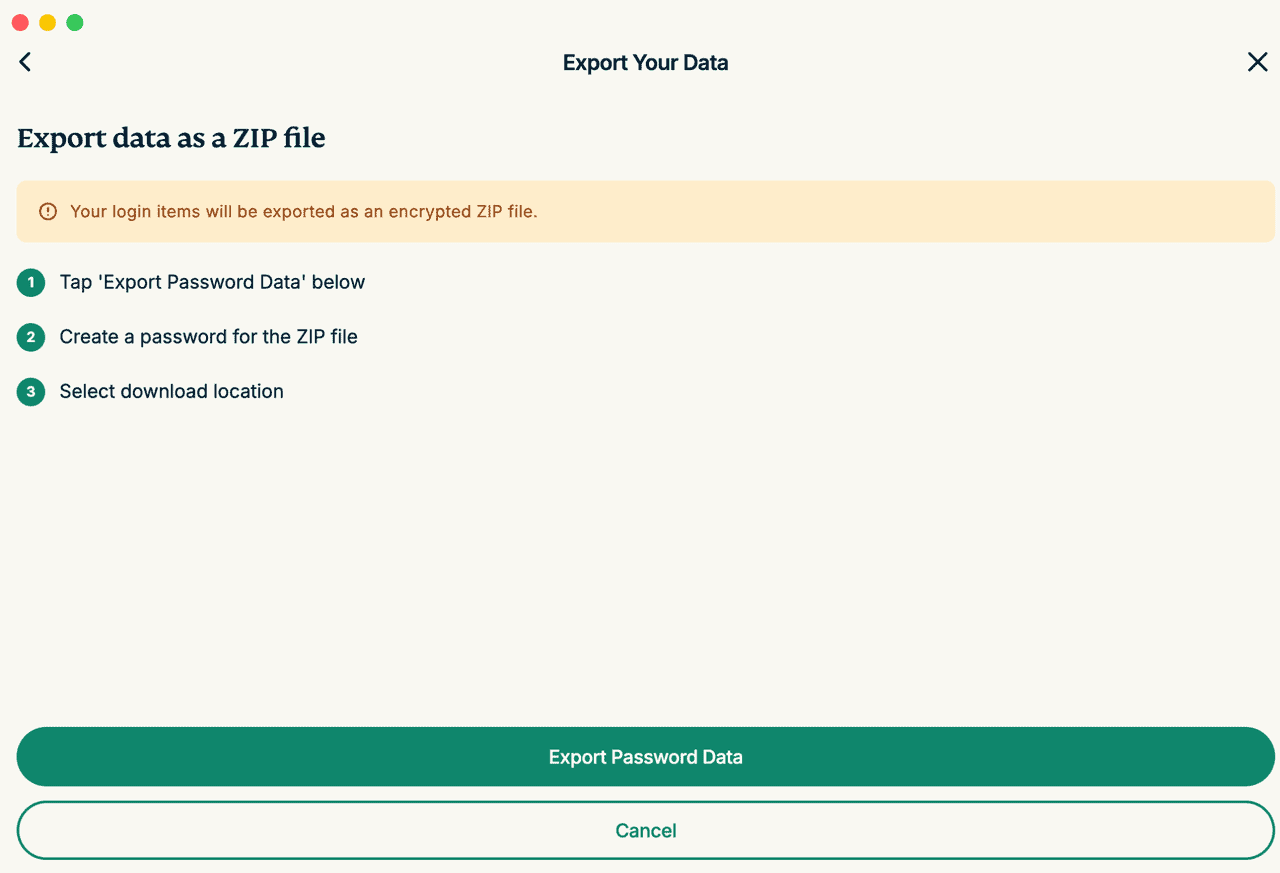
- On the next sceen, select Export Password Data.

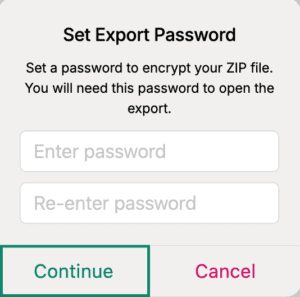
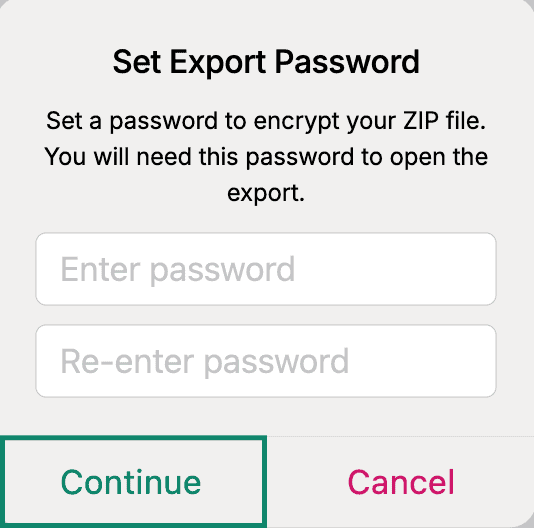
- Create your password for the ZIP file, re-enter it, and select Continue.

- Choose where you want to save the export.
Need help? Contact the ExpressVPN Support Team for immediate assistance.
Browser extensions
In the ExpressKeys browser extensions, you can choose whether you want to download your data in an encrypted ZIP file or as a plain CSV file. The encrypted ZIP file is protected by a password you set, which keeps your logins, secure notes, and attachments safe during export. The CSV file is not protected, and anyone who might intercept it can potentially view your data.
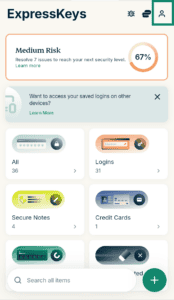
- In the ExpressKeys extension, click the profile icon in the top-right.

- Select Export Your Data under Password Manager Settings.
- Enter your vault password and click Verify.

- Choose if you want to export your data as an Encrypted ZIP or CSV file. Then, select Export Password Data.

- If you chose a ZIP file, create a password and click CONTINUE.

- Follow the on-screen instructions to save the file.
Need help? Contact our Support Team for immediate assistance.