






ExpressVPN for Teams allows admins with multiple subscriptions linked to the same email address to switch between subscriptions directly from the dashboard. This lets you access and manage each subscription from one place, without needing to sign out and sign back into separate accounts.
To use the subscription switcher, follow these steps:
- Log into your ExpressVPN for Teams dashboard.
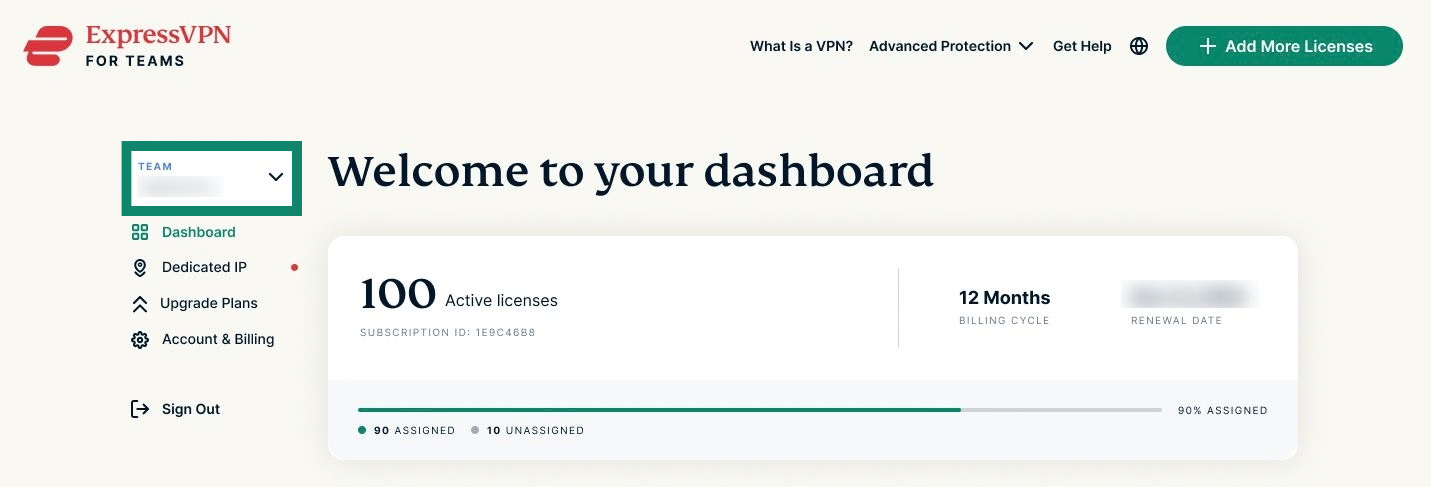
- In the top-left corner, locate the TEAM box and click the downward chevron (⌄) to open the menu.
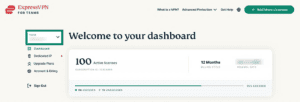

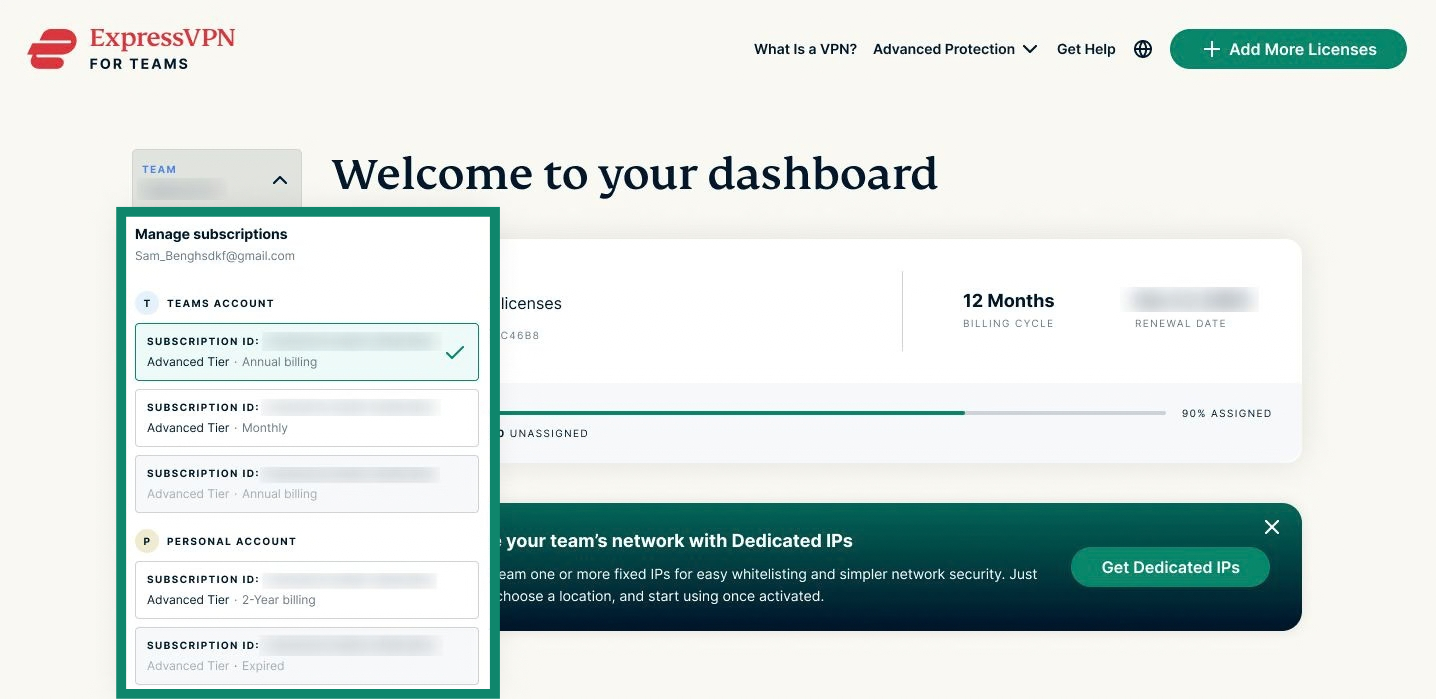
- Select the subscription you want to access. You can access both your ExpressVPN for Teams accounts and any personal ExpressVPN accounts from here (provided these accounts use the same email address).
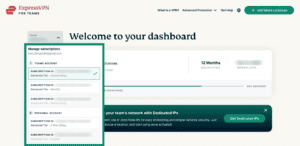

- You will now be taken to the dashboard for the selected subscription.
For detailed instructions on how to manage your Teams subscription, see:
- How to assign and unassign licenses to users
- How to set up and use SCIM
- How to resend ExpressVPN for Teams onboarding emails
Need help? Contact the ExpressVPN Support Team for immediate assistance.