






Caller Identification is currently only available for users in the U.S. with an active Express Pro subscription.
Caller Identification is a feature in ExpressVPN’s Identity Defender suite that helps protect you from spam and scam calls. On iOS, it can identify suspicious callers and warn you before you answer. On Android, you can choose whether to receive a warning, silence all spam calls, or block them entirely.
Jump to…
How to get Caller Identification
Caller Identification is available to Express Pro subscribers in the U.S. It’s part of the Identity Defender service and is available on Android and iOS.
To sign up for and use Caller Identification:
- Go to the ExpressVPN order page and choose Express Pro.
- Select Get Express Pro to proceed.
- Complete your order by entering your email address and payment details. You’ll now have access to Identity Defender and the Caller Identification feature as part of your ExpressVPN subscription.
- Download and install the Identity Defender app on your Android or iOS device.
Need help? Contact the ExpressVPN Support Team for immediate assistance.
How to set up Caller Identification
Android
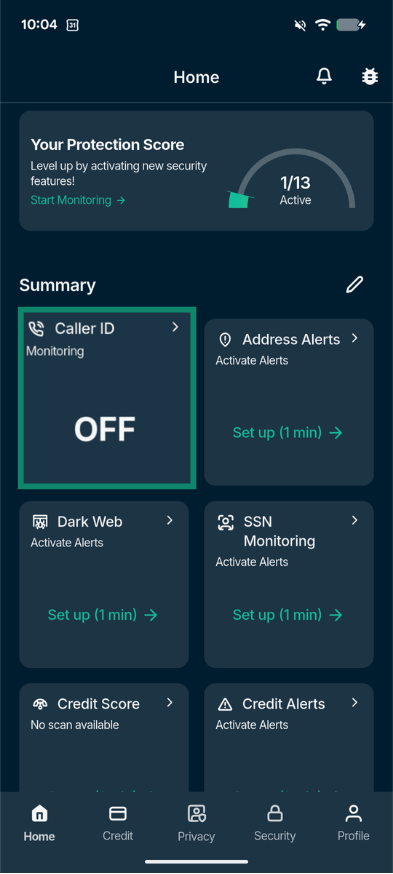
- Open the Identity Defender app on your Android.
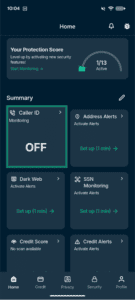
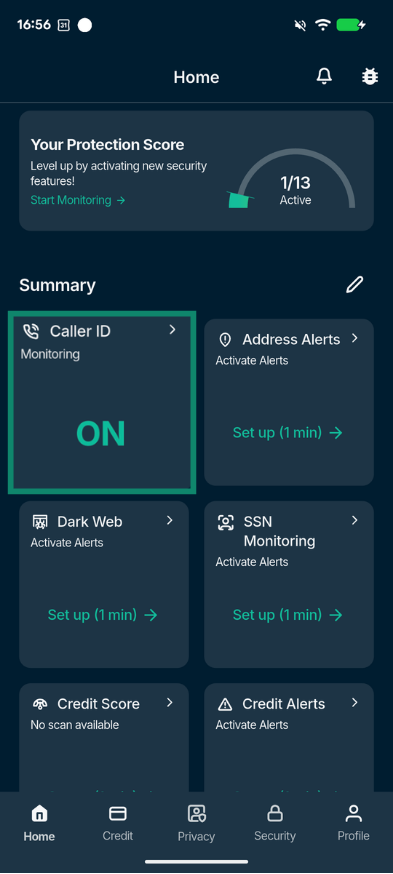
- Tap Caller ID from the home screen dashboard.

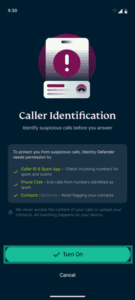
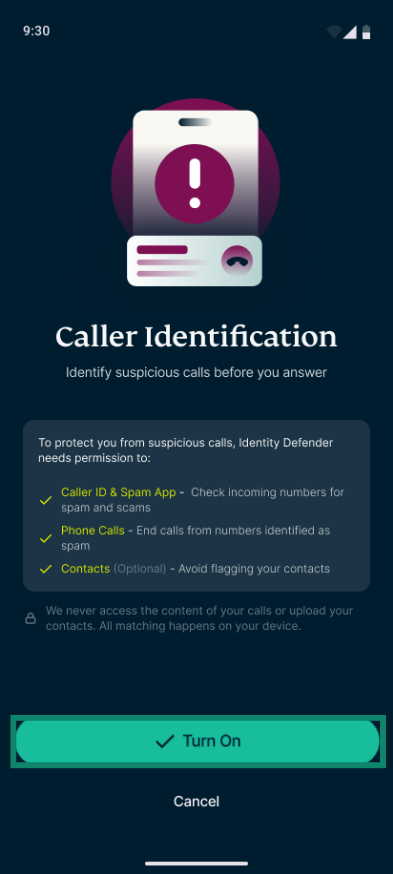
- Tap Turn on.
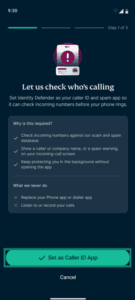
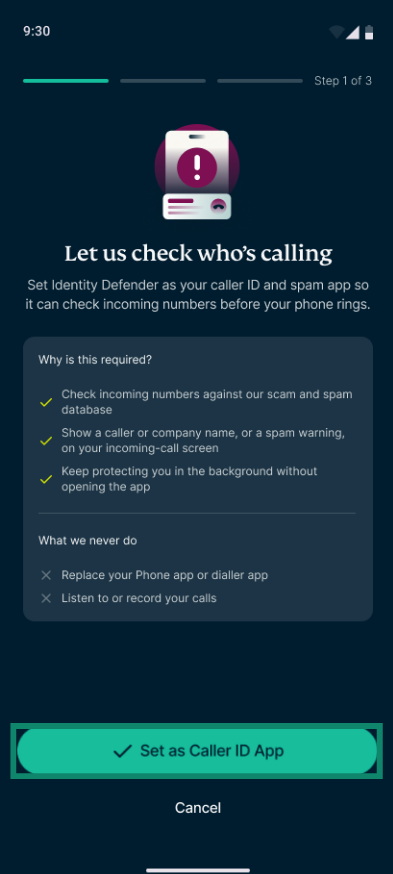
- Tap Set as Caller ID App.
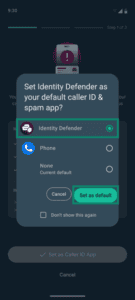
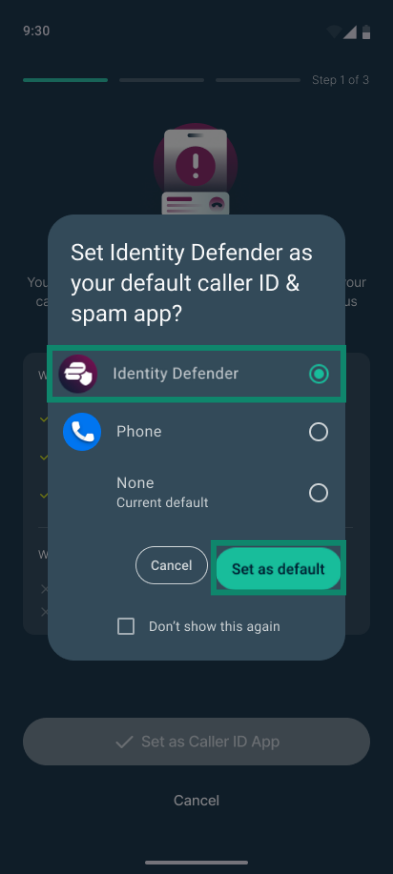
- Select the checkbox next to Identity Defender, then tap Set as default.
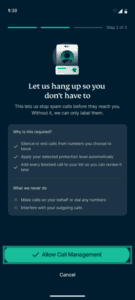
- Tap Allow Call Management.
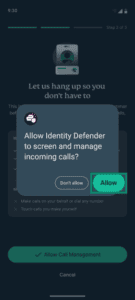
- On the permission pop-up, tap Allow to let Identity Defender screen and manage incoming calls.
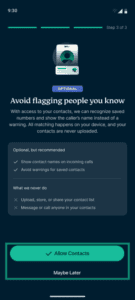
- Choose whether you want Identity Defender to access your contacts. This helps prevent calls from people you know from being flagged as spam or scams:
- Tap Allow Contacts to enable this option. On the next permission pop-up, tap Allow.
- Tap Maybe Later to continue without allowing access to your contacts. On the next pop-up, tap Skip For Now.
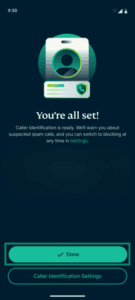
- Tap Done to finish setup.
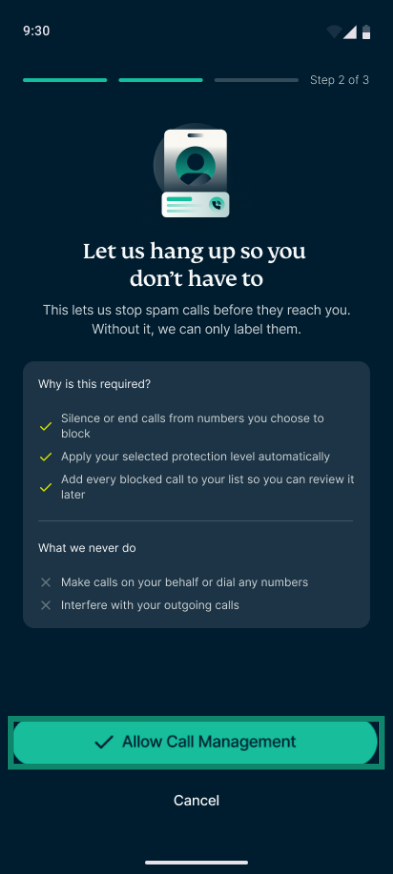
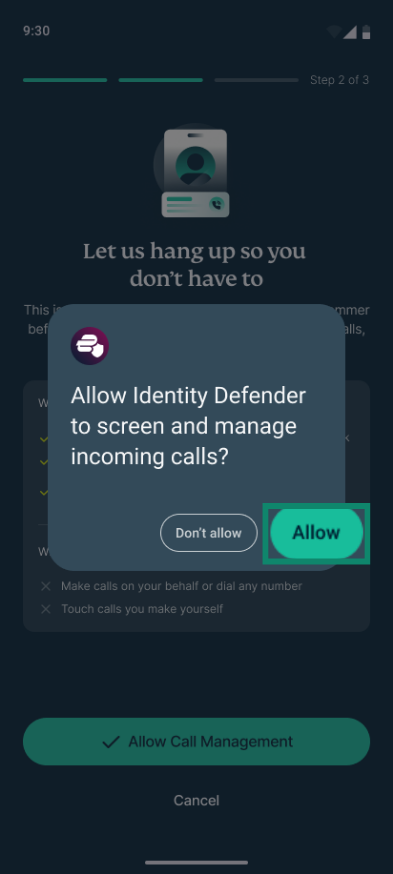
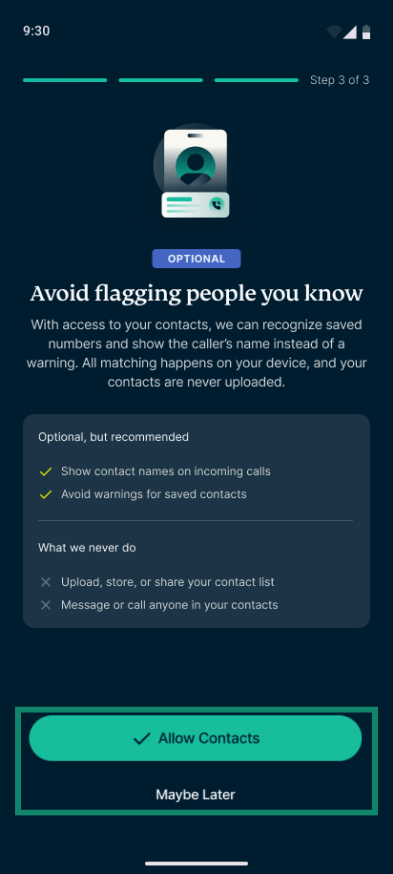
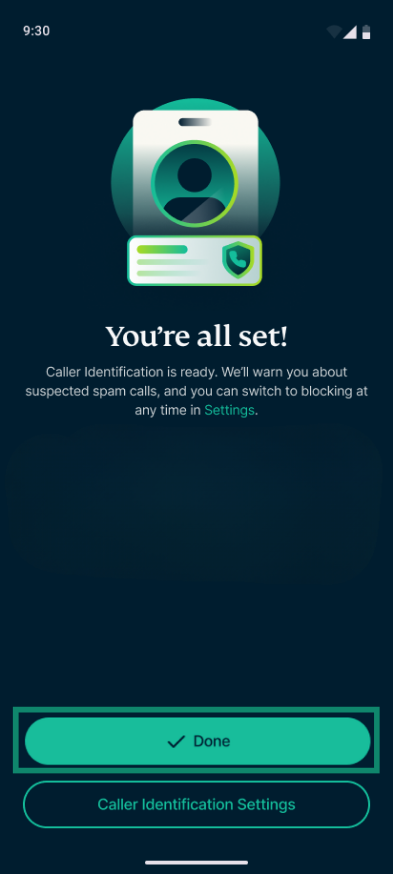
iOS
- Open the Identity Defender app on your iOS.
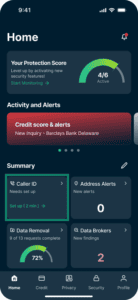
- Select the Caller ID widget from your home screen.

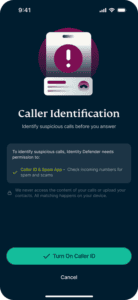
- Select Turn On Caller ID to confirm.
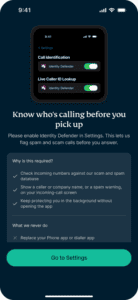
- Tap Go to Settings.
- Toggle the switch next to Identity Defender under Call Identification and Live Caller ID Lookup.
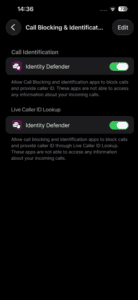
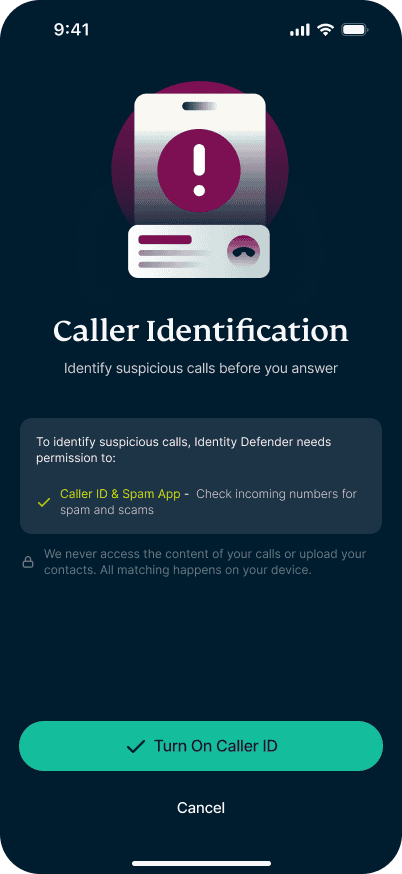
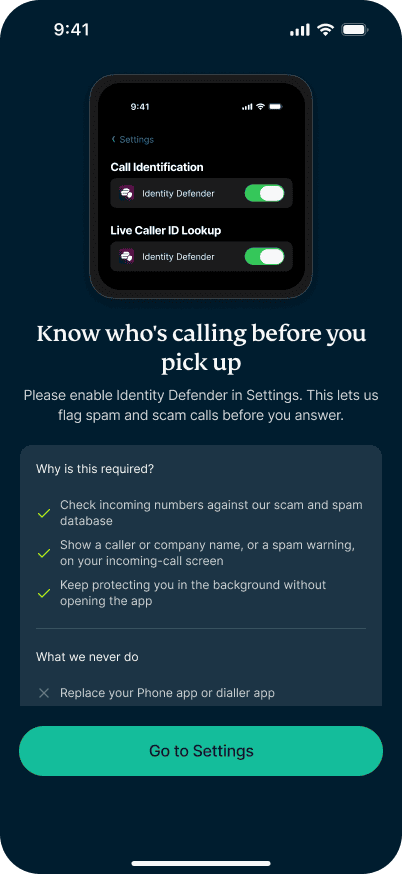
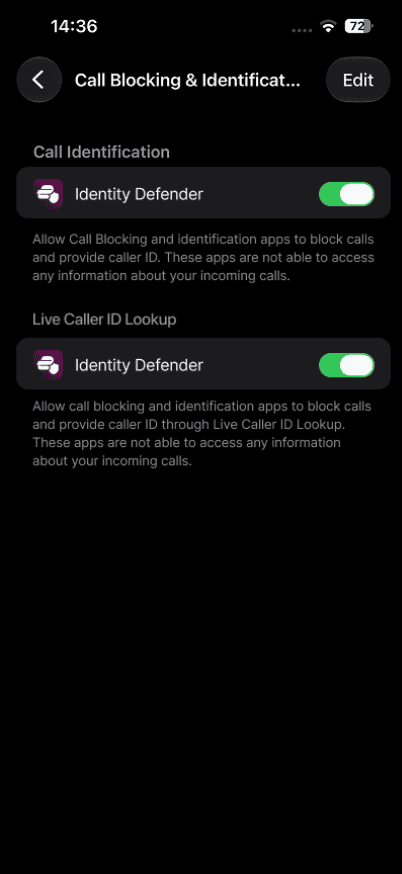
That’s it! Caller Identification is now enabled for your iOS device.
Need help? Contact the ExpressVPN Support Team for immediate assistance.
How to manage Caller Identification settings
Android
On Android, you can turn call protection on or off, change your protection level, and review blocked numbers in the Identity Defender app.
- In Identity Defender, tap Caller ID.
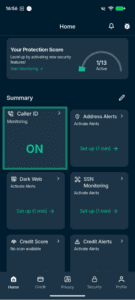
- You will see the following settings and information:
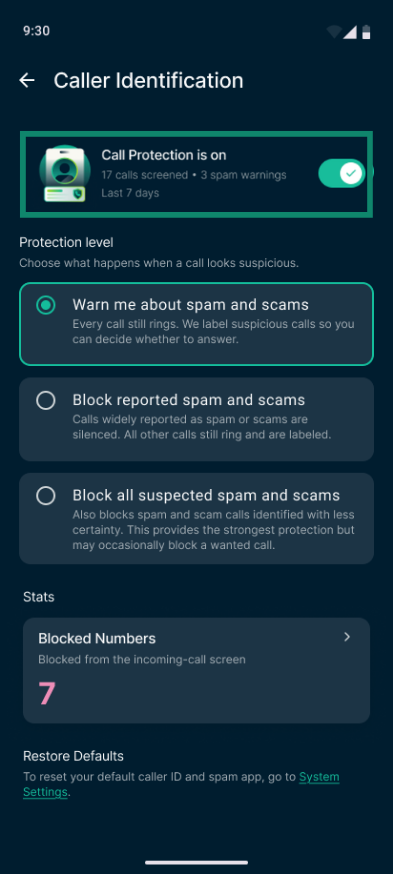
- Call Protection: Turn call protection on or off. This section also shows the number of calls screened and spam warnings in the last 7 days.
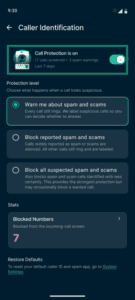
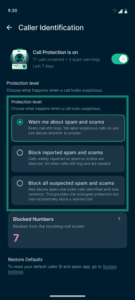
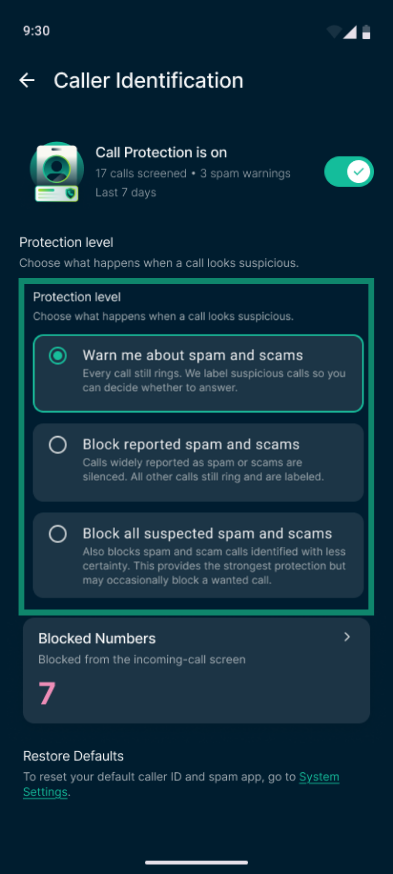
- Protection level: Choose what happens when a call looks suspicious:
- Warn me about spam and scams: Every call still rings. Identity Defender labels suspicious calls so you can decide whether to answer.
- Block reported spam and scams: Silences calls known as spam or scams. Other calls still ring and are labeled when suspicious.
- Block all suspected spam and scams: Blocks all calls that Identity Defender identifies as potential spam or scams, including those that have not been widely reported. This means it may occasionally block a call you wanted to receive.
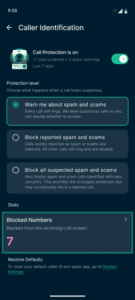
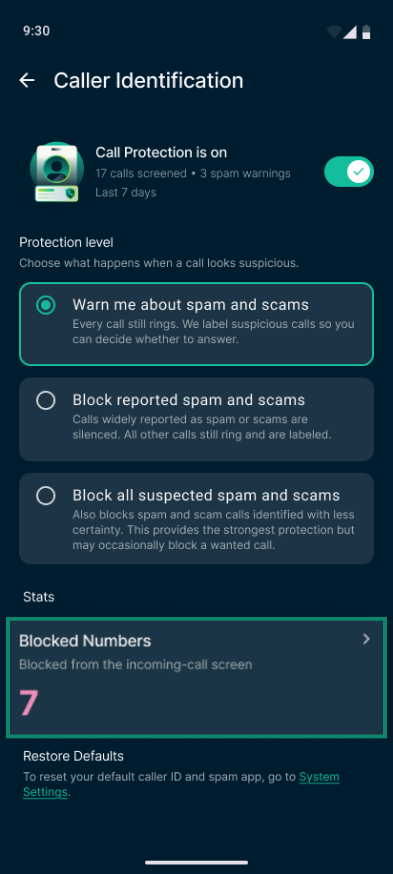
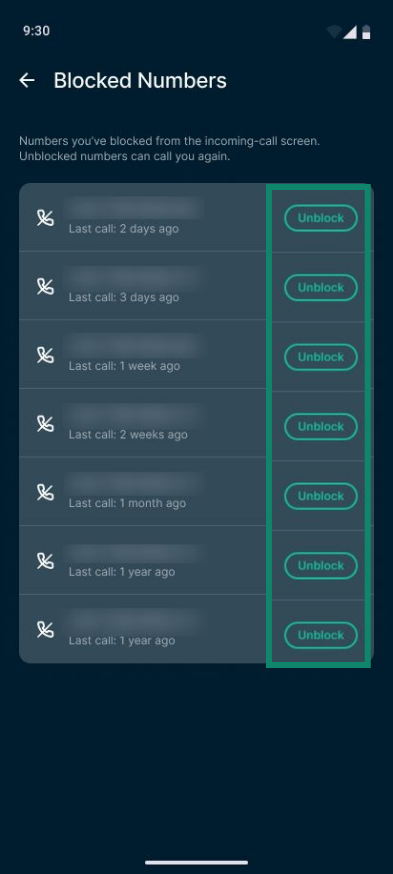
- Blocked Numbers: Shows the number of numbers you have blocked from the incoming-call screen. Tap this option to view your list of blocked numbers.
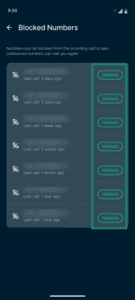
- To unblock a number: Tap Unblock next to the number you want to allow calls from in future, then Unblock again.
- To unblock a number: Tap Unblock next to the number you want to allow calls from in future, then Unblock again.
- Call Protection: Turn call protection on or off. This section also shows the number of calls screened and spam warnings in the last 7 days.
iOS
In your Caller Identification settings on iOS, you can turn call protection on and off. To access Caller Identification settings:
- Tap the Caller ID widget on the home screen in the Identity Defender app.
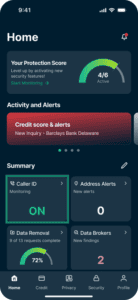
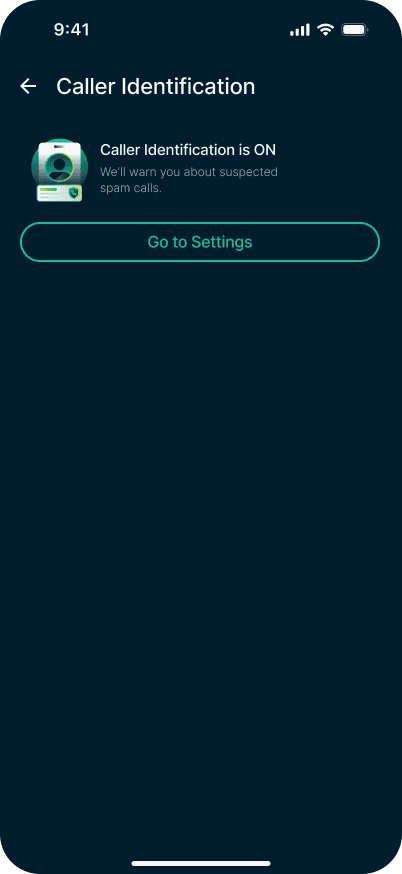
- Here, you will be able to see whether Caller Identification is active. To turn it on or off, tap the Go to Settings button and enable or disable the Identity Defender app in settings.
Need help? Contact the ExpressVPN Support Team for immediate assistance.