




Need a VPN or DNS for your device?
Get ExpressVPN NowOne ExpressVPN account. All devices.
Get Apps for FreeThis tutorial will show you how to set up MediaStreamer on your Xbox 360.
MediaStreamer is a DNS service designed to improve your streaming experience. If your device does not natively support VPN, MediaStreamer is a great alternative for streaming.
To use MediaStreamer smoothly, you must register your IP address on the ExpressVPN website. This allows ExpressVPN to recognize your IP address and grant your device access to MediaStreamer.
Note: MediaStreamer is not a VPN and does not offer the privacy and security benefits of a VPN. You cannot change locations with MediaStreamer.
Not yet a customer? Read why you should get ExpressVPN for Xbox.
Jump to…
1. Register your IP address on the ExpressVPN website
2. Get your MediaStreamer IP address
3. Configure the DNS servers on your Xbox 360
4. Restart your Xbox 360
Restore DNS settings
1. Register your IP address on the ExpressVPN website
- Log into the ExpressVPN+ portal.
- Select ExpressVPN > DNS Settings in the left sidebar.


- Under IP address registration, click Register my IP address. If it already reads “registered” next to your IP address, there is no need to select this option again.


- Toggle Automatically register my IP address on. This is recommended as it automatically tracks changes to your IP address.


When you enable this feature, your registered IP address will update automatically every time you sign in to your account on the ExpressVPN website or use any ExpressVPN app while connected to the same network as your Xbox 360. This will ensure continued access to MediaStreamer for all devices on your network.
Need help? Contact the ExpressVPN Support Team for immediate assistance.
2. Get your MediaStreamer server IP address
- Go to the ExpressVPN Setup page.
- Under Applications (or Show other devices), select Network & smart home to open the dropdown menu. From there, click MediaStreamer.


- You will find your DNS server IP addresses on the right side, under MediaStreamer IP#1 and MediaStreamer IP #2.


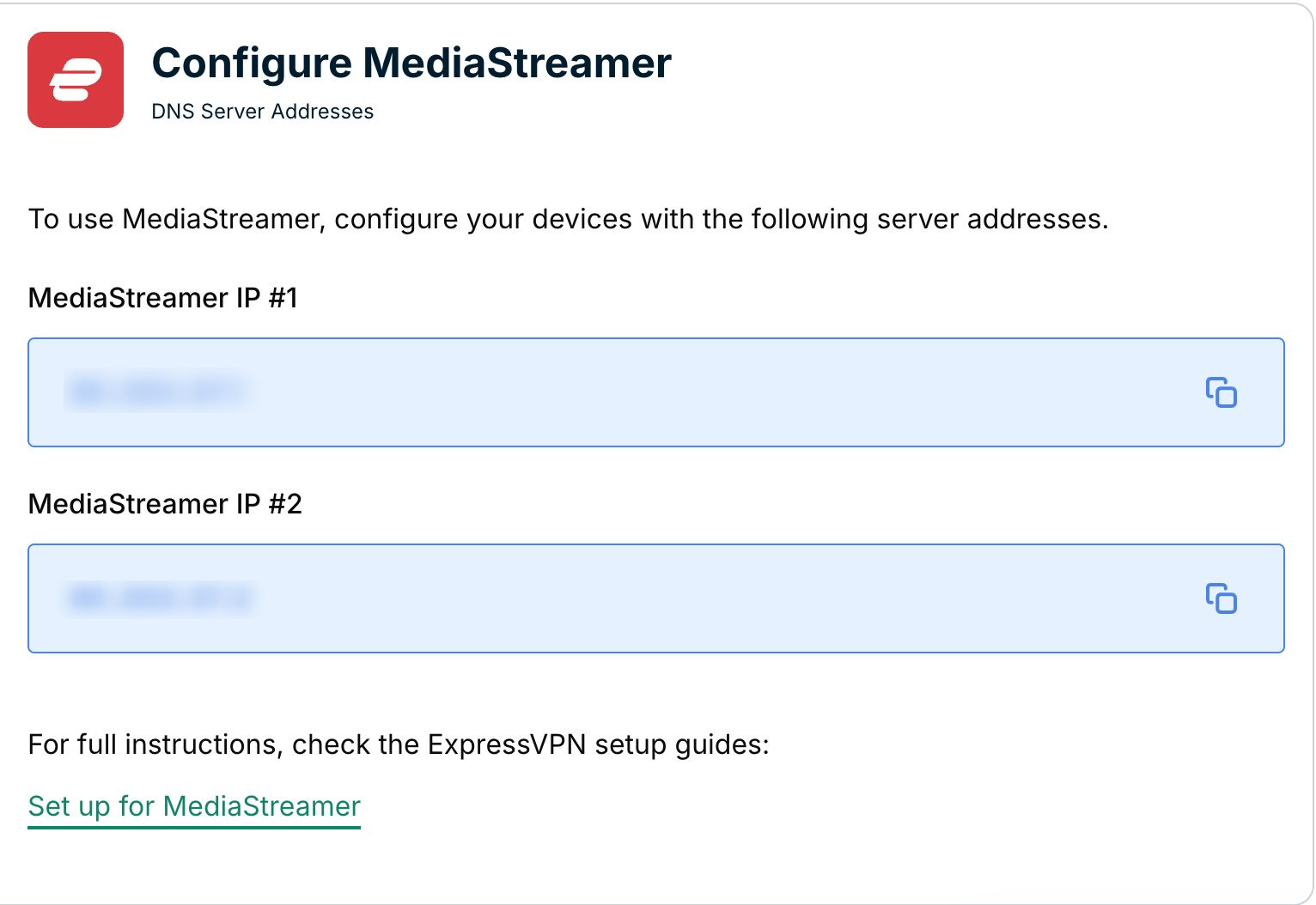
Keep this browser window open. You will need this information for the setup later.
Need help? Contact the ExpressVPN Support Team for immediate assistance.
3. Configure the DNS servers on your Xbox 360
- From the main menu of your Xbox, go to settings.


- Select System.

- Select Network Settings.


- Select how your Xbox 360 is connected to the internet.
- If it is connected to the internet via LAN cable, select Wired Network.
- If it is connected to the internet via Wi-Fi, select the name of the Wi-Fi network.


- Select Configure Network.


- Under the Basic Settings tab, select DNS Settings.


- Select Manual.


- Select Primary DNS Server.


- Enter the MediaStreamer IP address you found earlier, then select Done.


- Select Secondary DNS Server.

- Enter the same MediaStreamer IP address you found earlier, then select Done.


- Select Done.


- You will see the MediaStreamer IP addresses you entered on the right.


Need help? Contact the ExpressVPN Support Team for immediate assistance.
4. Restart your Xbox 360
- For the settings to take effect, restart your Xbox 360.
- Select settings > Turn Off.


- Select Turn Off Console.

- Turn on your Xbox. You have completed the MediaSteamer setup process. You now have access to MediaStreamer on your Xbox 360.
Need help? Contact the ExpressVPN Support Team for immediate assistance.
Restore DNS settings
From the main menu, go to settings > System > Network Settings.
Select how your Xbox is connected to the internet. Select DNS settings > Automatic.
You have now restored your DNS settings.
Need help? Contact the ExpressVPN Support Team for immediate assistance.