



Note: Identity Defender is currently only available for users in the U.S.
This guide will show you how to sign into and set up Identity Defender.
Jump to…
Get Identity Defender
To use Identity Defender, you’ll need:
- An ExpressVPN Advanced or Express Pro subscription.
- An ExpressVPN account.
If you have yet to sign up for an account and download the app, you can follow this guide to downloading Identity Defender.
Need help? Contact the ExpressVPN Support Team for immediate assistance.
Signing into Identity Defender
Signing into the Identity Defender app is easy thanks to ExpressVPN’s new single sign-on system. All you need is your ExpressVPN account credentials.
There are two ways to sign in and get started:
Signing into your account via the Identity Defender app
When you first open the app
When you first open the Identity Defender app, you will have the option to perform a free data exposure check.
- To use the free scan: On the welcome screen, tap Get Started. Then, tap Start Your First Scan and follow the on-screen instructions to complete it.


- To skip the free scan: Tap Skip and you will be taken directly to the subscription screen.


On the subscription screen, tap Sign In, log in with your ExpressVPN account details, and enter the verification code when prompted.
If you have signed in before
- Open the Identity Defender app.
- Tap Sign In.

- Enter your ExpressVPN account email and password, then tap Sign In.


- A verification code will be sent to your email address. Add the code to the field marked Enter code here, then tap Next.


You have successfully signed in to the Identity Defender app.
Need help? Contact the ExpressVPN Support Team for immediate assistance.
Signing into your account via ExpressVPN+
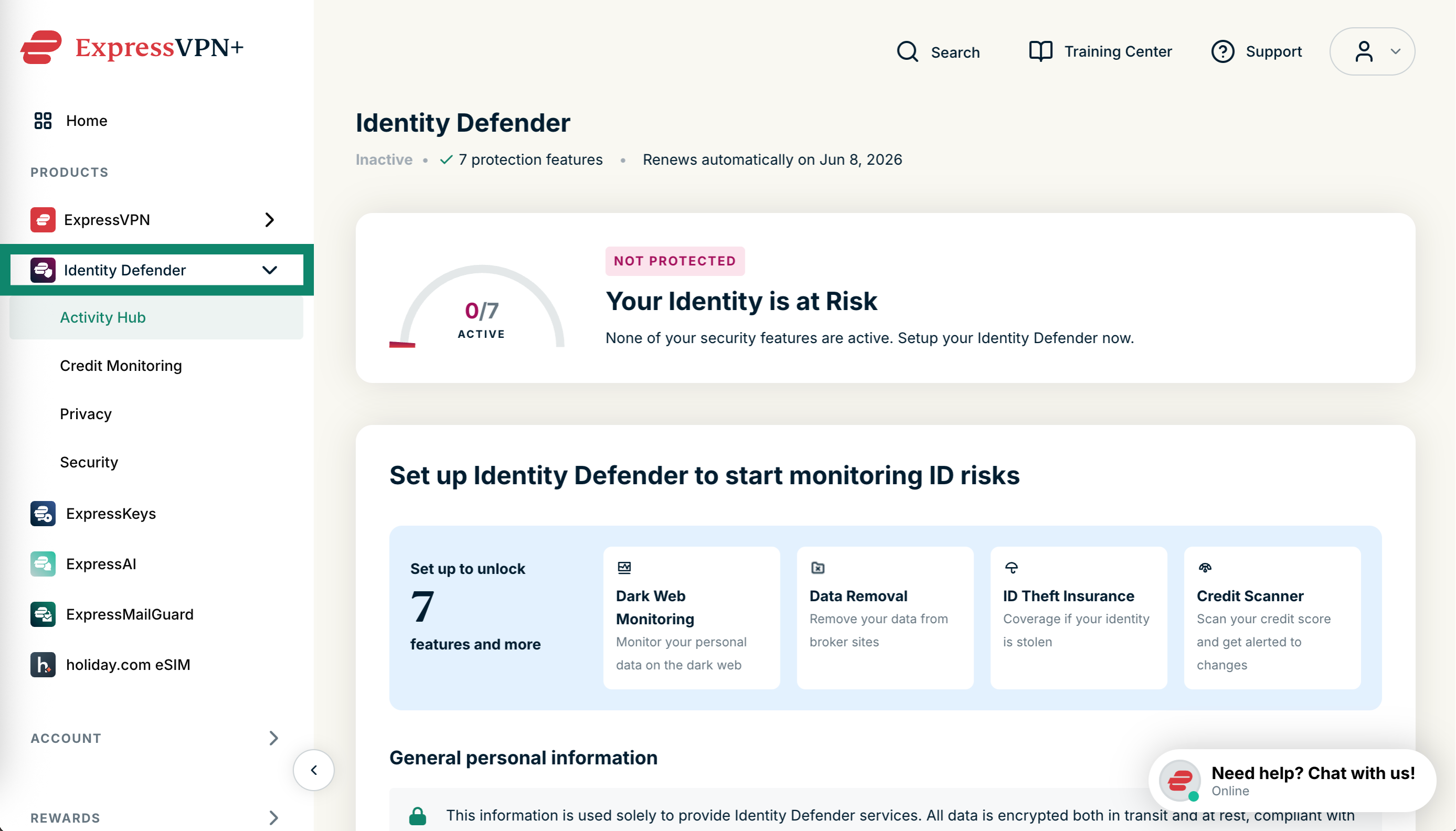
- Go to the ExpressVPN+ setup page. If prompted, log into your ExpressVPN account.
- Click Identity Defender in the left-side menu to access your Identity Defender dashboard.


Need help? Contact the ExpressVPN Support Team for immediate assistance.
Verifying your identity
In order to use the services included in Identity Defender, we need to verify your identity. Identity Defender offers a secure and efficient way to verify your identity.
When confirming your identity, you will need to provide some general personal information about yourself. It only takes a few minutes to complete.
This information is used solely to provide Identity Defender services. All data is encrypted both in transit and at rest, compliant with SOC 2 standards. This data is not linked to your VPN activity, which remains governed by the ExpressVPN Privacy Policy.
There are two ways to confirm your identity:
Confirming your identity via the Identity Defender app
To verify your identity:
- Open the Identity Defender app.
- You’ll see a home screen with widgets prompting you to set up each available tool. You can tap Set Up on any one of them to get started.


- You will be asked to provide your general personal information. Fill in the following mandatory fields:

- Your first name
- Your last name
- Your date of birth
- Your email address
- Your phone number
- Your social security number
- Your home address, including:
- City
- State
- ZIP code
- To submit your information, you need to agree to the Identity Defender Privacy Policy. When ready, tap the toggle button to agree to the policy.

- Tap Continue to submit your personal information.

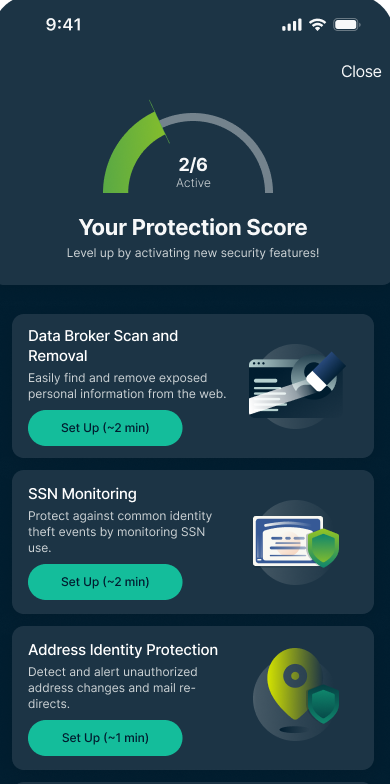
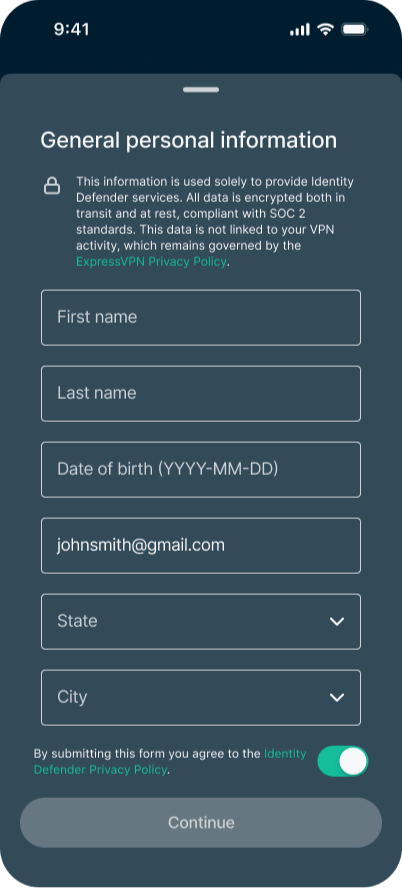
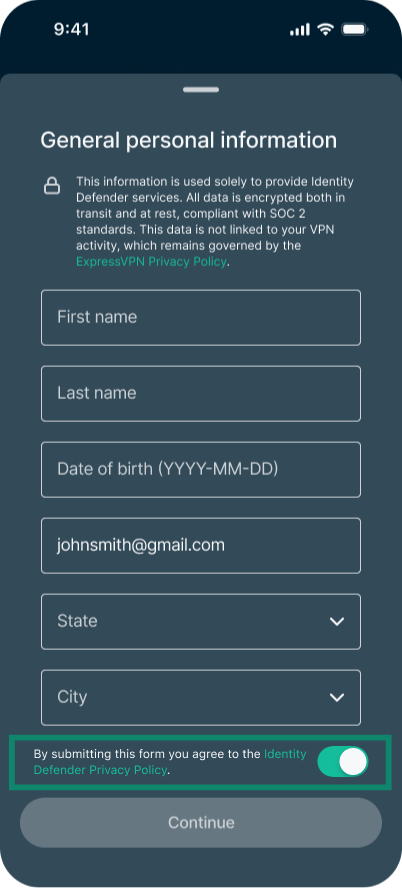
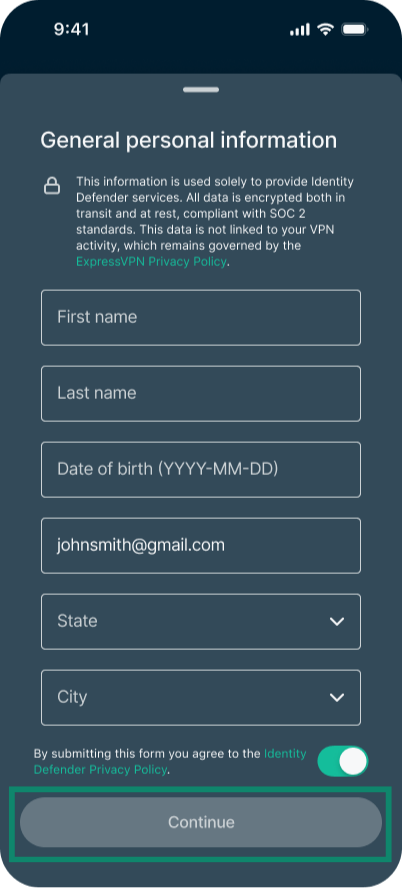
Once submitted, go back to the main screen and, if needed, repeat the steps for the rest of the services you want to use. Some services require more information than others.
Once confirmed, your Identity Defender account will be all set up. You can start using all the services on your subscription plan for which you’ve provided the necessary information, including the following:
- ID Alerts
- Change of Address Monitoring
- SSN Monitoring
- Home Title Monitoring
- Auto Title Monitoring
- Sex Offender Monitoring
- Courts Record Monitoring
- High Risk Transaction Monitoring
- 401(k) Alerts
- ID Theft Insurance (up to $3M USD for Advanced plans / up to $5M USD for Express Pro plans)
- Credit Scanner and Credit Report
- Data Removal
Note: If you later change your email address, name, or location (city and state), you can update these details by navigating to Profile > Manage Identity Defender details.
Need help? Contact the ExpressVPN Support Team for immediate assistance.
Confirming your identity via ExpressVPN+
To verify your identity:
- In the ExpressVPN+ portal, click Identity Defender in the left-side menu.

- In Activity Hub, scroll down to General personal information and fill in the following mandatory fields:

- Your first name
- Your last name
- Your date of birth
- Your email address
- Your home address, including:
- City
- State
- ZIP code
- Your phone number (if you want to use Credit Scanner)
- Your social security number (if you want to use Credit Scanner)
- When ready, click the toggle button to agree to the Identity Defender Privacy Policy. This step is mandatory for submitting your information.

- Click Set Up Now to submit your information.

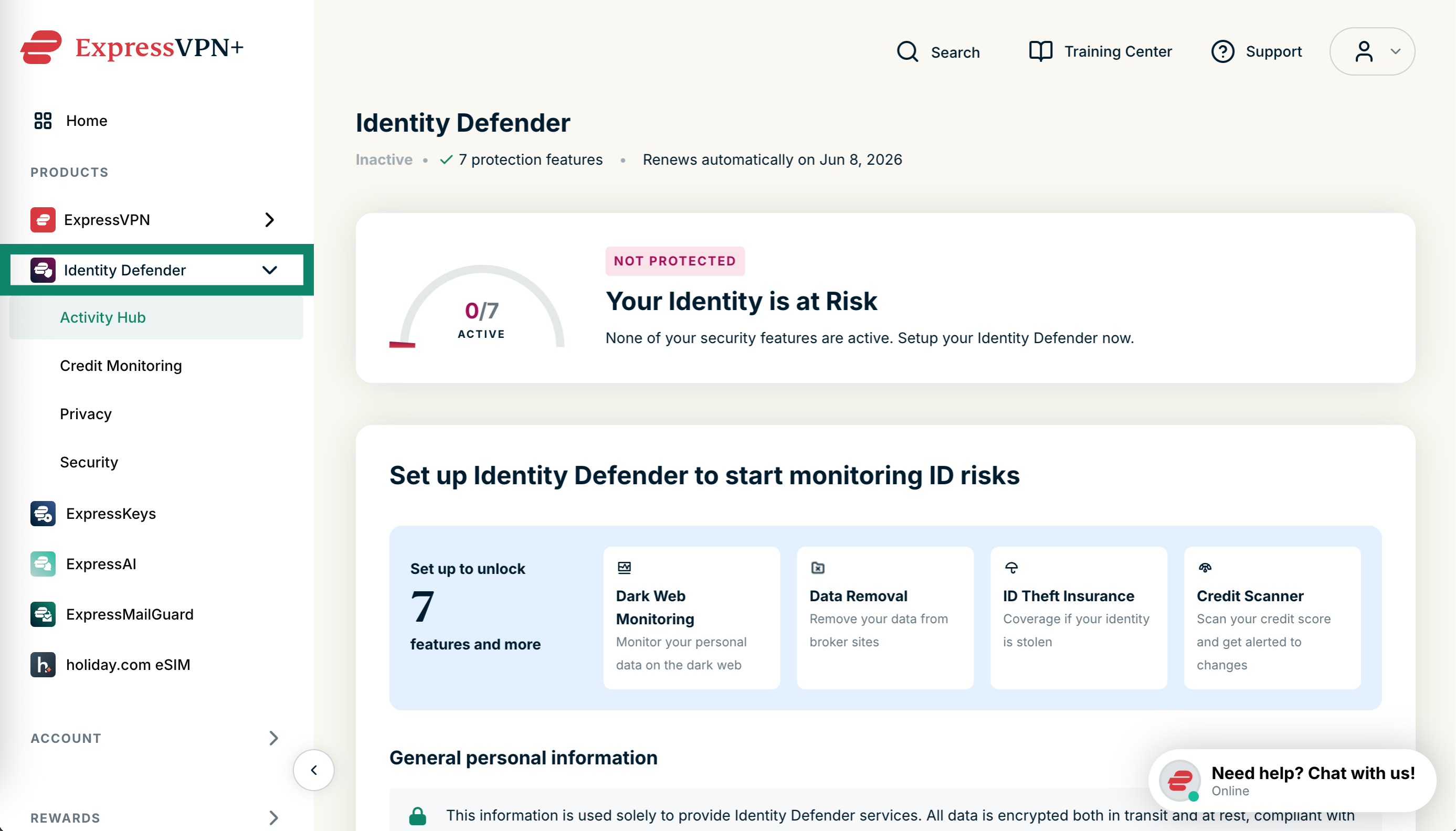
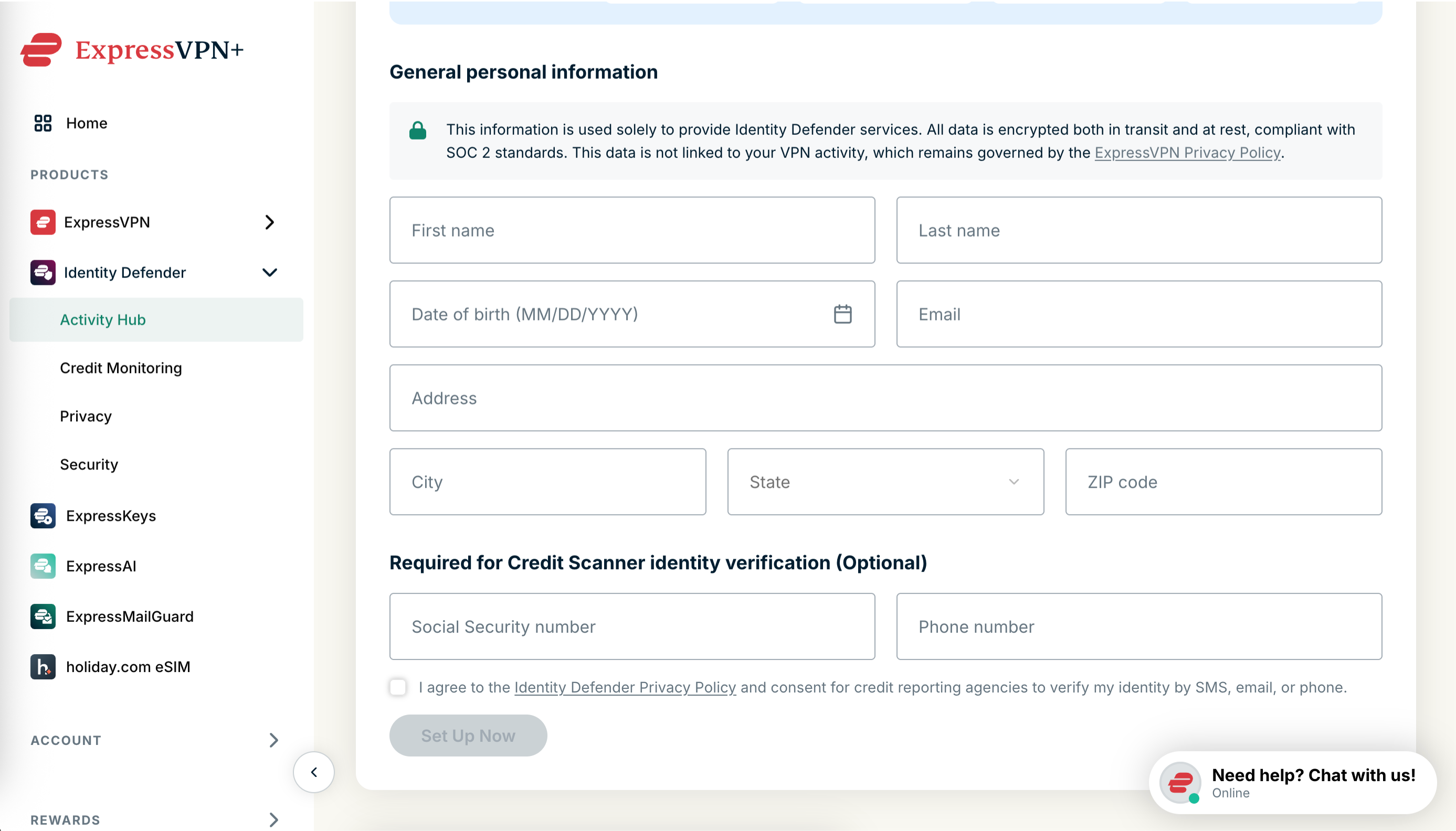
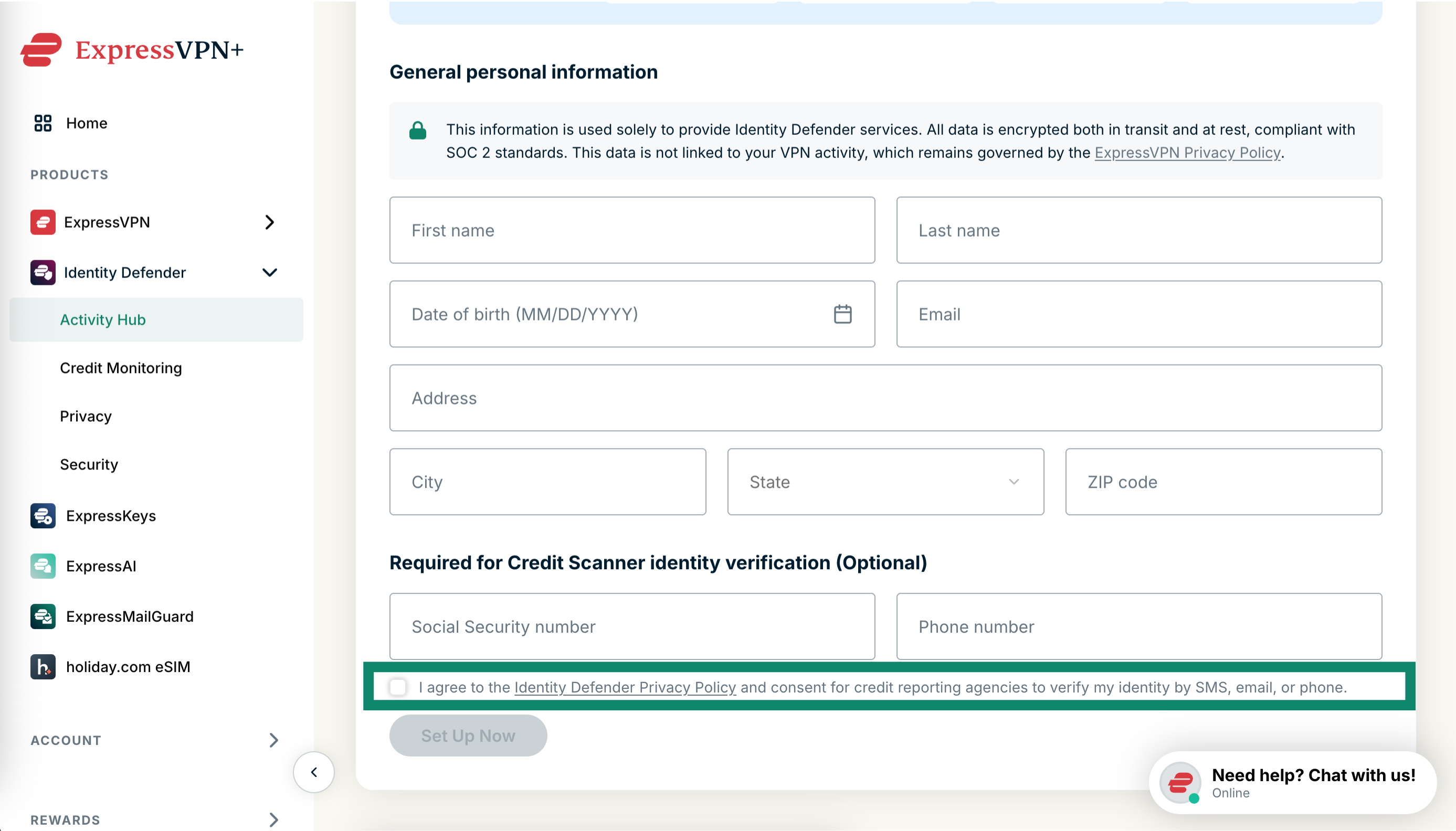
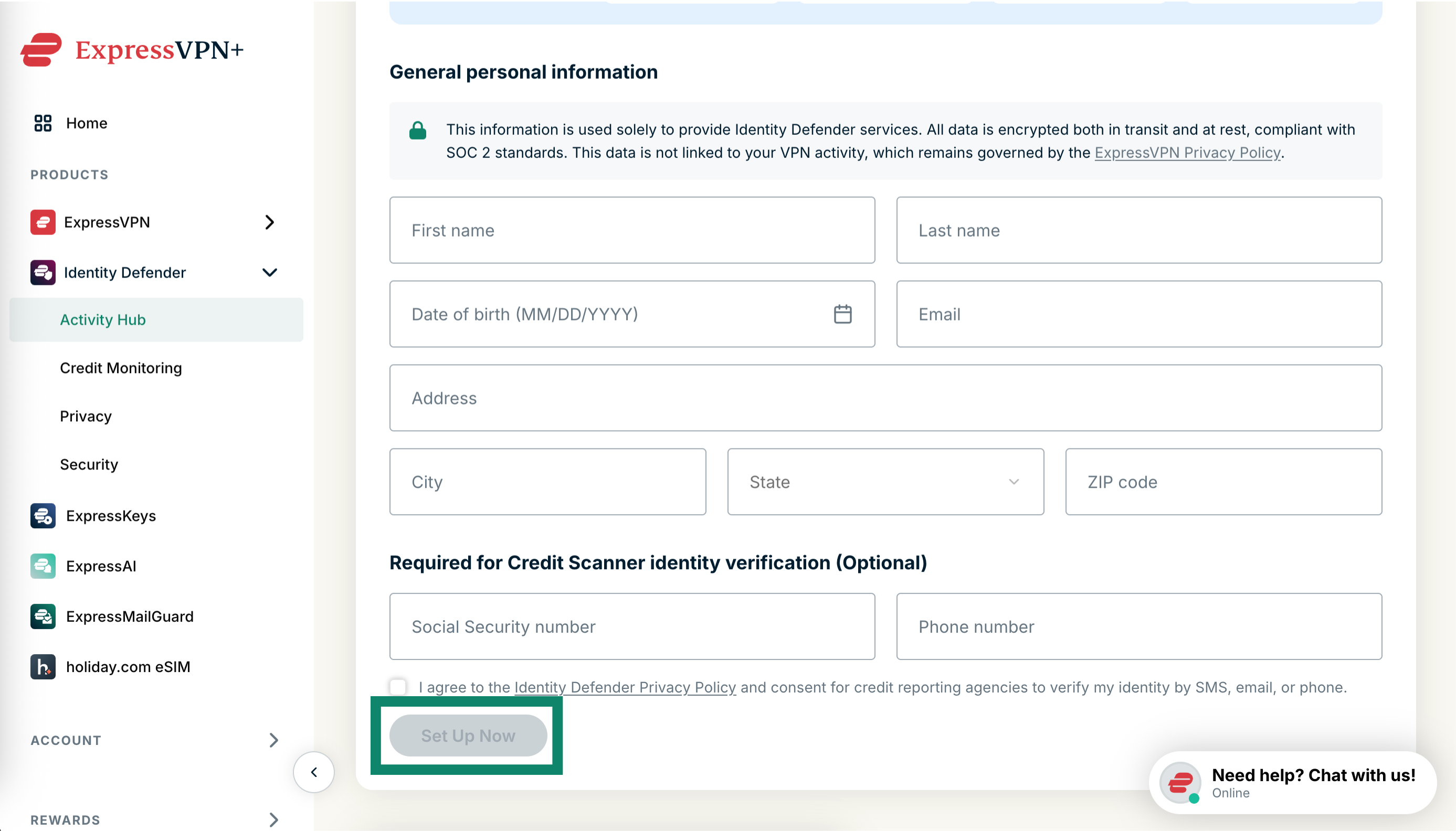
Once submitted, we will confirm your identity. Once confirmed, your Identity Defender account will be all set up and you can go ahead and use all the services you have access to on your subscription plan:
- ID Alerts
- Change of Address Monitoring
- SSN Monitoring
- Home Title Monitoring
- Auto Title Monitoring
- Sex Offender Monitoring
- Courts Record Monitoring
- High Risk Transaction Monitoring
- 401(k) Alerts
- ID Theft Insurance (up to $3M for Advanced plans / up to $5M for Express Pro plans)
- Credit Scanner and Credit Report
- Data Removal
Note: You can edit your information after setup in the ExpressVPN portal. Simply select Edit monitored information in the top-right corner of any of the Identity Defender tabs.
Need help? Contact the ExpressVPN Support Team for immediate assistance.
Back to top