



Need a VPN for your router?
Get ExpressVPN Now
Love ExpressVPN? Want a free month?
Refer a Friend NowThis guide will show you how to use MediaStreamer on a router running ExpressVPN.
MediaStreamer is a DNS service designed to improve your streaming experience. That said, it does not encrypt your traffic or offer any of the privacy and security benefits of a VPN. You also cannot change locations using MediaStreamer.
To use MediaStreamer, make sure to:
- Set up ExpressVPN on your router
- Connect your devices to the router
Jump to…
Register your IP address on the ExpressVPN website
Use MediaStreamer on a router running ExpressVPN (v2 onwards)
Use MediaStreamer on a router running ExpressVPN (v1)
Register your IP address on the ExpressVPN website
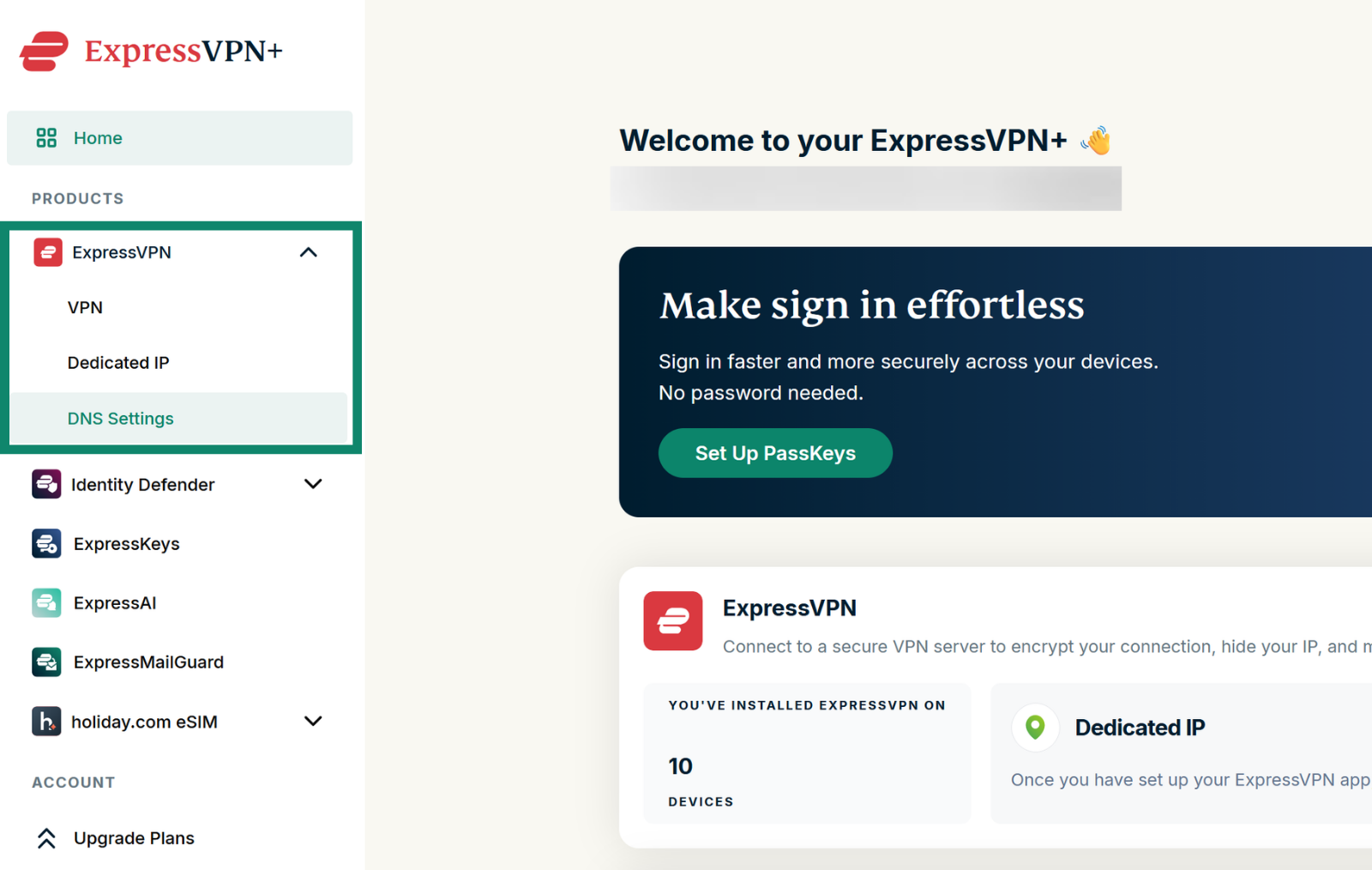
- Go to the ExpressVPN+ portal and, if prompted, sign into your ExpressVPN account.
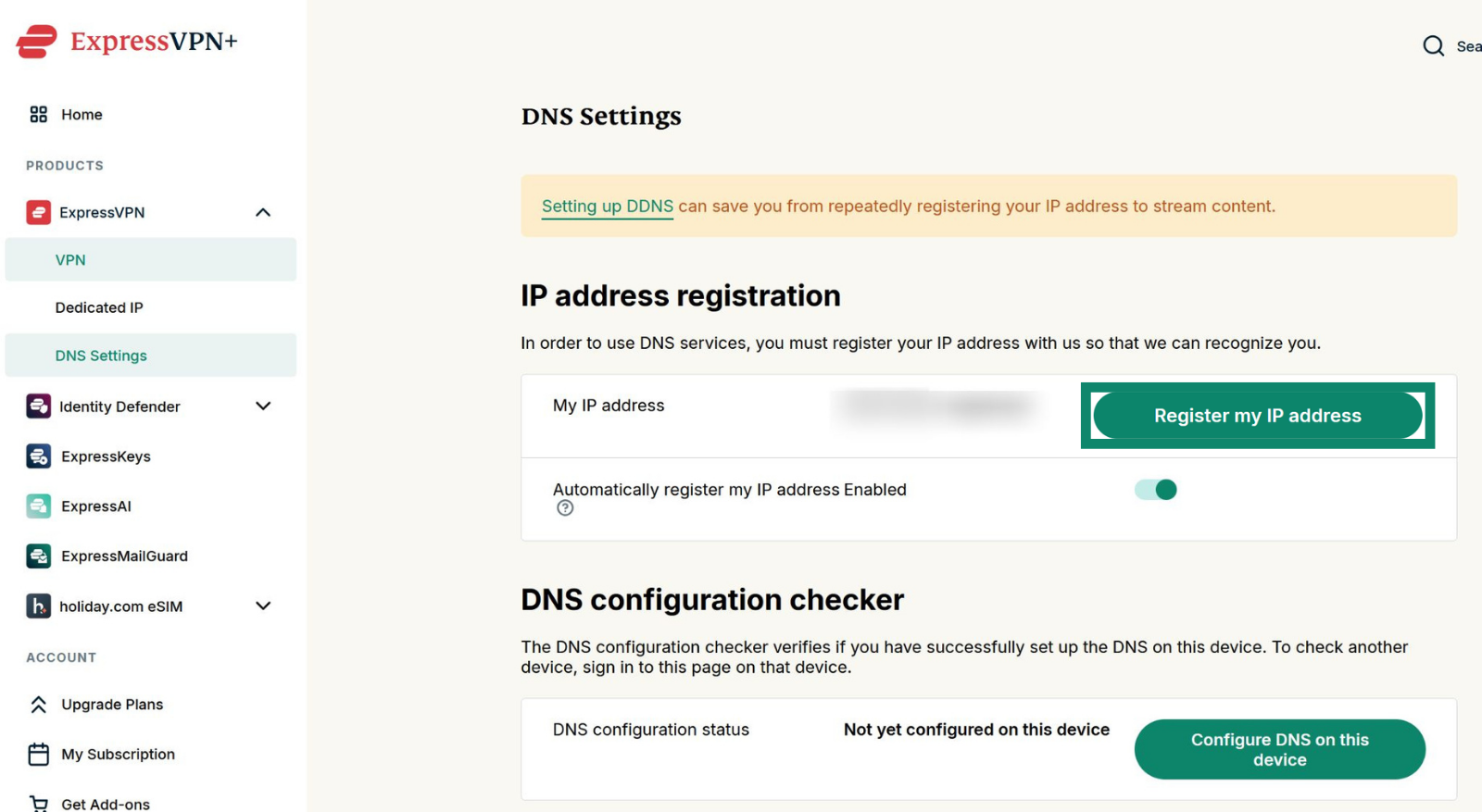
- Select ExpressVPN > DNS Settings in the left-side menu.


- Under IP address registration, select Register my IP address. If your IP address is already marked as registered, you can skip this step.


- Turn on Automatically register my IP address. This will automatically update your registration when your IP address changes.


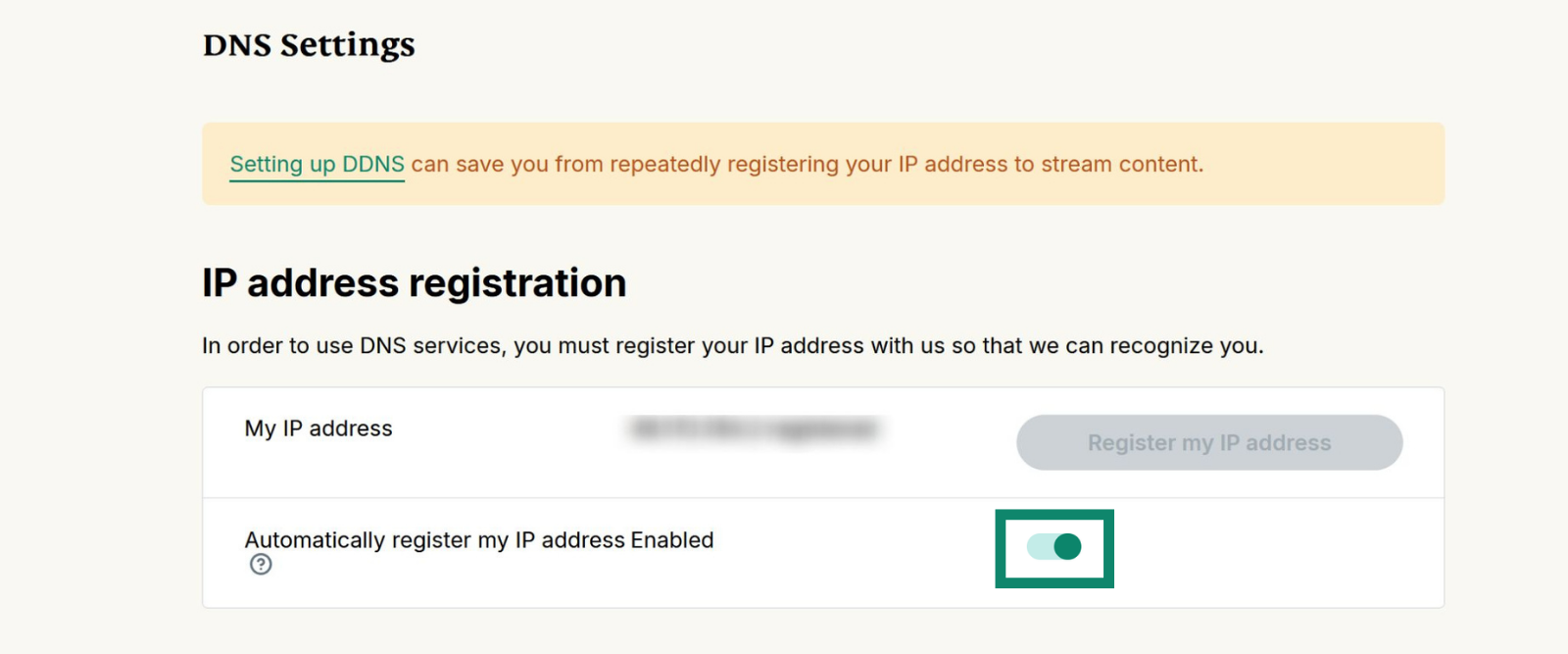
When Automatically register your IP address is enabled, you can keep your IP address updated by using the ExpressVPN app on your device or occasionally signing in to your ExpressVPN account.
Need help? Contact the ExpressVPN Support Team for immediate assistance.
Use MediaStreamer on a router running ExpressVPN (v2 onwards)
- Sign in to your router running ExpressVPN.
- Select the device group you want to use MediaStreamer for (for example, the “Streaming” group) by swiping right.
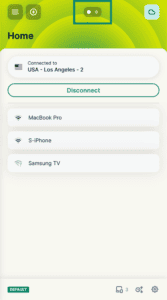

- Tap the current location at the top of the group to open the location picker.
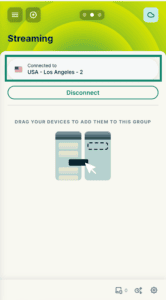

- Select the Others tab.
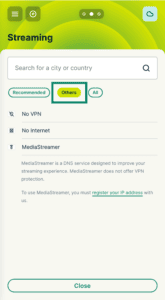

- Select MediaStreamer.
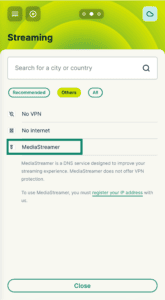
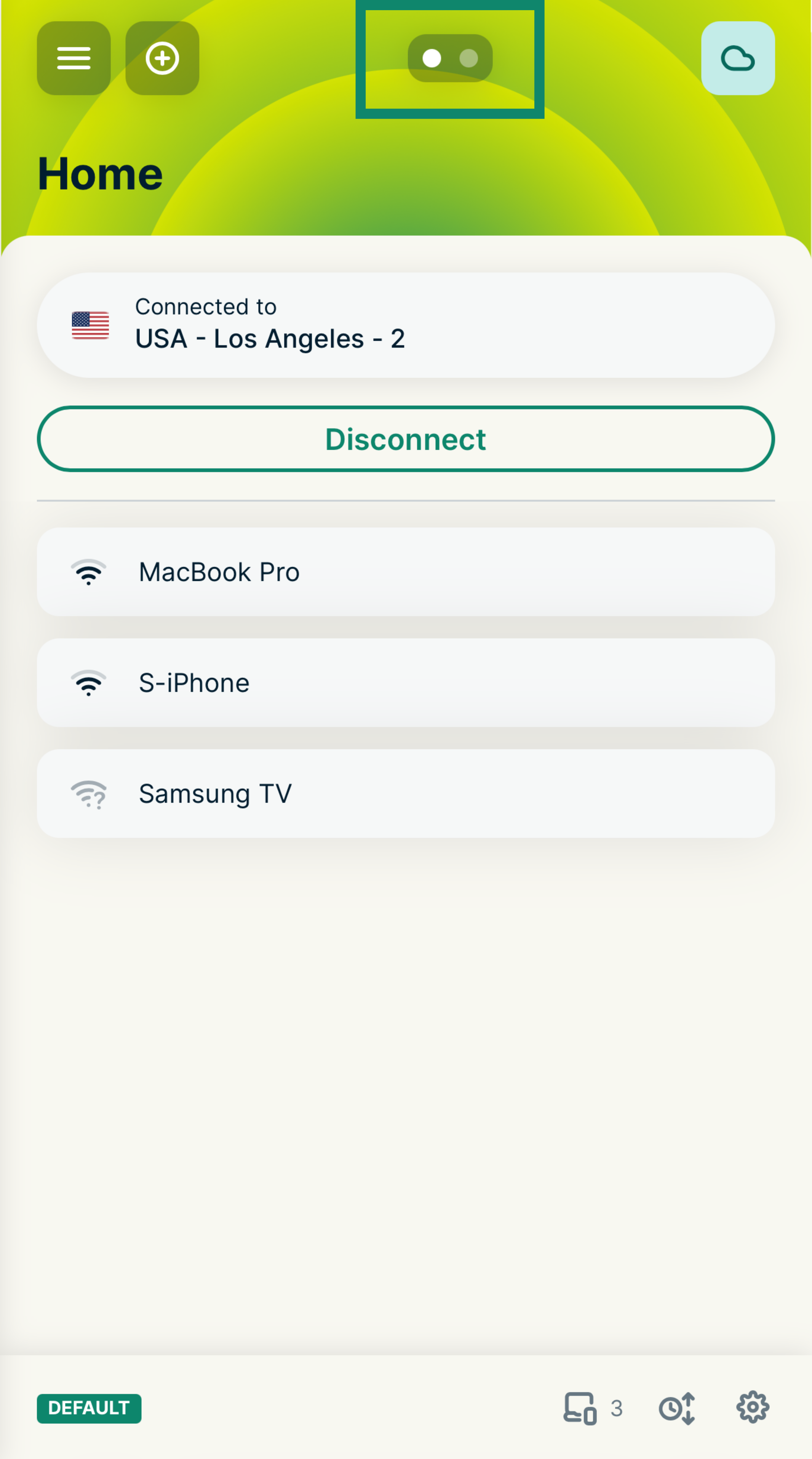
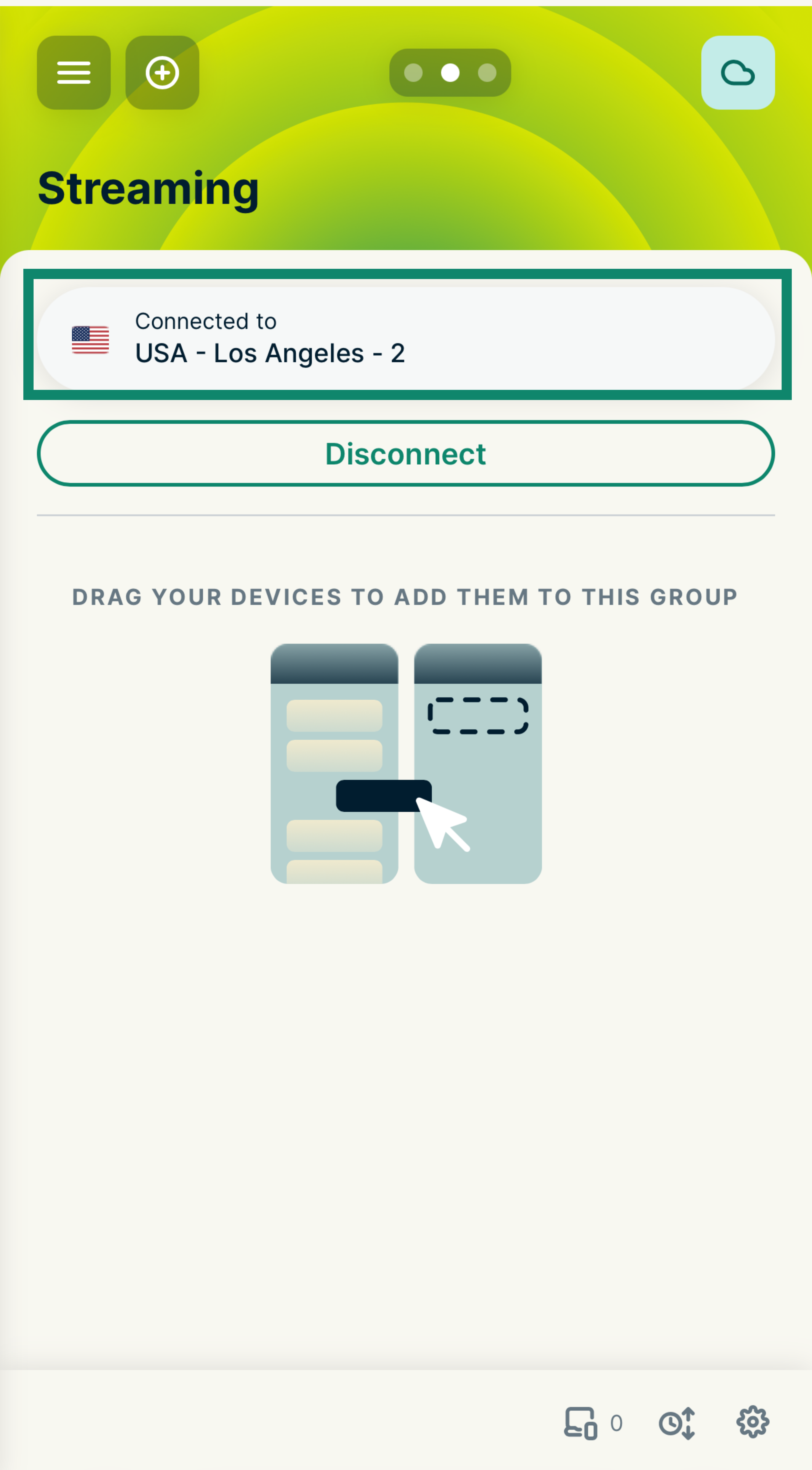
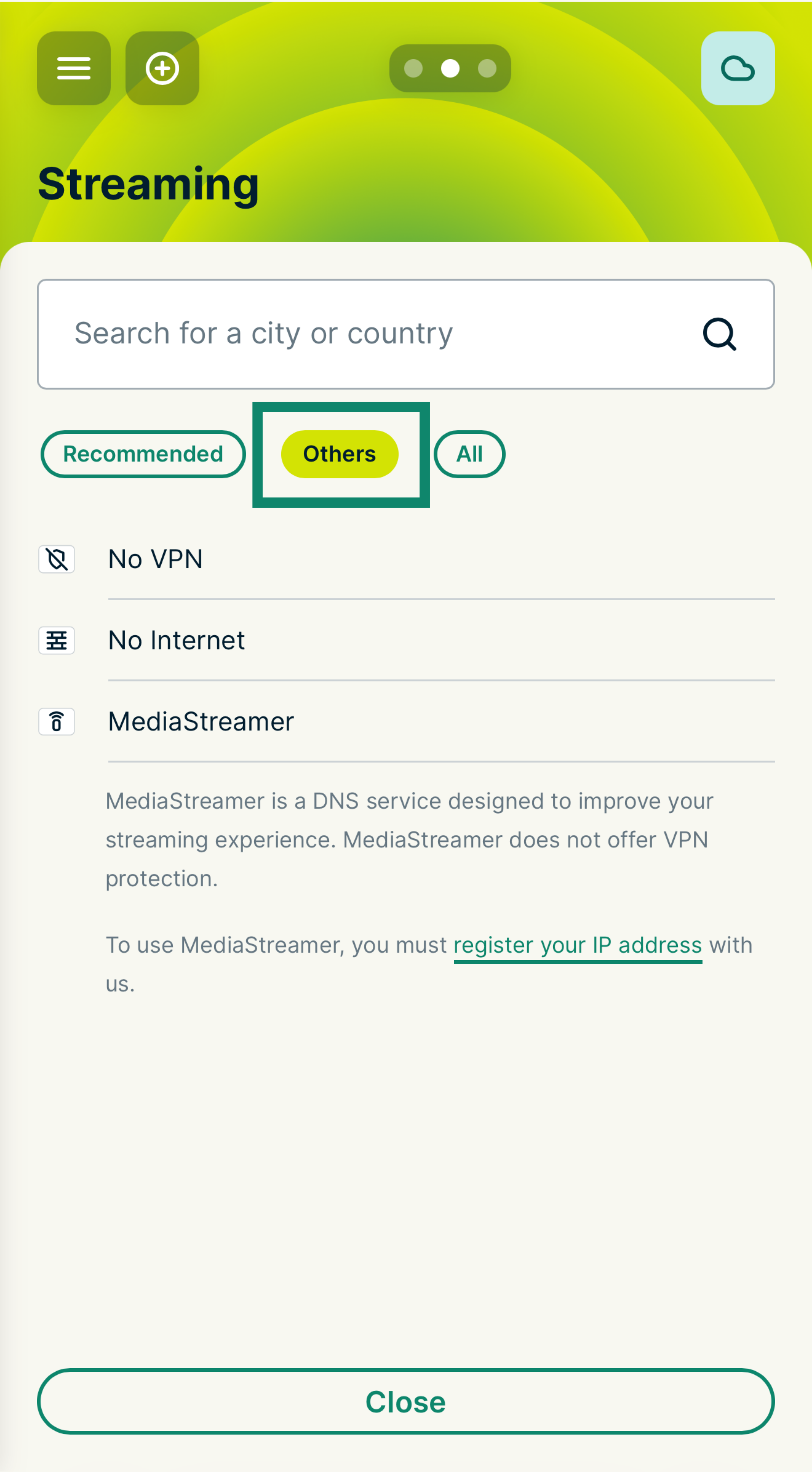
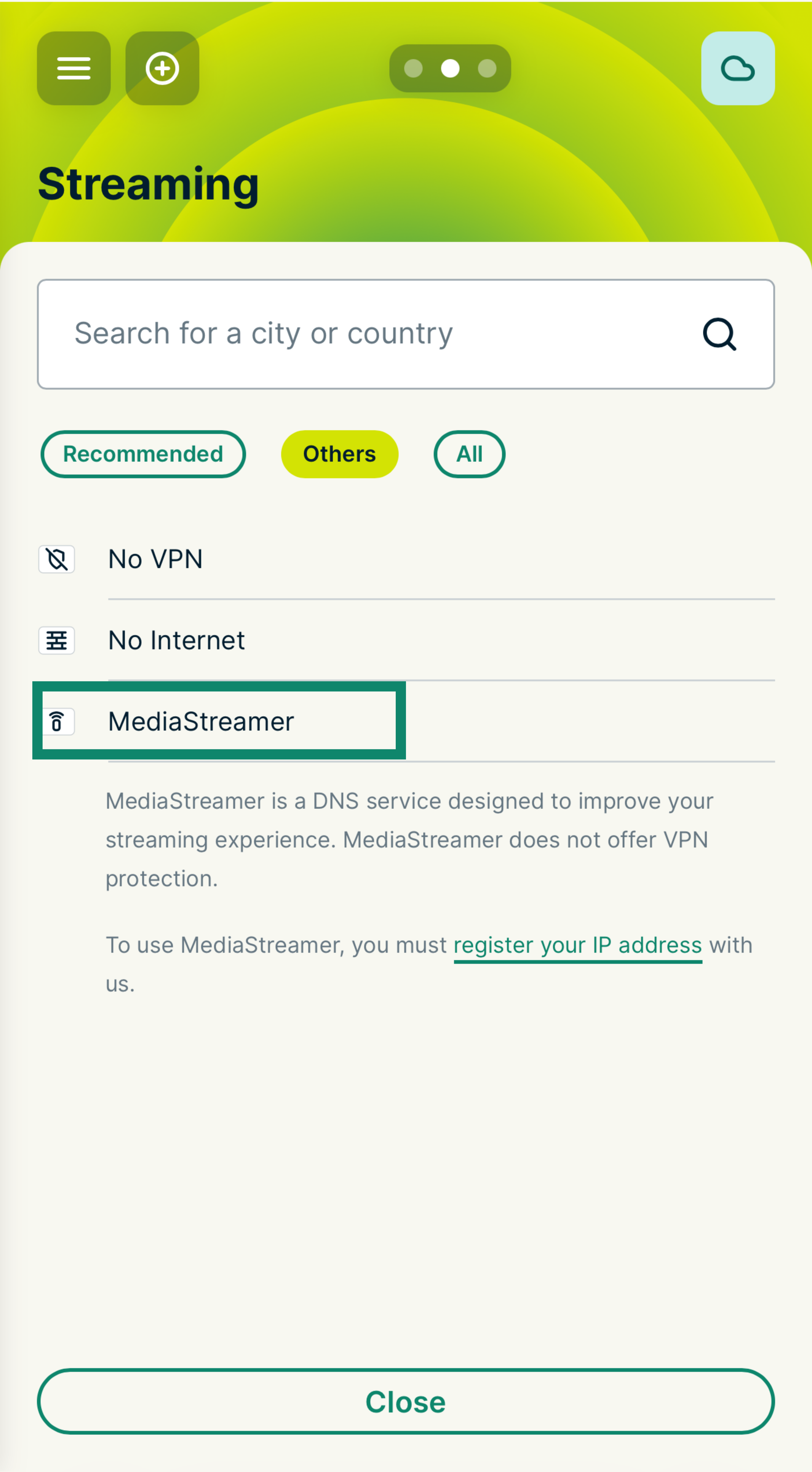
You are now using MediaStreamer for that device group. To connect devices, simply drag and drop them into this group.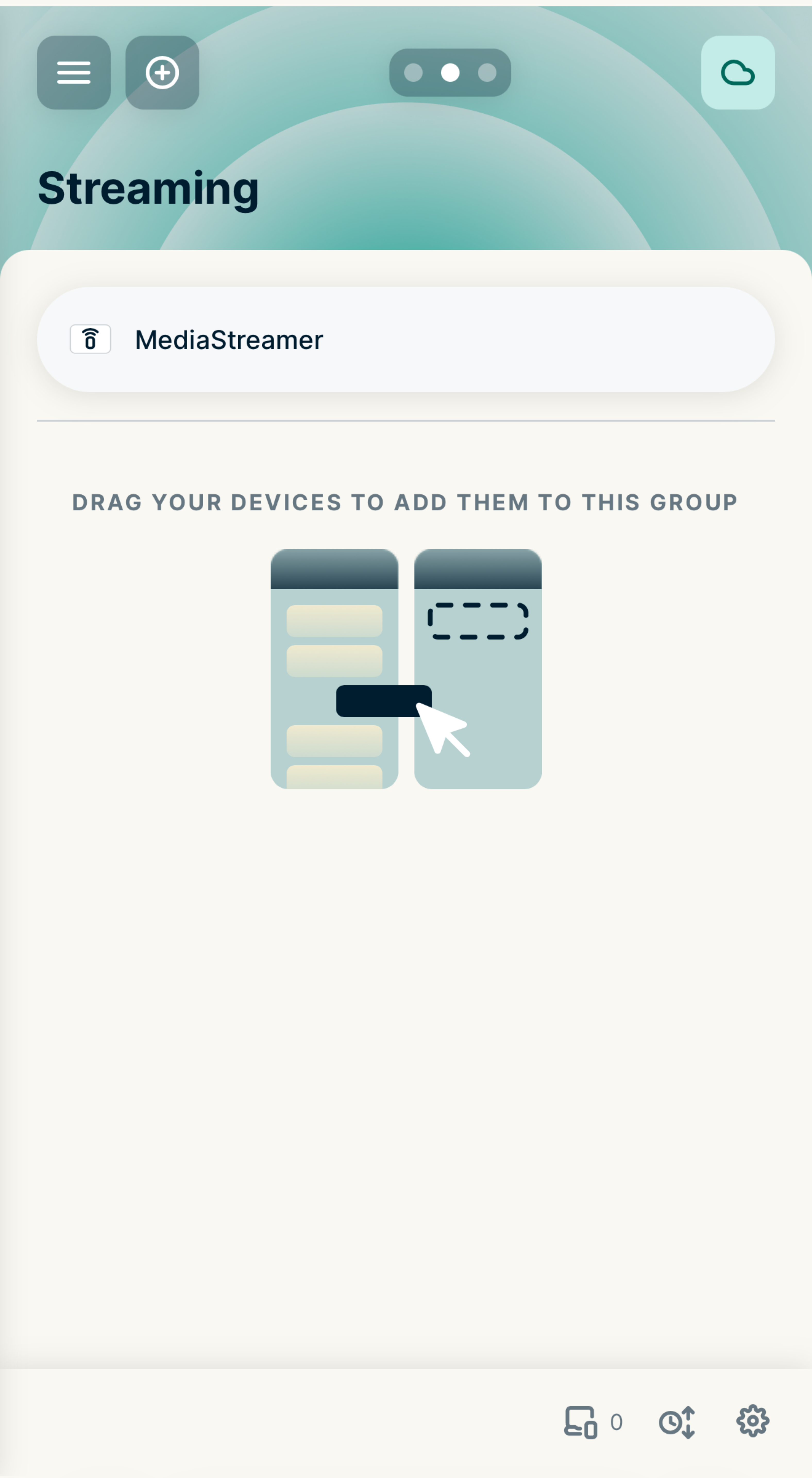
Need help? Contact the ExpressVPN Support Team for immediate assistance.
Use MediaStreamer on a router running ExpressVPN (v1)
- Sign in to your router running ExpressVPN.
- Select VPN > Manage Devices.
- Under Settings, select Let me select which devices should be protected.
- Select the devices you want to use MediaStreamer on.
Need help? Contact the ExpressVPN Support Team for immediate assistance.