




Need a VPN or DNS for your device?
Get ExpressVPN NowOne ExpressVPN account. All devices.
Get Apps for FreeThis tutorial will show you how to set up ExpressVPN’s MediaStreamer on Google Wifi.
Before you proceed, please set up your Google Wifi.
MediaStreamer is a DNS service designed to improve your streaming experience. If your device does not natively support VPN, MediaStreamer is a great alternative for streaming.
Note: MediaStreamer is not a VPN and does not offer the privacy and security benefits of a VPN. You cannot change locations with MediaStreamer.
Jump to…
1. Register your IP address on the ExpressVPN website
2. Get your MediaStreamer server IP addresses
3. Change your Google Wifi DNS settings
Restore DNS settings
1. Register your IP address on the ExpressVPN website
- Log into the ExpressVPN+ portal.
- Select ExpressVPN > DNS Settings in the left sidebar.


- Under IP address registration, click Register my IP address. If it already reads “registered” next to your IP address, there is no need to select this option again.

 Note: The button will be greyed out if your IP address is already registered.
 - Toggle Automatically register my IP address on. This is recommended as it automatically tracks changes to your IP address.


Once you have enabled Automatically register my IP address, be sure to keep your registered IP address updated by periodically signing in to your account on the ExpressVPN website. Alternatively, you can use the ExpressVPN app (on any device) while connected to the same network as your Google Wifi. These actions grant the devices on your network continued access to MediaStreamer.
Need help? Contact the ExpressVPN Support Team for immediate assistance.
2. Get your MediaStreamer server IP addresses
- Go to the ExpressVPN Setup page.
- Under Applications (or Show other devices), select Network & smart home to open the dropdown menu. From there, click MediaStreamer.


- You will find your DNS server IP addresses on the right side, under MediaStreamer IP#1 and MediaStreamer IP #2.


Need help? Contact the ExpressVPN Support Team for immediate assistance.
3. Change your Google Wifi DNS settings
- On your device, open the Google Home app.
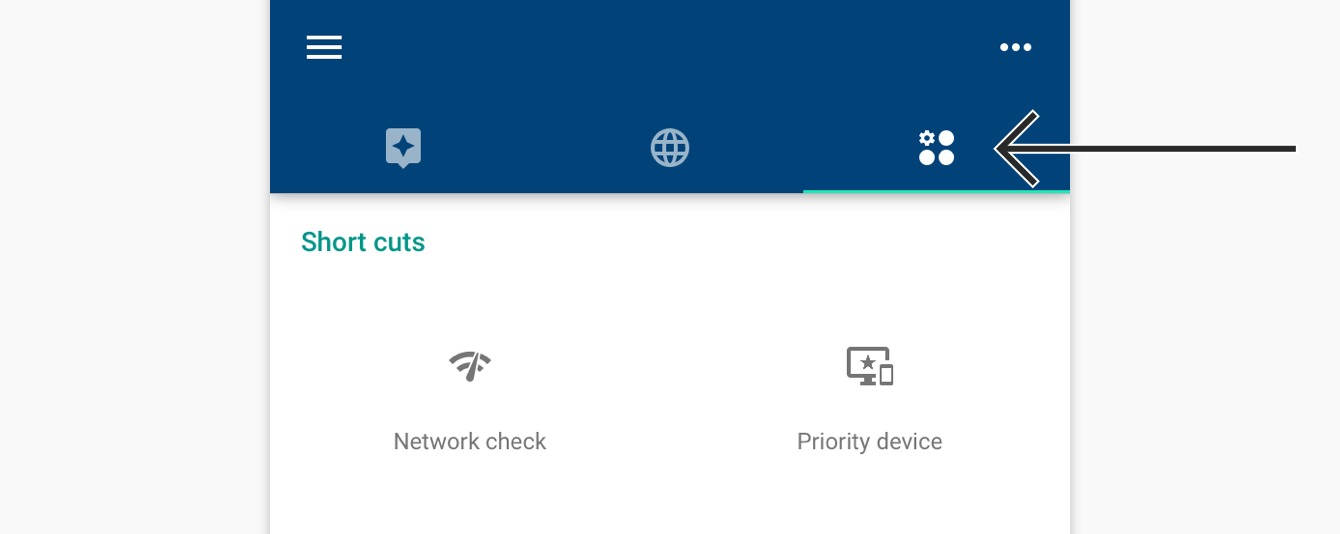
- Tap the Settings and actions tab.


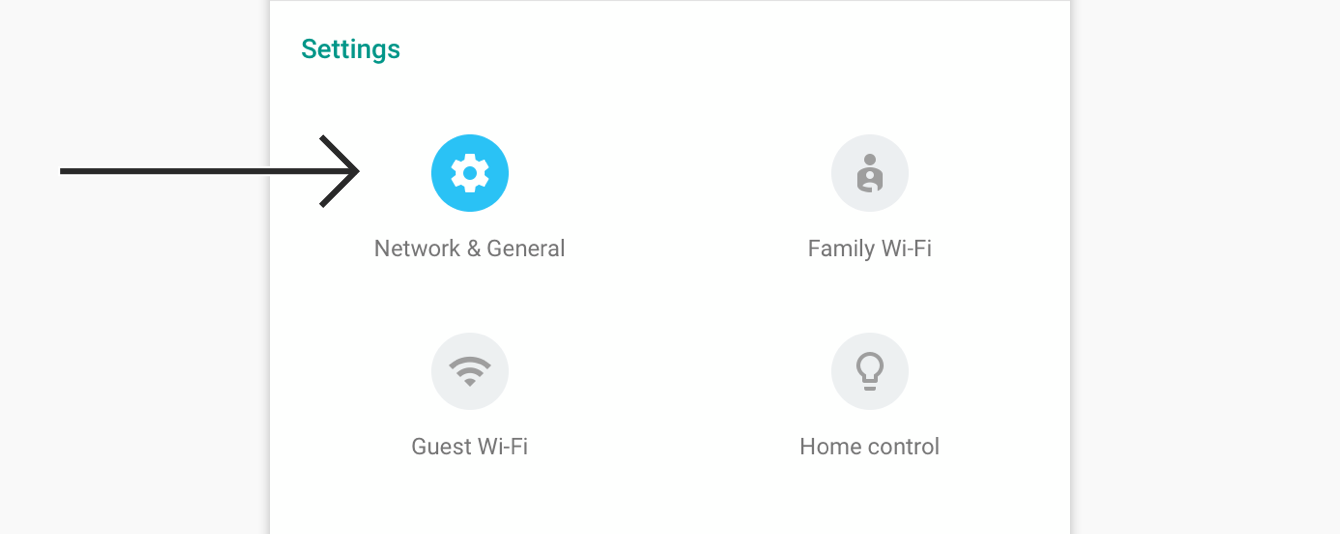
- Under Settings, tap Network & General.

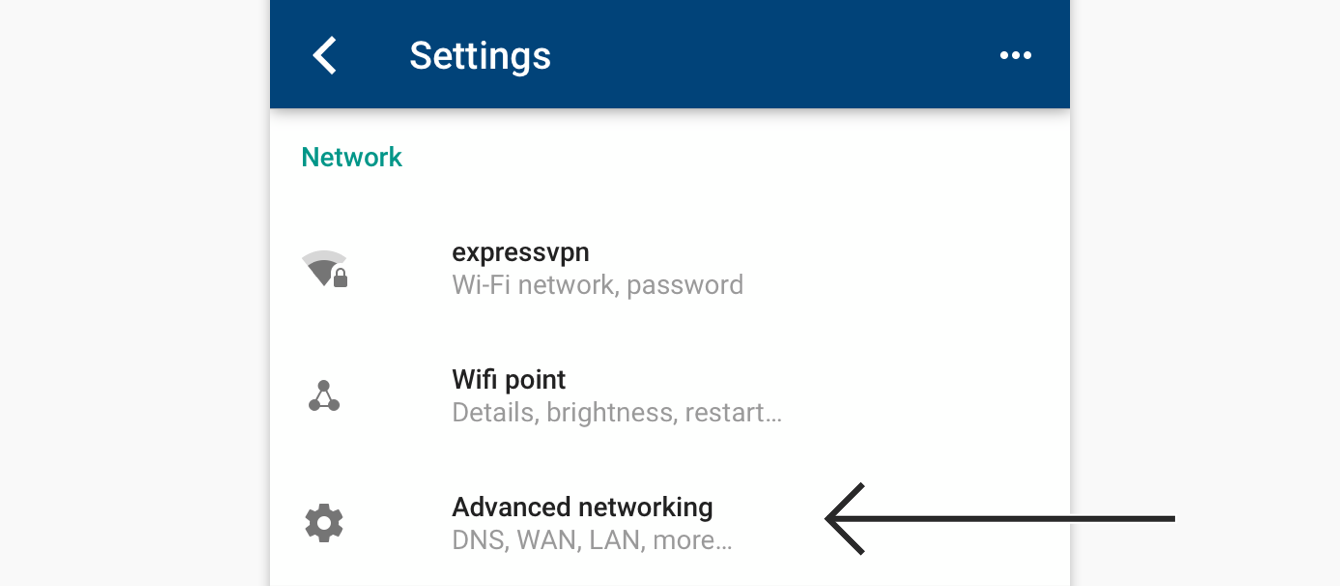
- Select Advanced networking.


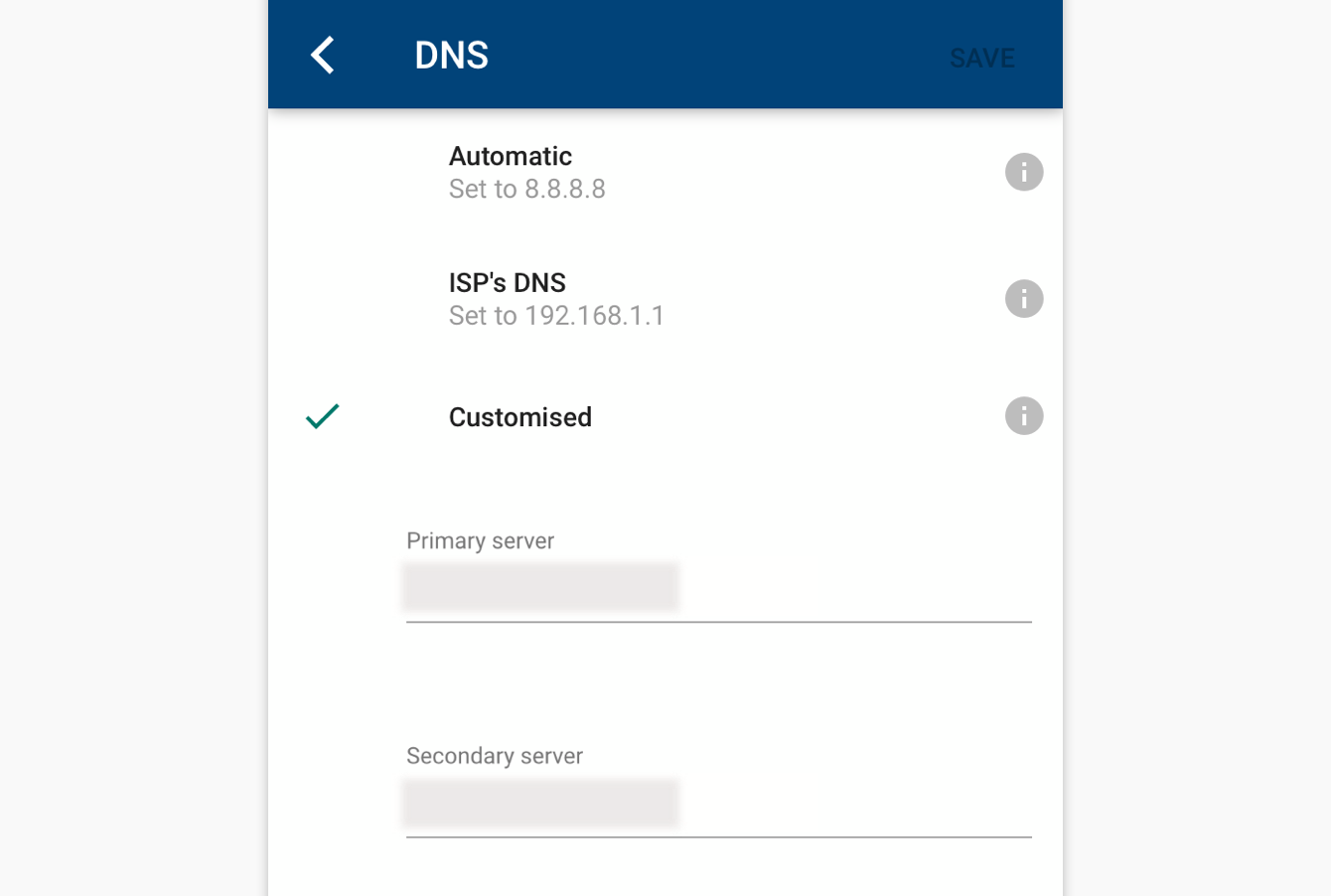
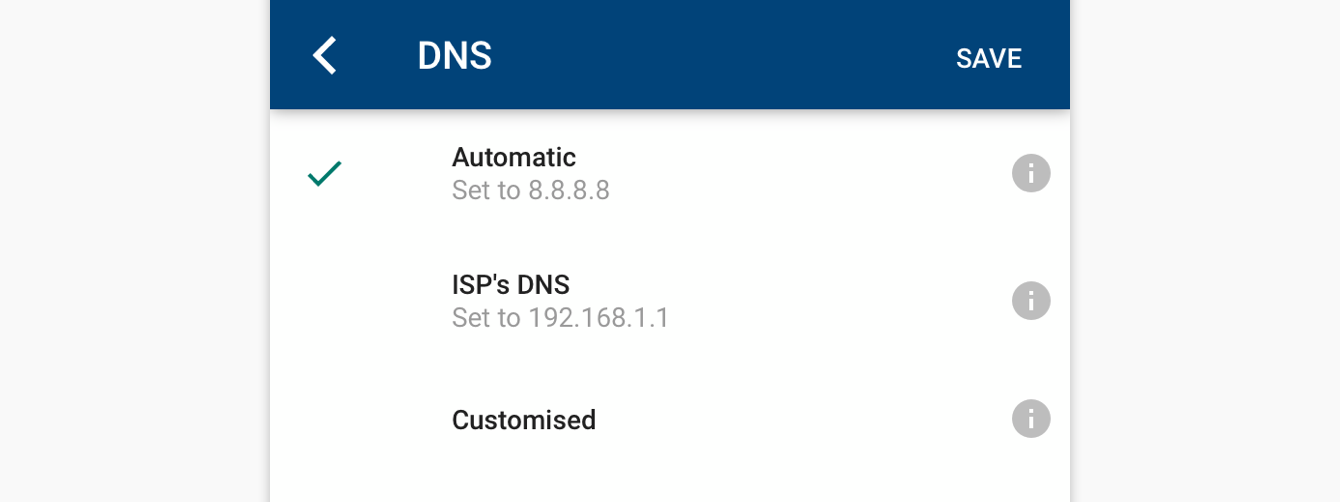
- Go to DNS > Customized. Enter the MediaStreamer DNS server IP addresses you found earlier.


- Tap SAVE.
You are now using ExpressVPN’s DNS settings on your Google Wifi for streaming.
Need help? Contact the ExpressVPN Support Team for immediate assistance.
Restore DNS settings
- To restore your original DNS settings, go to the Google Wifi app. Tap the Settings and actions tab in the navigation bar.
- Under Settings, tap Network & General > Advanced networking > DNS > Automatic.


- Tap SAVE.
Need help? Contact the ExpressVPN Support Team for immediate assistance.