




Want ExpressVPN on your iOS?
Get the App for iOS
Stuck and need some help?
Talk to a HumanIf you cannot access the internet on your iPhone or iPad after disconnecting from ExpressVPN, follow the troubleshooting steps below. This issue can sometimes be related to your VPN or Domain Name System (DNS) settings.
After trying each step, check whether the issue is resolved. If it is not, continue to the next step.
Jump to…
Check Internet Kill Switch settings
Change DNS settings
Restart your device
Downgrade the ExpressVPN app
Contact the ExpressVPN Support Team
Check Internet Kill Switch settings
If you have enabled Advanced Kill Switch, ExpressVPN blocks all network traffic when the VPN is disconnected. This helps prevent your data from being exposed outside the VPN tunnel, but it also means you will not be able to access the internet while disconnected from ExpressVPN.
To check and turn off this setting:
- Open ExpressVPN and tap Profile.


- Tap Internet Kill Switch.

- The app will show whether you’re using the standard or advanced option. If it’s set to advanced, tap Standard Kill Switch to change it.

- Once done, open a browser tab to see if you can access a website.
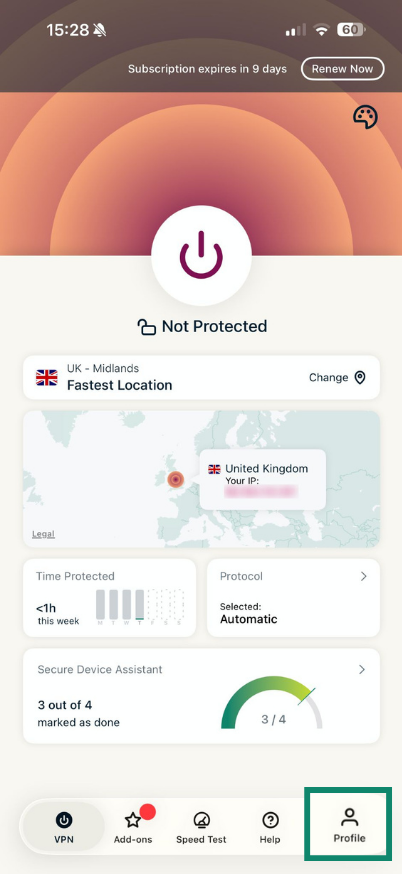
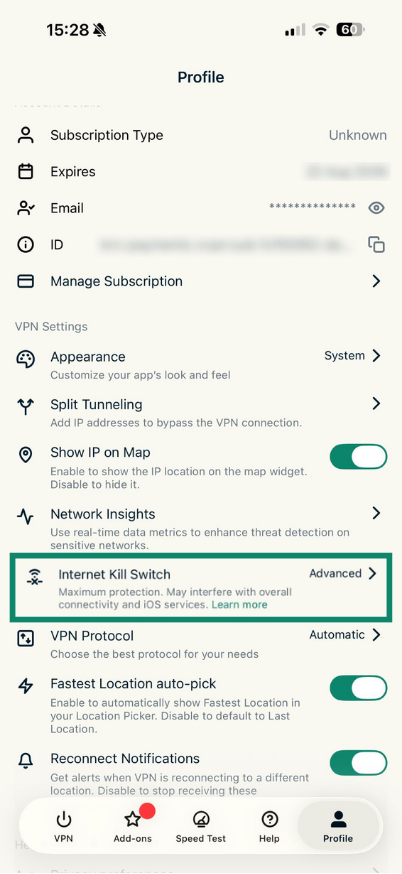
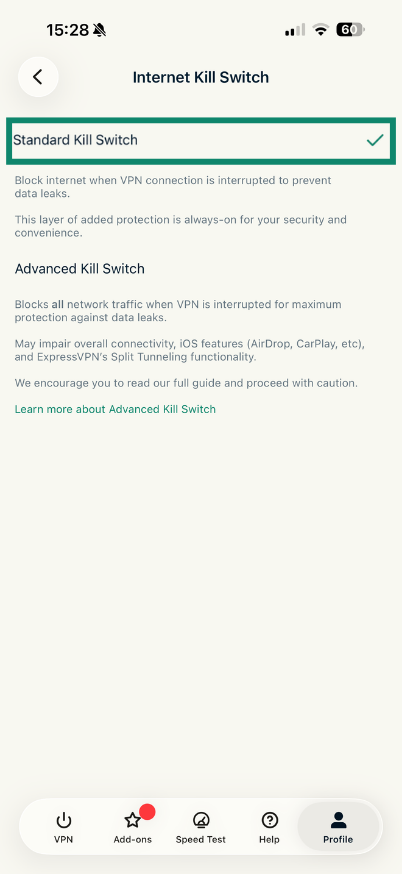
If you can now access the internet, the Advanced Kill Switch was preventing internet access while disconnected. For more information, refer to our guide on using the Internet Kill Switch for iOS.
If you still cannot access the internet, continue to the next step.
Change DNS settings
When the VPN is active, your device uses ExpressVPN’s own encrypted DNS servers. Once you disconnect, your DNS settings should automatically return to their default state.
If something interferes with this process, your device may not be able to load the apps and websites you are trying to access. Changing your DNS settings to use different DNS servers may help resolve the issue.
To change your DNS settings:
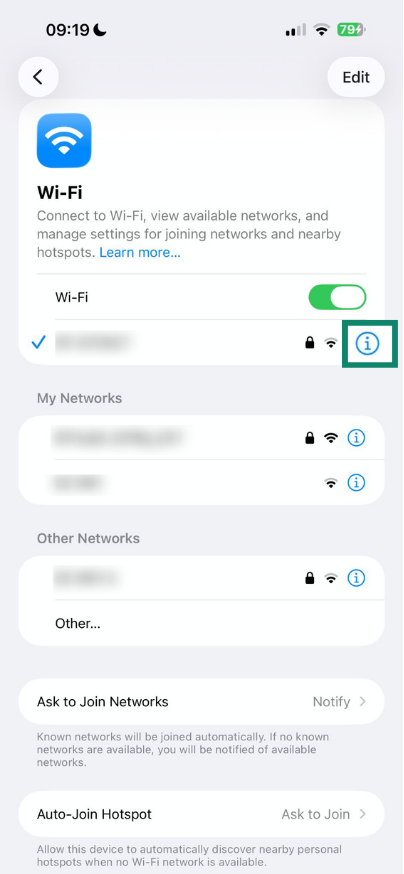
- On your iOS device, open Settings > Wi-Fi.


- Tap the info button (ⓘ) next to the Wi-Fi network you’re connected to.

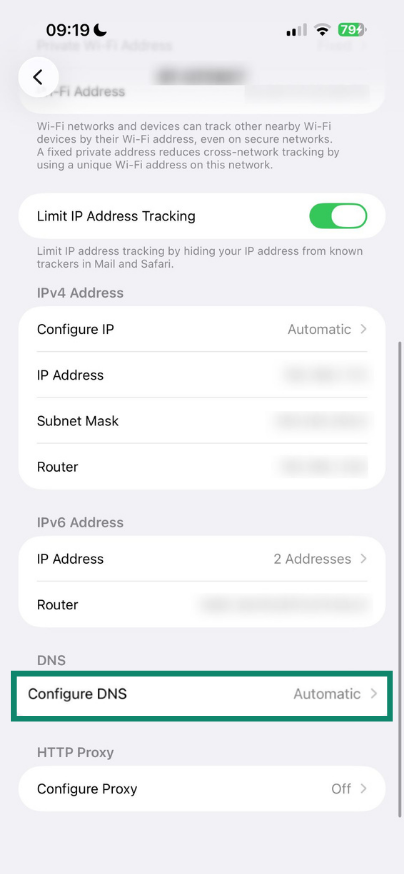
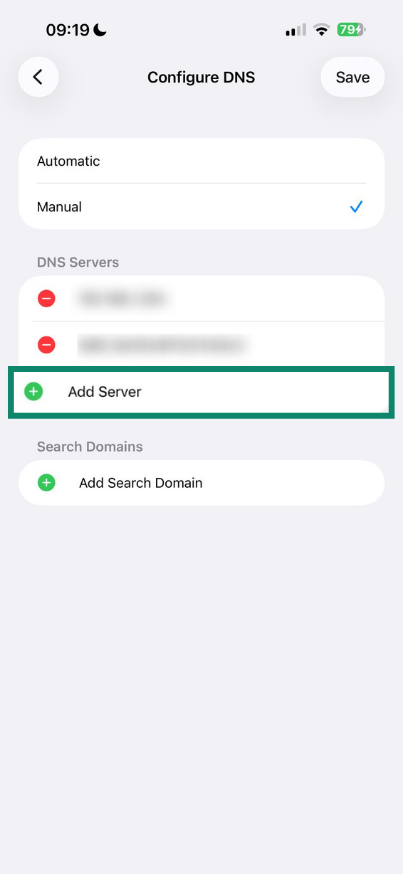
- Scroll down and tap Configure DNS.

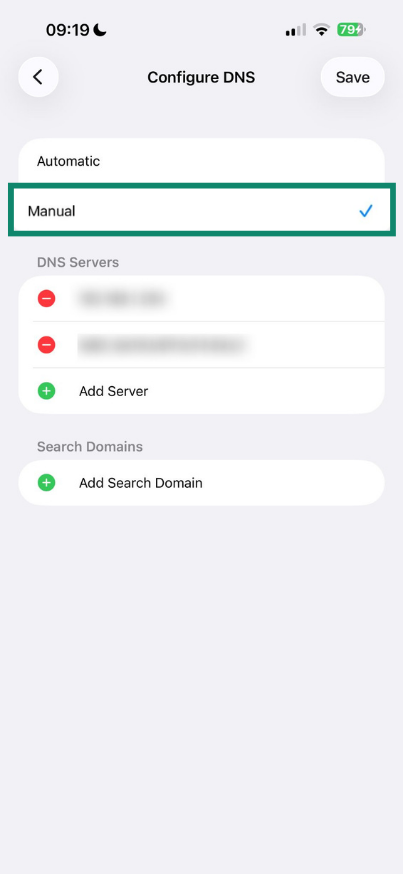
- Select Manual.

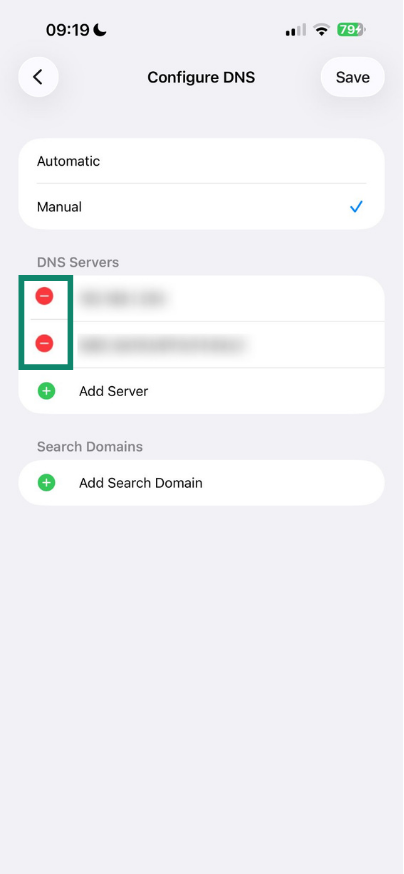
- Tap the red minus icons ( – ) to remove any existing DNS servers.

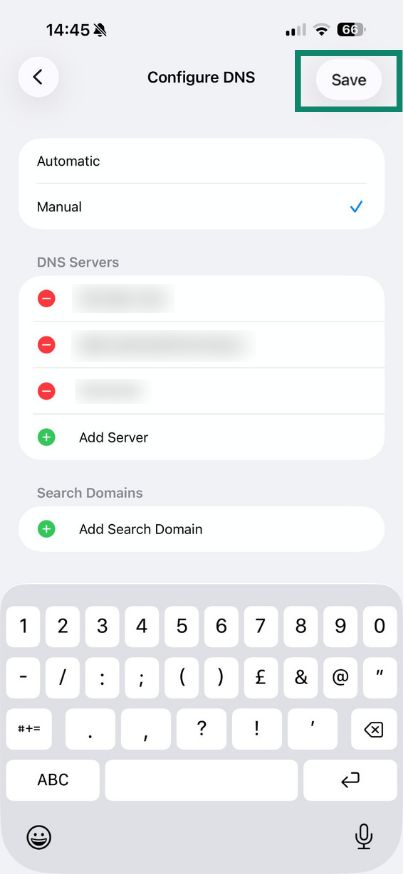
- Tap Add Server, then enter your chosen provider’s servers. Below are OpenDNS’s secure DNS server addresses:
- 208.67.222.222
- 208.67.220.220

- Tap Save.

- Open a browser tab to see if you can access a website.
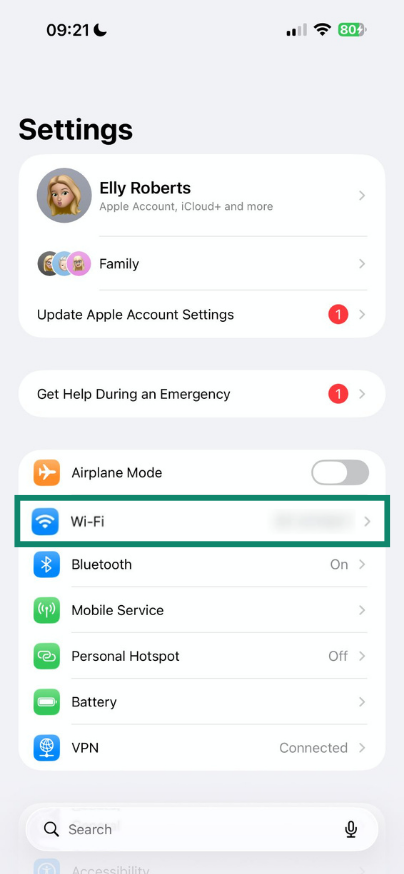
If you still cannot access the internet, continue to the next step.
Restart iOS device
Restarting the ExpressVPN app and your iPhone or iPad may help resolve the issue.
First, fully close and reopen the ExpressVPN app:
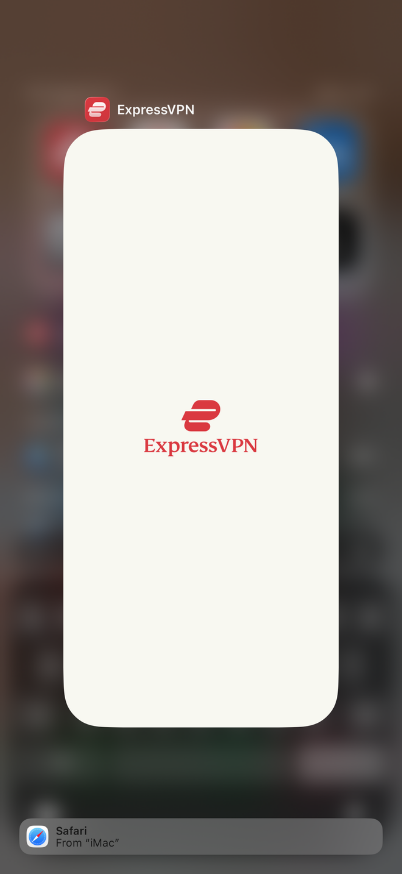
- Swipe up from the bottom to the middle of the screen to open the App Switcher. If your iPhone or iPad has a Home button, double-click the Home button instead.
- Swipe up on the ExpressVPN app to close it.

Then, restart your device. After your device restarts, open ExpressVPN and connect to the VPN. Disconnect from the VPN again, then open a web browser and try to access a website.
If you still cannot access the internet, continue to the next step.
Downgrade the ExpressVPN app
Downgrading the app version can help determine whether there is an issue with the current version of ExpressVPN. Contact the ExpressVPN Support Team and ask for a link to the previous stable version of the app for your device.
After installing the previous stable version, connect to ExpressVPN, then disconnect. Then, open a web browser and try to access a website.
If you still cannot access the internet, continue to the next step.
Contact ExpressVPN Support Team
If you still cannot access the internet after disconnecting from ExpressVPN after trying all the troubleshooting steps above, contact the ExpressVPN Support Team for assistance.