



You can add, update, or remove payment methods on file for your ExpressVPN account from the customer portal. This is only possible if you originally subscribed through the ExpressVPN website. Subscriptions purchased through the App Store or Google Play must be managed through the respective platform.
Note: A $1 pre-authorization hold is placed on your card whenever you add or update a payment method. This is a temporary verification hold and not a charge, and it will be released automatically (typically within a few business days).
Jump to…
Add a new payment method
Edit an existing payment method
Remove a payment method
Add a new payment method
To add a new payment method:
- Go to Payment methods. If prompted, log into your ExpressVPN account.
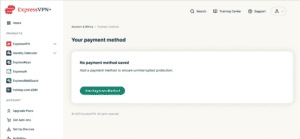
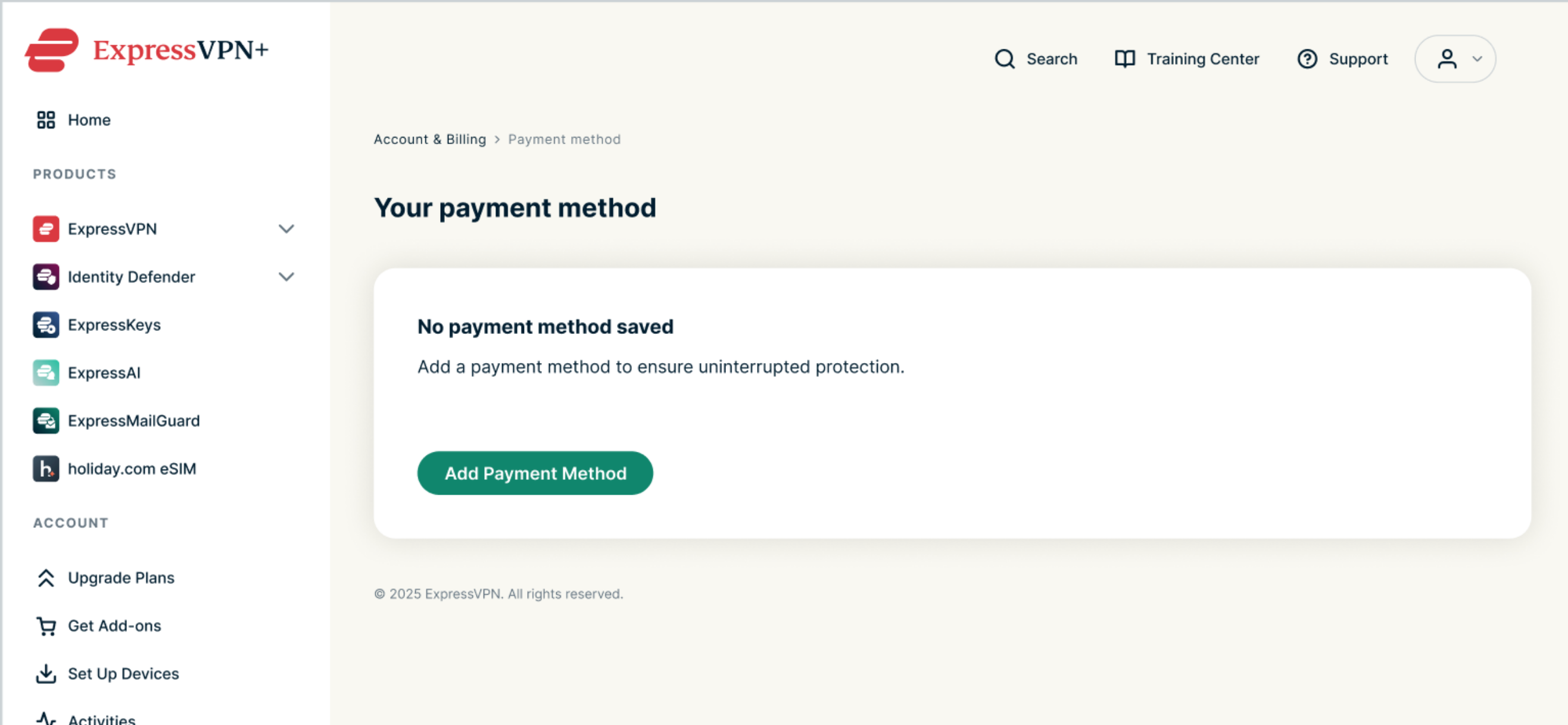
- Select Add Another Payment Method. If no payment method is currently saved, select Add Payment Method.

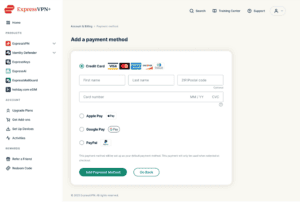
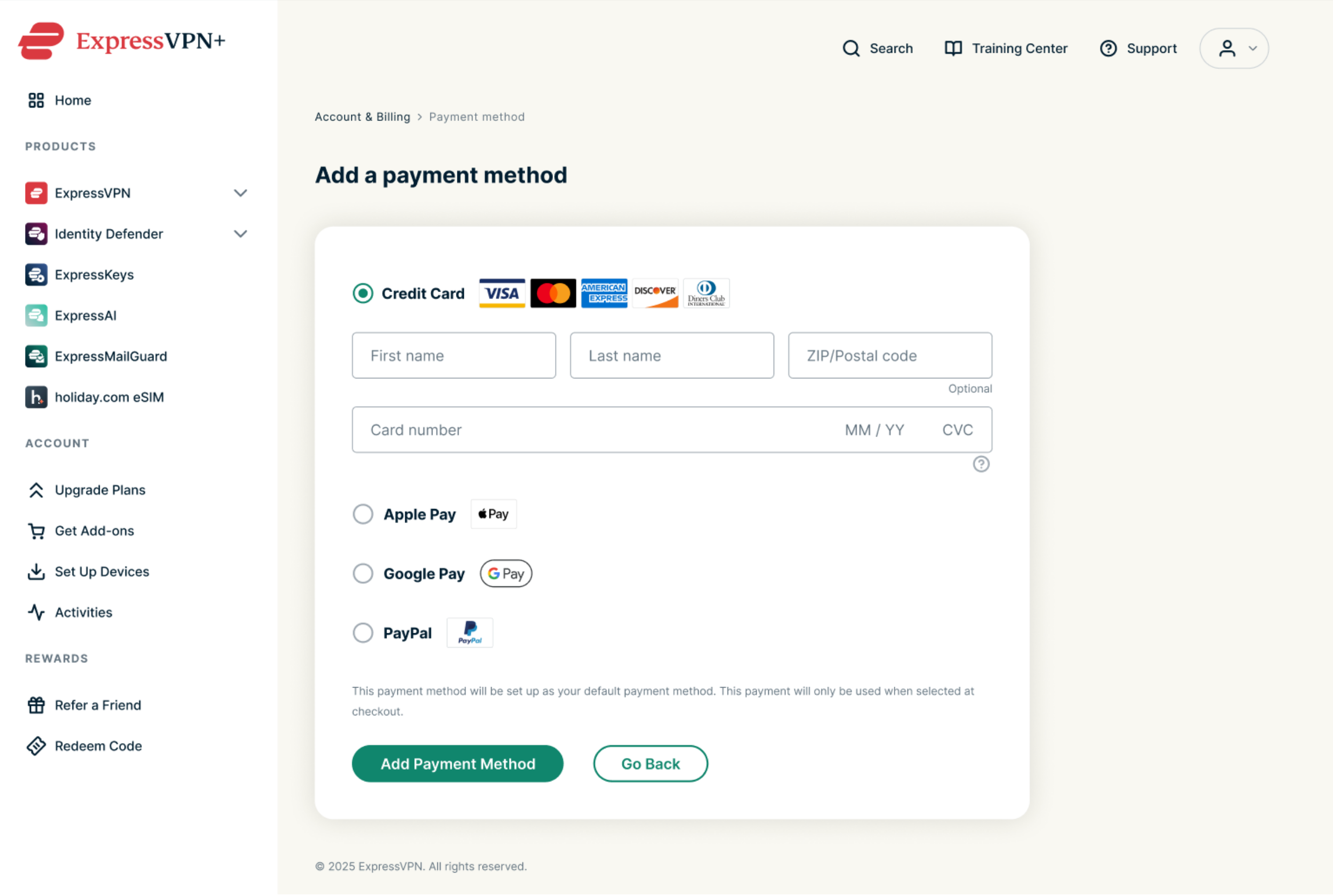
- Fill in your payment details and select Add Payment Method.

Need help? Contact the ExpressVPN Support Team for immediate assistance.
Edit an existing payment method
To update the details of an existing payment method:
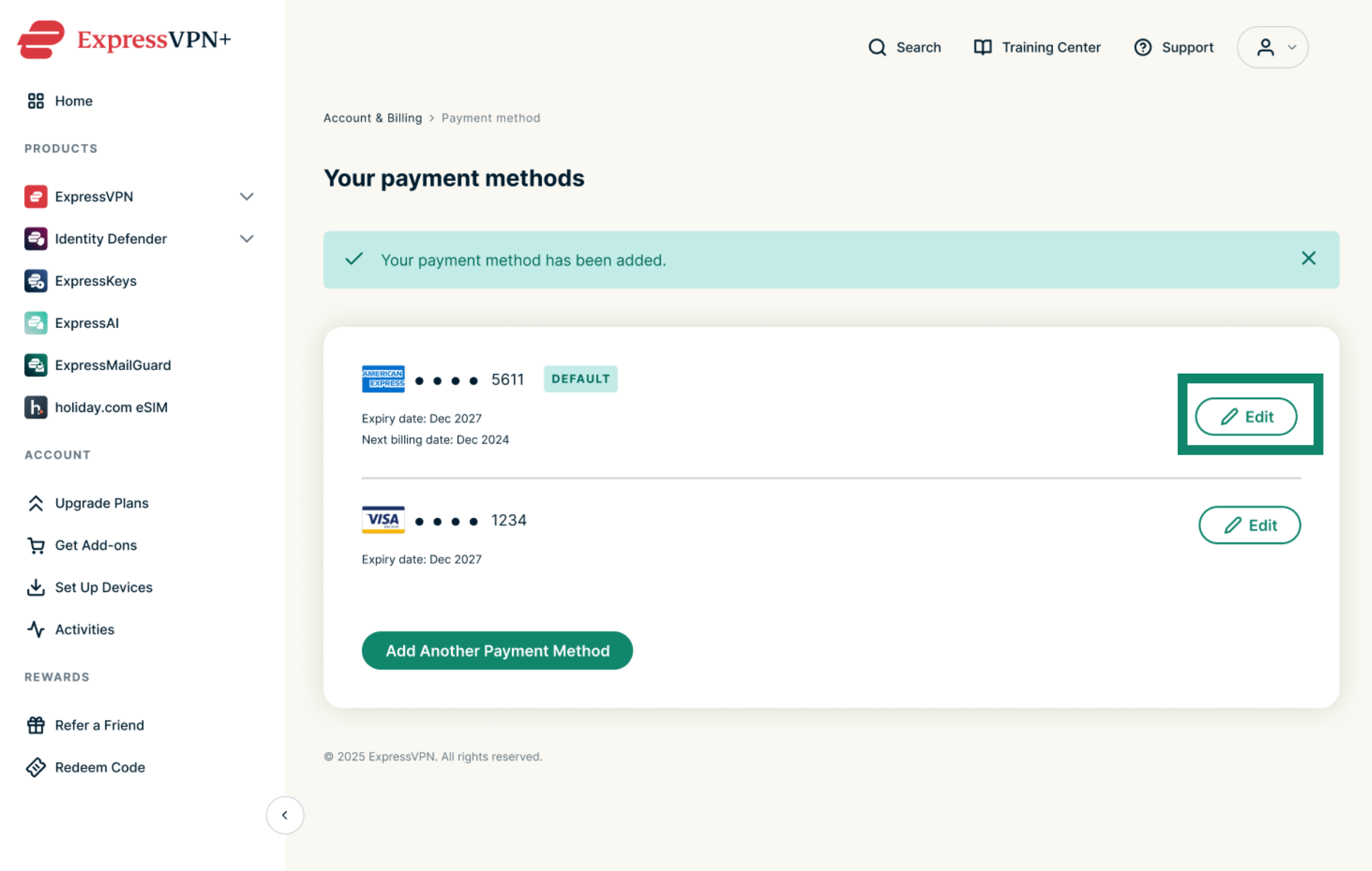
- Go to Payment methods. If prompted, log into your ExpressVPN account.
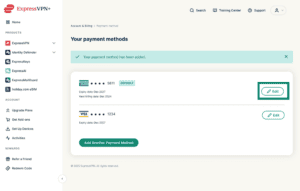
- Next to your saved payment method, select Edit.

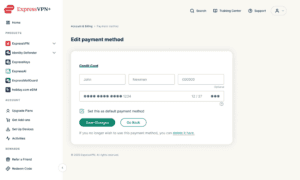
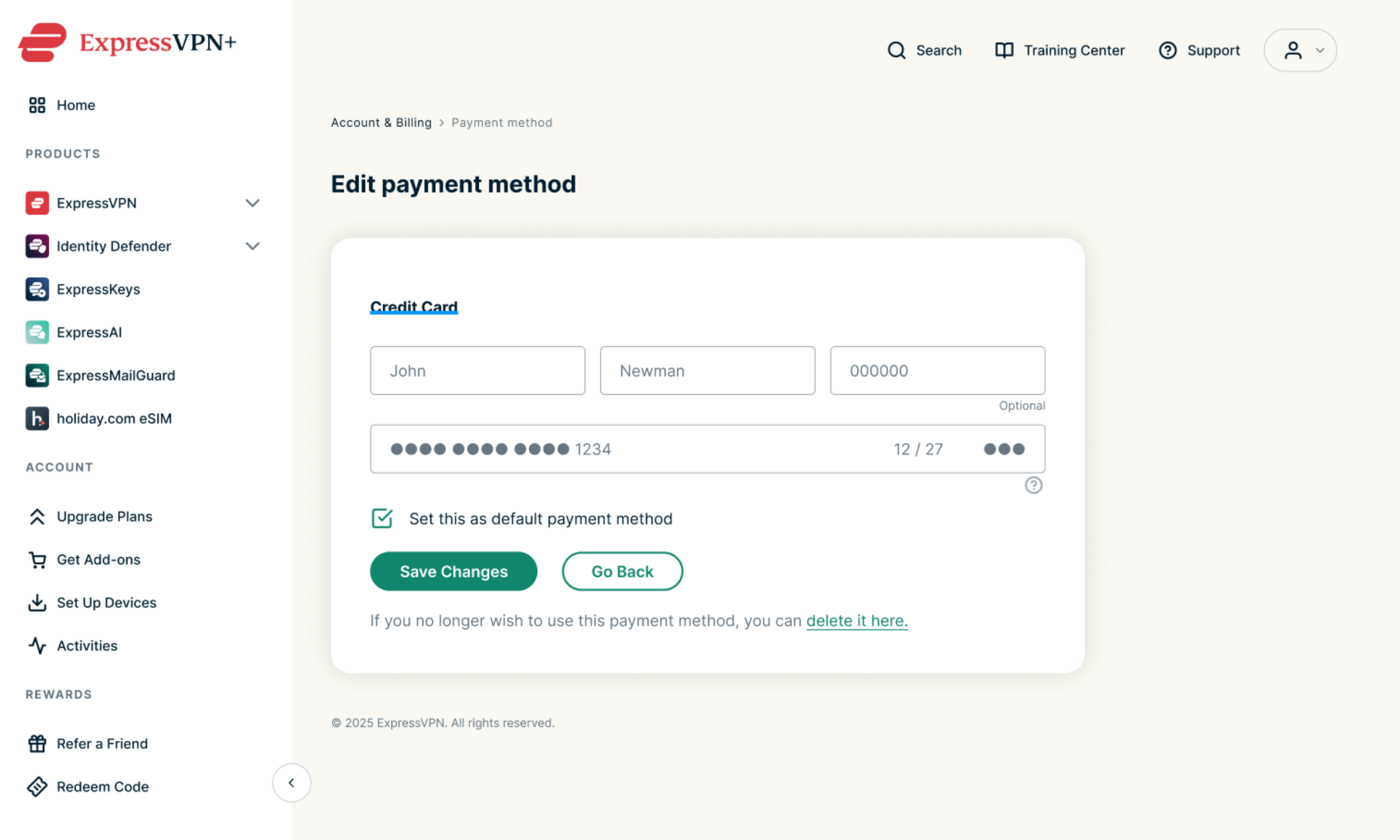
- Update your payment details, then select Save Changes.

Need help? Contact the ExpressVPN Support Team for immediate assistance.
Remove a payment method
To remove a payment method:
- Go to Payment methods. If prompted, log into your ExpressVPN account.
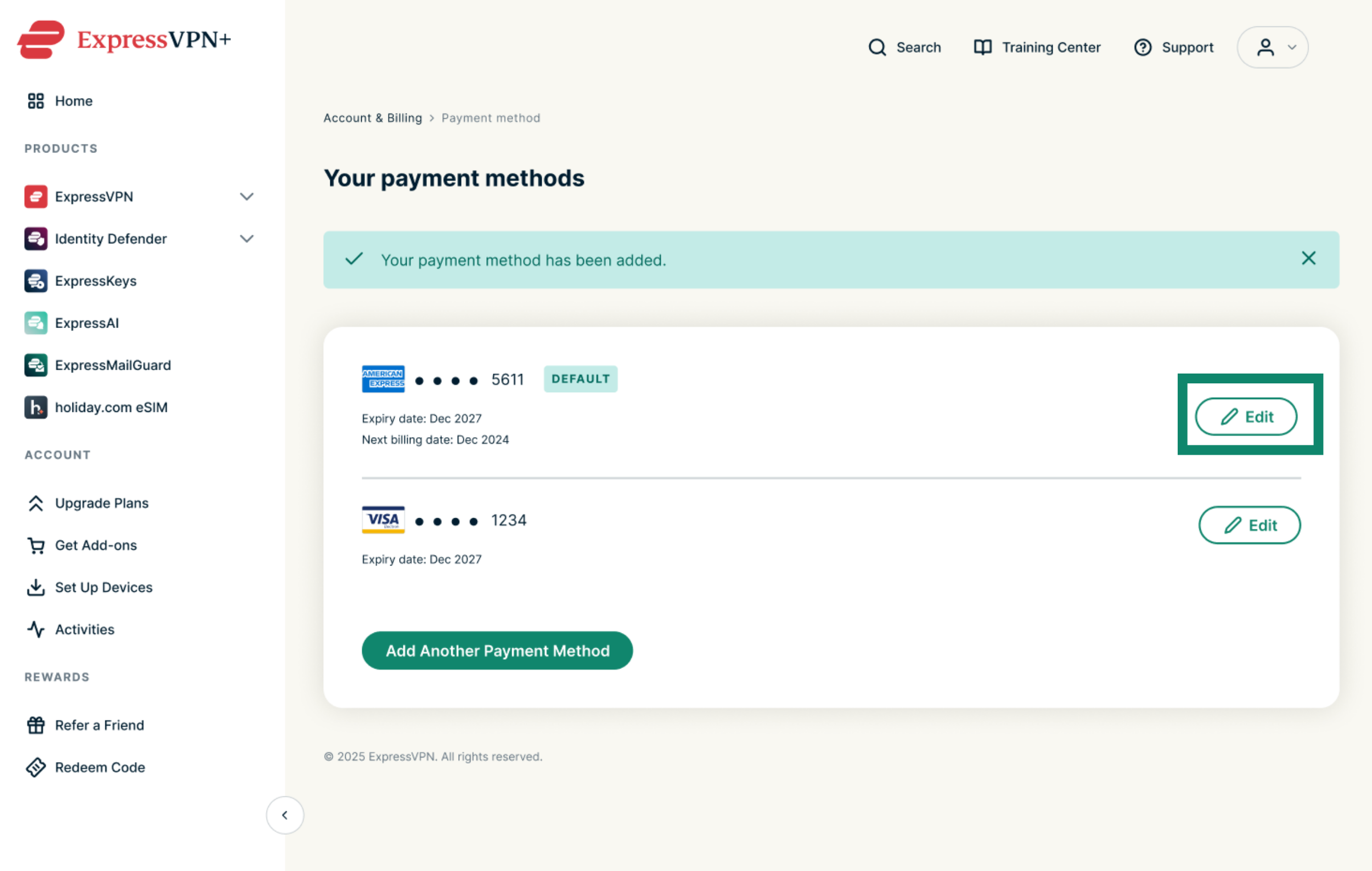
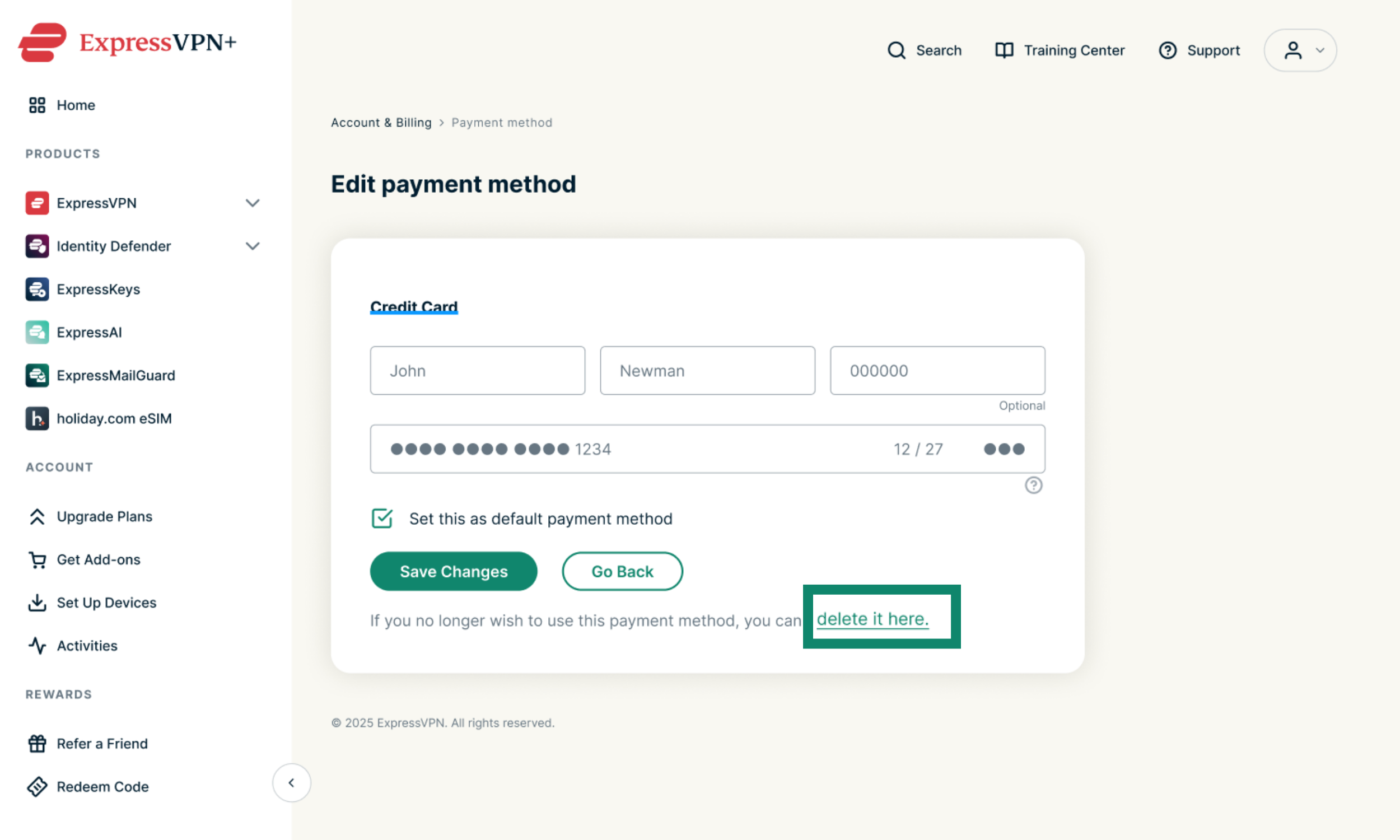
- Next to the payment method you want to remove, select Edit.
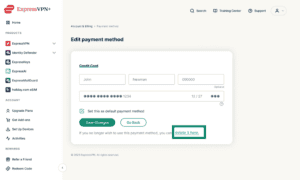
- Below the Save Changes button, select the delete it here link.

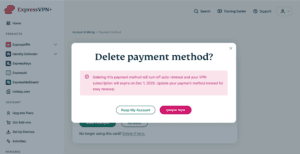
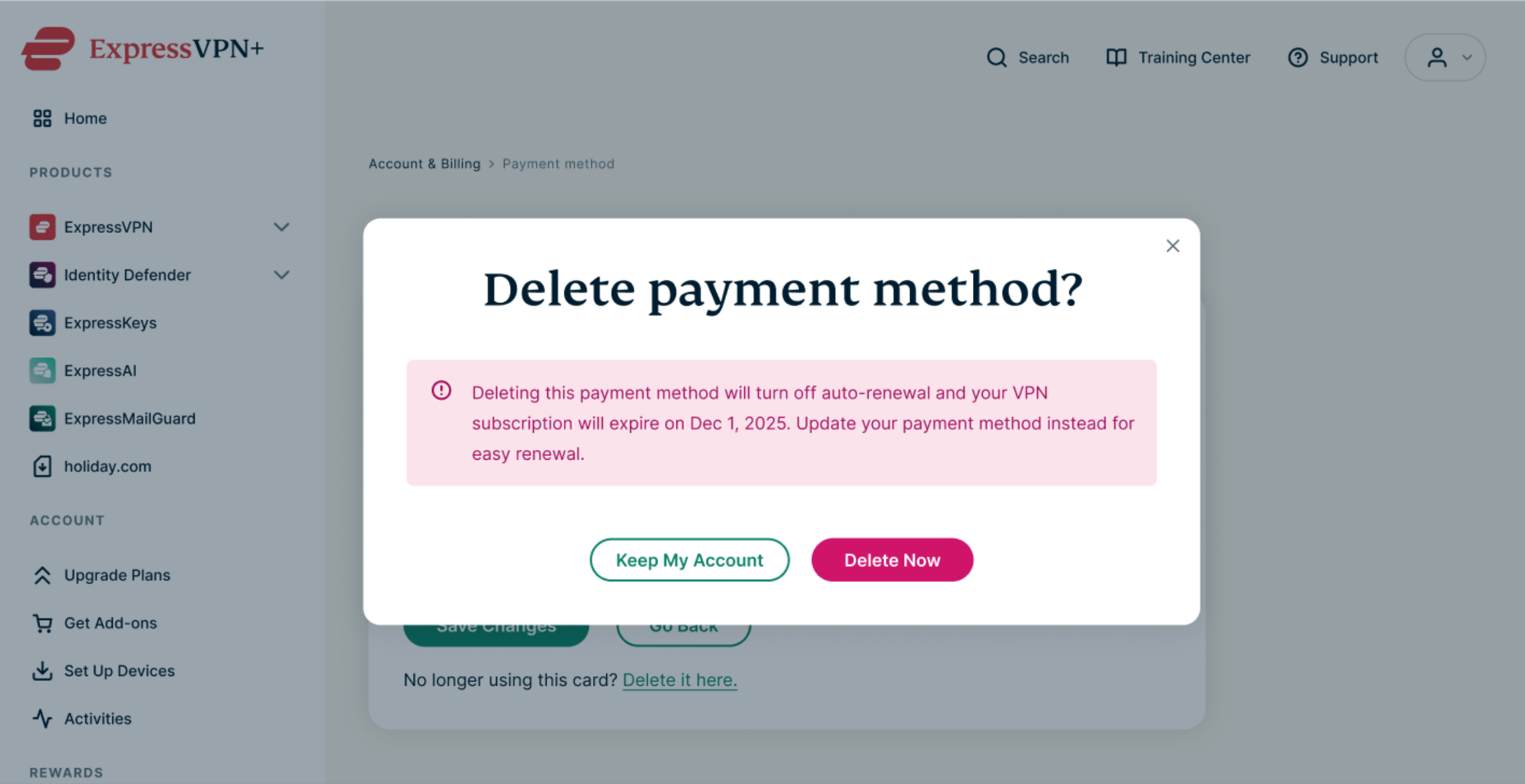
- In the confirmation dialog, select Delete Now to confirm removal.

Need help? Contact the ExpressVPN Support Team for immediate assistance.