



You can share saved logins, credit or debit cards, and secure notes with other people from within the ExpressKeys Android and iPhone mobile apps. Recipients do not need an ExpressVPN subscription or to have ExpressKeys installed on their devices to receive these items. However, they will have to verify their email addresses to access shared items.
When you share ExpressKeys items, you can customize how long the item remains viewable, who can access it, and how many times it can be viewed.
Jump to…
How to share items in the ExpressKeys mobile app
How to view items shared from ExpressKeys
How to share items in the ExpressKeys mobile app
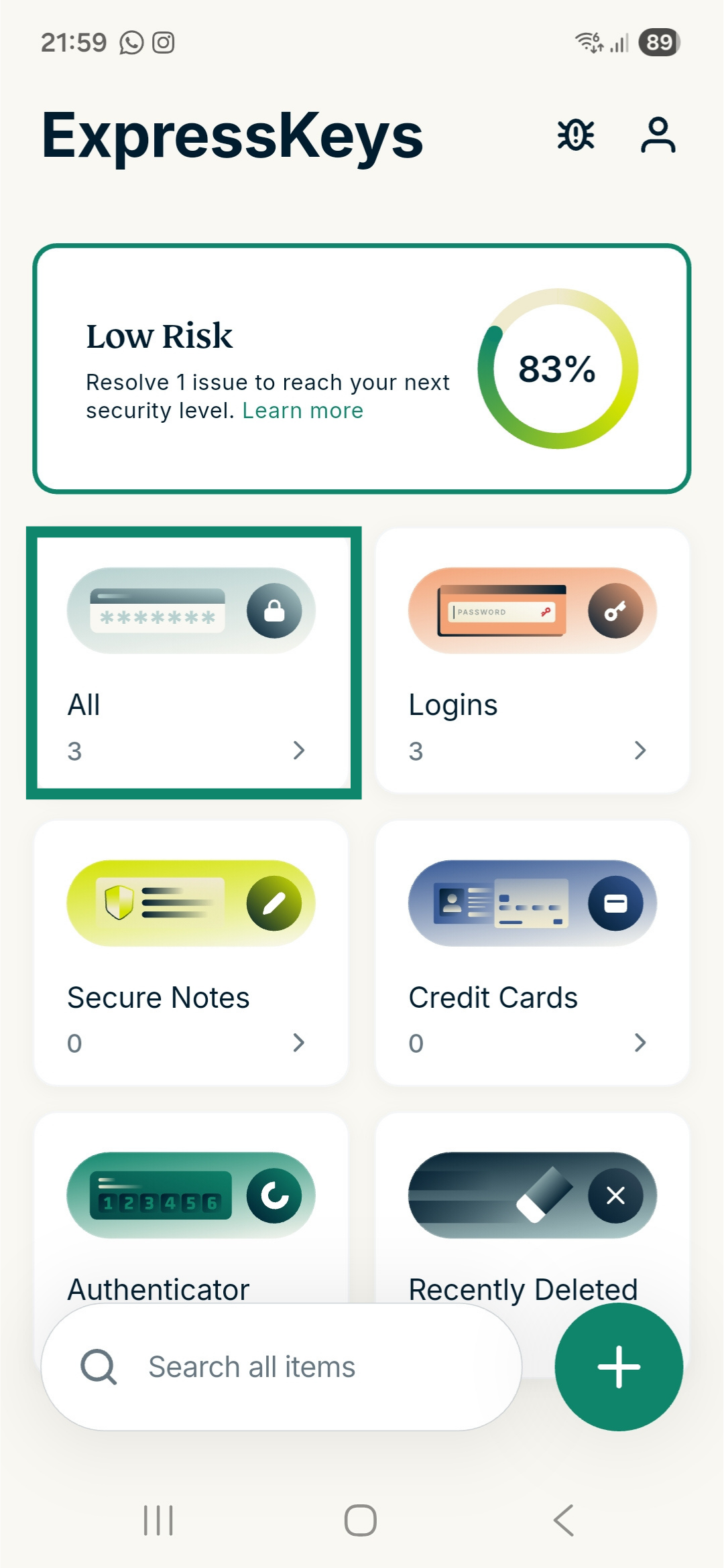
- Open and unlock the ExpressKeys app.
- Tap the All widget.


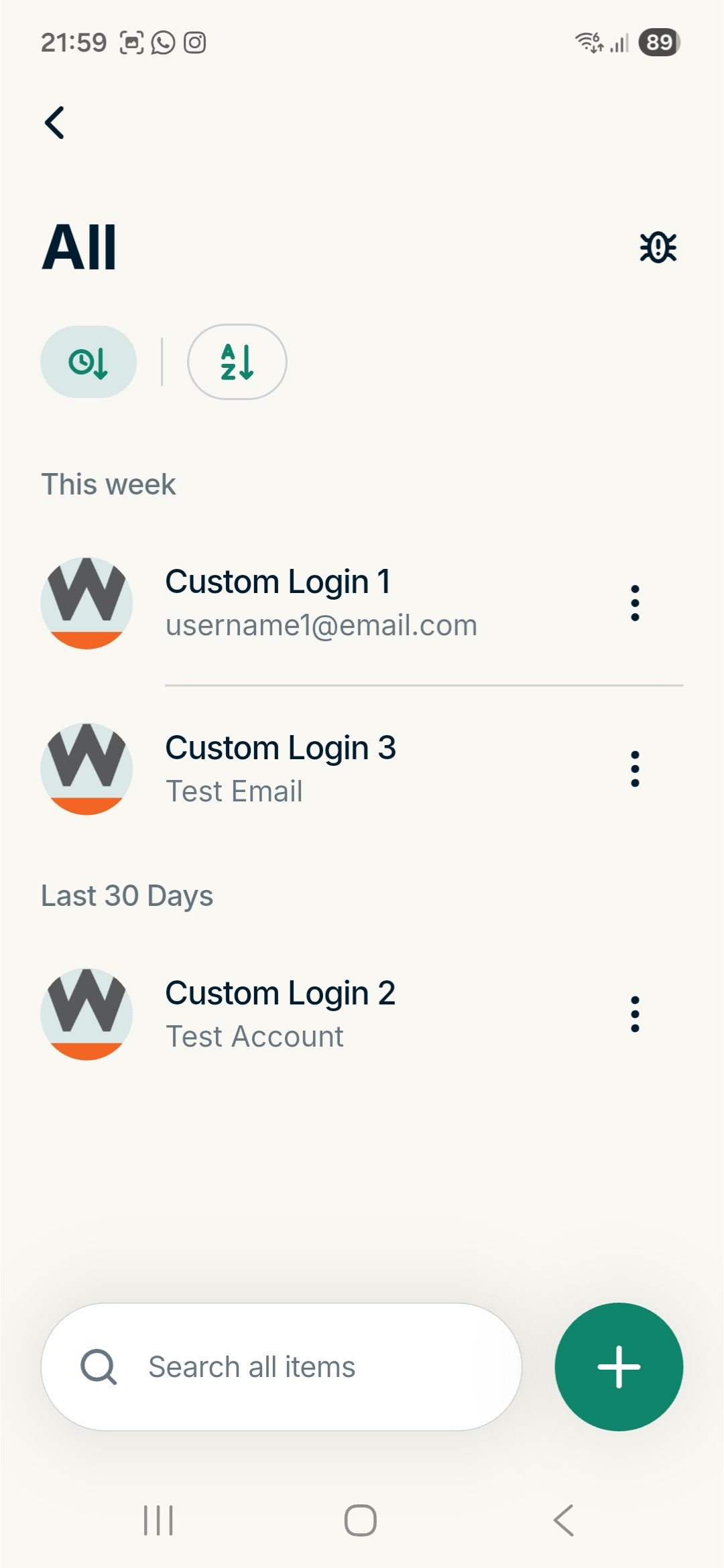
- Tap the item you want to share.

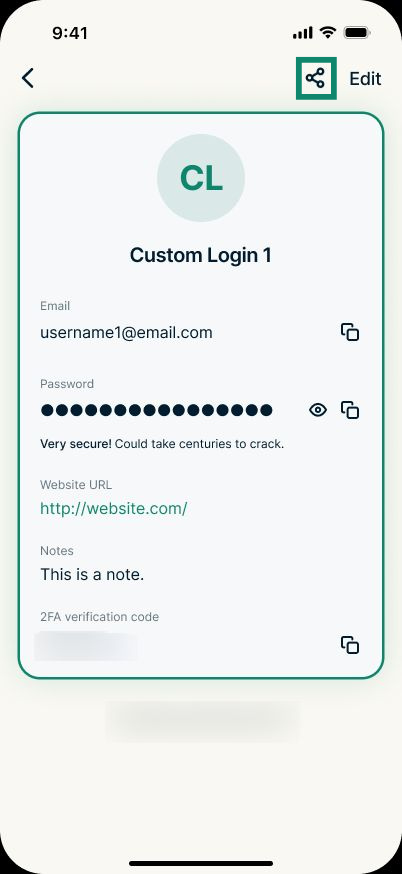
- Tap the share icon.


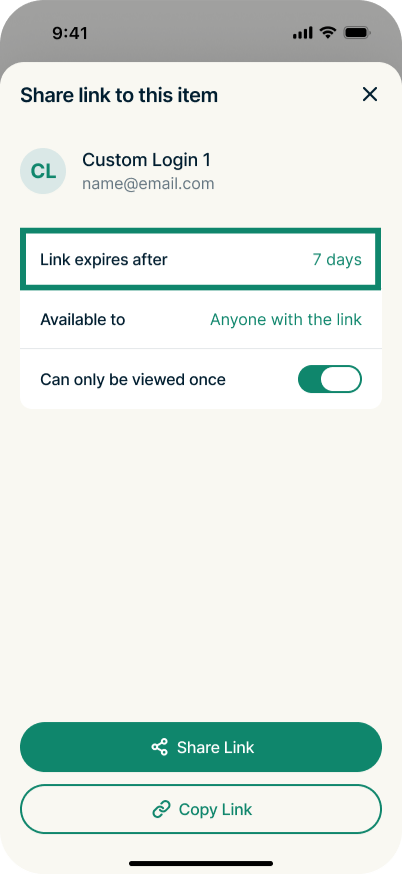
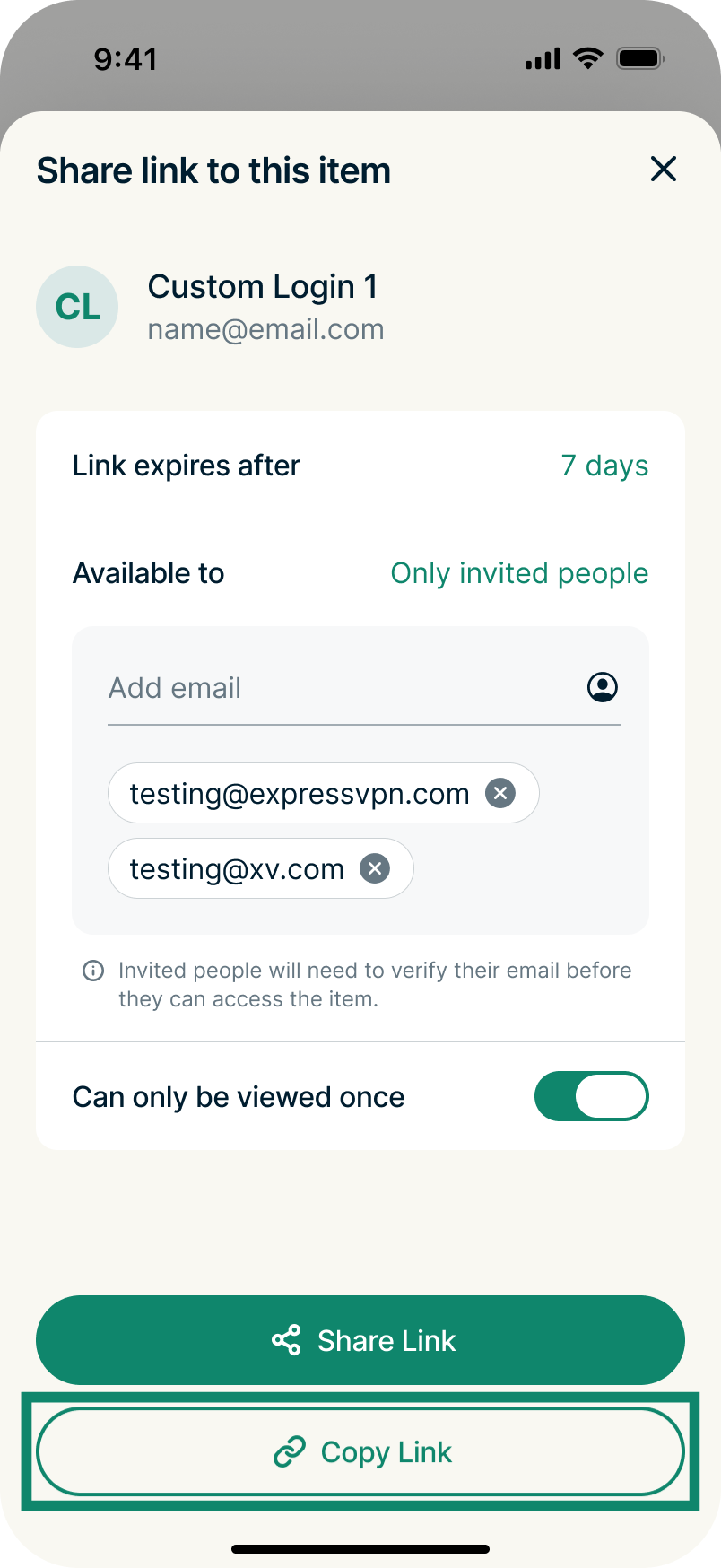
- You will now see the item-sharing window.

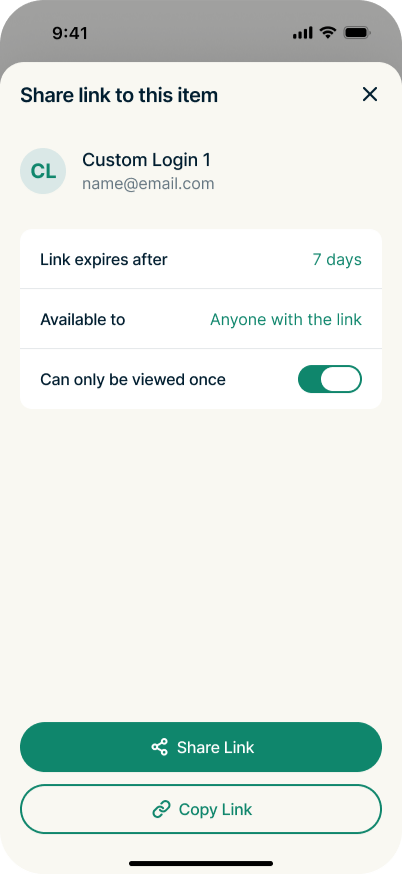
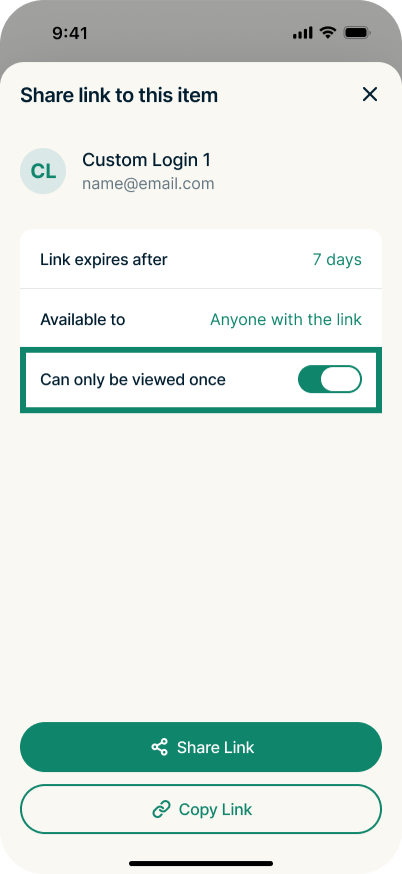
Before sharing an ExpressKeys item, you can customize the following options:
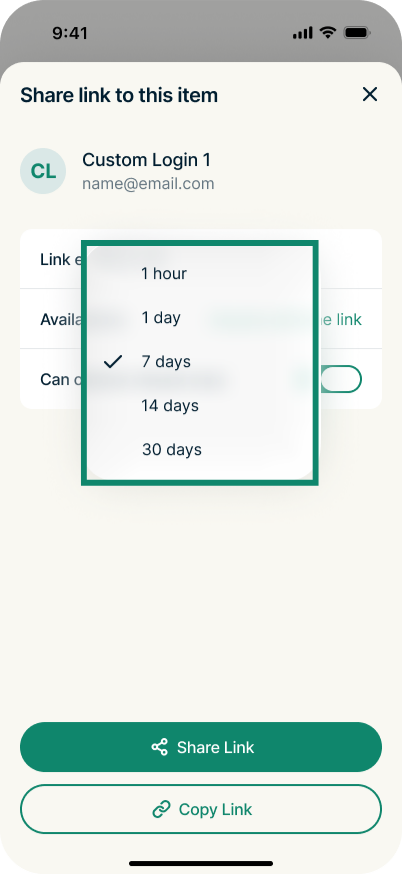
- Link expires after: Determines how long the item link is available for. Options include 1 hour, 1 day, 7 days, 14 days, and 30 days.
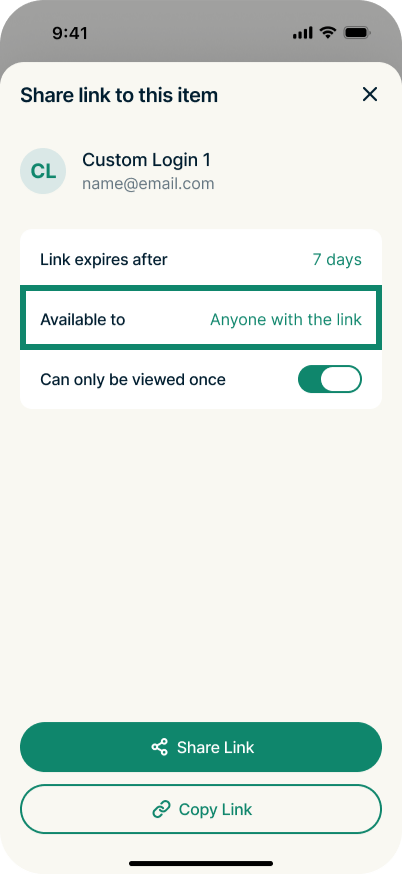
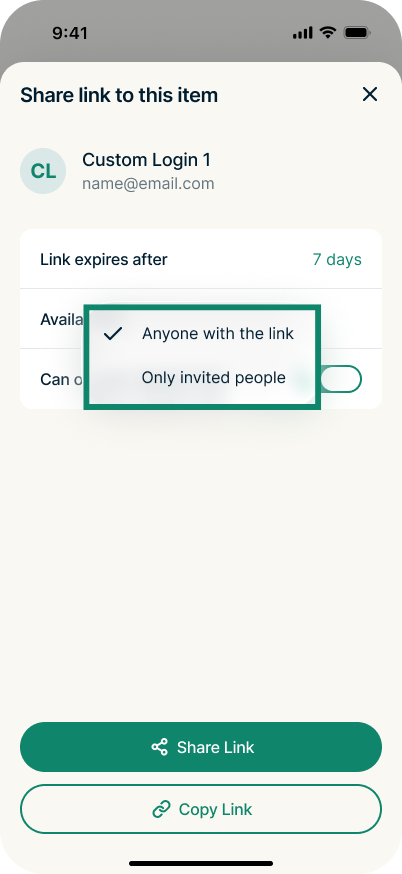
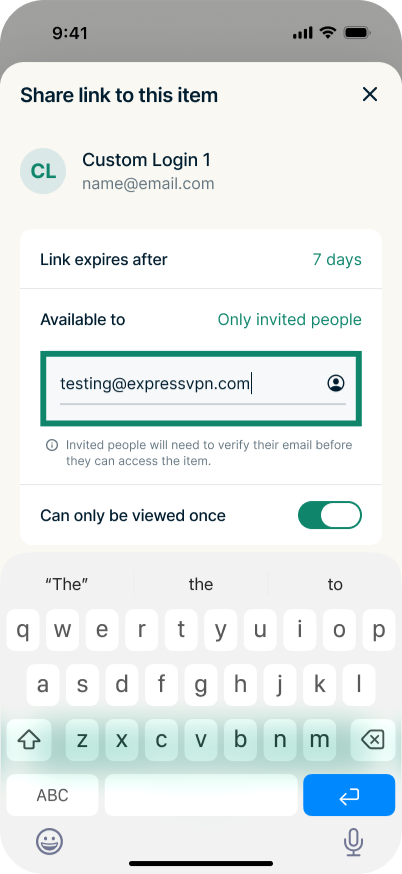
- Available to: Specifies if the ExpressKeys item is available to anyone with the link or only invited people.
- Can only be viewed once: Determines if the shared item can be viewed once or multiple times.
To modify item-sharing settings
- Tap Link expires after.

- Tap the desired period. After it expires, the link becomes unavailable.

- Tap Available to.

- Here you have two options:
- Anyone with the link: Anyone you share the link with can access the item.
- Only invited people: Only the people you manually add to the recipient list will have access to the item.

- If you choose Only invited people, you can add a recipient to the list by entering their email address.

To share an ExpressKeys item
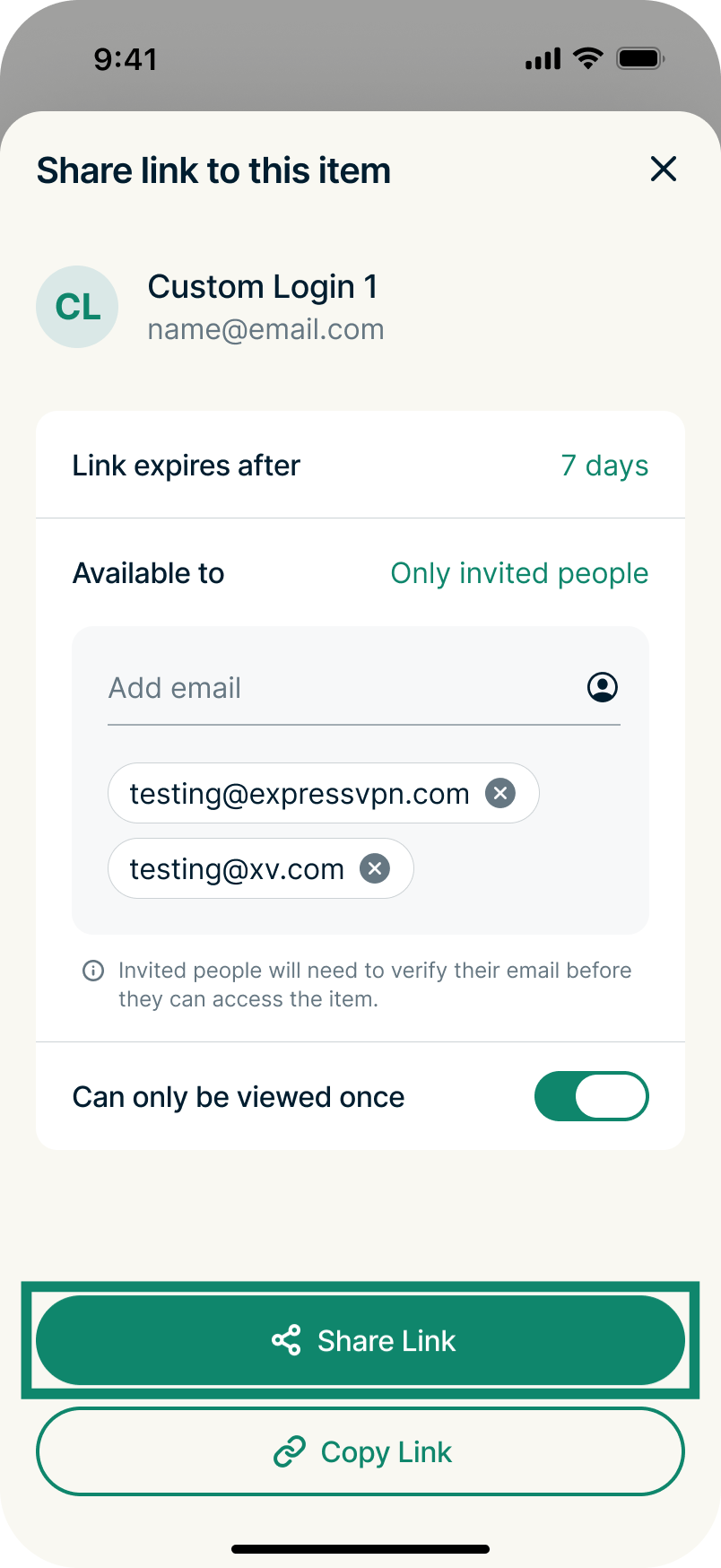
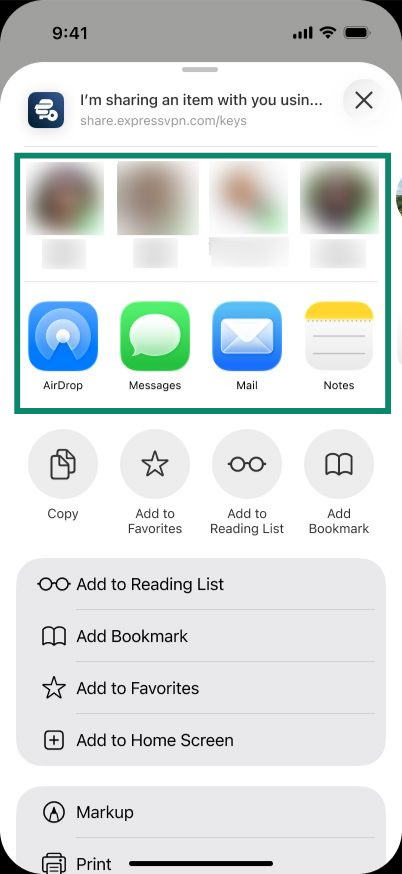
You can share an item link using your phone’s contacts and services:
- Tap Share Link.

- Choose from the available contacts or services.

Alternatively, you can copy the link and manually paste it:
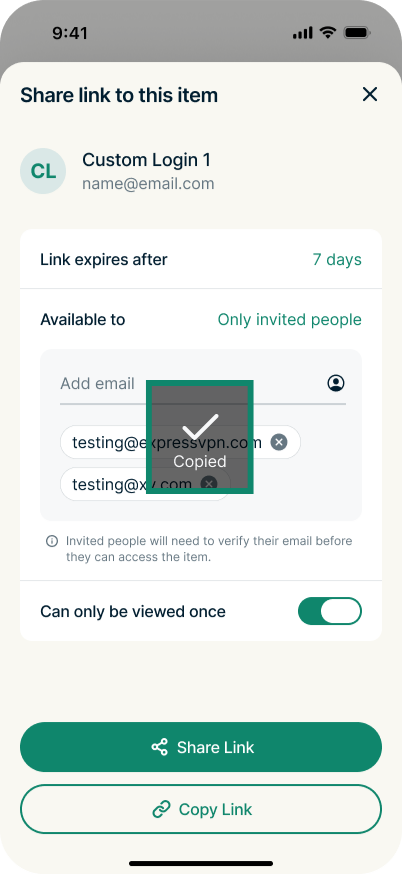
- Tap Copy Link.

- You will see a popup message saying Copied. You can now paste the link in your desired app, service, or document.

Once the item has been successfully shared, you will see an Item shared (or similar) message at the bottom of your screen.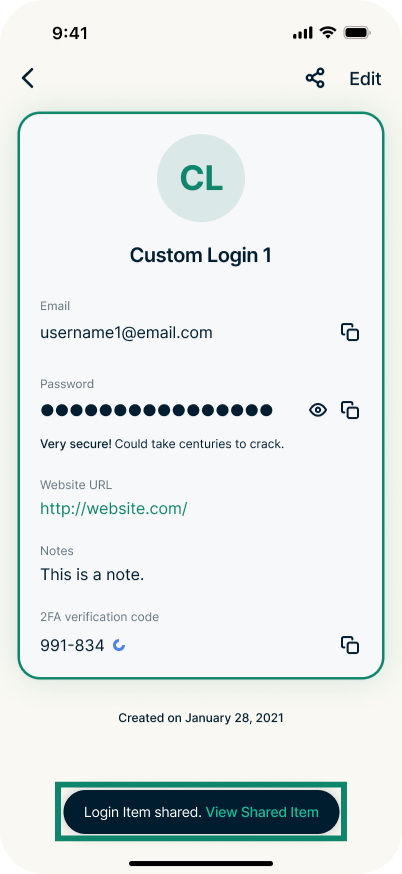
Need help? Contact the ExpressVPN Support Team for immediate assistance.
How to view items shared from ExpressKeys
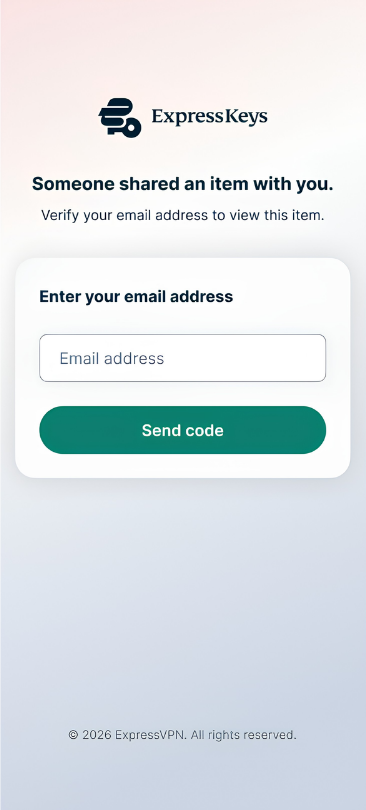
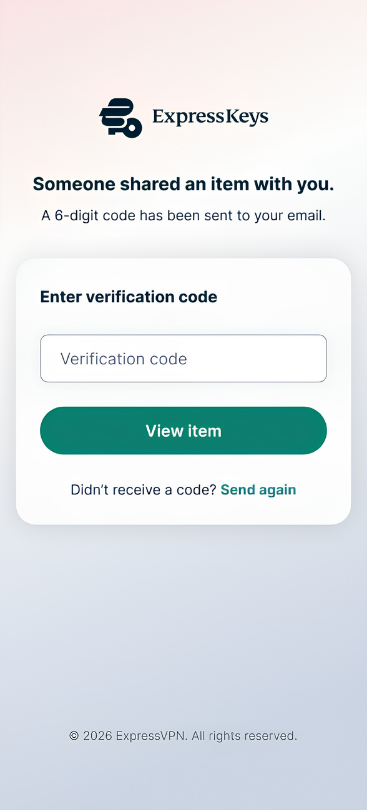
You do not need an ExpressVPN subscription or to have ExpressKeys installed on your device to view an item shared from ExpressKeys; you can simply open the link in your browser. However, you will need to enter your email address and verify it by using a verification code sent by ExpressKeys.
On mobile
- Tap the shared item link.
- Enter your email address and tap Send code.


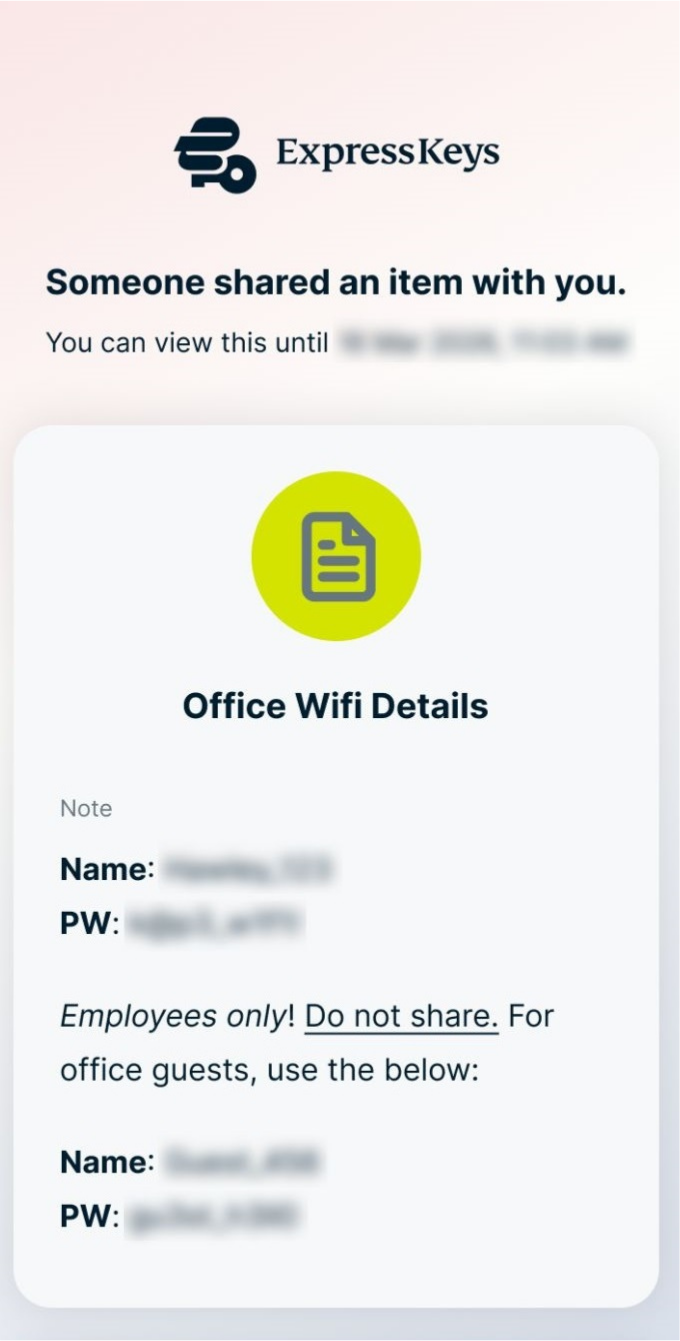
- Enter the verification code sent to your email and tap View item.


- You can now view the shared ExpressKeys item.


If you are unable to view the item
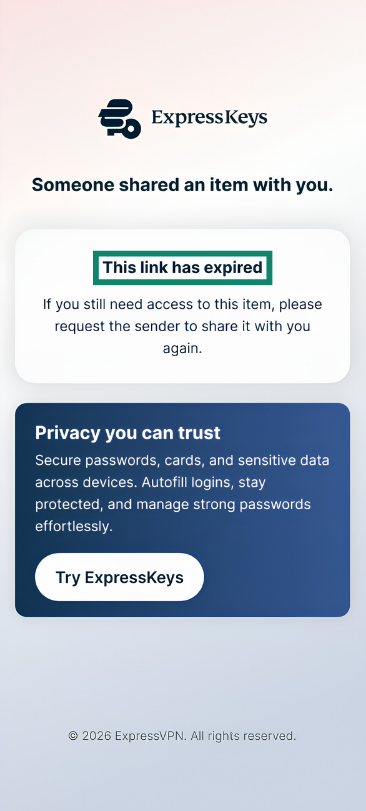
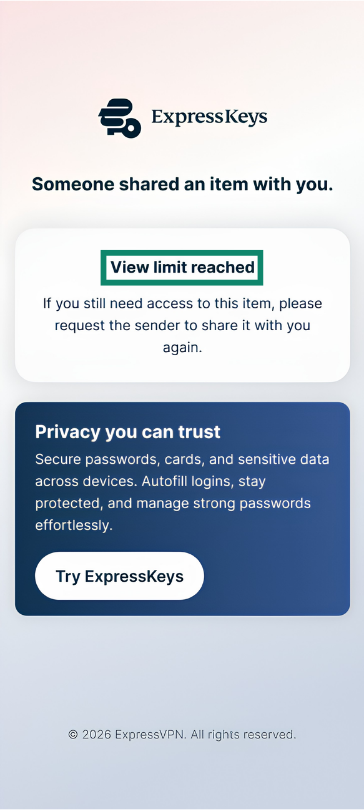
If you cannot view the shared item, it may be due to an expired link or exceeded view limit.
- This link has expired: The sender has restricted how long the item is available to view, and you have passed the cutoff period. You will need to contact the sender and ask them to share it again.

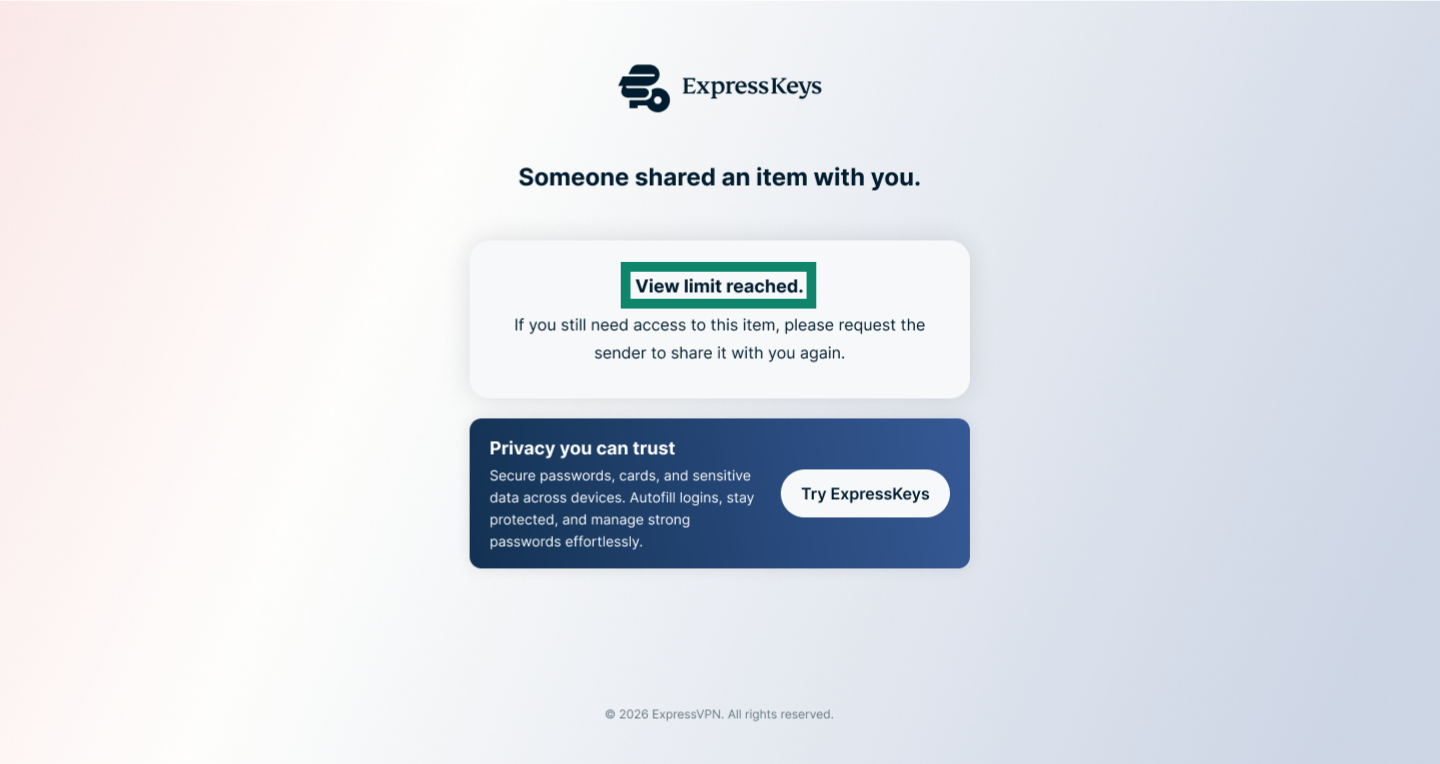
- View limit reached: You have already viewed the item and the sender has restricted how many times you can view it. Contact the sender and ask them to share the item with you again.


On desktop
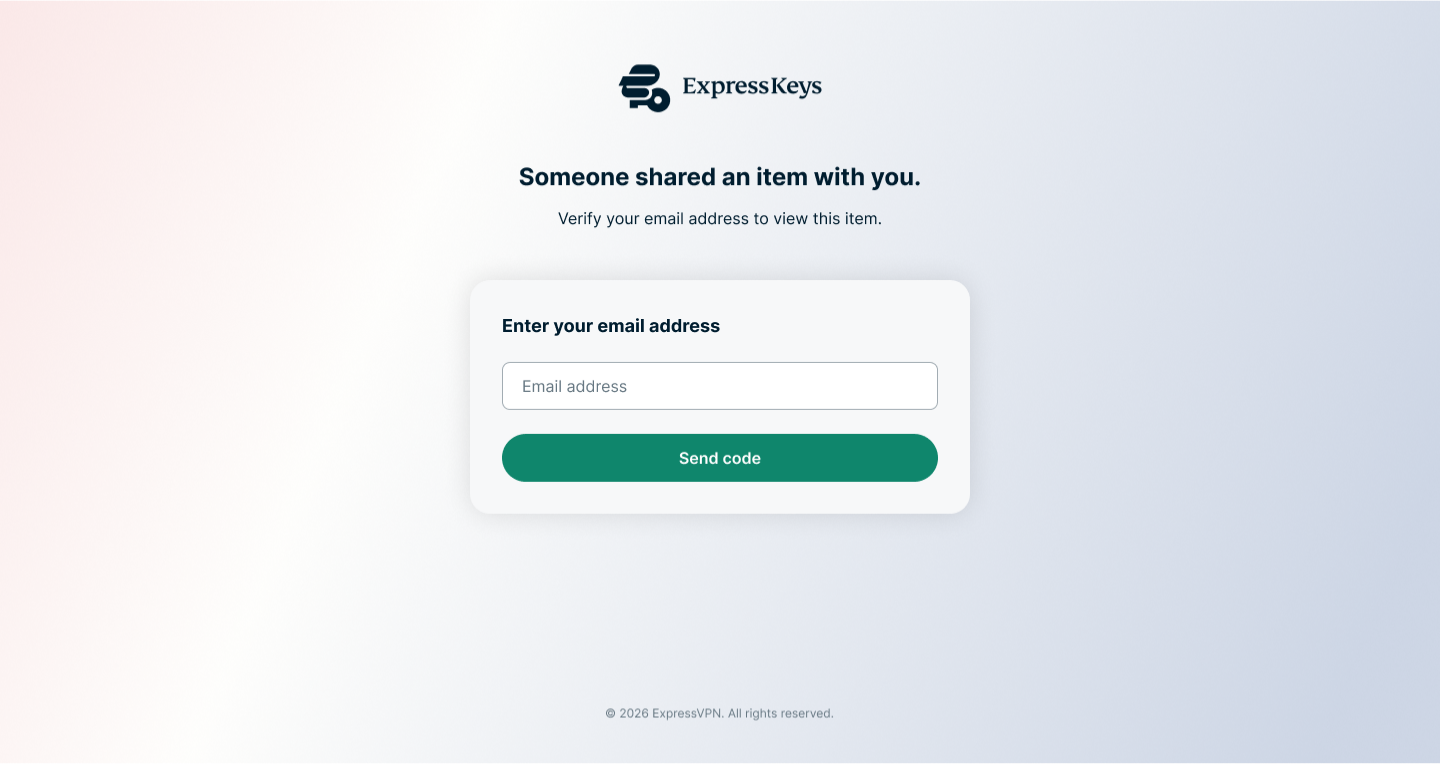
- Click the shared item link.
- Enter your email address and click Send code.


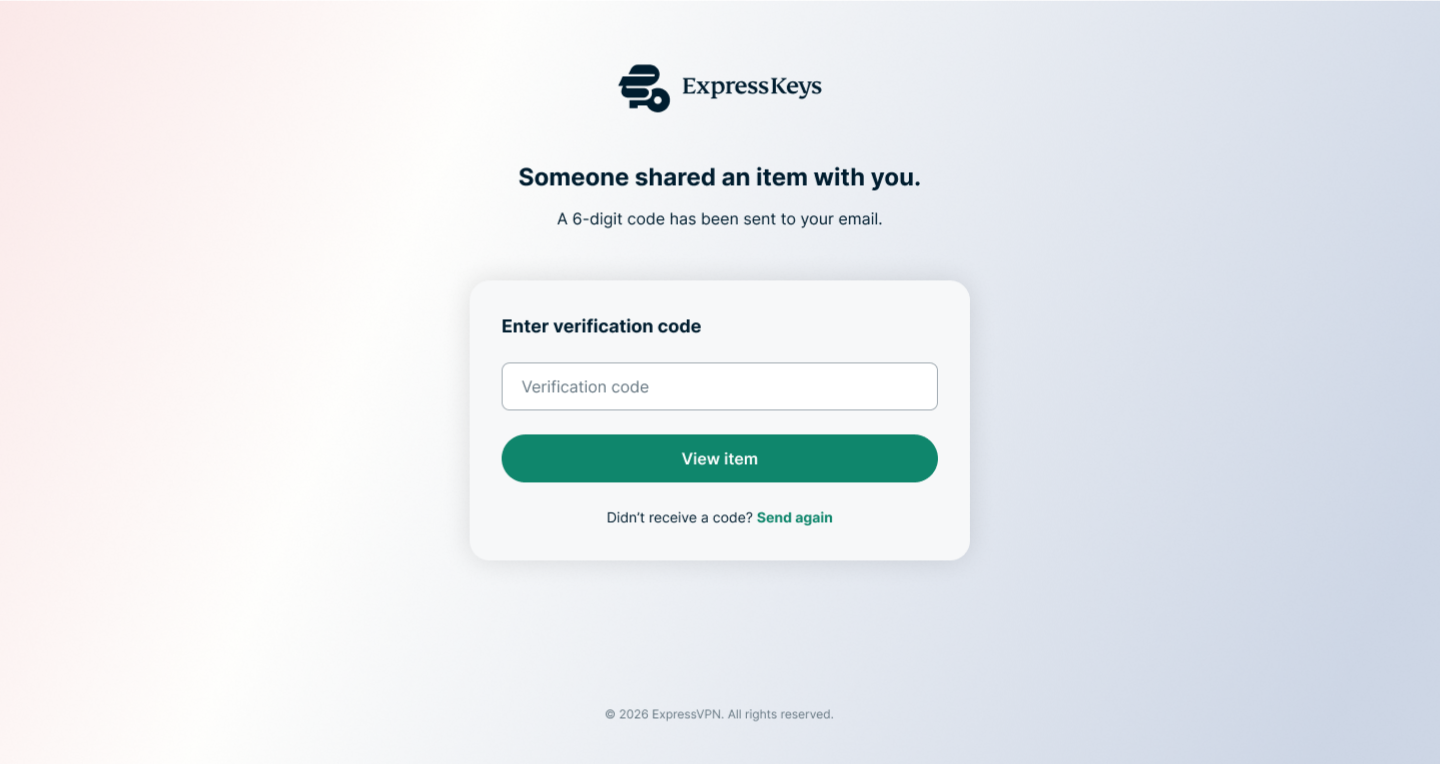
- Enter the verification code received in your email and click View item.

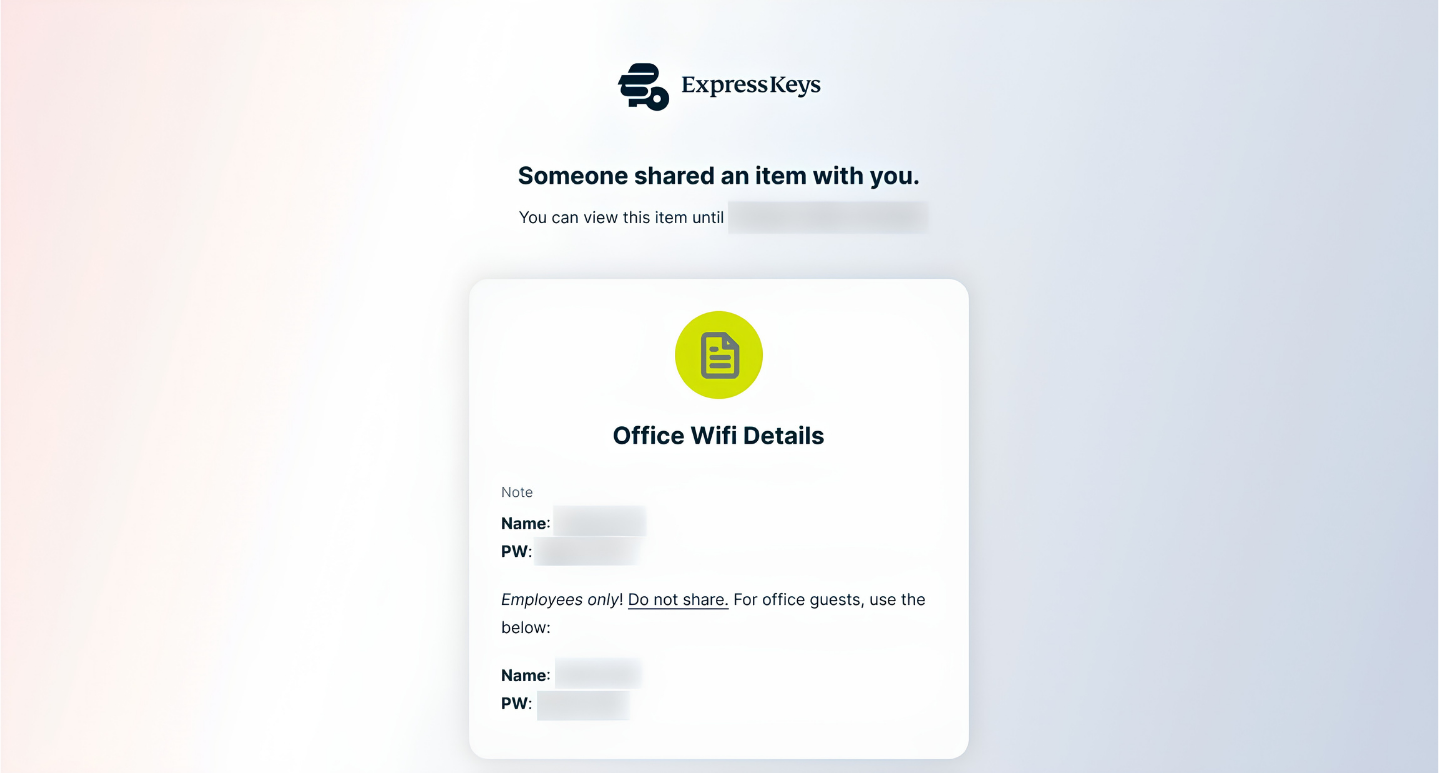
- You can now view the shared ExpressKeys item.


If you are unable to view the item
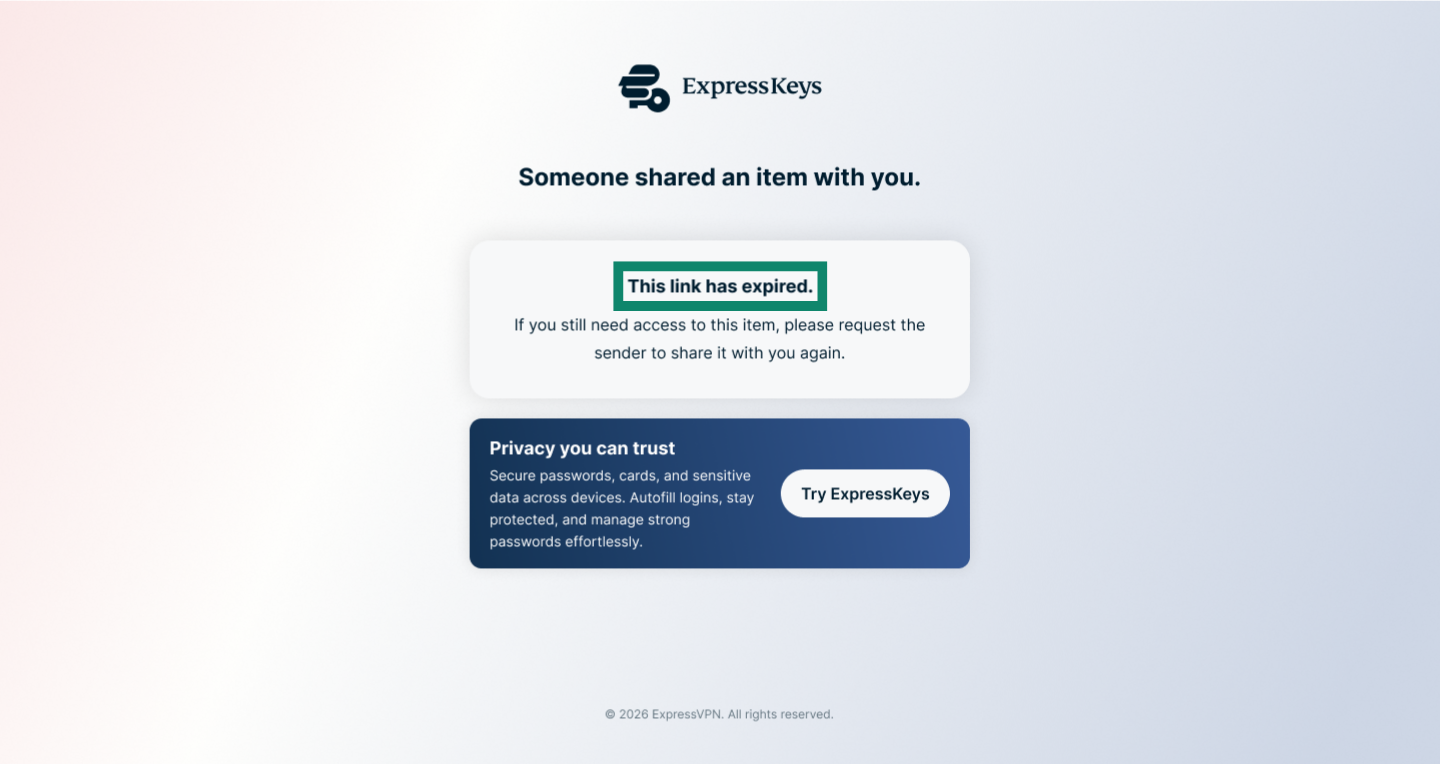
If you cannot view the shared item, it may be due to an expired link or exceeded view limit.
- This link has expired: The sender has restricted how long the item is available to view, and you have passed the cutoff period. You will need to contact the sender and ask them to share it again.

- View limit reached: You have already viewed the item and the sender has restricted how many times you can view it. Contact the sender and ask them to share the item with you again.

Need help? Contact the ExpressVPN Support Team for immediate assistance.