



This guide explains how to create and manage passkeys in the ExpressKeys app for Android and iOS.
For more information on using ExpressKeys and its features, refer to our guide to getting started with ExpressKeys.
Jump to…
What are passkeys?
Create a passkey using ExpressKeys
Merge a passkey with a login
Delete a passkey
What are passkeys?
Passkeys are a secure way to sign in to apps and websites without entering a password. Instead, you use your device authentication, such as Face ID or a PIN.
With ExpressKeys, you can create and manage passkeys for supported apps and websites. Your saved passkeys are stored in the ExpressKeys app so you can use them across supported devices to securely sign into your accounts.
Need help? Contact the ExpressVPN Support Team for immediate assistance.
Create and save a passkey
There are two ways you can add a passkey to a login: when creating an account on a supported platform or via your account settings on a supported platform.
When you create an account on a website or app that has passkey support, you’ll usually be prompted by the platform to create a passkey during the account creation process. For existing accounts, you can go to your account settings on that platform and find the option to add a passkey.
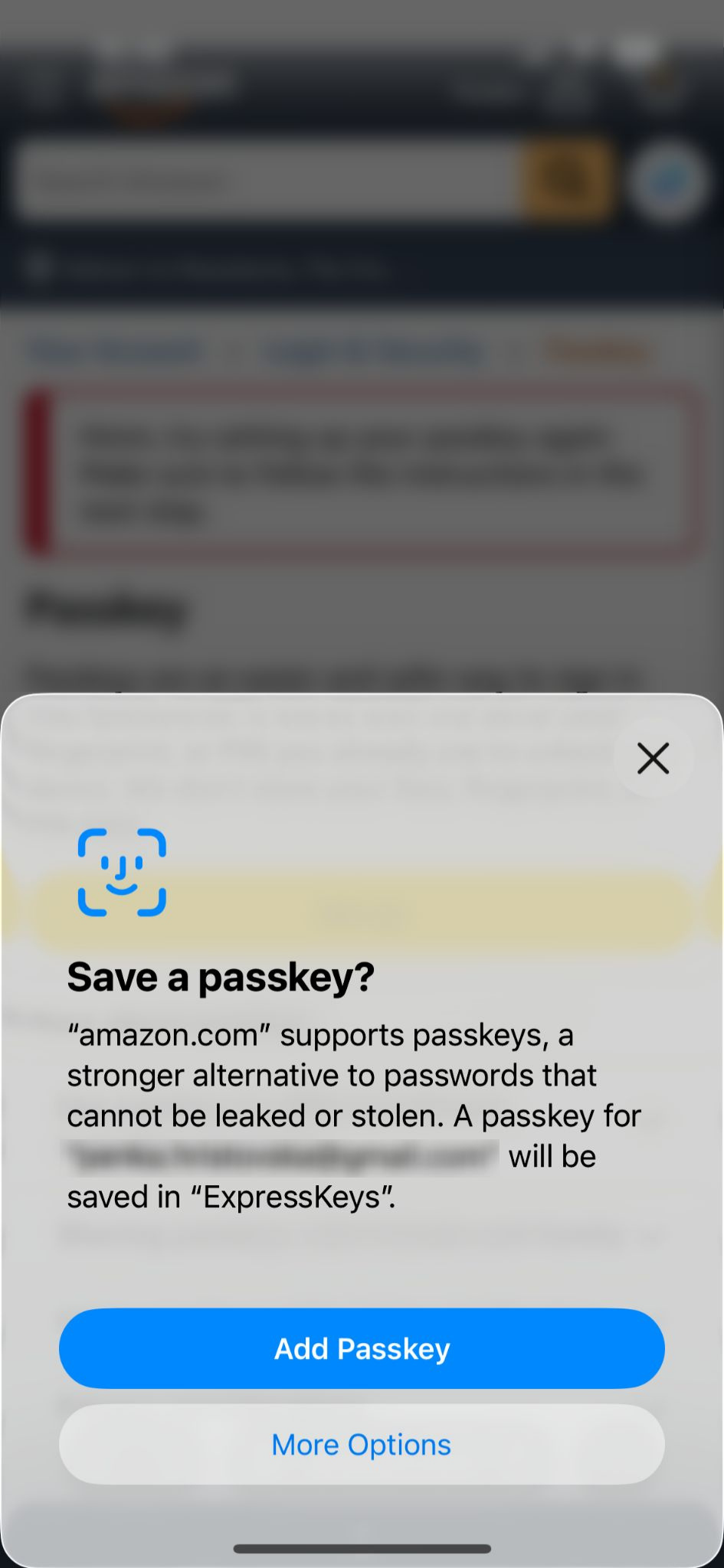
From here, your device should prompt you to create a passkey using ExpressKeys:
- Tap Add Passkey in the pop-up that appears.


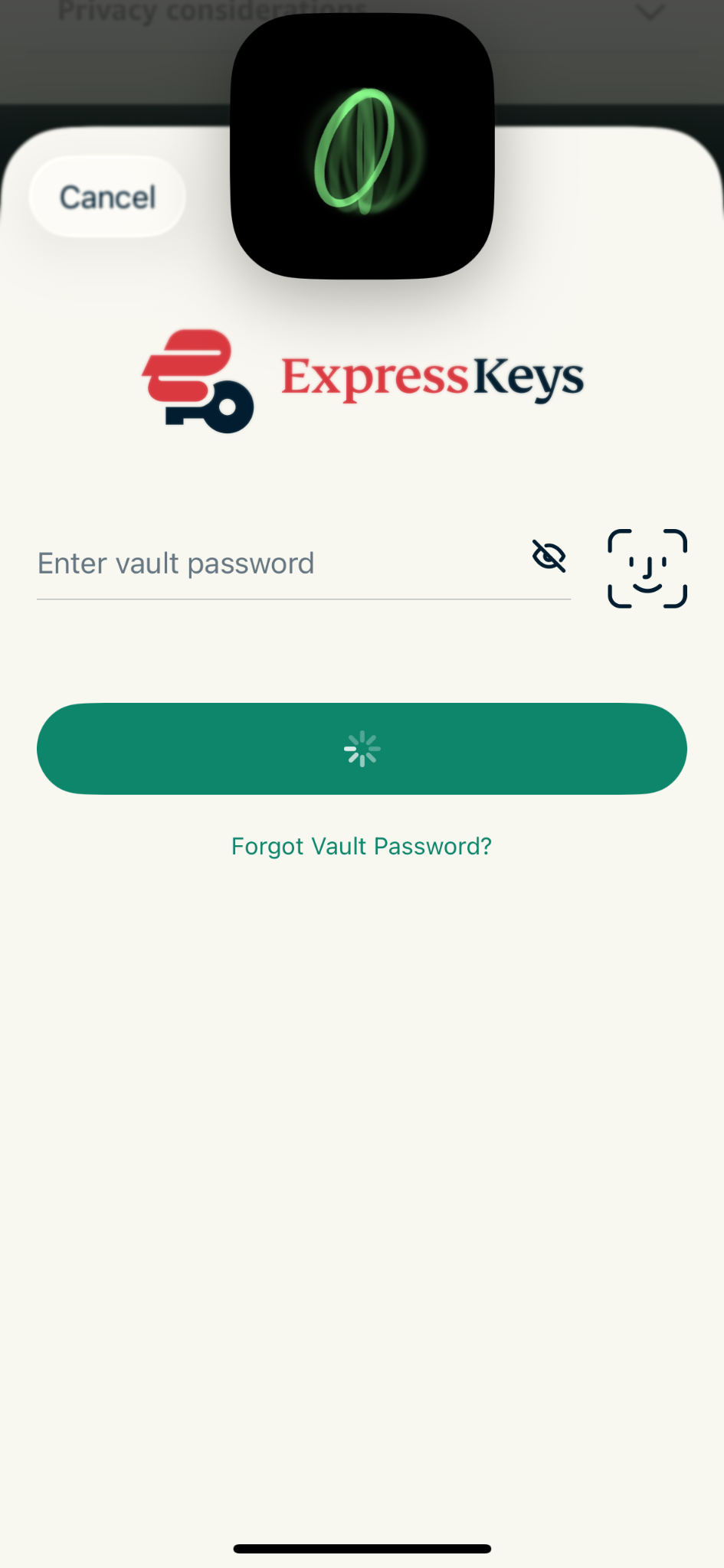
- Enter your vault password or use Face ID or Touch ID to log into your ExpressKeys account.

Your passkey is now created and saved in ExpressKeys and linked to your account.
To check if the passkey was saved:
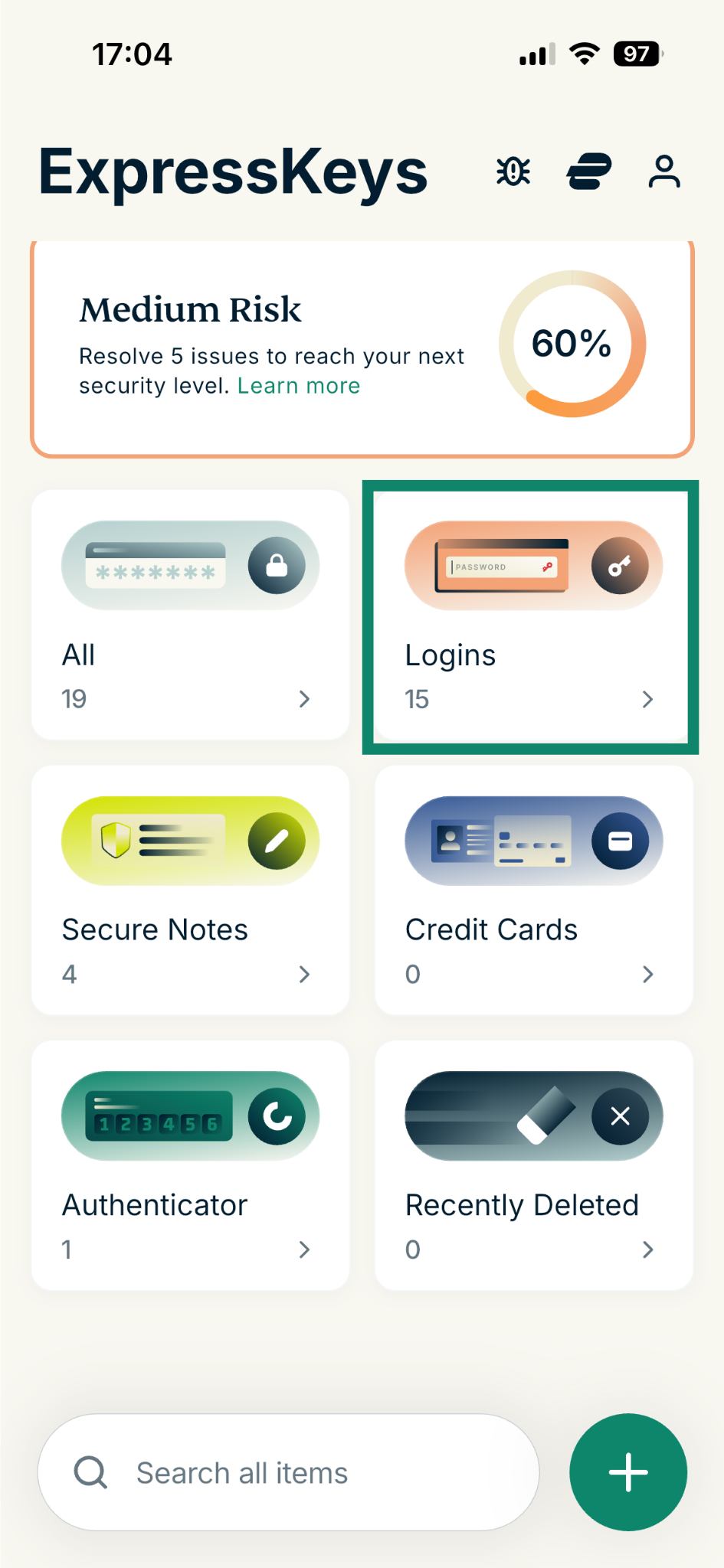
- In the ExpressKeys app, go to Logins.

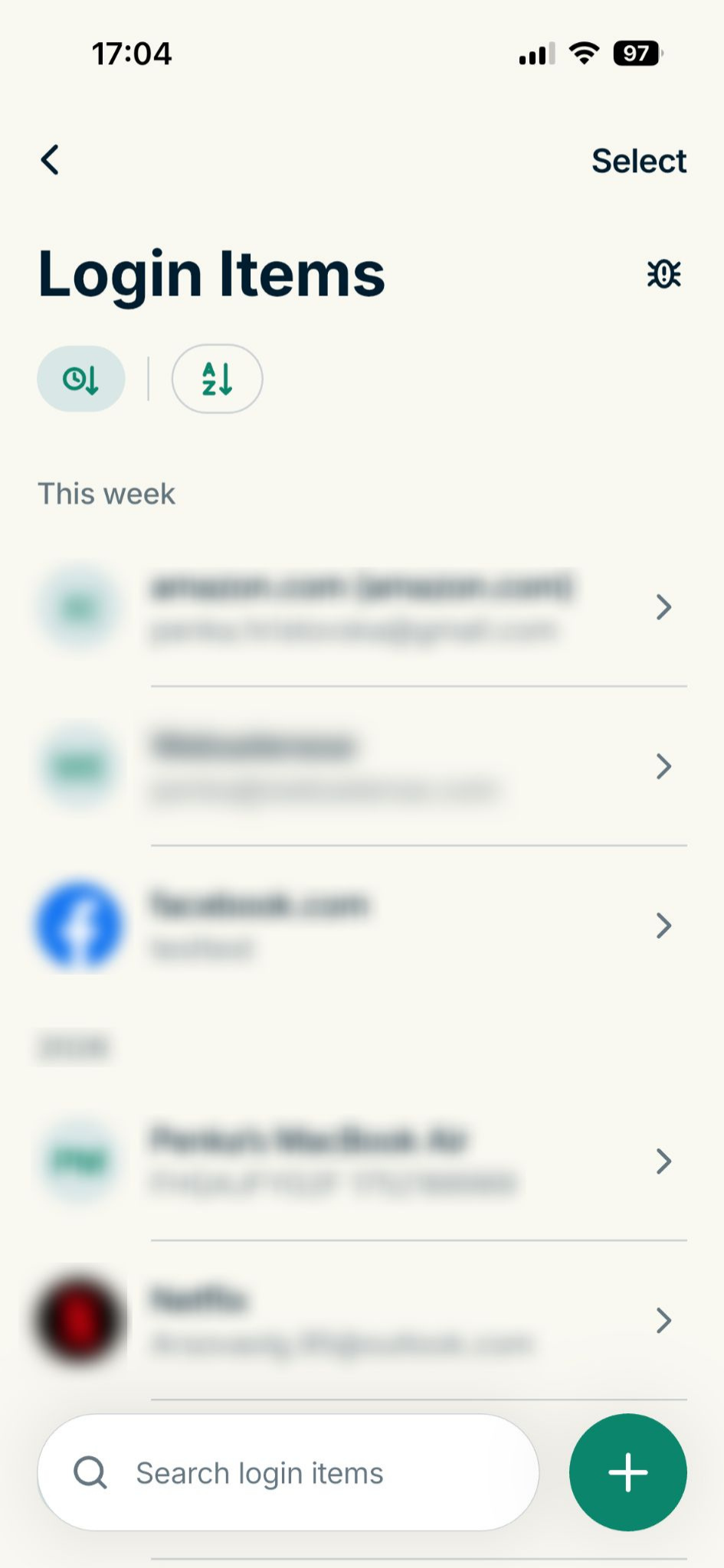
- Find the passkey in the list and tap it. (Your most recent items will appear first by default, or you can use the search bar to find the item.)

- The entry will look something like this:

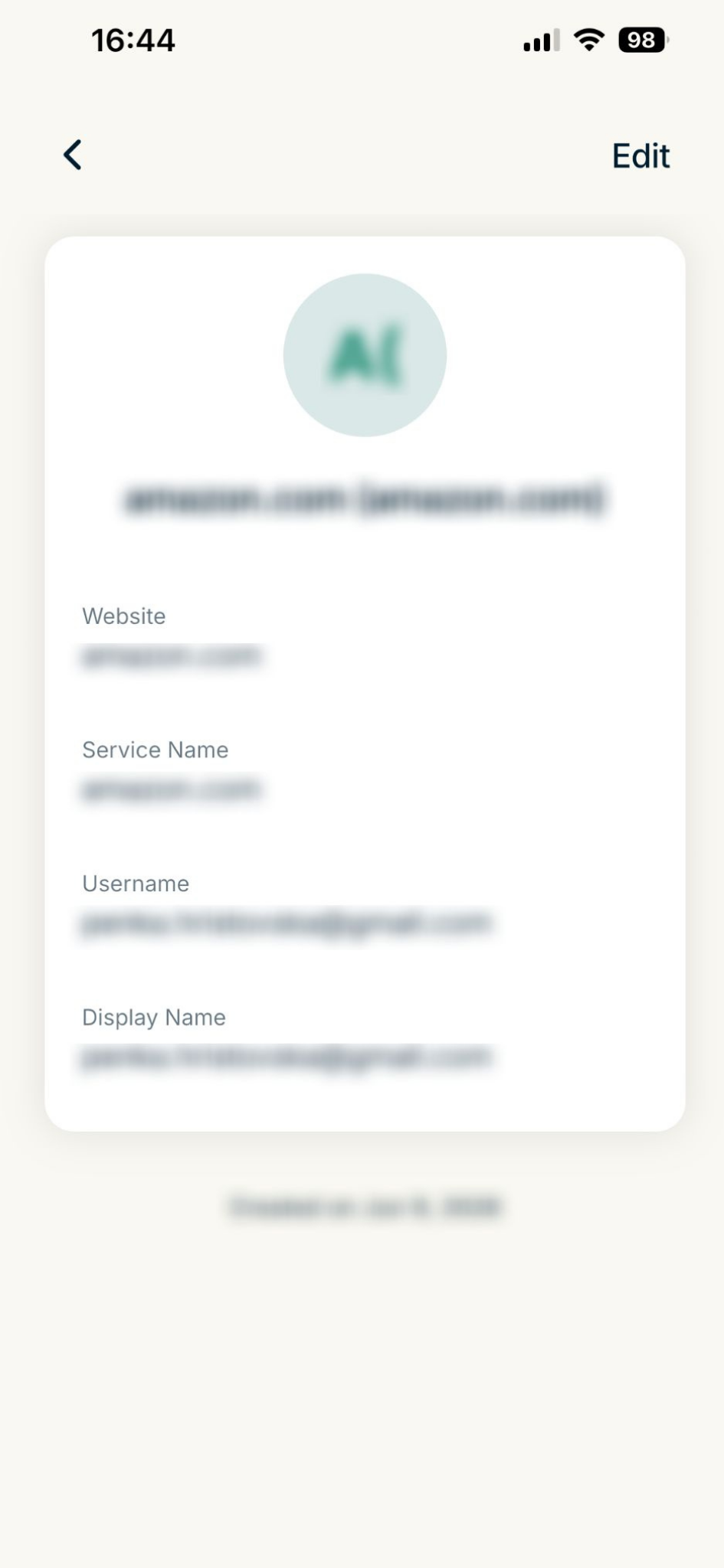
Next time you sign into that account, ExpressKeys will offer to authenticate you automatically using your saved passkey.
Need help? Contact the ExpressVPN Support Team for immediate assistance.
Merge a passkey with a login
- Open ExpressKeys and tap Logins.

- Tap on the login you want to view, and you’ll see a notification if a merge is available. Tap Merge.

- In the pop-up, tap Merge.

- You’ll see a confirmation screen once your passkey and login have been merged successfully.


Need help? Contact the ExpressVPN Support Team for immediate assistance.
Delete a passkey
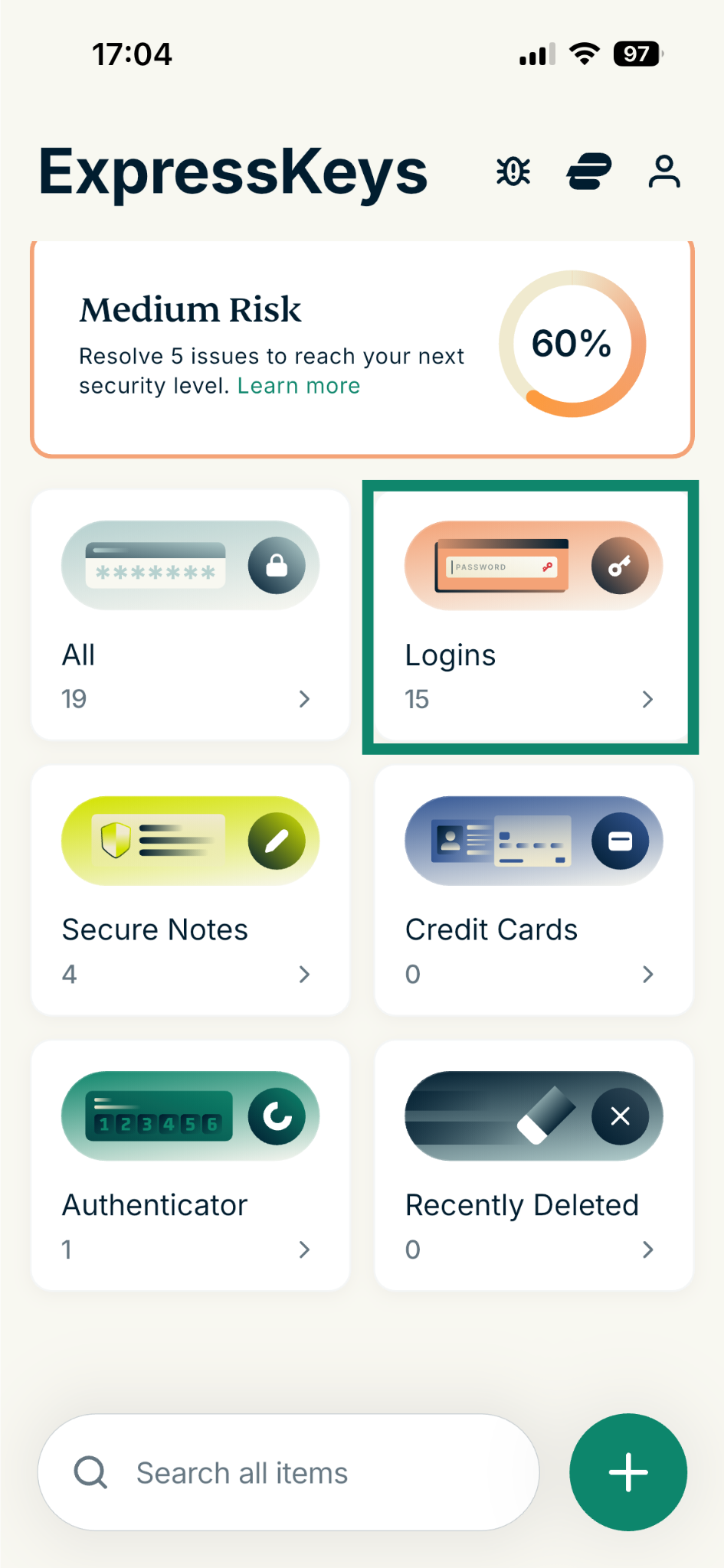
- Open ExpressKeys and tap Logins.

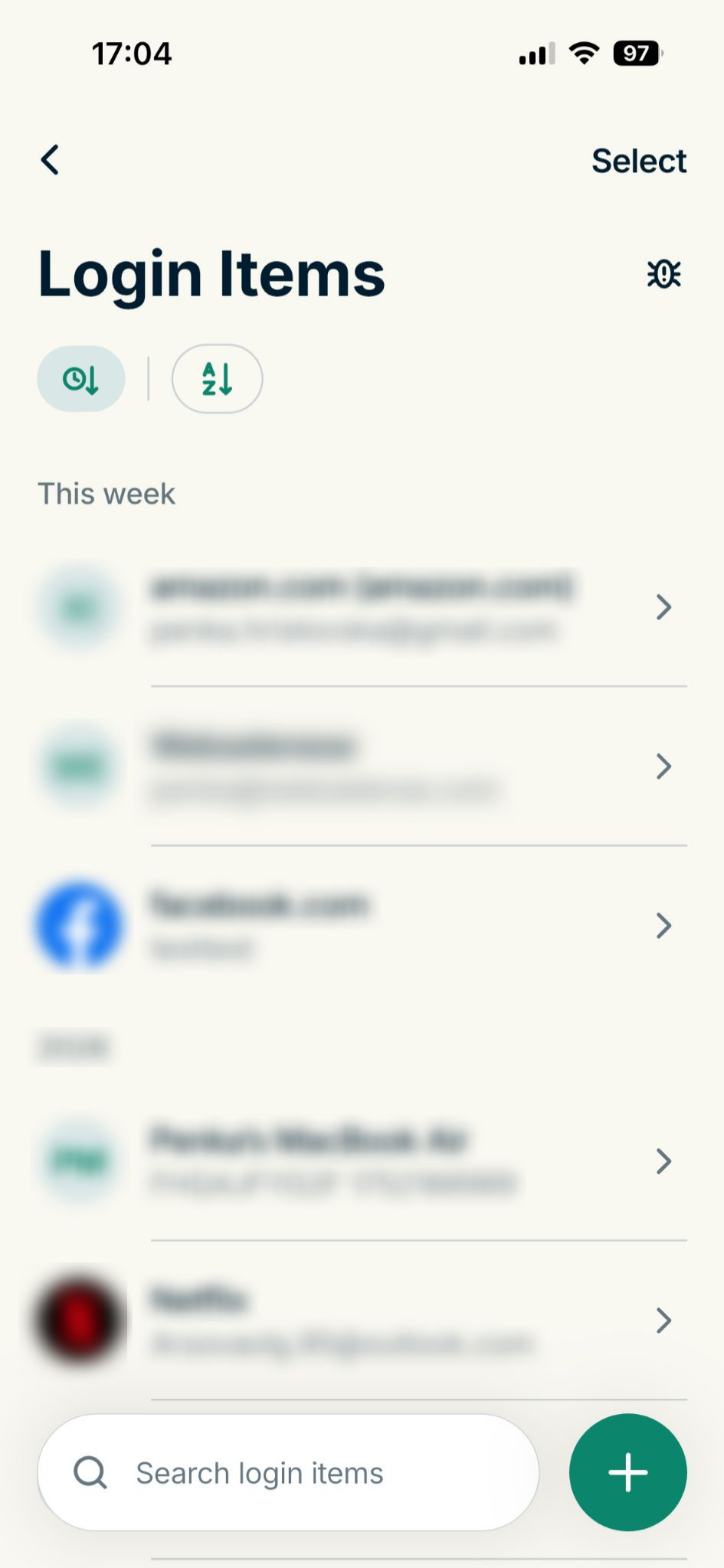
- Find the passkey in the list and tap it. (Your most recent items will appear first by default, or you can use the search bar to find the item.)

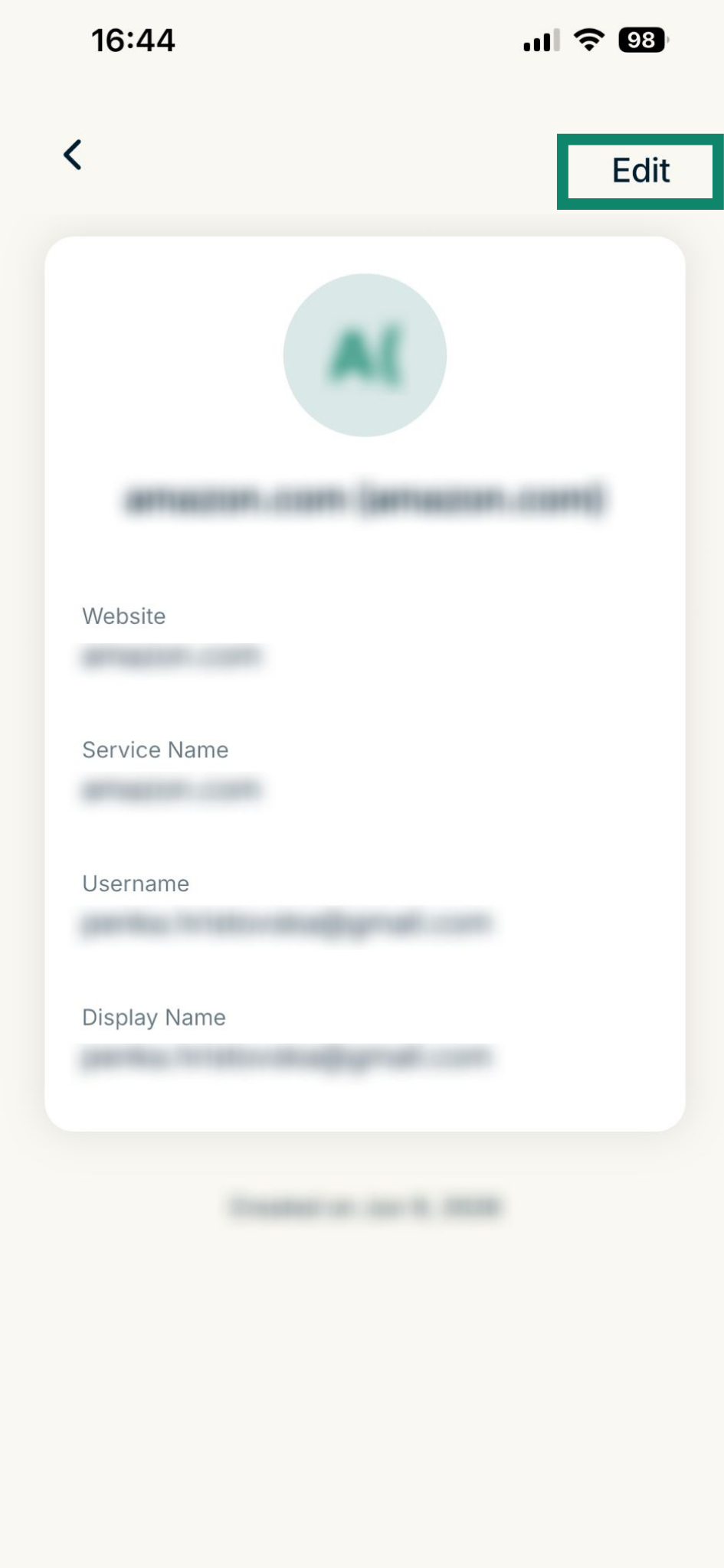
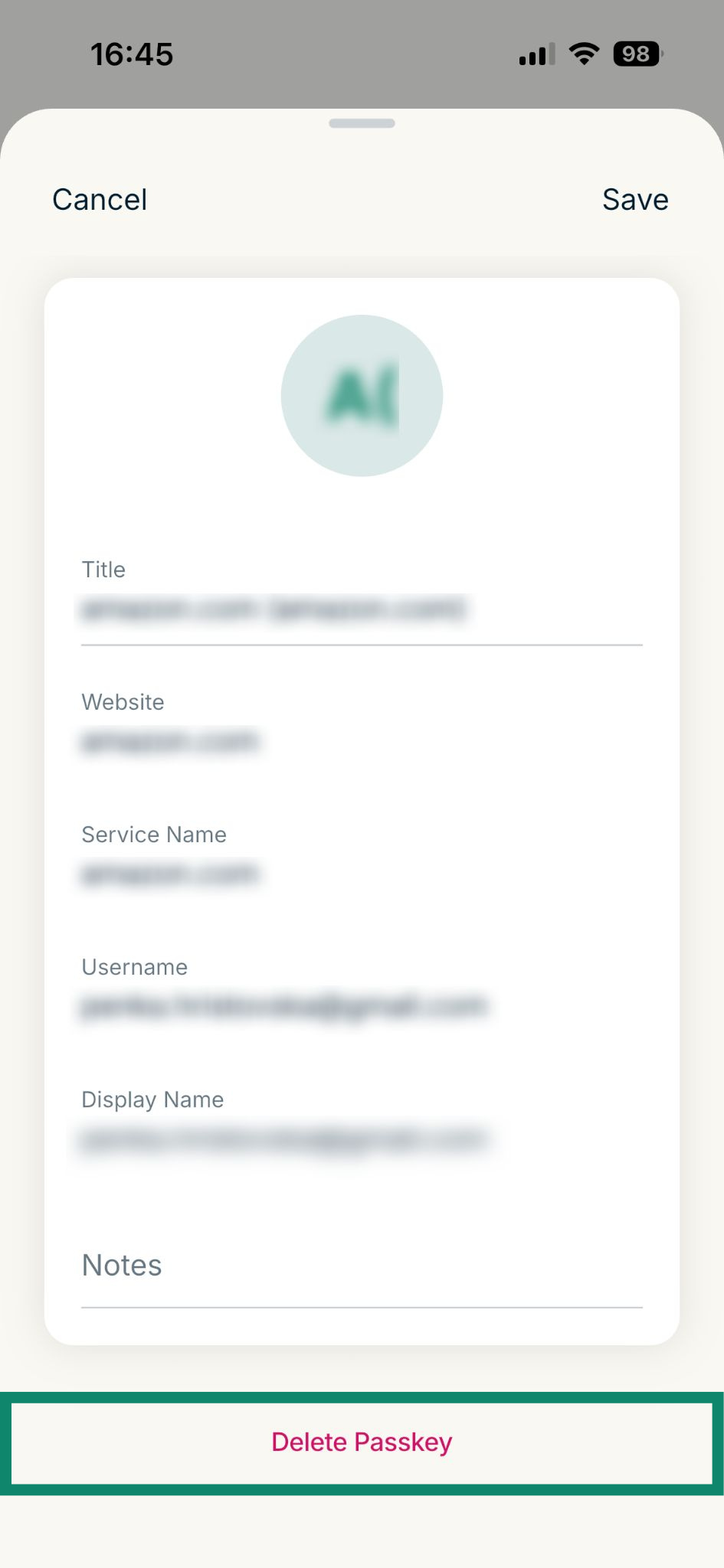
- Tap Edit.

- Tap Delete Passkey.

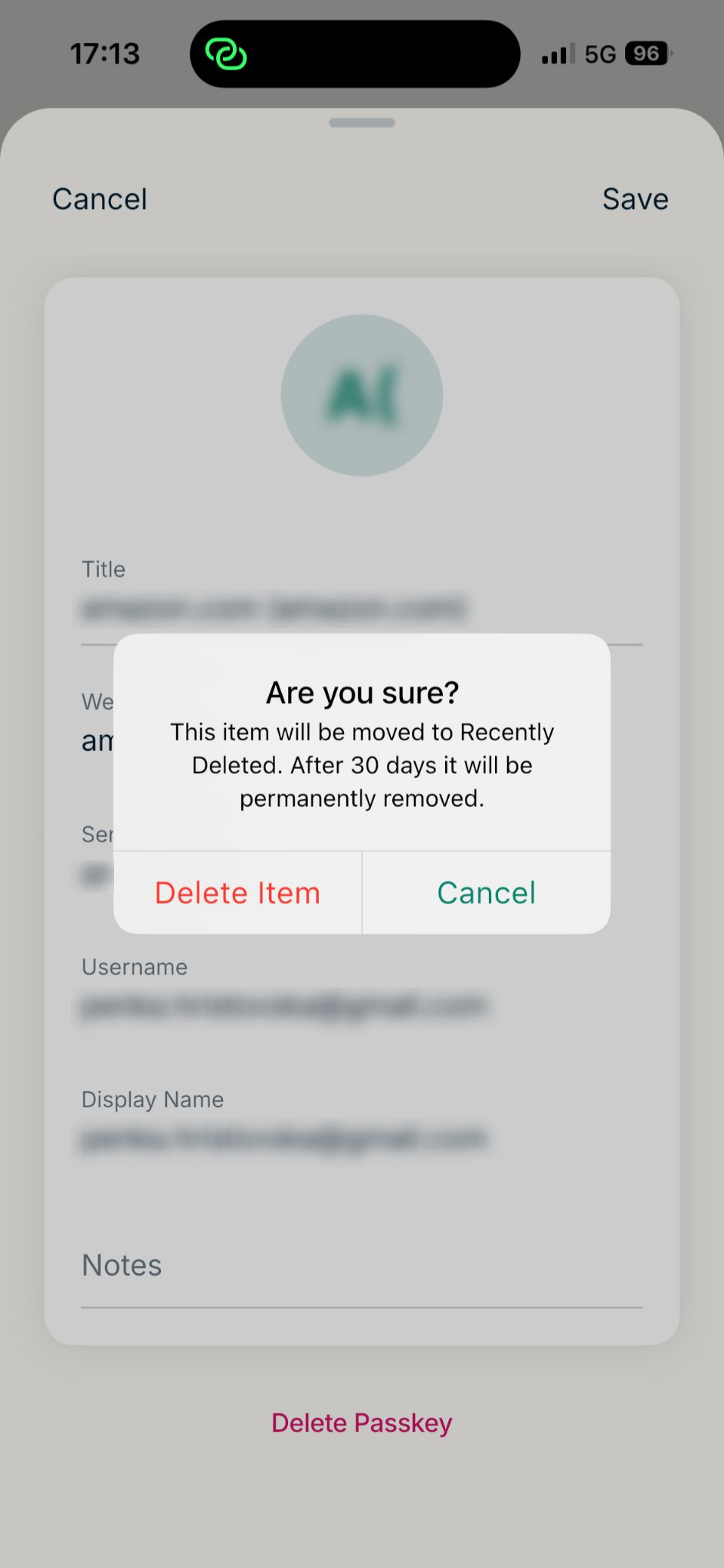
- Tap Delete Item to confirm.

Need help? Contact the ExpressVPN Support Team for immediate assistance.