



This guide shows you how to import your logins, credit or debit cards, and secure notes from Dashlane into ExpressKeys using your computer or iOS device.
Once your passwords are imported, you can use ExpressKeys to review your password health, identify weak or reused passwords, and update them to improve your security.
Jump to…
Import your Dashlane data using your computer
Import your Dashlane data using your iOS device
Import your Dashlane data using your Android device
Import your Dashlane data using your computer
1. Export your Dashlane data
- Log into your Dashlane account.
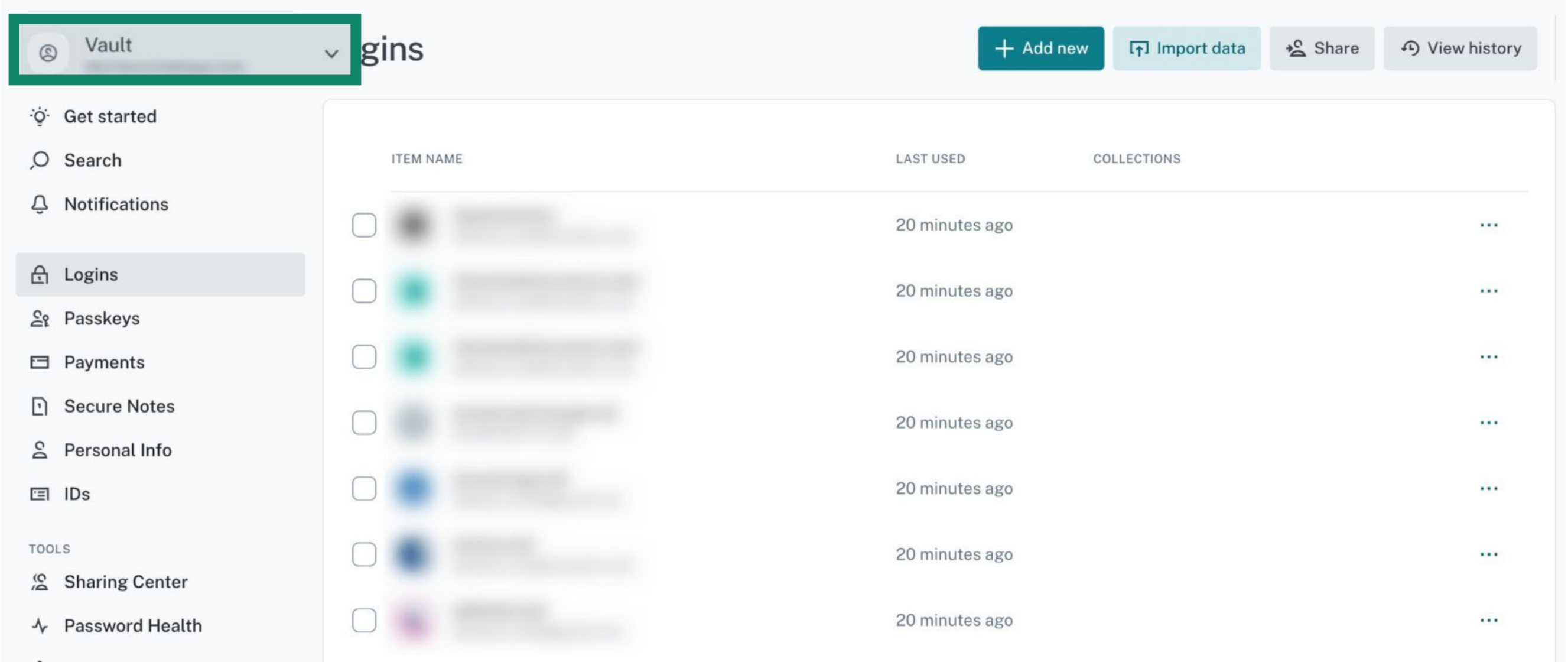
- In the top left, click on the Vault.


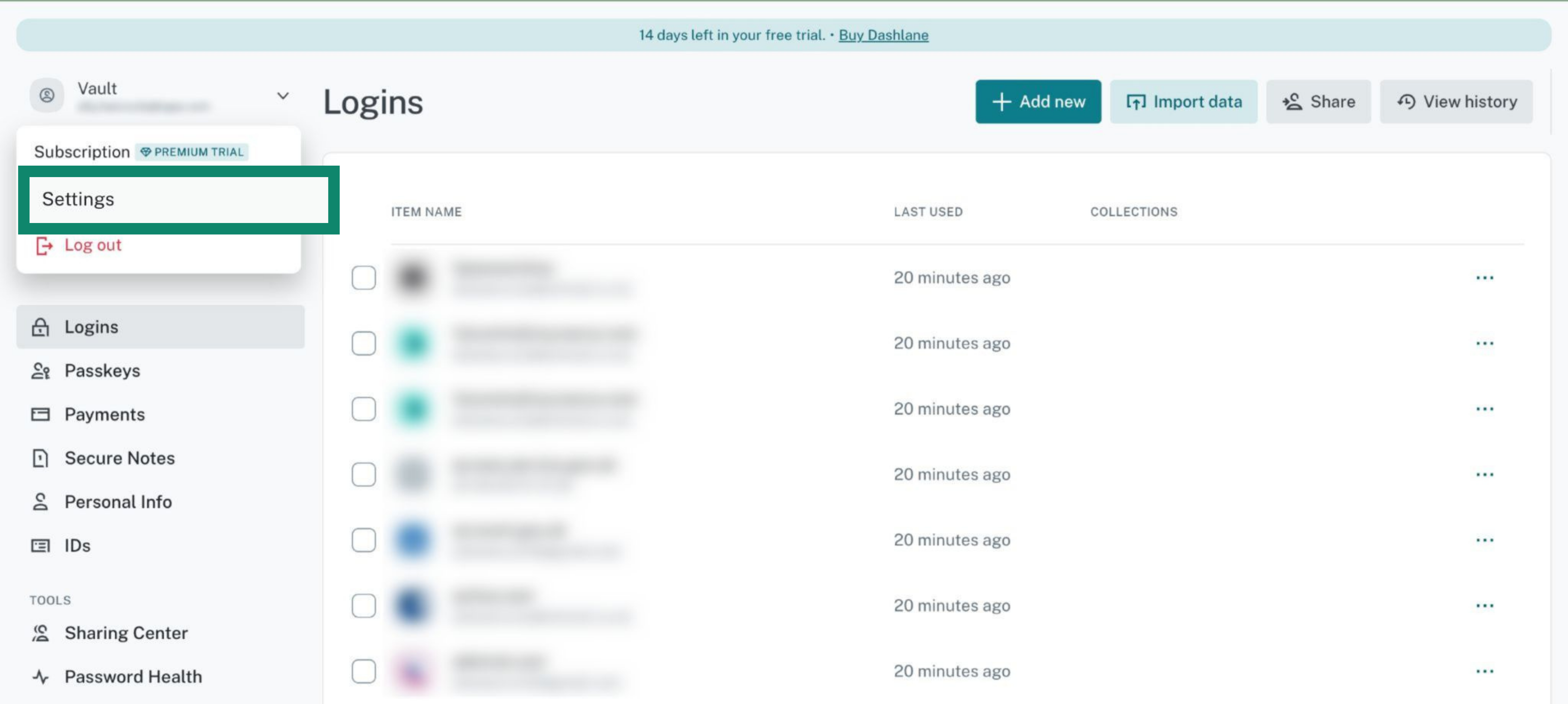
- Click Settings.


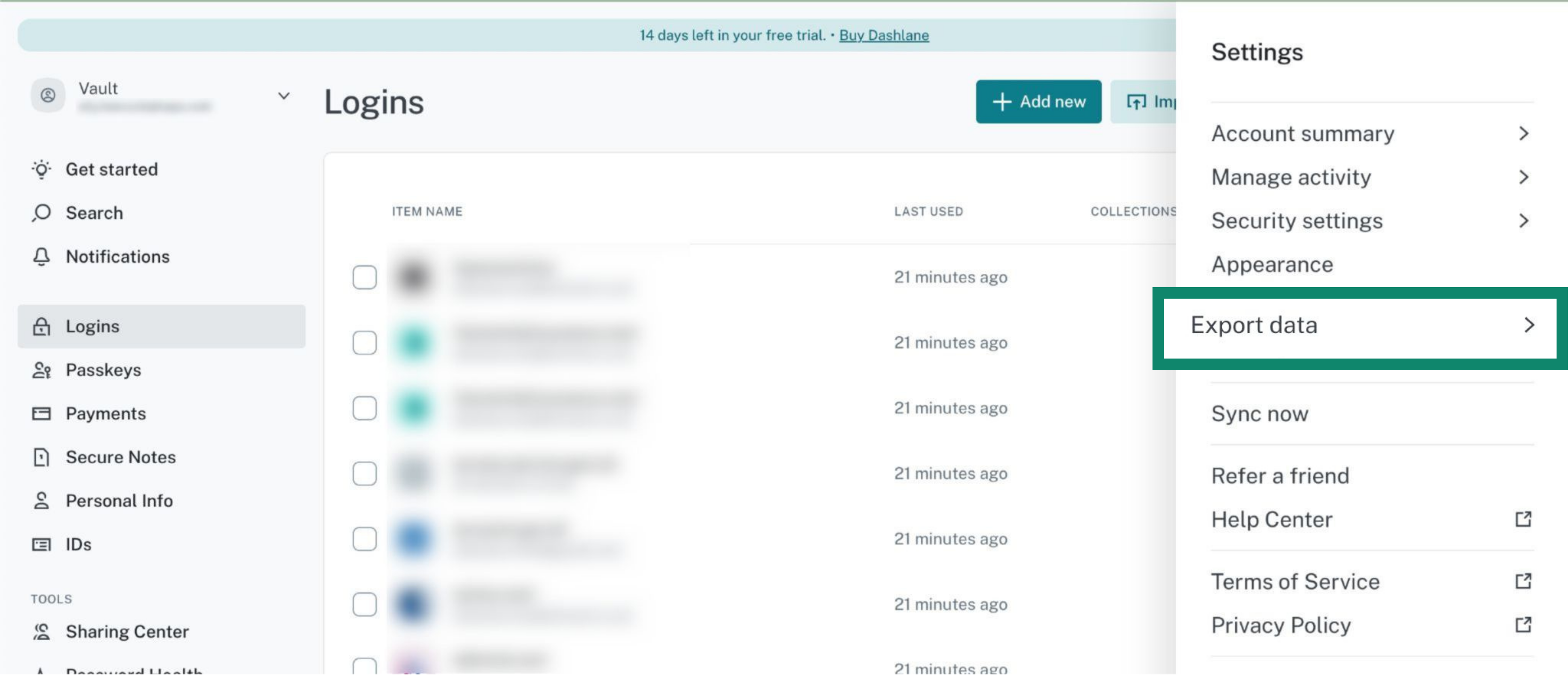
- Select Export data from the sidebar menu.


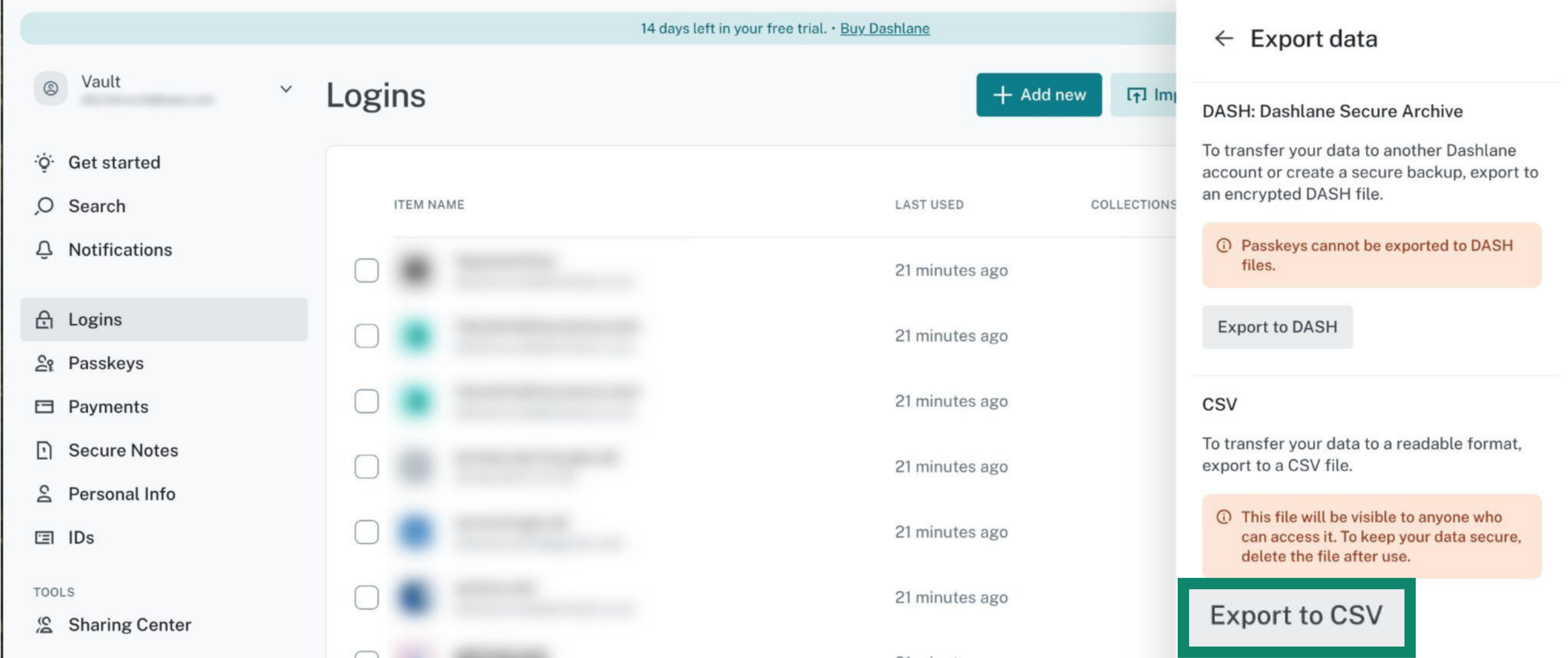
- Select Export to CSV.


- A CSV file will be saved to your device automatically.
2. Import your Dashlane data into ExpressKeys
- In Chrome, Opera, Edge, Vivaldi, or Brave, install the ExpressKeys browser extension for Chrome.
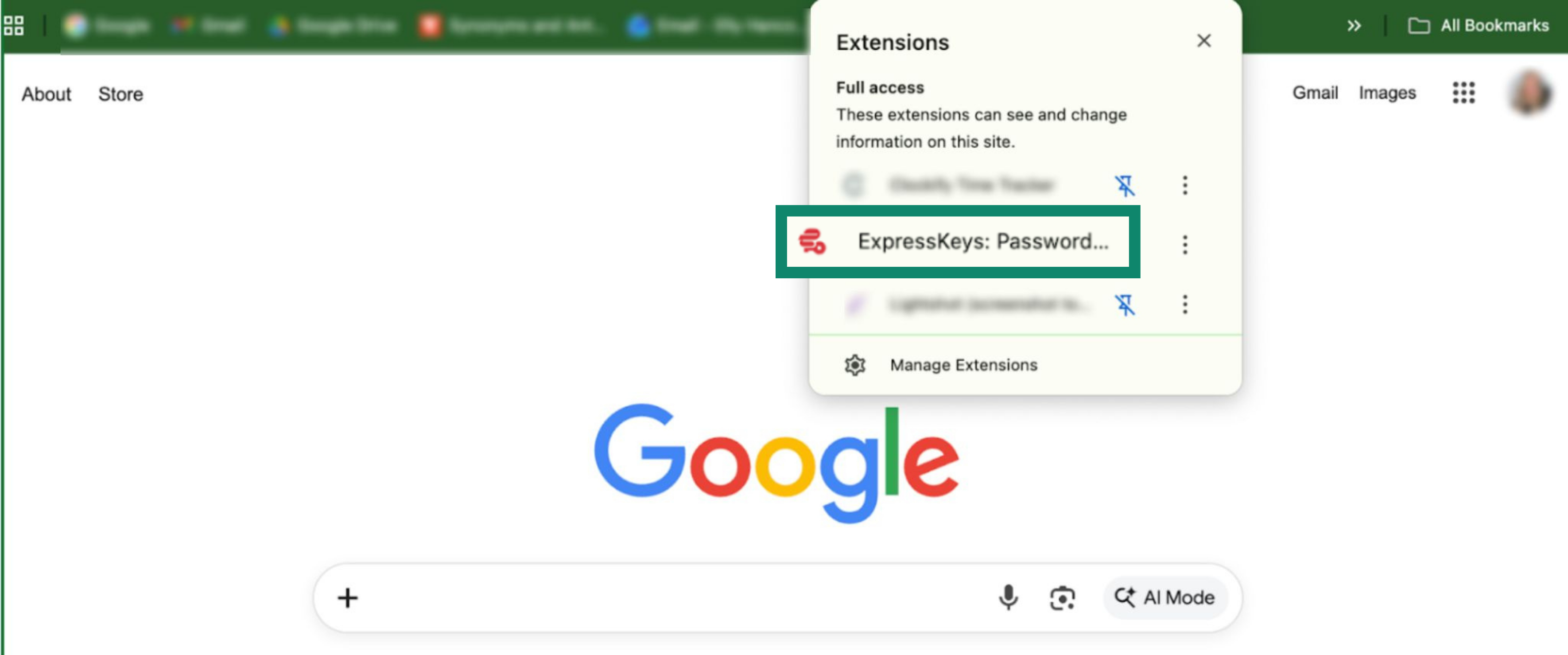
- In the toolbar, open Extensions (jigsaw icon) and click ExpressKeys.


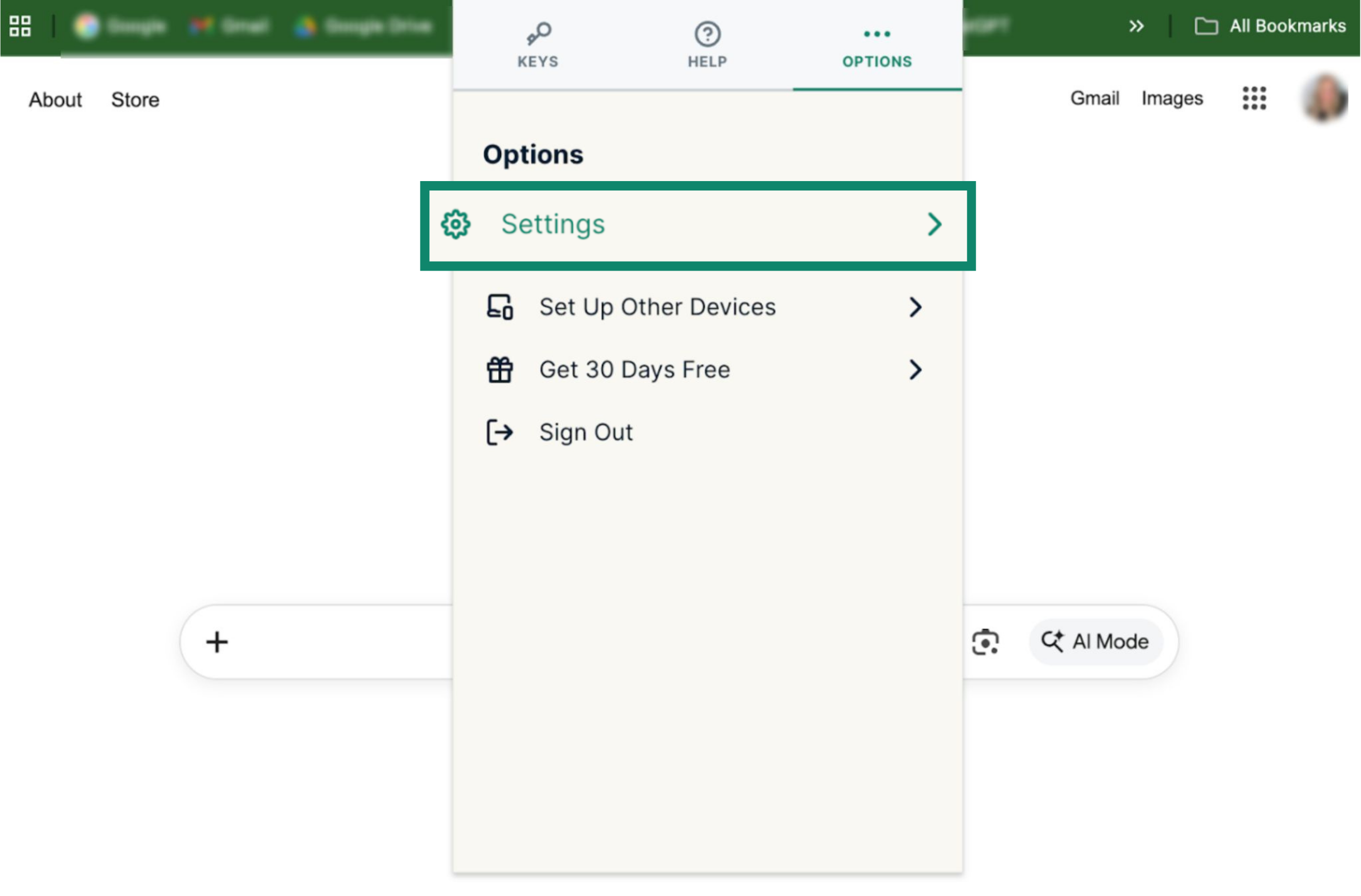
- Click the Options tab > Settings.


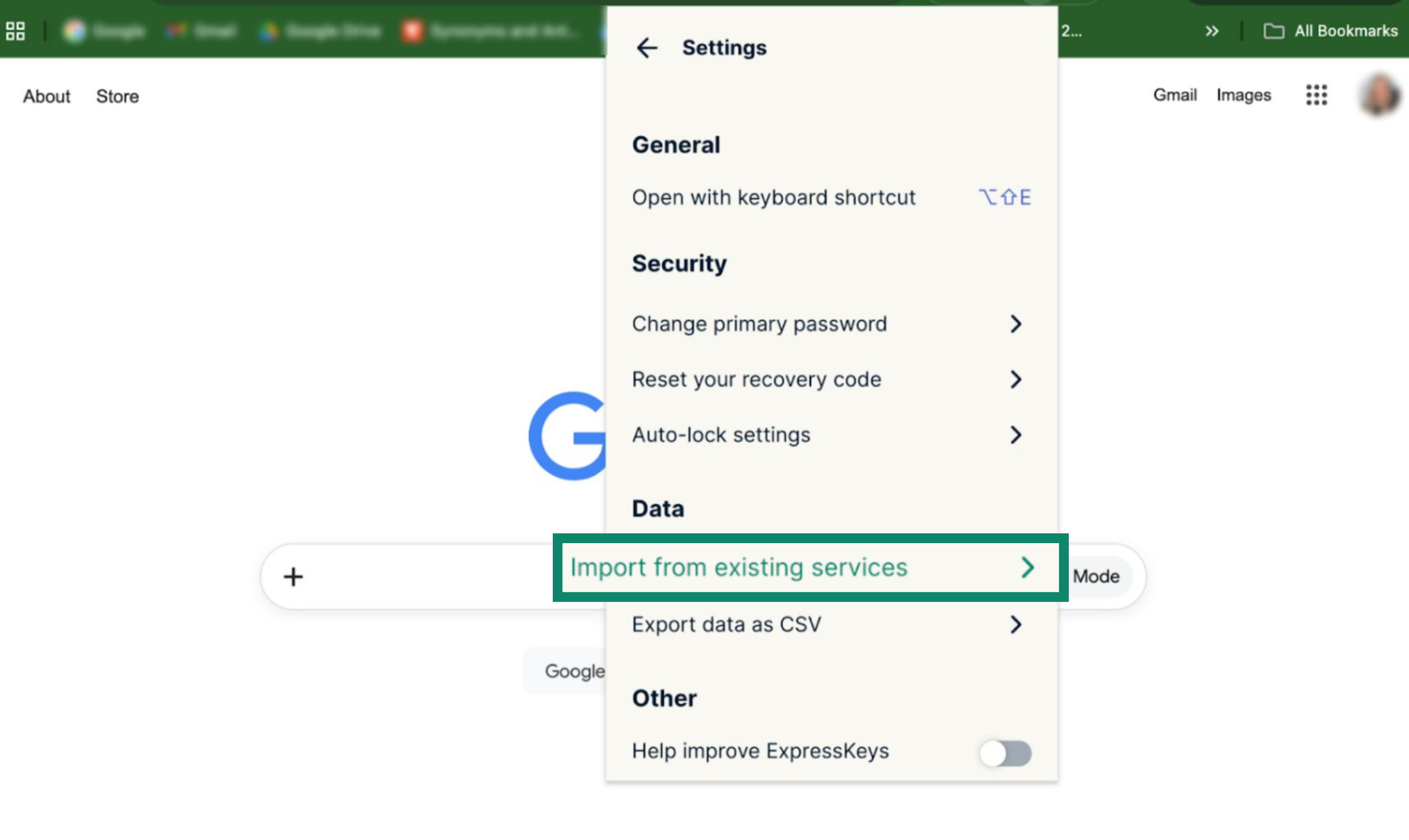
- Click Import from existing services.


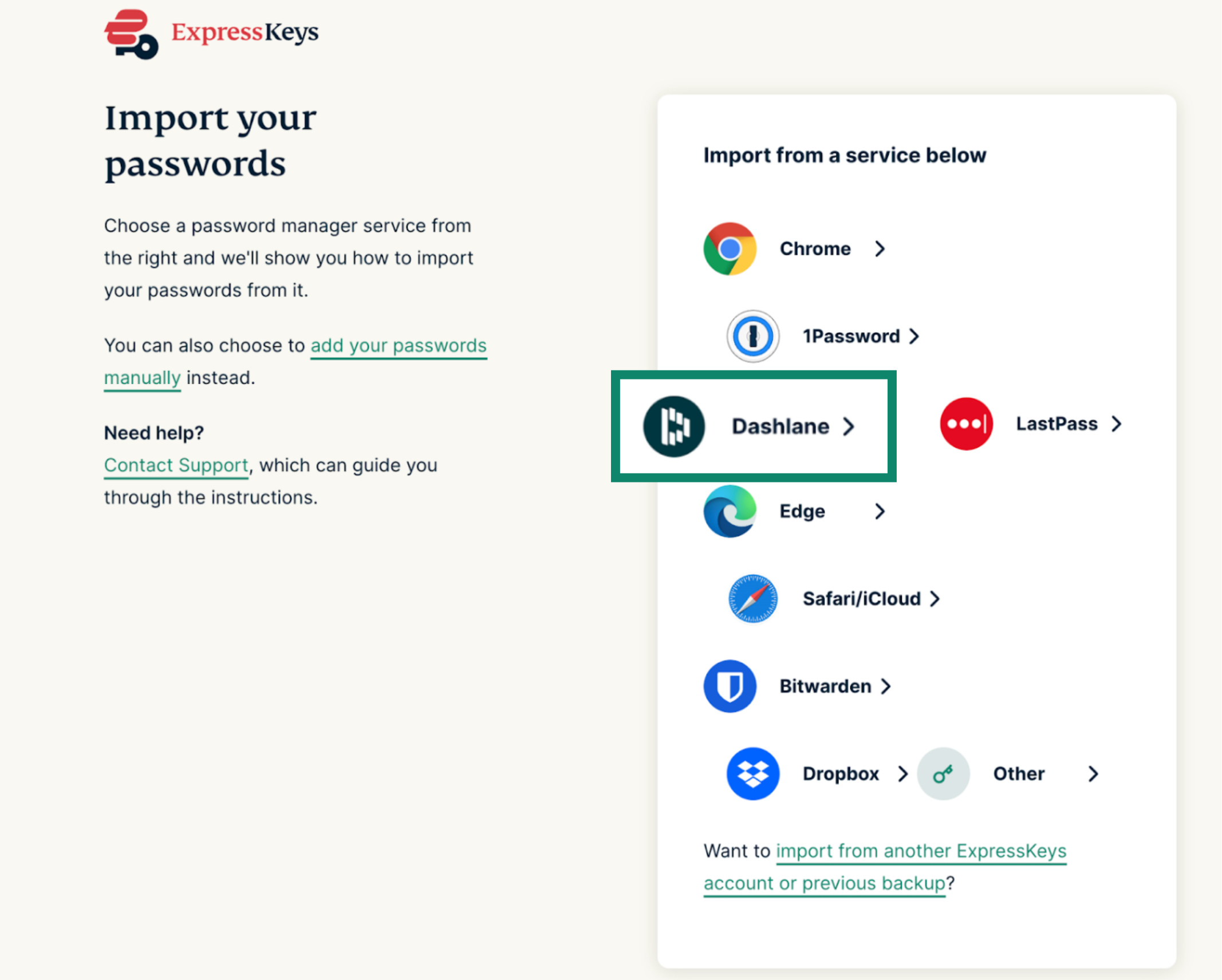
- Select Dashlane.


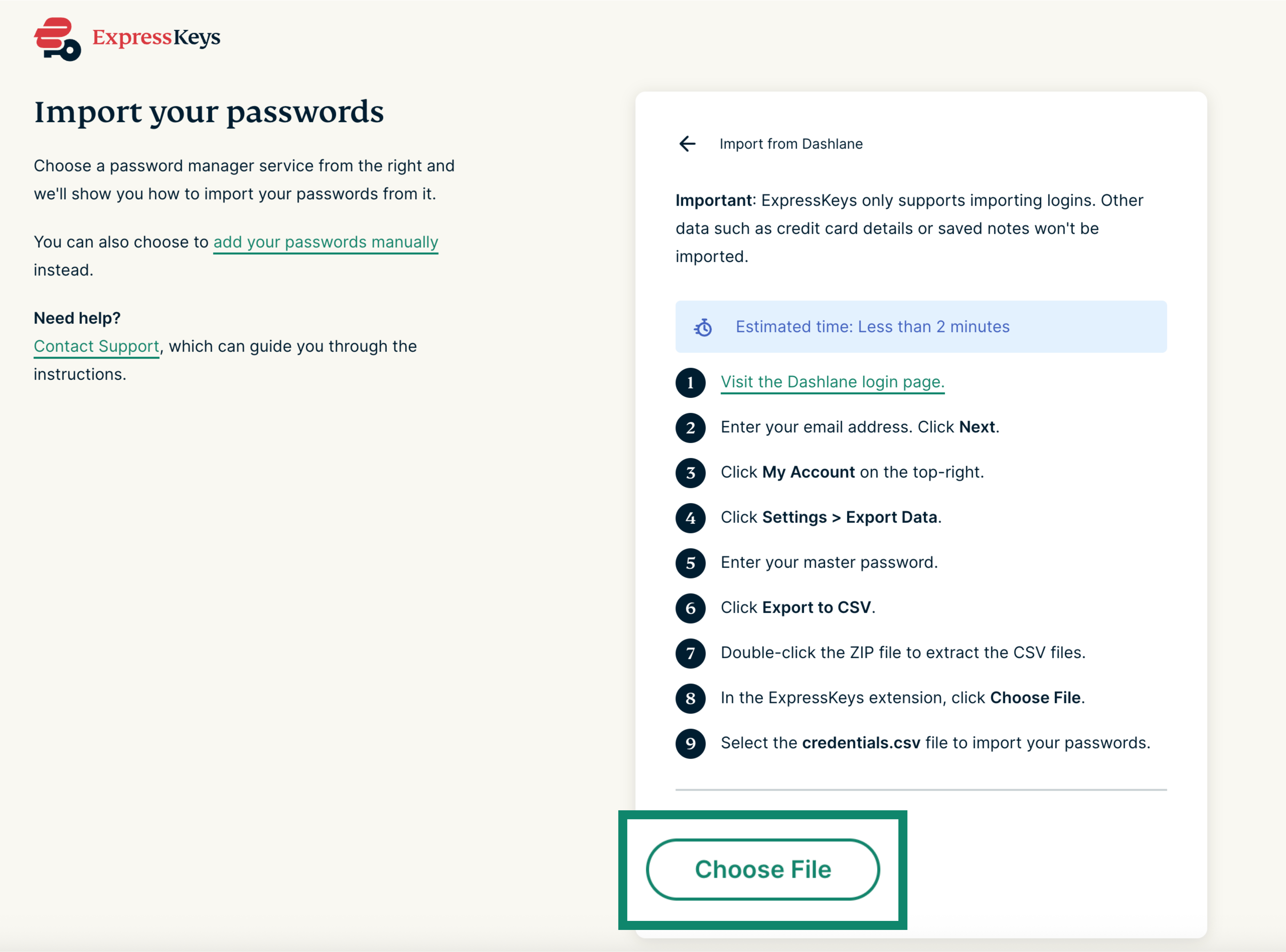
- Click Choose File.


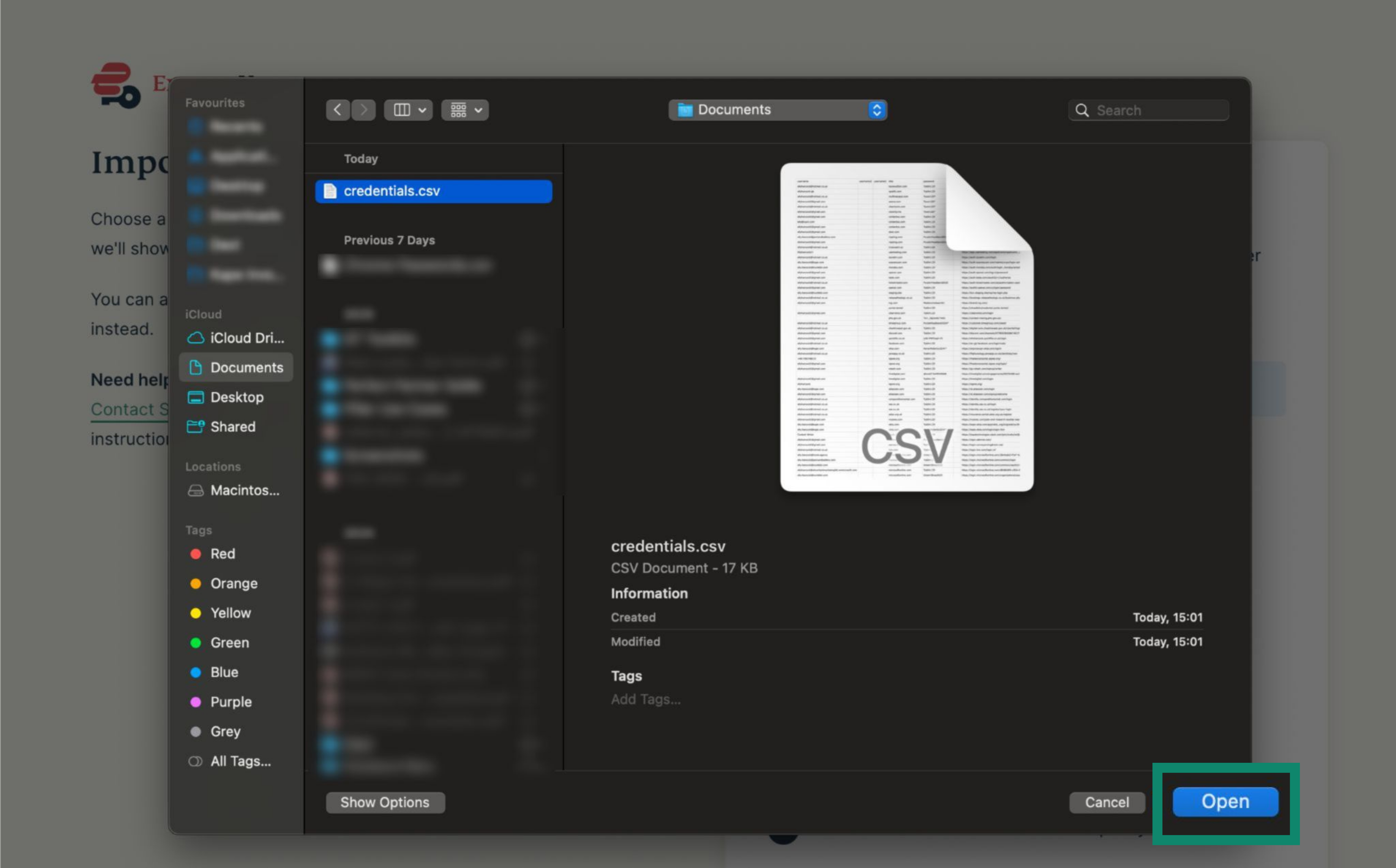
- Select the CSV file you exported earlier and click Open.


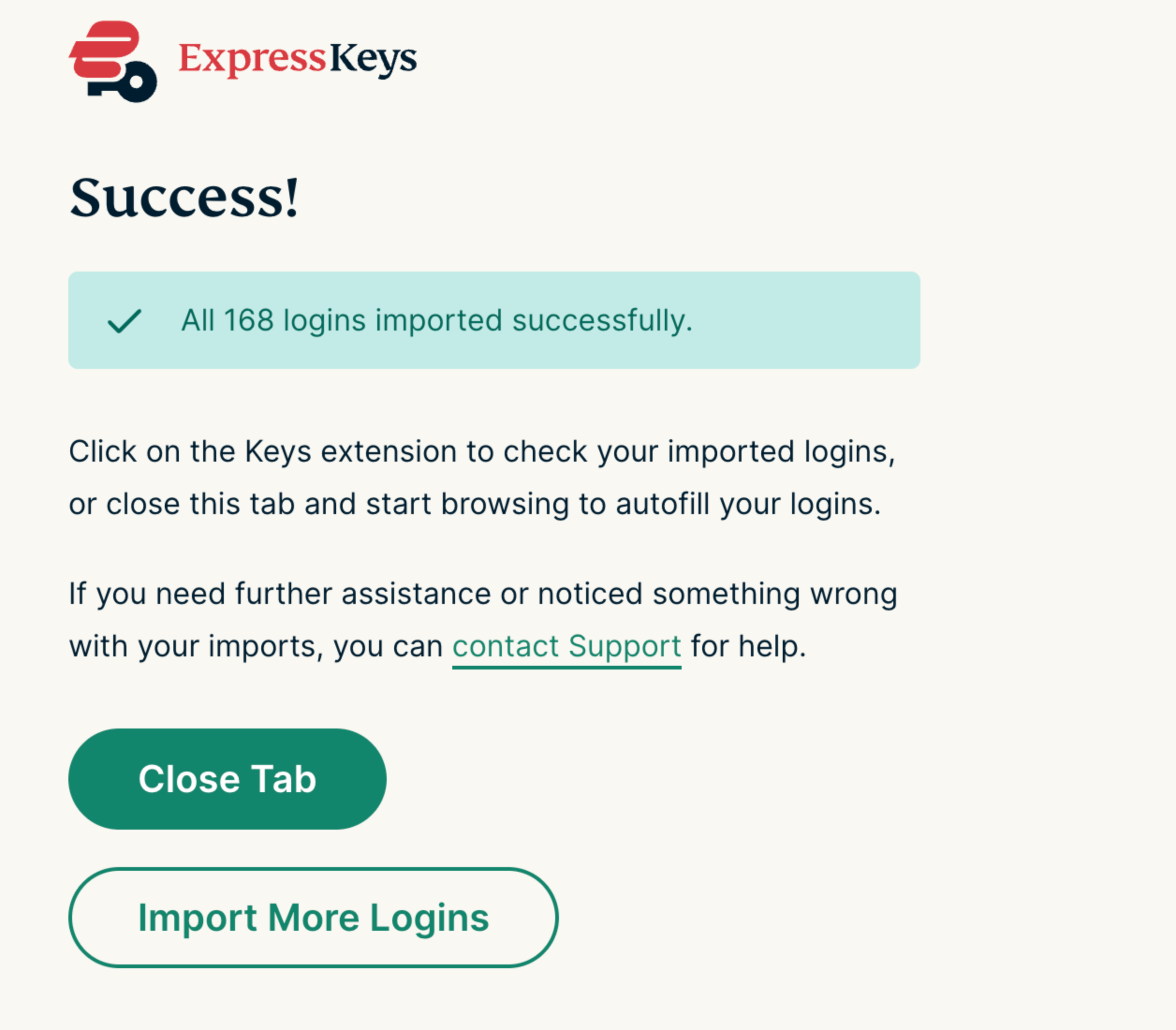
- Your data will import automatically. You should see a green tick next to your file.


3. Remove the Dashlane browser extension
Dashlane will continue to prompt you to fill your logins for sites or services, interfering with ExpressKeys. To prevent this, remove the DashLane browser extension.
- Open the extensions menu by typing the below text into your search bar:
- Chrome: Enter chrome://extensions/ in the search bar.
- Edge: Enter edge://extensions/ in the search bar.
- Brave: Enter brave://extensions/ in the search bar.
- Opera: Enter opera://extensions/ in the search bar.
- Vivaldi: Enter vivaldi://extensions/ in the search bar.


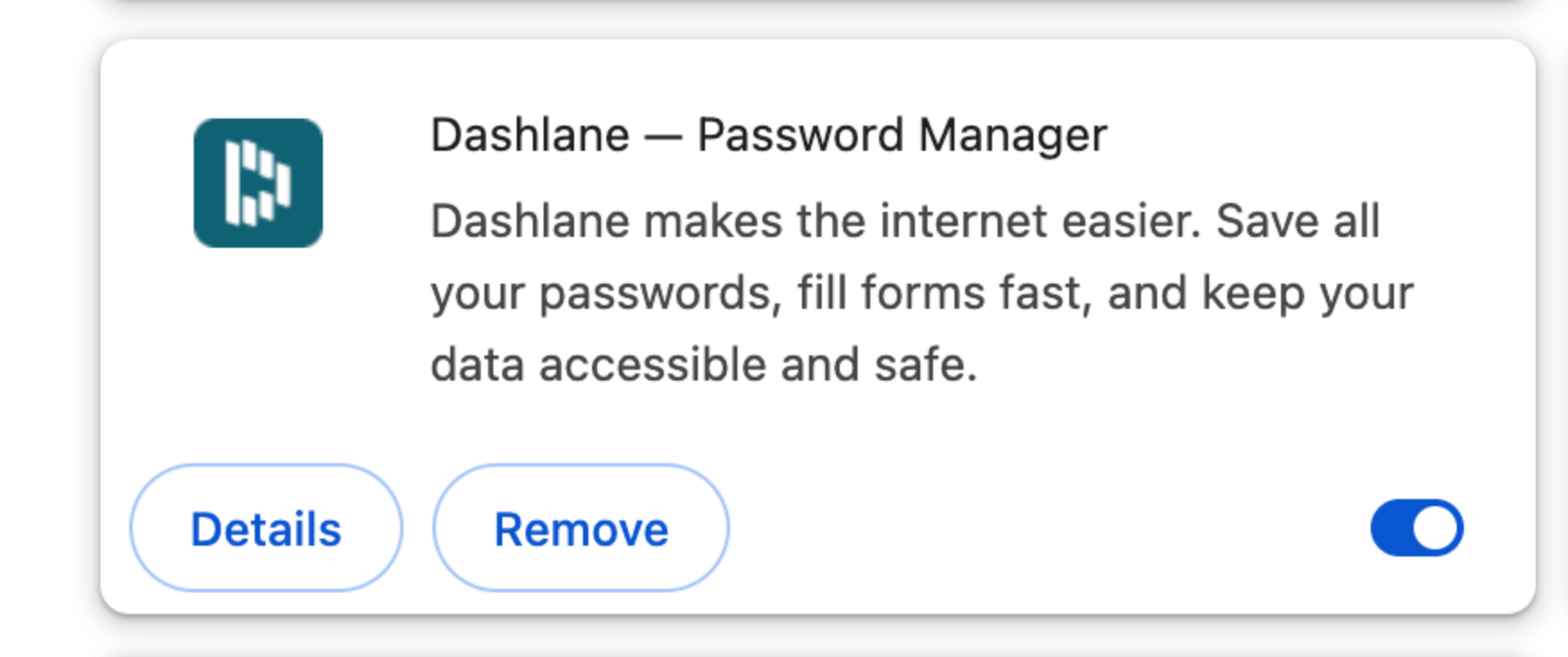
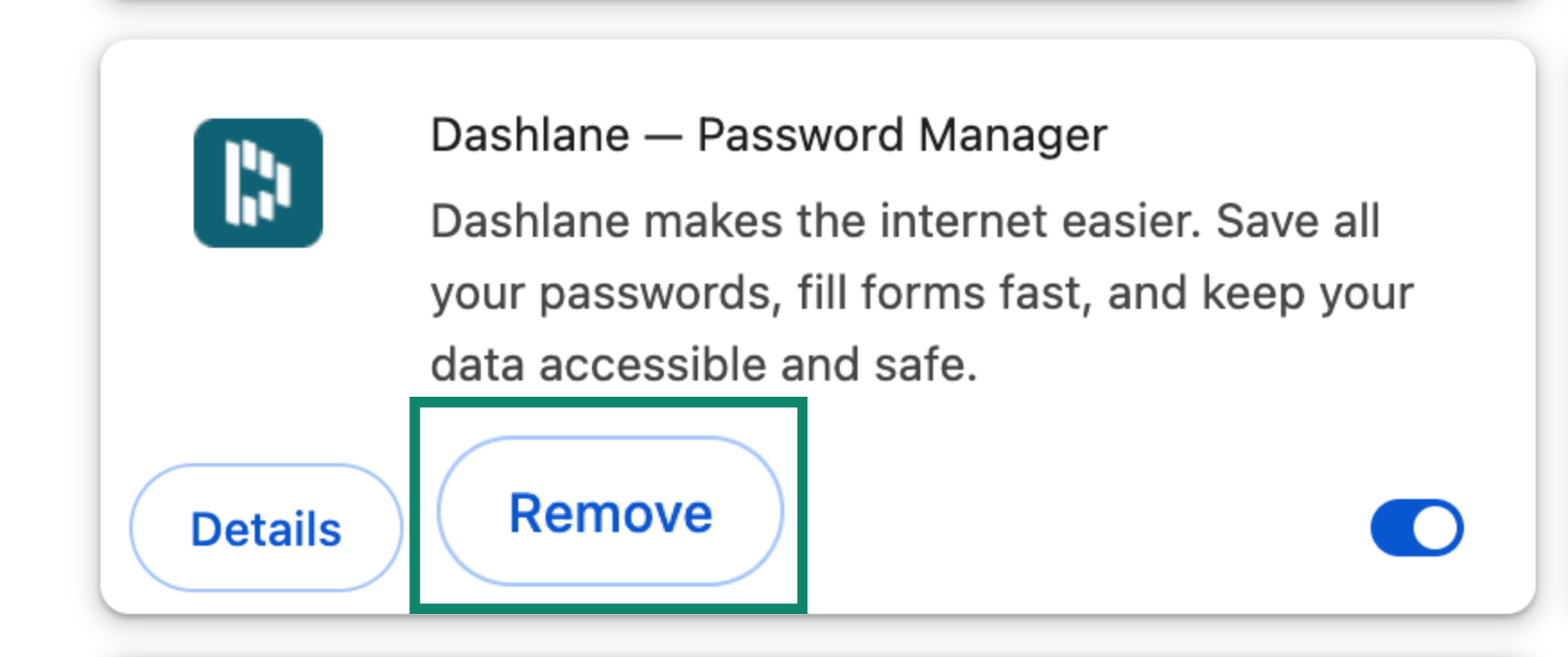
- Find Dashlane.


- Click Remove > Remove.


Need help? Contact the ExpressVPN Support Team for immediate assistance.
Import your Dashlane data using your iOS device (iOS 26+)
With iOS 26, Apple introduced support for the FIDO Credential Exchange Protocol (CXP), a new standard that enables secure, end-to-end encrypted transfer of credentials directly between compatible apps without the need to export or import files like CSVs.
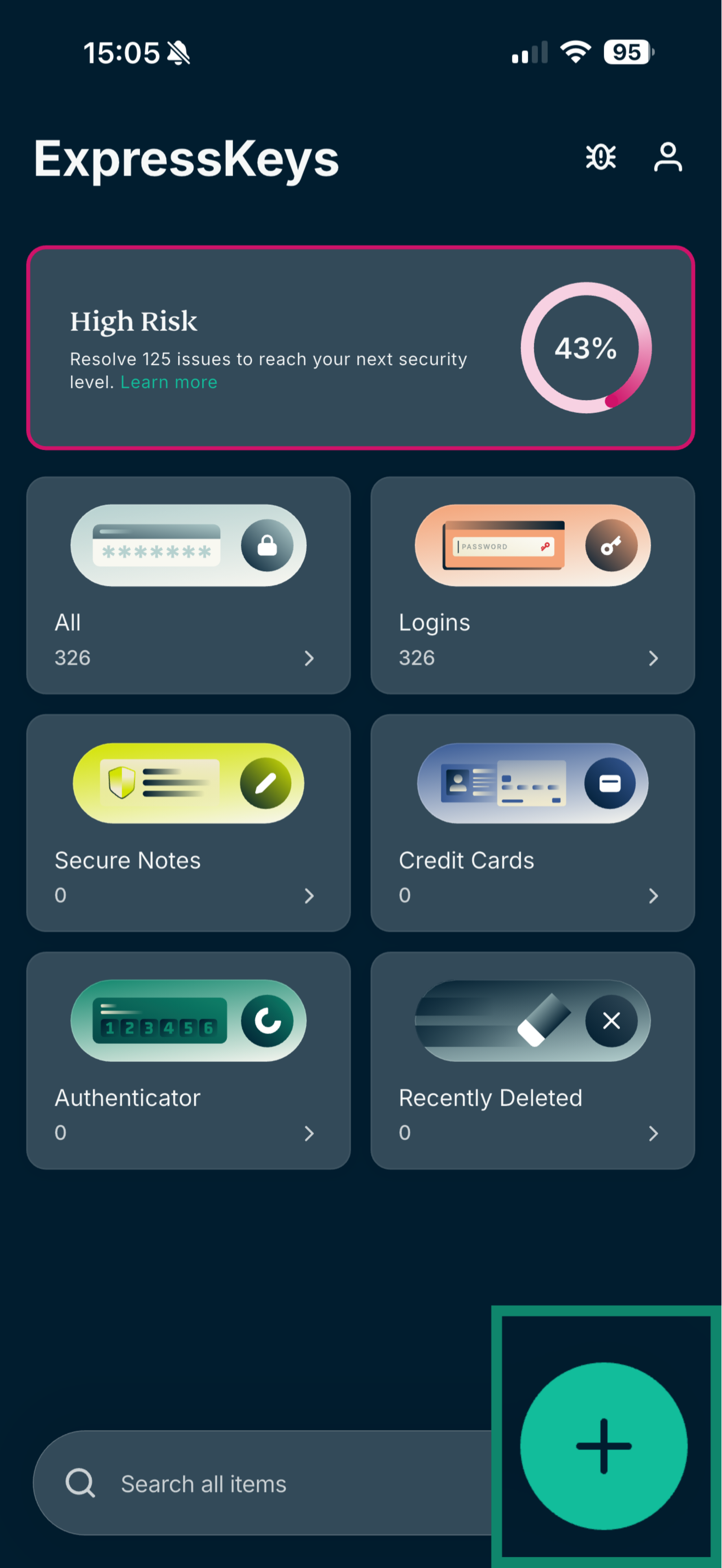
- Open the ExpressKeys app and tap the plus (+) icon.


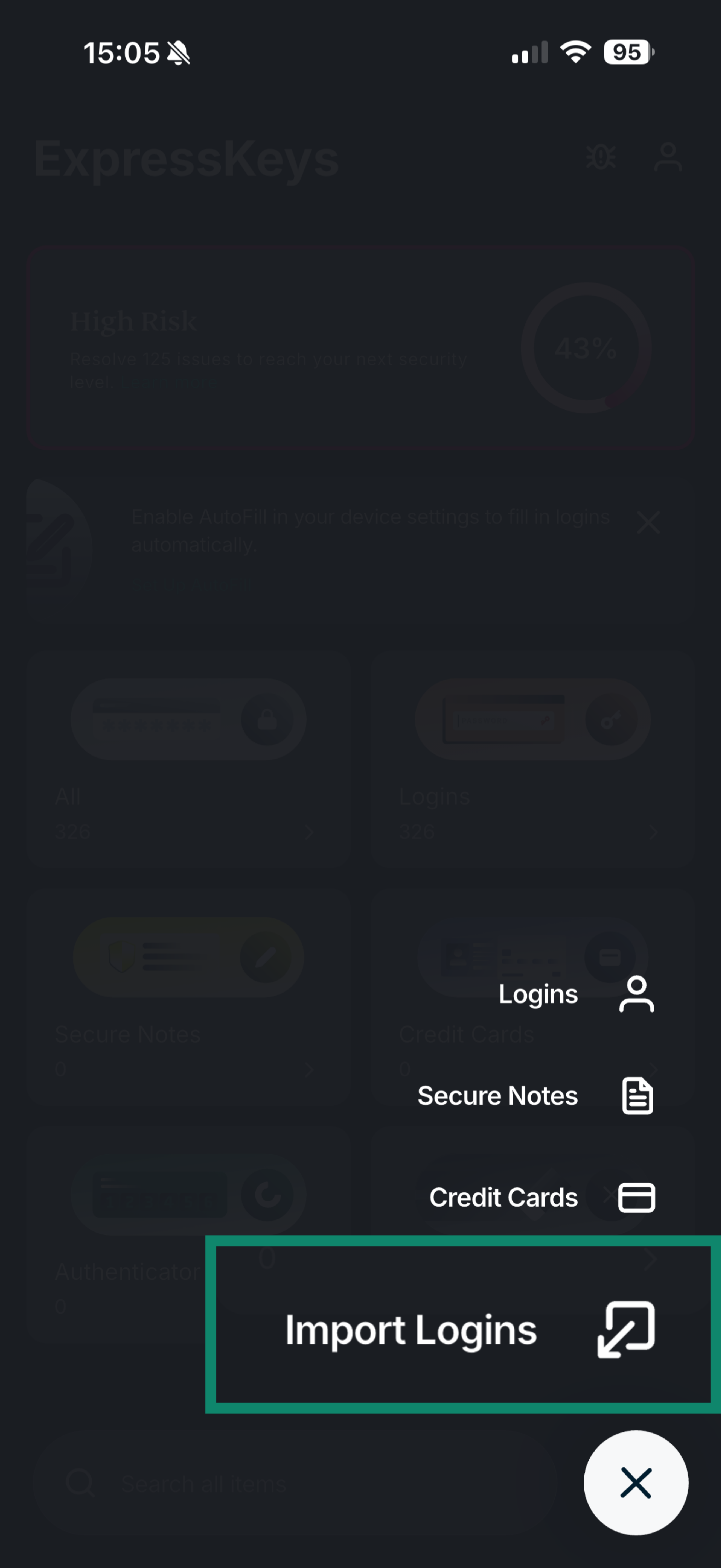
- Tap Import logins.

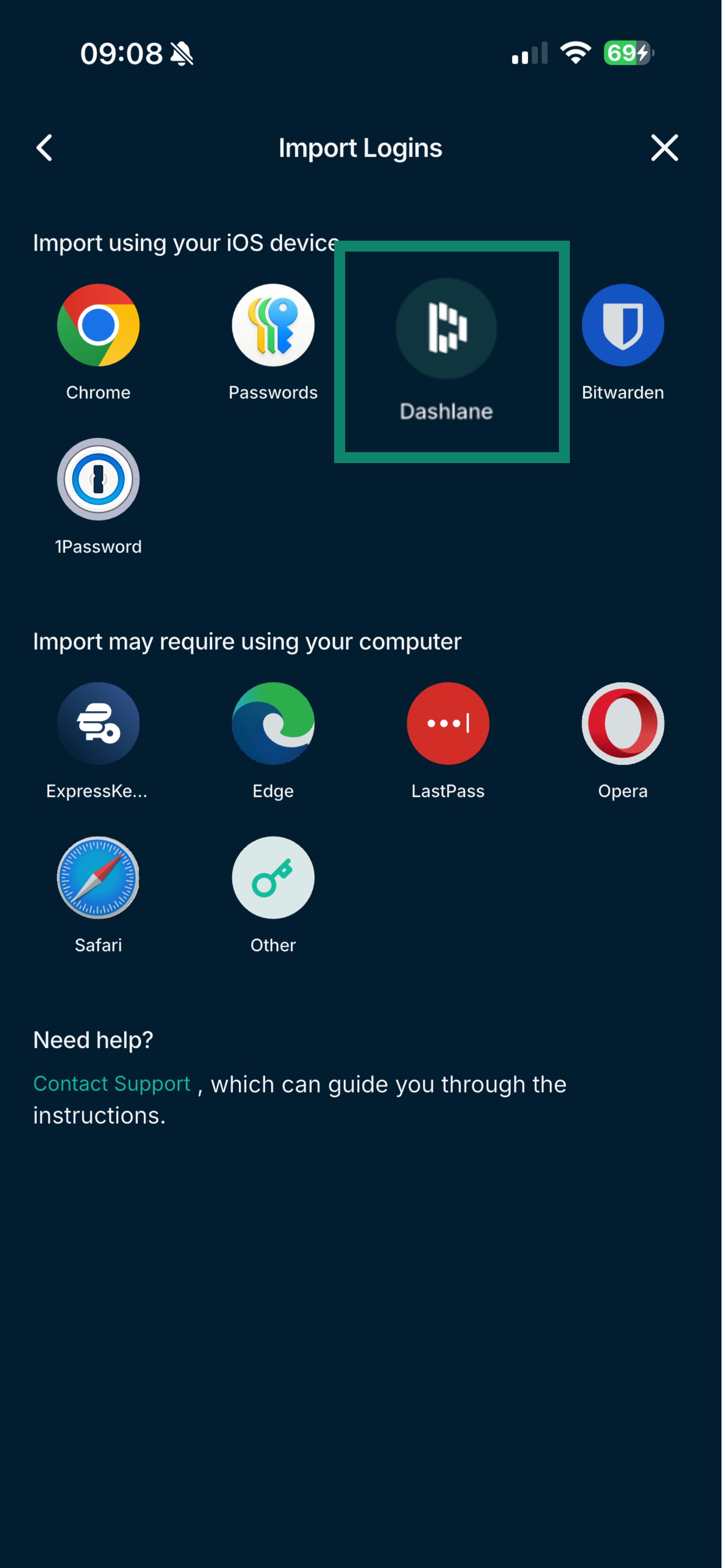
- Tap Dashlane > Open Dashlane.

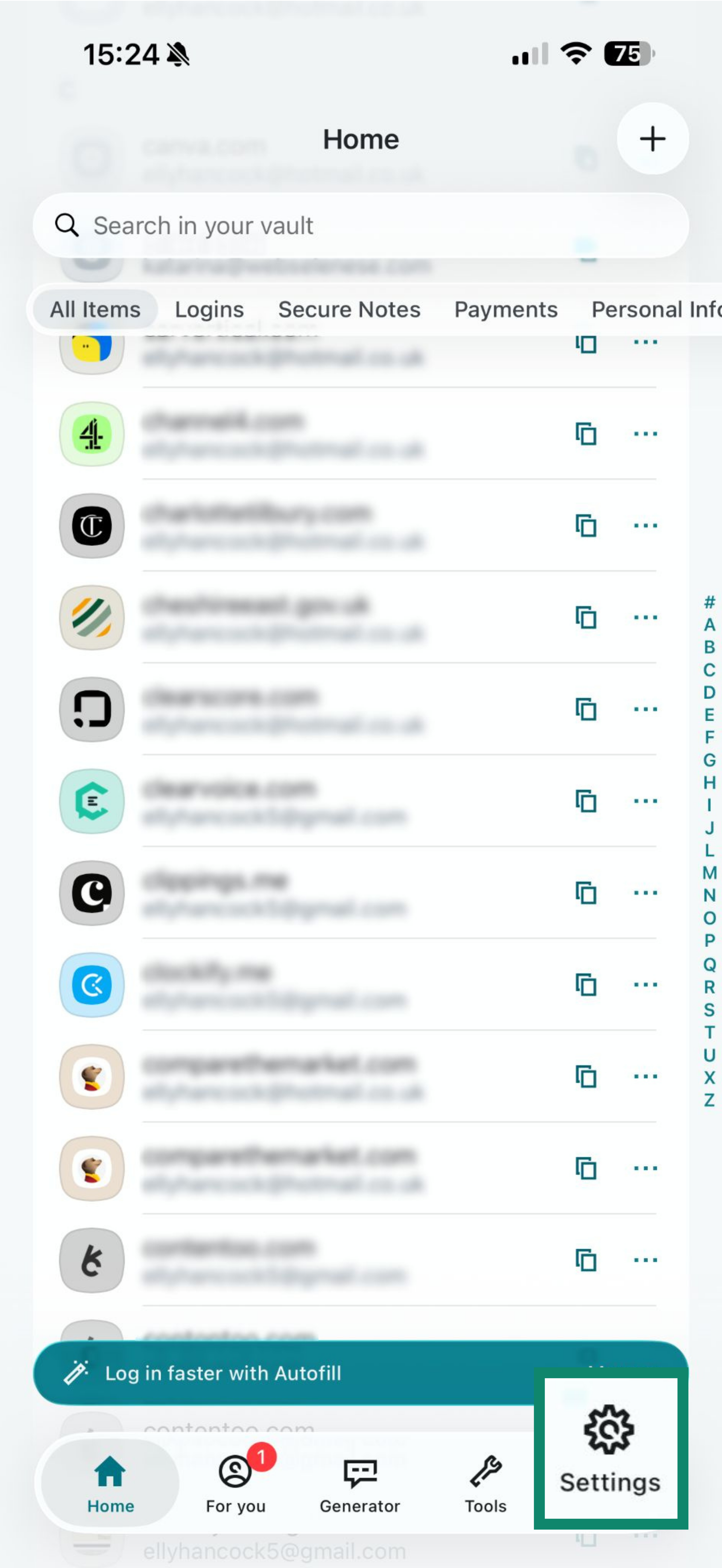
- Tap Settings.

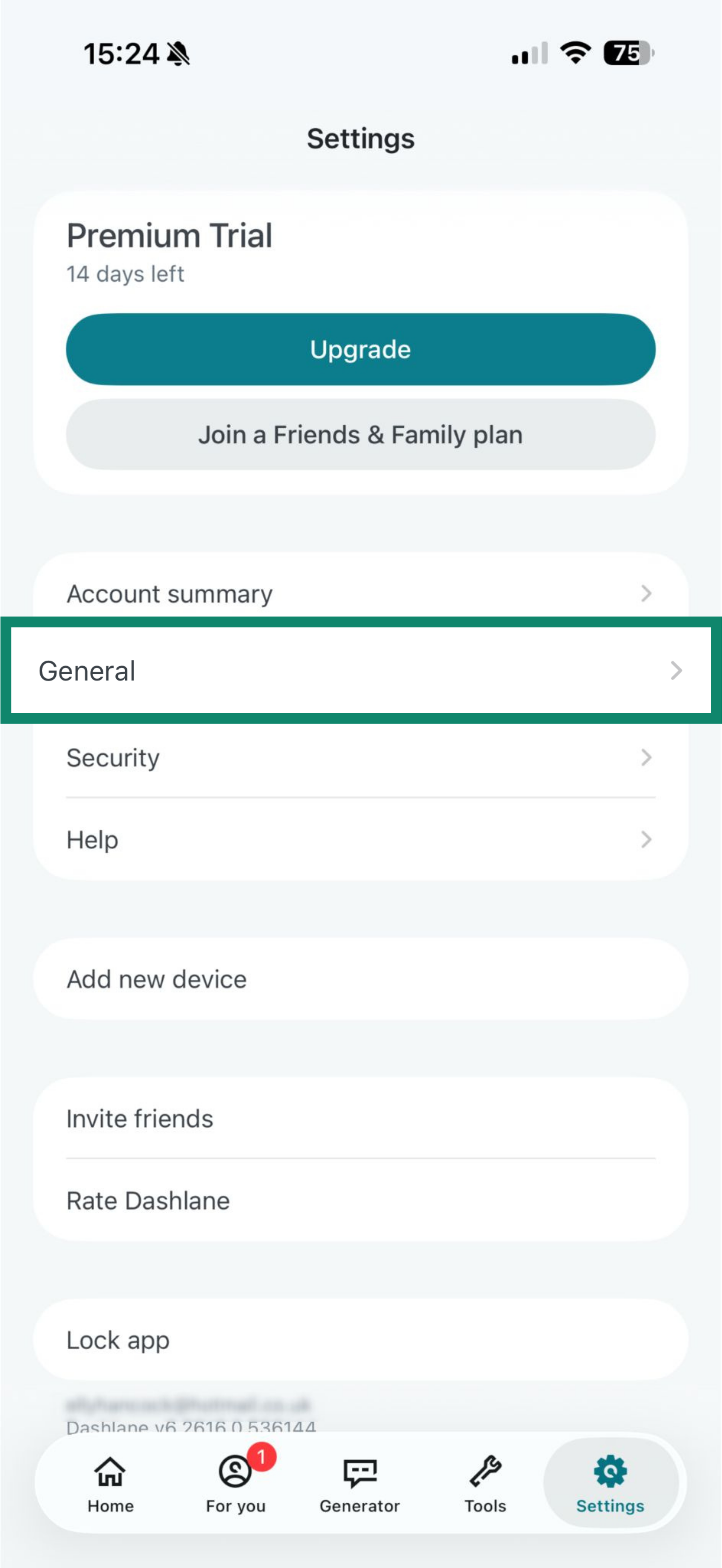
- Tap General.

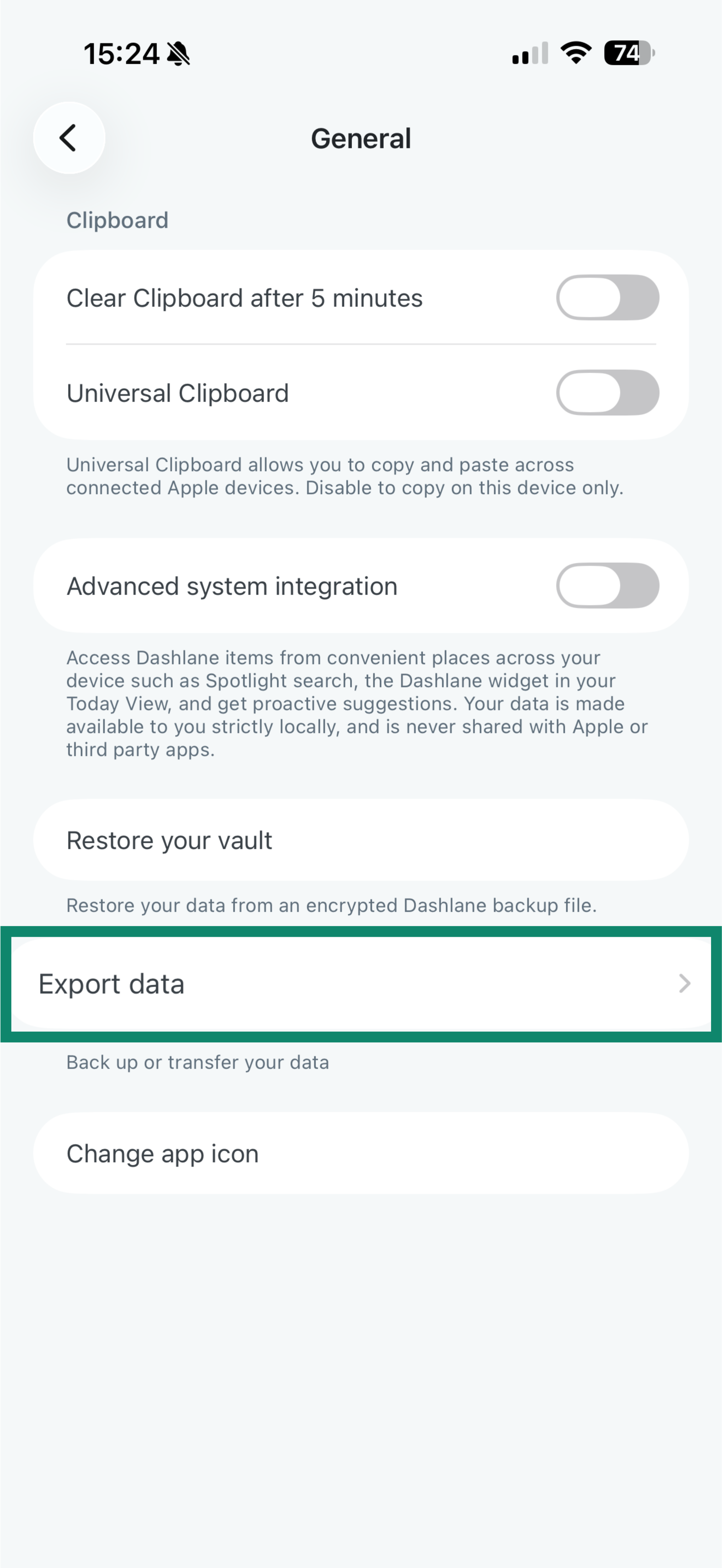
- Tap Export data.

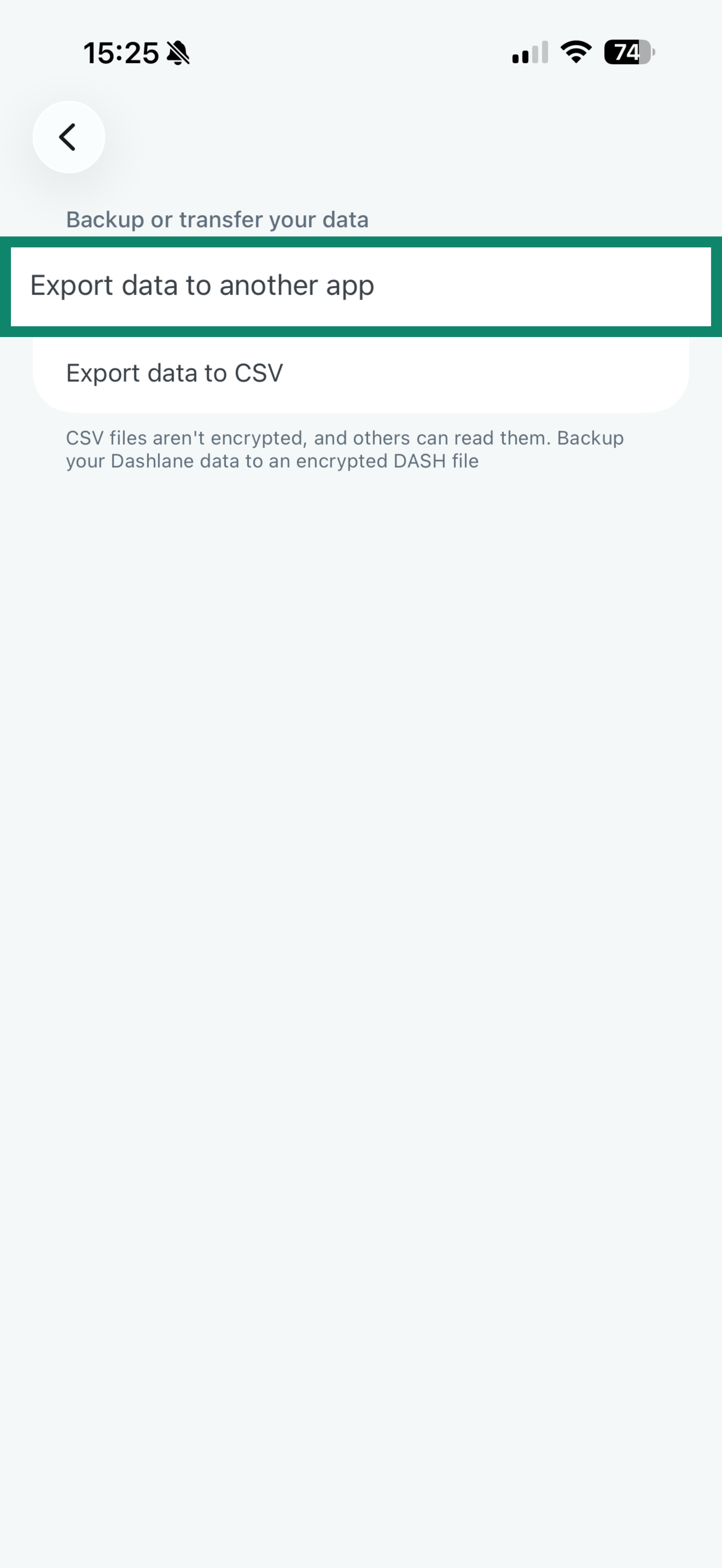
- Select Export data to another app.

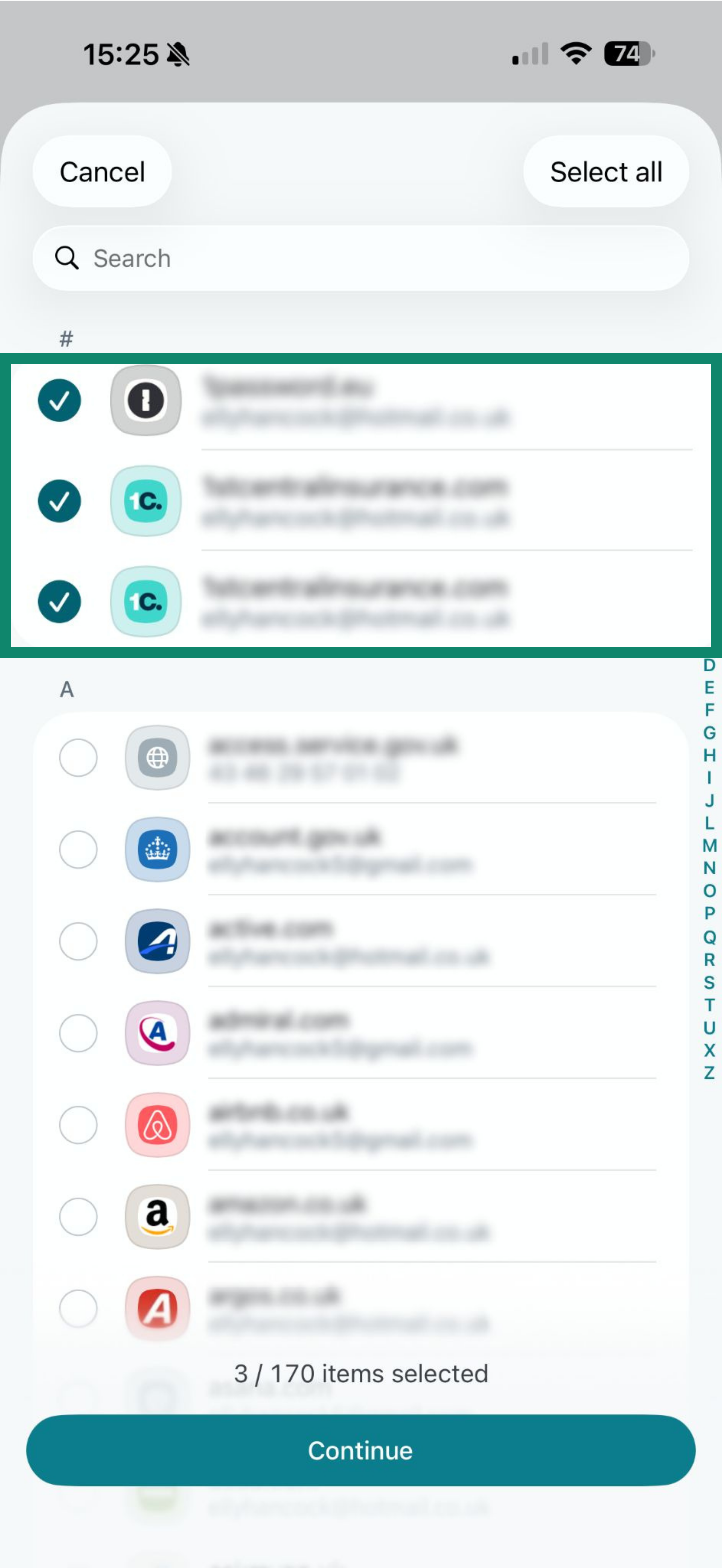
- Select the items you want to export, then tap Continue.

- Tap Continue.
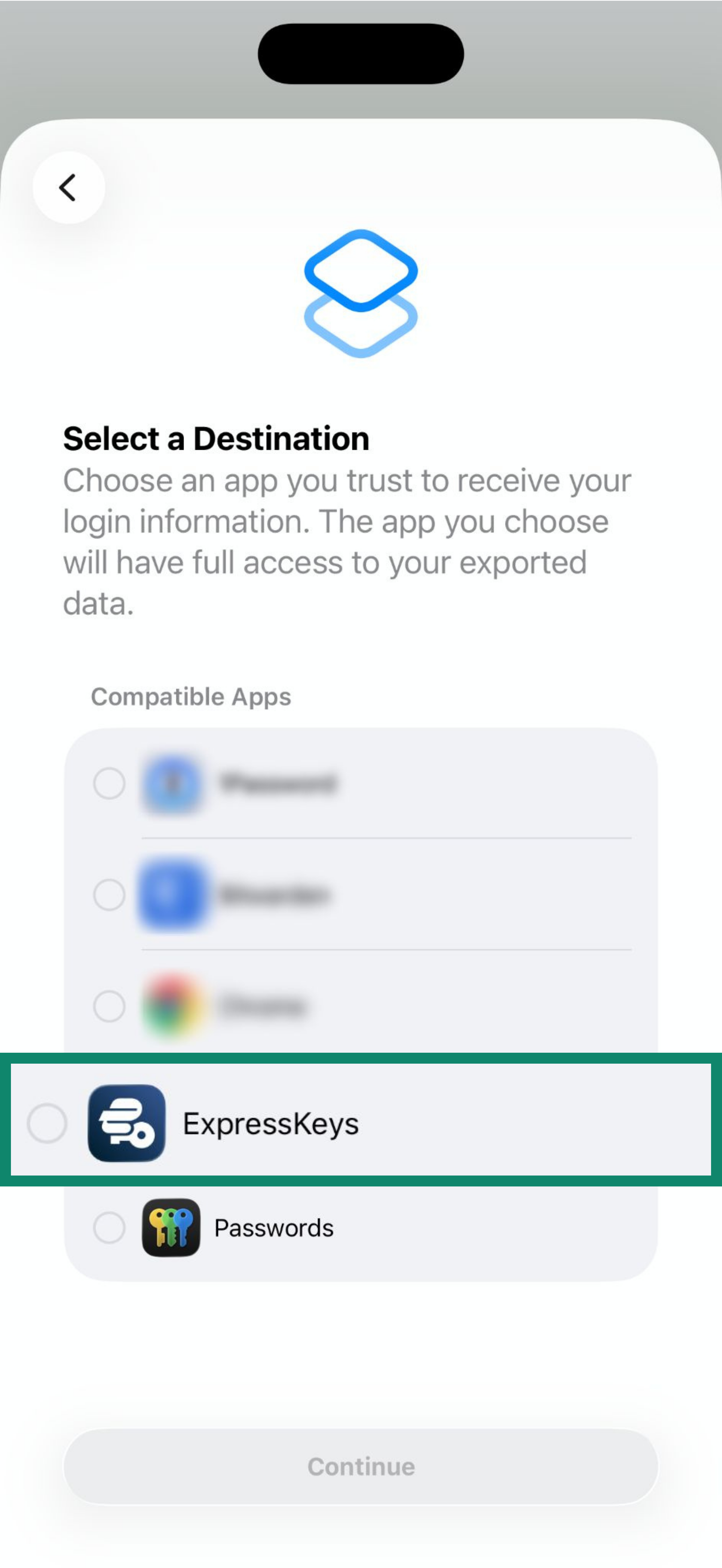
- Select ExpressKeys from the list, then tap Continue.

- Tap Continue in “ExpressKeys”.
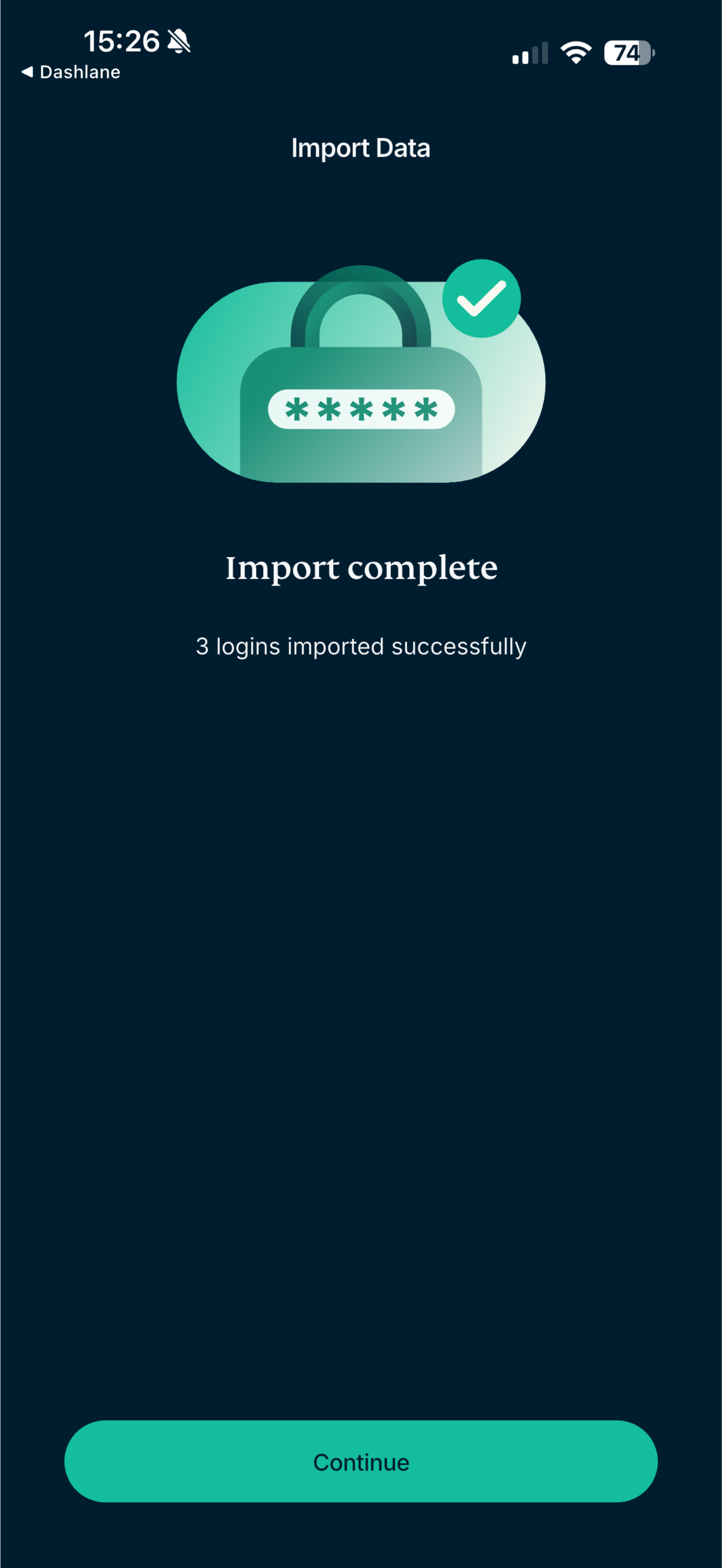
- Wait for the app to import your passwords, then tap Continue.

Need help? Contact the ExpressVPN Support Team for immediate assistance.
Import your Dashlane data using your Android device
Dashlane does not allow exporting data on Android. Follow the steps above to import your data using your computer.
Need help? Contact the ExpressVPN Support Team for immediate assistance.