



This guide will show you how to change or reset your ExpressKeys vault password. If you do not remember your vault password, you can reset it with your recovery code.
Jump to…
ExpressKeys Chrome extension
ExpressKeys for Android and iOS
ExpressKeys Chrome extension
- Install and set up the ExpressKeys Chrome extension.
- Open the ExpressKeys browser extension.


- Click Forgot Primary Password?


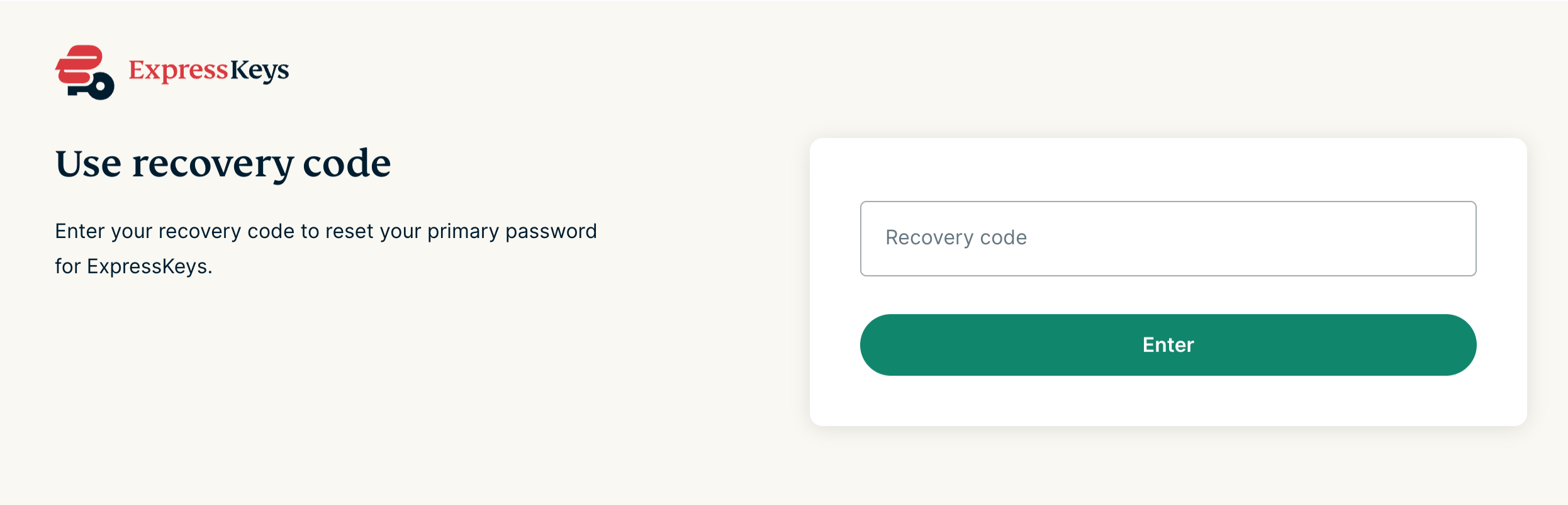
- Select Use Recovery Code.

- Enter the recovery code and select Enter.


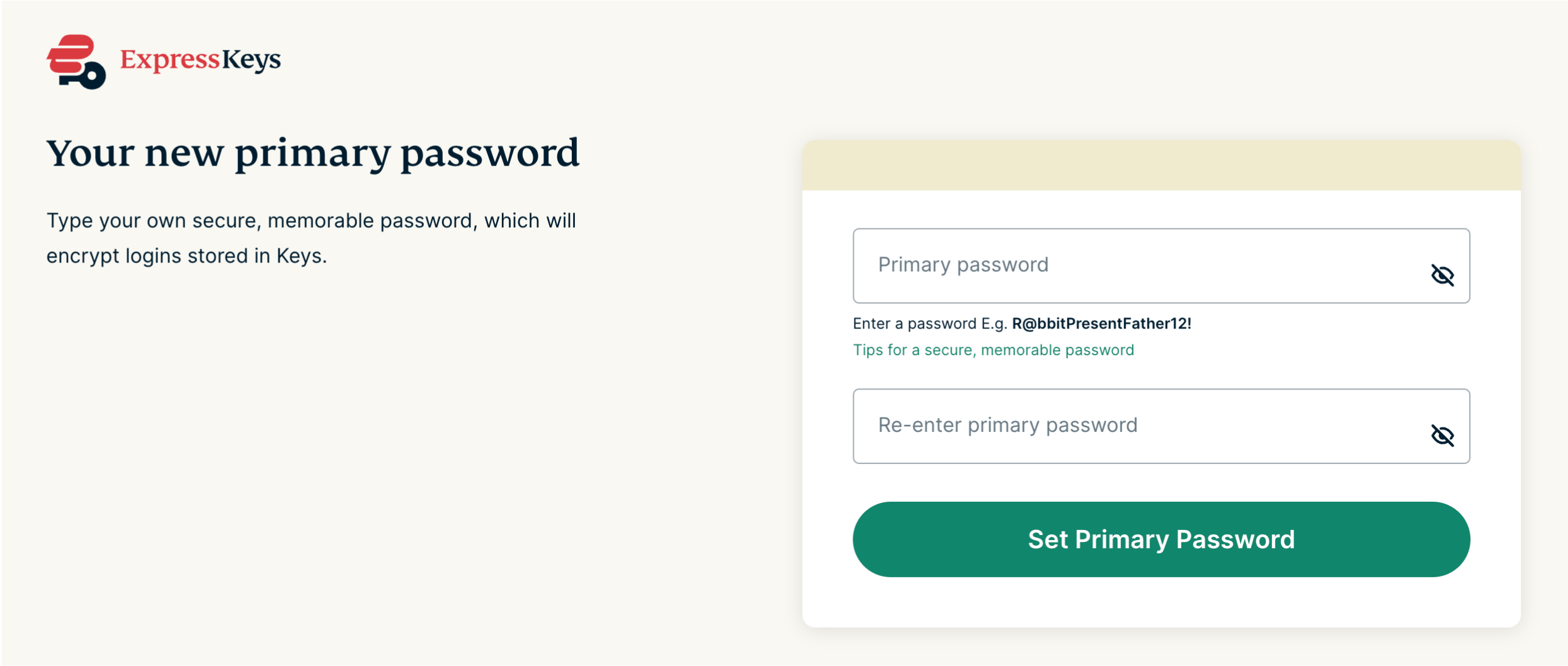
- Enter a new primary password twice and click Set Primary Password.


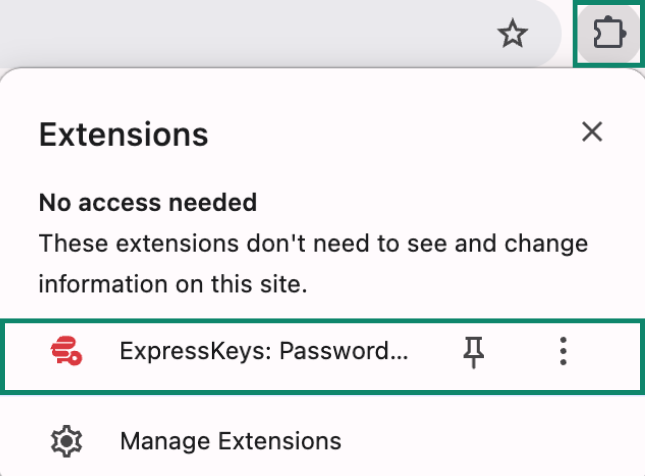


If the ExpressKeys Chrome extension is unlocked
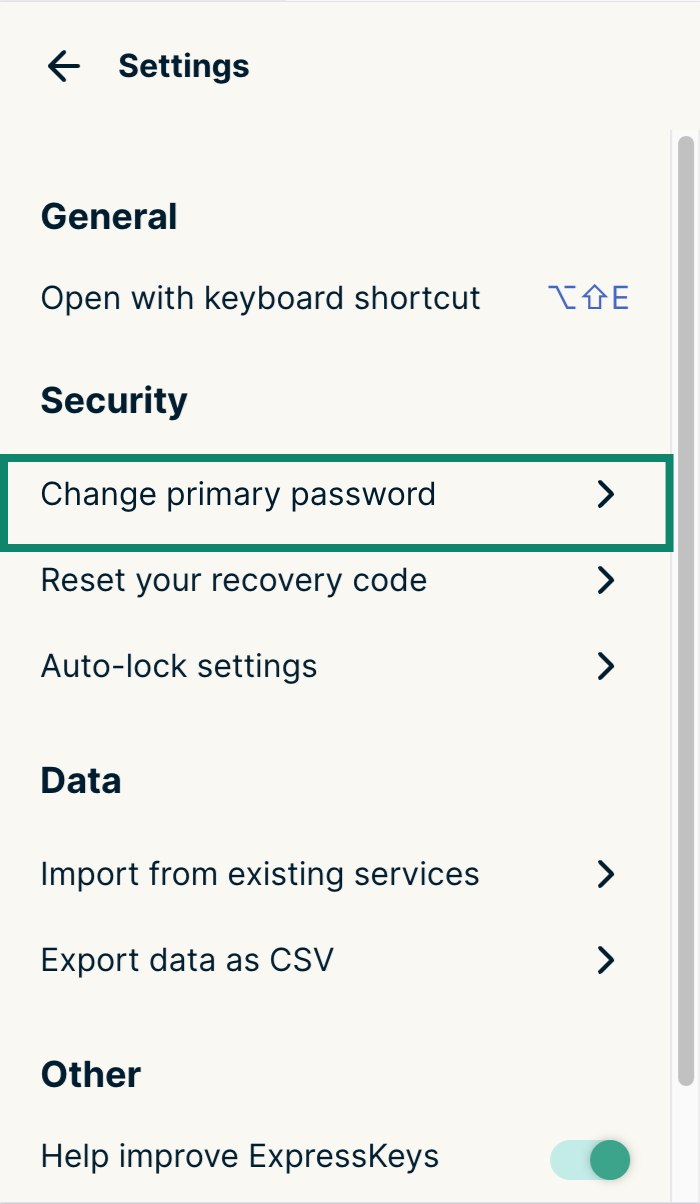
- Click the Options tab, then Settings.


- Select Change primary password.


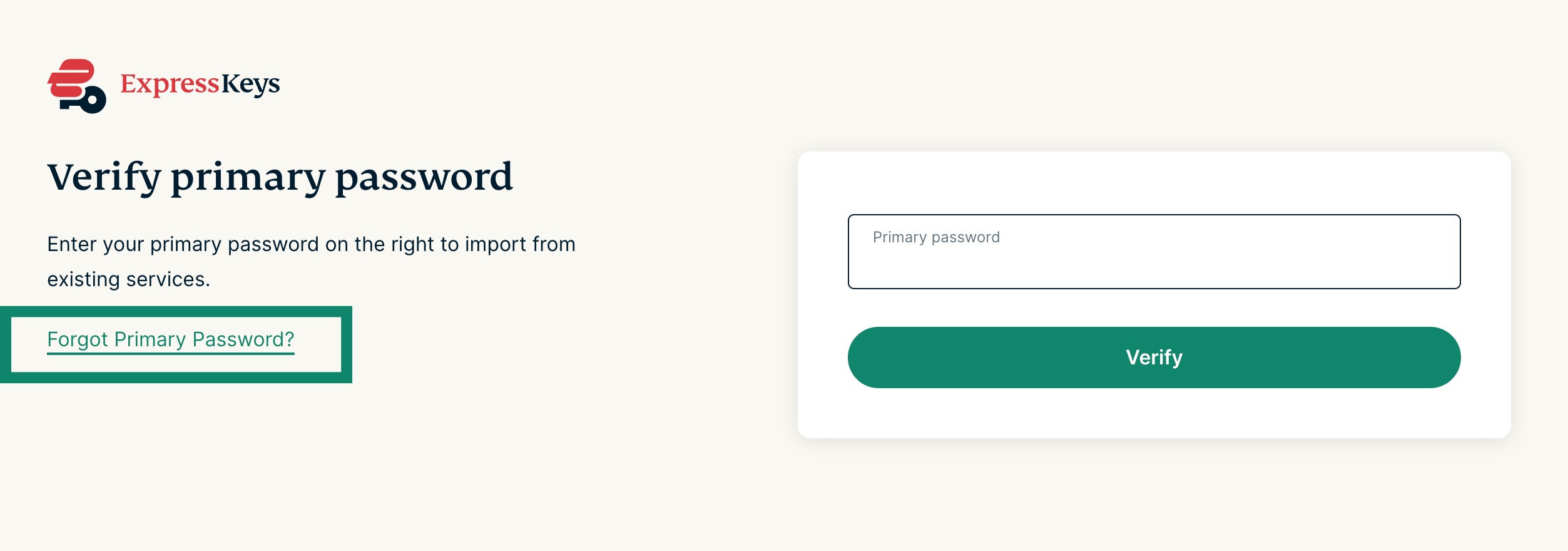
- Click Forgot Primary Password?


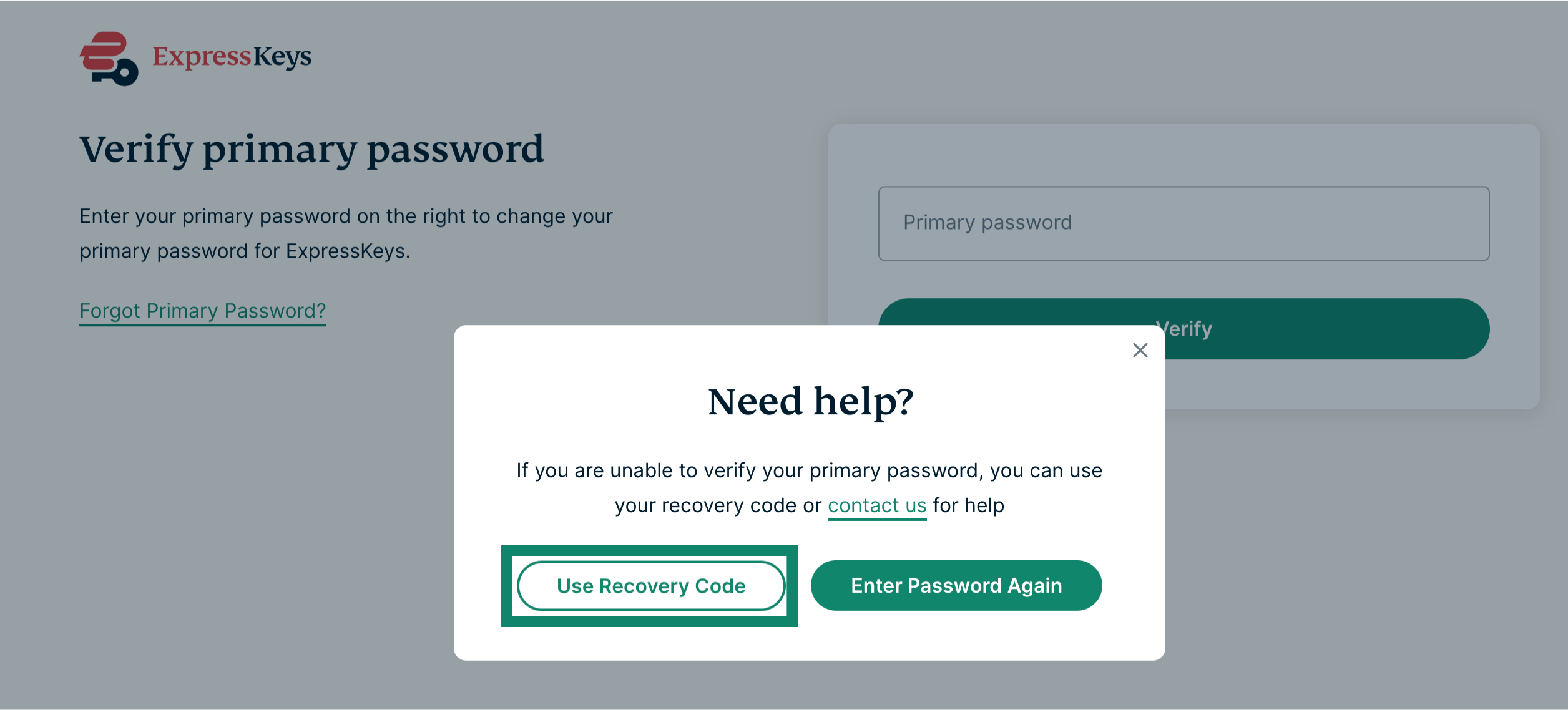
- Click Use Recovery Code and follow the instructions.


- Enter your recovery code and click Enter.


- Set your new password, re-enter it, and click Set Primary Password to confirm.


Need help? Contact the ExpressVPN Support Team for immediate assistance.
ExpressKeys app for Android or iOS
- Open the ExpressKeys app.
- Tap Forgot vault password?


- Select Use Recovery Code.

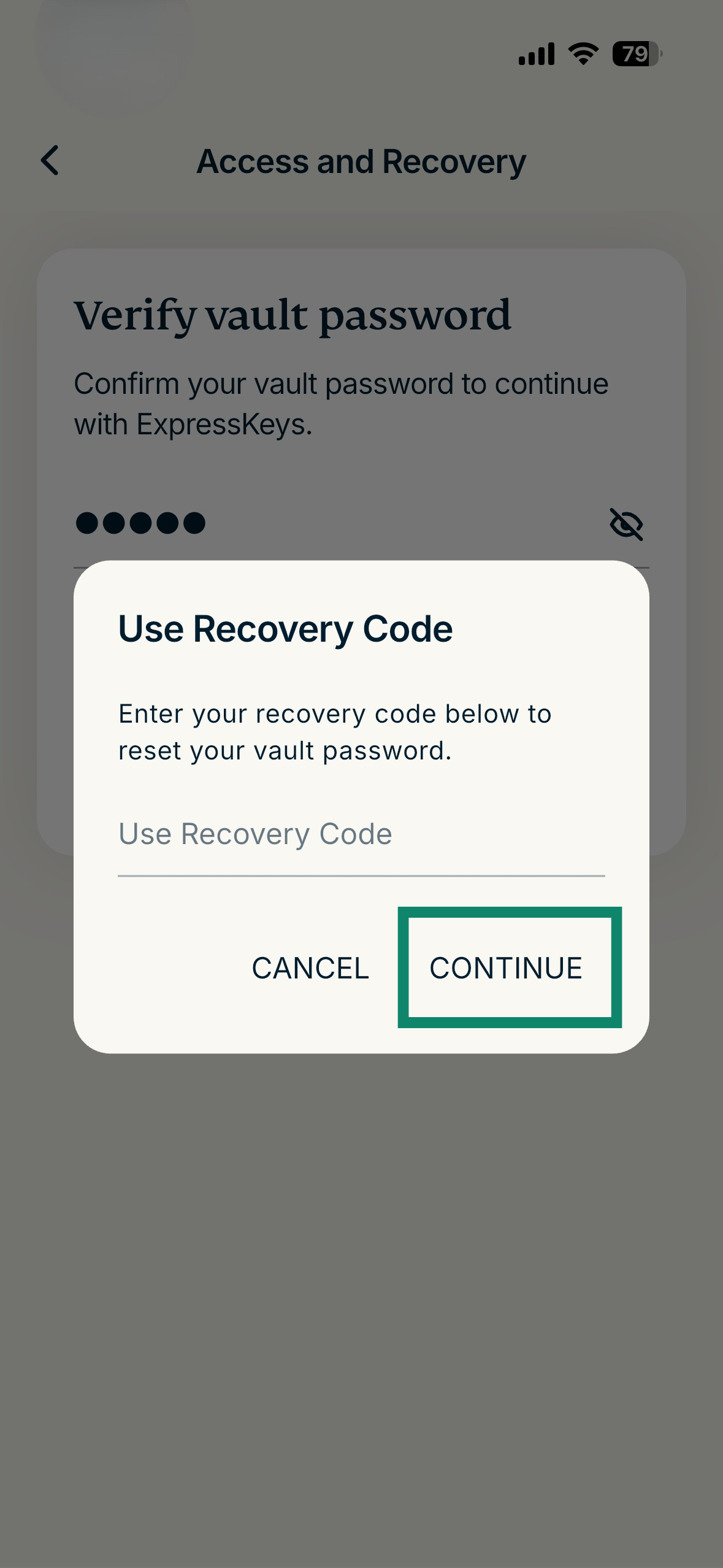
- Enter your recovery code and tap CONTINUE.

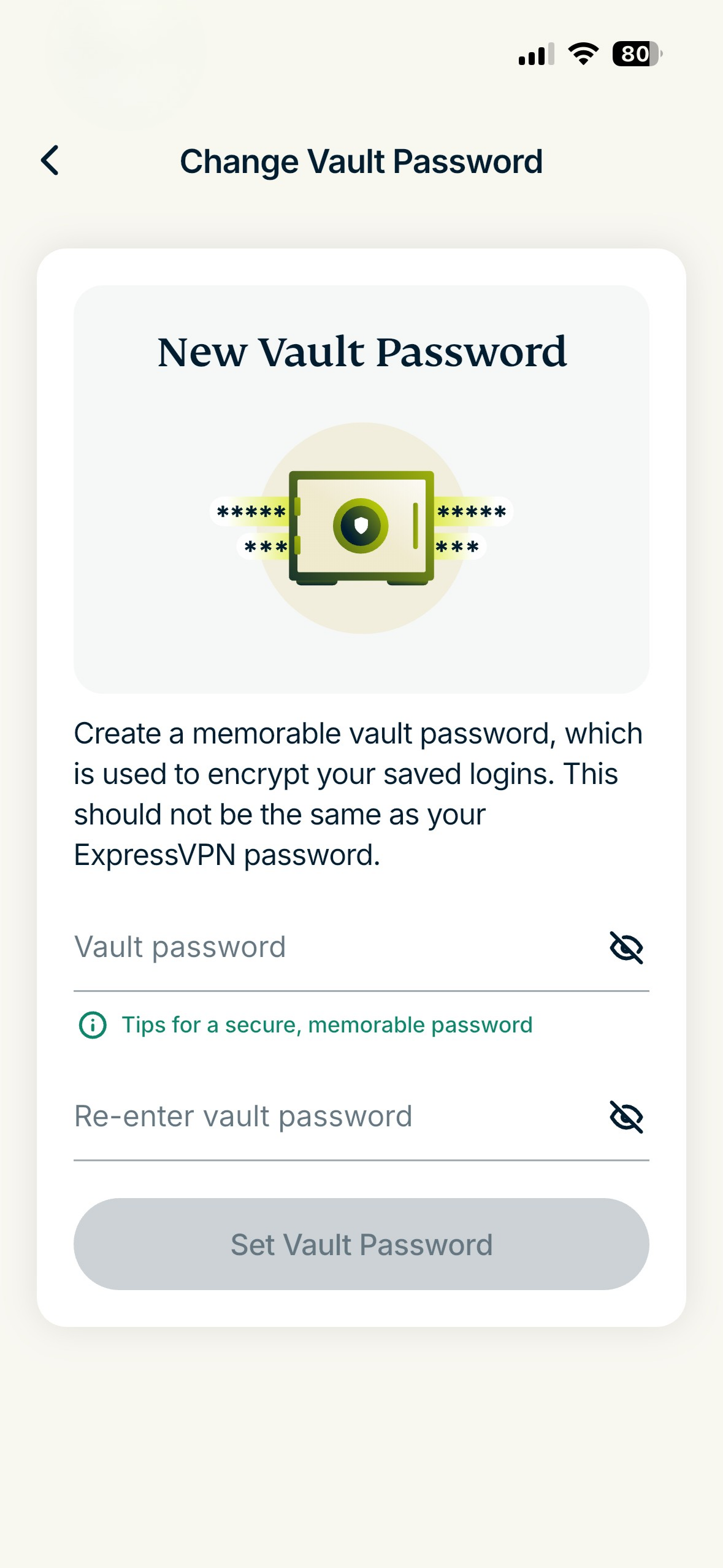
- You will then be prompted to set a new vault password for your account. Enter it twice and tap Set Vault Password.

- Next, you will be asked to reset your recovery code. This is optional.

- Once done, you will gain access to your ExpressKeys account.


If the ExpressKeys app is unlocked
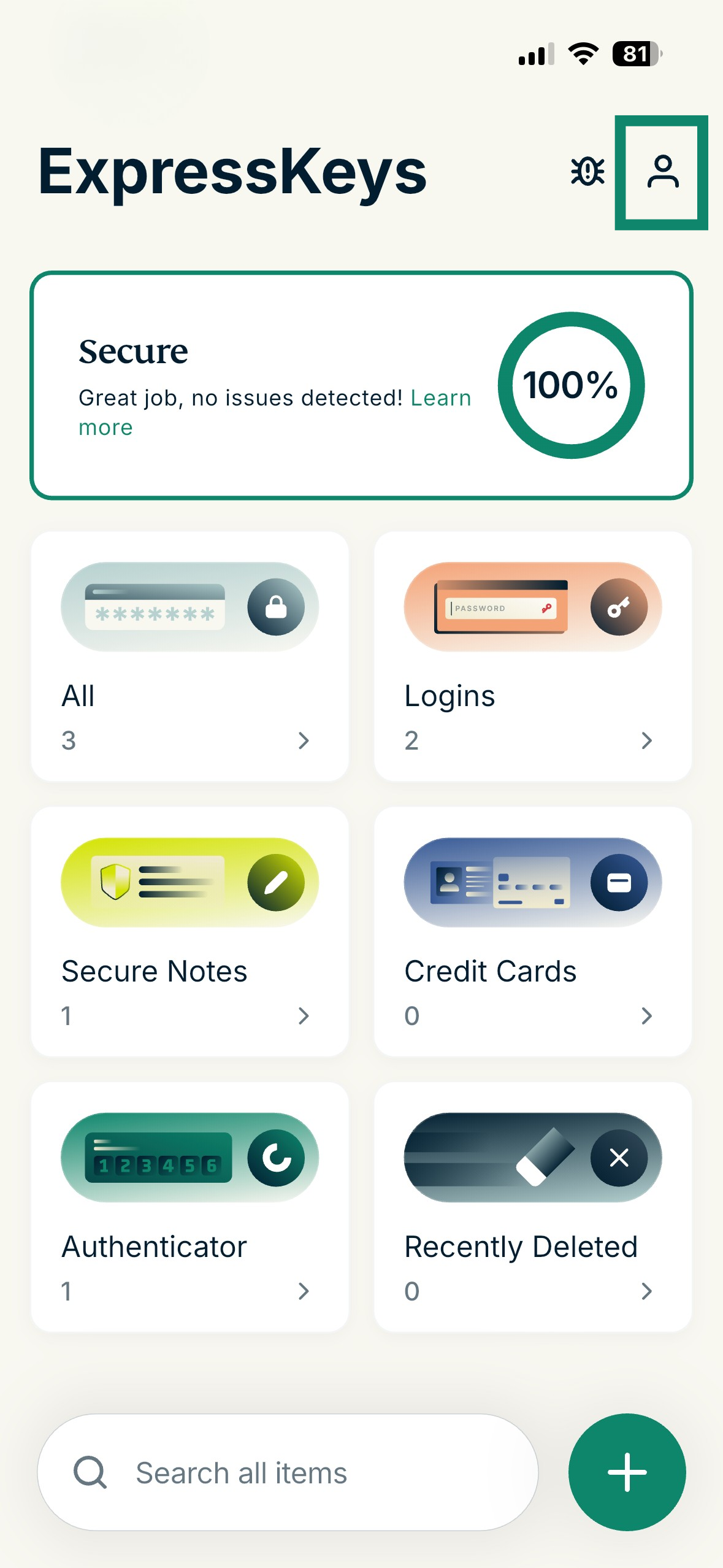
- In the app, tap

 .
.
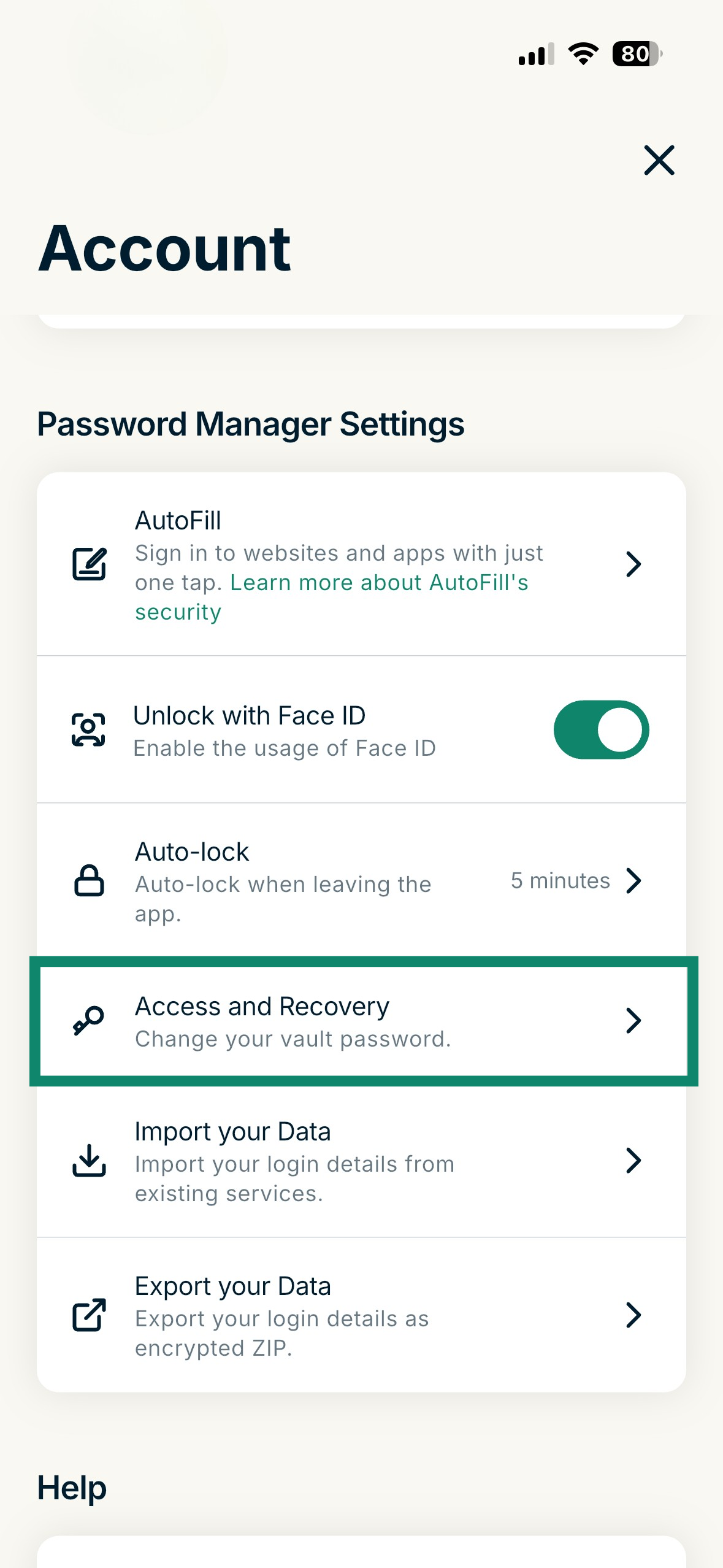
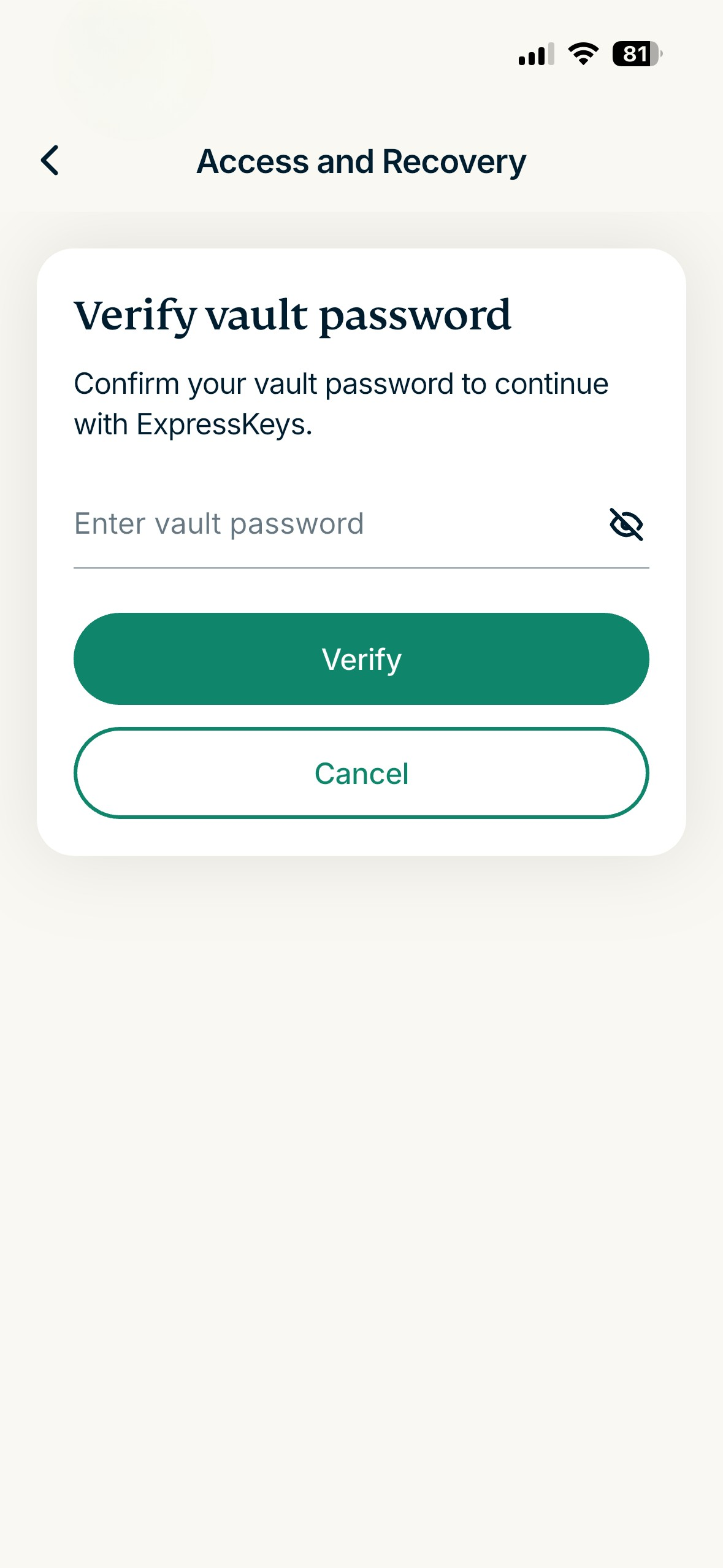
- Tap Access and Recovery.

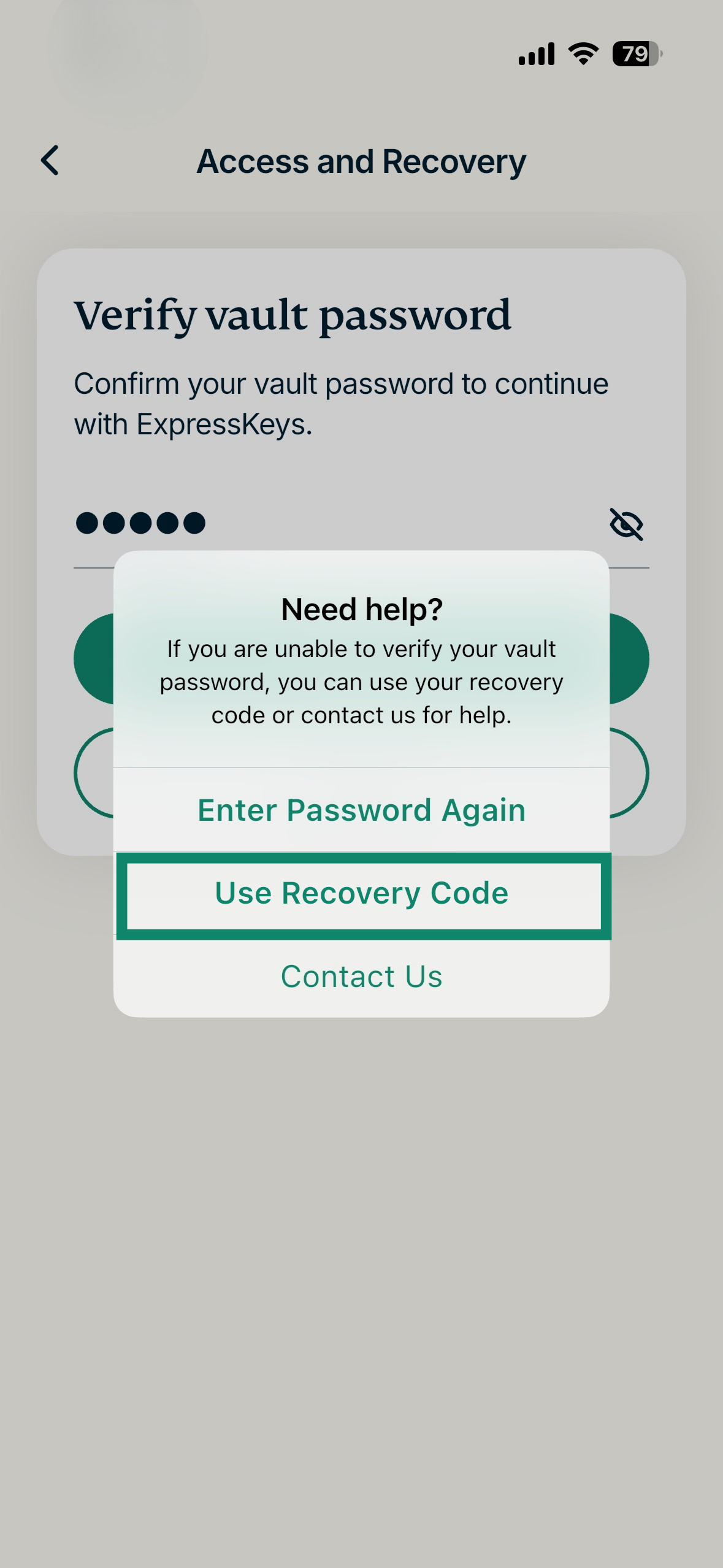
- Enter your password incorrectly and tap Verify.

- Tap Use Recovery Code.

- Enter your recovery code, then tap CONTINUE.

- Enter and re-enter a new vault password, then tap Set Vault Password.

Need help? Contact our Support Team for immediate assistance.