



This guide will show you how to add your own custom domains in ExpressMailGuard. This allows you to receive and send email from your own domain through the service.
Jump to…
Verifying ownership of the domain
Verifying records for sending emails from the domain
Can I add a domain if I’m already using it for email somewhere else?
Verifying ownership of the domain
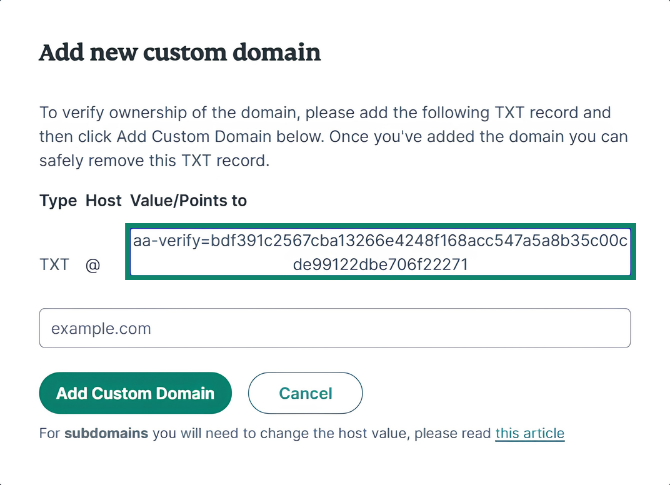
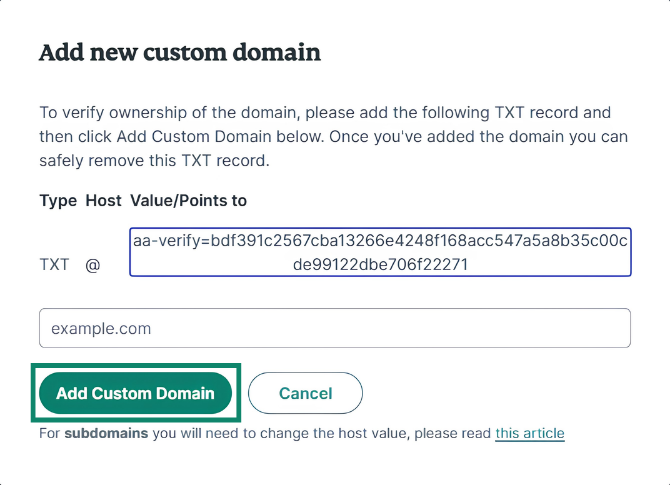
Before you can add your own domain you must add a DNS TXT record to prove that you have control over the domain.
The TXT record will look something like the below:
To verify your ownership and add your custom domain:
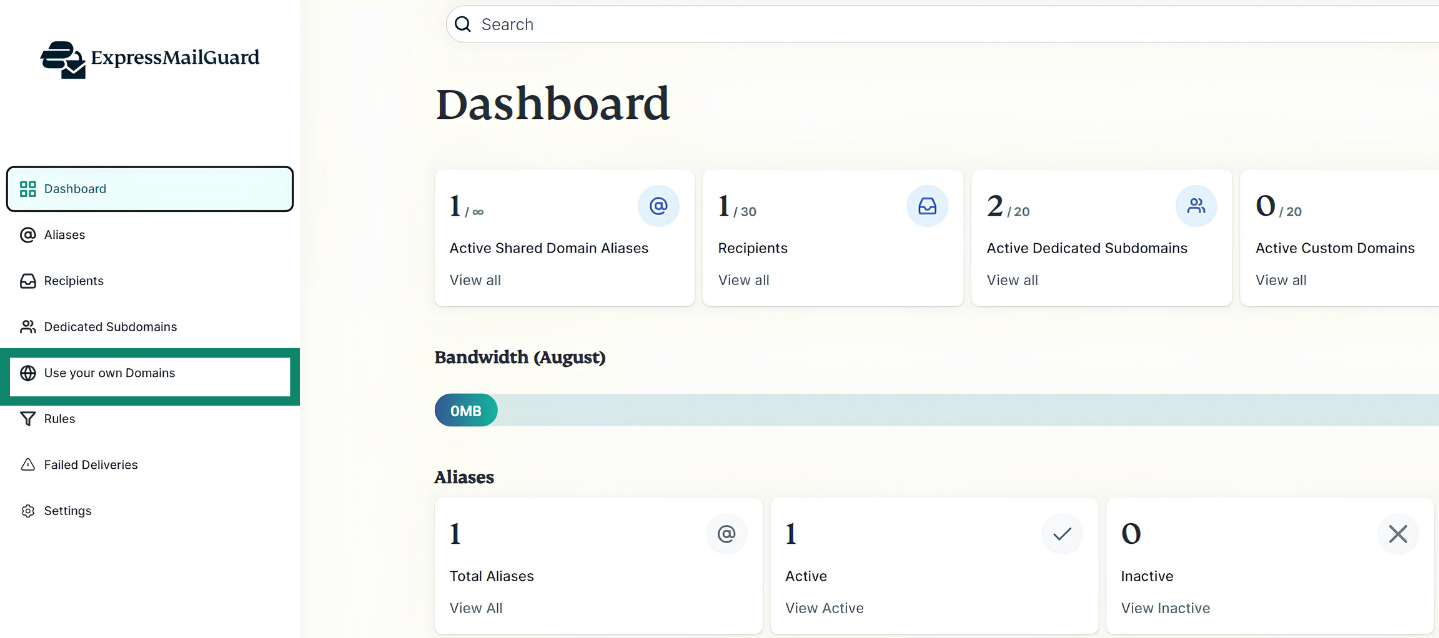
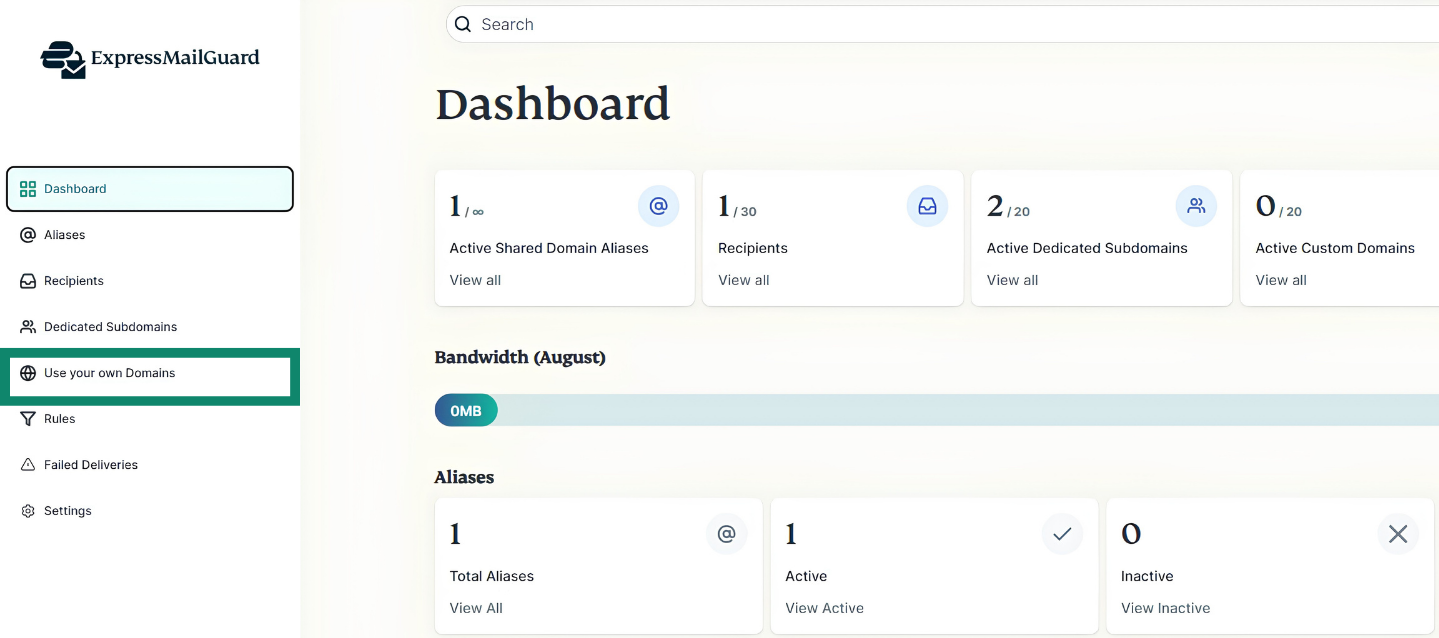
- From the ExpressMailGuard dashboard, click Use your own Domains.


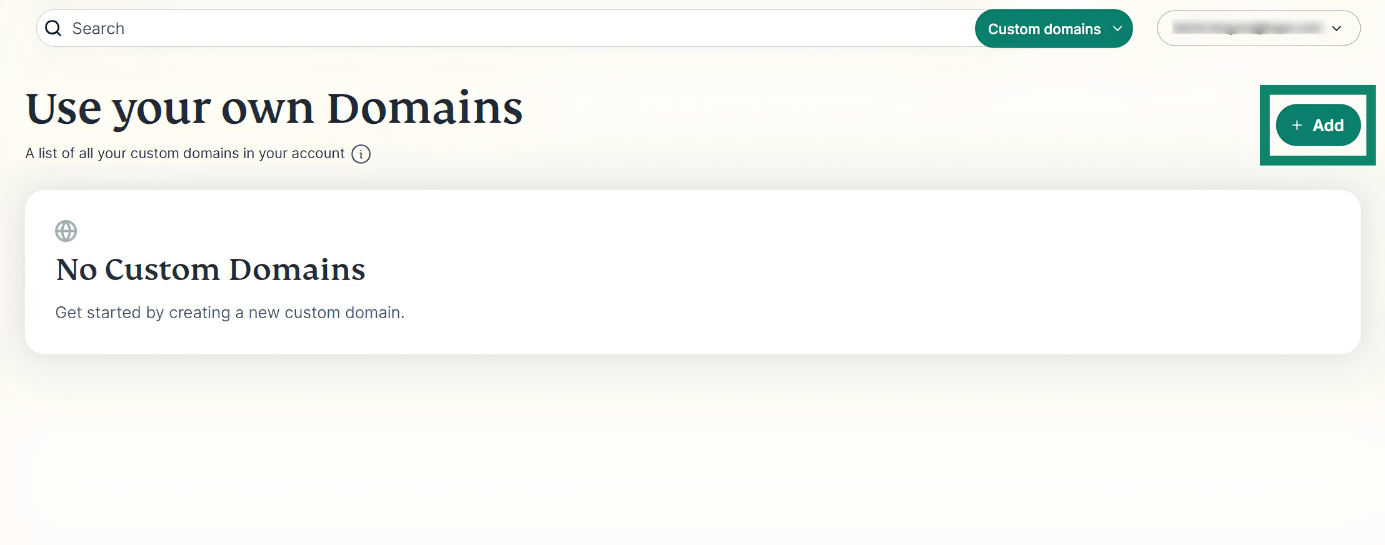
- Click + Add.


- Click the TXT record in the pop-up to copy it.


- Sign in to your domain registrar.
- Find the DNS settings, DNS zone editor, or domain management page.
- Select Add New Record or Add Entry and choose TXT as the record type.
- Paste the TXT record you copied in ExpressMailGuard.
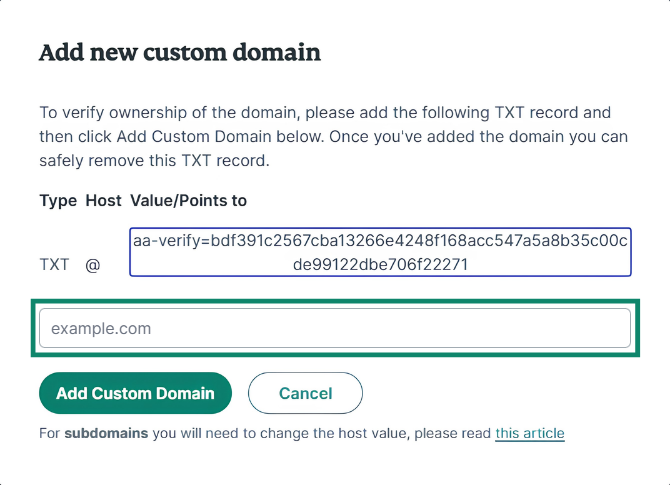
- Return to ExpressMailGuard and enter your domain name in the box marked example.com.

- Click Add Custom Domain.

Need help? Contact the ExpressVPN Support Team for immediate assistance.
Verifying records for sending emails from the domain
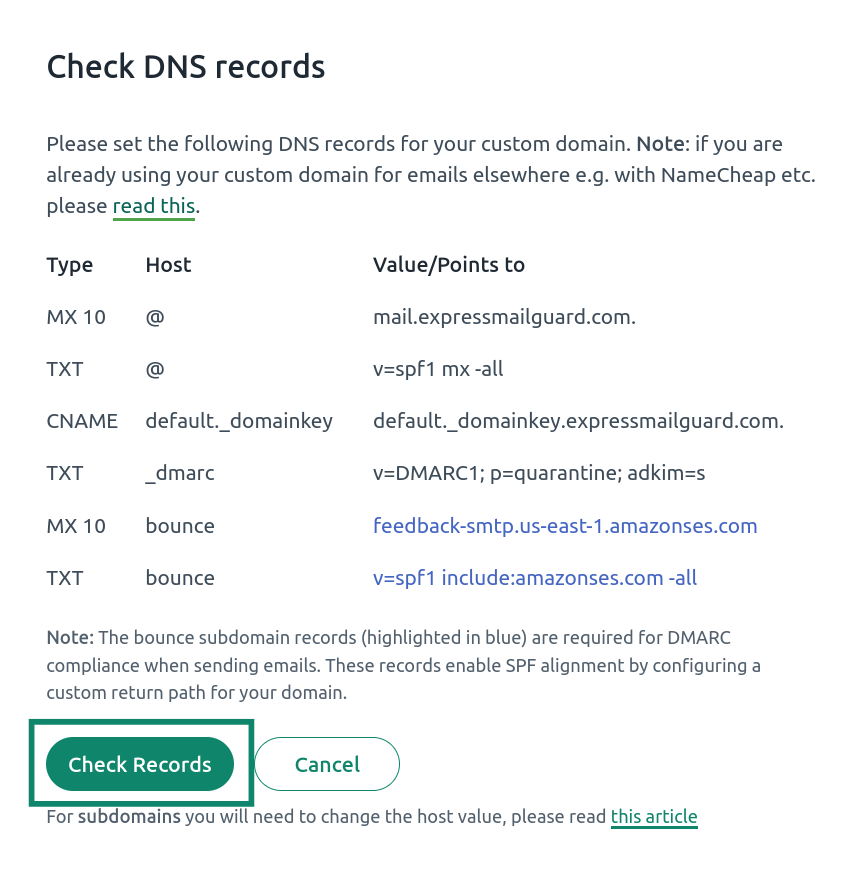
Now that the domain has been added, you will need to add some more records to get it set up correctly. To verify records:
- On the ExpressMailGuard dashboard, click Use your own Domains.

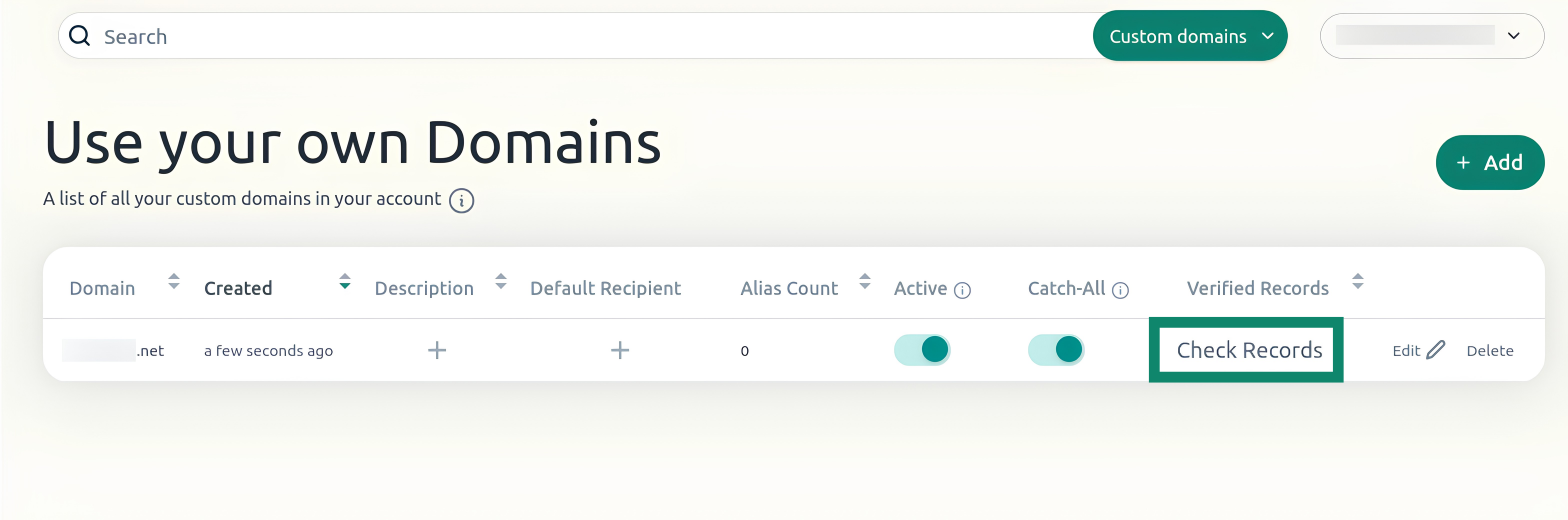
- Find the custom domain you want to verify and click Check Records under the Verified Records column.


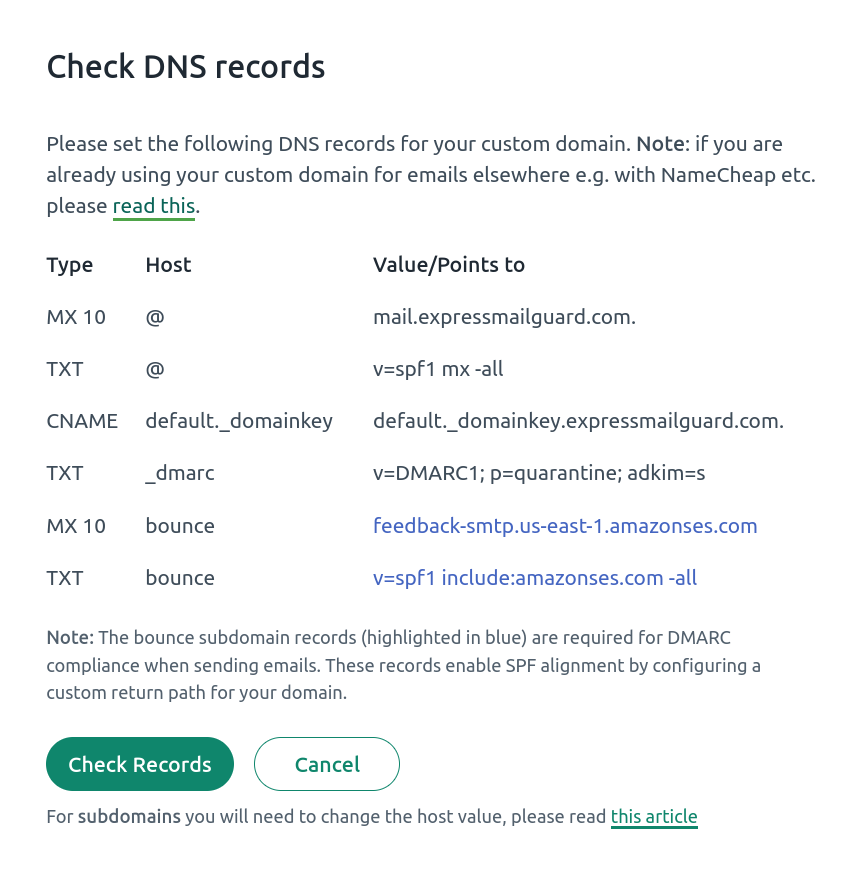
- Add the required records noted in the pop-up.
Note: If you do not intend to use your domain for replying or sending, then you only need to add the MX record.


- Click Check Records.

Note: If you are using Cloudflare to manage your DNS records, make sure the proxy status is turned OFF (orange cloud is turned grey) for all of the records.
Need help? Contact the ExpressVPN Support Team for immediate assistance.
Can I add a domain if I’m already using it for email somewhere else?
If you have a custom domain and are already using it for emails elsewhere, (e.g. Namecheap) you cannot also use it with ExpressMailGuard.
This is because emails cannot be handled by multiple different mail servers at the same time, even if they have the same priority MX records. It can only be delivered to one mail server at a time, which will typically be the MX record with the smallest number, since this has the highest priority.
You can either:
- Migrate your domain to ExpressMailGuard by removing the current provider’s MX records and adding ExpressMailGuard’s.
OR
- If you would like to keep using your domain with your current email provider, we recommend adding a subdomain of your custom domain to ExpressMailGuard (e.g. mail.example.com).
Note: Using a subdomain will not interfere with your current email setup, and you will be able to create aliases *@mail.example.com through ExpressMailGuard.
Need help? Contact the ExpressVPN Support Team for immediate assistance.